

Olive Tree Bible for Mac with MASSIVE Update 3 Years in the Making
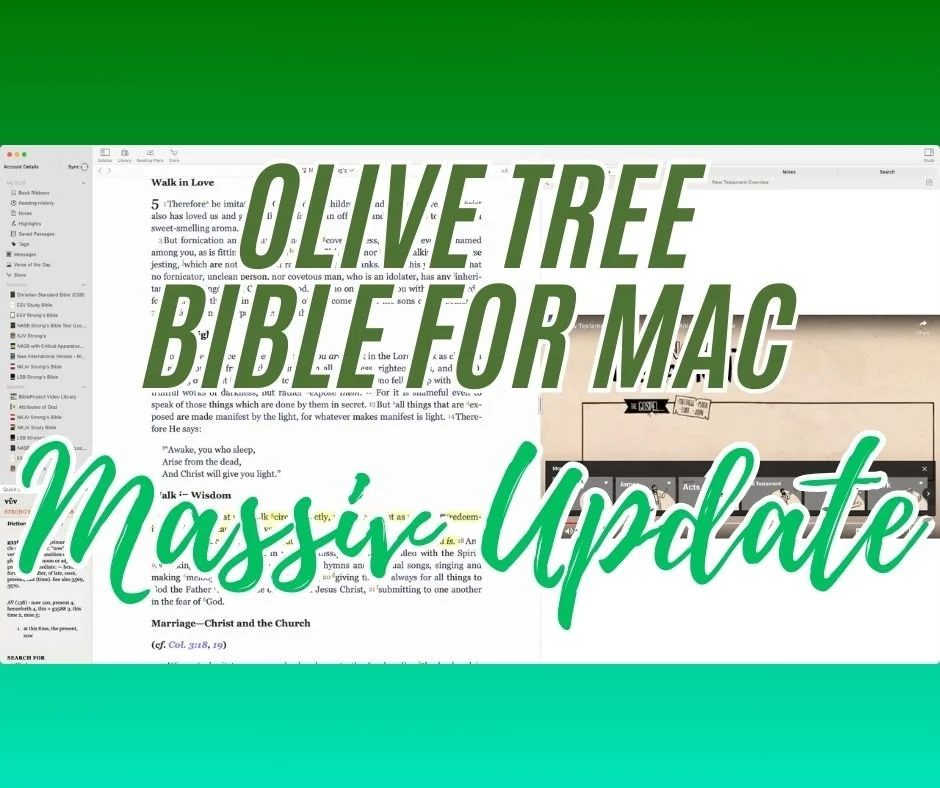
According to the Mac App Store page, the Olive Tree Bible app on the Mac desktop has received a "MASSIVE update three years in the making."
The jump to version 7.16 brings the iOS mobile app and the Mac app together with a similar look and feel. The app on Mac and iOS always looked similar. However, Olive Tree updated the Mac version to behave like what you'd see on an iPad. Here's what's new.
Audiobook Access on Olive Tree Mac Desktop

Open your Library (#1) and then click on the filter dropdown list (#2) to select Audio (#3).
Your library provides access to audiobooks and other audio features. Open the Library from the button in the toolbar. Click on Add Filter and choose Audio. Your audiobooks will appear there. Open one and start listening. The controls let you jump to parts of the book.
The above steps also work on your iPad and iPhone. If you want, you can click the minimize button in the audio player and the player will show in your sidebar.
Access Video from the Resource Guide
When you open your Resource Guide, you may find video content. Scroll down till you see the Videos section of the guide. Click to open a video and it will play in the guide. You can also pop the video out using the button int he upper right corner of the player.
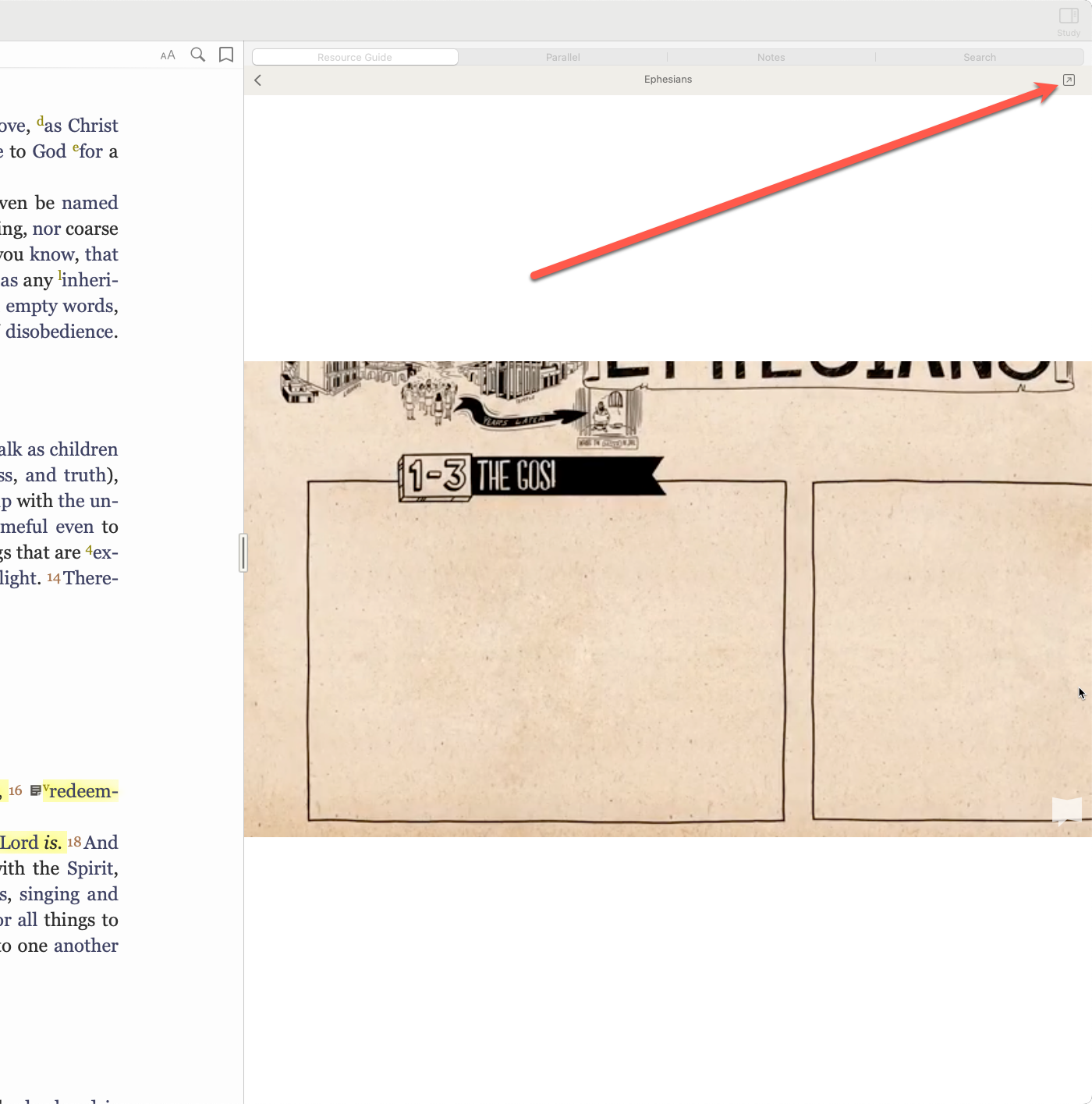
When you pop open the video player, you can jump to YouTube if the video comes from YouTube. Additionally, you can maximize a video. If you're playing it for your small group, you can see the full-screen video.
Other Changes in Olive Tree
The Message Center, which should probably be called the ad section, also appears now. It's in the left sidebar. The app also offers an improved Store and Shopping experience.
The Quick Details section from the lower left corner looks and acts just like the mobile app.
The Resource Guide gets some speed improvements. Everything will scroll faster, especially if you have a slightly older Mac.
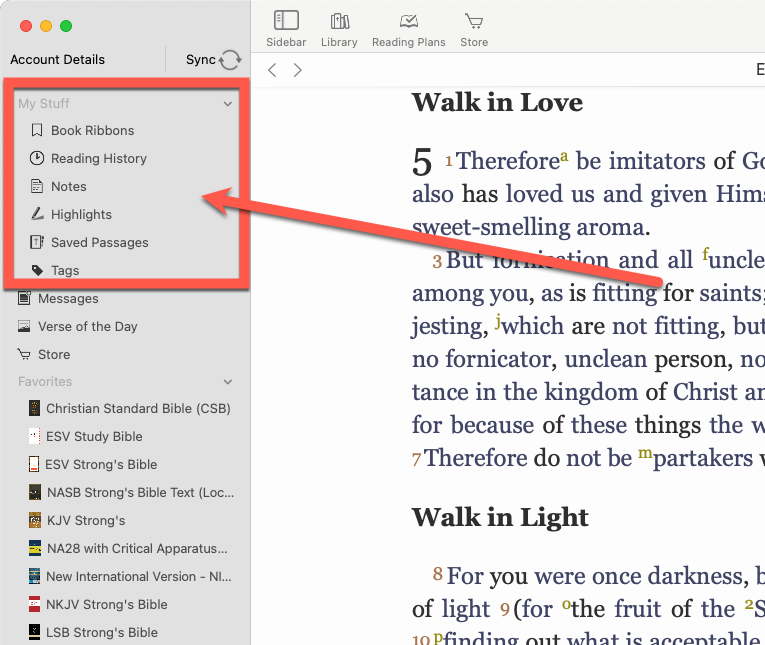
The My Stuff section shows up in the left Side Bar towards the top, as seen above.