

Clicking and Dragging in Logos - a Logos Quick Tip
Use clicking and dragging in Logos for a quick way to open and move things around. This will save you time and help you organize your user interface in Logos. Use this Quick Tip to boost your digital Bible study skills with Logos to the next level.
What is a Logos Quick Tip? A quick tip enables users to improve their Logos Bible Software skills and save time. They're quick because these tips are easy to learn and master.
Clicking and Dragging to Organize Logos Layouts
Open Logos on your desktop or laptop computer. We can't do this on a mobile device yet. The Web App only lets users move books around by clicking and dragging in Logos. Now that the iPad works more like a traditional computer operating system, Logos should and dragging windows..
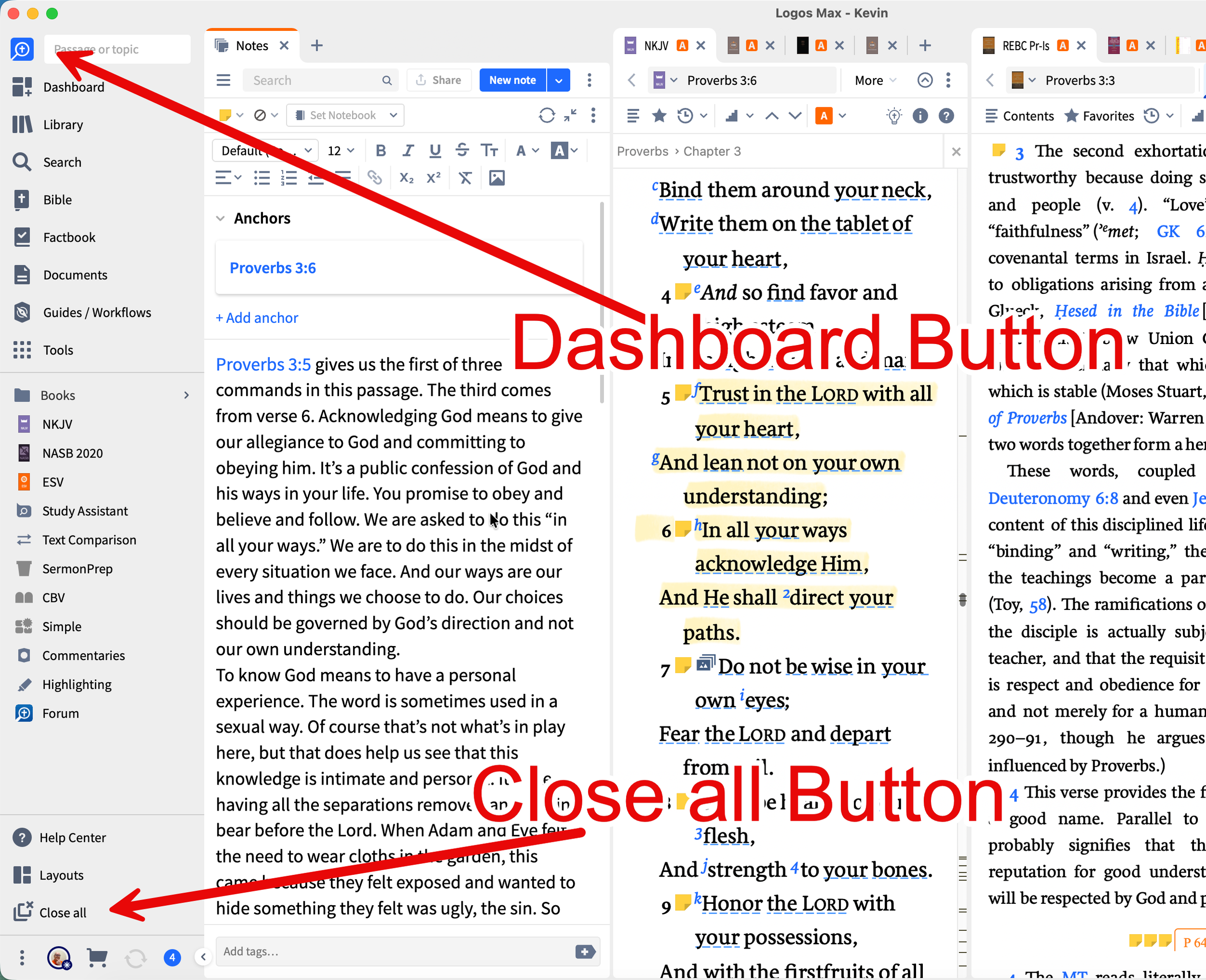
We'll start with a blank screen. You don't have to, but it might help you learn how to master clicking and dragging in Logos. In the lower left corner, there's a Close all button that closes all of your windows. If you see the Dashboard, you can click the Dashboard button in the upper left corner to close it and display a blank screen in Logos.
Move Your Toolbar to the Top or Left in Logos
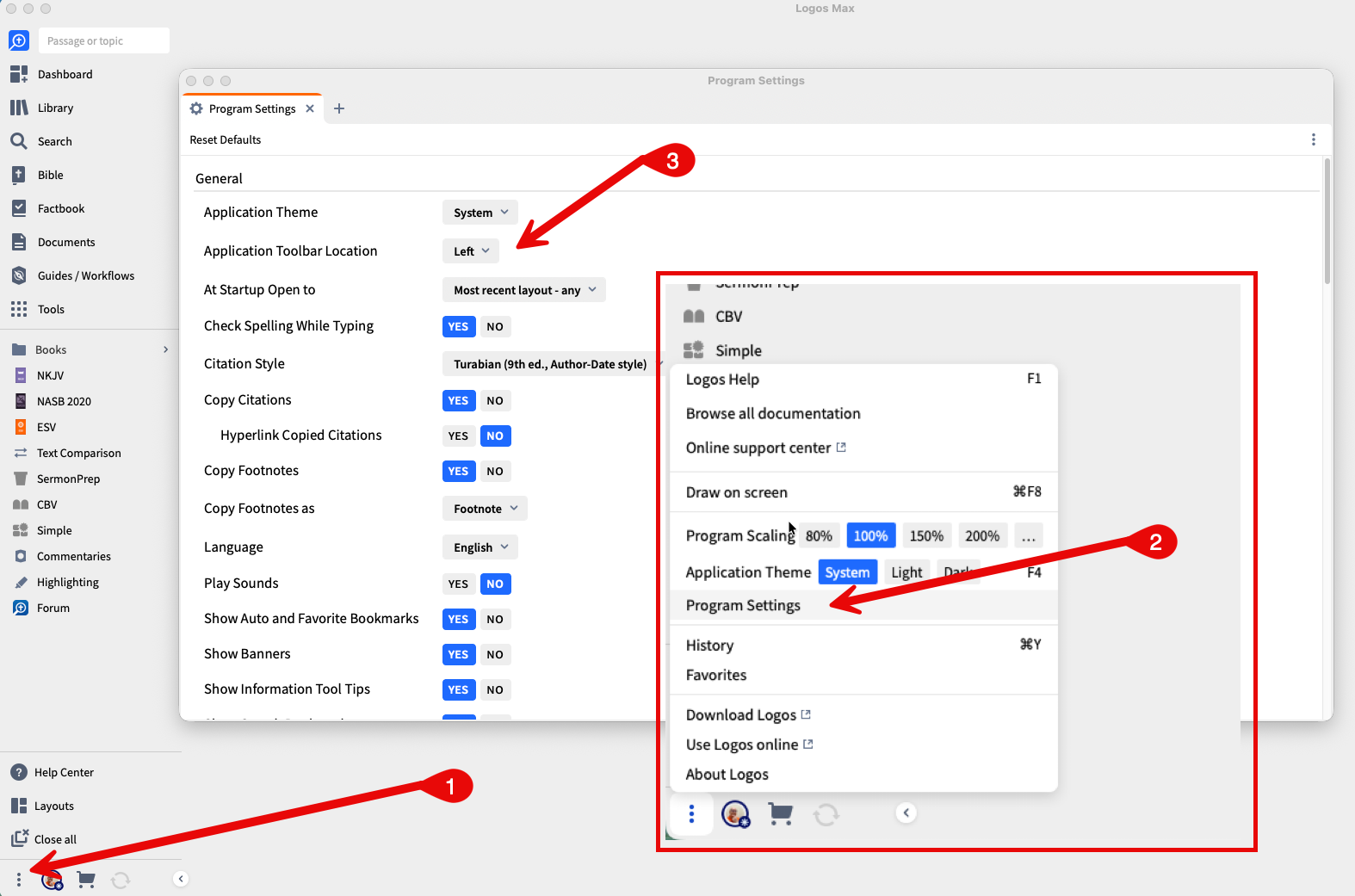
Ppen the Program Settings to change the toolbar from top to left or vice cersa.
By default, the toolbar sits on the left side of the screen. You can change that by opening the Program Settings. Click the Menu button in the lower left corner (by default, it looks like three vertical dots). Click Program Settings from the menu that appears. You will then see the Program Settings window. Click on the drop-down list next to Application Toolbar Location and choose Left or Top to move it.
Clicking and Dragging in Logos to Open Tools or Books from the Toolbar
Almost every button on your toolbar will let you drag it to open it in the main Logos window. For example, clicking and dragging in Logos can open the Library. If you click once, it opens a fly-out window. However, sometimes you want to interact with the Library to sort, search for, or filter books in your list.
Here's how clicking and dragging in Logos works. Click and hold down your mouse or trackpad button on the Library button. Then drag it to the left. This action will put the window on the left side of the Logos window. Drag to the right to put it on the right side. Drag to the center to fill the whole Logos Window.
Click and Drag Books Into Tabs in Open Windows or Their Own Window
Since you now see the Library window, you can find a book to open. For example, let's open the ESV Bible. You can search for it in the search box at the top of the Library Window. Alternatively, scroll through the list of books until you find it. In the toolbar of the Library window. you'll see a button third from the right that drops down and lets you change how you see your list of books. You can show books in three ways...
Cover View - shows a grid of book covers
Title View - shows smaller book covers in a vertical list with the title, author, rating, and other info.
Details View - shows even smaller book covers with type of book, title, and more details in a spreadsheet-style list.
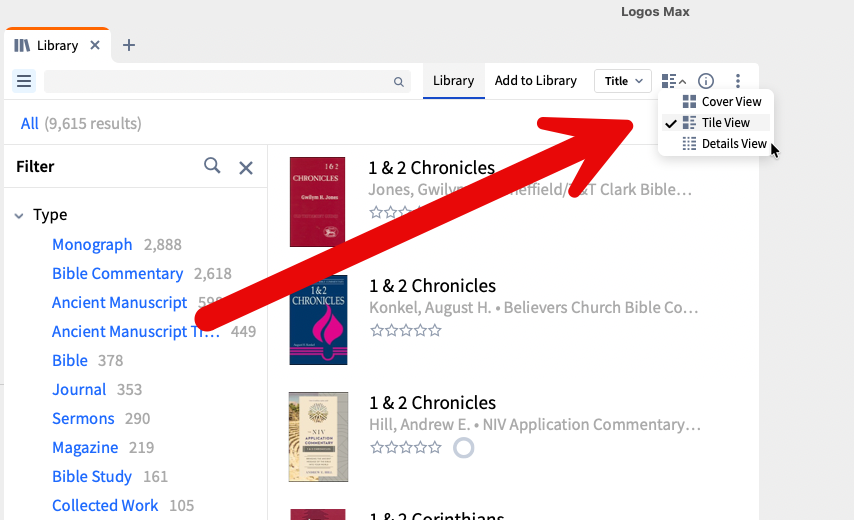
To open books, click and drag the book to a new tab, window, or the current library window. Strangely, in Tile view you can't drag and drop the book cover. You have to use the Title or blank space.
Can You Click and Drag Everything on the Toolbar?
The short answer is No! Most of the things I have placed on my Toolbar respond to clicking and dragging in Logos. Here's what doesn't work...
Dashboard - you must click on it once to slide it down from the top of the window.
Guides/Workflows - you have to open the fly-out menu, and then you can click and drag any of the tools in that menu.
Forum - you have a link to the Logos Forum. You can seek support from fellow Logos users or suggest things there. However, you can't drag it to open it.
Layouts - by nature of what they are, they can't open by clicking and dragging in Logos.
Close all - this button only closes Windows so you can't click to open anything from this button either.
Buttons on the bottom or right end of the toolbar, like your profile icon or the shopping card.
Where Can You Drag Windows in Logos?
You can drag anything into the currently open Logos windows. If you have only one Logos window open, you cannot open a second one. You must first float the panel for the book or tool as a tab in the main window. Use the keyboard shortcut Control+Alt+F or Command+Option+F. Alternatively, click on the Window menu button (3 vertical dots on the left of the window toolbar) and choose Float This Panel.
Once you have a book or tool open, you can drag the tab of that window to other spots. For example, let's say you want all of the Bibles in one half of the screen, but when you click to open a new Bible, it opens in the other half. Drag the tab of that Bible to the window with all of your Bibles.