

The 4 Best Camera Styles for Streaming Church Services Live in 2021
What's the best camera for streaming your church services live on Facebook or YouTube. We'll give you some tips for choosing the right camera.
When churches shut down due to Covid-19 we looked at the 4 best camera styles for streaming church services. It's almost a year later and time to update that for 2021.
In a previous post about streaming church services live, we looked at the best way to stream with an iPhone or Android phone. To offer a professional live stream of your church's worship service, you'll want a dedicated camera instead of a phone. In this post, we'll look at picking the right camera for your needs. Again, a phone might fit your budget, but this time we're assuming you want something that creates better quality for streaming church services.

Here are the other posts in this series:
- Streaming Church Services Live from a Phone Made Simple
- Streaming Church Services Live Using Facebook or YouTube Apps or Pages
- 7 Best Tools for Streaming Church Services
- Streaming Church Services Life and Cheap
What Kind of Camera Should You Use for Streaming Church Services?
People can pick from a few different kinds of cameras aside from their phone camera. Most people think of a webcam when they think of live streaming. However, webcams only work if you're streaming yourself sitting at a desk or in a room close to the camera. The quality of the image that a webcam produces usually won't compare to a dedicated camera. The camera, if it zooms, usually uses digital zoom, which looks bad. You'll have to put the camera very close to the pulpit and it will distract the people from attending the stream. Don't use a webcam for streaming church services live.
The best options include the following styles of cameras:
- A video camera or camcorder with at least 720p resolution that also has an HDMI output that shows the live view of the camera video.
- A DSLR or mirrorless camera that also offers a live output of the video of the camera.
- A PTZ IP Streaming Camera that you can connect over an Ethernet cable and offers remote control of the panning and zooming of the camera lens.

Let's take a look at some options for each kind of camera.
Video Camera or Camcorder

Before cameras on smartphones got so good, most people owned a camcorder or video camera. Basic consumer-grade camcorders made in the last few years will offer a 1080p or even a 4K video option. You can spend as little as $250 for a very good Canon camcorder that offers HDMI output and a live view of the image. B&H Photo has a few ranging in price from $250 to $2000 depending on your church's budget. The cheapest option, the Canon VIXIA HF R800 Camcorder offers the following features needed for a good streaming camcorder.

- Optical Image Stabilization - less wiggle as the camera operator movies it from side to side.
- HD Video - 1080p is the sweet spot, but lower quality 720p usually looks good enough and high-quality 4K video may offer too much making it harder to stream on a slower network. This camera offers 1080p which gives your viewers good image quality.
- 32X Optical Zoom - avoid using digital zoom because it gets closer to the subject, but looks horrible. The optical zoom looks much better. If your camera has a digital zoom, turn it off in settings.
- Powered via Power Adapter - you want to plug it into the wall so you don't have to worry about your battery running out. If you do this remove the battery so you don't ruin it by keeping it plugged in. That way you can still use the camera for recording video outside of the sanctuary.
- Mic Input - the camera comes with a mic input if you need to use it in other situations outside of streaming your worship service. While streaming church services, you'll get sound from the soundboard going into the computer.
Consider a Higher-quality 4K Camcorder
The above Canon camera gives users an adequate option, but if you want 4K streaming you'll have to find another camera. The Canon VIXIA HF G50 4K Camcorder (seen below) gives a higher resolution but costs 4 times as much. But you'll get a much better image. It will also require higher bandwidth, so make sure your Internet connection is fast upstream as well as downstream and can handle streaming church services in 4K.

Despite the higher price, the HF G50 cuts the optical zoom by a third. That means you won't get as close to the people on stage while recording from the same spot. If you can place the camera person closer to the stage, then this will work fine.
You can go nuts with high-end professional cameras that cost thousands of dollars, but people who need those cameras probably already know more about cameras used for streaming church services live than I do.
Mevo Camera for Streaming Church Services Live
The Mevo Camera gives churches a specialized camera for streaming church services live, but you'll have to place it close to the platform like a camera phone.
The Mevo Start ($399) streams or record locally in 1080p. Use the Mevo App to control the camera on a smart phone or tablet. Set things up so it looks like you have multiple cameras all using the one camera and the app.
The Mevo Start is small and has a battery that should last long enough for most worship services, but you can also plug it in. The built-in mic will pick up audio or there's a built-in 3.5mm mic input to connect a higher quality external mic. Most churches will connect their soundboard to the smartphone or tablet instead. You'll need to connect some specialized cables to make that work. I'd suggest going to the Mevo Facebook group to get further support from other experienced users.

An Example of Using Mevo in Church
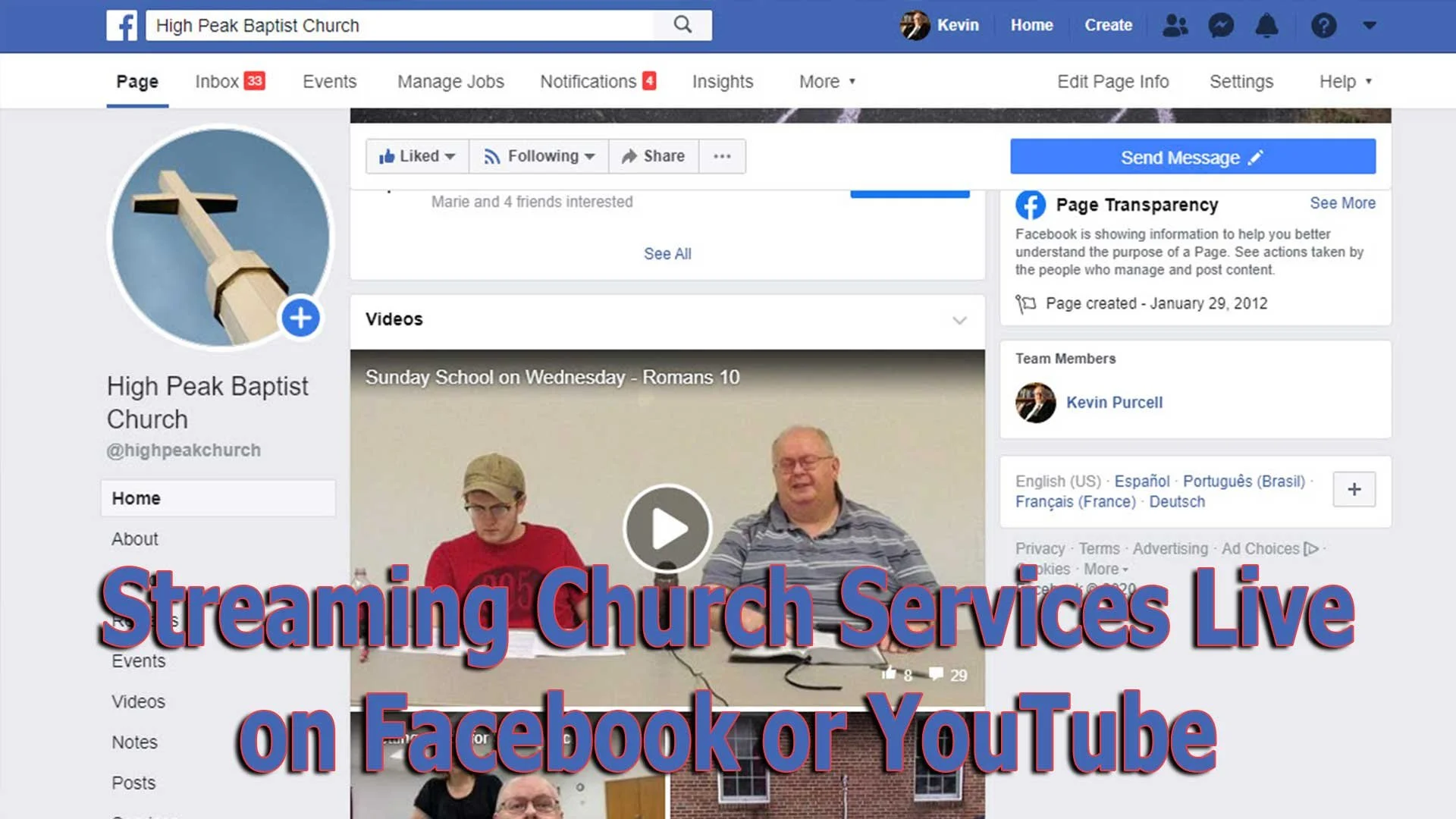
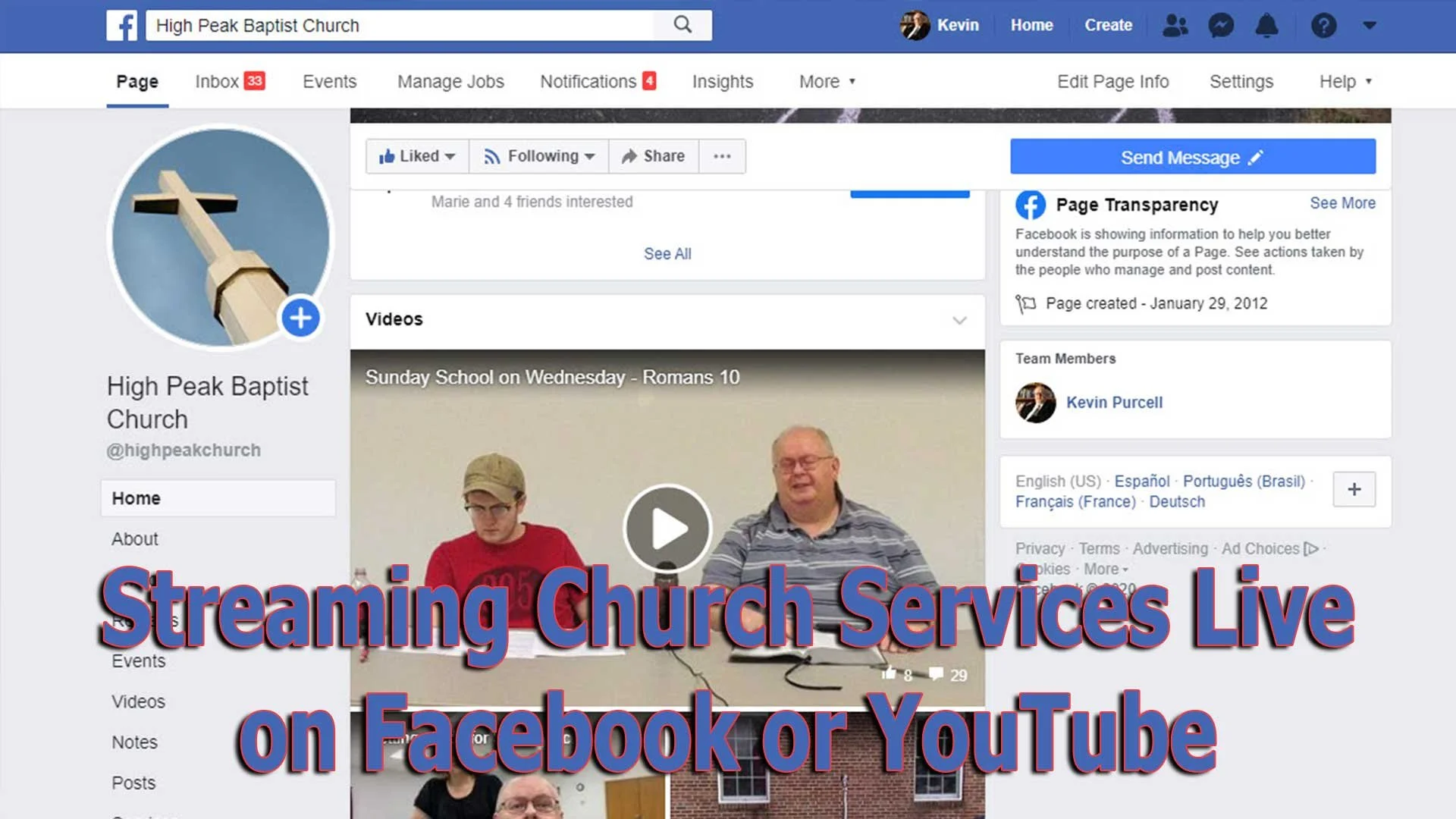
You can view an example of the Mevo in action at my church's Facebook page. Look for our Sunday School on Wednesday night videos. We use a regular camcorder for our Sunday morning, but we use the older Mevo Plus camera for Wednesday night streams. Here's the company's ad for the Mevo Start.
The camera will connect either to your phone or your tablet. I'd recommend using an iPad since that's larger and you can see more on the screen at one time.
The app runs on iOS and Android. Find out more about that from Mevo.
The Mevo camera works best in smaller sanctuaries or for churches who want to stream things like interviews or events in a small room. If your room requires you to be further than about 10-20 feet, this option won't work well for you and the image quality is lower than even a camera phone.
DSLR or Mirrorless Camera
Churches can use the above cameras for streaming church services live online, but they may want better quality images and a camera that they can take off the tripod and use for take photos of church events. A good DSLR or Mirrorless camera will fit that situation better.
What are DSLR or Mirrorless cameras? The video below explains it better than I can. If you don't care and just want recommendations, then skip to the next paragraph.
Mirrorless camera give the user a smaller camera while still offering beautiful photos and video. The DSLR is the style of camera that's been around forever, but now they're digital. Mirrorless is the future.
Canon M6 Mark ii
I used to recommend the Canon EOS M50, but a friend had a lot of trouble using one for his church. So I now recommend the Canon EOS M6 Mark ii. That's the camera I own and occasionally use for live streaming.

Canon released a brand new utility called the EOS Webcam Utility that lets users turn their DSLR or mirrorless camera into a webcam. You can hook your camera up to your computer with USB-C. The new utility will make it available in your software as a camera for streaming. It works fine for Facebook or YouTube live streams.
The camera might run out of battery power before your service ends, so get the power adapter that lets you plug the camera in AC power. It costs $24 as of this writing.
Get a zoom lens with at least 200 mm of zoom. You'll still have to place the camera little closer than you may like because 200 mm zoom is like 6.5X zoom on a camcorder.
Canon EOS Digital Rebel T7i

If you don't own a Windows computer, consider then take a look at the Canon EOS Rebel T7i DSLR camera which starts at $680 without a lens. Pay $1000 to get a long zoom lens.
I prefer Canon because they offer better color than Nikon or Sony camera. But you can find comparable cameras from those manufacturers that will work for you. Other companies like Panasonic, Fujifilm and Olympus make great camera. Here's a list of options at Amazon.
Look for...
- 4K resolution for shooting
- Live video output for streaming
- A lens from 200mm zoom or higher
- Stays on and offers live video for a long enough time to stream your entire service since some cameras shut off after 20 or 30 minutes.
- An adapter for powering the camera while using it because most batteries won't last for the full length of a worship service.
You may not be able to find the above things mentioned in the camera's description at your store of choice. Ask the seller or post a question in a place like Amazon.
The last item on the list is a must. Get the power adapter for your camera like this one for the T7i mentioned above. or the one we linked to above for the Mark 6 Mii.
PTZ Streaming Video Cameras
A friend of mine chose to buy another kind of camera that I've not used. It's called the Avipas AV-1081G 10x HDMI PTZ Camera ($620) with IP Live Streaming. PTZ stands for Pan Tilt Zoom, which describes the way it can move (panning left-right, tilting up-down and zooming in and out).
It only offers 1080p video, which is fine for now. It says it's a 10x zoom camera, but only the digital zoom is only 5x, which is not going to be good enough for medium to larger sanctuaries.
These IP cameras are usually smaller, so you can put them in your sanctuary and they'll seem less noticeable. You won't need a big tripod because you can install it permanently.
The camera connects via a network cable. You can control it from a computer or with a special remote control box. The box or the software will control the panning (left right) and the tilting (up and down) while zooming in to the subject.
Recommendation
For those who worship in a large sanctuary, get a camcorder with a 32X zoom or higher. They are usually the cheapest option and you can get a good 1080p or 4K camera for hundreds instead of thousands of dollars. Then invest in good software to make it work, although Facebook alone does the trick for most people. If you plan to stream to another service, ask them what they recommend. The best free software for streaming is OBS Studio. The open-source software comes with a large community of users who can help you get it set up.
Here's what you'll need to get it all working if you're streaming from your church sanctuary:
- Canon VIXIA HF R800 Camcorder - $250 at B&H Photo
- A mini-HDMI to HDMI out cable with an adapter for your computer like to convert the HDMI signal to format that streaming software can use - $100 for both.
- A good streaming computer like the new M1 Macs - $900+.
- A cable to connect your soundboard to your streaming computer. You'll have to determine what kind of sound output your board has - $10-$50.
- Open your web browser and use Facebook Live Streaming from your church's Facebook page or if you want more features get OBS Studio which lets you set up multiple camera inputs, an input for your worship presentation (lyrics and sermon slides), and other interesting graphics - Free.
For people who are streaming from a smaller room, consider going with the Mevo Camera and a good phone or tablet. Here's what I use to make it all work:
- Mevo Start Camera - $399 or $384 on Amazon.
- A mini table-top tripod like the Manfrotto PIXI Mini Tripod - $18 on Amazon.
- iPad to control the Mevo Camera app - $319 for a 32GB base iPad from Amazon or $329 from Apple.
- Zoom Podtrack P4 mobile mixer with 2 Zoom mics - $390 from Amazon
The last item on the list is a new addition to my setup. We had a lot of trouble getting audio right with the Mevo over my iPad. However, this mixer fixed it all. If you already have a headset, two XLR mics, and cables, then you can buy the Podtrack P4 for only $200. Check back here for a full review of the Zoom Podtrack P4 at a later date.
Streaming Church Services Live Using Facebook or YouTube Apps or Pages
Streaming church services live on Facebook and YouTube extends your reach as a church. We'll show you how to use their apps and websites for streaming.
Choosing the right software for streaming church services live actually impacts the rest of the decisions you'll make - equipment, cameras and accessories. If you want to start streaming church services live, then you will need some kind of software. We'll look at using Facebook or YouTube . Churches can choose between using an iPhone or Android phone and the mobile apps for these services. However, you probably should pick a computer with a camera hooked up and streaming using the Facebook or YouTube websites instead of a mobile app.
Here are the other posts in this series:
- The Four Best Camera Styles for Streaming Church Services Live
- Streaming Church Services Live Using Facebook or YouTube Apps or Pages
- 7 Best Tools for Streaming Church Services
- Streaming Church Services Life and Cheap
A lot of streaming platforms exist to help churches. You can buy a subscription to a dedicated service, but they can cost hundreds to thousands of dollars a year. It's also harder to garner an audience if you're a small to mid-sized church using one of these dedicated subscription services like the ones mentioned at the end of our post on the 7 Best Tools for Streaming Church Services. You can find even more services listed at ChurchTechToday.com. They range in price from $25/month to almost $150.

Most people reading this will opt for streaming to Facebook or YouTube since they're free and easier to discover by potential viewers.
Streaming Church Services with Facebook or YouTube Apps from a Phone
The Facebook app on an iPhone or Android phone does a decent job of helping churches share their worship services. However, in our last post in this series we argued for using a dedicated camera for a lot of reasons. You get better images, more versatility and placement is better with a dedicated camera.
However, if you must use an iPhone or Android phone you can go live from their mobile apps. The video below shows you how to stream from your mobile app to Facebook.
People who have enough subscribers can use the YouTube app on their iPhone or Android phone to live stream. The video below shows you how to use the app and how to go live if you don't have enough subscribers. By the way, you'll need 1,000 subscribers on YouTube to go live from the mobile app. But this videos shows you alternatives.
Streaming to Facebook resulted in more engagement for our church than we saw on YouTube. We used to go live on YouTube and would get at most 10-20 people for regular worship services and no more than 100 for special services. We moved to Facebook and those jumpers soared sometimes reaching hundreds of views. We average 80=110 in worship.
Streaming from the Facebook or YouTube Websites
Since it's better to hook up a dedicated camera to a computer for higher quality and more versatility, using the Facebook or YouTube websites will result in better quality streams. Third-party software gives churches more versatility, than the Facebook or YouTube websites. We'll cover that in our next post in this series.

To get started on Facebook, you'll want to set up a Facebook Page for your church. Facebook offers a good help page for doing this. Once you're done following that guide, you can log into your account, go to your Facebook page and then start a live stream. Take a look at the slideshow below.


First, click on the Pages link along the left (first image above). Then click on your page name in the resulting page. On that page click on Live (second image above).

Follow the steps in red above. First click on Use Camera. Then choose your camera and your microphone. Next, along the right, click on drop down menus to choose where you want your video to go. It should read "Share to a Page You Manage" and then the name of the page for your church.
Give your video a title in step 6 above. Make sure the video looks right in the box in the lower right (#7 above). Then when you're ready, hit the Go Live button in the lower left.
The resulting page will show you the feed and you can interact with viewers. I recommend putting a comment in the video and make it stick to the top that reads:
We welcome you to our church's worship service here on Facebook. If this is your first time viewing our Facebook Live worship service, hit the heart and we will get back to you with a special gift.
Now you can send them something special, like a coupon to a local restaurant's take out business and some info about your church. At the very least, leave off the gift and then just follow up with a note.
Since things change quickly and often on Facebook, if the above instructions don't work, head over to Facebook's Live Broadcasting help page.
YouTube Live Streaming Church Services
I prefer streaming to Facebook since most churches will see more engagement, but some prefer YouTube. You might already have a presence on YouTube. If you have over 1,000 subscribers, then you can stream live to YouTube too.


Click on the little camera icon in the upper right corner and choose Go live from the drop down menu. This opens a screen (second image above) if it's the first time you've tried to stream. It asks you to give permission for using your microphone and camera. Hit allow (third image above) and you're reading to set things up.

Give your stream a Title in the top box. Make it public, if it's not alreayd. Then click whether it's made for kids or not. Most churches should click No, not because it's not appropriate for kids, but because you are not targeting kids. You might be in a special service for kids. That comes with a special set of requirements that are not useful for this purpose.

Click on the More Options button at the bottom and make sure you selected the right camera and microphone. Also add it to the right camera by clicking the drop down box above the camera option. Choose Nonprofits from the list. The content above the category comes from the default description from your channel.
The Advanced Settings button opens another screen. Click the Allow Chat on or off depending on whether you want comments. You should leave it on unless you have some special reason for stopping viewers from commenting. Videos with comments get more engagement on YouTube.
Since you're a church, you should not take ads, so turn off the option that reads "This contains paid promotions...". Not click the back arrow. Then click Next and it will take a photo as a thumbnail. You should later replace this with a branded image for your church.
Next, you'll see a Stream preview. You can edit the details and share the stream on social media. In the Live Chat you should add a post targeting guests. Ask them to respond so you can follow.
Hit Go Live and you're streaming. When it's over you can end the stream and save it. You will want to edit things now like the thumbnail.