

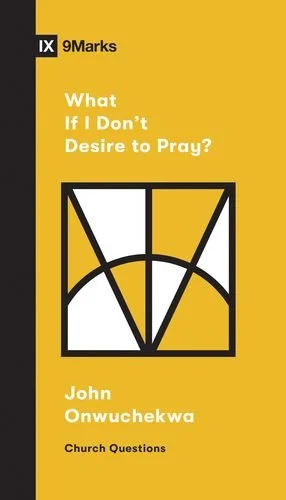
What If I Don’t Desire to Pray - a Book Review
We all know the importance of a healthy prayer relationship with God. Unfortunately, too many believers struggle to maintain one because it feels like a chore, a duty that we must check off on a list of things to do to make God happy. John Onwuchekwa, the pastor of Cornerstone Church in Atlanta, tries to encourage believers, in his short book What If I Don’t Desire to Pray, who feel this way by suggesting we find a new attitude about prayer.

Crossway ($4.99) gave me a digital copy to review. I fired it up on my eBook reader and devoured it in just a couple of days. It took me about four hours over two reading session to breeze through the encouraging book.
The book comes as a part of a series from 9Marks called the Church Questions series. Take a look at those titles over at their site.
What If I Don’t Desire to Pray - Synopsis
The 7 sections takes us from the issue of prayer or a lack of desire to pray to the key to a meaningful prayer relationship. Onwucheckwa writes that the key to meaningful prayer comes from understanding that we get to relate to the Savior who rose from the grave.

Manny books on prayer focus on HOW to pray instead of the WHY we pray. Onwucheckwa’s book focuses on this motivation issue over the mechanical nuts and bolts of a prayer regimen. He doesn’t write as a giant or super hero prayer warrior but a fellow struggler facing the need in his own life.
The author moves through the solution, which is a proper attitude about prayer instead of seeking a proper regimen of prayer. He uses effective and interesting real-world analogies that bring into focus the ideas he presents.
Early on I reacted to the book’s solutions writing in the margin “seems simplistic”. However, as I kept reading I realized that’s the strength, not the problem. Prayer is simple! An effective prayer life is simple too. We make it too complicated looking for better routines or outlines. We want a magic programmatic solution with steps and keys and skills. However, we need Jesus!
We can find the source of a meaningful prayer life in two places - the word of God and the people of God. A focus on the words, actions and attitudes of Jesus can transform our attitude about prayer. Add a connection with fellow believers with the same focus and you can find a powerful impetus to a consistent prayer life.
Now I know what you’re going to say. "I just to read my bible more and go to church more? That's too simplistic and burdensome." Yes and no! We need those things, but instead, the author’s message tells us we can find our motivation in those two sources.
Jesus and the Gospel motivates us to pray. Then as we pray, we will further enjoy the motivation to dig deeper into the person and relationship that comes from a relationship with Jesus.
Recommendation
Seminary professors and scholars seeking to understand all the depths of what God says about prayer or what models of praying works best in the lives of believers shouldn’t pick up What If I Don’t Desire to Pray. That's not the purpose of this little book. However, the average person who wants to get closer to their Creator and Savior will find encouragement in this book.
The book doesn’t cost much in terms of dollars or time. You can knock it out in one setting or over a few short sessions. Then consider sharing it with some others in a small group discussion time.
If I Don’t Desire to Pray reminded me that we find the best motivation to pray the person of Jesus. The author does so in an accessible, interesting and even at times entertaining way.
Best Bible Software for Average People in the Pew
What are the best Bible software apps for people who aren't studying the Bible to preach or write a commentary or teach in seminary? This roundup of the best Bible software for the person in the pew will answer your questions.
What is the best Bible software for people in the pew? That question doesn't get a lot of attention, especially here. However, I want to change that with this post. What are the best Bible software options for the lay Bible student? These all run on one of the most popular platforms - Windows, Mac, iPhone, iPad or Android. A few will run on all of these platforms.
Advanced Bible Study software gets most of the focus on this site, but plenty of Bible students don't need the high-powered scholarly Bible study software that a pastor, researcher or Bible translator needs. They only need to do a few things like...
- Search for verses
- Read the Bible
- Study the Bible for teaching a class
- Writing blog posts
- Personally study the Bible
These lay people want more than a simple Bible reading app but don't need as much as the expensive and powerful suites offer for hundreds of dollars. If you're interested in simple Bible study apps to just read the Bible, look up some verses by searching by word or topic, and creating a reading plan, then take a look at my list of the best simple Bible apps that I published over at ChurchTechToday.com. Our purpose in this post is to look at the apps and software that fit between those simple Bible reading apps and the powerful tools that scholars and pastors need.
Olive Tree Bible
Olive Tree Bible fits in an in-between spot. A Bible study software user can get past the simple or basic Bible study level, but it really shines for the user who wants more than just reading plans and sharing to Facebook. You can do both of those, but you can do a lot more.

It runs on almost every platform from computers to smart phones and tablets. The app or software costs nothing and you'll get some public domain books for free plus a modern Bible or two. To get a little more advanced you need to pay for extra commentaries.
Open the app on your computer or mobile device and you can just read the Bible. You can also open the Study Center (the right hand section in the image above) to look at the Resource Guide where you'll find all the books in your library related to that passage open in the current Bible.

Tap or click on words to search, look them up in dictionaries or find out what a Strong's tagged dictionary says about the world. This lets users who don't know Greek or Hebrew understand the original languages behind the English words. You'll need a Bible with Strong's numbers tagging, like the KJV seen above. Olive Tree sells a lot of them.
Keep notes or highlight. You can also bookmark verses. If you enjoy listening to books, then buy some audio books to hear the book instead of read it. They have a lot of titles in the Christian Living category. You can also listen to your Bible or to other books.
Olive Tree Bible runs on all of the top platforms with a free app download and costs extra for the best books.
e-Sword
The top dog in free apps deserves a spot in our list of the best Bible software for lay people because it's free and easy to use. In addition, if you want to spend some money, you can buy some more modern translations, books and commentaries at eStudySource.com.
e-Sword comes with a simple layout in four quadrants plus a list of the books of the Bible along the left. In each quadrant, you get tabs for each Bible or book installed. On each tab you'll find a book or Bible with a toolbar for performing basic tasks.

The program's main toolbar lets users search the Bible or book, jump to passages or change the layout. You don't have to use the four main quadrant layout. You can show just one, two or three as well.

If you use a Bible with Strong's numbers, then you can click on it to see the definitions in a tooltip popup. Also, scripture links in the other books will show up as links. They have tool tips too.
e-Sword has a user note system, bookmarks and highlighting too. Take a look at see if it will fit your needs. The Windows version is totally free. The Mac version is called e-Sword X and will cost $9.99 from the Mac App Store. I wrote about it when it first came out for Mac. The iPad app costs $4.99. Look for e-Sword HD in the app store. The version that runs on an iPhone costs $2.99 in the iPhone app store.
I love that there's a large community of users who've made their own books out of public domain books. Check out eswordlibrary.com, one such source. And you can buy modern translations and recently published commentaries, Bible dictionaries and more from eStudySource.com as mentioned above.
Wordsearch Bible
Wordsearch Bible software offers a lot of power in a simple to use package. However, it only runs on Windows and Mac. There's also a very poor mobile version for Android and iOS, but don't bother if that's where you want to study the most. Also, if you're a Mac and iOS user only, I don't recommend it because it's not a native macOS program. They created it using the Windows software and put it in an emulation package. I include it here, because on Windows it's great! Also, for Chromebook users or Mac and iPad users, MyWSB.com gives access to your library on the web inside a browser. And it's pretty good.
Wordsearch 12 opens by default to a homepage, but the real magic come with you click on the Study tab or Library tab across the top of the windows. They also have links to their social media (bottom right) and app store sites for their mobile and online versions of Wordsearch.

The main Study screen has a Windows Explorer style layout with the Bible displayed on the right and the library and books shown on the left.You can show or hide both of these lists.
Other great features include...
- Parallel Bibles
- Templates to save your study environment
- Integration with OneNote for syncing files
- LessonMaker tool to quickly create studies
- Powerful search features
- A large library of books with a lot of free options
- Free training online
PocketBible
The first Bible study app I ever used came from QuickVerse. The creator of QuickVerse saw the value in mobile Bible study early on before the iPhone even existed. Now you can use PocketBible on all platforms including Windows, Mac, iOS, and Android. It comes from Laridian and the creator, Craig Rairdin is a pioneer in Bible software.

Notice above that the app can show a lot on screen at the same time. This is true, not only on Windows and Mac, but also on the iPad and Android tablets. Few mobile apps let you view more than one or two books at a time.
The mobile version is also very capable. You can use it on iPad, iPhone and Android.
You can use the “Advanced Feature Set” that comes at a small upgrade price of $17.99 on all of these platforms. It’s slightly less on just one platform. There’s a journal feature, an auto study feature that finds all of your books with content related to a particular passage or a word. There’s an audio Bible included. On iOS you can use a reading mode that shows only the text on screen without the toolbars for a distraction free environment. There’s more so check it out at their website related to the advanced features.
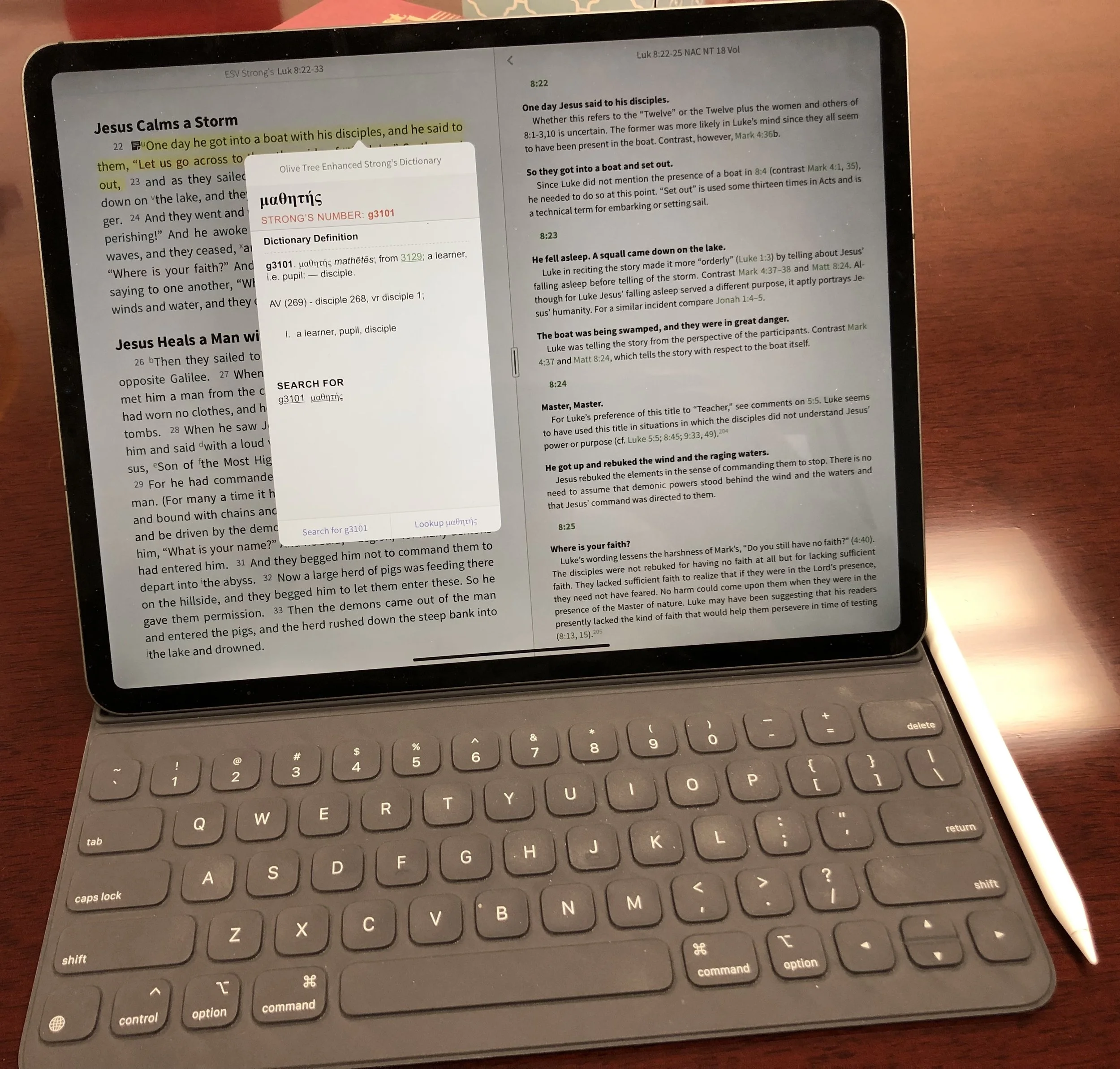
New 2018 Apple iPad Pro for Bible Study
The new 2018 Apple iPad Pro is getting a lot of love from reviewers. How well does it handle Bible study? We’ll look at it from a pastor’s perspective.
The new 2018 Apple iPad Pro is a beautiful piece of hardware and works great for Bible study, sermon prep and general use for pastors and ministers. In fact, I'm really tempted to make it my primary computer for 90% of what I do.
Is the New iPad Pro Better for Bible Study?
Not really! The major difference between the older iPad Pro and the new 2018 Apple iPad Pro comes from the speed and size and the new Pencil. Apple gave it a little facelift to modernize the look.https://youtu.be/HoLs0V8T5AAAn Apple A12X Bionic CPU powers the new 2018 iPad Pro, or as some say it over powers it. That's sounds really cool and gives me memories of Steve Austin, the Bionic Man (see video above) running really slowly as that wonderful music plays behind him. However, there's nothing slow about this chip. I did a review of Olive Tree Bible Study for all the platforms they support. I edited the video on my new 2018 Apple iPad Pro with Luma Fusion, a great video editing app. The video ran about ten minutes and took about a minute to render on the iPad. That's half the time it used to take. It's also faster than Premiere Pro can render a ten minute 1080p video on my 2017 MacBook Pro.In spite of the great speed, the Bible app makers don't exactly require that much power. Few digital Bible students own the new iPad so they can't make their apps to take advantage of the power. However, the faster CPU will help with the initial start-up of apps like Faithlife's Logos Bible app, which does some data crunching in the background after you first start it up.In addition to speed we get a nice looking design with a new keyboard and Apple Pencil. The physical redesign means two things. First, the screen covers more of the front with smaller bezels. That means you'll need to hold it more carefully, however, the accidental touch detection keeps you from accidentally tapping as you hold it and your thumb or fingers accidentally touch the screen. The iPad weighs a little less and takes up less space in your computer bag, if you use one. However, you wont notice that unless you hold them side-by-side. I like that the new Apple Smart Keyboard now covers the back as well as the screen. The screen's beautiful, which makes it a great tool for Bible study. Reading text on a screen for long periods of time requires a high quality screen with great resolution and excellent contrast.
Apple Pencil and Bible Study
 Why won't Bible study creators integrate the Apple Pencil or any stylus in their apps? It would feel so natural to add a handwritten note or highlight with the Pencil. I would love it if the Bible apps would recognize the Apple Pencil and put the app in a special mode where anything the Pencil writes would get saved as a vector drawing attached to the verse or the paragraph with an indicator icon, like they do with text notes now.Developers working at some of the Bible app makers tell me that adding drawing is not a simple thing. Do they spend limited development time on something that a small fraction of the population can take advantage of or on features in great demand that a large percentage of users want? However, I think that the first Bible app maker who figures this out will really stand out and could easily demand a nice premium for this.Until some app maker puts my inking dream into reality, we'll have to use the Pencil as a glorified finger, pointing and selecting. The tip is finer than my man paw fingers. So, I can get more fine pointing with it than I can with my massive digits.
 I love that the Pencil snaps into place on the edge of the iPad Pro when not in use. it also charges wirelessly so that it's always ready to go. The old Pencil would use battery power even while not in use. You had to charge it by plugging into the Lightning port on the bottom/side fo the iPad. This was awkward.I use my iPad for presentations during Bible studies. The Pencil lets me ink on the slides of Bible verses. Sometimes I would plug in my cable to send the video signal over a Lightning to HDMI adapter to our projector. The old Pencil would lose it's connection and if I forgot to plug it in before each Bible study I often had to do without or unplug the video cable, something not ideal while a room of 20-30 people are staring at the screen.The new 2018 iPad Pro and Apple Pencil solves most of these problems. However, carrying it around with the Pencil along the edge makes me nervous. I hit the iPad in just the right way with a hand or my side while carrying it and the iPad goes flying off. Today it landed in a puddle and scared me to death. I can share that a puddle won't destroy the Pencil immediately. We'll see if it has an effects over time.
Writing on the Apple Smart Keyboard
 The new Apple Smart Keyboard is both smaller and heavier at the same time. The old keyboard felt like folding origami at time, especially if you tried to use it as a stand with the keyboard on the back. The new Smart Keyboard's simpler. The special connector sits on the back of the iPad. The new keyboard has two grooves that the long edge of the iPad sit in. This gives the user two angles.
 Since the new 2018 iPad Pro measures less width than the old one, the keyboard does too. However, the keys go edge-to-edge so you still get a comfortably sized keyboard for touch-typing. I can work on it for a long time without problem. The keys give you enough travel to feel nice while typing. I actually type more accurately on my iPad than on my MacBook with its terrible butterfly keyboard.
Conclusion
Using the new 2018 iPad Pro for my work as a pastor is an improvement for a few reasons.
- Smaller size
- Better Apple Pencil
- Nice keyboard
- Excellent display
- Super fast processor
If you own the most recent iPad Pro, then I don't think this thing's enough of an upgrade to make the jump. It is a big change, but can you justify the expense when your "old" iPad will last you for many years to come. I upgraded, but I'm crazy about having the latest greatest.People who own an older iPad or who don't have one now and want and iPad for doing a lot of their work can with this iPad. Here's a few things I enjoy more on my iPad Pro than on another device:
- Editing video
- Typing
- Playing games
- Casual web surfing
- Short stints of reading
- Checking email and social media
However, I'll still prefer my MacBook Pro over my iPad for the following:
- Serious Bible study with desktop class Bible software instead of mobile apps
- Creating slides for my sermons/Bible study presentations
I don't use it for long stints reading. The Kindle Paperwhite works best for reading for extended periods of time. The TV is my choice for watching movies and videos; call me old-fashioned.What would it take to use the iPad Pro 100% of the day? The Bible apps have to get better. Mobile apps do a better job today than they did when I bought my first iPad back in April 2010. I'm not very good at creating my slides on the iPad, but I hope to get there. I could if I was better with using Affinity Photo, which is good enough. But using Adobe Photoshop on my desktop is easy because I have a decade of muscle memory that helps me do things quickly.
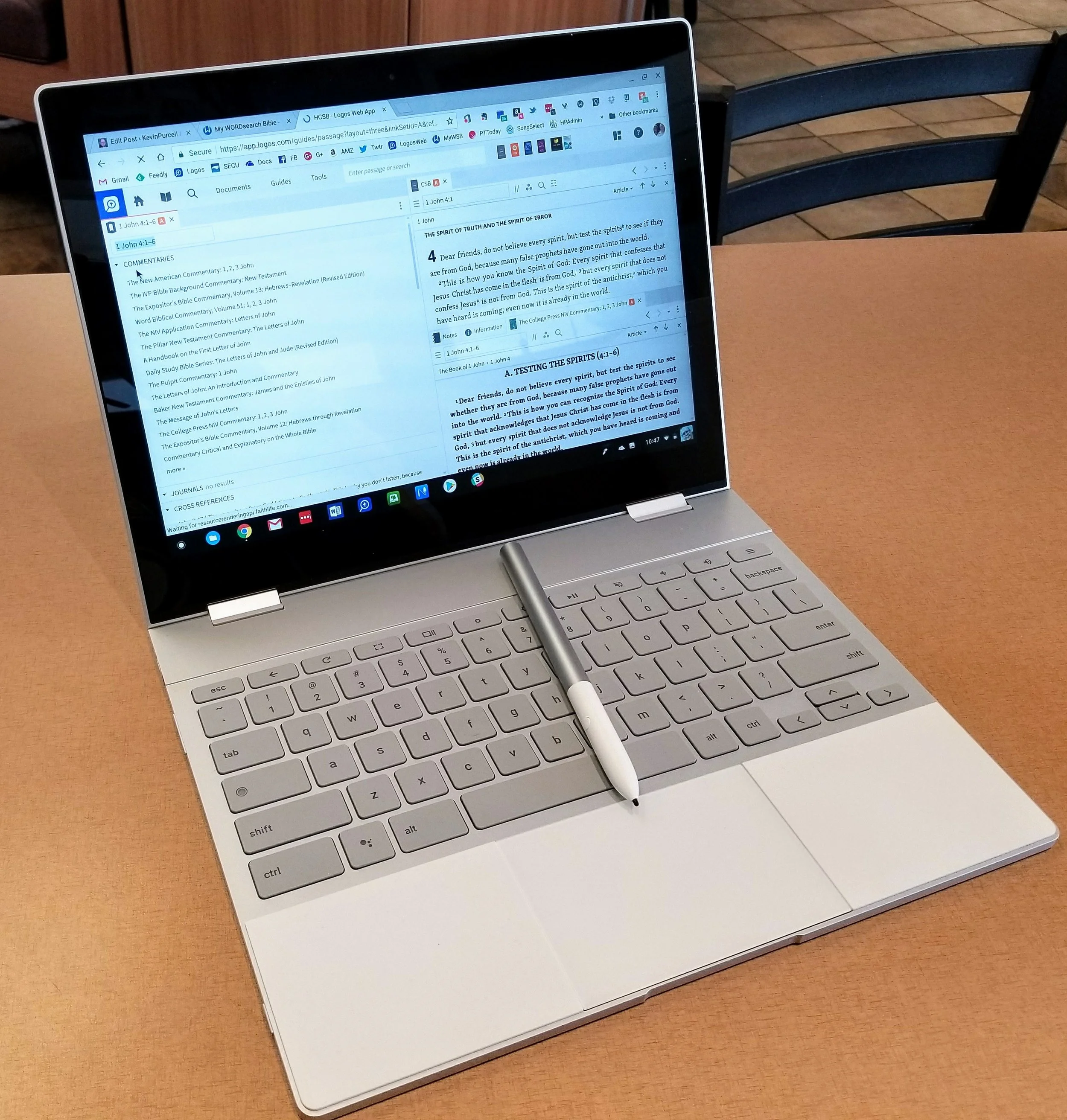
Google Pixelbook Review
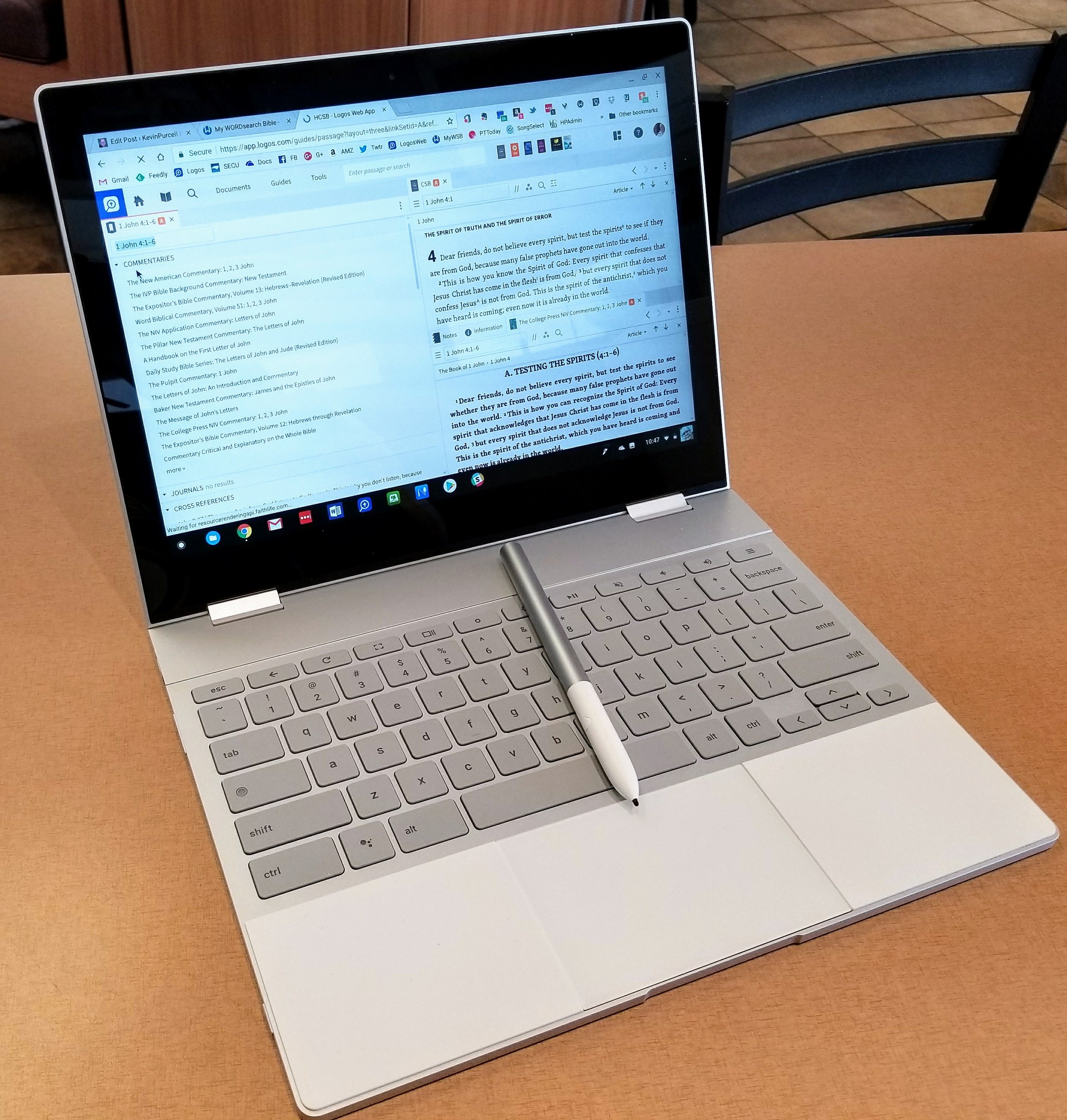
4nvPaying $999 for a Chromebook, and $1,098 when you add the Google Pixelbook Pen, seems like a ridiculous extravagance for many of the mainstream tech site reviewers. I've seen reviewers say it was...
- a "hard sell" for anyone who's not already a Chrome OS user - TechCrunch
- made for "well-heeled Android and chromebook fans" (yes they forgot to capitalize Chromebook) - PC Mag
- only for the "die-hard Chrome OS fan" who looks for "the very best Chromebook available" - Digital Trends
 Let me say at the outset that I think these reviews all came from people who don't fully understand the power and elegance of Chrome OS, so they can't fully appreciate the benefits of a high-end Chromebook like the Pixelbook. We'll step back to look first at the hardware. Then, we'll see how the Pixelbook handles Chrome OS and apps from the Google Play Store, including using Bible study apps, which we already covered in a previous post.
Google Pixelbook Review Video
https://www.youtube.com/watch?v=pCH2xcHT7uw&feature=youtu.be
Pixelbook Internal Hardware
 In a word, the Pixelbook's hardware is fantastic. I bought the base unit that comes with a 7th generation Intel Core i5 processor, 8GB of RAM and 128GB of fast solid state storage. Those sound like decent specs for a Windows machine, but Chrome OS runs on a pretty lean machine, so a 7th gen Intel Core i5 with 8GB of RAM works nicely on Chrome OS.
 Over the years at Notebooks.com and GottaBeMobile.com I reviewed about a dozen Chromebooks. I've never seen a score of 29,238 on Octane before.In addition to the blazing speed, the Pixelbook looks beautiful. It's incredibly thin and light. Other devices claim the same weight, but Google engineered the internals in a wonderfully balanced way. When you hold it in tablet mode or just carry it around it feels sleek. Just look at the clean lines and clear attention to detail.
 The computer includes 2 USB-C ports that will both charge and transfer data. They will also work as external display ports with an adapter.
 Google put a Hardware Security Module in the Pixelbook, giving it a business class level of security. While a home user like me won't really appreciate this, business users might.
 Convertible designs give users versatility that a traditional laptop doesn't. Use it as a laptop for regular work. Then fold the display back nearly 360 degrees to use it as a tablet.
 Adjust the screen so that it faces forward in a V-shape or Tent mode as seen in the image above. We can also use the Pixelbook with the keyboard facing down and the screen facing forward in a mode useful for viewing videos or presentations. Display mode lets the user adjust the angle more easily than tent mode.
Pixelbook Pen
Before I began using the Pixelbook Pen, the Apple Pencil was the best stylus I'd used. However, I prefer the Pixelbook Pen because it's shorter, thicker and feels better in your hand. Because of the shorter length it has a better weight distribution than the Apple Pencil. Both work better than the Microsoft Surface Pen, but not much. All three work great. Pixelbook users needing a stylus will get a great one with the Pen. The Pixelbook Pen has a button on the side that turns on the Google Assistant when the user selects on-screen content. Users can search with voice commands using the special keyboard button but this doesn't work with the Pixelbook Pen, which is stupid. The Apple Pencil doesn’t do anything like that. Surface Pen users can work with Cortana via the buttons. I like the right-click button of the Surface Pen and wish the Pixelbook Pen had the feature or let users customize the one button it does have.
 The Apple Pencil lets recharges via the Lightning Port on the iPad Pro. That sounds like a benefit, but it also means you have to charge it more often. The AAAA battery in the Pens from Google and Microsoft last forever. When they finally do quit, just swap them out. They're hard to find in my small town, but I ordered a four-pack replacement from Amazon for less than $10. Now I've got plenty of backups in my battery drawer at home.The Pixelbook Pen doesn't drop its connection like the Apple Pencil. I have to plug the Pencil into the Lightning port on my iPad almost every time I want to use it. I never have that problem with the Pixelbook Pen.
 The Pen does a lot of great things. Google has a help article to name many of these cool functions, which I've listed below:
- Capture screen content and save it or annotate it with Google Keep
- Search content by selecting it with the Google Assistant button the Pixelbook Pen pressed while drawing around content
- Take notes without unlocking the Pixelbook
- Draw or take notes in apps designed for this like my favorite Metamoji Note or Squid
- Use the pen as a laser pointer in presentation app when connected to an external display or Chromecast
Pixelbook Keyboard and Trackpad
 I've used plenty of terrible keyboards and great keyboards and I love the Pixelbook. It's better than my MacBook Pro from 2013. I hate the new MacBook keyboards. The Pixelbook’s as thin as the new Apple MacBook and MacBook Pro with their butterfly mechanism keyboards, but feels superior when you type.It’s easy to type accurately quickly for hours with comfort. The interesting soft silicon surface that flanks either side of the trackpad feels great while resting your palms. It's a brilliant non-skid surface and I'm glad Google thought to put them their. I hope they don't discolor too much over time. Cleaning them was easy after I got a bit of residue from a soft drink on my hands that I didn’t notice. I just wiped it with a damp cloth.
 The keys have a hint of texture making them easy to type on. They're back-lit, but the light is a little strange. They don't look that great in light making it hard to see the key labels. In a dark room they look fine.
 The keyboard layout's perfect and the useful function keys along the top of Chrome OS does away with the ridiculous F keys on most computer keyboards. You don't need them in Chrome OS.
 Google added a couple of keys to the new layout of their Chromebook keyboard. First, there's the Google Assistant key. We'll cover that more below when we discuss the Assistant. There's also a nice Launcher button in the spot above the Shift key on the left side of the keyboard. It functions similar to the Windows key on most Windows PCs. Tap the key and start typing the name of an app to show it and then tap or click to launch the app or web app. It also functions like a CAPS LOCK key for those who miss it using a key combination.
 As effective as the keyboard works, the trackpad is better. I hate trackpads, so any computer that keeps me from pulling out my Bluetooth mouse has to be good. I paired my Logitech MX Anywhere 2 mouse with the Pixelbook the first time and used it for a couple of hours. Now it sits in my bag. I actually prefer the Pixelbook trackpad. It's spacious, accurate and smooth.I did have to turn off the tap to click feature of the trackpad in Settings. I'm a lazy typists who lets my wrist rest on the space beside the trackpads so my thumbs kept tapping the trackpad accidentally, so I turned off the feature. I don't mind losing tap to click. I prefer to click when I use a trackpad.
 When you use the Pixelbook in laptop mode and tap the screen, the hinges aren’t strong enough to hold the screen in place. It wobbles a bit. If you plan to use it as a touchscreen only for watching videos, display pictures or a presentation to a friend, then use the tent mode to keep this from happening. I've also gotten good at holding the top or sides with my other fingers as I tap with my thumb for quick taps while in laptop mode.
Pixelbook Display and Audio
The 12.3" LCD 2400 x 1600, which gives us 235 pixels per inch, looks beautiful. Text and images look crisp and color accurate. It's bright enough that I mostly use it at 50% brightness except in bright rooms or sunlight. I don't watch a lot of video on my laptops, but I can on the Pixelbook without compromise. Natively, the Pixelbook comes out of the box running at 1280 x 800. That's a little low, even at 12.3 inches. However, it worked fine while using it at this resolution.
 Users can change to the native resolution of 2400 x 1600, but you won't be able to use it that way for long because text looks too small to read (see below). I left it at 1280 x 800 (see above) until recently, when I switched to 1350 x 900. That makes things look smaller but not too small to read even for my middle-aged eyes. Everything still runs smoothly and I can fit more on the screen, a great option when using Bible apps on the screen with two books open at once. Since most Android Bible apps fill the entire screen on Chrome OS, the lower resolution works fine.
 Like most laptops, the Pixelbook speakers aren't great. The sound okay for occasional listening, but no one will want to use this device for a lot of music, gaming and movies if they put a premium on great audio. Get some excellent headphones and plug them into the audio port, which the Pixelbook has, thankfully.
Pixelbook and Google Assistant
I'm not a big Google Assistant user, but the Pixelbook adds this function both in the keyboard and the Pixelbook Pen. The Pen has a dedicated Google Assistant button that works as well as the Google Assistant does using it any other way. There's also a dedicated button for the Google Assistant, as we mentioned above. Tap it and the Assistant starts listening. Google Assistant will search the web, add appointments, tasks or notes to Google Keep. You can also control things on your Chromebook, launch apps and interact with the system.The Pixelbook Pen lets you press the button and then circle something on the screen. The Google Assistant will then show relevant information based on what you circled. Here's a list of some of the things you can do according to the Google help article:
- Find restaurant information by circling its name on a website
- Circle a photo of a famous person and find out who it is or learn more about the person
- Add a date to your calendar by circling it
- Create an appointment
- Add reminders
- Play media like videos from YouTube or music from Google Play Music
The Apple Pencil can't do many of these things and the Surface Pen can do some of them. Siri and Cortana don't work as well in my experience as the Google Assistant for most tasks.
Pixelbook Software
Chrome OS comes with a number of important benefits that a lot of people don't see because they're too focused on the limitations.
- Chrome OS is dead simple by itself with easy use and quick reset to factory default settings via Powerwash.
- Google Play Store adds complexity but also functionality that makes the complexity worth it.
- Great web apps that you can now use offline (Google Docs, Sheets, etc).
- Microsoft Office Mobile apps compatible with Chrome OS with Google Play Store apps.
- Use iCloud apps from Apple via their website.
- Chrome OS is more secure than other operating systems thanks to no viruses affecting it yet.
 We do see some limitations with Chrome OS. It's harder to do complicated video and photo editing. Running two apps on-screen at the same time doesn't work yet in the stable version of the operating system. Google's working on it.
Conclusion
I love my Pixelbook and feel like the $999 plus $99 for the Pixelbook Pen was a good investment. I'm productive with it writing article on my blog, writing sermons and Bible studies, researching my sermon and Bible study passages and doing general Internet tasks. I can edit photos most of the time since I'm not a serious photographer. Snapseed and the other online photo editing tools I use work fine with my Pixelbook. I also don't do complex video editing. Most of the time I'm just cutting off the front or back of a video and splicing together a few clips that I then upload to Facebook or YouTube.If you're like me and want a great piece of hardware, then Pixelbook is your pick. It's the best Chromebook money can buy. If you don't want to spend $1000, then I can also recommend the Samsung Chromebook Plus or Pro, both also great Chromebook with an active stylus. The Samsung stylus is smaller and not as good as the Pixelbook Pen and it doesn't have the Google Assistant built-in. The Samsung Chromebook Plus or Pro keyboards aren't as good and the trackpads on both machines stink compared to the Pixelbook. The screens on those devices look as good, but I prefer the 12-inch nearly square 4:3 aspect ratio. Also the Pixelbook feel like a premium laptop and even works for occasional tablet use.The Pixelbook works great for Bible study and sermon prep with only a few compromises. This boils down to your past usage and how much you need some of the more complicated features available on a Mac, Windows PC or even iOS with the iPad Pro. I prefer the Pixelbook for most of my writing tasks and even most of my online work.