

6 New Logos Improvements in Study Assistant AI Tool
Logos recently updated its Bible software application to Version 48, which includes some nice improvements to the Study Assistant AI Tool. I took part in a learning experience with Logos guru Mark Barnes, who handles the Product Manager of Bible Study Tools, and Mike Brown, Director of Customer Success for the company. He shared these new features, and I’d recommend you go and sign up for the “What’s New” webinars to learn what’s coming or has recently shipped.
What’s new for January 2026 in Logos?
1. Study Assistant Now Shows Up on the Logos Dashboard
The big improvements in Logos so far this year center around the Study Assistant. The AI Tool lets you ask natural language questions of your Bible application (desktop, web app, iOS, and Android). Think of it as the title suggests. You have your own Study Assistant, and you can ask them questions. They will look through your library or the books available to buy from Logos. The Study Assistant presents them in an easy-to-read form with links to the source material.
What did they improve in January 2026 in the Study Assistant?
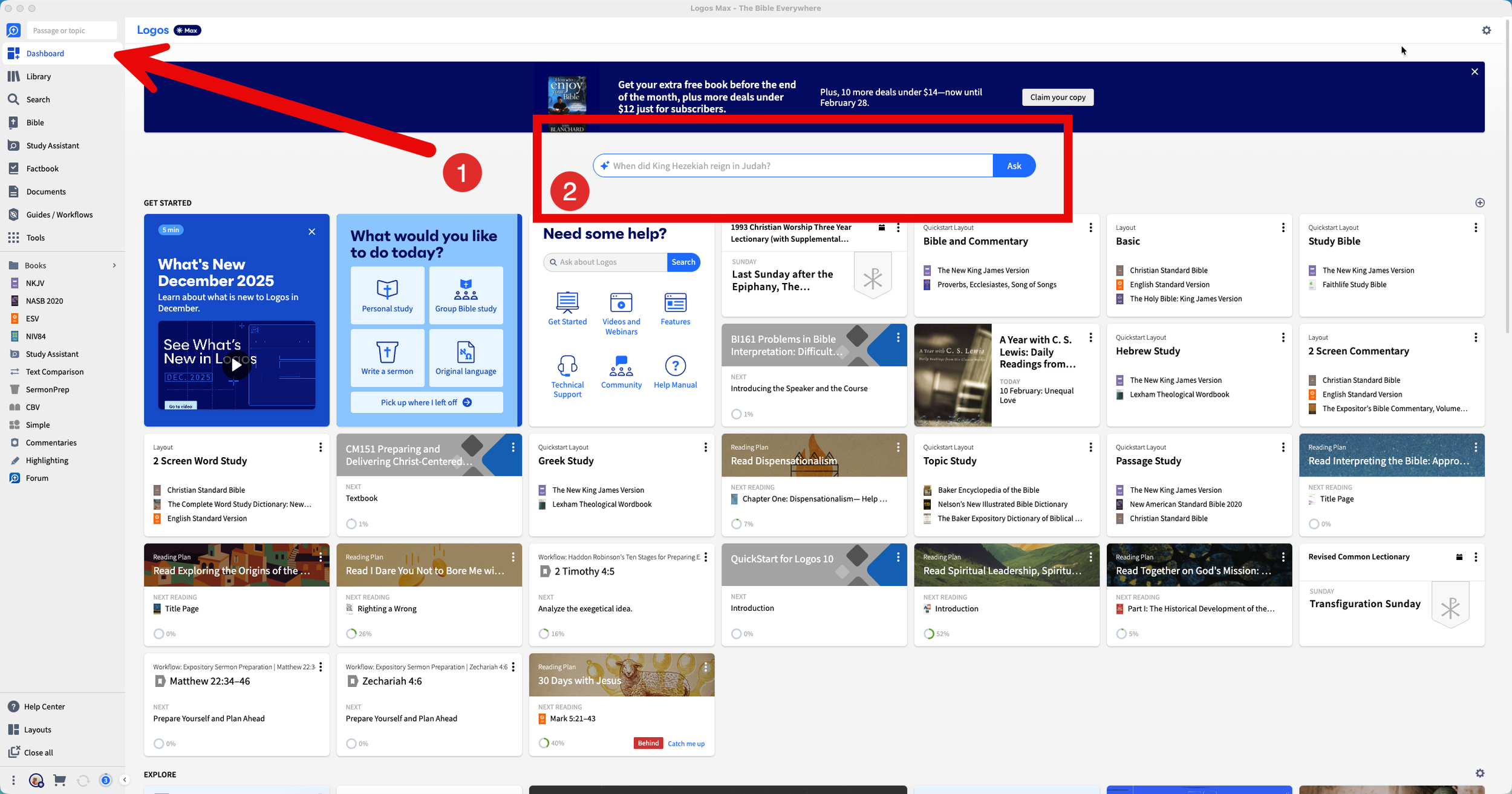
Open the Dashboard and you’ll see the Study Assistant at the top center of the Dashboard.
First, they put the feature on the main page of your program. If you open Logos to the Dashboard, then you’ll see the Study Assistant at the top of the window. Type your question in the SEARCH BOX and hit ENTER or click on the ASK button. The program will return a report like the one seen below.
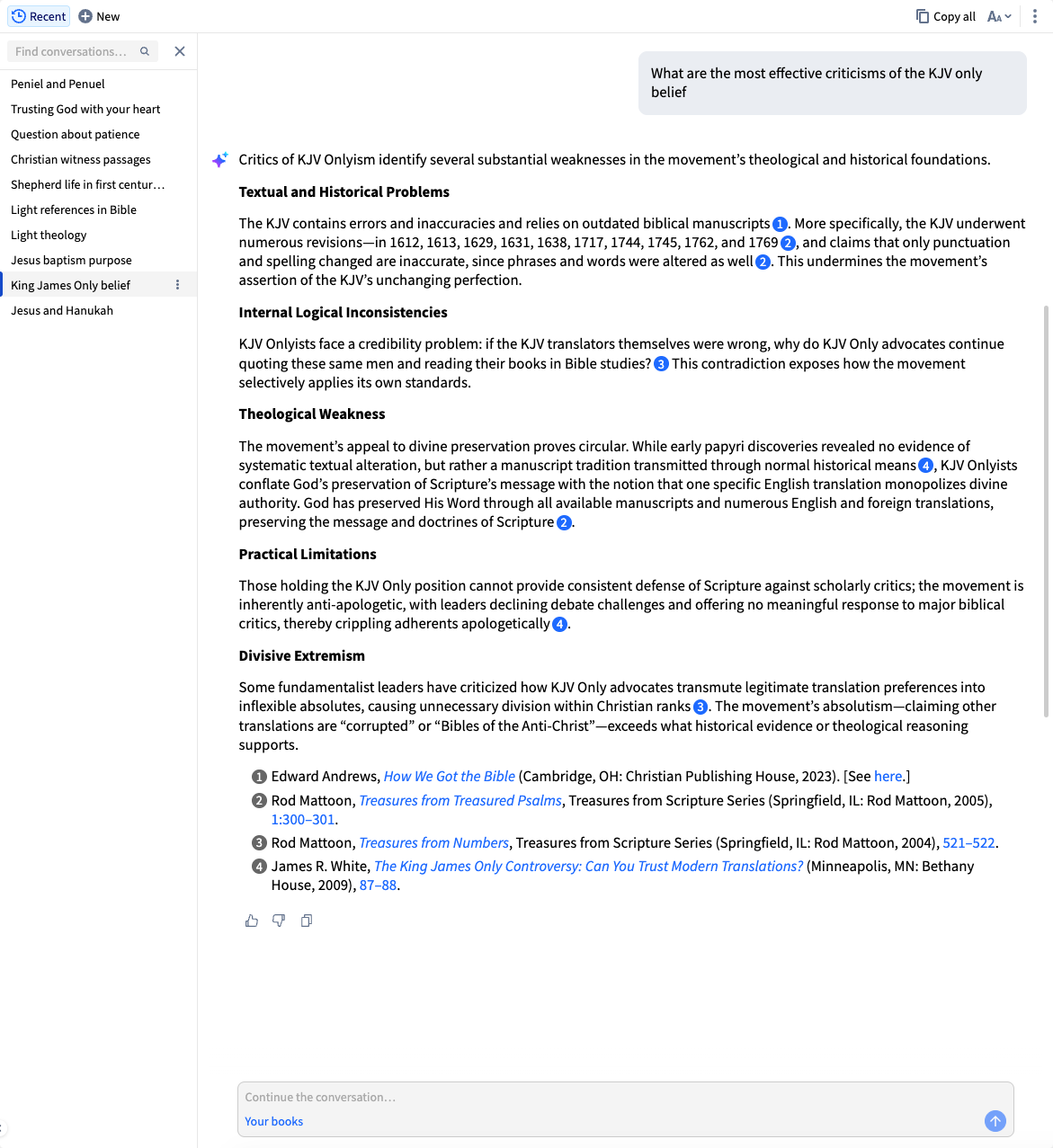
Working with Recent Study Assistant Conversations
When you open the Study Assistant, you can now interact with recent Study Assistant Conversations. On the left end of the toolbar, you’ll see a button labelled RECENT. Click on it to open your list of conversations along the left side of the window.
The programmers at Logos added some useful features to the Recent Study Assistant Conversations tool. You can edit previous conversations. That brings us to the second update.
2. Edit What You Search in Recent Study Assistant Conversations
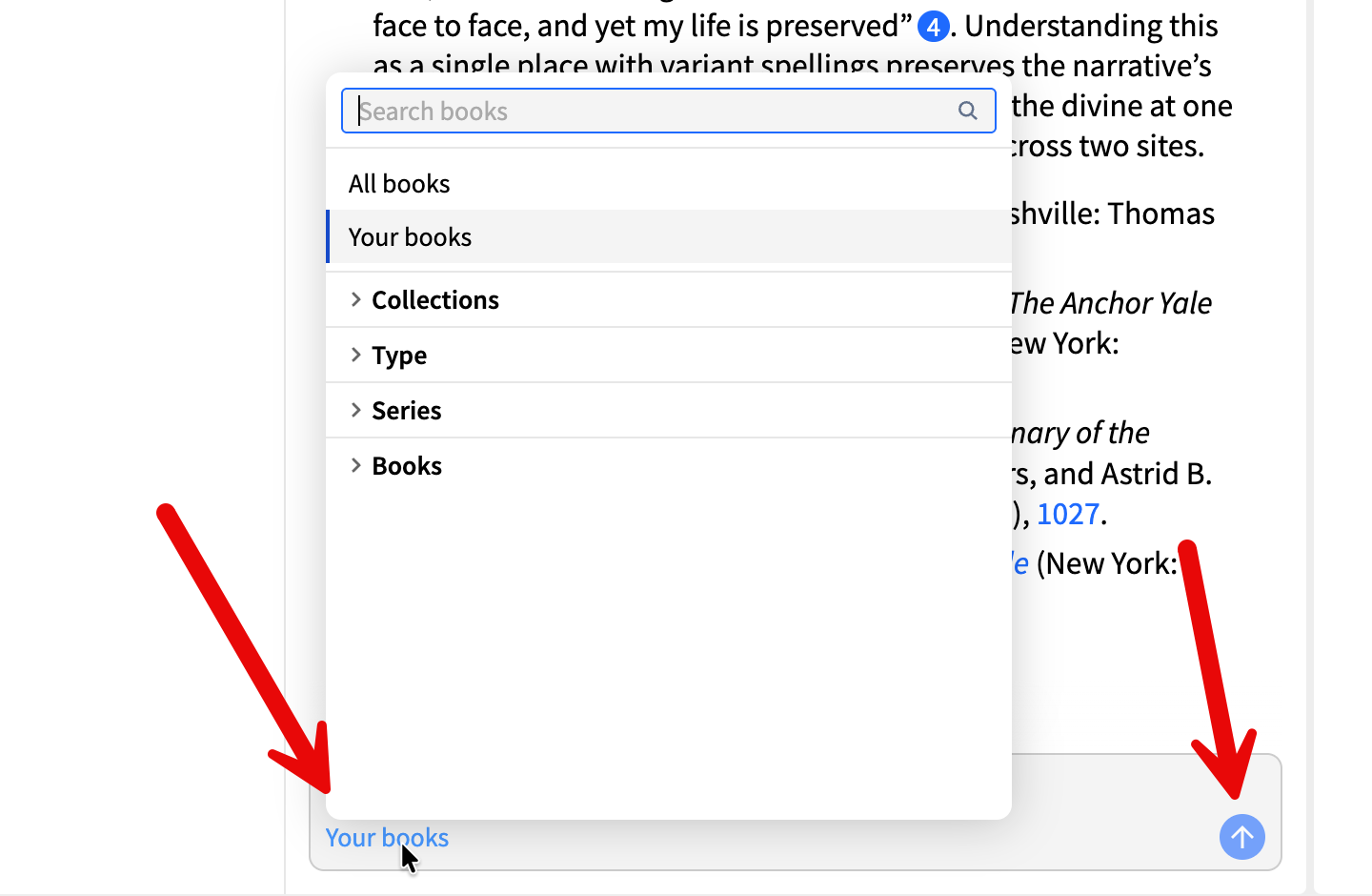
Click on the LINK in the lower left to change what books Study Assistant searches. Then use the ARROW to run the search.
Change the questions you already asked. For example, you can change what Logos searches to find answers. At the bottom of the screen, you’ll see a box with an ARROW on the right and a LINK on the left. Click the link to show a menu. It lists the following options to search:
All books (including ones you don’t own from Logos)
Your books (only those books you already own.
An update coming soon will let you search Collections
Type will be limited to a specific type of book, such as a Dictionary or Commentary.
The series will be limited to a series of books like the New American Commentary.
Books lets you search for a specific book. Use the box at the top of the menu to search for a book as you would search in your library (Title, Author, Type).
Change the Question You Use to Search in Recent Study Assistant Conversations (Changes 3 to 6)
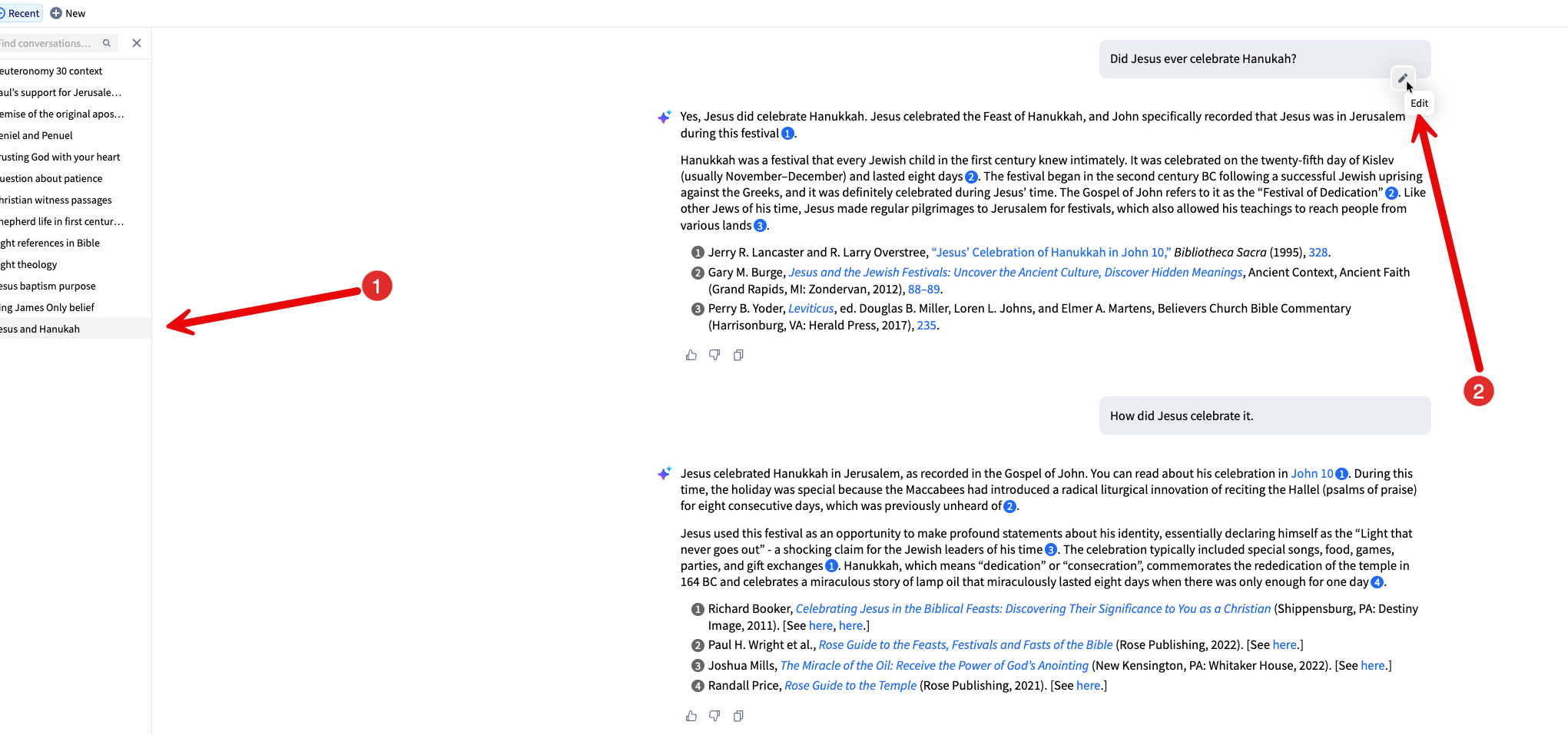
Open a Recent Question (Step 1 Above) in the Study Assistant. Over over the question and the edit icon shows the label EDIT shows up. Click it to change the question.
Changes three through six come in this area. Users can now edit previous questions in the Study Assistant history, in addition to the books they search.
3. Change the question and what you search. Open a q,uestion and you’ll see the previous search question. Hover over the gray box with the question text in it. The little icon shows up, and you can hover over it. Click the word EDIT that appears. Now change the question.
4. Delete questions or rename them. Hoever over a question in the list of recent searches. The menu icon with three vertical dots shows up. Click it, then choose Delete or Rename to replace the old questions.
5. Bible references in the Study Assistant will open the Bible to the highlighted passage. Click a Bible reference link, and it opens the Bible to that verse, with the verse or passage highlighted to make finding it quick.
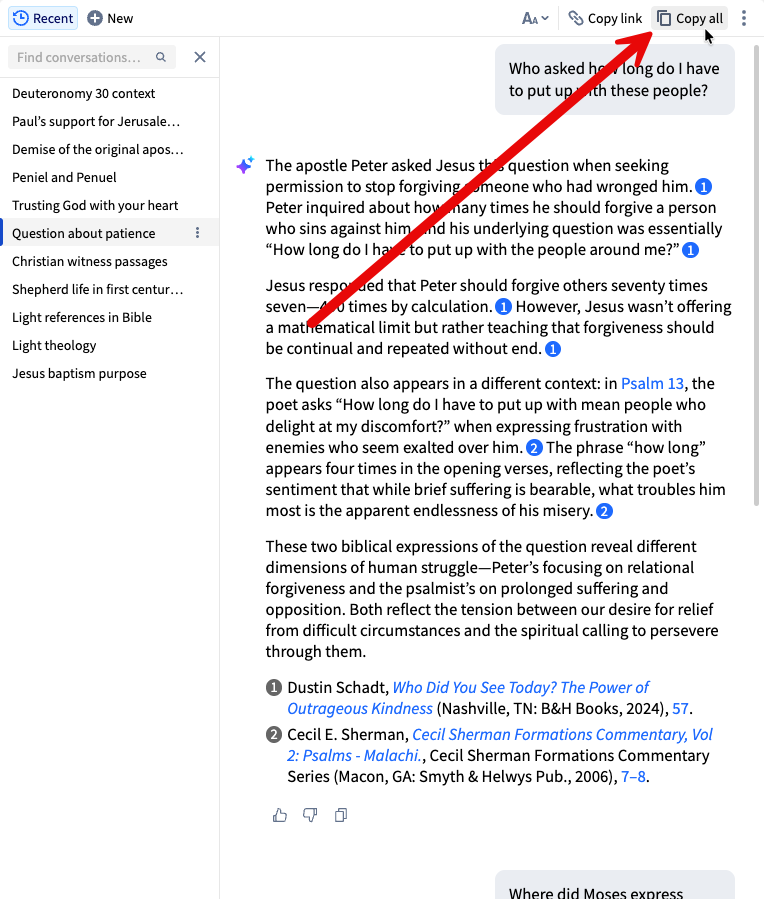
6. Copy All copies the entire conversation, not just a single section. Open a question or type a new question. When Logos returns results, you’ll see a toolbar with a Font button to change the Font of the results. There’s also a Copy link button to create a link to this Study Assistant question that you can put in your notes, sermons, or even other documents on your computer. Now we also have a new button labelled Copy all. This copies the entire question and the answers from the Logos Study Assistant.
Study Assistant Changes Also on Mobile and Web App
These changes also appear in the mobile and web apps. On the iPad and iPhone, tap the Dashboard icon at the left end of the bottom toolbar. You’ll see the Study Assistant search box at the top of the window that pops up.
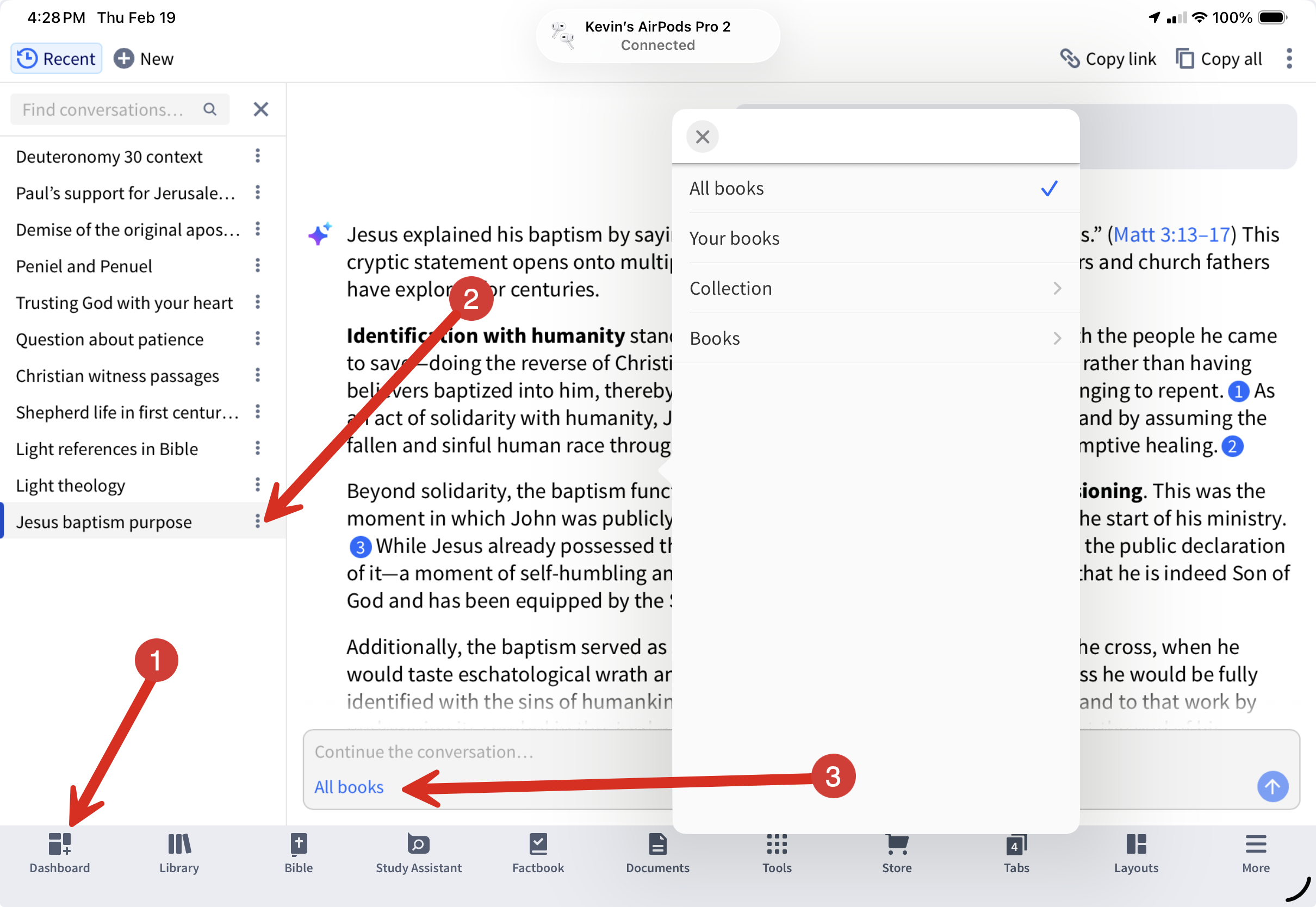
1) Tap on Dashbosard to open the Dashboard and see the Study Assistant on the Dashboard. 2) Tap on the three-dot menu icon to change the name or delete questions. 3) Tap on the All books link to change what you search.
The Logos Web App puts the Dashboard icon in the same spot as the Desktop app.
While you can open passages via links in the Study Assistant results, your passage won’t be highlighted on mobile or the web app.
A Mobile App Change: Search Non-Greek or Hebrew Words in Books to Open English Dictionaries
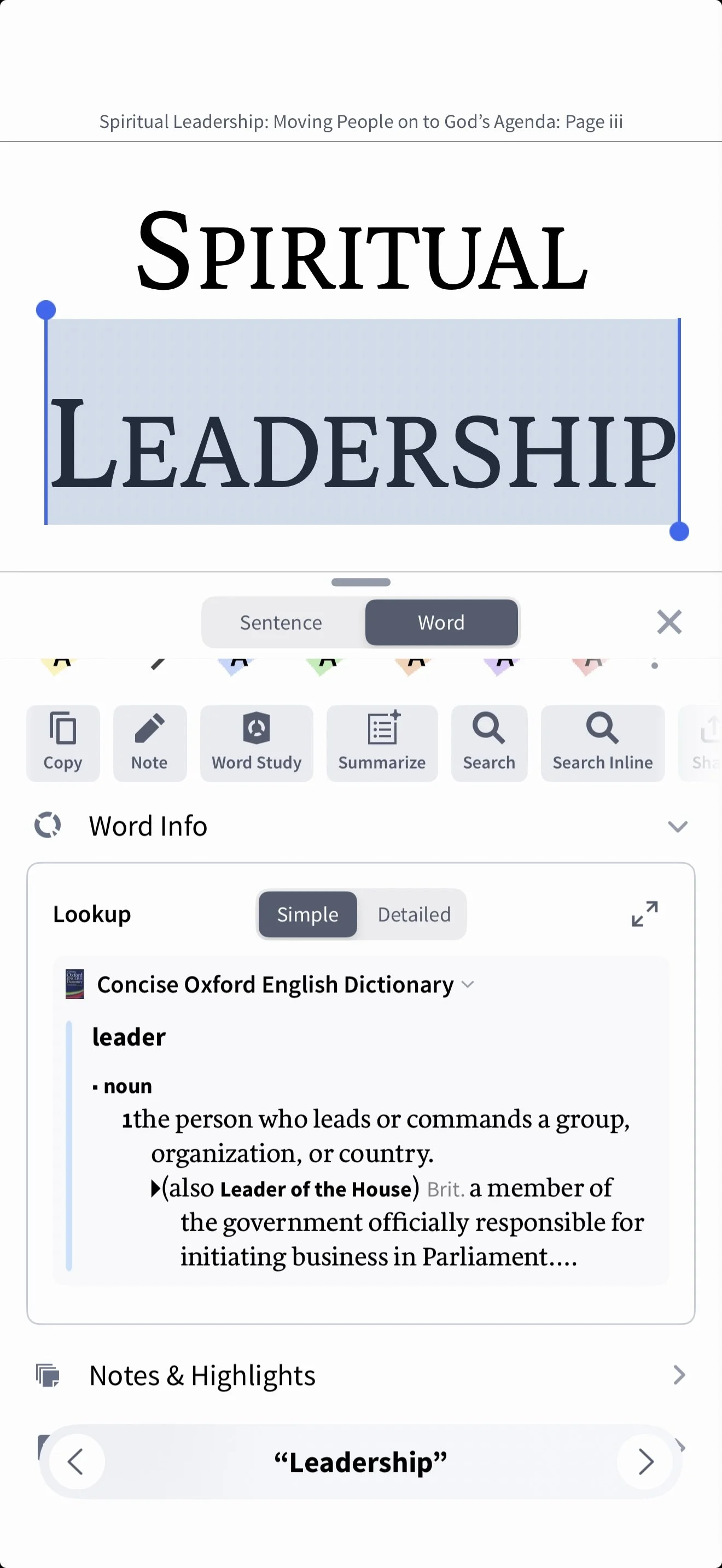
In the mobile app, you can now press and hold on a word that doesn’t have Greek or Hebrew behind it (from a regular book or bible dictionary). The Logos mobile app will open the word in a dictionary in the insight card.