

Selvy PenScript iOS Keyboard Recognizes Handwrting
Remember the days of the Palm, when you could pull out a stylus and enter text by using a strange handwriting that would let you "type" with your handwriting. The Selvy PenScript iOS Keyboard feels succeeds the Palm Graffitti input method with a modern handwriting recogniztion that doesn't force you to learn a new way to write. You just your own handwriting while entering text on your iPad or even an iPhone.
iOS Replacement Keyboards
If you're not familiar with, them a replacement keyboard installs like an app from the Apple App Store. Download the app from the store and then you have to configure the iPad or iPhone to allow the use of the keyboard.

Go into the Settings app after installing Selvy PenScript keyboard. Tap on General on the list in the left. Then tap on Keyboard from center. Tap on Keyboards on the next screen at the top. Tap on Add New Keyboard. You'll see the Selvy PenScript keyboard listed among others. Tap on it to add the keyboard. Then tap on the keyboard name again and choose Allow Full Access.
To use the keyboard in an app, tap in a text entry box. For example, open the Notes app and create a new note or open an old one. Tap as if you were planning to enter text. The regular iOS keyboard will pop up, unless you have an external keyboard attached. If you don't, the keyboard pops up with a small globe icon in the lower left corner of the keyboard. Press and hold that key and the list of installed keyboards will pop up. Choose the Selvy PenScript keyboard.
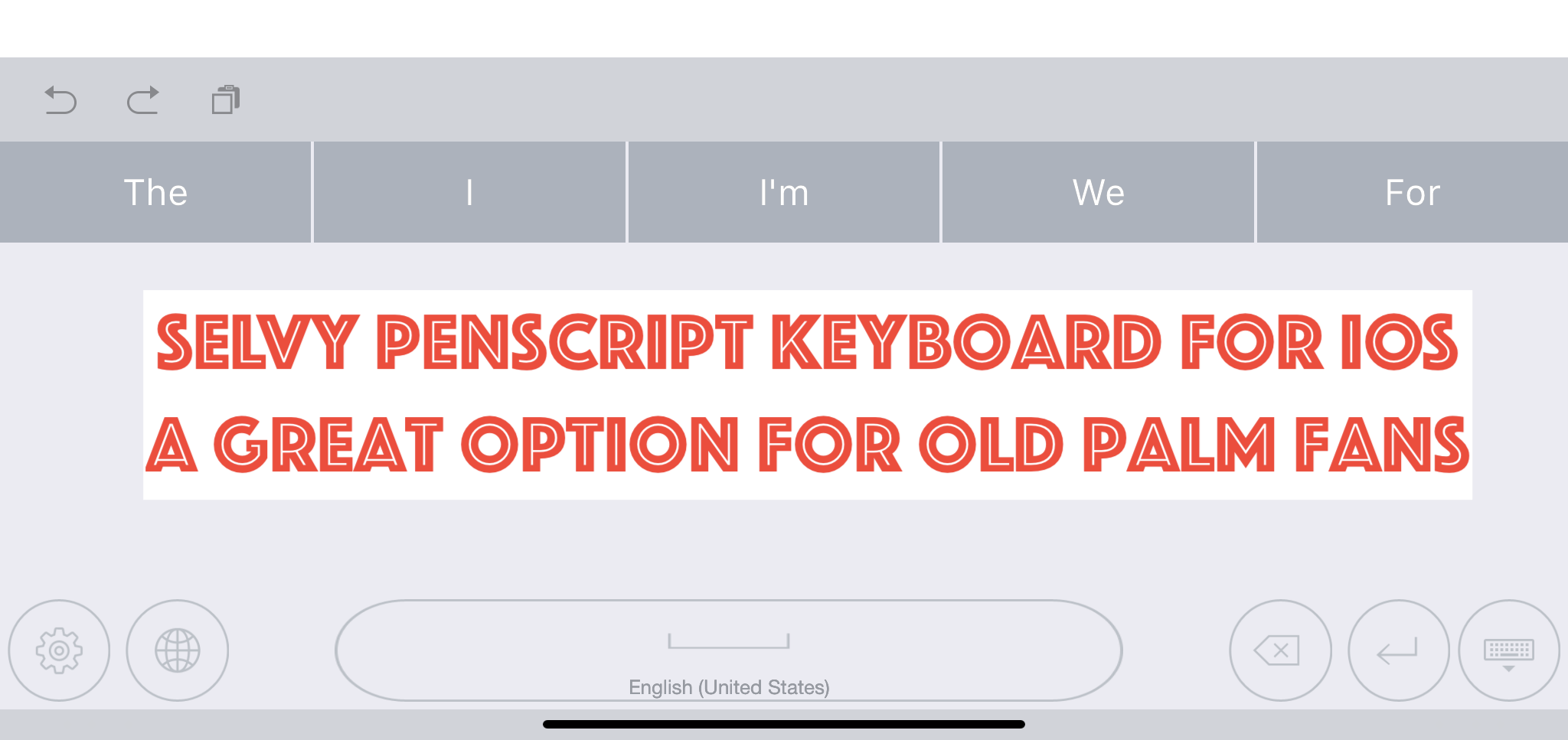
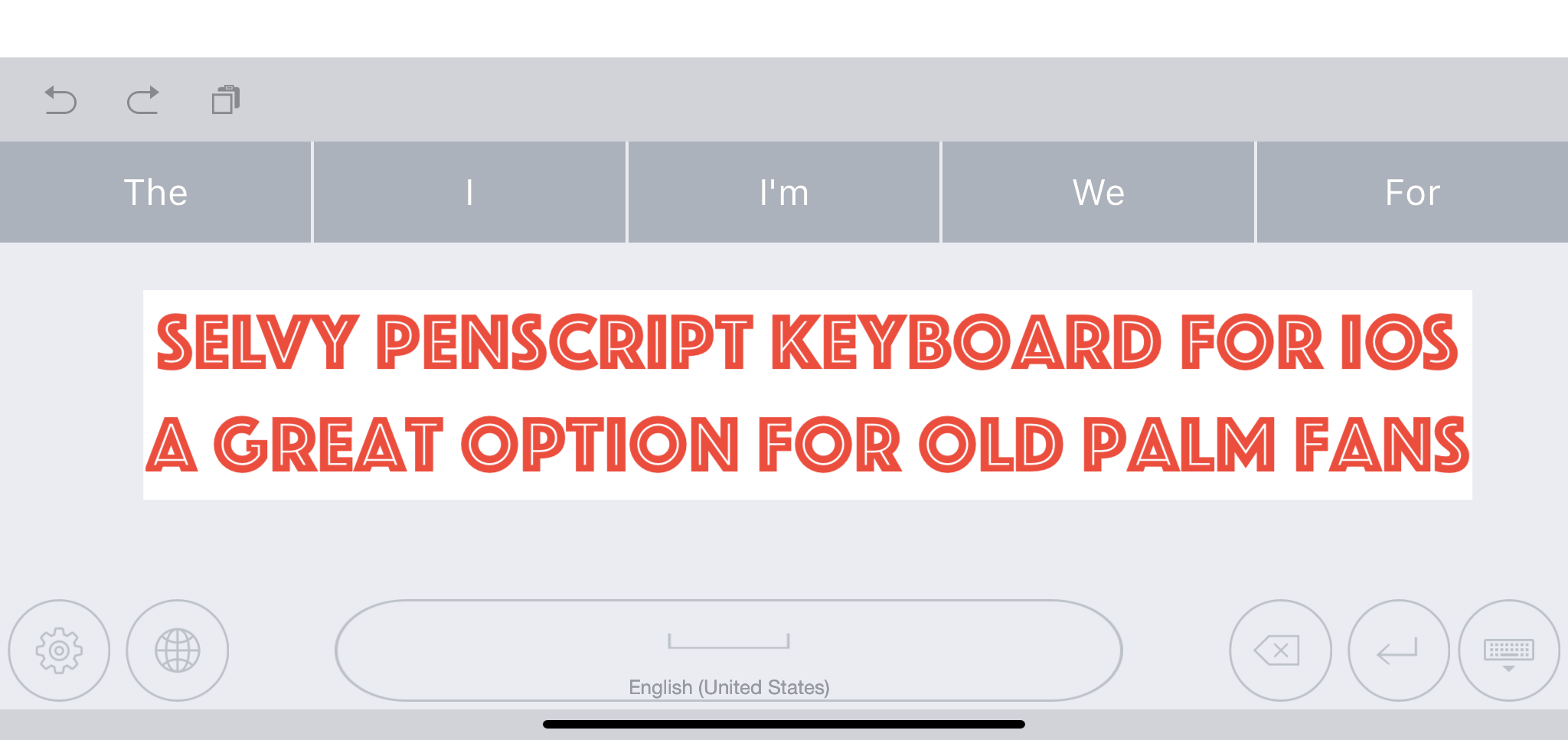
Selvy PenScript Handwriting Recognition.

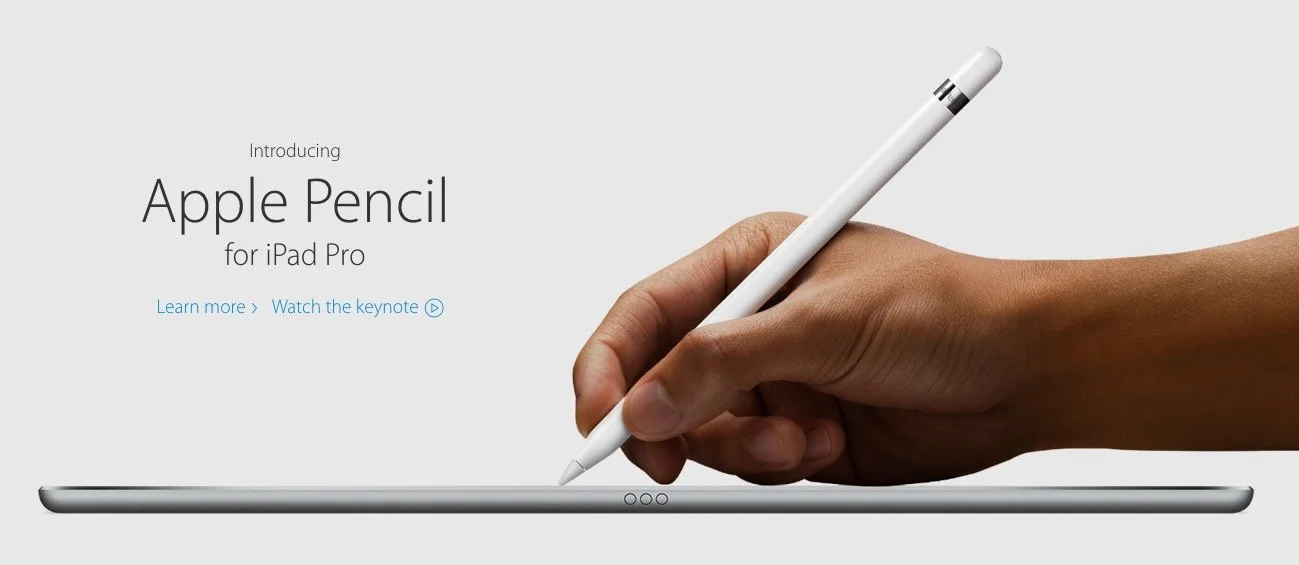
When you enter text the Selvy PenScript will pop up and you can now write. This works okay with your finger on an iPhone or an older iPad. However, people who use the Apple Pencil first or second generation will love this app. Writing with the Pencil in apps is wonderful.
The keyboard entry box looks simple. It has the following buttons across the bottom:
- Settings
- Keyboard chooser
- Space bar - long press to change the language of the handwriting recognition
- Backspace
- Enter
- Hide keyboard
Above the writing recognition box you'll see a row of words. This shows you options for your recognized handwriting.
The row of words usually has the correct word. However, you don't need to tap the word to enter it. Just pause your handwriting for a moment and it enters the text in the text entry area of the app your writing in. Customize the length of the delay in the app settings.
Selvy PenScript App Settings

The Settings icon brings up the app. Tap on the button on the lower left of the keyboard. You'll then see the App Settings. The available entries include:
- Languages - choose your keyboard language.
- Customizations - the real settings are here. See below for more info.
- About - version numbers, etc.
- Feedback - send the developers your feedback and bug reports.
- Installation Guide - teaches how to make the keyboard work in iOS.
- Try It - test out the keyboard.

The top portion lets you choose your Pen Color. We then get an option to customize the thickness of the line. The next two sections show options for putting a space after a word and putting a period at the end of sentences. Finally, there's an option to change how long the keyboard will take to recognize the text and enter it wherever you're entering text.
Conclusions
The Selvy PenScript keyboard does a great job of recognizing your handwriting. If you own an Apple Pencil, then it's a great experience. However, for short text input the regular keyboard works better. I have used it a little for entering text with my finger, but that's not as satisfying.
Go grab the Selvy PenScript. It's free and works great. However, you'll want to remember that any text that you enter using the keyboard will go through their Korean servers. Some might find this worrisome. I don't.
Is Apple Ruining Bible Software: Theotek Podcast #087
It seems that Apple is moving away from macOS towards an iOS-centric future. If the iPhone and iPad replaces the Mac, what does that mean for the church, Bible software and companies that make tools and software to help the church and believers make disciples? That's our discussion as we focused on the question, "Is Apple moving in that direction? If they are does that affect Windows, Mobile devices, and other platforms? What is the future of church software and technology in light of this possibility?"https://www.youtube.com/watch?v=R8EQKw7KXhM&feature=youtu.beThe conversation began, however, with our Christmas tech toys. The gifts we got for Christmas included some fun things like the following:
- Michael Purcell - my son joined us for this episode and got the Surface Pro 4, Type cover and Surface Pen. He explains why he loves his.
- Wes Allen - ThinkGeek toys like the BB8 Waffle Maker and the R2D2 Coffee Press. He also got an Apple Pencil.
- LaRosa Johnson - one of LaRosa's co-workers sold him the Blue Yeti mic.
- Antoine Wright - one of Antoine's Kickstarter campaign investments actually came through in a positive way. He got the Lumos Bike Helmet.
- Kevin Purcell - I got myself a Kindle Fire with the gift card for Amazon that my wife bought me.
You can always listen to the Theotek Podcast using the built-in player below or subsribe to us in iTunes and leave comments if you like us. We're also on other podcasting apps thanks to Stitcher Radio.
Apple iPad Pro 9 Months Later: Theotek Podcast #075
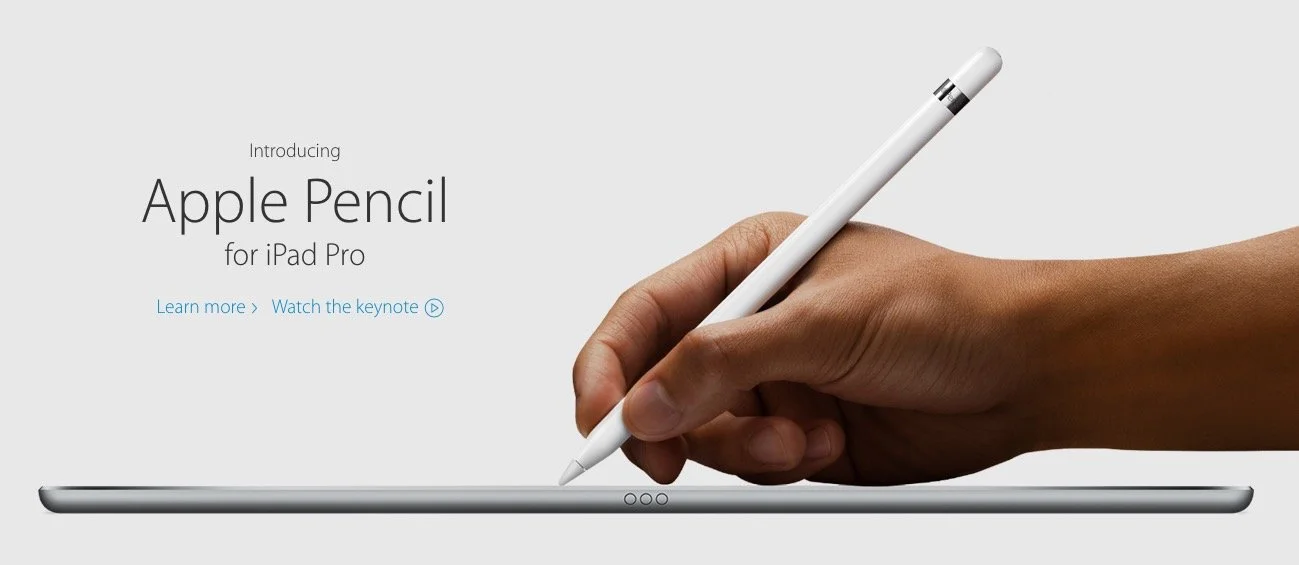
Our crew talked about our experiences in the last 9 months using the iPad Pro for our Bible study, preaching, and general work/play. Then we looked at Our Favorite Things. We planned to talk about Scrivener, a great writing tool that a few of our team members use. However, we went long talking about the iPad, so we'll save that discussion for next week. In the meantime, watch or listen below to our thoughts on using the iPad Pro.
- What's it great for?
- How could Apple improve it?
- How does it compare to Surface Pro 4?
- How are we using ours?
- What does Wes think just hours into owning one?
https://www.youtube.com/watch?v=rBgBqB8jomUFor Our Favorite Things this week, I talked quickly about SideClick, a little remote attachment for streaming set-top boxes, like Amazon Fire TV, Apple TV and Roku. Check it out at their website.
5 Ways Accordance Mobile 2 is Vastly Improved
Accordance Bible Software released a new version of their mobile app awhile back. It includes a bunch of great new features that make it vastly improved over the earlier versions, which I never really used much due to the sub par quality. However, these new features entice me to open Accordance Mobile more than ever before. Here's the 5 ways that Accordance Mobile 2 is vastly improved over the earlier version.Here's Accordance's own video highlighting the update.https://vimeo.com/122677075
Quickly Link and Unlink Parallel Panes in Accordance Mobile
 It seems strange, but Accordance didn't handle unlinking of window panes well until version 2. Now the app includes a button on the toolbar that quickly links or unlink the two open window panes.Open two window panes as normal. Then tap on the link button to either link them or unlink them. When the user unlink the two, the second pane will not scroll along with the first. This makes it easier to deal with commentaries where a person wants to read an entry from a previous passage without moving the Bible text to the earlier verse.
Download All Option in Library Manager
 When installing books in Accordance Mobile 2, there's now a download all button that makes it easy to quickly install the entire Accordance Mobile library. Before we had to select each book and then download them.Other mobile Bible apps need this feature. I've begged one app developer to add this feature since the iPad first came out.
Text Display Improvements
 Accordance rewrote their text display engine for a more attractive and complex set of features. Now users can change the fonts and color of text. The font button opens a dialog box with the following customization:
- Display brightness slider
- Font larger/smaller buttons
- Day and Night Theme selector
- Font selection
- Font color
- Background color
- Link to full display settings in the app
Awesome New Notes Features in Accordance Mobile
 Accordance really improved the notes features in Accordance Mobile. For example, users can now format their notes with things like font, font size, the color and format of the font (bold, italics, underlining). Users can also copy their notes and share them with others via iOS share sheets. Define words in notes and search for selected text in notes. Accordance Mobile 2 now lets users change the background color of their notes as well.
iPhone 6 Plus Capability
The iPhone 6 Plus lets people use apps in landscape mode thanks to the large 6.5-inch screen with high-resolution retina display. Accordance uses all that screen real estate to show more content in a side-by-side parallel pane view.
Notifications Section Today Screen Shortcut to Accordance Mobile
 Thanks to the notifications section in iOS, Accordance Mobile can put a shortcut to the app in the Today section. Slide down from the top of the screen and tap on the Edit button at the bottom of the Today section. You'll see a list of available Today section widgets. Tap the plus icon next to any one of them, including Accordance Mobile. This puts the widget in the list at the top of this screen. Rearrange the order of the notifications Today section widgets by dragging on the handle that looks like three horizontal lines to the right of the item.In the above screenshot I've only got on link. However, all recently opened resources will show up. It could list many more than the one book like mine does above.
Expanded Action Menu
 Now when a user selects text in a book or Bible text, a new expanded action menu appears above the selected text with new features.
- Copy
- Highlight
- Clear
- Share
- Search
- Amplify
- Define
- Note
- Bookmark
The Search and Amplify features won't show up on the action bar that appears above selected text when there's a Bible with Strong's tags opened, like the ESV, HCSB or KJV. In that case a box opens up (called the Instant Details) below the word with a definition from Strong's and two hyperlinks with Search and Amplify there instead.
Better and More Highlight Options
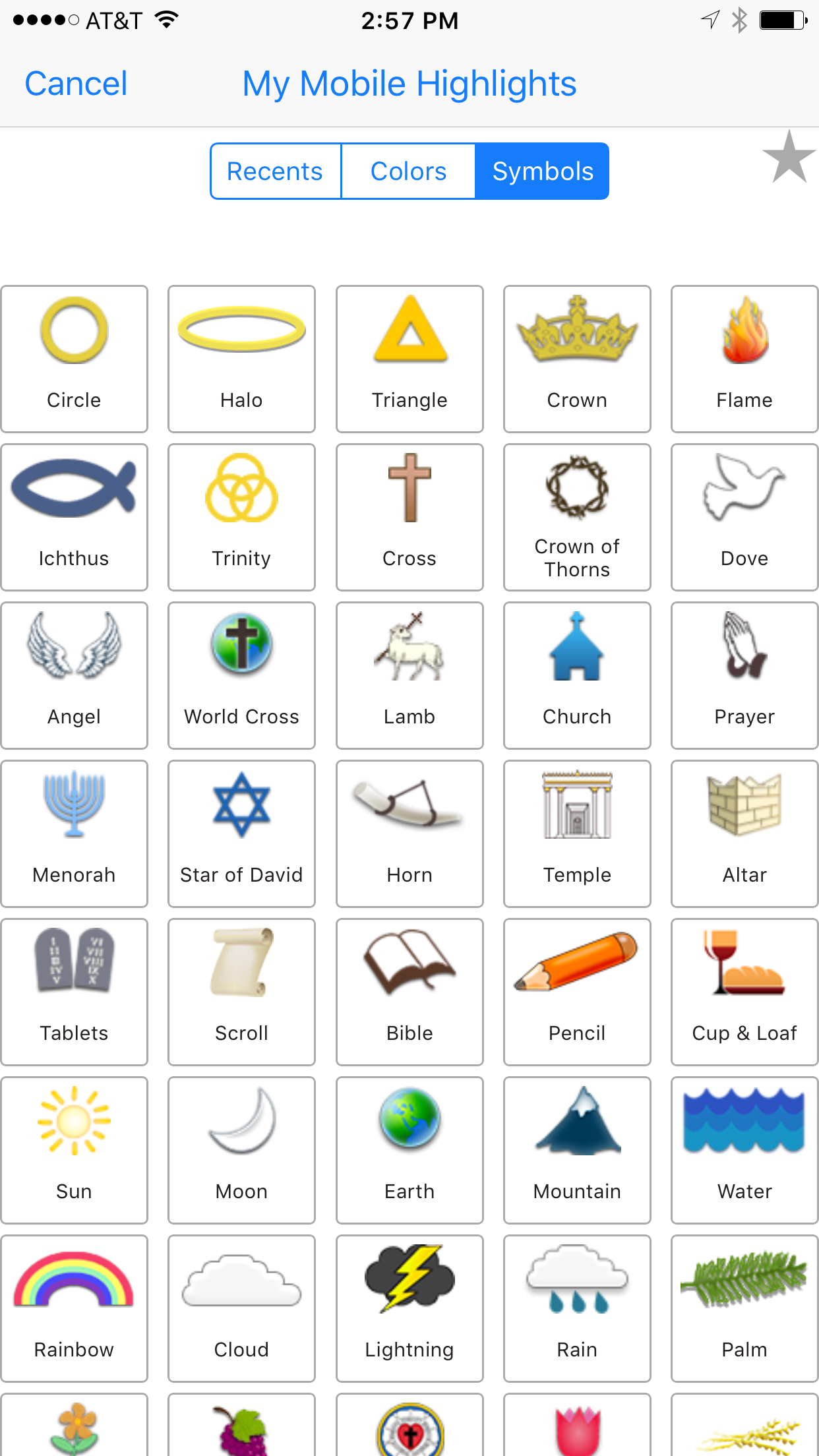
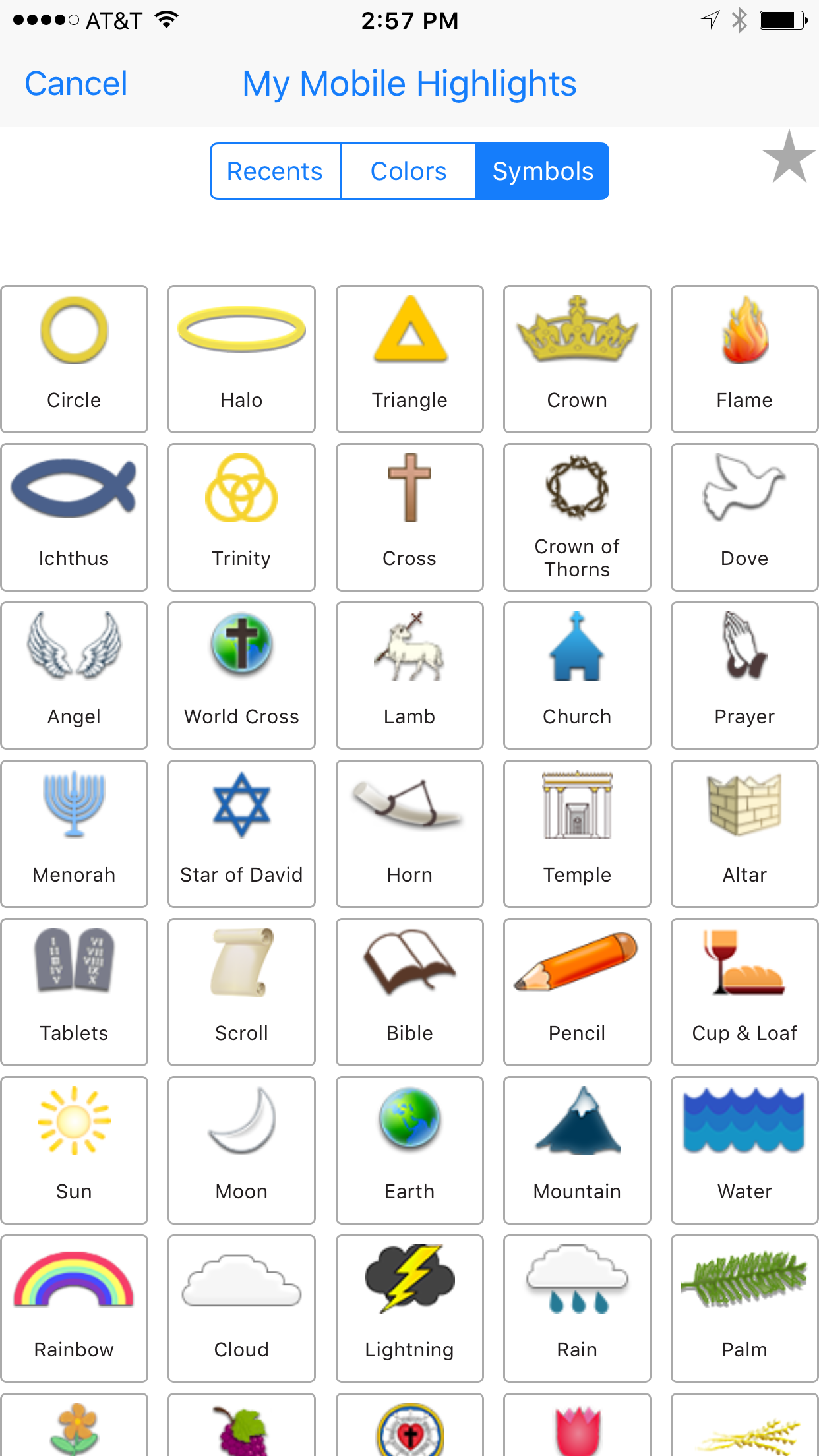
 In addition to the traditional color highlighting of text, Accordance Mobile 2 adds highlight symbols. Tap the symbols tab that shows up in the highlighting dialog box and choose a symbol. That symbol will show up below the text of the verse selected when the use added the highlight.There's also a Recents tab which shows the user's recent highlight symbols or styles. Also, uses can add other highlight styles and choose them by tapping the Highlights title.
2 More Free Resources
Who doesn't love free stuff. Accordance Mobile 2 will include 2 more free resources.Accordance added the Dr. J's Bible Study Methods tool, which teaches people who to study the Bible using Dr. J's methods in Accordance. He's the guy in the video above. Use this as a tutorial for Accordance like a quick start guide to studying the Bible with the program's powerful features. They also added Bill Mounce's Biblical Training course. There's 17 of them available free.Get more info at Accordance and download the app from the App Store.