


PocketBible for iOS and Mac Adds ChatGPT to Autostudy
There's a new version of Laridian's PocketBible for iOS, iPadOS and Mac that fixes some bugs, adds new features like an improved Reading Mode, and more importantly integration of ChatGPT AI Insights.

Laridian announced that they added ChatGPT to their Autostudy feature. This feature is available to subscribers of the company's Advanced Feature Set, which gives users more features than the free Bible study tool.

PocketBible for iOS is available on the App Store for iPhone and iPad and runs on Macs. The new version is 4.18. Find the full list of updates using the previous link.
How to Use Autostudy in PocketBible
The app's Autostudy feature helps users study their Bible with a simple report on a word or verse that the user selects. It's similar to the Guides in Logos, the Resource Guide found in Olive Tree.

To use Autostudy, hold down on a verse or double-tap a word. A toolbar with an icon that looks like a graduate's cap will pop up. Tap that to see the Autostudy window. Then tap on Show Results to see your Autostudy report.

The row at the top shows the content of your Autostudy. Swipe to see the rest of the row. Tap a category to jump to that category in the Autostudy list.
Autostudy includes the verse or passage report, which shows the following...
- Text from each of your Bibles (shown above).
- Strong's numbers.
- Dictionary definition of every word in the passage.
- Greek or Hebrew word definitions.
- Commentary entries from all the commentaries you own.
- Cross-references from Treasure of Scripture Knowledge or other cross-reference titles you own.
- Your user-created notes.
Autostudy for each word includes ...
- Definition from your selected dictionaries.
- Number of times that word is found in your Bible.
- Strong's number info if you own a Strong's tagged tool.
A new feature in the recent update offers Autostudy Devotions features, which include...
- Reading for today.
- Text of Bible passages referred to in your devotional.
Laridian includes a couple of nice features in PocketBible's Autostudy. Users can customize the report's look, which you see under Customize CSS when you run a report. They can also customize the order of content from within an Autostudy report.
ChatGPT Integration in Autostudy
Adding ChatGPT to Autostudy adds a lot of content to the app that a smaller company like Laridian could never add alone. In fact, big companies would likely struggle to add such far-reaching content.
From Laridian's Craig Rairdin...
We’ve spent a lot of time over the last year and a half designing prompts and instructions that cause it to give responses that are Bible-based and Bible-first. It avoids dogma and denominational bias and favors what it clearly reads in the Bible. It uses biblical terminology where political correctness would prefer non-biblical alternative language.

To use Autostudy, users must first subscribe to the Advanced Feature Set and turn on the AI feature in the settings. To do so, they tap and hold on a verse and then tap on the Autostudy button in the toolbar that appears.

In the Autostudy's first window, find Content and Order near the top. Tap it to open it. Ensure there's a checkmark in the AI Insights item at the bottom of the list (#1 above). You can also turn off other items by removing the checkmark. Hit Order (#2 above) in the upper right corner to change the order of the items in Autostudy.
Now, when you tap the Show Results item on Autostudy's first screen, it will find all the content it can from your library and ChatGPT. This takes longer than a regular report that doesn't use AI.
Example of AI Insights Results for Commentary
To give you an example of the results of AI Insights in PocketBible, I ran an Autostudy on John 3:3. Here's what the AI Commentary offered.
The Gospel of John, traditionally attributed to the Apostle John, is unique among the four Gospels in its theological depth and focus on the identity of Jesus as the Son of God. Written in the latter part of the first century, likely in Ephesus, it aims to strengthen the faith of believers and present a clear understanding of who Jesus is. John’s Gospel addresses a broad audience, including both Jewish and Gentile readers, and highlights the necessity of spiritual rebirth, a theme central to John 3:3.
In this verse, a conversation takes place between Jesus and Nicodemus, a Pharisee and member of the Jewish ruling council. This dialogue occurs at night, indicating Nicodemus’s cautious interest in Jesus and the disruptive nature of Jesus's teachings to the established religious order. The phrase “born again” introduces a pivotal theological concept that reflects on the necessity of spiritual transformation.
The context surrounding this verse encompasses the introduction of Jesus's public ministry and the manifestations of His divine authority, characterized by miraculous signs. John 3:1-21 emphasizes the contrast between human understanding based on earthly standards and the spiritual insights required to comprehend the Kingdom of God. Nicodemus, representing the religious elite, approaches Jesus, seeking clarification about His teachings and miracles, which sets the stage for Jesus's profound statement regarding the need for rebirth.
The phrase “unless one is born again” underscores the necessity of a radical inner transformation that is not achievable through human efforts or religious observance alone. This rebirth is explicitly spiritual, highlighting that entry into God's Kingdom requires a renewal of the heart and mind, an action attributed to the work of the Holy Spirit as described later in John 3:5-7.
The practical application of this teaching is substantial. It emphasizes the fundamental Christian belief in the necessity of conversion and the transformative power of God’s grace. For modern readers, it serves as a reminder that spiritual renewal is not merely a one-time event but an ongoing process of growth and reliance on God's spirit. It invites believers to examine their own spiritual lives, acknowledging that true faith encompasses a personal relationship with Christ and a transformation reflected in their thoughts, actions, and purposes.
The passage, therefore, teaches that understanding spiritual truths and entering into a relationship with God begins with an acknowledgment of one’s need for renewal, making it clear that human wisdom alone is insufficient for salvation. It aligns with the broader biblical narrative that presents salvation as a gift from God, to be received by faith and resulting in a changed life (Ephesians 2:8-10).
That's not bad! I wouldn't replace a solid, reliable commentary, but it's a nice supplement.
Other AI Insights that you get from PocketBible include...
- Bible Dictionary - a summary of info about the word or phrase studied.
- Inspirational Thoughts - a reflection for that day's Bible reading or other Bible passages.
- Applying Today's Verses - practical application for the day's Bible reading.
- Today In Christian History - info from church history.
Other New Features in PocketBible Update

Laridian added a new Reading Mode, removing distractions from the text so the reader can read their Bible. This mode removes the toolbars, toolbox, and other window stuff around the text. You open Reading Mode by tapping the button on the Toolbar with two arrows (second from the right).
If you wish to remove verse numbers, go to the app settings (the menu button is on the right of the toolbar) and choose Settings under the PROGRAM section. Tap on Hide Verse Numbers in the first section.
Finally, as with most apps or software, this update includes many bug fixes or minor feature changes.
How to Get PocketBible for iOS and Mac and Advanced Feature Set
You can download PocketBible for iOS or iPadOS in the Apple App Store on your iPhone or iPad. For Mac, get the app from Laridian's website. Both apps are free. The Advanced Feature Set costs $.99/month or $99/year through an in-app purchase or on the company's website.
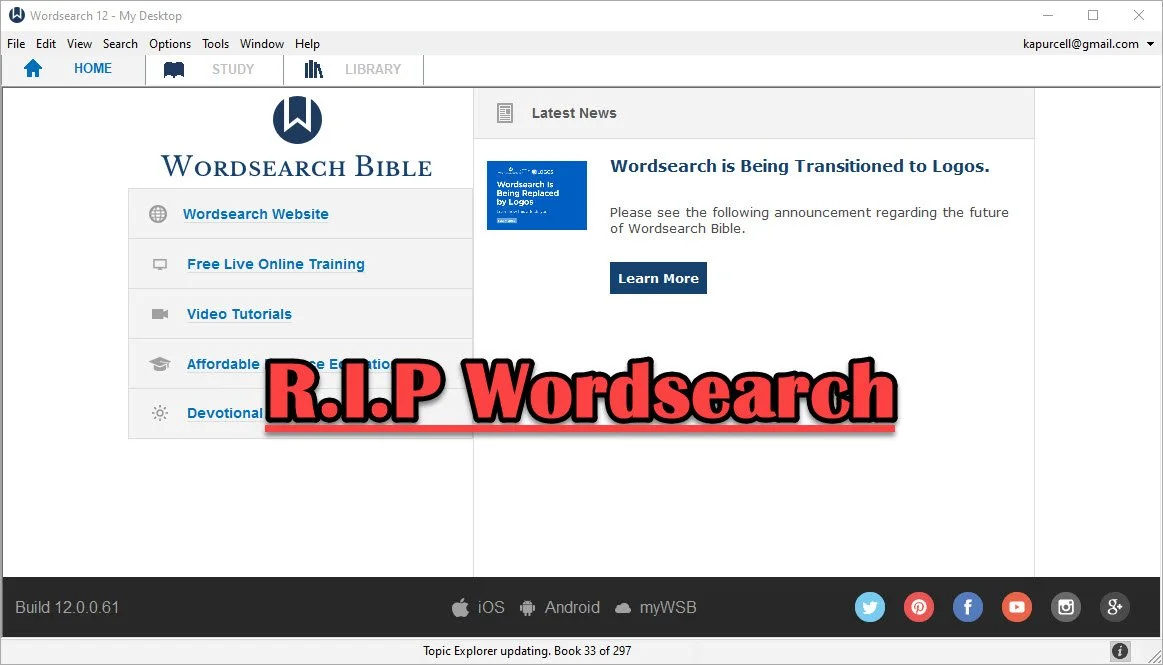
Wordsearch Support by Logos Ended, Now What?
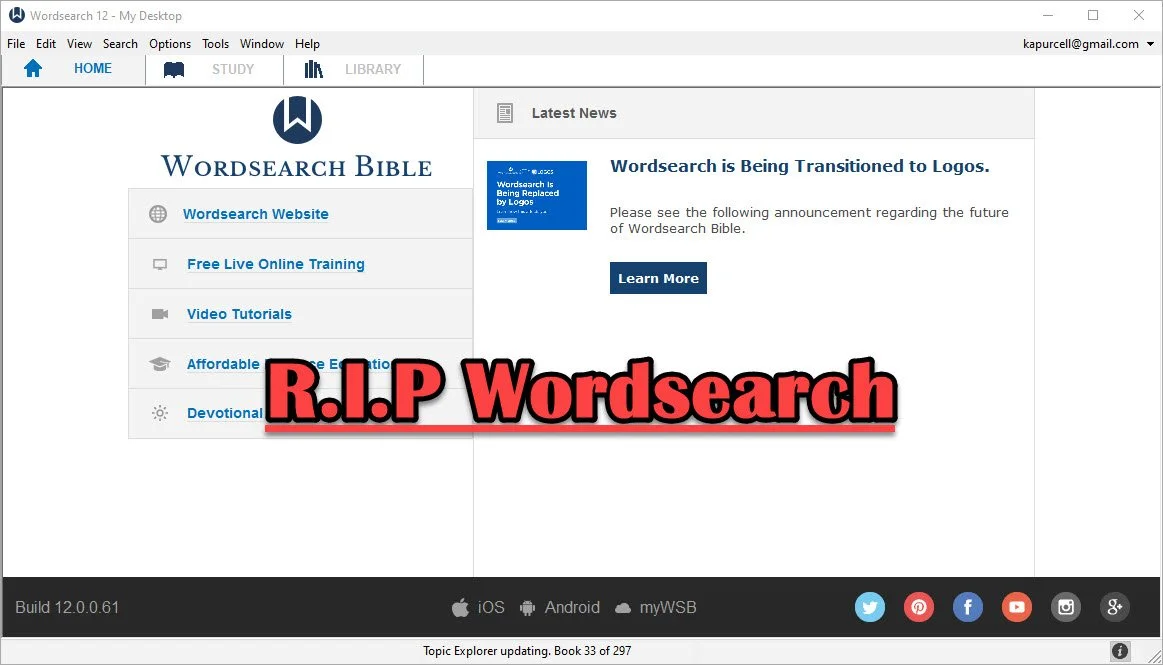
People who used and loved Wordsearch were likely disappointed when Logos and Faithlife bought the company and announced they would eventually shut it down. That time has come so what should a Wordsearch user do now? Here's the best way to continue studying the Bible digitally now that Faithlife and Logos ended support for Wordsearch Bible Software.
Logos Stops Wordsearch Support: What Does It Mean to Me?
Logos announced they planned to stop supporting Wordsearch, but that doesn't mean you can't use the software. You can. Just don't uninstall it or buy a new computer unless you have the installer and your books backed up.
Logos sent out an email to Wordsearch owners that said:
- You will not be able to download the desktop and mobile apps in the future
- You will not be able to download your books to the desktop/laptop or mobile Wordsearch apps.
That's frustrating if you want to keep using Wordsearch after buying a new computer, phone, or tablet. You'll need to find a new different way to get access to the program or start using Logos or some other app or program.
On your desktop or laptop computer, you can do a backup of your computer that includes your installation of Wordsearch and find a way to port it over to your new computer or a computer that you had to reformat or erase. That's more complicated than we have time to discuss in this post. A Google search will likely find dozens of options for Windows or Mac users.
Wordsearch users can also keep using the program on their current computer, phone, or tablet. The company won't cripple Wordsearch apps for software already installed. So keep using it knowing you won't get app or book updates. You also can't add new content, so if that commentary series you love gets a new volume, you'll have to find it in another format to enjoy it digitally.
Start Using Logos Instead of Wordsearch
Logos would love for you to start using their software. That's the whole reason they bought out Wordsearch, to get their users and their library of books.
If you want to start using Logos, then go over to the Logos website and see what version of Logos they gave you when they bought out Wordsearch.
In addition to a version of Logos, you will also get most of your books from your Wordsearch library in Logos. They will download after you install Logos on your computer or mobile device. A small percentage of books won't make the trip over to Logos.
See our post on using Logos and setting it up like Wordsearch.
Switch to Accordance
The best alternative comes from the folks at Accordance Bible Software. They offer a complex and powerful software program that brings you every feature you need to study the Bible at a scholarly level but also works well for pastors, teachers, and lay Bible students.
Switching from Wordsearch will cost more than going to Logos since Logos offers free software and gives you most of the books you own in Wordsearch format. However, you may not want to use Logos. You can get the $200 Crossgrade for Accordance. Crossgrades take the term "upgrade" and marry it with cross-over to form a crossgrade.
In addition to the Wordsearch crossgrade, you can crossgrade many of your books. Just contact Accordance to learn what it will cost. In both cases, you'll need to fill out a form proving you already own either Wordsearch or the books you want to buy via crossgrade.
Other Bible Software Options

Logos and Accordance aren't the only games in town. You can also find great options from the following:
- n Olive Tree Bible - Olive Tree provides a decent desktop or laptop computer program, but also has the best mobile app you can get on iOS or Android. They sell a lot of books too.
- Laridian PocketBible - You won't get as many books with Laridian as you will with Olive Tree, Accordance, or Logos. However, the developer does a nice job of creating a stable platform with some unique features, like showing 4 or more window pains on mobile, something can't get from any other app that I know of. With Book Builder you can make your own books for PocketBible on Android, Windows, iOS and Mac.
- e-Sword - The long time free Bible study program from Rick Meyers will seem simplistic compared to the other programs in this article. However, if a user doesn't like Logos and can't afford the others, then free books from e-Sword will help you with your study needs until you can afford something a little more advanced. Some Wordsearch users will find that it's all they need. If you want some modern Bibles and books you can buy them from eStudySource.

Recommendation
What should you do if you were a Wordsearch user who wished they were still in business?
- Keep using Wordsearch. You can still use it as long as you don't change computers and even then might be able to jump through some technical hoops to get it to work on a new computer.
- Go ahead and get Logos installed, if you have space on your computer's hard drive. You can also install it on your mobile devices. If you used the minimalist Wordsearch mobile apps, you will find that Logos does so much more. This will confuse some users who were Wordsearch's simple book reader app. But most will view it as a huge upgrade on mobile. Spend time about Logos until you feel comfortable using it for your digital Bible study.
- Get free versions of Accordance, Olive Tree, e-Sword, or Laridian's PocketBible. Try them out and see which one you like best. Then start looking into getting the books you need for your study.
Mobile users should look at Logos, Olive Tree, or Laridian first. They are the best mobile apps for serious Bible study. Accordance gets honorable mention if you are using iOS, but Android users should look elsewhere because Accordance on Android is too limited right now. They plan to upgrade making it more useful, but Logos, Olive Tree, and Laridian are so much better on Android.
M1 MacBook Pro and Bible Study Apps
How well do the top five Mac Bible study apps run on the new M1 MacBook Pro? We ran five of the best programs and share our results.
Are you curious how the new M1 MacBook Pro handles Bible study apps and programs? I was too and couldn't wait to test this out. You can find the results as I tested Logos 9, Accordance 13, Olive Tree, Laridian Pocket Bible, and e-Sword X on the new M1 MacBook Pro.

UPDATE: Added a video under the Logos 9 on M1 MacBook Pro section below.
Why I Bought the M1 MacBook Pro
For the past year, I actually transitioned to a Windows-centric computer experience by giving my 2018 MacBook Pro to my son, a videographer and photographer who really wanted to go Mac. I bought an excellent HP Spectre x360 13 2-in-1, but then reluctantly decided to go back to Apple after my office PC failed and I got a Mac mini from a friend.
I bought the 2020 MacBook Pro that Apple released earlier this year based on Intel's processor. That was in late October and then Apple released the new M1 MacBook Air, M1 MacBook Pro, and M1 Mac mini. Fortunately, I got mine at Best Buy and I could return so I did and picked the M1 MacBook Pro with 8GB of RAM and 500. It's not the highest-end M1 MacBook, but it's what could get in exchange without paying too much more.

Best Buy shocked me and told me I could get the new computer the next day, but that was wrong. It showed up the Monday before Thanksgiving instead of one week before Thanksgiving. That's not bad considering Apple shows a date in mid-December before you can get one directly from them.
Installing Bible Programs on the M1 MacBook Pro
The new M1 MacBook Pro showed up and I unboxed it and starting setting things up. Soon I was installing my Bible study programs. I use three Bible apps but for this test, I installed five of the best Mac Bible study programs you can buy today.
- Accordance 13
- e-Sword X
- Laridian Pocket Bible
- Logos 9
- Olive Tree Bible Study
For the most part, these apps installed without much concern. It's interesting that the first time you install a program that's not optimized for the M1 chip, macOS 11 Big Sur will ask you if you want to install something called Rosetta 2. It didn't take long to download and install, but it stops you from launching your app. I had to launch Logos 9 again after Rosetta 2 finished installing.
The other apps installed quickly. Accordance takes a little while to download your books if you have a large library. Olive Tree Bible Reader, Laridian PocketBible and e-Sword X don't take as long. In fact PocketBible has the best installation process of the group. It takes little time at all.
Logos 9 on M1 MacBook Pro
Let's first talk about Logos 9 because it's the most demanding of the five programs. It Typically, I start the installation, plug in my laptop, and leave for hours. When I come overnight or after a full day away, it finishes and we're ready to study the Bible.
As you can see from the video above showing the installation and indexing process, it took 3 hours and 47 minutes to install, download my 27GB library, and index the library. The download seemed faster than normal. Then indexing went quickly.
My friend LaRosa compared the indexing process to taking a long trip on an Interstate. It takes a little while to get on the road, but once you do and get up to speed, it runs quickly. Then, the off-ramp time slows down. That's how things went with the M1 MacBook Pro. It starts slow, speeds up, and then finishes slowly.
Normally, when Logos 9 indexes the library it takes up a lot of resources and you can't really use your computer much. You can, but it's infuriating because Logos takes up all the memory and processor. However, with the M1 MacBook Pro, Logos 9 ran slowly, but the rest of the system ran smoothly. For example, I hit the Home button in Logos 9 and scrolled through the Home page. It stuttered running haltingly. It's not smooth at all.
In spite of how slowly Logos 9 itself performs, the rest of the system runs smoothly during the indexing. That's abnormal with Intel or AMD based computers. They usually don't run smoothly.
Battery Life for Running Bible Study Apps on M1 MacBook Pro

The battery life stood out on my new M1 MacBook Pro. The process of installing Logos 9 on laptops usually kills a battery. On my previous HP x360 13 and my older 2018 MacBook Pro, I would never attempt to install Logos without plugging in. I didn't have to on this computer.
Add the wonderfully bright screen and crisp text, you get a fantastic experience writing and reading. I put the screen at 50 percent and it looks like other computers I'm used to using when they are set to 75-80 percent.
After I killed the battery installing Logos I used it for a couple hours and went to bed with it at 40 percent. This morning, after running on battery at 50% for about 4 hours, my battery reads 76% left. That's fantastic. My 2020 12.9-inch iPad Pro doesn't last as long in real-world use.
Hard to Tell Difference on M1 MacBook Pro

What's the final takeaway for running Bible study apps on the M1 MacBook Pro? For four out of our five apps, there's little to no different. I couldn't tell the difference between running Accordance, e-Sword X, Olive Tree Bible, or PocketBible on this computer.
Logos 9 is a little different. Installation was a slightly better experience. You can set it to download and index your library and get some other work done while it happens in the background. That's a huge improvement compared to running the program's installation on other computers.
Once you install Logos 9, it runs well. There's one issue that's more a Big Sur problem than an M1 MacBook Pro problem. Over in the Logos 9 forum, there's a post listing one issue as follows:
The Logos Desktop Team has tested Logos 9 and Logos 8 on macOS 11 "Big Sur." So far we discovered some minor styling issues (see below), but have not encountered any major issues.
Known Issue: Table of Contents arrows are duplicated.From Logos 9 forum

The above issue with arrows is an extremely minor issue. You may find others, but right now that's all.
In another Logos forum post, Phil Gons from Faithlife said the company has no definite plans to make Logos 9 run as an M1 Mac application. That's not saying they won't do it, but they are not announcing anything publicly. I'd expect this to take a long time since the current version of the software works so well. I look forward to the time when these five all run as a native app.
There's one thing that you can say about running Bible study applications on the new M1 MacBook Pro. Launching these apps takes a lot less time than they used to. Of our five, Laridian PocketBible and e-Sword X jump onto the screen instantly. Olive Tree Bible Reader loads in a couple of seconds and Accordance launches in a few seconds. Sadly, Logos 9 still takes longer than the others. But it loads faster than it did on Intel Macs. Running the programs speeds up on these new M1 chips too.
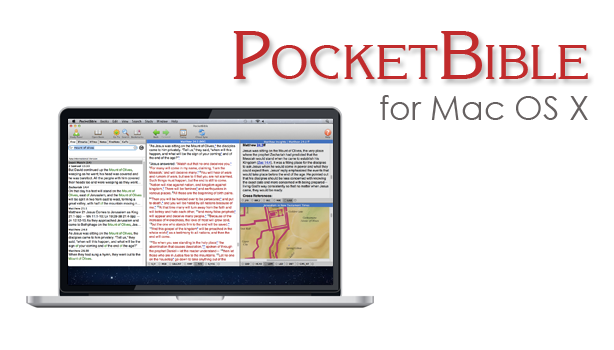
Laridian PocketBible for Mac 1.3 Update Released
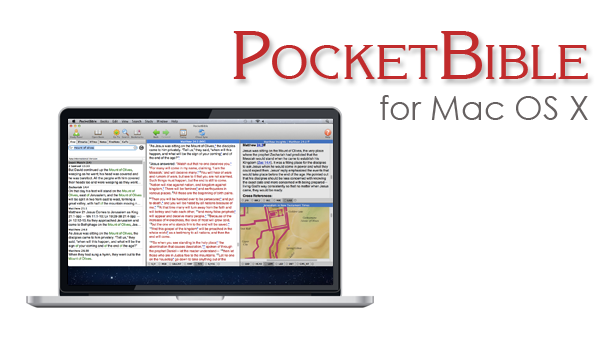
Laridian PocketBible for Mac version 1.3 hit this week with a few new features for users of the deceptively simple yet powerful Bibles study tool. One notable feature includes support for Laridian's latest Bibles that display text in a more useful way. This includes one example, mentioned in an email from Craig Rairdin, Laridian's CEO and chief programmer. The NIV with Goodrick-Kohlenberger Numbers will not support Laridian PocketBible for Mac.
How to Install Laridian PocketBible for Mac 1.3 Update
To get this free update you only need to select Check for Updates in the Laridian PocketBible for Mac menu at the top left of the Mac menu bar (see below). The download will install bringing your copy up to vision 1.3.
 If you own a copy of Laridian PocketBible for Mac but don't already have it installed, then go to the company's website and log in. Click on Download from the top of the website or click on the link labelled Mac OS X along the right side under Download Our FREE PocketBible App! as seen above. This puts a DMG file most likely in your Downloads folder. Double click it and then drag the PocketBible icon into the Applications folder seen in that window that pops up when you download the DMG file.
How to Install Books on Laridian PocketBible for Mac
You will need to register the program after you open it for the first time. MacOS may give you a warning before it opens the newly installed PocketBible for Mac, but it's save to let it open. Then register by typing in your email and password. If you're installing this for the first time not your Mac, then click on the Books (#1 above) menu at the top next to the PocketBible menu on the left side. Then click on Cloud Library or if you prefer use the keyboard combo CMD+L. This opens the screen that lets you install books. You can install all books by clicking the Download All Books (#2 above) button on the lower left of the window. You can help yourself to find only new books by click on Hide books already downloaded (#3 above).Aside from supporting new Laridian Bible formats, they also fixed some minor bugs. There was something they called "wiggling" that happened when you moved to a new verse. Text would "wiggle". I've not seen this, but I'll take Mr. Rairdin's word for it that he fixed it since I don't see it in v. 1.3.
Lairdian PocketBible for Mac Advanced Feature Set Updates
If you own the Advanced Feature Set, then you can hover over a Bible reference and your settings will let you either show or hide the footnotes in a pop up window. You can add the set from the PocketBible menu. The Advanced Feature Set costs $9.99/year on Mac only and $17.99/year for all platforms. Some of the benefits of the Advanced Features Set include (copied from Laridian's website):
- Searching enhancements - search your entire library in one operation (normal search applies only to the active book).
- Note-taking enhancements - create Journal Notes that are not connected to any Bible verse or reference book. Will sync with other versions of PocketBible that have this feature (currently iOS).
- Automatic Study Options
- A Library Navigator shows you everywhere in your library that the current Bible verse is discussed.
- Automatically produce an in-depth study of any verse using all (or selected) books in your library.
- Automatically produce an in-depth study of any word using all (or selected) books in your library.
- Automatically produce a document containing today's (or any day's) Bible readings using one or more devotionals and one or more Bibles from your library.
- Hover over Bible links in books to quickly read the verse from your preferred Bible.
- Highlighting Enhancements
- Rename your highlight colors to be more relevant to the purpose of the color.
- Speech Synthesis Enhancements
- Uses built-in OS X speech synthesis to read a selected passage, read the linked-to Bible verses, or start reading until it is told to stop.
- Choose custom voices and speaking rates for English books, Spanish books, and the Greek New Testament.
- Layout Enhancements
- Create multiple, named screen layouts for different purposes (for example, one for devotional reading, one for lesson preparation, and one for note-taking during sermons).
- Create a special layout for devotional reading that will be activated when the Today button is pressed.
- Maximize a book to use the entire PocketBible Window.
- Maximize a pane to use the entire PocketBible Window.
- Miscellaneous
- Control Special Offer notifications telling you about recent discount offers for which you have been made eligible.
- The Study Panel uses a small toolbar instead of text tabs.

Bible Updates and Facebook Live: Theotek Podcast #104

Learn about Bible updates and the future of the Theotek Podcast in this week's show.In my previous post, I shared that we're changing our official home of the Theotek Podcast to Facebook Live. This is the first episode that we recorded using Ecamm Live over Facebook Live instead of using Google Hangouts and YouTube Live. Give it a watch below and go on over to our new Facebook Page where you can find all of our podcasts going forward. In this episode Rick Mansfield showed up of the updates that came in Accordance Bible software 12.2.2, bringing a build-in web browser. I love this new feature because it mean I can use Accordance and access my Logos books and WORDsearch books all from one program.https://www.youtube.com/watch?v=yQpNkluS04c&feature=youtu.beAfter that I shared updates to Laridian's PocketBible app for iOS and Logos Bible mobile app updates. I'm working on a full review. Go follow me on Twitter to get notice when that review goes live over at Church Tech Today.Here's the list of "Our Favorite Things" - the things recommend because we love them.
- DJI Spark Drone - a small 1080P drone that's compact and takes awesome photos and videos.
- LG UltraFine 5K Display - high-end display that's NOT 4K but 5K resolution.
- History of QuickVerse/Parsons Technology - history of QuickVerse Bible software and Parson's Technology from Craig Rairdin, the founder.
- SizzlingKeys - an app for controlling iTunes in a compact form.
- Ecamm Live and Call Recorder - software we used to record our Skype conversation directly to Facebook Live.
5 Best iPad Bible Study Apps
The iPad assists mobile Bible study thanks to a lot of iPad Bible Study apps. But which one should you use? How good are they and what can a person do with them. Let's look at the best iPad Bible Study apps to help preachers, teachers and Christians study the Bible.
iPad Bible Study Must Haves...
Recently we differentiated between mobile Bible Study apps and Devotional or Bible reading apps. Please see that post to understand the difference. The apps below fit in the more advanced Bible Study Apps sector. Users can use them for Bible reading and devotional Bible reading as well, but they are more than that. Here's what I think every good Bible Study app should include that might not show up in a simple devotional or Bible reading app.
- Original language tools
- References like commentaries, Bible dictionaries, atlases and more
- Dual pane view showing the Bible in one and a reference or language study tool in the other panes or showing two or more translations on the screen at once
- Feature-rich note taking within the app
The apps below all give us more than the four features above, but these are the bare minimum. I think they should also be good at helping you do your Bible reading. No one should have to install two Bible apps on a phone, tablet or Chromebook.
Logos Bible
UPDATE: Note that the screenshots and descriptions are of the latest beta of Logos Bible for iPad that will hopefully get released soon. Read more about it in the Logos forums and if you have an Android device you can actually sign up for access to the beta and download it now. The Logos Bible app is unique compared to the other apps in this roundup. It offers a Home page that shows a ton of content by default. I actually turn off much of this. Here's what you get right after installing the app.
- Featured Bibles - top Bibles that Logos thinks you'll like and want to use.
- Group Invites - Logos has the Faithlife community a kind of Christian social network that focuses on their products. You get invitations to join certain groups and they show up here.
- Today's Readings - reading plans for Bible readings, book readings, etc. Tap on them to see the most recent reading for that plan.
- Reading Plan Invitations - like the group invites, these offer potential reading plans like a Gospels in 90 days or Read Mark in a month.
- Verse of the Day - a graphical representation of a new verse of Scripture each day that you can quickly share online.
- Faithlife Today - the news about Faithlife, their products or interviews and skills development videos all focused on Bible study.
- News - text-based news links to the Logos blog.
 In addition to the Home screen, we also get other tabs (buttons across the bottom of the app's screen). These show your Library, Bible, Work Spaces, and a Plus button to add a new work space/tab. The Library button opens your list of books in the library so you can open them. Each book opens in a new Work Space screen. The Bible button opens a list of Bibles so you can add one to a new Work Space. The Work Spaces shrinks each work space and you can swipe between them. This screen also lets users sync the various screens. If you have a copy of the Bible on one Work Space and a copy of your favorite commentary on another, you can sync them so that as you navigate through the Bible from book to book or passage to passage, then the commentary will follow and keep up. Move from Matthew 18 to John 10 in the Bible and a synced commentary or Bible will also move there.
 The app lets users tap and hold on a word and a context menu opens. Here's what the context menu will show you.
- Copy - copy the selected text
- Look up - do some language study or look up in a dictionary
- Search - search your library, the Bible or book for selected text
- Share - post to social media or send to friends via a text message or an email
- Highlight - just like you would some text in your paper Bible with a highlighter
- Note - add a digital margin note like you might in your paper Bible
- Clipping - collect content in a clipping document while researching a topic or passage
- Visual Copy - creates an image of the text to share online or save for presentations
In the upper right corner there's a menu button (three vertical dots) that give options for the more powerful features like:
- Change Resource - replace the current book with another
- Search - search the Bible or open books and the entire library
- Passage Guide - research tool finding your text in reference tools like commentaries and more
- Make a Note - adds a note to the current passage or part of the book
- Add to Favorites - like a bookmark feature
- Text Comparison - shows the text in multiple translations all on-screen at the same time
- Make a Clipping - collect content just like you do with the button in the context menu above
- Exegetical Guide - runs an original language research of the present passage
- Visual Copy - same as the context menu above
- Share - like the context menu above share content with others
- Book Info - shows the front of the book info like publisher, author, etc.
- View Settings - change things like text size, font etc.
The iPad in recent versions of iOS offer a kind of widgets that Android users enjoyed for a long time. In iOS you find these on the iPad when you swipe down from the top of the screen and then swipe right to show the list of Notification Widgets. Logos has a widget that displays their Verse of the Day image that you'd also see on the app Home screen. Tap it to launch the Logos app and it opens to that verse in your currently open Bible. The Logos Notification Widget doesn't do as much as the Accordance widget. I wish it had a version chooser or let you open recent books read like the Accordance widget.
 Users can get the app free, but it works best if you own a library of book from Logos.com. Get one of their Logos Base Packages to bundle a library of books and save money versus buying each book individually.
Bible by Olive Tree
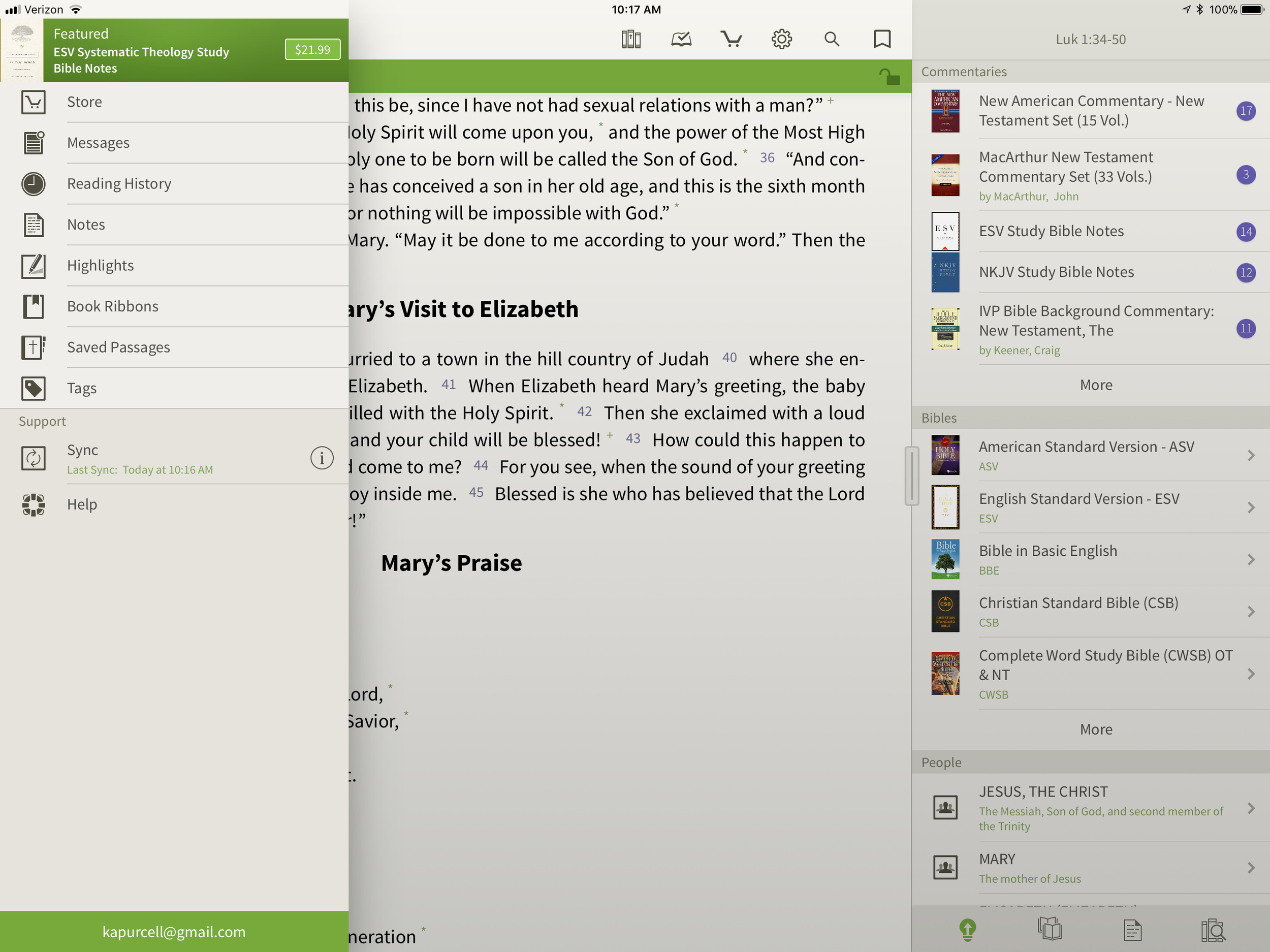
 While Logos may offer more complex features, Olive Tree offers a simpler app with a great set of tools for doing advanced Bible study on a mobile device. In fact the Resource Guide might offer the simplest method of accessing all the content in the library related to a given passage on any of the mobile apps in this roundup.The Bible shows up in the left side with the Study Tools on the right. Inside Study Tools you'll find the Resource Guide along with a library button, a notes button, and the Lookup button, which lets you look up words in word search in dictionaries, the Bible and your notes.
 The Resource Guide is one of the Study Tools and it will arrange your library content by category. All the Related Verses, Commentaries, other Bibles, People, Topics, Maps, Charts, Introductions and more will show up in lists one after another. Each list will show your books ready to open to the content related to the passage or subject found in the verse showing in the left hand window. Tap them to see the content.
 On the top left there's a menu button to show...
- Suggested Resources - an ad for a book Olive Tree's pushing at that time
- Store - link to buy new books from within the app
- Messages - content from the blog often written by our own Theotek contributor LaRosa Johnson
- Reading History - the list of texts you've read in the Bible
- Notes - Shows your user notes
- Highlights - show your user highlights
- Book Ribbons - shows your user book ribbons which are like favorites
- Saved Passage - similar to Book Ribbons with a list of passages you've saved as bookmarks
- Tags - a list of all the tags you've created so you can make your own topical Bible
- Sync - lets you sync your app notes, ribbons, etc. with Olive Tree's servers
- Help - the Olive Tree help system
 Across the top of the Bible Screen we see two toolbars. The topmost toolbar has the following:
- Library - opens your library
- Reading Plan - opens the reading plan screen with suggested reading plans you can add or your own reading plans
- Store - opens the store to buy more books
- Quick Settings - change things like font, screen color (low light verse regular) and others
- Search - search the Bible
- Ribbon - add a ribbon to the current top most verse
Below the top-level toolbar you'll see a second toolbar that shows two buttons, the Select Verse button that opens a Book/Chapter/Verse style navigation tool and a lock button that keeps the toolbar from disappearing. I prefer this and I'm glad Olive Tree added this button for use on the iPad. The iPhone version is best without the toolbar showing so you don't cover up too much of the text on the smaller screen.The strength of Olive Tree's Bible is the simplicity and great library available. It also has the best notes feature available in these three. However, the weakness comes from the desktop app. The Accordance and Logos desktop/laptop apps offer far more than Olive Tree's. Download the app for free and get some free books to try it out. Then check out their store for more tools. They don't focus as much on bundled libraries of books, although they do offer them. I like this because you buy only what you want or need.
Bible Study With Accordance Mobile
At first look, the Accordance Mobile app seems like little more than a basic Bible and book reader tool with split-screen display options. Admittedly, I'm not a frequent user of Accordance Mobile. However, as I dig deeper and take time to discover the features, I realize they a user can do a lot with what looks like very little at first. The Accordance user-interface opens, after you've downloaded books, to show a Bible. There's a handle on the right side that opens a second window with another book. Tap the title of the book to bring up the library list of books. The left window library lists shows a list of the installed Bible Texts while the right shows Texts, Reference Tools like Commentaries or Study Bibles, and your Notes files.Open the Notes file and you'll see your notes. To add a note, select a word or verse and a menu pops up above it. Tap on Note and screen offers to add the note to one of your Notes files. Start typing inside that pop up box. It has a button to change the font, size, color and make the font Bold, Italics or Underlined. Sadly, even though you can see your notes on the right, you can edit them in place. To edit a note, select it and it offers to let you edit the note with a full-screen editor. This covers up the text. I like to make observations about the text in my notes and I can't see the text in Accordance. That's the same problem you have with Logos. At least in Logos you can open the Note file and edit in place. It's hard if you have a lot of notes in your file.Unfortunately, I experienced a problem with Notes Sync via Dropbox. They don't use their own servers and rely on Dropbox to sync between the desktop and mobile app. ON the desktop it's automatic, but not on mobile. That's a huge weakness of Accordance if you're a heavy notes user like me.
 If you open a book with Strong's Numbers tagging attached to the text, like the ESV or HCSB or KJV, then you can select a word and a box will pop up showing the original language information. You get the English word, Strong's number and the Greek word. Then it shows your favorite Greek word dictionary. OT shows Hebrew. Then tap on Search at the bottom of the pop up and it finds that word through the NT. The Amplify will let you search by word or the key number.
 The Library button lets you download your books over the Internet. You can also sync those if you have both the desktop and the iPad connected to the same Wi-Fi network. It doesn't work if your desktop isn't connected via Ethernet.The second button from the left lets you sync via Dropbox or via Wi-Fi. Notes and user tools sync via Dropbox while the syncing directly over Wi-Fi syncs your books from the desktop to the iPad.
 Accordance users will get a number of free books. However, it will work better if you buy a package to use on your iPad. The free Accordance Lite includes some good tools like ESV with Strong's plus some public domain books. To add books you can buy books or get a Collection. They start with the free Lite package and go up to more advanced sets like the Pro sets in English, Hebrew or Greek that each cost $999. If you want all three you can get what they call the "Triple" package in the Learner or Discoverer levels. There's also a graphics-focused set of tools called the Graphics Learner, Discoverer or Master.
PocketBible Bible Study
 I love PocketBible from Laridian because it's the first mobile Bible study app I ever used on my PocketPC a long time ago. Then I moved to Palm and there it was. I went to iPhone and then iPad and it was still available. On Android, eventually it came along for the ride.When you first install the app it offers a great help screen that shows you how to use the app from the get go. It's the best on-boarding experience for a new user. Then you'll get a single window, but no Bibles yet. Open the button at the bottom of the toolbar on the right. Find the Add/Remove books and download all of your books. If you're not registered, you can do that in the tutorial that opens when you first install.After you get some books installed open a book using the top button on the toolbar. You can use the Settings (third from the bottom) to add a second window. The rest of the buttons on the toolbar include:
- Open Books
- Navigate to passage
- Search
- Back
- Forward
- Calendar for Bible reading plan
- Button to open the toolbox pane (more on that below)
- Panes chooser lets you pick how many window panes to open at a time
- Font settings
- Reading controls for books with audio included
- Settings
- Menu where you can add/remove books, change other app settings and control books
 The toolbox holds another toolbar with six icons as follows (see the right most box in the image above):
- Find
- Bookmarks
- Highlights
- Notes
- Find Notes
- Journal
Select a word, phrase or more and a menu pops up above it with buttons as follows:
- Copy - copy the selected text
- Share - post to Facebook or send it over text or email to name a few
- Find - search the selected text
- Look Up - search your favorite dictionary
- More... - opens another menu with a number of other tools, functions and book controls
Laridian offers a number of books to buy. They offer PocketBible Library Collections ranging from $60 on up to $380. You can also buy books or commentary sets.PocketBible isn't as polished as some of the other tools. However, it's one of the easiest to learn and costs less for collections than some of the above options.
Splashtop 2 Remote Desktop
 This last option's not a Bible app at all, but rather a utility that lets you connect to a desktop. Install the Splashtop Streamer utility on your Mac or PC and let it run automatically. Download the app for iPad and run it. After you log in you'll see all of your computers running the Streamer listed. Tap the one you want to log into. It opens the computer and shows the screen.
 Now you can control anything on the computer including a full desktop class Bible software program. Above you'll see it running with Bibleworks 10 showing on the screen.