

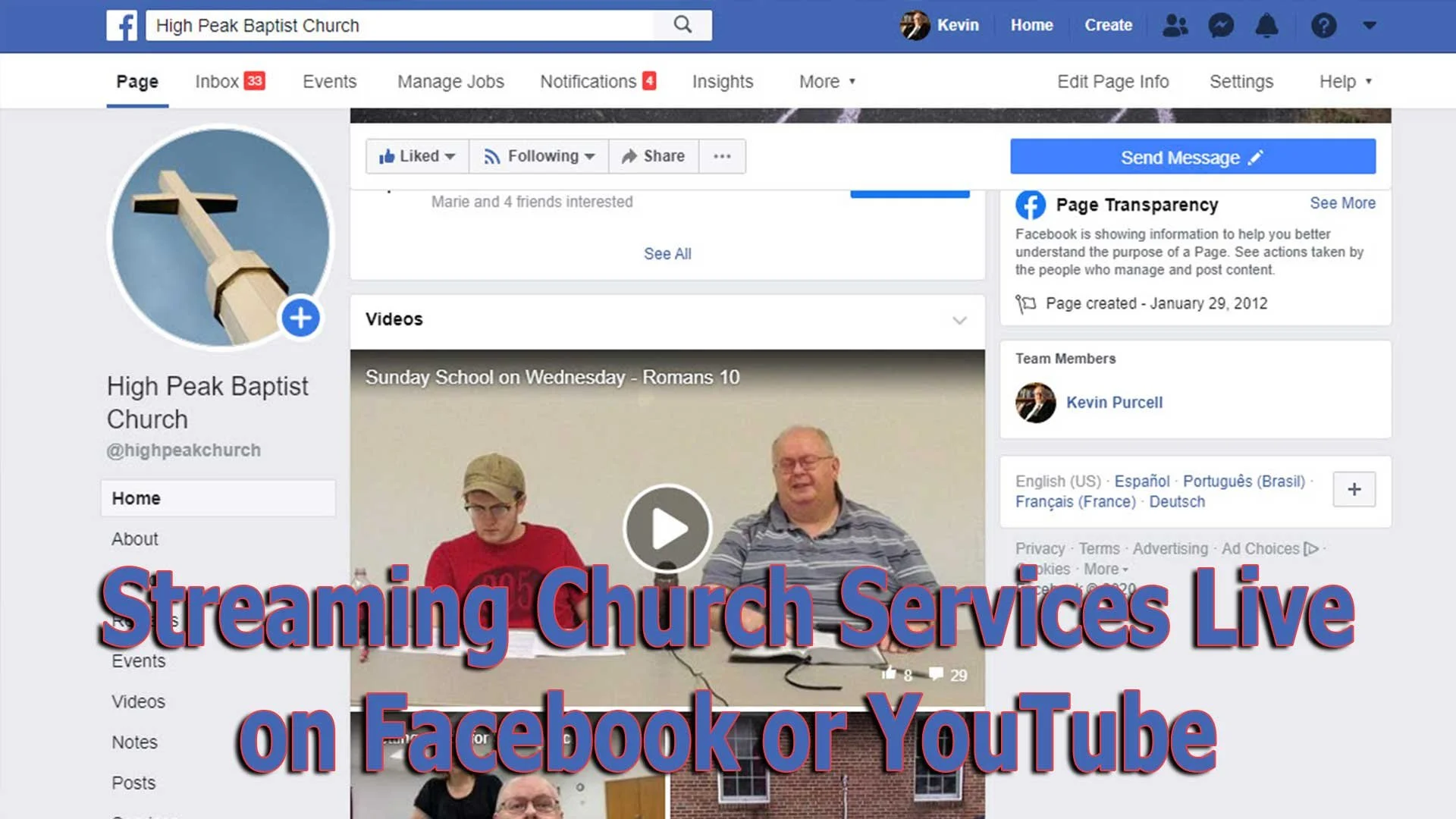
Streaming Church Services Live Using Facebook or YouTube Apps or Pages
Streaming church services live on Facebook and YouTube extends your reach as a church. We'll show you how to use their apps and websites for streaming.
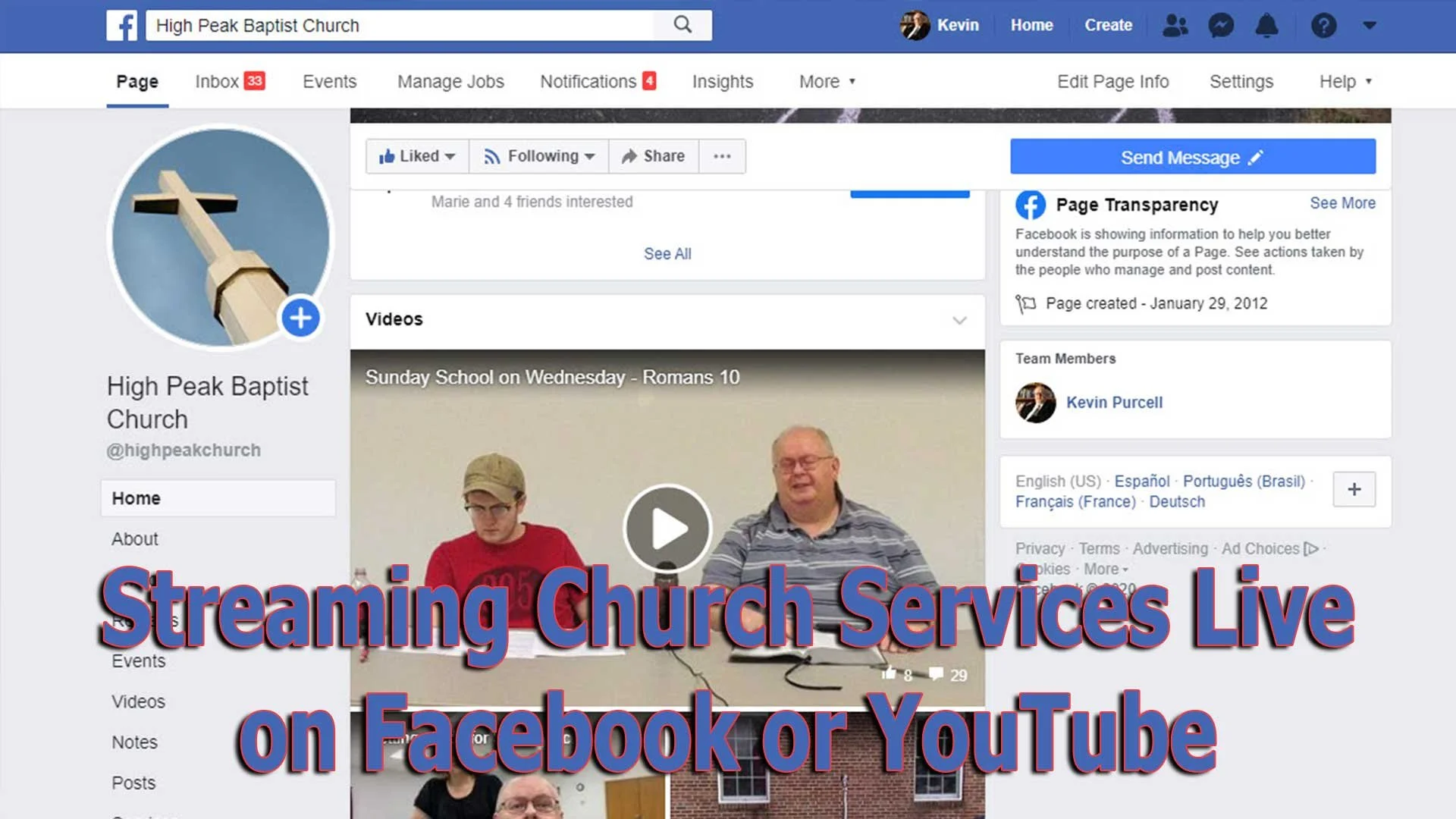
Choosing the right software for streaming church services live actually impacts the rest of the decisions you'll make - equipment, cameras and accessories. If you want to start streaming church services live, then you will need some kind of software. We'll look at using Facebook or YouTube . Churches can choose between using an iPhone or Android phone and the mobile apps for these services. However, you probably should pick a computer with a camera hooked up and streaming using the Facebook or YouTube websites instead of a mobile app.
Here are the other posts in this series:
- The Four Best Camera Styles for Streaming Church Services Live
- Streaming Church Services Live Using Facebook or YouTube Apps or Pages
- 7 Best Tools for Streaming Church Services
- Streaming Church Services Life and Cheap
A lot of streaming platforms exist to help churches. You can buy a subscription to a dedicated service, but they can cost hundreds to thousands of dollars a year. It's also harder to garner an audience if you're a small to mid-sized church using one of these dedicated subscription services like the ones mentioned at the end of our post on the 7 Best Tools for Streaming Church Services. You can find even more services listed at ChurchTechToday.com. They range in price from $25/month to almost $150.

Most people reading this will opt for streaming to Facebook or YouTube since they're free and easier to discover by potential viewers.
Streaming Church Services with Facebook or YouTube Apps from a Phone
The Facebook app on an iPhone or Android phone does a decent job of helping churches share their worship services. However, in our last post in this series we argued for using a dedicated camera for a lot of reasons. You get better images, more versatility and placement is better with a dedicated camera.
However, if you must use an iPhone or Android phone you can go live from their mobile apps. The video below shows you how to stream from your mobile app to Facebook.
People who have enough subscribers can use the YouTube app on their iPhone or Android phone to live stream. The video below shows you how to use the app and how to go live if you don't have enough subscribers. By the way, you'll need 1,000 subscribers on YouTube to go live from the mobile app. But this videos shows you alternatives.
Streaming to Facebook resulted in more engagement for our church than we saw on YouTube. We used to go live on YouTube and would get at most 10-20 people for regular worship services and no more than 100 for special services. We moved to Facebook and those jumpers soared sometimes reaching hundreds of views. We average 80=110 in worship.
Streaming from the Facebook or YouTube Websites
Since it's better to hook up a dedicated camera to a computer for higher quality and more versatility, using the Facebook or YouTube websites will result in better quality streams. Third-party software gives churches more versatility, than the Facebook or YouTube websites. We'll cover that in our next post in this series.

To get started on Facebook, you'll want to set up a Facebook Page for your church. Facebook offers a good help page for doing this. Once you're done following that guide, you can log into your account, go to your Facebook page and then start a live stream. Take a look at the slideshow below.


First, click on the Pages link along the left (first image above). Then click on your page name in the resulting page. On that page click on Live (second image above).

Follow the steps in red above. First click on Use Camera. Then choose your camera and your microphone. Next, along the right, click on drop down menus to choose where you want your video to go. It should read "Share to a Page You Manage" and then the name of the page for your church.
Give your video a title in step 6 above. Make sure the video looks right in the box in the lower right (#7 above). Then when you're ready, hit the Go Live button in the lower left.
The resulting page will show you the feed and you can interact with viewers. I recommend putting a comment in the video and make it stick to the top that reads:
We welcome you to our church's worship service here on Facebook. If this is your first time viewing our Facebook Live worship service, hit the heart and we will get back to you with a special gift.
Now you can send them something special, like a coupon to a local restaurant's take out business and some info about your church. At the very least, leave off the gift and then just follow up with a note.
Since things change quickly and often on Facebook, if the above instructions don't work, head over to Facebook's Live Broadcasting help page.
YouTube Live Streaming Church Services
I prefer streaming to Facebook since most churches will see more engagement, but some prefer YouTube. You might already have a presence on YouTube. If you have over 1,000 subscribers, then you can stream live to YouTube too.


Click on the little camera icon in the upper right corner and choose Go live from the drop down menu. This opens a screen (second image above) if it's the first time you've tried to stream. It asks you to give permission for using your microphone and camera. Hit allow (third image above) and you're reading to set things up.

Give your stream a Title in the top box. Make it public, if it's not alreayd. Then click whether it's made for kids or not. Most churches should click No, not because it's not appropriate for kids, but because you are not targeting kids. You might be in a special service for kids. That comes with a special set of requirements that are not useful for this purpose.

Click on the More Options button at the bottom and make sure you selected the right camera and microphone. Also add it to the right camera by clicking the drop down box above the camera option. Choose Nonprofits from the list. The content above the category comes from the default description from your channel.
The Advanced Settings button opens another screen. Click the Allow Chat on or off depending on whether you want comments. You should leave it on unless you have some special reason for stopping viewers from commenting. Videos with comments get more engagement on YouTube.
Since you're a church, you should not take ads, so turn off the option that reads "This contains paid promotions...". Not click the back arrow. Then click Next and it will take a photo as a thumbnail. You should later replace this with a branded image for your church.
Next, you'll see a Stream preview. You can edit the details and share the stream on social media. In the Live Chat you should add a post targeting guests. Ask them to respond so you can follow.
Hit Go Live and you're streaming. When it's over you can end the stream and save it. You will want to edit things now like the thumbnail.
Live Streaming Your Church: Theotek Podcast #095
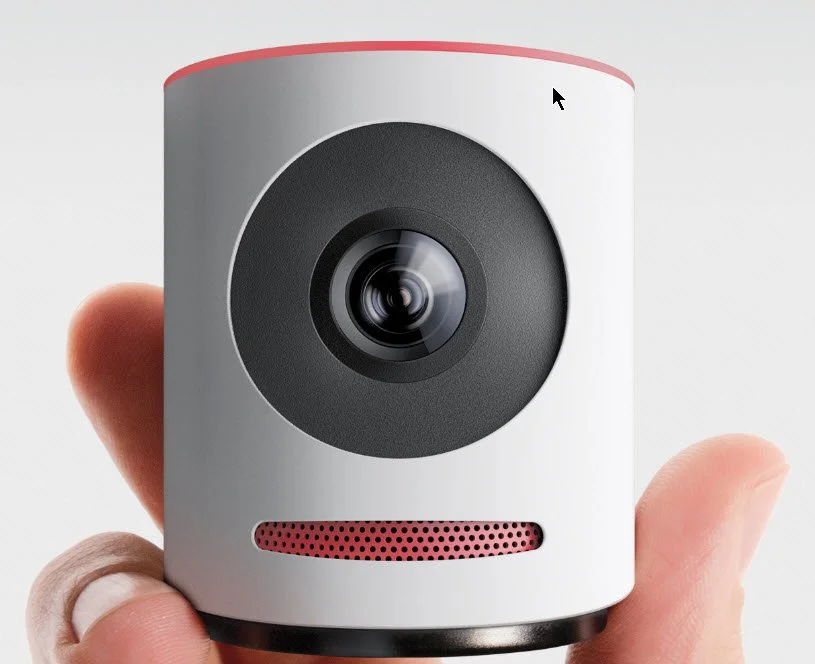
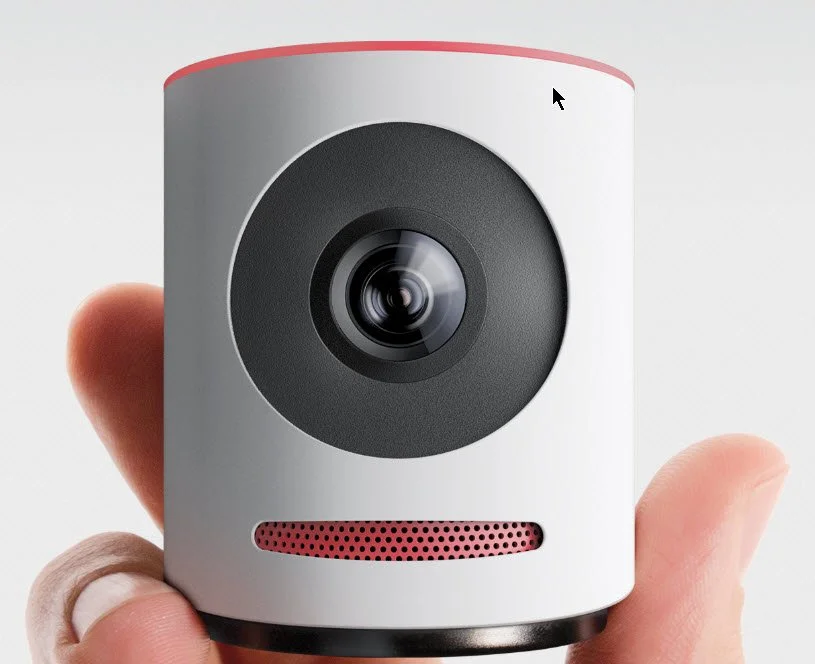
We do a live streaming podcast each week at Theotek Podcast so we thought we'd talk about whether a church should stream their services live each week. Then, we got into the best reasons to live stream and where to do it. Finally, we looked at the Mevo from LiveStream, which streams in high quality to Facebook Live and LiveStream. The company just announced a service which will live stream to YouTube as well.https://www.youtube.com/watch?v=ROkVBFKJ7LM&feature=youtu.be
Live Stream with Mevo
The Mevo camera that I mentioned in the podcast offers a great way to stream to Facebook Live and other services. The free version of the service only works with Facebook Live and LiveStream, but a paid service that costs $10/month just opened up. It streams to the following:
- Facebook Live
- Livestream
- YouTube Live
- Periscope
- Twitch
It claims to do this at the same time. I've not tried it out yet, so I can't say how well it works streaming to all five sites. I have tested it on my Facebook page and it worked well considering I don't yet fully get how to use the software.The Mevo streaming app runs only on iOS right now. They may come out with an Android version.
Our Favorite Things
For our favorite things this week, I talked about the Mevo camera. Just a few more details about the camera:
- Sony 4K Sensor.
- 12.4 Megapixels.
- 4K video resolution but streams at only 720p.
- 16:9 aspect ratio.
- 30fps streaming.
- H.264 codec.
- Dual analog mics with 65db signal to noise ratio.
- Streams audio in 8kHz to 192kHz at 8/10/12 bits.
- Inputs for audio via iPhone.
- Only works with iPhone, iPad, or iPod Touch.
- 802.11a/b/g/n Wi-Fi in either Access Point mode, which then streams through the iPhone or iPad's LTE network connection or over Wi-Fi through your local network's connection to the Internet.
- Bluetooth 4.0 used only for configuring the camera.
- Up to 1 hour battery life.
- 100Mbps over Ethernet if you get the Mevo Boost attachment which costs $249.99 and adds a USB charger and lifts the camera 6.18-inches and adds up to 10 hours of battery life.
 There's a bundle that buyers can get that includes the camera, the Mevo Boost and a case for carrying. It costs $699.97. You can get a $50 off coupon if you use this link.
BAGSMART Travel Universal Cable Organizer
 Rick shared a slightly less expensive accessory. The BAGSMART Travel Universal Cable Organizer costs less than $19 and keeps all of your cables and adapters in order in a nice zipper pouch.