

Apple-Pages Presenter Mode for Preaching is Awesome
Apple Pages Presenter Mode works great for teaching and preaching. Here's how to set it up.
I recently discovered the Pages Presenter Mode in Apple's iWork app for the iPad. It's awesome! So, here's how to turn on it on on your iPad so you can use it every time you teach or preach from your iPad.
The Pages Presenter Mode changes the way your document looks in Pages. You can use it on both iPhone and iPad. However, it works great on an iPad. The look of the document changes depending not he settings you choose in the mode.
Turn on Pages Presenter Mode

Turning on Pages Presenter Mode is easy. Open your document in Pages on our iPad or iPhone. In the upper right corner you'll see the menu button. It looks like three dots. It shows the Pages menu, which includes a slew of options. In the third section of the menu you'll see the Presenter Mode menu option. Tap it to turn it on.
The look of your Pages document changes. By default it gives the user a black background with text white, unless you've given it a different color in your formatting. So, red text stays red or yellow text stays yellow. But the black text turns white.
If you like the way the text and formatting looks and don't want the text to scroll automatically, then you're done. Just scroll through your text while you preach as you might if you preached from the Pages document.
Pages Presenter Mode Settings

Preachers or teachers that want to change the look of Pages Presenter Mode can tap on the Aa icon in the upper right corner of the screen. A menu pops up with six options as follows:
- Text size (smaller to larger)
- Background color (white, gold, dark gray, black)
- Font face - tap to show the available font faces that work in Presenter Mode
- Text Options
- Auto Scroll
- Scroll speed (slower to faster)

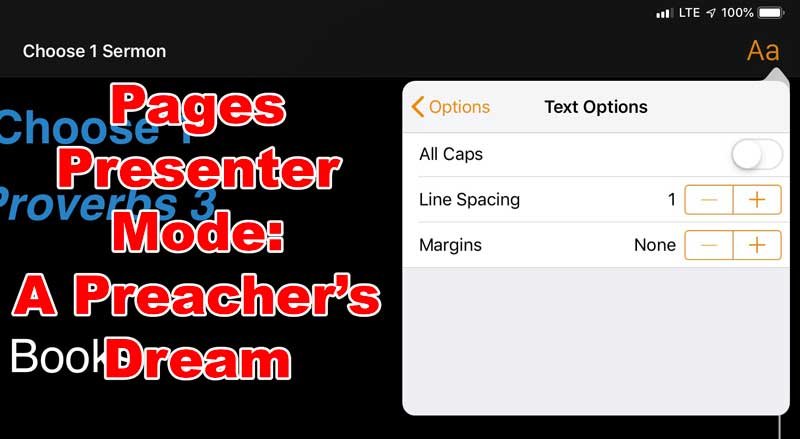
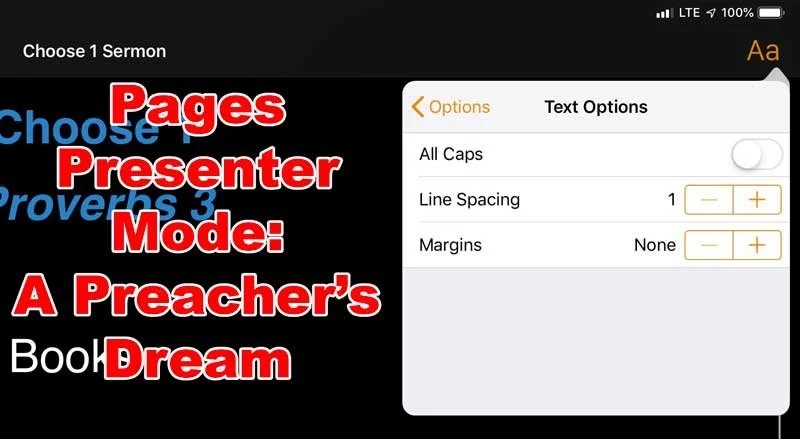
The Text Options item includes three settings. You can change the text to All Caps, if you think that's easier to read. Traditional prompters use all capital letters, so those used to this in traditional teleprompters. There's also an option to change the Line Spacing. I prefer to use single Line Spacing, but some want wider Line Spacing. Finally, you can change the Margins from smaller to larger Margins. Tap the plus or minus icons in the Line Spacing and Margins options.
The Auto Scroll settings will turn on this feature. With it turned on the text will slowly scroll up the screen as you speak. This works great for people who read their text as they speak. I don't believe preachers or teachers should preach that way. It's difficult for listens to pay attention to a preacher reading text unless the preacher possesses an extreme level of reading skill. Few do.
When a person turns on Auto Scroll, they can control the spread. The last option has a bar that you can drag from slow to fast. The slow end on the left shows a turtle with a rabbit on the right. That's a fun touch.
My Recommendations
I discovered Pages Presenter Mode only a week ago because Apple highlighted it in the App Store. This past Sunday I used it to preach my Sunday morning sermon and it was fantastic. I love this newly discovered feature in Pages.
Here's how I set up my Presenter Mode settings.
- Black background
- Helvetica font
- All Caps turned off in Text Options
- Line Spacing set and single space in Text Options
- Margins set to 5% on iPhone in Text Options or 10% on iPad, the device I use 95% of the time
- Auto Scroll turned off
Billy Graham, Technology and the Church
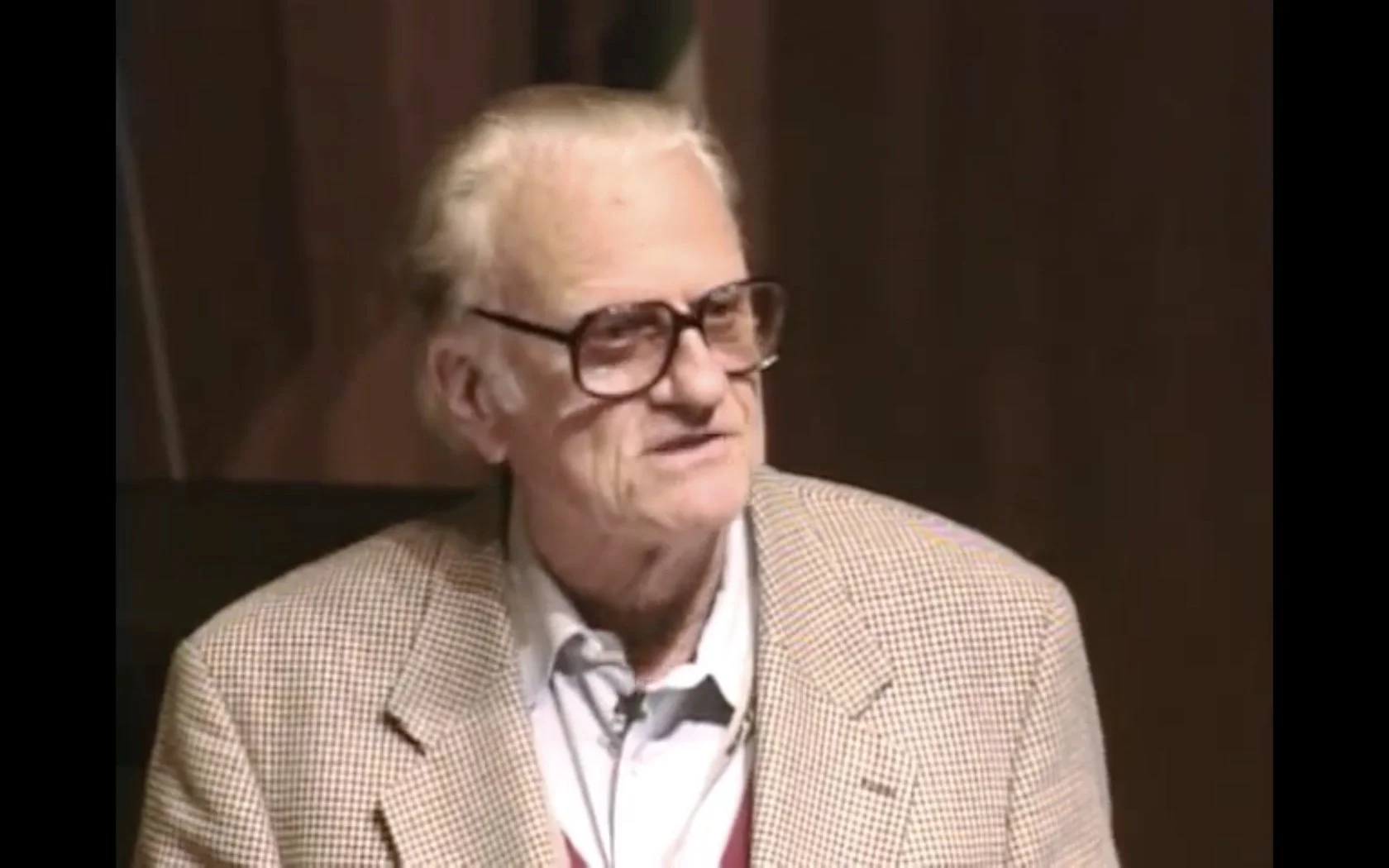
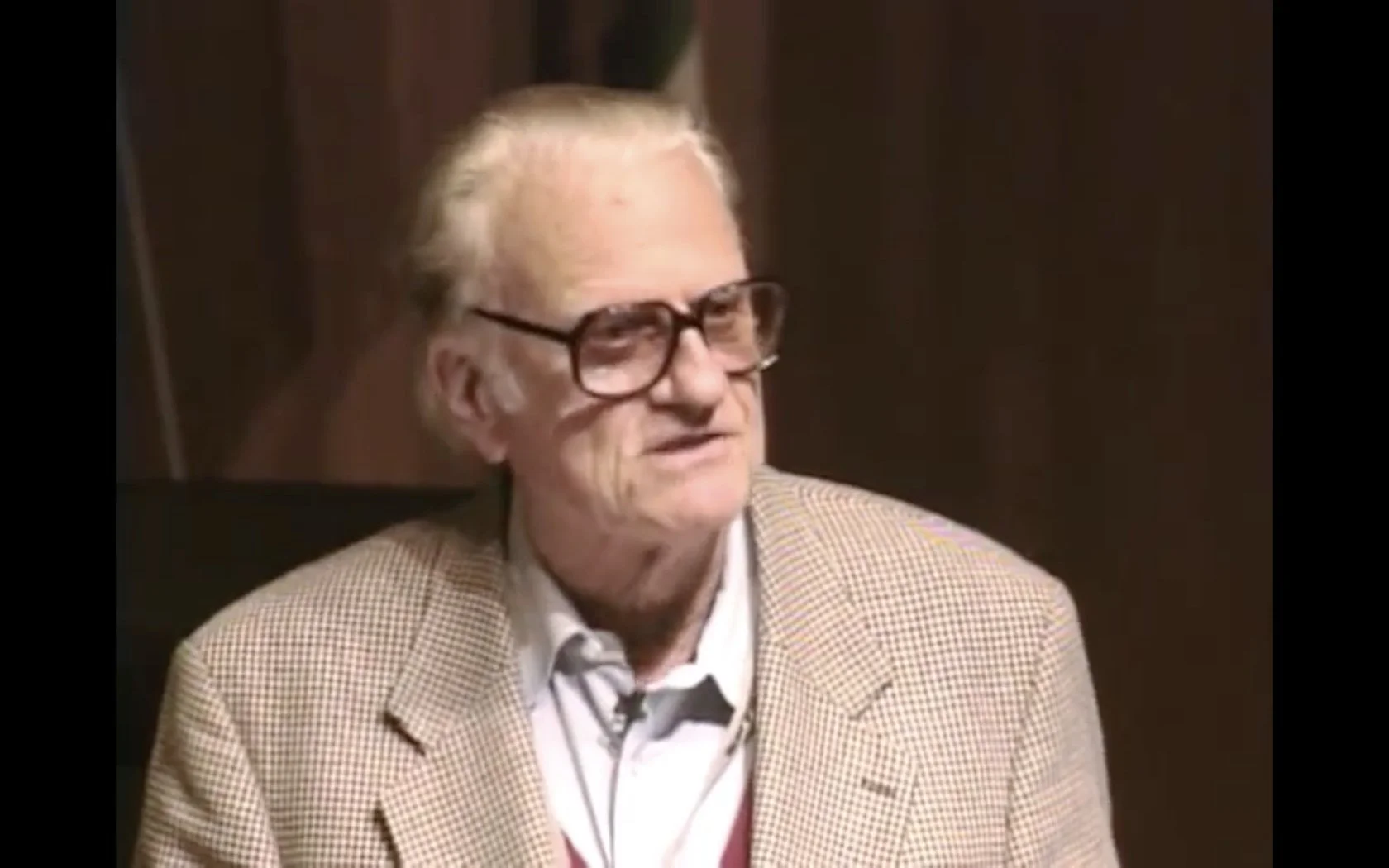
Billy Graham died today at the age of 99 after years of faithful ministry.One thing that surprised me to learn when I toured the Billy Graham library was his forward thinking use of technology to spread the Gospel. I'm not sure why it surprised me, but I'd never thought of him and tech together. In the library in Charlotte, NC there's an entire room dedicated to things like his use of film, radio, TV, and now the Internet to spread the message of God's grace. He used any means to share what "... the Bible says."Billy Graham even spoke at TED. It was back in 1999 and he talked about the use of technology in his ministry.If you're not family with TED talks, these short speeches cover areas of interest to a mostly technology enthusiast crowd in various places around the world. You can get their apps on your phone or streaming boxes and online.Here's his TED Talk in California back in 1999 in California.https://www.youtube.com/watch?v=90mj79GqWhc
WWJD at Apple WWDC 2017: Theotek Podcast #100
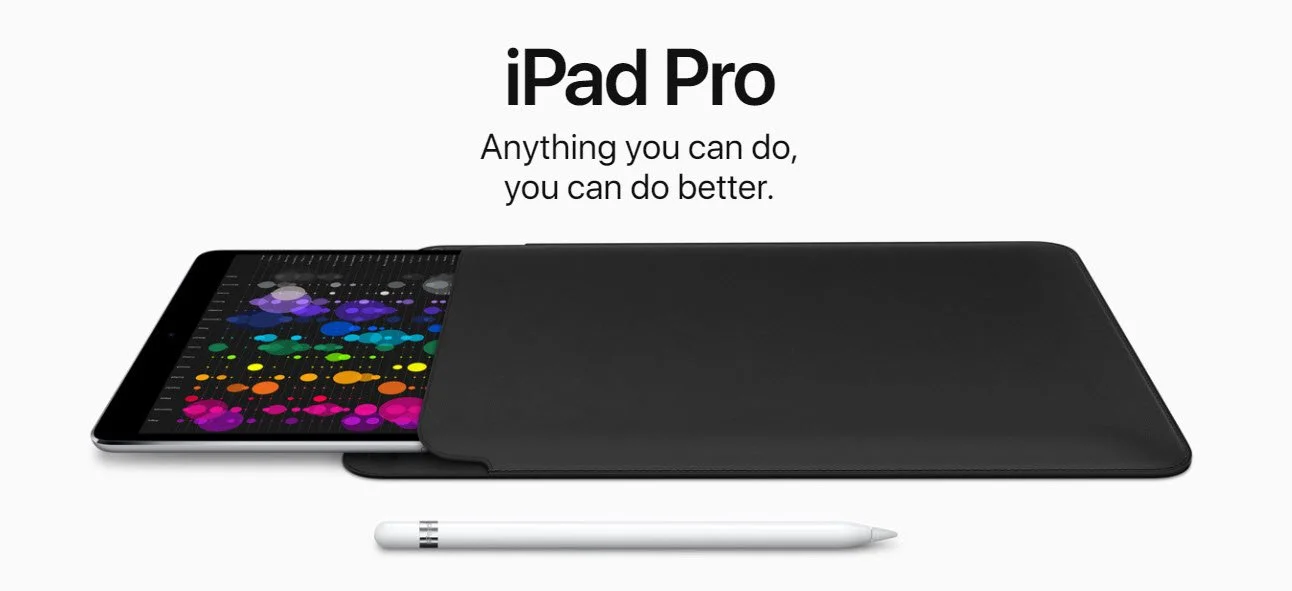
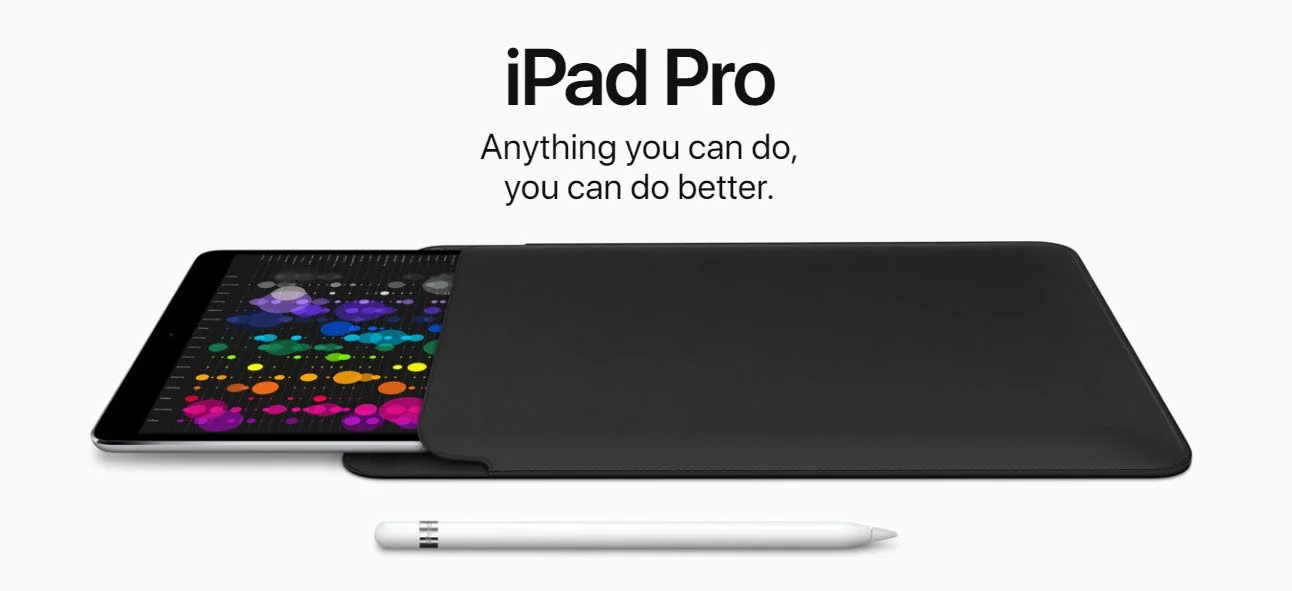
Our team talked about the Apple WWDC 2017 in our 100th episode of the Theotek Podcast. WWDC stands for World Wide Developer Conference and at this event Apple reveals their new plans for iOS and macOS as well as other interesting tidbits. It's for developers, but a lot consumer-focused information often hits the newswire after the keynote event that opens the conference. In this episode we talk about tvOS, which powers the Apple TV, as well as watchOS 4 for the Apple Watch. Then we discussed macOS High Sierra and MacBook Pros, iMacs and iMac Pros powered by the new updated operating system. Next, we discussed iOS 11, the new operating system that will run iPhones and iPads. Apple revealed a new iPad Pro with a 10.5-inch screen so we all discussed that as well. Finally, we covered the new HomePod Sierra speaker coming out this year just in time for Christmas.
 Watch the video from YouTube and of course, subscribe to your YouTube channel if that's your preferred way to enjoy Theotek Podcast. You can also scroll to the bottom of this post to listen to the audio version or click on our link in the menu to find out how to subscribe to the audio version.https://www.youtube.com/watch?v=piOPv5vzMIIAlso, if you want to watch the full Apple WWDC 2017 Keynote address, here it is.https://www.youtube.com/watch?v=oaqHdULqet0
Summer Hiatus
We're taking a summer hiatus. We might do some Theotek Extra Podcasts, but there won't be a regular Theotek Podcast with Wes, Rick, LaRosa, Antoine or Kevin until August. Our relaunch will likely take place in August or September.