

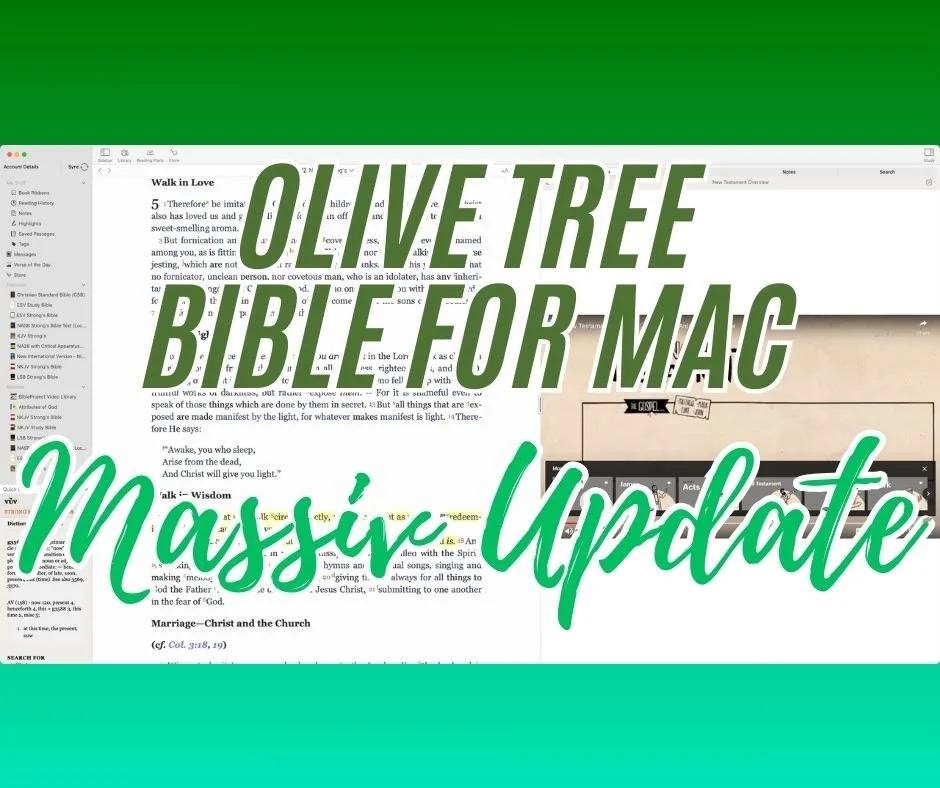
Olive Tree Bible for Mac with MASSIVE Update 3 Years in the Making
Olive Tree update their Bible. study app to make it look and work more like the iOS and iPadOS app. It now only has a few minor differences.
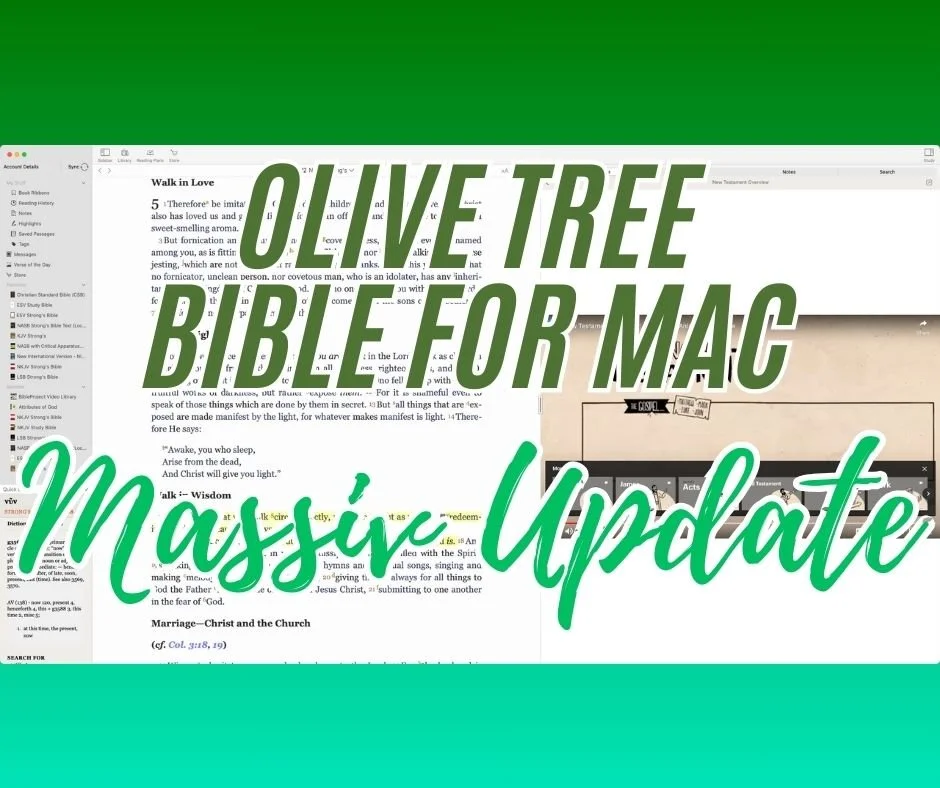
According to the Mac App Store page, the Olive Tree Bible app on the Mac desktop has received a "MASSIVE update three years in the making."

The jump to version 7.16 brings the iOS mobile app and the Mac app together with a similar look and feel. The app on Mac and iOS always looked similar. However, Olive Tree updated the Mac version to behave like what you'd see on an iPad. Here's what's new.
Audiobook Access on Olive Tree Mac Desktop

Your library provides access to audiobooks and other audio features. Open the Library from the button in the toolbar. Click on Add Filter and choose Audio. Your audiobooks will appear there. Open one and start listening. The controls let you jump to parts of the book.
The above steps also work on your iPad and iPhone. If you want, you can click the minimize button in the audio player and the player will show in your sidebar.
Access Video from the Resource Guide
When you open your Resource Guide, you may find video content. Scroll down till you see the Videos section of the guide. Click to open a video and it will play in the guide. You can also pop the video out using the button int he upper right corner of the player.

When you pop open the video player, you can jump to YouTube if the video comes from YouTube. Additionally, you can maximize a video. If you're playing it for your small group, you can see the full-screen video.
Other Changes in Olive Tree
The Message Center, which should probably be called the ad section, also appears now. It's in the left sidebar. The app also offers an improved Store and Shopping experience.
The Quick Details section from the lower left corner looks and acts just like the mobile app.
The Resource Guide gets some speed improvements. Everything will scroll faster, especially if you have a slightly older Mac.

The My Stuff section shows up in the left Side Bar towards the top, as seen above.

Google Chrome for Mac Users Update Now
Update Google Chrome for Mac right away thanks to a zero day bug that can let malicious hackers do damage to your system.

Do you use a Mac and run Google Chrome for Mac as your browser of choice? Then update it right away.
The update fixes a security hole in Google Chrome for Mac that would let a malicious attacker harm your computer if you went to a specifically coded website meant to take advantage of the vulnerability.
Google rates the vulnerability with its HIGH designation, meaning it is severe and needs updating quickly. Here's how to fix the problem.
Please see our best Bible apps on ChromeOS and More
How to Update Google Chrome for Mac
Open Chrome and click on Chrome in the menu bar at the top left of the screen. Then choose Preferences. You could also use the keyboard shortcut COMMAND+, (that's a comma).

Now click on the About Chrome link in the lower left corner of the Settings page (#1 above) and then look at the status of the updater (#2 above). If you turned on Automatically update Chrome for all users, then it will automatically download this update. Click on Relaunch (#3 above) when it finishes downloading the update.

On other computers, users can find the Google Chrome settings in the menu found at the right end of the toolbar with the URL bar, as seen above. Click the Menu button (three vertical dots) and then click on Settings.
Should You Use Google Chrome or Safari as Your Mac Browser?
Security problems like this seem frequent in Google Chrome on the Mac. That leads many to wonder if they should use Safari instead.
Prefernce dictates which browser you should use. The options include...
Safari - it's built into macOS and seems a little more security pulse you can blog ads and use a user-friendly reading view more easily. There aren't as many plugins, which means it may come with more security but less functionality. Also, pages sometimes don't load as well.
Google Chrome - users can customize it with a larger collection of plugins and features, making it more vulnerable. The browser software itself seems to come with more security issues lately. It works better with a larger percentage of websites than Safari. I've seen more problems with Safari lately.
Firefox - also comes with a lot of plugins and greater speed, but sometimes suffers because websites don't test for Firefox compatibility due to how unpopular it is.
Others to consider - Brave, Opera, Edge Chromium (yes that Edge).
18 New Features in Logos 9.5 Update
Faithlife recently released a Logos 9.5 Update to their popular Logos Bible Software. It comes with 18 new features and updates.
Logos 9.5 Update came out recently, and it brought some interesting new features and fixes. Here's a list of the X new features in Logos 9.5 that you can enjoy right now by updating your copy of Logos. If you're not yet running Logos 9, now's a good time to update. See my 6-month later review to get a 15% discount until June 15, 2021.

Download and update inside Logos 9 using the Update Now command in the Command Box. It sits on the toolbar on the left side with the big green GO button as seen in the screen shot above.
Counseling Guide Improvements

- New Journals Guide Section
- New Lectures Guide Section
- New Web Resources Guide Section
- New Bookstore Guide Section
- More Link takes you to Monographs and Dictionaries Sections.
Factbook Improvements
See our post about how to use the new Factbook
- Added the ability to see your results in the autocomplete drop-down when there are no results in your localized language.
- Added a keyboard switcher to the Factbook auto-completer.
- Improved the transliterations in Factbook autocomplete

My Library

There's now a new facet in the My Library for Factbook in the tabs for Yours and Store, which refers to books the user owns or books from the Logos store. So first, open the Library, and you'll find these tabs in the upper right part of the window on the toolbar. Next, open the Facets list by clicking on the Facets button, which looks like three horizontal lines next to the search box in the Library window.
When a user clicks on the "more:" link in the Facets list, it adds up to 100 new items instead of just 50 as it previously did.
Other New Features in the Library
From the Logos 9.5 Update wiki...
- Added support to persist Library settings in Favorites, Shortcuts, History, and Bookmarks.
- Added support to retain the selected tab and filter state when copying the panel URL.
- The update moved the Language facet to the top in the Store tab.
Resource Info Panel Improvement

If you use the reading plans in Logos 9, you'll love the new feature they added to the Resource Info Panel in the Logos 9.5 Update. First, open a book and click on the resource panel by clicking on the three vertical dots button at the right end of the book's toolbar. Then, click on the Start reading plan button in the list.
Sermon Builder Improvements
In this version, you can now edit passage blocks in the Sermon Builder. This also works with quote blocks. When you hit Enter, the cursor will leave the blockquote box. Also, Logos will now auto-publish the date changes on a sermon's occasion.
Two other minor updates include a new Store button on the toolbar. This is a little annoying because it takes up space that may be precious to users on smaller screens.
Before the Logos 9.5 update, when you created a customized guide using one of the default guides as your starting point, Logos never added new sections in later updates. Now, if you add sections or remove sections from the default guides, then Logos will not only keep your changes, but add anything they added to the default guides. New things added in future updates would not be added to your customized version, but Logos fixed that in this update.
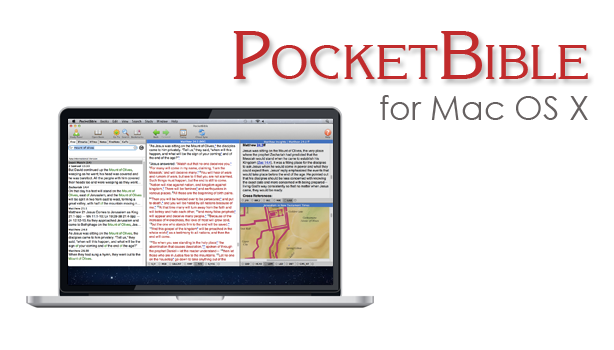
Laridian PocketBible for Mac 1.3 Update Released
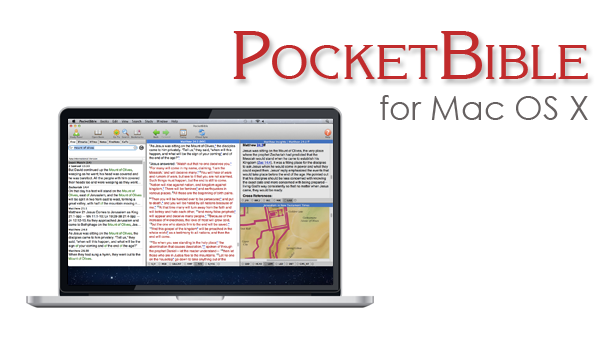
Laridian PocketBible for Mac version 1.3 hit this week with a few new features for users of the deceptively simple yet powerful Bibles study tool. One notable feature includes support for Laridian's latest Bibles that display text in a more useful way. This includes one example, mentioned in an email from Craig Rairdin, Laridian's CEO and chief programmer. The NIV with Goodrick-Kohlenberger Numbers will not support Laridian PocketBible for Mac.
How to Install Laridian PocketBible for Mac 1.3 Update
To get this free update you only need to select Check for Updates in the Laridian PocketBible for Mac menu at the top left of the Mac menu bar (see below). The download will install bringing your copy up to vision 1.3.
 If you own a copy of Laridian PocketBible for Mac but don't already have it installed, then go to the company's website and log in. Click on Download from the top of the website or click on the link labelled Mac OS X along the right side under Download Our FREE PocketBible App! as seen above. This puts a DMG file most likely in your Downloads folder. Double click it and then drag the PocketBible icon into the Applications folder seen in that window that pops up when you download the DMG file.
How to Install Books on Laridian PocketBible for Mac
You will need to register the program after you open it for the first time. MacOS may give you a warning before it opens the newly installed PocketBible for Mac, but it's save to let it open. Then register by typing in your email and password. If you're installing this for the first time not your Mac, then click on the Books (#1 above) menu at the top next to the PocketBible menu on the left side. Then click on Cloud Library or if you prefer use the keyboard combo CMD+L. This opens the screen that lets you install books. You can install all books by clicking the Download All Books (#2 above) button on the lower left of the window. You can help yourself to find only new books by click on Hide books already downloaded (#3 above).Aside from supporting new Laridian Bible formats, they also fixed some minor bugs. There was something they called "wiggling" that happened when you moved to a new verse. Text would "wiggle". I've not seen this, but I'll take Mr. Rairdin's word for it that he fixed it since I don't see it in v. 1.3.
Lairdian PocketBible for Mac Advanced Feature Set Updates
If you own the Advanced Feature Set, then you can hover over a Bible reference and your settings will let you either show or hide the footnotes in a pop up window. You can add the set from the PocketBible menu. The Advanced Feature Set costs $9.99/year on Mac only and $17.99/year for all platforms. Some of the benefits of the Advanced Features Set include (copied from Laridian's website):
- Searching enhancements - search your entire library in one operation (normal search applies only to the active book).
- Note-taking enhancements - create Journal Notes that are not connected to any Bible verse or reference book. Will sync with other versions of PocketBible that have this feature (currently iOS).
- Automatic Study Options
- A Library Navigator shows you everywhere in your library that the current Bible verse is discussed.
- Automatically produce an in-depth study of any verse using all (or selected) books in your library.
- Automatically produce an in-depth study of any word using all (or selected) books in your library.
- Automatically produce a document containing today's (or any day's) Bible readings using one or more devotionals and one or more Bibles from your library.
- Hover over Bible links in books to quickly read the verse from your preferred Bible.
- Highlighting Enhancements
- Rename your highlight colors to be more relevant to the purpose of the color.
- Speech Synthesis Enhancements
- Uses built-in OS X speech synthesis to read a selected passage, read the linked-to Bible verses, or start reading until it is told to stop.
- Choose custom voices and speaking rates for English books, Spanish books, and the Greek New Testament.
- Layout Enhancements
- Create multiple, named screen layouts for different purposes (for example, one for devotional reading, one for lesson preparation, and one for note-taking during sermons).
- Create a special layout for devotional reading that will be activated when the Today button is pressed.
- Maximize a book to use the entire PocketBible Window.
- Maximize a pane to use the entire PocketBible Window.
- Miscellaneous
- Control Special Offer notifications telling you about recent discount offers for which you have been made eligible.
- The Study Panel uses a small toolbar instead of text tabs.
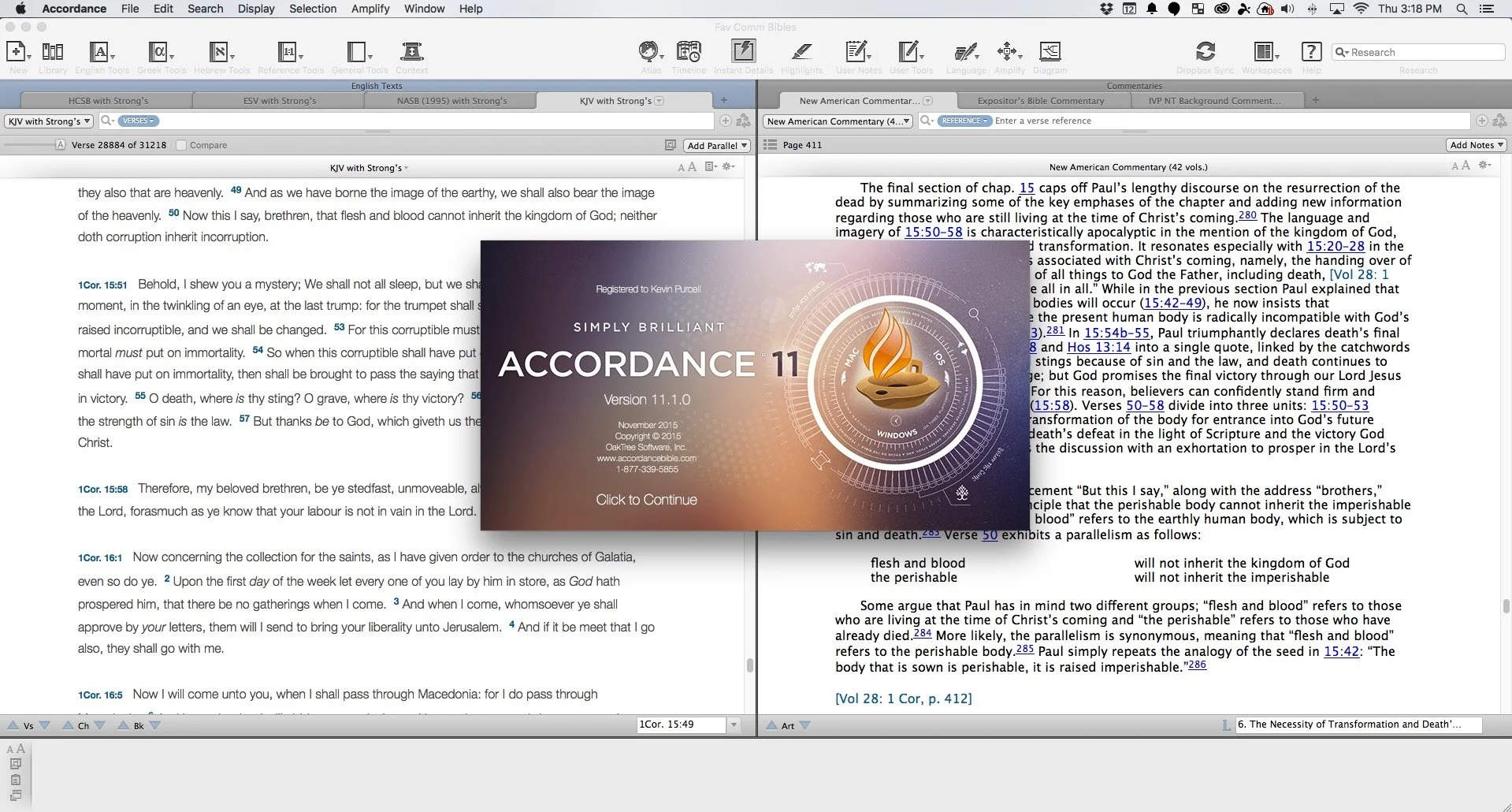
Accordance 11.1 Update with Dr. J: Theotek Podcast #045
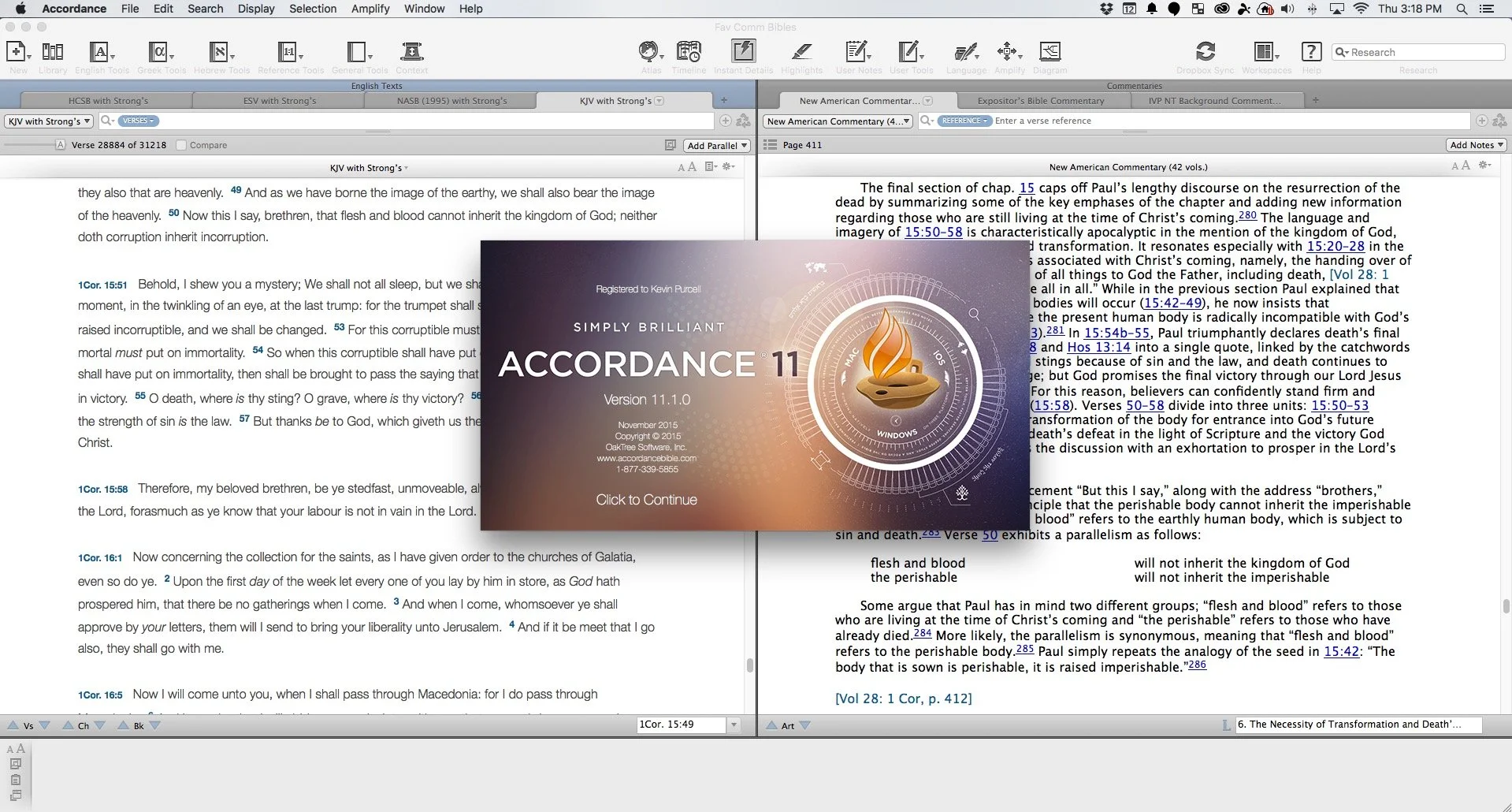
Accordance users will recognize that Dr. J. isn't a basketball player from Philadelphia, but the guy who taught them most of what they know about Accordance Bible Software. He joined us to show off the Accordance 11.1 update.https://www.youtube.com/watch?v=-9ONvMWOjz8Some of the things in this update include:
- Users can now more easily edit their User Notes and User Tools since the Edit Window got an overhaul
- Import Bibles with Unicode and expanded canons as well as non-biblical texts
- Syntax Tree and Graphical Constructs got an update
- Interlinear support enhanced
- Instant Details enhanced
- Add custom icons to the Accordance Library
- Link to content with the new URL (accord://) instead of http:// or ftp://
- Gesture support for trackpads and touchscreens while using images, Atlas or Timeline
- Print articles from the Table of Contents
- Incorporate MT-LXX data in Analysis window and related graphics
 Learn more about them at the Accordance blog which also links to a more detailed post about the new features listed above and more.
WORDsearch 11 Ships With New Design and Features
There's a new WORDsearch update. WORDsearch 11 comes with a new user interface, an updated library feature, better note card feature for research and some better speed in indexing resources. Add multi-monitor support and the old Lesson Maker that WORDsearch forgot they owned. It's now integrated into WORDsearch.The Theotek Podcast team got a look from Rick Milone of WORDsearch. He's one of their official trainers as well as a user. He showed off some of the new features.https://www.youtube.com/watch?v=rygB5tK3OXwI brewed me some tea (with fenugreek 50% extract - it's my favorite new combo) and made my podcast. Here's my review of WORDsearch 11 written before our podcast. Look for it in Ministry Tech Magazine next month.
User Interface of WORDsearch 11
 Open WORDsearch 11 and it displays the Home page. Older versions included a smaller version of this, but this time it takes over the full screen. Notice the list of links along the left and list of specials or deals in their store along the right labelled "Latest News." All the "news" seems to focus on books I can buy. Too bad they don't follow other programs and actually offer some real content besides just sales items. This would get me to actually look at this instead of ignore it on my way to opening my library or picking up where I last left off in my studies.Along the bottom of the Home page we get a bunch of links. These take the user to their apps for iOS, Android and the only myWSB. That's one of if not the best online Bible study site available today, especially for WORDsearch customers with a large library that they can use the online version without paying extra, as some programs do.The other set of links at the bottom of the page takes me to WORDsearch social networking accounts. These include:
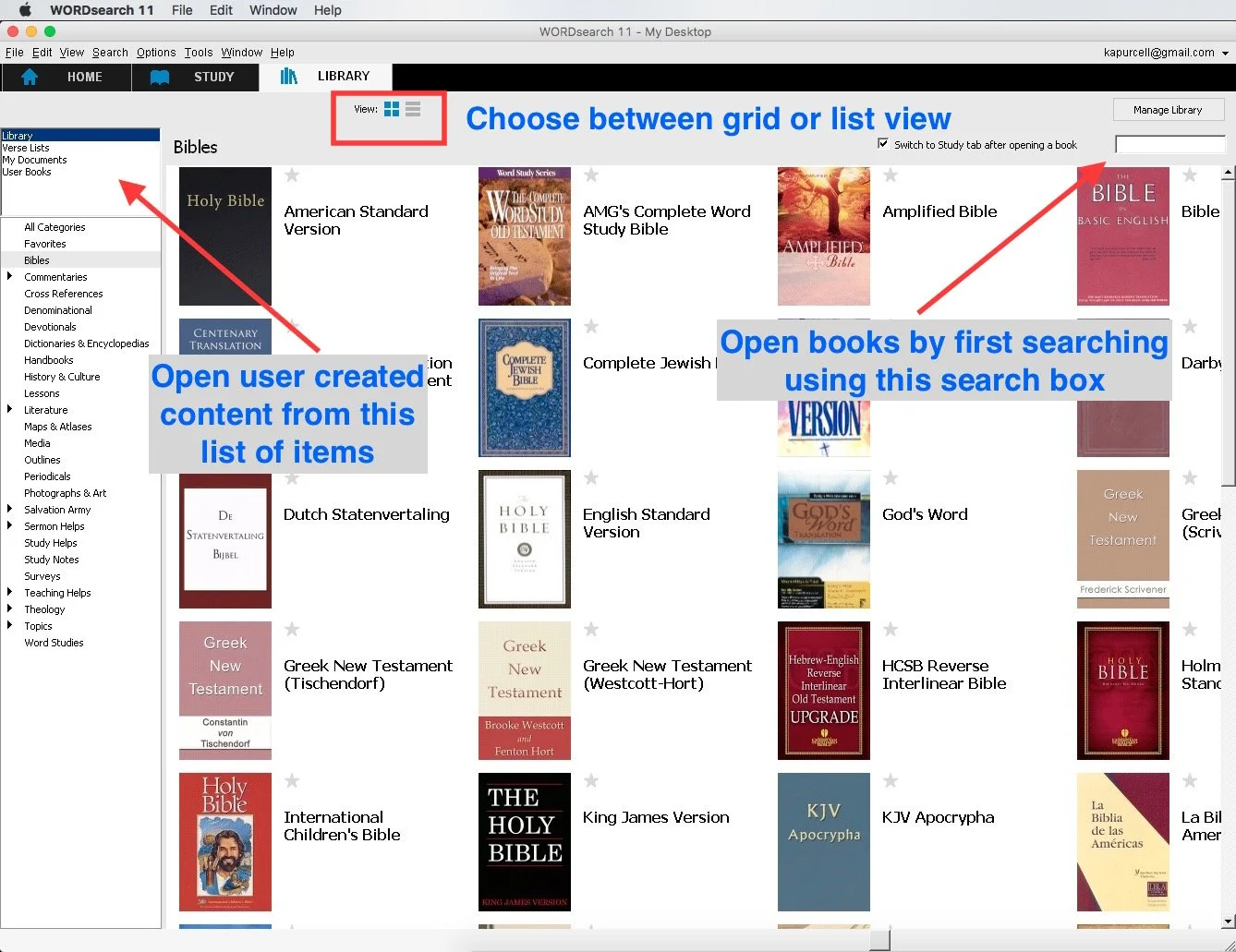
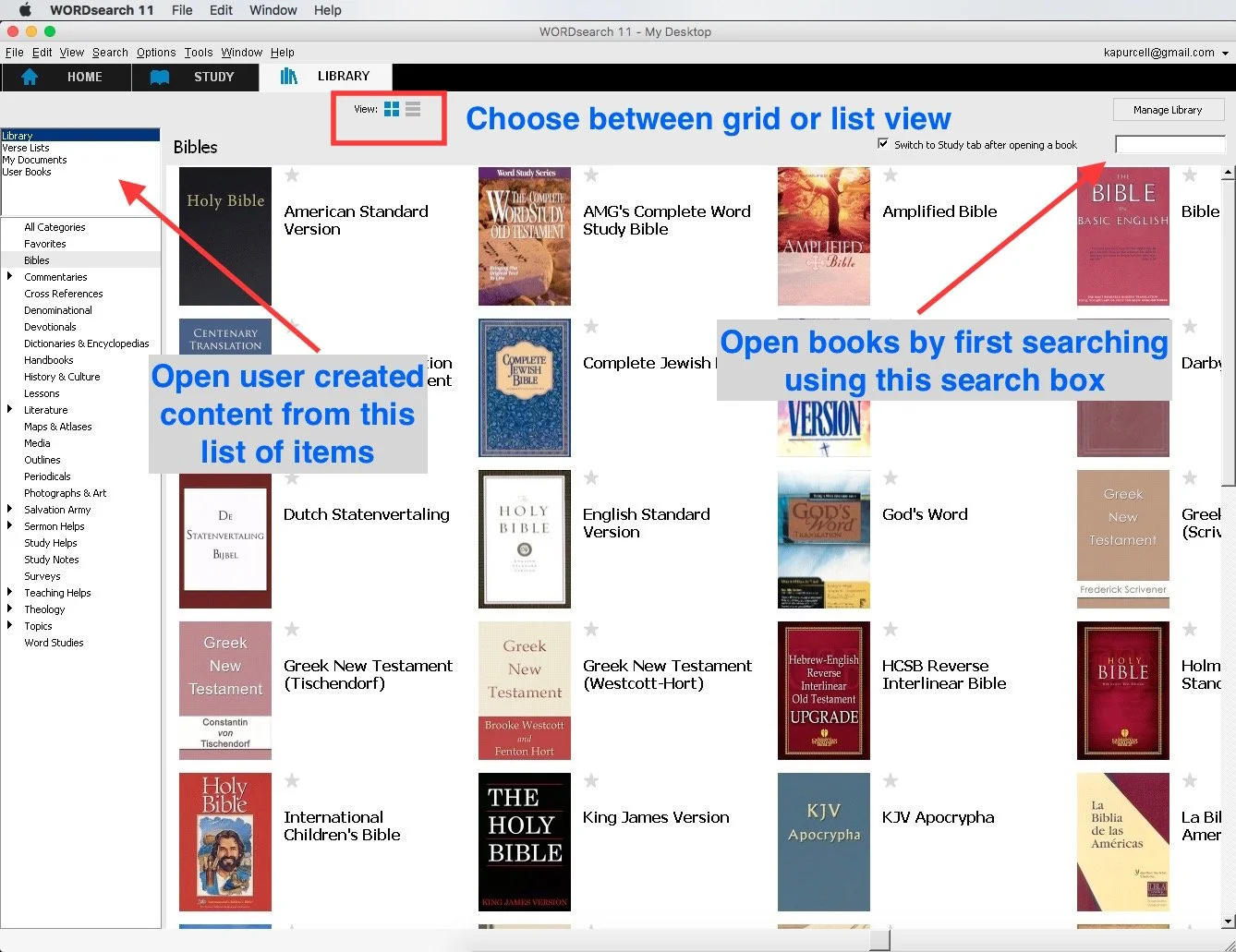
Move on to the Study and Library pages or tabs to get some real work done. Clicking library shows a grid of books I own in my library. WORDsearch 11 will offer to download your books the first time you click a title to open it from the Library. This takes a long time for people with large libraries like mine. We get an option to list our books or show them in this default grid format. There's also a search box to easily find books by title. Users with user-created content like User Books, Verse Lists or Documents can find them by clicking the items in upper left corner list. As always the categories of books shows up on the left side.
 The WORDsearch 11 Study window looks the same as it did before while getting an updated set of toolbar buttons. Gone is the Library panel that we used to open along the left edge of the Window. that makes it a little less intuitive for new users to open their books. Use one of the dropdown boxes on the toolbar to open books.
 The toolbar includes buttons for the following:
- Open - opens the Open Book dialog box where the user can search for books and a list of search results shows up. Double-click to open the book or highlight and click OK.
- Search - brings up the Search dialog box which includes advanced boolean search functions. Users can limit searches to certain books or just Bibles.

- Results - brings up the Search Results dialog box showing the last search. Users can manipulate the results to get a cleaner look at what they want to find.
- Verses - opens a kind of research assistant tool that finds your verse in various books in your library. The tool lets the user decide wich books to look in like commentaries, dictionaries, illustration books and any other book in the library.
- Topics - a topical Bible browser that finds content in your library based on topics like grace or cross, etc.
- Cross-Refs - lists cross references for a given passage.
- Notes - opens your own notes browser.
- IVS - Instant Verse Study tool that goes out and gets content in your library about a given passage.
- Verse List - create verse lists.
- Word Proc - opens the word processor so you can create documents like Bible studies or sermons inside WORDsearch 11.
- NoteStack - a note card research tool. See more on this below or in the Theotek Podcast above.
- Back/Forward - moves back and forth in the history of places you've visited in WORDeearch.
- Opening books from
- Bibles
- Parallel
- Commentary
- Lesson Maker - the great lesson creation tool owned by WORDsearch and not updated in years till now
- Morph - morphological explorer research tool for language study.
- Arrange - quickly arranges open books in either horizontal or vertical alignment.
- Desktop - works with the Desktop tool that lets users create window arrangements that make quickly switching between study layouts.
- smallgroup - a link to LifeWay's smallgroup.com an online small group bible study subscription service.

What's New in WORDsearch 11
Users of older versions of WORDsearch will see that the old Resource Pane along the left no longer shows up. It's gone, replaced by the Library tab. If you know the title of a book you want to open, then click on the Open button and start typing the title into the dialog box. You can also open books from the Bible and Commentary buttons. The Library tab shows every book installed.Users of multiple monitors can take use of the new multi-monitor support. Put a Bible and a notes window on one monitor and a commentary or language study tools on the other. Arrange things however you prefer. Save them in a predefined Desktop to quickly open it up.
Lesson Maker is Back
 WORDsearch owns a great lesson creation tool called Lesson Maker that many of us loved. It was the first WORDsearch product I bought long ago. The tool quickly creates a lesson using questions in a database of tools.The Lesson Maker tool shows up as a button on the toolbar. Open it up and create a quick lesson. This isn't a replacement for doing careful study, but it can rescue you in an emergency. Here are the ways I've used Lesson Maker.
- Throw together a quick lesson when you don't have time due to a busy schedule or a last-minute emergency.
- Create lessons for a last-minute fill-in who takes your place when you're sick or get called away.
- Study hard to teach a lesson and use Lesson Maker to supplement the Bible study
Digital Note Cards in Note Stack
 Remember the old note cards that your English teacher taught you to collect while writing a research paper? WORDsearch 11 offers a tool called Note Stacks. there's a button on the toolbar to open the Note Stacks dialog box. Create a stack around a topic, a sermon passage or a book of the bible. Whatever you're teaching, preaching or just studying can become a Note Stack.Now, while studying in commentaries, language studies, Christian Living books or any place in WORDsearch 11, you can select text and right-click. Choose Create a Note from selected text. The Notestacks box opens with the text already entered into the note. Give it a title, add it to a category from the drop down box, and edit other parts of the dialog box. Then hit Save.
WORDsearch 11 Cost and Value
Users can upgrade to WORDsearch 11 for only $40 for the Windows version or for the Mac version. It's not the most significant update, but if you can afford it, then go get it. The new user interface makes for easier Bible study. The look of the update isn't as modern looking as some programs, but that's a minor complaint. I'm glad I got the update.Mac users can get access to their WORDsearch library on Mac and it works exactly like the Windows version, but on top of emulation software. It's not a native Mac app written for OS X. However, if you don't mind the emulation, it works fine.The few readers who are using the beta version of OS X El Capitan should wait till WORDsearch makes an El Capitan version available. It's not compatible as of yet, but will work soon. OS X 10.10 Yosemite users won't have this issue.