

How Make Logos Work Like Wordsearch ZipScript
What is ZipScript and why do Wordsearch users love it so much that they're begging Logos and Faithlife to recreate it in Logos?
When Faithlife, the makers of Logos Bible Software, bought Wordsearch, they shut down the program making ZipScript, a favorite feature, unavailable to people who can no longer install Wordsearch. Since you can't install Wordsearch anymore, you'll lose access when you get a new computer or must erase and reinstall your Windows operating system. But we want to help you get similar functionality out of Logos.
What is ZipScript, and Why Do Wordsearch Users Love It?
The ZipScript utility ran separately from Wordsearch Bible Software. Wordsearch installed ZipScript, and let users open the utility and enter a Bible passage. The quick little system tray app would let you copy and paste the verse anywhere without opening Wordsearch.
Users could copy and paste Wordsearch Bibles to computer programs like Word documents, presentation apps, or notes. It didn't take up a lot of system resources and gave users access to a tool to copy and paste Bible passages almost anywhere.
Bible students loved ZipScript because it was small, efficient, and useful. Logos ships with a similar feature but is not as small and efficient as ZipScript. You can't run it separately from Logos as you could with ZipScript.
Why Won't Faithlife Likely Make a ZipScript for Logos?
When Faithlife first bought Wordsearch, I wrote an article about how to make Logos work like Wordsearch. I briefly mentioned ZipScript and Copy Bible Verses.
The Logos Community Forums contain multiple posts from Wordsearch users who came to Logos when Faithlife bought the company. That's probably the primary reason Faithlife bought Wordsearch, for the customer database and publisher content. But they didn't want the software technology like ZipScript.
Logos has a feature called Copy Bible Verses or CBV that duplicates some of the ZipScript features and adds a few that ZipScript didn't have. With fewer programmers, thanks to layoffs last fall, they don't have the human resources to do everything they might like to do or everything their customers want them to do.
Logos has CBV and won't likely add ZipScript to the toolbox. That means it is time for ZipScript lovers to either hold onto their computers with Wordsearch installed for the rest of their time as digital Bible students or learn to use Copy Bible Verses to gain similar functionality.
See My YouTube Demo of the Copy Bible Verses Tool
How to Open the Copy Bible Verses Tool in Logos

Open the Copy Bible Verses feature in Logos from the Tools button on the toolbar. Scroll down to the Passage section and click on the Copy Bible Verses item on the list.

You can also search by typing in the top box under the tools menu. The Copy Bible Verses item shows up. Click to open it.

If you like to open things from the Logos main toolbar's command box, type Copy Bible Verses and click on Show Copy Bible Verses, which will pop up in a list after you type "copy bible." You'll get a new window that, by default, fills the right side, taking up about a quarter of the window, as seen below.

How to Make CBV Follow Your Chosen Bible to Copy Bible Verses Quickly
You'll see the Copy Bible Verses window, usually on the right side of the Logos. You can type in the box to go directly to a Bible reference. I recommend linking the Copy Bible Verse and your Bible, so the CBV will follow whatever verse you see in the Bible.

Click on the menu button on the Bible (the three vertical dots on the right side of the Bible window's toolbar - see #1 above) and select a letter in the Link Set: section, like letter A. Do the same in the CBV window with the same letter you chose in the Bible window. Then when you move from one passage to another, the CBV window will follow the Bible window.
Linking the two windows will also let users select a passage in their Bible, and the CBV will set the passage as the content it will copy.
Copying Bible Verses for Pasting Into Various Apps or With Different Formatting
Copy Bible Verses does something ZipScript didn't do. You can copy text with special formatting. Logos ships with a set of formats already. You can create your own as well.

To change the formatting, select the drop-down link in the CBV window. You see this just below the text entry box where you would type your Bible reference. Click it, and the menu of formats shows up. If you don't want to use the included formats, you can create your own by clicking Create a new style, as seen at the bottom of the pop-up box. We'll cover more down below.

Choose from your installed Bible translations using the translation drop-down list (see the image above). You'll see your prioritized Bibles first and then others listed below. Select one to copy from that translation, regardless of the Bible you opened in Logos.

The Copy Bible Verses window will let you choose where to copy the verses on your computer. For example, you can have it copy a verse to Microsoft Word at the current spot in an open Word document. If the program's not open, it will open it and paste the passage into a blank file. You must first select the program from a drop-down list to do that. You also will choose Copy and Paste instead of Copy. If you click Copy, it will only place it on the system clipboard.

Copy and Paste puts the text in your program quickly. You don't have to switch to the other program and paste. The CBV does it all for you quickly. You may need to permit Logos to do this the first time you use it.
Format Options in Copy Bible Verses

When you open the formatting menu (the first link at the top of the CBV box), you'll see a grid of boxes that show what each formatting option will look like when you choose it. You'll see a little pencil icon next to the name if you create your own styles.
Look at the image above. You'll notice that the style next to number one shows no pencil icon. That style comes with Logos. However, the Bible Quote style has the pencil icons. I created that style because I didn't like the included styles and wanted a style to use in other programs to set it apart from regular text.

Above, you'll see the default format options. Create your own by clicking the Create a new style link at the bottom of this popup box. To show the above menu, click the link at the top of the CBV box. You'll see it above where it says "Copy Word Quote" where "Word Quote" is the custom format I use to copy to Word when writing my sermon or Bible study notes.
How to Create Custom Copy Formats in CBV
Many people use the built-in CBV Formats. I created my own because I wanted Bible quotes to show up with custom formatting in Microsoft Word. I don't use the Sermon Builder in Logos because Word fits a workflow I've used for over a decade while preaching from my iPad.

In Microsoft Word, I created a paragraph style that shows my Bible quotes in a larger font than regular text. Its a bold and bright maroon color makes it easier to read while preaching or teaching.
To create a custom format, choose to the Create a new style option in the formats dialog box. A new window pops up with some text that looks like code. Logos includes some info about what you'll see. Read it inside Logos by clicking here. You'll need Logos installed to open that link.
Create new formatting options by right-clicking on an existing style similar to what you want your format to look like. Then edit it using the codes listed in the help file linked above. Or you can see this help page on the Logos site.
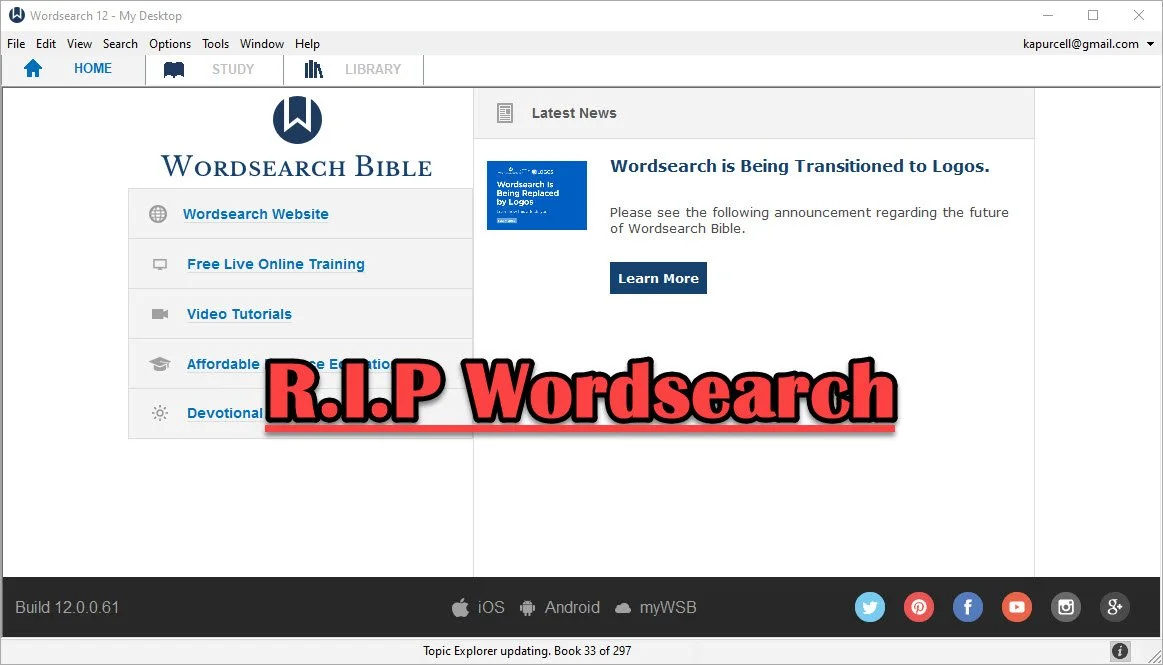
Wordsearch Support by Logos Ended, Now What?
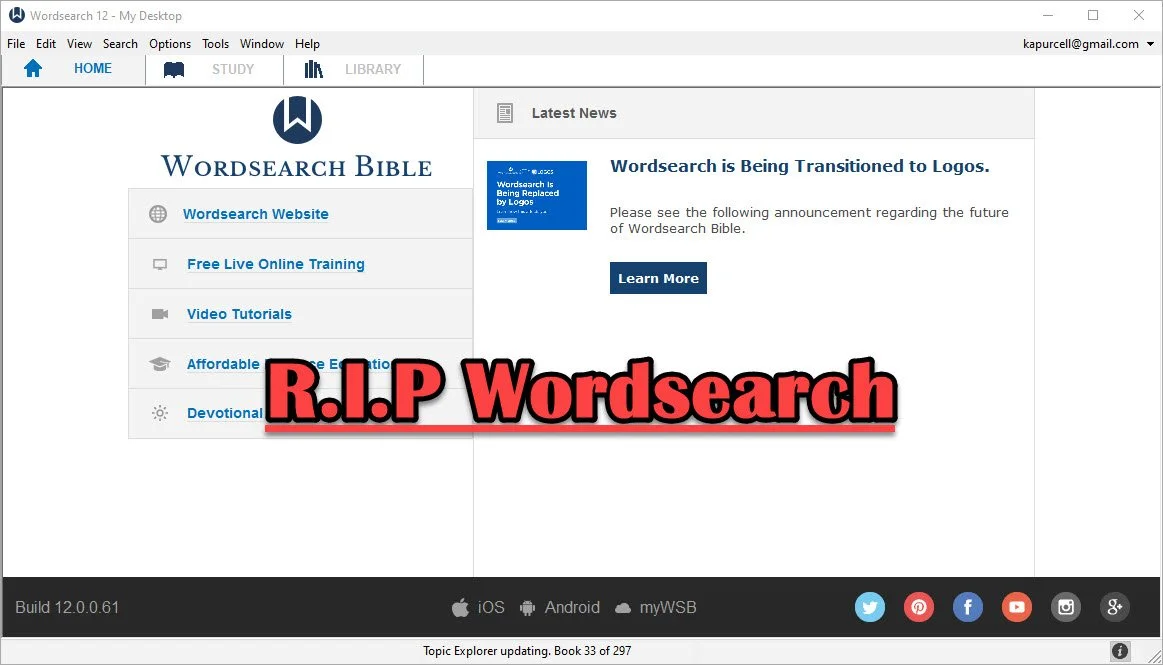
People who used and loved Wordsearch were likely disappointed when Logos and Faithlife bought the company and announced they would eventually shut it down. That time has come so what should a Wordsearch user do now? Here's the best way to continue studying the Bible digitally now that Faithlife and Logos ended support for Wordsearch Bible Software.
Logos Stops Wordsearch Support: What Does It Mean to Me?
Logos announced they planned to stop supporting Wordsearch, but that doesn't mean you can't use the software. You can. Just don't uninstall it or buy a new computer unless you have the installer and your books backed up.
Logos sent out an email to Wordsearch owners that said:
- You will not be able to download the desktop and mobile apps in the future
- You will not be able to download your books to the desktop/laptop or mobile Wordsearch apps.
That's frustrating if you want to keep using Wordsearch after buying a new computer, phone, or tablet. You'll need to find a new different way to get access to the program or start using Logos or some other app or program.
On your desktop or laptop computer, you can do a backup of your computer that includes your installation of Wordsearch and find a way to port it over to your new computer or a computer that you had to reformat or erase. That's more complicated than we have time to discuss in this post. A Google search will likely find dozens of options for Windows or Mac users.
Wordsearch users can also keep using the program on their current computer, phone, or tablet. The company won't cripple Wordsearch apps for software already installed. So keep using it knowing you won't get app or book updates. You also can't add new content, so if that commentary series you love gets a new volume, you'll have to find it in another format to enjoy it digitally.
Start Using Logos Instead of Wordsearch
Logos would love for you to start using their software. That's the whole reason they bought out Wordsearch, to get their users and their library of books.
If you want to start using Logos, then go over to the Logos website and see what version of Logos they gave you when they bought out Wordsearch.
In addition to a version of Logos, you will also get most of your books from your Wordsearch library in Logos. They will download after you install Logos on your computer or mobile device. A small percentage of books won't make the trip over to Logos.
See our post on using Logos and setting it up like Wordsearch.
Switch to Accordance
The best alternative comes from the folks at Accordance Bible Software. They offer a complex and powerful software program that brings you every feature you need to study the Bible at a scholarly level but also works well for pastors, teachers, and lay Bible students.
Switching from Wordsearch will cost more than going to Logos since Logos offers free software and gives you most of the books you own in Wordsearch format. However, you may not want to use Logos. You can get the $200 Crossgrade for Accordance. Crossgrades take the term "upgrade" and marry it with cross-over to form a crossgrade.
In addition to the Wordsearch crossgrade, you can crossgrade many of your books. Just contact Accordance to learn what it will cost. In both cases, you'll need to fill out a form proving you already own either Wordsearch or the books you want to buy via crossgrade.
Other Bible Software Options

Logos and Accordance aren't the only games in town. You can also find great options from the following:
- n Olive Tree Bible - Olive Tree provides a decent desktop or laptop computer program, but also has the best mobile app you can get on iOS or Android. They sell a lot of books too.
- Laridian PocketBible - You won't get as many books with Laridian as you will with Olive Tree, Accordance, or Logos. However, the developer does a nice job of creating a stable platform with some unique features, like showing 4 or more window pains on mobile, something can't get from any other app that I know of. With Book Builder you can make your own books for PocketBible on Android, Windows, iOS and Mac.
- e-Sword - The long time free Bible study program from Rick Meyers will seem simplistic compared to the other programs in this article. However, if a user doesn't like Logos and can't afford the others, then free books from e-Sword will help you with your study needs until you can afford something a little more advanced. Some Wordsearch users will find that it's all they need. If you want some modern Bibles and books you can buy them from eStudySource.

Recommendation
What should you do if you were a Wordsearch user who wished they were still in business?
- Keep using Wordsearch. You can still use it as long as you don't change computers and even then might be able to jump through some technical hoops to get it to work on a new computer.
- Go ahead and get Logos installed, if you have space on your computer's hard drive. You can also install it on your mobile devices. If you used the minimalist Wordsearch mobile apps, you will find that Logos does so much more. This will confuse some users who were Wordsearch's simple book reader app. But most will view it as a huge upgrade on mobile. Spend time about Logos until you feel comfortable using it for your digital Bible study.
- Get free versions of Accordance, Olive Tree, e-Sword, or Laridian's PocketBible. Try them out and see which one you like best. Then start looking into getting the books you need for your study.
Mobile users should look at Logos, Olive Tree, or Laridian first. They are the best mobile apps for serious Bible study. Accordance gets honorable mention if you are using iOS, but Android users should look elsewhere because Accordance on Android is too limited right now. They plan to upgrade making it more useful, but Logos, Olive Tree, and Laridian are so much better on Android.

Ways to Make Logos Work Like Wordsearch
How can you make Logos work like Wordsearch to help users transition. We'll offer a few tips.

Jumping from Wordsearch Bible Software to new owner Faithlife's Logos 9 proves difficult for some users who don't have time to learn all the complex and powerful features available in Logos. We'll look at XXX ways to make Logos work like Wordsearch. This will help users make the Logos feel more familiar for Wordsearch users.

Take advantage of these tricks, but also work to learn the more advanced features in Logos to get the most out of the program. Don't take the keys to your new Ford F250 and drive it like a VW Beetle. Learn more about the features of Logos 9 so you can become more effective in using your new software.
If you didn't upgrade to Logos 9 when it shipped last fall, consider it. Logos gave Wordsearch users version 8 for free but wanted to grab some money from their new customers. It' might be worth adding one of the cheaper base packages.
Use Layouts to Make Logos Work Like Wordsearch
Both Logos and Wordsearch include a feature to set up a desktop layout so you can quickly get to work after opening the program. You can make Logos work like Wordsearch by creating a Layout that mimics the features of Wordsearch.
Open Logos and start with an empty layout. Logos 9 has a button in the upper right corner of the toolbar that closes everything with one click. Hit that button and you're ready to get started (see image below).
Many Wordsearch users like the Library pane that shows up on the left-hand side of the window. So, find your Library button on the toolbar and click and drag it to the left-hand edge of the empty layout (step one below).

There's a drop-down button in the Library window toolbar (step 2 below). If you click it, it will show three views:
- Cover View
- Title View
- Details View
You want the Details View. Choose that and it will show all of your books in a long list. Now you want to use the Facet menu (three horizontal lines next to the Find resources search box; step 3 in image above). Click the Facet menu and you can now click on the Type Facet to see your library grouped by the type of book, like Bible, Bible Commentary, and more. This works like Wordsearch's library book folders for each kind of book.
Resize the window to make it smaller, but not so small that you can no longer see the Facet menu.
Find your favorite Bible and open it by dragging it from the library to the space just right of the Library window. Then grab any other book you want to place it on the right.
Saving Your New Layout to Make Logos Work Like Wordsearch

We want to save this layout so you can use it quickly and easily. Click on the Layout button in the upper right corner next to the Close All button we used above (see step one below). The first item listed in the right column of the drop-down list shows a link that reads Save as named layout (see image above). Click that and a box opens for you to type a new name. I typed Wordsearch. Hit enter.

You can tweak your layout as you use it. Each time you change something.
- Open the layout drop-down as you did above (step one above).
- Then right-click on the thumbnail (step two above).
- Choose Update to current snapshot (step three above).
The layout's not the same as Wordsearch and you can't easily turn the Library window on and off as you can in Wordsearch. But you can set things up this way temporarily while you get used to Logos. After you do, close this window and just use the drop-down Library from the button on the toolbar.
Copy Bible Verses Replaces ZipScript to Make Logos Work Like Wordsearch

Fans of Wordsearch used ZipScript to quickly insert Bible passages into other programs like Microsoft Word. It ran in the Windows system tray (see above). Click the little icon and enter the passage (see below).

Logos doesn't offer a separate app like ZipScript, but you can use what they call Copy Bible Verses. In the layout I created above, I placed the Copy Bible Verses window on the right. Open it from the Passages section of the Tools menu.

Using the Copy Bible Verses is easy to start, but it can do some powerful things. Here's what I did to make it work best for me.
I start by selecting the Bible verses I want to copy to Microsoft Word. Then, in the Copy Bible Verses window, I make sure to select three things at the to; of the window just below the text entry box. You'll see three hyperlinks that behave like drop-down boxes.
- Set the format of the text you copy.
- Select the translation of the verses you wish to copy.
- Select the destination of the verses.
The destinations available will depend on what operating system you're using. Click the link and see what you can use on your computer.
Formatting in Copy Bible Verses
Logos ships with a bunch of formats preset for you to pick. However, at the bottom of the pop-up formatting box, you see an option to Create a new style. I created a style that I like my Bible quotations to use when I paste them into Word. There's a lot of ways to customize your style and Logos offers help in figuring it all out. This link will open the Help page inside Logos for creating new styles if you have Logos installed. As the help page instructs, start with an existing style and edit it to look the way you want.

I created a style that makes text a shade of red, 14 point Helvetica type, and spaced with space above and below each paragraph.
Users can choose to insert the text automatically or just copy it to the clipboard and then paste it manually. If you copy and paste it automatically, it chooses the most recently used document in the program you choose to paste to from the menu.
Select a style most like what you want your text to resemble. Right-click on that style from the formatting drop-down box and choose Edit Style. At the top give a new style a name by clicking on the current style name. When you get the style to look the way you want, then click on Save. Thanks to the Logos syncing feature, it will show up any time you click the link to display the drop-down box on this and any other computer with your copy of Logos installed.
Set Up Parallel Bibles to Make Logos Work Like Wordsearch
If you opened more than one translation to show parallel Bibles in Wordsearch you can take advantage of that feature in Logos. Here's how to do it.

Logos calls this feature the Text Comparison Tool and you open it from the Tools menu. The tool displays text in a few different ways. First, you can put in columns using the menu button at the right end of the window's toolbar. It looks like 3 vertical dots (see above). Choose from the following display options:
- Automatic Layout - switches between horizontal and vertical layouts based on window size
- Horizontal Layout - puts your Bibles in columns like a traditional parallel Bible
- Vertical Layout - puts them on successive lines with an option o show them in Interlinear mode or Verses mode (see the drop-down box in the image below).
You'll also see options on the menu to show differences or not. The image above shows the blue text. That indicates how the translations differ from the first column's translation.

Also, notice the hyperlinked translation abbreviations. Click those to change which translations show up in your Text Comparison window.
Logos includes a feature that compares to most of the features found in Wordsearch. Not everything will make it into Logos nor will all of your books. However, I think you'll find that Logos will meet your needs if you take the time to learn them. Until you get skilled at studying the Bible in Logos, you can use the above tips to help make it a little more friendly.
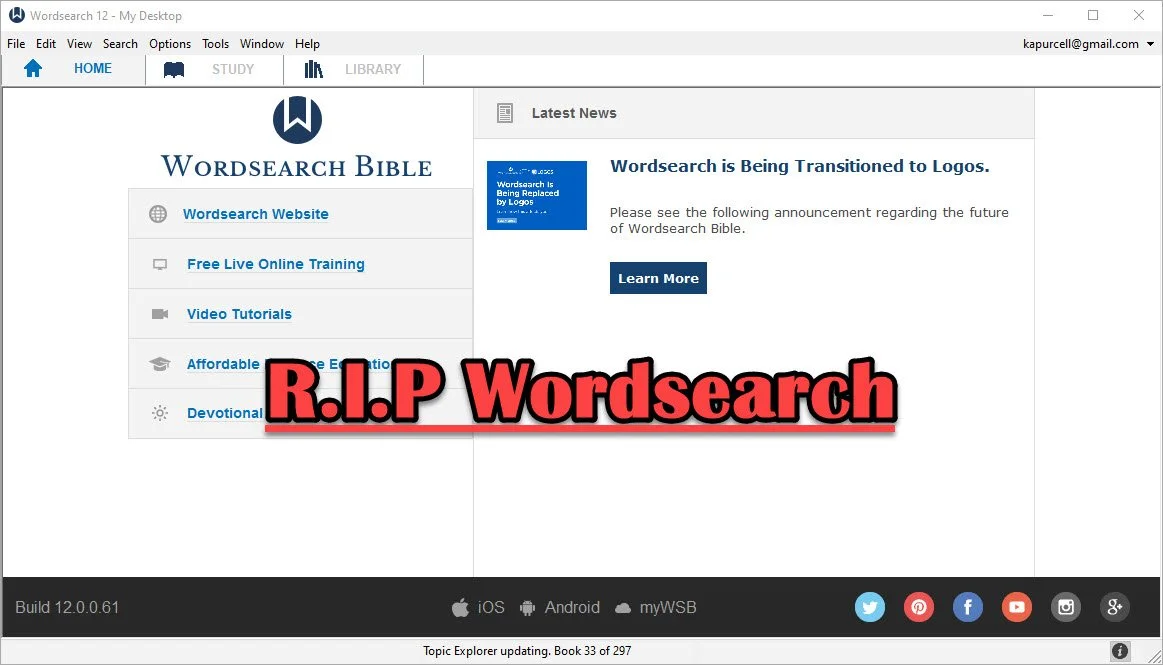
Logos Bible Software Bought Wordsearch. What does it mean for me?
Now that Faithlife bought Wordsearch, what does it mean for users of both programs and where will Bible software go in the future?
In case you didn't know, the publishers of Logos Bible Software and Proclaim Worship Software, Faithlife, bought Wordsearch Bible Software from LifeWay, the publishing arm of the Southern Baptist Convention. I shared a little about it here and at ChurchTechToday.com, where I sometimes write.
When we face significant changes, we feel afraid and wonder what will happen and how will it affect us. Those feelings will affect Wordsearch customers more than Logos customers. However, it will also offer some positive changes. We'll look at both the negatives and the positives and then consider the future of Bible software.
Simplicity and Comfort with Wordsearch for Users
People who used Wordsearch for a long time liked that they could collect a large library of excellent Bible study tools and ministry books from excellent publishers. Wordsearch produced a lot of great digital content for their software users. Wordsearch also presented those excellent tools in a simple, familiar format. The program added features and changed the way it looked over time, but it always had a look that reminded us of Windows Explorer or macOS Finder. The list of content showed up in easy to recognize folders along the left, while the content showed up on the right. You could display a Bible in one window, a commentary in another, and notes in a third. It all made sense.

Moving from Wordsearch to another program felt more jarring than most moves because the other high-powered windows software looked very different. At least Accordance had the library list on the left. Logos hid their library in a drop-down list that you could open as a window and put on the left, but it took some work to set up a familiar layout that Wordsearch users would consider familiar.

Disappearing ZipScript; Gone But Not Forgotten
ZipScript appealed to Wordsearch users and many of those trying to jump to Logos, the new Wordsearch overlords, experience consternation at seeing it go away when the program stops working. Understand that the deadline won't come anytime soon. But one day it will quit.
ZipScript ran in the background and grabbed scripture from a chosen Bible from the Wordsearch library. Users could quickly paste it into a Word document or some other text editor or even a website. It worked simply and elegantly.
Logos has something similar in the Copy Bible Verse tool, but you have to open Logos to get at it. We'll show you how to use Copy Bible Verses in Logos below.

And that leads me to some hope for Wordsearch users. You can do most of what you really love in Logos or some other third-party application. It will take some time and training to get the most out of it. So let's look at the hopeful side of the buyout of Wordsearch by Faithlife.
Reasons for Hope for Both Logos and Wordsearch Bible Software Users
Logos users will experience the most hopefulness with the purchase of Wordsearch. Users now can access a large library of books and tools not available before in Logos.
The Complete Biblical Library includes a commentary and some language study tools to name a few resources. Logos didn't offer this package until now. Wordsearch and Accordance did. That's just one of the hundreds of books Logos users can now buy and use. More will become available as they finish converting the digital files into Logos book formats.
Wordsearch users will also get access to a lot of resources that weren't available to them before. Both customer bases could buy thousands of Bibles, commentaries, reference books, and other titles. Now they can get even more.
In addition to more books, Wordsearch users willing to take the time to learn how to use the powerful and complex features in Logos 9 will discover that their new program is more like owning an aircraft carrier than a 400-foot luxury yacht. Both float in the water and both will get you across the Pacific Ocean, but one can do it in a simple familiar way while the other feels more like a highly technical piece of machinery ready to attack any task with skill and advanced expertise like nothing else in existence. I think Accordance would disagree with that last bit. It's similarly powerful, but I hope you get the meaning of my flawed analogy.
I recommend that Wordsearch users patiently take the time to learn to use Logos. Here are a few ways to help...
- Logos Support Page has plenty of training
- Logos community forums is full of helpful users
- Check out one of the advanced training schools online like Morris Proctor and LearnLogos
- Visit Theotek here and on YouTube
- Take time to look around the software
- Open Wordsearch and Logos at the same time and take a look at what you love about Wordsearch and try to mimic that capability inside Logos
- Take a look at other Bible software like Accordance, Olive Tree, e-Sword, PocketBible and more.
- Keep using Wordsearch until you can't
The last recommendation above is important. Just because you won't likely get any software updates in the future from Logos, the program will probably keep running fine until Microsoft updates Windows and breaks it. If that happens, then don't upgrade windows. I'm guessing you can keep using Wordsearch for at least another year or more. That might extend for years, especially if you don't mind staying on current versions of Windows. Eventually, however, it will shut down and you'll have to move on.
The Future of Bible Software
Where will the Bible software community end up in a couple of years or longer? That's a hard question to answer and I've never been a good prognosticator. I thought Covid would last a few weeks at most. But let's give it a try.
Bible software is both expanding and contracting at the same time. Over at ChurchTechToday.com my editor, Lauren Hunter, wrote about the future of Bible software quoting Rick Meyers, the generous creator of e-Sword. He said...
“This same decade has seen new Bible software companies emerge who are embracing these new hardware/platform changes. So, in the decade which saw WORDsearch first sold to LifeWay, and now to Faithlife, we have seen the rise of YouVersion. One generation of programmers hands off the baton to the next generation of programmers; meanwhile, God’s Word remains as popular as ever.”
I agree. We see more options for quality Bible software. At the same time, we now have fewer options for the advanced Bible study needed for academic Bible study or translating the Bible into more languages on the mission field.
With that, I think that Bible software companies that offer a strong online presence will win in the long run. And that means Logos. They are the only advanced Bible study option that works on all platforms including...
- Windows
- Mac
- iPhone
- iPad
- Android
- Online
- Chromebooks
- Kindle
Others work on many of those like Olive Tree, but they don't offer a website for Bible study. Accordance is in the same boat.
Some of the best online sites work great in a desktop browser, but not as well on mobile. Some of those show up as apps in the app store, but not all.
With the contraction of the number of powerful programs, it may seem like Bible software is in trouble. However, the big names are strong and not going anywhere soon. So, I'm hopeful.
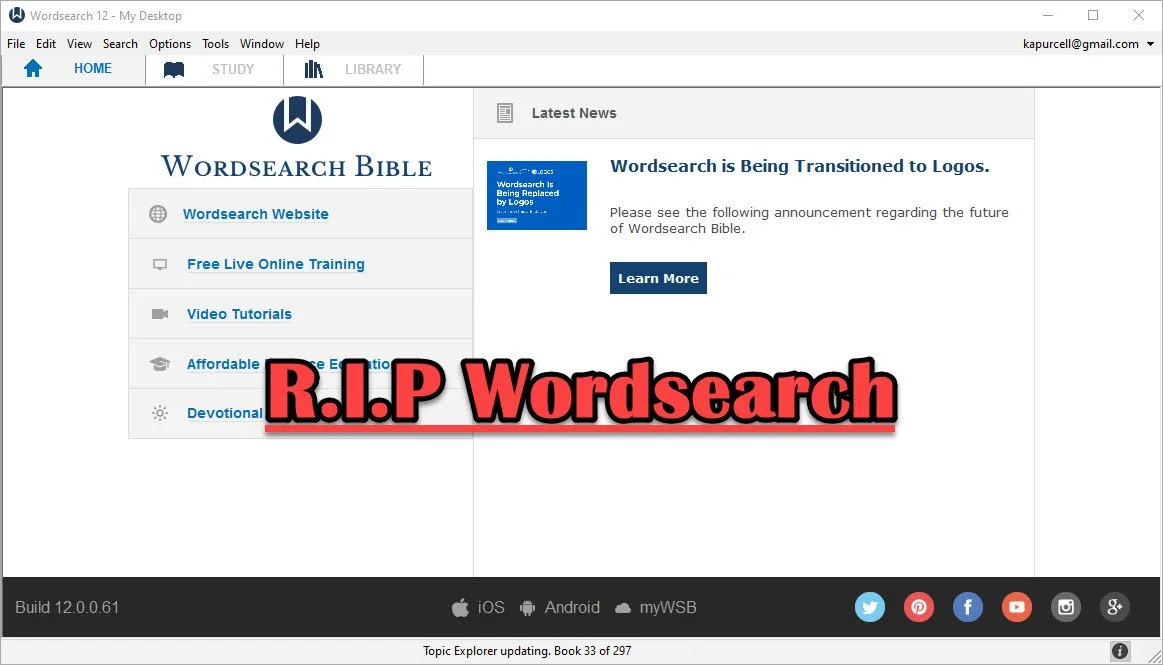
Wordsearch is Dead, Long Live Wordsearch with Logos
Wordsearch, one of the more popular Bible study packages, went the way of Bibleworks when Faithlife bought the company from LifeWay Christian Resources.Whoo. That's a lot of company names!
Some people may not recognize Faithlife's name, but they make Logos Bible Software. The company announced on September 18, 2020 that they acquired the software and the rights to the large library of distributed for use in Wordsearch. They also get their large customer base.

What Wordsearch Customers Can Expect
Heading over to the old Wordsearch website directs users to a site on LifeWay.com announcing the transition.

Click the Learn More link at the top to read the FAQ about the transition. Here's a list of the highlights...Your old Wordsearch/LifeWay account will convert over to a Logos/Faithlife account automatically if you use the same email address for your old Wordsearch account and have one already with Logos.
- If you didn't already have a Logos account, the company created one using your email address from Wordsearch. If you need help just reach out to Logos Customer Service by email.
- You can set up your new Logos account by adding a password on their account setup site.
- For those who used a different email for their two accounts, contact Logos Customer Service by email to get help merging them.
- Most of your old Wordsearch books will transfer to Logos. In fact many are ready for you to download in Logos right now. However, be patient as they have a huge backlog of people needing help.
- If your books are not yet available it could be for one of a few reasons...
- Logos doesn't have that book yet set up to work in Logos but will by the end of the year, hopefully. That's their target at least.
- Some books never will transfer because Wordsearch lost the rights to those books and so when Logos bought them, they didn't get the rights to distribute them. Sadly, that's the penalty for using digital books. You might lose them if your software company dies.
- If you just bought Wordsearch and want a refund, they will honor that at LifeWay. This time contact LifeWay Customer Service.
Wordsearch customers will likely experience some frustration from this transition. Your old user created content won't make the move with you until 2021, according to LifeWay. Some features in Wordsearch may never make the journey. You can find some good alternatives. The Logos user forums will help.
Users of both Wordsearch and Logos might recognize Nathan Parker. He created a great post in the Logos user forums that lists the Wordsearch features and then shows the name of the similar feature in Logos.

Speaking of the user forums, long time Wordsearch customers will remember that Wordsearch used to have a great community of users built into the software. That fell by the wayside a long time ago. Logos still has an incredibly active user forum as well, plus their own social media site. I've never really used the social part, but you'll find me in the user forums occasionally. Ask a question there and you'll get an answer from at least a few of the knowledgeable user and sometimes the staff at Faithlife chime in too including Bob Pritchett the CEO. You'll want to go over the Wordsearch sub forum first.
UPDATE: Faithlife added a page that will summarize your migration of books from Wordsearch to Logos. See if your books show up, if they will already show up in your Logos library or if they’re in progress of being created or not yet started. You can also see if the book shows up as a full Logos book or just an eBooks. Faithlife eBooks don’t come with as many custom links or tags. Often books start as simple eBooks and then get converted to full Logos book. Both work in Logos, but eBooks don’t include as many features.
What If I Don't Want to Use Logos?
My first reaction is this: give it a shot. Take a look. You now own it for free, if you were a Wordsearch customers. Download it and try it out for awhile.
If you're not happy with Logos, then continue to use Wordsearch while you search for an alternative. When Bibleworks went out of business two years ago, I posted about the best options. Here's a list of the programs I recommended.
- Accordance Bible Software - powerful and free to try with large library
- Olive Tree Bible Software - not as powerful, but simpler and also a large library
- e-Sword - free and simple to use, but mostly public domain content with a smaller library of premium paid books available from third-parties
- Laridian PocketBible - a simple and useful program that works great on mobile and has a decent library of tools
- Online sites like the ones I published in part one and part two of the best online Bible sites.
Wordsearch Not the Only Buyout
With Bibleworks dying two years ago and Wordsearch this year, it makes users wonder how much longer their favorite Bible study suite will work.
Six years ago Harper Collins bought out Olive Tree Bible Software and ran it until recently. A new company bought them from Harper Collins and plans to continue development. Steven Cummings, who was Vice President of Operations with Olive Tree created Gospel Technologies and bought the company from Harper Collins.
MyWSB Brings Wordsearch Bible Software to the Internet
Wordsearch has a new online Bible study website called MyWSB.com. How good is it and can you use it instead of their mobile apps?
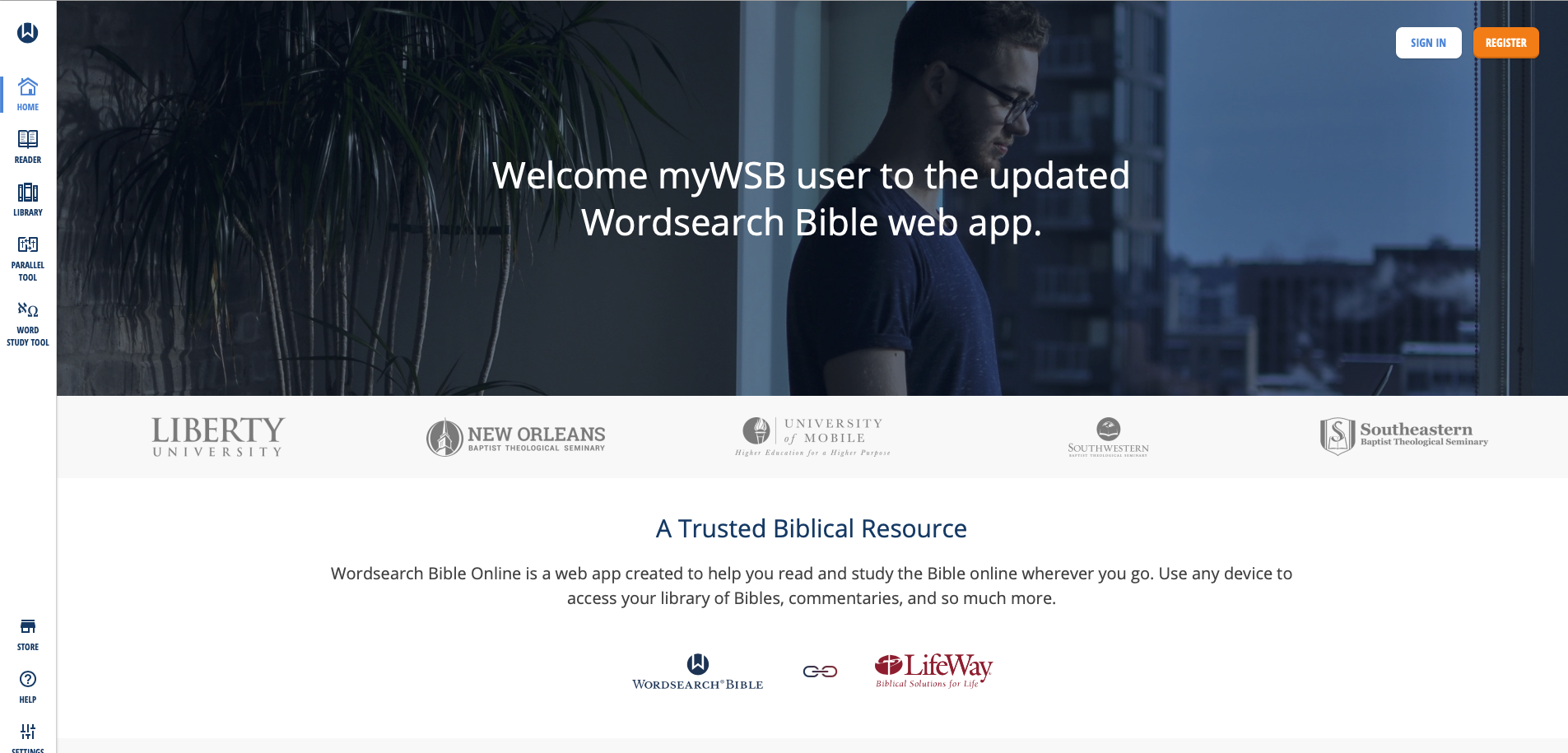
Lifeway updated the MyWSB website for a better online experience for Wordsearch Bible Software customers.
If you use an iPad or another tablet or you own a Chromebook then using Wordsearch Bible Software wasn't possible. They offer a simple book reader for iOS and Android, but it's not enough for most students of the Bible. The MyWSB web app doesn't give us everything found in the Wordsearch 12 program for desktops and laptops. However, it's better than what you get with the iOS or Android mobile apps. They're pretty horrible for anything other than simple book reading.

What's New in MyWSB Wordsearch Online?
What's new in the online app? Most important, Wordsearch updated the user interface. Take a look at the screen shot above and you'll see the modern look. Sign in and see the home page that offers news about the website. Along the left there's a sidebar of links represented by icons. That's where you access your tools for Bible study.
Here's what each icon does...
- Home - shows the main page seen above.
- Reader - the reader lets users open books and read them with window panes (see more below).
- Library - see all the books in your library with categories of books along the left and cover icons in the main section.
- Parallel Tool - opens a window pane with parallel bibles in the Reader.
- Word Study Tool - opens a Word Study Tool pane in the Reader.
- Store - towards the bottom fo the sidebar we see the Store link where you can find new books to add to your library.
- Help - learn how to use MyWSB.
- Settings - change how the app works.
- Profile - manage the Lifeway account profile details.
The MyWSB Reader

The Reader will display your books in window panes with a toolbar. The toolbar has navigation buttons with back and forward buttons represented by large left and right pointing block arrows. These go back and forward one chapter in the Bible or section in a book. They sit at extreme ends of the toolbar. There's also a thin back arrow button that takes you back to the previous passage displayed. There's a table of contents that shows a list view of the contents of the book. Bibles or books tied to passages also have a menu that shows a grid-based book/chapter/verse chooser menu.

There's also a button to search the book or Bible. The small AA button decreases or increases the size of the book's font. And the full screen button sits to the right of that.
On the top you see name of the book open in that window pane. Left of the name is the book's info button. On the right end of the title bar you'll find a bookmark button, which opens the bookmarks toolbar. The next button returns to the regular toolbar described above. Then there's an X that closes the book.
The user can resize the window panes using the handle seen in the center of the screen in the screen shot seen under the section heading.
If you highlight some text in a Bible or book, a new toolbar appears at the bottom. It gives options to highlight the text, bookmark it, add a user note or copy a link to that verse. The link will take the person who clicks it back to this spot on MyWSB.com.

Regular readers of this page will know I am a Bible study notes afianado. The notes tool in MyWSB are pretty basic. You can type in basic text, add tags and that's it.
Word Study Tool

Some Bibles support Strong's Numbers. These books also have a button to show or hide them inline. Also, some books support displaying the Bible in paragraph or one verse per line. Those books have a button which toggles that method of display. See the NASB95 above with the Bible in verse-per-line mode and with Strong's numbers showing.
The Word Study tool is open on the right. It shows the Strong's concordance entry first. Then we see a section named Dictionary Reference. It has the dictionary entry showing a transliteration of the Hebrew or Greek word, a phonetic pronunciation, and the dictionary definition. You can choose which translation with Strong's tagging you want to use. The drop down is in the toolbar at the top of the Window.
The final section shows the Usage Study section. This lists all the entries of that word in your chosen Bible. Expand each book of the Bible to see the references for that book. The Word Study Tool will show the text of the verses in your chosen translation.
Combining Lifeway and Wordsearch Accounts
The other major change in MyWSB comes in the account backend. Ever since Lifeway bought Wordseach, they've wanted to combine accounts so that users have one single sign-on email and password. Finally, they've achieved that with this update.
In the past users had to link their two accounts. Now, after they link them one time, they will use their Lifeway user account to log into MyWSB.
Better Mobile Browser Support
The website works much better on a mobile browser. I use an iPad Pro for sermon prep and the iOS app doesn't work that well. From now on I'll use the MyWSB app. In fact, I created a website app icon on my iPad home screen.

Add a bookmark to the Home Screen on your iPad by tapping the share button on the Safari toolbar. Find the Add to Home Screen (black box with plus icon in center of the second row above). The Home Screen icon's not very attractive. Lifeway needs to fix that with a better site icon.
My Evaluation & Recommendation
I really like MyWSB.com for online Bible study. Logos really stepped up their game and they offer an excellent tool, but Wordsearch users will find a lot to like about this site. They site is simple to use and has enough features to make it useful. You can do nice Word Studies and general reading. Make sure to check it out.
I'd rank MyWSB second on my list of favorite online Bible study tools ahead of Bible Gateway and below Logos. That's only because I have a large Logos library and it has more advanced Bible study tools. It also syncs with their mobile and desktop programs.
The Value of Free Stuff: Theotek Podcast #080
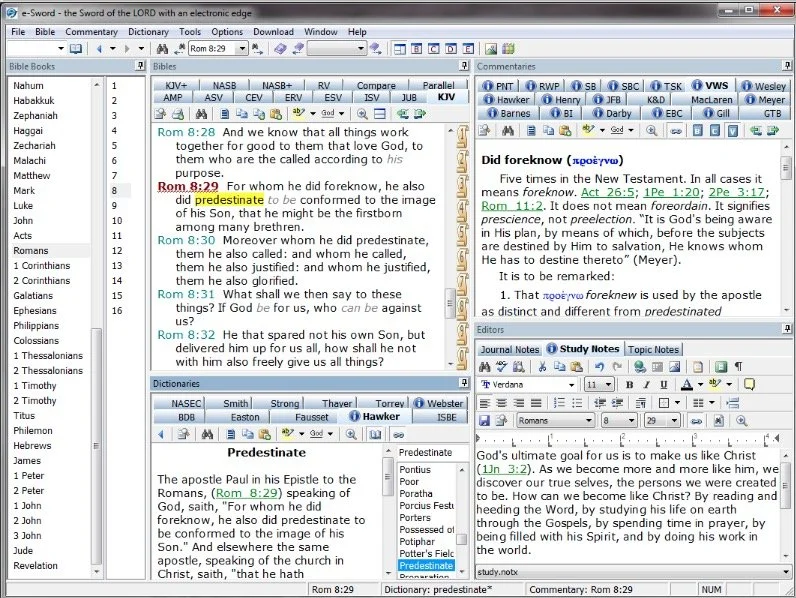
Sometimes churches or believers can't afford the high-end or expensive option in many categories like Bible software or web services, so we've got some of the best free stuff or free alternatives for you. We shared our favorite freebies that churches, pastors, and believers can use to help build the kingdom of God in their context without wrecking their wallet or bank account balance.Below the video you'll see the list of freebies starting with the Bible Software free stuff and then a simple list of the other free stuff we talked about in this episode of the Theotek Podcast.https://www.youtube.com/watch?v=b7KWo7eQkLo
Bible Study Free Stuff
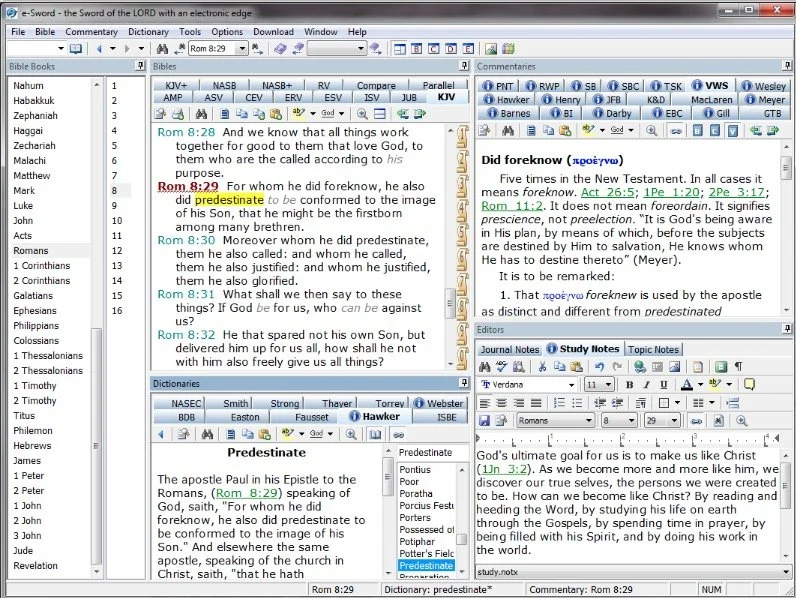
e-Sword is the best free Bible study app available. They make both PC version and a Mac version, that's not free but really inexpensive. Sticking with Bible study Rick Mansfield showed off the free Accordance Mobile app, which people can download on their iPhone or iPad and get a ton of free content, especially if you sign up for a free user account with Accordance. Rick showed off the great ESV interlinear Bible available in the app.
 Antoine showed us his favorite Bible app called Verse3. We had the developer of Verse3 on show #044. It's not free, but only costs $5.
 Olive Tree offers a free version of their Bible app for almost every platform you could want. Download the app on your computer or mobile device, get some free content and then, if you prefer, add some premium content later as needed.
 I showed off some free online Bible study sites that I wrote about a while ago in a two-part series. Here's part two.Finally, LaRosa also reminded us that WORDsearch, his former employer, offers what used to be called Bible Explorer. It's now called WORDsearch Basic and it's now their free option.
The Other Free Stuff
Here's our list of other Free Stuff to help you do your work for free or almost free.
- WordPress website management system also called a content management system or CMS. You can set up a free website and even buy a domain from a company like Hover that will forward that domain to your free WordPress site.‘
- YouTube for video hosting and for playing videos. Find tons of content from entertainment to music to educational content all on YouTube. Of course we use it to stream our Theotek Podcast.
- Microsoft Sway is a great presentation app that lets users share images and pictures. Think of it as a PowerPoint or Keynote alternative for online presentations.
- Facebook Live lets you record and host live video which people can then find later in recorded form on your Facebook wall.
- Libre Office offers a full free office suite with alternatives for Word, Excel, PowerPoint and more.
- Google gives away tons of free tools, including free office software like Google Docs, Sheets, Slides and Forms.
iPhone 7
We ended the show discussing the new iPhone 7, which Rick and I both had our hands on. I did an unboxing of the wrong phone. Watch me get totally disappointed because T-Mobile screwed up and sent me an iPhone 7 instead of the iPhone 7 Plus I actually ordered. Watch the above video to hear what Rick thinks of his iPhone 7 Plus.https://www.youtube.com/watch?v=OkI6psZCfdA
WORDsearch 11 Ships With New Design and Features
There's a new WORDsearch update. WORDsearch 11 comes with a new user interface, an updated library feature, better note card feature for research and some better speed in indexing resources. Add multi-monitor support and the old Lesson Maker that WORDsearch forgot they owned. It's now integrated into WORDsearch.The Theotek Podcast team got a look from Rick Milone of WORDsearch. He's one of their official trainers as well as a user. He showed off some of the new features.https://www.youtube.com/watch?v=rygB5tK3OXwI brewed me some tea (with fenugreek 50% extract - it's my favorite new combo) and made my podcast. Here's my review of WORDsearch 11 written before our podcast. Look for it in Ministry Tech Magazine next month.
User Interface of WORDsearch 11
 Open WORDsearch 11 and it displays the Home page. Older versions included a smaller version of this, but this time it takes over the full screen. Notice the list of links along the left and list of specials or deals in their store along the right labelled "Latest News." All the "news" seems to focus on books I can buy. Too bad they don't follow other programs and actually offer some real content besides just sales items. This would get me to actually look at this instead of ignore it on my way to opening my library or picking up where I last left off in my studies.Along the bottom of the Home page we get a bunch of links. These take the user to their apps for iOS, Android and the only myWSB. That's one of if not the best online Bible study site available today, especially for WORDsearch customers with a large library that they can use the online version without paying extra, as some programs do.The other set of links at the bottom of the page takes me to WORDsearch social networking accounts. These include:
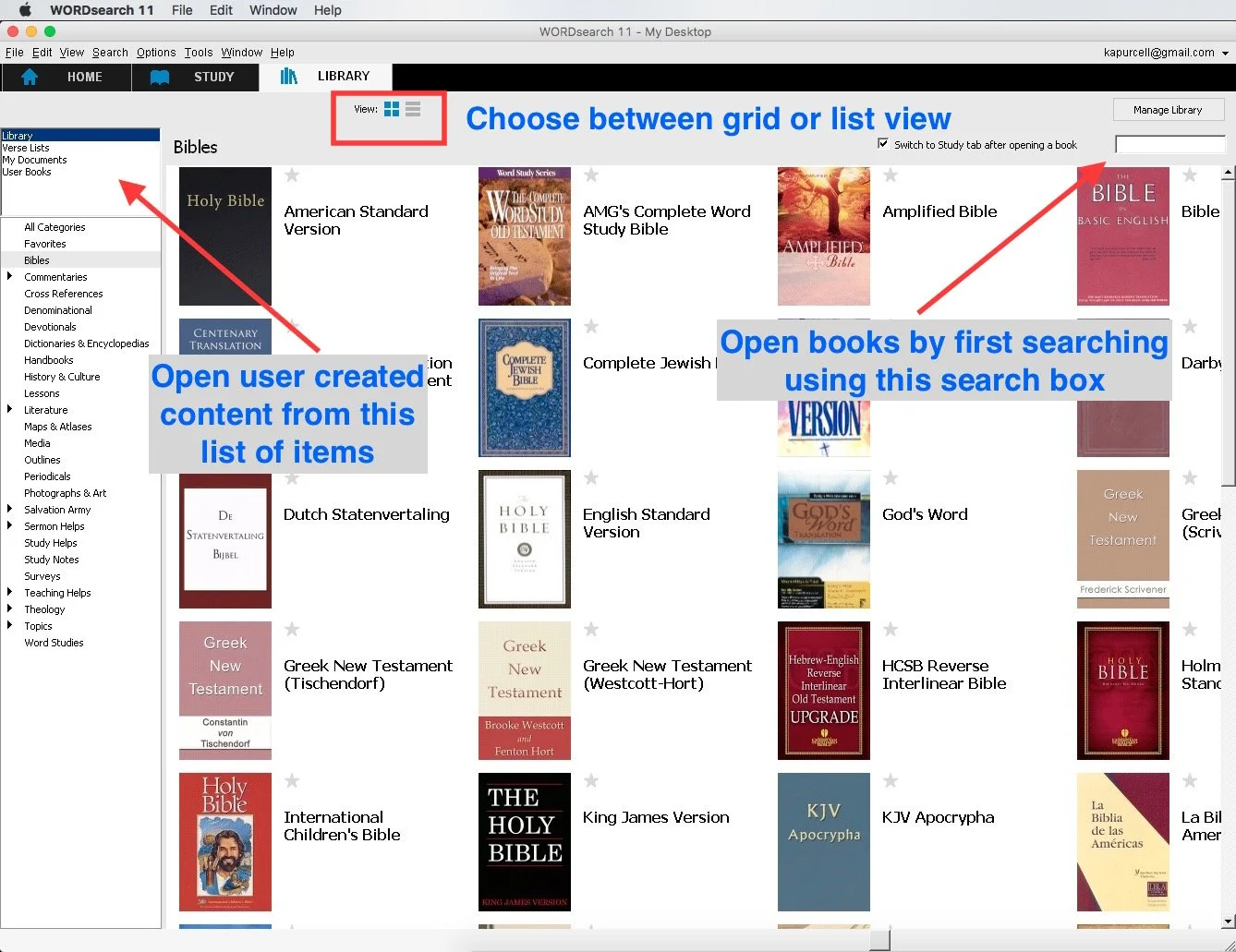
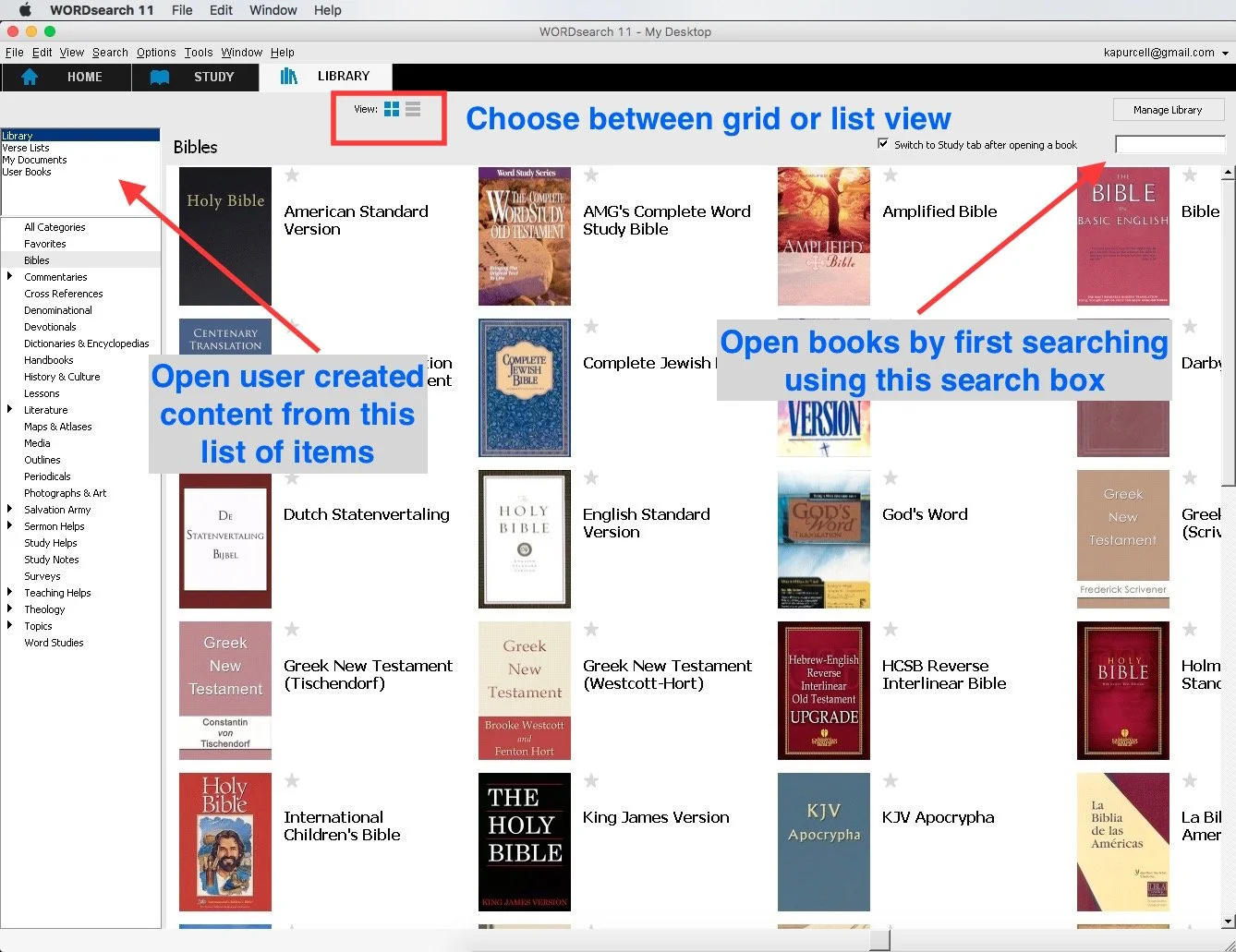
Move on to the Study and Library pages or tabs to get some real work done. Clicking library shows a grid of books I own in my library. WORDsearch 11 will offer to download your books the first time you click a title to open it from the Library. This takes a long time for people with large libraries like mine. We get an option to list our books or show them in this default grid format. There's also a search box to easily find books by title. Users with user-created content like User Books, Verse Lists or Documents can find them by clicking the items in upper left corner list. As always the categories of books shows up on the left side.
 The WORDsearch 11 Study window looks the same as it did before while getting an updated set of toolbar buttons. Gone is the Library panel that we used to open along the left edge of the Window. that makes it a little less intuitive for new users to open their books. Use one of the dropdown boxes on the toolbar to open books.
 The toolbar includes buttons for the following:
- Open - opens the Open Book dialog box where the user can search for books and a list of search results shows up. Double-click to open the book or highlight and click OK.
- Search - brings up the Search dialog box which includes advanced boolean search functions. Users can limit searches to certain books or just Bibles.

- Results - brings up the Search Results dialog box showing the last search. Users can manipulate the results to get a cleaner look at what they want to find.
- Verses - opens a kind of research assistant tool that finds your verse in various books in your library. The tool lets the user decide wich books to look in like commentaries, dictionaries, illustration books and any other book in the library.
- Topics - a topical Bible browser that finds content in your library based on topics like grace or cross, etc.
- Cross-Refs - lists cross references for a given passage.
- Notes - opens your own notes browser.
- IVS - Instant Verse Study tool that goes out and gets content in your library about a given passage.
- Verse List - create verse lists.
- Word Proc - opens the word processor so you can create documents like Bible studies or sermons inside WORDsearch 11.
- NoteStack - a note card research tool. See more on this below or in the Theotek Podcast above.
- Back/Forward - moves back and forth in the history of places you've visited in WORDeearch.
- Opening books from
- Bibles
- Parallel
- Commentary
- Lesson Maker - the great lesson creation tool owned by WORDsearch and not updated in years till now
- Morph - morphological explorer research tool for language study.
- Arrange - quickly arranges open books in either horizontal or vertical alignment.
- Desktop - works with the Desktop tool that lets users create window arrangements that make quickly switching between study layouts.
- smallgroup - a link to LifeWay's smallgroup.com an online small group bible study subscription service.

What's New in WORDsearch 11
Users of older versions of WORDsearch will see that the old Resource Pane along the left no longer shows up. It's gone, replaced by the Library tab. If you know the title of a book you want to open, then click on the Open button and start typing the title into the dialog box. You can also open books from the Bible and Commentary buttons. The Library tab shows every book installed.Users of multiple monitors can take use of the new multi-monitor support. Put a Bible and a notes window on one monitor and a commentary or language study tools on the other. Arrange things however you prefer. Save them in a predefined Desktop to quickly open it up.
Lesson Maker is Back
 WORDsearch owns a great lesson creation tool called Lesson Maker that many of us loved. It was the first WORDsearch product I bought long ago. The tool quickly creates a lesson using questions in a database of tools.The Lesson Maker tool shows up as a button on the toolbar. Open it up and create a quick lesson. This isn't a replacement for doing careful study, but it can rescue you in an emergency. Here are the ways I've used Lesson Maker.
- Throw together a quick lesson when you don't have time due to a busy schedule or a last-minute emergency.
- Create lessons for a last-minute fill-in who takes your place when you're sick or get called away.
- Study hard to teach a lesson and use Lesson Maker to supplement the Bible study
Digital Note Cards in Note Stack
 Remember the old note cards that your English teacher taught you to collect while writing a research paper? WORDsearch 11 offers a tool called Note Stacks. there's a button on the toolbar to open the Note Stacks dialog box. Create a stack around a topic, a sermon passage or a book of the bible. Whatever you're teaching, preaching or just studying can become a Note Stack.Now, while studying in commentaries, language studies, Christian Living books or any place in WORDsearch 11, you can select text and right-click. Choose Create a Note from selected text. The Notestacks box opens with the text already entered into the note. Give it a title, add it to a category from the drop down box, and edit other parts of the dialog box. Then hit Save.
WORDsearch 11 Cost and Value
Users can upgrade to WORDsearch 11 for only $40 for the Windows version or for the Mac version. It's not the most significant update, but if you can afford it, then go get it. The new user interface makes for easier Bible study. The look of the update isn't as modern looking as some programs, but that's a minor complaint. I'm glad I got the update.Mac users can get access to their WORDsearch library on Mac and it works exactly like the Windows version, but on top of emulation software. It's not a native Mac app written for OS X. However, if you don't mind the emulation, it works fine.The few readers who are using the beta version of OS X El Capitan should wait till WORDsearch makes an El Capitan version available. It's not compatible as of yet, but will work soon. OS X 10.10 Yosemite users won't have this issue.