

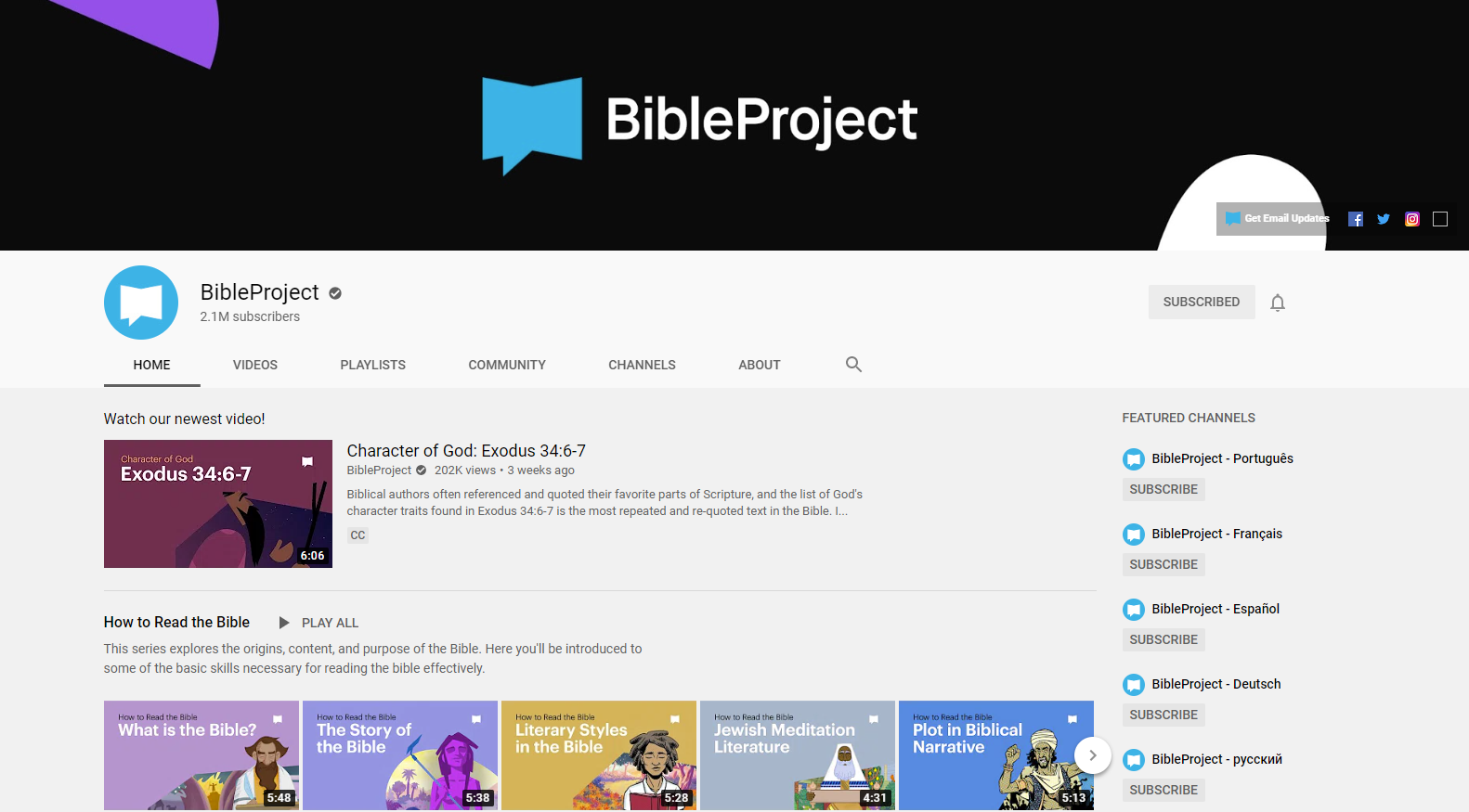
The Bible Project YouTube Channel Uses Animation to Teach the Bible
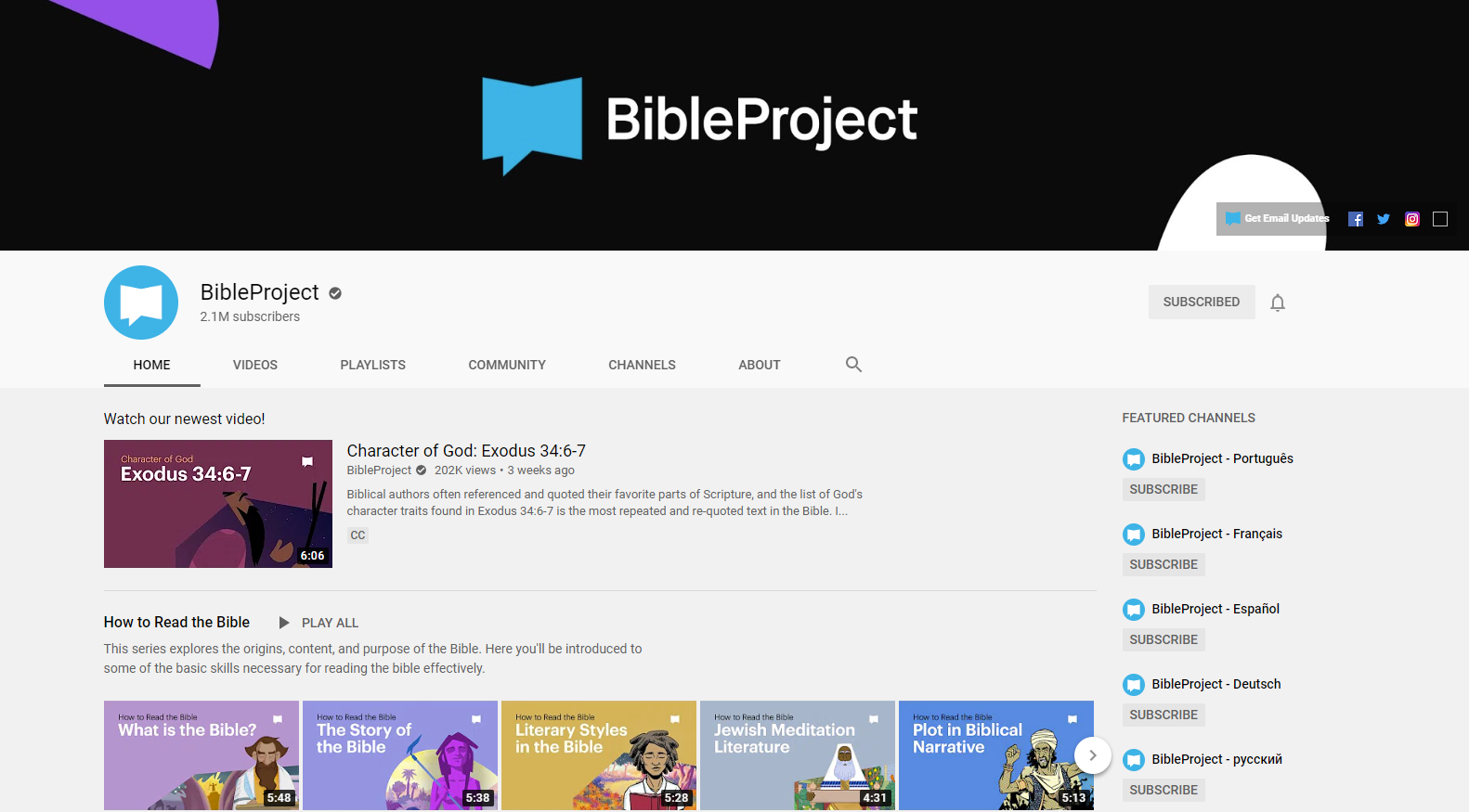
This week I plan to start a sermon series on the Book of Daniel. Good modern preachers who want to use multimedia to communicate God's word will see what media they can find to simplify the preaching process. So, I searched for the Book of Daniel on Google and came up with a link to a YouTube Channel of animated videos about the Bible called The Bible Project.
The Bible Project YouTube Channel includes the follow self-description:
Bible Project is a nonprofit animation studio that produces short-form, fully animated videos. Our videos and all of our other resources are available for free to help people everywhere experience the unified story of the Bible.
From The Bible Project About page on YouTube
The Bible Project Videos
On the channel, viewers will find some visually rich and interesting videos that explain various aspects of the Bible including...
- How to Read the Bible
- Biblical Themes
- Spiritual Beings
- Old Testament - overview of the OT and book overviews
- New Testament - overview of the NT and book overviews
- Torah Series - focus on the first five books of the Bible
- Wisdom Series - focus on the wisdom books of Psalm, Proverbs, etc.

Usefulness of Videos
People could use the videos on the site in many ways.
- Personal Study
- When your pastor is preaching through a book
- Sunday School class
- Family Bible study time
- Home school lessons
- Add a Bible element to your children's education if they go to a public school where they won't get Biblical content
If you want to learn more about The Bible Project, you can so look at their website. It includes links to their videos on YouTube and their site Podcast.
During the virus pandemic, many people are still at home instead of attending church with their church family. The folks at Bible Project have a page dedicated to helping people study the Bible in such a situation. After the pandemic this could also be used for people who are sick and can't go to church for an extended period of time.
The videos look beautiful and they're simple enough for older children to understand but not too juvenile. Adults can get a lot of out the videos as well.
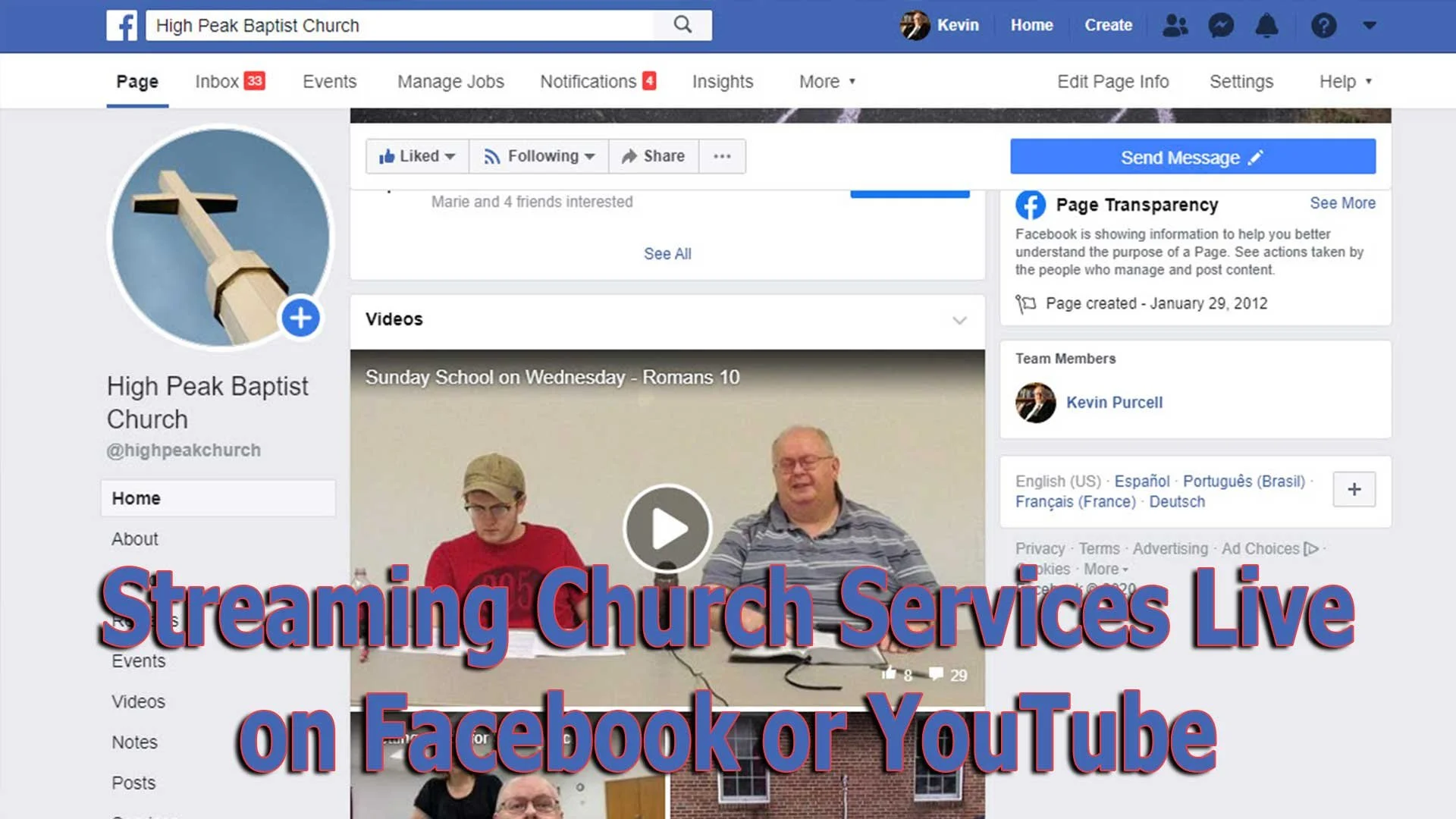
Streaming Church Services Live Using Facebook or YouTube Apps or Pages
Streaming church services live on Facebook and YouTube extends your reach as a church. We'll show you how to use their apps and websites for streaming.
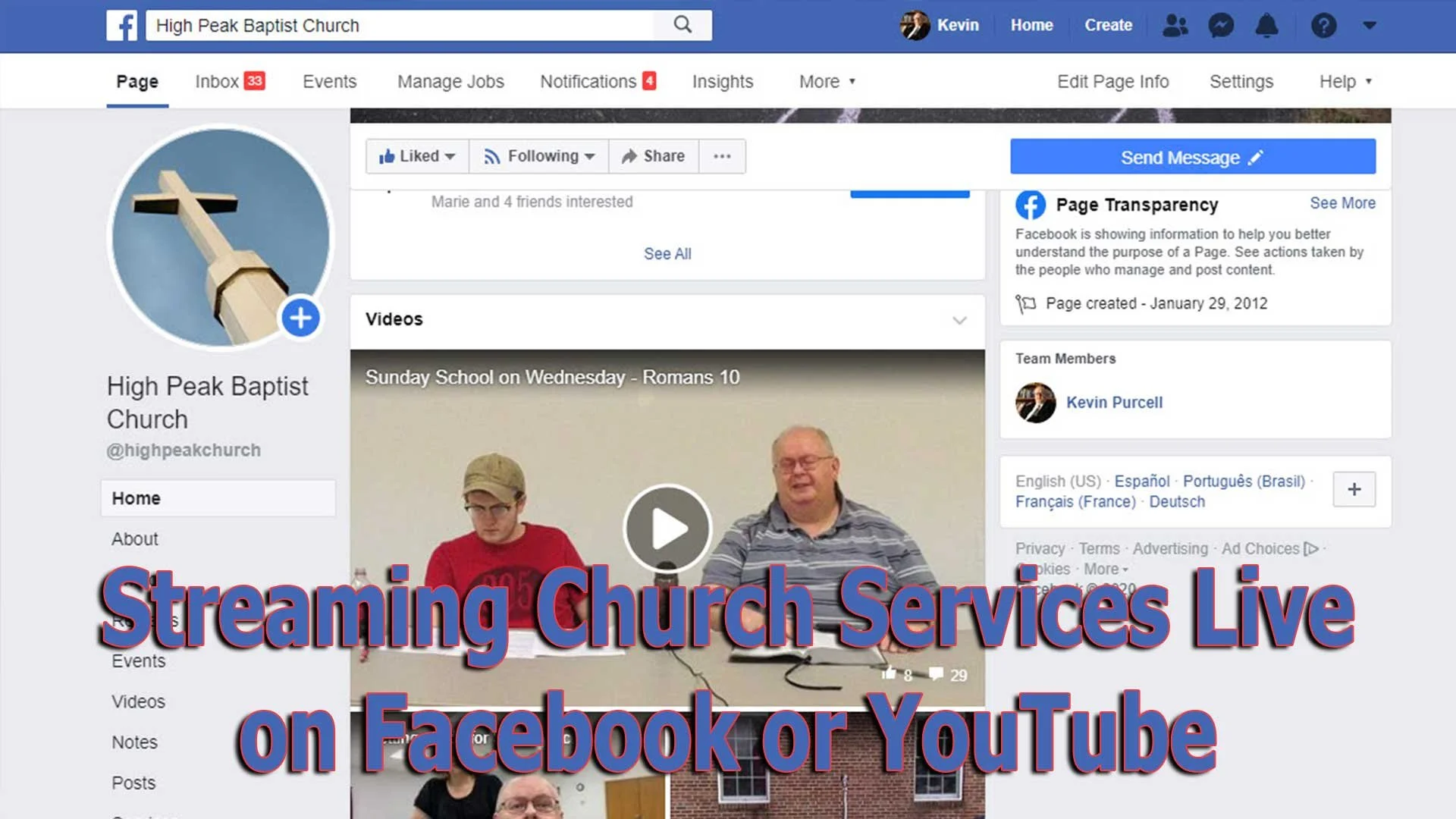
Choosing the right software for streaming church services live actually impacts the rest of the decisions you'll make - equipment, cameras and accessories. If you want to start streaming church services live, then you will need some kind of software. We'll look at using Facebook or YouTube . Churches can choose between using an iPhone or Android phone and the mobile apps for these services. However, you probably should pick a computer with a camera hooked up and streaming using the Facebook or YouTube websites instead of a mobile app.
Here are the other posts in this series:
- The Four Best Camera Styles for Streaming Church Services Live
- Streaming Church Services Live Using Facebook or YouTube Apps or Pages
- 7 Best Tools for Streaming Church Services
- Streaming Church Services Life and Cheap
A lot of streaming platforms exist to help churches. You can buy a subscription to a dedicated service, but they can cost hundreds to thousands of dollars a year. It's also harder to garner an audience if you're a small to mid-sized church using one of these dedicated subscription services like the ones mentioned at the end of our post on the 7 Best Tools for Streaming Church Services. You can find even more services listed at ChurchTechToday.com. They range in price from $25/month to almost $150.

Most people reading this will opt for streaming to Facebook or YouTube since they're free and easier to discover by potential viewers.
Streaming Church Services with Facebook or YouTube Apps from a Phone
The Facebook app on an iPhone or Android phone does a decent job of helping churches share their worship services. However, in our last post in this series we argued for using a dedicated camera for a lot of reasons. You get better images, more versatility and placement is better with a dedicated camera.
However, if you must use an iPhone or Android phone you can go live from their mobile apps. The video below shows you how to stream from your mobile app to Facebook.
People who have enough subscribers can use the YouTube app on their iPhone or Android phone to live stream. The video below shows you how to use the app and how to go live if you don't have enough subscribers. By the way, you'll need 1,000 subscribers on YouTube to go live from the mobile app. But this videos shows you alternatives.
Streaming to Facebook resulted in more engagement for our church than we saw on YouTube. We used to go live on YouTube and would get at most 10-20 people for regular worship services and no more than 100 for special services. We moved to Facebook and those jumpers soared sometimes reaching hundreds of views. We average 80=110 in worship.
Streaming from the Facebook or YouTube Websites
Since it's better to hook up a dedicated camera to a computer for higher quality and more versatility, using the Facebook or YouTube websites will result in better quality streams. Third-party software gives churches more versatility, than the Facebook or YouTube websites. We'll cover that in our next post in this series.

To get started on Facebook, you'll want to set up a Facebook Page for your church. Facebook offers a good help page for doing this. Once you're done following that guide, you can log into your account, go to your Facebook page and then start a live stream. Take a look at the slideshow below.


First, click on the Pages link along the left (first image above). Then click on your page name in the resulting page. On that page click on Live (second image above).

Follow the steps in red above. First click on Use Camera. Then choose your camera and your microphone. Next, along the right, click on drop down menus to choose where you want your video to go. It should read "Share to a Page You Manage" and then the name of the page for your church.
Give your video a title in step 6 above. Make sure the video looks right in the box in the lower right (#7 above). Then when you're ready, hit the Go Live button in the lower left.
The resulting page will show you the feed and you can interact with viewers. I recommend putting a comment in the video and make it stick to the top that reads:
We welcome you to our church's worship service here on Facebook. If this is your first time viewing our Facebook Live worship service, hit the heart and we will get back to you with a special gift.
Now you can send them something special, like a coupon to a local restaurant's take out business and some info about your church. At the very least, leave off the gift and then just follow up with a note.
Since things change quickly and often on Facebook, if the above instructions don't work, head over to Facebook's Live Broadcasting help page.
YouTube Live Streaming Church Services
I prefer streaming to Facebook since most churches will see more engagement, but some prefer YouTube. You might already have a presence on YouTube. If you have over 1,000 subscribers, then you can stream live to YouTube too.


Click on the little camera icon in the upper right corner and choose Go live from the drop down menu. This opens a screen (second image above) if it's the first time you've tried to stream. It asks you to give permission for using your microphone and camera. Hit allow (third image above) and you're reading to set things up.

Give your stream a Title in the top box. Make it public, if it's not alreayd. Then click whether it's made for kids or not. Most churches should click No, not because it's not appropriate for kids, but because you are not targeting kids. You might be in a special service for kids. That comes with a special set of requirements that are not useful for this purpose.

Click on the More Options button at the bottom and make sure you selected the right camera and microphone. Also add it to the right camera by clicking the drop down box above the camera option. Choose Nonprofits from the list. The content above the category comes from the default description from your channel.
The Advanced Settings button opens another screen. Click the Allow Chat on or off depending on whether you want comments. You should leave it on unless you have some special reason for stopping viewers from commenting. Videos with comments get more engagement on YouTube.
Since you're a church, you should not take ads, so turn off the option that reads "This contains paid promotions...". Not click the back arrow. Then click Next and it will take a photo as a thumbnail. You should later replace this with a branded image for your church.
Next, you'll see a Stream preview. You can edit the details and share the stream on social media. In the Live Chat you should add a post targeting guests. Ask them to respond so you can follow.
Hit Go Live and you're streaming. When it's over you can end the stream and save it. You will want to edit things now like the thumbnail.
A Tribute to My Pop - Latest YouTube Video
As you may or may not know, I started vlogging on YouTube and this is my latest video. It's a kind of Tribute to My Pop!!
The Value of Free Stuff: Theotek Podcast #080
Sometimes churches or believers can't afford the high-end or expensive option in many categories like Bible software or web services, so we've got some of the best free stuff or free alternatives for you. We shared our favorite freebies that churches, pastors, and believers can use to help build the kingdom of God in their context without wrecking their wallet or bank account balance.Below the video you'll see the list of freebies starting with the Bible Software free stuff and then a simple list of the other free stuff we talked about in this episode of the Theotek Podcast.https://www.youtube.com/watch?v=b7KWo7eQkLo
Bible Study Free Stuff
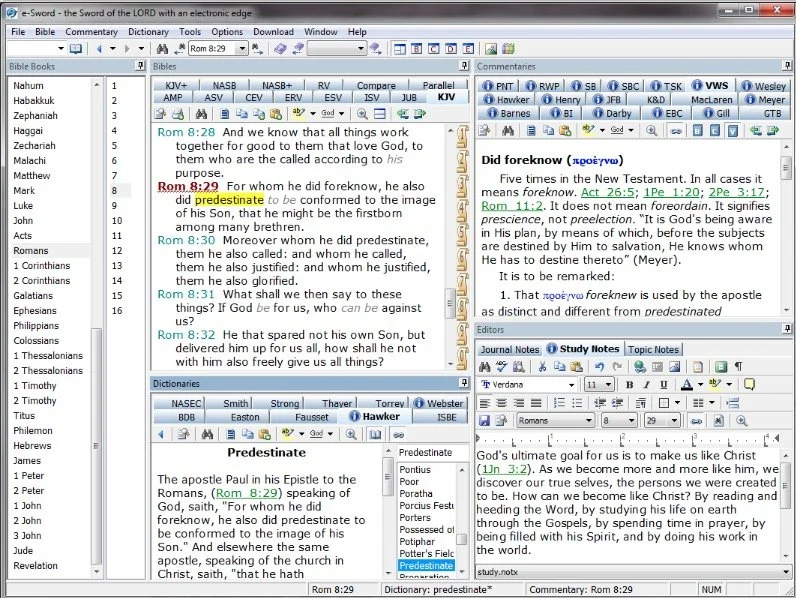
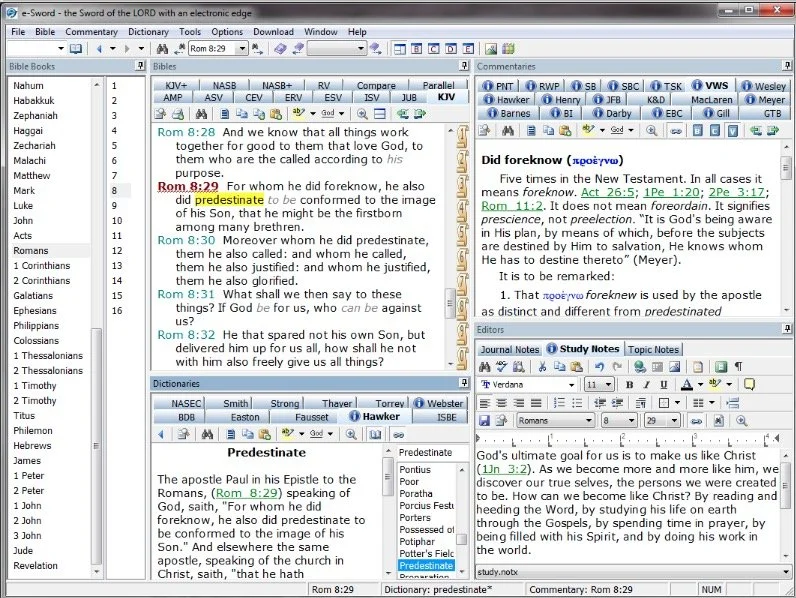
e-Sword is the best free Bible study app available. They make both PC version and a Mac version, that's not free but really inexpensive. Sticking with Bible study Rick Mansfield showed off the free Accordance Mobile app, which people can download on their iPhone or iPad and get a ton of free content, especially if you sign up for a free user account with Accordance. Rick showed off the great ESV interlinear Bible available in the app.
 Antoine showed us his favorite Bible app called Verse3. We had the developer of Verse3 on show #044. It's not free, but only costs $5.
 Olive Tree offers a free version of their Bible app for almost every platform you could want. Download the app on your computer or mobile device, get some free content and then, if you prefer, add some premium content later as needed.
 I showed off some free online Bible study sites that I wrote about a while ago in a two-part series. Here's part two.Finally, LaRosa also reminded us that WORDsearch, his former employer, offers what used to be called Bible Explorer. It's now called WORDsearch Basic and it's now their free option.
The Other Free Stuff
Here's our list of other Free Stuff to help you do your work for free or almost free.
- WordPress website management system also called a content management system or CMS. You can set up a free website and even buy a domain from a company like Hover that will forward that domain to your free WordPress site.‘
- YouTube for video hosting and for playing videos. Find tons of content from entertainment to music to educational content all on YouTube. Of course we use it to stream our Theotek Podcast.
- Microsoft Sway is a great presentation app that lets users share images and pictures. Think of it as a PowerPoint or Keynote alternative for online presentations.
- Facebook Live lets you record and host live video which people can then find later in recorded form on your Facebook wall.
- Libre Office offers a full free office suite with alternatives for Word, Excel, PowerPoint and more.
- Google gives away tons of free tools, including free office software like Google Docs, Sheets, Slides and Forms.
iPhone 7
We ended the show discussing the new iPhone 7, which Rick and I both had our hands on. I did an unboxing of the wrong phone. Watch me get totally disappointed because T-Mobile screwed up and sent me an iPhone 7 instead of the iPhone 7 Plus I actually ordered. Watch the above video to hear what Rick thinks of his iPhone 7 Plus.https://www.youtube.com/watch?v=OkI6psZCfdA