

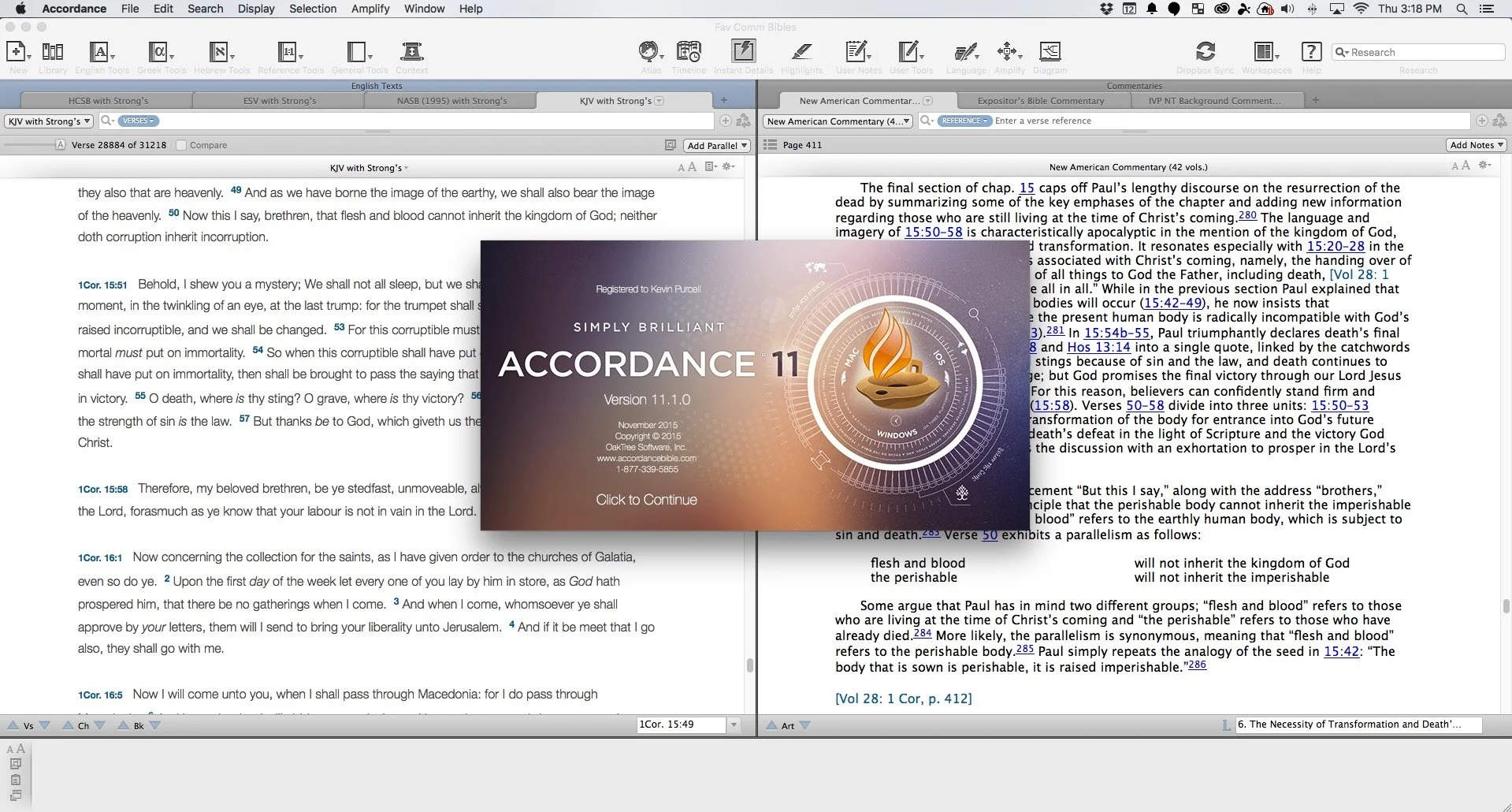
Accordance 11.1 Update with Dr. J: Theotek Podcast #045
Accordance users will recognize that Dr. J. isn't a basketball player from Philadelphia, but the guy who taught them most of what they know about Accordance Bible Software. He joined us to show off the Accordance 11.1 update.https://www.youtube.com/watch?v=-9ONvMWOjz8Some of the things in this update include:
- Users can now more easily edit their User Notes and User Tools since the Edit Window got an overhaul
- Import Bibles with Unicode and expanded canons as well as non-biblical texts
- Syntax Tree and Graphical Constructs got an update
- Interlinear support enhanced
- Instant Details enhanced
- Add custom icons to the Accordance Library
- Link to content with the new URL (accord://) instead of http:// or ftp://
- Gesture support for trackpads and touchscreens while using images, Atlas or Timeline
- Print articles from the Table of Contents
- Incorporate MT-LXX data in Analysis window and related graphics
 Learn more about them at the Accordance blog which also links to a more detailed post about the new features listed above and more.
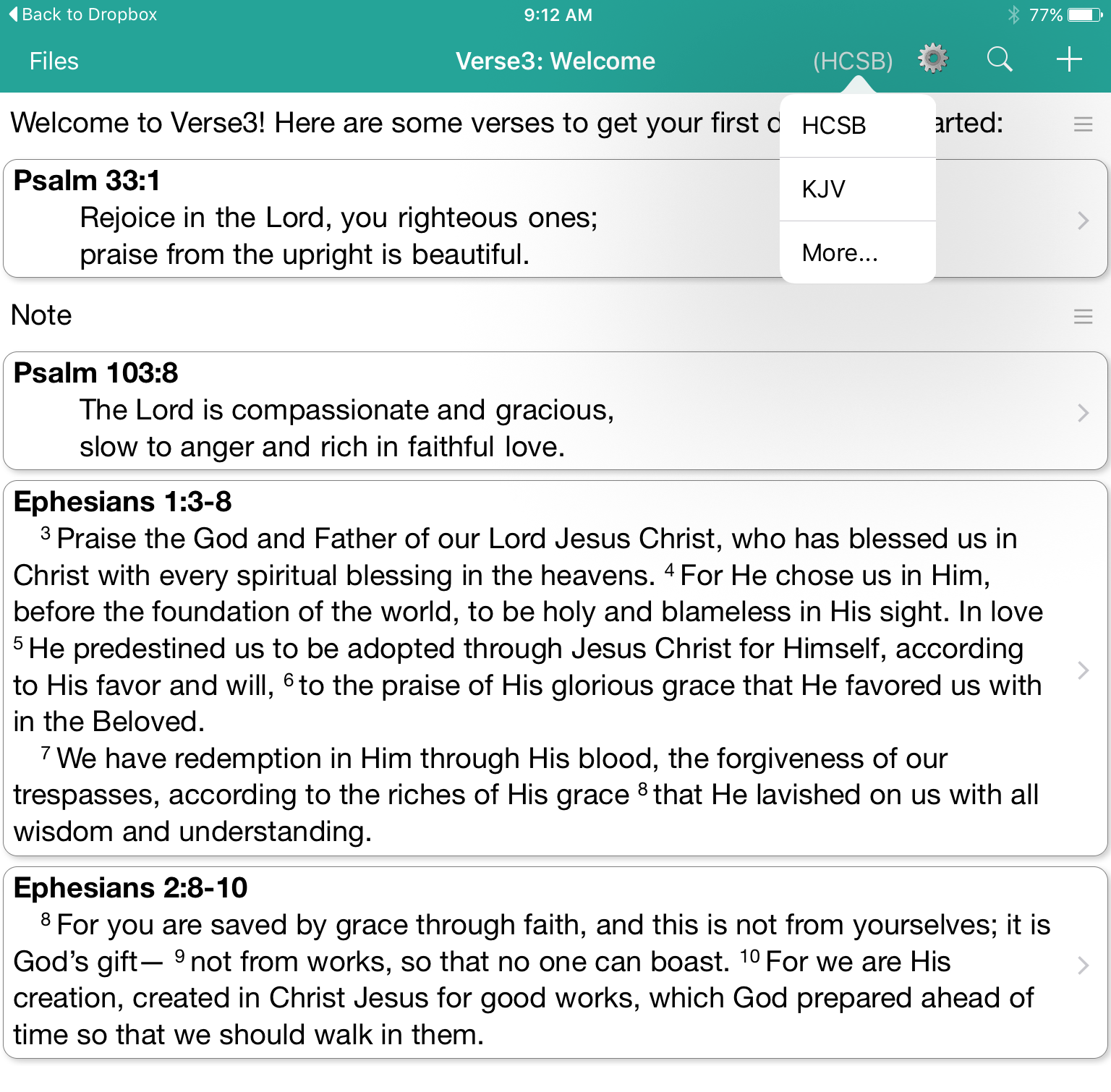
Verse3 a New iOS Bible App: Theotek Podcast #044
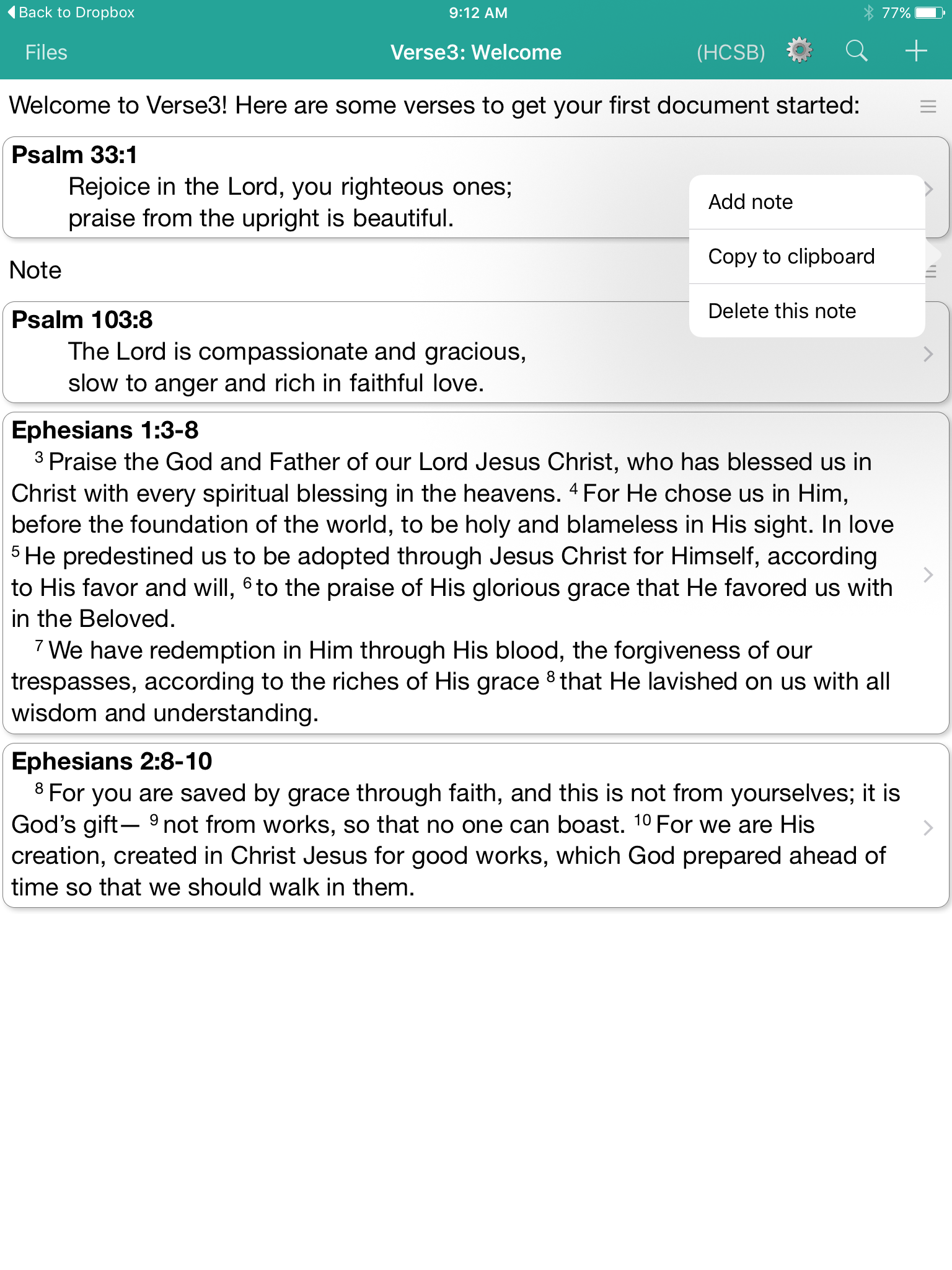
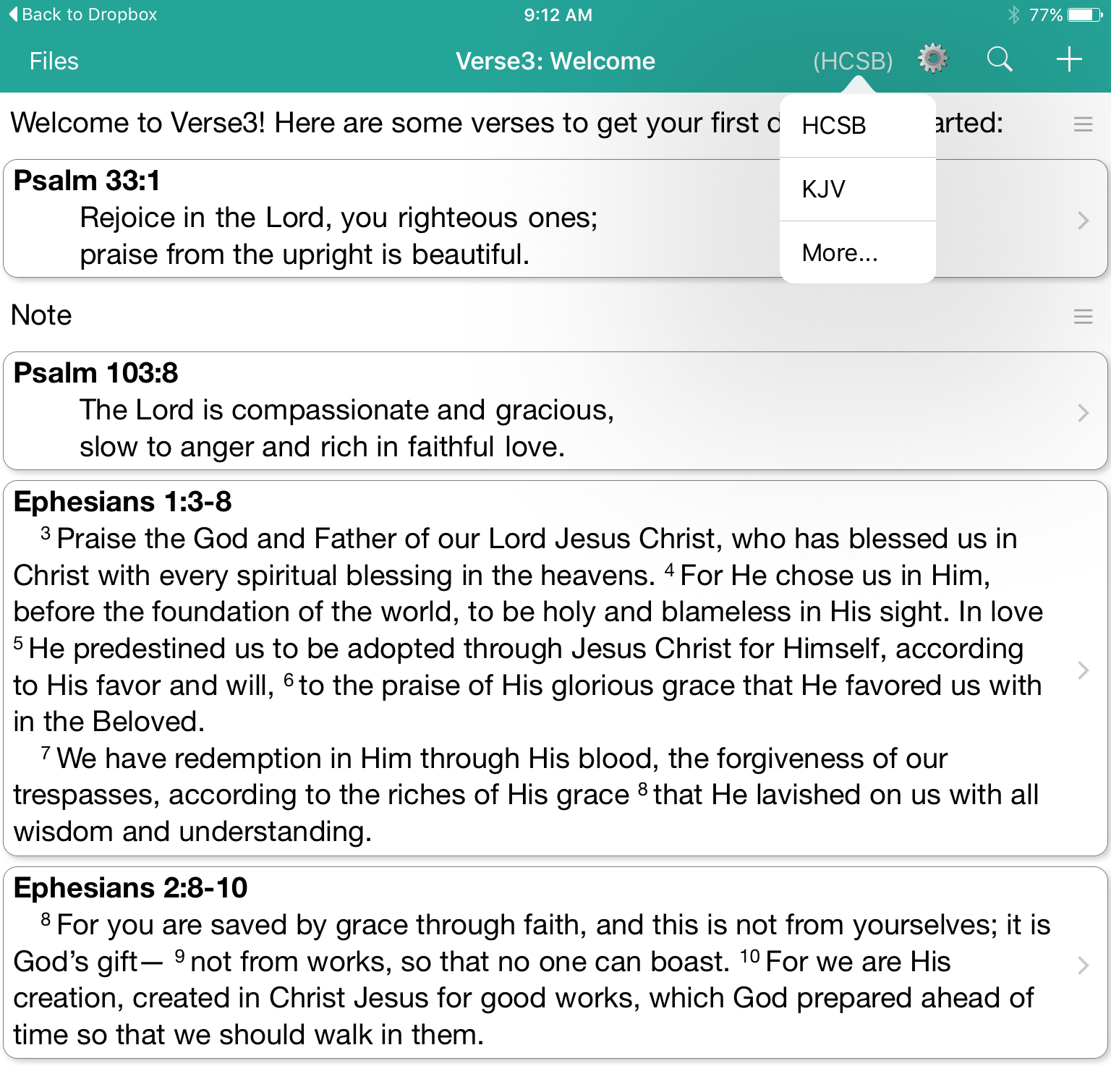
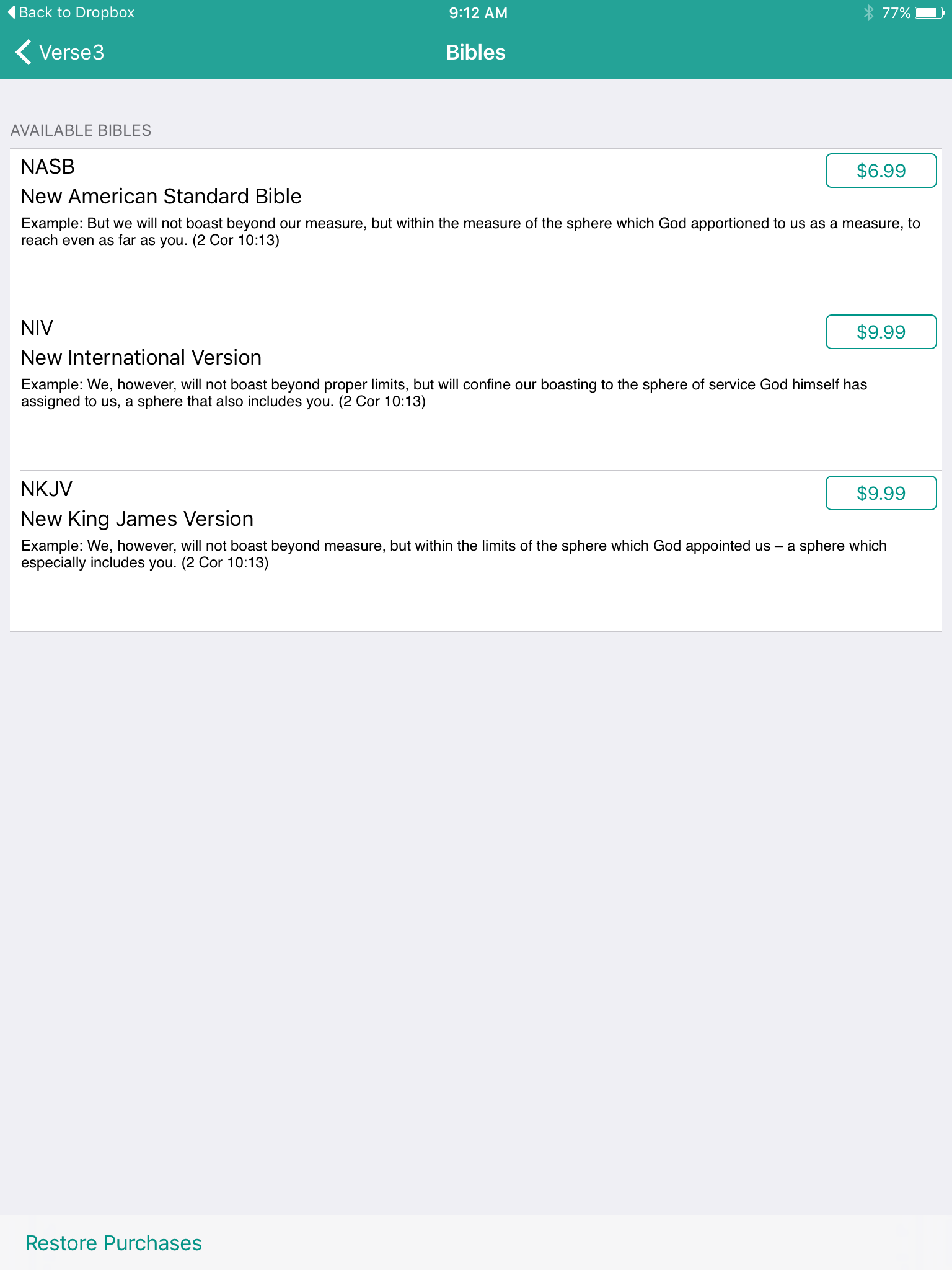
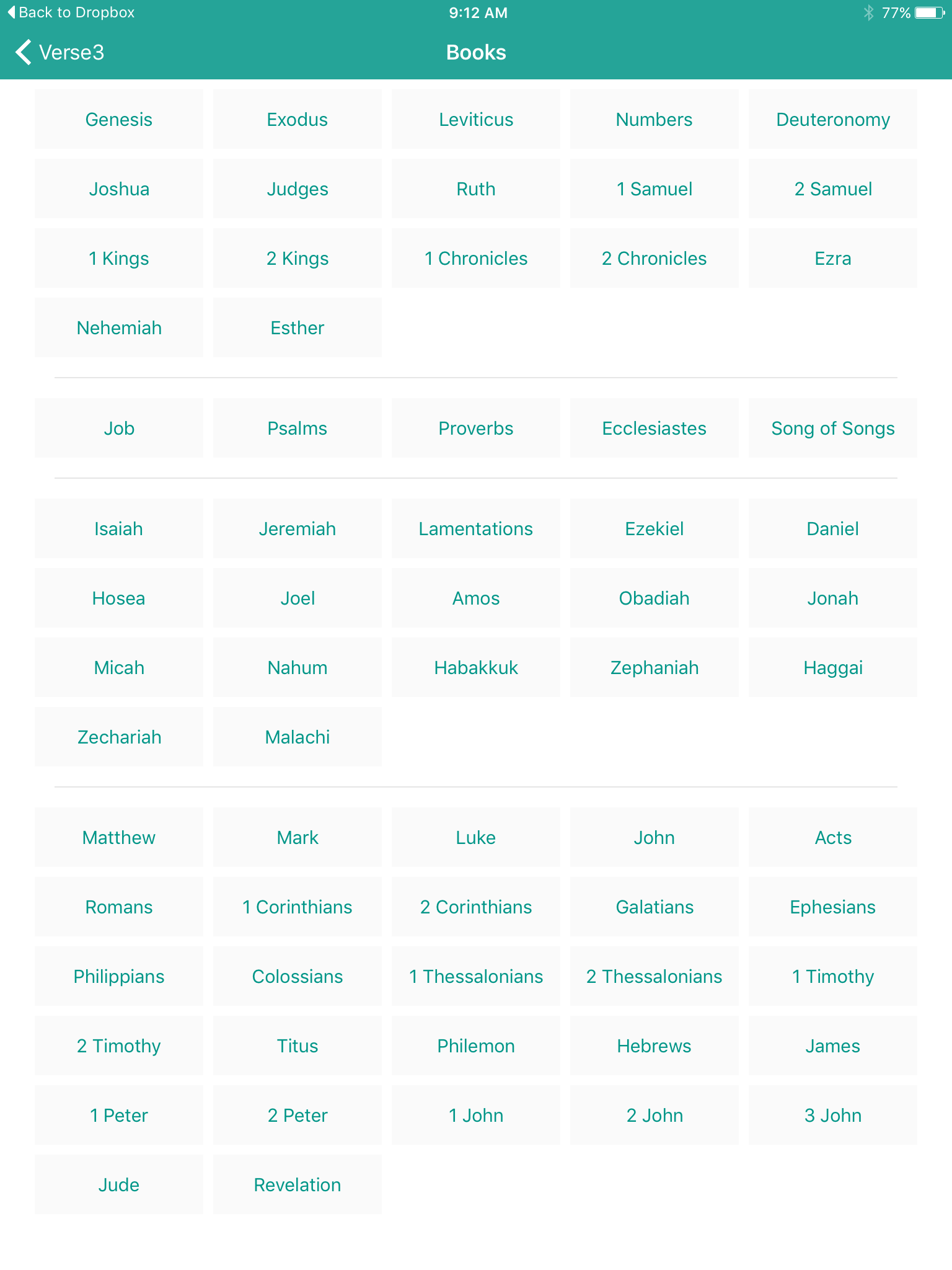
With the new iPad Pro coming out this month and iOS 9 supporting side-by-side windows of 2 apps, a tool like Verse3 makes a lot of sense. This simple Bible app that doesn't use the same Bible display framework we're used to. In fact it takes the focus and puts it on the person listening to a sermon or Bible study. The user can open multiple verses on the screen at a time and add their notes inline with those verses.https://www.youtube.com/watch?v=okMuE0Afr2gHere are a few of the benefits of Verse3 ($4.99 in the iTunes app store).
- Fast and simple to use
- Minimalistic design
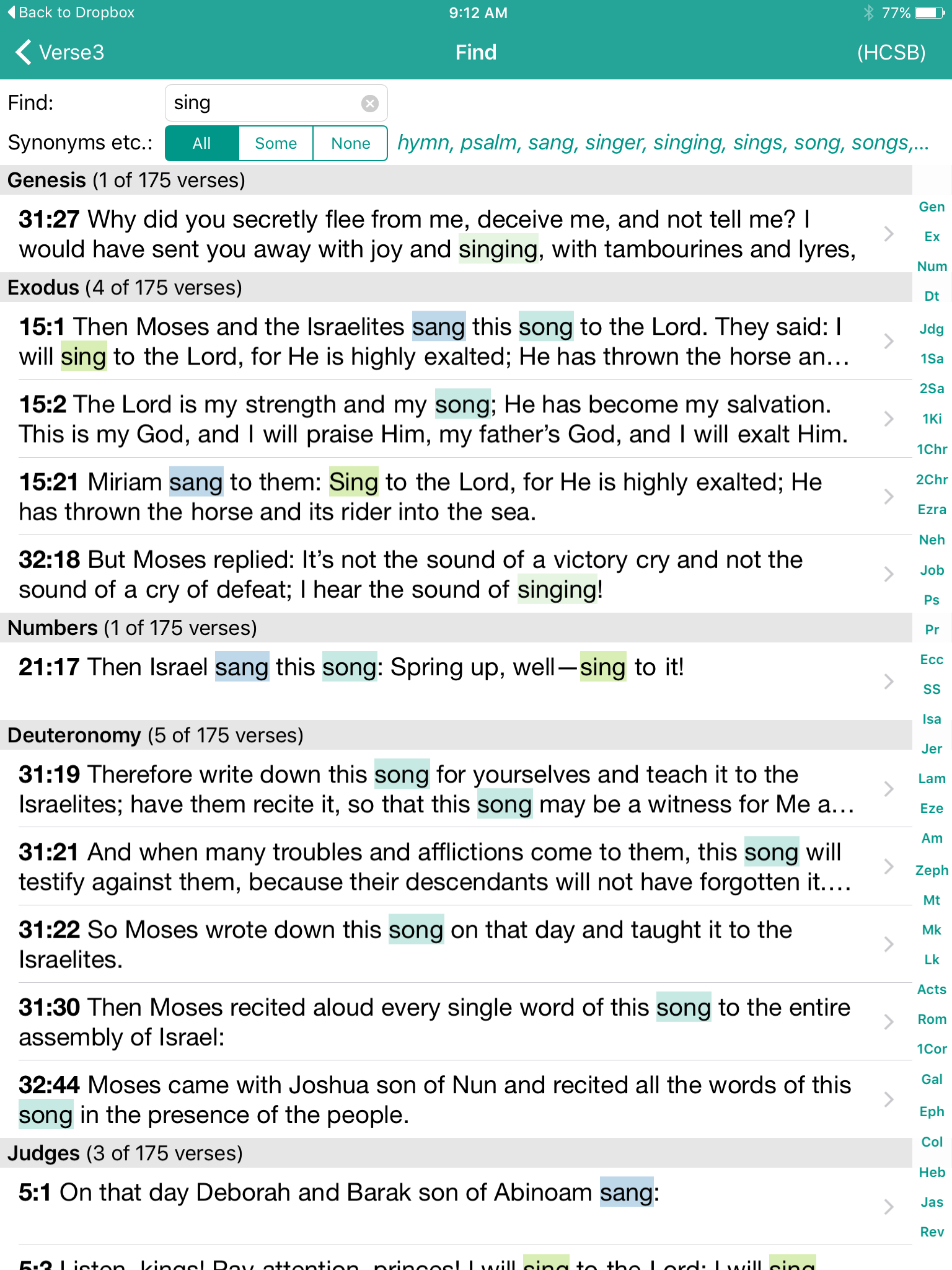
- Fuzzy search feature where you can search for love and it returns all forms of that word
- Share your notes and verses in Dropbox as text files
Logos 6 Speed: One Way to Always Pep Things Up
One complaint Logos 6 users often share with me is the speed of the system. So I want to give you one tip that will ALWAYS speed up Logos 6 and, with the right collection of specs in a computer, make it even fast. The tip: think carefully about what kind of internal storage you get in your computer. But first some background. I review a lot of laptops. I worked on about five or six reviews during the summer/early fall for Notebooks.com. One of those systems was an Acer Aspire E 15 model E5-573G-56RG. Key specs included:
- Intel Core i5 5200U (4th gen)
- NVIDIA GeForce 940M with 4GB of dedicated VRAM
- 8GB of DDR3L RAM
 That's a pretty spiffy system. They're the best specs of any of the systems I've tested over the last two months and they're higher than my own Windows computers that I regularly use, a Surface Pro 3 and an older Lenovo ThinkPad T431s laptop. If you look at the list above you'll notice one key spec I left off, the hard drive.Most of the systems I've reviewed recently and my two personal computers have SSDs. That's a solid state drive that doesn't come with spinning platters where the data gets stored and the platters must spin to reach the bits. Think of a record player, if you know what one is. The hard drive uses a head the reads the bits on the spinning drive. With an SSD the bits get stored on fast flash memory and it's very fast compared with the traditional hard drive.https://www.youtube.com/watch?v=wteUW2sL7bcThe Acer Aspire E 15 had a 1000GB 5400rpm spinning hard drive instead of an SSD. That's a lot of storage. My Surface Pro 3 only comes with 128GB and I can't put everything on it. My Lenovo runs on a 500GB SSD that I put into the machine myself. I store all the programs I need but my video and picture files don't fit. They'd fit fine on a 1TB drive, which is what I use to back them all up. It's big and bulky, so I'd love an internal drive. However, a 1TB SSD costs $350 to $500. I will probably get one if they drop any more. I'm still not willing to fork over that much.
How to Speed Up Logos 5 with an SSD
 As I shared above, Logos runs great on all my computers. I never considered how important an SSD was until I installed it on this fast Acer machine. Logos 6 runs on it like an octagenarian sloth whose imbibed too much strong drink. Why? Logos needs a fast processor, lots of RAM plus a fast hard drive. The SSDs in all of my computers make up for the fact that some of them don't run on fast processors. I tested Logos on an HP Stream 13, a computer with an Intel Celeron Processor and 4GB of memory. It struggled to run Logos because it took forever to index the large 18GB library I own. But once indexing quit in ran reasonably well. Logos 6 ran on the Acer slightly better than the Stream, but with a fast SSD it would have run circles around anything else I own.I could only conclude that a fast SSD has to be the one thing that speeds up Logos 6 faster than any other spec in the machine.
 Here's the point: GET A FAST SSD TO RUN LOGOS 6!There's more to the equation than a fast SSD. My HP Stream 13 with a slow Celeron processor proves that. It's also a problem because the SSD is only 32GB and a large library will gobble up nearly all your free space. Windows 10 plus Office and Logos left me with barely a GB of free space. That's not enough because Windows uses the hard drive or SSD to cache the operating system and programs we're running. The OS puts it into memory and when it gets full, it stores some of it in a cache file on the hard drive.To understand that, imagine you've got a bottle of milk. You start pour it into a bowl of cereal, but the cereal and milk start to pour over the sides of the bowl. You don't want to lose your milk or Captain Crunch so you quickly grab a plate to catch the overflow. In that analogy the milk is the Windows 10 and the Captain Crunch is Logos 6. The bowl is the 4GB of RAM your system says it has and the plate under the bowl is the cache file that temporarily stores the overflow.I've run Logos on systems with 2GB, 4GB, 8GB and 16GB of memory. The 2GB system struggles to keep up, but the 4, 8 and 16 perform similarly while running Logos.I've run Logos on Celeron, Intel Core iX, AMD systems. I've run it on systems with integrated graphics and dedicated graphics. None of those changed the speed of Logos as much as going from a spinning hard drive to a fast SSD.
How to Become an Expert Bible Software User: Theotek Podcast #043
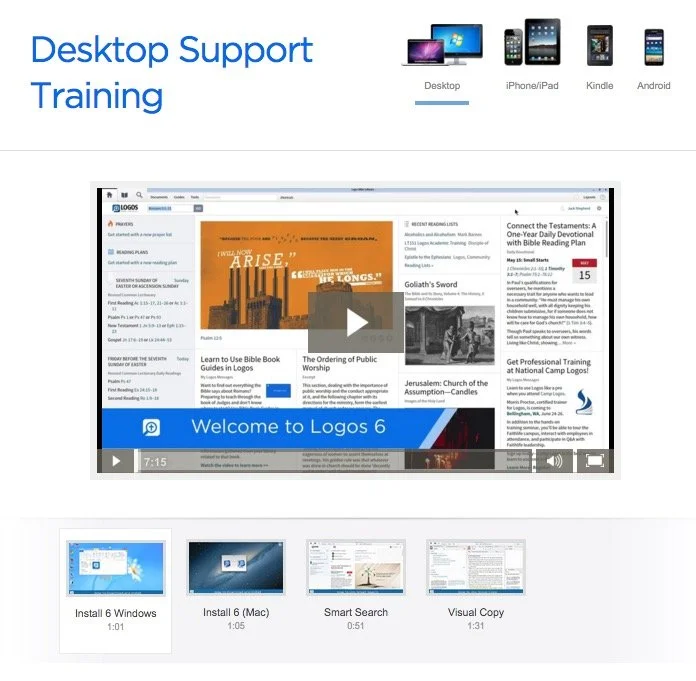
Do you want to become an expert in your favorite Bible software program? We'll give you suggestions on how to do that ranging from tutorials, help files and training sessions.I just returned from a WORDseach Bible training conference a few days before this podcast. So it got me thinking, how can people become experts?https://www.youtube.com/watch?v=389B_SGgIP4 The best options for training includes:
- Use the help files or menu item that comes in the program
- Go to the company's website to find tutorials, tips and training tools
- Attend a training conference like I did with WORDsearch
- Get help from friends
- Use the software and familiarize yourself with the user-interface
 Those are just a few suggestions. Rick Mansfield, our team member and part of Accordance Bible Software, wrote a helpful blog post at the company's website.
WORDsearch 11 Ships With New Design and Features
There's a new WORDsearch update. WORDsearch 11 comes with a new user interface, an updated library feature, better note card feature for research and some better speed in indexing resources. Add multi-monitor support and the old Lesson Maker that WORDsearch forgot they owned. It's now integrated into WORDsearch.The Theotek Podcast team got a look from Rick Milone of WORDsearch. He's one of their official trainers as well as a user. He showed off some of the new features.https://www.youtube.com/watch?v=rygB5tK3OXwI brewed me some tea (with fenugreek 50% extract - it's my favorite new combo) and made my podcast. Here's my review of WORDsearch 11 written before our podcast. Look for it in Ministry Tech Magazine next month.
User Interface of WORDsearch 11
 Open WORDsearch 11 and it displays the Home page. Older versions included a smaller version of this, but this time it takes over the full screen. Notice the list of links along the left and list of specials or deals in their store along the right labelled "Latest News." All the "news" seems to focus on books I can buy. Too bad they don't follow other programs and actually offer some real content besides just sales items. This would get me to actually look at this instead of ignore it on my way to opening my library or picking up where I last left off in my studies.Along the bottom of the Home page we get a bunch of links. These take the user to their apps for iOS, Android and the only myWSB. That's one of if not the best online Bible study site available today, especially for WORDsearch customers with a large library that they can use the online version without paying extra, as some programs do.The other set of links at the bottom of the page takes me to WORDsearch social networking accounts. These include:
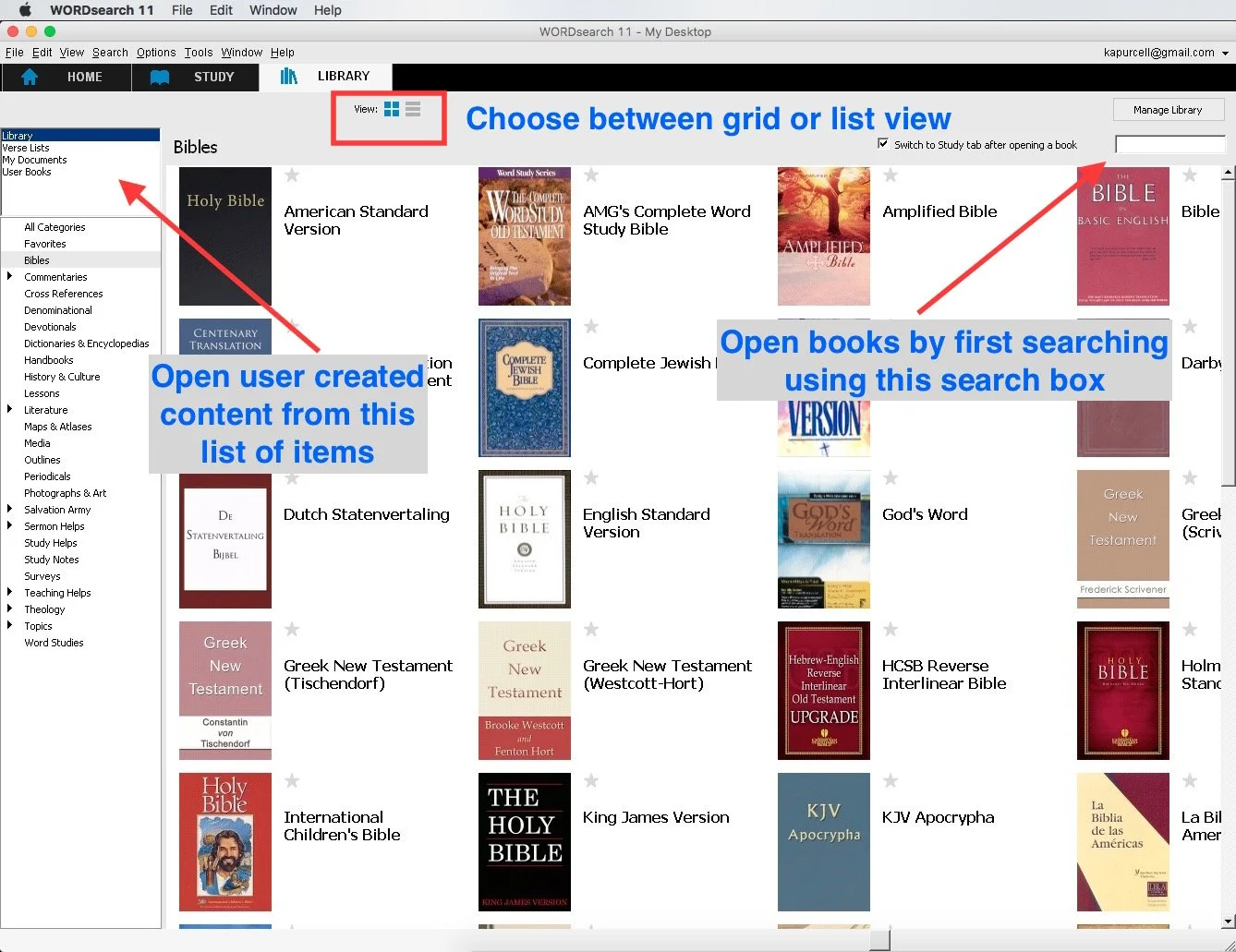
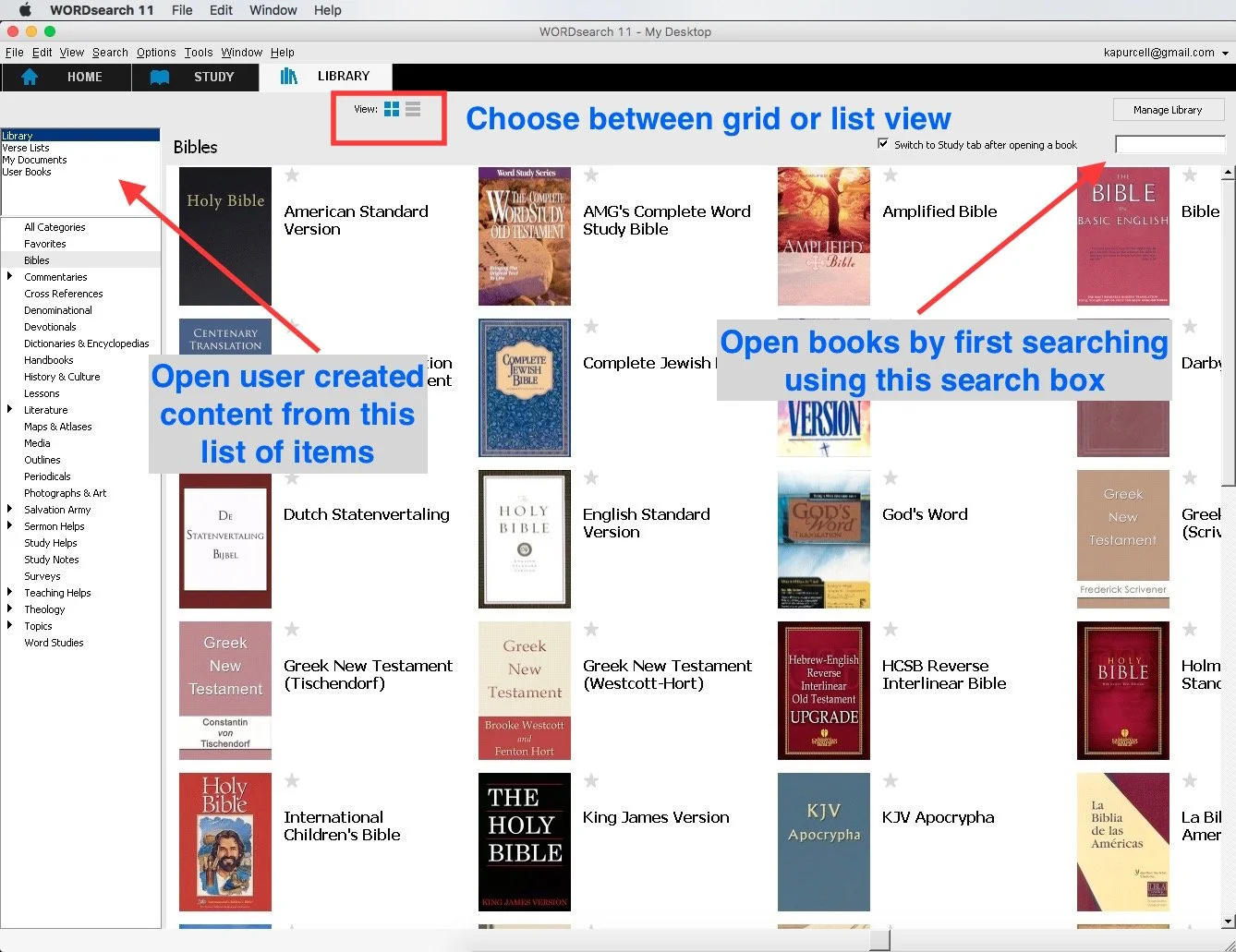
Move on to the Study and Library pages or tabs to get some real work done. Clicking library shows a grid of books I own in my library. WORDsearch 11 will offer to download your books the first time you click a title to open it from the Library. This takes a long time for people with large libraries like mine. We get an option to list our books or show them in this default grid format. There's also a search box to easily find books by title. Users with user-created content like User Books, Verse Lists or Documents can find them by clicking the items in upper left corner list. As always the categories of books shows up on the left side.
 The WORDsearch 11 Study window looks the same as it did before while getting an updated set of toolbar buttons. Gone is the Library panel that we used to open along the left edge of the Window. that makes it a little less intuitive for new users to open their books. Use one of the dropdown boxes on the toolbar to open books.
 The toolbar includes buttons for the following:
- Open - opens the Open Book dialog box where the user can search for books and a list of search results shows up. Double-click to open the book or highlight and click OK.
- Search - brings up the Search dialog box which includes advanced boolean search functions. Users can limit searches to certain books or just Bibles.

- Results - brings up the Search Results dialog box showing the last search. Users can manipulate the results to get a cleaner look at what they want to find.
- Verses - opens a kind of research assistant tool that finds your verse in various books in your library. The tool lets the user decide wich books to look in like commentaries, dictionaries, illustration books and any other book in the library.
- Topics - a topical Bible browser that finds content in your library based on topics like grace or cross, etc.
- Cross-Refs - lists cross references for a given passage.
- Notes - opens your own notes browser.
- IVS - Instant Verse Study tool that goes out and gets content in your library about a given passage.
- Verse List - create verse lists.
- Word Proc - opens the word processor so you can create documents like Bible studies or sermons inside WORDsearch 11.
- NoteStack - a note card research tool. See more on this below or in the Theotek Podcast above.
- Back/Forward - moves back and forth in the history of places you've visited in WORDeearch.
- Opening books from
- Bibles
- Parallel
- Commentary
- Lesson Maker - the great lesson creation tool owned by WORDsearch and not updated in years till now
- Morph - morphological explorer research tool for language study.
- Arrange - quickly arranges open books in either horizontal or vertical alignment.
- Desktop - works with the Desktop tool that lets users create window arrangements that make quickly switching between study layouts.
- smallgroup - a link to LifeWay's smallgroup.com an online small group bible study subscription service.

What's New in WORDsearch 11
Users of older versions of WORDsearch will see that the old Resource Pane along the left no longer shows up. It's gone, replaced by the Library tab. If you know the title of a book you want to open, then click on the Open button and start typing the title into the dialog box. You can also open books from the Bible and Commentary buttons. The Library tab shows every book installed.Users of multiple monitors can take use of the new multi-monitor support. Put a Bible and a notes window on one monitor and a commentary or language study tools on the other. Arrange things however you prefer. Save them in a predefined Desktop to quickly open it up.
Lesson Maker is Back
 WORDsearch owns a great lesson creation tool called Lesson Maker that many of us loved. It was the first WORDsearch product I bought long ago. The tool quickly creates a lesson using questions in a database of tools.The Lesson Maker tool shows up as a button on the toolbar. Open it up and create a quick lesson. This isn't a replacement for doing careful study, but it can rescue you in an emergency. Here are the ways I've used Lesson Maker.
- Throw together a quick lesson when you don't have time due to a busy schedule or a last-minute emergency.
- Create lessons for a last-minute fill-in who takes your place when you're sick or get called away.
- Study hard to teach a lesson and use Lesson Maker to supplement the Bible study
Digital Note Cards in Note Stack
 Remember the old note cards that your English teacher taught you to collect while writing a research paper? WORDsearch 11 offers a tool called Note Stacks. there's a button on the toolbar to open the Note Stacks dialog box. Create a stack around a topic, a sermon passage or a book of the bible. Whatever you're teaching, preaching or just studying can become a Note Stack.Now, while studying in commentaries, language studies, Christian Living books or any place in WORDsearch 11, you can select text and right-click. Choose Create a Note from selected text. The Notestacks box opens with the text already entered into the note. Give it a title, add it to a category from the drop down box, and edit other parts of the dialog box. Then hit Save.
WORDsearch 11 Cost and Value
Users can upgrade to WORDsearch 11 for only $40 for the Windows version or for the Mac version. It's not the most significant update, but if you can afford it, then go get it. The new user interface makes for easier Bible study. The look of the update isn't as modern looking as some programs, but that's a minor complaint. I'm glad I got the update.Mac users can get access to their WORDsearch library on Mac and it works exactly like the Windows version, but on top of emulation software. It's not a native Mac app written for OS X. However, if you don't mind the emulation, it works fine.The few readers who are using the beta version of OS X El Capitan should wait till WORDsearch makes an El Capitan version available. It's not compatible as of yet, but will work soon. OS X 10.10 Yosemite users won't have this issue.
iPad Sermon Preperation: Tools Apps and Tips
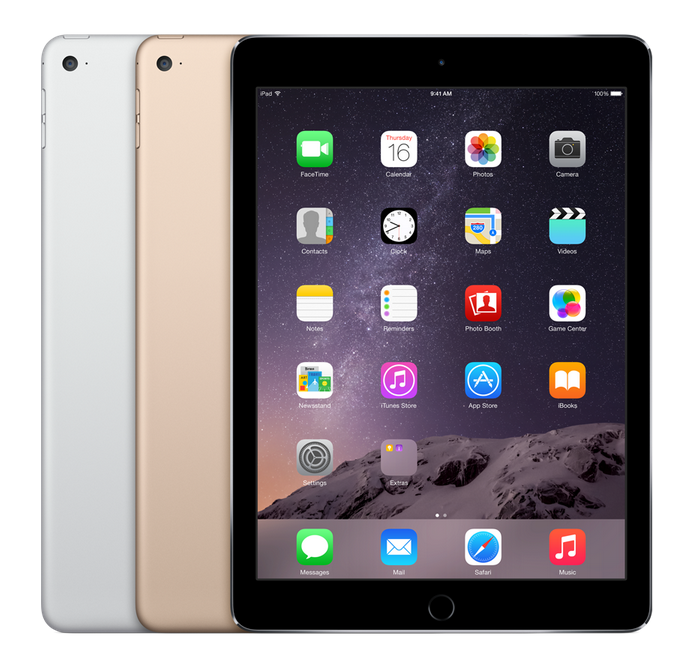
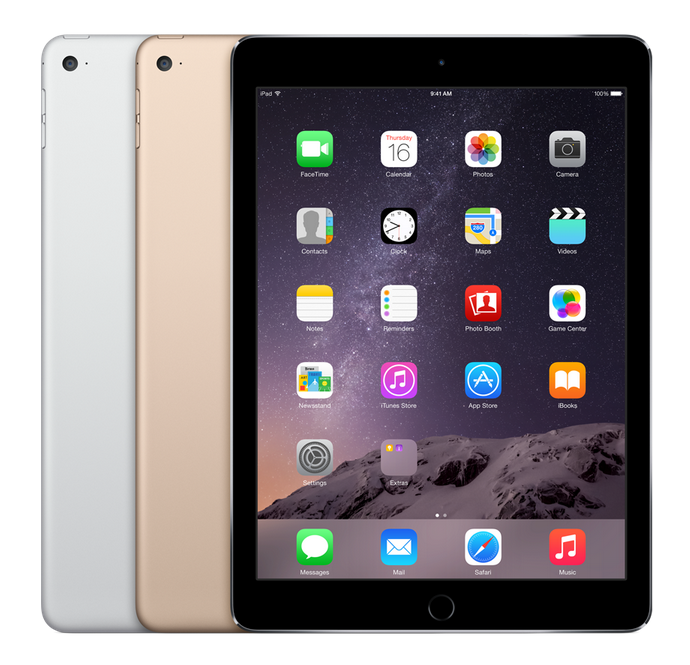
Ever thought about doing a little iPad sermon prep?A lot of preachers carry around an iPad or some other tablet these days for checking email, surfing the web, playing games, streaming video or taking notes. Many of us also use them for simple Bible study on the go. However, can a preacher study and prepare an entire sermon or Bible study using no other device than an iPad? In other words, from start to finish, ignore their laptop or desktop computer and commit entirely to iPad sermon prep? If you've ever been tempted to retire the laptop and get out of the office, this is for you. Let's look at the following:
- Tools needed to use an iPad or other tablet for reading, studying and preaching the Word of God
- Apps that will help the preacher study, organize and then write their sermon/Bible study
- Tips for doing all of this well
https://www.youtube.com/watch?v=bFdN4bjcnQASo grab your iPad and read on...
Accessories Needed for iPad Sermon Preparation
First, grab a Bluetooth keyboard if you're serious about iPad sermon preparation. Some people may want to use their iPad's software keyboard, but typing on a screen doesn't work as well as typing on a physical keyboard. Connect your keyboard to the iPad using Bluetooth. It's simpler and easier than trying to connect one using USB. Also, the battery on my iPad doesn't run out that fast and I never turn Bluetooth off.You can choose from three styles of keyboards.
- Keyboard case integrated with your iPad case.
- Full-size case that the user carries along with their iPad.
- Small, foldable or roll up keyboard.
Each comes with strengths and weaknesses. According to Gear For Gaming, the case approach gives us an all-in-one package to carry around. However, the user's still holding the keyboard when they're not using the case. We've got a recommendation that fixes this problem.Using a full-size keyboard gives the user a better typing experience. We've got two recommendations that feel great while typing and let the user hook up to three different devices. That lets you type on a tablet and a phone and then put it on the desk at home and use the same keyboard with your desktop. We'll explain how this works later.Taking along a full-sized keyboard means less convenience and portability. It's too many things to carry. A laptop with a keyboard attached might work better. Still, read on because we've got a couple of suggestions that are still very portable.The final option is smaller than a full-sized keyboard. These are small foldable keyboards that often fit in your pocket. They are hard to type on quickly.First, look for a Bluetooth keyboard and second decide which of three styles you think you'd prefer. The best keyboard cases come from Logitech because they're thin and light. They usually feel great while typing. Logitech just released the Logitech Blok case. It looks a lot like Microsoft Surface Pro 3 with its kickstand back. The keyboard fits on the tablet along with the snug and thin case. When it's time to type open it up and even detach it so the screen's not too close. This also means you can remove it while using your iPad as a tablet only.https://www.youtube.com/watch?v=TcEuKDRJalIPeople who prefer a full-sized keyboard should look at the Apple Bluetooth Keyboard ($69) and get a carrying case for it or get one that will hold both the iPad and the keyboard.
 Logitech also makes a great nearly full-sized keyboard. It's the Logitech Easy-Swtich Bluetooth Keyboard, model K811 for $100. It connects to 3 devices. It has a selector switch for Android, iOS and Windows. However, it also connects to an Apple computer and comes with an Apple keyboard configuration with the COMMAND and OPTION keys and shortcuts for iPad.
 A third keyboard option also fits the "full-sized" mold. The Microsoft Universal Mobile Bluetooth keyboard is my favorite of the bunch because it's small and less expensive than the three of the above options at only $79.95. It comes with its only carrying box and unfolds when we're ready to type on it. It also connects to multiple devices at once.Since I hate the tiny fold up keyboards and the roll up keyboards, I don't have a recommendation. You can find these usually for $20-$50 at Amazon or your local office/electronics store.My friend Antoine Wright of Mobile Ministry Magazine and a co-host of Theotek Podcast would scream at these suggestions. He'd wonder why not forget the keyboard and just use a stylus. Draw and write notes. And I agree with him.
 A few great options let you do fine-tipped drawing and handwriting. The larger tipped stylus that most people use are terrible. I hate them and never use one. But these feel more like writing with a real pen.
https://www.youtube.com/watch?v=LuhIg72nI2k
Apps that Help Preachers Study and Write Sermons
Get a good Bible study app. That's obvious, but remember that not all Bible apps do the same task. I always prefer full Bible study apps over the simple Bible readers. The best Bible apps on the iPad don't necessarily do the best job of supporting advanced Bible study. Logos Bible from Faithlife goes toe-to-toe with Olive Tree's Bible Study as two of the most popular Bible study apps for advanced research. A few other great contenders include...
 Each of these coms with strengths and weaknesses. The best option usually depends on what the preacher uses on the computer. Logos users should use the Logos apps. Olive Tree users should get their app. You get the idea. However, try downloading all of these. Each offers a free version and you may get some good content. That's especially true if your desktop application doesn't offer a good iPad app, like Bibleworks or PC Study Bible.In addition to Bible study apps, look for a good word processing app and maybe a presentation app. Do you use Microsoft Office on a computer? Then give their iPad apps a try. To get the full experience the user will need an Office 365 subscription. Office 365 costs between $60 and $100 per year or less if you shop around.Apple makes Pages and Google offers Google Docs. Each comes with strengths and weaknesses, so try them out and see what you like.Some people prefer one of the many note taking or mind mapping apps for taking notes on an iPad while studying their Bible app. Also, do forget that some of the above Bible apps have great notes features that you can write in instead of using a separate app.
 Here's a list of great note taking apps.
- Evernote - ubiquitous note taking and syncing app.
- Apple's update Notes app offers more features in iOS 9
- iA Writer - be sure to get the cheaper of the two. The $20 version doesn't add enough to make it worth twice the price. It handles mark down, something my friend Wes Allen, a fellow Theotek co-host, will love.
 Don't forget hand writing or digital inking as a writing tool. There's a bunch of great apps that let the user write. Here's a list of my favorites.
- Notability
- Metamoji Note
- Penultimate
- Paper by FiftyThree
- Apple's new Notes app also does handwriting and drawing now. Scroll down on the page in the previous link to see what's coming.
 Some people prefer using a mind-mapping tool. I don't use one, so I'm not a great source for the best options. My friend Rick Mansfield (from Accordance and my co-host on Theotek Podcast) told me about a post about mind-mapping for sermon prep.
 See more about mind mapping in the tips below.
Tips for Using an iPad while Preaching or Teaching the Message
Once you have a good keyboard and/or stylus, your preferred Bible study app, a good word processing too, handwriting app, or mind-mapping tool, here are some tips for effectively doing Bible study and writing on the iPad.
- Learn to multitask. Apple gives iPad users two ways to switch between apps. Use double tap or the swiping gestures to go back and forth between apps. In iOS 9 on iPad Air and iPad Air 2 users can dock a second app by swiping in from the right side of the screen.
- Write in the Bible app's notes feature if you want side-by-side user environment. I mentioned this above. This might not be the best way to write your preaching notes so when finished copy and paste the notes to a word processor for formatting.
- Copy and Paste Bible text or quotes from the app to the word processor. To preach or teach from an iPad get in the habit of copying the text of the Bible into the word processor so there's no need to deal with turning pages in a physical Bible.
- Use Mind Mapping apps for a different approach to sermon or Bible study notes. Mind Mapping refers to using visual organization of ideas. Get an awesome stylus to draw a circle on the screen of your inking app. Then write your Big Idea in the center. If you don't know what a "Big Idea" is, then stop what you're doing and read Biblical Preaching by Haddon Robinson. If you still don't understand, then get The Big Idea of Biblical Preaching by Keith Wilhite and Scott Gibson. If you still don't understand then go back to your seminary or Bible college and ask for your tuition money back.
- Sources for Illustrations. There's a wealth of great content online for teaching and preaching, from online Bible study sites to news sites that offer useful illustrations. Use Wayne McDill's tool for finding illustrations from 12 Essential Skills for Great Preaching. Avoid the canned sermon illustrations books and sites that become out of date soon after they're published. Also, look at PreachingToday.com for som great up-to-date illustration material.
- Remember visuals. People learn better when we combine at least senses in the teaching or preaching experience. So look for ways to include the sense of sight, smell, touch and even taste while teaching or preaching. Take note of them when you think about your sermon's Big Idea and concepts. In ascending order of effectiveness from the least effective to the most effective senses for memory are hearing, seeing, touching, tasting and smelling. If someone hears you preach and sees an image, they will remember what you say longer. Add one of the other three and they may never forget it.
- Use a presentation tool. The iPad offers a great collection of presentation tools from Keynote and PowerPoint to Prezi or Haiku Deck. Go here to see a great list of alternatives to Keynote and PowerPoint.
Accordance Masters: Theotek Podcast #037
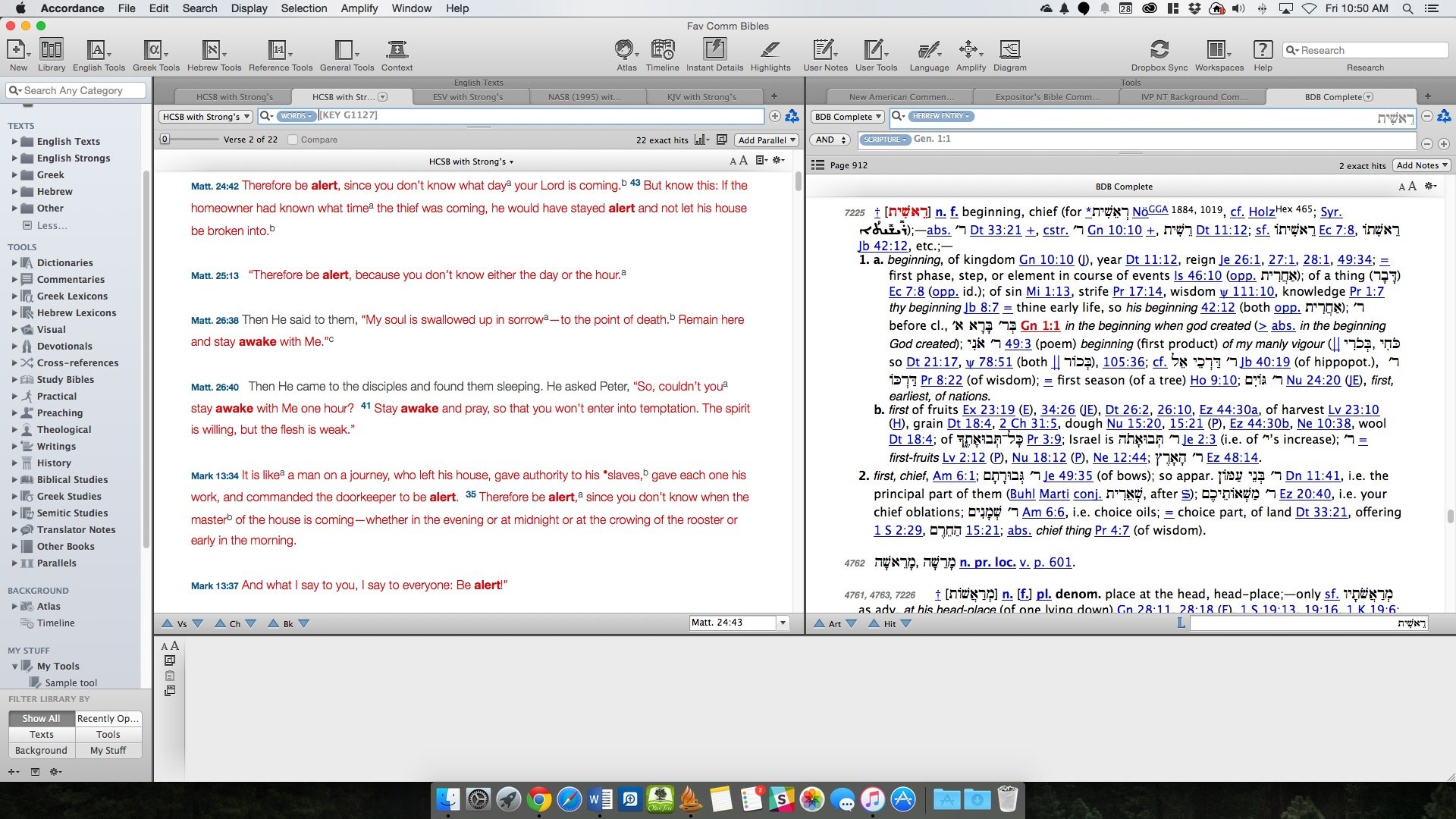
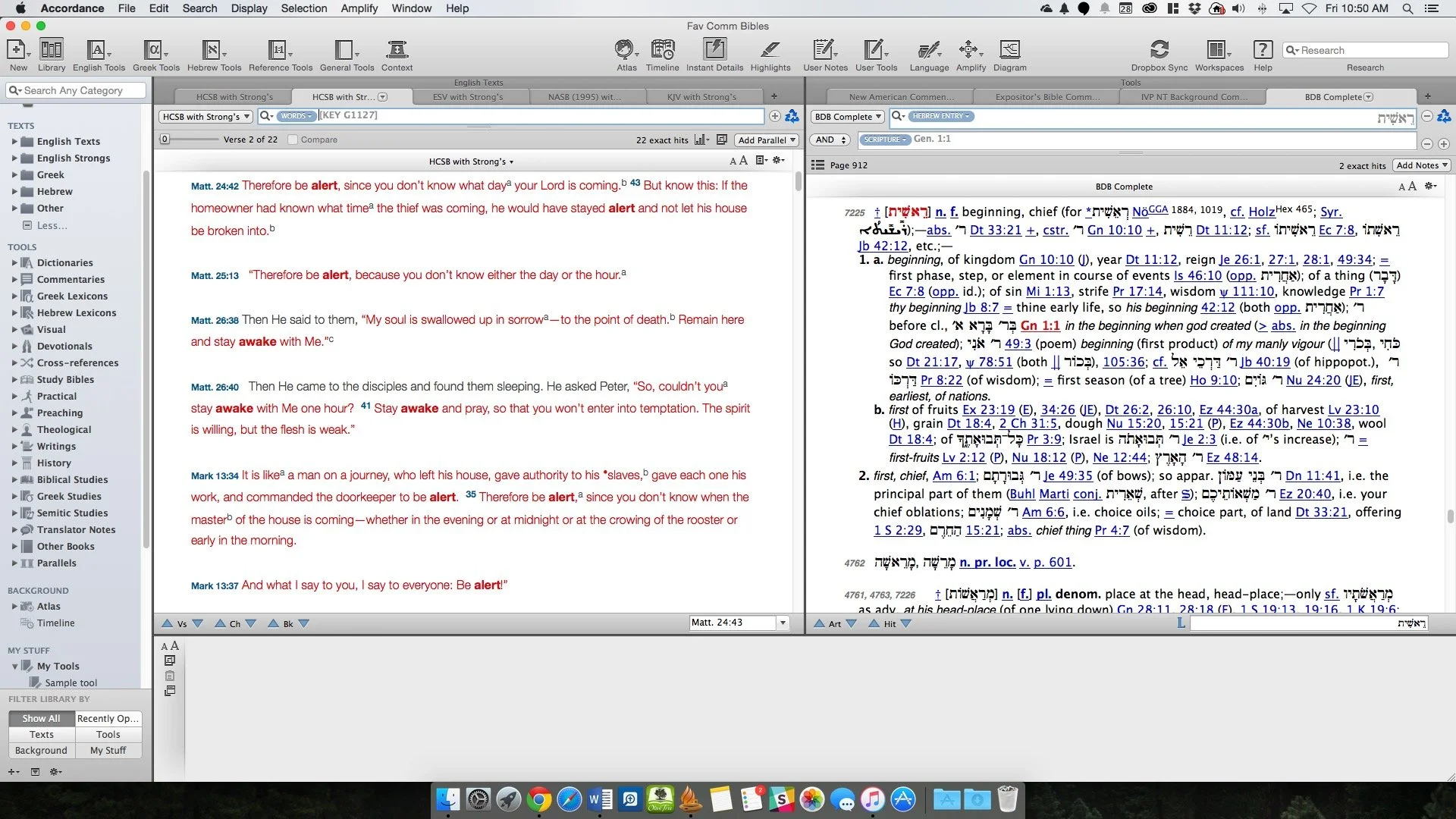
Accordance users or beginning Accordance users will love this edition of the Theotek Podcast - Master Accordance 11: Theotek Podcast #037. This came because my Ministry Tech Magazine article of a similar name came out this past week. Check out the article and read it while watching the YouTube video below. We also have a couple of bonus tips mixed into the podcast.https://www.youtube.com/watch?v=gnPrLG_JrtEYou can get a free subscription to Ministry Tech Magazine by signing up at MinistryTech.com. This used to be Christian Computing Magazine.At the top of the podcast I shared my first impressions review of the Samsung Galaxy Note 5. If you're interested in the smartwatch, check out the great coverage at GottaBeMobile.
Theotek Podcast #032: Extending an Olive Tree
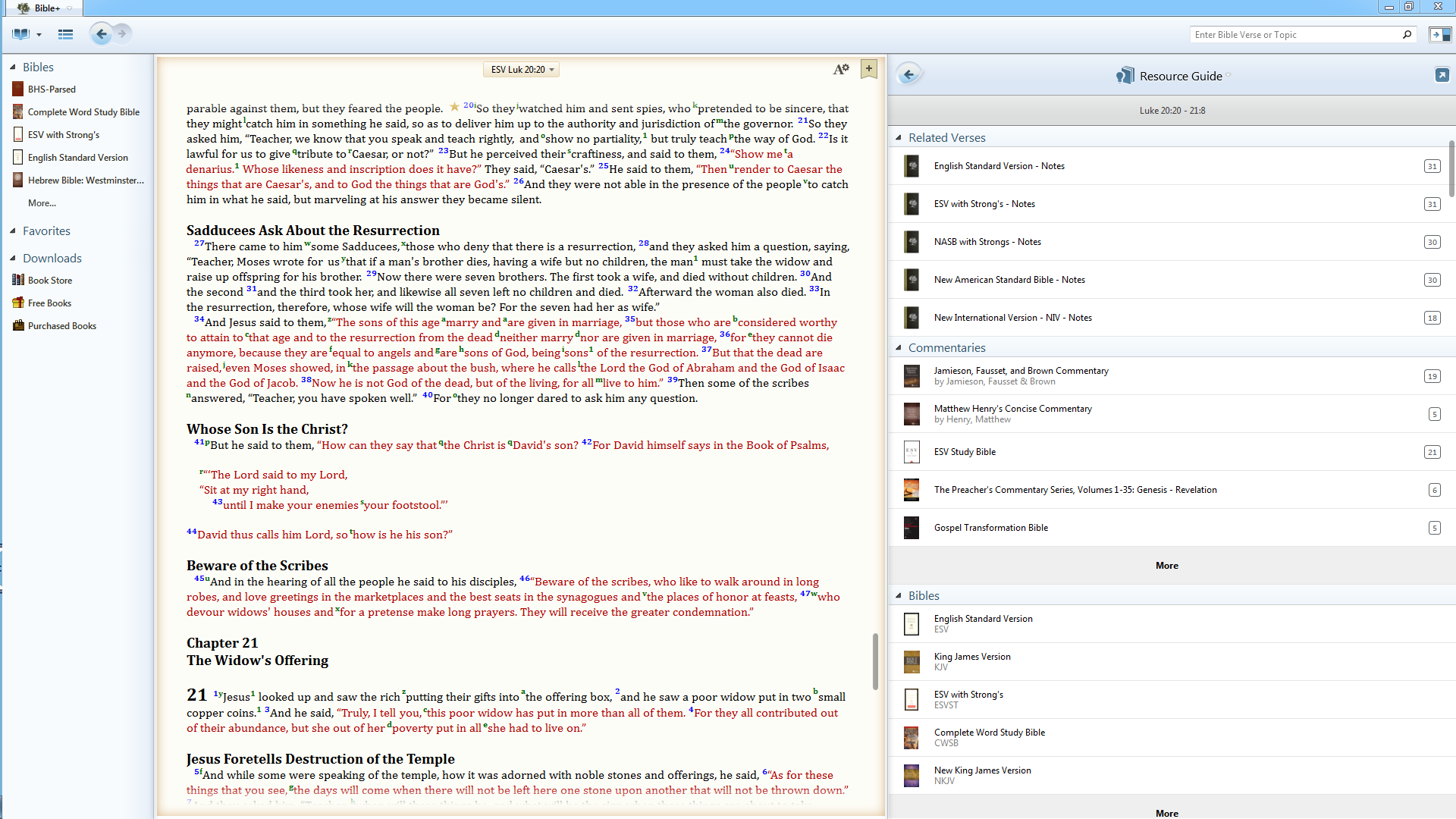
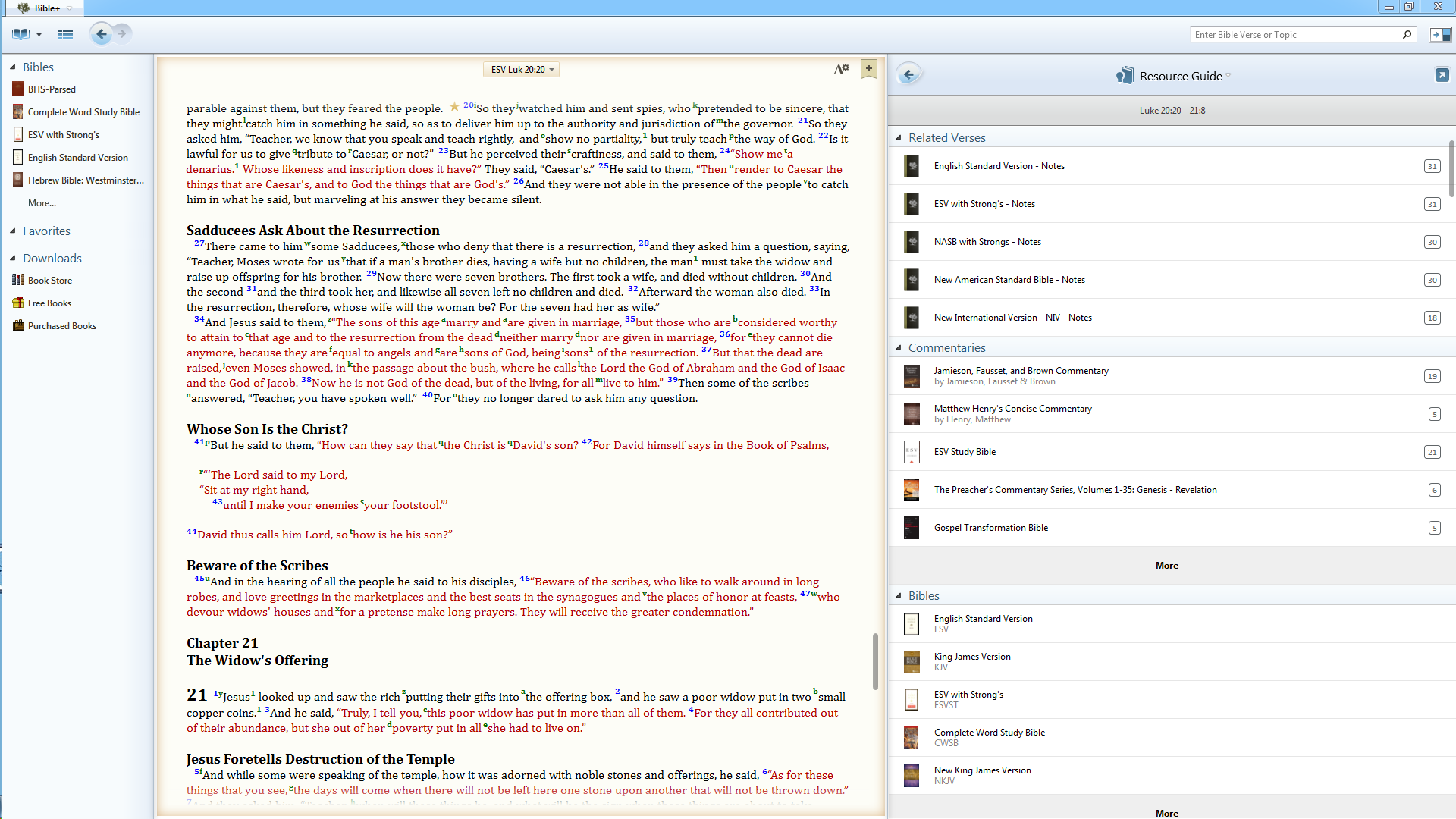
This week Olive Tree released its latest version for Windows bringing with it the ability to display the latest book files and we got a preview on this week's Theotek Podcast.Before, the Windows program used the old Palm Book format. They updated iOS, Mac and Android. The Windows code finally got that update and the company released it on July 20, 2015. We got an exclusive first look at Olive Tree Bible+ 6.0 for Windows as LaRosa Johnson, from Olive Tree and one of our regular guests, talked about it at the beginning of our show - Theotek Podcast #032: Extending an Olive Tree.https://www.youtube.com/watch?v=DOi5i7I-8NsWe also talked about Bible software in general on multiple platforms and the state of software user interface. Finally, we discussed a few new toys that I recently picked up like the Samsung Galaxy Gear S smartwatch that Antoine's been using for some time as his sole phone.
Improvements in Olive Tree Bible for Windows
To learn more about Olive Tree Bible+ 6.0 for Windows head over to the company's blog where they discuss all the new features.The most significant thing users will notice is the new user-interface. It's cleaning and more modern looking and matches the other platforms. They flattened the icons and gave it a color scheme that matches their new branding since Harper Collins bought the company.The basic look and functionality didn't change that much. It still shows the tree of available library books on the left, the Bible takes up the center and user can still find the powerful Resource Guide along the right. The toolbar still shows quick links to features used most. The new book display format lets the company format books so that things like tables will look better. Bible links inside the table show up as hyperlinks instead of a table that's really an image. The student can interact with table content. Text flows around tables and images better as well.Olive Tree Bible+ 6.0 for Windows performs faster too. The new book format makes scrolling quicker. The Resource Guide will show up in the right hand window faster.New books will now become available on the Windows platform as they show up on Mac, iOS and Android since all four platforms use the same book display format.
Theotek Podcast
As always we record the Theotek Podcast every Friday morning via Google Hangouts. Follow me on Google+ to get the notice when we go live. Or subscribe to my YouTube channel to watch it after the fact. We also publish the audio version here, on iTunes and Stitcher Radio. Find the links on our Theotek Page.
5 Ways Accordance Mobile 2 is Vastly Improved
Accordance Bible Software released a new version of their mobile app awhile back. It includes a bunch of great new features that make it vastly improved over the earlier versions, which I never really used much due to the sub par quality. However, these new features entice me to open Accordance Mobile more than ever before. Here's the 5 ways that Accordance Mobile 2 is vastly improved over the earlier version.Here's Accordance's own video highlighting the update.https://vimeo.com/122677075
Quickly Link and Unlink Parallel Panes in Accordance Mobile
 It seems strange, but Accordance didn't handle unlinking of window panes well until version 2. Now the app includes a button on the toolbar that quickly links or unlink the two open window panes.Open two window panes as normal. Then tap on the link button to either link them or unlink them. When the user unlink the two, the second pane will not scroll along with the first. This makes it easier to deal with commentaries where a person wants to read an entry from a previous passage without moving the Bible text to the earlier verse.
Download All Option in Library Manager
 When installing books in Accordance Mobile 2, there's now a download all button that makes it easy to quickly install the entire Accordance Mobile library. Before we had to select each book and then download them.Other mobile Bible apps need this feature. I've begged one app developer to add this feature since the iPad first came out.
Text Display Improvements
 Accordance rewrote their text display engine for a more attractive and complex set of features. Now users can change the fonts and color of text. The font button opens a dialog box with the following customization:
- Display brightness slider
- Font larger/smaller buttons
- Day and Night Theme selector
- Font selection
- Font color
- Background color
- Link to full display settings in the app
Awesome New Notes Features in Accordance Mobile
 Accordance really improved the notes features in Accordance Mobile. For example, users can now format their notes with things like font, font size, the color and format of the font (bold, italics, underlining). Users can also copy their notes and share them with others via iOS share sheets. Define words in notes and search for selected text in notes. Accordance Mobile 2 now lets users change the background color of their notes as well.
iPhone 6 Plus Capability
The iPhone 6 Plus lets people use apps in landscape mode thanks to the large 6.5-inch screen with high-resolution retina display. Accordance uses all that screen real estate to show more content in a side-by-side parallel pane view.
Notifications Section Today Screen Shortcut to Accordance Mobile
 Thanks to the notifications section in iOS, Accordance Mobile can put a shortcut to the app in the Today section. Slide down from the top of the screen and tap on the Edit button at the bottom of the Today section. You'll see a list of available Today section widgets. Tap the plus icon next to any one of them, including Accordance Mobile. This puts the widget in the list at the top of this screen. Rearrange the order of the notifications Today section widgets by dragging on the handle that looks like three horizontal lines to the right of the item.In the above screenshot I've only got on link. However, all recently opened resources will show up. It could list many more than the one book like mine does above.
Expanded Action Menu
 Now when a user selects text in a book or Bible text, a new expanded action menu appears above the selected text with new features.
- Copy
- Highlight
- Clear
- Share
- Search
- Amplify
- Define
- Note
- Bookmark
The Search and Amplify features won't show up on the action bar that appears above selected text when there's a Bible with Strong's tags opened, like the ESV, HCSB or KJV. In that case a box opens up (called the Instant Details) below the word with a definition from Strong's and two hyperlinks with Search and Amplify there instead.
Better and More Highlight Options
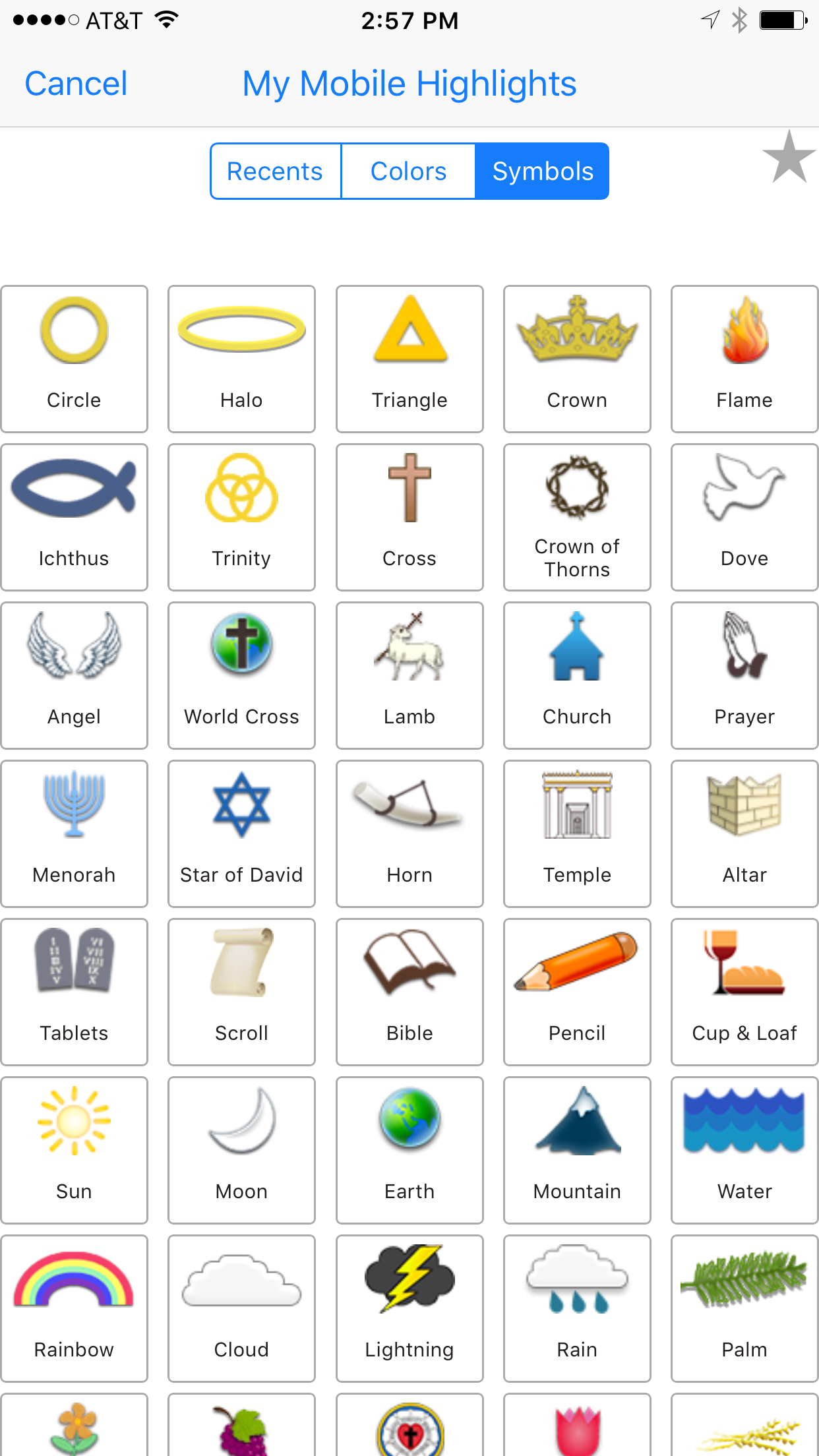
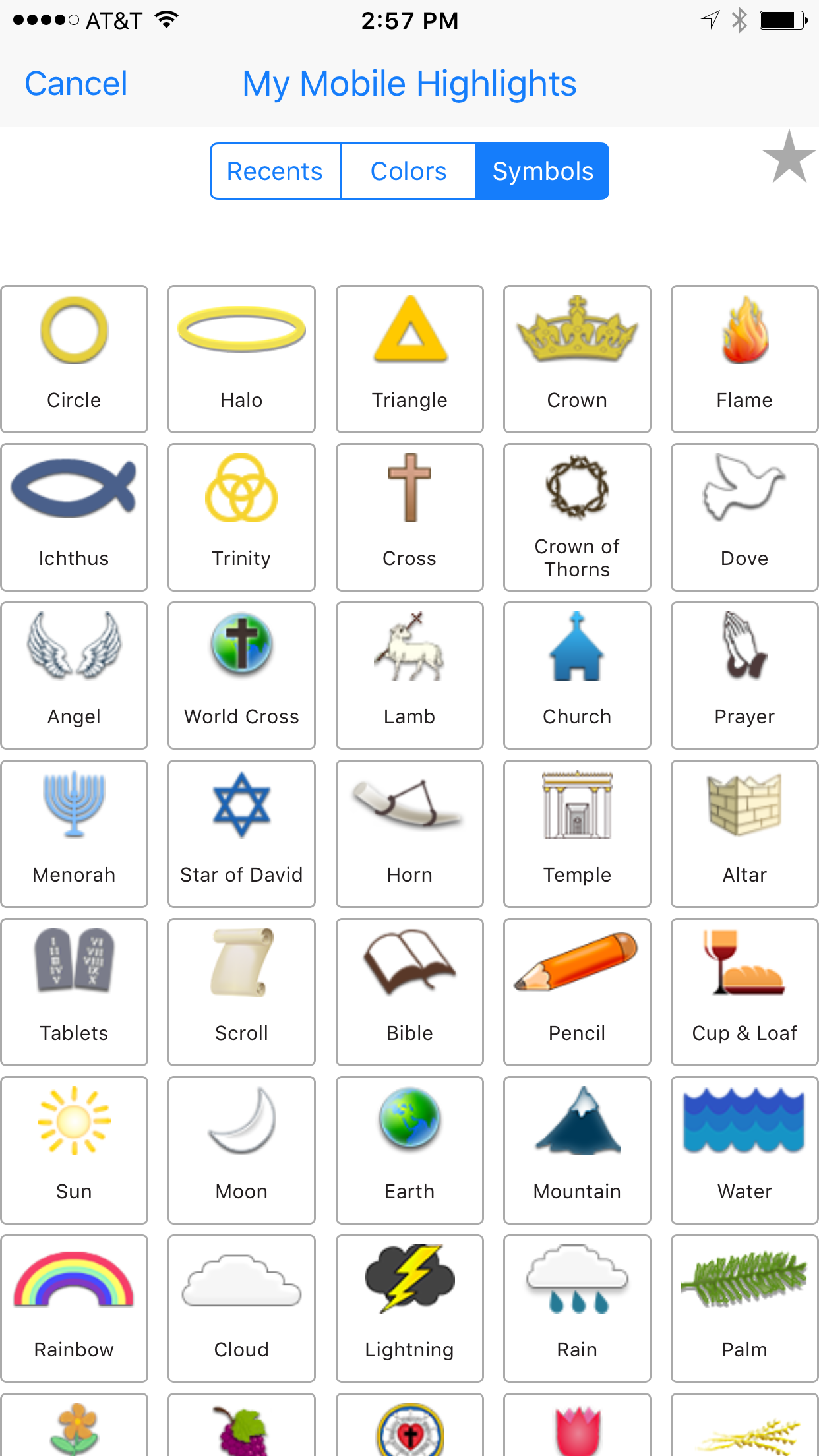
 In addition to the traditional color highlighting of text, Accordance Mobile 2 adds highlight symbols. Tap the symbols tab that shows up in the highlighting dialog box and choose a symbol. That symbol will show up below the text of the verse selected when the use added the highlight.There's also a Recents tab which shows the user's recent highlight symbols or styles. Also, uses can add other highlight styles and choose them by tapping the Highlights title.
2 More Free Resources
Who doesn't love free stuff. Accordance Mobile 2 will include 2 more free resources.Accordance added the Dr. J's Bible Study Methods tool, which teaches people who to study the Bible using Dr. J's methods in Accordance. He's the guy in the video above. Use this as a tutorial for Accordance like a quick start guide to studying the Bible with the program's powerful features. They also added Bill Mounce's Biblical Training course. There's 17 of them available free.Get more info at Accordance and download the app from the App Store.

Theotek Podcast #030: Herodian Drone

Accordance Bible Software just released a cool new resource that looks like a drone flew over Israel during ancient times and gives users an aerial view. It also shows some 3D constructions of things like Herod's temple. We got an exclusive first look on the Theotek Podcast. I was away in a hotel and had to drop out early, which ended up kicking the show off the air about 30 minutes after we started, so this is a shorter episode.https://www.youtube.com/watch?v=wBd_Alz3gPkFor those interested in getting Virtual Bible for Accordance, head over to Accordance Bible Software and buy it now for $29.90 until July 13. So hurry up!If you want to listen, you can do so below.