

Google Machine Announces Pixel Phone and More: Theotek Podcast #081
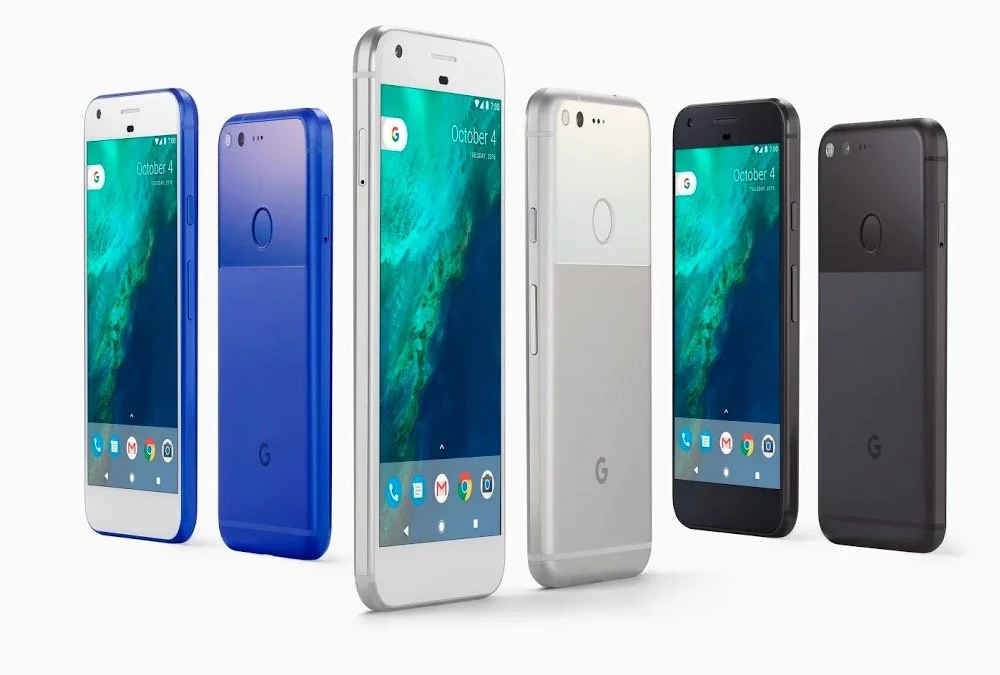
Google announced their new hardware in an event held on October 4. During the event they announced Pixel phones, Google Home, Google Wi-Fi and a new Google Chromecast. The Theotek team talked about the new devices and shared our opinions. Are they desirable for people wanting a new phone or other gadgets? Watch the podcast below or listen to it at the end of this post. Below the podcast is a list of what they offered with a few details and links to their store to order them.https://www.youtube.com/watch?v=VNqBQg-ZCfQ
Pixel and Pixel XL Phones
These two phones will run Android 7.1 operating system. That makes them the most up-to-date Android phones on the market. They hold 5 or 5.5-inch screens powered by the newest Snapdragon 821 processor. Throw in 32GB or 128GB or storage. The announcement event also included the new Google Assistant, a form of their Google Now service akin to Apple's Siri. It's a chatbot essentially and helps people find things, control their phone with voice and look up pertinent information like movie times, directions, appointments and more. It's pretty nifty looking.The 12MP camera on the back got the highest rating from DXOMark, a camera rating service. The company will give users free unlimited Photo storage for the full resolution photos and 4K video the phone can shoot.They look drool-worthy and I've seriously considered picking up the Google Pixel. Right now they're backordered and buyers can't get one till some time in November if they order directly from the company's device store. Verizon customers might get one sooner, but they'll also likely get a phone riddled with Verizon apps they can't get rid of and they won't get OS updates as soon as the unlocked versions sold the device store.
Google Home
 Next up we talked about Google Home ($129). This Amazon Echo or Amazon Alexa replacement works like a voice activated search appliance and speaker. I wrote a post comparing the Amazon Alexa and the Home over at GottaBeMobile.The Google Home connects to the Internet over Wi-Fi and listens for the user to say "Ok Google" like they would on their Android phone or with the Chrome browser on a computer. Search for things like weather, news, local sports scores, nearby movie times, restaurants and more. Also interact with your their services like your Calendar or To Do list. Play music or send videos to your Chromecast connected to a TV.The speaker on the Google Home looks nice and the mic that listens for your voice should work really well. There's a mute button to turn off the listening anytime you want.
Google Wi-Fi
 Our host Wes Allen got excited about Google Wi-Fi because it's a Wi-Fi router that hooks up to your Internet router and then sends the signal throughout your house or office. Get one for $129 or three for $300. If you get three you can set them up as a mesh network which helps offer a strong Wi-Fi connection in larger homes or buildings. That's why Wes got interested. He's been looking for a good Mesh network.
Google Chromecast Ultra
 The Google Chromecast was one of the most popular "set-top" streaming devices when it showed up a few years ago. I think it had more to do with the $35 price than the functionality. However, taking advantage of that popularity, they're testing the market by upping the price to $69 on their new Chromecast Ultra while adding 4K and HDR support. It still plugs in to and HDMI port. Get's power from the USB port on a TV or you can plug it in via an AC adapter. This time around they added an Ethernet port to help with the 4K and HDR streaming bandwidth.
Daydream View
Google Cardboard started almost as a joke or more likely an experiment. However, it took off and helped kick off the VR craze today. The search company announced a competitor to the Samsung VR for $20 less. The Daydream View ($79) holds your Google Pixel phone, the only one that works with it for now, and lets the user enjoy VR content like 360-degree videos or images and games. The device comes with a motion sensing remote to help with gaming controls and video controls. This kind of device offers some interesting possibilities for believers. Imagine 360-degree views of the temple or Jerusalem. A church could give a 360-degree tour of their facilities or stream their worship in 360-degree video so viewers can not only see what's going on up on the platform, but also see the audience.
The Value of Free Stuff: Theotek Podcast #080
Sometimes churches or believers can't afford the high-end or expensive option in many categories like Bible software or web services, so we've got some of the best free stuff or free alternatives for you. We shared our favorite freebies that churches, pastors, and believers can use to help build the kingdom of God in their context without wrecking their wallet or bank account balance.Below the video you'll see the list of freebies starting with the Bible Software free stuff and then a simple list of the other free stuff we talked about in this episode of the Theotek Podcast.https://www.youtube.com/watch?v=b7KWo7eQkLo
Bible Study Free Stuff
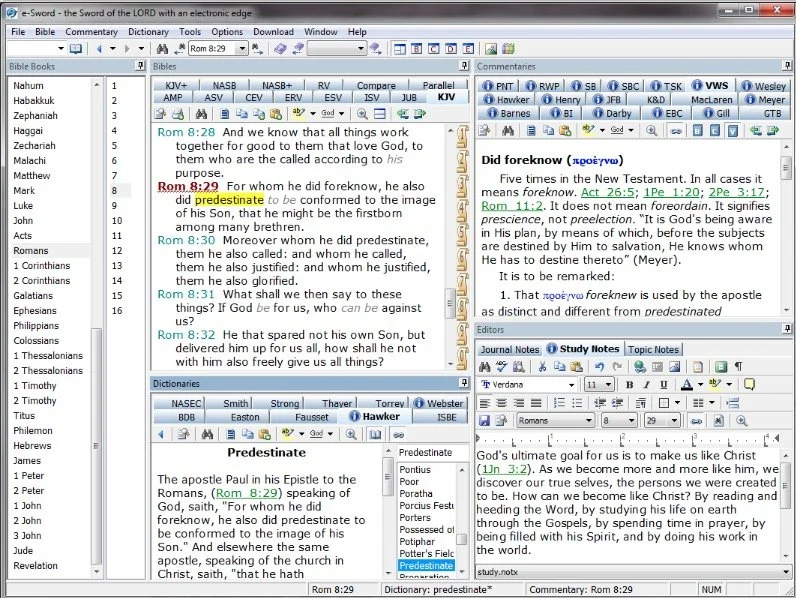
e-Sword is the best free Bible study app available. They make both PC version and a Mac version, that's not free but really inexpensive. Sticking with Bible study Rick Mansfield showed off the free Accordance Mobile app, which people can download on their iPhone or iPad and get a ton of free content, especially if you sign up for a free user account with Accordance. Rick showed off the great ESV interlinear Bible available in the app.
 Antoine showed us his favorite Bible app called Verse3. We had the developer of Verse3 on show #044. It's not free, but only costs $5.
 Olive Tree offers a free version of their Bible app for almost every platform you could want. Download the app on your computer or mobile device, get some free content and then, if you prefer, add some premium content later as needed.
 I showed off some free online Bible study sites that I wrote about a while ago in a two-part series. Here's part two.Finally, LaRosa also reminded us that WORDsearch, his former employer, offers what used to be called Bible Explorer. It's now called WORDsearch Basic and it's now their free option.
The Other Free Stuff
Here's our list of other Free Stuff to help you do your work for free or almost free.
- WordPress website management system also called a content management system or CMS. You can set up a free website and even buy a domain from a company like Hover that will forward that domain to your free WordPress site.‘
- YouTube for video hosting and for playing videos. Find tons of content from entertainment to music to educational content all on YouTube. Of course we use it to stream our Theotek Podcast.
- Microsoft Sway is a great presentation app that lets users share images and pictures. Think of it as a PowerPoint or Keynote alternative for online presentations.
- Facebook Live lets you record and host live video which people can then find later in recorded form on your Facebook wall.
- Libre Office offers a full free office suite with alternatives for Word, Excel, PowerPoint and more.
- Google gives away tons of free tools, including free office software like Google Docs, Sheets, Slides and Forms.
iPhone 7
We ended the show discussing the new iPhone 7, which Rick and I both had our hands on. I did an unboxing of the wrong phone. Watch me get totally disappointed because T-Mobile screwed up and sent me an iPhone 7 instead of the iPhone 7 Plus I actually ordered. Watch the above video to hear what Rick thinks of his iPhone 7 Plus.https://www.youtube.com/watch?v=OkI6psZCfdA
Sia Later iPhone 7 Headphone Jack: Theotek Podcast #079
Apple announced the new iPhone 7 and Apple Watch Series 2 on September 7. We talked about it because we can't help ourselves when it comes to Apple News.We also debated the value of removing the headphone jack in the iPhone 7. I'm certain Apple did it for one reason, profit. The others seem a little more favorable of the idea, and that's okay. What do you think? Post a comment below, on the video at YouTube or hit us up on Twitter.https://www.youtube.com/watch?v=btVvsFdPaUQSome of the highlights of Apple's accounement include...
- Updates to iWork suite for collaboration
- A new camera on the iPhone 7 and 7 Plus with a 2nd lens on the 7 Plus that does zoom and adds narrow depth of field like a DSLR
- No more headphone jack
- Faster processor
- Higher storage levels for the same prices starting at 32 instead of 16GB and now a 256GB offering
The Theotek Podcast covers technology for the church and Christians. We do it normally every Tuesday night at 9pm Eastern. Follow us @TheotekPodcast for more information and please subscribe on Youtube.
Our Favorite Things Fest: Theotek Podcast #078
Every once in a while we dispense with the news about church and Bible technology and don't talk about Bible software and only deal with what we call Our Favorite Things. These are recommendations of a tool, accessory, gadget, software, app, service or really anything that we enjoy using in our lives. They come from our ministries in church and Bible tech, church life, family, entertainment or hobbies. We'll each shared some of our favorite things in this edition of the Theotek Podcast.https://www.youtube.com/watch?v=MFQ89N-T2x8Here's everyone's list of recommendations with links.
Wes Allen's Our Favorite Things
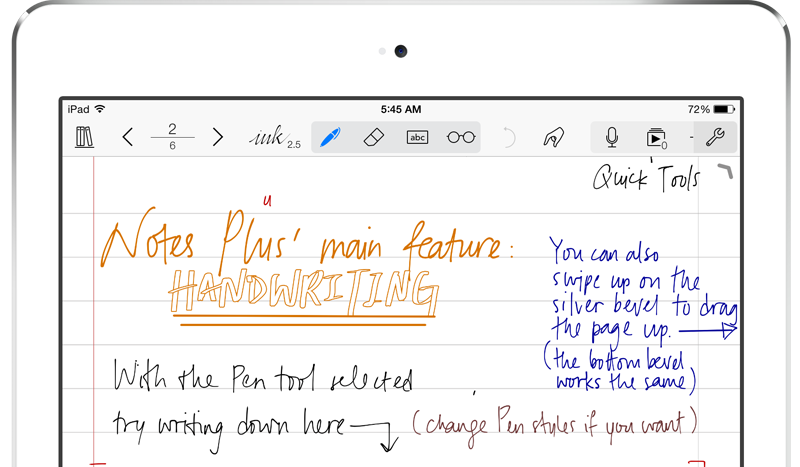
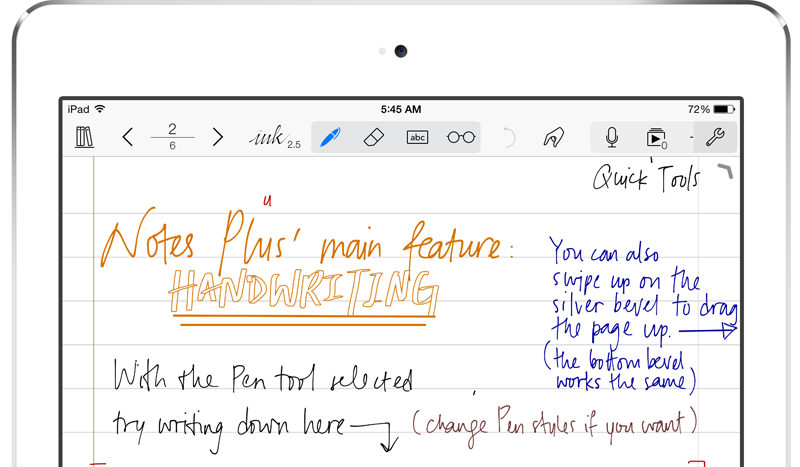
Wes talked about using a tablet for note taking purposes and recommended the app Notes Plus for iPad. You can write in your own handwriting and take advantage of Apple Pencil support. It's great for recording the meeting and for adding images, drawings and text as well.Second, Wes recommended Adobe Spark, one of the great Adobe mobile apps. Spark puts together your images and videos into a nice presentation on the web or on mobile devices. See more about the Adobe Mobile apps over at GottaBeMobile where I wrote a full article about the most useful of the Adobe Mobile apps.
LaRosa Johnson's Our Favorite Things
 LaRosa recommended two great alternatives to Adobe Photoshop and Indesign from a company called Serif. Affinity Photo Editor is a great cheaper alternative to Photoshop with layered photo editing tools without the expensive subscription. Get it for $49.99 in the Mac App Store or download the free trial available at their website.
 We also learned about Affinity Designer, a pro-level graphic design tool. Both of these tools work with Adobe file formats making it easy to work with others who also use Adobe products. Get a free trial or buy it on the Mac App Store for $49.99 also.LaRosa's last recommendation is the iPhone app Over, another graphic tool. It lets users create nice slides with images and text. He uses this to make some nice images for his website devos.hiphop which will launch soon. Get Over on iPhone for free.
Rick Mansfield's Our Favorite Things
Rick shared a couple of tools. First, he likes his 4TB Seagate Backup Plus Fast drive. It's an external hard drive that costs $179.99 and connects via USB 3.o and runs at 220MB/s.

Sonny Software's Bookends software helps students with their research. The software helps you keep tabs on your reference works for writing projects.
Finally, Rick doesn't recommend Verizon Wireless, but he talked about why he and his wife returned to the service. As a tip he said make sure to ask if you can get a discount based on your job. For example, my wife works for the local school district and that means she gets a discount on all the major wireless carriers.
Kevin Purcell's Our Favorite Things

I focused on apps for my recommendations. This started with some not taking apps. The first is MyScript Nebo for Surface Pro or Surface Book and iPad. It takes advantage of the Surface Pen or the Apple Pencil. Write in your own handwriting and quickly convert it to text. Add drawings and diagrams. Draw complex math equations and then tap to have the problem solved. The app's free now for a limited time and $8.99 later.
Another note taking app works on Android. DioNote also writes in your own handwriting. Add drawings and diagrams. It's simple and free.
I recommended a program called Noteburner, which strips iTunes DRM so you can use the movies and videos you've purchased through Apple and watch them on any other device or platform. It's not cheap at $69.99, but there's a free trial version.
Logos 7 Arrives: Theotek Podcast #077
Faithlife shipped Logos 7. The update comes with a lot of new features for users of Logos 6. Logos Now users will feel like it's a pretty minor update.We covered the major new features in Logos 7 and talked about how users can upgrade or subscribe to Logos Now.https://www.youtube.com/watch?v=mkjflAmUXyM
What's New in Logos 7
 Logos 7 incorporates a bunch of new features including the QuickStart Layouts accessible from the Layouts menu. You'll find it on the toolbar towards the right next to the question mark icon. A box pops up and along the left inside that box you'll see a list of layouts. The top section shows your QuickStart Layouts. Think of them as predefined layouts ready for your use. Logos lets users arrange all the books on their desk the way they prefer and then save the layout. See the Saved Layouts in the bottom of the left hand list in the screenshot above. The QuickStart Layouts are layouts made by Logos designers.
 The Sermon Editor, accessed from the Sermon item in the Documents menu, gives users a sermon creation tool inside Logos 7. The sermons become searchable and show up when the user creates a Passage Guide search on a passage that includes a Sermon made in Sermon Editor.Inside the Sermon Editor users can instantly add the text of Bible verses by typing the reference. It will replace the reference with the text of that passage.
 The editor also makes slides instantly out of Headings, Bible passages and more. The user can export these slides to Faithlife's Proclaim presentation service or PowerPoint and others.
 The Courses Tool takes advantage of the Mobile Education feature introduced in earlier versions of Logos. The Courses quickly takes content from a user's library and creates a course. This feature will eventually make it possible for a person to make a course on their own or for teachers and professors to create their own courses for use in Sunday school classes, small groups or formal education settings. Until that happens in a future version, the user must use some of the courses already included in their library. It comes with some and users can buy more.Select from the list along the left of the tool's box that shows up when you open it from the Tools menu. Click a course and it offers to set it up on for a specific number of days or you can customize how fast you want to move through the course.There's a long list of new features with links to explanations of what the new features are in the Logos forums.
Samsung Galaxy Note 7
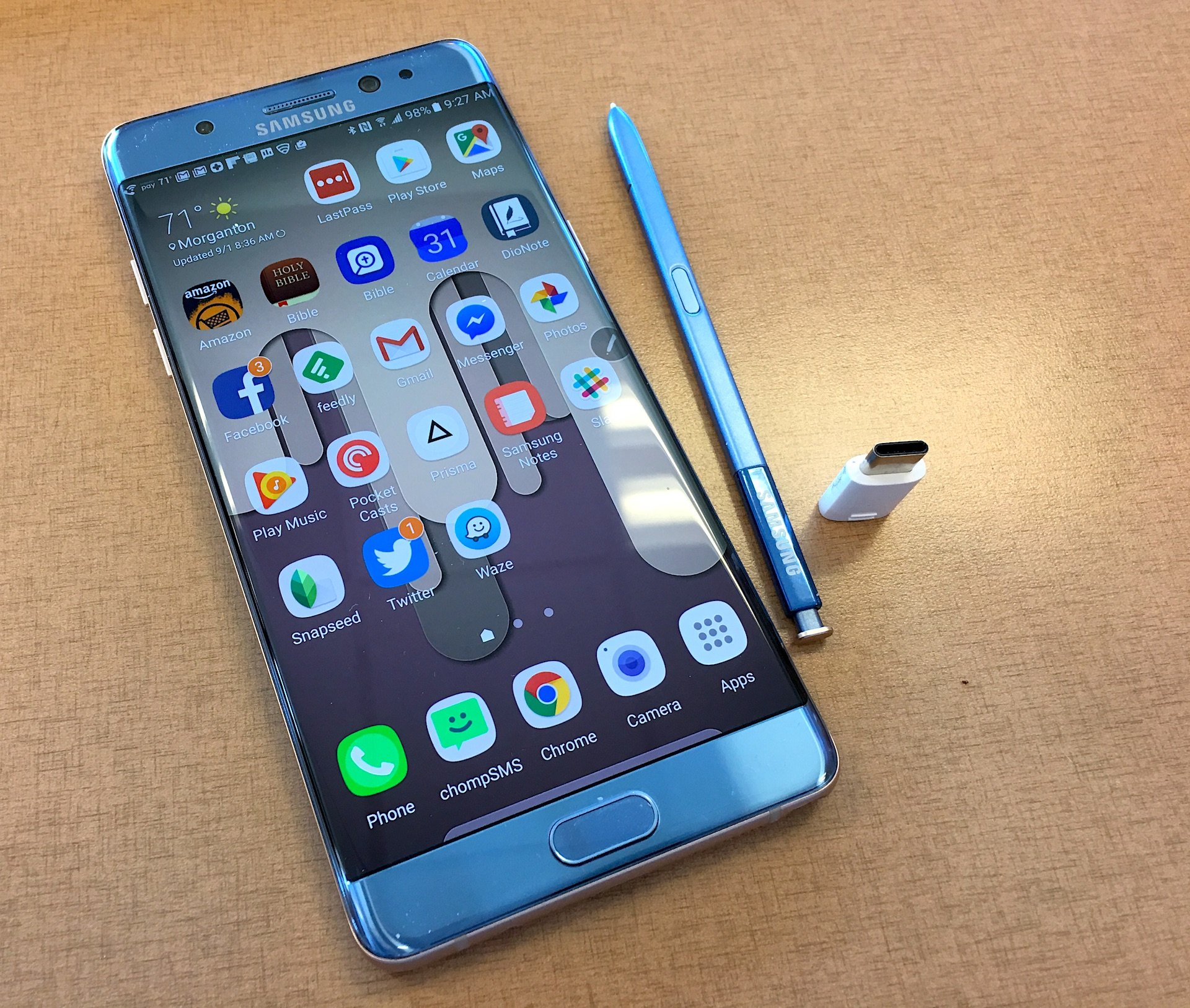
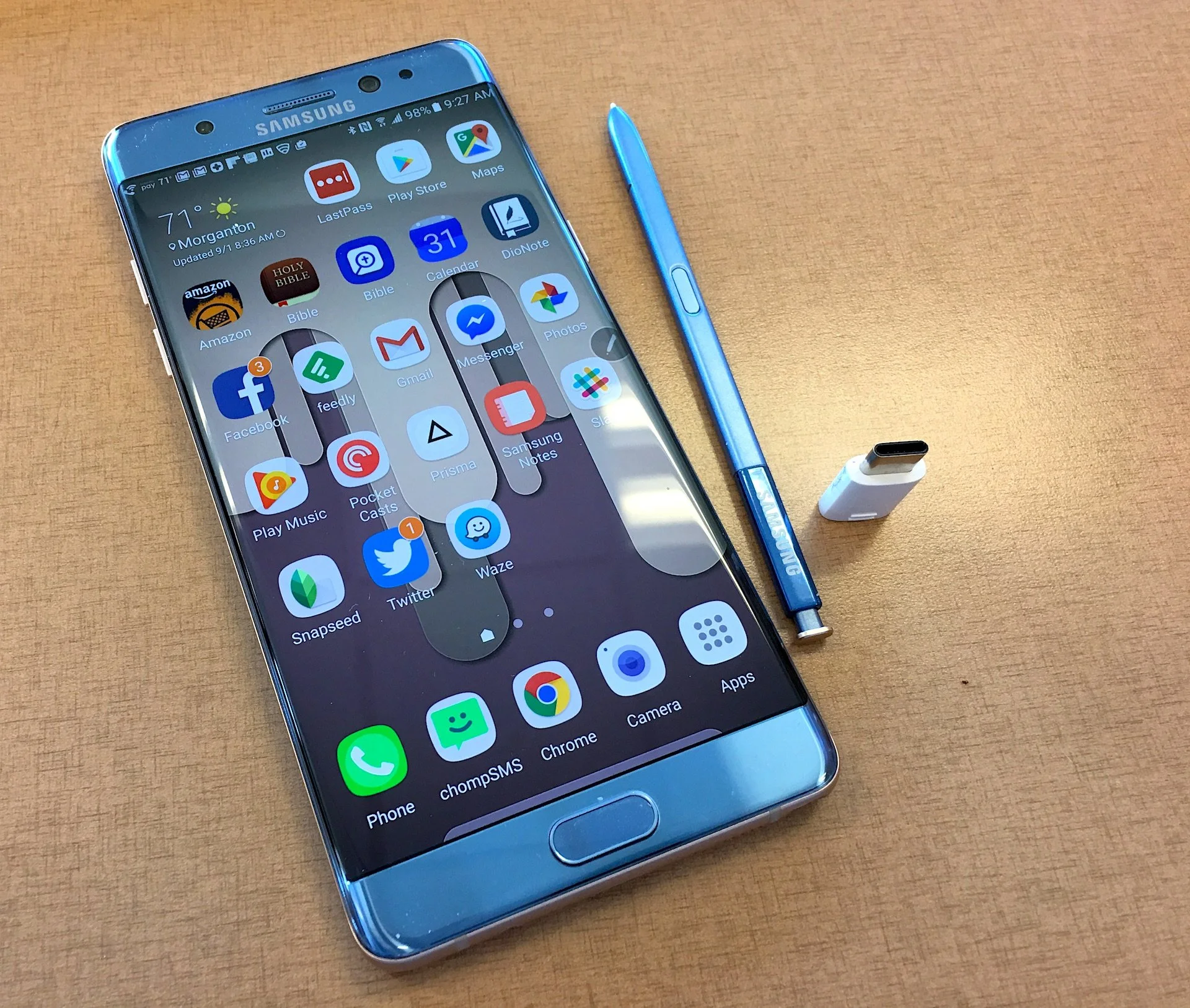
 After looking at Logos 7, I showed off my new Samsung Galaxy Note 7. The Note 7 is a great Android phone with an active Stylus and now includes a USB Type-C connector. It has a great screen and camera. I love this phone.
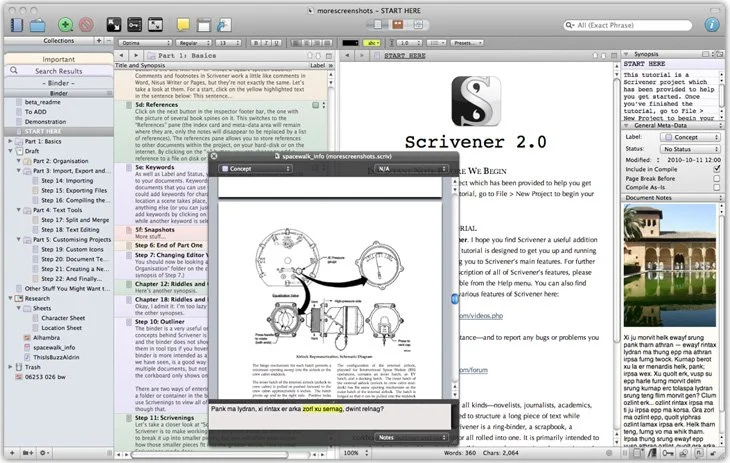
In Scrivener We Trust: Theotek Podcast #076
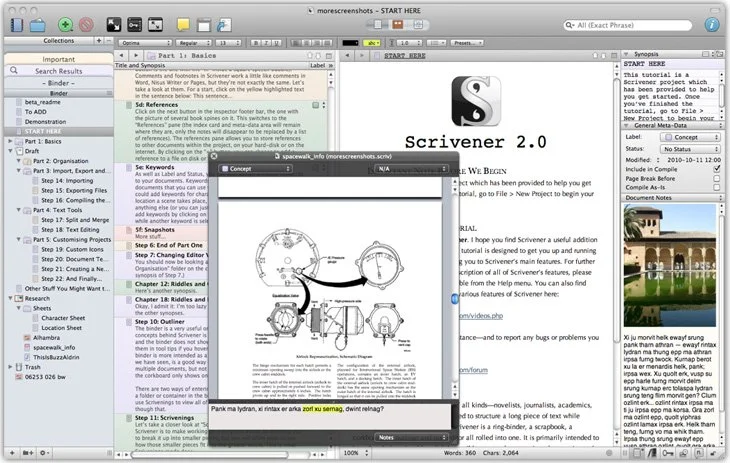
Our crew talked about a great tool for writing long form documents and projects called Scrivener. It's now out on both Mac and iOS. Windows users can also get it. It helps you organize your writing and research all in one place and then export it to multiple formats.https://www.youtube.com/watch?v=7YOMJq12HdEWe shared how to use Scrivener in writing ministry and church life as we talk Church and Bible Tech with Theotek. Tuesday Nights via YouTube Live Stream now. After that we talked about some of our favorite things.
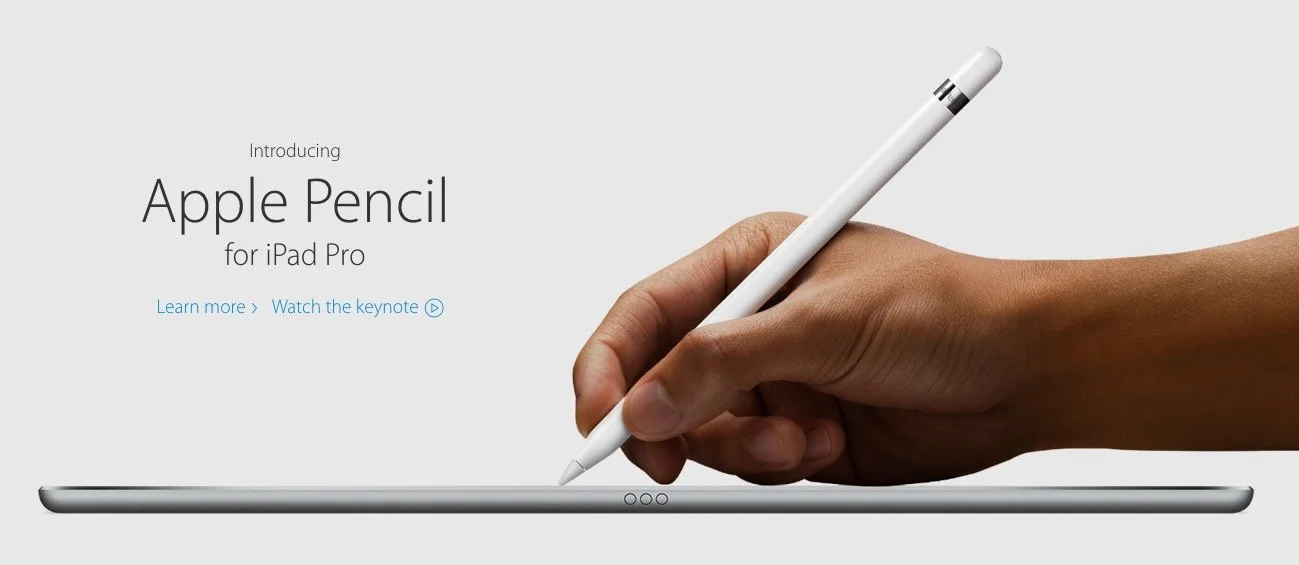
Apple iPad Pro 9 Months Later: Theotek Podcast #075
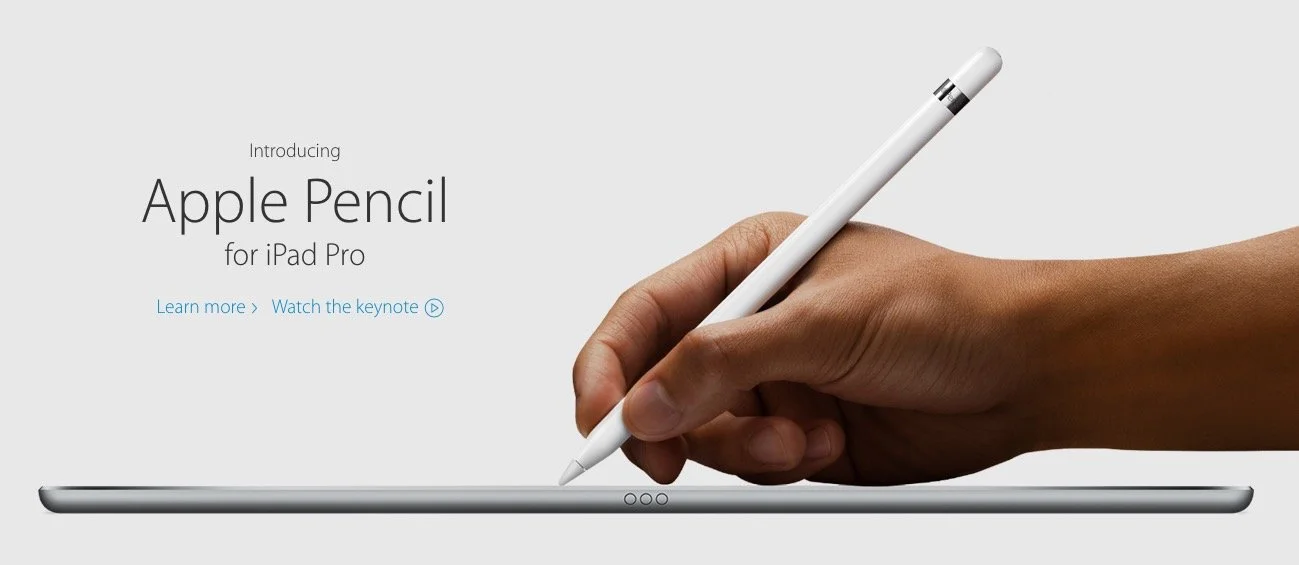
Our crew talked about our experiences in the last 9 months using the iPad Pro for our Bible study, preaching, and general work/play. Then we looked at Our Favorite Things. We planned to talk about Scrivener, a great writing tool that a few of our team members use. However, we went long talking about the iPad, so we'll save that discussion for next week. In the meantime, watch or listen below to our thoughts on using the iPad Pro.
- What's it great for?
- How could Apple improve it?
- How does it compare to Surface Pro 4?
- How are we using ours?
- What does Wes think just hours into owning one?
https://www.youtube.com/watch?v=rBgBqB8jomUFor Our Favorite Things this week, I talked quickly about SideClick, a little remote attachment for streaming set-top boxes, like Amazon Fire TV, Apple TV and Roku. Check it out at their website.
Windows 10 Anniversary Update & Samsung Galaxy Note 7: Theotek Podcast #074
Microsoft released the Windows 10 Anniversary Update with a few cool new features for Windows 10 fans. Also Samsung tried to steal the thunder by announcing the Samsung Galaxy Note 7. We'll talk about both stories and discuss our favorite things.
Windows 10 Anniversary Update
 While most of our Theotek team runs on Mac most of the time, Kevin and Rick often use Windows. The update to Windows 10 Anniversary Update brings some interesting new features for those of us who use it with a PC that includes pen support. For example, the new Windows Ink technology baked in will improve inking performance in many places, including Office 2016 apps and in a new Windows Ink tool that shows up behind a pen icon in the system tray.
Samsung Galaxy Note 7
The new specialized Samsung Galaxy Note 7 from Samsung isn't a big update compared to the Note 5, last year's model. They added some water proof protection, an iris scanner for security and gave it a fine tip on the Note Pen. Other than that it looks like a slightly bigger Samsung Galaxy S7 Edge, thanks to the 5.7-inch screen.
Our Favorite Things
In this week's edition of Our Favorite Things, we get an iPhone case, a new phone and Antoine likes his new phone, the Jolla C Smartphone. It's not readily available in the US, runs Sailfish OS and seems like a novelty, but he loves it.
 LaRosa likes his new iPhone case from Baseballism. It's made of real baseball leather with stitching like a baseball. We all wanted him to get some grass stains on it to prove to use it's really the same material. I don't think he'll run out soon and do that for us.
 Rick recommends the new Bellboy Bluetooth headphones. They look like and fit like the iPhone ear buds.Wes bought an Apple Watch!

Pokémon Go Home: Theotek Podcast #073

Does Pokémon Go matter to the church? It can and in some places should, but not in the traditional way that churches get all commercial with the latest crazes.Pokémon Go is the latest rage and everyone's using it as link bait to draw traffic to their sites, so we decided to join in the fun. Actually we talked about the craze, describing what it is and the basics of how to play. An expert joined us this week - my 18 year-old son Daniel, a Pokémon Go player.
How One Pastor Showed Love to Pokémon Go PlayersAs part of our podcast Wes Allen talked about how he started sitting outside his church in the Philadelphia area during the hot afternoons to pass out water to the Pokémon Go players that came by his church, a PokeStop. If you want to read more about this phenomena, then head over to the site I write for - GottaBeMobile. They 're covering the craze with some interesting articles.
Our Favorite Things
 We shared our favorite things again. Mine was the Brother ADS-1500W scanner. I'm scanning things like workbooks or paperbacks I don't care about cutting the binders off of. I also have reduced office clutter by scanning receipts and billing statements. Rick Mansfield does this with a Fujitsu scanner.A couple of our hosts, LaRosa Johnson and Wes Allen, picked Scrivener's new iPad app. It's a serious app for authors who like to write long form documents like books. Although, Wes bragged about posting to his blog with the app.Rick just got back from his world wind tour of Asia where he did some Accordance Bible Software training and took a lot of photos. We followed them as he posted them from the different countries. He used the same Canon camera he boasted getting before he left.
 Antoine likes his new NFC Ring, a ring that you wear like any other. However, this ring has an NFC chip built into it. You can program it to unlock a tablet or smart phone, unlock doors if you have the right kind of door locks, transfer information like business card details and more.Finally, Wes and I recommended Adobe Lightroom for iPad. It's a photo organizer and editor that works along with the Adobe Creative Cloud of applications. Import your photos and create collections. They sync to the cloud where you can then get them using the desktop version of Lightroom. You can also access them in an online version. It's free, but to get the most use out of it, get a Creative Cloud subscription starting as low as $10/month or $100/year.
Bible Apps on ChromeOS and More: Theotek Podcast #072
We have a few topic for this week's Theotek Podcast. We'll see how well Android Bible apps run on a Chromebook with the new Android Apps on ChromeOS on the ASUS Chromebook Flip. Olive Tree Bible Study 6 for Mac came out this week so LaRosa Johnson will show that off. Finally, Rick Mansfield comes to us live from Asia where he's training for Accordance. We'll learn about the perils and pleasures of traveling internationally.https://www.youtube.com/watch?v=mia5KPRHDH0Check out the end for our Favorite Things too.
Sermon Prep Part 5: Theotek Podcast #069
We're in the home stretch in our series on writing your sermons and Bible studies using digital tools like Bible study software or online Bible sites. This episode covers tips and trips for actually writing the sermon outline or manuscript. How can digital BIble study tools help in forming your notes and outline?https://www.youtube.com/watch?v=akZN22Rls6YSome of this can be done on an iPad. The new iPad Pro plus the Microsoft Word iPad app makes it easier than ever. See below.
Sermon Prep Part 4: Theotek Podcast #068
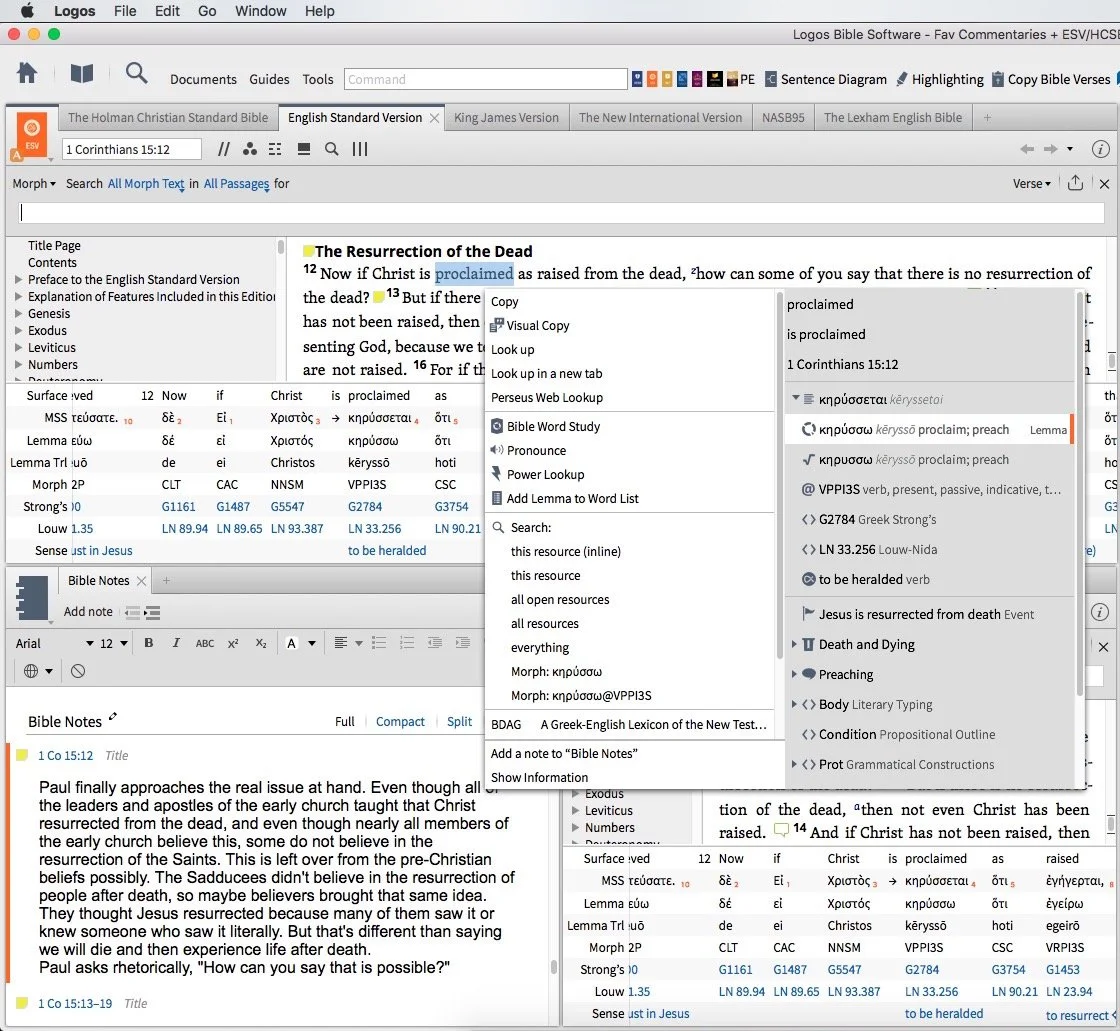
We talked about using Digital study tools to do word studies. Specifically we looked at Accordance Bible Software, Logos Bible Software and Bible Reader from Olive Tree.https://www.youtube.com/watch?v=W-v8fk3uhhMWe focused on studying the Bible in English using the tools built into Bible software that help users find the Greek or Hebrew words behind our English translations. Good language study tools focused on Greek and Hebrew tagging using Strong's numbers helps users get at the Biblical meaning of each word and words in context. Regardless of which software you use, start with a text that includes Strong's tagging. Usually they will let you right-click or double-click or even triple-click the word you want to study.Start this process by searching for a word and read it in context in the different places it's used in the Bible. Then use your software's built-in word study tools. For example both Accordance and Logos show you how the author uses words with graphs and charts that show how many times a word gets used in each book of the Bible or how many times the original word gets translated one way versus another. The next step, after searching the word, is to look up the word in Greek or Hebrew Lexicons. Most Bible software tools include some in base packages. Users can buy more advanced tools.Finally, if you still need some help, look up the word in an English Bible dictionary. Start with exegetical dictionaries like the Holman Treasury of Key Words or the AMG Complete Word Study Dictionary of the Greek or Hebrew.
Our Favorite Things
 This week in "Our Favorite Things" we got some interesting recommendations. First, Antoine recommended the 29 Watt Apple USB-C charger to charge your iPad Pro. It charges the iPad in about an hour, but costs $49. It also requires a USB-C to Lightning cable which adds $35. He still loves the speed of the charging and wished Apple included this charger with the iPad Pro.
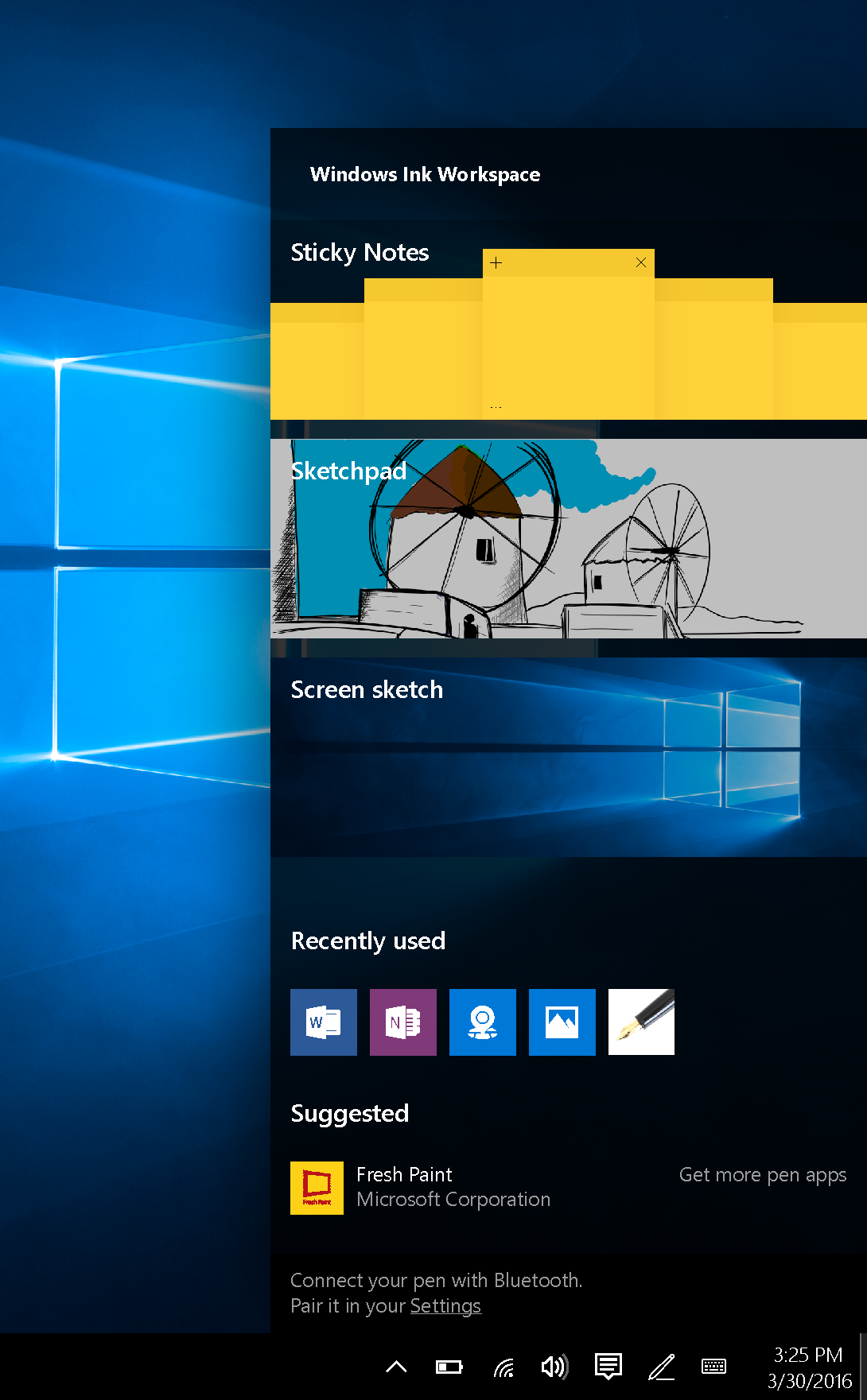
 Rick recommended a similar device, the PowerCore+ 26800 & PowerPort+ 1 charger. It includes QuickCharge technology and with 2.4amp USB ports. It's got 3 ports and can even charge the MacBook or other USB-C devices that need a lot of power. The 26,800mAh battery handles almost anything you can throw at it.I showed off a new feature in the latest Developer Preview version of Windows 10. Microsoft has what they call the fast ring and slow ring for beta testers of their operating system. The fast ring version added a new feature that shows up in the system tray. The icon for this feature looks like a pen with a drawn line. Tap or click on it and a new pen-focused menu pops up with a few options as follows:
- Sticky notes
- Sketchpad - a white board
- Screen sketch - the ability to do a screenshot that opens into an editor with pen/pencil drawing on the screen shot
- Recently used - a few of the most recently opened Windows 10 Universal apps
- Suggested - pen/stylus focused apps from the Windows store
- Connect your pen - a link to the Settings where you can connect your Bluetooth Surface Pen or other stylus
Microsoft calls this the Windows Ink Workspace.In the "Least Favorite Things" folder, I talked about Vufine. This was originally a Kickstarter project that I mistakenly backed. They call it an HD wearable display that fastens to your glasses and shows a tiny screen inside the little device that sits just off the front of your glasses. It comes with a cheap, flimsy pair of plastic glasses if you don't wear glasses regularly.The problem is the Vufine is to tiny it's nearly useless for anything. Some use it connected to a GoPro to see what the GoPro sees. But using at an actual display is nearly impossible since text is so small.
Sermon Prep Part Two: Theotek Podcast #066
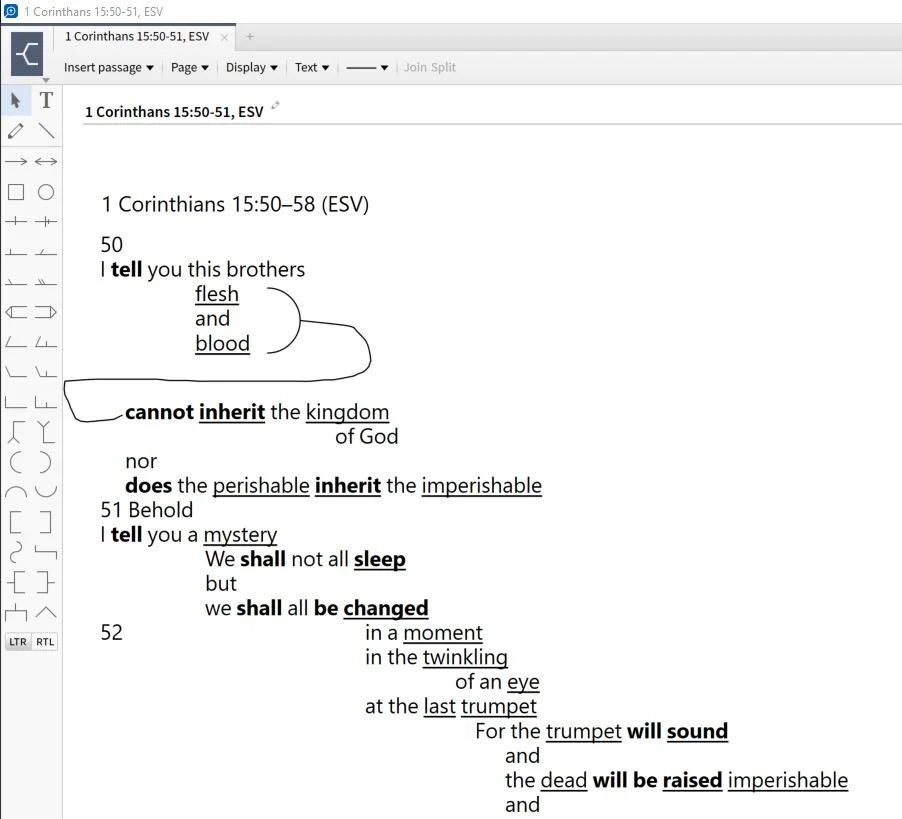
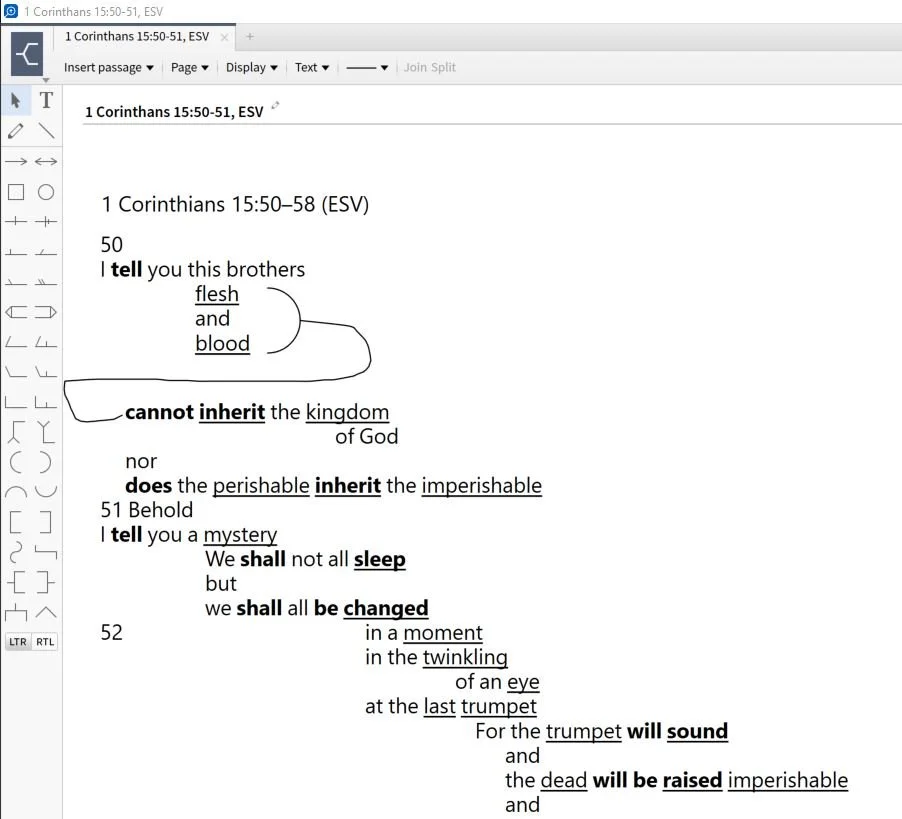
It's part two of our sermon prep series using Bible software to help us write a message. This week just Rick Mansfield and I tackle a little used tool - the passage outline. We show how to do so in a few BIble software packages and talk about doing it in the Notes tool of any program.https://www.youtube.com/watch?v=_1fzw6BndZ4&list=PL1-Xf_HZquDEcTTK8MLMMdmwvB--o1ShY&index=1We looked at the outlining features of both Accordance Bible Software and Logos. You can also do one of these in the notes tool of any Bible software that includes one. Just copy and past the text into the note and use the space or tab keys and the return button to arrange the text on-screen in way that shows the relationship of the ideas. For a good book on how to do good Bible passage outlines in English, see The 12 Essential Skills of Great Preaching by Dr. Wayne McDill, my preaching professor at Southeastern Baptist Theological Seminary.
Digital Sermon Prep Part 1: Theotek Podcast #065
We started a series in this week's Theotek Podcast on doing digital sermon prep. Our team will take you through our steps of sermon prep using Bible software and digital tools.In this first step we focused on choosing a passage. Software packages come with tools to help you figure out what verses to include in your passage, or as the scholars call it, pericope. Then we look at other aspects of sermon prep. Watch the video below or listen to the audio version at the end of this post.https://www.youtube.com/watch?v=nb3ljTSXL3g&list=PL1-Xf_HZquDEcTTK8MLMMdmwvB--o1ShY&index=2We didn't have any recommendations in Our Favorite Things this week.
Church Photo and Video: Theotek Podcast #064
Do you use a camera at your church? If so, then you'll want to either watch or listen to the Theotek Podcast as we talk about church photo and video tools and tips. We welcomed a great church video expert, Matt Fridg from Church Video Coach. He knows a ton about church video solutions, from streaming your worship services online to creating video sermon illustrations or church videos to promote events or share your church's story to members, visitors or potential attendees. Matt wrote the following article about using DSLR cameras in church. He talked about the article and then gave some recommendations for better alternatives.http://churchtechtoday.com/2016/04/13/dslr-cameras-church-service-video/ To do your live streaming, Matt mentioned ChurchStreaming.tv as one solution. It's priced a little higher than smaller churches might feel comfortable using. There's also a few free options like Ustream, Livestream and now Facebook Live Video.https://www.youtube.com/watch?v=YqZ_ECcrffYHe's more of a video expert than a church photo expert, but they're closely related.Our team also talked about our uses of church photo tools for worship images used in sermon illustrations or for promoting groups/events. We also like to use church photo albums in digital form for remembering big events in our churches.
Our Favorite Things
Rick talked about the new point-and-shoot camera he's getting for his coming trip to China and the far east. Matt recommended a great photography blog by photographer Chase Jarvis.
 Wes and I both love the Christian satire and comedy blog, Babylon Bee.
Bible Mark Up App Presents Bible: Theotek Podcast #063
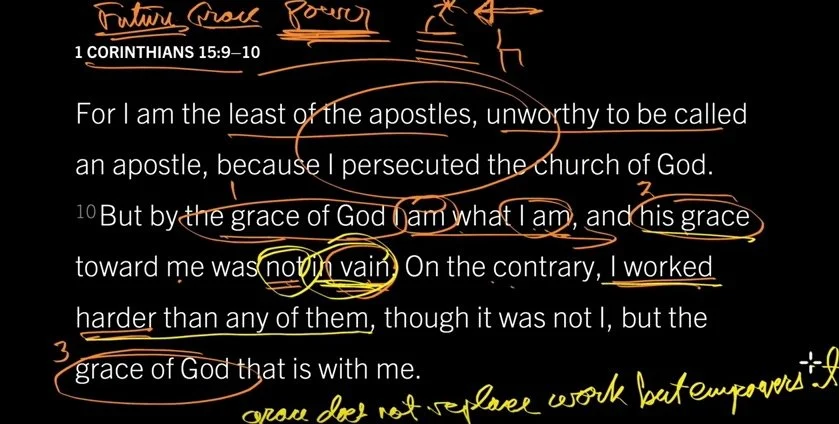
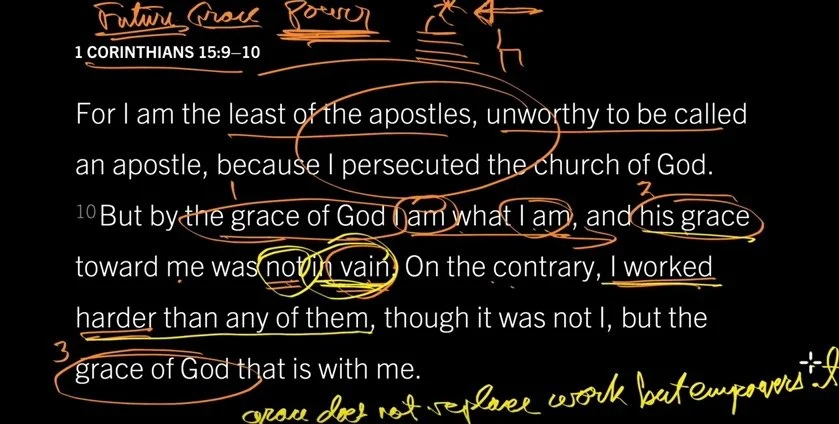
I’m always looking for some cool ways to present God’s word in my preaching and teaching ministry like the app Bible Mark Up. When I started watching John Piper’s Look at the Book video series on YouTube, I loved the simple and elegant black background with white Bible text that he uses in these videos. He draws on the text and screen using colorful marking pens. I investigated and discovered that Piper’s using something that inspired the developer of the app Bible Mark Up. The developer liked the videos and wanted a mobile version and so he created Bible Mark Up for Android and then ported Bible Mark Up over to iOS. We talked to Ernie Lail of Maranatha Technologies on this week's Theotek Podcast seen below. The audio is at the bottom of the page.https://www.youtube.com/watch?v=7tZ2Y32OPzQ
Bible Mark Up App
This free iPad or Android app inserts the Bible text from one of a number of translations on a black background. The teacher or Bible student uses the 9 colors to draw on the screen in Bible Mark Up. Watch John Piper to use a tool similar to Bible Mark Up, which inspired the app, in his "Look at the Book" video series on YouTube (seen below).https://www.youtube.com/watch?v=yBOKt8IVNJc&index=1&list=PLAcB0f-21Xj0MTWuh7NKKploqNgpbJsY2Logos Bible Software users can also buy these videos along with a nice study guide that goes with the videos. The free video series puts the videos and the study guide right inside Logos Bible Software. Piper draws circles and lines and underlines the text showing relationships between ideas and words. He uses colors to connect one part of the text with another. It’s simple but skillful. I’ve begun using it in my teaching ministry and plan to do more.The app includes some cool features. It’s got a lot of international translations in addition to the ESV, NASB and KJV. Sadly, they don’t offer my preferred HCSB translation. For teachers who use original languages it includes Greek Textus Receptus and Hebrew Aleppo Codex.We also get access to some public domain works like Strong’s, Lexicons and some Commentaries all online. I haven’t used anything but the English Bible texts, since I don’t plan to do my study in the app. I just use it to present.
 Ernie Lail, the developer of Bible Mark Up, told us that he created primarily as a study tool. He wanted something that lets him mark up the text like Piper does in his videos.Here’s the workflow. The opening screen asks the user to type in a Bible reference (see above). It will then copy the text to the black screen in portrait orientation at first. Tap on the end of the line to change the line breaks. At the bottom of the screen there’s a button that reads Modify Breaks. Tap it to move the next line up to the current line that you tapped. Repeat this till the lines all show up the way you want. Then tap on Scale & Move at the bottom and pinch to zoom or shrink the text. Remember to keep the text large enough so people in the back of the room can read the text.When you’re ready, turn the tablet into landscape mode and tap on Draw. Use the colored inking and markup buttons to draw when you wish. I will often underline or circle key words, put parenthesis around a phrase I’m discussing or draw lines to show relationship between words or phrases. Use multiple colors. For example, if a text is discussing one topic but has some sub topics, circle or underline all the words related to one of the subtopics in one color. Then use another color to visually link the next sub topic. Use lines to connect pronouns with the proper noun they represent.
 The app could use an update and here’s what I’d include?
- An erase button that removes all the markups in a single tap. Ernie told us he may add that soon.
- I’d like the ability to pay extra for other modern translations or reference works. I understand the app developer can’t make it free if he adds paid content, but I’d love to pay to get that kind of content.
- Add shapes like lines, ovals, boxes and more.
- Change from black to white background.
- If you change the background color then you need to change the text color. It’d be great if I could highlight a word or words and change just the color of those words.
Even if the developer never adds the above features, it’s still a worthwhile tool to install on your iPad or Android tablet.
Our Favorite Things
This week we actually started off with the first recommendation.
Ricoh Theta S 360-degree Camera
Watch as a I demo the Ricoh Theta S camera at the top of the podcast. It's a nice little 360-degree camera that uses two ultra wide-angle fish eye lenses to take a complete 360-degree photo at the tap of the button. It also shoots HD video. Users can post the photos and video online to the company's website made just for their shots or to YouTube in the case of video. Use the editing app to trim video or another one to create interesting images using the shots taken with the camera. Check out the examples below: The shot above shows the interesting results you can get with the Ricoh Theta S and the image editor on iOS.
The front of High Peak Baptist Church #theta360 - Spherical Image - RICOH THETA
I haven't posted any videos I'd want anyone else to see. Here's one from the online gallery at theta360.com.
Passing the Eiffel Tower in Paris, France - Spherical Image - RICOH THETA
I love my camera, but it's not cheap. Get it on Amazon for a couple bucks less than at Ricoh's online store. It's $350.
Dark Sky for iOS
 Rick showed off the great weather app called Dark Sky. They call it "hyperlocal" weather. It's incredibly accurate even nailing the start and stop times for rain. There's an Apple Watch extension built into the app.
iPhone SE
 LaRosa John chose to highlight the new iPhone SE. It's an iPhone 5s with the power and guts of an iPhone 6s without the 3D Touch screen. Apple sells it for a little less than they sell their flagship phones. He likes the smaller size and wants to pick on up.
Technolust! Save Money When You WANT to Spend: Theotek Podcast #062
Do you experience Technolust? It's the feeling you get when you just want some new gadget or software and can't really afford it. You've maybe got the money or room on a credit card and the desire is strong. But you know you don't need it and it might even be damaging to your finances if you buy it anyway. We'll share some thoughts on how to avoid getting in a hole or going into debt unnecessarily. We've got the cure for Technolust.https://www.youtube.com/watch?v=Hpg0bTzohxkThe Bible tells us that the love of money is the root of all kinds of evil. (1 Timothy 6:10) It also tells us not to covet. However, it's so easy to fall into the trap. How do you avoid the trap of covetousness in the area of tech, what we call Technolust?
Avoiding Technolust
Here's a list of our tips for avoiding technolust...
- Stay accountable - make sure your spouse or a friend is checking on you so you don't spend when you can't afford it or don't need it.
- Set limits - don't bring your credit card with you shopping or put extra funds in an account you can't easily access.
- Find relief before the longing hits you - don't shop when you don't need anything or avoid websites or magazines that promote technolust.
- Satisfy the hunger with something far less cheaper - buy an app or some software or upgrade a computer with some memory or with an accessory.
What to do when you regret a purchase? Plenty of people experience buyers remorse. We talked about why that is, so make sure you watch or listen to the podcast. Here's what we do.
- Return it! Don't buy from places where you can't return things.
- Give it away. Someone else may need it to be productive or to replace something they've lost due to failure, theft or just losing something.
- Make sure you can buy. Walk away from the purchase and think hard about it before forking over the cash or plastic.
- Sell it. Craigslist, eBay and Amazon allow you to sell things and if it's barely used you may even get close to full price.
- Repent. If you're giving into covetousness, then you need to repent by returning it, selling it at a slight loss or giving it away.
Our Favorite Things
I talked about my Samsung Gear VR, which T-Mobile gave me as part of a promotion that's no longer available. Check it my article about it at GottaBeMobile. You can also use the Google Cardboard devices which work like Gear VR. Here's a cheap one at Amazon.
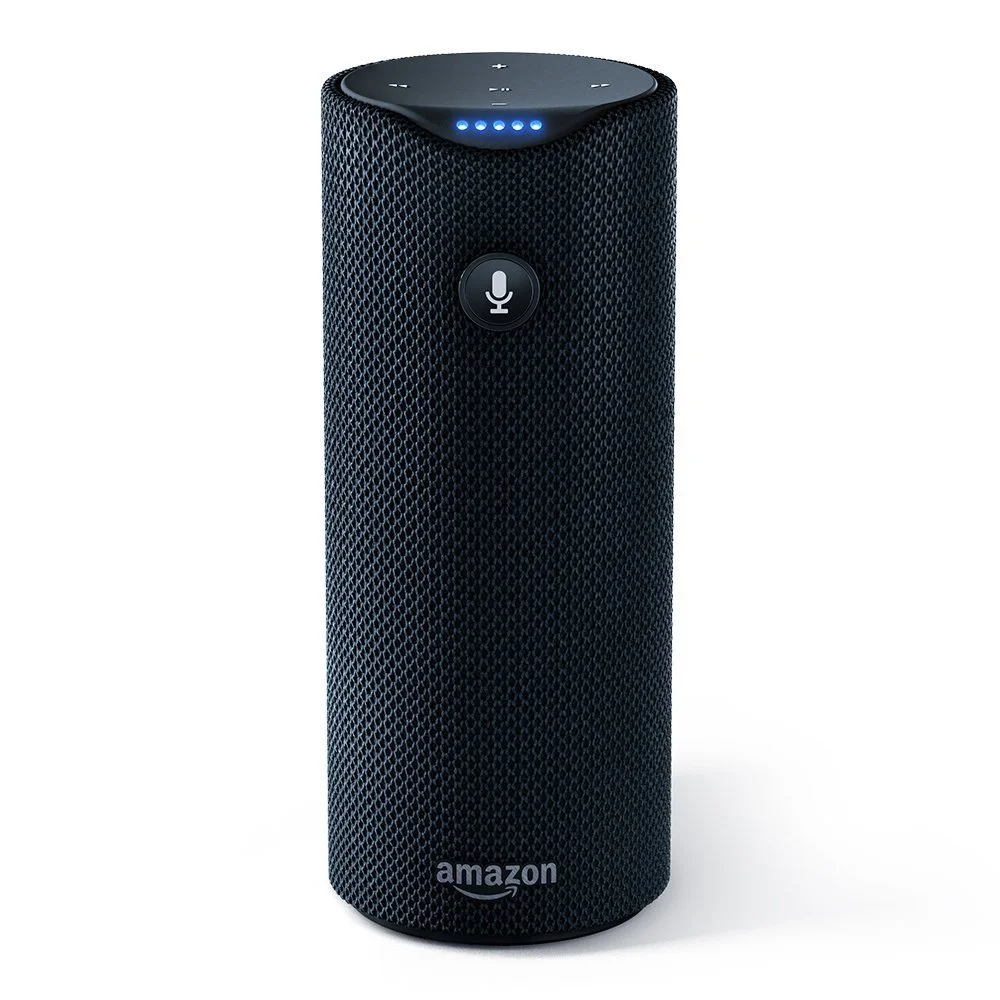
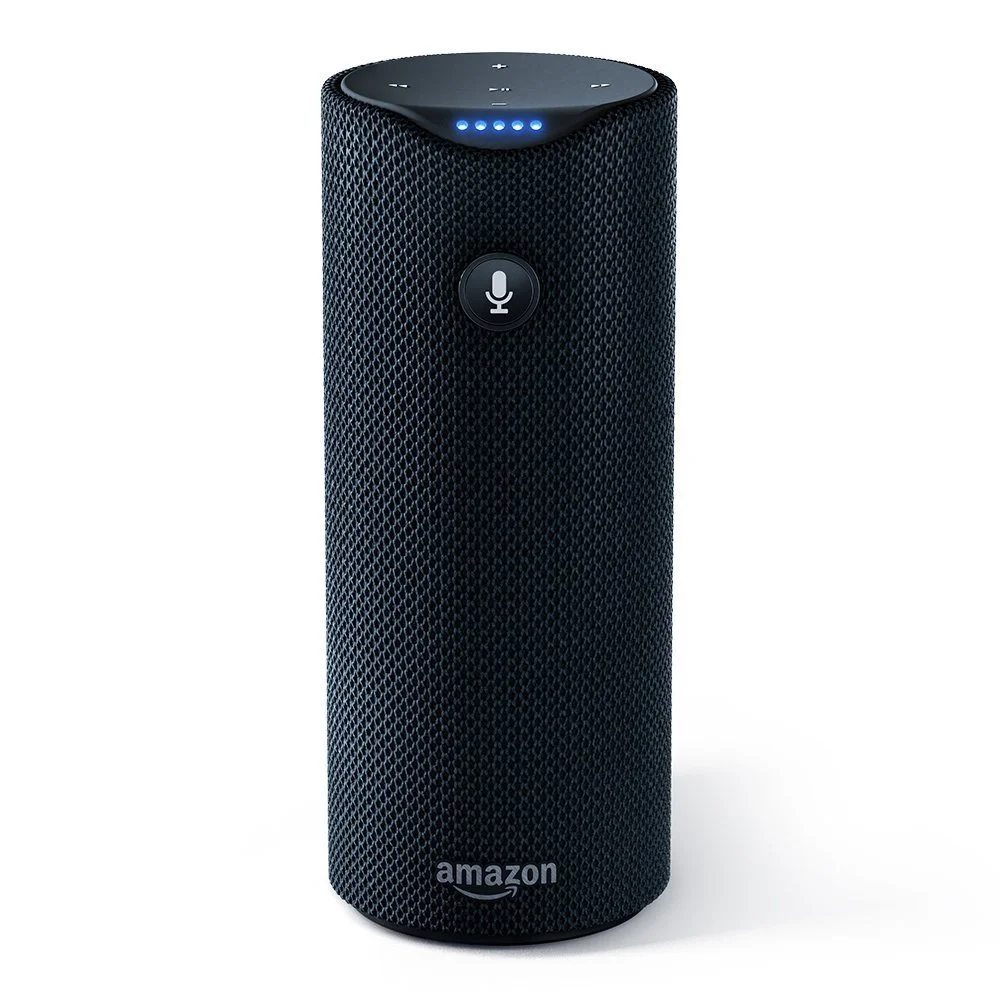
 Speaking of Amazon, I also showed off my new Amazon Tap. It's a voice controlled mobile speaker that does so much more. It's like the computer in Star Wars with a limited set of tools like playing music, sharing sports scores, weather updates and even ordering pizza at Dominos.
Apple iPad Pro and More: Theotek Podcast #061
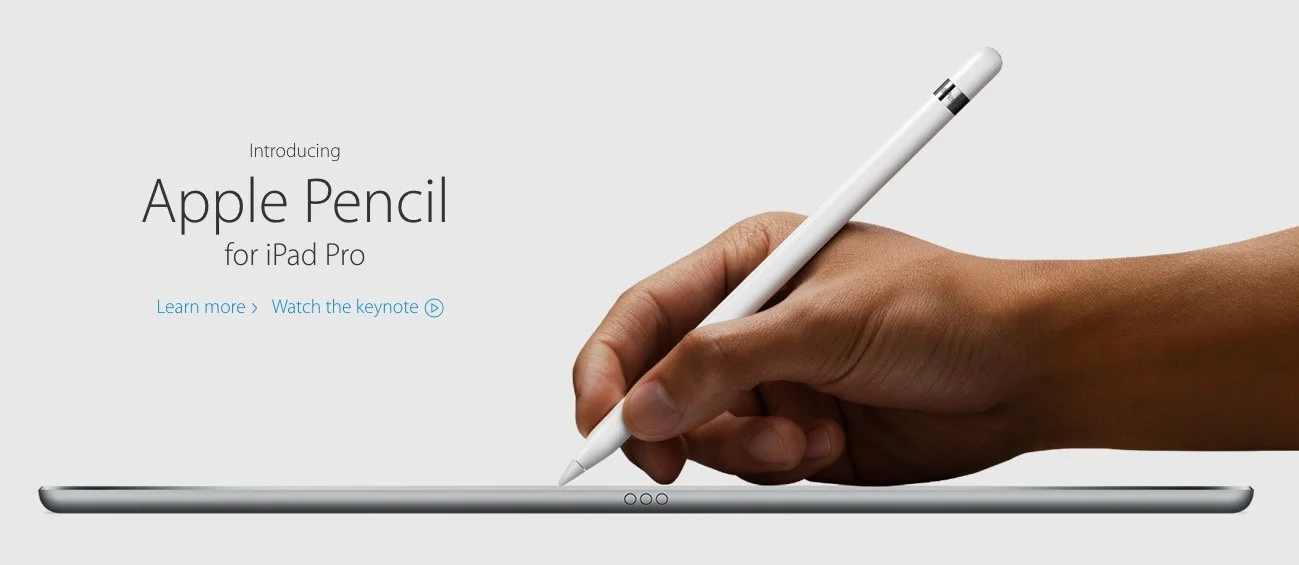
Apple introduced the new iPad Pro 9.7-inch model, which is basically and iPad Air 2 with an update and the iPad Pro display. It uses the Apple Pencil and comes with an optional Smart Keyboard that fits the smaller iPad. They also announced a new iPhone SE.https://www.youtube.com/watch?v=ngOcCSwPCGAWe talked about the new Apple news and shared Our Favorite Things! We had some fun with this one as Rick shared his excitement of the new Batman v. Superman movie that released that week. I talked again about my Samsung Galaxy S7 Edge. Wes mentioned his new WD NAS backup storage device.

Millennials and Tech: Theotek Podcast #060

On this week's Theotek Podcast we talked with David Timms, a professor at William Jessup University in Northern California. He wrote an article about millennial and tech, linked below for you to read. Give it a look and then watch the podcast or listen to it below.http://churchtechtoday.com/2016/02/19/3-technology-truths-christian-millennials/Here's the video podcast of our Google Hangout from YouTube. Please watch it here but also consider subscribing to our Theotek YouTube Channel.https://www.youtube.com/watch?v=AcK0qW-IwN8At the end of the podcast we only had time for one "Our Favorite Things" recommendation. Antoine got an iPad Pro. We look forward to hearing more about his experiences with it next week.We mentioned a listener named Rob Perry from Lifepointe Church in North Raleigh, NC who wrote to us about using Bible software on a Chromebook. He found a way to install Bibleworks and WORDsearch using emulation and Crouton, a tool used to install Linux on a Chromebook. Here's a link that he included in his email to show how he went about doing this. It's an Evernote link, so you may need a free Evernote account to view it.
Paperless Church Office: Theotek Podcast #059
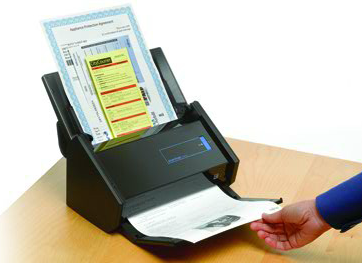
Want to go totally paperless in your church office. We share how you can go paperless in your church office, life or ministry. We've got recommendations for scanners, hardware, apps, and services that will help. Also listen or watch the podcast for strategies on how to make it happen simply and easily. You can save some trees if you care about that or same some cash.https://www.youtube.com/watch?v=nVlNRjp2DDw
How to Clear Up Paper Clutter with Scanners
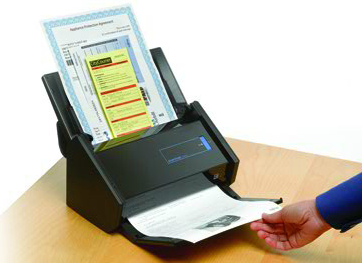
We started by talking about clearing out the paper clutter with two scanner recommendations from Rick Mansfield. Check out the Fujitsu ScanSnap iX500 document scanner. It's not cheap at almost $500, but Rick scans entire books with his. He creates PDF files that he reads on a tablet.For portable scanning Rick likes Fujitsu's portable solution. Fujitsu doesn't sell the one he owns, but you can get one like it. The Fujitsu ScanSnap iX100 portable scanner will do on the road. They both come with apps for your iPhone and do dual-sided scanning. Rick scans to PDF and then uses an app on his iPad to mark up documents or papers he grades in his teaching ministry.
 I like Epson inkjet printers since they print great photos. The Epson Expression Premium XP-820 Small-in-One All-in-One Printer only costs $100, costing about a $2 per character in that name. An updated version costs $200. It's a printer and scanner with dual-sided scanning. It scans to an SD card or to a computer, which I really like. It won't handle the big jobs like scanning a whole book in one job, like the Fujitsu above, but it works great for small jobs. If you live in 1992 you can still use these as Fax machines.
Scanner Apps and Services
People who don't want to spend a ton of money on a scanner or printer can enjoy scanning via their phone or tablet thanks to a couple of great apps. Office Lens - this app works with iPhone, Android and Windows Phone. It scans documents or images right into Office apps like OneNote or Word. The app will automatically find the edges of your document or image and make the perfectly shaped file. It then saves it in OneDrive, Word, PowerPoint, as a PDF file, an image file in the phone's image storage, or into OneNote. Scan documents, photos, whiteboards in classes or meetings, or business cards to name a few.
 Evernote and Scannable - we all love the Scannable app for Evernote. It works like Office Lens only it's attached to Evernote, the serve that lets you store notebooks of notes, audio files, to do lists, and documents among others. The app will also automatically recognize the edges of whatever you're scanning and then let you import it into Evernote. Add tags and name it whatever you like.Both of these apps work great. They let you attach multiple scans to a single note. If you don't like either of them, search your app store for scanner and you'll find dozens of mobile phone or tablet scanning apps.
Create Digital Documents
 Adobe Comp is a simple layout app that works on an iPad or iPhone. It's free but works best part of an Adobe Creative Cloud subscription. Add photos and text to create memes. I've used it to create announcement slides or ads posted to Facebook. Use it for digital signs in worship and as digital email fliers.
 Microsoft created a digital publishing tool called Microsoft Sway. Use Sway to tell stories. Instead of printing photos, create a Sway that tells the story of a recent outing of the Senior adults or youth to post to your website or share via email or on Facebook. It works online in a browser, on Windows phone, iPad and iPhone. You can see examples from Microsoft to get the idea (see image above).If you produce bulletins but want to save some money and paper, go with a digital alternative. You could produce a PDF version that you email before the service as a way to invite people to come. You could also use a service like the Live feature in the YouVersion Bible app. Their service lets you create an interactive bulletin that sits inside the app. Add announcements and prayer requests that members can see or even add their own. Put links to Bible passages you plant to use in your sermons. Add a link to your online giving site. Ask questions and take polls. Direct people to your website or social media sites. YouVersion plans to change the service so you may want to wait a few weeks before starting using it (as of early March 2016).Faithlife includes a similar feature in their paid subscription service Proclaim. The Proclaim software and service handles your worship presentation needs but adds the ability to connect with the Logos or Faithlife Bible apps much like the YouVersion Bible app and their Live service.Other suggestions in our episode included:
- Stop using new member cards and ask them to enter info on tablet or phone
- Consider an NFC tag that opens a link to an online presentation of announcements, videos about the church's ministries or your website
Note Taking Apps
Take notes using a great note taking app on your tablet or phone. Here's a list of our favorites:
- Notability for iOS
- OneNote for all platforms
- BibleNote Pro which imports a Bible into OneNote so you can take margin notes digitally
- Evernote
- Paper by Fiftythree
What do you use? Comment below.
Dealing with Digital Dissenters
We talked about the objection to using digital tools like Bible apps or note taking apps in public worship or a Bible study. Watch the video to hear how we would respond to the people who object.
Our Favorite Things
 The Raspberry Pi is a mini computer that's great for making your own projects. LaRosa suggested it for a game emulator to play GameBoy games and more. It's a useful media server too.
 Rick recommended the Automatic, a tool the plugs into the ODBII port on your car and tracks data about the car and how you drive. It's $100 but use this link and get $20 off.Antoine recommended the Amazon Echo and I piped in to also recommend the Amazon Echo Tap the mobile version. They're the new versions of Amazon's Siri-like tool that sits in your house and listens for you to ask it questions. It responds with all kinds of wonderful information. They aren't out yet, but will be soon.