

4 Updates to Logos Version 51
Every few months, Logos updates its software, and Version 51 was released recently with 3 cool new features. We’ll show you what dropped on June 2 and explain how to use them.
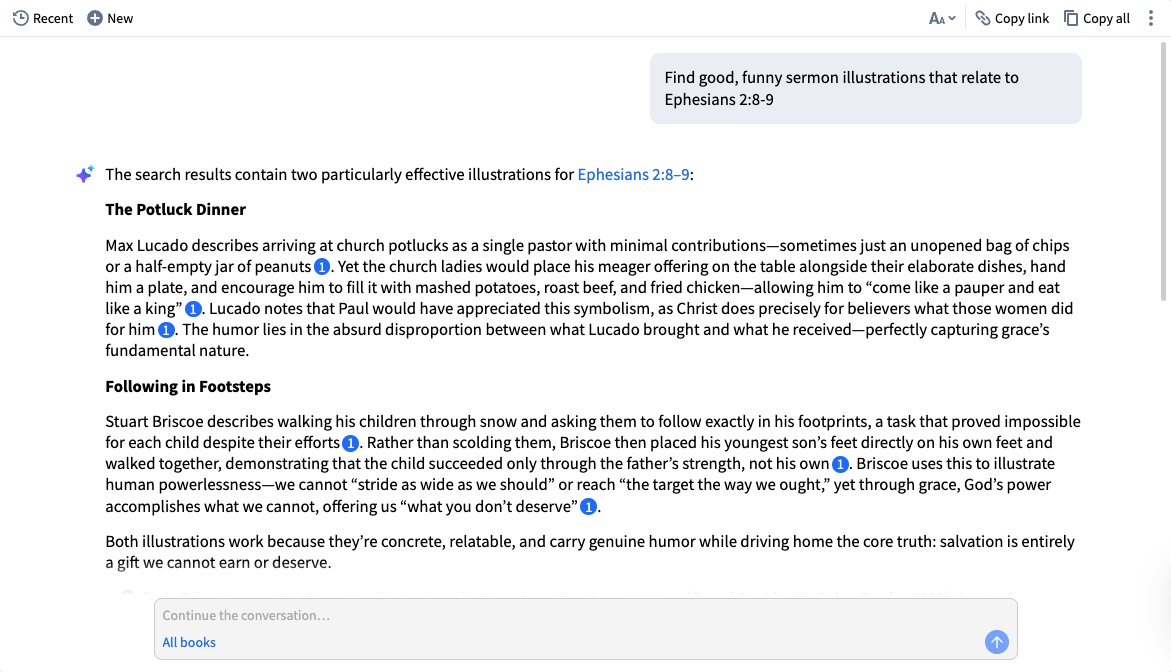
A couple fo the updates include adding Study Assistant to various layouts. The Study Assistant helps you study your library and does research for you using natural language. If you’re studying a passage for a sermon, you can ask, “Find good, funny sermon illustrations that relate to Ephesians 2:8-9.”
Study Assistant Integrated Into Getting Started Wizard
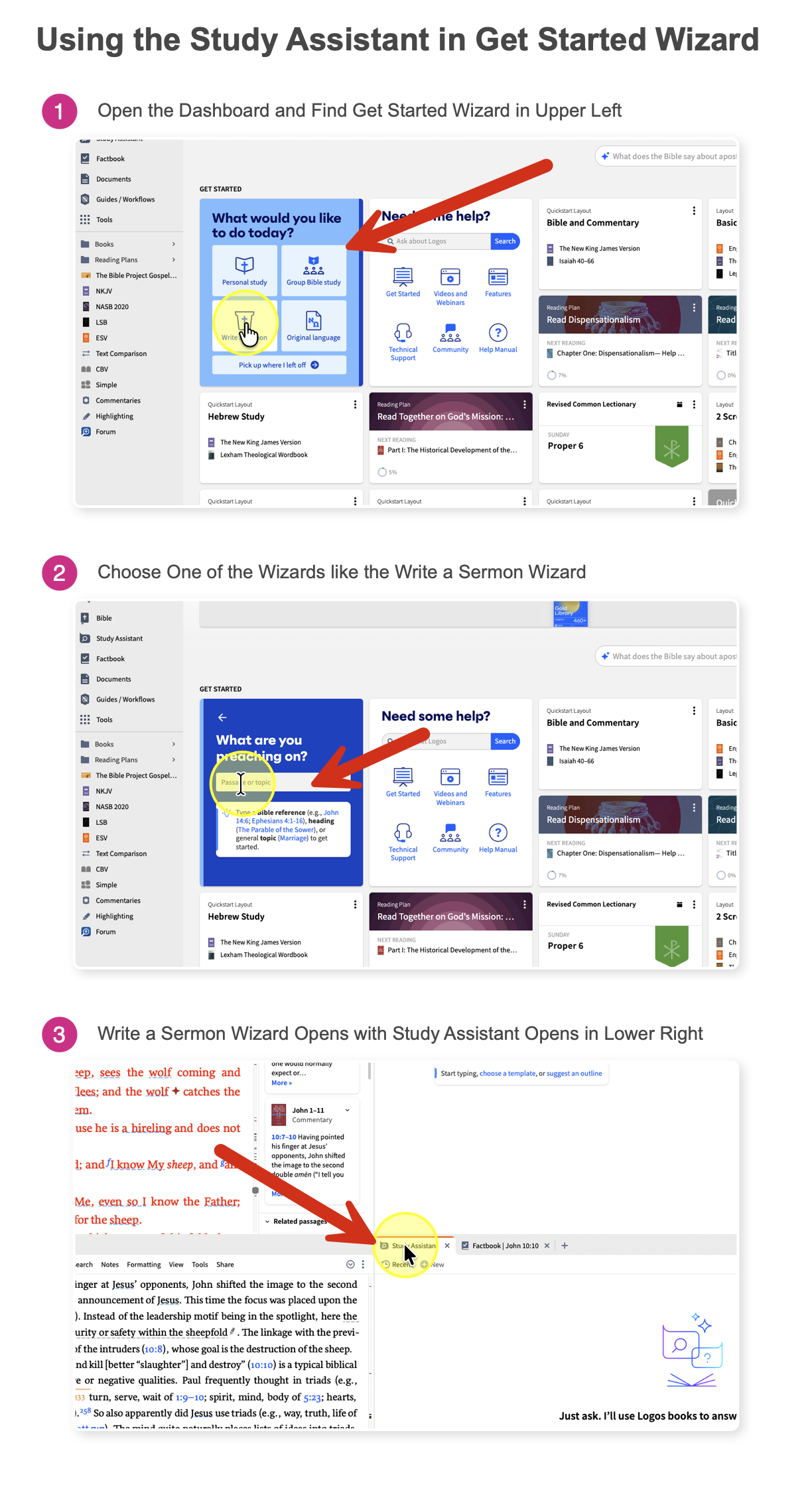
The Get Started Wizard found on your dashboard will now integrate the Study Assistant in the resulting search layout. Open the dashboard and look for the Get Started wizards in the upper left. It reads, “What would you like to do today?” Click the one you plan to use. In step 1 above, I clicked Write a sermon. It then transforms into an input box. Enter your Passage or topic (step 2 above). The Write a sermon wizard opens with the Study Assistant in the lower right corner of the layout.
For some reason, Logos did not add Study Assistant to the Original language Get Started layout. That makes no sense to me. As a workaround, simply open the Study Assistant after using the Original language Get Started layout.
Study Assistant Added to Most QuickStart Layouts
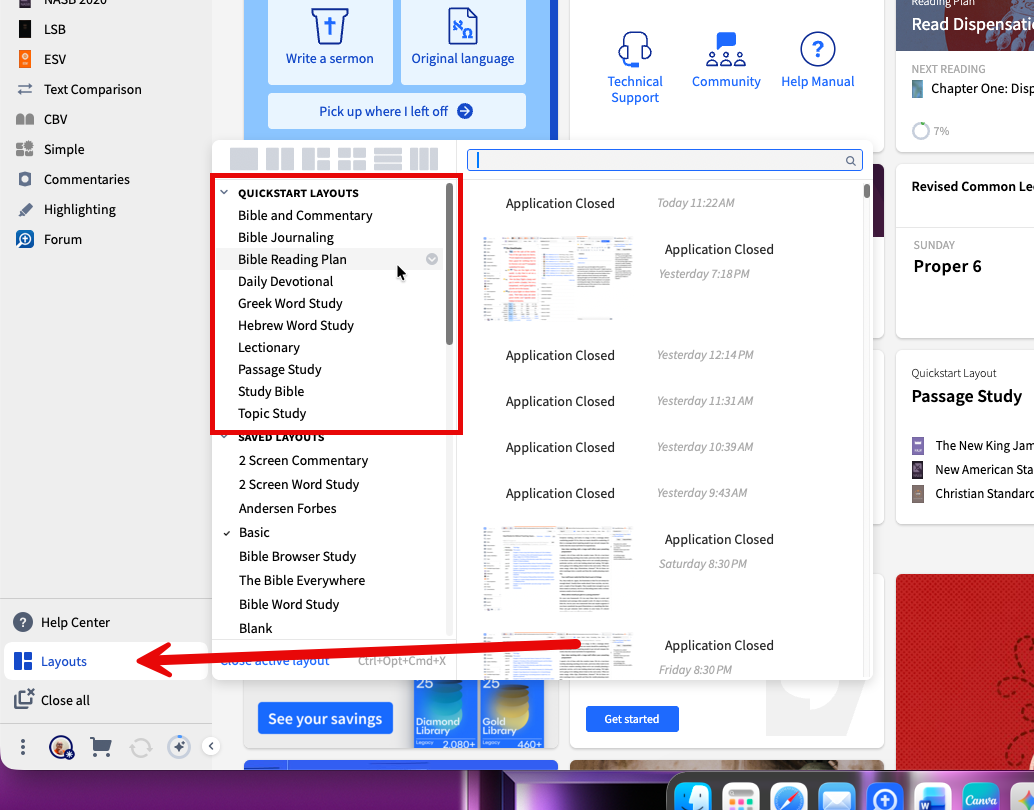
Users will now find the Study Assistant in the Quickstart Layouts. You find those by clicking the Layouts button on the toolbar near the bottom left, unless you place your toolbar across the top; then you’ll find it towards the right end.
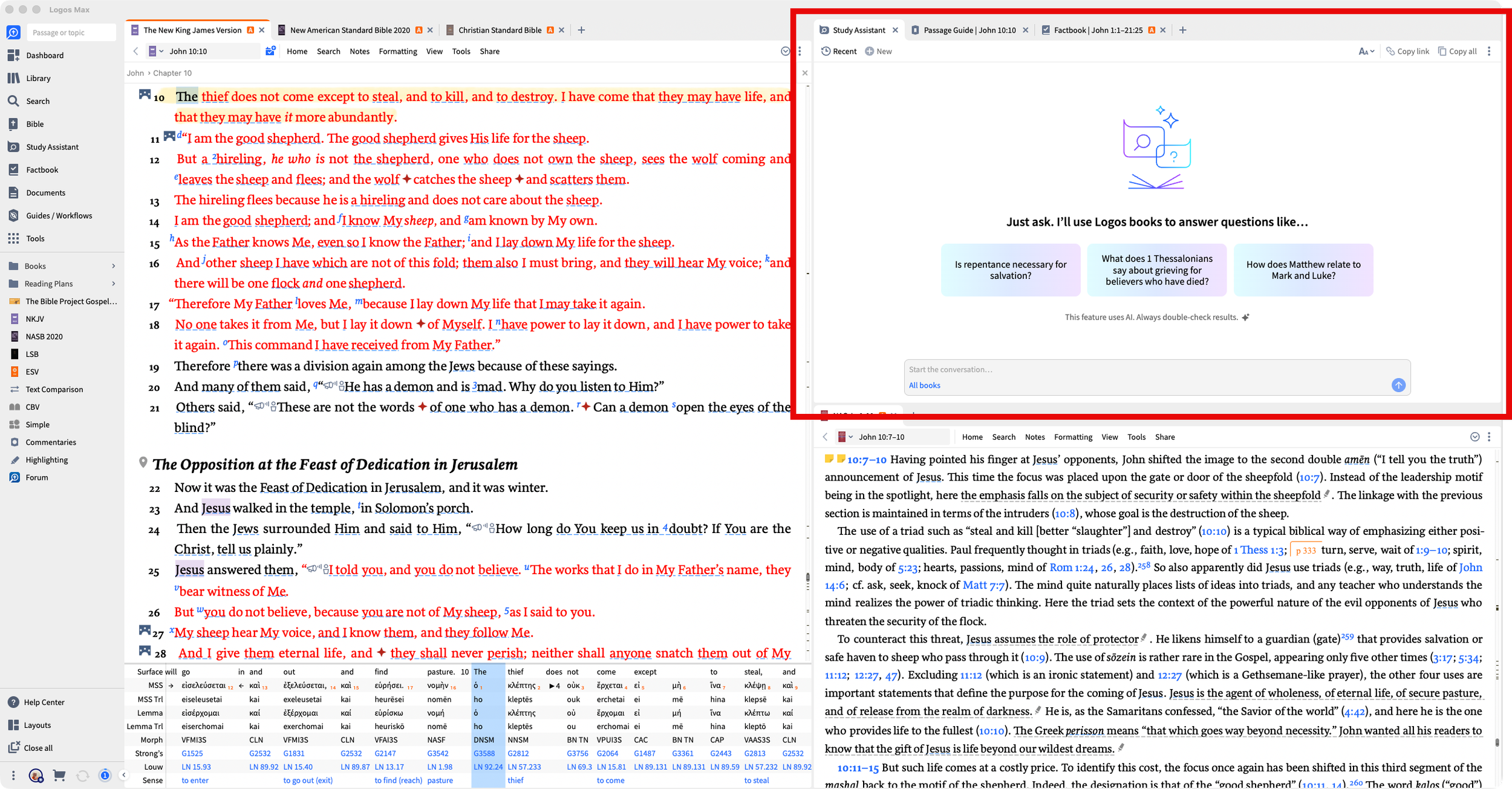
Above you’ll see the new Passage Study layout with the Study Assistant open in the upper right quadrant. You will find the new Study Assistant on all of these Quickstart Layouts except…
Bible Journaling layout.
Greek Wordy Study layout.
Hebrew Word Study layout.
Customize Your Quickstart Layout
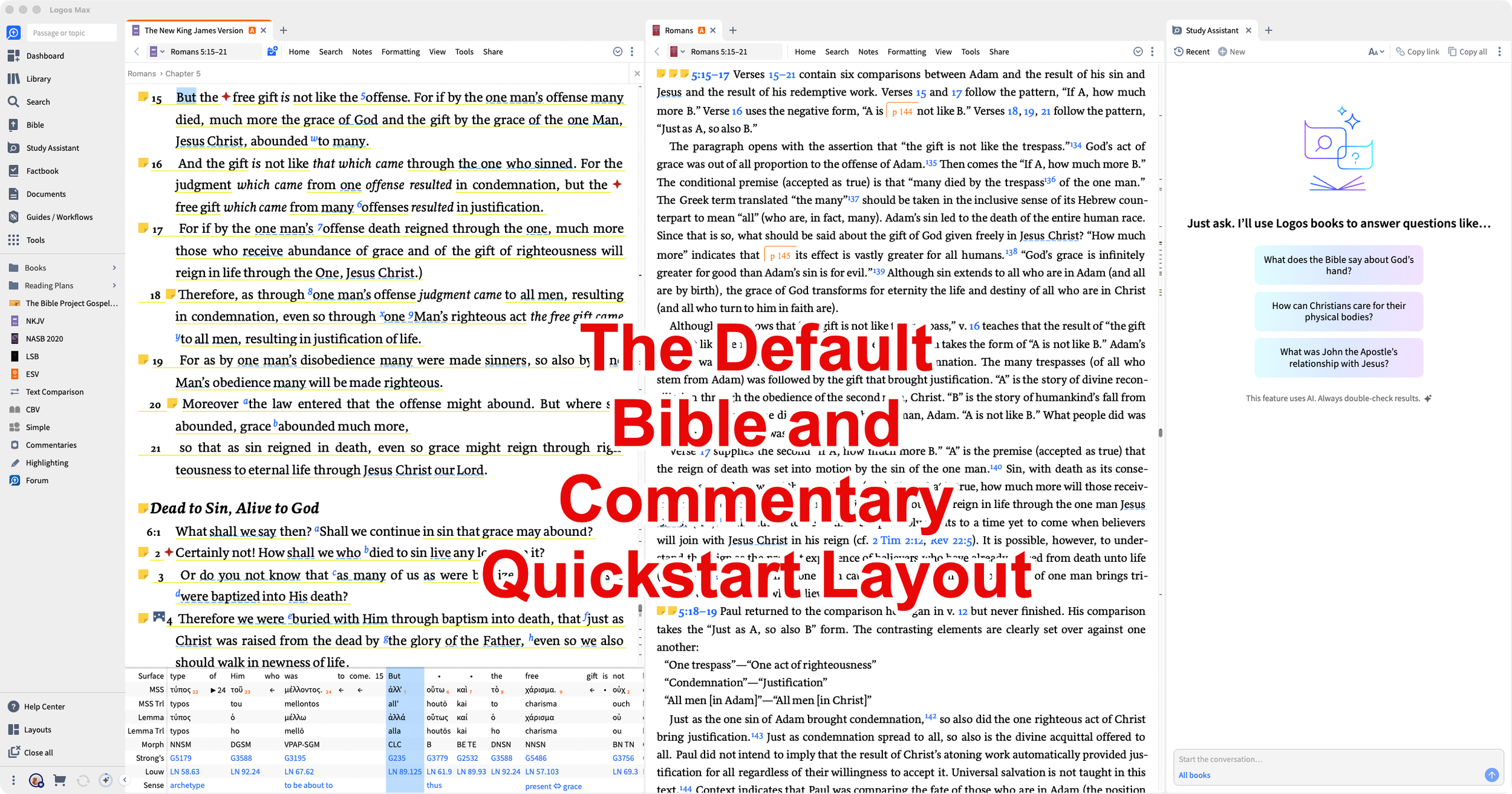
When you open one of the Quickstart Layouts, you can then rearrange the books or add more books/tools/guides to the layout. For example, when I open my Bible and Commentary Quickstart layout, it opens the NKJV, the New American Commentary, and the Study Assistant (see above). Logos selects your top translation and top commentary based on the prioritization set in the Library window. I might want to add another translation, another commentary series, my Bible Notes, and the Copy Bible Verse window.
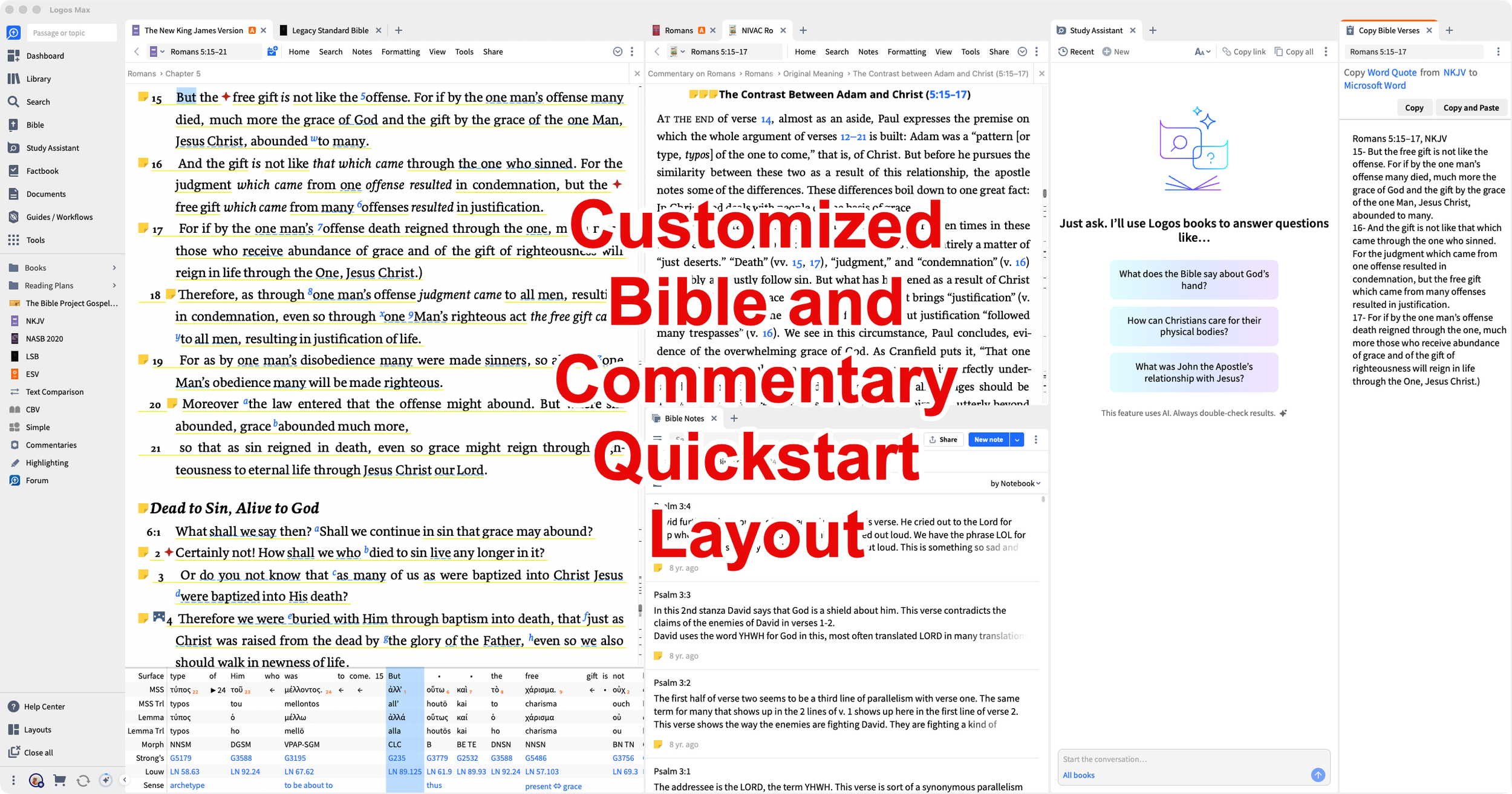
Open the other books, then save the new layout.
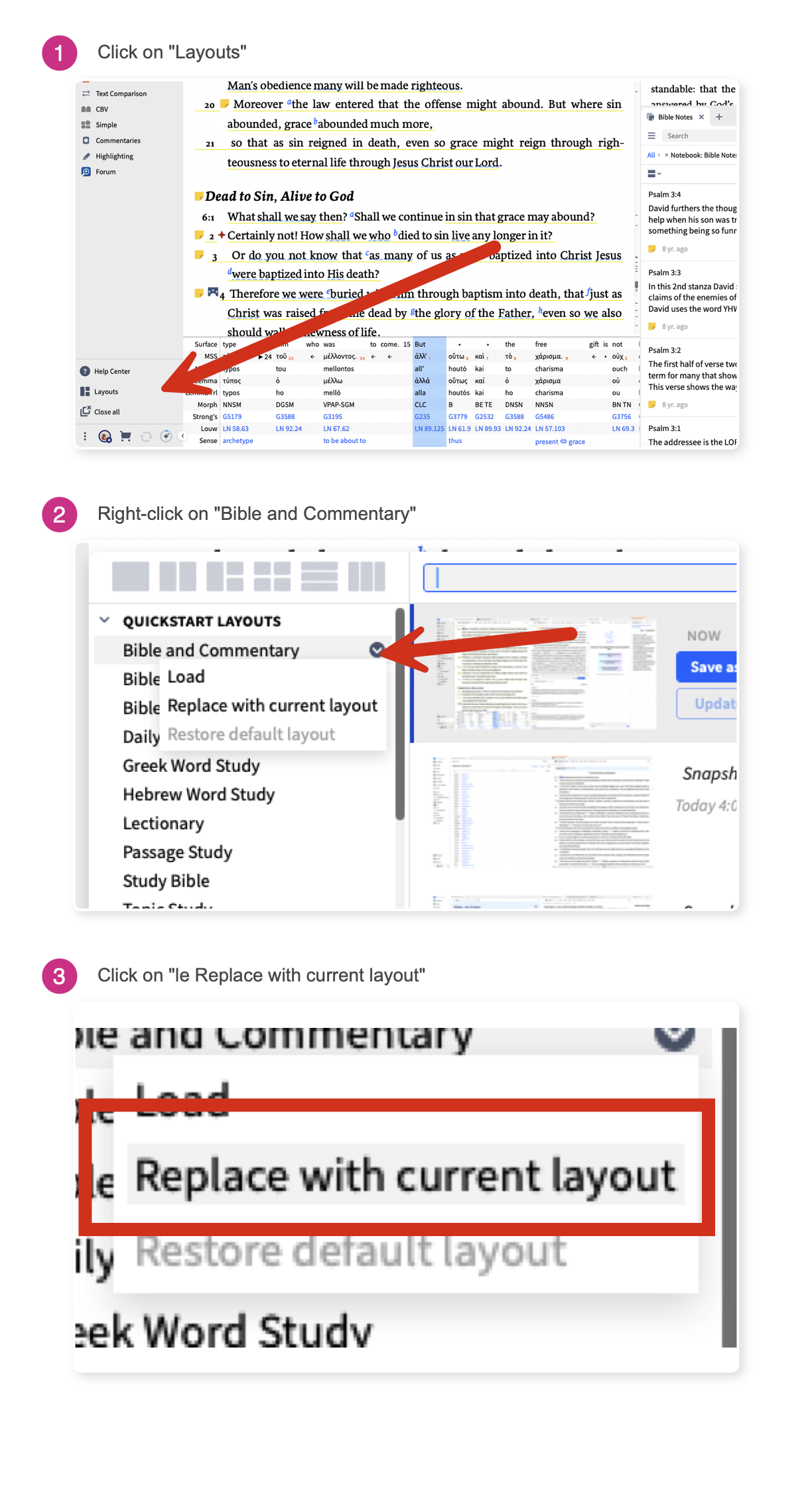
First, click the Layouts button in the lower-left corner (step 1 above). Choose the layout you’re customizing from the list and right-click on it (step 2 above). You can also click the small drop-down arrow to show the menu. Then click on Replace with current layout (step 3 above). This saves layout. You see the layouts you’ve customized when you click the Layouts button.
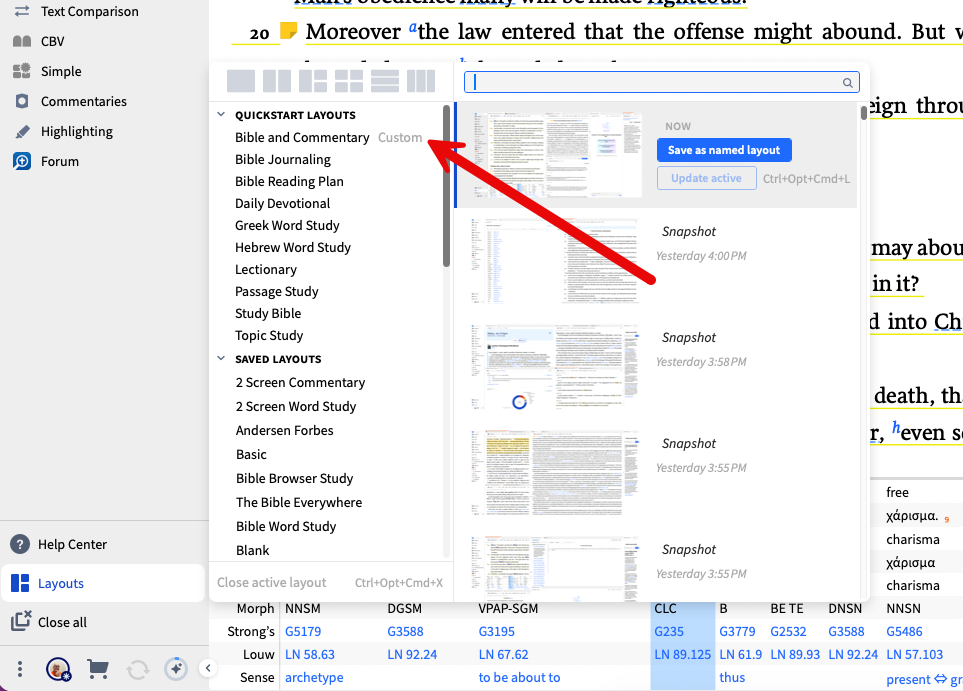
To reset to the default layout format, right-click a customized layout or click the drop-down arrow and choose Restore default layout.
Reading Plan Now Shows a Reading Plan Button and Progress Bar
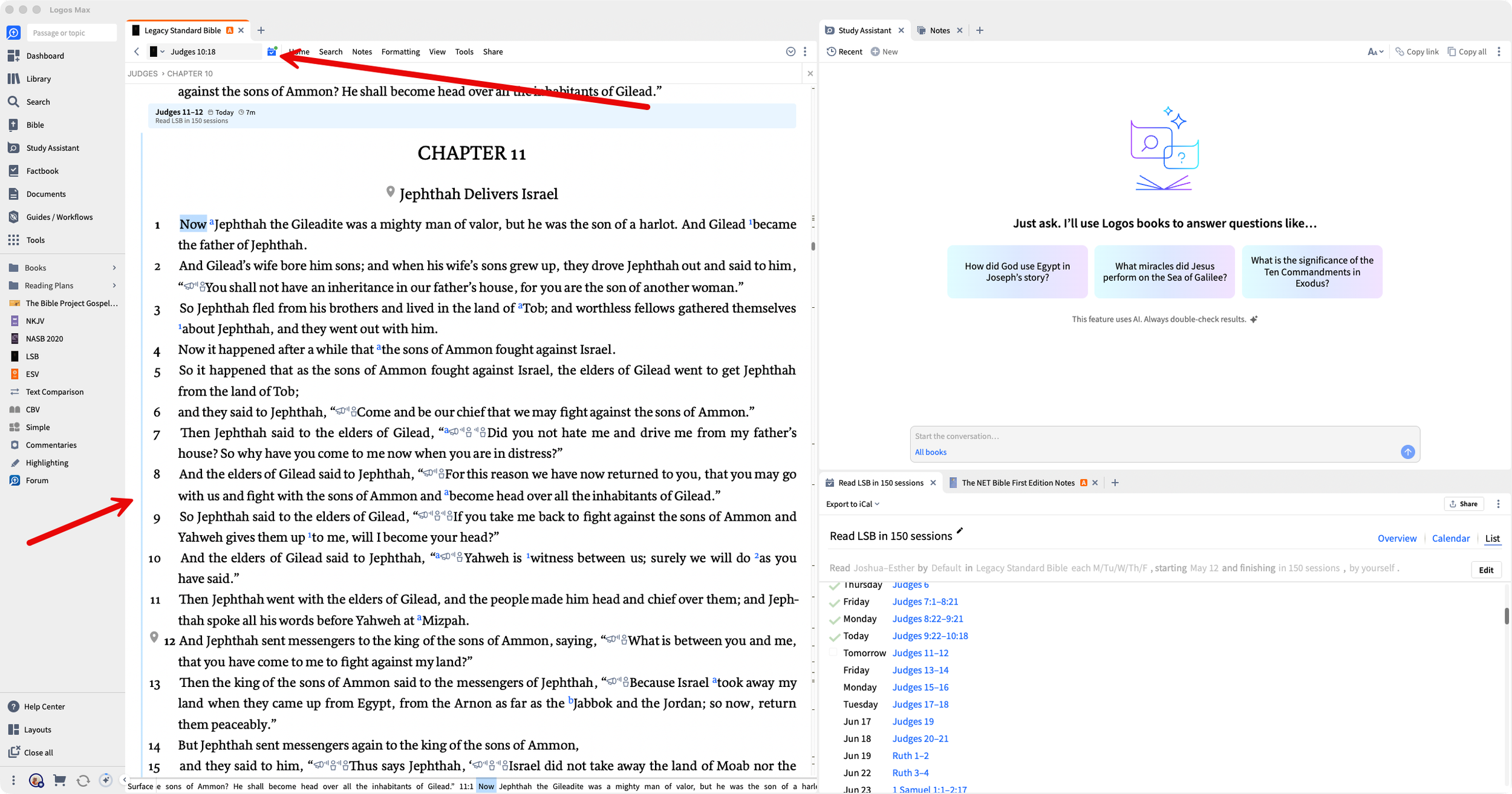
When you open a book or Bible with a Reading Plan, you will see a button on the toolbar next to the reference box. Click it, and it opens your Reading plan. Hover over the button, and it shows a pop-up to tell you what you're supposed to read next.
A red button means it’s overdue. A green button shows you’re on time with a reading today. If there’s no dot, then you don’t have a reading due today, but you can still see the plan.
The button takes you to the passage if it isn’t displayed in the current screen.
If you don’t have a Reading Plan in your preferred Bible, then the button appears and lets you create a new Reading Plan.
You will still see the button even if your reading plan is not dated.
You won’t see this on the Mobile App yet, but it is on desktop and the web app.
You’ll notice a blue line along the left margin of the book or Bible. You will see this if you have a reading plan for that passage. You will see this on all platforms except for iPhone or Android phones.
Reading Plan Creation Wizard Now on Mobile
We showed you the new Reading Plan Creation Wizard on desktop. This didn’t work on mobile devices until version 51. With version 51, you can now use it. Click the previous link to see more about the wizard. Try it out on your phone or tablet.
You can learn more about these new features in the brand new Logos Community Forums.
The Study Assistant doesn’t show up unless you’re paying for the monthly subscription to Logos. You can get a 60-day free trial from my partner link.

Other June specials include the following.
30% off The Trinity and the Bible Mobile Ed Course - $68.40.
30% off John Piper works.
30% off Pauline & General Epistles tools.
40% off Eerdmans books.