

6 Reasons to Switch from Accordance to Logos Bible Software
A lot of people who use Bible software want to know if there's a good reason to switch from Accordance to Logos Bible Software. we've got 6 reasons to switch.
With the upcoming release of a new version of Logos Bible Software, many Bible software users might want to switch from Accordance to Logos. Why would someone go through the hassle of making the switch from Accordance to Logos Bible Software even though it means buying much of the same content you already own in the other program? Switching also involves learning a new user interface and finding new sources of learning or support for the new Logos.

Here are 6 reasons to switch from Accordance to Logos Bible Software.
Get Logos 10 With Biggest Discounts Ever Offered
In August, Logos will offer the most significant discounts on Logos 10. They called it their "Farewell Tour 2024 because Logos 11 will hit their store soon.

Click the image above, which will take you to my affiliate link to get...
- Full Feature Upgrades at up to 65% Off if you own Logos 10.
- Get a new Logos 10 base package and save up to 50% off for those upgrading from an earlier version.
- For first time buyers of Logos 10, get 5 free books.
Learn about the new era of Logos that will come with Logos 11.
Robust Sync Elements in Logos Bible Software Way Ahead of Accordance
This might seem like a strange place to begin, but it's one of the features promised when Accordance 14 came out a long time ago, and they still don't have it.
Syncing does more than keep your content, settings, and user-created content in more places. Change settings on your desktop, and it will sync to your laptop. Add notes on a verse with your phone while listening to your pastor, and they'll end up on your desktop. If you're studying on a friend's or family's computer, you can hit the Logos Web App, and your work will sync to other devices.
Syncing makes Logos great, but it also helps back up your work. If your computer dies, you can work on an iPad or a Samsung Android tablet. Then, once you get a new computer, install Logos, and your work will be ready to use after it finishes downloading and indexing your library.
Great Features that Make Logos Easier to Use for Bible Study
I could write a post on this topic alone. We may discuss it later, but here's a bullet list of why these features make Logos Bible Software a superior option.

- Advanced Search Features—Logos struggled with basic search, so many of us searched Google instead. That's changed with versions 10 and 11, which promised to improve it with built-in AI features. You won't get these in Accordance. See the link to learn more about how Advanced Search in Logos simplifies your research.
- Use of Louw-Nida Numbers—Louw-Nida Numbers offers access to the lexicon that many students love. The book description on Logos.com says, "This lexicon differs from other lexicons in that it does not arrange words alphabetically and does not give one listing of a word with all of that word's meanings after it. Instead, it breaks words down by their various shades of meaning." (See Above)
- Unicode Fonts - Biblical languages work better when they use Unicode fonts. You can type in Greek or Hebrew; they will look more readable.
- Print Library ISBN Scanner—Logos will let you scan your physical library books and show you search results from those books in your library if they offer them as Logos books. You can see where the search hit shows up in your book. You can take it off the shelf and read it or buy it from Logos. We learned about this new feature in our article on what's new in Logos Mobile 10. (See Below)
- Search books you don't even own - When you search your library, Logos also offers links to books you don't own. Some might not like this, calling it spam. But, if you need some information in a book you don't own, you can quickly buy it, download it, and incorporate it into your research.

Switch from Accordance to Logos Because of the Logos Mobile App's Full Set of Features
For years, I complained about Accordance's weaknesses on Android and iOS. Sadly, it never got better. Now, you can't even download the Android app from the Google Play Store. You must get it from the Amazon App Store for Android or Accordance's website. Even that link tells you it's on the Google Play Store, but if you click their link, you'll get an error saying the link isn't available.

Many Accordance users report issues with syncing content directly via their terrible sync feature or Dropbox. To sync with your computer installation of Accordance, you have to set both the app and the desktop program to sync over local Wi-Fi.
You can also connect both apps to your Dropbox, requiring you to rely on a third party. People complain that Dropbox sync often corrupts notes files.
Compare that to the iOS and Android versions of Logos. They include a large percentage of the desktop features. Syncing works quickly and automatically in the background soon after you open any version of Logos while connected to the Internet.
Accordance includes less than a third of the desktop program's features. That's a generous percentage.
iOS includes a little more than Android, but not much. Both are essentially book reader apps with unreliable note-taking and highlighting features. You can do some Bible study.
Logos includes many great language study tools, commentary searching, and much more.
Quick and Useful Updates
Logos updates their app often and usually with more stability than less. Accordance updates slowly, and the mobile seldom gets updates. Logos mobile on iOS went from version 30 to version to version 35 (all minor updates) in 8 months. That's a massive benefit if you use a feature that doesn't work. Logos will take your bug report and create a ticket, and their developers will work on it quickly. If they can fix it easily, it often gets fixed in a week or a month. Occasionally, it takes a little longer.
Accordance received only four updates on iOS in the last two years. All of them were minor bug fixes. As we said, you can't even get it on Google Play Store. The latest version (2.2.3) came out in Summer 2021. Not even one minor bug fix has come out since.
Significant updates on Logos for Desktop come out about once every two years. Accordance went from 13 to 14 two years ago. However, Logos aggressively updates their Desktop app with minor releases that add new features. They come out often monthly. Accordance for desktop doesn't update nearly as quickly.
The update to version 14 promised many great features. Two years later, we still do not see many of these, like an online version and syncing over the internet without needing Dropbox.
Best Online Bible App Bar None

We've looked at online Bible study apps in the past. We posted that here in 2020, and it needs an update. However, the best still comes from Logos.
The Logos Web App includes many features available in the Logos Bible Study App for your desktop or laptop. It's as good as or better than the mobile version.
The user-interface looks different on the web, but once you open your books and get to work it behaves much like the desktop. You have word study tools like the Exegetical Guide, reverse interlinear features, great searching features, and other guides (Bible Word Study, Sermon Starter, Passage Guide).
The Factbook offers a lot of the features from the Desktop as well.
Sadly, Accordance users don't have an online version. There's a promise that it will come soon, but I doubt it will. When it does, it won't likely offer more than basic book reading and searching tools. I hope I'm wrong, but I don't think so.
New AI Features in Logos Bible Software
I'm working on an article for ChurchTechToday.com regarding their new AI tools, and I'll link to it here.

The new features include Insights. Open a book, and you'll see a button on the book's toolbar labeled Insights. This button gives you cards showing information from Related books, Related passages, and Cross References.
A nice addition to the Search tool lets users search with natural language. Open Search and set it to Smart using the drop-down list button at the top right. Then, enter a natural language search. I entered "Where did Jesus first talk about discipleship?" and it returned hits from several spots in multiple translations since I had it set to search my Top Bibles.
The Synopsis tool in the resulting search will give you an overview of your search results.
I then switched my search to Downloaded Books, which yielded results for many book types. Again, the Synopsis tools summarized the results. You will see a number referencing the sources of the synopsis summary.
Those are just a few of the new AI-empowered features in Logos. I don't think Accordance has AI tools on its radar since it's still working to release the promised features from version 14. The company has a tiny programming team, so I understand why it's taking a long time, but I fear it will get left behind.
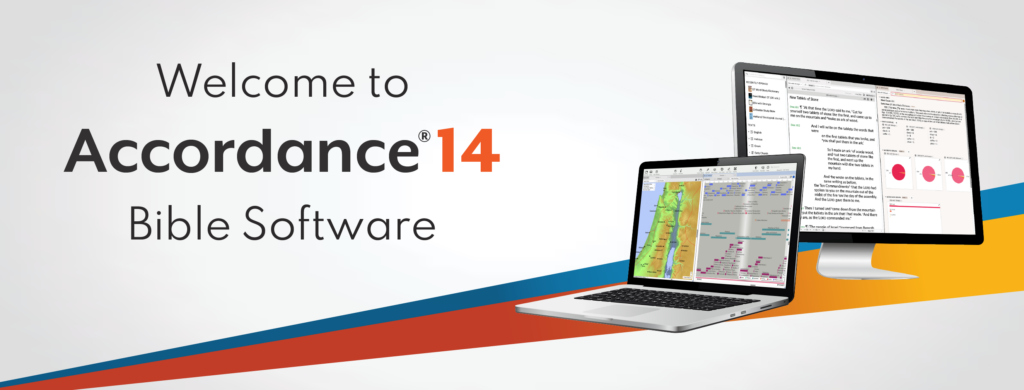
What's new in Accordance 14?
What's new in Accordance 14 Bible software. We go over what those new features are and how to use them with video.
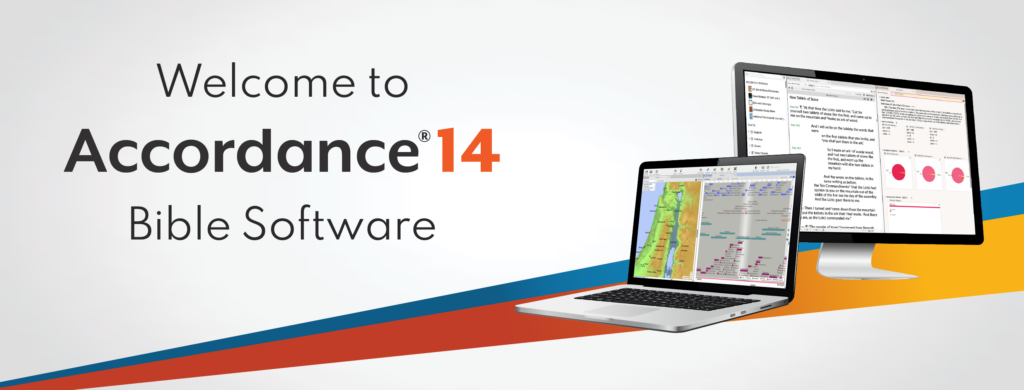
The Accordance 14 update came out with interesting new features and a troubling lack of quality control. Even though Accordance 14 came to users' computers last fall, I held off writing this until it became stable. While it's still not great, it's better on Mac, so let's look at what's new in Accordance 14 Bible software. Check out the sections below for each major new feature and the video demonstrating the Accordance 14 update on macOS. It looks and works the same on Windows with minor exceptions.
Below you can watch the demo video made by Accordance.
Open Accordance 14 Dynamic Word Study
Accordance 14 adds a new word study tool that you can use to study English, Greek, or Hebrew words. Bible students can understand the word and learn how to teach, preach, or apply it personally.
The most used way of opening these word studies comes from the context menu. Select a word in your Bible and right-click on it. Then look for the Research section of the right-click menu. Under that, you'll see Word Study. Select it to show the fly-out menu. You'll see options for Word or Key Number.

Each option shows content about the Word you're studying. Choose Word, and it will search the English term. Choose Key Number, and it will search using Hebrew or Greek Key Numbers as the foundation. A Word-based Word Study shows details about that word, like...
- Word Count - how many times it shows up in the Bible.
- Definition - shows the word in your highest-ranked dictionary.
- Text Compare - shows the difference between translations in English.
- Visual Details - pie or bar graphs on what Hebrew or Greek words were translated into English words.
- Dictionaries - shows your top five Bible dictionaries for that word.
The choice opens a new window with a Word Study tab open

Users open an Accordance 14 Word Study using the File menu. Click on File and New Tab. Then look for the Research section. Under it, you'll see Word Study with a fly-out menu offering three options for English, Greek, or Hebrew word studies. Choose one by clicking it. This opens a new tab ready to perform word studies based on the open Bible.

If you haven't opened a Bible yet, Accordance 14 will connect the new tab to your top-ranked Bible with language study tagging. You can also open the new tab using the New Tab button on your toolbar. Find the Research section, and click Word Study just below the section title. Choose one of the three language options to open a new Word Study tab.
How to Use Accordance 14 Dynamic Word Study
With the Word Study tab open, type in a word. You can type English words, and the results showing up after you hit enter come from that word in the translation selected in the drop-down menu in the upper left of the Word Study Tab.
Change your translation by clicking on the drop-down and selecting a new translation. This changes the results in the tab.
You'll see a few sections in this tab based on what kind of word you searched for. For example, an English search gives you...
- Word Info - content from your top English Bible dictionary.
- Text Compare - shows a list of the instances of your English word in the top translation. Click the plus icon to add other translations based on your text ranking in the Library.
- Word Graphs - includes Pie, Bar, and Frequency Graphs based on usage in your top Text. Add texts to see more graphs.
- Dictionaries - a list of your Bible dictionaries with that word in them.
Custom Phrasing
With the new Custom Phrasing feature, users can create diagrams of the text to show the text in a visual way. This shows the relationship between parts of the text to other parts.

Go into a Bible text in any language and use the setting drop-down box in the upper right corner of the pane.

Select Phrasing, and a new menu flies out to the right. The options include...
- Phrasing Break [Shift + Enter] adds a new line to a verse so you can show a phrase below another in a single verse.
- Phrasing Indent [Shift+Tab]moves the margin on the left of English texts over one tab at a time to place that phrase below a specific word above it.
- Phrasing Delete [Shift+Backspace] removes the tabs created with Phrasing Indent or Break.
- Hide Phrasing [No KB Shortcut] temporarily returns the look to the prior state. After doing this, go to the menu and click on Show Phrasing to bring it back.
- Lock Phrasing [No KB Shortcut] keeps the changes in place.
Why would a user want to create Custom Phrasing? This shows how various parts of the text relate to other parts of an idea. I use them to show things like major ideas and subpoints. You can also create visual lists in a text, like Galatians 5:22-23 which tells us about the "fruit of the Spirit."
Learn the keyboard shortcuts listed above to create these diagrams. It will speed up creating these Custom Phrasing outlines.
Easy Answers

Some books include things like questions with space to answer. In paper form, users could write in the space provided. Think about a workbook for your Hebrew class in Bible college or seminary class.
Digital versions of these books may still show discussion questions at the end of a section or in a workbook, but they're not easy to work with. You can add notes. But now Easy Answers helps for books that take advantage of the feature.

Easy Answers promises to make this possible in Accordance 14. You'll have to own a book that supports the feature. So look for this in future updates to books. I don't own any I know of, so I can't recommend or show you this feature. You'll have to search your library or the Accordance store for books with Easy Answers support. I know that Christian Worker's Commentary has this feature. See the screenshot above.
I will warn you that this feature is buggy on Mac. I experienced a few crashes while using it. It seems that when you open a Bible by clicking a link in the commentary, that it crashes once you click in the text box to add your answer.
Accordance 14 Offers New Citation Formats
Accordance added a few new official citation formats. You could always use Turabian, SBL, and Simple citations. But now you can use APA, Chicago Manual of Style, and MLA.

To change the default format, go into your preferences or settings. On a Mac, use the Accordance menu in the upper left of the menu bar. Then choose Preferences. You can also use the keyboard shortcut COMMAND + , (the Command key and the comma).

The above sets the default form of citation. Select something you want to copy with your preferred citation format. Right-click the selection and choose Copy As in the pop-up menu. Then choose Citation in the new flout menu. You could also use the keyboard shortcut COMMAND + CONTROL + C on a Mac.

Unicode Text in User-Created Tools
Tools created by the user can now use Unicode Text. Why is this important? Users creating tools in languages like Asian or other non-Latin languages.
Quick-Click Verse Picker - AKA Book/Chapter/Verse Chooser

Click on the new Quick-Click Verse Picker tool in the upper left corner of the Bible window in Accordance 14. Then a drop-down shows up with abbreviated Bible book names. Pick your book, then the chapter, and the verse. It opens the Bible to that reference. See the above animated GIF.
User Created Dictionaries & Commentaries

Accordance 14 offers new options for user-created tools. As a result, you can now create custom dictionaries, lexicons, and commentaries.

To create these, open the File menu, choose User Files, and then New User Tool.... Creating these tools is similar to creating General tools in previous versions.
Recommendations on Buying and Using Accordance 14
Should you go and upgrade to Accordance 14? Because it's not that expensive, I'd recommend you do so. At this point, version 14 has a lot of bugs that the company needs to fix. The Windows version has many more than the Mac version. Also, the iOS and Android verses are woefully behind the competition. If you buy the upgrade, you might want to keep 13 around by entering your Applications folder in macOS and renaming Accordance to Accordance 13. Then you can install Accordance 14. Look at our post on downgrading from 14 if you already installed it.

How to Downgrade from Accordance 14 to Accordance 13
People don't like Accordance 14 because it's buggy and many new features don't work. So here's how to downgrade to Accordance 13 from 14.

Accordance 14 came out a few weeks ago, but many report significant problems with the update. That's why people want to downgrade from Accordance 14 to Accordance 13.
Fortunately, downgrading safely is easy. Here's how to downgrade from Accordance 14 to Accordance 13.
How to Downgrade to Accordance 13 from Version 14

- Right-click the file in the Applications folder on your Mac. Sorry, this only works on a Mac.
- Choose Rename. If you have Accordance 14 installed, then rename it to Accordance 14. It will, by default, be named Accordance.
- Now hit Enter on your keyboard or click anywhere outside the pop-up menu. You've now renamed the app to Accordance 14.
- Install Accordance 13 by downloading it from the Accordance website. Double-click the downloaded file, which is most likely saved in your Downloads folder.
- Drag the file to the Applications folder. This will appear in a window that opens when you double-click the downloaded file. See below.

If you want to clarify that this newly installed copy is version 13, you may want to follow the above steps to rename the new app Accordance 13. Then double-click it or open it from Launchpad.
This should keep all of your customizations and settings in place. You won't need to download the library files again.
How to Backup Accordance Settings
Some people in the Accordance user forums report that this method messed up their library organization and settings. To ensure you can get yours back, backup the right files to quickly restore them if installing Accordance 13 alongside 14 messes up your installation.
Open Finder and go to your Home folder. It will probably have your name on it. Then click on the Go button on the Menu bar while you hold down the OPTION key on your keyboard. This shows Library as a destination. Click on Library and then release the OPTION key.
Click on Application Support and then Accordance in your Library folder. You could just copy all the folders in this Accordance folder to a temporary place, like your Desktop.

After downloading Accordance 13 from the Accordance website, open the file, and the DMG will pop up with two icons. One for Accordance 13 and one for your Applications folder. Drag the Accordance file into the Applications folder. I'd suggest renaming Accordance to Accordance 13, so you can differentiate between versions 14 and 13. Now open it.

Everything should be as it was when you finished customizing things like your library and display theme. If your Library is not in the custom order, you place it in, then restore your files from the backup. You don't really need to restore all of them. Only the Text Library.apref file and the Tool Library.apref file need to be copied back to the proper spot.
Close Accordance, open two Finder windows with the backup folder in one, and open the other to Library, Application Support, Accordance, and Accordance Preferences. Drag the Text Library.apref and the Tool Library.apref from the backup folder to the Library folder.
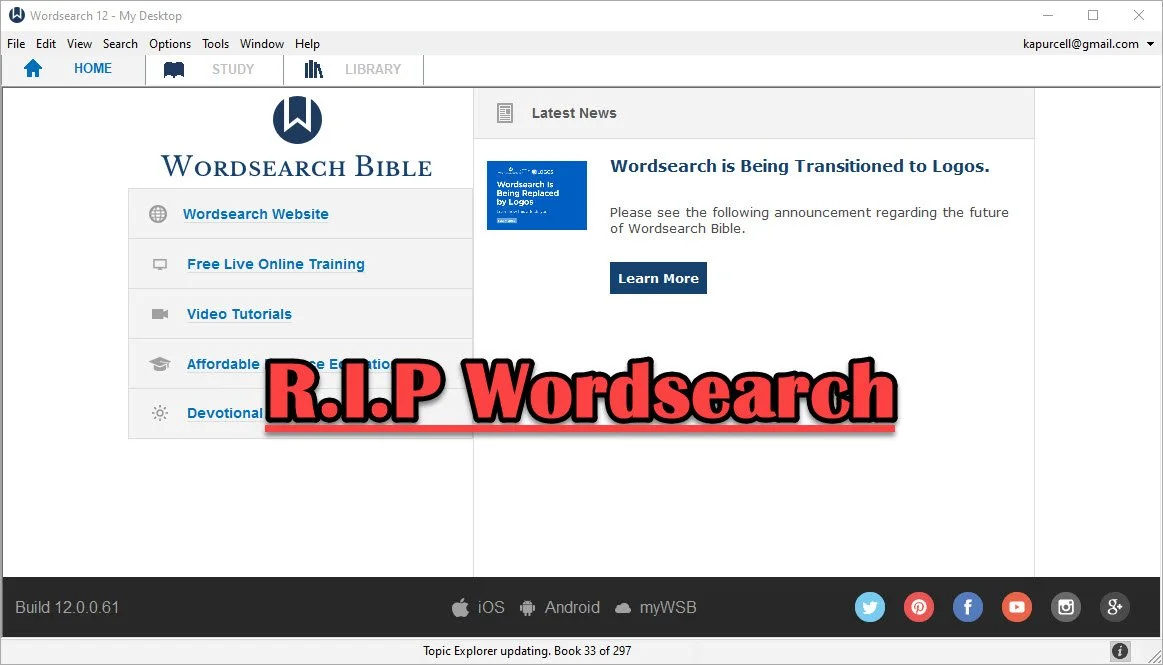
Wordsearch Support by Logos Ended, Now What?
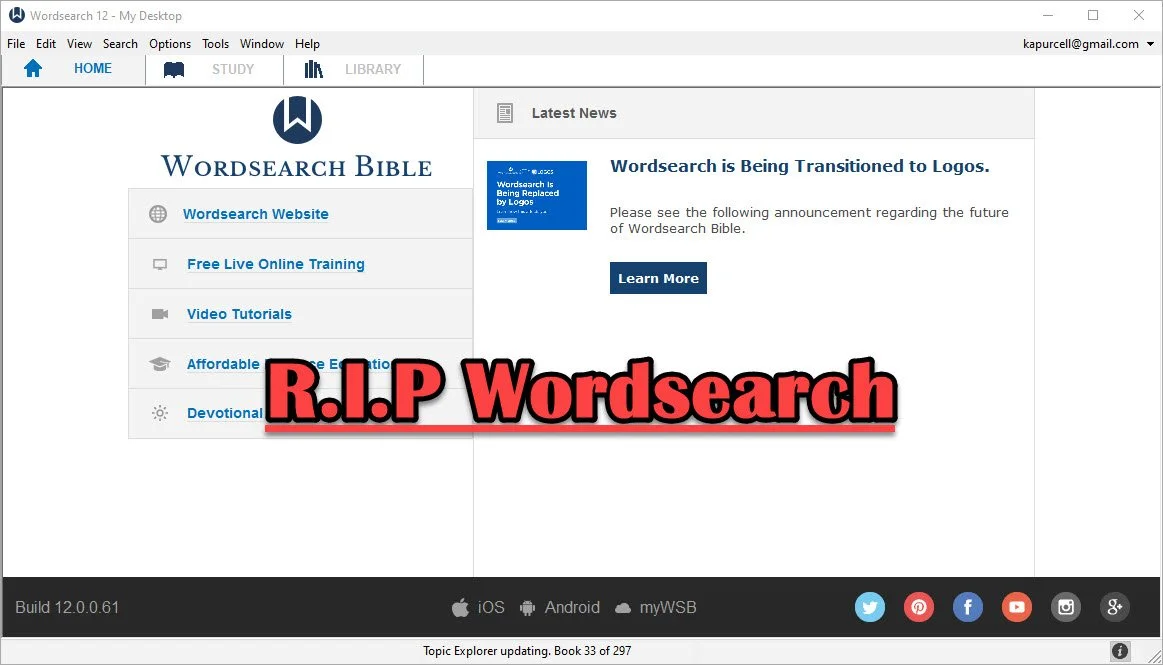
People who used and loved Wordsearch were likely disappointed when Logos and Faithlife bought the company and announced they would eventually shut it down. That time has come so what should a Wordsearch user do now? Here's the best way to continue studying the Bible digitally now that Faithlife and Logos ended support for Wordsearch Bible Software.
Logos Stops Wordsearch Support: What Does It Mean to Me?
Logos announced they planned to stop supporting Wordsearch, but that doesn't mean you can't use the software. You can. Just don't uninstall it or buy a new computer unless you have the installer and your books backed up.
Logos sent out an email to Wordsearch owners that said:
- You will not be able to download the desktop and mobile apps in the future
- You will not be able to download your books to the desktop/laptop or mobile Wordsearch apps.
That's frustrating if you want to keep using Wordsearch after buying a new computer, phone, or tablet. You'll need to find a new different way to get access to the program or start using Logos or some other app or program.
On your desktop or laptop computer, you can do a backup of your computer that includes your installation of Wordsearch and find a way to port it over to your new computer or a computer that you had to reformat or erase. That's more complicated than we have time to discuss in this post. A Google search will likely find dozens of options for Windows or Mac users.
Wordsearch users can also keep using the program on their current computer, phone, or tablet. The company won't cripple Wordsearch apps for software already installed. So keep using it knowing you won't get app or book updates. You also can't add new content, so if that commentary series you love gets a new volume, you'll have to find it in another format to enjoy it digitally.
Start Using Logos Instead of Wordsearch
Logos would love for you to start using their software. That's the whole reason they bought out Wordsearch, to get their users and their library of books.
If you want to start using Logos, then go over to the Logos website and see what version of Logos they gave you when they bought out Wordsearch.
In addition to a version of Logos, you will also get most of your books from your Wordsearch library in Logos. They will download after you install Logos on your computer or mobile device. A small percentage of books won't make the trip over to Logos.
See our post on using Logos and setting it up like Wordsearch.
Switch to Accordance
The best alternative comes from the folks at Accordance Bible Software. They offer a complex and powerful software program that brings you every feature you need to study the Bible at a scholarly level but also works well for pastors, teachers, and lay Bible students.
Switching from Wordsearch will cost more than going to Logos since Logos offers free software and gives you most of the books you own in Wordsearch format. However, you may not want to use Logos. You can get the $200 Crossgrade for Accordance. Crossgrades take the term "upgrade" and marry it with cross-over to form a crossgrade.
In addition to the Wordsearch crossgrade, you can crossgrade many of your books. Just contact Accordance to learn what it will cost. In both cases, you'll need to fill out a form proving you already own either Wordsearch or the books you want to buy via crossgrade.
Other Bible Software Options

Logos and Accordance aren't the only games in town. You can also find great options from the following:
- n Olive Tree Bible - Olive Tree provides a decent desktop or laptop computer program, but also has the best mobile app you can get on iOS or Android. They sell a lot of books too.
- Laridian PocketBible - You won't get as many books with Laridian as you will with Olive Tree, Accordance, or Logos. However, the developer does a nice job of creating a stable platform with some unique features, like showing 4 or more window pains on mobile, something can't get from any other app that I know of. With Book Builder you can make your own books for PocketBible on Android, Windows, iOS and Mac.
- e-Sword - The long time free Bible study program from Rick Meyers will seem simplistic compared to the other programs in this article. However, if a user doesn't like Logos and can't afford the others, then free books from e-Sword will help you with your study needs until you can afford something a little more advanced. Some Wordsearch users will find that it's all they need. If you want some modern Bibles and books you can buy them from eStudySource.

Recommendation
What should you do if you were a Wordsearch user who wished they were still in business?
- Keep using Wordsearch. You can still use it as long as you don't change computers and even then might be able to jump through some technical hoops to get it to work on a new computer.
- Go ahead and get Logos installed, if you have space on your computer's hard drive. You can also install it on your mobile devices. If you used the minimalist Wordsearch mobile apps, you will find that Logos does so much more. This will confuse some users who were Wordsearch's simple book reader app. But most will view it as a huge upgrade on mobile. Spend time about Logos until you feel comfortable using it for your digital Bible study.
- Get free versions of Accordance, Olive Tree, e-Sword, or Laridian's PocketBible. Try them out and see which one you like best. Then start looking into getting the books you need for your study.
Mobile users should look at Logos, Olive Tree, or Laridian first. They are the best mobile apps for serious Bible study. Accordance gets honorable mention if you are using iOS, but Android users should look elsewhere because Accordance on Android is too limited right now. They plan to upgrade making it more useful, but Logos, Olive Tree, and Laridian are so much better on Android.
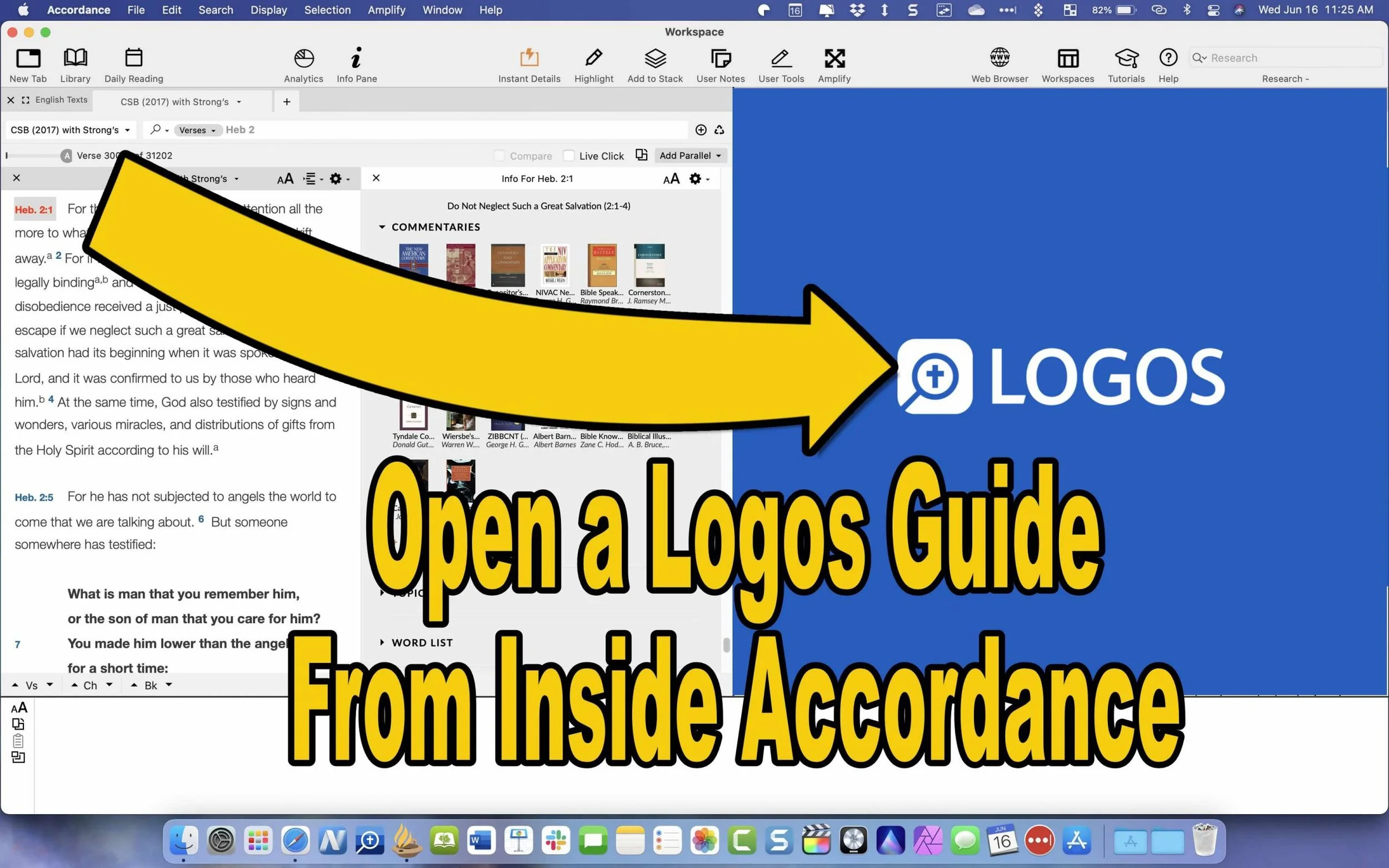
How to Use Accordance Amplify to Website to Open Your Logos Library
Did you know you can open a Logos Passage Guide inside Accordance using the Accordance Amplify to Website? We'll show you how.
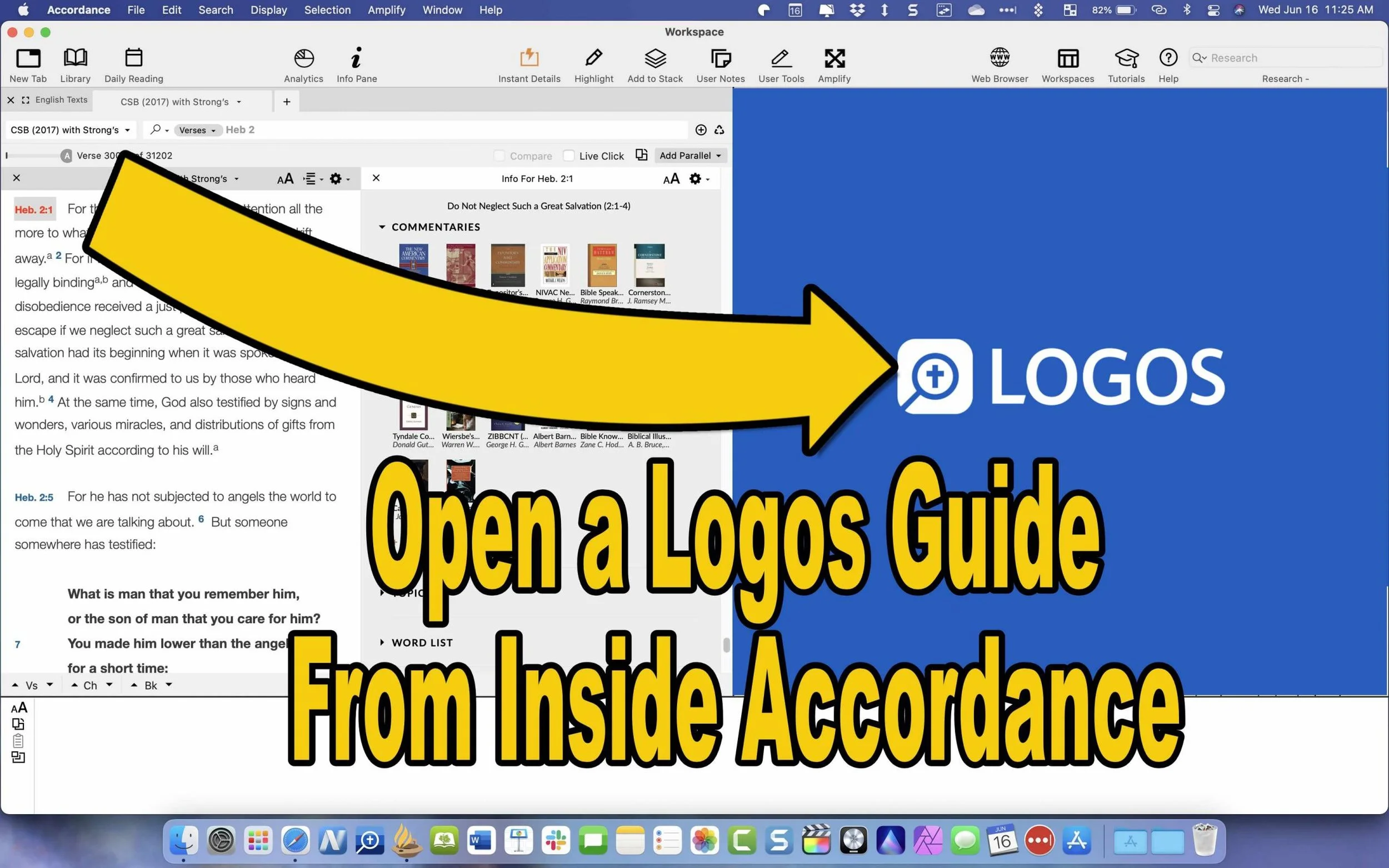
Accordance Bible Software will let you use their Accordance Amplify to Website feature to open other websites while using Accordance to research Bible studies. With these features, people with books in Logos Bible Software who have access to their Web App will let you access your library inside Accordance. First, we'll show you how to set this up and then how to use it.
Use 'Accordance Amplify to Website' to Open Logos Guides
Accordance includes two awesome features that make it possible to open a Logos Passage Guide from inside Accordance. The Accordance Amplify to Website feature will help you. Here's how to add Logos to the menu in Accordance.
To add Logos, you'll have to add a few things to Accordance. I found out about this in the Accordance forums, which are a great option for learning how to use Accordance features and asking for help in using the software.

Open Accordance Preferences from the Accordance menu item in the upper left or by using the keystroke CMD+,. Next, click on the External Websites item on the left side of the Preferences window. Thanks to Accordance user Paul Meiklejohn for these steps.

Then choose the New button to add a new link.
Click on New at the bottom of that box. A new box pops up where you can add your website links so you can use the Accordance Amplify to Website feature to open the Logos Web App.

Now use the links you'll find from the Accordance Forums. Here are a few that I added for Logos.
- Passage Guide: https://app.logos.com/guides/passage?layout=reading&reference=***
- Word Study Guide: https://app.logos.com/guides/word?layout=reading&reference=***
- Exegetical Guide: https://app.logos.com/guides/exegetical?layout=reading&reference=***
- Search Logos: https://app.logos.com/search?layout=reading&q=***&resources=yourBible&tile=right
The above came from Accordance user jarcher who posted them in the forums.
Some other links you'll find there include:
- Blue Letter Bible: https://www.blueletterbible.org/search/preSearch.cfm?criteria=*** (from user dandennison)
- Bible Gateway: https://www.biblegateway.com/quicksearch/?quicksearch=***&qs_version=NET.(from user Drewster; change the last three letters to your chosen translation, like NIV or CSB)
Use Accordance Web Browser to Open Logos Webapp
Now that we've added the sites to Logos and other sites, how do we use these? Open a Bible in Accordance and select the verse along the left. Then right-click the verse, and a large pop-up menu appears. Next, click on the Website in that menu. Choose your new item added in the step above.

For example, in the animate GIF above, I selected Hebrews 2:1 and then opened a Passage Guide in the Logos Web App.
Have you created any Accordance Amplify to Website links that aren't listed above? Then, comment below with your chosen link and let us know how to use it in Accordance.
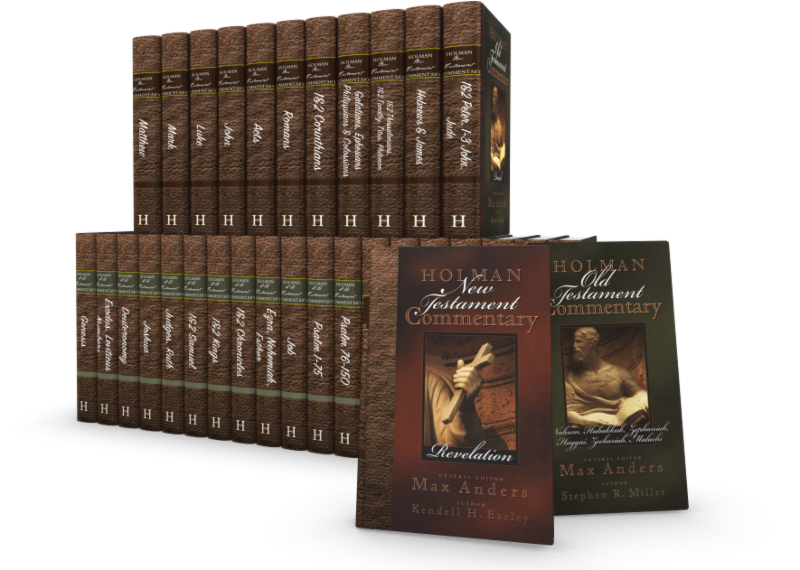
Accordance Deals on B&H Publishing Books
You can save a lot on these wonderful Accordance Deals on B&H Publishing works. They include commentaries, practical books, and theologies.
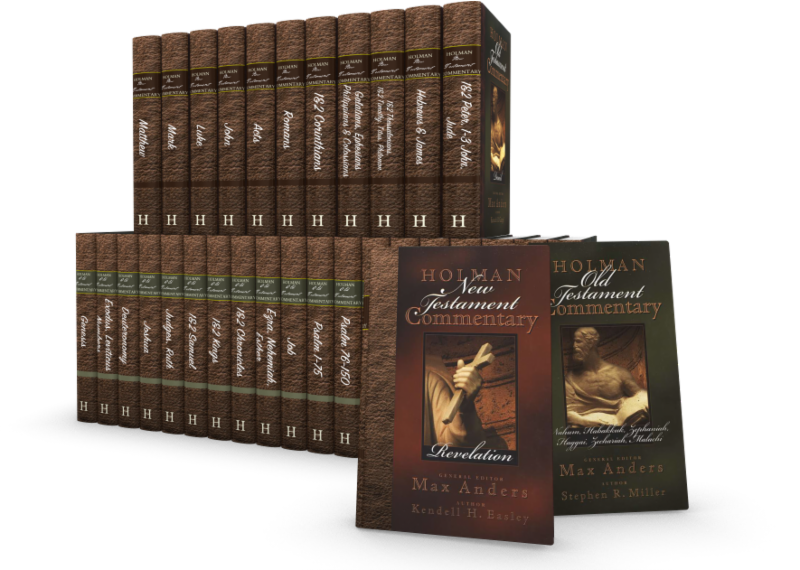
Accordance users know that the company produces great digital Bible study tools, and now you can add to those with some Accordance Deals on B&H Publishing. I've used many of these and even did a review of one of these sets. Here's a look at what you can get with these great Accordance Deals.
Accordance Deals on B&H Publishing Commentaries
These commentary deals will save a nice chunk of change.

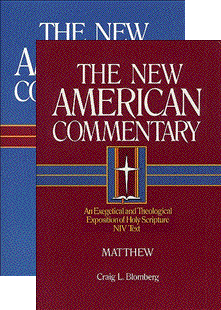
- New American Commentary Series - OT Only $149, NT Only $99.90, and Full NAC Series $199.
- Christ Exposition Commentary - $99.90
- Holman Bible Commentary - Old and New Testament $79.90
- Exegetical Guide to the Greek New Testament - $99.90
- Teacher's Bible Commentary - $19.90
Those who can afford to should get the entire NAC series. It's one of my favorite commentary series. I own it on every platform that I use, and the Accordance Deals on this make it a no-brainer. Get the full set for $400 off their regular price.

I also like the Holman Bible Commentary. It's a nice tool for anyone who teaches Bible studies because each passage of scripture contains some illustrations to introduce the chapter's topic. Then you get exposition and application.
The Christ Exposition Commentary is decent. It seems like a collection of sermons organized into a commentary, which can help preachers working through books of the Bible in the series.
Other B&H Publishing Accordance Deals
Here's the list of the other Accordance deals you can find on their website. First, we'll look at new B&H Publishing releases...
- Theology for the Church - $20.90
- Theology of the Reformers - $17.90
- The World and the Word: An Introduction to the Old Testament - $15.90
- Letters to Timothy: A Handbook for Pastors - $11.90
- Engaging Exposition: A 3-D Approach to Preaching - $16.90
- Anointed Expository Preaching - $14.90
- The Great Commission to Worship - $11.90
- The Ministers Manual for Funerals - $9.90
Of the above, I'm most interested in Letters to Timothy. It sounds like a useful tool for pastors who want a Biblical approach to the ministry.
I've read Anointed Expository Preaching. I don't recommend it. Olford's too captivated by alliteration, which clouds understanding instead of improving it. Check out Bryan Chappell's Christ-Centered Preaching instead.
Book Sets on Sale in the Accordance Deals
The NAC studies in Bible & Theology comes with 11 volumes of excellent content about various theology and Biblical studies subjects. It costs $99.90 as a set, and I recommended it in my review last year.
The Perspectives Series Bundle costs $99.90 which gives you a set of debates from leading scholars on subjects in Biblical studies, theology, and pastoral ministry. The books present a point-counterpoint approach to the topics.
The "Is" Series Bundle comes with three books including...
- Evangelism Is...
- Ministry Is...
- Pastoral Leadership Is...
Each book covers the topics in brief chapters on each aspect of the three topics. They explain the aspects of the three parts of ministry.

5 Best Bible Apps for Android and Fire Tablets for 2021
What are the 5 best Bible apps for Android for 2021? These run on Android phones, tablets, and the Amazon Fire tablet.

If you own an Android smartphone or tablet or maybe an Amazon Fire Tablet, then we've got the 5 best Bible apps for Android. This list usually stays the same each year. So what has changed for 2021?

I tested these apps on the Samsung Galaxy Tab S6 Lite. I used to own the Tab S7 but handed it down to my son, an Android first guy. Most of the time, I use the iPad, but Android works great too. So, here's my list for 2021!
What's your favorite Bible app on Android or Amazon Fire Tablet. Comment below or head over to the YouTube video above and comment there.
Bible App by Olive Tree
Olive Tree's Bible App sits atop our list because it's still the best mobile Bible app available for reading, study, and sermon prep. Why do I call it the "best"? Olive Tree presents the Bible and Bible study material with the perfect balance of usefulness and simplicity. That's hard to do. Just ask the other more technical Bible study apps listed below.
UPDATE: The Bible App by Olive Tree is no longer supported on Amazon Fire tablets.

Open Olive Tree on a tablet, and you get two areas by default. On the left, you'll see a kind of Windows Explorer or macOS Finder kind of navigation window that takes up the left half of the screen when you tap the menu. To see this menu, you'll need to tap the menu button that looks like three horizontal lines in the upper left corner.

The Bible sits on the left when the menu isn't open. On the right, you'll see the Resource Guide. These two can link up so that when you scroll or swipe from page to page in the Bible, it will move the commentary you have open to the right.

Add word study features by opening a tagged Bible. Tap on a tagged word, and you'll see a popup window that defines the word in its original language. You also get Audiobooks, reading plans, devotionals, maps, highlights, note-taking, and it all syncs up with your computer version of Olive Tree.
There's more to this app, but this hits the highlights and explains why I put it first in my 5 Best Bible Apps for Android list.
Logos Bible App from Faithlife
The Logos Bible App (Amazon Fire App) and its other similar apps from Faithlife come in second in our roundup because of its power and array of useful features. It's a little bloated, but I'd rather have too many features that don't get in the way of the basics than not enough, like the ability to add user notes.

When you look at all that Faithlife packs into Logos, you can only say wow! There's a reason this ends up in our 5 Best Bible Apps for Android, but not at the number one spot.
The app divides into a few main areas.
- Home Screen - layouts for study are here, along with information from Faithlife about sales or books.
- Library - find your books to open and read.
- Book Reader - you can open a bunch of books, and they will show up on screen accessible via the center button, the toolbar at the bottom of the screen.
- Search Screen - use it to search your Bible or books.
- Main Menu - find all the major features of the Logos app here, like the Guides.

You can open multiple books and sync them using the center button on the bottom toolbar. Set up some or all of the books to sync up or don't. I have a few Bible translations and a few study Bible's or commentaries open all the time, all of which I set to sync up, so they move from verse to verse together. I also open books I'm reading too, but they don't sync with a Bible.

On the Bible, you can do word studies, searches, and add notes or highlights. Open the menu, and you can search your library in one of the Guides. A passage guide finds everything about your passage. The Exegetical Guide searches for content related to language study. Other guides work similarly.

You'll find many other features, mainly in the main menu at the far right on the bottom toolbar. And remember, it all syncs nicely with the computer app or their web app.
Faithlife also offers a few other apps for Bible study and reading. You can download...
- Faithlife Study Bible - focused on their study Bible and the Lexham English Bible translation.
- Faithlife eBooks - a simplified version of the app for reading books primarily, but still has some study features.
- Biblia - Spanish language version of the app.
- Verbum Catholic Bible - app focused on Catholic users.
The Bible App from Life.Church

I always fight with myself about adding The Bible App (Amazon Fire App) to my roundup of best Bible apps for any platform, but I always do it for one reason. It's the most popular Bible app available on mobile devices.
I don't like including The Bible App because it's not really a complete Bible study app. You can't do word studies or read commentaries and Bible dictionaries. But that's not what Life.Church intended for its users to do.

Instead of more advanced Bible study, The Bible App excels as a simple Bible reading app that also includes social networking built-in and sharing to social media easily and elegantly. You can...
- Download and read hundreds of versions of the Bible, most of them available offline.
- Listen to audio Bibles.
- Set the app to remind you to read a daily reading and devotion or see a verse of the day in text or visual format.
- See what your friends are reading, highlighting, sharing, or commenting about the Bible.
- Watch videos to help you understand the Bible.
- Bookmark verses.
- Share verses with others via social media, email, or text.

Accordance Bible Software
The Accordance App (Amazon Fire App) on Android has gotten better but still lags behind its iOS cousin and the other apps in our roundup for a couple of glaring weaknesses. First, you can't add your own user notes yet. That's gotta change, and Accordance should feel embarrassed they haven't added the feature in 2021.

Second, the syncing features in the app are weak by comparison. Accordance should add its own syncing tool to keep your user content fresh on Android and a computer.

While Accordance really needs the improvements above, it still deserves a spot in our top 5. Of course, you can read the Bible and other books in your library. Accordance sells a lot of great Bible study tools, thanks to a huge library of quality resources. They are often the first company to release a book when it gets published. For example, they released the new 2020 version of the NASB before the others on the list. Logos doesn't even have it out yet.

Accordance works great as a Bible or book reader. It lets you search, and you can select a word and Amplify it, which means study by searching for related content.
Tecarta Bible
Bible study observers may not know as much about Tecarta Bible (Amazon Fire App $5.99 for NIV) as the others in this roundup. But they should because it's a decent app.

The app includes the most-used translations. You can download the KJV for free and buy others for download. If you don't want to pay for a translation, you can "stream" them, which means use them as long as you have an Internet connection on your phone or tablet. You'll have to buy commentaries, but unlike others, Tecarta lets you try them.

The app displays parallel translations and shows the commentary in a 2nd or 3rd window. Add notes, bookmarks, highlights, or share verses.

If you tap and hold on a word, the app shows a box popup that says "Define," and it will go online to give you a definition from an Internet search.
5 Best Bible Apps for Android and Fire Tablets for 2021 Summary
Which of the 5 apps included in our roundup of the 5 Best Bible Apps for Android should you download? Why not download all of them? Of course, you should start with the app from the company you already use on a computer, if you own one. I'm a Logos Bible Software user on my Macs, so I primarily use Logos, even though I like Olive Tree better on mobile.
UPDATE: If you use an Amazon Fire Tablet, you can't download the Olive Tree app since it's no longer supported. For a fifth Bible app on a Fire Tablet, look at Laridian's Pocket Bible. It's also terrific.
Update: You can also install the Google Play Store on an Amazon Fire Tablet. It's complicated, but if you think you can handle it, fire up the Silk browser on your Fire and head over to the helpful how-to article at Android Police.
If you must make me recommend one over another, then I'm going with Olive Tree first. It's got the cleanest and simplest interface. It has enough features for most users. People who need more advanced tools will likely not work on a tablet or smartphone very long. They're using a computer-level Bible study suite from either Logos or Accordance. However, don't end your search with Olive Tree. You can try out all of them for free and settle on one with the best features for your needs.
Accordance Deals: 7 Perfect Price Points to Grow Your Library
Get some of these great Accordance deals on some excellent resources. I share my thoughts on them and what you should buy.
If you're an Accordance Bible Software user, then be sure to head over to their website and take a look at their 7 price point Accordance deals to help you grow your library. You might already know about the sale since they send out an email to customers. But let's take a look at what's included in these 7 price points to help you decide what you might want to invest in for your Accordance Bible Software library.

I'm not getting any kickback or free content from Accordance for this post. These are some great commentaries, reference books, and tools that Accordance users should look at.
Accordance divided this wonderful list of Accordance Deals into 7 different price points, which they call Choose Your Savings. The deals start at $200 on the high end and falling to $0 for the cheapest set. See below for the books included in each price point with some info about my experience using some of these tools.
$200 Accordance Deals
The three commentary sets that cost about $200 includes one of my favorites. The New American Commentary looks at the text with the pastor and advanced Bible student in mind. It's also useful for scholars, with some technical detail in the treatment of each scripture passage.

As a brand new pastor in 1993, I began subscribing to this set in book form. Broadman & Holman sent me a new book every few months. This continued for years until they slowed down. Today, they're still missing a couple of volumes. The books missing include...
- Psalms 1-72 - no known release date
- Ephesians - projected release date of October 2022
NAC uses the NIV text. It's not too technical, so that most believers could make use of this excellent set.
The other sets included in this deal at $200 includes...
- SIL Exegetical Summary Series - gives a summary of how many different scholars treat a text. Students could begin with this and then jump to other commentaries based on what they find in this summary.
- Preacher's Outline and Sermon Bible - this commentary also includes a detailed outline of each passage. Buyers will get the commentary focusing on helping the preacher organize sermons with exegetical outlines of the text and suggestions for teaching the text. I often consult POSB when I'm struggling to outline the text or, after I'm done, to check my understanding.
$150 Accordance Deals

Bible Speaks Today - The commentary set focuses on making their commentaries understandable and readable while still covering the important details of the text. The resource helps teachers and preachers with applicable and understandable exposition. It's in my top 10 list of commentaries that I consult when I preach.
Reformed Expository Commentary - as the name suggests, this work takes a reformed approach. I'm not familiar with it since I don't own it and don't consider myself reformed. According to Accordance, the series is "accessible to both pastors and lay readers" with "exposition that gives careful attention to the biblical text" from a reformed, Christ-centered focus.
Mentor Commentary Bundle - like the Reformed Expository Commentary, I'm not familiar with this set. Accordance brags about the set holding to a "high view of Scripture and stays close to "orthodoxy while appreciating and learning from the latest theological research. This unique combination allows the reader to see what recent scholarly research has discovered without losing sight of the inerrancy of scripture."
$100 Accordance Deals
Old Testament and New Testament for Everyone - Accordance separates this set into two, so you're really paying $200 for both. However, this lets people buy one or the other if they prefer. The OT set is written by John Goldingay and covers every single passage of the OT with a simple explanation for the average person. This makes a nice devotional commentary that users can also consult as they teach a small group. The NT volume, written by NT Wright, includes his own translation of every passage in the NT. If focuses on relevance for today making it also a good devotional tool
Perspectives Series - think of this as an issues-based work with the debate over "the most challenging issues in biblical studies, theology, and pastoral ministry. You get a point-counterpoint style approach to the big issues, including things like Family Ministry, the Doctrine of God, the Sabbath, and Your Child's Education, to name a few.
$80 Accordance Deals
Lenski's Commentary on the New Testament - most of the time a commentary authored by one writer might not offer the best option. However, sometimes that one person did a great job and so you jump in. Lenski translated each passage and then covers it with a conservative viewpoint. He discusses the language and translation with great detail.
Barclay's New Daily Study Bible New Testament - people who want a devotional commentary with depth will enjoy this work. The updated version in this work helps this generation understand Barclay's illustrations and discussion.
Introduction to the Old Testament - four volume introduction to the OT. I'm not familiar with it, so take a look at the description of each work from Accordance.
$50 Accordance Deals

John Phillips OT and NT Exploring Commentaries - this work focuses on practical application in an accessible format for lay people and pastors alike. It's full of illustrations that teachers and preachers can use in their expositions. I haven't used it a lot, but do occasionally consult it for help in bringing a passage to life.
Gold Nuggets: Sermon Outlines - the Golden Nuggets comes from The Preacher's Goldmine, a monthly publication of outlines aimed at helping preachers. They organized them into annual collections and put them together in this resource in digital form with Accordance.
For Everyone Bible Study Guides by NT Wright - go through the New Testament using this Bible study guide, which uses inductive study to come to an understanding of the meaning and application of each passage in the NT. It's a great resource to get you started in preparing Bible study lessons for a small group.
Accordance Deals Under $40

Complete Word Study Dictionary of OT and NT - while I own many scholarly and detailed word study tools, I usually prefer to look at this work when I'm preparing my sermons and studies. That's because each word has plenty of cross references, that help the reader understand the Greek or Hebrew word translated in an Old or New Testament passage. It's advanced by not as technical as other lexicons. I use the other ones too, but start here.
Portable Seminary 2nd Edition - think of this as a seminary in one tool with content related to Bible surveys, theology, history, homiletics and more. Authors like my mentor Haddon Robinson as well as other contemporary writers help readers learn about how to lead the church today.
Handbook of Bible Application - this book organizes itself by topic aiming to help readers apply the scriptures to everyday life.
Hard Sayings of the Bible - tackle the tough issues in Scripture with this reference of 500+ difficult to understand passages.
Life Essentials Study Bible Notes - Gene Getz gets at the topics in this set of notes on topics and passages simply and accessibly. The goal is to support preachers and small group leaders or teachers who want to help their students and church members understand in a practical way how to live out the truths of Scripture. I love this set and own it now in three different forms and just bought it for Accordance too.
5 Free Abraham Lincoln Collection Books
Get five free books about the Great Emancipator. You'll get the following works:

- Abe Lincoln’s Anecdotes and Stories: “A Collection of the best stories told by Lincoln which made him famous as America’s best storyteller.” Compiled by R. D. Wordsworth in 1908.
- Abraham Lincoln’s Religion: By Madison C. Peters (1908)
- Lincoln’s Use of the Bible: By S. Tervena Jackson (1909)
- The Soul of Abraham Lincoln: By William E. Barton (1920)
- Abraham Lincoln: Was He a Christian?: By John E. Remsburg (1893)
M1 MacBook Pro and Bible Study Apps
How well do the top five Mac Bible study apps run on the new M1 MacBook Pro? We ran five of the best programs and share our results.
Are you curious how the new M1 MacBook Pro handles Bible study apps and programs? I was too and couldn't wait to test this out. You can find the results as I tested Logos 9, Accordance 13, Olive Tree, Laridian Pocket Bible, and e-Sword X on the new M1 MacBook Pro.

UPDATE: Added a video under the Logos 9 on M1 MacBook Pro section below.
Why I Bought the M1 MacBook Pro
For the past year, I actually transitioned to a Windows-centric computer experience by giving my 2018 MacBook Pro to my son, a videographer and photographer who really wanted to go Mac. I bought an excellent HP Spectre x360 13 2-in-1, but then reluctantly decided to go back to Apple after my office PC failed and I got a Mac mini from a friend.
I bought the 2020 MacBook Pro that Apple released earlier this year based on Intel's processor. That was in late October and then Apple released the new M1 MacBook Air, M1 MacBook Pro, and M1 Mac mini. Fortunately, I got mine at Best Buy and I could return so I did and picked the M1 MacBook Pro with 8GB of RAM and 500. It's not the highest-end M1 MacBook, but it's what could get in exchange without paying too much more.

Best Buy shocked me and told me I could get the new computer the next day, but that was wrong. It showed up the Monday before Thanksgiving instead of one week before Thanksgiving. That's not bad considering Apple shows a date in mid-December before you can get one directly from them.
Installing Bible Programs on the M1 MacBook Pro
The new M1 MacBook Pro showed up and I unboxed it and starting setting things up. Soon I was installing my Bible study programs. I use three Bible apps but for this test, I installed five of the best Mac Bible study programs you can buy today.
- Accordance 13
- e-Sword X
- Laridian Pocket Bible
- Logos 9
- Olive Tree Bible Study
For the most part, these apps installed without much concern. It's interesting that the first time you install a program that's not optimized for the M1 chip, macOS 11 Big Sur will ask you if you want to install something called Rosetta 2. It didn't take long to download and install, but it stops you from launching your app. I had to launch Logos 9 again after Rosetta 2 finished installing.
The other apps installed quickly. Accordance takes a little while to download your books if you have a large library. Olive Tree Bible Reader, Laridian PocketBible and e-Sword X don't take as long. In fact PocketBible has the best installation process of the group. It takes little time at all.
Logos 9 on M1 MacBook Pro
Let's first talk about Logos 9 because it's the most demanding of the five programs. It Typically, I start the installation, plug in my laptop, and leave for hours. When I come overnight or after a full day away, it finishes and we're ready to study the Bible.
As you can see from the video above showing the installation and indexing process, it took 3 hours and 47 minutes to install, download my 27GB library, and index the library. The download seemed faster than normal. Then indexing went quickly.
My friend LaRosa compared the indexing process to taking a long trip on an Interstate. It takes a little while to get on the road, but once you do and get up to speed, it runs quickly. Then, the off-ramp time slows down. That's how things went with the M1 MacBook Pro. It starts slow, speeds up, and then finishes slowly.
Normally, when Logos 9 indexes the library it takes up a lot of resources and you can't really use your computer much. You can, but it's infuriating because Logos takes up all the memory and processor. However, with the M1 MacBook Pro, Logos 9 ran slowly, but the rest of the system ran smoothly. For example, I hit the Home button in Logos 9 and scrolled through the Home page. It stuttered running haltingly. It's not smooth at all.
In spite of how slowly Logos 9 itself performs, the rest of the system runs smoothly during the indexing. That's abnormal with Intel or AMD based computers. They usually don't run smoothly.
Battery Life for Running Bible Study Apps on M1 MacBook Pro

The battery life stood out on my new M1 MacBook Pro. The process of installing Logos 9 on laptops usually kills a battery. On my previous HP x360 13 and my older 2018 MacBook Pro, I would never attempt to install Logos without plugging in. I didn't have to on this computer.
Add the wonderfully bright screen and crisp text, you get a fantastic experience writing and reading. I put the screen at 50 percent and it looks like other computers I'm used to using when they are set to 75-80 percent.
After I killed the battery installing Logos I used it for a couple hours and went to bed with it at 40 percent. This morning, after running on battery at 50% for about 4 hours, my battery reads 76% left. That's fantastic. My 2020 12.9-inch iPad Pro doesn't last as long in real-world use.
Hard to Tell Difference on M1 MacBook Pro

What's the final takeaway for running Bible study apps on the M1 MacBook Pro? For four out of our five apps, there's little to no different. I couldn't tell the difference between running Accordance, e-Sword X, Olive Tree Bible, or PocketBible on this computer.
Logos 9 is a little different. Installation was a slightly better experience. You can set it to download and index your library and get some other work done while it happens in the background. That's a huge improvement compared to running the program's installation on other computers.
Once you install Logos 9, it runs well. There's one issue that's more a Big Sur problem than an M1 MacBook Pro problem. Over in the Logos 9 forum, there's a post listing one issue as follows:
The Logos Desktop Team has tested Logos 9 and Logos 8 on macOS 11 "Big Sur." So far we discovered some minor styling issues (see below), but have not encountered any major issues.
Known Issue: Table of Contents arrows are duplicated.From Logos 9 forum

The above issue with arrows is an extremely minor issue. You may find others, but right now that's all.
In another Logos forum post, Phil Gons from Faithlife said the company has no definite plans to make Logos 9 run as an M1 Mac application. That's not saying they won't do it, but they are not announcing anything publicly. I'd expect this to take a long time since the current version of the software works so well. I look forward to the time when these five all run as a native app.
There's one thing that you can say about running Bible study applications on the new M1 MacBook Pro. Launching these apps takes a lot less time than they used to. Of our five, Laridian PocketBible and e-Sword X jump onto the screen instantly. Olive Tree Bible Reader loads in a couple of seconds and Accordance launches in a few seconds. Sadly, Logos 9 still takes longer than the others. But it loads faster than it did on Intel Macs. Running the programs speeds up on these new M1 chips too.
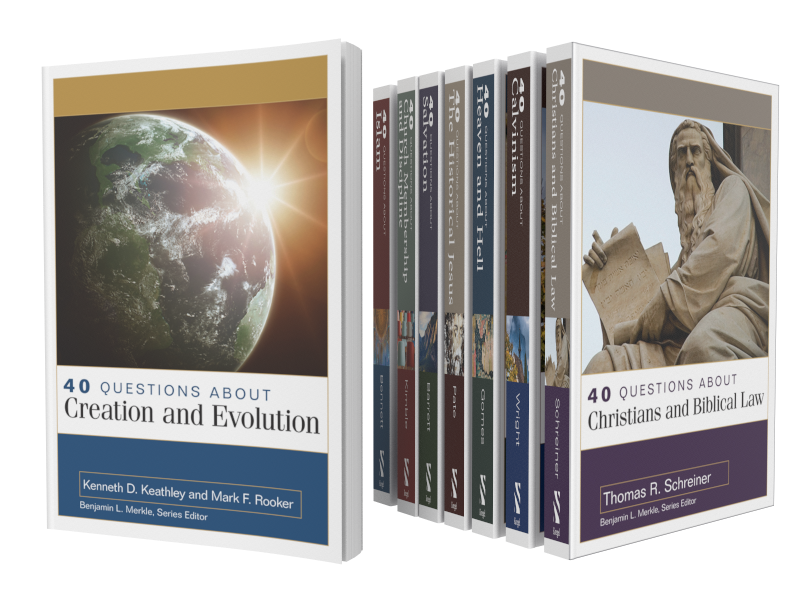
40 Questions Series for Accordance Review
The 40 Questions Series for Accordance Bible Software seeks to answer questions about 8 different topics from an evangelical perspective. This review focuses on the content of the series and using them in Accordance Bible Software for various platforms.
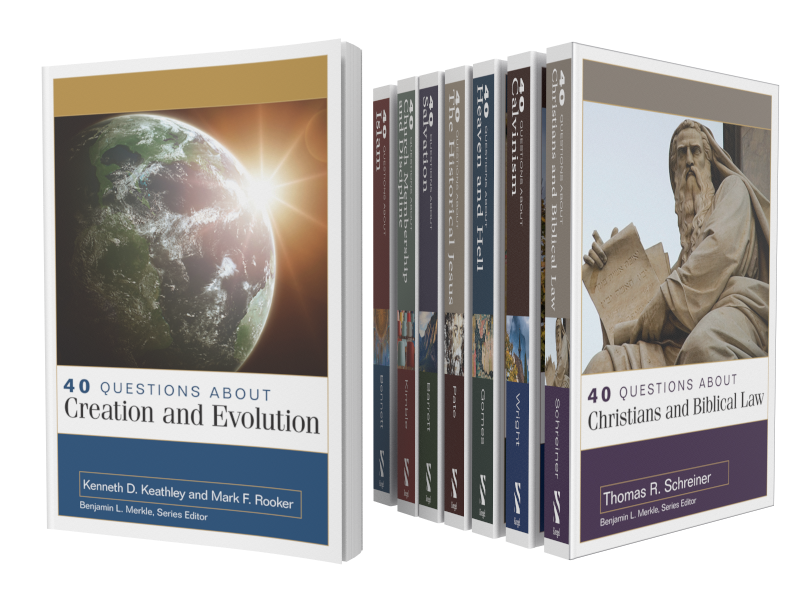
The 40 Questions Series from Kregel Publications for Accordance Bible Software puts into digital format 8 of the useful theological series that seeks to answer questions that Bible students might have on a range of topics from Calvinism to Church Membership. The series includes 8 of the 17 books in the set, each with 40 questions about a topic included in the book. Is it a good addition to your Accordance library? We'll take a look at the series itself and at using it in Accordance Bible Software.

For full disclosure Accordance gave me a review copy of the set. They offer a special until October 26 on the series taking $52 off to give you almost a 30% discount. Buyers can also get the individual volumes for a discount. Here's what you get.
- 40 Questions about Creation and Evolution (Keathley, Rooker)
- 40 Questions about the Historical Jesus (Pate)
- 40 Questions about Heaven and Hell (Gomes)
- 40 Questions about Salvation (Barrett)
- 40 Questions about Calvinism (Wright)
- 40 Questions about Christians and Biblical Law (Schreiner)
- 40 Questions about Islam (Bennett)
- 40 Questions about Church Membership and Discipline (Kimble)
The other books in the series are not yet available on Accordance but they will be soon.
40 Questions Series: How the Series Answers Questions in Accordance
Since Accordance gave me a copy to review for their sale, I did not have time to read all 8 books in the series. I started with 40 Questions about Calvinism by Shawn Wright. He's a church historian, pastor and professor at Southern Baptist Theological Seminary in Louisville.

Each book includes 40 questions that introduce and examine the topic of that book. For example, some of the questions from Wright's book on Calvinism asks things like...
- What's the Difference between "Calvinism" and the "Reformed Tradition"?
- What are the Five Points of Calvinism?
- Does God Love All People?
- Is the Arminian Doctrine of Prevenient Grace Biblical?
The book breaks up the 40 questions in to sections on things like general questions, questions about God's character, about salvation, about human responsibility and more. The last section covers more practical questions.
I'm not a Calvinist nor an Arminian. You might call me a Molinist because I affirm free will and eternal security like most traditional Southern Baptists.
The book helped me understand what many Calvinists believe and how they don't really like being put in the box of the TULIP 5 Points. The fact that those points came as a reaction to Arminian theology helps add some depth to what I was pejoratively taught about Calvinism.
In spite of learning more about what Calvinists believe, I was not convinced. However, I would recommend Wright's book for anyone who wants clarity about Calvinism from a Calvinist.
Accordance does a very good job of creating quality digital versions of the books they sell. They're formatted nicely for screens. The book creators do a good job producing mostly error-free copies of their books, so you can trust them.
Installing 40 Questions Series in Accordance Bible Software's Various Platforms
If you purchase the 40 Questions Series for Accordance, you'll want to do a few things to make them more convenient to use. You probably already know how to download new books, but if you don't follow these steps:
- Open Easy Install from the Accordance menu on macOS or from the Utilities menu on Windows.
- Click on the Easy Install tab at the top of the dialog box.
- Click the boxes next to the book name
- Hit the Download button at the bottom of the Easy Install box.
- Let it download the books and when it asks hit the Install button to shut down Accordance and Install the books.
After that the program will restart. You'll find them in the various sections of your library. For example the following five books show up in the Theological section of your Library.
- 40 Questions: Calvinism
- 40 Questions: Christians and Biblical Law
- 40 Questions: Creation and Evolution
- 40 Questions: Heaven and Hell
- 40 Questions: Salvation
You'll find the other 3 in other sections. 40 Questions: Membership and Discipleship shows up in the Practical section. You'll find the last two on Islam and Historical Jesus in the History section.
If you don't see the library on the left hand side of the window, open it from the Library button or the Window menu. You can also use the keyboard shortcut OPTION+COMMAND+1 on Mac or CTRL+ALT+1 on Windows.
To make the new books easier to find you may want to move the books to the top of your Theological section by dragging and dropping them using your mouse or trackpad. Or you can right-click the section name and choose Alphabetize to put them in alphabetical order. We showed you how to do this in our review of the Christi-Centered Exposition Commentary for Accordance.

To install the books on your phone or tablet, tap on the center of the app and then tap your Library icon in the bottom left corner on iPhone or iPad. Then tap on the Download button in the lower left corner and wait for the list to show your books. Hit the select all button in the upper right corner 2nd from the left. Then tap on the download button in the upper left corner.

On Android, tap on the screen to show your menu. Hit the Menu button with 3 lines in the upper left corner. Tap on Easy Install to open the Easy Install box.
If you're not sure which section of the library holds a book, then just start typing in the search box at the top of the Library.
Reading Books in Accordance Bible Software and Apps
Reading and highlighting books in iOS and Android versions of Accordance are a pleasure. As you'll see below, note-taking with Accordance mobile is not possible right now. I hope this changes very soon.
It's pretty easy to simply read books in the Accordance Bible Software on your Mac or Windows computer. Just open them up and read. You'll find them in the various sections of your Accordance Library as seen above.
If you want to add notes or highlights, you can do so easily.

To add notes hover over a section you want to annotate, a plus button will show up to the right of the paragraph. Click it and it opens a notes editor.
Unfortunately, you can't add notes to books in the mobile apps. iOS lets you add notes to Bible verses, but not books like the 40 Questions Series. Android doesn't even let you add notes to Bible verses. If you prefer to read on a mobile device like me, you'll need to open another app and put notes there and then sync that note file to your comptuer and copy and paste to into the desktop versions of Accordance. It's not ideal, but is a way to get around the limitations.
I asked Rick Mansfield of Accordance Bible Software about this and he said that the developers see the importance of notes and want to add them soon.

Adding highlights requires you to select the text you want to highlight and then choose the highlight style from the highlighter tool that pops up or you can open the the Highlight pallette box by hitting the button on the toolbar. Make sure you select the right highlight file from the dropdown box in the pallette box. After that it's easiest to just use the little tool you will see just above your highlighted text. The previously used highlight style shows up on the left (#1 in image above) and the tool pallette box opens if you hit the other button (#2 in image above).
I use My Mobile Highlights, created by default when you install the program. This file syncs with your mobile device using either the built-in syncing feature that requires you to have the computer program open and the mobile device open.
A lot of people own convertible or 2-in-1 Windows computers these days. If you like reading books on yours, then you'll enjoy reading in the Windows version of Accordance. It's not as convenient on a Mac since Apple doesn't make a handheld version of a MacBook.
Syncing Notes and Highlights Between Different Operating Systems
The built-in Wi-Fi syncing in Accordance is not very convenient. I never use it and you shouldn't either unless you have a problem using Dropbox. The Dropbox highlighting is only a little better, but it is better than the Wi-Fi system. You have to connect your installation with Dropbox. See the video below for how to sync using Dropbox.
Accordance needs to improve it's syncing features. That's my biggest complaint regarding Accordance Bible Software's platform. You have to use a third-party service to sync. They need to bring it in house and make it secure. Second, it's not always automatic. You can set the Mac or Windows versions to automatically sync when you open and close the program, but you have to do it manually on iOS or Android. Third, they need to sync settings and library organization between all platforms too. Other Bible software platforms do.
Until they add automatic syncing, you'll want to sync manually. Use the same steps from above on how to install the books on your iOS or Android device and chose the Sync button. Make it a happen to do this each time you open and close the app.
Recommendation
First, I like the 40 Questions Series and look forward to reading the remaining 7 titles after enjoying and learning a lot from Wright's book on Calvinism. Second, Accordance does a nice job and offers them all for a great price right now of $122 for the set. Make sure you get them before the deal ends October 26.
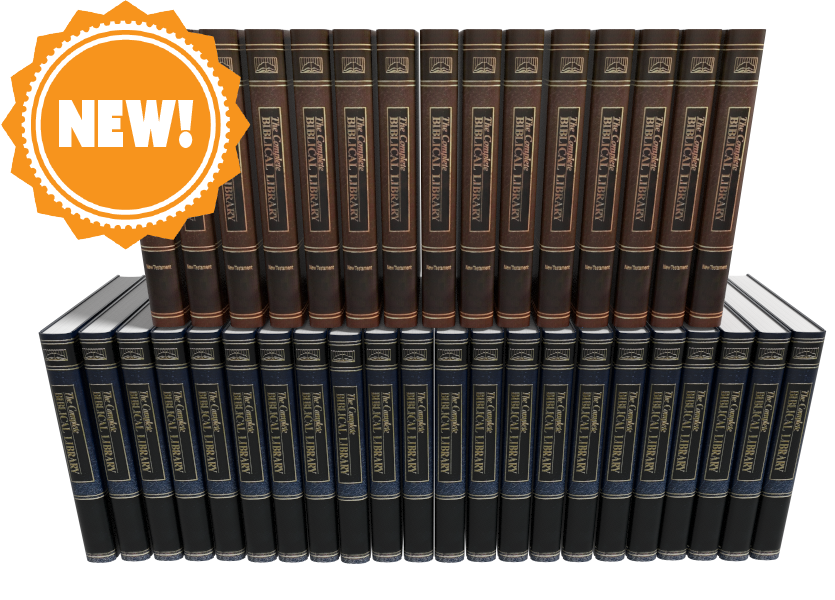
Complete Biblical Library in Accordance Bible Software
The Complete Biblical Library for Accordance Bible Software just came out and we got a chacne to take a look, What's included in this package and is it worth your time and book budget to add to your library?
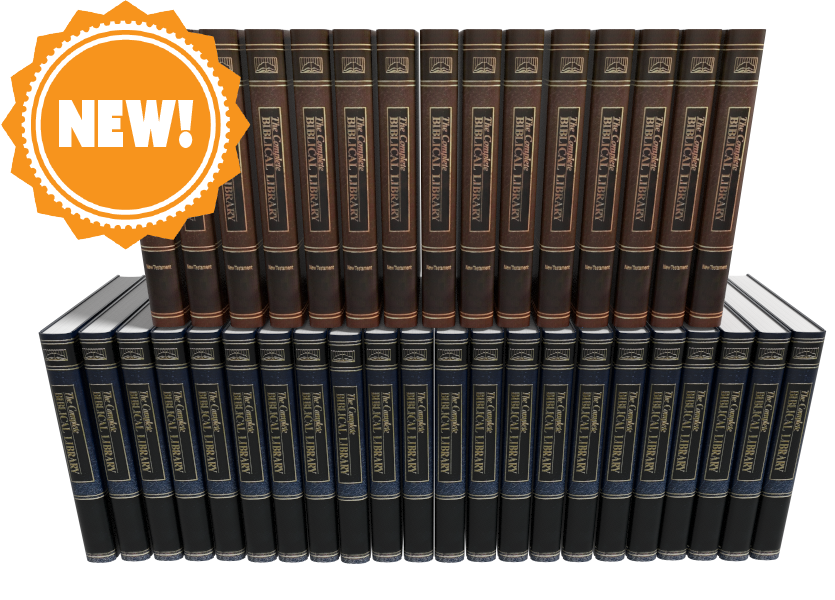
Accordance Bible Software released the Complete Biblical Library this past week making Accordance only the second digital Bible study distributor to offer this tool. We'll take a look at the Accordance version and let you know if it merits an investment of your Bible study tool dollars.

What's Included in the Complete Biblical Library
The Complete Biblical Library includes an advanced Study Bible of the Old and New Testament and Hebrew and Greek dictionaries. Book versions of the Complete Biblical Library are now out of print and pretty expensive. People familiar with the library will wonder what happened to the other parts of the Library? Where are the other tools normally included in the Complete Biblical Library? From the Accordance website:
The CBL Greek grammar is in development and will be added at a later date. The CBL Gospel parallels and CBL Interlinear did not add extra value over similar material already included in Accordance, so we do not have plans to release these two components for Accordance.
Product Details from Accordance website
You can get those other tools from the 17 volume book version or from Wordsearch, but both will cost you more than Accordance Bible Software's version. During this introductory deal the Wordsearch version will cost more than twice as much and after $50 more.
Accordance users will recognize that the software already gives users a great interlinear on many translations of the Bible. You can also use their Gospel Parallels. They both come as part of their basic $100 Starter Collection.
Complete Biblical Library Study Bible
You probably own a number of study Bibles. Most of them offer a few things...
- Introductions to books of the Bible.
- Short notes on pericopes or sometimes each verse of the text.
- Some add extra graphical content like charts, maps, graphs, tables and more that enhance understanding of the text.
The Complete Biblical Library includes some of these, but think of it as a study Bible that wants to be a more advanced commentary.

The Complete Biblical Library Study Bible begins each book with an nice book introduction. That introduction will include an overview of the text with an outline and some commentary on each section as a whole before it gets the verse-by-verse section.
Following the book introduction, you'll get the verse-by-verse commentary of the text.
CBL Study Bible Verse-by-verse Commentary

Each verse or passage includes two things...
- The verse in the KJV with alternative translations from dozens of other translations, but none of them are the more modern translations like ESV, CSB, NIV or others since the Complete Biblical Library came out before most of those landed. The translation identifiers are hyperlinks to the key which identifies what the translation abbreviation refers to. That helps because the library includes some obscure translation. Click it or hover over it and it either opens the pages from the library that explains what the abbreviations stand for or it pops up in your Instant Detail window.
- Commentary on the verse. We're used to a few lines per verse, but you'll often see a few paragraphs per verse like a full commentary. That's why I call this a Study Bible that wants to be a full commentary.

Bible students often tout the ESV Study Bible as one of the best, and I agree. I like it a lot and it's one of my top 3. However, compare the content of the two. You get much more with the Complete Biblical Library.
Here's the entry for Mark 5:25-26 in the CBL...
And a certain woman, which had an issue of blood twelve years: . . . had been troubled by bleeding, —ALBA . . . ben in the blodi fluxe twelue yere, —WCLF.
And had suffered many things of many physicians: . . . suffered much under many doctors, —BECK . . . had been treated in many ways, —LTMR . . . had been greatly tortured, —FNTN . . . under a number of doctors, —MOFT.
and had spent all that she had: . . . expended all her property, —WLSN . . . spent all her savings, —KLGS . . . in the process, —PHLP.
and was nothing bettered, but rather grew worse: . . . but to no avail, —ALBA . . . and profiting nothing, —CLMT . . . had not been benefited, —HNSN . . . was not even one bit improved, —WUST . . . without receiving any relief, —CMPB . . . and felte none amendment at all, —TNDL, —CRNM.5:25, 26. It is not possible to know with certainty what the “issue of blood” was, but the traditional suggestion is the best, namely, an abnormal bleeding from the womb.
Such a condition would have been physically debilitating. Mark’s Gospel includes the information that the woman “had suffered many things of many physicians.” Luke, who appreciated the limitations of a physician, says she “could not be healed by any one” (8:43, RSV).
What the woman may have suffered can be estimated from the Talmud, (Shabbath 2:110) which includes a list of treatments for “the woman that has an issue of blood.” Among them were: “Take of the gum of Alexandria the weight of a zuzee (a fractional silver coin); of alum the same; of crocus the same. Let them be bruised together, and given in wine to the woman that has an issue of blood. If this does not benefit, take of Persian onions three logs (pints); boil them in wine, and give her to drink, and say, ‘Arise from thy flux.’ If this does not cure her, set her in a place where two ways meet, and let her hold a cup of wine in her right hand, and let some one come behind and frighten her, and say, ‘Arise from thy flux.’ But if that do no good, take a handful of cummin (a kind of fennel), a handful of crocus, and a handful of fenugreek (another kind of fennel). Let these be boiled in wine and give them her to drink, and say, ‘Arise from thy flux!’”
Many additional potions and rituals were suggested of the following kind: “Let them dig seven ditches, in which let them burn some cuttings of vines, not yet four years old. Let her take in her hand a cup of wine, and let them lead her away from this ditch, and make her sit down over that. And let them remove her from that, and make her sit down over another, saying to her at each remove, ‘Arise from thy flux!’” (See Vincent, Word Studies in the New Testament, 1:189.)
One can readily see why the cure was many times worse than the disease, so that she “was nothing bettered, but rather grew worse.”Mark 5:25-56 entry of Complete Biblical Library
Now look at the ESV...
5:25–27 While Jesus is on his way to heal Jairus’s daughter, Mark interjects the simultaneous event of the healing of the woman with a constant discharge of blood (vv. 25–34; see note on Matt. 9:20). On account of her condition, she is ceremonially unclean (cf. Lev. 15:25–28) and is not permitted to enter the temple section reserved for women; nor is she permitted to be in public without making people aware that she is unclean. By touching Jesus’ garment, she technically renders him ceremonially unclean (cf. Lev. 15:19–23), but Jesus is greater than any purity laws, for he makes her clean by his power instead of becoming unclean himself (cf. Mark 1:41; 5:41).
ESV Study Bible entry for Mark 4:25-27
But it's not just the amount, but the quality. That's why I really like the CBL. It's a nice balance of simplicity for the average pastor or Bible study leader, but has enough rich content that makes it more than the average or even above average study Bible. The ESV Study Bible serves people who just need a quick hit about what the passage says. The Complete Biblical Library Study Bible gives more advanced understanding like a pastoral commentary would.
Complete Biblical Library Dictionary
In addition to the Old and New Testament Study Bible, Accordance adds the Hebrew and Greek Dictionaries of the Complete Biblical Library. Each entry explains the word with some useful information that you often don't get in other language dictionaries. The links to other lexicons alone almost makes it a worthwhile tool.
Put the CBL dictionaries at the top of your list of Greek and Hebrew Lexicons in your library and you can quickly open the CBL Dictionaries with the Triple Click action. Just click on an English word three times in the text and it opens a new window with the dictionary pointed to that word in Greek.
The Amplify feature in Accordance also brings up the dictionaries. Highlight your word and click on the Amplify button on the toolbar. It will drop down a list of your reference titles. Go to Greek or Hebrew Lexicons. A new list flies out and you can find the CBL Greek or Hebrew Dictionaries there. The books also show up in your Library under the Lexicons section.

When you view a Hebrew word in the Complete Biblical Hebrew Dictionary, you'll see the following:
- The Hebrew word and an English transliteration
- Part of speech like verb, noun, etc.
- A brief definition of the word
- Hebrew Cognates
- Synonyms and their Greek and transliterated forms
- Concordance listing of the word in the OT
- Discussion of the use of the term in the OT
- Links ot other Hebrew dictionaries like BDB, NIDOT, Strong, etc.
Here's an example of the Hebre word lavav (hear from Ezra 7:10)
3955. לָבַב lāvav
verb
to gain insight
Cognates:
לֵב lēv (3949)
לֵב lēv (A3950)
לְבַב lᵉvav (A3956)
לְבִבָה lᵉvivāh (3957)
לִבָּה libbāh (3959)Concordance
2 Sam. 13:6 and make me a couple of cakes 3
13:8 and made cakes in his sight, 3Job 11:12 vain man would be wise, 2
S 4:9 Thou hast ravished my heart, my sister, 3
4:9 thou hast ravished my heart with one 3
Three of the five occurrences of this verb in the Hebrew Bible (Job 11:12; S.S. 4:9) are denominatives from lēv (HED #3949), “heart,” “interior,” “will,” “mind.” It has cognates, all of which are likewise denominatives, though not all are based upon these same nominal nuances. The remaining context is a denominative from lᵉvivāh (HED #3957), “cake.”
In the speech of Job’s visitor, Zophar, lāvav means “to become wise.” Job was accused of falsely asserting innocence, for Zophar assumed that all calamities were divine punishment for sinful deeds. Job’s sudden fall from material bliss fit the pattern of divine retribution. Zophar asserted that Job’s claim of innocence was perjury and that Job’s words could not change reality. He expressed this through a simile, saying, “A vain man would be wise, though man be born like a wild ass’ colt.” His point was that Job’s understanding could not compare to Yahweh’s, so he should accept his guilt, and then try to appease Yahweh.
Lāvav appears twice in the context of the proclamation of the groom to his beloved, that her physical presence has had a profound effect upon him (S.S. 4:9). The verb is usually translated something to the effect “you have ravished my heart.” This works contextually, but it is not so clear etymologically. Clearly, the heart or will of the groom has been affected by the glance of the woman, or by a glimpse of her. How to define precisely this action on her part is difficult, hence the usual translation. The problem is that there is no verbal idiom in English which corresponds to this verb.
The final context involves a completely different meaning, possibly formed from lēv as well. Here lāvav refers to “baking” cakes of bread.BDB 525
DCH לָבַב
KB 2:514–15
NIDOT 2:749
STRONG H3823
TDOT 7:399–437
TWOT 1:466–67Entry in Complete Biblical Library Hebrew Dictionary for the word lavav
The Greek Dictionary shows the Greek word and a transliteration in English. You then also get...
- Part of speech (Noun, Verb, etc.)
- Brief definition of the word
- Synonyms and their Greek and transliterated forms
- Septuagint listing of entries for the word
- Grammatical Forms of the word
- Concordance listing of the word
- Discussion of the classical Greek and Septuagint usage of the word
- Discussion of the terms usage in the New Testament
- Links to other Greek dictionaries of the word like Strong, Bauer, Liddel-Scott etc.

Here's an example from the Greek dictionary for the word rhusis (bleeding from Mark 5:25).
4368. ῥύσις rhusis
noun
A flowing, an issue.
STRONG 0
Synonyms
4339 ῥέω rheō
Septuagint
2183 זוּב zûv Have a discharge (Lv 15:2).
2184 זוֹב zôv Discharge (Lv 15:3, 25f.,30,33).
4888 מָקוֹר māqôr Flow (Lv 20:18).
7425 קָרֶה qāreh Emission (Dt 23:10).
8916 תְּעָלָה tᵉꜥālāh Channel (Jb 38:25).Grammatical Forms
ῥύσις rhusis nom sing fem
ῥύσει rhusei dat sing fem
Concordance
2 which had an issue of blood twelve years, Mark 5:25 (KJV)
2 a woman having an issue of blood twelve years, Luke 8:43 (KJV)
1 and immediately her issue of blood stanched. Luke 8:44 (KJV)Classical Greek and Septuagint Usage
New Testament Usage
STRONG 4511
BAUER 738
MOULTON-MILLIGAN 565
LIDDELL-SCOTT 1577
COLIN BROWN 1:682–83
SILVA “ῥύσις”All three occurrences in the New Testament refer to a woman who had an “issue of blood” for 12 years (Mark 5:25; Luke 8:43, 44). Having heard of Jesus’ miracles, this woman believed that if she could just touch His clothes she would be made “whole” (Mark 5:28). Pressing through the crowd she managed to touch His garment and was immediately healed (verse 27). Jesus then told her it was because of her faith that she had been made whole (verse 34).
Entry in Complete Biblical Library Greek Dictionary for rhusis
Value and Recommendation
Accordance users should jump at the chance to get the Complete Biblical Library at the introductory discount of $200. They also offer a Crossgrade price for people who already own it in Wordsearch. You'll pay $85 for the OT Crossgrade and $75 for the NT Crossgrade for a total of $160. That's a pretty good deal considering the full-price is $450 or currently $1000 in physical book form for used editions. With Crossgrades in Accordance you'll have to fill out a form showing you bought the books before in Wordsearch.
If you already missed the discount, then the $450 price may cause pause for some. I like the tool and think people who want a good verse-by-verse commentary, with excellent book introductions, should take a look and strongly consider adding it to their library. The dictionaries give the user a lot of useful information in a central location. The links to other dictionaries makes it a great option to look at first in your word study as you prepare a sermon or Bible study.
For these reasons above, the Accordance Bible Software Complete Biblical Library gives pastors, Bible study leaders and serious students a great value at the discounted price and is still worth it at the ongoing price.
![Accordance 13 Upgrade with 8 Exciting New Tools [Video]](https://images.squarespace-cdn.com/content/v1/690ba83ee90436386a0306e7/1762379317898-OE0KTDPYUU970RNR91MB/image-asset.jpeg)
Accordance 13 Upgrade with 8 Exciting New Tools [Video]
Accordance Bible Software recently updated their advanced Bible software to Accordance 13. It comes with some incredible new features to make this powerful Bible software package even more useful. Check out the brief descriptions of 8 new features demonstrated in the included video. Mark Allison and Rick Mansfield joined me on Theotek on Youtube.
Accordance 13 Upgrade Demo Video
Accordance 13 Dark Mode

The upgrade to macOS 10.15 Catalina included something called Dark Mode. Accordance adopted this with their software. If you love Dark Mode on a Mac then you'll likely love it in Accordance 13.
The way the company implemented Dark Mode lets you customize it so that if you don't want it in certain places you can turn it off. However, by default the entire user interface will show in Dark Mode when you turn it on.
Dark Mode does not work yet in the Windows version of Accordance. But it should come soon.

To turn on dark mode in Accordance you'll need to first turn it on in macOS System Preferences. Open System Preferences from the Dock or from the Apple Logo in your menu bar. Click on General and then click on either Dark Mode to turn it on all the time. You can also use it only in dark environments by using the Auto setting next to Dark Mode.

Now go to Accordance 13's settings from the Accordance menu in the upper left on your menu bar on your Mac and click on Preferences. Then open the Appearance setting screen in the list on the left of the preferences box. Now click on Automatically adjust to system dark mode. This will turn on Dark Mode if you turn it on in the Mac System Preferences. When you set this preference, it will require you to restart Accordance before it takes effect. Choose the Restart Now button unless you want to wait to apply it the next time you launch the program. After you click Restart Now you will have to click on the OK button to restart the program and you'll see the new Dark Mode.

6 New Themes in Accordance 13
Accordance 13 also adds new themes. These change the coloring and fonts used in the user interface. You can't choose these new themes if you keep the program in Dark Mode. The new Themes will work on Windows.
Switch to a new Theme from the same Appearance screen in Accordance Preferences. On Windows it will show up on the Edit menu. On Mac it's in the Accordance Menu.
Click on the General Theme drop down box (see image above). You'll see 6 options. Click on one and click the Preview button. Now you'll see the new theme applied.
Search Inside Accordance 13 Preferences

The Accordance 13 Preferences contains hundreds of options that the user can change, but finding them can get difficult. When you type in the box it starts showing possible entries guessing what you want. You can click one of the entries in the drop down list and it takes you to that page in the program's Preferences.
Built-in Accordance 13 Tutorials

Accordance has a vast array of Built-in Tutorials ready to help you learn to use the features in Accordance 13. In Windows, click on the Help menu and find Tutorials. A fly out menu shows up with a long list of them. In the top you will see them grouped by Difficulty level. Click on Easy, Intermediate or Advanced to see more Tutorials based on t hose levels of skill.
Below the Difficulty section you'll see them grouped by Topic. Click on a Topic to see the Tutorials related to that Topic.
Highlighting in Accordance 13

The new Highlighting feature brings some exciting new ways to mark up your Bible. You'll see the same old highlighting colors and icons, but now you've got some new ways. You can even use an Apple Pencil, if you own one. We'll show you how below.
Click on the Highlight toolbar button to open the dialog box. On top fo the box you'll see buttons for Highlighter, Pen and Eraser. The first one, called Highlighter shows your usual tools for highlighting words and verses.

The second one is labeled Pen. lets you draw circles and squares to name a couple. The program detects what you're drawing and cleans it up to make it look pretty. Then, if you want, you can also draw straight or curved lines to connect words. You can also draw arrows.
The lines and shapes can get challenging to draw accurately with a mouse or trackpad. A Windows machine with a Pen, like the Surface Pro, might make this easier. You can also use the new Sidecar feature in macOS 10.15 Catalina if you have a recent model Mac and iPad with Apple Pencil.
Eraser does as it says - erase your highlighting. Click it to get rid of hour highlights.
Highlighting Whiteboard Feature

Another Highlighting tool lets you draw all over the place like a whiteboard and marker. These don't get saved, but you can use this to teach with Accordance displayed on a screen or by recording your screen and uploading the video somewhere.
Turn on Whiteboard by checking the little box labeled Whiteboard Drawing to the right of the drawing color options in the Highlighting dialog box. After your done, you can clear the drawings by clicking on the Clear Whiteboard button.
To save the videos do a screenshot and then add that image to an Accordance Note. I'll create a video on this soon, so check back on this page or my YouTube channel for that video.
Accordance 13 Text Search Command

The Text Search command is a new way to enter special search features in Accordance 13. This helps you find things in your grammatically-tagged texts like the grammatically tagged Greek New Testament or BHS Tagged Hebrew Bible. This especially benefits users who don't know Greek or Hebrew because they can search for grammar tags while they're in an English text.
First, open a English Bible with Greek or Hebrew tags like the ESV with Strong's. Then open the Text Search box.

To open the Text Search Command box, go to the the Search menu and find Enter Command in the menu. A fly out menu shows up with Text on the list. Click it to open a new dialog box. Or you can use the Shift+Command+T to open the box.
Now you can use this to search by adding commands to help you find things based on grammar tags. The drop down box at the top lets you search in various Bibles. Pick a Greek or Hebrew Bible with grammatical tags like the Greek NT Tagged.
Now you'll see that both the Enter Command and Enter Tag boxes are active. They are drop down boxes that let you add either kind of search feature to the search box. Perform your search now using one or both.
Accordance 13 Amplify to Constructs
There's another new way of searching called the Amplify to Construct feature. This feature lets you create really complex searches using a graphical user interface.

Access this feature by selecting the some text that you want to search, like "God of peace" found in Romans 15:33. Select it and right-click and choose Construct and then choose one fo the four options. You will only see Word if you are using an English Bible with only Strong's tagging. You can also find this by using the Amplify menu and choosing Construct.
This opens a new dialog box that lets you change the search and add more features to your search. We don't have to room to show you all that this can do, so be sure to watch the YouTube video at the top where Rick Mansfield demonstrates the feature more in depth.
PDF Import in Accordance 13
Now users can import their PDF documents into Accordance 13. This is not perfect but works well with simple PDFs.

Import a PDF document by clicking on the User Tool button on the tool bar. If you don't have it, add it by right-clicking the tool bar and drag the button to the tool bar. A menu pops up and you'll choose Import... from the list.

Users can also import using the New menu. Click it and choose Import User Tool....

Regardless of which method you use to start the import process, it will open a new Import to Tool dialog box. In the drop down box at the top select PDF and then OK. The program will give you a copyright warning. Click OK and find the file on your hard drive.
After it imports the Accordance 13 displays the new User Tool. You can edit it just like you do any other tool or your notes.
Mouse Over Highlighting Between English, LXX and Hebrew Bible
Now with Accordance 13 you can open an English text with tags, a Hebrew Bible and the LXX and as you select a word in Hebrew it will show you that word in the other two.

Open a tagged Hebrew Bible, a Septuagint that's also tagged, and an English Bible with tags. Then hover over a Hebrew word and see what word that corresponds to in the Greek and English.
This helps users study Hebrew and Greek words even if they don't really know Hebrew or Greek.
3 Best Android Bible Study Apps for 2019
Here are the 3 best Android Bible study apps for 2019. This focuses on serious study and not just Bible reading apps.
It's been a while since we rounded up the best Android Bible study apps so lets take another shot at it for 2019. This list of the best Android Bible study apps for 2019 includes Bible study apps as opposed to Bible reading apps. What’s the difference?
- Study original language with more than just Strong’s
- Offers modern translations and powerful searching
- Offers modern scholarly, pastoral and devotional commentaries
- May also offer other eBooks and digital reference books like dictionaries, lexicons and atlases
Please note that we've updated this to the 5 Best Bible Apps for Android. Click here to see it.

Many Bible apps will include a few of the above, but they usually only include public domain or just one or two. Instead the Android apps we're offering helps users study the Bible on a deeper level. A scholar or pastor could use them while mobile. Maybe they won't fully replace a desktop Bible research tool, but they can help the studier stay productive on the go while they wait at a restaurant for a spouse who’s shopping or while sitting in the car picking up their child from school or soccer practice.
To test these out and compare them, we'll give them a score of 1 to 20 in a five different areas.
- Ease of Use
- Cost of Ownership (app plus books)
- Quality of Features
- Library Size and Quality
- Attractiveness of the App’s Design
To get a full score in each of these the app would mean the app’s perfect in that area. So let’s take a look at the 5 Best Android Bible Study Apps for 2019!
Olive Tree Bible
It's not surprising that we'd put Olive Tree Bible (Free plus cost of add-on books) on this list since it made our list of top Kindle Fire Bible apps.
Olive Tree looks beautiful on most platforms. It's not as pretty on Android as it is on other devices, but does look nice and professional. You can tell that designers made the buttons and menus instead of just coders cobbling together something that's functional.

Olive Tree does a great job of quickly showing the user all of their content thanks to the Resource Guide. This section looks at the current passage and then display all the content in the user's library related to that passage. You can quickly find all the commentary entries, all the cross references and more.
For original language study, you tap a word with Strong's tagging added and a popup will show a definition of the Greek or Hebrew word. This will also let you look the word up in other lexicons and dictionaries as well as search the Bible for that word.
It's one of the easiest of the five to use, but could be easier. For example, it's a little clunky to add personal notes. A pop up note editor blocks your content. You can also use the Resource Guide to add and view notes, however, you can't do that and see your Bible and commentary or lexicon or dictionary at the same time.
The app is free but add-on books cost extra. They aren't the most expensive, but you can end up paying thousands for a scholarly level library. The company offers one of the biggest libraries of add-on books and their not just public domain books. You can get high-quality content.
Olive Tree packed more features into this app in a way that's easy to get at them.

- Ease of Use - 3
- Cost of Ownership (app plus books) - 2
- Quality of Features - 3
- Library Size and Quality - 4
- Attractiveness of the App’s Design - 3
- TOTAL SCORE - 15
We could say a lot more about this excellent app. Instead read my full review over at ChurchTechToday. Also see the video above.
Logos
Faithlife publishes the Logos Bible suite of apps. They don’t just offer one, but multiple apps. You can get the following apps.
- Logos Bible Study Tools - their main app with more advanced features.
- Study Bible by Faithlife - the same app with a focus on their Faithlife Study Bible book which is a nice study Bible.
- Verbum Catholic Bible Study - Like the main app (first above) but focused on Catholic students.
- Faithlife Ebooks (formerly Vyrso) - Focused mainly on reading eBooks instead of serious Bible study and not recommended for this list.
Logos offers an excellent collection of training videos, so that's one of the best ways for you to learn more about the Logos Bible apps.
The app opens to show you how to the main features work the first time you start it. Then it shows the main home page. From there you can use the tabs at the bottom to view the various sections of the app.
The app shows Bibles and books in a tabbed environment. The center button is where you open these tabs. You can connect them so they all advance to the same passages or just connect certain tabs.
The library shows all your books and lets you check out new books in the store. There's also a store button on the toolbar of the app. Open the menu to see all the advanced features like the Passage Guide (looks for content related to a passage and shows a list of entries), Exegetical Guide (same as passage guide but focuses on language study tools) and more.
The app includes a ton of features. In fact it's the most feature packed app in our roundup. You can use things like...
- Atlas
- Prayer lists
- Clippings (collections of things you find in your study)
- Word studies
- Text comparisons (show more than one translation at a time)
- Audio books
- Courses (Faithlife has a rich collection of high-quality courses similar to what you might get in a seminary or Bible college)

We scored Logos as follows:
- Ease of Use - 2
- Cost of Ownership (app plus books) - 2
- Quality of Features - 4
- Library Size and Quality - 4
- Attractiveness of the App’s Design - 2
- TOTAL SCORE - 14
We're just scraping the surface in this description. Take a look at my post about which Logos Mobile App to Use and my series on how to do creative digital sermon prep using Logos. I also wrote a review last year at ChurchTechToday.
Accordance Mobile
Accordance Mobile brings us one of the latest entries into the Android Bible app space. Their iOS version never really measured up till recently, but now they're doing a great job on both iOS and Android.
The app seems deceptively simple at first. However, under the hood, it has a lot of advanced features for you to discover. You can view two books at once with the main book and secondary book syncing up to scroll through a passage together if you wish.
Tap on verses to get more study options and tap on words to learn more about the word, especially if the Bible has strong's numbers attached.
The powerful Accordance search engine comes to mobile in the app. They're still adding more advanced features and it's growing more powerful all the time.

Here's how I'm rating the app:
- Ease of Use - 2
- Cost of Ownership (app plus books) - 3
- Quality of Features - 3
- Library Size and Quality - 4
- Attractiveness of the App’s Design - 3
- TOTAL SCORE - 15
While the app looks deceptively simple, it does have some powerful features. However, it's not as strong as it could be. In a year I expect that to change. You also have to play around to discover the advanced language study features it does have. Be sure to check out their excellent tutorials. Accordance also offers a great library of add-ons available to buy at great prices. If you already own a book on another platform, ask the company and they will likely give you a deal. I've saved hundreds by buying that way from Accordance.
I should probably add a category for support, because Accordance really shines in this area with some of the best training post purchase of any of the companies. They have live webinars both online and in person. Here's a recent podcast covering the Accordance Mobile app on iOS.
Here's a link to an episode of their podcast covering Android.
Accordance Bible Software 25-Day Switch: Observations
Conclusions about my 25-day switch from Logos Bible Software to Accordance Bible Software are here.
It's been more than 25 days since I decided to use only Accordance Bible Software and Accordance Mobile for my Bible study needs. During that time I both enjoyed using Accordance and felt frustrated using Accordance. I really wanted to choose to switch over to Accordance as my primary Bible study tool. Here's a list of the 3 reasons to choose Accordance over Logos.

Accordance Bible Software Speed
Accordance runs faster than Logos. It starts faster, it takes less time to install and there's no indexing stage that forces the user to step away from their computer. You can keep using Logos, but unless you own a super powerful computer, then it's just better to step away for an hour or more. Once you install both systems, Accordance runs faster.
The mobile apps run similarly on tablets and phones. However, Accordance does pop to attention faster than Logos.
Accordance Bible Software Simplicity
On desktop and on mobile, the user interface looks simpler on Accordance. On mobile Accordance looks deceptively simple, but it's still an advanced Bible study app.
The desktop apps both have incredible features with a high ceiling for Bible study users. You can start out as a avid Bible student. Then if God calls you to the ministry, a seminary student can grow into the more powerful features of both. Then, if you want to become a Biblical linguist or an Old Testament or New Testament scholar, you can't find two more powerful programs.
With all the power contained in both programs, when a new user opens Accordance and Logos, they will not feel as lost in Accordance. It has the traditional File Explorer or Finder look with your folders of library book genres on the left and the contents of books on the right and a toolbar across the top.
Accordance Bible Software Cost and Library Simplicity
You can get a decent library for a decent price from both companies. However, the cost of ownership of Accordance is lower. You need less powerful hardware. The cost of books are similar, however to move from say Olive Tree or Wordsearch to Accordance will cost much less thanks to their crossgrade program. You can buy a book that you own in the other programs and pay far less with Accordance than Logos. Also, upgrades to the software comes with every feature in Accordance while Logos requires you to pay to get all the features. You don't have to, but if you want them you'll pay more.
Buying a commentary set in Logos and Accordance outright usually costs about the same. On occasion a publisher will give one company a special discount they don't offer the other company's customers. But that's rare.
Logos Strengths
Understanding the above Accordance strengths, there are also some important strengths from Logos. I will outline those in the next article coming soon...
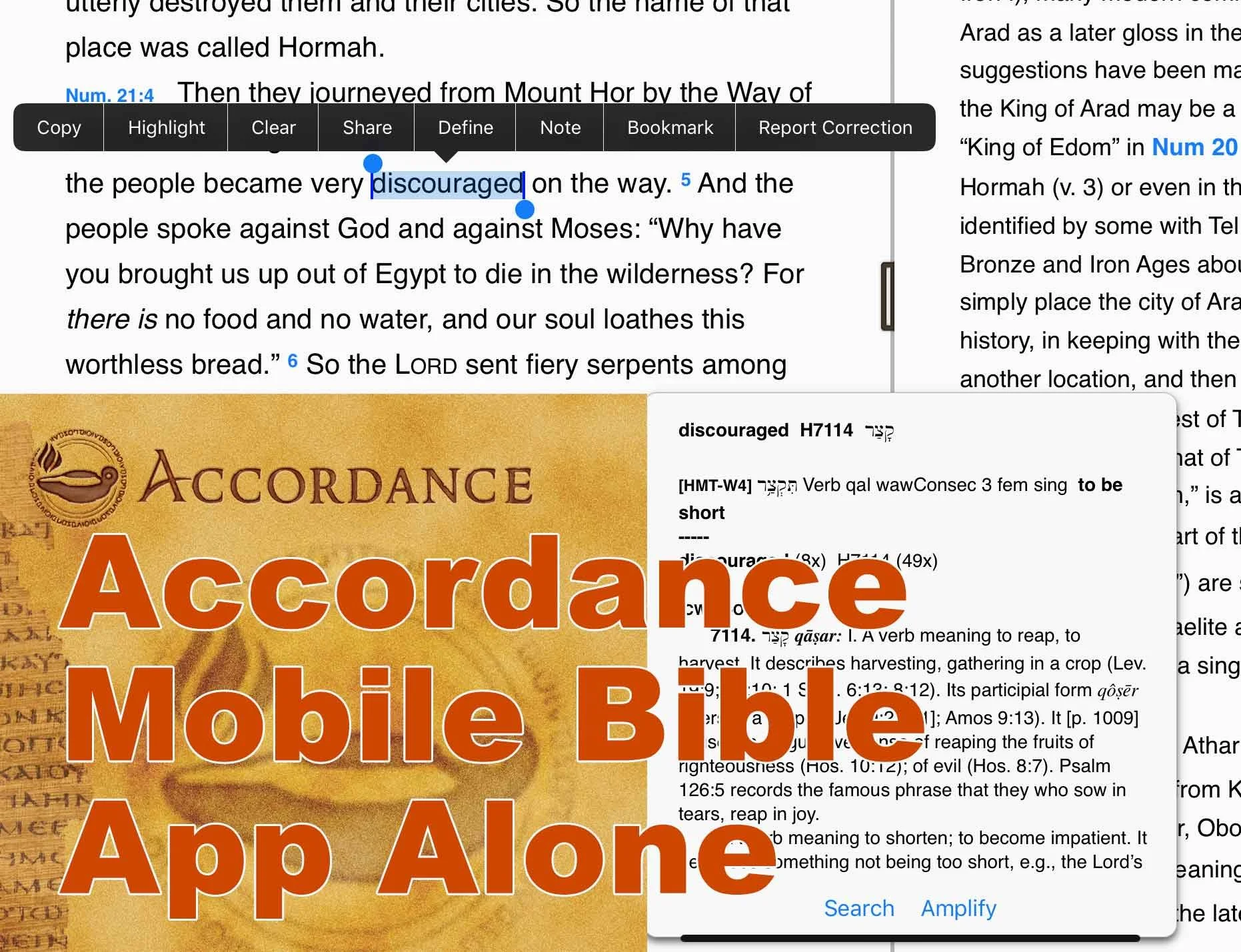
Accordance Bible Software 25 Day Switch Part Two - Accordance Mobile
While switching to Accordance Bible Software for the next 25 days, I will use Accordance Mobile alone as my iPad Bible study app. How does it handle sermon prep?
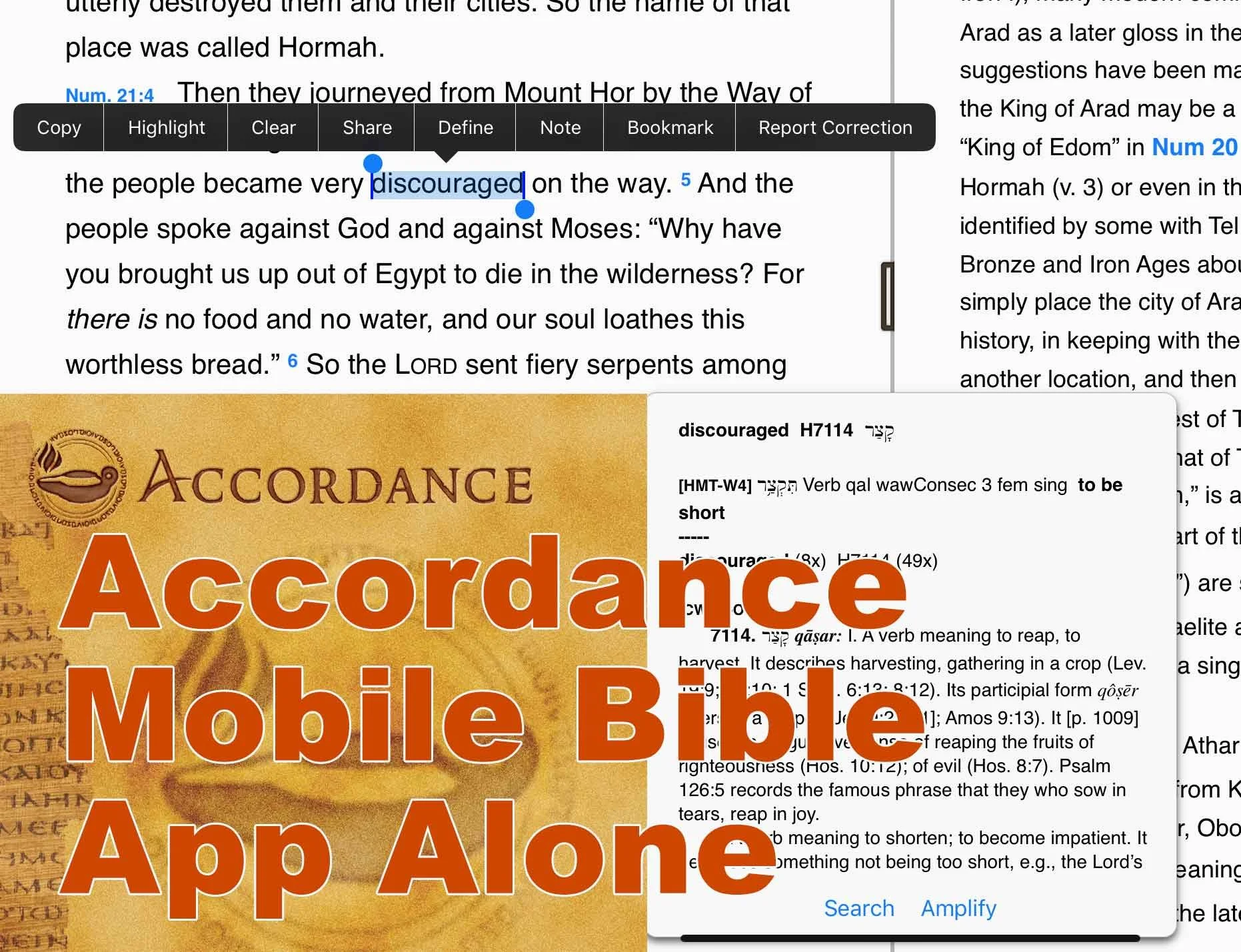
If you read the first post about why I'm testing out Accordance for 25 days, then you'll know I vowed not to open my primary Bible software until it's over. That means I'll use the Accordance Mobile apps instead of the Logos Bible app. My previous entry covered using the Notes feature in Accordance.
Awhile ago I wrote a review of Accordance Mobile for ChurchTechToda.com and gave it a high rating. That review happened while I was also using my other Bible apps. This is the the first time I've used no other Bible app. Accordance Mobile alone! If you want a full review, go to the ChurchTechToday article. Instead this will serve as a comparison. See this as my strengths versus weaknesses of Accordance Mobile.

Please see my review of the NAC Studies in Bible & Theology in Accordance.
Accordance Mobile User Interface
Accordance Mobile looks so simple it will surprise you how many features they pack into the mobile app. It deceptively looks like a simple Bible reader app that also happens to let you open other books. Yet, I recently wrote a sermon primarily using Accordance Mobile to read follow my sermon prep steps which include:
- Reading the text in multiple translations.
- Studying the passage inductively by recording observations in my app's notes.
- Asking key interpretive questions about the text and finding answers in references books, other than commentaries.
- Checking commentaries to make sure my interpretive decisions up to this point are not way out in left field.
- Copying the passage and other supporting verses to my chosen word processor.
- Writing the sermon in my word processor.
- While I probably won't choose a mobile app for 100% of my sermon prep, I enjoyed using Accordance Mobile on my iPad. It works great. Let's start with the ways it excels.
Strengths of Accordance Mobile

All of my books reside on the iPad which makes the app fast. I navigate to a text to study it and the apps jumps to the new spot in my Bible instantly. I keep two window panes open with my favorite commentary in the right side and the Bible in the left. Both books jump to the new passage faster than I can tap the book, chapter and then verse in the navigation tool.

Doing word studies happens with a long press on a word. Above you'll notice I selected the word discouraged in Numbers 21:4 in the CSB. You'll see a popup box with the word study info from your top books. There's also a menu above the word. This menu doesn't help with word studies, but you'll see that you can do other things like "Define" the word in English.
You can also open a Hebrew or Greek text and do the same with Hebrew and Greek words. On those words, tap the Amplify button to see more details. Here you can study the Lexeme, Inflected word or the Root. The first pop up box also lets you choose to search for the word. It will search the English term in hour English text. If you have a Greek or Hebrew text open it will let you search by Lexeme, Inflected form, Root or the Tag.

The will let you share verses. Tap and hold on a verse number to do this. The top of the pop up menu let you add verses to the beginning or end of the chosen verse. That way you can copy a range of verses.
Finally, the Accordance system publishes an excellent collection of digital Bible study tools from every Bible text you probably want to a more commentaries than you can use. They have excellent reference tools and every tool I want to use works in my Accordance Mobile app.
People who want to also make a switch can jump from their chosen Bible software to Accordance by taking advantage of some crossgrade discounts. a crossgrade is like an upgrade, but instead it's buying a book you own in another company's library for a discounted price for use in Accordance. I saved hundreds of dollars over the years by taking advantage of this. I purchased the New American Commentary, Bible Speaks Today and more.
Compared to the Logos Mobile app, Accordance feels simpler and yet has some of the same powerful features. It's also not as cluttered. That said, I suggest the developers consider a few improvements.
Accordance Mobile Bible App Problems
As we noted in the post on Notes, you can't open your User Notes in the right hand window pane and edit it within the pane. Accordance has a real problem with this. You also can't do this on their desktop app.
At least on the desktop app you can open open it, click at an insertion point and start typing and the note's editor window pops up. On the mobile app you have to long press on the verse number and choose User Notes from the menu. Then you have to tap on the name of your User Notes document and it will open a pop up window that covers most of the window.
UPDATE: Please see the user comments below where Rick Mansfield from Accordance tells how to see your text. This makes what I wrote next less of an issue.
The Accordance Mobile notes user interface is a terrible design choice because I can't see the text of my Bible or a commentary while I'm typing in the note. It's the least usable notes user interface of any advanced Bible study app out there.
Since writing my last post on Accordance Notes, I've decided to stop using the notes function built into Bible software. Instead, I've started using Scrivener to record my sermon notes. I'm following a system that my friend a member of the Theotek Podcast team Wes Allen uses. See the video above for how he does that.
Accordance Mobile lacks one feature that I miss from Logos. On the Logos mobile app you can open their Text Comparison tool and read your passage in multiple translations seeing them all on screen at the same time. The desktop version has the new Text Browser tool. Select a verse and choose Text Browser from the Amplify drop down menu to open it.

Accordance added the Text Browser to appeal to Bibleworks users after that company announced they'd stop selling the program.
Logos offers a few other features that we don't find in Accordance.
- New tabbed user interface which lets you open more than two books at one time.
- Guides to help you study a passage or topic more quickly.
- User edited reading plans for Bibles and books.
I don't mind losing these features, but I mention it in case Logos users would feel limited in their study without them.
Olive Tree Bible searches your entire library and presents them in a easily accessible way thanks to the Resource Guide. We don't get anything like that in Accordance Mobile.
Conclusion
The desktop Accordance program goes toe-to-toe with the other Bible programs quite nicely. The Accordance Mobile app still lags behind a little. In spite of that, you can study the Bible using nothing but their iPad app. I wouldn't try doing it all on an iPhone or Android phone due to screen size, but I enjoyed doing my sermon prep last week with nothing but the Accordance Mobile app on my iPad.
Accordance Bible Software 25 Day Switch Part One
To celebrate the 25th anniversary of Accordance, I'm trying to switch from Logos to Accordance. My Accordance Bible Software 25 Day Switch begins.
For the last 13+ years I've used Logos Bible Software plus others as I reviewed them. Today I am going through an Accordance Bible Software 25-day Switch experiment to jump from using Logos first to prioritizing Accordance Bible Software. What inspired this choice? How do I expect this change to affect my Bible study experience? Should you make a similar switch?

This post won't answer all of the question posed above, but it will answer the first and share my early experience. The Accordance Bible Software 25-Day Switch may be temporary. We'll see after it's over. However, it will be complete during that 25 days.
Why am I making this possibly temporary switch? There's a number of reasons.
- Of all the Bible software I use regularly, I'm least familiar with Accordance and want to become more adept with it.
- Logos works great, but it's a hardware resource hog and Accordance runs faster and takes up less space and power to run on both Windows and Mac.
- This experience, I hope, will inform readers what it takes to switch from one major Bible software platform to another.
- I like a challenge.
- The length will honor the history of Accordance, as they celebrate 25 years of publishing a world class Bible software program first on Mac and now on Mac, Windows, iPhone, iPad and Android.
Accordance Bible Software 25-Day Switch Rules
First, I won't use my old go to program or the apps related to the program. In other words, I can't launch Logos on my Mac or on my phone/tablet during the 25 days. There's one exception. If I'm studying a passage and need to open Logos to access a resource that I know will help me produce a better sermon or Bible study, then I will. My preaching and teaching ministry at High Peak Baptist Church matters more than an article written on this site.
Second, like most weeks, I can use other programs or apps. While I launch Logos first, unless I'm reviewing another program or app, I always use more than one Bible program or app to research my sermons. So this "switch" means that Accordance will dominate my study, but I'll continue to occasionally use other programs and app besides Logos when I need to.
Third, I reserve the right to cancel the switch at any time but not for any reason. If this switch means I'm so unproductive that the switch harms the affectiveness as I study the Bible. I'll write about it here.
Fourth, if I need to open Logos to get a screen shot or shoot video to explain differences between Logos and Accordance for articles in this series, I will. But I will only set things up to get the shot and then close it.
Accordance Bible Software 25 Day Switch Copying Passages to Other Programs
Logos helped me finish most of the in depth study for this weeks' sermon already. The first day of the switch came after that on purpose. I didn't want to dive head first into the Accordance deep end. Instead, I'm wading in the shallow end this week.
This week I began to prepare my preaching notes for this week's message. That means I'm copying passages from my Bible software to a Microsoft Word document. I take that Word document into the pulpit with me on my 12.9-inch iPad Pro. It's an extensive outline with the Bible passages copied to the document.
In Logos, copying a passage to Word is simple after some setup. The Logos Copy Bible Verse tool will let you select a passage and then choose the translation, a copy format and whether you want to simply copy the passage to the clipboard or copy it and paste it in one click. If you want to copy it, hit the copy button. Or you can hit the Copy-Paste button and it automatically inserts it into the Word document with the formatting chosen.
With Accordance you insert passages into Word or other programs on macOS by using the built-in macOS Services feature. You can download a Accordance Services Set and install them. To insert the passage, type out the reference in Word and select it. Then right-click it and choose Services and then Insert Verses.

I love the Logos Copy Bible Verses tool, but the Accordance use of services works. Also, you can do a little more. They offer services for ...
- View Verses - shows the reference in Accordance.
- Search with Options - searches the selected text using an options dialog box.
- Search for Words - opens a search in Accordance and looks for the selected text.
- Insert Verses from any Text - lets you choose which Bible translation to paste the passage from.
- Insert Verses - inserts the selected passage from your top Bible.
Users have created other services, which you can find in the Accordance Bible exchange site, which holds files related to Accordance, including this collection of user created services.
This process took some configuration to make the inserted verses look how I want. Go to Preferences and then look in the Citations screen to experiment with the options there to make things look the way you want them too. Here's my screenshot to make things look how I wasn't.

Here's the way the verses look when I paste them into Word. After pasting them into Word, I apply my Bible Quote Style. Logos does this with one click and in Accordance it takes several steps.

Here's how to insert text using Accordance and services.
- Type the reference in Word or another program.
- Right-click (or click on menu for Word, Services, Insert Verses) and choose Services and then Insert Verses (or one of the other services).
- The passage gets pasted using basic formatting so I have to select the passage and click on the Ribbon to apply my Style.
Logos handles this better, but if Accordance handles more of my Bible study process better than Logos, this minor weakness will not keep me from continuing my Accordance Bible Software 25-Day Switch.
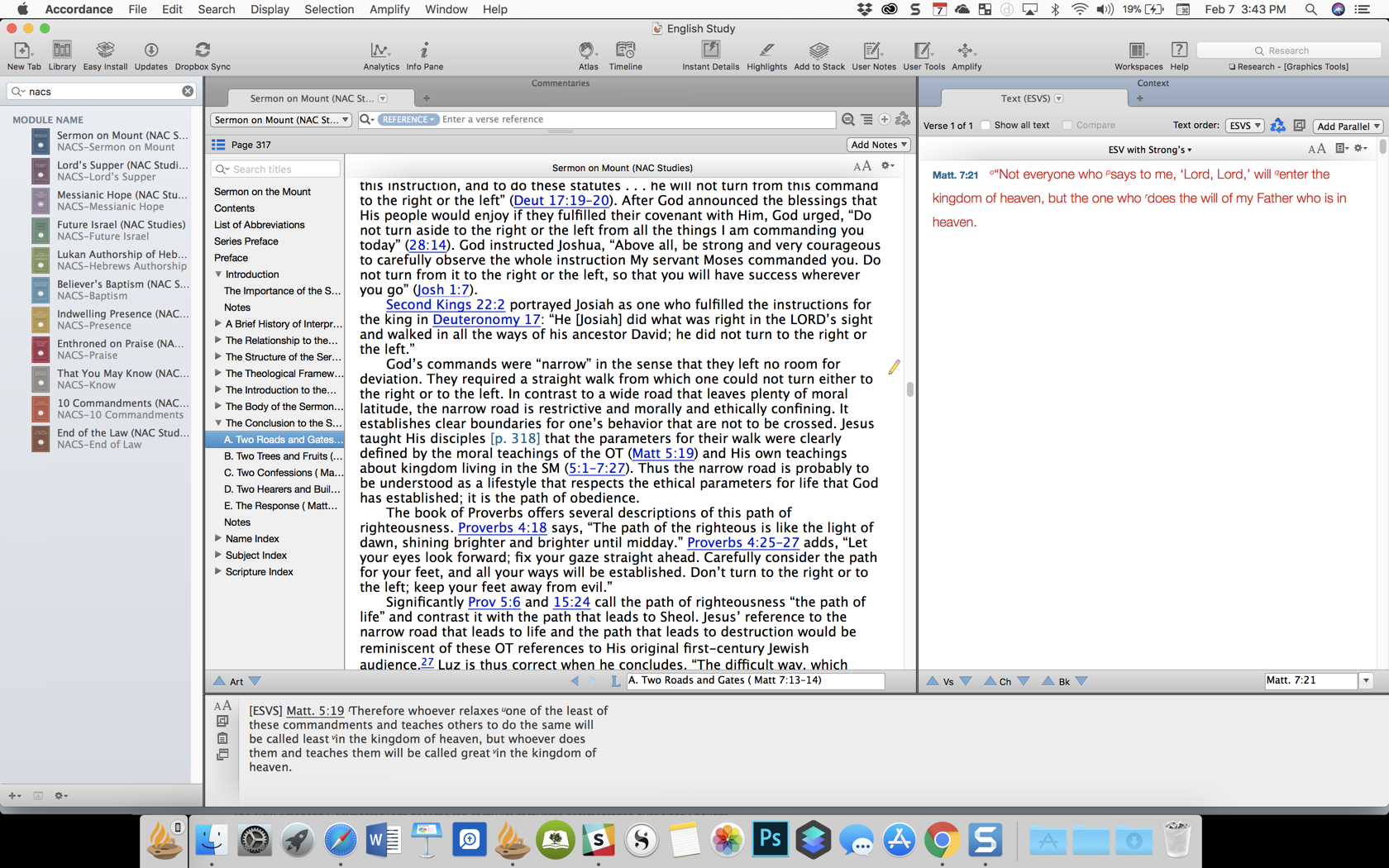
NAC Studies in Bible & Theology for Accordance Review
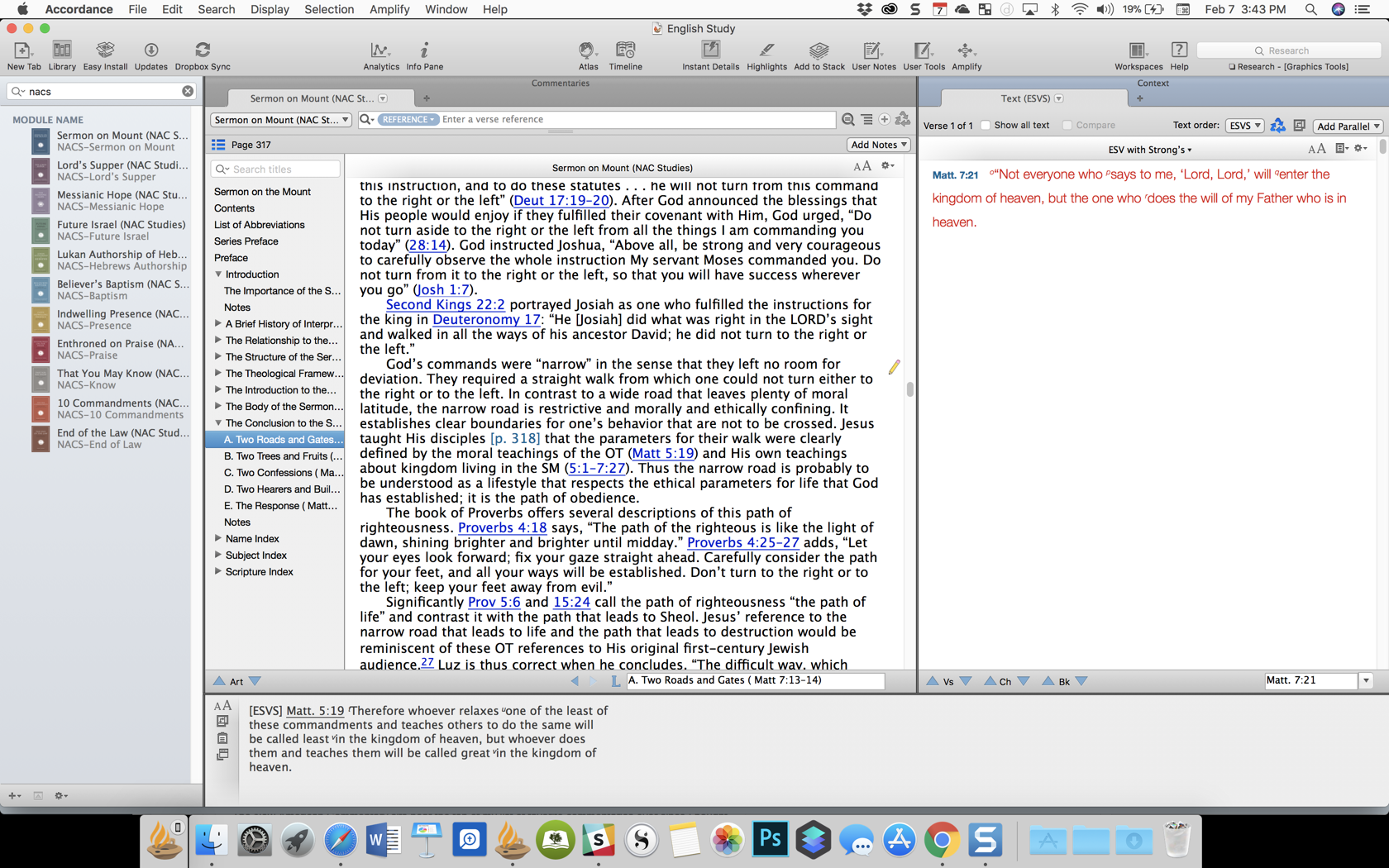
The New American Commentary sits near the top of my list of favorite commentaries ever since I bought the physical books as they first came out in the early nineties. I bought them on subscription from Broadman & Holman as the publisher released each new volume. So when Accordance asked me to review the New American Commentary Studies in Bible & Theology, I jumped at the chance.The New American Commentary creators chose to expand on 11 important subjects in Biblical studies and theology. Readers should see them as addendum to the NAC series.https://www.youtube.com/watch?v=H7OViiJWh2k&feature=youtu.be
What's Included in the NAC Studies in Bible & Theology
Accordance published the set of 11 books for Accordance Bible Software and their Mobile apps this past week. In the set you'll find 11 topics of advanced study written in a way that will stretch average Christian readers, but not so much that they can't benefit from the scholarship included.The Lukan Authorship of Hebrews by David Allen first found its way into the public as Allen's Ph.D. dissertation. He adapted it for this series and I found it extremely interesting. Allen considers the authorship of Hebrews, an often hotly debated subject. He argues for Lukan authorship based on the similarity between the language of Hebrews in Greek and the language of Luke-Acts, among other things. He supports this view by citing the early church fathers, many of whom also attributed the book to Luke.The book doesn't just jump into proving Luke's authorship. He first considers other authors, like Barnabas, Apollos and Paul. I remember listening to my New Testament professor in college tell us that he was certain Apollos wrote the book. The arguments against Apollos, Paul and Barnabas are brief, but they do show up.Chapter three to the end of the book discuss various reasons for trusting Lukan authorship in a convincing way that I look forward to finishing.The complete list of books included in the NAC Studies in Bible & Theology include:
- David L. Allen, Lukan Authorship of Hebrews
- Christopher D. Bass, That You May Know: Assurance in 1 John
- James M. Hamilton Jr., God’s Indwelling Presence: The Holy Spirit in the Old & New Testaments
- Barry E. Horner, Future Israel: Why Christian Anti-Judaism Must Be Challenged
- Jason C. Meyer, The End of the Law: Mosaic Covenant in Pauline Theology
- Timothy M. Pierce, Enthroned on Our Praise: An Old Testament Theology of Worship
- Charles Quarles, Sermon on the Mount: Restoring Christ’s Message to the Modern Church
- Mark F. Rooker, The Ten Commandments: Ethics for the Twenty-First Century
- Michael Rydelnik, The Messianic Hope: Is the Hebrew Bible Really Messianic?
- Thomas R. Schreiner & Matthew R. Crawford, The Lord’s Supper: Remembering and Proclaiming Christ Until He Comes
- Thomas R. Schreiner & Shawn D. Wright, Believer’s Baptism: Sign of the New Covenant in Christ
Seeing Mark Rooker's volume, The Ten Commandments: Ethics for the Twenty-First Century excited me since I sat under his teaching at Southeastern Theological Seminary learning Hebrew, or at least attempting to do so. He graciously gave me a pair of Bs for the two courses. There's one extremely minor complaint with Accordance's versions of these books. The titles seem a bit cryptic when you look for them in the library on the mobile app. Notice the titles of the volumes circled in red above. The real titles are That You May Know: Assurance in 1 John and Enthroned on Our Praise: An Old Testament Theology of Worship. That's nit-picky criticism, but I did have to open the books to figure out what I was looking at.
Accordance Treatment of the Series
People can read books like the NACS series another digital reader like a Kindle. There's a number of important benefits to reading Christian books in a Bible study app like Accordance. With the Kindle versions you'll miss tags that link to other books or the Bible. When the author refers to a Bible verse, you don't want to put down the Kindle and pick up a Bible or close the book and manually type in the Bible reference to find out what it says. In the Accordance Bible mobile app, you can tap on the reference to read it in a popup. Open the books in Accordance Bible Software on your Mac or Windows PC and you can put your Bible to the right and click on a reference and instantly read it. Also, just hovering over the reference shows the Bible passage in the Instant Details window. Footnotes will show up as pop ups too on the mobile app or in the Instant Details window on the desktop app.When you move to a new place in the book or to another book in the mobile app, just tap the screen to show the toolbar and hit the back arrow at the top left to go back to where you were reading in the NACS book.Aside from the pop ups and links, you can take "margin notes" in Accordance and later save those for use in a research paper or a Bible study on the topic discussed in the book. Plus, when you're studying one of the topics like Baptism, these volumes will show up as pertinent results in a search of your library for "baptism" (Believer's Baptism: Sign of the New Covenant in Christ by Thomas Schreiner and Shawn D. Wright).
 Using Stacks in Accordance lets you keep track of important information that you find as you read these books. Highlight text in the book and hit Add to Stack from the toolbar in the desktop app.
Recommendation
The whole set of NAC Studies in Bible & Theology currently costs $159. Each volume individually costs either $13.90 or $16.90 when you buy them by themselves. That introductory price lasts until February 12, so act quickly if you want to buy them. You can always use one of their payment plans to buy the set of books. For example, paying for them over 6 months will cost $41.50/month. That includes a small fee for handling the payments.Should you get them? If you are a lay scholar (pastor, serious student of scripture) then grab the volumes of interest to you. They are informative, written well, and will benefit your study. Pastors may want to get the volumes that they can use as inspiration for a study at church. You may not do a 6 week Bible study on the Lukan authorship of Hebrews, but if you're preaching or teaching through the Sermon on the Mount, then that volume by Charles Quarles would be invaluable. I just finished teaching through 1 John and wish I had That You May Know: Assurance of Salvation in 1 John by Christopher David Bass.Seminary students or professors will find them useful in their educational endeavors. In interest of full-disclosure I was given a copy of the books for this review, I would definitely choose to buy them. I'll be consulting the volumes the next time I'm studying the Ten Commandments, the Sermon on the Mount or one of the other topics addressed.You'll pay more for the Accordance versions of these books than you would on Kindle, but I still wouldn't go that route for the following reasons:
- Accordance tags gives quick links to verses, etc in Instant Details or to open in a Bible window next to the book on the desktop app.
- The mobile app will show pop ups of verses and footnotes.
- Record your thoughts using the great Accordance notes feature.
- Save to stacks important content that will help you in useful research.
- Quick back and forth navigation helps keep you reading without losing your space.
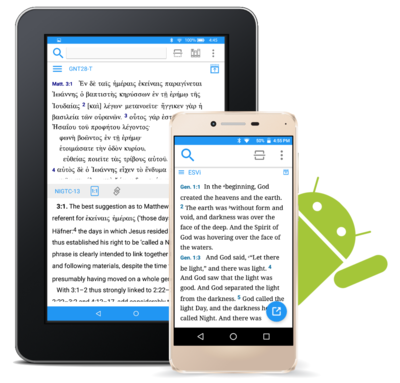
Accordance Mobile Bible App Goes Android
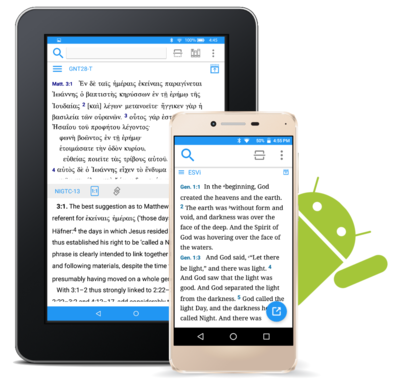
The Accordance Mobile Bible app for Android hit version 1.0 and it's available to download now and side load on your Android device. You can watch our latest Theotek Podcast where Mark Allison and Rick Mansfield showed off the app. Go over to our new Facebook Page and hit Like and you'll get updated each time we go live with a new podcast. Watch it below on Facebook or on YouTube under that.Here is the YouTube vide. Hit subscribe to get new videos after we record them live on Facebook.https://www.youtube.com/watch?v=82aJbwremE0You can download the app and side load it on Android. Get it from the Accordance Blog. Accordance will post it in the Google Play Store sometimes soon. You can follow the Theotek Podcast on Twitter to get an update when it's ready to God or follow Accordance on Twitter. You can also follow me.The Accordance Mobile app is only a book reader and searching tool at this point. Things like languages study, highlighting and notes will be added at a alter date.
Bible Updates and Facebook Live: Theotek Podcast #104
Learn about Bible updates and the future of the Theotek Podcast in this week's show.In my previous post, I shared that we're changing our official home of the Theotek Podcast to Facebook Live. This is the first episode that we recorded using Ecamm Live over Facebook Live instead of using Google Hangouts and YouTube Live. Give it a watch below and go on over to our new Facebook Page where you can find all of our podcasts going forward. In this episode Rick Mansfield showed up of the updates that came in Accordance Bible software 12.2.2, bringing a build-in web browser. I love this new feature because it mean I can use Accordance and access my Logos books and WORDsearch books all from one program.https://www.youtube.com/watch?v=yQpNkluS04c&feature=youtu.beAfter that I shared updates to Laridian's PocketBible app for iOS and Logos Bible mobile app updates. I'm working on a full review. Go follow me on Twitter to get notice when that review goes live over at Church Tech Today.Here's the list of "Our Favorite Things" - the things recommend because we love them.
- DJI Spark Drone - a small 1080P drone that's compact and takes awesome photos and videos.
- LG UltraFine 5K Display - high-end display that's NOT 4K but 5K resolution.
- History of QuickVerse/Parsons Technology - history of QuickVerse Bible software and Parson's Technology from Craig Rairdin, the founder.
- SizzlingKeys - an app for controlling iTunes in a compact form.
- Ecamm Live and Call Recorder - software we used to record our Skype conversation directly to Facebook Live.
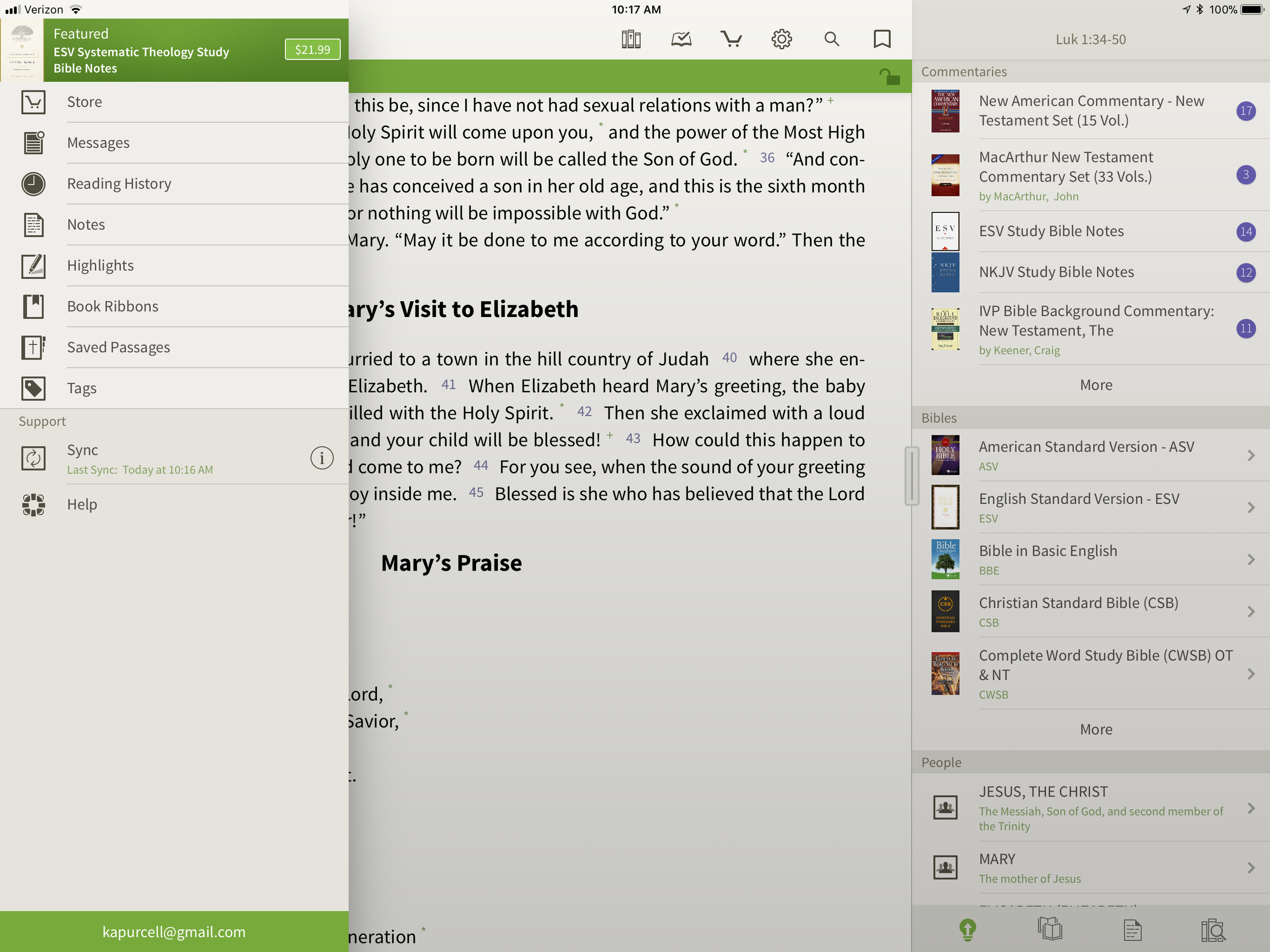
5 Best iPad Bible Study Apps
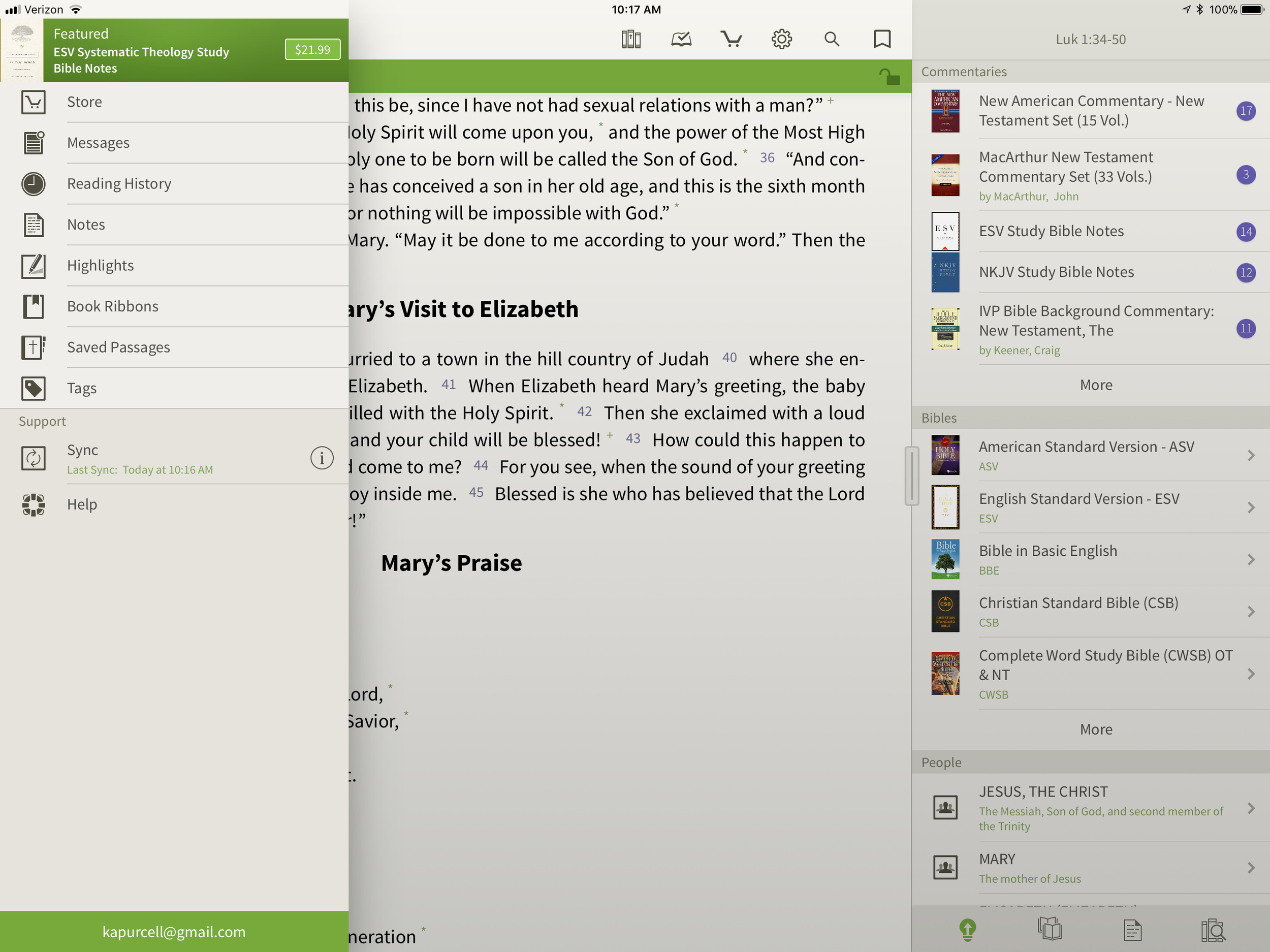
The iPad assists mobile Bible study thanks to a lot of iPad Bible Study apps. But which one should you use? How good are they and what can a person do with them. Let's look at the best iPad Bible Study apps to help preachers, teachers and Christians study the Bible.
iPad Bible Study Must Haves...
Recently we differentiated between mobile Bible Study apps and Devotional or Bible reading apps. Please see that post to understand the difference. The apps below fit in the more advanced Bible Study Apps sector. Users can use them for Bible reading and devotional Bible reading as well, but they are more than that. Here's what I think every good Bible Study app should include that might not show up in a simple devotional or Bible reading app.
- Original language tools
- References like commentaries, Bible dictionaries, atlases and more
- Dual pane view showing the Bible in one and a reference or language study tool in the other panes or showing two or more translations on the screen at once
- Feature-rich note taking within the app
The apps below all give us more than the four features above, but these are the bare minimum. I think they should also be good at helping you do your Bible reading. No one should have to install two Bible apps on a phone, tablet or Chromebook.
Logos Bible
UPDATE: Note that the screenshots and descriptions are of the latest beta of Logos Bible for iPad that will hopefully get released soon. Read more about it in the Logos forums and if you have an Android device you can actually sign up for access to the beta and download it now. The Logos Bible app is unique compared to the other apps in this roundup. It offers a Home page that shows a ton of content by default. I actually turn off much of this. Here's what you get right after installing the app.
- Featured Bibles - top Bibles that Logos thinks you'll like and want to use.
- Group Invites - Logos has the Faithlife community a kind of Christian social network that focuses on their products. You get invitations to join certain groups and they show up here.
- Today's Readings - reading plans for Bible readings, book readings, etc. Tap on them to see the most recent reading for that plan.
- Reading Plan Invitations - like the group invites, these offer potential reading plans like a Gospels in 90 days or Read Mark in a month.
- Verse of the Day - a graphical representation of a new verse of Scripture each day that you can quickly share online.
- Faithlife Today - the news about Faithlife, their products or interviews and skills development videos all focused on Bible study.
- News - text-based news links to the Logos blog.
 In addition to the Home screen, we also get other tabs (buttons across the bottom of the app's screen). These show your Library, Bible, Work Spaces, and a Plus button to add a new work space/tab. The Library button opens your list of books in the library so you can open them. Each book opens in a new Work Space screen. The Bible button opens a list of Bibles so you can add one to a new Work Space. The Work Spaces shrinks each work space and you can swipe between them. This screen also lets users sync the various screens. If you have a copy of the Bible on one Work Space and a copy of your favorite commentary on another, you can sync them so that as you navigate through the Bible from book to book or passage to passage, then the commentary will follow and keep up. Move from Matthew 18 to John 10 in the Bible and a synced commentary or Bible will also move there.
 The app lets users tap and hold on a word and a context menu opens. Here's what the context menu will show you.
- Copy - copy the selected text
- Look up - do some language study or look up in a dictionary
- Search - search your library, the Bible or book for selected text
- Share - post to social media or send to friends via a text message or an email
- Highlight - just like you would some text in your paper Bible with a highlighter
- Note - add a digital margin note like you might in your paper Bible
- Clipping - collect content in a clipping document while researching a topic or passage
- Visual Copy - creates an image of the text to share online or save for presentations
In the upper right corner there's a menu button (three vertical dots) that give options for the more powerful features like:
- Change Resource - replace the current book with another
- Search - search the Bible or open books and the entire library
- Passage Guide - research tool finding your text in reference tools like commentaries and more
- Make a Note - adds a note to the current passage or part of the book
- Add to Favorites - like a bookmark feature
- Text Comparison - shows the text in multiple translations all on-screen at the same time
- Make a Clipping - collect content just like you do with the button in the context menu above
- Exegetical Guide - runs an original language research of the present passage
- Visual Copy - same as the context menu above
- Share - like the context menu above share content with others
- Book Info - shows the front of the book info like publisher, author, etc.
- View Settings - change things like text size, font etc.
The iPad in recent versions of iOS offer a kind of widgets that Android users enjoyed for a long time. In iOS you find these on the iPad when you swipe down from the top of the screen and then swipe right to show the list of Notification Widgets. Logos has a widget that displays their Verse of the Day image that you'd also see on the app Home screen. Tap it to launch the Logos app and it opens to that verse in your currently open Bible. The Logos Notification Widget doesn't do as much as the Accordance widget. I wish it had a version chooser or let you open recent books read like the Accordance widget.
 Users can get the app free, but it works best if you own a library of book from Logos.com. Get one of their Logos Base Packages to bundle a library of books and save money versus buying each book individually.
Bible by Olive Tree
 While Logos may offer more complex features, Olive Tree offers a simpler app with a great set of tools for doing advanced Bible study on a mobile device. In fact the Resource Guide might offer the simplest method of accessing all the content in the library related to a given passage on any of the mobile apps in this roundup.The Bible shows up in the left side with the Study Tools on the right. Inside Study Tools you'll find the Resource Guide along with a library button, a notes button, and the Lookup button, which lets you look up words in word search in dictionaries, the Bible and your notes.
 The Resource Guide is one of the Study Tools and it will arrange your library content by category. All the Related Verses, Commentaries, other Bibles, People, Topics, Maps, Charts, Introductions and more will show up in lists one after another. Each list will show your books ready to open to the content related to the passage or subject found in the verse showing in the left hand window. Tap them to see the content.
 On the top left there's a menu button to show...
- Suggested Resources - an ad for a book Olive Tree's pushing at that time
- Store - link to buy new books from within the app
- Messages - content from the blog often written by our own Theotek contributor LaRosa Johnson
- Reading History - the list of texts you've read in the Bible
- Notes - Shows your user notes
- Highlights - show your user highlights
- Book Ribbons - shows your user book ribbons which are like favorites
- Saved Passage - similar to Book Ribbons with a list of passages you've saved as bookmarks
- Tags - a list of all the tags you've created so you can make your own topical Bible
- Sync - lets you sync your app notes, ribbons, etc. with Olive Tree's servers
- Help - the Olive Tree help system
 Across the top of the Bible Screen we see two toolbars. The topmost toolbar has the following:
- Library - opens your library
- Reading Plan - opens the reading plan screen with suggested reading plans you can add or your own reading plans
- Store - opens the store to buy more books
- Quick Settings - change things like font, screen color (low light verse regular) and others
- Search - search the Bible
- Ribbon - add a ribbon to the current top most verse
Below the top-level toolbar you'll see a second toolbar that shows two buttons, the Select Verse button that opens a Book/Chapter/Verse style navigation tool and a lock button that keeps the toolbar from disappearing. I prefer this and I'm glad Olive Tree added this button for use on the iPad. The iPhone version is best without the toolbar showing so you don't cover up too much of the text on the smaller screen.The strength of Olive Tree's Bible is the simplicity and great library available. It also has the best notes feature available in these three. However, the weakness comes from the desktop app. The Accordance and Logos desktop/laptop apps offer far more than Olive Tree's. Download the app for free and get some free books to try it out. Then check out their store for more tools. They don't focus as much on bundled libraries of books, although they do offer them. I like this because you buy only what you want or need.
Bible Study With Accordance Mobile
At first look, the Accordance Mobile app seems like little more than a basic Bible and book reader tool with split-screen display options. Admittedly, I'm not a frequent user of Accordance Mobile. However, as I dig deeper and take time to discover the features, I realize they a user can do a lot with what looks like very little at first. The Accordance user-interface opens, after you've downloaded books, to show a Bible. There's a handle on the right side that opens a second window with another book. Tap the title of the book to bring up the library list of books. The left window library lists shows a list of the installed Bible Texts while the right shows Texts, Reference Tools like Commentaries or Study Bibles, and your Notes files.Open the Notes file and you'll see your notes. To add a note, select a word or verse and a menu pops up above it. Tap on Note and screen offers to add the note to one of your Notes files. Start typing inside that pop up box. It has a button to change the font, size, color and make the font Bold, Italics or Underlined. Sadly, even though you can see your notes on the right, you can edit them in place. To edit a note, select it and it offers to let you edit the note with a full-screen editor. This covers up the text. I like to make observations about the text in my notes and I can't see the text in Accordance. That's the same problem you have with Logos. At least in Logos you can open the Note file and edit in place. It's hard if you have a lot of notes in your file.Unfortunately, I experienced a problem with Notes Sync via Dropbox. They don't use their own servers and rely on Dropbox to sync between the desktop and mobile app. ON the desktop it's automatic, but not on mobile. That's a huge weakness of Accordance if you're a heavy notes user like me.
 If you open a book with Strong's Numbers tagging attached to the text, like the ESV or HCSB or KJV, then you can select a word and a box will pop up showing the original language information. You get the English word, Strong's number and the Greek word. Then it shows your favorite Greek word dictionary. OT shows Hebrew. Then tap on Search at the bottom of the pop up and it finds that word through the NT. The Amplify will let you search by word or the key number.
 The Library button lets you download your books over the Internet. You can also sync those if you have both the desktop and the iPad connected to the same Wi-Fi network. It doesn't work if your desktop isn't connected via Ethernet.The second button from the left lets you sync via Dropbox or via Wi-Fi. Notes and user tools sync via Dropbox while the syncing directly over Wi-Fi syncs your books from the desktop to the iPad.
 Accordance users will get a number of free books. However, it will work better if you buy a package to use on your iPad. The free Accordance Lite includes some good tools like ESV with Strong's plus some public domain books. To add books you can buy books or get a Collection. They start with the free Lite package and go up to more advanced sets like the Pro sets in English, Hebrew or Greek that each cost $999. If you want all three you can get what they call the "Triple" package in the Learner or Discoverer levels. There's also a graphics-focused set of tools called the Graphics Learner, Discoverer or Master.
PocketBible Bible Study
 I love PocketBible from Laridian because it's the first mobile Bible study app I ever used on my PocketPC a long time ago. Then I moved to Palm and there it was. I went to iPhone and then iPad and it was still available. On Android, eventually it came along for the ride.When you first install the app it offers a great help screen that shows you how to use the app from the get go. It's the best on-boarding experience for a new user. Then you'll get a single window, but no Bibles yet. Open the button at the bottom of the toolbar on the right. Find the Add/Remove books and download all of your books. If you're not registered, you can do that in the tutorial that opens when you first install.After you get some books installed open a book using the top button on the toolbar. You can use the Settings (third from the bottom) to add a second window. The rest of the buttons on the toolbar include:
- Open Books
- Navigate to passage
- Search
- Back
- Forward
- Calendar for Bible reading plan
- Button to open the toolbox pane (more on that below)
- Panes chooser lets you pick how many window panes to open at a time
- Font settings
- Reading controls for books with audio included
- Settings
- Menu where you can add/remove books, change other app settings and control books
 The toolbox holds another toolbar with six icons as follows (see the right most box in the image above):
- Find
- Bookmarks
- Highlights
- Notes
- Find Notes
- Journal
Select a word, phrase or more and a menu pops up above it with buttons as follows:
- Copy - copy the selected text
- Share - post to Facebook or send it over text or email to name a few
- Find - search the selected text
- Look Up - search your favorite dictionary
- More... - opens another menu with a number of other tools, functions and book controls
Laridian offers a number of books to buy. They offer PocketBible Library Collections ranging from $60 on up to $380. You can also buy books or commentary sets.PocketBible isn't as polished as some of the other tools. However, it's one of the easiest to learn and costs less for collections than some of the above options.
Splashtop 2 Remote Desktop
 This last option's not a Bible app at all, but rather a utility that lets you connect to a desktop. Install the Splashtop Streamer utility on your Mac or PC and let it run automatically. Download the app for iPad and run it. After you log in you'll see all of your computers running the Streamer listed. Tap the one you want to log into. It opens the computer and shows the screen.
 Now you can control anything on the computer including a full desktop class Bible software program. Above you'll see it running with Bibleworks 10 showing on the screen.