

40 Questions Series for Accordance Review
The 40 Questions Series for Accordance Bible Software seeks to answer questions about 8 different topics from an evangelical perspective. This review focuses on the content of the series and using them in Accordance Bible Software for various platforms.
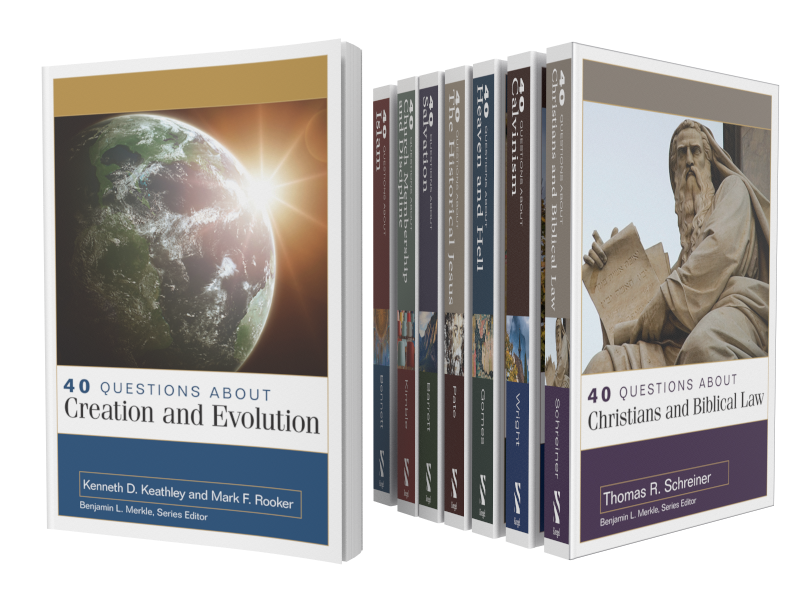
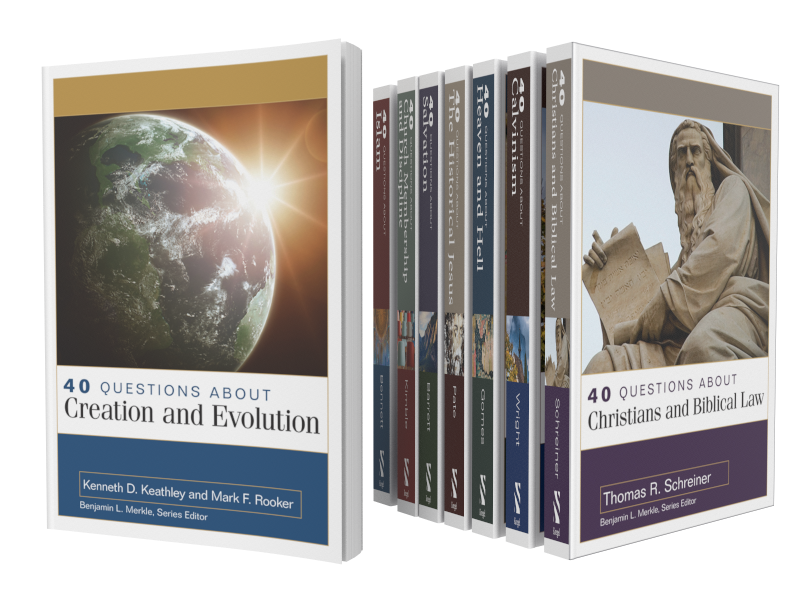
The 40 Questions Series from Kregel Publications for Accordance Bible Software puts into digital format 8 of the useful theological series that seeks to answer questions that Bible students might have on a range of topics from Calvinism to Church Membership. The series includes 8 of the 17 books in the set, each with 40 questions about a topic included in the book. Is it a good addition to your Accordance library? We'll take a look at the series itself and at using it in Accordance Bible Software.

For full disclosure Accordance gave me a review copy of the set. They offer a special until October 26 on the series taking $52 off to give you almost a 30% discount. Buyers can also get the individual volumes for a discount. Here's what you get.
- 40 Questions about Creation and Evolution (Keathley, Rooker)
- 40 Questions about the Historical Jesus (Pate)
- 40 Questions about Heaven and Hell (Gomes)
- 40 Questions about Salvation (Barrett)
- 40 Questions about Calvinism (Wright)
- 40 Questions about Christians and Biblical Law (Schreiner)
- 40 Questions about Islam (Bennett)
- 40 Questions about Church Membership and Discipline (Kimble)
The other books in the series are not yet available on Accordance but they will be soon.
40 Questions Series: How the Series Answers Questions in Accordance
Since Accordance gave me a copy to review for their sale, I did not have time to read all 8 books in the series. I started with 40 Questions about Calvinism by Shawn Wright. He's a church historian, pastor and professor at Southern Baptist Theological Seminary in Louisville.

Each book includes 40 questions that introduce and examine the topic of that book. For example, some of the questions from Wright's book on Calvinism asks things like...
- What's the Difference between "Calvinism" and the "Reformed Tradition"?
- What are the Five Points of Calvinism?
- Does God Love All People?
- Is the Arminian Doctrine of Prevenient Grace Biblical?
The book breaks up the 40 questions in to sections on things like general questions, questions about God's character, about salvation, about human responsibility and more. The last section covers more practical questions.
I'm not a Calvinist nor an Arminian. You might call me a Molinist because I affirm free will and eternal security like most traditional Southern Baptists.
The book helped me understand what many Calvinists believe and how they don't really like being put in the box of the TULIP 5 Points. The fact that those points came as a reaction to Arminian theology helps add some depth to what I was pejoratively taught about Calvinism.
In spite of learning more about what Calvinists believe, I was not convinced. However, I would recommend Wright's book for anyone who wants clarity about Calvinism from a Calvinist.
Accordance does a very good job of creating quality digital versions of the books they sell. They're formatted nicely for screens. The book creators do a good job producing mostly error-free copies of their books, so you can trust them.
Installing 40 Questions Series in Accordance Bible Software's Various Platforms
If you purchase the 40 Questions Series for Accordance, you'll want to do a few things to make them more convenient to use. You probably already know how to download new books, but if you don't follow these steps:
- Open Easy Install from the Accordance menu on macOS or from the Utilities menu on Windows.
- Click on the Easy Install tab at the top of the dialog box.
- Click the boxes next to the book name
- Hit the Download button at the bottom of the Easy Install box.
- Let it download the books and when it asks hit the Install button to shut down Accordance and Install the books.
After that the program will restart. You'll find them in the various sections of your library. For example the following five books show up in the Theological section of your Library.
- 40 Questions: Calvinism
- 40 Questions: Christians and Biblical Law
- 40 Questions: Creation and Evolution
- 40 Questions: Heaven and Hell
- 40 Questions: Salvation
You'll find the other 3 in other sections. 40 Questions: Membership and Discipleship shows up in the Practical section. You'll find the last two on Islam and Historical Jesus in the History section.
If you don't see the library on the left hand side of the window, open it from the Library button or the Window menu. You can also use the keyboard shortcut OPTION+COMMAND+1 on Mac or CTRL+ALT+1 on Windows.
To make the new books easier to find you may want to move the books to the top of your Theological section by dragging and dropping them using your mouse or trackpad. Or you can right-click the section name and choose Alphabetize to put them in alphabetical order. We showed you how to do this in our review of the Christi-Centered Exposition Commentary for Accordance.

To install the books on your phone or tablet, tap on the center of the app and then tap your Library icon in the bottom left corner on iPhone or iPad. Then tap on the Download button in the lower left corner and wait for the list to show your books. Hit the select all button in the upper right corner 2nd from the left. Then tap on the download button in the upper left corner.

On Android, tap on the screen to show your menu. Hit the Menu button with 3 lines in the upper left corner. Tap on Easy Install to open the Easy Install box.
If you're not sure which section of the library holds a book, then just start typing in the search box at the top of the Library.
Reading Books in Accordance Bible Software and Apps
Reading and highlighting books in iOS and Android versions of Accordance are a pleasure. As you'll see below, note-taking with Accordance mobile is not possible right now. I hope this changes very soon.
It's pretty easy to simply read books in the Accordance Bible Software on your Mac or Windows computer. Just open them up and read. You'll find them in the various sections of your Accordance Library as seen above.
If you want to add notes or highlights, you can do so easily.

To add notes hover over a section you want to annotate, a plus button will show up to the right of the paragraph. Click it and it opens a notes editor.
Unfortunately, you can't add notes to books in the mobile apps. iOS lets you add notes to Bible verses, but not books like the 40 Questions Series. Android doesn't even let you add notes to Bible verses. If you prefer to read on a mobile device like me, you'll need to open another app and put notes there and then sync that note file to your comptuer and copy and paste to into the desktop versions of Accordance. It's not ideal, but is a way to get around the limitations.
I asked Rick Mansfield of Accordance Bible Software about this and he said that the developers see the importance of notes and want to add them soon.

Adding highlights requires you to select the text you want to highlight and then choose the highlight style from the highlighter tool that pops up or you can open the the Highlight pallette box by hitting the button on the toolbar. Make sure you select the right highlight file from the dropdown box in the pallette box. After that it's easiest to just use the little tool you will see just above your highlighted text. The previously used highlight style shows up on the left (#1 in image above) and the tool pallette box opens if you hit the other button (#2 in image above).
I use My Mobile Highlights, created by default when you install the program. This file syncs with your mobile device using either the built-in syncing feature that requires you to have the computer program open and the mobile device open.
A lot of people own convertible or 2-in-1 Windows computers these days. If you like reading books on yours, then you'll enjoy reading in the Windows version of Accordance. It's not as convenient on a Mac since Apple doesn't make a handheld version of a MacBook.
Syncing Notes and Highlights Between Different Operating Systems
The built-in Wi-Fi syncing in Accordance is not very convenient. I never use it and you shouldn't either unless you have a problem using Dropbox. The Dropbox highlighting is only a little better, but it is better than the Wi-Fi system. You have to connect your installation with Dropbox. See the video below for how to sync using Dropbox.
Accordance needs to improve it's syncing features. That's my biggest complaint regarding Accordance Bible Software's platform. You have to use a third-party service to sync. They need to bring it in house and make it secure. Second, it's not always automatic. You can set the Mac or Windows versions to automatically sync when you open and close the program, but you have to do it manually on iOS or Android. Third, they need to sync settings and library organization between all platforms too. Other Bible software platforms do.
Until they add automatic syncing, you'll want to sync manually. Use the same steps from above on how to install the books on your iOS or Android device and chose the Sync button. Make it a happen to do this each time you open and close the app.
Recommendation
First, I like the 40 Questions Series and look forward to reading the remaining 7 titles after enjoying and learning a lot from Wright's book on Calvinism. Second, Accordance does a nice job and offers them all for a great price right now of $122 for the set. Make sure you get them before the deal ends October 26.
Accordance Bible Software 25-Day Switch Part Two - Notes
During my Accordance Bible Software 25-Day Switch I'm trying to use the Accordance User Notes. How does it compare to my old go-to application, Logos?
Many Bible software users make use of the built-in notes feature in addition to reading Bible passages and commentaries, including me. To make the Accordance Bible Software 25-Day Switch, the notes feature will need to record my observations, questions and findings.
Since I work on both a desktop, laptop and my iPad, it will also need to sync between the three devices easily, I'd rather they synced automatically. Finally, I want some formatting options, including bullet or number lists, automatic hyperlinks to Bible passages and basic text and paragraph formatting.
How well does Accordance work? We'll take a look in part two of the Accordance Bible Software 25-Day Switch from Logos Bible Software and the companion mobile apps from Faithlife.
Accordance Bible Software 25-Day Switch: User Notes

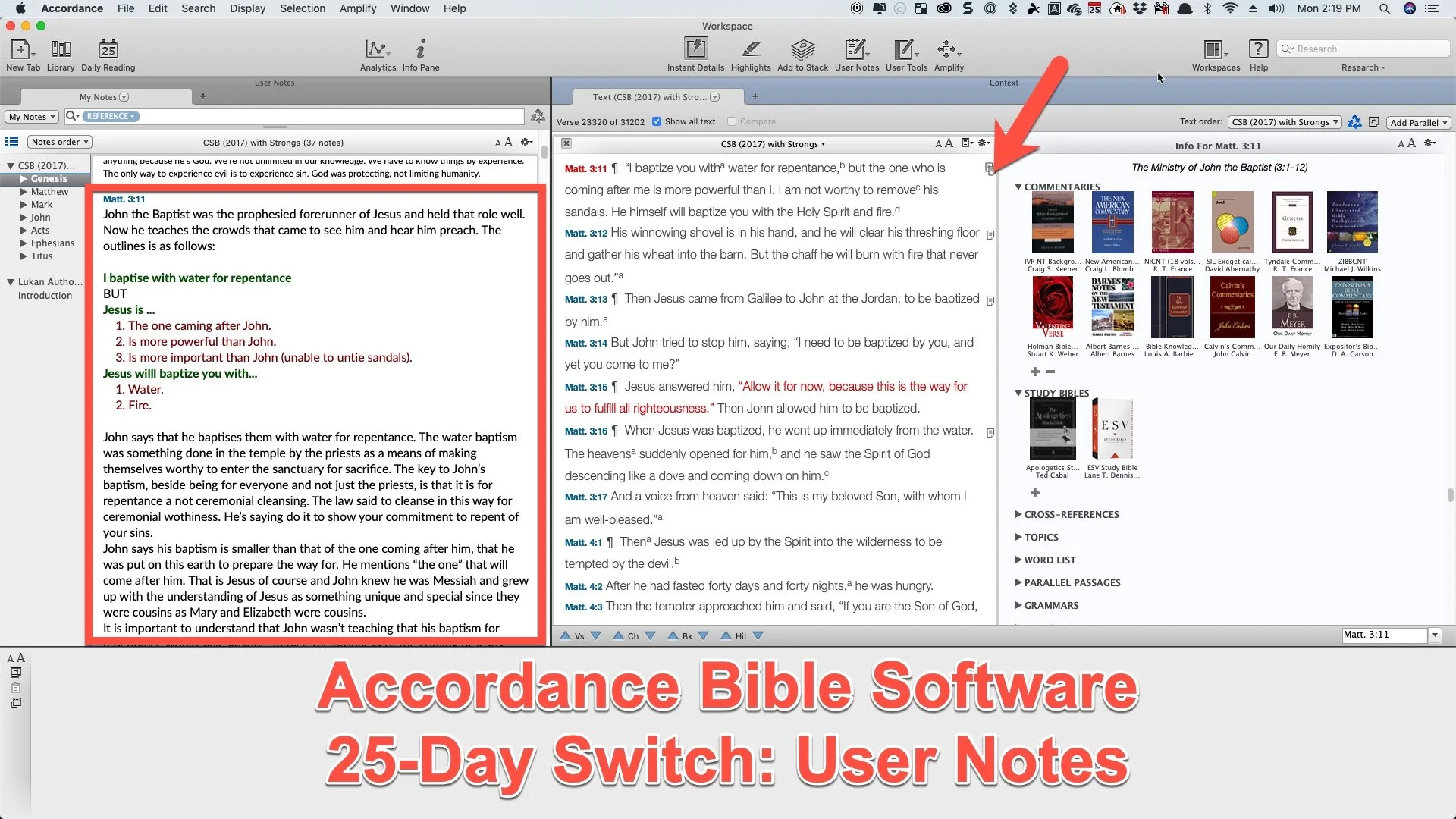
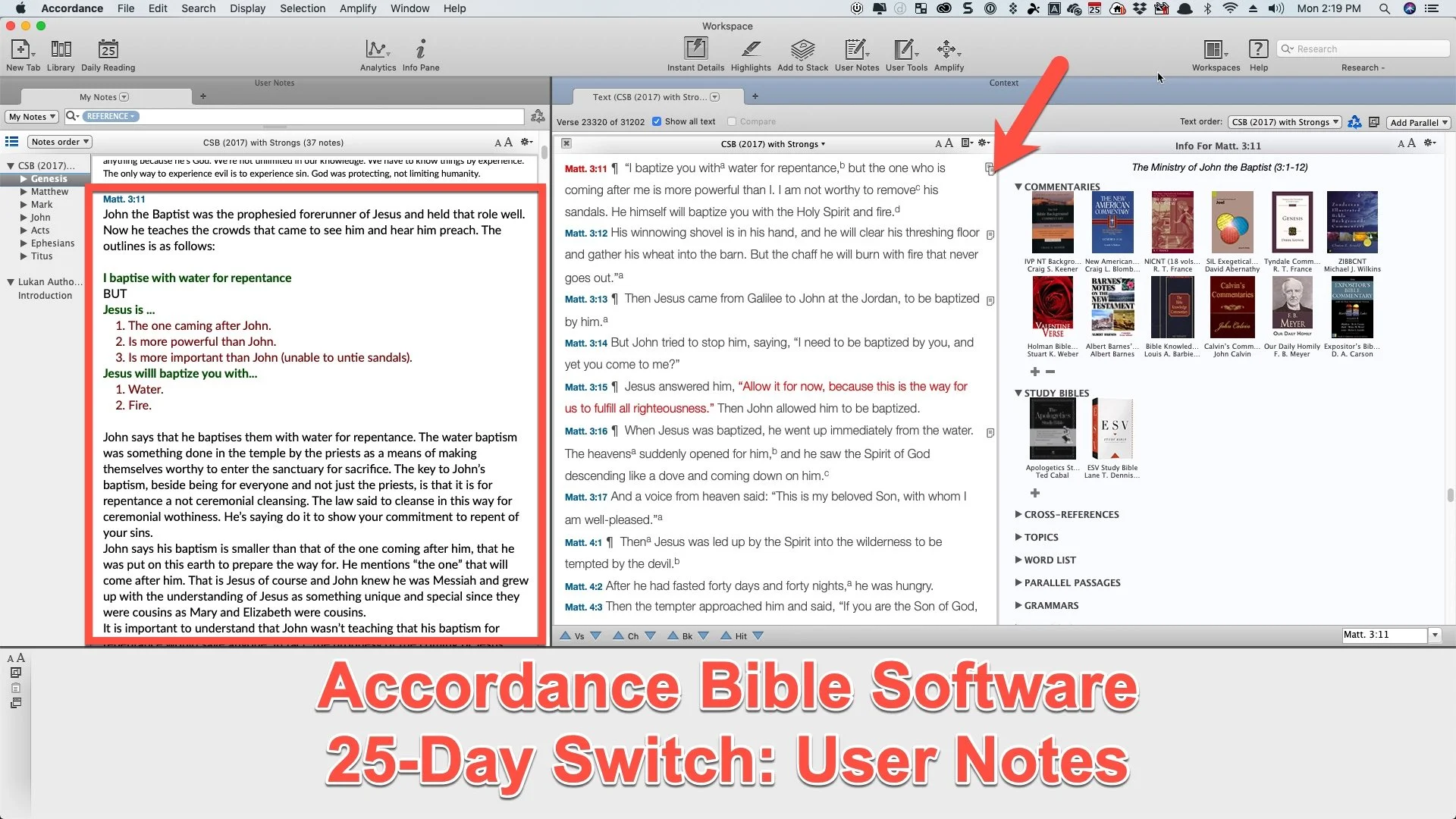
First, let's take a look at the user notes in Accordance. Any verse with a note will show it with an icon in the right margin next to the verse. See the arrow in the image above. It shows the note on Matthew 3:11. The red box shows the content of the note opened in a separate window.

To add a new note, click on the blank spot next to the verse along the right edge of the Bible window. A dialog box will pop up asking which User Note file to add the note to. A window will pop up over the main Accordance screen to edit the User Note. After you create the note you can save it by clicking on the Update button in the lower right corner of the pop up window.
The Update button highlights my first big annoyance with Accordance Bible Software User Notes. You have to click Update! I'm used to Logos which automatically saves your notes while typing them. And it does this seamlessly and quickly for most users. The few people who struggle with this issue includes people with underpowered computers. That's merely an annoyance, however. I can get over it.
However, another significant annoyances comes from the fact that the User Notes tool pops up in a box on top of the Accordance Bible Software program. Why can't I open the note in a window pane and edit it right in that window pane? If you open your User Notes file in a new window pane and click in the note and start typing to edit it, the note opens in a User Note pop up window.

The User Notes window toolbar includes the following functions (from left to right):
- Keyboard chooser - drop down lets you pick...
- Default - COMMAND+OPTION+SHIFT+D
- Greek - COMMAND+OPTION+SHIFT+G
- Hebrew - COMMAND+OPTION+SHIFT+H
- Font face
- Font style (like bold, italics, etc)
- Font size
- Font color
- Bold
- Italics
- Underline
- Superscript
- Subscript
- Link - select text and click here or use link dialog box or select text formatted as a URL and OPTION+Click on this button to quickly add a simple link.
- Auto-link - click to create automatic. links out of Bible passages.
- Insert picture
For the Auto-link button to work, the passage will need to use typical passage formatting like John 3:16. URLs with HTTP:// work but not just www.kevinpurcell.org by itself.
At the bottom of the User Notes editing box we get arrow buttons. Two sets up of UP/DOWN buttons will jump to the previous or next note in your file or will add a new note on the previous or next verse. When you click these buttons they automatically update and save the note file. To delete a note, just clear the box and hit Update. If you close the Note editor, it will ask you to Update. That keeps you from entering a long string of notes and then fail to save the note.
After you save a note, the Notes box will open to show your notes. You can't edit them in this box, but they will be displayed here. That dialog box has a few buttons as well. You can close it using the little X in the upper left. The center to area has a drop down menu that shows all of your User Notes found by the program. The upper right has a font size Up and Down to make the notes look bigger or smaller in the display box. The last button in the upper right looks like a Settings icon. It has the following items...

- Move Up - moves the whole box to the right end of the current window.
- Move Down - moves the note box to the bottom part of the window.
- Show Interlinear - grayed out in a notes box, but there for when you're displaying a Bible.
- Enter Reading Mode - opens window in full screen without any window controls or toolbar (Keyboard shortcut CONTROL+R)
- Auto-scroll - starts to scroll the window automatically.
- Untie Scrolling - breaks the link between the Bible window and this window.
Accordance Notes Pluses
Here's what I really like about using the Notes Tool so far during my Accordance Bible Software 25-Day Switch. First, it's fast! Logos notes can get a little slow. The auto-update and sync feature on Logos probably slows it down since it's phoning home to the Logos servers every time it saves. Accordance doesn't do that until you sync them on exit or manually.
Second, the Notes Tool has all the basic features you need. We can format text and add images. It supports Unicode which means you can enter Greek and Hebrew text. Plus, it adds links to Bible passages and you can also add links to websites.
Third, users can link their notes to Bible passages, websites and even other books in your Accordance library. If you have a file on your computer, you can link to it too.

Select the text you want to add the link to and then click on the link icon (third from the right on the top toolbar of the User Notes Edit window). Choose the kind of note you want. If you are linking to a file on your computer, then choose File and click on the Choose File... button. Pick your file and then click on OK to create the link.
Resource links will let you add them to any book in your downloaded library. A drop down box opens so you can select the book. Play around with it to see all that this powerful linking tool can do.
Finally, Accordance gave us a better way to sync notes between the Mac, Windows, and mobile versions of Accordance. Instead of doing it manually over Wi-Fi as the used to require, users can connect their Dropbox account to Accordance and sync that way.
Syncing with Dropbox
See the video above to learn how to do this and how to use the sync feature. Unfortunately, it forces you to manually sync from the mobile app to Dropbox. You can set the desktop version to sync each time you exit the program. It's a shame the mobile app won't do this automatically. Since they require it, they should put the sync button in the main window of the app instead of nested in the library window, which forces you to tape a few times. I added a button to my toolbar on my Mac version of Accordance even though it syncs automatiaclly upon exit.
The Accordance video tutorial collection includes some great help on using their software. They offer an awesome one on using notes in Accordance Mobile. There’s another one covering the desktop version’s Notes tool.
BibleWorks users can import their notes into Accordance thanks to a recent update from Accordance.
Accordance Mobile Notes
In Accordance Mobile, add notes by long pressing on the Bible verse. A new window pops up with many options. Select User Note to add a note or edit one aloready in place. Now choose Notes file you want to use to add this note. I use the same file for all my tasks.

A verse with a note already attached will show a tiny note icon in the right margin (see the left image above). Tap on it to see a popup displaying the note. Tap on Edit to change the note or Open to read it in the lower half of the app.
Notice the Note editor has font formatting. You can't add links like you can in the Mac or Windows version. UPDATE: To add links to your mobile notes press and hold on text and then choose Link from the pop up menu. The Plus icon on the top toolbar will let you add images from your mobile device. The up/down arrow moves to the previous or next note.
Lessons Learned from Accordance Notes Use
Here's what I've decided after making this switch for the first few days. First, I will see if I can get used to using the Accordance User Notes tool in both mobile and on my Mac. I think I can adapt.
Second, I'm seriously thinking about dumping Bible software notes tools entirely. For years I used PC Study Bible and lost all of those notes because I didn't know how to get them out. e-Sword lets you move your notes out and so did QuickVerse. I used both of those for years. When I used BibleWorks for a few years before jumping to Logos, I loved that they saved their fils as RTF files. Logos makes it really hard to get notes out of the program.
I should probably use a third-party solution to record m notes. I may do that with a simple Word document for each book of the Bible. Some like Evernote, but I've stopped using the service due to the subscription fees. I already pay for Word. We'll see after this 25 days.
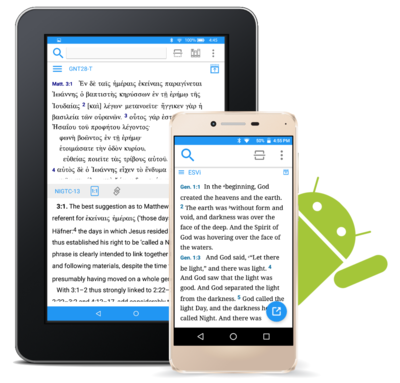
Accordance Mobile Bible App Goes Android
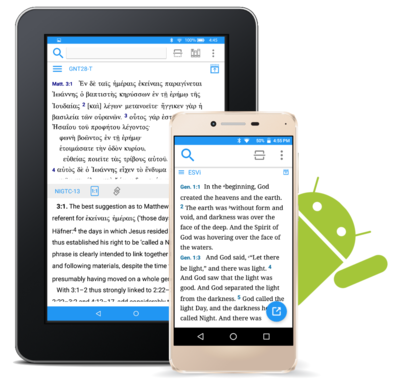
The Accordance Mobile Bible app for Android hit version 1.0 and it's available to download now and side load on your Android device. You can watch our latest Theotek Podcast where Mark Allison and Rick Mansfield showed off the app. Go over to our new Facebook Page and hit Like and you'll get updated each time we go live with a new podcast. Watch it below on Facebook or on YouTube under that.Here is the YouTube vide. Hit subscribe to get new videos after we record them live on Facebook.https://www.youtube.com/watch?v=82aJbwremE0You can download the app and side load it on Android. Get it from the Accordance Blog. Accordance will post it in the Google Play Store sometimes soon. You can follow the Theotek Podcast on Twitter to get an update when it's ready to God or follow Accordance on Twitter. You can also follow me.The Accordance Mobile app is only a book reader and searching tool at this point. Things like languages study, highlighting and notes will be added at a alter date.
Accordance Mobile 2.3 Update: Theotek Podcast #056
What's new in Accordance Mobile 2.3 for iOS? Rick Mansfield from Accordance Bible Software shows off the new features in this big update. But first we offer Our Favorite Things - recommendations from each member of our Theotek team.We advertised this episode as Rick Mansfield's showing off the new Accordance Mobile 2.3 update with all the new features. He had some difficulties due to instability on Google's part. We took a look at Down Detector and they said Google was experiencing issues.https://www.youtube.com/watch?v=Fj5KVaUfdyE
What's New in Accordance Mobile 2.3
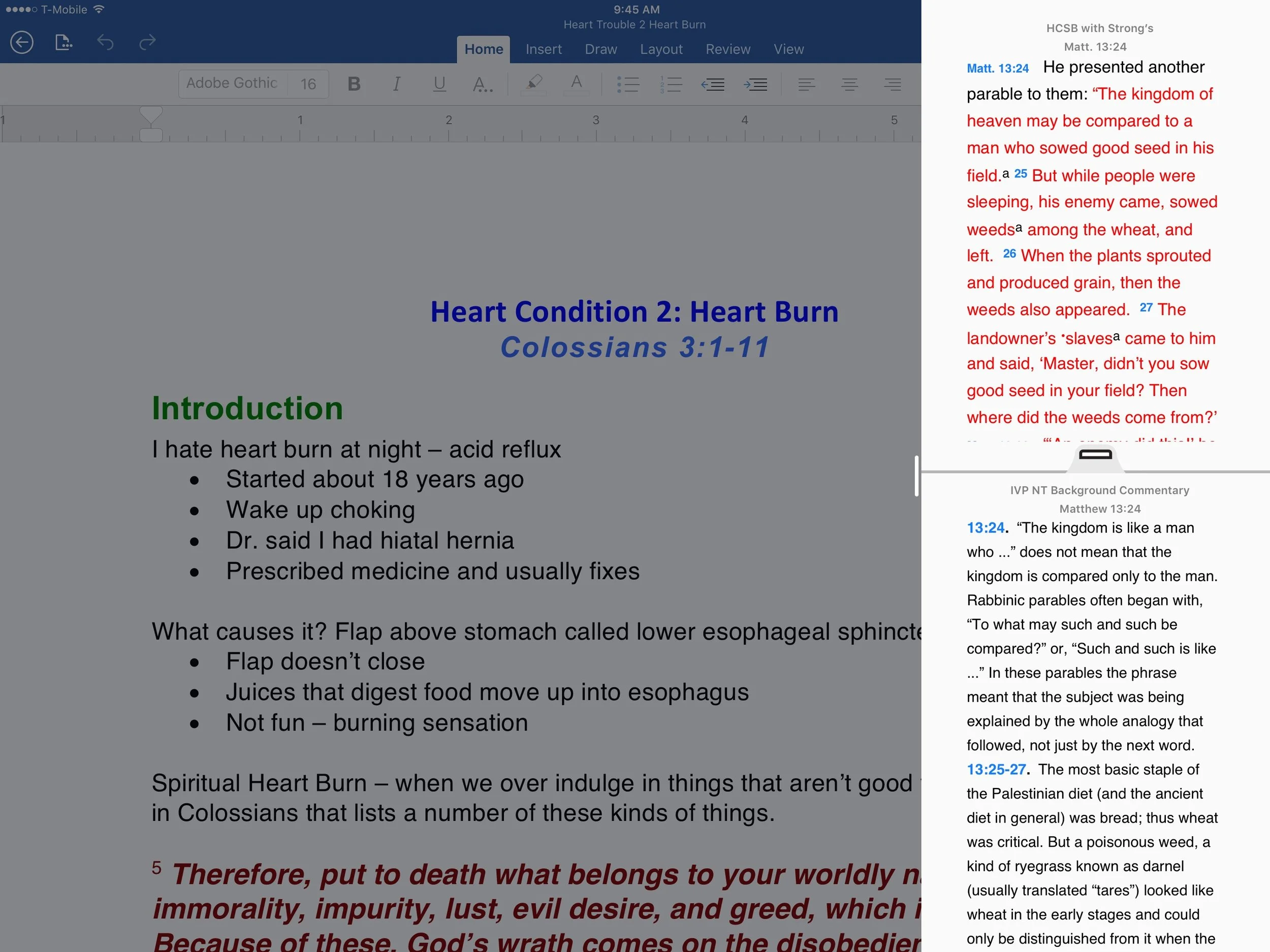
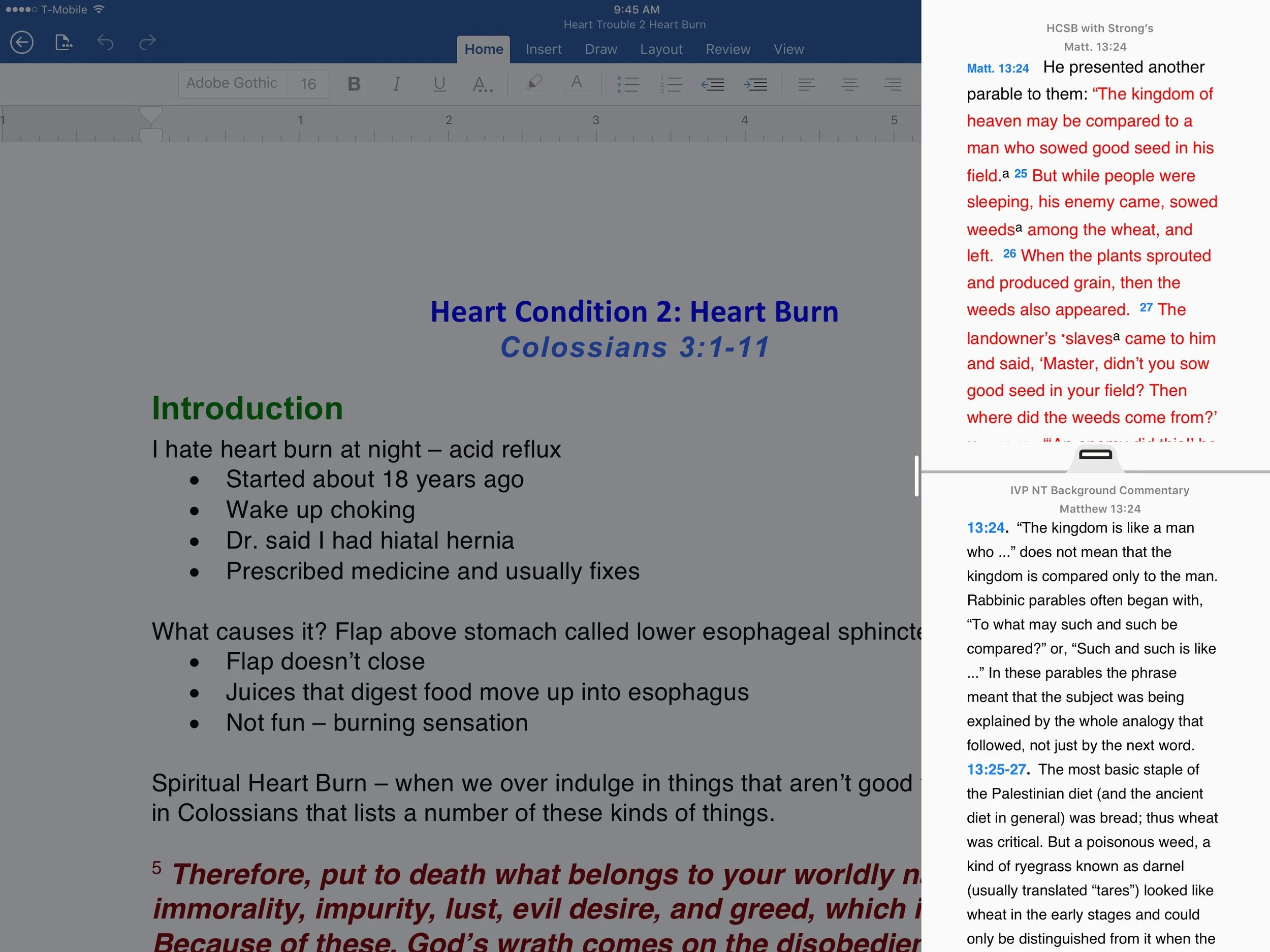
 Here's some of the great new features available in Accordance Mobile 2.3. First up, we see the new slide over feature that came in iOS 9. The user can slide from the right edge of their iPad and show a column of app icons that support slide over. Tap on one to see open an app window that takes up only about 20% of the screen. Use the handle in the middle of the border between the two apps to slide in and take up a quarter to one half of the screen.In addition to the slide-over feature, on newer iPads Accordance Mobile 2.3 now supports side-by-side. The above description explains how this works. The feature isn't available on older iPads or on the iPhone at all.Accordance Mobile now shows up in Spotlight search. Search for a key word or passage and the iPad's Spotlight Search feature will look inside Accordance and find the word. It uses your top-ranked bibles, but doesn't work when the Library page is open.Watch our video podcast to see it in action. For more information head over to Accordance's blog.
Our Favorite Things
Wes Allen recommended the Unitek 3 Port USB 3.0 Hub with Gigabit Ethernet adapter built-in. It costs $20 and gives users exactly what the name suggests.Antoine Wright recommended the 831 Podcast. The podcast host is Brandon Fasig and he says, "831 youth podcast [is] meant to strengthening your faith."LaRosa Johnson recommended the iOS weather app Dark Sky. I like it too because it gives more than simple weather data.At the end Antoine talked about a couple of opportunities he's involved in that you can take advantage of. Find out more at the following: