

Bible by YouVersion Downloaded 500 Million Times: 5 Reasons Why
The Bible app from YouVersion, and Life.church announced that people downloaded their app 500 million times. Here are 5 reasons why.
500,000.000! That’s half a billion. That’s how many times people like me downloaded the Bible app from the folks at YouVersion by Life.church. I recognize that I downloaded the app probably 20-40 times alone over the years, but even if the 500 Million downloads represent 100 Million actual people, that’s a lot of people reading the Bible.
What makes this simple Bible reading app so popular that such an enormous number of people installed the app on their iPhone, iPad, or Android device? After all, it doesn’t have any commentaries, Greek or Hebrew word studies, or other theological tools. It’s mostly just a Bible reading app with social media features and sharing built-in to name a few features.

Let me share with you the 5 reasons why users downloaded the Bible app 500,000,000 times. Not only will you learn what sets it apart, but how to get the most out of the simple Bible app.
Bible App is Simple
I usually recommend complex Bible study tools like the apps from Logos Bible and Accordance Bible. If that's too complex I drop to the second tier of apps from Olive Tree Bible, Laridian Pocket Bible, or a few other third-tier Bible study apps. Most of my readers want at least basic original language study in Greek or Hebrew, commentaries, Bible dictionaries, and complex searching. The Bible App includes none of these advanced features and that's why so many love the app. They prefer simplicity over power.
Fire up the app and you'll find the Verse of the Day on the Home tab displayed in the text, visual form, and as part of reading plans that include that verse. There's also a video about the verse (see image above).
Tap on the Bible tab at the bottom of the page to read the Bible in your preferred translation. Users can quickly move to a new passage using the button on the top of the screen. The other top center button opens the library of translations and you can read almost any translation you can think of in multiple languages (see image below).

Other options let users open multimedia resources related to the current passage. You can also change the look of the text...

Above you'll see highlighting (left), a selected verse with the menu that shows the list below, and images that you can put behind the verse text and share with social media or other places (right above).
While reading a passage, tap on a verse to…
- Select the verse
- Highlight a version in multiple styles
- Copy a verse
- Create a visual image of that verse
- Share the verse
- Compare the verse in different translation
- Add notes or bookmarks
- Create a prayer list item
- Find related verse
You will also see little note icons that display translation notes.
If you want to select multiple verses, keep tapping on more verses.
There’s a lot here, but compared to more complex research apps, the user interface is quite simple to use and figure out.
Bible App Includes a Large Collection of Simple Reading Plans and Translations

The Plans tap at the center bottom of the app shows you all the reading plans available in the Bible App (see left image above). Users can find a large collection of reading plans based on topics, books of the Bible, or sections of Scripture, like the Sermon on the Mount.
When users select one of the plans, they can do the following:
- Read the Bible
- Share you progress with friends inside the app or on social media
- Get notification reminders to read your daily reading
- Search for plans
Notice in the image above that you can find Reading Plans in the Discover section too (2nd from left button on the bottom - see image above).
Bible App Shares to Social Media and More
The Bible App not only helps people read the Bible but helps them read it as part of a community. Like other social media networks, the Bible App lets users follow friends and see their progress, Bible images, and more.
Go to the Home tab and choose either Today or Community at the top. The Today screen shows your Verse of the Day, reading plans you’re reading, and suggests people follow, among other things.
The Community tab shows things you’ve shared and what your friends share with others, like their reading plan progress or Bible images. You can then comment or like their content. If you like a reading plan that a friend shares, then you can choose to start reading it yourself.
If you choose something in the app, you can use the phone or tablet operating system sharing features to share to places like Facebook, Twitter, Instagram, or directly via a text or some other direct messaging app.
These social media features might do more to spread the Bible App to others than any other feature. As people share things with friends and family, recipients then choose to download the app.
Bible App Syncs Highlights and Notes Across Devices and Platforms

Most people own a computer, a smartphone, and maybe a tablet. Tech enthusiasts like me might own a few of teach. The Bible App works on all of them. You can install it on...
- iPhone
- iPad
- Android phones
- Android tablets
- Kindle tablets
- The Web via a browser
Whatever you do in the app on a device, like an iPhone shows up on the website, your Android tablet, or your Kindle tablet. All your highlights, notes, and reading plan progress show up on each of these platforms. Create an account and log in on each device to sync the various content or progress.
Bible App Adds Multimedia Like Video and Images
As mentioned above, the Bible App doesn't just show you the text of the Bible. You can also view multimedia content like the Verse of the Day superimposed over beautiful images. View the ones made by the app developers, your friends, or create your own.
If you tap on the Discover tab at the bottom of the main screen of the Bible App, you will see Podcasts, Videos, and images.
The Podcasts include simple things like audio book versions of the Bible read by talented readers. You can also hear traditional podcasts that cover things like Bible teaching, help for teachers, and popular content like J. Vernon McGee’s Thru the Bible in podcast form.
The videos come from multiple sources like The Spoken Gospel, which is a video Bible. You can also see scenes from the popular tv series The Chosen. The Bible Project videos also show up here as well as the Lumo Project, another video Bible in multiple languages. You can spend hours watching the videos included in the app.
Summary
I prefer more advanced Bible research and study apps for most of my mobile Bible reading or and study. But for quick and simple Bible reading and for sharing with others, the Bible App does the best job. Since it’s free, everyone should get it and drive that number far past the 500 Million downloads
6 Best Online Bible Study Sites in 2020 - Part One
With Wordsearch about to bite the dust, we lose one of the best online Bible study sites probably by the end of 2020 or early in 2021. So, that means we need to reexamine the online platform for studying God's word.
Five years ago I wrote, "Bible study's going online, not entirely, but increasingly so." Today online bible study is more mainstream, but still not the primary way most people study their Bibles. However, it's better than ever in 2020.
So here's the first 3 of my 6 best online Bible study sites that you can use on a Chromebook, a tablet, or even a smartphone. Fire up any web browser and study your Bible. You'll find that you might not need to run one of the complicated Bible study suites that you install on a Mac or Windows computer.
Why Use Online Bible Study Sites?

With limited storage these computers can't handle huge libraries from the complex Bible study programs like Logos, Accordance or Olive Tree to name some of the most popular.
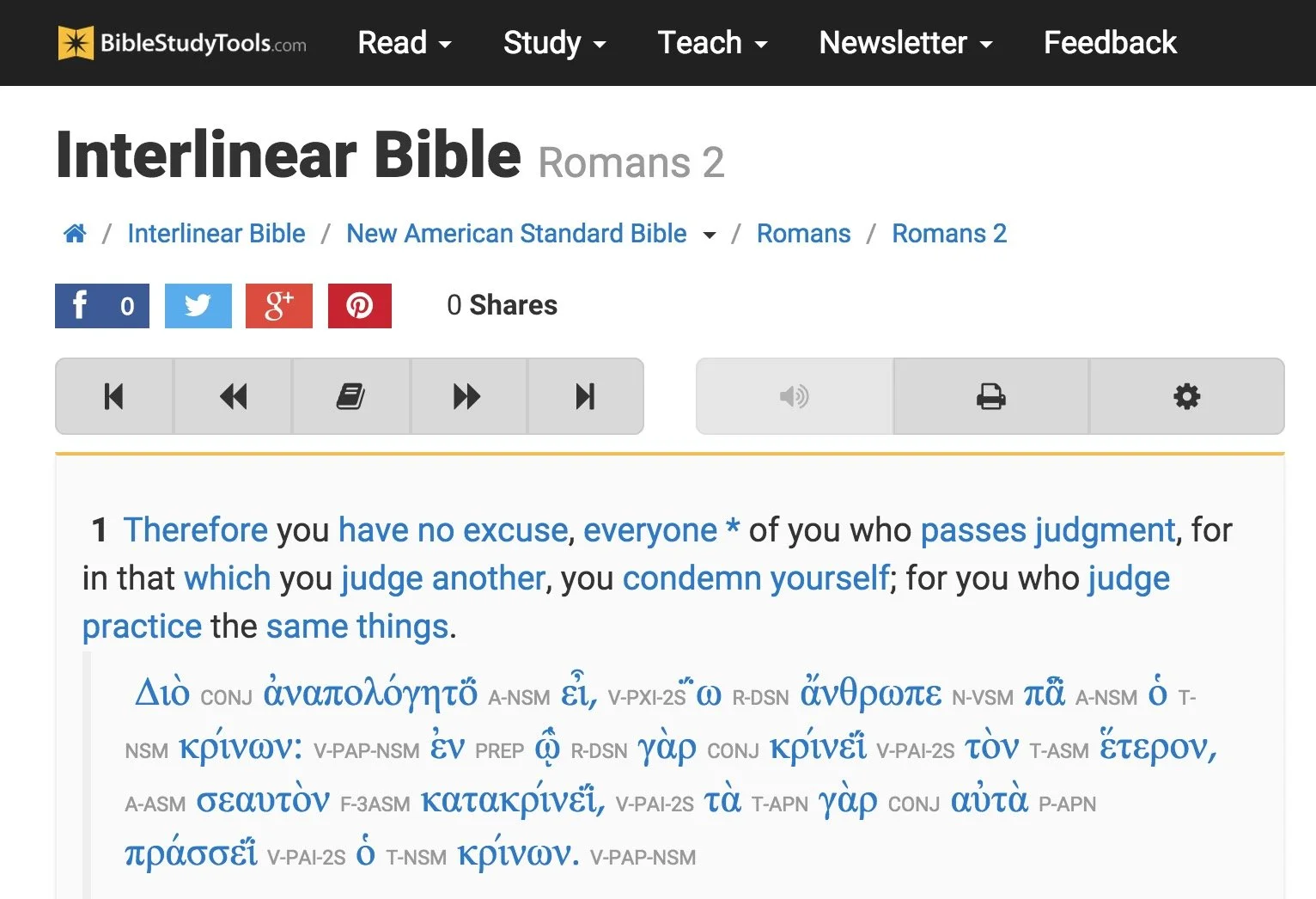
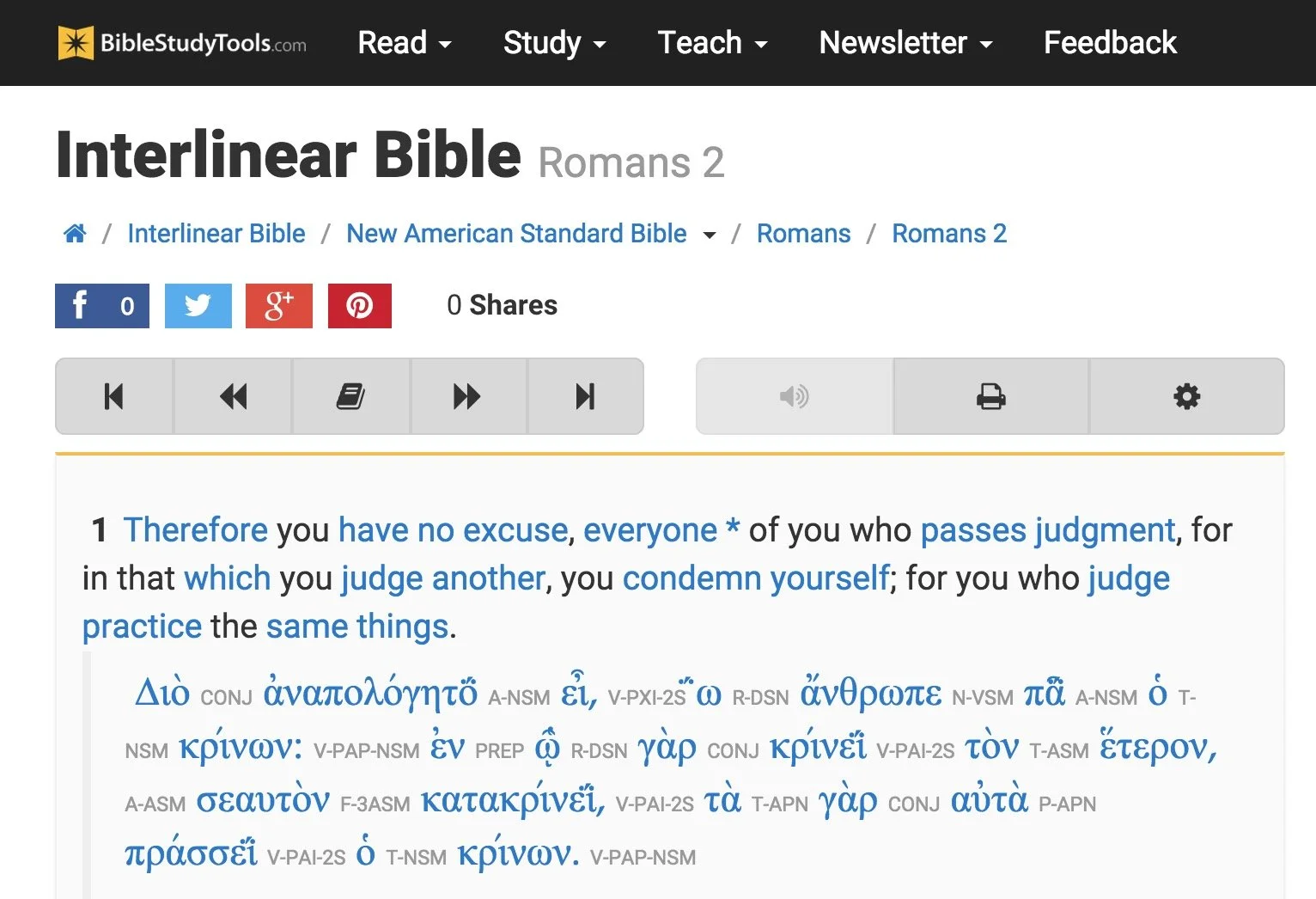
BibleStudyTools.com

We first look at BibleStudyTools.com. What makes this a viable option for intermediate level Bible study software? Users can search the Bible, read it, track daily Bible reading plans and share scripture via copy/paste or links to post to popular social media outlets. Almost every online Bible can do those things. Here's what this site offers in addition to the basics.
Bible Study Tools adds some public domain tools like ...
- Commentaries
- Dictionaries
- The International Standard Bible Encyclopedia
- Old and New Testament Greek Lexicons
- Classic sermons from past scholars and preachers

The site includes a number of modern and public domain Bible translations. The list of Bibles includes...
- ASV
- CEB
- Douay-Rheims Catholic Bible
- ESV
- God's Word
- Good News
- CSB
- Jubile Bible 2000
- KJV
- Lexham English Bible
- NASB
- NIV
- NKJV
- NLT
- NRSV
- RSV
- The Message
There's also some limited original language study. You can use an Interlinear Bible for languages study.
The site will collect user notes and highlights for those who sign up for a free account. The Bible student can mark up their Bibles and save their study findings for future reference.

While the site doesn't offer as many modern reference tools, a user with simple needs can get a lot done. Read a text, highlight it and write observations in a note attached to a verse. Then open the interlinear Bibles based on the KJV and NASB to do some original language study. Search the text for some cross references related to the topics in the passage. This gives any Bible student a good start in understanding their passage.
The Interlinear Hebrew text comes from Biblia Hebraica Stuttgartensia from United Bible Societies. The Greek text comes from Center For Computer Analysis of Texts, University of Pennsylvania based on Nestle Aland 26.
Here's a demo of the old 2015 site. Look for an updated video soon.
After these early steps, open some commentaries, dictionaries or the ISBE and learn more about the passage and what others said years ago. Record those findings in the notes. Then find the passage's Big Idea and come up with an outline using an online word processor like Google Docs or Office 365's version of Word online.
If I had to compare the site to a piece of Bible software, I'd say it can do almost as much as e-Sword with a few modern translations added to it.
Bible Hub

The next of these six best online Bible study websites comes from Online Parallel Bible Project in the form of BibleHub.com. The interface looks a little cluttered, but it's still a useful site with plenty of resources. In fact, it's a deceptively useful tool.
Enter a Bible reference in the top search box and the site opens the verse in all the translations and commentaries available in the left column. Along the right column we find some helpful tools like the context of the passage, cross references and Treasury of Scripture Knowledge.
Here's a demo of the old 2015 site. Look for an updated video soon.
Across the top of the site there's a toolbar that helps people navigate to specific passages in any of the supported translations. The site includes a large collection of modern and public domain translations. The toolbar also includes some public domain commentaries. Access them through drop down lists.
The toolbar buttons put many of the tools a click away. We get a parallel Bible button, cross references and a context button that shows the single verse within the pericope. In addition there's links to a few specific commentaries and more.
Like the other sites, Bible Hub lets me share to Facebook, Twitter and Google+. It includes some nice pictures, maps and outlines.
Biblia

Logos Bible Software users will want to go first to Biblia.com. The site offers a simplified version of what the company offers their customers in their Logos 9 Webapp. You'll need to own one of their expensive software packages or subscribe to Faithlife Connect to access the webapp. You can also check it out because it's very powerful for an online site. We'll look at it in part two of this article.
Biblia gives users access to their Logos Bible Software library online and a selection of tools and features even if you just sign up for a free account. You'll want to pay to really make good use of Biblia. And in that case you'd do better to use the Logos 9 Webapp. However, mobile users may like Biblia since it has a very nice Mobile version of the site.
Here's a demo of the old 2015 site. Look for an updated video soon.
The left hand column includes four tabs with the following features:
- Home - Shows reading plans and the About Biblia list of links.
- Library - List of books available to a user whether they pay for the suite of Faithlife Bible tools, subscribe to Faithlife Connect or sign up for a free account.
- Search - Search one book or other books in the library.
- Notes - Shows notes on a particular verse or book passage from the Faithflife.com community, but not a Logos Bile Software user's notes created in the computer program or mobile apps. You also have to sign into even see this tab.
The main part of the Biblia screen includes two window pane. The user can open books in either side. For example, open a Bible in the center column and a commentary on the right. The two will sync up to the same verse when a user turns the feature on using instructions explained below.
Use a mouse wheel or swipe on a laptop trackpad to scroll through the Bible from Genesis 1:1 all the way to the end of Revelations 22.

Click on the menu button (three dots) in the upper right corner of the window pane to show view settings. The user can do the following:
- Change the font size
- Sync the two panes
- Open the book's table of contents
- Change the reading view from column, stretched across both pans or full-screen reading view
- Toggle the community notes from other Faithlife users (but not personal notes from the computer or mobile apps_
The sharing tool will let you post to Twitter or Facebook, get a link to the verse on Biblia.com to post online or email, and an embed code to post to a website. See image below.

Here's part two of this roundup of the 6 best online Bible study sites.
Best Bible Software for Average People in the Pew
What are the best Bible software apps for people who aren't studying the Bible to preach or write a commentary or teach in seminary? This roundup of the best Bible software for the person in the pew will answer your questions.
What is the best Bible software for people in the pew? That question doesn't get a lot of attention, especially here. However, I want to change that with this post. What are the best Bible software options for the lay Bible student? These all run on one of the most popular platforms - Windows, Mac, iPhone, iPad or Android. A few will run on all of these platforms.
Advanced Bible Study software gets most of the focus on this site, but plenty of Bible students don't need the high-powered scholarly Bible study software that a pastor, researcher or Bible translator needs. They only need to do a few things like...
- Search for verses
- Read the Bible
- Study the Bible for teaching a class
- Writing blog posts
- Personally study the Bible
These lay people want more than a simple Bible reading app but don't need as much as the expensive and powerful suites offer for hundreds of dollars. If you're interested in simple Bible study apps to just read the Bible, look up some verses by searching by word or topic, and creating a reading plan, then take a look at my list of the best simple Bible apps that I published over at ChurchTechToday.com. Our purpose in this post is to look at the apps and software that fit between those simple Bible reading apps and the powerful tools that scholars and pastors need.
Olive Tree Bible
Olive Tree Bible fits in an in-between spot. A Bible study software user can get past the simple or basic Bible study level, but it really shines for the user who wants more than just reading plans and sharing to Facebook. You can do both of those, but you can do a lot more.

It runs on almost every platform from computers to smart phones and tablets. The app or software costs nothing and you'll get some public domain books for free plus a modern Bible or two. To get a little more advanced you need to pay for extra commentaries.
Open the app on your computer or mobile device and you can just read the Bible. You can also open the Study Center (the right hand section in the image above) to look at the Resource Guide where you'll find all the books in your library related to that passage open in the current Bible.

Tap or click on words to search, look them up in dictionaries or find out what a Strong's tagged dictionary says about the world. This lets users who don't know Greek or Hebrew understand the original languages behind the English words. You'll need a Bible with Strong's numbers tagging, like the KJV seen above. Olive Tree sells a lot of them.
Keep notes or highlight. You can also bookmark verses. If you enjoy listening to books, then buy some audio books to hear the book instead of read it. They have a lot of titles in the Christian Living category. You can also listen to your Bible or to other books.
Olive Tree Bible runs on all of the top platforms with a free app download and costs extra for the best books.
e-Sword
The top dog in free apps deserves a spot in our list of the best Bible software for lay people because it's free and easy to use. In addition, if you want to spend some money, you can buy some more modern translations, books and commentaries at eStudySource.com.
e-Sword comes with a simple layout in four quadrants plus a list of the books of the Bible along the left. In each quadrant, you get tabs for each Bible or book installed. On each tab you'll find a book or Bible with a toolbar for performing basic tasks.

The program's main toolbar lets users search the Bible or book, jump to passages or change the layout. You don't have to use the four main quadrant layout. You can show just one, two or three as well.

If you use a Bible with Strong's numbers, then you can click on it to see the definitions in a tooltip popup. Also, scripture links in the other books will show up as links. They have tool tips too.
e-Sword has a user note system, bookmarks and highlighting too. Take a look at see if it will fit your needs. The Windows version is totally free. The Mac version is called e-Sword X and will cost $9.99 from the Mac App Store. I wrote about it when it first came out for Mac. The iPad app costs $4.99. Look for e-Sword HD in the app store. The version that runs on an iPhone costs $2.99 in the iPhone app store.
I love that there's a large community of users who've made their own books out of public domain books. Check out eswordlibrary.com, one such source. And you can buy modern translations and recently published commentaries, Bible dictionaries and more from eStudySource.com as mentioned above.
Wordsearch Bible
Wordsearch Bible software offers a lot of power in a simple to use package. However, it only runs on Windows and Mac. There's also a very poor mobile version for Android and iOS, but don't bother if that's where you want to study the most. Also, if you're a Mac and iOS user only, I don't recommend it because it's not a native macOS program. They created it using the Windows software and put it in an emulation package. I include it here, because on Windows it's great! Also, for Chromebook users or Mac and iPad users, MyWSB.com gives access to your library on the web inside a browser. And it's pretty good.
Wordsearch 12 opens by default to a homepage, but the real magic come with you click on the Study tab or Library tab across the top of the windows. They also have links to their social media (bottom right) and app store sites for their mobile and online versions of Wordsearch.

The main Study screen has a Windows Explorer style layout with the Bible displayed on the right and the library and books shown on the left.You can show or hide both of these lists.
Other great features include...
- Parallel Bibles
- Templates to save your study environment
- Integration with OneNote for syncing files
- LessonMaker tool to quickly create studies
- Powerful search features
- A large library of books with a lot of free options
- Free training online
PocketBible
The first Bible study app I ever used came from QuickVerse. The creator of QuickVerse saw the value in mobile Bible study early on before the iPhone even existed. Now you can use PocketBible on all platforms including Windows, Mac, iOS, and Android. It comes from Laridian and the creator, Craig Rairdin is a pioneer in Bible software.

Notice above that the app can show a lot on screen at the same time. This is true, not only on Windows and Mac, but also on the iPad and Android tablets. Few mobile apps let you view more than one or two books at a time.
The mobile version is also very capable. You can use it on iPad, iPhone and Android.
You can use the “Advanced Feature Set” that comes at a small upgrade price of $17.99 on all of these platforms. It’s slightly less on just one platform. There’s a journal feature, an auto study feature that finds all of your books with content related to a particular passage or a word. There’s an audio Bible included. On iOS you can use a reading mode that shows only the text on screen without the toolbars for a distraction free environment. There’s more so check it out at their website related to the advanced features.
5 Best iPad Bible Study Apps
The iPad assists mobile Bible study thanks to a lot of iPad Bible Study apps. But which one should you use? How good are they and what can a person do with them. Let's look at the best iPad Bible Study apps to help preachers, teachers and Christians study the Bible.
iPad Bible Study Must Haves...
Recently we differentiated between mobile Bible Study apps and Devotional or Bible reading apps. Please see that post to understand the difference. The apps below fit in the more advanced Bible Study Apps sector. Users can use them for Bible reading and devotional Bible reading as well, but they are more than that. Here's what I think every good Bible Study app should include that might not show up in a simple devotional or Bible reading app.
- Original language tools
- References like commentaries, Bible dictionaries, atlases and more
- Dual pane view showing the Bible in one and a reference or language study tool in the other panes or showing two or more translations on the screen at once
- Feature-rich note taking within the app
The apps below all give us more than the four features above, but these are the bare minimum. I think they should also be good at helping you do your Bible reading. No one should have to install two Bible apps on a phone, tablet or Chromebook.
Logos Bible
UPDATE: Note that the screenshots and descriptions are of the latest beta of Logos Bible for iPad that will hopefully get released soon. Read more about it in the Logos forums and if you have an Android device you can actually sign up for access to the beta and download it now. The Logos Bible app is unique compared to the other apps in this roundup. It offers a Home page that shows a ton of content by default. I actually turn off much of this. Here's what you get right after installing the app.
- Featured Bibles - top Bibles that Logos thinks you'll like and want to use.
- Group Invites - Logos has the Faithlife community a kind of Christian social network that focuses on their products. You get invitations to join certain groups and they show up here.
- Today's Readings - reading plans for Bible readings, book readings, etc. Tap on them to see the most recent reading for that plan.
- Reading Plan Invitations - like the group invites, these offer potential reading plans like a Gospels in 90 days or Read Mark in a month.
- Verse of the Day - a graphical representation of a new verse of Scripture each day that you can quickly share online.
- Faithlife Today - the news about Faithlife, their products or interviews and skills development videos all focused on Bible study.
- News - text-based news links to the Logos blog.
 In addition to the Home screen, we also get other tabs (buttons across the bottom of the app's screen). These show your Library, Bible, Work Spaces, and a Plus button to add a new work space/tab. The Library button opens your list of books in the library so you can open them. Each book opens in a new Work Space screen. The Bible button opens a list of Bibles so you can add one to a new Work Space. The Work Spaces shrinks each work space and you can swipe between them. This screen also lets users sync the various screens. If you have a copy of the Bible on one Work Space and a copy of your favorite commentary on another, you can sync them so that as you navigate through the Bible from book to book or passage to passage, then the commentary will follow and keep up. Move from Matthew 18 to John 10 in the Bible and a synced commentary or Bible will also move there.
 The app lets users tap and hold on a word and a context menu opens. Here's what the context menu will show you.
- Copy - copy the selected text
- Look up - do some language study or look up in a dictionary
- Search - search your library, the Bible or book for selected text
- Share - post to social media or send to friends via a text message or an email
- Highlight - just like you would some text in your paper Bible with a highlighter
- Note - add a digital margin note like you might in your paper Bible
- Clipping - collect content in a clipping document while researching a topic or passage
- Visual Copy - creates an image of the text to share online or save for presentations
In the upper right corner there's a menu button (three vertical dots) that give options for the more powerful features like:
- Change Resource - replace the current book with another
- Search - search the Bible or open books and the entire library
- Passage Guide - research tool finding your text in reference tools like commentaries and more
- Make a Note - adds a note to the current passage or part of the book
- Add to Favorites - like a bookmark feature
- Text Comparison - shows the text in multiple translations all on-screen at the same time
- Make a Clipping - collect content just like you do with the button in the context menu above
- Exegetical Guide - runs an original language research of the present passage
- Visual Copy - same as the context menu above
- Share - like the context menu above share content with others
- Book Info - shows the front of the book info like publisher, author, etc.
- View Settings - change things like text size, font etc.
The iPad in recent versions of iOS offer a kind of widgets that Android users enjoyed for a long time. In iOS you find these on the iPad when you swipe down from the top of the screen and then swipe right to show the list of Notification Widgets. Logos has a widget that displays their Verse of the Day image that you'd also see on the app Home screen. Tap it to launch the Logos app and it opens to that verse in your currently open Bible. The Logos Notification Widget doesn't do as much as the Accordance widget. I wish it had a version chooser or let you open recent books read like the Accordance widget.
 Users can get the app free, but it works best if you own a library of book from Logos.com. Get one of their Logos Base Packages to bundle a library of books and save money versus buying each book individually.
Bible by Olive Tree
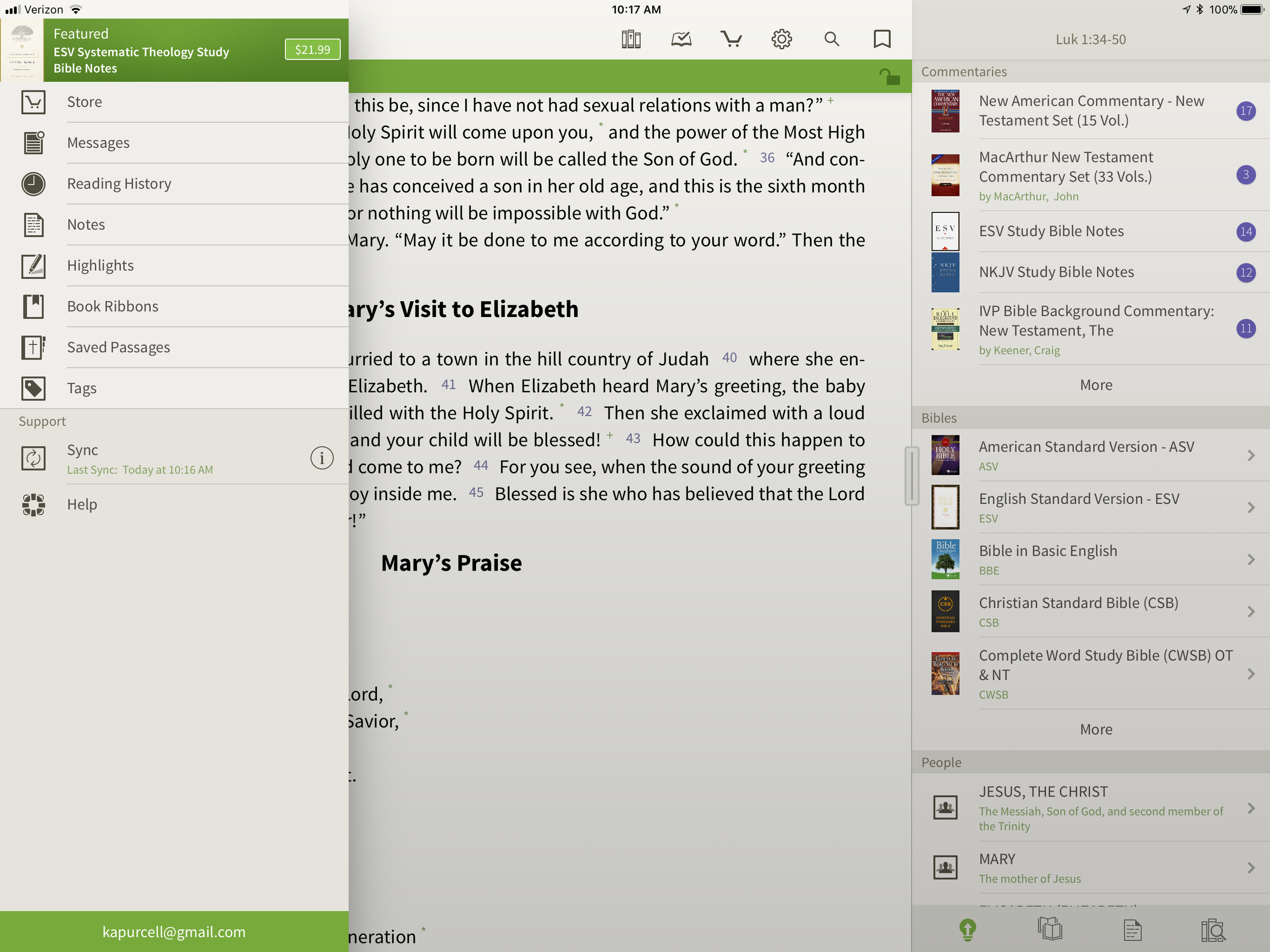
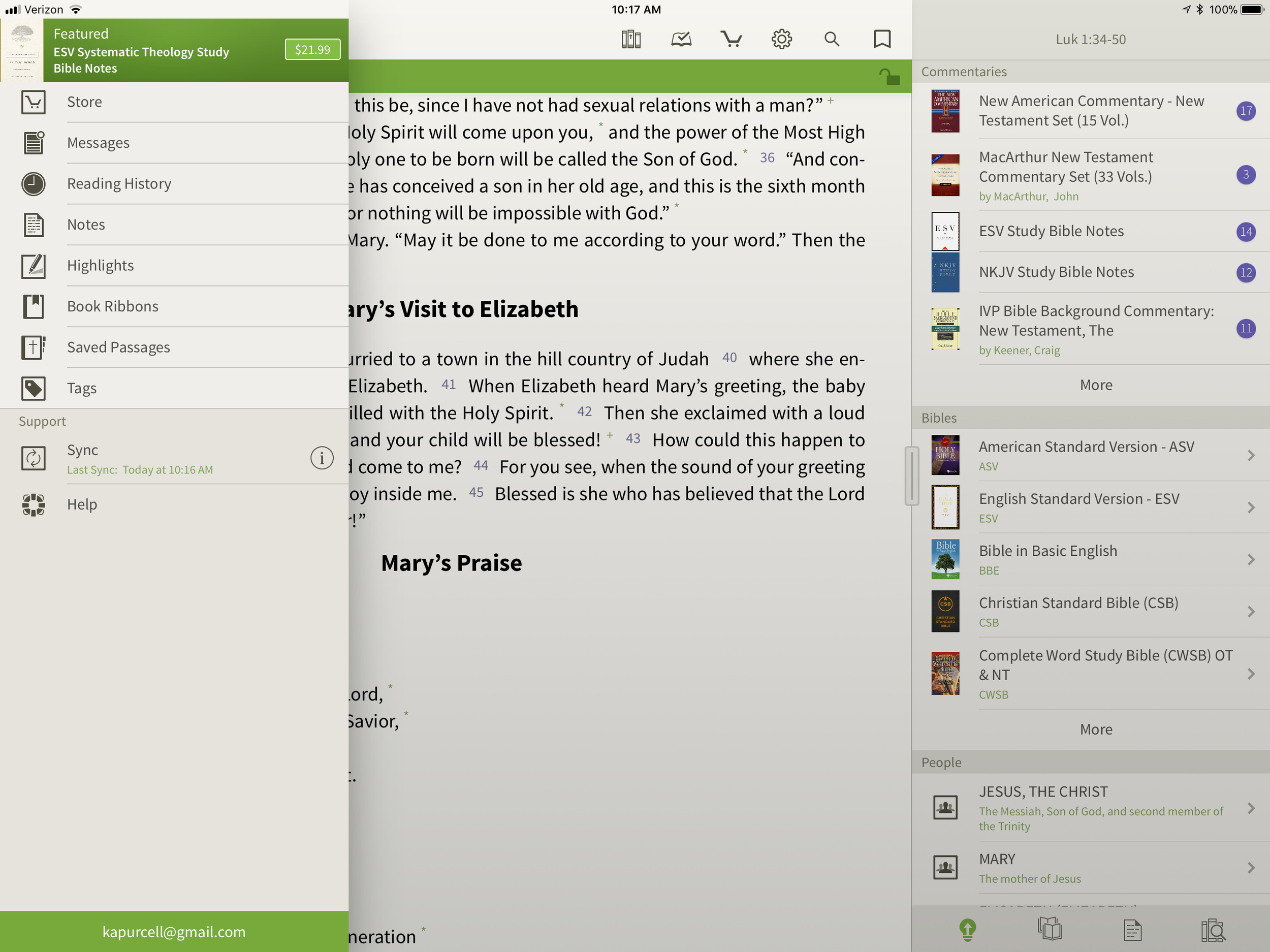
 While Logos may offer more complex features, Olive Tree offers a simpler app with a great set of tools for doing advanced Bible study on a mobile device. In fact the Resource Guide might offer the simplest method of accessing all the content in the library related to a given passage on any of the mobile apps in this roundup.The Bible shows up in the left side with the Study Tools on the right. Inside Study Tools you'll find the Resource Guide along with a library button, a notes button, and the Lookup button, which lets you look up words in word search in dictionaries, the Bible and your notes.
 The Resource Guide is one of the Study Tools and it will arrange your library content by category. All the Related Verses, Commentaries, other Bibles, People, Topics, Maps, Charts, Introductions and more will show up in lists one after another. Each list will show your books ready to open to the content related to the passage or subject found in the verse showing in the left hand window. Tap them to see the content.
 On the top left there's a menu button to show...
- Suggested Resources - an ad for a book Olive Tree's pushing at that time
- Store - link to buy new books from within the app
- Messages - content from the blog often written by our own Theotek contributor LaRosa Johnson
- Reading History - the list of texts you've read in the Bible
- Notes - Shows your user notes
- Highlights - show your user highlights
- Book Ribbons - shows your user book ribbons which are like favorites
- Saved Passage - similar to Book Ribbons with a list of passages you've saved as bookmarks
- Tags - a list of all the tags you've created so you can make your own topical Bible
- Sync - lets you sync your app notes, ribbons, etc. with Olive Tree's servers
- Help - the Olive Tree help system
 Across the top of the Bible Screen we see two toolbars. The topmost toolbar has the following:
- Library - opens your library
- Reading Plan - opens the reading plan screen with suggested reading plans you can add or your own reading plans
- Store - opens the store to buy more books
- Quick Settings - change things like font, screen color (low light verse regular) and others
- Search - search the Bible
- Ribbon - add a ribbon to the current top most verse
Below the top-level toolbar you'll see a second toolbar that shows two buttons, the Select Verse button that opens a Book/Chapter/Verse style navigation tool and a lock button that keeps the toolbar from disappearing. I prefer this and I'm glad Olive Tree added this button for use on the iPad. The iPhone version is best without the toolbar showing so you don't cover up too much of the text on the smaller screen.The strength of Olive Tree's Bible is the simplicity and great library available. It also has the best notes feature available in these three. However, the weakness comes from the desktop app. The Accordance and Logos desktop/laptop apps offer far more than Olive Tree's. Download the app for free and get some free books to try it out. Then check out their store for more tools. They don't focus as much on bundled libraries of books, although they do offer them. I like this because you buy only what you want or need.
Bible Study With Accordance Mobile
At first look, the Accordance Mobile app seems like little more than a basic Bible and book reader tool with split-screen display options. Admittedly, I'm not a frequent user of Accordance Mobile. However, as I dig deeper and take time to discover the features, I realize they a user can do a lot with what looks like very little at first. The Accordance user-interface opens, after you've downloaded books, to show a Bible. There's a handle on the right side that opens a second window with another book. Tap the title of the book to bring up the library list of books. The left window library lists shows a list of the installed Bible Texts while the right shows Texts, Reference Tools like Commentaries or Study Bibles, and your Notes files.Open the Notes file and you'll see your notes. To add a note, select a word or verse and a menu pops up above it. Tap on Note and screen offers to add the note to one of your Notes files. Start typing inside that pop up box. It has a button to change the font, size, color and make the font Bold, Italics or Underlined. Sadly, even though you can see your notes on the right, you can edit them in place. To edit a note, select it and it offers to let you edit the note with a full-screen editor. This covers up the text. I like to make observations about the text in my notes and I can't see the text in Accordance. That's the same problem you have with Logos. At least in Logos you can open the Note file and edit in place. It's hard if you have a lot of notes in your file.Unfortunately, I experienced a problem with Notes Sync via Dropbox. They don't use their own servers and rely on Dropbox to sync between the desktop and mobile app. ON the desktop it's automatic, but not on mobile. That's a huge weakness of Accordance if you're a heavy notes user like me.
 If you open a book with Strong's Numbers tagging attached to the text, like the ESV or HCSB or KJV, then you can select a word and a box will pop up showing the original language information. You get the English word, Strong's number and the Greek word. Then it shows your favorite Greek word dictionary. OT shows Hebrew. Then tap on Search at the bottom of the pop up and it finds that word through the NT. The Amplify will let you search by word or the key number.
 The Library button lets you download your books over the Internet. You can also sync those if you have both the desktop and the iPad connected to the same Wi-Fi network. It doesn't work if your desktop isn't connected via Ethernet.The second button from the left lets you sync via Dropbox or via Wi-Fi. Notes and user tools sync via Dropbox while the syncing directly over Wi-Fi syncs your books from the desktop to the iPad.
 Accordance users will get a number of free books. However, it will work better if you buy a package to use on your iPad. The free Accordance Lite includes some good tools like ESV with Strong's plus some public domain books. To add books you can buy books or get a Collection. They start with the free Lite package and go up to more advanced sets like the Pro sets in English, Hebrew or Greek that each cost $999. If you want all three you can get what they call the "Triple" package in the Learner or Discoverer levels. There's also a graphics-focused set of tools called the Graphics Learner, Discoverer or Master.
PocketBible Bible Study
 I love PocketBible from Laridian because it's the first mobile Bible study app I ever used on my PocketPC a long time ago. Then I moved to Palm and there it was. I went to iPhone and then iPad and it was still available. On Android, eventually it came along for the ride.When you first install the app it offers a great help screen that shows you how to use the app from the get go. It's the best on-boarding experience for a new user. Then you'll get a single window, but no Bibles yet. Open the button at the bottom of the toolbar on the right. Find the Add/Remove books and download all of your books. If you're not registered, you can do that in the tutorial that opens when you first install.After you get some books installed open a book using the top button on the toolbar. You can use the Settings (third from the bottom) to add a second window. The rest of the buttons on the toolbar include:
- Open Books
- Navigate to passage
- Search
- Back
- Forward
- Calendar for Bible reading plan
- Button to open the toolbox pane (more on that below)
- Panes chooser lets you pick how many window panes to open at a time
- Font settings
- Reading controls for books with audio included
- Settings
- Menu where you can add/remove books, change other app settings and control books
 The toolbox holds another toolbar with six icons as follows (see the right most box in the image above):
- Find
- Bookmarks
- Highlights
- Notes
- Find Notes
- Journal
Select a word, phrase or more and a menu pops up above it with buttons as follows:
- Copy - copy the selected text
- Share - post to Facebook or send it over text or email to name a few
- Find - search the selected text
- Look Up - search your favorite dictionary
- More... - opens another menu with a number of other tools, functions and book controls
Laridian offers a number of books to buy. They offer PocketBible Library Collections ranging from $60 on up to $380. You can also buy books or commentary sets.PocketBible isn't as polished as some of the other tools. However, it's one of the easiest to learn and costs less for collections than some of the above options.
Splashtop 2 Remote Desktop
 This last option's not a Bible app at all, but rather a utility that lets you connect to a desktop. Install the Splashtop Streamer utility on your Mac or PC and let it run automatically. Download the app for iPad and run it. After you log in you'll see all of your computers running the Streamer listed. Tap the one you want to log into. It opens the computer and shows the screen.
 Now you can control anything on the computer including a full desktop class Bible software program. Above you'll see it running with Bibleworks 10 showing on the screen.

Bible Study Apps Versus Devotional Apps

With all the Bible study apps available on Android, iOS, Windows and Mac, it's easy to get confused about which app a person should use. I'll post a few recommendations over the next few weeks, but today I want to discuss a fundamental question. What do you plan to do with the app?People use their Bible study apps in different ways. How do you plan to use your Bible study app? Will you merely read the Bible, track your reading with a reading plan that the app provides or do you want to create your own personalized Bible reading plan? Will you highlight the passages on occasion or add personal notes, like you can do with a pen or pencil in the margin of your paper Bible? Maybe you want to work on a research paper for a Bible class in college or seminary. Some people need to translate the Bible into another language as part of a translator team or for a tribe in the jungles of South America in mission work. There are apps that can handle all the above functions of reading or studying the Bible, but many apps work better for some of the things listed above and don't do others that well.
Bible Reading and Devotional Bible Study
 Some people want little more than a book reader that displays at least one translation of the Bible and that's it. Maybe they want to search the Bible and even track their daily Bible reading. We call these devotional Bible reading apps. The list of common ways people describe these kinds of apps include...
- Bible reader app
- Devotional Bible app
- Bible app
- Bible study
The last name is a misnomer. I think Bible study apps include features that simple Bible reading or devotional apps don't often include. Also, calling a devotional or simple Bible reader app a Bible app is like calling both a minivan and a NASCAR vehicle a car. They're both cars but different people drive them. Jimmie Johnson, the driver of the #48 Lowes car in NASCAR may drive a minivan on occasion, but a man who drives his kids or grandkids to and from school or baseball practice probably never drives a racecar.Here's what every good devotional Bible app or simple Bible reading app should offer users.
- Bible reading in all the popular translations like KJV, NIV, CSB or ESV and more.
- Highlighting of verses
- Add personal notes to the Bible app
- Sharing on social networks
- Copying to other apps to send a verse in email or a text message to your spouse or friend
- Search the text of your translation
- Customized display of text (fonts, sizes, background colors)
Would you expect any other features in a simple Bible reading app? Please respond in the comments to add other features that you would include at a minimum. But read the next section first, since many of the other features a person wants in their Bible app will mean they really need more than a simple Bible reader app. They want a Bible study app.
Bible Study App
 Bible apps with more than the above features typically fit in the class of Bible study apps. These app developers target scholars, pastors, Bible teachers in Sunday school or informal communities of Bible students or people who want to study the Bible for personal development and spiritual growth.The list of basic minimum features you should expect in a quality Bible study apps include...
- All of the features included in a Bible reader or devotional Bible app
- Includes other resources like commentaries, Bible dictionaries, atlases, study Bibles, language study tools like Strong's dictionaries and lexicons
- Advanced search tools that do more than find a list of verses with the word "grace" or "holy" like boolean searches
- Multiple windows showing at the same time on-screen
- Notes with advanced formatting
- Library management that shows all of your books and lets you download or even remove books
- Offline reading and study tools
- Sync
 Some of the best apps in the iOS or Google Play Store don't include all the features in the above list. For example, Logos Bible from Faithlife doesn't let you do Exegetical study (original language study) on their iOS and Android app without an Internet connection. However, I'd still call it one of the better mobile Bible study apps available.What do you expect in a serious Bible study app? Let me know by commenting below.
Look Back to the Future: Theotek Podcast #050
On this week's episode we look back to 2015 and think about what were the biggest stories affecting church and Bible technology. We also look ahead at 2016 and try to predict what the headlines will be at the end of the new year.https://www.youtube.com/watch?v=3idNGHKgfYcGive it a listen below or watch on YouTube above. If you're a YouTube users, please subscribe to our channel and share it with your friends that might have an interest in Church and Bible Technology.