

How Make Logos Work Like Wordsearch ZipScript
What is ZipScript and why do Wordsearch users love it so much that they're begging Logos and Faithlife to recreate it in Logos?
When Faithlife, the makers of Logos Bible Software, bought Wordsearch, they shut down the program making ZipScript, a favorite feature, unavailable to people who can no longer install Wordsearch. Since you can't install Wordsearch anymore, you'll lose access when you get a new computer or must erase and reinstall your Windows operating system. But we want to help you get similar functionality out of Logos.
What is ZipScript, and Why Do Wordsearch Users Love It?
The ZipScript utility ran separately from Wordsearch Bible Software. Wordsearch installed ZipScript, and let users open the utility and enter a Bible passage. The quick little system tray app would let you copy and paste the verse anywhere without opening Wordsearch.
Users could copy and paste Wordsearch Bibles to computer programs like Word documents, presentation apps, or notes. It didn't take up a lot of system resources and gave users access to a tool to copy and paste Bible passages almost anywhere.
Bible students loved ZipScript because it was small, efficient, and useful. Logos ships with a similar feature but is not as small and efficient as ZipScript. You can't run it separately from Logos as you could with ZipScript.
Why Won't Faithlife Likely Make a ZipScript for Logos?
When Faithlife first bought Wordsearch, I wrote an article about how to make Logos work like Wordsearch. I briefly mentioned ZipScript and Copy Bible Verses.
The Logos Community Forums contain multiple posts from Wordsearch users who came to Logos when Faithlife bought the company. That's probably the primary reason Faithlife bought Wordsearch, for the customer database and publisher content. But they didn't want the software technology like ZipScript.
Logos has a feature called Copy Bible Verses or CBV that duplicates some of the ZipScript features and adds a few that ZipScript didn't have. With fewer programmers, thanks to layoffs last fall, they don't have the human resources to do everything they might like to do or everything their customers want them to do.
Logos has CBV and won't likely add ZipScript to the toolbox. That means it is time for ZipScript lovers to either hold onto their computers with Wordsearch installed for the rest of their time as digital Bible students or learn to use Copy Bible Verses to gain similar functionality.
See My YouTube Demo of the Copy Bible Verses Tool
How to Open the Copy Bible Verses Tool in Logos

Open the Copy Bible Verses feature in Logos from the Tools button on the toolbar. Scroll down to the Passage section and click on the Copy Bible Verses item on the list.

You can also search by typing in the top box under the tools menu. The Copy Bible Verses item shows up. Click to open it.

If you like to open things from the Logos main toolbar's command box, type Copy Bible Verses and click on Show Copy Bible Verses, which will pop up in a list after you type "copy bible." You'll get a new window that, by default, fills the right side, taking up about a quarter of the window, as seen below.

How to Make CBV Follow Your Chosen Bible to Copy Bible Verses Quickly
You'll see the Copy Bible Verses window, usually on the right side of the Logos. You can type in the box to go directly to a Bible reference. I recommend linking the Copy Bible Verse and your Bible, so the CBV will follow whatever verse you see in the Bible.

Click on the menu button on the Bible (the three vertical dots on the right side of the Bible window's toolbar - see #1 above) and select a letter in the Link Set: section, like letter A. Do the same in the CBV window with the same letter you chose in the Bible window. Then when you move from one passage to another, the CBV window will follow the Bible window.
Linking the two windows will also let users select a passage in their Bible, and the CBV will set the passage as the content it will copy.
Copying Bible Verses for Pasting Into Various Apps or With Different Formatting
Copy Bible Verses does something ZipScript didn't do. You can copy text with special formatting. Logos ships with a set of formats already. You can create your own as well.

To change the formatting, select the drop-down link in the CBV window. You see this just below the text entry box where you would type your Bible reference. Click it, and the menu of formats shows up. If you don't want to use the included formats, you can create your own by clicking Create a new style, as seen at the bottom of the pop-up box. We'll cover more down below.

Choose from your installed Bible translations using the translation drop-down list (see the image above). You'll see your prioritized Bibles first and then others listed below. Select one to copy from that translation, regardless of the Bible you opened in Logos.

The Copy Bible Verses window will let you choose where to copy the verses on your computer. For example, you can have it copy a verse to Microsoft Word at the current spot in an open Word document. If the program's not open, it will open it and paste the passage into a blank file. You must first select the program from a drop-down list to do that. You also will choose Copy and Paste instead of Copy. If you click Copy, it will only place it on the system clipboard.

Copy and Paste puts the text in your program quickly. You don't have to switch to the other program and paste. The CBV does it all for you quickly. You may need to permit Logos to do this the first time you use it.
Format Options in Copy Bible Verses

When you open the formatting menu (the first link at the top of the CBV box), you'll see a grid of boxes that show what each formatting option will look like when you choose it. You'll see a little pencil icon next to the name if you create your own styles.
Look at the image above. You'll notice that the style next to number one shows no pencil icon. That style comes with Logos. However, the Bible Quote style has the pencil icons. I created that style because I didn't like the included styles and wanted a style to use in other programs to set it apart from regular text.

Above, you'll see the default format options. Create your own by clicking the Create a new style link at the bottom of this popup box. To show the above menu, click the link at the top of the CBV box. You'll see it above where it says "Copy Word Quote" where "Word Quote" is the custom format I use to copy to Word when writing my sermon or Bible study notes.
How to Create Custom Copy Formats in CBV
Many people use the built-in CBV Formats. I created my own because I wanted Bible quotes to show up with custom formatting in Microsoft Word. I don't use the Sermon Builder in Logos because Word fits a workflow I've used for over a decade while preaching from my iPad.

In Microsoft Word, I created a paragraph style that shows my Bible quotes in a larger font than regular text. Its a bold and bright maroon color makes it easier to read while preaching or teaching.
To create a custom format, choose to the Create a new style option in the formats dialog box. A new window pops up with some text that looks like code. Logos includes some info about what you'll see. Read it inside Logos by clicking here. You'll need Logos installed to open that link.
Create new formatting options by right-clicking on an existing style similar to what you want your format to look like. Then edit it using the codes listed in the help file linked above. Or you can see this help page on the Logos site.
What's New in Logos 10 Web App with Video
Now that Logos 10 is here, check out this demo of the Logos 10 Web App. We go over the major new features in the Logos online Bible study site.
When Faithlife released Logos 10, they also updated the Logos 10 Mobile app and the Logos 10 Web app. We've got the major new features of the Logos 10 Web App, with screenshots and a video showing how to use each feature.
If you want to upgrade to Logos 10, consider using my affiliate link to get a discount and help me pay for this site and the video I made about the update.

Why would you want to use a web app instead of software?
- Chromebook users can install the Android app, but it's not as good as the iOS app and not even close to the desktop app. The web app does a good job of presenting users with some good Bible study tools.
- People sometimes use a computer they don't own and can't install the software. Travel to a friend's house or borrow your spouse's system and log onto the Web App and you can access all your books and many of the advanced Bible study tools of the mobile and desktop apps.
- Small SSDs in systems like the Microsoft Surface Go or other older systems can run the Web App and still use your huge Logos library.
- A web browser and the Logos 10 Web App run faster than Logos 10 on the desktop. You might want to read some text or quickly run a simple search.
The new Logos 10 Web App offers a slightly changed user interface. You also get a few other features that we'll demonstrate in the video below and in each section after that below.
Video Demonstrating the Logos 10 Web App New Features
Logos 10 Web App Simpler Search
Logos 10 simplified search and ported that feature to the Logos 10 Web App. The new Simpler Search cuts down on some of the arcane syntax users needed in previous versions. The example they give is as follows:
For example, <Person Moses> WITHIN {Speaker <Person Jesus>} becomes person:Moses IN speaker:Jesus, to find all the times Jesus talks about Moses.
You no longer need brackets or curly braces to search in Logos. They say it’s more like a Google search. That’s a good thing because searching in Logos made things too complicated. Many of us just opened a browser and searched Google for simple searches trying to find a specific passage.
For the Logos 10 Web App, you can use their auto-complete to add search terms for special syntax. You can still use the old terms if you struggle to remember the changed syntax. Logos will translate it into a new way of searching.

To use the feature, click the Search button and then type in your search into the search box, as seen above.
Logos 10 Web App Sermon Import
The Logos Web App now lets users add their sermons thanks to the Sermon Importing feature. Add sermons you wrote in other software like Word or Google Docs. Then automatically create slides to export to Proclaim, PowerPoint, or Keynote. The Web App offers other options as well.
You can import existing sermons into Logos to take advantage of Preaching Mode, automatic slide creation, Sermon Manager planning, and wider integration into Logos.

Open the Sermon Manager from the tools menu. Then click on the three vertical dots in the upper right corner of the Sermon Manager and click on Import to add your sermon files. A dialog box opens up. Click on Choose files. Select one or more documents to import.

Logos 10 Web App processes the files adding tags for things like Bible passages. You can edit each file with the information you might find in the Sermon manager's Sermon Info sidebar on the right after selecting a file.
Popular Quotes in Logos 10 Web App
Using Sermon Builder, you can search for quotations to help illustrate ideas in your message. Open the Web App, go to the Tools menu (the 9 dots in 3 rows), and open Sermon Builder.

You'll see a single quotation mark in the upper right corner of the Sermon Builder. Click on it to open the Popular Quotes feature. You'll now see an entry box that you can use to search for passages, text, or topics. The tool searches the quotations dataset and finds applicable quotes.

Find your quote and drag it to the sermon editor. The Web App will create a slide to export to Proclaim, Keynote, PowerPoint, or other useful destinations. If I used it, I could export it to the worship presentation tool made by Faithlife called Proclaim.

Only customers who bought the Silver package or above of Logos 10 will see this feature in the Logos Web App.
Advanced Timeline in Logos 10 Web App

Logos updated the Timeline feature in the Logos 10 Web App and gave it a new name: Advanced Timeline. Open it from the Tools button on the toolbar (9 dots in three rows next to the search box on the main toolbar). You'll see Advanced Timeline in the drop-down box.
You'll need the Bronze package of Logos 10 or higher to access the new Advanced Timeline.
Church History Themes
The new Church History Themes feature brings a "combination of a new dataset and resource" to the Logos 10 Web App, which will help users better understand theology in the historical setting.
Logos added many pages to the Church History Themes section of the Factbook. These themes show the historical movements inside the history of the church. The entry in the Logos communities says...
Every Theme begins with a summary and lists Key Developments. It goes on to identify key People, Events, Places, Concepts, and Documents, which link out to other Factbook pages for further detail.

Here's how to use it. Open the Web App and then click on the Factbook icon, which looks like a book with a checkmark next to the search icon on the toolbar. In the Factbook, click on the drop-down list and choose Church History Themes.

You'll see a list of items in the left column of the Factbook. Choose one to study that item. The main window to the right shows content from the Factbook and your library regarding the item you selected.
How to Open Church History Themes from Advanced Timeline
Users can also open the Church History Themes feature from the Logos Web App Advanced Timeline. Click the Tools button on the toolbar. Then choose Advanced Timeline to open it.

Now click on the Facets button in the upper left of the Advanced Timeline Window. You may need to open the Subject Area section. Click on Church History to see the Church History Themes in the timeline.
How to Open Church History Themes from Library

You can also open the Church History Themes content from your Library of Resources. Click on the Library button on the main toolbar. Then search for either...
- Essential Lexham Dictionary of Church History
- Church History Themes
You can open one or both of these books to read and find content.
Auto Translation in Logos 10 Web App
Users can open a resource or book, and on the right side of the window, there's a new feature to translate the book or resource from the currently published language to another language.

See the screenshot above. Click the button second from the right in the resource's window. This opens the Auto Translation Tool. Choose the language you want to translate from the drop-down box that lists the languages. The Web App instantly translates the open book into the new language.
Logos 10 Mobile App: What's New?
Here are the top new features of the Logos 10 Mobile app with a demo video and instructions on how to use them.
Faithlife, the makers of Logos Bible Software, updated their suite of Bible study apps and desktop/laptop programs, releasing Logos 10 Mobile for iPad, iPhone, and Android. Most new features work best on the iPad, but many also work on iPhone and Android. We've got a demo of all the most significant upgrades with instructions on how to use these new features.
Logos 10 Mobile App Adds New Selection Menu
When you want to select a verse or some text to highlight it, add a note, or look up information, the Logos 10 Mobile App improves the selection menu.


If you tap on a verse, a popup menu shows up with a few things in it. Depending on your selection, you'll see highlighters, buttons to interact with the verse, some information from your user notes, the Factbook, or other content. This works in non Bibles too.
The highlights come from the most recent first and then the top highlights in your highlighters tool.
The buttons that you can use to interact with a Bible verse include the following:
- Copy the verse
- Share the passage
- Add a Note
- Search
- Compare in multiple translations
- Perform a Passage Guide on the passage
- Perform an Exegetical Guide on the passage
- Mark the passage as a Favorite
- Translate the text using the new Logos 10 Translation tool
- Clip the selected content
- Create a Visual Copy, which makes the selection into an image to share on social media, save, or use in your presentation.
Below the buttons, you will see cards for items found in the selected text. These take you to the Factbook or Bible dictionaries. It might show an entry from a Lexicon. What it shows depends on what it finds in the selected text.

Slide left or right on the cards to see more of them. Use the menu button in the upper right corner of each card (it looks like three vertical dots) to do more with the content in the cards.

Press and hold on a single word and bring up a different kind of menu that shows info about that one word. You'll see Word Info that comes from tags on the word. For example, it will show an entry from your top Greek or Hebrew lexicon. You can open it by tapping on the More button.
You'll also see an entry from an English dictionary or Bible dictionary.
Print Library Tool
Now in Logos 10 you can search your Print Library. However, you'll have to first add books to the Print Library using the Logos 10 Mobile App.

Tap on the More button, which looks like three horizontal lines in the lower right corner of the screen. If it's not showing up, tap on the book's title that's open on the screen. In the top Library section of the menu, tap on the Print Library ISBN Scanner entry. This opens the camera. You might have to give the app permission first.

You can only add books to the Print Library if Logos also has the book in its digital library store. That's because they have to have the text of the book in their library to search for text in the book. Any book that you have with an ISBN bar code or QR code will work.
Now, when you search for words or phrases, they will return entries in the Print Library. You can't read the whole book in Logos, but the Logos 10 Mobile App will tell you where you can find it in your print copy of the book.
Read Aloud in Logos 10 Mobile App

If you like audiobooks, then you'll love the improvements to the Read Aloud feature in the Logos 10 Mobile app. It's easy to find in the open book's top toolbar. It looks like a sound icon. Tap it, and it brings up the reading feature at the bottom of the screen.
In the Read Aloud feature, listeners can pause and play the audio. They can also skip back a verse or a whole book of the Bible. Skip forward a verse or a book too. There's a speed option to read the book or Bible faster. I like to listen at 1.5 times to many books.
If the book comes with an audiobook version, a download button appears next to the X in the Read Aloud feature box.

Most phones let users add different voices to read books that don't come with an audiobook version. Open your phone's Settings app. In iOS, go to Accessibility and then tap on Spoken Content. That opens the screen where you can choose Voices to select your voice.
iOS lists voices by language first and then name. I tapped on English at the top and chose Samantha. The phone gives the user two options. One is regular Samantha and the other reads "enhanced". I picked the enhanced version and downloaded her voice.
Go back to Logos, choose a book that doesn't already have an audiobook associated with it, and follow the instructions at the beginning of this section to listen to the book using the iOS voice we chose in settings.

The Android version of the Logos 10 Mobile App plays audio almost identically, except for changing the voices.
Sermon Manager Update
The update to the Sermon Manager in the Logos 10 Mobile App allows users to edit and read sermons created, either in the app or on the desktop. Open the Sermon Manager from the More button, which looks like three horizontal lines stacked on top of each other in the lower right corner of the toolbar.

You'll find the Sermon Manager in the Tools section of the menu. Tap on it to open it.
You will see all the important features of the Sermon Manager on your iPad. This only works on iPad.
You can also open the Sermon Manager from the tabs button. Hit a plus button to open from the Tools section of the new tab feature.
Canvas Tool on iPad

A canvas shows information in a visual way. The iPad and desktop app tools include many drawing tools, diagramming tools, and text formatting. Add images, icons, and shapes. Do this all to show information in a visual way for presentations or documents. You could create them for your own benefit.


To open or create a Canvas, go to the More button (three horizontal lines in the lower right) and tap on it. Head to the Documents section. Tap on the Canvas item, and you'll see a list of any Canvases already in your library. Tap one to open it. Work with the canvas, and then you can work with the Canvas.
You can also create a new one from the Tabs screen. Tap the plus icon and go to the Documents tab (right button on the Tabs toolbar). Now tap on the plus icon at the top of the box, which shows a list of the kinds of documents you can add. Tap on Canvas to make a new one.
The Canvas feature is available only on iPad, and only in Bronze packages, and above.
Draw On Screen Feature on iPad
Teaching using Logos as a visual aid got easier with the update to Logos 10 Mobile thanks to my favorite new feature, the Draw On Screen feature on the iPad only. You can now draw on your screen and save that as a screenshot in notes or share it elsewhere.


Open the More button (three horizontal lines in the lower right) and choose Draw On Screen from the Tools section. This brings up the Apple annotation feature, which lets you draw using your Apple Pencil, a third-party stylus, or your fingers.
Drawings can use a pen, highlighter, pencil, eraser, selection tool, and ruler to make straight lines.
When you're finished drawing on the screen, share the drawing or exit without saving it. You can share the image in a few ways.
- Copy Image - copy it for pasting in a document or note.
- Save to Photos - save it in the iOS Photos app.
- Save as Note - saves the drawing as an unattached note, which you can then manually attach to a verse or paragraph.
- Share - use the iOS Share Sheet feature to send it to a Facebook post, a file on the iPad, Instagram, or other services you use.
Enhanced Panel Linking
You've been able to link books before so that your commentary would move along with your Bible as you swiped to advance to the next passage. Now, you can tweak these settings a little so that the Bible drives the link relationship.

Open a book and then slip the screen into at least two books. When you do, a new book will fill the second half. Then, if you like, then add other books. You'll see a box with the word None in it and a pair of linked chain links. Tap it to bring up the Enhanced Panel Linking feature. Tap the A to link to the other book. Then tap on Follow Only so that this book won't make the other book move, but the other book will move this one.
For example, I have the NASB and Faithlife Study Bible open above. If I choose Follow Only, then as I swipe up and down on the NASB or left and right in widescreen mode, the FSB will follow it so that the verse in the Bible matches the verse in the study Bible. However, if I choose Set all panels to match, then any book will force the others to follow it. Moving to a new chapter in the FSB will move to that channel in all linked Bibles.
You can also set this from the main book menu in the upper right corner of each book panel, which looks like three vertically stacked dots.
New Logos 10 Mobile App User Interface with More Tiles
The user interface on Logos 10 Mobile gets a much-needed feature update. You can now open as many as six books on your iPad. However, this doesn't work on the phone since it would be impractical to open that many on a small screen.


To open a layout with more tiles, tap on the Layouts icon in the bottom toolbar on the right. You'll see a little popup with options for...
- 1 book
- 2 books side-by-side
- 2 books, top and bottom
- 3 books with one on the left and two splitting the right side column
- 3 books with one on the right and two splitting the left side column
- 3 books arranged in verbal columns
- 4 books splitting the screen into four equal quadrants
- 4 books with 2 each in the vertical columns on the left and middle and two splitting the third column
To add two more books, open the layout in the top right of the popup. Then, from the toolbar at the top, tap on the 3 dots which opens the options menu. Choose Split this tile.
Deal on New Logos Books
If you want to get the new Logos 10 upgrade, then head over to my affiliate page to get a nice discount on Logos and some free books. This way you can use the Logos 10 Mobile app
Logos 9 Upgrade 6 Months Later - Is It Still Worth the Upgrade Cost?
It's been about six months since Faithlife released Logos 9 upgrade to focus on some key improvements to the computer app and the mobile app. Also, you can save $1,600 on a Logos 9 Base Package plus get 5 free books using the link provided in this article.
It's been about six months since Faithlife released Logos 9 upgrade to focus on some key improvements to the computer app and the mobile app. I published my review over at ChurchTechToday.com on October 30, 2020, and talked about it here as well.
The Logos 9 upgrade brought the following key improvements, like...
- Some user interface tweaks make the software easier to use.
- An update to the Factbook in the Logos 9 Upgrade
- The interesting Sermon Manager and Sermon Builder
- A Counseling Guide
- New sorting features in the Bible commentaries section of the Passage Guide
- Improvements to the Reading Plans and the Reading Queue
In addition to the above improvements in the Logos 9 Upgrade, we also saw some decent changes in the mobile app. They added the Factbook to the menu seen in the toolbar at the bottom right corner of the app. You can also use your iPad or tablet for preaching, thanks to the new preaching mode in the mobile app. I actually love using my iPad to preach.
15% Off Discount on Logos 9 Upgrade to Base Packages and 5 Free Books
From now till June 15, 2021, you can get 15% off a Base Package upgrade. To do that, follow this affiliate link, and you'll get a discount. Full-disclosure, I'll get a little kickback from Faithlife.
Follow that link, and not only will you get the 15% off discount when you use the code PARTNEROFFER9 at Checkout, but you can also get 5 free books. Select from 28 different books, including some great titles.

Here's a list of my recommendations.
- Spurgeon Commentary 1 Peter
- Lexham Research Commentary: Colossians
- St. Paul's Epistles to the Thessalonians by George J. Ellicott
- The Essentials of Prayer by EM Bounds
- The Life of St. Paul by James Stalker

Faithlife offers a myriad of Base Packages. Here's what I recommend depending on what you already own.
- Logos 9 Bronze - Great for people who are just getting started.
- Logos 9 Gold - Jump to this level if you already own a pretty big library.
At the bottom of the page, you see a link to see the other Base Packages. Follow that to find the Logos 9 Upgrade packages for Anglican, Baptist, Lutheran, Messianic Jewish, Methodist & Wesleyan, Orthodox, Pentecostal & Charismatic, Reformed, SDA, or Catholic (Verbum) users.
Logos 9 Upgrade: Best Feature is New User Interface Tweaks
One improvement stands above the rest. I like the features listed above, but the simple tweaks to the user interface on the computer version of Logos 9 made the most difference in my productivity with the Logos 9 upgrade six months after Faithlife released the update.

It sounds crazy, but the new button on the upper right corner of the screen helps users a lot. First, you can quickly jump to your account to see what you have or what pre-orders you might see published soon. You can also jump to Your Faithlife Profile, where you can interact with other users and see answers to your questions.

The other amazing new tweaks include transforming the program toolbar. For example, right-click on a book icon that you placed on the toolbar like I did as seen in the image above.

you now get a drop-down menu holding those books in that folder.
The new tweaks to the toolbar give you a drop-down list of icons from the toolbar that no longer fit on a narrow screen on small screens. See the image below to understand what I mean.
There's a new light mode, dark mode toggle in settings. People love dark mode, and I don't understand why. But if you do, then you now have it.

Other New Features in Logos 9 Upgrade
Logos seems most proud of the other new features in Logos, which include...
- Factbook
- Sermon Builder
- Sermon Manager
- Counseling Guide
- Improved Reading Plans
I like all of those, and you should see my review linked in the top section of this post from ChurchTechToday. The second feature I'm most excited about also doesn't seem big. Faithlife now added a feature to organize my library in a more useful way when I fun a Passage Guide.
Go to the Commentaries section of the Passage Guide and look in the upper right corner. You'll see ways to sort your books including...
- Priority - follows your customization where you rank certain commentaries above the others.
- Series - groups the commentaries by series, like the New American Commentary series or the Word Biblical Commentary series.
- Author - who wrote it?
- Denomination - what is the denomination of the publisher/editor/author depending on the commentary.
- Type - is it a technical or devotional commentary?
- Era - when was it published?
Mobile App Improvements
Logos added the Factbook to the mobile app too. You'll find it in the menu button in the lower right corner.
Faithlife added a preaching mode to the mobile app. That way, you can build and manage your sermons in the computer app. Then you can put your app in preaching mode and preach from the app.
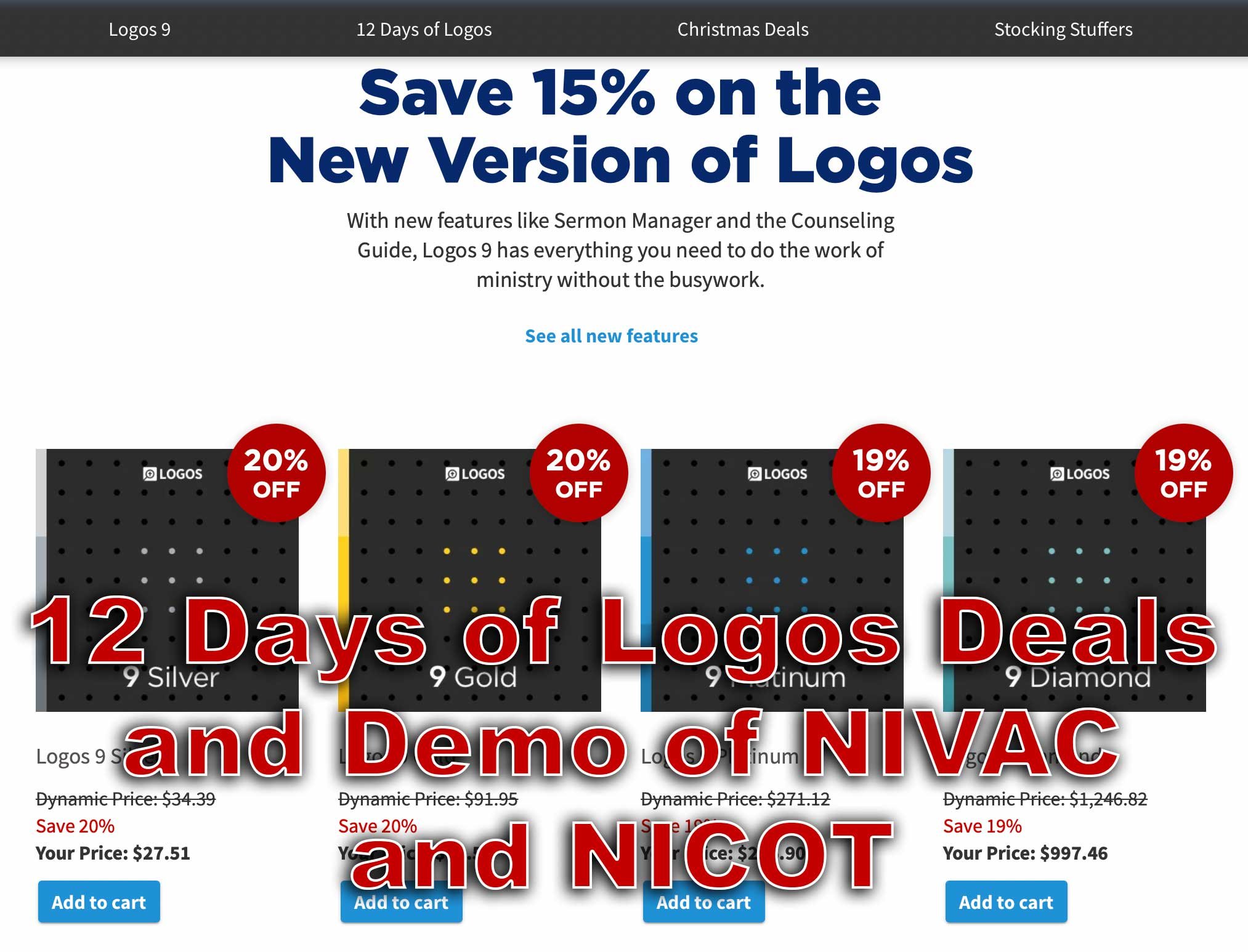
12 Days of Logos Deals and Demo in Logos 9
The 12 Days of Logos brings steep discounts on Logos Bible Software books and tools as well as packages. Use the link in this article to save up to 60%.
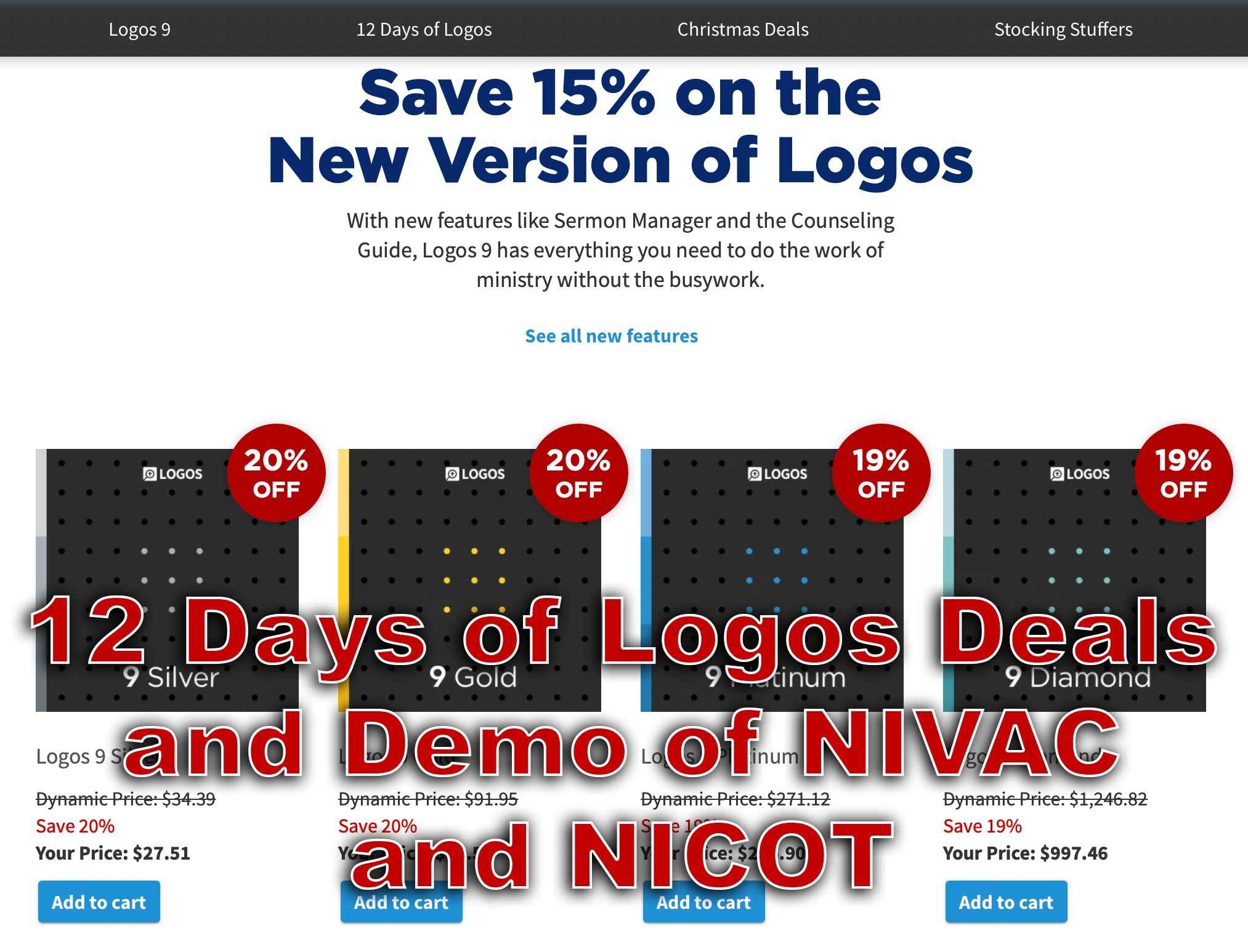
Every year Faithlife offers what they call the 12 Days of Logos, where they offer 12 different products for steep discounts. That benefits you if you want to buy any of these 12 products for Logos 9. We'll take a look at them and give you some tips as to which ones you should consider and maybe avoid.
What are the 12 Products Available This Year?
On our list this year, we get some really great books and tools for Logos 9 and Logos Bible Software, which you can use with their latest desktop version of Logos 9 or you can get it on their mobile Logos 9 Mobile app. They also work on the web app.

Here's the list of the 12 products and how much they cost. If you want to buy one of these, I ask you to consider using my affiliate link because it helps me continue my work of writing reviews and how-to articles about Bible software and ministry-related tech topics.
- Bible for Everyone Commentary Collection (35 vols.) 62% off, $119.99 sale price
- Challies Recommends: Best Old Testament Commentaries (55 vols.) 50% off, $442.99 sale price
- Romans-Philemon, 21 vols. (New Testament Technical Commentary Collection) 65% off, $232.99 sale price
- New Studies in Biblical Theology Series Collection | NSBT (50 vols.) 52% off, $299.99 sale price
- NIV Application Commentary: New Testament | NIVAC (20 vols) 55% off, $199.99 sale price
- New International Commentary: Old Testament | NIC (28 vols.) 51% off, $499.99 sale price
- Popular Patristics Series Collection (53 vols) 54% off, $229.99 sale price
- Ancient Christian Reference Collection (55 vols.) 50% off, $549.99 sale price
- Smyth & Helwys Bible Commentary | SHBC (36 vols.) 55% off, $499.99 sale price
- Welwyn Commentary Series | WCS (56 vols.) 60% off, $199.99 sale price
- New Covenant Commentary Series | NCCS (16 vols.) 54% off, $99.99 sale price
- The Life Application Bible Commentary (17 vols.) 60% off, $49.99 sale price
Let me highlight a couple of the above books. I use the New International Commentary: Old and New Testament sets regularly. Faithlife is offering the Old Testament package for only $500, a 51% discount. That's steep. It's both an easy to understand commentary, but has a technical level of information for advanced Bible students and people who teach and preach the Bible.
The NIV Application Commentary: New Testament comments on the text and then offers some practical application to the commentary. This helps the average Bible student or the teacher/preacher alike. You'll pay only $200, a great price for this product.
The Life Application Bible Commentary focuses on real-world use of the teachings of scripture to help Christians in their growth. It comes in at 60% off.
Deals on Logos 9 Packages

In addition to the above tools, you can also get one of the Logos 9 packages available from Faithlife with some deals. Logos identifies them by colorful names like Silver, Gold, and Platinum. You can follow my affiliate link, which gives me a 5% commission to help me continue writing helpful reviews and how-to articles about Bible software and ministry tech.
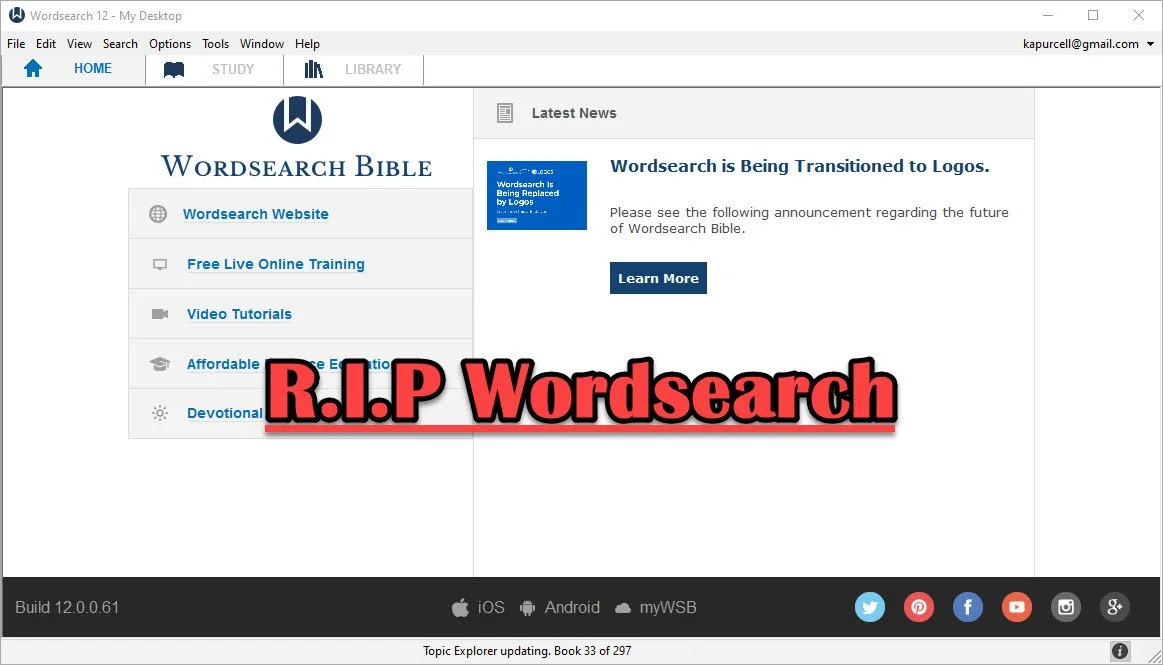
Wordsearch is Dead, Long Live Wordsearch with Logos
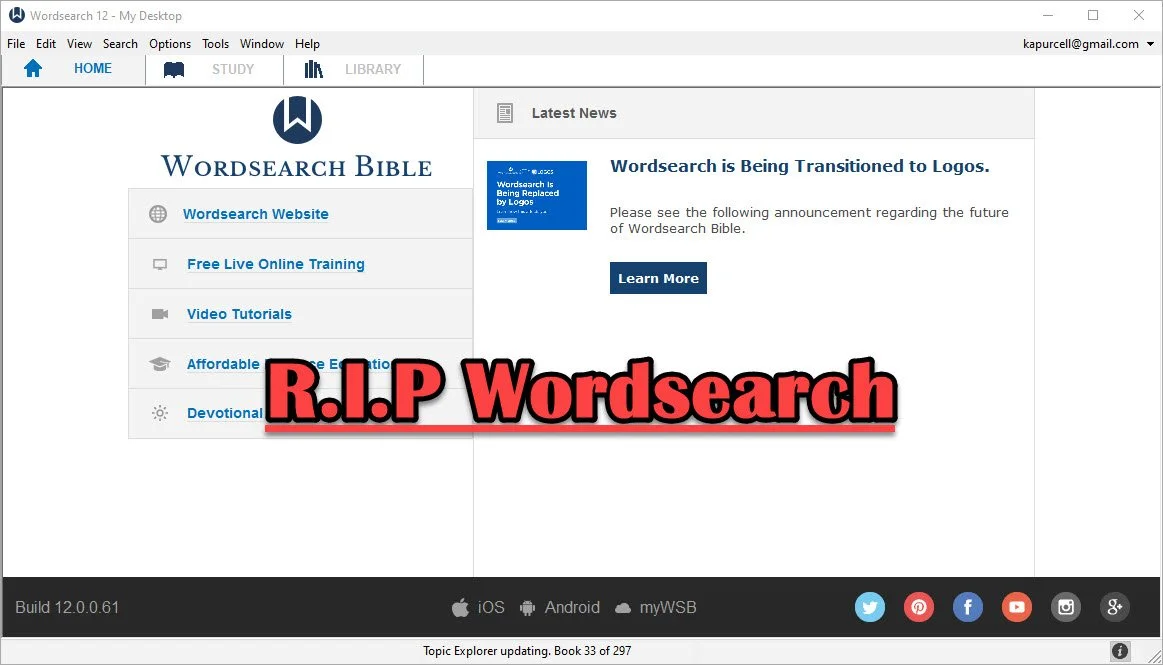
Wordsearch, one of the more popular Bible study packages, went the way of Bibleworks when Faithlife bought the company from LifeWay Christian Resources.Whoo. That's a lot of company names!
Some people may not recognize Faithlife's name, but they make Logos Bible Software. The company announced on September 18, 2020 that they acquired the software and the rights to the large library of distributed for use in Wordsearch. They also get their large customer base.

What Wordsearch Customers Can Expect
Heading over to the old Wordsearch website directs users to a site on LifeWay.com announcing the transition.

Click the Learn More link at the top to read the FAQ about the transition. Here's a list of the highlights...Your old Wordsearch/LifeWay account will convert over to a Logos/Faithlife account automatically if you use the same email address for your old Wordsearch account and have one already with Logos.
- If you didn't already have a Logos account, the company created one using your email address from Wordsearch. If you need help just reach out to Logos Customer Service by email.
- You can set up your new Logos account by adding a password on their account setup site.
- For those who used a different email for their two accounts, contact Logos Customer Service by email to get help merging them.
- Most of your old Wordsearch books will transfer to Logos. In fact many are ready for you to download in Logos right now. However, be patient as they have a huge backlog of people needing help.
- If your books are not yet available it could be for one of a few reasons...
- Logos doesn't have that book yet set up to work in Logos but will by the end of the year, hopefully. That's their target at least.
- Some books never will transfer because Wordsearch lost the rights to those books and so when Logos bought them, they didn't get the rights to distribute them. Sadly, that's the penalty for using digital books. You might lose them if your software company dies.
- If you just bought Wordsearch and want a refund, they will honor that at LifeWay. This time contact LifeWay Customer Service.
Wordsearch customers will likely experience some frustration from this transition. Your old user created content won't make the move with you until 2021, according to LifeWay. Some features in Wordsearch may never make the journey. You can find some good alternatives. The Logos user forums will help.
Users of both Wordsearch and Logos might recognize Nathan Parker. He created a great post in the Logos user forums that lists the Wordsearch features and then shows the name of the similar feature in Logos.

Speaking of the user forums, long time Wordsearch customers will remember that Wordsearch used to have a great community of users built into the software. That fell by the wayside a long time ago. Logos still has an incredibly active user forum as well, plus their own social media site. I've never really used the social part, but you'll find me in the user forums occasionally. Ask a question there and you'll get an answer from at least a few of the knowledgeable user and sometimes the staff at Faithlife chime in too including Bob Pritchett the CEO. You'll want to go over the Wordsearch sub forum first.
UPDATE: Faithlife added a page that will summarize your migration of books from Wordsearch to Logos. See if your books show up, if they will already show up in your Logos library or if they’re in progress of being created or not yet started. You can also see if the book shows up as a full Logos book or just an eBooks. Faithlife eBooks don’t come with as many custom links or tags. Often books start as simple eBooks and then get converted to full Logos book. Both work in Logos, but eBooks don’t include as many features.
What If I Don't Want to Use Logos?
My first reaction is this: give it a shot. Take a look. You now own it for free, if you were a Wordsearch customers. Download it and try it out for awhile.
If you're not happy with Logos, then continue to use Wordsearch while you search for an alternative. When Bibleworks went out of business two years ago, I posted about the best options. Here's a list of the programs I recommended.
- Accordance Bible Software - powerful and free to try with large library
- Olive Tree Bible Software - not as powerful, but simpler and also a large library
- e-Sword - free and simple to use, but mostly public domain content with a smaller library of premium paid books available from third-parties
- Laridian PocketBible - a simple and useful program that works great on mobile and has a decent library of tools
- Online sites like the ones I published in part one and part two of the best online Bible sites.
Wordsearch Not the Only Buyout
With Bibleworks dying two years ago and Wordsearch this year, it makes users wonder how much longer their favorite Bible study suite will work.
Six years ago Harper Collins bought out Olive Tree Bible Software and ran it until recently. A new company bought them from Harper Collins and plans to continue development. Steven Cummings, who was Vice President of Operations with Olive Tree created Gospel Technologies and bought the company from Harper Collins.
Accordance Bible Software 25-Day Switch: Observations
Conclusions about my 25-day switch from Logos Bible Software to Accordance Bible Software are here.
It's been more than 25 days since I decided to use only Accordance Bible Software and Accordance Mobile for my Bible study needs. During that time I both enjoyed using Accordance and felt frustrated using Accordance. I really wanted to choose to switch over to Accordance as my primary Bible study tool. Here's a list of the 3 reasons to choose Accordance over Logos.

Accordance Bible Software Speed
Accordance runs faster than Logos. It starts faster, it takes less time to install and there's no indexing stage that forces the user to step away from their computer. You can keep using Logos, but unless you own a super powerful computer, then it's just better to step away for an hour or more. Once you install both systems, Accordance runs faster.
The mobile apps run similarly on tablets and phones. However, Accordance does pop to attention faster than Logos.
Accordance Bible Software Simplicity
On desktop and on mobile, the user interface looks simpler on Accordance. On mobile Accordance looks deceptively simple, but it's still an advanced Bible study app.
The desktop apps both have incredible features with a high ceiling for Bible study users. You can start out as a avid Bible student. Then if God calls you to the ministry, a seminary student can grow into the more powerful features of both. Then, if you want to become a Biblical linguist or an Old Testament or New Testament scholar, you can't find two more powerful programs.
With all the power contained in both programs, when a new user opens Accordance and Logos, they will not feel as lost in Accordance. It has the traditional File Explorer or Finder look with your folders of library book genres on the left and the contents of books on the right and a toolbar across the top.
Accordance Bible Software Cost and Library Simplicity
You can get a decent library for a decent price from both companies. However, the cost of ownership of Accordance is lower. You need less powerful hardware. The cost of books are similar, however to move from say Olive Tree or Wordsearch to Accordance will cost much less thanks to their crossgrade program. You can buy a book that you own in the other programs and pay far less with Accordance than Logos. Also, upgrades to the software comes with every feature in Accordance while Logos requires you to pay to get all the features. You don't have to, but if you want them you'll pay more.
Buying a commentary set in Logos and Accordance outright usually costs about the same. On occasion a publisher will give one company a special discount they don't offer the other company's customers. But that's rare.
Logos Strengths
Understanding the above Accordance strengths, there are also some important strengths from Logos. I will outline those in the next article coming soon...
Logos Hears Outcry & Reneges on Shelving Logos Now, Mostly
And a great outcry was heard from the Logos forums as the masses wailed and moaned the loss of Logos Now and Faithlife Connect replacing it. Then, their outcry was heard from Bellingham and grace was issued to all.A biblical writer might write the account of Logos Now that way, if we lived in those times. We don't and this doesn't rise to the level of biblical disaster, but the decision to do away with Logos Now hurt a lot of the Logos faithful and the outcry was great.
What Was Logos Now
 If you're not a Logos Bible Software user, then you may not understand what I'm talking about. The software produced by the company formerly known as Logos Bible Software and now called Faithlife, led by former Microsoft employee Bob Pritchett, began a subscription service awhile back called Logos Now. Some who disliked the idea joking called the service, "paying to beta test new features" while others liked getting the new features before a major .0 update, like the upcoming Logos 8.0, which I'd expect sometime this summer or fall.Logos Now included a bunch of things. the customers mostly like the getting new features NOW. Hence the name, Logos Now. About every 6 weeks the developers of Logos on both Mac and Windows released new tools or features in their desktop computer software.https://www.youtube.com/watch?v=aSBkxOZ1LeQPeople like me who love getting the latest greatest enjoyed the updates. It was fun to fire up your favorite Bible program and see that it was downloading something new. I'd rush over to the forums and find out what the new update included.A lof the new features that came out were a bit obscure and not something I really used. Occasionally they'd hit on something that people really liked.Included in these new features were the latest greatest version of Logos. So when version 7 came out, we didn't have to necessarily pay to get all the new tools rolled into the program. We already had some of them, but others came along for the ride in our subscription that costs about $10/month at first and then later became $99/year.To sweeten the deal, Faithlife threw in a few extras. At least that's the way we saw it. Here's what we enjoyed as subscribers:
- The new features about every 6 weeks.
- Access to a Mobile Ed course (video course on subjects; kind of like seminary inside Logos Bible Software).
- Discounts on new books.
- Access to a different resource to try each month and a discount if you wanted to keep it after the month.
- Discount when a new version of Logos comes out.
That's not a comprehensive list, but it includes the highlights. All that comes for under $100/year. I was happy.
Faithlife's Disconnect with Faithlife Connect
Then it all came crashing down. Faithlife employee Chris duMond took to the forums to announce the end of Logos Now and then introduction of Faithlife Connect. Here's what he wrote about the change from Logos Now to Faithlife Connect.
How Faithlife Connect affects Logos Now and Logos Cloud customersBecause this product includes many of the same features and benefits of both Logos Now and Logos Cloud, we’re migrating everyone who has a subscription to Logos Now and Logos Cloud to a subscription to Faithlife Connect. We’ll transition Logos Cloud and Logos Now customers into Faithlife Connect over the next day or so as we configure things on the back end. All active subscribers will retain their Logos Now/Cloud benefits through their subscription period.
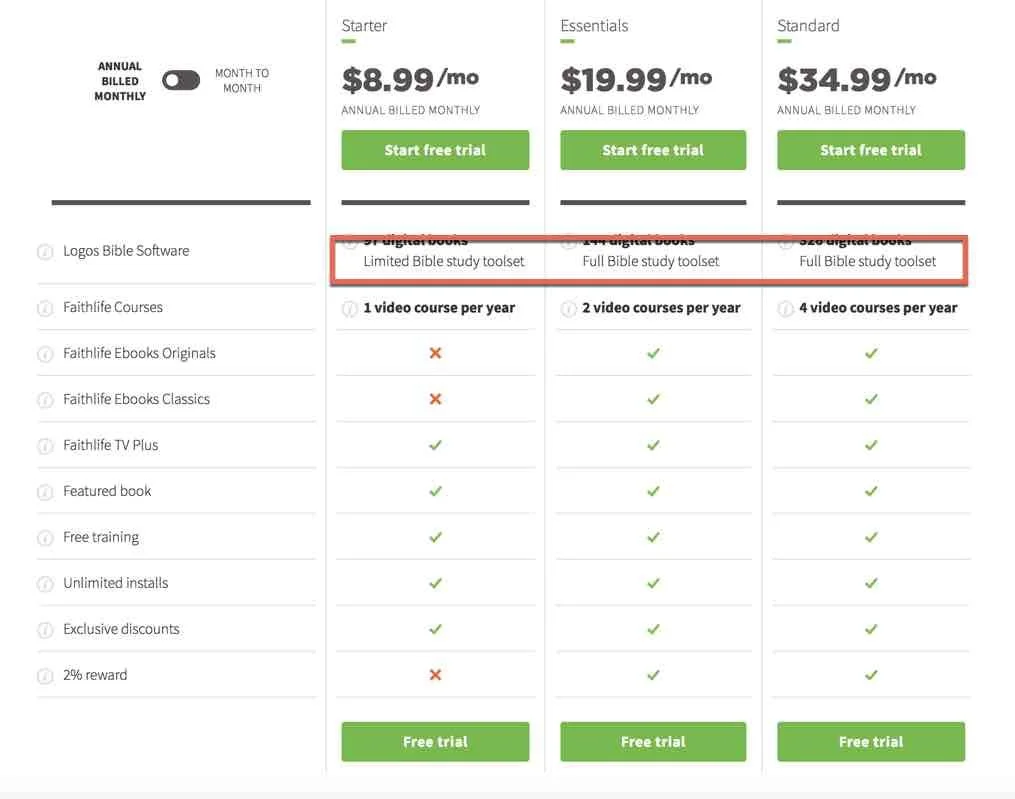
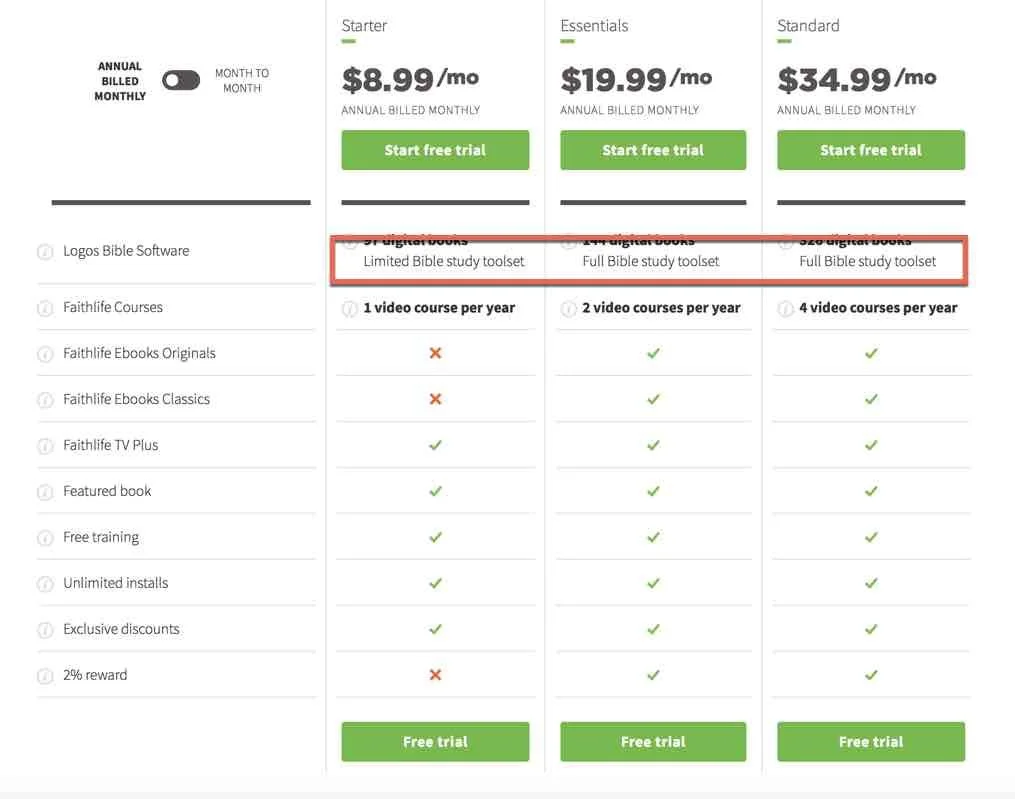
 The change shocked many people, like me, who liked Logos Now. Why was this a problem? to get everything we enjoyed in Logos Now we'd have to subscribe to Faithlife Connect Essentials, a $19.99 subscription charged annually at about $240/year. So our subscription went from about $100/year to $240, a 140% price increase. They claimed it was better because it included services like...
- Faithlife TV - a kind of Netflix for Christian movies and documentaries.
- 2 video courses (Mobile Ed) per year.
- Discounts.
- Free eBooks.
- Rewards of 2% - kind of like cash back or airlines miles.
Many of us didn't see these things as a big benefit. Not enough to more than double the price. We just wanted to the new features NOW. The outcry was great, indeed. Just read the huge thread that followed the announcement.Faithlife automatically migrated Logos Now subscribers to the new Faithlife Connect. This also angered many users who made that clear in another forum thread. Another thread stated that "Faithlife Connect punishes Logos' best customers!". People got angry, probably overreacted and many of us immediately went to our subscription page and turned off our auto-renew, which Faithlife automatically turned on for all customers they migrated from Logos Now to Faithlife Connect.In defense of Faithlife, they said that all Logos Now customers would get to keep their Logos Now features until their current subscription ran out or until early November 2018 whichever lasted the longest. I saw that some had paid up through 2019, so they would get to keep Logos Now for a long time still before having to decide what to do about the new service.
Happy Ending, For Now
 Faithlife CEO Bob Pritchett took to the forums and made a new announcement on Friday, March 2 entitled "Logos Now to continue at same price (with new name)". He wrote:
I am sorry for how we communicated the Logos Now / Faithlife Connect change. This was my fault, not the team's.We have been listening to your feedback and you have caused us to change our plan.The bottom line: We are reversing this change, and you do not have to do anything. You will be automatically returned to the situation as of two weeks ago, before our announcement.We are effectively restoring Logos Now at the same price, only with more value. This configuration will be called Faithlife Connect Essentials (No Library), and will come with everything in Faithlife Connect Essentials (https://connect.faithlife.com/) except the subscription-based access to the library.This is everything Logos Now was and a bit more, and will include other (non-library) improvements/benefits to Faithlife Connect Essentials as they are released.If you were happy with Logos Now, this is the same, with no change in price. As a Logos Now subscriber, you are grandfathered into this package and price point.
The ensuing thread filled up quickly with people thanking Bob for the change.
What Should You Do?
If you were a Logos Now subscriber, you have to decide what to do next. Here's a list of possible responses to the situation.
- Nothing - just enjoy the new feature and stick with what you have enjoying the features of Logos Now in a newly named service called Faithlife Connect Essentials (No library). That's what I think most people will do. That's what I'll probably do. I went to reinstate my auto-renew status. I have until November before I have to decide since my current subscription does not run out till then.
- Migrate to Faithlife Connect - for the few people who's saw the change and loved it, take the leap and get the new Faithlife Connect at one of several levels ranging in price from the Starter package at $9/moth with no new tools unless you buy them and own them to $200/month for Faithlife Connect Ultimate which gives you everything you can get in the service.
- Stop Subscribing and Buy - some users feel the pain of subscription which can change on the whim of the software publisher. So, they decided to stop subscribing, but they won't leave their Logos library behind. Instead, they'll just buy the new features when the company releases them, usually every two years.
- Move to Another Bible Program - a few users, even though Faithlife chose to renege on killing Logos Now, sort of, feel frustrated and whipped about emotionally. They plan to switch on principle to another program, like Accordance, WORDsearch, Bibleworks or Olive Tree. Those are the best solutions and probably Accordance offers the most since it has large library options and advanced study features. If a library matters most, then consider WORDsearch or Olive Tree. People who use mobile more should definitely pick Olive Tree, the best mobile Bible app that's not made by Faithlife. Only consider WORDsearch if you really love a large library, don't use mobile much, and will run the program on Windows only.
- Stop Buying Digital Libraries - my friend and Theotek contributor LaRosa Johnson has a great blog about Bible Study in general. He recommends not building a huge digital Bible study library.
For now, I'm doing two things. First, I've decided to take the next 8 months and consider whether the new Faithlife Connect Essentials (No library) will best meet my Bible study software needs. Before all of this, I was a fairly committed Logosian. Now I'm not as sure and feel a little uneasy about the company. I was planning to jump ship entirely before they reversed their decision, so they did at least temporarily keep me as a user.Second, I plan to get more proficient with Accordance Bible Software. They seem to offer the best solution for my needs.
- Fast - starting up Accordance 12 compared to starting up Logos 7 is like racing a station wagon against a Corvette.
- Full-featured - I can do most of the things I could do in Logos 7, albeit in different ways, using the features of Accordance.
- Library - Accordance includes a huge library of Bible study tools that offer competitive prices and their tagging is often superior to Logos.
- Mac-like/Windows-like user-interface - the Accordance user-interface looks more like a native Mac or a native Windows program while Logos wants to make their user-interface look the same on both platforms. This means they have used technology that creates an overlay on top of native window drawing tools in OS X and in Windows. This is why Logos runs slower than other programs. It was a mistake made in version 4 and they've never recovered from it. It's better, but still not as native as other programs. Many Logos users see this as a strength, however, I'm not one of them.
- Trustworthy - I know many of the people who work for Accordance and know I can trust that they will not make drastic changes to their policies without considering the needs of the user first, plus they work hard to respond to user's requests, needs and concerns. Please don't see this as a slam against any other company. I'm just endorsing Accordance Bible Software as trustworthy because of my past experience.
I still struggle with a few things. Logos syncs with other platforms except their web app exceptionally well. Accordance relies on Dropbox and on mobile you have to do this manually and their Android app's too new to even include sync of notes, highlights and other user-created tools. The notes features in Logos are better than Accordance. They offer better text formatting and will automatically create Bible verse links when they're typed. I don't have to manually add the link to turn a Bible verse into a pop-up or hyperlink. The diagramming tool in Logos is great and Accordance doesn't offer an analog.
Logos 7 Arrives: Theotek Podcast #077
Faithlife shipped Logos 7. The update comes with a lot of new features for users of Logos 6. Logos Now users will feel like it's a pretty minor update.We covered the major new features in Logos 7 and talked about how users can upgrade or subscribe to Logos Now.https://www.youtube.com/watch?v=mkjflAmUXyM
What's New in Logos 7
 Logos 7 incorporates a bunch of new features including the QuickStart Layouts accessible from the Layouts menu. You'll find it on the toolbar towards the right next to the question mark icon. A box pops up and along the left inside that box you'll see a list of layouts. The top section shows your QuickStart Layouts. Think of them as predefined layouts ready for your use. Logos lets users arrange all the books on their desk the way they prefer and then save the layout. See the Saved Layouts in the bottom of the left hand list in the screenshot above. The QuickStart Layouts are layouts made by Logos designers.
 The Sermon Editor, accessed from the Sermon item in the Documents menu, gives users a sermon creation tool inside Logos 7. The sermons become searchable and show up when the user creates a Passage Guide search on a passage that includes a Sermon made in Sermon Editor.Inside the Sermon Editor users can instantly add the text of Bible verses by typing the reference. It will replace the reference with the text of that passage.
 The editor also makes slides instantly out of Headings, Bible passages and more. The user can export these slides to Faithlife's Proclaim presentation service or PowerPoint and others.
 The Courses Tool takes advantage of the Mobile Education feature introduced in earlier versions of Logos. The Courses quickly takes content from a user's library and creates a course. This feature will eventually make it possible for a person to make a course on their own or for teachers and professors to create their own courses for use in Sunday school classes, small groups or formal education settings. Until that happens in a future version, the user must use some of the courses already included in their library. It comes with some and users can buy more.Select from the list along the left of the tool's box that shows up when you open it from the Tools menu. Click a course and it offers to set it up on for a specific number of days or you can customize how fast you want to move through the course.There's a long list of new features with links to explanations of what the new features are in the Logos forums.
Samsung Galaxy Note 7
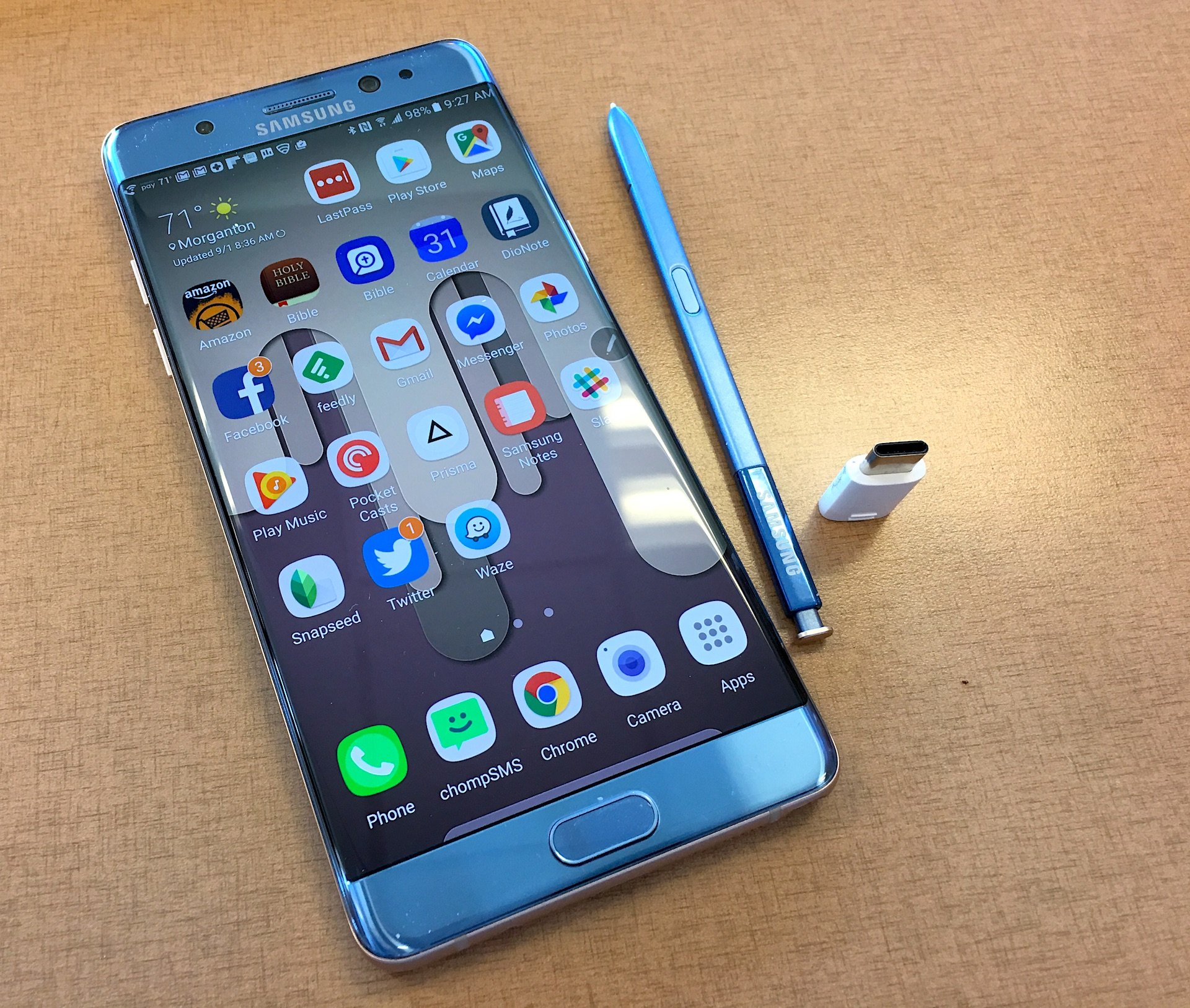
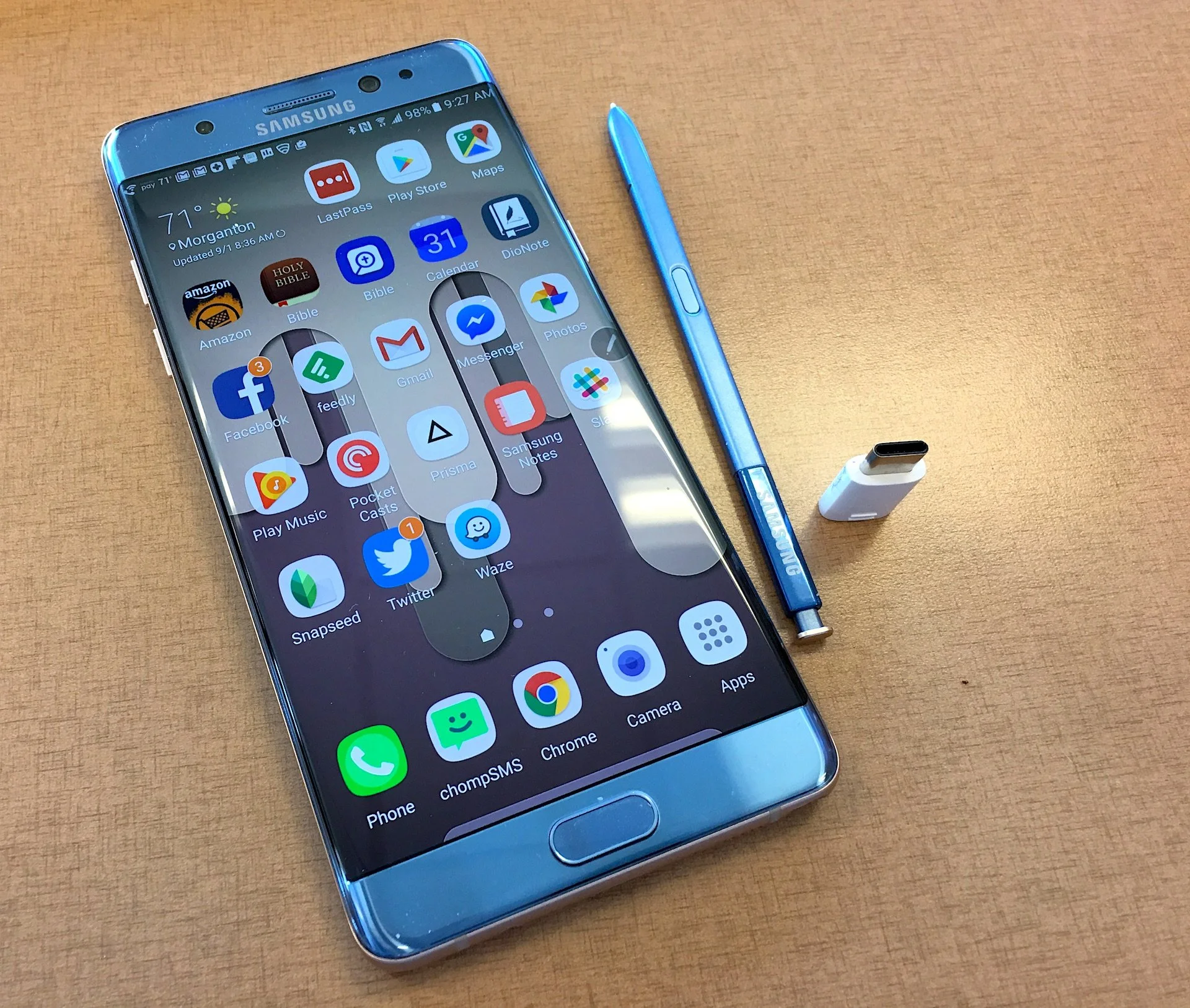
 After looking at Logos 7, I showed off my new Samsung Galaxy Note 7. The Note 7 is a great Android phone with an active Stylus and now includes a USB Type-C connector. It has a great screen and camera. I love this phone.