

Best Screen Mirroring Software for Each Platform
What's the best screen mirroring option for Apple, Android and even a few other platforms? We'll look at the options and how to do it.
Do you project or mirror your screen on a display, like a projector or TV screen? A reader asked me what's the best screen mirroring software for use on a Windows PC, and a Samsung Galaxy phone. I'll add a Mac, Chromebook and iPhone/iPad as well. So what is the best screen mirroring software or solution for each major platform?
What is Screen Mirroring Software?
In case you're not aware, it's possible to show the contents of your mobile device's screen on a TV or projector if you have the right connection, hardware or software. Wireless screen mirroring produces the most convenient results, depending on the source. A hardware connection produces the most reliable results. In a lot of cases you'll need a piece of software or an operating system that includes screen mirroring or screen casting built into the OS.
The source is the phone or computer where you can see what you want to show on the other display. The client devices is the TV, projector or an external monitor of some kind.
In rare cases, you can do this with another mobile device, like another tablet, phone or laptop. Since the reader asking the question asked about using their laptop or phone mirroring to a TV, we'll focus on that instead of on another mobile device. Why would you want to mirror to another mobile device. Let's say a teacher wants to share their screen to students or a salesperson wants to let a customer view a presentation. Since we're all about church and ministry, we'll assume the source is a presentation or something that a crowd will want to see.
Best Screen Mirroring Options for Android Phones and Tablets

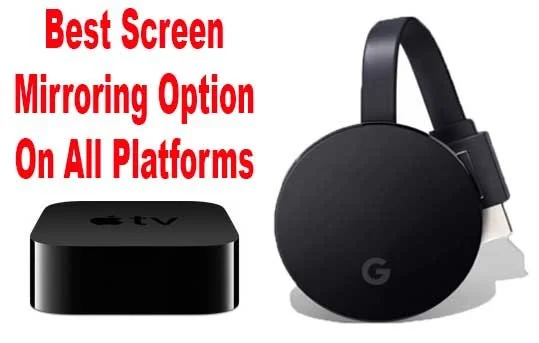
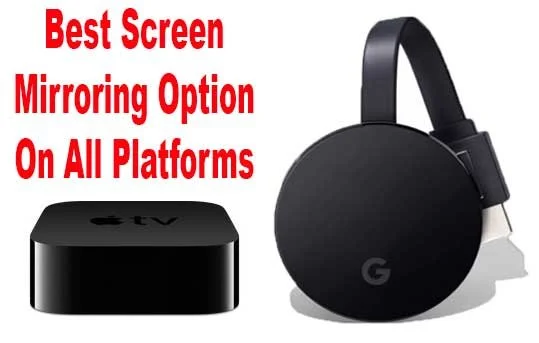
The best option for Android devices includes the Android operating system's screen casting feature and a Google Chromecast or another device that support Chromecasting, like a Roku You can follow Google's support tutorial steps in their user help page for Chromecasting. Below you'll see Google's support video from YouTube.
The Google Chromecast connects to an HDMI port and needs USB for power. You can use your TV or projector's USB port or connect to AC with an adapter. They cost $35 for the basic model or pay $69 for the Chromecast Ultra, which supports 4K and wired networking.

Both of the Chromecast devices will work with a Google Home on the same network. You can ask Google to play YouTube videos, watch YouTube TV shows or play some music. It also supports third party apps like streaming TV services from HBO and others.
Many apps will support casting to a Chromecast. You can run presentations with the Google Slides app.

If you already own a Roku device, it will most likely let you cast to the Roku connected to your TV or projector. To test this, go into your Roku Settings and choose System. Find Screen Mirroring and select Always Allow ot make it work all the time.
The Chromecast Ultra wins this category. It's fast and reliable with a wired Ethernet connection, but versatile enough to use over Wi-Fi if wired networking isn't convenient. The Chromecast works with every Android phone or tablet out there and even interfaces with a Google Home or Home Mini.
A lot of Android phones or tablets will also let the user hook up to a TV or projector with an HDMI cable. You'll hae to check your device to see if it supports a wired HDMI signal from the micro-USB or USB-C port on the phone or tablet.
Best Screen Mirroring Options for iPhone and iPad - AirPlay
An iPhone or iPad runs iOS which includes screen mirroring built into the operating system. You can display the entire screen or, from within an app, you can send a video. This works with the Apple Videos app or Keynote for presentations. The iOS version of PowerPoint also works. Apple calls this AirPlay.
See my tips for making presentations on your mobile device.
The Apple version of the Chromecast costs a lot more but also does a lot more. The Apple TV costs $149 for the low end 32GB model that only supports 1080P. The 4K versions with 32GB or 64GB of storage cost $179 or $199. In other words, they cost many times what the cheapest Chromecast costs. The more expensive models come with a faster processor and HDR10 support.

The use AirPlay you'll need an iPhone or iPad and an Apple TV. There are some third-party options, but I don't recommend them. Apple does plan to let TV makers put AirPlay into their TVs. Samsung, Sony, LG and Vizio are the first brands to support this.
You can mirror the screen on your iPhone or iPad easily. Swipe down from the top of the screen on iPhone or the top right part of the iPad. This shows the Control Center in iOS. Find the Screen mirroring button. Tap it and it will show your options.
Inside apps you will look for the same Screen Mirroring icon like we see on the button in the Control Center. Tap it to show the options to mirror the screen to.
Apps that let you use AirPlay from with the app include Netflix, HBO, and other video apps. Some audio apps offer this option as well.

The Chromecast also lets you cast the screen from certain supported apps on iPhone and iOS. For example, Netflix supports this. So do Google's apps.. Look for the Chromecast icon (see image above - upper left corner). Tap it and you'll see the devices on your network that will let you cast your screen (see image below).

Like Android, you can always choose to connect to a TV or projector with a wired connection. To do this from iPhone and most iPads, you'll need a dongle from Apple or a third party to make it work. These cost anywhere from $30 to $50 depending on which one you need. You can find cheaper dongles form other companies, but I don't recommend them because they seem to work intermittently.

The dongle you need will depend on the devices you plan to use. Does your iOS device have a Lightning port or USB-C. Apple offers a Lightning to HDMI, VGA or DVI dongle. Notice the image above shows the HDMI out port next to a Lightning connector. Plug the HDMI cable into your TV or projector and the Lightning cable from a power source to keep your iPad or iPhone charging while playing the video or doing the presentation. You can also find dongles to connect a USB-C iPad Pro HDMI. If you own a display with USB-C inputs, then use it. It must support Thunderbolt 3 to work.
I use this last method to present at church during Bible studies. It works all the time and is more reliable than wireless AirPlay screen mirroring.
Other Options
If you need something that will connect a tablet to a computer , which you then connect to a display, look at AirParrot 2. This works great if you already have a computer connected to a projector in a sanctuary or classroom. You want to use your iPad or iPhone to show a video or present. Install AirParrot 2 on the computer and use the iPhone, iPad or Android device to connect to the computer. The software supports Apple AirPlay, Google Chromecast and even Windows Miracast.
Speaking of Windows Miracast, that's another option. It's not a common option, so we won't cover it here. Check out the Wi-Fi Alliance page to learn more.
Another option includes using a Kindle Fire and Kindle Fire TV. You could also connect a computer to the display and install screen mirroring
Google Pixelbook Review
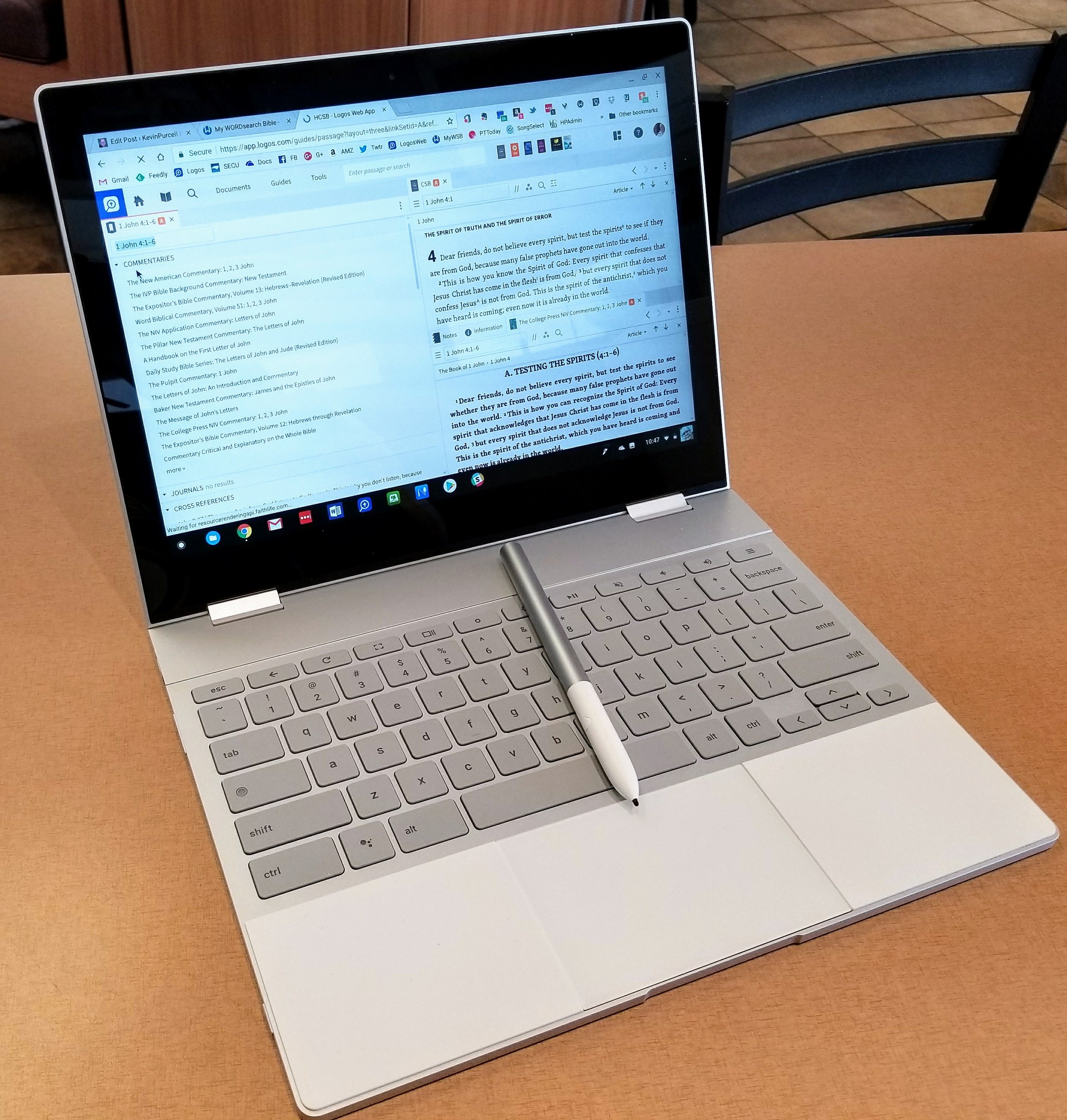
4nvPaying $999 for a Chromebook, and $1,098 when you add the Google Pixelbook Pen, seems like a ridiculous extravagance for many of the mainstream tech site reviewers. I've seen reviewers say it was...
- a "hard sell" for anyone who's not already a Chrome OS user - TechCrunch
- made for "well-heeled Android and chromebook fans" (yes they forgot to capitalize Chromebook) - PC Mag
- only for the "die-hard Chrome OS fan" who looks for "the very best Chromebook available" - Digital Trends
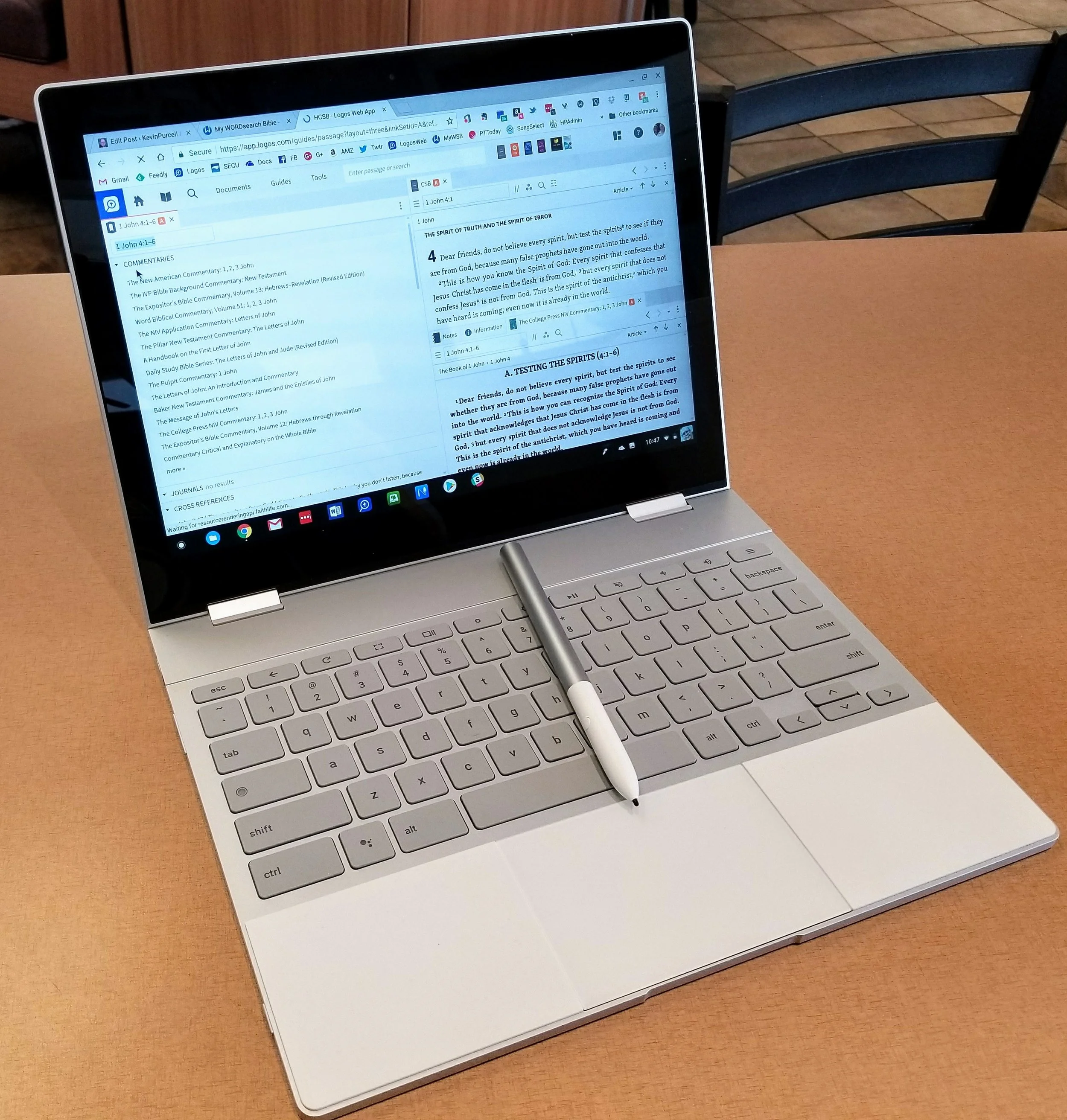
 Let me say at the outset that I think these reviews all came from people who don't fully understand the power and elegance of Chrome OS, so they can't fully appreciate the benefits of a high-end Chromebook like the Pixelbook. We'll step back to look first at the hardware. Then, we'll see how the Pixelbook handles Chrome OS and apps from the Google Play Store, including using Bible study apps, which we already covered in a previous post.
Google Pixelbook Review Video
https://www.youtube.com/watch?v=pCH2xcHT7uw&feature=youtu.be
Pixelbook Internal Hardware
 In a word, the Pixelbook's hardware is fantastic. I bought the base unit that comes with a 7th generation Intel Core i5 processor, 8GB of RAM and 128GB of fast solid state storage. Those sound like decent specs for a Windows machine, but Chrome OS runs on a pretty lean machine, so a 7th gen Intel Core i5 with 8GB of RAM works nicely on Chrome OS.
 Over the years at Notebooks.com and GottaBeMobile.com I reviewed about a dozen Chromebooks. I've never seen a score of 29,238 on Octane before.In addition to the blazing speed, the Pixelbook looks beautiful. It's incredibly thin and light. Other devices claim the same weight, but Google engineered the internals in a wonderfully balanced way. When you hold it in tablet mode or just carry it around it feels sleek. Just look at the clean lines and clear attention to detail.
 The computer includes 2 USB-C ports that will both charge and transfer data. They will also work as external display ports with an adapter.
 Google put a Hardware Security Module in the Pixelbook, giving it a business class level of security. While a home user like me won't really appreciate this, business users might.
 Convertible designs give users versatility that a traditional laptop doesn't. Use it as a laptop for regular work. Then fold the display back nearly 360 degrees to use it as a tablet.
 Adjust the screen so that it faces forward in a V-shape or Tent mode as seen in the image above. We can also use the Pixelbook with the keyboard facing down and the screen facing forward in a mode useful for viewing videos or presentations. Display mode lets the user adjust the angle more easily than tent mode.
Pixelbook Pen
Before I began using the Pixelbook Pen, the Apple Pencil was the best stylus I'd used. However, I prefer the Pixelbook Pen because it's shorter, thicker and feels better in your hand. Because of the shorter length it has a better weight distribution than the Apple Pencil. Both work better than the Microsoft Surface Pen, but not much. All three work great. Pixelbook users needing a stylus will get a great one with the Pen. The Pixelbook Pen has a button on the side that turns on the Google Assistant when the user selects on-screen content. Users can search with voice commands using the special keyboard button but this doesn't work with the Pixelbook Pen, which is stupid. The Apple Pencil doesn’t do anything like that. Surface Pen users can work with Cortana via the buttons. I like the right-click button of the Surface Pen and wish the Pixelbook Pen had the feature or let users customize the one button it does have.
 The Apple Pencil lets recharges via the Lightning Port on the iPad Pro. That sounds like a benefit, but it also means you have to charge it more often. The AAAA battery in the Pens from Google and Microsoft last forever. When they finally do quit, just swap them out. They're hard to find in my small town, but I ordered a four-pack replacement from Amazon for less than $10. Now I've got plenty of backups in my battery drawer at home.The Pixelbook Pen doesn't drop its connection like the Apple Pencil. I have to plug the Pencil into the Lightning port on my iPad almost every time I want to use it. I never have that problem with the Pixelbook Pen.
 The Pen does a lot of great things. Google has a help article to name many of these cool functions, which I've listed below:
- Capture screen content and save it or annotate it with Google Keep
- Search content by selecting it with the Google Assistant button the Pixelbook Pen pressed while drawing around content
- Take notes without unlocking the Pixelbook
- Draw or take notes in apps designed for this like my favorite Metamoji Note or Squid
- Use the pen as a laser pointer in presentation app when connected to an external display or Chromecast
Pixelbook Keyboard and Trackpad
 I've used plenty of terrible keyboards and great keyboards and I love the Pixelbook. It's better than my MacBook Pro from 2013. I hate the new MacBook keyboards. The Pixelbook’s as thin as the new Apple MacBook and MacBook Pro with their butterfly mechanism keyboards, but feels superior when you type.It’s easy to type accurately quickly for hours with comfort. The interesting soft silicon surface that flanks either side of the trackpad feels great while resting your palms. It's a brilliant non-skid surface and I'm glad Google thought to put them their. I hope they don't discolor too much over time. Cleaning them was easy after I got a bit of residue from a soft drink on my hands that I didn’t notice. I just wiped it with a damp cloth.
 The keys have a hint of texture making them easy to type on. They're back-lit, but the light is a little strange. They don't look that great in light making it hard to see the key labels. In a dark room they look fine.
 The keyboard layout's perfect and the useful function keys along the top of Chrome OS does away with the ridiculous F keys on most computer keyboards. You don't need them in Chrome OS.
 Google added a couple of keys to the new layout of their Chromebook keyboard. First, there's the Google Assistant key. We'll cover that more below when we discuss the Assistant. There's also a nice Launcher button in the spot above the Shift key on the left side of the keyboard. It functions similar to the Windows key on most Windows PCs. Tap the key and start typing the name of an app to show it and then tap or click to launch the app or web app. It also functions like a CAPS LOCK key for those who miss it using a key combination.
 As effective as the keyboard works, the trackpad is better. I hate trackpads, so any computer that keeps me from pulling out my Bluetooth mouse has to be good. I paired my Logitech MX Anywhere 2 mouse with the Pixelbook the first time and used it for a couple of hours. Now it sits in my bag. I actually prefer the Pixelbook trackpad. It's spacious, accurate and smooth.I did have to turn off the tap to click feature of the trackpad in Settings. I'm a lazy typists who lets my wrist rest on the space beside the trackpads so my thumbs kept tapping the trackpad accidentally, so I turned off the feature. I don't mind losing tap to click. I prefer to click when I use a trackpad.
 When you use the Pixelbook in laptop mode and tap the screen, the hinges aren’t strong enough to hold the screen in place. It wobbles a bit. If you plan to use it as a touchscreen only for watching videos, display pictures or a presentation to a friend, then use the tent mode to keep this from happening. I've also gotten good at holding the top or sides with my other fingers as I tap with my thumb for quick taps while in laptop mode.
Pixelbook Display and Audio
The 12.3" LCD 2400 x 1600, which gives us 235 pixels per inch, looks beautiful. Text and images look crisp and color accurate. It's bright enough that I mostly use it at 50% brightness except in bright rooms or sunlight. I don't watch a lot of video on my laptops, but I can on the Pixelbook without compromise. Natively, the Pixelbook comes out of the box running at 1280 x 800. That's a little low, even at 12.3 inches. However, it worked fine while using it at this resolution.
 Users can change to the native resolution of 2400 x 1600, but you won't be able to use it that way for long because text looks too small to read (see below). I left it at 1280 x 800 (see above) until recently, when I switched to 1350 x 900. That makes things look smaller but not too small to read even for my middle-aged eyes. Everything still runs smoothly and I can fit more on the screen, a great option when using Bible apps on the screen with two books open at once. Since most Android Bible apps fill the entire screen on Chrome OS, the lower resolution works fine.
 Like most laptops, the Pixelbook speakers aren't great. The sound okay for occasional listening, but no one will want to use this device for a lot of music, gaming and movies if they put a premium on great audio. Get some excellent headphones and plug them into the audio port, which the Pixelbook has, thankfully.
Pixelbook and Google Assistant
I'm not a big Google Assistant user, but the Pixelbook adds this function both in the keyboard and the Pixelbook Pen. The Pen has a dedicated Google Assistant button that works as well as the Google Assistant does using it any other way. There's also a dedicated button for the Google Assistant, as we mentioned above. Tap it and the Assistant starts listening. Google Assistant will search the web, add appointments, tasks or notes to Google Keep. You can also control things on your Chromebook, launch apps and interact with the system.The Pixelbook Pen lets you press the button and then circle something on the screen. The Google Assistant will then show relevant information based on what you circled. Here's a list of some of the things you can do according to the Google help article:
- Find restaurant information by circling its name on a website
- Circle a photo of a famous person and find out who it is or learn more about the person
- Add a date to your calendar by circling it
- Create an appointment
- Add reminders
- Play media like videos from YouTube or music from Google Play Music
The Apple Pencil can't do many of these things and the Surface Pen can do some of them. Siri and Cortana don't work as well in my experience as the Google Assistant for most tasks.
Pixelbook Software
Chrome OS comes with a number of important benefits that a lot of people don't see because they're too focused on the limitations.
- Chrome OS is dead simple by itself with easy use and quick reset to factory default settings via Powerwash.
- Google Play Store adds complexity but also functionality that makes the complexity worth it.
- Great web apps that you can now use offline (Google Docs, Sheets, etc).
- Microsoft Office Mobile apps compatible with Chrome OS with Google Play Store apps.
- Use iCloud apps from Apple via their website.
- Chrome OS is more secure than other operating systems thanks to no viruses affecting it yet.
 We do see some limitations with Chrome OS. It's harder to do complicated video and photo editing. Running two apps on-screen at the same time doesn't work yet in the stable version of the operating system. Google's working on it.
Conclusion
I love my Pixelbook and feel like the $999 plus $99 for the Pixelbook Pen was a good investment. I'm productive with it writing article on my blog, writing sermons and Bible studies, researching my sermon and Bible study passages and doing general Internet tasks. I can edit photos most of the time since I'm not a serious photographer. Snapseed and the other online photo editing tools I use work fine with my Pixelbook. I also don't do complex video editing. Most of the time I'm just cutting off the front or back of a video and splicing together a few clips that I then upload to Facebook or YouTube.If you're like me and want a great piece of hardware, then Pixelbook is your pick. It's the best Chromebook money can buy. If you don't want to spend $1000, then I can also recommend the Samsung Chromebook Plus or Pro, both also great Chromebook with an active stylus. The Samsung stylus is smaller and not as good as the Pixelbook Pen and it doesn't have the Google Assistant built-in. The Samsung Chromebook Plus or Pro keyboards aren't as good and the trackpads on both machines stink compared to the Pixelbook. The screens on those devices look as good, but I prefer the 12-inch nearly square 4:3 aspect ratio. Also the Pixelbook feel like a premium laptop and even works for occasional tablet use.The Pixelbook works great for Bible study and sermon prep with only a few compromises. This boils down to your past usage and how much you need some of the more complicated features available on a Mac, Windows PC or even iOS with the iPad Pro. I prefer the Pixelbook for most of my writing tasks and even most of my online work.
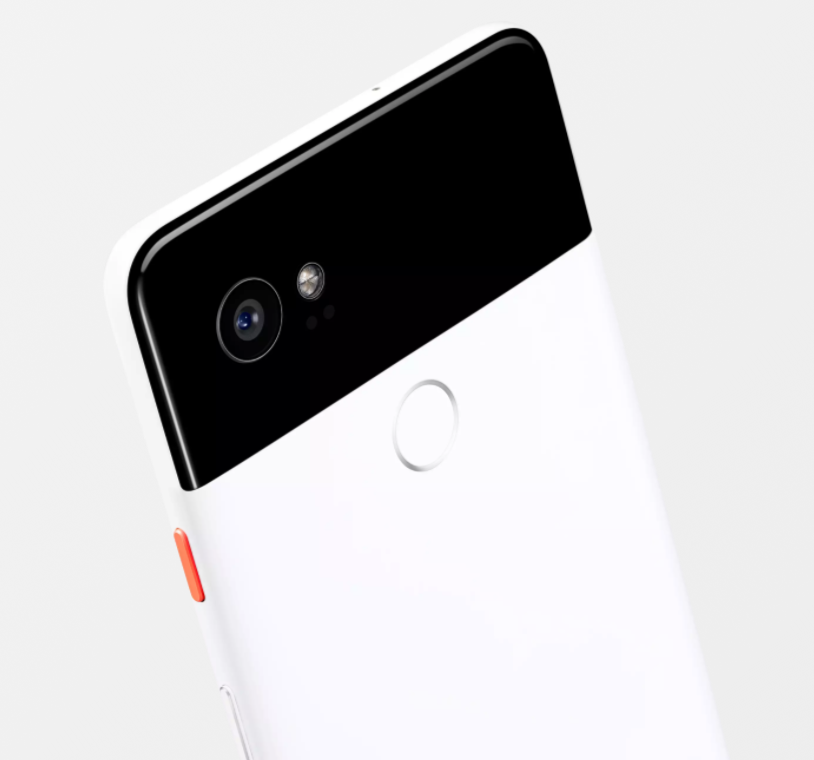
Made by Google: Theotek Podcast #102
Google took to the state and announced a slew of new gadgets for geeks like us to drool over. In this episode of the Theotek Podcast, we talked about the new Google tools. We had some strong opinions about them so watch below or listen at the bottom of this post.https://www.youtube.com/watch?v=qYi0yivQRToIn all Google announced some phones, a new Chromebook, a few new Google Home devices and other accessories. Here's the list of the products with links to the Google device store pages for each item.
New Google Products
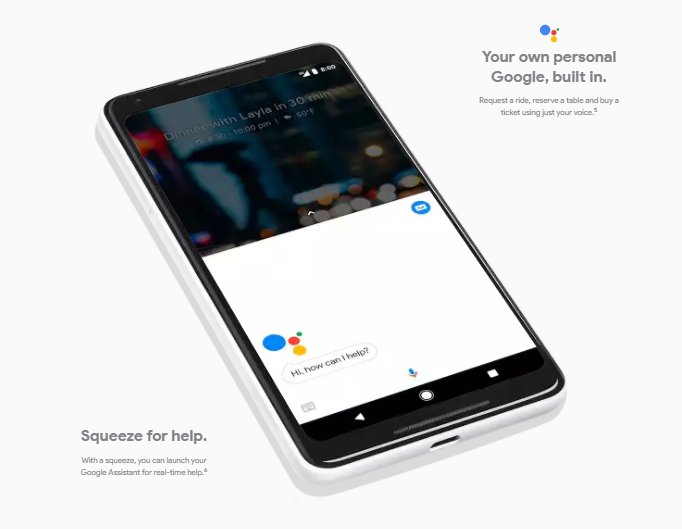
- Google Pixel 2 and Pixel 2 XL Phones - $649 for the smaller Pixel 2 and $849 for the larger Pixel 2 XL
- Google Home Mini - $49
- Google Home Max - $399
- Google Pixelbook Chromebook - $999 for the 128GB drive model with 8GB or RAM and a 7th Gen Intel Core i5; add $200 for 256GB drive and $650 for 512GB and a Core i7 processor; also add $99 for the stylus.
- Google Daydream View VR Goggles - $99 for new version
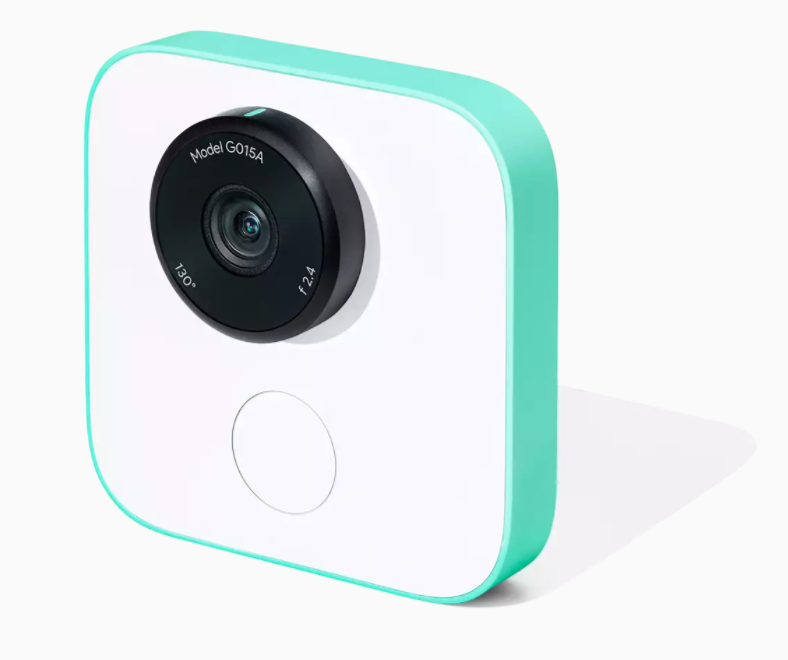
- Google Clips Camera - $249
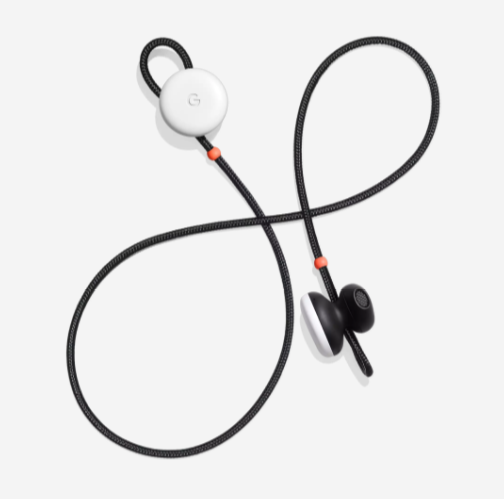
- Google Pixel Buds Bluetooth Earbuds - $159
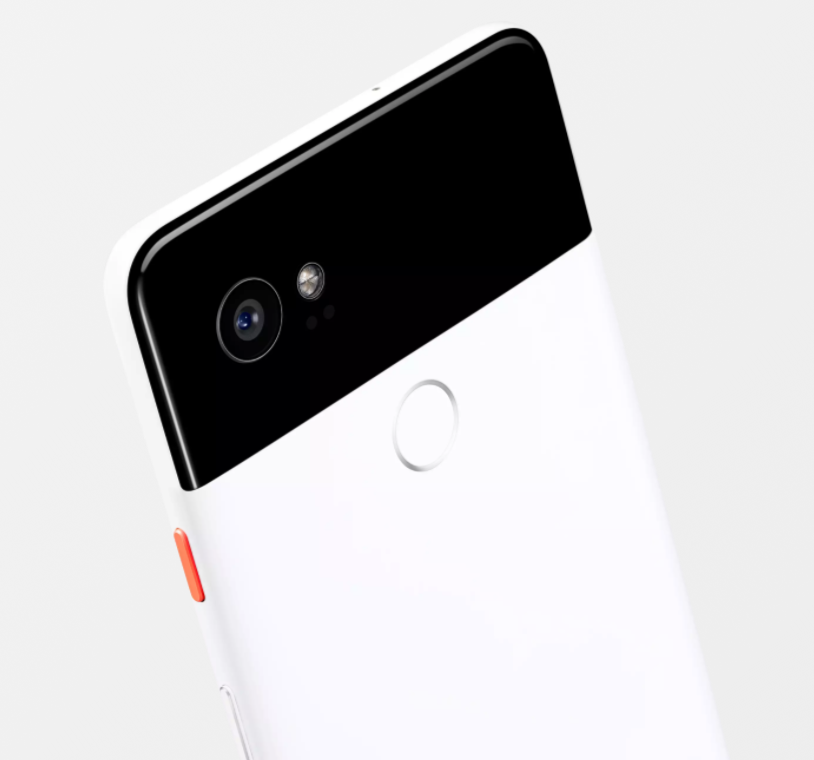
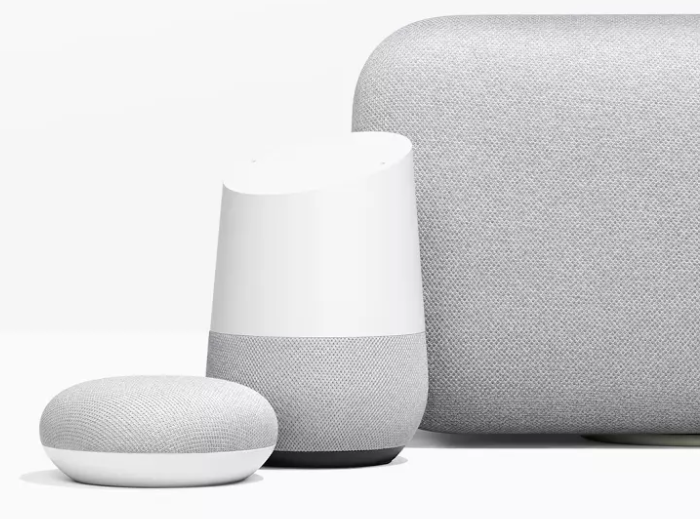
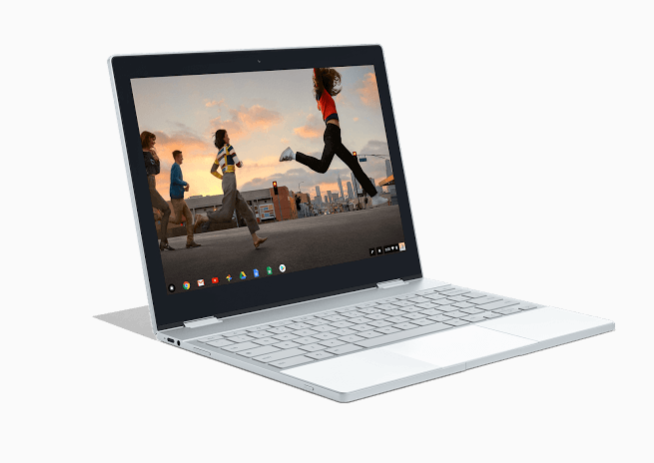
Google Machine Announces Pixel Phone and More: Theotek Podcast #081
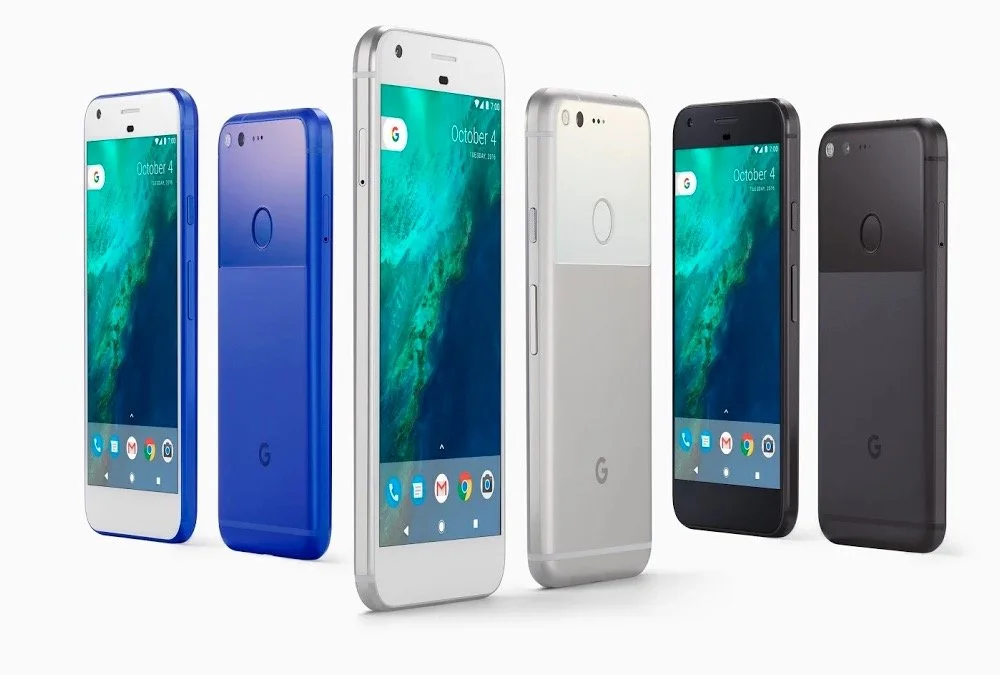
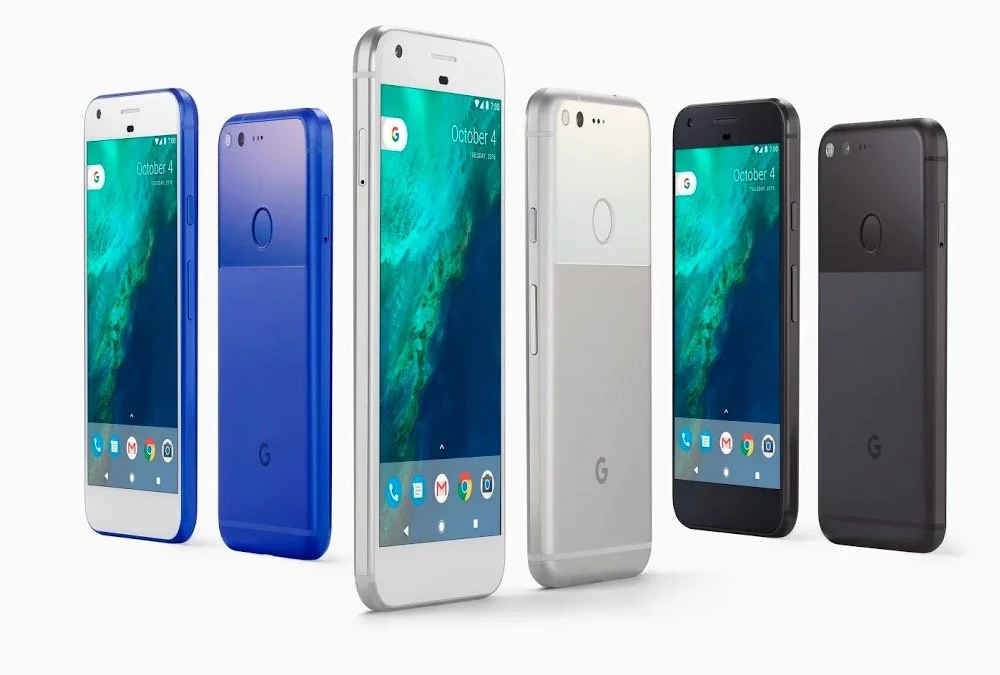
Google announced their new hardware in an event held on October 4. During the event they announced Pixel phones, Google Home, Google Wi-Fi and a new Google Chromecast. The Theotek team talked about the new devices and shared our opinions. Are they desirable for people wanting a new phone or other gadgets? Watch the podcast below or listen to it at the end of this post. Below the podcast is a list of what they offered with a few details and links to their store to order them.https://www.youtube.com/watch?v=VNqBQg-ZCfQ
Pixel and Pixel XL Phones
These two phones will run Android 7.1 operating system. That makes them the most up-to-date Android phones on the market. They hold 5 or 5.5-inch screens powered by the newest Snapdragon 821 processor. Throw in 32GB or 128GB or storage. The announcement event also included the new Google Assistant, a form of their Google Now service akin to Apple's Siri. It's a chatbot essentially and helps people find things, control their phone with voice and look up pertinent information like movie times, directions, appointments and more. It's pretty nifty looking.The 12MP camera on the back got the highest rating from DXOMark, a camera rating service. The company will give users free unlimited Photo storage for the full resolution photos and 4K video the phone can shoot.They look drool-worthy and I've seriously considered picking up the Google Pixel. Right now they're backordered and buyers can't get one till some time in November if they order directly from the company's device store. Verizon customers might get one sooner, but they'll also likely get a phone riddled with Verizon apps they can't get rid of and they won't get OS updates as soon as the unlocked versions sold the device store.
Google Home
 Next up we talked about Google Home ($129). This Amazon Echo or Amazon Alexa replacement works like a voice activated search appliance and speaker. I wrote a post comparing the Amazon Alexa and the Home over at GottaBeMobile.The Google Home connects to the Internet over Wi-Fi and listens for the user to say "Ok Google" like they would on their Android phone or with the Chrome browser on a computer. Search for things like weather, news, local sports scores, nearby movie times, restaurants and more. Also interact with your their services like your Calendar or To Do list. Play music or send videos to your Chromecast connected to a TV.The speaker on the Google Home looks nice and the mic that listens for your voice should work really well. There's a mute button to turn off the listening anytime you want.
Google Wi-Fi
 Our host Wes Allen got excited about Google Wi-Fi because it's a Wi-Fi router that hooks up to your Internet router and then sends the signal throughout your house or office. Get one for $129 or three for $300. If you get three you can set them up as a mesh network which helps offer a strong Wi-Fi connection in larger homes or buildings. That's why Wes got interested. He's been looking for a good Mesh network.
Google Chromecast Ultra
 The Google Chromecast was one of the most popular "set-top" streaming devices when it showed up a few years ago. I think it had more to do with the $35 price than the functionality. However, taking advantage of that popularity, they're testing the market by upping the price to $69 on their new Chromecast Ultra while adding 4K and HDR support. It still plugs in to and HDMI port. Get's power from the USB port on a TV or you can plug it in via an AC adapter. This time around they added an Ethernet port to help with the 4K and HDR streaming bandwidth.
Daydream View
Google Cardboard started almost as a joke or more likely an experiment. However, it took off and helped kick off the VR craze today. The search company announced a competitor to the Samsung VR for $20 less. The Daydream View ($79) holds your Google Pixel phone, the only one that works with it for now, and lets the user enjoy VR content like 360-degree videos or images and games. The device comes with a motion sensing remote to help with gaming controls and video controls. This kind of device offers some interesting possibilities for believers. Imagine 360-degree views of the temple or Jerusalem. A church could give a 360-degree tour of their facilities or stream their worship in 360-degree video so viewers can not only see what's going on up on the platform, but also see the audience.
The Value of Free Stuff: Theotek Podcast #080
Sometimes churches or believers can't afford the high-end or expensive option in many categories like Bible software or web services, so we've got some of the best free stuff or free alternatives for you. We shared our favorite freebies that churches, pastors, and believers can use to help build the kingdom of God in their context without wrecking their wallet or bank account balance.Below the video you'll see the list of freebies starting with the Bible Software free stuff and then a simple list of the other free stuff we talked about in this episode of the Theotek Podcast.https://www.youtube.com/watch?v=b7KWo7eQkLo
Bible Study Free Stuff
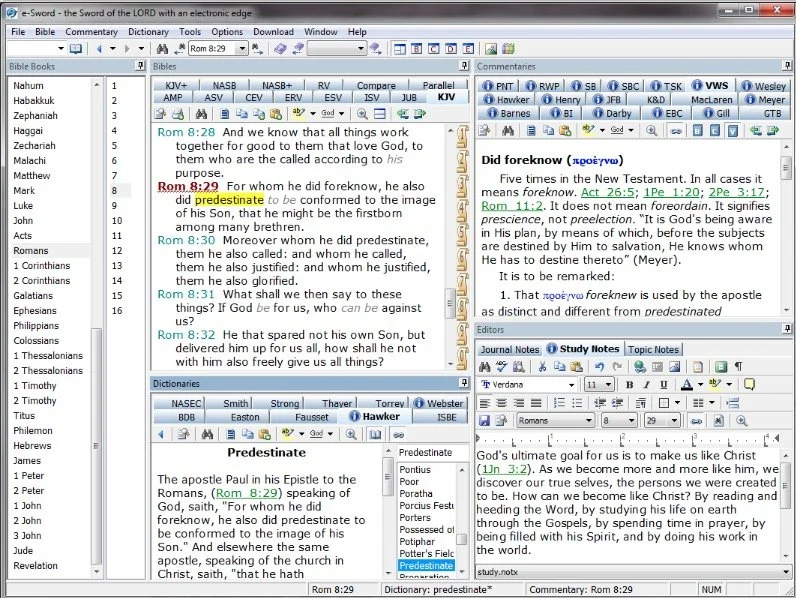
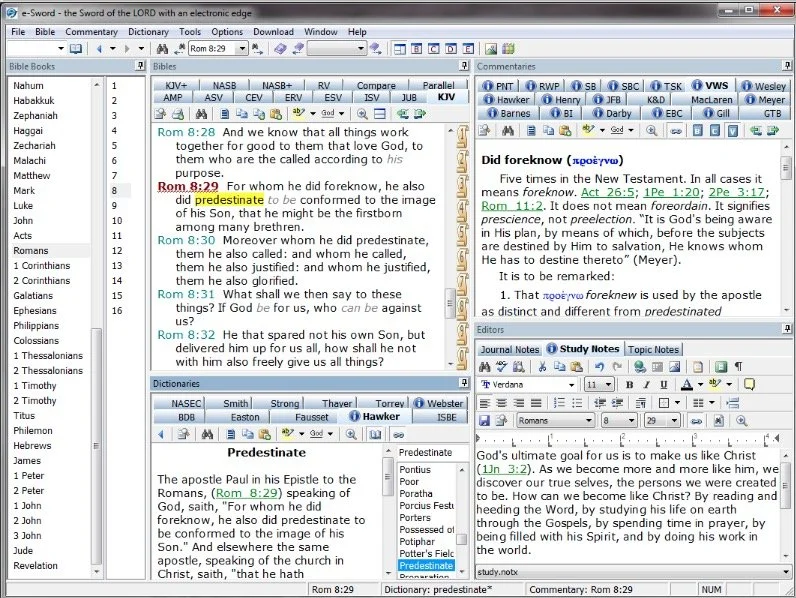
e-Sword is the best free Bible study app available. They make both PC version and a Mac version, that's not free but really inexpensive. Sticking with Bible study Rick Mansfield showed off the free Accordance Mobile app, which people can download on their iPhone or iPad and get a ton of free content, especially if you sign up for a free user account with Accordance. Rick showed off the great ESV interlinear Bible available in the app.
 Antoine showed us his favorite Bible app called Verse3. We had the developer of Verse3 on show #044. It's not free, but only costs $5.
 Olive Tree offers a free version of their Bible app for almost every platform you could want. Download the app on your computer or mobile device, get some free content and then, if you prefer, add some premium content later as needed.
 I showed off some free online Bible study sites that I wrote about a while ago in a two-part series. Here's part two.Finally, LaRosa also reminded us that WORDsearch, his former employer, offers what used to be called Bible Explorer. It's now called WORDsearch Basic and it's now their free option.
The Other Free Stuff
Here's our list of other Free Stuff to help you do your work for free or almost free.
- WordPress website management system also called a content management system or CMS. You can set up a free website and even buy a domain from a company like Hover that will forward that domain to your free WordPress site.‘
- YouTube for video hosting and for playing videos. Find tons of content from entertainment to music to educational content all on YouTube. Of course we use it to stream our Theotek Podcast.
- Microsoft Sway is a great presentation app that lets users share images and pictures. Think of it as a PowerPoint or Keynote alternative for online presentations.
- Facebook Live lets you record and host live video which people can then find later in recorded form on your Facebook wall.
- Libre Office offers a full free office suite with alternatives for Word, Excel, PowerPoint and more.
- Google gives away tons of free tools, including free office software like Google Docs, Sheets, Slides and Forms.
iPhone 7
We ended the show discussing the new iPhone 7, which Rick and I both had our hands on. I did an unboxing of the wrong phone. Watch me get totally disappointed because T-Mobile screwed up and sent me an iPhone 7 instead of the iPhone 7 Plus I actually ordered. Watch the above video to hear what Rick thinks of his iPhone 7 Plus.https://www.youtube.com/watch?v=OkI6psZCfdA
What Microsoft, Google and Apple Can Do for the Church: Theotek Podcast #042
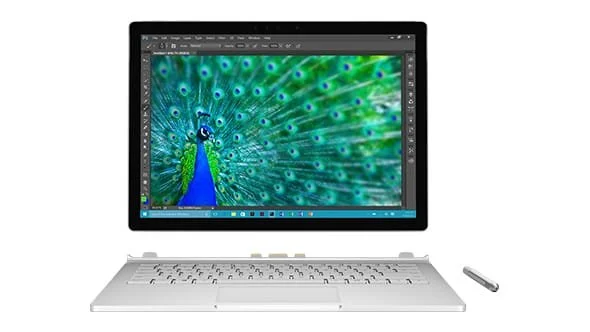
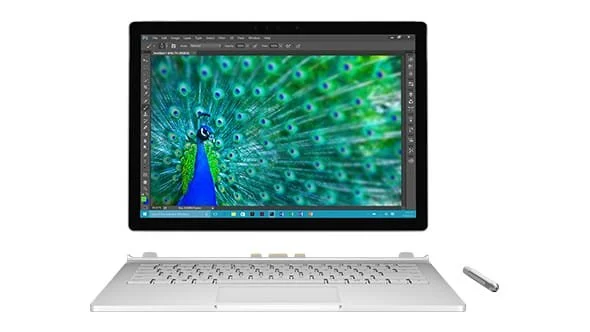
With Microsoft, Google and Apple all releasing new hardware and software, we talked about what they can do to help the church.We've already discussed the Apple hardware and software announcements for this Fall. We chatted about Google's goodies too. Now it's Microsoft's turn. But more importantly for us, what can these three companies and their technology do to help the church do the Great Commission? This week's episode covered this question. Watch it here or listen below.https://www.youtube.com/watch?v=p-RQg4A-4aQThe new stuff from Microsoft includes a new Surface Pro 4 tablet with the Surface Pen and Surface Type Cover updated with better keyboard and trackpad. There's also the new Surface Book, a 2-in-1 notebook/tablet with high-end specs and a high-end price. At the end we each recommend our choice for the most interesting or exciting of the new Apple, Google and Microsoft devices.
Google and Apple - Fight! Theotek Podcast #041
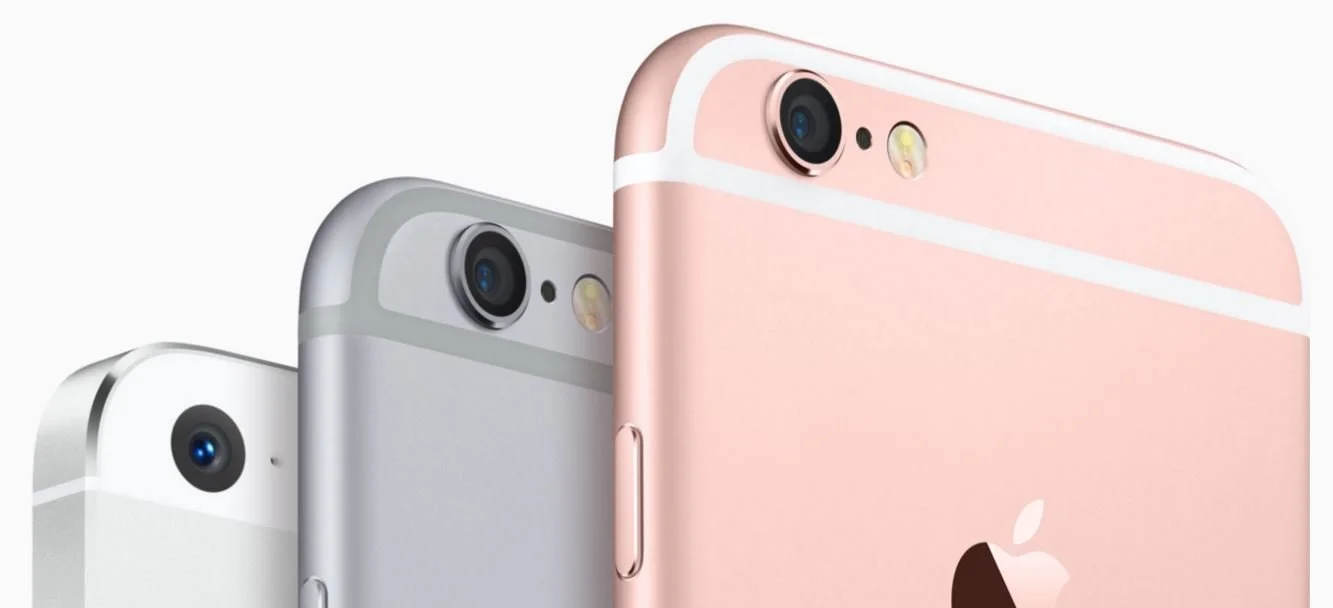
We discuss the new Google and Apple offerings after they announced their new hardware at their fall events. Apple released the iPhone 6s and iPhone 6s Plus as well as iPad Pro, a new iPad that competes with the Surface Pro 3 or now the Surface Pro 4.https://www.youtube.com/watch?v=EznJOU5Tii8Google announced their new goodies also, including a Nexus 5X and Nexus 6P smartphones. Learn more about them from our team in this week's Theotek Podcast.