

Which Apple iPad is Best for Bible Study?
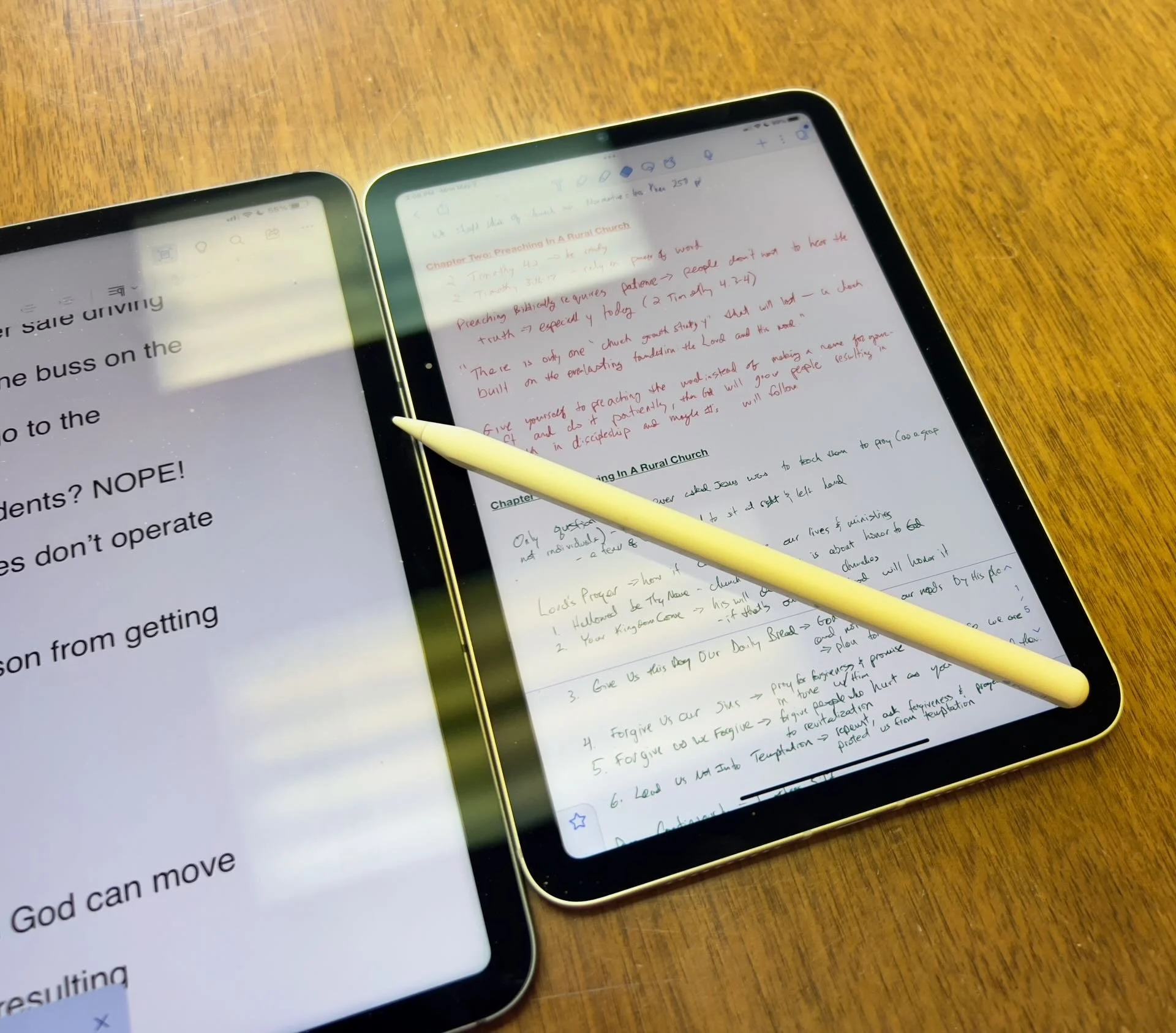
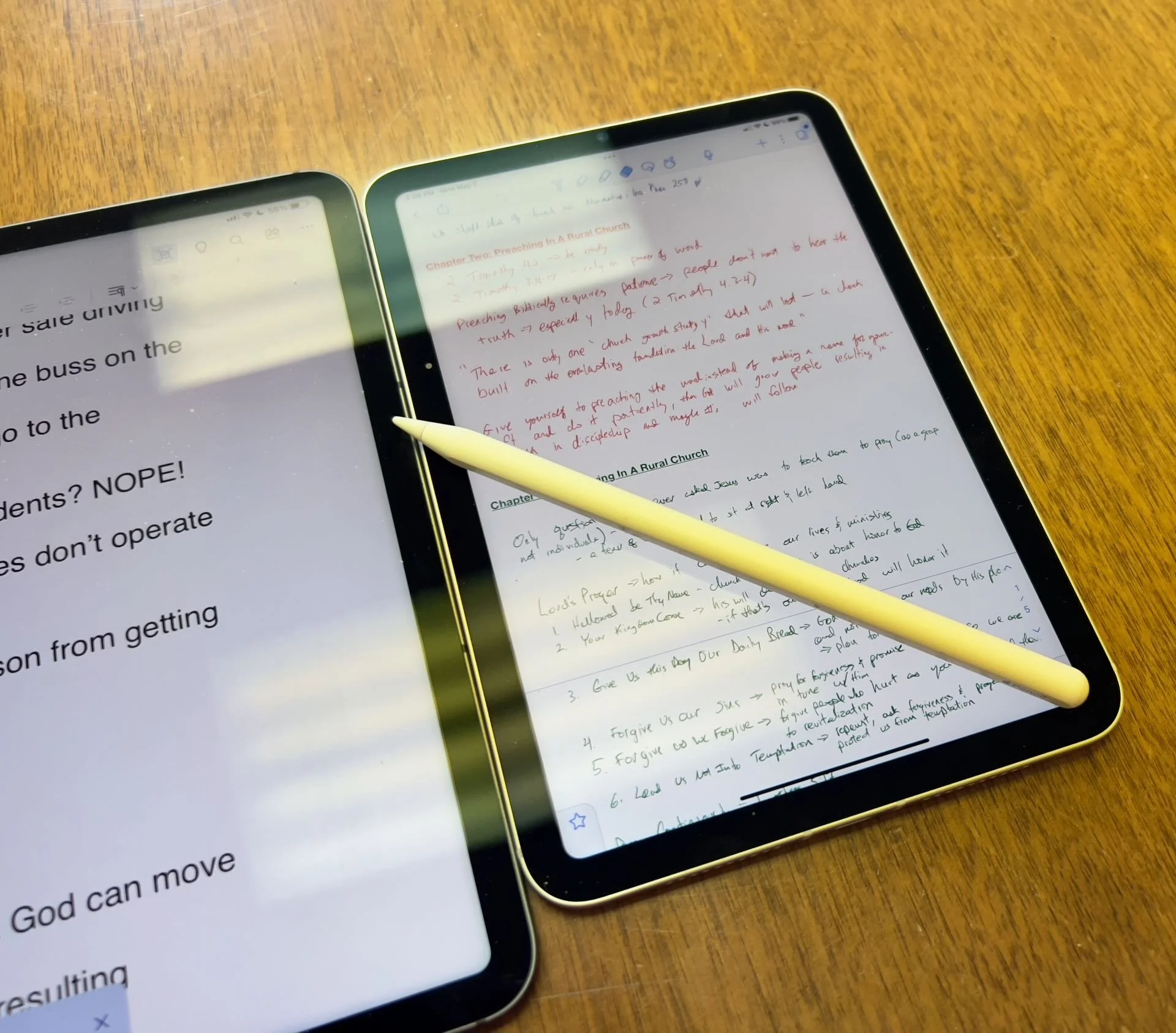
The Apple iPad in whatever form factor destroys the Android competition for great Bible study on a tablet. Windows comes in a close second because you can install a desktop-class Bible study program on it if you have the storage.
Even if you assume I’m correct about the iPad, which is a big assumption, what iPad should Bible students choose and why?

To just get the conclusion, jump to the end for my Conclusion at the end of the page.
The 4 Apple iPad Form Factors
All four Apple iPads include a slab of glass housed in a rectangular case. They come with varying qualities of screens, speakers, and speed. However, users will not see a huge difference in running the most popular Bible study apps from Logos, Olive Tree, Accordance, and more on any of the four current-generation Apple iPad. Still, let's take a look at each starting from smallest to largest.

The smallest iPad also gives users the most mobile experience. The iPad mini feels more like reading a book than the other iPads. It comes with an 8.3-inch liquid retina screen when measured diagonally. That's 7.69-inches tall and 5.3-inches wide, about the same size as a small Bible but capable of carrying an entire theological library.

The iPad Air has Touch ID on the power button, a convenient security feature. You will also get some pretty decent speakers on the two shorter edges and USB-C for connecting chargers or accessories.
If you want to carry your whole theological library, then you’ll likely also want one with 256GB of storage. Unfortunately Apple stubbornly only offers two storage options. You can get a meager 64GB or too much for Bible students with the larger 256GB option. Most people need more than 64 and less than 256.

The two storage options cost $499 for the base model iPad mini 6 with Wi-Fi only. With 256GB you add $150. That's ridiculous, but necessary because after you own the mini for a while, you'll want to use it more and more because it's so convenient to carry out. So plan to pay the extra coin.
I personally chose to add Cellular as well making it cost $$800. I like that I can just open the cover and start working no matter where I am, almost since there are some areas without coverage in my semi-rural community.
Throw in an Apple Pencil 2 and a cover and you're over $900. That's a lot of money, but you can get it on a 0% interest payment plan with your wireless carrier or with an Apple Card.
The newer Apple Pencil 2 connects and charges while connected to the side of the iPad. It's a great stylus but costs. More on that below.

Some people call the basic model the iPad 9 or iPad nothing because it doesn't include a descriptive name like the mini, Air, or Pro. It's the cheapest option at only $329 for 64GB of storage and no Cellular.
It includes a larger screen at 10.2-inches diagonally or 9.8-inches by 6.8-inches when measuring the long and wide sizes of the entire device.
The iPad doesn't support Face ID but you can unlock it by touching the Home button, which has Touch ID built-in. It uses older technology than the Air or even the mini. However, it's a great starter iPad for most people. And if you only plan to study the Bible, strongly consider it since it costs less than any other device. Users can use the Smart Keyboard.
The iPad 9 comes with the same problems as the iPad mini with only two storage options - 64 and 256 GB. So you really want the larger storage option which brings the price to $479. If you want Cellular, then add $130 bringing your total to $609. Most looking for this budget model won't want Cellular, but get the 256 because 64 isn't enough.
The other problems with the regular iPad include...
- Lightning connector is slower and makes accessories more expensive since creators have to pay Apple for the right to include Lightning.
- Lower resolution screen that's not as good as the mini and much worse than the Air or Pro models.
- Slower A13 Bionic Chip compared to the A15 in the mini and the M1 Chips in the Air and Pro models
- Uses the older first-generation Apple Pencil that charges by sticking it into the Lightning port making it easier to break off the connector or lose the cap.
Apple offers the iPad as the budget option and that makes it a great tool for people who want a device for basic needs, including Bible study, reading, and Bible app research. You can also pair it with a Bluetooth keyboard for writing. Just don't expect the latest and greatest. Those tech specs aren't included.
Some call this the best deal on an iPad today. You get the most bang for your buck. However, it will cost you more than the iPad and iPad mini. It has a much better screen and a super fast and efficient M1 chip. Plus it records 4K video with the back camera and has a front camera that follows you when you're video conferencing. They call that Center Stage because it centers the camera on the subject.
The Air speakers sound great and the screen looks amazing. You can use the awesome iPad Magic Keyboard case or the awesome Smart Keyboard Folio with the trackpad. I love this keyboard. Also, the newer Apple Pencil 2 connects and charges while connected to the side of the iPad.
However, we still see the annoying storage issue with only 64GB or 256GB. Plus Cellular swells the price by another $150. That brings the total with 256GB and Cellular to $899. For Wi-Fi alone, you pay $749. Why does Cellular cost more on the Air than on the mini or the basic iPad?

The iPad Air is the prettiest coming in one of five colors including Space Gray, Pink, Purple, Blue, and Starlight.
The iPad Pro below comes in two sizes, 12.9 inches, and 11 inches. Don't get the 11-inch iPad Pro. Instead, get the iPad Air.

The most expensive, powerful, and feature-rich iPad seems more like a mobile computer than a tablet. The iPad Pro which you can get in 11-inch or 12.9-inch screen sizes offers the most power of the four sizes. It costs $799 for the 11-inch and $1099 for the 12.9-inch.
Apple offers 128GB for the base price. That's the sweet spot and should be the lowest storage offered on any device made by Apple. It's the perfect storage for most buyers. However, you can get 256, 512, 1TB, or 2TB. You don't need anything more than 128 for Bible study. However, you may want to choose higher storage if you plan to use this iPad for much more than Bible studies, like video and photo editing, gaming, and more complex uses.
Users may want the large 12.9-inch screen because they want more screen real estate for Bible study.
Other specs to excite buyers include:
- Liquid Retina XDR Display
- ProMotion
- M1 Chip with more memory than the others
- Face ID and Center Stage camera
- 5G Cellular optional along with Wi-Fi 6
- LiDar support for things like 3D modeling
- Thunderbolt USB-C port that's fast and will connect to a Thunderbolt monitor or incredible docks with a lot of ports
Recommendation for Bible Study Only

If you only want to study the Bible then you have to ask yourself a few questions. Do you want something small and easy to carry around like a small Bible? Then get the iPad mini. If you need a bigger screen then get the iPad Air. It's the most future-proof and with all the tech inside it will last for a long time. However, budget-conscious buyers should go with yesterday's technology in the basic Apple iPad.
Just remember this. I've never met anyone who actually used a tablet only for Bible study. So, you can see yourself possibly needing a little more power, a good typing experience, or some screen real estate to edit your photos or make video masterpieces, then get the Apple iPad Air.
Recommendation for Bible Study and High-End Multimedia
If you just read the above paragraph, then you know I recommend the Apple iPad Air for people who want to study their Bible with Logos, Accordance, Olive Tree, or some other Bible app and work with multimedia. But which iPad Air should you get?
The 256 is, unfortunately, the best option until Apple gets its head out of the sand and starts offering a 128GB option.
Recommendation for Those Needing a Large Screen

Buy the Apple iPad Pro 12.9-inch model with 128 GB if you only want to study the Bible or 256GB or more if you want to do high-end work like multimedia creation.
I bought the 12.9 Pro because I teach and preach from my iPad and due to my aging eyes the mini's just not big enough. The iPad Pro 12.9 means typing on a keyboard that's wide enough to enjoy. The Air was too narrow for my big hands. I spent more than I needed to. Until Apple offers a larger Air with 128GB, I'll happily keep my Apple iPad Pro 12.9-inch.
Recommendation for Buyers on a Budget
This one's simple. Get the basic Apple iPad for $329 if you don't own a large Bible library or pay more for the 256GB model. You won't get all the power and specs and it may feel old in a shorter time since it's not as fast, but for buyers on a budget, it's the best way to go.
The only other budget option is to buy a used device or get an older one. Look at your budget and something that fits in your budget that also fits your preferred form factor.
You can check out Apple's Refurbished store. For example, they offer the iPad mini 5 for the same price as the newest base model iPad. For slightly more than the base model you can get an Air with Wi-Fi for just $419.
Check out eBay, Facebook Marketplace, and Swappa as other options for used and refurbished products. You can get a great deal.
Must-Have Accessories
When you buy an iPad, you also have to factor in buying accessories. Other tables like the Samsung Galaxy Tabs come with at least a writing device. You can use the tablet alone, but I wouldn't. You'll need the following accessories.

- Cover or Case - you will want to protect your device.
- Keyboard or Keyboard Cover - you can study the Bible on your iPad more efficiently with a keyboard connected.
- Apple Pencil - you may want a Pencil to write or take handwritten notes in apps that you can use alongside your Bible apps.
- Screen Protector - I used to not protect the screens on my tablets, but when you carry it around naked you should.
- Headphones - many Bible apps include audiobooks or videos.

Let me offer my top recommendation for each category above.
- The Apple covers or cases work best, but if you want to save money go with cases from Moko, Spigen, or Moshi.
- Apple's Keyboards or Keyboard Covers are the best options for the Air or Pro. The Magic Keyboard is $300 and the Smart Keyboard Folio costs $180. I love typing on my Magic Keyboard cover connected to my iPad Pro 12.9. However, Logitech makes great keyboards too if you want to use your iPad at a desktop. I have the Logitech MX Keys and MX Keys mini. You can also buy Apple's Magic Keyboards with or without Touch ID.
- Apple Pencil is the best writing device and I wouldn't buy another one. However, the Logitech Crayon is a $70 alternative.

- Screen Protectors are a budget item. They shouldn't cost a lot of money. Just get a glass screen protector. However, here's one alternative that some people really like. Get a Paperlike screen protector, which does two things. It protects the screen and gives users a paper-like experience for drawing and writing.
- Get the Apple Airpods or Beats to use for Headphones. They work best with Apple products and sound really good. However, not everyone wants to pay that much. Be careful which ones you buy, because sub-$100 Bluetooth earbuds usually sound like junk. To save money get Apple's USB-C to stereo adapter and plug-in wired headphones.
Conclusion

To do only Bible study, then get the iPad mini. You'll enjoy using it for hand-held study. If you want to put it on a table and need more screen real estate, then buy the iPad Air with an Apple Magic Keyboard. Add an Apple Pencil to either device if you plan to take notes in your own handwriting or want to write. Add a handwriting keyboard replacement app like Handwriting Keyboard ($3.99). Throw in a great note-taking app like Notability or Good Notes. This way you can have the Bible app on one side and the note-taking app on the other while holding the tablet.
Get Logos Legacy Library for 25% Off
If you need to buy a good Bible software package, consider using my affiliate link to get Logos Bible Software. You can get what they call "Legacy Libraries" for a nice discount of 25% off. A legacy library is a collection of books that they sold when they released previous versions of Logos from versions 5 through 8.
iPad Mini 6 Review for Ministers and Everyone Else
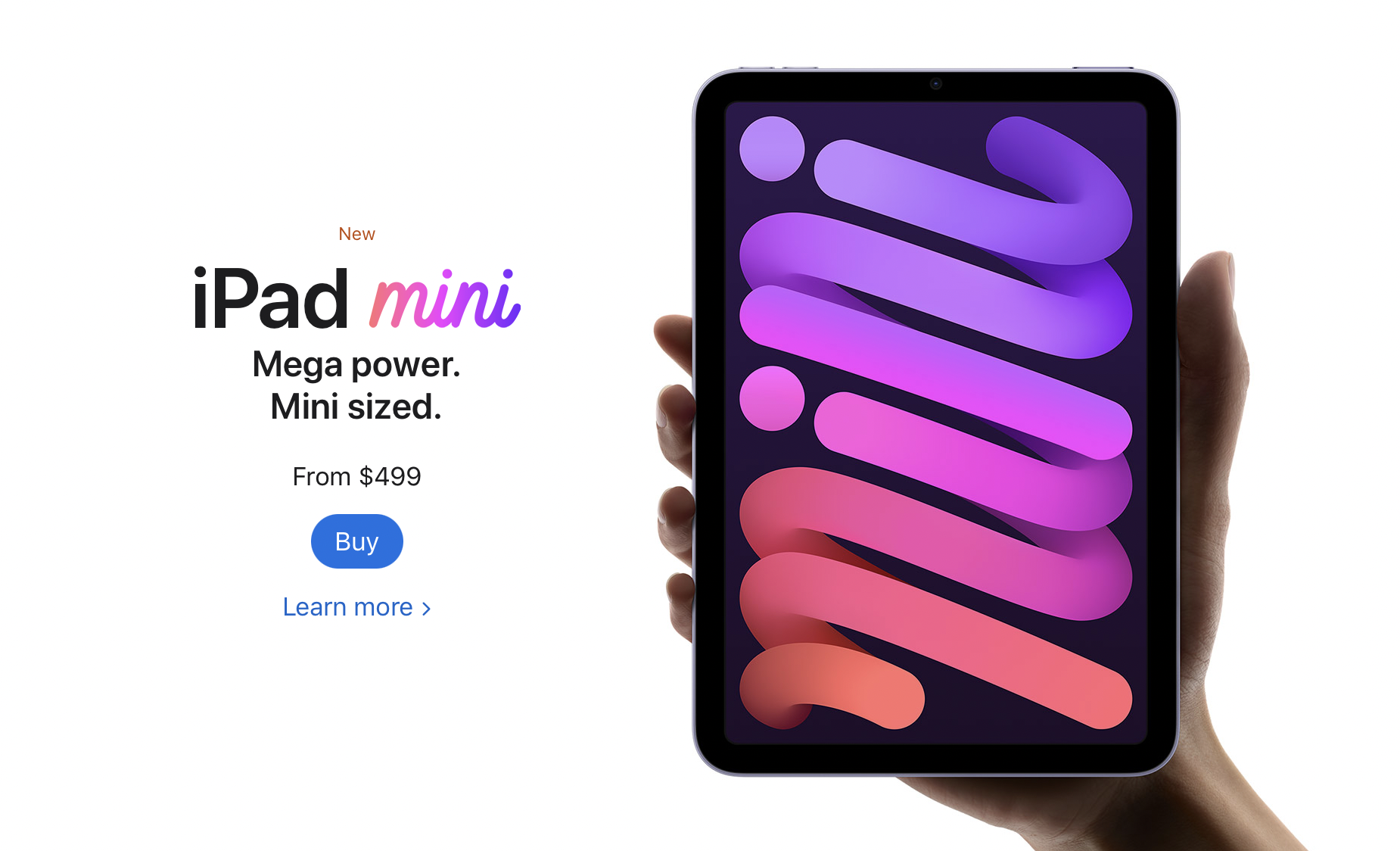
One of the best tablets for pastors is the iPad mini 6. Here's why I love it so much for ministry and general use.
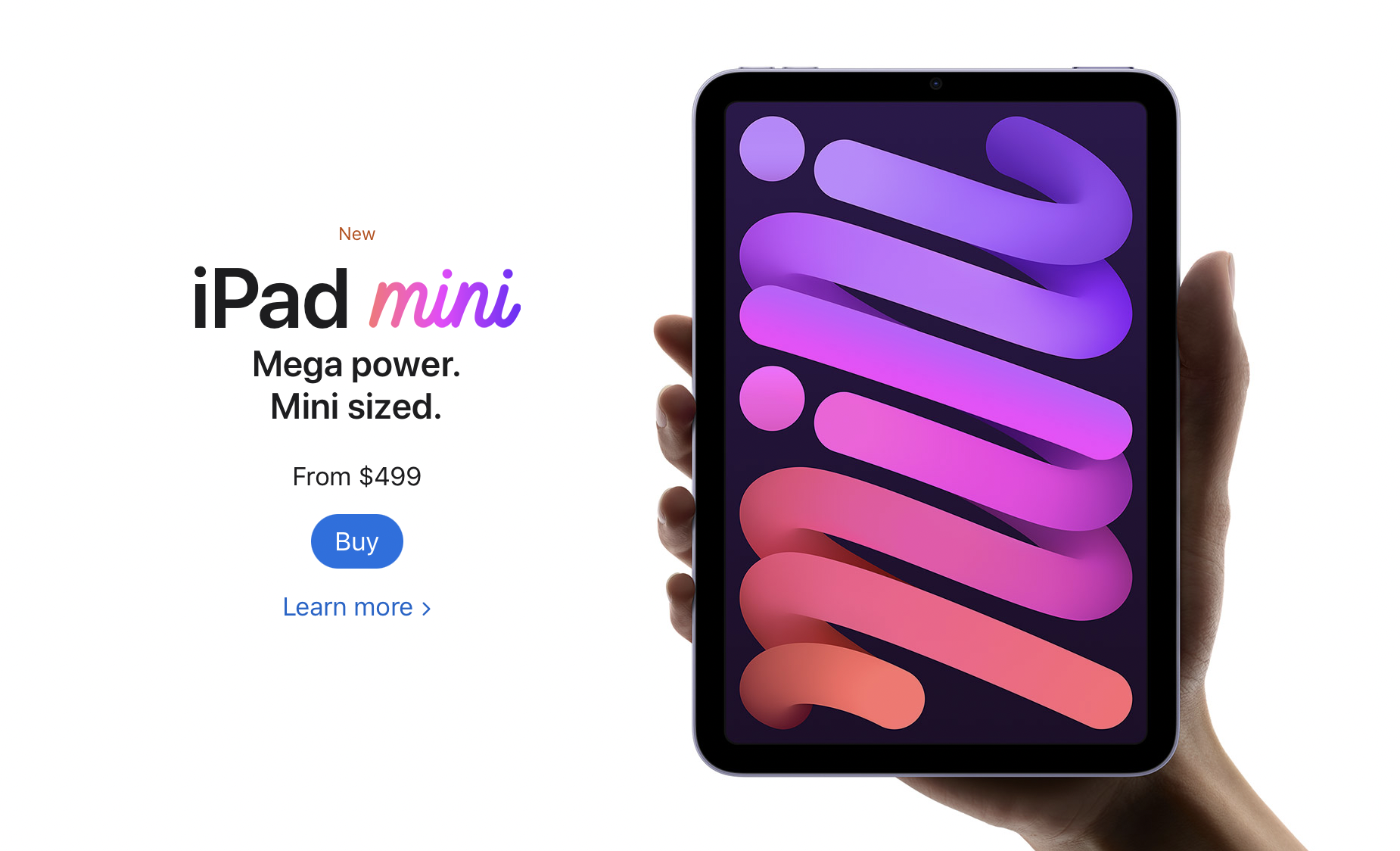
The Apple iPad mini 6 came out and I couldn't resist getting one. In fact, I sold my 12.9-inch iPad Pro and my iPad mini 5 so I could get the 256GB model. Here's my iPad mini 6 review for ministers and everyone else.
Let's start with how the iPad mini 6 ($499 for base, $649 as reviewed) fits in my life. I use it as my primary tablet and, for a little while, my only iOS device because a couple of months ago I switched from using an iPhone 12 Pro Max to a Samsung Galaxy S21 Ultra 5G. I moved back to the iPhone after that failed experiment. I shared thoughts on that transition in another post. The iPad mini 6 handles...
- Reading my Bible and others books in Bible apps and the Kindle app.
- A complement to my phone for checking email, Facebook, Twitter, and Instagram.
- Watching videos or listening to podcasts using YouTube, YouTube TV, Pocket Casts, and other streaming video services.
- Playing casual games.
- Quick photo editing for posting online.
- Quick video editing - mostly trimming videos, combining clips, color correcting, adding titles, and music but not complex edits.
- Flying my DJI Mini 2 drone.
- Taking notes in meetings with Notability and the Apple Pencil.
- Preaching from my tablet with Word or using Keynote for presentations.
We'll look at the uses listed above and then the hardware. If you just want to see what I think without the detailed iPad mini 6 Review, then jump to the bottom to get my recommendation.
iPad mini 6 Review: Bible Study and Reading Books
The screen on the iPad mini 6 looks pretty nice while reading books. The iPad mini 6 works well for studying the Bible in several Bible study apps and the Kindle app for reading books. Read magazines using the Apple News app.

I like reading on a screen. My wife prefers the Kindle Paperwhite and won't read books on a tablet, but I love using the iPad mini thanks to the sharp and clear display. If you hate reading on a screen and prefer e-ink or real paper, then don't buy the iPad mini 6 for reading. You won't enjoy it. However, I would recommend trying it out. Borrow a friend’s mini or spend some time at an Apple Store or Best Buy reading to see if you could use it. It’s nice caring only one tablet for reading.

All the Bible apps that run nicely on an iPhone look great on the mini 6. The screen's just big enough to open 2 books at once time or open a book and a note screen. The new window management in the iPad mini 6 or any of Apple's iPad thanks to iPadOS 15 makes it easier than ever to open two apps at once. You can...
- Open one Bible app and take notes in another
- Open your Bible app and a word processor like Word, Pages, or Notes
- Use your inking app, like Notability, and take handwritten notes while also studying the Bible in your favorite Bible app.
- Research topics on the Internet while and studying the Bible in your chosen Bible app.

The Kindle app and Apple News app look great. Reading other text in a browser, email, or social media also looks sharp and crisp.
Margins Notes or Highlighting like a Paper Book
Most of the Bible apps and the Kindle app won't let you take handwritten notes inside the app. iPadOS 15 added a new feature where you can grab your Apple Pencil 2 (sorry, but the first-gen Pencil doesn't work) and swipe from the lower right corner. Apple Notes opens a note and you can take what they call Quick Notes. These Quick Notes are attached to the content on screen. You can type or draw and write in your own penmanship.

While I would not use this for really important Bible study and research notes, it's great for a quick note that you can save and later add to the notes feature. I type faster than I can write with the Pencil, but Quick Notes works great for those instant observations in another app outside your main Bible app, hence the name Apple gave the feature.

If you love to write in the margins of your books, then convert them to PDF and get an app like Notability, Liquid Text, or Good Notes. You can find others, but make sure they support importing PDF files. I use Liquid Text for this. It supports PDFs and Word docs. By the way, the OneNote app also supports handwriting with the Apple Pencil.
You could always highlight the Bible in the best Bible apps. This also works great on the iPad mini 6.
iPad mini 6 Review: Preaching from Digital Notes

When I preach, I always bring my iPad into the pulpit and view my sermon notes in Microsoft Word. It worked great on my 12.9 iPad Pro. Young people or those with great eyesight will love using the iPad mini 6, but it's a little too small to lay down on the pulpit. Word will enlarge the text, but then you don't see enough of the outline at one time. So, going forward I will not use my iPad mini 6. However, if you want to, open the document, put it in reader mode by tapping the icon on the toolbar (see the GIF above), and then pinch to zoom text.
You'll need to decide if your eyes see well enough to use the smaller iPad mini 6 for preaching notes. If you used an older iPad mini, then you'll like the new one. The screen measures slightly larger than the old version with an 8.3-inch display versus the older 7.9-inch on the 5.
Presenting Using the iPad mini 6

Presenting suffers the same problem for my older eyes as reading my preaching notes. However, I can use it and if you've used a small display for presentations before, then the iPad mini 6 will work for you.
If you simply plug in and swipe or tap to advance slides, the iPad mini 6 will work great. If you like to write or draw on the screen as I do (see above GIF), then the size might limit you. It's harder to present on the smaller screen compared to the 12.9-inch Pro display or the 10-11-inch display on the basic iPad, iPad Air, or smaller iPad pro.
With iPadOS 15 and macOS Monterey on a Mac, you can send the display of your iPad to the Mac using screen sharing (see GIF above). This would let you connect to a Mac hooked up to a projector or TV. Then screen share your iPad screen to the Mac.
iPad mini 6 Review: Screen and Input
Pick up the small and light iPad mini 6 and type on the screen with your fingers or write using Scribble, the new Pencil-based input system in iPadOS 15. The mini 6 handles this kind of input. However, I don’t really like Scribble, so I’ve installed a keyboard that lets me draw text and it converts it to printed text on the screen. It’s called Handwriting and handles handwritten text input better than Scribble.
iPad mini 6 Review: Performance
I'm not going to run benchmarks or battery tests. You can find those on more technical reviews elsewhere. Rene Ritchie does a great job of these kinds of reviews on his YouTube channel.
If you plan to use the iPad mini 6 as a tool in ministry, it performs efficiently and offers a nice improvement over the 5. It's snappier, scrolls through websites and books faster, and the inking smoothly displays your handwriting and drawing.
Some people report seeing a strange effect while scrolling. It's the great "Jelly Scrolling" controversy of 2021. See the effect in the video below.
The jelly scrolling issue clearly shows up in the video above. But, I don't see it on mine. It seems like you have to really look for it to see it. And if you do, then you may not see it again. If you get one that looks more noticeable, then get return it and get a replacement.
Since I don't notice the problem, I can't complain about it here.
Other than the Jelly Scroll issue, the iPad mini 6 performs well. I played videos, games, and read on it a lot over the first couple of weeks, and loved the experience. It feels like a good improvement over the 5, which I owned.
iPad mini 6: Video and Photo Samples
Most people will still use their phone or a dedicated camera to take pictures or shoot videos. However, I use my iPad mini to scan documents and the rear-facing camera works great. I import documents into my note-taking apps or scan them for storage in my OneDrive folder. After worship, I scan all the guest cards to contact them. I also scan new member cards to add them to our church role.
More people will use the front-facing camera to stream themselves on social media or for FaceTime, Skype, or Zoom calls. The camera works fine for these situations.
A new feature on the iPad mini 6 enables ultra-wide video so that the camera will follow you around your room even if the iPad remains stationary. The software will zoom in and focus on your face so you can get up and move left or right and then back to the center frame.
In a pinch, the camera does a nice job of taking photos and videos. Here's a sample of photos taken on the iPad mini 6 camera. They are all without edits and exported from Photos to JPG. The one of me in my orange shirt is taken with the front-facing camera. The other four are taken with the rear camera.


The colors look nice. Each photo seems sharp enough for snapshots. I wouldn't try to get high-art photographs with the camera. All of that said, the camera impressed me. Until this model, I wouldn't even consider taking this much time in a review to discuss the quality. But this camera works better than any previous iPad camera.
iPad mini 6 Review: Flying My DJI Mini 2 Drone

Flying a drone usually starts with connecting a phone to the drone controller. However, I never really liked using the small screen of the flown. There's too much on the screen for even a large screen like the one you get with the iPhone 13 Pro Max. So, flying a drone with an iPad mini 6 makes drone pilots happy.


The above set of screenshots shows the interface of the DJI Fly app, used to control the DJI Mini 2 drone. All the controls show up with plenty of room to see the images from the drone's camera.
To fly a DJI drone with the iPad mini 6, you'll need a special attachment like the Drone Valley Gear Tablet Mount ($18.95) that I bought on Amazon. It fits an iPhone, iPad mini 6, or another tablet of similar or even larger size.

If you want to learn more about the mount, see Drone Valley's video below.
iPad mini 6 Accessories
I bought the official Apple Smart Folio in Electric Orange for $59. I also accidentally got the Dark Cherry, but it showed smudges too much, so I stuck with the bright orange Smart Folio and I'm glad I did.
The case covers the back of the iPad mini 6 then wraps around the left side of the device to cover the front. The back snaps into place thanks to magnets that reliably hold it on the iPad.
The front part of the Smart Folio folds up into a triangle to turn into a stand. It will hold the iPad up in an angle best for watching a video and a lower angle for drawing.

The magnets in the front part of the Smart Folio snap onto the front part of the iPad and this turns the screen off until you open the case and it turns the screen back on. It also folds onto the back and snaps into place so you can hold it and read or do other things.
The Apple Smart Folio case feels like it will hold up, but for $59 it seems like it should feel more premium. It has a bit of a cheap feel to it. You can find cheaper cases, but I like Apple’s because they’re designed better even if the raw materials aren’t as premium.
The Folio also comes off easily making the iPad mini 6 lighter and therefore easier to read on it.

The Apple Pencil 2 snaps onto the right side (in portrait orientation) and automatically pairs with the iPad. It also charges while connected. The magnets seem stronger this time than my old 2020 12.9-inch iPad Pro.
The Apple Pencil costs $129, a little steep for a stylus. However, it's one of the best you can get especially for artists.

I don't use the iPad mini for typing very often, but Logitech makes the best keyboard you can pair with the iPad mini 6 or any tablet. The new Logitech Mx Keys Mini costs $99, a lot for an iPad mini keyboard. I use it with other devices so it's worth the price. You get a great keyboard that's small enough to carry in a bag but small enough that it doesn't take up too much space.
Add to the Mx Keys Mini, Logitech's great MX Anywhere 3 mouse, also pricey at $79.99, and you get a mini-computer on the go.
The above image shows a pair of Samsung Galaxy Buds 2, but the best wireless Bluetooth earbuds are the Apple Airpods Pro. They automatically switch to the iPad mini 6 when you put them in your ears and start playing media.
iPad mini 6 Review: Specs
- Screen
- 8.3-inch display with 2266x1488 pixels and 327 pixels per inch
- IPS LCD with 60Hz refresh rate
- 500 nits brightness
- System Hardware
- Apple's A15 Bionic processor
- Hexa-core 64-big
- 64 or 256GB storage
- Battery
- 5078 mAh LI-Polymer battery
- Runs over 10 hours in most tests
- Cameras
- Rear camera - single 12MP with F1.8 aperture
- Video recording at 4K 60fps and 1080P at 240fps
- Front camera - single 12MP with 1080P video
- Connectivity
- 5G, LTE Celular with dual sim support
- Wi-Fi 6
- Bluetooth 5.0
- Physical Size and Details
- 7.69 x 5.31 x .25 inches
- 10.34 ounces
- Volume up/down and power button with integrated fingerprint reader
- USB-C charging port with cable and brink included
- Comes in Space Gray, Pink, Purple, and Startlight
Recommendation
I love my iPad mini 6. It was nearly the perfect update over the 5 with a better camera, USB-C, faster processor, and just an overall better experience. If you own an old iPad mini, then seriously consider upgrading, especially if it’s a 4 or older. If you own an Android tablet or. Kindle, then the iPad mini 6 will cost more, but it’s worth it. Android phones might compete well with the iPhone, but I’ve never used an Android tablet that meets my needs as well as the iPad.