

5 Huge iOS 18 Weaknesses on iPad that Apple Doesn't Want You to Know
When Apple introduced the new iPad Pro with M4 processors, the iOS 18 weaknesses became more glaring because this new iPad sports so much power it's now faster than any Mac you can buy. However, Apple’s decisions about iOS and iPadOS limit these fantastic new iPads in 10 glaring ways. Here’s my list of 10 of the most glaring iOS weaknesses currently in iPadOS.
We hoped Apple might improve with iPadOS 18, which will be released this fall after Apple introduced it at WWDC 2024 on June 10. We did see significant improvements, like the better placement of home screen widgets and app icons and an incredible new Calculator App with Apple Pencil and Apple Intelligence built in. Yet, we still want to see more.
iOS 18 Weaknesses: We Need Preview App for iPad

I moved towards macOS about the 2nd generation MacBook Air introduced on October 20, 2010, by Steve Jobs. I remember calling it "drool-worthy" to one friend. It's funny how it feels like a tank today compared to modern MacBook Air models.
Now that Apple offers several iPads with processors that blow away the MacBook Air from just a few years ago, Apple should rethink iPadOS for those who use it as a laptop or MacBook Air replacement. After all, you can buy a 15-inch MacBook Air today with a fantastic screen, excellent keyboard, plenty of storage and memory, and fits where a light laptop used to fit thanks to the Smart Keyboard Cover.
We Need Preview in iOS 18

Preview comes preinstalled on every Mac and has become my constant companion. It handles...
- Screenshots
- Previews of PDF files
- Previews of image files
- Markup
- Signatures
- Basic photo editing
- Scanning
- File conversions
I'm indeed leaving out some features that you use. Comment below what I missed.
Why can't we have such a helpful app on the iPad? Other apps give users most of the features in Preview, but it's such a friendly, simple, and complete app that the omission of Preview on Apple iPadOS 18 seems baffling.
Bring Journal to iPad Soon Please
I don't use Journal on my iPhone much, but it's an excellent app. I'd love to journal using my iPad's keyboard or Apple Pencil. Why didn't Apple include this in Journal and put it on the iPad?

Including it on the iPhone makes perfect sense. The Journal App will keep track of photos or videos you've taken. It also watches your location and puts a map in a Journal entry. Gathering photos and a map and then typing on my iPad keyboard cover or drawing using the Apple Pencil would be very nice.
Finder and Files Should Merge - One of the Worst iOS 18 Weaknesses on iPad

I don't necessarily want all that macOS Finder offers on my iPad, but I'd love a lot of it.
Apple didn't want users to access the file system on their iOS devices. However, now that we can use the iPad as a computer replacement, we need a more robust Finder app in iPadOS 18. Give me the following, and I'll jump for joy.
- Make folders wherever I want a new folder. Not just in the places they say I can now. Using Finder to organize apps would be easier.
- Let me put a shortcut to a folder on my iPad home screen that opens to that folder in Files.
- Show me a Finder-style progress bar for copying.
What I'm asking for is greater control over the file system. I don't necessarily want full control like we get on macOS. Keep apps, the operating system, and
Mousing on iPad Not Quite There
I hate the little circle you get instead of a familiar arrow. Better yet, let me choose what my cursor looks like. An iPad with a Magic Keyboard has a trackpad, but mousing is not quite there yet. While we're talking about it, can I say that I hate the descriptor "Magic" that Apple uses?

We need a right click menu but can't do that in the OS. Press and hold doesn't work as efficiently and only works in some places. Imagine right-clicking the Home Screen to add a new folder or paste a file (see previous section).
5 Best Audio Bible Apps for iPhone or Android in 2024
We have the 5 best audio Bible Apps for iPhone, iPad, Android, and, in some cases, desktop and web. See if your favorite app shows up.
While I personally love reading my Bible, I know many people prefer listening to the Word. Most people consumed the original books of the Bible audibly instead of visually in a book or scroll. If you're looking for the best audio Bible app for your iPhone (or even Android!), this list is for you. We'll dive into the top 5 options, each with its unique features to enhance your Bible listening experience.
Dwell: Audio Bible - Best Audio Bible Apps for Dedicated Bible Listeners Willing to Pay for a Subscription
The Dwell: Audio Bible app runs on iPhone and iPad. Users can install it on a Mac thanks to Apple's M processors. Finally, it also works on Android.


When you open the app, you see a screen with four tabs across the bottom and the Settings icon in the upper right. This screen appears after you go through the first setup screen the first time you run the app.
Home shows you various listening options. There's an Explore tab to find something to listen to. The Bible tab lets you listen based on predefined listening plans or by book of the Bible split into two screens for the Old and New Testament. Finally, you can search the Bible, which will help you listen to a specific passage. You see the Me tab with Favorite verses, Downloads, Playlists, Plans, and your Listening Queue.
Try out Dwell app for free, but you'll need to buy a subscription to use the full feature set. It costs $39.99 a year or $7.99 a month. That's steep, but if you really love listening to the Bible, try it out and subscribe for a month. The $40/year will seem worth it if you find it useful. Otherwise, try one of the options below.
Bible from YouVersion - Best Free Audio Bible Apps
Most Bible listeners will enjoy free over $40 or $8. The most popular Bible app on mobile is YouVersion. The app does more than play audio of your favorite Bible. You can get it on iPhone, iPad, Android devices, and your computer through the browser.

The app includes audio Bibles, videos related to Scripture, and almost every translation you might want to read and download. You will also see many reading plans to choose from.
The Bible app includes social media components that let you follow the activities of other Bible readers and share yours.

Listen to a Bible by downloading one that includes audio. For example, I downloaded the NKJV, and it shows an audio icon next to the name in the translation chooser drop-down list. Open it, and the screen shows the text and a Play button. Go to your desired passage and click or tap the play icon.
You can't beat free; the other features make it a great option. The voices sound pretty good, but Dwell sounds better. The Store tab lets you buy books Bibles and books with audio.
Logos Bible Study - Best Audio Bible Apps for Cross Platform that Lets You Grow
Many people already own a Logos library, so don't overlook their listening features. We don't have time to explore everything the Logos Bible Study app can do, but the Audio features will help you enjoy an audio Bible inside your favorite Bible study app.
Some of the audio uses the built-in iOS voices, which sound pretty robotic. However, if you go to the Menu button in the lower right corner and choose Audio, you can find plenty of Audio Books, including some Bibles.

To listen to basic audio, open a Bible and tap on the Audio button in the Bible's toolbar (second from right). It opens the audio control screen at the bottom of the app.
If you want to listen to a better-quality Audio Bible, open one. Search the Library search box for "Audio," and you'll see many audiobooks. Everyone will own the Lexham English Bible Audio New Testament, but your library might include others.
The Logos Bible Study app doesn't cost anything. The most essential features and library also cost nothing. However, you'll want to buy a library to make the most out of it. As of this day, Logos has a great sale on Logos 10, which they call their Farewell Tour because Logos 11 will ship soon. Buy a library or upgrade package (affiliate link) now and save a lot of money. You can get the CSB Audio Bible if you buy one of the smaller packages. Everyone receives the LEB and ESV Audio Bibles.
Bible.IS for Free Apps Focused on Audio
Few people know about the excellent Bible.IS app. It's free and focuses on audio and text Bibles. There's an online version, the Android and iOS apps. You can listen to a few English translations like NKJV, NLT, ESV, and CEV. The app also offers 3 video versions (ESV, KJV, and NIV).

When we rounded up the 4 best Android Audio Bible Apps, Bible.IS won the award for our Winner: Best Audio Bible Apps for Android. After a few years, I think Dwell and YouVersion would win that award—Dwell for audio quality and YouVersion for the overall quality of the app's features and usefulness for more than audio.
Olive Tree Bible Study for High-Quality Audio Bibles
Olive Tree produced the best mobile Bible Study app for many years. Recently, others overcame their feature deficit and the quality of the user interface design. However, it's still a good tool for more than Audio Bibles.

The Audio Bible feature built into Olive Tree Bible Study works well. We included it in our roundup of Android apps a few years ago. You can read, study, and research your passage. However, to listen, open an Audiobook from the app's library, which appears on the main screen's toolbar next to the menu button on the left. There's a tab for Cloud and Device, which shows the books in your library that you downloaded (Device) or haven't yet downloaded (Cloud). The books with audio include a headphone icon on the bottom of the book cover in your library. Tap to open the book.
Many will have the KJV Complete Audio Bible Dramatized in their library. Click to open it and tap on the play button at the bottom of the screen. Navigate to your chosen passage by clicking the dark green button at the top of the window. A Book Chapter Verse chooser will pop up.
To get more books, tap on the Recommended tab in your library. It shows the Olive Tree Store where you can find more books, which may or may not include audio. It's easier to find them on their website.
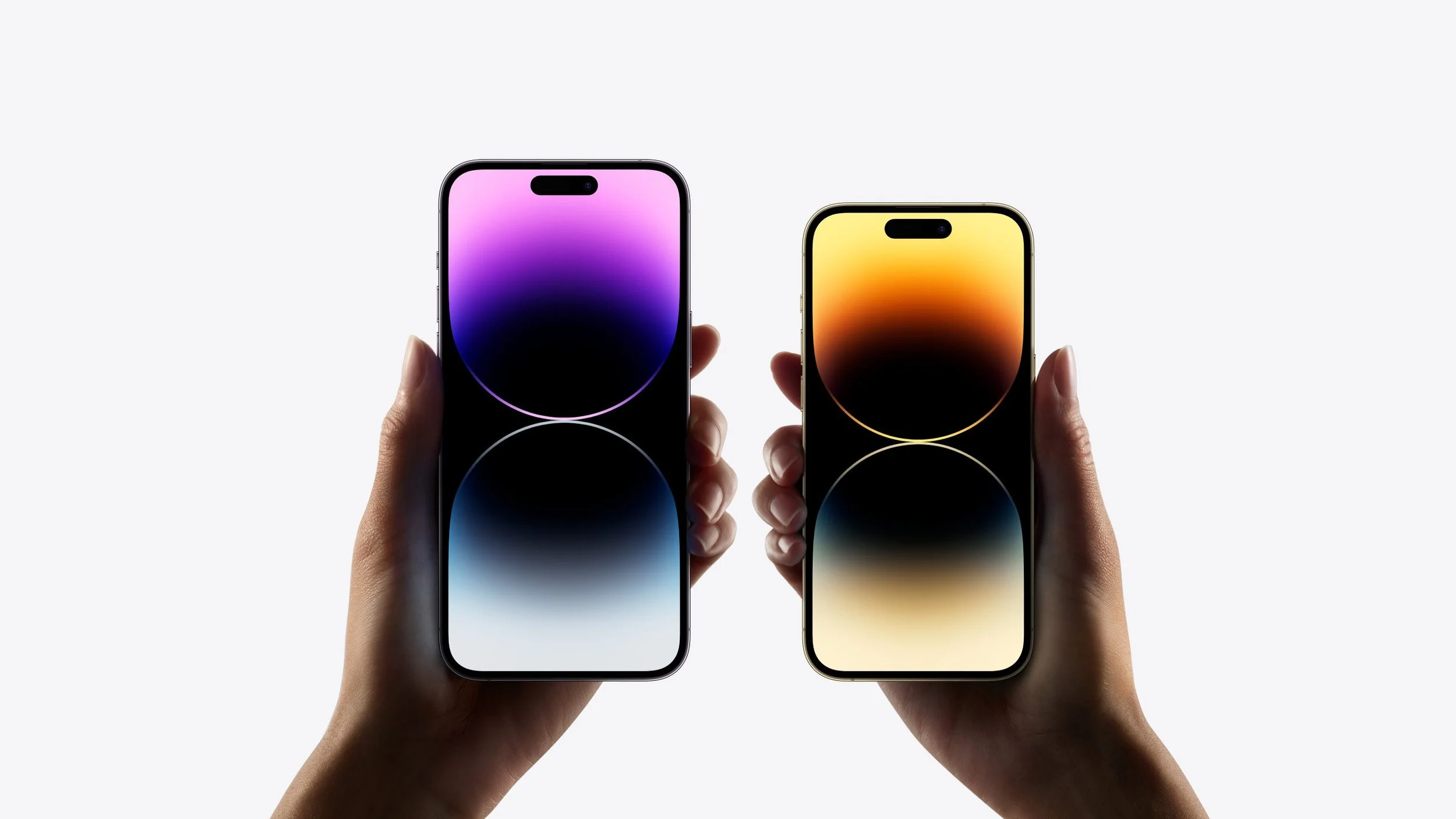
iPhone 14: Should You Upgrade?
Apple released the new iPhone 14 with a few new features. Should you upgrade? We advise you from a Christian perspective. So be sure to read to the end.
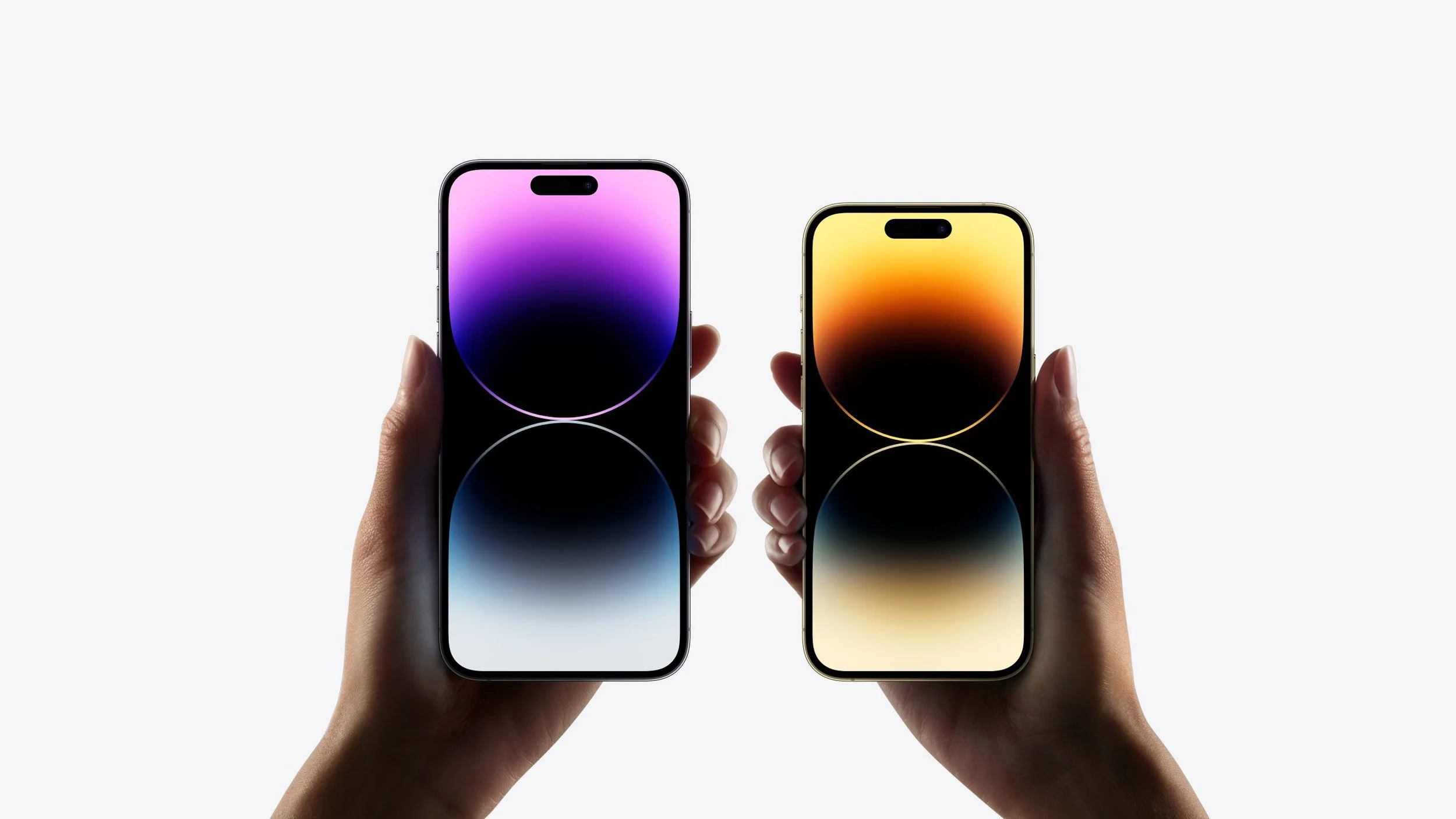
No!
Okay, that's not entirely accurate for everyone, but for most, it's that simple. Keep your current iPhone or Android phone. However, if you fit one of the following situations, it might be worth an upgrade.
iPhone 14 Replacing a Broken Phone

My wife uses an iPhone 8 Plus, and she's happy with it except for two problems. First, the fingerprint reader doesn't seem to work consistently, and her battery only lasts about 8 hours before she must recharge it.
Because her phone doesn't work great, she will get my iPhone 13 Pro Max, and I'll get the iPhone 14 Pro Max. She's happy with that, so don't complain that I'm giving her the leftovers. We do technology-hand-me-down all the time because I love having the latest and greatest, and she loves having devices that work.
Subscribe to iPhone Upgrade Program

Some of us love owning the latest and greatest technology. Apple caters to us with what they call the iPhone Upgrade Program. I joined this upgrade program this year. Here's what I'm getting...
- Get a new phone every year - 14 this year and the 15 next year and so on
- Apple Care+ is included
- Pay monthly with no interest and trade it in after 12 payments
- Use the phone with your carrier so long as it's one of the big four (AT&T, Sprint/T-Mobile, T-Moble, and Verizon
You don't have to upgrade if you entered the program last year or the previous year, but you might as well since you're getting the new phone for the same basic monthly payment.
How much does the Apple iPhone Upgrade Program cost? Here's the breakdown based on which model of iPhone 14 you buy.
- iPhone 14 - 128GB - $39.50, 256GB - $43.66, 512GB - $52.00
- iPhone 14 Plus - 128GB - $44.91, 256GB - $57.41, 512GB - $52.00
- iPhone 14 Pro - 128GB - $49.91, 256GB - $54.08, 512GB - $62.41, 1TB - $70.75
- iPhone 14 Pro Max - 128GB - $54.08, 256GB - $58.25, 512GB - $66.58, 1TB - $74.91
iPhone 14 Features Make Upgrading Worth It
The iPhone 14 doesn't add many new features, but you will get a few. Here's a list of what's new. You might want to upgrade if one of these looks compelling enough.

- Dynamic Island - instead of a notch or a hole where the camera would go, Apple created a wide pill shaped black part that encapsulates the front camera and sensors, but also dynamically changes to show notifications. It looks cool and you have to see it to understand what it really is.
- Longer battery life - Apple promises a little bit longer battery life with iPhone 14.
- Emergency SOS using Satellite Tech - send a brief text message to emergency services when you're out of coverage, and it will connect over Satellite. If you're often outside a cellular coverage area, this might make an upgrade to the iPhone 14 worth it.
- Improved Camera Features - iPhone buyers count on camera improvements each year. You'll get a number of improvements like better low-light images and more colorful pics. A 48-megapixel sensor potentially brings more detail and lets the camera stabilize shots better as it can zoom.
- The front selfie camera now has autofocus - people who take a lot of selfies or just use the front camera will love this.
- Faster processor - this matters most to gamers or people who edit photos and videos on the phone.
- Always on Display - the new iPhone 14 has a display that stays on but still doesn't use up too much battery life since it lowers the refresh rate to almost nothing.
- Widgets on the Lock Screen - you can get widgets on your lock screen, most from built-in Apple apps like their Weather app or activity apps.

You'll get a few more features, but we've touched on the highlights above. That's not a lot, so most people shouldn't bother with an upgrade. However, you might see something on the list that will improve your quality of life or work, making the upgrade worth the expense and effort.
You Give More than Ten Percent to Church and Charity

You won't see church and charity listed on any other tech enthusiast site. However, we need to consider this as Christians or people of faith. If you are a follower of Jesus or even a member of another faith, then you likely have an expectation that you give to help those in need or support your church.
Too many people spend too much money on themselves before giving to others. Traditional Christian churches believe in what's called tithing. I know not all believe this, but we should believe in being generous because of what Paul wrote in 2 Corinthians 9:7-8:
7 So let each one give as he purposes in his heart, not grudgingly or of necessity; for God loves a cheerful giver. 8 And God is able to make all grace abound toward you, that you, always having all sufficiency in all things, may have an abundance for every good work.
2 Corinthians 9:7-8, NKJV
God Wants to Bless You
Give and God will bless you. We're not saying he'll make you rich like the prosperity Gospel crowd who lie to con you out of your money. We're talking about God's promise to help you take care of your needs, shower you with his blessing of pleasure in your good works, and storing up treasures in heaven where moths and rust won't destroy.
I don't know if moths can destroy an iPhone 14, but I do know falls from 6 feet or higher, extreme heat, and general wear and tear can destroy any of Apple's products. Resist the temptation to upgrade if you're not giving generously. Then only upgrade if one of the above reasons applies to you.
It would be interesting to see a study done to find out how many people upgrade every year do so out of any kind of need or just out of want.
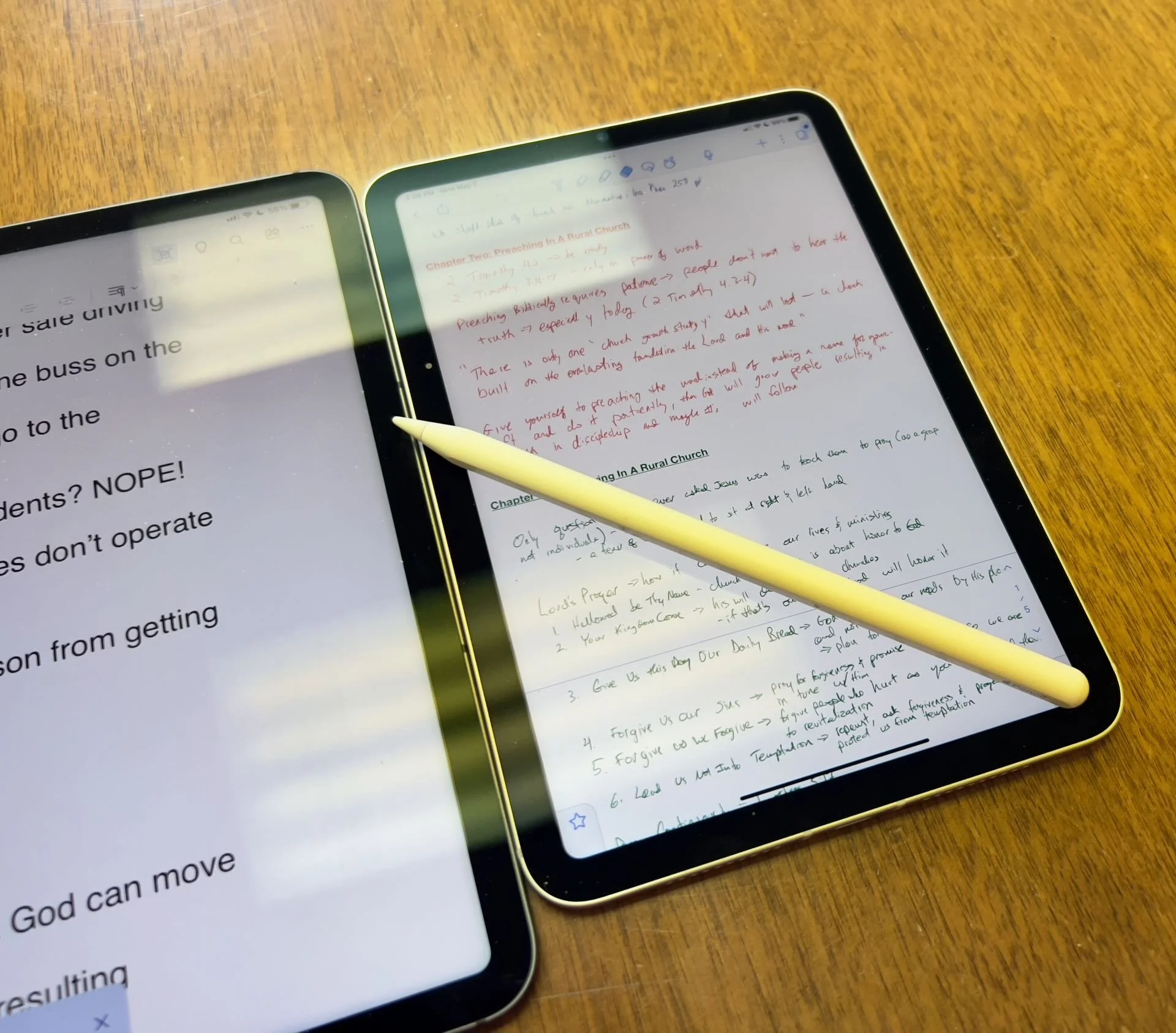
Which Apple iPad is Best for Bible Study?
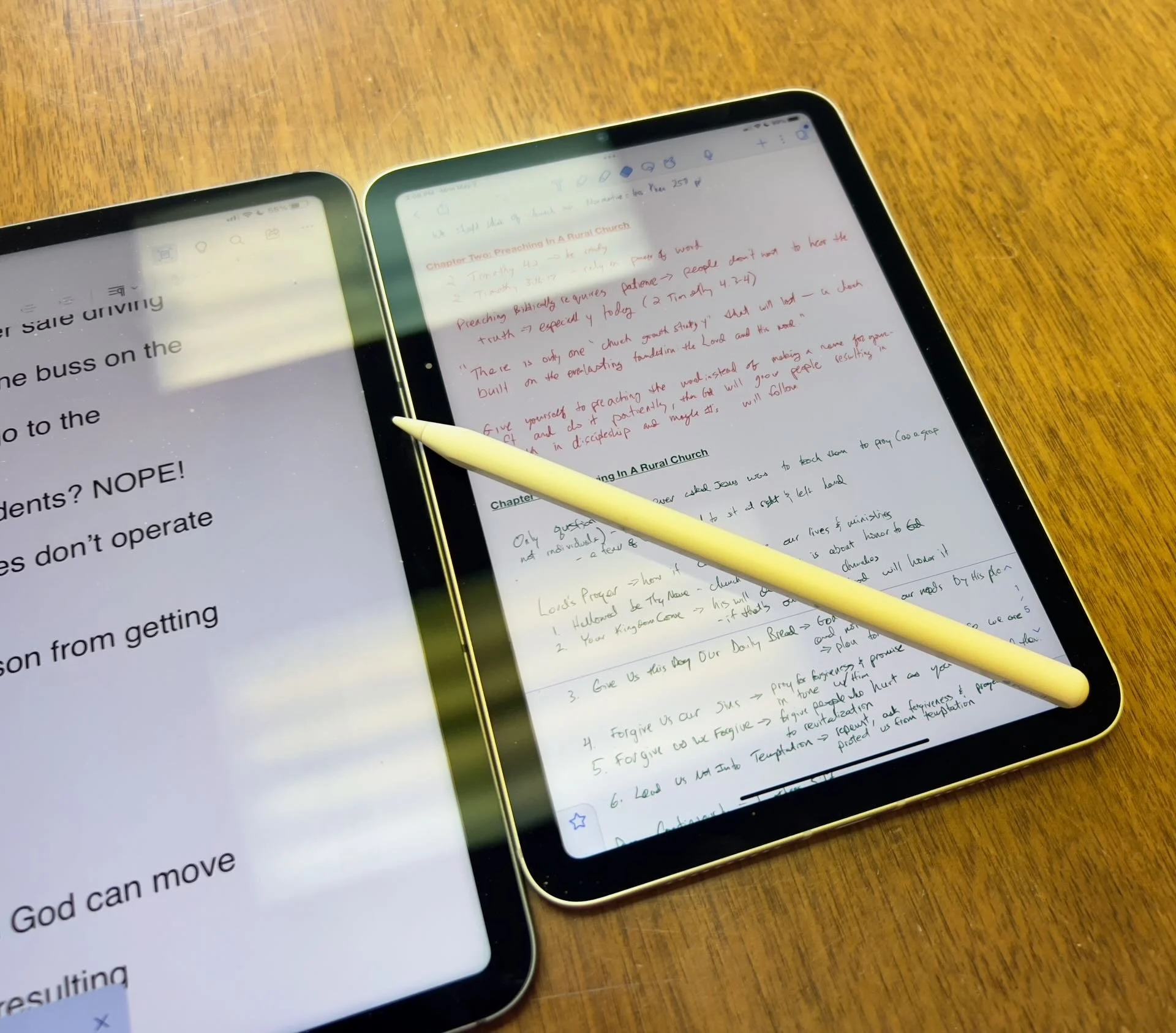
The Apple iPad in whatever form factor destroys the Android competition for great Bible study on a tablet. Windows comes in a close second because you can install a desktop-class Bible study program on it if you have the storage.
Even if you assume I’m correct about the iPad, which is a big assumption, what iPad should Bible students choose and why?

To just get the conclusion, jump to the end for my Conclusion at the end of the page.
The 4 Apple iPad Form Factors
All four Apple iPads include a slab of glass housed in a rectangular case. They come with varying qualities of screens, speakers, and speed. However, users will not see a huge difference in running the most popular Bible study apps from Logos, Olive Tree, Accordance, and more on any of the four current-generation Apple iPad. Still, let's take a look at each starting from smallest to largest.

The smallest iPad also gives users the most mobile experience. The iPad mini feels more like reading a book than the other iPads. It comes with an 8.3-inch liquid retina screen when measured diagonally. That's 7.69-inches tall and 5.3-inches wide, about the same size as a small Bible but capable of carrying an entire theological library.

The iPad Air has Touch ID on the power button, a convenient security feature. You will also get some pretty decent speakers on the two shorter edges and USB-C for connecting chargers or accessories.
If you want to carry your whole theological library, then you’ll likely also want one with 256GB of storage. Unfortunately Apple stubbornly only offers two storage options. You can get a meager 64GB or too much for Bible students with the larger 256GB option. Most people need more than 64 and less than 256.

The two storage options cost $499 for the base model iPad mini 6 with Wi-Fi only. With 256GB you add $150. That's ridiculous, but necessary because after you own the mini for a while, you'll want to use it more and more because it's so convenient to carry out. So plan to pay the extra coin.
I personally chose to add Cellular as well making it cost $$800. I like that I can just open the cover and start working no matter where I am, almost since there are some areas without coverage in my semi-rural community.
Throw in an Apple Pencil 2 and a cover and you're over $900. That's a lot of money, but you can get it on a 0% interest payment plan with your wireless carrier or with an Apple Card.
The newer Apple Pencil 2 connects and charges while connected to the side of the iPad. It's a great stylus but costs. More on that below.

Some people call the basic model the iPad 9 or iPad nothing because it doesn't include a descriptive name like the mini, Air, or Pro. It's the cheapest option at only $329 for 64GB of storage and no Cellular.
It includes a larger screen at 10.2-inches diagonally or 9.8-inches by 6.8-inches when measuring the long and wide sizes of the entire device.
The iPad doesn't support Face ID but you can unlock it by touching the Home button, which has Touch ID built-in. It uses older technology than the Air or even the mini. However, it's a great starter iPad for most people. And if you only plan to study the Bible, strongly consider it since it costs less than any other device. Users can use the Smart Keyboard.
The iPad 9 comes with the same problems as the iPad mini with only two storage options - 64 and 256 GB. So you really want the larger storage option which brings the price to $479. If you want Cellular, then add $130 bringing your total to $609. Most looking for this budget model won't want Cellular, but get the 256 because 64 isn't enough.
The other problems with the regular iPad include...
- Lightning connector is slower and makes accessories more expensive since creators have to pay Apple for the right to include Lightning.
- Lower resolution screen that's not as good as the mini and much worse than the Air or Pro models.
- Slower A13 Bionic Chip compared to the A15 in the mini and the M1 Chips in the Air and Pro models
- Uses the older first-generation Apple Pencil that charges by sticking it into the Lightning port making it easier to break off the connector or lose the cap.
Apple offers the iPad as the budget option and that makes it a great tool for people who want a device for basic needs, including Bible study, reading, and Bible app research. You can also pair it with a Bluetooth keyboard for writing. Just don't expect the latest and greatest. Those tech specs aren't included.
Some call this the best deal on an iPad today. You get the most bang for your buck. However, it will cost you more than the iPad and iPad mini. It has a much better screen and a super fast and efficient M1 chip. Plus it records 4K video with the back camera and has a front camera that follows you when you're video conferencing. They call that Center Stage because it centers the camera on the subject.
The Air speakers sound great and the screen looks amazing. You can use the awesome iPad Magic Keyboard case or the awesome Smart Keyboard Folio with the trackpad. I love this keyboard. Also, the newer Apple Pencil 2 connects and charges while connected to the side of the iPad.
However, we still see the annoying storage issue with only 64GB or 256GB. Plus Cellular swells the price by another $150. That brings the total with 256GB and Cellular to $899. For Wi-Fi alone, you pay $749. Why does Cellular cost more on the Air than on the mini or the basic iPad?

The iPad Air is the prettiest coming in one of five colors including Space Gray, Pink, Purple, Blue, and Starlight.
The iPad Pro below comes in two sizes, 12.9 inches, and 11 inches. Don't get the 11-inch iPad Pro. Instead, get the iPad Air.

The most expensive, powerful, and feature-rich iPad seems more like a mobile computer than a tablet. The iPad Pro which you can get in 11-inch or 12.9-inch screen sizes offers the most power of the four sizes. It costs $799 for the 11-inch and $1099 for the 12.9-inch.
Apple offers 128GB for the base price. That's the sweet spot and should be the lowest storage offered on any device made by Apple. It's the perfect storage for most buyers. However, you can get 256, 512, 1TB, or 2TB. You don't need anything more than 128 for Bible study. However, you may want to choose higher storage if you plan to use this iPad for much more than Bible studies, like video and photo editing, gaming, and more complex uses.
Users may want the large 12.9-inch screen because they want more screen real estate for Bible study.
Other specs to excite buyers include:
- Liquid Retina XDR Display
- ProMotion
- M1 Chip with more memory than the others
- Face ID and Center Stage camera
- 5G Cellular optional along with Wi-Fi 6
- LiDar support for things like 3D modeling
- Thunderbolt USB-C port that's fast and will connect to a Thunderbolt monitor or incredible docks with a lot of ports
Recommendation for Bible Study Only

If you only want to study the Bible then you have to ask yourself a few questions. Do you want something small and easy to carry around like a small Bible? Then get the iPad mini. If you need a bigger screen then get the iPad Air. It's the most future-proof and with all the tech inside it will last for a long time. However, budget-conscious buyers should go with yesterday's technology in the basic Apple iPad.
Just remember this. I've never met anyone who actually used a tablet only for Bible study. So, you can see yourself possibly needing a little more power, a good typing experience, or some screen real estate to edit your photos or make video masterpieces, then get the Apple iPad Air.
Recommendation for Bible Study and High-End Multimedia
If you just read the above paragraph, then you know I recommend the Apple iPad Air for people who want to study their Bible with Logos, Accordance, Olive Tree, or some other Bible app and work with multimedia. But which iPad Air should you get?
The 256 is, unfortunately, the best option until Apple gets its head out of the sand and starts offering a 128GB option.
Recommendation for Those Needing a Large Screen

Buy the Apple iPad Pro 12.9-inch model with 128 GB if you only want to study the Bible or 256GB or more if you want to do high-end work like multimedia creation.
I bought the 12.9 Pro because I teach and preach from my iPad and due to my aging eyes the mini's just not big enough. The iPad Pro 12.9 means typing on a keyboard that's wide enough to enjoy. The Air was too narrow for my big hands. I spent more than I needed to. Until Apple offers a larger Air with 128GB, I'll happily keep my Apple iPad Pro 12.9-inch.
Recommendation for Buyers on a Budget
This one's simple. Get the basic Apple iPad for $329 if you don't own a large Bible library or pay more for the 256GB model. You won't get all the power and specs and it may feel old in a shorter time since it's not as fast, but for buyers on a budget, it's the best way to go.
The only other budget option is to buy a used device or get an older one. Look at your budget and something that fits in your budget that also fits your preferred form factor.
You can check out Apple's Refurbished store. For example, they offer the iPad mini 5 for the same price as the newest base model iPad. For slightly more than the base model you can get an Air with Wi-Fi for just $419.
Check out eBay, Facebook Marketplace, and Swappa as other options for used and refurbished products. You can get a great deal.
Must-Have Accessories
When you buy an iPad, you also have to factor in buying accessories. Other tables like the Samsung Galaxy Tabs come with at least a writing device. You can use the tablet alone, but I wouldn't. You'll need the following accessories.

- Cover or Case - you will want to protect your device.
- Keyboard or Keyboard Cover - you can study the Bible on your iPad more efficiently with a keyboard connected.
- Apple Pencil - you may want a Pencil to write or take handwritten notes in apps that you can use alongside your Bible apps.
- Screen Protector - I used to not protect the screens on my tablets, but when you carry it around naked you should.
- Headphones - many Bible apps include audiobooks or videos.

Let me offer my top recommendation for each category above.
- The Apple covers or cases work best, but if you want to save money go with cases from Moko, Spigen, or Moshi.
- Apple's Keyboards or Keyboard Covers are the best options for the Air or Pro. The Magic Keyboard is $300 and the Smart Keyboard Folio costs $180. I love typing on my Magic Keyboard cover connected to my iPad Pro 12.9. However, Logitech makes great keyboards too if you want to use your iPad at a desktop. I have the Logitech MX Keys and MX Keys mini. You can also buy Apple's Magic Keyboards with or without Touch ID.
- Apple Pencil is the best writing device and I wouldn't buy another one. However, the Logitech Crayon is a $70 alternative.

- Screen Protectors are a budget item. They shouldn't cost a lot of money. Just get a glass screen protector. However, here's one alternative that some people really like. Get a Paperlike screen protector, which does two things. It protects the screen and gives users a paper-like experience for drawing and writing.
- Get the Apple Airpods or Beats to use for Headphones. They work best with Apple products and sound really good. However, not everyone wants to pay that much. Be careful which ones you buy, because sub-$100 Bluetooth earbuds usually sound like junk. To save money get Apple's USB-C to stereo adapter and plug-in wired headphones.
Conclusion

To do only Bible study, then get the iPad mini. You'll enjoy using it for hand-held study. If you want to put it on a table and need more screen real estate, then buy the iPad Air with an Apple Magic Keyboard. Add an Apple Pencil to either device if you plan to take notes in your own handwriting or want to write. Add a handwriting keyboard replacement app like Handwriting Keyboard ($3.99). Throw in a great note-taking app like Notability or Good Notes. This way you can have the Bible app on one side and the note-taking app on the other while holding the tablet.
Get Logos Legacy Library for 25% Off
If you need to buy a good Bible software package, consider using my affiliate link to get Logos Bible Software. You can get what they call "Legacy Libraries" for a nice discount of 25% off. A legacy library is a collection of books that they sold when they released previous versions of Logos from versions 5 through 8.
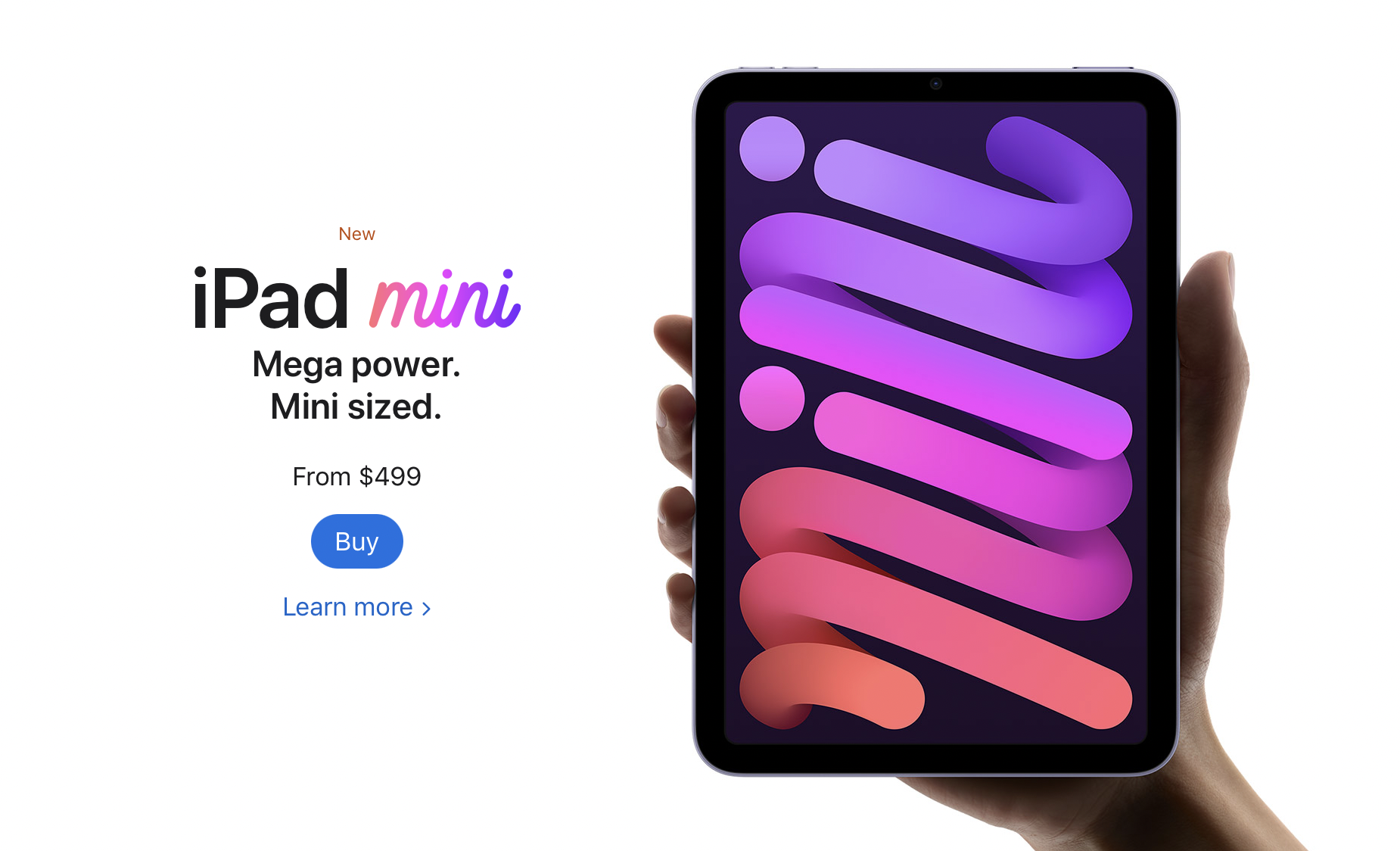
iPad Mini 6 Review for Ministers and Everyone Else
One of the best tablets for pastors is the iPad mini 6. Here's why I love it so much for ministry and general use.
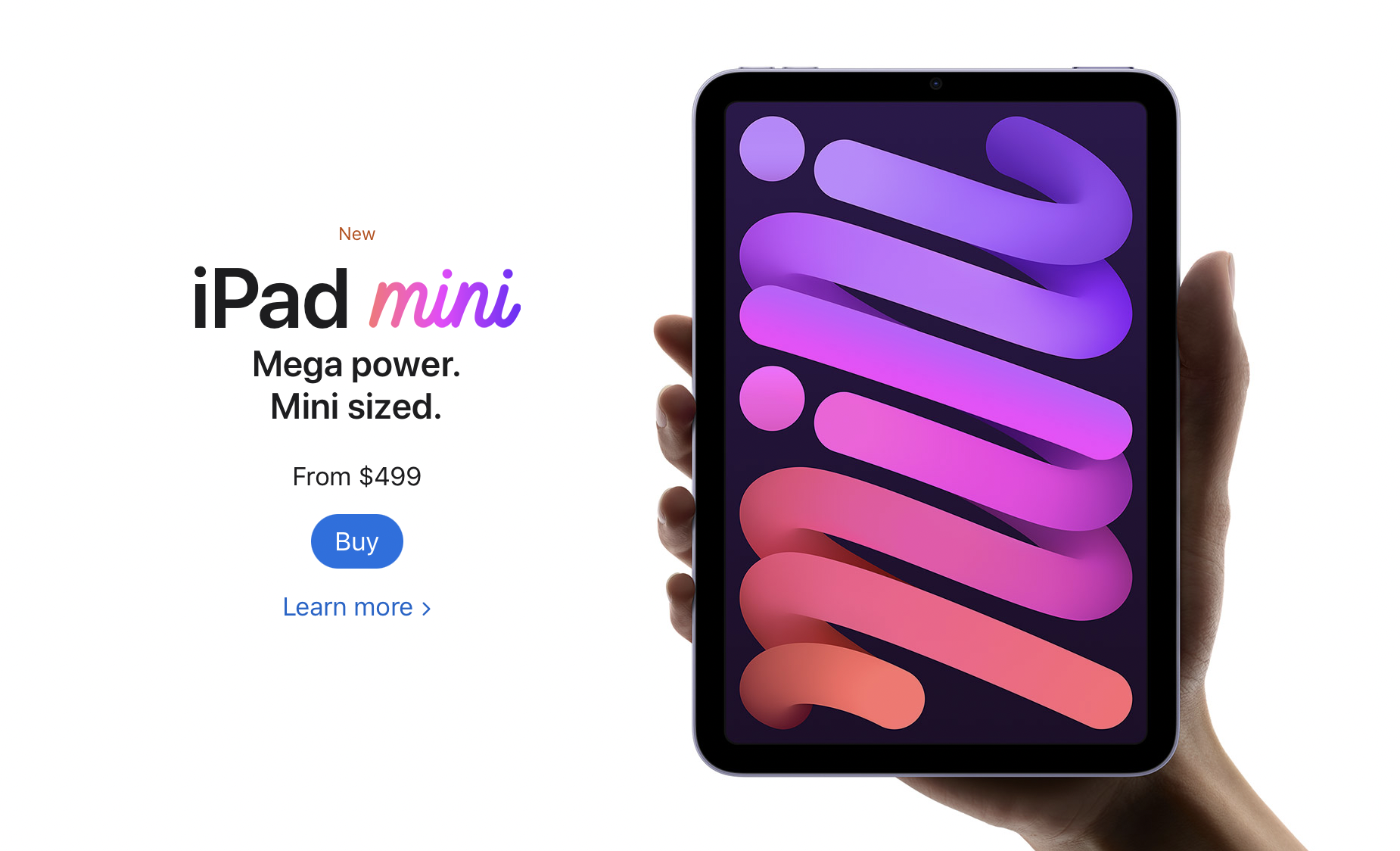
The Apple iPad mini 6 came out and I couldn't resist getting one. In fact, I sold my 12.9-inch iPad Pro and my iPad mini 5 so I could get the 256GB model. Here's my iPad mini 6 review for ministers and everyone else.
Let's start with how the iPad mini 6 ($499 for base, $649 as reviewed) fits in my life. I use it as my primary tablet and, for a little while, my only iOS device because a couple of months ago I switched from using an iPhone 12 Pro Max to a Samsung Galaxy S21 Ultra 5G. I moved back to the iPhone after that failed experiment. I shared thoughts on that transition in another post. The iPad mini 6 handles...
- Reading my Bible and others books in Bible apps and the Kindle app.
- A complement to my phone for checking email, Facebook, Twitter, and Instagram.
- Watching videos or listening to podcasts using YouTube, YouTube TV, Pocket Casts, and other streaming video services.
- Playing casual games.
- Quick photo editing for posting online.
- Quick video editing - mostly trimming videos, combining clips, color correcting, adding titles, and music but not complex edits.
- Flying my DJI Mini 2 drone.
- Taking notes in meetings with Notability and the Apple Pencil.
- Preaching from my tablet with Word or using Keynote for presentations.
We'll look at the uses listed above and then the hardware. If you just want to see what I think without the detailed iPad mini 6 Review, then jump to the bottom to get my recommendation.
iPad mini 6 Review: Bible Study and Reading Books
The screen on the iPad mini 6 looks pretty nice while reading books. The iPad mini 6 works well for studying the Bible in several Bible study apps and the Kindle app for reading books. Read magazines using the Apple News app.

I like reading on a screen. My wife prefers the Kindle Paperwhite and won't read books on a tablet, but I love using the iPad mini thanks to the sharp and clear display. If you hate reading on a screen and prefer e-ink or real paper, then don't buy the iPad mini 6 for reading. You won't enjoy it. However, I would recommend trying it out. Borrow a friend’s mini or spend some time at an Apple Store or Best Buy reading to see if you could use it. It’s nice caring only one tablet for reading.

All the Bible apps that run nicely on an iPhone look great on the mini 6. The screen's just big enough to open 2 books at once time or open a book and a note screen. The new window management in the iPad mini 6 or any of Apple's iPad thanks to iPadOS 15 makes it easier than ever to open two apps at once. You can...
- Open one Bible app and take notes in another
- Open your Bible app and a word processor like Word, Pages, or Notes
- Use your inking app, like Notability, and take handwritten notes while also studying the Bible in your favorite Bible app.
- Research topics on the Internet while and studying the Bible in your chosen Bible app.

The Kindle app and Apple News app look great. Reading other text in a browser, email, or social media also looks sharp and crisp.
Margins Notes or Highlighting like a Paper Book
Most of the Bible apps and the Kindle app won't let you take handwritten notes inside the app. iPadOS 15 added a new feature where you can grab your Apple Pencil 2 (sorry, but the first-gen Pencil doesn't work) and swipe from the lower right corner. Apple Notes opens a note and you can take what they call Quick Notes. These Quick Notes are attached to the content on screen. You can type or draw and write in your own penmanship.

While I would not use this for really important Bible study and research notes, it's great for a quick note that you can save and later add to the notes feature. I type faster than I can write with the Pencil, but Quick Notes works great for those instant observations in another app outside your main Bible app, hence the name Apple gave the feature.

If you love to write in the margins of your books, then convert them to PDF and get an app like Notability, Liquid Text, or Good Notes. You can find others, but make sure they support importing PDF files. I use Liquid Text for this. It supports PDFs and Word docs. By the way, the OneNote app also supports handwriting with the Apple Pencil.
You could always highlight the Bible in the best Bible apps. This also works great on the iPad mini 6.
iPad mini 6 Review: Preaching from Digital Notes

When I preach, I always bring my iPad into the pulpit and view my sermon notes in Microsoft Word. It worked great on my 12.9 iPad Pro. Young people or those with great eyesight will love using the iPad mini 6, but it's a little too small to lay down on the pulpit. Word will enlarge the text, but then you don't see enough of the outline at one time. So, going forward I will not use my iPad mini 6. However, if you want to, open the document, put it in reader mode by tapping the icon on the toolbar (see the GIF above), and then pinch to zoom text.
You'll need to decide if your eyes see well enough to use the smaller iPad mini 6 for preaching notes. If you used an older iPad mini, then you'll like the new one. The screen measures slightly larger than the old version with an 8.3-inch display versus the older 7.9-inch on the 5.
Presenting Using the iPad mini 6

Presenting suffers the same problem for my older eyes as reading my preaching notes. However, I can use it and if you've used a small display for presentations before, then the iPad mini 6 will work for you.
If you simply plug in and swipe or tap to advance slides, the iPad mini 6 will work great. If you like to write or draw on the screen as I do (see above GIF), then the size might limit you. It's harder to present on the smaller screen compared to the 12.9-inch Pro display or the 10-11-inch display on the basic iPad, iPad Air, or smaller iPad pro.
With iPadOS 15 and macOS Monterey on a Mac, you can send the display of your iPad to the Mac using screen sharing (see GIF above). This would let you connect to a Mac hooked up to a projector or TV. Then screen share your iPad screen to the Mac.
iPad mini 6 Review: Screen and Input
Pick up the small and light iPad mini 6 and type on the screen with your fingers or write using Scribble, the new Pencil-based input system in iPadOS 15. The mini 6 handles this kind of input. However, I don’t really like Scribble, so I’ve installed a keyboard that lets me draw text and it converts it to printed text on the screen. It’s called Handwriting and handles handwritten text input better than Scribble.
iPad mini 6 Review: Performance
I'm not going to run benchmarks or battery tests. You can find those on more technical reviews elsewhere. Rene Ritchie does a great job of these kinds of reviews on his YouTube channel.
If you plan to use the iPad mini 6 as a tool in ministry, it performs efficiently and offers a nice improvement over the 5. It's snappier, scrolls through websites and books faster, and the inking smoothly displays your handwriting and drawing.
Some people report seeing a strange effect while scrolling. It's the great "Jelly Scrolling" controversy of 2021. See the effect in the video below.
The jelly scrolling issue clearly shows up in the video above. But, I don't see it on mine. It seems like you have to really look for it to see it. And if you do, then you may not see it again. If you get one that looks more noticeable, then get return it and get a replacement.
Since I don't notice the problem, I can't complain about it here.
Other than the Jelly Scroll issue, the iPad mini 6 performs well. I played videos, games, and read on it a lot over the first couple of weeks, and loved the experience. It feels like a good improvement over the 5, which I owned.
iPad mini 6: Video and Photo Samples
Most people will still use their phone or a dedicated camera to take pictures or shoot videos. However, I use my iPad mini to scan documents and the rear-facing camera works great. I import documents into my note-taking apps or scan them for storage in my OneDrive folder. After worship, I scan all the guest cards to contact them. I also scan new member cards to add them to our church role.
More people will use the front-facing camera to stream themselves on social media or for FaceTime, Skype, or Zoom calls. The camera works fine for these situations.
A new feature on the iPad mini 6 enables ultra-wide video so that the camera will follow you around your room even if the iPad remains stationary. The software will zoom in and focus on your face so you can get up and move left or right and then back to the center frame.
In a pinch, the camera does a nice job of taking photos and videos. Here's a sample of photos taken on the iPad mini 6 camera. They are all without edits and exported from Photos to JPG. The one of me in my orange shirt is taken with the front-facing camera. The other four are taken with the rear camera.


The colors look nice. Each photo seems sharp enough for snapshots. I wouldn't try to get high-art photographs with the camera. All of that said, the camera impressed me. Until this model, I wouldn't even consider taking this much time in a review to discuss the quality. But this camera works better than any previous iPad camera.
iPad mini 6 Review: Flying My DJI Mini 2 Drone

Flying a drone usually starts with connecting a phone to the drone controller. However, I never really liked using the small screen of the flown. There's too much on the screen for even a large screen like the one you get with the iPhone 13 Pro Max. So, flying a drone with an iPad mini 6 makes drone pilots happy.


The above set of screenshots shows the interface of the DJI Fly app, used to control the DJI Mini 2 drone. All the controls show up with plenty of room to see the images from the drone's camera.
To fly a DJI drone with the iPad mini 6, you'll need a special attachment like the Drone Valley Gear Tablet Mount ($18.95) that I bought on Amazon. It fits an iPhone, iPad mini 6, or another tablet of similar or even larger size.

If you want to learn more about the mount, see Drone Valley's video below.
iPad mini 6 Accessories
I bought the official Apple Smart Folio in Electric Orange for $59. I also accidentally got the Dark Cherry, but it showed smudges too much, so I stuck with the bright orange Smart Folio and I'm glad I did.
The case covers the back of the iPad mini 6 then wraps around the left side of the device to cover the front. The back snaps into place thanks to magnets that reliably hold it on the iPad.
The front part of the Smart Folio folds up into a triangle to turn into a stand. It will hold the iPad up in an angle best for watching a video and a lower angle for drawing.

The magnets in the front part of the Smart Folio snap onto the front part of the iPad and this turns the screen off until you open the case and it turns the screen back on. It also folds onto the back and snaps into place so you can hold it and read or do other things.
The Apple Smart Folio case feels like it will hold up, but for $59 it seems like it should feel more premium. It has a bit of a cheap feel to it. You can find cheaper cases, but I like Apple’s because they’re designed better even if the raw materials aren’t as premium.
The Folio also comes off easily making the iPad mini 6 lighter and therefore easier to read on it.

The Apple Pencil 2 snaps onto the right side (in portrait orientation) and automatically pairs with the iPad. It also charges while connected. The magnets seem stronger this time than my old 2020 12.9-inch iPad Pro.
The Apple Pencil costs $129, a little steep for a stylus. However, it's one of the best you can get especially for artists.

I don't use the iPad mini for typing very often, but Logitech makes the best keyboard you can pair with the iPad mini 6 or any tablet. The new Logitech Mx Keys Mini costs $99, a lot for an iPad mini keyboard. I use it with other devices so it's worth the price. You get a great keyboard that's small enough to carry in a bag but small enough that it doesn't take up too much space.
Add to the Mx Keys Mini, Logitech's great MX Anywhere 3 mouse, also pricey at $79.99, and you get a mini-computer on the go.
The above image shows a pair of Samsung Galaxy Buds 2, but the best wireless Bluetooth earbuds are the Apple Airpods Pro. They automatically switch to the iPad mini 6 when you put them in your ears and start playing media.
iPad mini 6 Review: Specs
- Screen
- 8.3-inch display with 2266x1488 pixels and 327 pixels per inch
- IPS LCD with 60Hz refresh rate
- 500 nits brightness
- System Hardware
- Apple's A15 Bionic processor
- Hexa-core 64-big
- 64 or 256GB storage
- Battery
- 5078 mAh LI-Polymer battery
- Runs over 10 hours in most tests
- Cameras
- Rear camera - single 12MP with F1.8 aperture
- Video recording at 4K 60fps and 1080P at 240fps
- Front camera - single 12MP with 1080P video
- Connectivity
- 5G, LTE Celular with dual sim support
- Wi-Fi 6
- Bluetooth 5.0
- Physical Size and Details
- 7.69 x 5.31 x .25 inches
- 10.34 ounces
- Volume up/down and power button with integrated fingerprint reader
- USB-C charging port with cable and brink included
- Comes in Space Gray, Pink, Purple, and Startlight
Recommendation
I love my iPad mini 6. It was nearly the perfect update over the 5 with a better camera, USB-C, faster processor, and just an overall better experience. If you own an old iPad mini, then seriously consider upgrading, especially if it’s a 4 or older. If you own an Android tablet or. Kindle, then the iPad mini 6 will cost more, but it’s worth it. Android phones might compete well with the iPhone, but I’ve never used an Android tablet that meets my needs as well as the iPad.
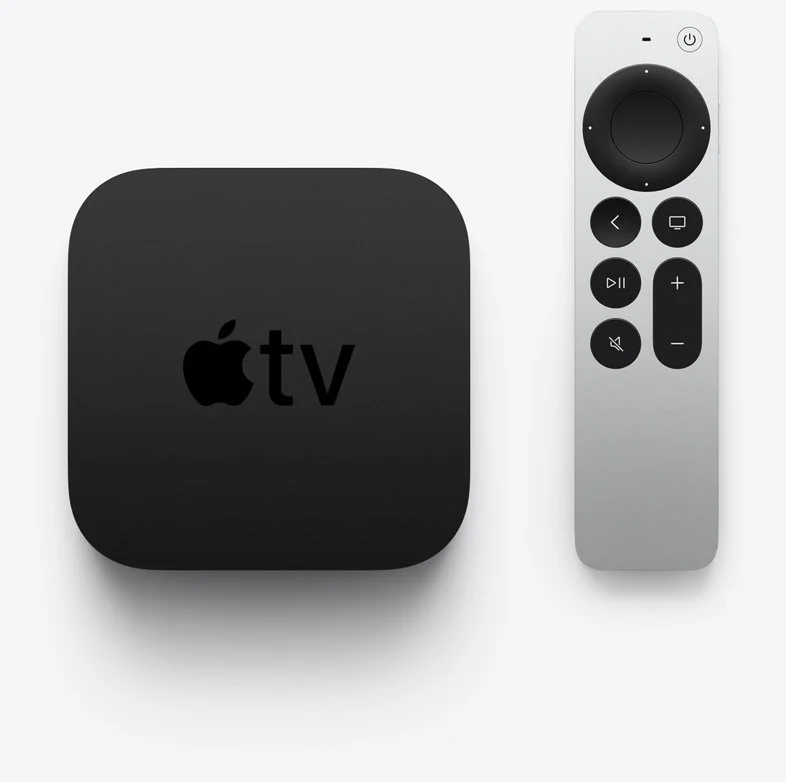
5 Ways of Using Apple TV in Church
The new Apple TV is a great tool for fun, but you can also use Apple TV in church. We've got 5 uses for Apple TV in church or ministry.
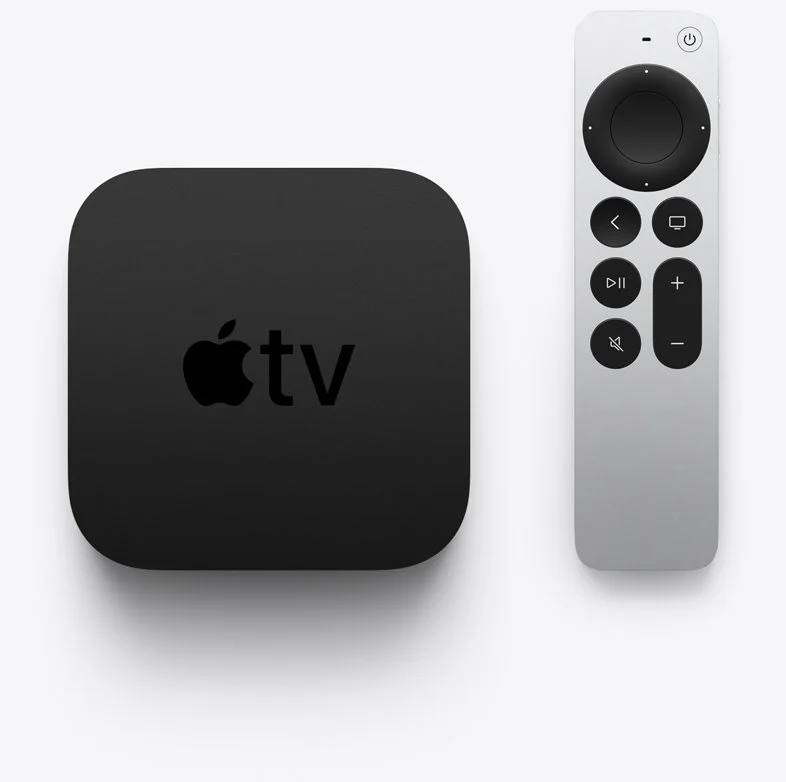
Apple just shipped the new Apple TV and I got one because I love the little black box but hated the old remote. It got me thinking about using Apple TV in church and I came up with 5 ways you can use the new Apple TV in church or in ministry.

What Is the New Apple TV?
Apple first produced a set-top box way back in September 2006, but it didn't really take off till the company updated it 4 years later. Now it's a small black box that looks like an oversized hockey puck. It now comes with a metal remote that's tiny and useful for watching streamed content and even playing some casual games. You can connect a keyboard or a game controller via Bluetooth. You can also connect Bluetooth headphones, Apple AirPods, or a speaker.

Apple added a streaming service called Apple TV+ that includes content made for the service and gathers content from other streaming apps that run on the Apple TV like Netflix, Amazon Prime, Hulu, and more.
Apple added a streaming service called Apple TV+ that includes content made for the service and gathers content from other streaming apps that run on the Apple TV like Netflix, Amazon Prime, Hulu, and more.

This week (May 2021) Apple starting shipping the 6th version of the Apple TV. The following list shows the specs of the latest version, also called the Apple TV 4K 2nd Generation...
- Fast A12 Bionic processor
- High frame rate 60fps HDR
- HDMI 2.1
- Wi-Fi 6
- New color optimization using the iPhone camera
- tvOS 14.5 or higher
- AirPlay
- New and improved remote replacing the horrifically bad touch remote from previous generations

Most people probably think of Apple TV as a way to consume content for entertainment or maybe education. It's also a gaming system for casual gamers. However, you can use it in ministry or the church. So, we've got some tips for using Apple TV in Church.

The new Apple TV costs $179 for a 32GB model and $199 for a 64 GB model. Unless you think you'll install a lot of games or apps, you can get the 32GB model. However, I'd recommend buying the 64GB model since it only costs $20.
Using Apple TV in Church for Presentations
This tip seems obvious. Use an Apple TV in Church for wireless presentations from either your Mac, iPad, or iPhone. If you have an Android device, you can find apps that work with Apple's AirPlay.

Start with traditional presentation apps like Keynote, PowerPoint, or a lesser-known presentation app. Use AirPlay to connect to the Apple TV and fire up the app. It will allow you to mirror the screen or display your slides on the Apple TV and the presenter's view on the iPad, iPhone, or Mac.

If you need the details about how to connect over Airplay, use the tips on Apple's support site. Here's the support page for using a Mac to present.
Set Up a Foyer Information or Announcement Kiosk
You can display photo slideshows on an Apple TV. That's a great use for an Apple TV in Church. Get a TV in the foyer or in any room where you need to display announcements or informational slides. Hook up an Apple TV and set it to play the slideshow.
Put all your photos or slides in an album in the Photos app for the account connected to the Apple TV. Then follow the steps on this Apple Support page for setting up the Photos App to display the slides or photos.
You can use it for...
- Announcements
- Informational slides - for visitors, families, etc.
- Slideshows of events from recent activities in the church - consider putting these in the midst of the announcements or info slides.
- Play a video message - you can also place this in the slideshow of photos or announcements and info slides.
Play Music to Set Tone of a Room or Worship Event
Sometimes I fire up the Apple TV in our church's fellowship room and play some background music. It's great at holiday events or a supper for the church or groups in the church. I also occasionally play music to set the tone for a Bible study or worship event. Then after the event's over, I might fire up the music again with a playlist that sets the tone of how we want to send people on their way.
Stream Video Content
Of course you can stream video content on an Apple TV in church, but why would you?
- Show videos of past events
- Share a video message from a shut-in shot on an iPhone and stored in Photos
- Use one of the many Christian and Bible-centered apps like the Life.Church Bible, Faithlife TV, or RightNow Media Media.
- YouTube videos
- Facebook Watch videos
- Plex to stream your own videos
- Hold a movie party for a small group
That's just a handful of useful ways to use the streaming capabilities of the Apple TV in Church. You can watch any video that you want, so long as you're not breaking copyright laws.
Educate People on Using Software and Websites
If your church just got a new Church app, then use the Apple TV to demonstrate how to use the new app. AirPlay the screen on your iPhone or iPad. You could create a video and stream it.
Use AirPlay to show off your church's new website. Maybe you want your people to use another website. Demo it using Apple TV.

If you have a group of people who want to learn more about studying their Bible with Bible study software or an app, then you can teach them by opening the app or software and then use AirPlay to connect the computer, iPad, or iPhone.
Conclusion
The Apple TV can help save money and make you more successful in communicating with your church. Instead of a long cable run, connect an Apple TV to a projector. Also, it's cheaper a whole computer hooked up to a display.
While the new Apple TV is a great box for using an Apple TV in church, you might want to consider an older 1080P Apple TV. They're cheaper and will still work great. If you're getting one of the new 4K models for home, then maybe you can re-purpose an old 1080P model for the church.
Moment Pro Tripod Mount with MagSafe for iPhone 12 Review
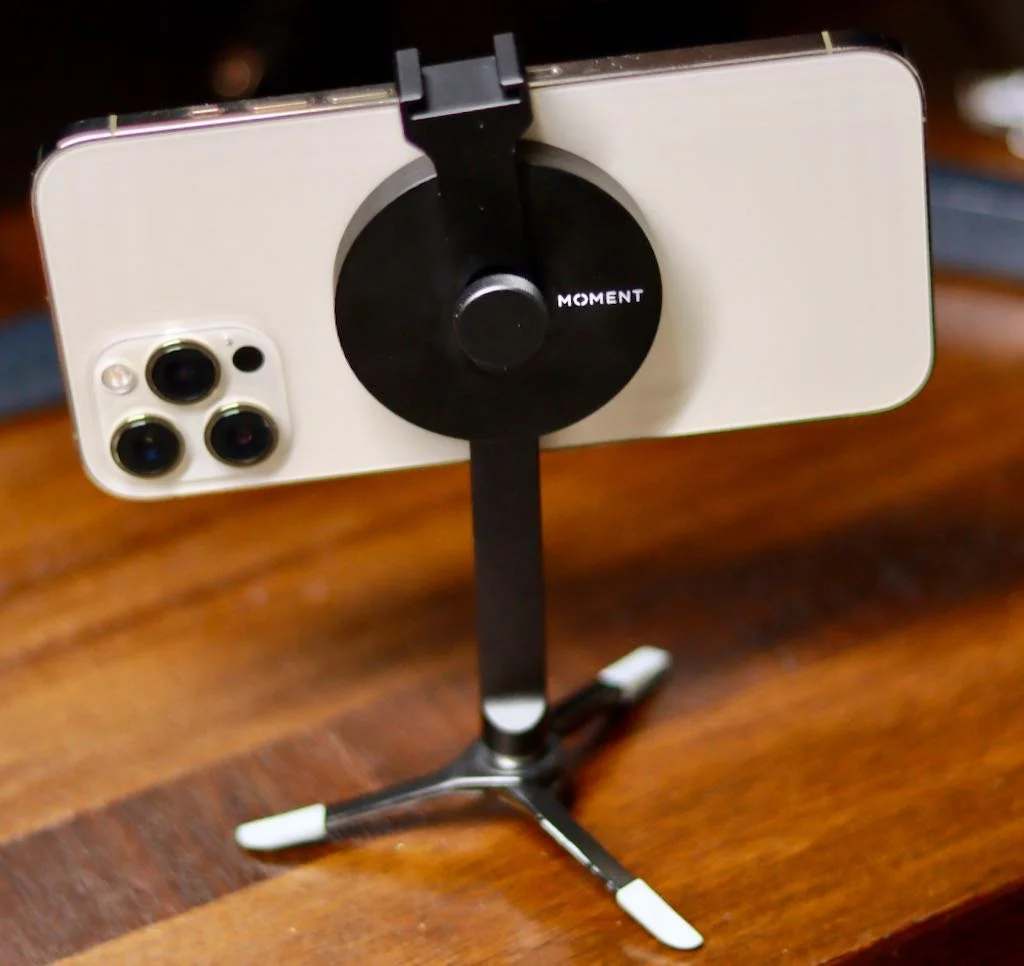
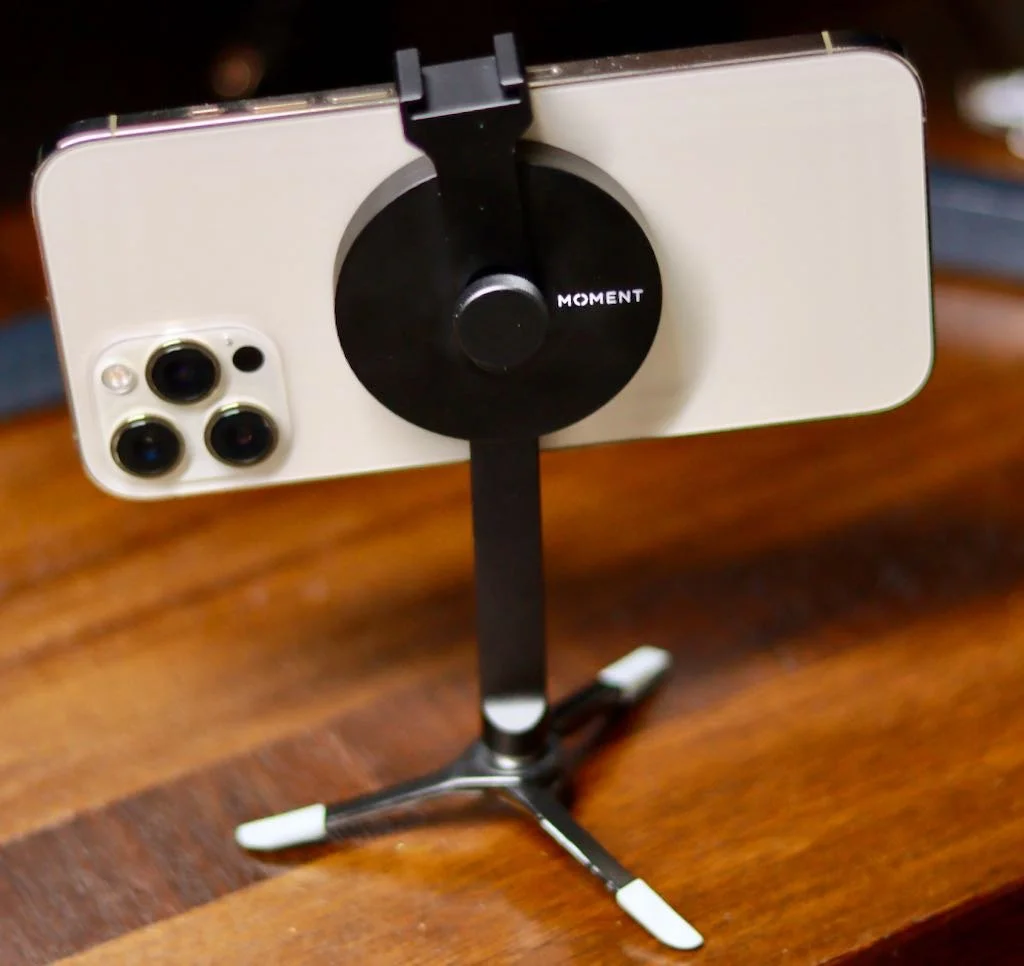
The Moment Pro Tripod Mount with MagSafe for iPhone 12, iPhone 12 Pro, and iPhone 12 Pro Max uses the magnet to quickly snap a tripod onto the iPhone. Does it fulfill the promise?
Moment began their business by selling lenses for iPhones and recently added photography gear for a wide variety of cameras. Yet, they still excel at creating great accessories for iPhone photographers. The Moment Pro Tripod Mount with MagSafe continues that line of iPhone photo gear using the MagSafe magnets in the iPhone 12, iPhone 12 Pro, and iPhone 12 Pro Max. The mount promises a quick and easy solution for taking steady photos and videos with the iPhone 12. How well does Moment deliver on that promise? Did they make another great accessory for iPhone photographers?
Moment Pro Tripod Mount with Magsafe for iPhone 12 - Design
The mount comes in two varieties, one for use as a landscape-only device. The other works in both landscape and portrait and has a longer shaft. I bought the one that works in both landscape and portrait modes.

The Moment Pro Tripod Mount with Magsafe connects to the back of your iPhone 12. The magnet in the MagSafe connector snaps onto the mount and holds it firmly. The round disk holds a cold shoe mount screwed onto the back of the mount. There's a short piece coming down out of the disk. There's a 1/4-20 connector so that the photographer can attach it to a tripod, whether it's something like a professional tripod or the small feet that came with my Joby GripTight tripod. The pad on the disk that snaps onto the back of the phone has a softer material. This keeps the metal on the mount from scratching the phone's back.

I also connected it to a clamp mount that I recently bought on Amazon. The Slow Dolphin Tripod Clip Clamp Mount screws into the 1/4-20 connector on the bottom of the MagSafe Tripod Mount. The two hold the iPhone in place for photography or for just viewing videos on Netflix, YouTube, or some other content (see below).

Users can swivel the holder to watch content in the landscape, as seen above. Or you can use it in portrait for those fantastic TikTok videos you shoot.

On top of the mount you'll find a cold shoe mount. Put a light or a mic like the Rode Wireless GO II Microphone.
Moment Pro Tripod Mount with MagSafe for iPhone 12 - Quality
Moment did a great job designing the Moment Pro Tripod Mount with MagSafe for iPhone 12. I've only had it a few days and used it for a few tasks plus every night for streaming Netflix. It works exactly as designed and probably will not fall apart easily. The disk holds the shaft with the 1/4-20 securely and firmly.
The cold shoe mount also serves to secure the phone in place. Press the cold shoe mount down against the phone to keep both in place.

On the back of the mount you there's a screw that holds the cold shoe mount to the MagSafe disk. Unfortunately, it doesn't seem to screw tightly. You have to press it against the phone, or it becomes loose. I'm not sure if that's by design or a design flaw. It doesn't seem to keep the cold shoe mount from working for now, but I'll be keeping an eye on it.

I do not use my iPhone with a case unless I'm taking photos with the set of Moment Lenses I own. I've tested it with my Moment Thin Case, and it does not hold the phone very well at all. That's a huge problem. You can see in the video below that it fall off the mount far too easily with the case on the iPhone 12 Pro Max.
Moment promises that it will work with any MagSafe compatible case. In fact, the magnet in Moment's tripod feels like it snaps to the phone more securely than Apple's own MagSafe products when I don't use a case. However, it's coming off too easily, so you can't confidently mount your iPhone 12 Prom Max with Moment's own case needed to use their lenses.
The mount sits on my nightstand so I can quickly throw it in my bag. The metal design means I need to be careful where I put it because I don't want to scratch my MacBook or iPad.
Recommendation
Moment Pro Tripod Mount with MagSafe for iPhone 12, iPhone 12 Pro, and iPhone 12 Pro Max works as designed on my naked iPhone 12 Pro Max. It's made of quality materials. At $60, it better work well. I love the idea of MagSafe and hope we see some other equally creative accessories. I wish the screw on the back held the cold show mount more securely, but it does work. I also wish it held my phone in a case more securely.

Moment makes several different MagSafe devices including...
- The landscape tripod mount - $59.99
- The landscape and portrait tripod mount - $59.99
- A wall mount that fastens to a magnet stuck to a wall - $19.99
- A car vent mount that holds onto the vents of your car's heater/air conditioner - $39.99*
- A cold shoe mount which is like the one I reviewed, but it doesn't have the shaft with the 1/4-20 connector - $39.99*
- A version of the tripod mount without the cold shoe mount - $49.99*
- A multi-threaded mount with 7 threaded holes on the back and no shaft or cold shoe mount - $39.99*
The items above with the asterisk (*) are either pre-orders or back-ordered. In other words, don't assume you'll get one within the next few weeks. It could take many months like mine did.
I didn't particularly appreciate having to wait for as long as I did to receive the mount. I ordered it soon after they announced that it was available for pre-order. It took many months to show up. Moment always has trouble getting things sent out, and new products often end up back-ordered. They promise that if you order today, you'll get it shipped starting the next day. You should receive it within a week to ten days depending on where you live instead of in 4 months.
How to Subscribe to Podcasts in Your Favorite App
If you want to enjoy the new Theotek podcast, we'll show you how to subscribe to podcasts in various apps or with an RSS link.
You hear a lot about podcasts, but how do you listen to them easily without going to the podcast's website? We'll look at how to subscribe to podcasts in your favorite app, like Apple Podcasts, Google Podcasts, Spotify, or my favorite, Pocket Casts.

Listeners can easily subscribe to podcasts by opening their podcast app of choice and search for it. If you own an iPhone you have an accept podcast app already. Apple Podcasts come installed on your iPhone. If you removed it or it's not there, just search the App Store on your iPhone or iPad and download it.
How to Subscribe to Podcasts in Apple Podcasts

Fire up the app, hit the Search tab in the lower right corner, and type in the Podcast title. If you type in Theotek, it should be the first one on the list, but the jerks at Apple prioritize other shows not named Theotek, so slide right to find it. Tap the cover art as seen above and then hit the three little dots menu button in the upper right. Choose Subscribe.
How to Subscribe to Podcasts in Pocket Casts

My favorite podcast app works so much better than Apple's app. Pocket Casts finds the right Theotek podcast when you search the title. Open it up and tap on Discover instead of Search like you did in Apple Podcasts. Type in the tame Theotek or another podcast title. Tap on the cover art that shows our faces and hit Subscribe.
I don't use Google Podcasts or Spotify, the other most popular apps. Unfortunately, the Google Podcast app doesn't find the right Theotek podcast. It finds the old one that we used to host on our website. So you'll need to use this link to subscribe to Google Podcasts from the web. Here's a link for the podcast on Spotify.
How to Subscribe to Podcasts Using the RSS Feed Link

If you want to subscribe to the Theotek podcast or any other podcast using an RSS feed, then you'll need to find the feed link for the podcasts. For example, here's Theotek's RSS feed link.
https://anchor.fm/s/4739b4e8/podcast/rss
You can also go to the Anchor.fm website to find links to your favorite Podcast service.
Every podcast has a unique URL called an RSS feed. A URL is a website address like www.kevinpurcell.org for this site. However, an RSS feed tells a Podcast app or an RSS reader important information to find a new episode of a podcast and tell your podcast or newsreader to get the new episode.
I use an app called Pocket Casts. The app finds every episode each time the app sends a message to the website asking if there's new content. If there's new content, the RSS feed replies saying, "Yes. We have a great new episode, and you can download it at this address."

Using Pocket Casts, users can add a new RSS feed by going to the Search tab and paste the RSS feed into the search field. Hit the Search button, and it will show you the Podcast. Tap it to go to the page. Tap the Subscribe button in the upper right corner.
Other apps or services have similar methods of subscribing to a podcast. For example, Google Podcasts allows you to add them on the website - podcast.google.com.

In the upper left corner of Google Podcasts website, you will see a link that reads + Add by RSS Feed. Click it to add the podcast RSS feed URL manually.
How to Add a Podcast RSS Feed Link to Apple Podcasts

Using Apple Podcasts, you can subscribe with an RSS feed too. Tap on the Library tab at the bottom of the page. Then find the Edit button in the upper right corner. Tap it and select Add a Show by URL... at the bottom of the list.
Apple Spring Loaded Event with New iMacs, iPads, and iPhones - Who Cares?
Our new episode of Theotek covers the Apple Spring Loaded event where Apple announced iMacs, iPad Pros, and more. Find out what Rick and Kevin thought and hear the opinions of their two guests.
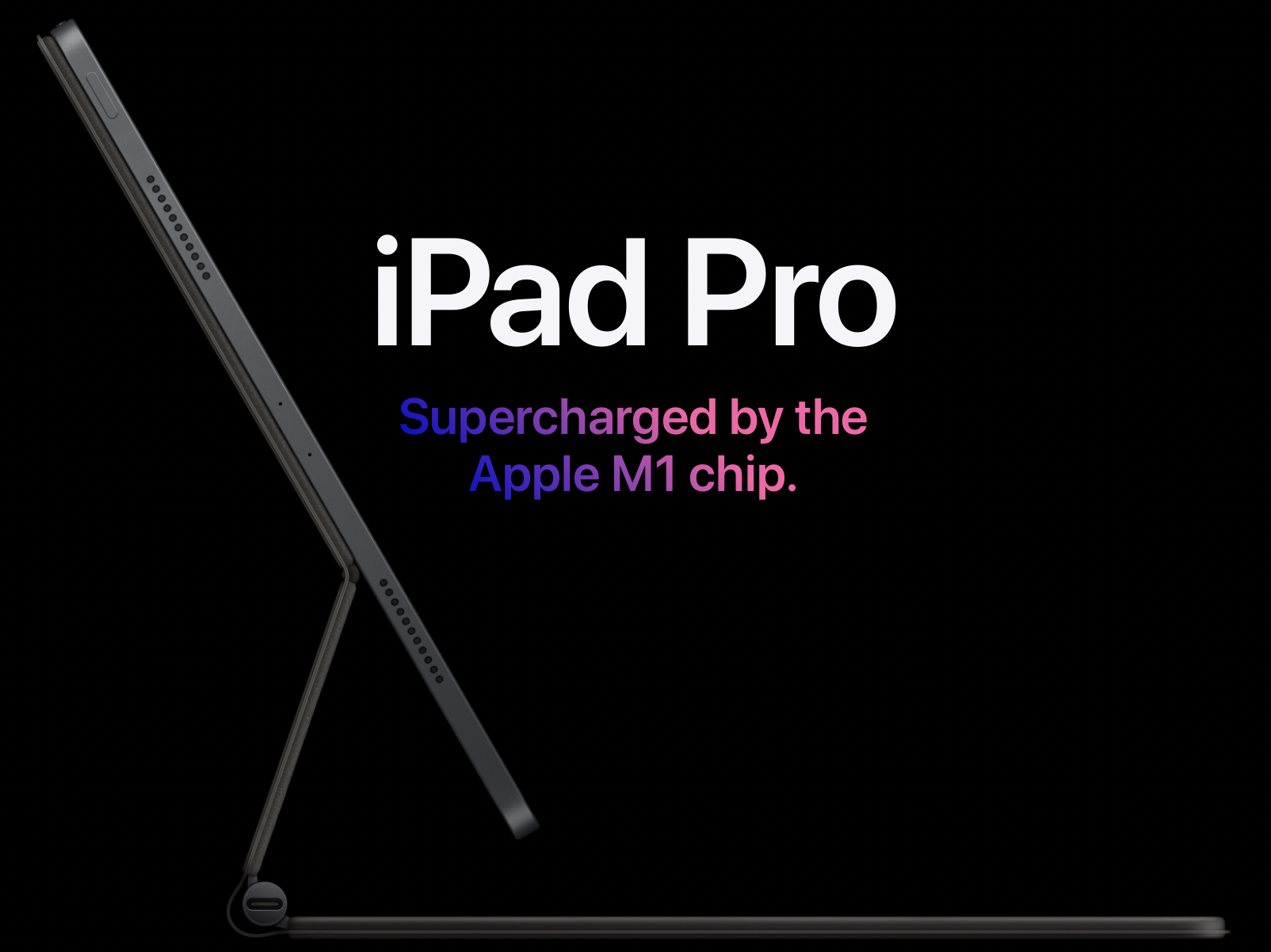
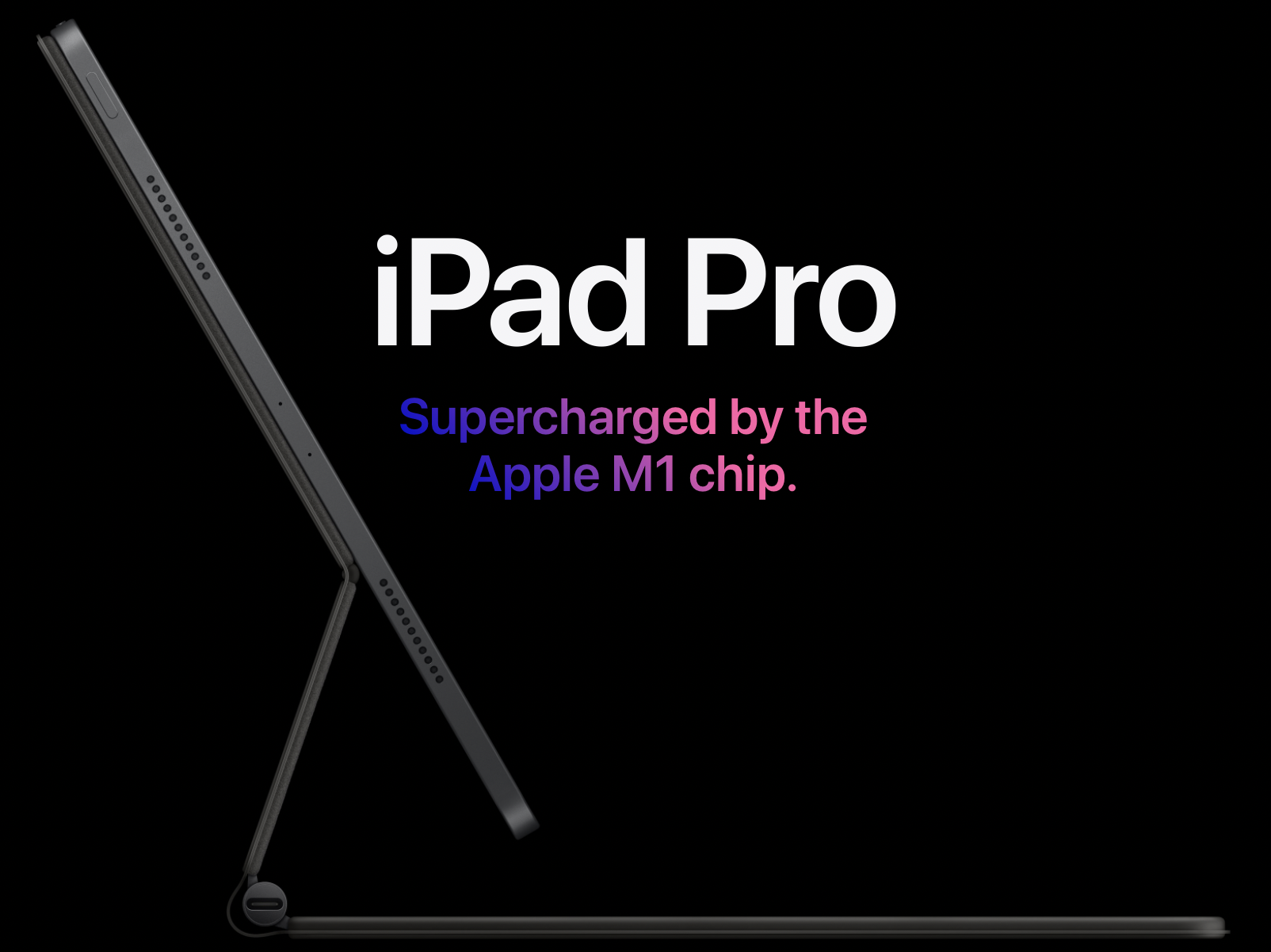
On Tuesday, April 20, 2021, Apple released their Apple Spring Loaded announcement video in which they showed off a lot of new tech toys. We saw a set of new colorful entry-level iMacs with the new M1 chips, an incredibly thin design that makes it look like an oversized 24-inch iPad on a stand. Also, they showed off an updated 2021 iPad Pro in both 11 and 12.9-inch sizes. They boosted the quality of the displays and added a Thunderbolt port for high-speak communication with displays and storage.
Apple Spring Loaded - Theotek Episode #002 with Kevin and Rick
My friend Rick Mansfield and I released our second episode of the new and improved Theotek, a podcast about ministry tech made easy. This show covered all things Apple Spring Loaded.
We invited our friends, including Antoine Wright, who works with government agencies designing websites and user interfaces. LaRosa Smith also joined us. He now works as a contract designer of Bible study books for companies like Olive Tree Bible Software. He just published his second book, Bible Study Tips, which carries the same name as his YouTube show, in which he teaches the Bible and how to study the Bible. Here's one of his videos below:
Theotek Facebook Page

Please consider going over to our Theotek Facebook page. Due to naming rights, we call ourselves Theotek Media over there. Please like the page.
In the future, we plan to do a live feed of us recording our podcasts. You can watch all the fun behind the scenes as well as hear our content live. Use the above link or search for TheotekMedia.