

5 Best Audio Bible Apps for iPhone or Android in 2024
We have the 5 best audio Bible Apps for iPhone, iPad, Android, and, in some cases, desktop and web. See if your favorite app shows up.
While I personally love reading my Bible, I know many people prefer listening to the Word. Most people consumed the original books of the Bible audibly instead of visually in a book or scroll. If you're looking for the best audio Bible app for your iPhone (or even Android!), this list is for you. We'll dive into the top 5 options, each with its unique features to enhance your Bible listening experience.
Dwell: Audio Bible - Best Audio Bible Apps for Dedicated Bible Listeners Willing to Pay for a Subscription
The Dwell: Audio Bible app runs on iPhone and iPad. Users can install it on a Mac thanks to Apple's M processors. Finally, it also works on Android.


When you open the app, you see a screen with four tabs across the bottom and the Settings icon in the upper right. This screen appears after you go through the first setup screen the first time you run the app.
Home shows you various listening options. There's an Explore tab to find something to listen to. The Bible tab lets you listen based on predefined listening plans or by book of the Bible split into two screens for the Old and New Testament. Finally, you can search the Bible, which will help you listen to a specific passage. You see the Me tab with Favorite verses, Downloads, Playlists, Plans, and your Listening Queue.
Try out Dwell app for free, but you'll need to buy a subscription to use the full feature set. It costs $39.99 a year or $7.99 a month. That's steep, but if you really love listening to the Bible, try it out and subscribe for a month. The $40/year will seem worth it if you find it useful. Otherwise, try one of the options below.
Bible from YouVersion - Best Free Audio Bible Apps
Most Bible listeners will enjoy free over $40 or $8. The most popular Bible app on mobile is YouVersion. The app does more than play audio of your favorite Bible. You can get it on iPhone, iPad, Android devices, and your computer through the browser.

The app includes audio Bibles, videos related to Scripture, and almost every translation you might want to read and download. You will also see many reading plans to choose from.
The Bible app includes social media components that let you follow the activities of other Bible readers and share yours.

Listen to a Bible by downloading one that includes audio. For example, I downloaded the NKJV, and it shows an audio icon next to the name in the translation chooser drop-down list. Open it, and the screen shows the text and a Play button. Go to your desired passage and click or tap the play icon.
You can't beat free; the other features make it a great option. The voices sound pretty good, but Dwell sounds better. The Store tab lets you buy books Bibles and books with audio.
Logos Bible Study - Best Audio Bible Apps for Cross Platform that Lets You Grow
Many people already own a Logos library, so don't overlook their listening features. We don't have time to explore everything the Logos Bible Study app can do, but the Audio features will help you enjoy an audio Bible inside your favorite Bible study app.
Some of the audio uses the built-in iOS voices, which sound pretty robotic. However, if you go to the Menu button in the lower right corner and choose Audio, you can find plenty of Audio Books, including some Bibles.

To listen to basic audio, open a Bible and tap on the Audio button in the Bible's toolbar (second from right). It opens the audio control screen at the bottom of the app.
If you want to listen to a better-quality Audio Bible, open one. Search the Library search box for "Audio," and you'll see many audiobooks. Everyone will own the Lexham English Bible Audio New Testament, but your library might include others.
The Logos Bible Study app doesn't cost anything. The most essential features and library also cost nothing. However, you'll want to buy a library to make the most out of it. As of this day, Logos has a great sale on Logos 10, which they call their Farewell Tour because Logos 11 will ship soon. Buy a library or upgrade package (affiliate link) now and save a lot of money. You can get the CSB Audio Bible if you buy one of the smaller packages. Everyone receives the LEB and ESV Audio Bibles.
Bible.IS for Free Apps Focused on Audio
Few people know about the excellent Bible.IS app. It's free and focuses on audio and text Bibles. There's an online version, the Android and iOS apps. You can listen to a few English translations like NKJV, NLT, ESV, and CEV. The app also offers 3 video versions (ESV, KJV, and NIV).

When we rounded up the 4 best Android Audio Bible Apps, Bible.IS won the award for our Winner: Best Audio Bible Apps for Android. After a few years, I think Dwell and YouVersion would win that award—Dwell for audio quality and YouVersion for the overall quality of the app's features and usefulness for more than audio.
Olive Tree Bible Study for High-Quality Audio Bibles
Olive Tree produced the best mobile Bible Study app for many years. Recently, others overcame their feature deficit and the quality of the user interface design. However, it's still a good tool for more than Audio Bibles.

The Audio Bible feature built into Olive Tree Bible Study works well. We included it in our roundup of Android apps a few years ago. You can read, study, and research your passage. However, to listen, open an Audiobook from the app's library, which appears on the main screen's toolbar next to the menu button on the left. There's a tab for Cloud and Device, which shows the books in your library that you downloaded (Device) or haven't yet downloaded (Cloud). The books with audio include a headphone icon on the bottom of the book cover in your library. Tap to open the book.
Many will have the KJV Complete Audio Bible Dramatized in their library. Click to open it and tap on the play button at the bottom of the screen. Navigate to your chosen passage by clicking the dark green button at the top of the window. A Book Chapter Verse chooser will pop up.
To get more books, tap on the Recommended tab in your library. It shows the Olive Tree Store where you can find more books, which may or may not include audio. It's easier to find them on their website.
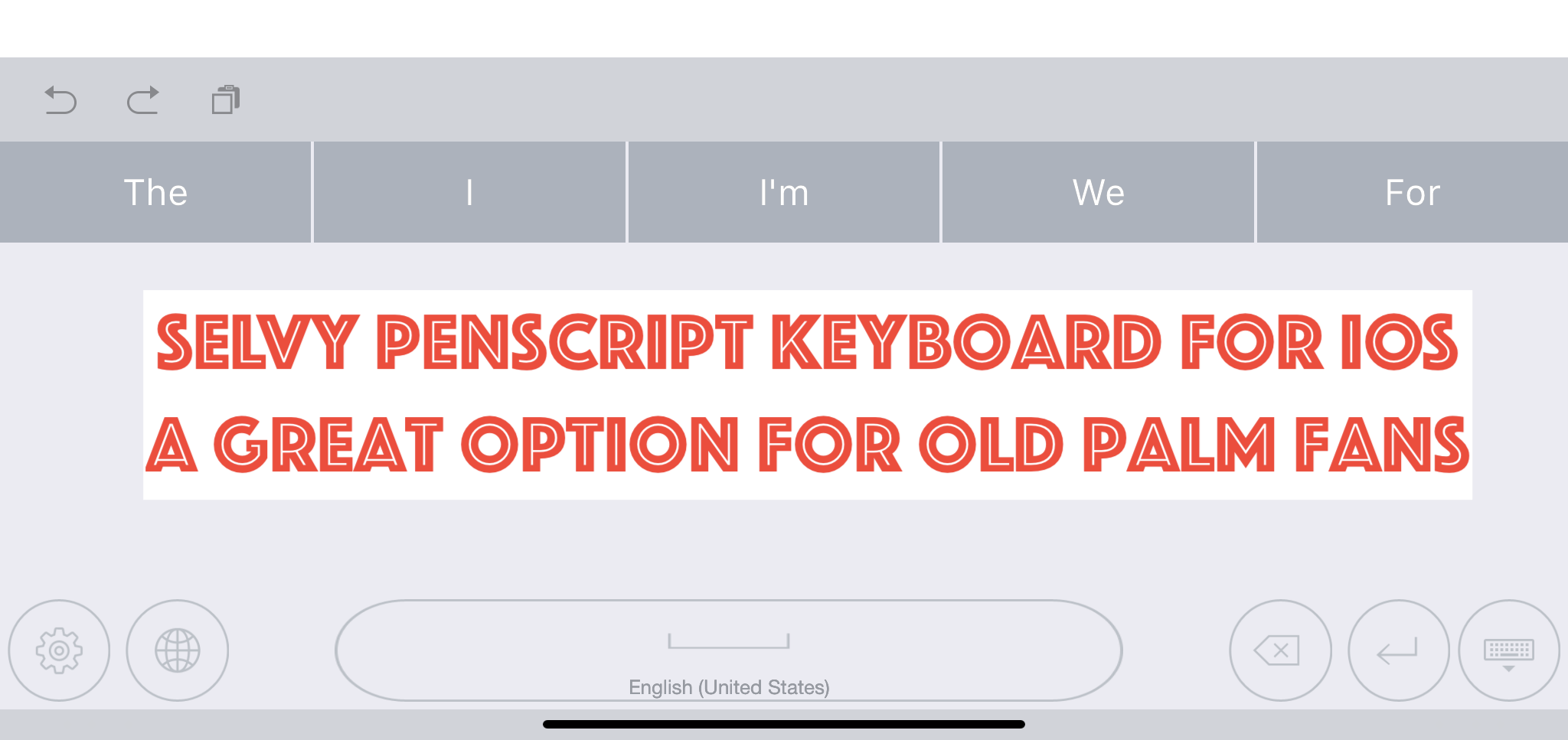
Selvy PenScript iOS Keyboard Recognizes Handwrting
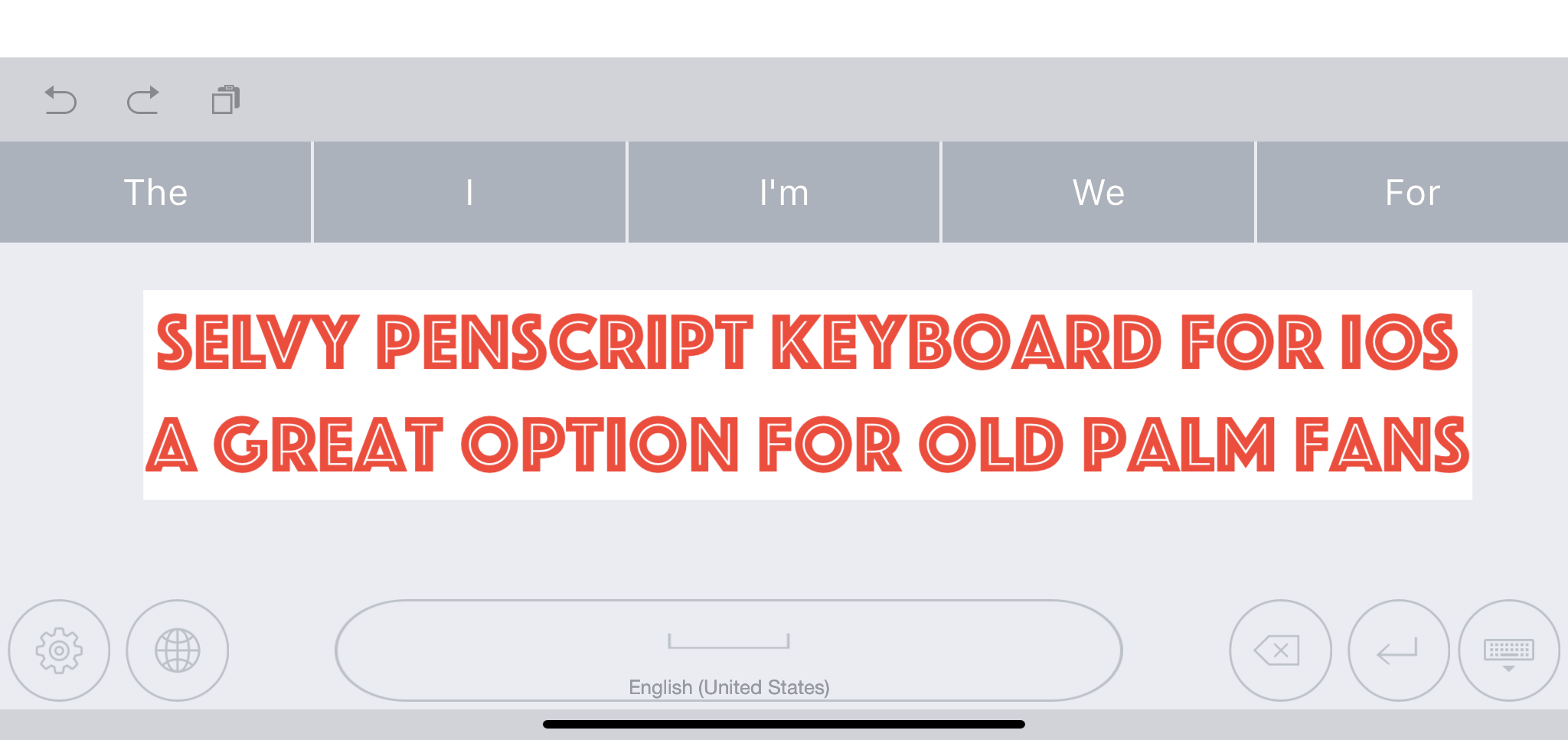
Remember the days of the Palm, when you could pull out a stylus and enter text by using a strange handwriting that would let you "type" with your handwriting. The Selvy PenScript iOS Keyboard feels succeeds the Palm Graffitti input method with a modern handwriting recogniztion that doesn't force you to learn a new way to write. You just your own handwriting while entering text on your iPad or even an iPhone.
iOS Replacement Keyboards
If you're not familiar with, them a replacement keyboard installs like an app from the Apple App Store. Download the app from the store and then you have to configure the iPad or iPhone to allow the use of the keyboard.

Go into the Settings app after installing Selvy PenScript keyboard. Tap on General on the list in the left. Then tap on Keyboard from center. Tap on Keyboards on the next screen at the top. Tap on Add New Keyboard. You'll see the Selvy PenScript keyboard listed among others. Tap on it to add the keyboard. Then tap on the keyboard name again and choose Allow Full Access.
To use the keyboard in an app, tap in a text entry box. For example, open the Notes app and create a new note or open an old one. Tap as if you were planning to enter text. The regular iOS keyboard will pop up, unless you have an external keyboard attached. If you don't, the keyboard pops up with a small globe icon in the lower left corner of the keyboard. Press and hold that key and the list of installed keyboards will pop up. Choose the Selvy PenScript keyboard.
Selvy PenScript Handwriting Recognition.

When you enter text the Selvy PenScript will pop up and you can now write. This works okay with your finger on an iPhone or an older iPad. However, people who use the Apple Pencil first or second generation will love this app. Writing with the Pencil in apps is wonderful.
The keyboard entry box looks simple. It has the following buttons across the bottom:
- Settings
- Keyboard chooser
- Space bar - long press to change the language of the handwriting recognition
- Backspace
- Enter
- Hide keyboard
Above the writing recognition box you'll see a row of words. This shows you options for your recognized handwriting.
The row of words usually has the correct word. However, you don't need to tap the word to enter it. Just pause your handwriting for a moment and it enters the text in the text entry area of the app your writing in. Customize the length of the delay in the app settings.
Selvy PenScript App Settings

The Settings icon brings up the app. Tap on the button on the lower left of the keyboard. You'll then see the App Settings. The available entries include:
- Languages - choose your keyboard language.
- Customizations - the real settings are here. See below for more info.
- About - version numbers, etc.
- Feedback - send the developers your feedback and bug reports.
- Installation Guide - teaches how to make the keyboard work in iOS.
- Try It - test out the keyboard.

The top portion lets you choose your Pen Color. We then get an option to customize the thickness of the line. The next two sections show options for putting a space after a word and putting a period at the end of sentences. Finally, there's an option to change how long the keyboard will take to recognize the text and enter it wherever you're entering text.
Conclusions
The Selvy PenScript keyboard does a great job of recognizing your handwriting. If you own an Apple Pencil, then it's a great experience. However, for short text input the regular keyboard works better. I have used it a little for entering text with my finger, but that's not as satisfying.
Go grab the Selvy PenScript. It's free and works great. However, you'll want to remember that any text that you enter using the keyboard will go through their Korean servers. Some might find this worrisome. I don't.
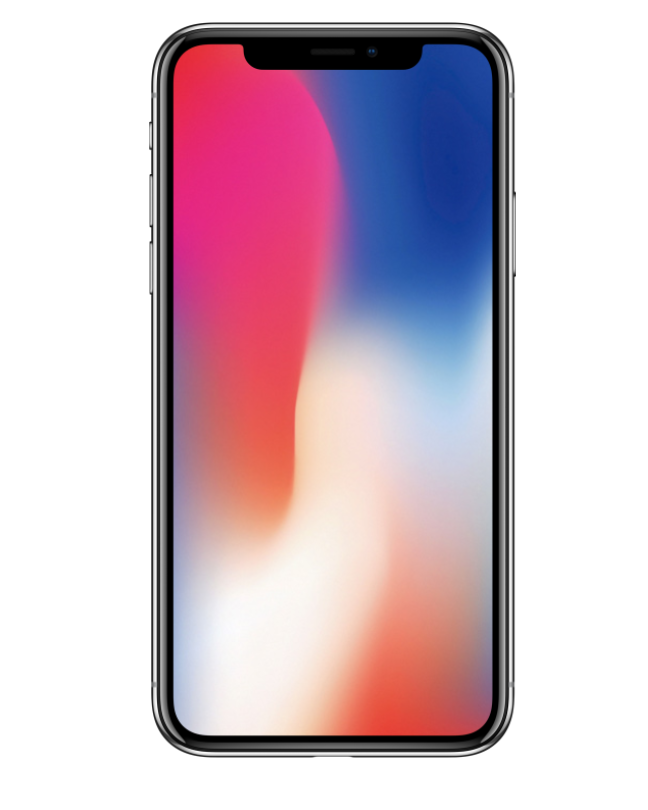
iPhone X First Look: Theotek Extra
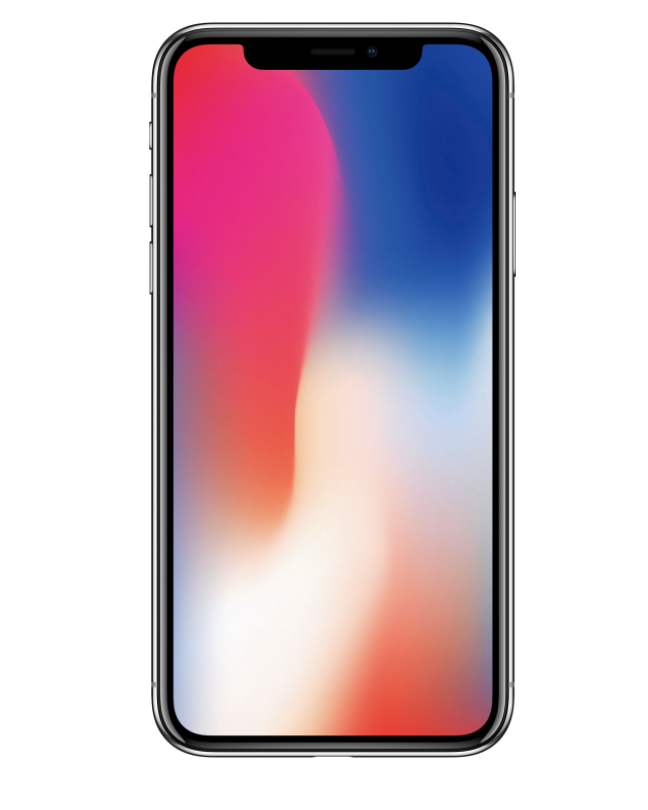
Rick Mansfield got in line early on launch day and snagged an iPhone X. We wanted to get a look, so we recorded this Theotek Extra. Here it is for your enjoyment.
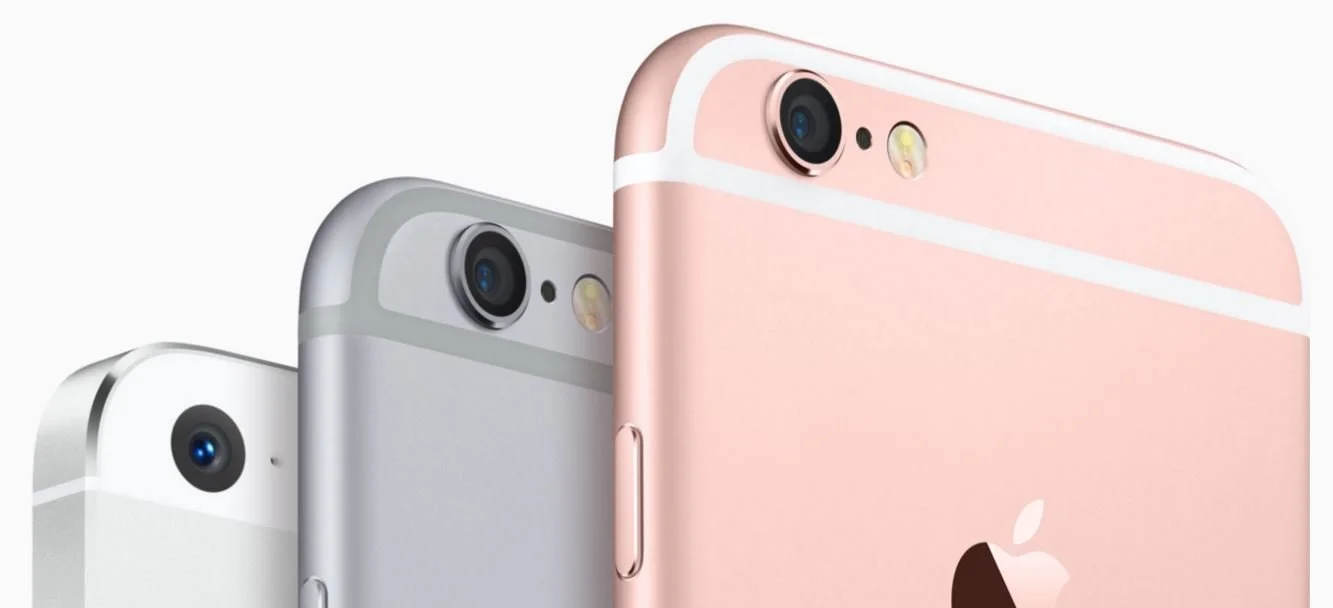
Google and Apple - Fight! Theotek Podcast #041
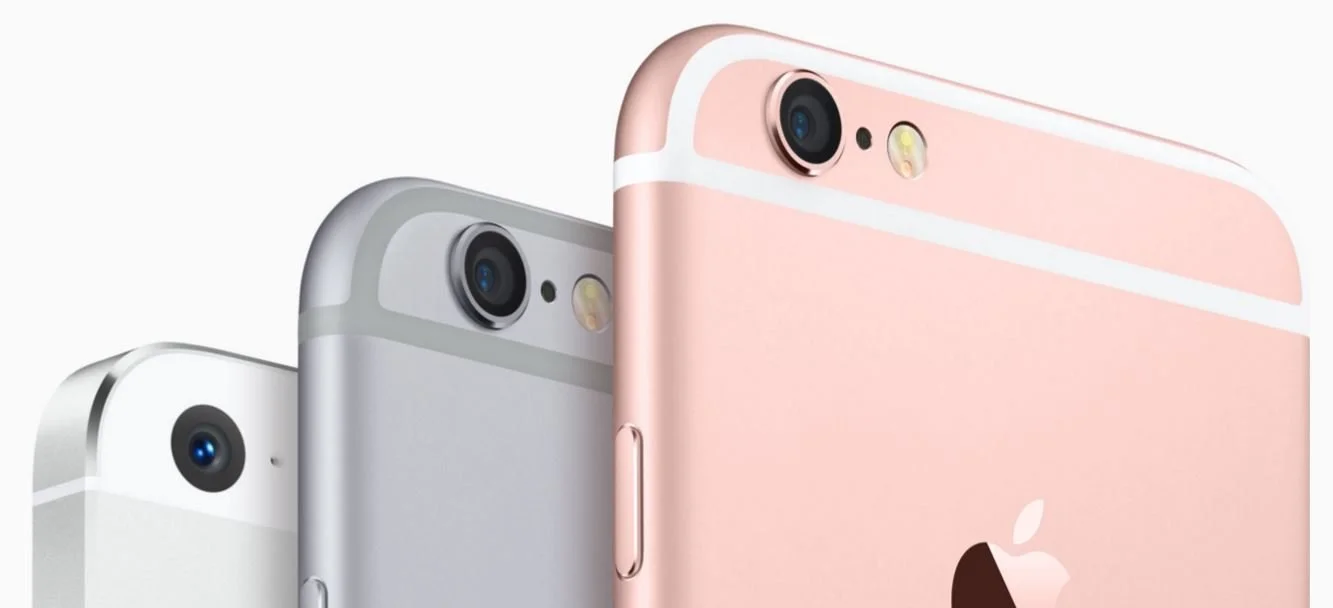
We discuss the new Google and Apple offerings after they announced their new hardware at their fall events. Apple released the iPhone 6s and iPhone 6s Plus as well as iPad Pro, a new iPad that competes with the Surface Pro 3 or now the Surface Pro 4.https://www.youtube.com/watch?v=EznJOU5Tii8Google announced their new goodies also, including a Nexus 5X and Nexus 6P smartphones. Learn more about them from our team in this week's Theotek Podcast.
5 Ways Accordance Mobile 2 is Vastly Improved
Accordance Bible Software released a new version of their mobile app awhile back. It includes a bunch of great new features that make it vastly improved over the earlier versions, which I never really used much due to the sub par quality. However, these new features entice me to open Accordance Mobile more than ever before. Here's the 5 ways that Accordance Mobile 2 is vastly improved over the earlier version.Here's Accordance's own video highlighting the update.https://vimeo.com/122677075
Quickly Link and Unlink Parallel Panes in Accordance Mobile
 It seems strange, but Accordance didn't handle unlinking of window panes well until version 2. Now the app includes a button on the toolbar that quickly links or unlink the two open window panes.Open two window panes as normal. Then tap on the link button to either link them or unlink them. When the user unlink the two, the second pane will not scroll along with the first. This makes it easier to deal with commentaries where a person wants to read an entry from a previous passage without moving the Bible text to the earlier verse.
Download All Option in Library Manager
 When installing books in Accordance Mobile 2, there's now a download all button that makes it easy to quickly install the entire Accordance Mobile library. Before we had to select each book and then download them.Other mobile Bible apps need this feature. I've begged one app developer to add this feature since the iPad first came out.
Text Display Improvements
 Accordance rewrote their text display engine for a more attractive and complex set of features. Now users can change the fonts and color of text. The font button opens a dialog box with the following customization:
- Display brightness slider
- Font larger/smaller buttons
- Day and Night Theme selector
- Font selection
- Font color
- Background color
- Link to full display settings in the app
Awesome New Notes Features in Accordance Mobile
 Accordance really improved the notes features in Accordance Mobile. For example, users can now format their notes with things like font, font size, the color and format of the font (bold, italics, underlining). Users can also copy their notes and share them with others via iOS share sheets. Define words in notes and search for selected text in notes. Accordance Mobile 2 now lets users change the background color of their notes as well.
iPhone 6 Plus Capability
The iPhone 6 Plus lets people use apps in landscape mode thanks to the large 6.5-inch screen with high-resolution retina display. Accordance uses all that screen real estate to show more content in a side-by-side parallel pane view.
Notifications Section Today Screen Shortcut to Accordance Mobile
 Thanks to the notifications section in iOS, Accordance Mobile can put a shortcut to the app in the Today section. Slide down from the top of the screen and tap on the Edit button at the bottom of the Today section. You'll see a list of available Today section widgets. Tap the plus icon next to any one of them, including Accordance Mobile. This puts the widget in the list at the top of this screen. Rearrange the order of the notifications Today section widgets by dragging on the handle that looks like three horizontal lines to the right of the item.In the above screenshot I've only got on link. However, all recently opened resources will show up. It could list many more than the one book like mine does above.
Expanded Action Menu
 Now when a user selects text in a book or Bible text, a new expanded action menu appears above the selected text with new features.
- Copy
- Highlight
- Clear
- Share
- Search
- Amplify
- Define
- Note
- Bookmark
The Search and Amplify features won't show up on the action bar that appears above selected text when there's a Bible with Strong's tags opened, like the ESV, HCSB or KJV. In that case a box opens up (called the Instant Details) below the word with a definition from Strong's and two hyperlinks with Search and Amplify there instead.
Better and More Highlight Options
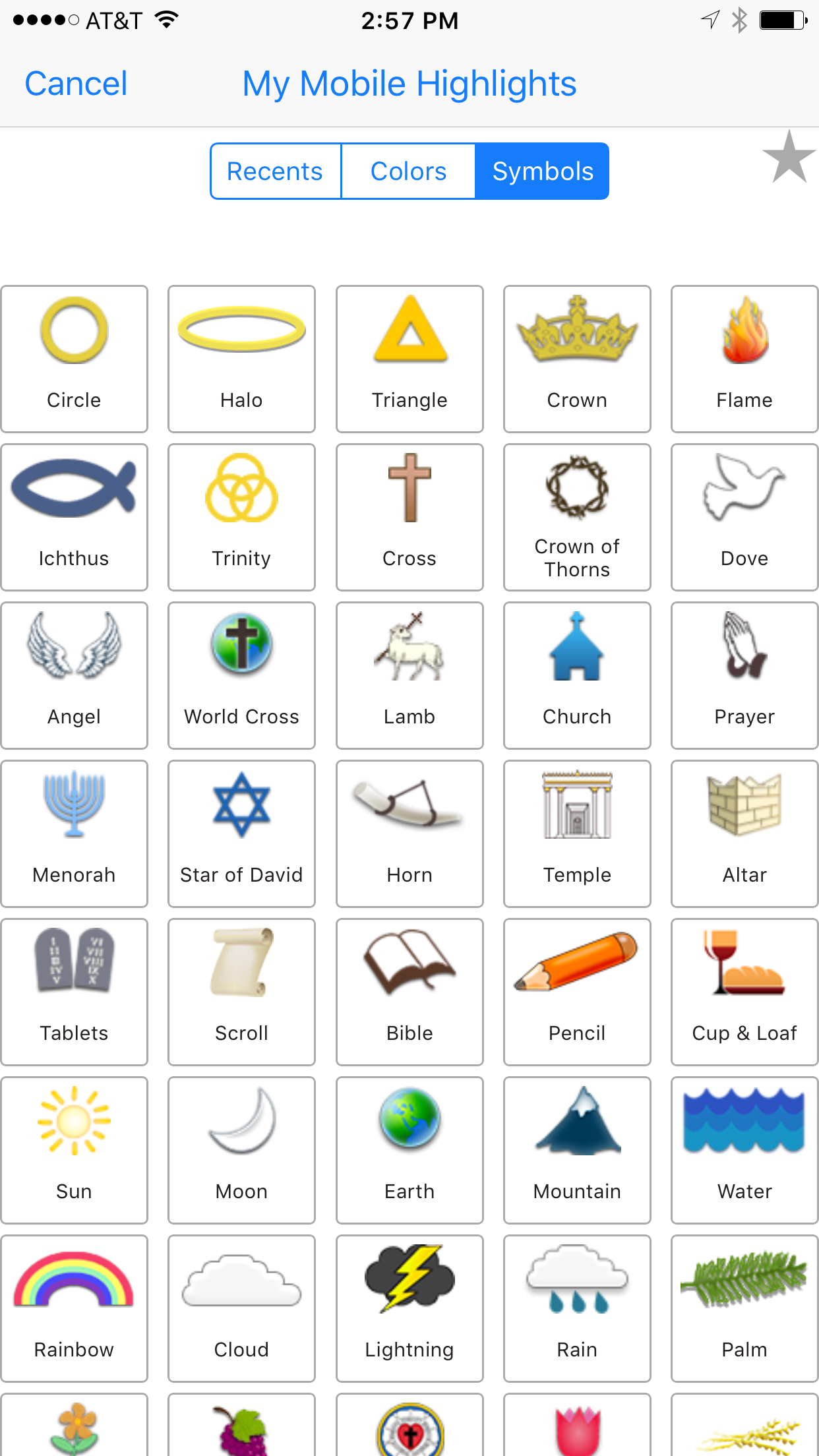
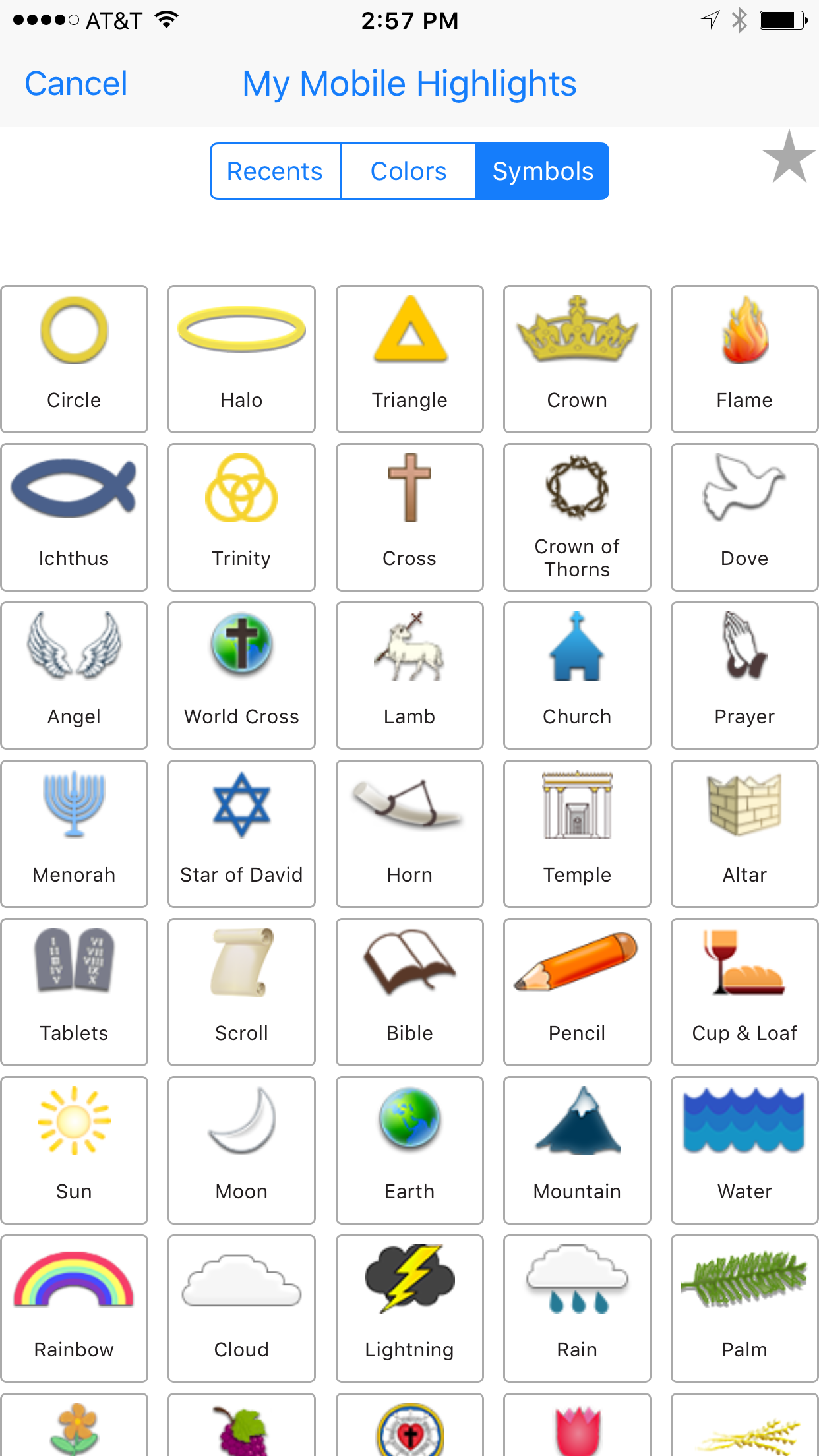
 In addition to the traditional color highlighting of text, Accordance Mobile 2 adds highlight symbols. Tap the symbols tab that shows up in the highlighting dialog box and choose a symbol. That symbol will show up below the text of the verse selected when the use added the highlight.There's also a Recents tab which shows the user's recent highlight symbols or styles. Also, uses can add other highlight styles and choose them by tapping the Highlights title.
2 More Free Resources
Who doesn't love free stuff. Accordance Mobile 2 will include 2 more free resources.Accordance added the Dr. J's Bible Study Methods tool, which teaches people who to study the Bible using Dr. J's methods in Accordance. He's the guy in the video above. Use this as a tutorial for Accordance like a quick start guide to studying the Bible with the program's powerful features. They also added Bill Mounce's Biblical Training course. There's 17 of them available free.Get more info at Accordance and download the app from the App Store.