

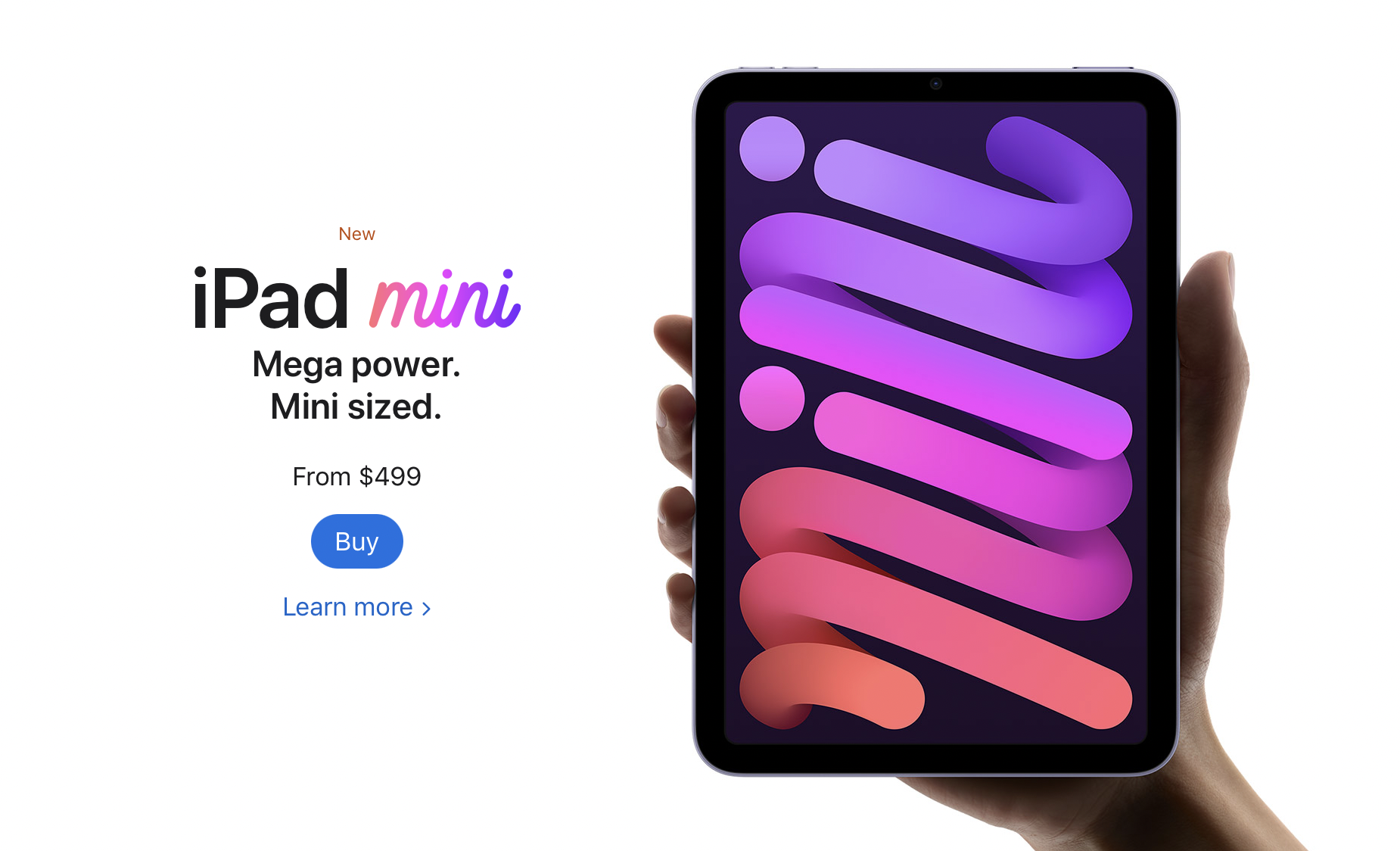
iPad Mini 6 Review for Ministers and Everyone Else
One of the best tablets for pastors is the iPad mini 6. Here's why I love it so much for ministry and general use.
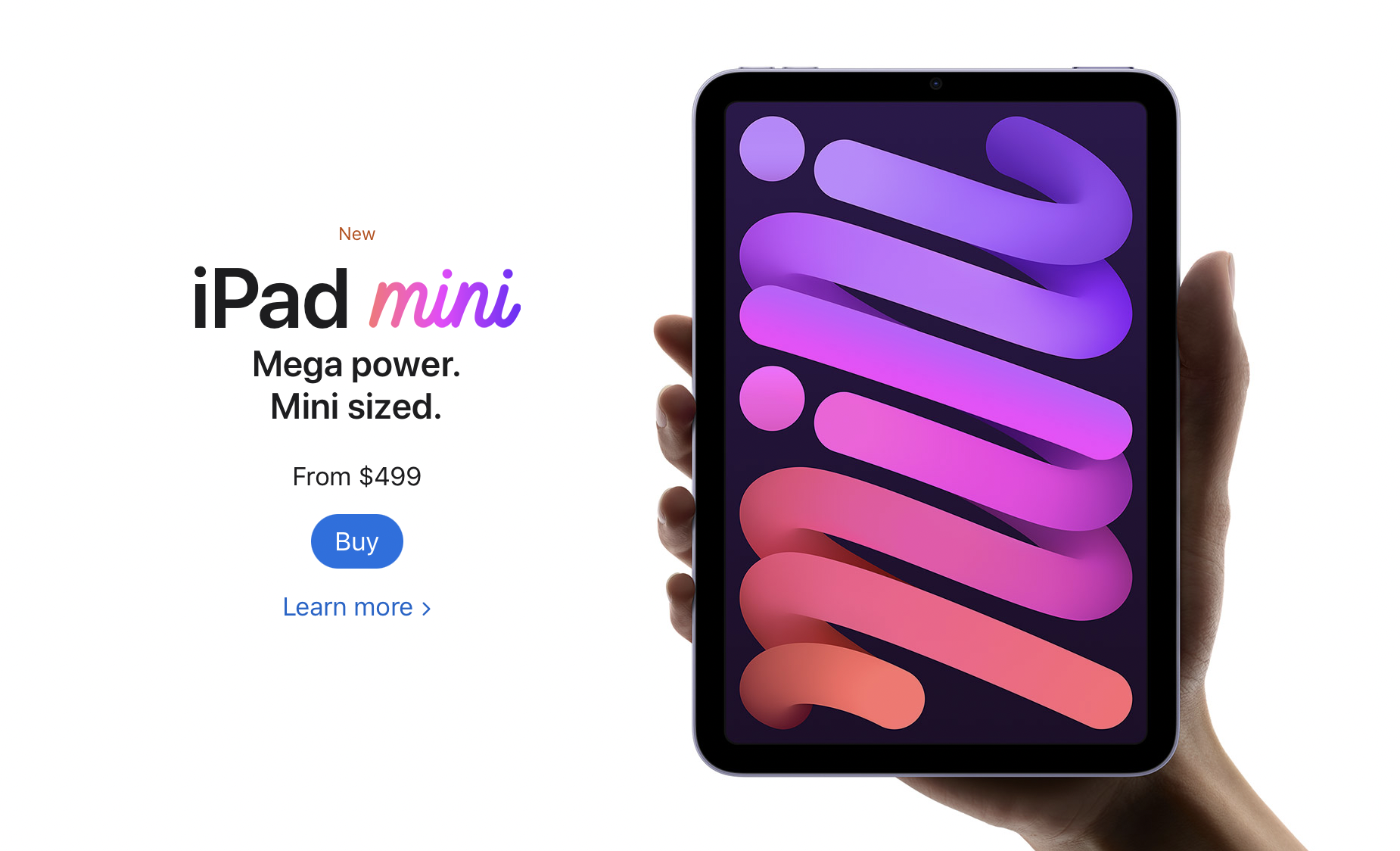
The Apple iPad mini 6 came out and I couldn't resist getting one. In fact, I sold my 12.9-inch iPad Pro and my iPad mini 5 so I could get the 256GB model. Here's my iPad mini 6 review for ministers and everyone else.
Let's start with how the iPad mini 6 ($499 for base, $649 as reviewed) fits in my life. I use it as my primary tablet and, for a little while, my only iOS device because a couple of months ago I switched from using an iPhone 12 Pro Max to a Samsung Galaxy S21 Ultra 5G. I moved back to the iPhone after that failed experiment. I shared thoughts on that transition in another post. The iPad mini 6 handles...
- Reading my Bible and others books in Bible apps and the Kindle app.
- A complement to my phone for checking email, Facebook, Twitter, and Instagram.
- Watching videos or listening to podcasts using YouTube, YouTube TV, Pocket Casts, and other streaming video services.
- Playing casual games.
- Quick photo editing for posting online.
- Quick video editing - mostly trimming videos, combining clips, color correcting, adding titles, and music but not complex edits.
- Flying my DJI Mini 2 drone.
- Taking notes in meetings with Notability and the Apple Pencil.
- Preaching from my tablet with Word or using Keynote for presentations.
We'll look at the uses listed above and then the hardware. If you just want to see what I think without the detailed iPad mini 6 Review, then jump to the bottom to get my recommendation.
iPad mini 6 Review: Bible Study and Reading Books
The screen on the iPad mini 6 looks pretty nice while reading books. The iPad mini 6 works well for studying the Bible in several Bible study apps and the Kindle app for reading books. Read magazines using the Apple News app.

I like reading on a screen. My wife prefers the Kindle Paperwhite and won't read books on a tablet, but I love using the iPad mini thanks to the sharp and clear display. If you hate reading on a screen and prefer e-ink or real paper, then don't buy the iPad mini 6 for reading. You won't enjoy it. However, I would recommend trying it out. Borrow a friend’s mini or spend some time at an Apple Store or Best Buy reading to see if you could use it. It’s nice caring only one tablet for reading.

All the Bible apps that run nicely on an iPhone look great on the mini 6. The screen's just big enough to open 2 books at once time or open a book and a note screen. The new window management in the iPad mini 6 or any of Apple's iPad thanks to iPadOS 15 makes it easier than ever to open two apps at once. You can...
- Open one Bible app and take notes in another
- Open your Bible app and a word processor like Word, Pages, or Notes
- Use your inking app, like Notability, and take handwritten notes while also studying the Bible in your favorite Bible app.
- Research topics on the Internet while and studying the Bible in your chosen Bible app.

The Kindle app and Apple News app look great. Reading other text in a browser, email, or social media also looks sharp and crisp.
Margins Notes or Highlighting like a Paper Book
Most of the Bible apps and the Kindle app won't let you take handwritten notes inside the app. iPadOS 15 added a new feature where you can grab your Apple Pencil 2 (sorry, but the first-gen Pencil doesn't work) and swipe from the lower right corner. Apple Notes opens a note and you can take what they call Quick Notes. These Quick Notes are attached to the content on screen. You can type or draw and write in your own penmanship.

While I would not use this for really important Bible study and research notes, it's great for a quick note that you can save and later add to the notes feature. I type faster than I can write with the Pencil, but Quick Notes works great for those instant observations in another app outside your main Bible app, hence the name Apple gave the feature.

If you love to write in the margins of your books, then convert them to PDF and get an app like Notability, Liquid Text, or Good Notes. You can find others, but make sure they support importing PDF files. I use Liquid Text for this. It supports PDFs and Word docs. By the way, the OneNote app also supports handwriting with the Apple Pencil.
You could always highlight the Bible in the best Bible apps. This also works great on the iPad mini 6.
iPad mini 6 Review: Preaching from Digital Notes

When I preach, I always bring my iPad into the pulpit and view my sermon notes in Microsoft Word. It worked great on my 12.9 iPad Pro. Young people or those with great eyesight will love using the iPad mini 6, but it's a little too small to lay down on the pulpit. Word will enlarge the text, but then you don't see enough of the outline at one time. So, going forward I will not use my iPad mini 6. However, if you want to, open the document, put it in reader mode by tapping the icon on the toolbar (see the GIF above), and then pinch to zoom text.
You'll need to decide if your eyes see well enough to use the smaller iPad mini 6 for preaching notes. If you used an older iPad mini, then you'll like the new one. The screen measures slightly larger than the old version with an 8.3-inch display versus the older 7.9-inch on the 5.
Presenting Using the iPad mini 6

Presenting suffers the same problem for my older eyes as reading my preaching notes. However, I can use it and if you've used a small display for presentations before, then the iPad mini 6 will work for you.
If you simply plug in and swipe or tap to advance slides, the iPad mini 6 will work great. If you like to write or draw on the screen as I do (see above GIF), then the size might limit you. It's harder to present on the smaller screen compared to the 12.9-inch Pro display or the 10-11-inch display on the basic iPad, iPad Air, or smaller iPad pro.
With iPadOS 15 and macOS Monterey on a Mac, you can send the display of your iPad to the Mac using screen sharing (see GIF above). This would let you connect to a Mac hooked up to a projector or TV. Then screen share your iPad screen to the Mac.
iPad mini 6 Review: Screen and Input
Pick up the small and light iPad mini 6 and type on the screen with your fingers or write using Scribble, the new Pencil-based input system in iPadOS 15. The mini 6 handles this kind of input. However, I don’t really like Scribble, so I’ve installed a keyboard that lets me draw text and it converts it to printed text on the screen. It’s called Handwriting and handles handwritten text input better than Scribble.
iPad mini 6 Review: Performance
I'm not going to run benchmarks or battery tests. You can find those on more technical reviews elsewhere. Rene Ritchie does a great job of these kinds of reviews on his YouTube channel.
If you plan to use the iPad mini 6 as a tool in ministry, it performs efficiently and offers a nice improvement over the 5. It's snappier, scrolls through websites and books faster, and the inking smoothly displays your handwriting and drawing.
Some people report seeing a strange effect while scrolling. It's the great "Jelly Scrolling" controversy of 2021. See the effect in the video below.
The jelly scrolling issue clearly shows up in the video above. But, I don't see it on mine. It seems like you have to really look for it to see it. And if you do, then you may not see it again. If you get one that looks more noticeable, then get return it and get a replacement.
Since I don't notice the problem, I can't complain about it here.
Other than the Jelly Scroll issue, the iPad mini 6 performs well. I played videos, games, and read on it a lot over the first couple of weeks, and loved the experience. It feels like a good improvement over the 5, which I owned.
iPad mini 6: Video and Photo Samples
Most people will still use their phone or a dedicated camera to take pictures or shoot videos. However, I use my iPad mini to scan documents and the rear-facing camera works great. I import documents into my note-taking apps or scan them for storage in my OneDrive folder. After worship, I scan all the guest cards to contact them. I also scan new member cards to add them to our church role.
More people will use the front-facing camera to stream themselves on social media or for FaceTime, Skype, or Zoom calls. The camera works fine for these situations.
A new feature on the iPad mini 6 enables ultra-wide video so that the camera will follow you around your room even if the iPad remains stationary. The software will zoom in and focus on your face so you can get up and move left or right and then back to the center frame.
In a pinch, the camera does a nice job of taking photos and videos. Here's a sample of photos taken on the iPad mini 6 camera. They are all without edits and exported from Photos to JPG. The one of me in my orange shirt is taken with the front-facing camera. The other four are taken with the rear camera.


The colors look nice. Each photo seems sharp enough for snapshots. I wouldn't try to get high-art photographs with the camera. All of that said, the camera impressed me. Until this model, I wouldn't even consider taking this much time in a review to discuss the quality. But this camera works better than any previous iPad camera.
iPad mini 6 Review: Flying My DJI Mini 2 Drone

Flying a drone usually starts with connecting a phone to the drone controller. However, I never really liked using the small screen of the flown. There's too much on the screen for even a large screen like the one you get with the iPhone 13 Pro Max. So, flying a drone with an iPad mini 6 makes drone pilots happy.


The above set of screenshots shows the interface of the DJI Fly app, used to control the DJI Mini 2 drone. All the controls show up with plenty of room to see the images from the drone's camera.
To fly a DJI drone with the iPad mini 6, you'll need a special attachment like the Drone Valley Gear Tablet Mount ($18.95) that I bought on Amazon. It fits an iPhone, iPad mini 6, or another tablet of similar or even larger size.

If you want to learn more about the mount, see Drone Valley's video below.
iPad mini 6 Accessories
I bought the official Apple Smart Folio in Electric Orange for $59. I also accidentally got the Dark Cherry, but it showed smudges too much, so I stuck with the bright orange Smart Folio and I'm glad I did.

The case covers the back of the iPad mini 6 then wraps around the left side of the device to cover the front. The back snaps into place thanks to magnets that reliably hold it on the iPad.

The front part of the Smart Folio folds up into a triangle to turn into a stand. It will hold the iPad up in an angle best for watching a video and a lower angle for drawing.

The magnets in the front part of the Smart Folio snap onto the front part of the iPad and this turns the screen off until you open the case and it turns the screen back on. It also folds onto the back and snaps into place so you can hold it and read or do other things.
The Apple Smart Folio case feels like it will hold up, but for $59 it seems like it should feel more premium. It has a bit of a cheap feel to it. You can find cheaper cases, but I like Apple’s because they’re designed better even if the raw materials aren’t as premium.
The Folio also comes off easily making the iPad mini 6 lighter and therefore easier to read on it.

The Apple Pencil 2 snaps onto the right side (in portrait orientation) and automatically pairs with the iPad. It also charges while connected. The magnets seem stronger this time than my old 2020 12.9-inch iPad Pro.
The Apple Pencil costs $129, a little steep for a stylus. However, it's one of the best you can get especially for artists.

I don't use the iPad mini for typing very often, but Logitech makes the best keyboard you can pair with the iPad mini 6 or any tablet. The new Logitech Mx Keys Mini costs $99, a lot for an iPad mini keyboard. I use it with other devices so it's worth the price. You get a great keyboard that's small enough to carry in a bag but small enough that it doesn't take up too much space.
Add to the Mx Keys Mini, Logitech's great MX Anywhere 3 mouse, also pricey at $79.99, and you get a mini-computer on the go.
The above image shows a pair of Samsung Galaxy Buds 2, but the best wireless Bluetooth earbuds are the Apple Airpods Pro. They automatically switch to the iPad mini 6 when you put them in your ears and start playing media.
iPad mini 6 Review: Specs
- Screen
- 8.3-inch display with 2266x1488 pixels and 327 pixels per inch
- IPS LCD with 60Hz refresh rate
- 500 nits brightness
- System Hardware
- Apple's A15 Bionic processor
- Hexa-core 64-big
- 64 or 256GB storage
- Battery
- 5078 mAh LI-Polymer battery
- Runs over 10 hours in most tests
- Cameras
- Rear camera - single 12MP with F1.8 aperture
- Video recording at 4K 60fps and 1080P at 240fps
- Front camera - single 12MP with 1080P video
- Connectivity
- 5G, LTE Celular with dual sim support
- Wi-Fi 6
- Bluetooth 5.0
- Physical Size and Details
- 7.69 x 5.31 x .25 inches
- 10.34 ounces
- Volume up/down and power button with integrated fingerprint reader
- USB-C charging port with cable and brink included
- Comes in Space Gray, Pink, Purple, and Startlight
Recommendation
I love my iPad mini 6. It was nearly the perfect update over the 5 with a better camera, USB-C, faster processor, and just an overall better experience. If you own an old iPad mini, then seriously consider upgrading, especially if it’s a 4 or older. If you own an Android tablet or. Kindle, then the iPad mini 6 will cost more, but it’s worth it. Android phones might compete well with the iPhone, but I’ve never used an Android tablet that meets my needs as well as the iPad.
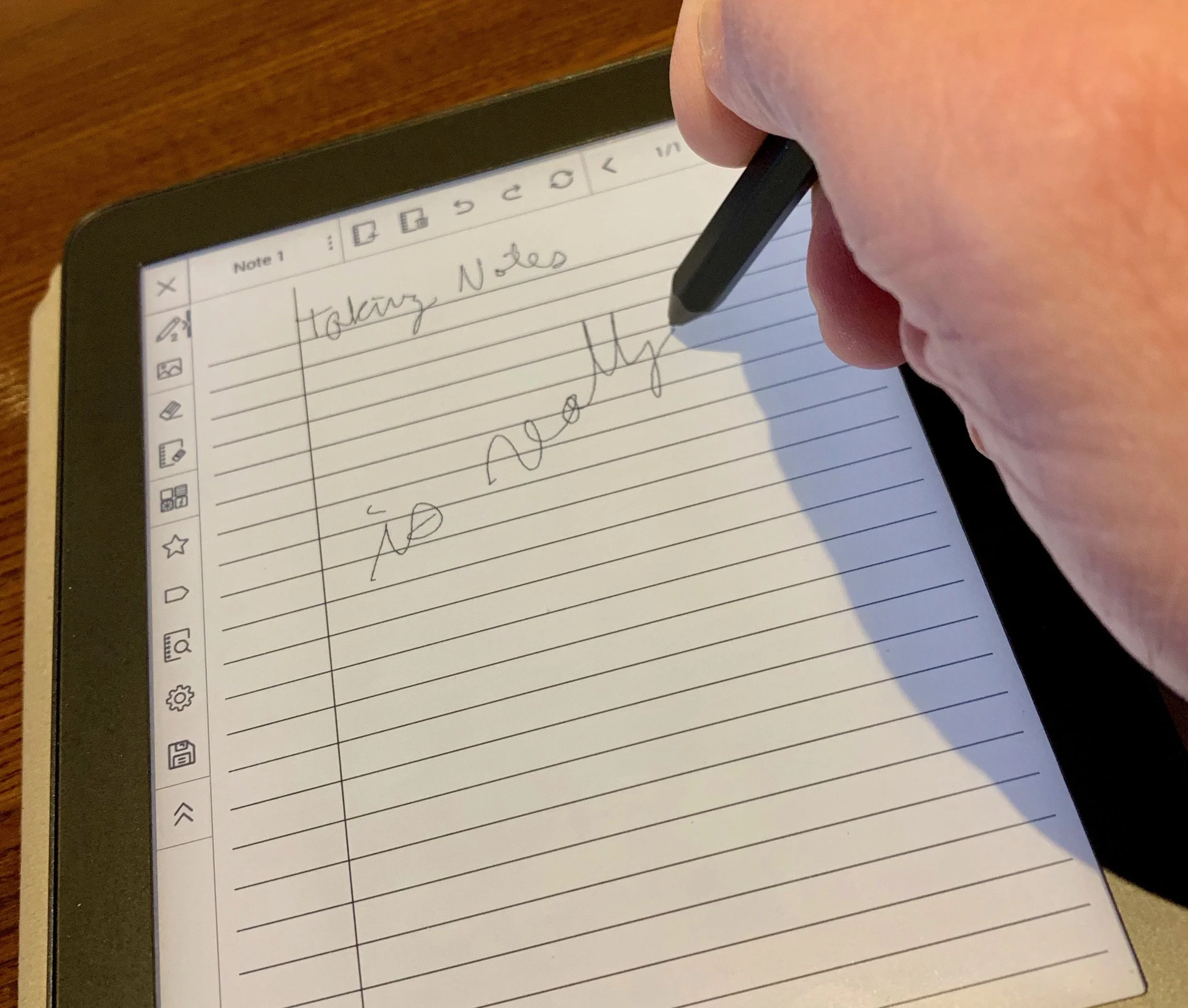
MobiScribe Notepad: The E-ink Notepad Android Device Review
The MobiScribre Notepad bring a high quality e-ink screen to note taking. How good is the tablet?
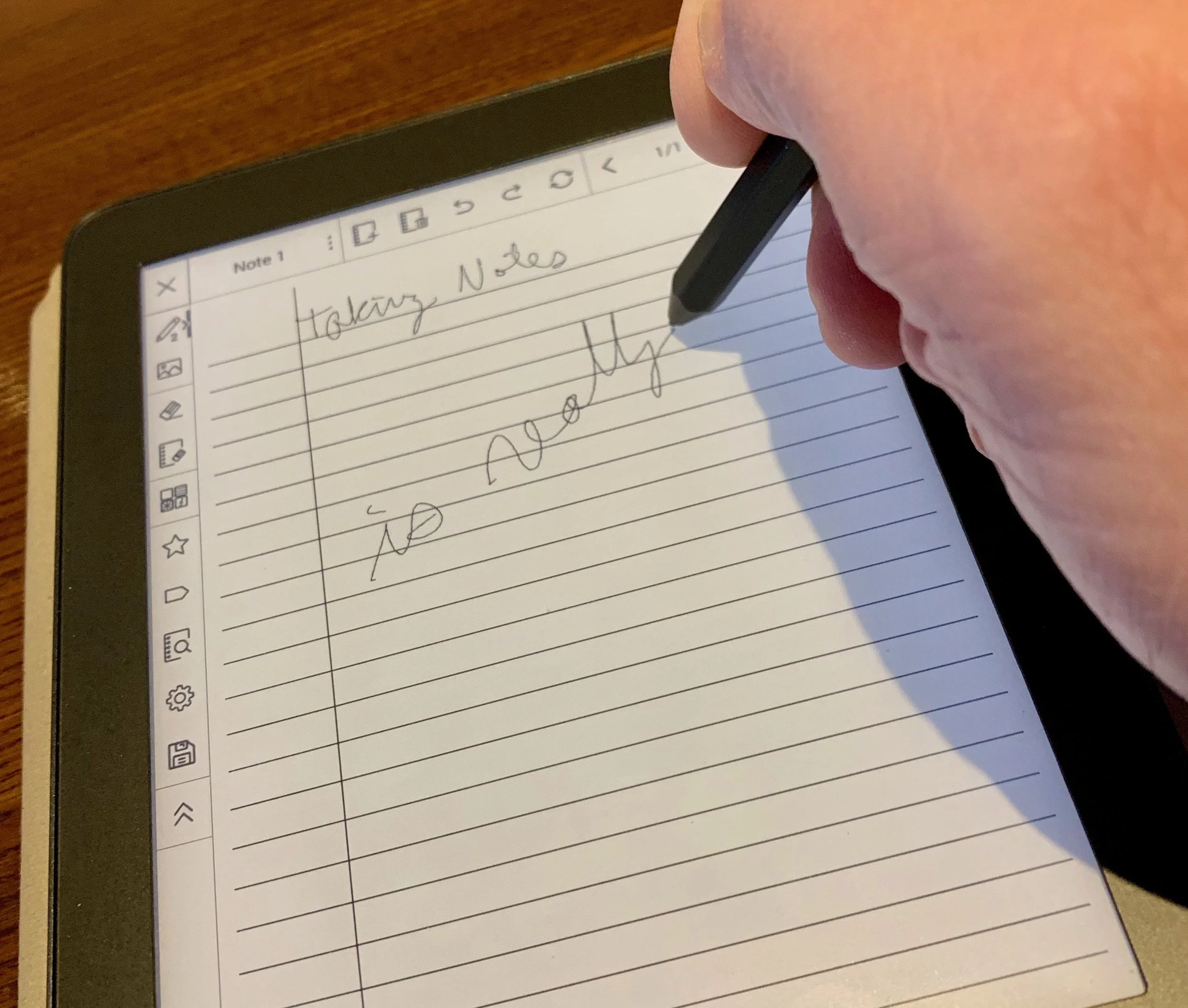
With all the glossy color screen note taking options on an iPad or Android tablet plus 2-in-1 convertible Windows and Chromebook computers, why would anyone want anything like the MobiScribe? Reading comments about it on their ads on Facebook and Instagram makes one wonder if anyone does, but then you talk to the committed core of Indiegogo backers who forked over $200 sight unseen and you get the idea that maybe MobiScribe discovered a niche that can propel them to success.

I recently received my new MobiScribe: The E-ink Notepad Android tablet after backing it on Indiegogo just a few months ago. That's a record. By comparison I backed a little selfy drone called the Selfly Drone and it took almost three years and when it arrived I tested it and wondered if I could find a way to get my money back. The MobiScribe instead came quickly and I'm enjoying it.
MobiScribe Review: Hardware
The MobiScribe E-ink Notepad runs Android 4.4, unfortunately. However, it comes with a bright and sharp e-ink display that's easy to read and responds fairly well to touch. The tablet also comes with a stylus so you can write in the note taking app built into the operating system. More on that below. The stylus also works like your finger as you interact with things on the screen. Add touch capability when not using the stylus.

The processor inside this notepad won't win any benchmarking awards. It's a Freescale i.MX6 Processor and runs at 1GHz. You also get 1GB of RAM and 8GB of storage (only 2GB of that is available to the users) with an expansion slot able to read up to 32GB micro-SD cards.
The MobiScribe Notepad measures about 6 inches wide and 7 inches tall. It's less than half an inch thick and weights only 8 ounces. With the case made by the company attached, it probably doesn't weigh even a pound.

The 3.7V 1500mAH Li-polymer battery gives the e-Ink MobiScribe great battery life. Under heavy usage for about four hours I only drained the battery about 30 percent. I've charged it only twice in over a week of sparing usage.
Kindle users will feel at home on MobiScribe's screen. It has a sharp 265 DPI screen. The front light offers warm/cold glow settings you can adjust in the Settings app. The Settings app also lets you change the font to make books and text easier to read.

On the top edge we find two buttons, one to turn the backlight on and off and the other turns the screen on and off. The bottom edge holds the card reader slot and charging port. It uses a micro-USB port. Some critics couldn't believe that the company didn't use USB-C. I agree. I wish they had, but USB-C still costs more and this thing definitely doesn't need that much charging power or speed, so I understand the choice.
Operating System
The custom version of Android on the MobiScribe Notepad runs on the old Android 4.4 Kitkat first announced on September 3, 2013. We're now seeing people upgrade to Android 9.0 Pie and the next version will come out sometime this year. The old OS hampers what apps run on the device.
Built in apps and the operating system respond adequately to touch and input. The familiar e-Ink flash when the page refreshes can get annoying in some situations, especially while running third-party apps. This slows down the performance significantly.

The company advertises the ability to run other Android apps. In my experience, none of the Bible apps I want to run worked. The Logos Bible app won't even install. It tells you that it's incompatible with the operating system. Logos users can find an old version of the Android apps that installs, but it won't let me log in using my correct email and password. The older apps aren't supported so don't bother to call Logos for help. Just give up.
Neither the Accordance Bible app nor the Olive Tree Bible app will install either. I get a "Parse Error" after I download them and try to run the APK installer.
I also tried to install the Kindle app and one called Kindle Light. Both of those were slow painful to use, both of which other MobiScribe Notepad users report working. Neither worked well for me.
The tablet makers promise that the device runs Android apps. They recommend using APKpure.com to download apps. I got Dropbox working, but it seems easier to download apps on a computer and put them in a Dropbox folder. The APKpure app is clunky and runs slowly on the MobiScribe Notepad.
Don't buy the MobiScribe Notepad to use as an Android tablet. Few of the apps I want to run work on the ancient version of Android included. Others will barely run on the hardware. I gave up at this point since I also own an iPad. I'll use it for mobile apps and the notepad for note taking exclusively.

The Home Screen has a toolbar on the top of the screen with...
- Back button
- Home button
- Task switcher - switches between running apps.
- Refresh button
- Time - doesn't do anything when tapped.
- Wi-Fi - tap to join or disconnect from Wi-Fi networks.
- Display Light - changes the brightness, warmth and contrast.
- Front Light - switch to turn on and off the screen's light.
- Brightness slider - from dark to bright light.
- Temperature slider - from cool to warm color screen.
- Contrst slider - makes contrast less or more extreme with a row of letter As to show the results.
- Settings
- Wi-Fi
- Display
- Storage
- Security Lock settings
- Language & input
- Reset
- Date & time
- About
- Battery - shows batter life but does nothing when tapped.
The Settings are basic compared to other Android devices and that's fine since it's not intended to function as a full Android tablet.
Notes App
Let's focus on what does work. The built-in Notes app runs smoothly. I bought the MobiScribe primarily to take notes in meetings or as I study. The Notes app is simple and responds quickly.

On the main screen you see two rows, one for Notes and one for Books. There's a "Create Note" button or you see the last few notes you edited. You can either tap on the "All Notes" link to see all of your notes or tap on the "Create Note" button to create a fresh note. If you want to open a recent note tap on it.
The OS lists all notes in one of a two ways - with a generic icon or a preview of the note as a small thumbnail. That view may bog down the system with a lot of notes.

The app has a toolbar along the top and the left. The top toolbar has buttons for...
- Title
- Menu to ...
- Rename
- Copy
- Save
- Convert - to PDF or an Image file.
- Backup - to the internal memory, SD card, or Dropbox.
- Restore - from memory, SD card or Dropbox if you used the Backup feature earlier.
- New page
- Delete page
- Undo
- Redo
- Refresh
- Back a page
- Jump to page number
- Forward a page
- Full-screen mode - to view note without toolbars.

The left side toolbar includes the following buttons:
- Pencil configuration tool to change the style and thickness of the pencil.
- Insert image
- Erase
- Erase page
- Change page background
- Star - to make this a favorite note.
- Tag - add a tag to the note
- Search - shows all notes
- Settings - lets you calibrate the stylus and change toolbar from left to right edge of the screen.
- Save the note
- Hide toolbar
I used the insert image to add a page I scanned using my phone camera. Back up the photo to Dropbox and add it via Dropbox on the MobiScribe Notepad.

Use the Background button to change your screen background. The MobiScribe Notepad offers 11 pre-installed backgrounds. You can also create your own with a custom background option.
The included backgrounds offer ruled pages, some with check boxes and others with meeting notes layout. There's also graph paper and musical notation pages. Two are just geometric shapes.

While writing with the stylus, you can adjust the size using the toolbar to change the input. The basic tool writes with a consistent width. The marker tool has some pressure sensitivity so you get a slightly wider line when you press harder.
Books
The MobiScribe Notepad claims to support the following formats:
- Mobi
- Epub
- AZW
- TXT
- FB2
- PRC
I can't get mine to open Amazon files even with the DRM removed. You get an error message like this...

The Books app works okay, but I'd ranter read on a Kindle. However, you can use it for the above formats. You'll need to find the right formula to make the book readable. I struggled to read PDF books, because most were laid out for 8.5x11 paper size. These don't display well on the smaller screen.
The EPUB format seems to work well. I used a program on my Mac called Epubor to convert Kindle books to EPUB. It's not an easy process, but works better than anything I tried. Epubor isn't free. It starts at $25/year for Windows and $30/year for Mac. You can get a lifetime subscription for $50 and $55 respectively.

When you put your converted books into a Dropbox folder on the computer, then open Dropbox on the MobiScribe Notepad, download the book files by tapping on them. You will get an error message saying that the Dropbox app can't open the file. You will have to choose the OPEN WITH... button and it offers to open the book with the HomeReader3 app or other apps installed on your Notepad.

At this point the book behaves a lot like it will on a Kindle Paperwhite. You get the ability to increase or decrease font size (tap the center of the screen and a font size slider shows up at the bottom) and you can bookmark spots in the book, but that's it. I couldn't find a way to highlight books and inexplicably there's no way to annotate the book with the stylus. That's an unconscionable omission for this device advertised as a great note take tablet.
Sometimes opening a book in the Book app takes a long time. That's going to happen with large books.
Tap on the left or right edge to go back or forward in the book. Tap on the top edge to bring up the toolbar. There's a progress bar at the bottom edge. Tap on it to quickly jump to a new place in the book.
MobiScribe Review: Accessories
The stylus feels light and some might call it flimsy. However, it's not bad while writing. The hexagonal shape runs up two-thirds of the stylus. The top third starts to become more round toward the top end. There's a fine tip on one end and button on the other. The other ends behaves like an eraser. That's something you don't get with the Apple Pencil that alone costs more than 50% of the price of the MobiScribe Notepad, which includes two styli.

The box comes with three extra tips and a tool to replace the tip. We'll see how long the tips last, but it feels sturdy and writes smoothly on the screen.

I got the branded case. The tablet attaches to the MobiScribe Notepad case with a small rectangular sticky adhesive. Pull off the protective plastic and press the table onto the case. It seems to stay put. Again, time will tell if it holds up or comes lose. Plenty of users complained about this design.

The case feels okay in the hand with a textured cloth they call "rugged fabric." It feels like it will wear out over time. Inside you get a felt fabric. On the right side of the internal part of the case next to where the MobiScribe sits, there's a recessed section and and elastic loop. That's where you put your stylus. On the top edges you get two tabs with magnets. They come together when you close the case and the magnets hold it closed to protect the screen while not in use. The case allows the user to easily plug in the charger without opening the case. However, the screen doesn't turn off automatically, so be sure to hit the button to turn it off manually or set the Sleep time under Display in the Settings.

Any micro-USB charging cable will power the tablet, but they do include a simple USB cable. You'll need to supply your own AC adapter or plug it into a computer to charge. The tablet arrived with about 65% charge and didn't take along to top off. I didn't time it, but it seemed like about an hour.
Conclusion and Recommendation
People who take a lot of notes and don't want to use paper and pen/pencil, can get a lot of functionality out of the MobiScribe Notepad. It works well as a note taking device. It's light and quick, as a note taking solution.

The MobiScribe team of developers respond quickly to users' wishes. People didn't like that you had to convert notes to PDF or PNG file before backing them up. So they changed the backup screen (above) to include a "Save file via" drop down box that includes Dropbox as an option. Now you can export and backup notes files in one step.
The book reader is subpar and I won't use mine for that reason. People who want a good e-Ink book reader should buy a Kindle. No other book reading tablet can compete.
Do NOT buy this device to run Android apps. The inability to open some favorite Bible apps disappointed me. I hoped I could use this device to read books on an excelllent e-Ink screen. It's not a good experience, even with the apps that do work.
Tips for Using the MobiScribe
- Turn on the ability to side load apps. You almost have to have Dropbox to use the MobiScribe Notepad. Without it, the experienced will be drastically limiting.
- Don't download the APK Pure app store as the recommend. Instead, just use it from your computer's browser.
- Find a way to convert your eBooks to a form that the MobiScribe can read, if you insist on using the device to read books. I like Epubor.
- Change background of paper in Notes and even create your own as transparent PNG files. Use drawing program to make a 3.75-inches x 5.0625-inches file with a transparent background. Then put it in your Dropbox folder to sync to the MobiScribe Notepad. Click the background button in the left or right toolbar, depending on where you put it. Choose Customized and select the file in your Dropbox folder.
- Join the MobiScribe Notepad Facebook users group. It's a closed group, so you'll need request membershi.