


Clickbait Title About Closing Down Theotek and KevinPurcell.org
I think I'll shut down KevinPurcell.org and Theotek. Or maybe I won't. Anyway, here's what coming from this site and my writing here.

Ever see those YouTube headlines from some popular creators that say, “I want to quit YouTube?” Marques Brownlee did it recently. I intentionally didn’t watch it because I hate these. But now I’m doing a blogger’s version of that same thing as I contemplate closing down Theotek and KevinPurcell.org.
The Origins of KevinPurcell.org and Theotek

My first post on KevinPurcell.org hit the web before 2015. Like way before. However, those original posts are gone. I checked the Internet Archive and found one from June 18, 2003. You can see that it's pretty ugly and does not have great content.
At some time my site began to focus more on Bible software, church technology, and the Theotek YouTube show that I produced along with a few friends. That’s when my site took off and grew from dozens of hits per month to thousands of hits, sometimes on a single post.
The Theotek video blog and audio blog eventually died due to a lack of interest on the part of my friends and eventually me. Will it ever come back? I won’t say never.
The last post on KevinPurcell.org focused on deals for Logos Bible software. I became a Logos affiliate, which means I get a percentage of sales generated from my website and YouTube channel.
The Beginning of the End? Or Not! Closing Down Theotek
Unfortunately, I writing about Bible tech bored me as the market contracted and we lost BibleWorks and WORDsearch. Then Olive Tree and Accordance went stale with few updates. That left Logos for the exciting stuff. But I got tired of only covering Logos Bible Software. My attention often loses focus. Squirrel!
Last summer something significant happened. The Brushy Mountain Baptist Association in Wilkes Country, North Carolina called me to become their Director of Missions. If you’re not in Southern Baptist Life, think about area superintendents or bishops, but without much authority. I work with our 40 churches to help them strategize ways to reach their communities for Christ. I also support pastors as a kind of pastor to pastors. Add other strategic missions and evangelism and you get a Director of Missions, or as some call the position - Associational Missions Strategist.
This new position keeps me in my office more and allows for less freedom in how I organize my day. I don't mind the new structure. I can still come and go as I need, but I feel responsible for being available to the churches. That means I’ve got less time to write here on this site. It’s not like there’s been a huge outcry of readers begging me to come back and get started again. So, I’ve done what most do. I focused on what calls for my attention louder and what pays the bills. This site doesn’t; it’s been a labor of love from the start.
What Does the Future Hold?
I won't be closing down Theotek or KevinPurcell.org. However, it will look and taste different. Well, it won't taste like anything which I guess is the same.
Now that I've created a workable rhythm in my work as a Director of Missions, I've considered putting more time into this site. However, I'm not excited about writing about Bible software, church technology, and similar subjects. My old partner, Church Tech Today covers that with a growing collection of experts who do a better job than me. Follow them for that sort of news and help.
What can you expect from Kevin Purcell and Theotek? I'm going to write about what excites me. A mix of subjects that I think will help people navigate the complex world of technology with a few detours through church life. I think eventually it will focus on what "Nerd Ministers" or church leaders might find interesting. When I do cover Bible software, it will focus on Logos and maybe occasionally other programs or apps if I find something interesting to share or review.
Join me along the way as this site moves in a slightly new direction. I'll write a lot of the content on Fridays, my day off from the Association. But you'll see it land usually at the beginning of the week. Videos on my YouTube channel might focus more on tech reviews or software reviews in general. So be sure to go over there and subscribe. You won't see as many videos like the one above, but you will see some.
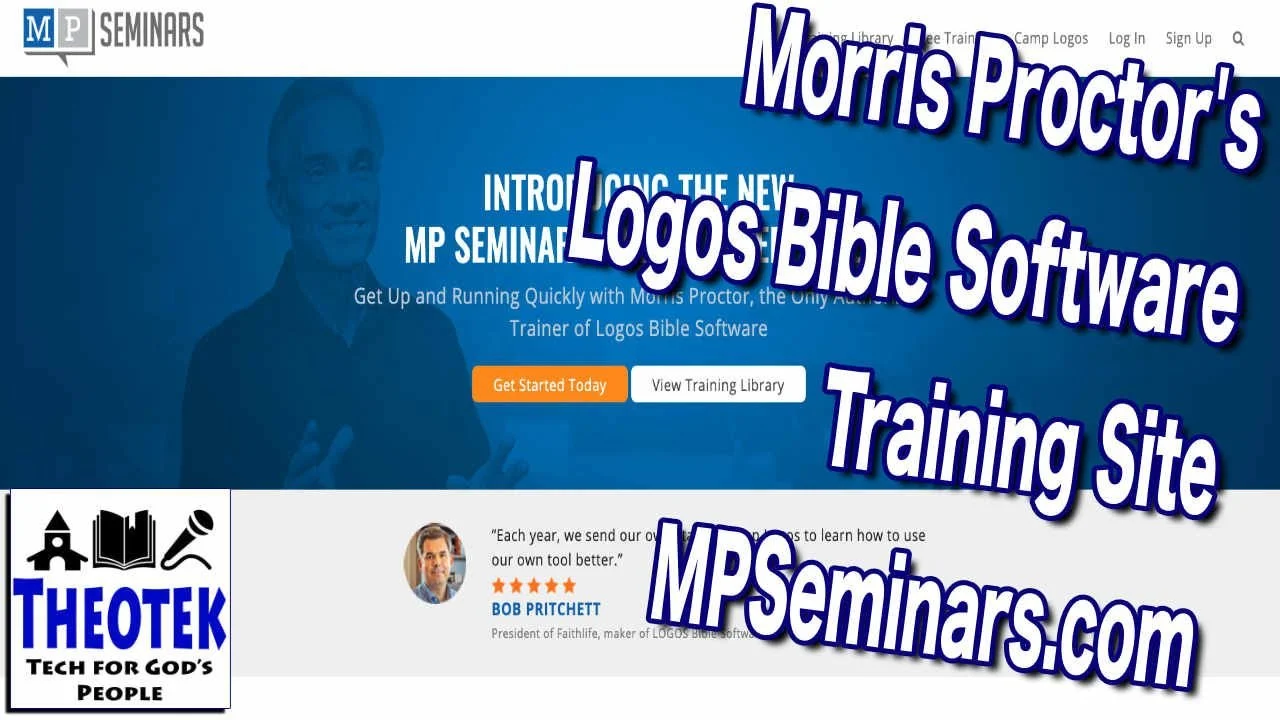
Morris Proctor MPSeminars.com Logos Bible Software Training Review
If you use Logos Bible Software, you should consider Morris Proctors MPSeminars.com. I review this training subscription service here and on YouTube. See my video and read the review here.
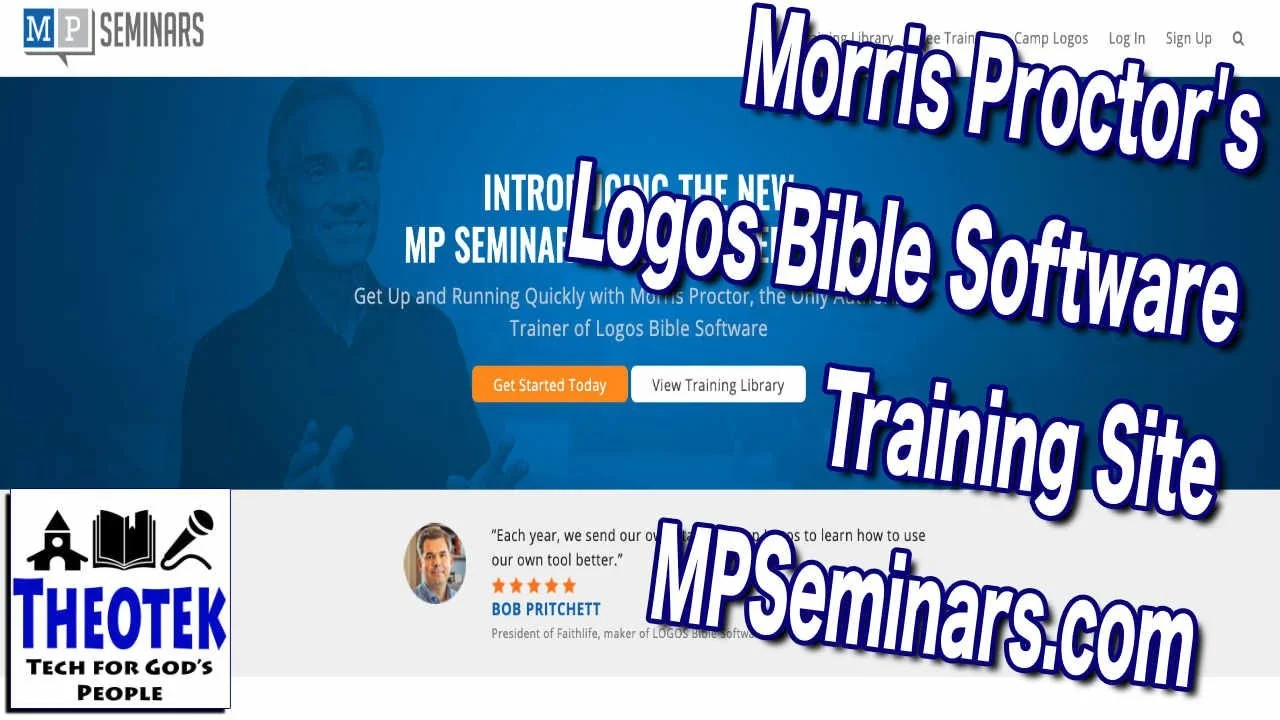
Thanks to MPSeminars.com from Morris Proctor, you can comprehensively learn how to use Logos Bible Software. This service offers a slew of videos and courses on how to use the powerful computer (desktop and laptop) software for studying the Bible.
Note that I've republished this review from two years ago because of a nice update to the training site. Look below for the bold and italicized paragraph under the "User-Interface" section.
In this review, we'll look at the courses and how well the service works. Let's judge MPSeminars.com on three criteria...
- Quality of Training
- User Interface
- Value for Money

Morris Proctor MPSeminars.com Quality of Training
I subscribed to the Morris Proctor's MPseminars.com Logos Bible Software training library for a few months now. In that time, I went through a few courses and watched maybe 100 videos so far. Morris Proctor knows not only how Logos works, but he also knows how to effectively teach users to use this complex and powerful Bible study tool.

Each video has excellent sound and Morris Proctor speaks clearly. His voice is easy to listen to and I enjoyed taking the courses.
Back in 2005 I bought my first package of Logos 3.0 and have been using Logos off and on for the last 14 plus years. I'd call myself an intermediate user. Plenty of people have a better understanding of the more arcane tools built into Logos Bible Software, but I'm no beginner.
In spite of nearly 15 years of use, I still learned some things from Morris Proctor and MPSeminars.com.
Morris Proctor MPSeminars.com User Interface
I like the user interface generally but have a few gripes. The site follows the blue and white branding of Logos and has a modern look and arrangement. When you open the site, you can clearly see where to go for different parts of the subscription service.
The first page, after a user logs into their account, mimics the look of the Home Page in Logos 8 with cards in a 3 column grid similar to the columns of cards in Logos 8's home page.
At the top you will see a set of tabs for the following:
- Training Library - the bulk of the training courses show up here and they offer courses for both Logos 7 and Logos 8.
- Free Training - you don't have to pay to use MPSeminars.com. They offer some free courses on this section, which they organized like a blog with articles for each topic of training.
- Camp Logos - if you want to get live training in person, the go here to sign up for the scheduled Camp Logos. As of this writing we see only one Camp Logos course in Murfreesboro, TN for Dec. 9-11, 2019 and it costs $129-$329 depending on whether you want to attend the live webinar (online with no travel to TN necessary) or in-person. You can also rent a computer so you don't need to bring yours. I'd recommend you bring your own.
- Account - shows your specific account interface and lets you manage your subscriptions.
- Logout - log out of the site.
- Search - a button to search the site.
Users will spend most of their time in the Training Library. It has training for both Logos 7 and Logos 8. I'm a Logos 8 users, so we'll focus on that part of the library.
You find courses like "What's new in Logos 8" and "Quickstart for Logos Bible Software Version 8". A more comprehensive list of courses shows up under the Logos 8 A to Z: A Video Reference Guide, which includes courses for most of the features, if not all of them, found in Logos 8. Use this as a reference guide. If you have a question on one specific tool, head here to find a video to learn how to use it.
Strangely, even though I'm a subscriber, I get this message that pops up when I first clicked this part of the Training Library instructing me to click on the Take this Course button to add it to my list of "My Courses". That seems silly. I'd rather just click and let it open the list of courses.
MPSeminars.com Video Interface
Once you begin taking a course, the website falls down a little. When I watch the videos, I like to watch them in a faster speed. It sounds funny, but you get through the course quicker. People who don't like this don't have to do it. You won't even notice this unless you change it. However, I do like to speed up the videos.

To watch the videos in their fastest speed and highest quality, 1080p and at 1.5x times speed, I have to change this setting every time. I like that I can change it, but the videos default to lower quality and 1x speed. For most people, it should default to lower quality and 1x speed. But once I change it, I wish I didn't have to keep changing it. I suspect this is a limitation of the software they use to present the videos. It looks a lot like Vimeo, a service like YouTube. And they probably don't offer the option. I just wish MPSeminars.com could find a way to add this feature.

After you start watching the videos in a course, the site shows your progress with a visual progress bar and a list of the course outline to the right of the video. The completed sections show an orange checkmark next to the section. Incomplete sections show up as a gray empty circle where the checkmark will go once the user completes that course.
At the end of each video, you can mark that video as complete. It would be ideal if the website would automatically mark it or give the learner an option for the site to mark it complete automatically. When you click on the Mark Complete button, it will automatically take you to the next video without any interaction from the learner.
UPDATE: The folks at MP Seminars found a way to fix one of the above complaints. Users can now watch a video and the site automatically advance to the next video marking the previously watched video as complete.
A few courses look like they have videos that are slightly out of date. It doesn't happen often. The user can still learn from the course, but you get little differences between the current version and the way the software looks in the video. For example, in a course entitled "Bible Study with God and Guides - Passage Study" you see a problem. In the video, it says enter Luke 4:1-4 and you'll see Open Passage in the command box. That's not the way the program behaves in the current version. Instead, it says Open Passage Study Guide to Luke 4:1-4. It's a minor annoyance, but can confuse beginning users getting started with the most recent version of Logos 8.
Value for Money
Morris Proctor does a great job on MPSeminars.com of training users. The cost of the service is not cheap and you can get a lot of what you get for free on the Logos Training website. There's a reason Morris is the official trainer of the company. He does a great job. But he also charges a pretty penny for his courses.
The monthly subscription costs $19.99. There's an annual subscription for $199.99 too. You can buy courses without paying, but I like that I get all updated courses, even when Logos 9 comes out, which I assume will happen by the end of 2019.
To buy the courses instead of subscribing you'll have to pay. The Logos A to Z course, their most comprehensive training on Logos 8, costs $500. The What's New in Logos 8 course costs $100. They offer a Time-Saving Tips and Tricks course for $50. And a few courses are only available to subscribers.
The service even taught me, a long-time user some new things. Plus it reminds you of the features that you might have stopped using, thinking they are too basic but have improved since you quit using them. For example, I tried the Canvas tool early on, but never really liked it. The training on the What's New course on Logos 8 inspired me to try it out again and I like it.
6 Tips for Productivity in Ministry
You can waist time or excel at productivity in ministry. We have 6 tips to find the right balance between productivity without workaholism.
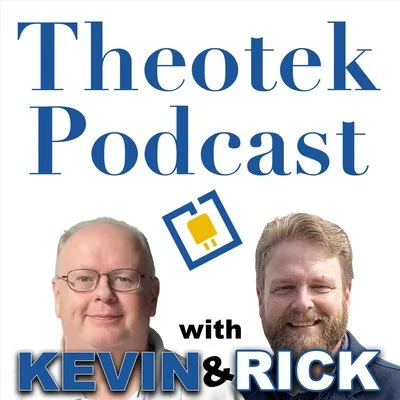
Everyone wants to achieve a level of productivity in ministry. Recently the Theotek podcast covered this subject with 6 tips for ministry productivity. We didn't cover things like use To-Do lists or the best calendar apps. That's easy to find other places. Instead, we focused on ways to make yourself more productive in ministry. These are for pastors or others serving the church on staff, as a volunteer, or in an organization that supports the church as a para-church organization.
Our 6 Tips for Productivity in Ministry comes from the latest Theotek podcast episode of the same name. Kevin Purcell and Rick Mansfield share 3 tips each to help make you more productive.
Always Have a Backup Plan
Rick Mansfield told us a story of how he used the Kobayashi Maru scene from Star Trek to cheat the system when a professor tried to test his preparedness while he was presenting in a class during his college years.
If you're using technology in ministry, ask yourselves, "What if the technology doesn't work?" Pastors need to create a backup plan. When might this apply?
- When you're preaching from your iPad or another tablet, have a paper copy of the sermon notes.
- If you plan to teach using a visual presentation, make handouts if the tech doesn't work.
- While driving to a new location, use GPS on your phone. How will you get to where you're going?
Productivity in Ministry Using Bible Software
Use your Bible software's research tools to quickly search for all the content related to your preaching passage. Here's what that means in the top Bible software research programs.

- Accordance - Info Pane shows your passage in your Commentaries, Topics lists, Word lists that you can search, Study Bibles, your own tools that you create and then define.
- Logos - Guides that search your whole library or parts of your library depending on the guide you're using, like the Exegetical Guide (Greek and Hebrew tools) or the Passage Guide (varied tools that help you study a passage).
- Olive Tree - Resource Guide finds content for the current verse displayed in the Bible window in all of your various library tools like commentaries, Bibles, topic lists, and more.
- e-Sword - 4-pane view that shows your passage in all translations, all your commentaries, dictionaries, and notes all in tabs to show every book installed.
If your preferred Bible software isn't listed above, search your help features or comment below, and we'll try to help you find the equivalent feature in your preferred Bible software.
Learn Your Professional Tools Like a Pro
Rick shared that pastors and ministers should learn to use their professional tools like a professional. For example, if you're a preacher and you use Bible software, then take advantage of the high-quality training available for free from companies like Accordance, Logos, and Olive Tree.

- Accordance offers excellent live webinars, and if you participate, you'll also get some discounts on new books or resources.
- Accordance also has what they call eAcademies, which show practical ways to use Accordance Bible software in topics related to the software. For example, they offered an academy called "Hebrew Fundamentals: The Participle" in May 2021. You can still find these online.
- Accordance Tutorials Feature built into the software shows you how to do things from beginner to advanced options.
- e-Sword has a Training page on their website. And they let you download them so you don't need to maintain an Internet connection to view their training.
- Logos has a support site too, and it includes Logos Training, which shows you how to use all the features with videos.
- Morris Proctor is the official trainer of Logos and he hosts live camps where users can get a crash course in using Logos. He also offers a subscription site called MP Seminars, which costs $20/month, and you can watch all of his training videos. If you would like to know more about this service, check out my review.
- Olive Tree doesn't offer as many avenues for training. You can take a look at their Help site.
- PocketBible from Laridian has some online help at their FAQ site.
Do you use church management software? Maybe you don't have to maintain it or work with it, but you should still understand all it can do. Go to your company's website and find some training to familiarize yourself with the basic functions. Add to that your worship presentation tool.
Don't forget that you don't just use Bible, church, or worship software. We recommend two other useful sites for more common software, like your computer's operating system, creative editing and creation software, and your office suite. First, YouTube is free. You can probably find some videos teaching you how to use your software. Second, take a look at LinkedIn Learning. It used to be called Lynda Learning, named after the founder. They host extensive, professional videos on using all kinds of tools like Adobe products, Microsoft products, and more. It cost about $30/month.
Remember the 4th Commandment
Remember the Sabbath day, to keep it holy. Six days you shall labor, and do all your work, but the seventh day is the Sabbath of the LORD your God. In it you shall not do any work, you, or your son, or your daughter, your male servant, or your female servant, or your livestock, or the sojourner who is within your gates. For in six days the LORD made heaven and earth, the sea, and all that is in them, and rested on the seventh day. Therefore the LORD blessed the Sabbath day and made it holy.
Exodus 20:8-11
Few pastors or ministers would consider killing someone or having an affair. They'd be embarrassed to learn that someone discovered they lied or lusted or coveted their neighbor's wife. We would never admit idolizing any other thing as a god. However, we seem to brag about working too hard and neglecting the 4th commandment.
We pastors and ministers almost brag about neglecting weekly rest, relaxation, and recharging as the 4th commandment intended. God rested to remind us we need it. So rest regularly. Unplug and disconnect from anything that gives you stress.
How can tech helps us keep the 4th commandment? First, don't answer your phone or text messages unless they are immediate emergencies. In other words, when a member is on a deathbed, you probably need to jump into ministry mode. For example, suppose the youth room has a toilet leaking. You might need to rush to the church building. However, if a member wants to complain, they can complain in your office on Monday afternoon or after the midweek prayer time. So, use your phone to schedule meetings and set reminders.
Use your phone or tablet to find ways to schedule or plan vacations or weekend day trips on Saturday or on Monday.
Can you think of other ways that tech will help you rest, relax, and recharge weekly? Let us know in the comments below.
When Possible Don't Let Tech Replace In-person Ministry
People who enjoy or love technology let it replace face-to-face ministry. For example, during Covid, we had to separate and use Zoom for meetings or make calls instead of visit people in their homes or at the hospital.
Now that most of the Covid restrictions are living, we should try to minister in person. Don't let tech replace personal interactions.
Find Extra Time During Time-Wasting Activities
This sounds crazy, but you waste a lot of time that robs you of productivity in ministry like...
- Waiting in the car to pick up the kids
- Driving down the road
- Waiting for someone to arrive at a meeting
- Sitting alone at lunch, breakfast, supper, or snack time

You get the idea. Use these times for more than checking email, Twitter, or Facebook. Always have your phone ready to open to a book or your current preaching passage. Take five minutes to do some word studies. Highlight, take notes, clip content, or copy/paste to a note document so you can later find the research.
You can also listen to books from Audible or even audiobooks in Bible apps. I seldom turn on my radio in the car. Instead, I hooked my phone up to the Bluetooth in my car and mounted a Magsafe Apple Charger. I snap my iPhone 12 Pro Max onto the charger and unlock the phone and open up my audio listening app of choice.
The worst time sucks for audio include podcasts that aren't productive. Find good sermons or leadership podcasts. Or listen to books that don't need your eyeballs to gain benefit. I love biographies, history books, and stories with redeeming quality.
How to Subscribe to Podcasts in Your Favorite App
If you want to enjoy the new Theotek podcast, we'll show you how to subscribe to podcasts in various apps or with an RSS link.
You hear a lot about podcasts, but how do you listen to them easily without going to the podcast's website? We'll look at how to subscribe to podcasts in your favorite app, like Apple Podcasts, Google Podcasts, Spotify, or my favorite, Pocket Casts.

Listeners can easily subscribe to podcasts by opening their podcast app of choice and search for it. If you own an iPhone you have an accept podcast app already. Apple Podcasts come installed on your iPhone. If you removed it or it's not there, just search the App Store on your iPhone or iPad and download it.
How to Subscribe to Podcasts in Apple Podcasts

Fire up the app, hit the Search tab in the lower right corner, and type in the Podcast title. If you type in Theotek, it should be the first one on the list, but the jerks at Apple prioritize other shows not named Theotek, so slide right to find it. Tap the cover art as seen above and then hit the three little dots menu button in the upper right. Choose Subscribe.
How to Subscribe to Podcasts in Pocket Casts

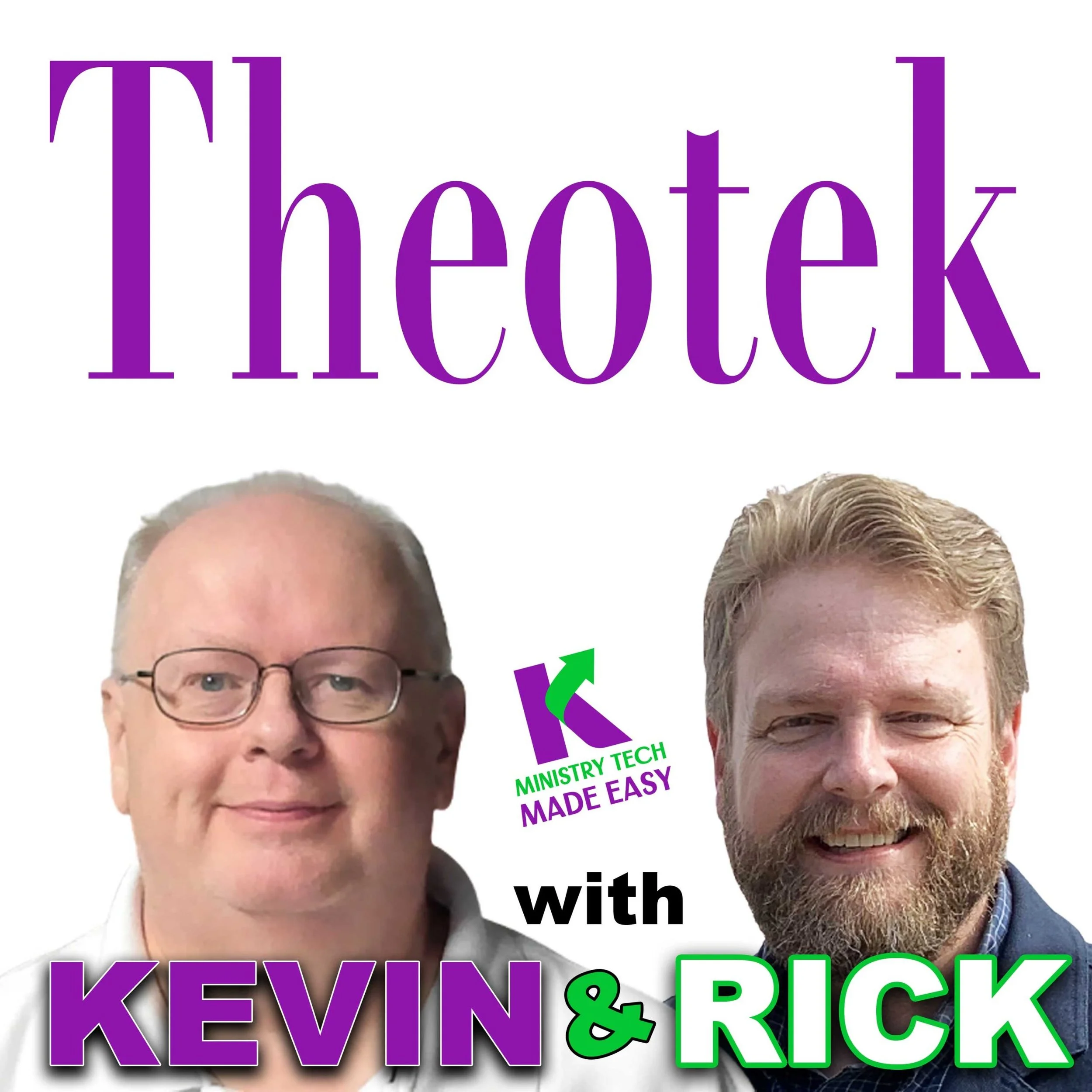
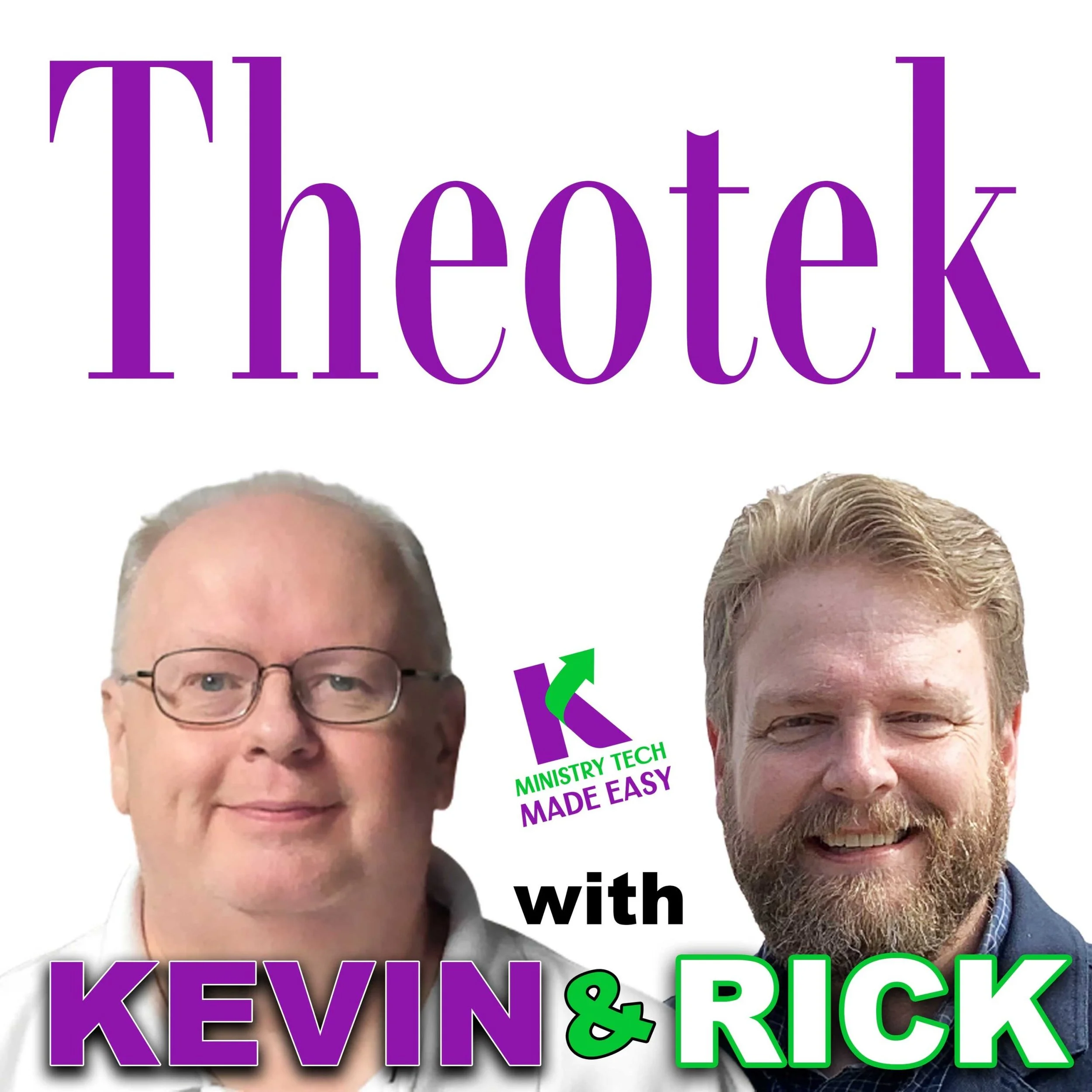
My favorite podcast app works so much better than Apple's app. Pocket Casts finds the right Theotek podcast when you search the title. Open it up and tap on Discover instead of Search like you did in Apple Podcasts. Type in the tame Theotek or another podcast title. Tap on the cover art that shows our faces and hit Subscribe.
I don't use Google Podcasts or Spotify, the other most popular apps. Unfortunately, the Google Podcast app doesn't find the right Theotek podcast. It finds the old one that we used to host on our website. So you'll need to use this link to subscribe to Google Podcasts from the web. Here's a link for the podcast on Spotify.
How to Subscribe to Podcasts Using the RSS Feed Link

If you want to subscribe to the Theotek podcast or any other podcast using an RSS feed, then you'll need to find the feed link for the podcasts. For example, here's Theotek's RSS feed link.
https://anchor.fm/s/4739b4e8/podcast/rss
You can also go to the Anchor.fm website to find links to your favorite Podcast service.
Every podcast has a unique URL called an RSS feed. A URL is a website address like www.kevinpurcell.org for this site. However, an RSS feed tells a Podcast app or an RSS reader important information to find a new episode of a podcast and tell your podcast or newsreader to get the new episode.
I use an app called Pocket Casts. The app finds every episode each time the app sends a message to the website asking if there's new content. If there's new content, the RSS feed replies saying, "Yes. We have a great new episode, and you can download it at this address."

Using Pocket Casts, users can add a new RSS feed by going to the Search tab and paste the RSS feed into the search field. Hit the Search button, and it will show you the Podcast. Tap it to go to the page. Tap the Subscribe button in the upper right corner.
Other apps or services have similar methods of subscribing to a podcast. For example, Google Podcasts allows you to add them on the website - podcast.google.com.

In the upper left corner of Google Podcasts website, you will see a link that reads + Add by RSS Feed. Click it to add the podcast RSS feed URL manually.
How to Add a Podcast RSS Feed Link to Apple Podcasts

Using Apple Podcasts, you can subscribe with an RSS feed too. Tap on the Library tab at the bottom of the page. Then find the Edit button in the upper right corner. Tap it and select Add a Show by URL... at the bottom of the list.
The New Theotek is Back - Find Out Where You Can Listen
The new Theotek is back. This time we're going all-in with an audio podcast only. No video this time around. Find out where you can find us and what's included.
The day you’ve all been waiting for arrived this week with them new Theotek Podcast. I don’t know if it’s 2.0 or 3.0. In fact it might be the fifth iteration. But this time it’s better than ever, simpler, shorter, worth your time. Read on to find out how to find it, what you can expect from each episode, and who you’ll hear as you listen.

Theotek: the New Format and Who’s Included
The original Podcast was a live video format on Google Hangouts that we then saved to YouTube. You can still watch those old podcasts on YouTube. Sort by date and you'll see the videos about 3 years ago.
We also did the podcasts in audio form here on this website and you could find it on Apple and other places. That’s now dead, but they are still available.
For the new Theotek, we're going all-in with an audio podcast. Will we ever go back to video? We'll see. If enough of you ask for it, then sure. We might. For now, it's all audio, and we're hosting it on Anchor.fm.
Now you’ll want to subscribe to the new podcast using many different platforms. Use one of these links below or search for the podcast by Title. If you do that, be careful not to select the old one. The old one is called "Theotek Podcast" with my name under the title, and it's not separated, so you'll see it as KevinPurcell. Don't subscribe to that one. Instead, look for just Theotek, and my name reads as "Kevin Purcell" separated.
This time around, there’s just a pair of us. I’m one host, and Rick Mansfield from Accordance Bible Software will join me. We will occasionally add some of our friends who helped us create the old Theotek Podcast.
Where to Find Theotek
Here’s the list of links to use to subscribe on your chosen platform:
![Accordance 13 Upgrade with 8 Exciting New Tools [Video]](https://images.squarespace-cdn.com/content/v1/690ba83ee90436386a0306e7/1762379317898-OE0KTDPYUU970RNR91MB/image-asset.jpeg)
Accordance 13 Upgrade with 8 Exciting New Tools [Video]
Accordance Bible Software recently updated their advanced Bible software to Accordance 13. It comes with some incredible new features to make this powerful Bible software package even more useful. Check out the brief descriptions of 8 new features demonstrated in the included video. Mark Allison and Rick Mansfield joined me on Theotek on Youtube.
Accordance 13 Upgrade Demo Video
Accordance 13 Dark Mode

The upgrade to macOS 10.15 Catalina included something called Dark Mode. Accordance adopted this with their software. If you love Dark Mode on a Mac then you'll likely love it in Accordance 13.
The way the company implemented Dark Mode lets you customize it so that if you don't want it in certain places you can turn it off. However, by default the entire user interface will show in Dark Mode when you turn it on.
Dark Mode does not work yet in the Windows version of Accordance. But it should come soon.

To turn on dark mode in Accordance you'll need to first turn it on in macOS System Preferences. Open System Preferences from the Dock or from the Apple Logo in your menu bar. Click on General and then click on either Dark Mode to turn it on all the time. You can also use it only in dark environments by using the Auto setting next to Dark Mode.

Now go to Accordance 13's settings from the Accordance menu in the upper left on your menu bar on your Mac and click on Preferences. Then open the Appearance setting screen in the list on the left of the preferences box. Now click on Automatically adjust to system dark mode. This will turn on Dark Mode if you turn it on in the Mac System Preferences. When you set this preference, it will require you to restart Accordance before it takes effect. Choose the Restart Now button unless you want to wait to apply it the next time you launch the program. After you click Restart Now you will have to click on the OK button to restart the program and you'll see the new Dark Mode.

6 New Themes in Accordance 13
Accordance 13 also adds new themes. These change the coloring and fonts used in the user interface. You can't choose these new themes if you keep the program in Dark Mode. The new Themes will work on Windows.
Switch to a new Theme from the same Appearance screen in Accordance Preferences. On Windows it will show up on the Edit menu. On Mac it's in the Accordance Menu.
Click on the General Theme drop down box (see image above). You'll see 6 options. Click on one and click the Preview button. Now you'll see the new theme applied.
Search Inside Accordance 13 Preferences

The Accordance 13 Preferences contains hundreds of options that the user can change, but finding them can get difficult. When you type in the box it starts showing possible entries guessing what you want. You can click one of the entries in the drop down list and it takes you to that page in the program's Preferences.
Built-in Accordance 13 Tutorials

Accordance has a vast array of Built-in Tutorials ready to help you learn to use the features in Accordance 13. In Windows, click on the Help menu and find Tutorials. A fly out menu shows up with a long list of them. In the top you will see them grouped by Difficulty level. Click on Easy, Intermediate or Advanced to see more Tutorials based on t hose levels of skill.
Below the Difficulty section you'll see them grouped by Topic. Click on a Topic to see the Tutorials related to that Topic.
Highlighting in Accordance 13

The new Highlighting feature brings some exciting new ways to mark up your Bible. You'll see the same old highlighting colors and icons, but now you've got some new ways. You can even use an Apple Pencil, if you own one. We'll show you how below.
Click on the Highlight toolbar button to open the dialog box. On top fo the box you'll see buttons for Highlighter, Pen and Eraser. The first one, called Highlighter shows your usual tools for highlighting words and verses.

The second one is labeled Pen. lets you draw circles and squares to name a couple. The program detects what you're drawing and cleans it up to make it look pretty. Then, if you want, you can also draw straight or curved lines to connect words. You can also draw arrows.
The lines and shapes can get challenging to draw accurately with a mouse or trackpad. A Windows machine with a Pen, like the Surface Pro, might make this easier. You can also use the new Sidecar feature in macOS 10.15 Catalina if you have a recent model Mac and iPad with Apple Pencil.
Eraser does as it says - erase your highlighting. Click it to get rid of hour highlights.
Highlighting Whiteboard Feature

Another Highlighting tool lets you draw all over the place like a whiteboard and marker. These don't get saved, but you can use this to teach with Accordance displayed on a screen or by recording your screen and uploading the video somewhere.
Turn on Whiteboard by checking the little box labeled Whiteboard Drawing to the right of the drawing color options in the Highlighting dialog box. After your done, you can clear the drawings by clicking on the Clear Whiteboard button.
To save the videos do a screenshot and then add that image to an Accordance Note. I'll create a video on this soon, so check back on this page or my YouTube channel for that video.
Accordance 13 Text Search Command

The Text Search command is a new way to enter special search features in Accordance 13. This helps you find things in your grammatically-tagged texts like the grammatically tagged Greek New Testament or BHS Tagged Hebrew Bible. This especially benefits users who don't know Greek or Hebrew because they can search for grammar tags while they're in an English text.
First, open a English Bible with Greek or Hebrew tags like the ESV with Strong's. Then open the Text Search box.

To open the Text Search Command box, go to the the Search menu and find Enter Command in the menu. A fly out menu shows up with Text on the list. Click it to open a new dialog box. Or you can use the Shift+Command+T to open the box.
Now you can use this to search by adding commands to help you find things based on grammar tags. The drop down box at the top lets you search in various Bibles. Pick a Greek or Hebrew Bible with grammatical tags like the Greek NT Tagged.
Now you'll see that both the Enter Command and Enter Tag boxes are active. They are drop down boxes that let you add either kind of search feature to the search box. Perform your search now using one or both.
Accordance 13 Amplify to Constructs
There's another new way of searching called the Amplify to Construct feature. This feature lets you create really complex searches using a graphical user interface.

Access this feature by selecting the some text that you want to search, like "God of peace" found in Romans 15:33. Select it and right-click and choose Construct and then choose one fo the four options. You will only see Word if you are using an English Bible with only Strong's tagging. You can also find this by using the Amplify menu and choosing Construct.
This opens a new dialog box that lets you change the search and add more features to your search. We don't have to room to show you all that this can do, so be sure to watch the YouTube video at the top where Rick Mansfield demonstrates the feature more in depth.
PDF Import in Accordance 13
Now users can import their PDF documents into Accordance 13. This is not perfect but works well with simple PDFs.

Import a PDF document by clicking on the User Tool button on the tool bar. If you don't have it, add it by right-clicking the tool bar and drag the button to the tool bar. A menu pops up and you'll choose Import... from the list.

Users can also import using the New menu. Click it and choose Import User Tool....

Regardless of which method you use to start the import process, it will open a new Import to Tool dialog box. In the drop down box at the top select PDF and then OK. The program will give you a copyright warning. Click OK and find the file on your hard drive.
After it imports the Accordance 13 displays the new User Tool. You can edit it just like you do any other tool or your notes.
Mouse Over Highlighting Between English, LXX and Hebrew Bible
Now with Accordance 13 you can open an English text with tags, a Hebrew Bible and the LXX and as you select a word in Hebrew it will show you that word in the other two.

Open a tagged Hebrew Bible, a Septuagint that's also tagged, and an English Bible with tags. Then hover over a Hebrew word and see what word that corresponds to in the Greek and English.
This helps users study Hebrew and Greek words even if they don't really know Hebrew or Greek.
Creative Tools for Ministry: Theotek Podcast #103
If you work on a website for your church or ministry or if you create images, videos or art for worship, then this podcast is for you. We talked about the creative tools that we use and what we think of Adobe's recent update to their Creative Cloud suite. Plus watch the podcast to find out about alternatives if you don't like the subscription model of paying for your creative apps.https://www.youtube.com/watch?v=PC-1vkB5TsQIf you're interested in the new tools from Adobe, check out their website to learn more. We talked mainly about photography programs Lightroom and Photoshop since that's what we use most. But the other apps got some love and they added a new subscription storage option.
Alternatives to Adobe Creative Tools for Ministry
 MacPhun does a great job with some of their new apps. They now offers something called Luminar 2018 and it works on both Mac and Windows. Luminar does Raw photo file editing. It has the advanced features of Photoshop and Lightroom built into Luminar. Pre-order for $60 or upgrade from $40. And for HDR tools check out MacPhun's Aurora package. These are both great creative tools for ministry.For iPad and Mac users Pixelmator does a nice job. They also will offer Pixelmator Pro which give you a single window interface and it does what it does really fast. It's not as good at text and Lightroom may do a better job with some adjustments, but the app on iPad and on Mac is a great option.
 Final Cut Pro from Apple is an expensive alternative. It's a one time only fee, but the price is $300. However, that's 6 months of the Adobe Creative Cloud subscription. It only runs on a Mac.
 LumaFusion on iPad gives the user a great user interface, a powerful video editor and lets you edit with a finger. That gives me precision editing that I can't get with my mouse. It includes a multi-track editing interface. You can have 3 tracks for video, audio and images. Then add 3 more audio tracks for things like voice overs or music.Most people think of Camtasia as a screen recorder. It is, but it also allows for simple video editing with simple titles and call-outs. It's great for creating videos of software.On the audio editing side of things Adobe offers Adobe Audition. However, Ferrite is in iOS audio editor that we can use for some great audio projects.For Windows and Mac, use the free and open source program called Audacity. It's powerful and simple at the same time. The supporting community makes a lot of plug-ins.On the Mac there's Sound Studio by Felt Tip Software. It's an excellent option for sound creative tools users.Those who need to create websites might user Dreamweaver form Adobe. However, we mentioned a few alternatives for web design.
- WordPress is a content management system and a web host, although you can self host using the files from WordPress.org.
- Rapid Weaver for Mac is the most like Dreamweaver. It's a piece of software on your Mac that creates websites.
- Squarespace is like WordPress because it's a content management system. You'll have to use their servers as your host and it costs a little.
Our Favorite Things
We've got a few more recommendations. We always offer "Our Favorite Things" which are recommendations from the Theotek team. Here's the list of Our Favorite Things.https://www.youtube.com/watch?v=wUuSYpW4ZIoAntoine visited the National Museum of African American History and Culture in Washington DC. Here's their own description of the museum.
The National Museum of African American History and Culture is the only national museum devoted exclusively to the documentation of African American life, history, and culture. It was established by Act of Congress in 2003, following decades of efforts to promote and highlight the contributions of African Americans. To date, the Museum has collected more than 36,000 artifacts and nearly 100,000 individuals have become charter members. The Museum opened to the public on September 24, 2016, as the 19th and newest museum of the Smithsonian Institution.
 People who need a great text editor for Mac will love BBedit. Mark Allison recommends it for text editing and for programming.Rick didn't recommend the Samsung Galaxy Tab S3 he got to test out Accordance Bible on Android because he hates the limitations of Android tablets and Samsung's launcher. Samsung puts an overlay on top of Android called TouchWiz on his tablet and now it's called Samsung Experience on their latest phones. Since he does a lot of the training for Accordance, he wanted to share his screen to record help videos for their new Accordance Android app. Samsung doesn't let you connect an HDMI adapter like other devices. So he found a tool called AirServer Connect in the Google Play Store that lets him share the screen to Reflector. It tricks Reflector into thinking the Android device is an iPad or iPhone. Reflector tricks the device into thinking your computer's an Apple TV. There's also a version for iOS and on the Amazon App Store.Wes decided to "waste time" with his pic. He chose the Stranger Things video game based on the hit Netflix Original series that recently released in season two. It's a fun time waster on Android and iOS.
 My pick this week was the new Kindle Fire. I got the 10-inch version, but they offer an 7 and 8 inch mode. It's faster than the earlier version and seriously fun. You can also install the Google Play Store with some tricks found here. The 10-inch starts at $150 but you can get the 7-inch for only $50 and the 8-inch for $80. They have a durable 7-inch version for kids that starts at $100 and comes with a 2-year warranty that lets you replace it even if the kid drops and breaks the screen. I really love mine.
iPhone X First Look: Theotek Extra
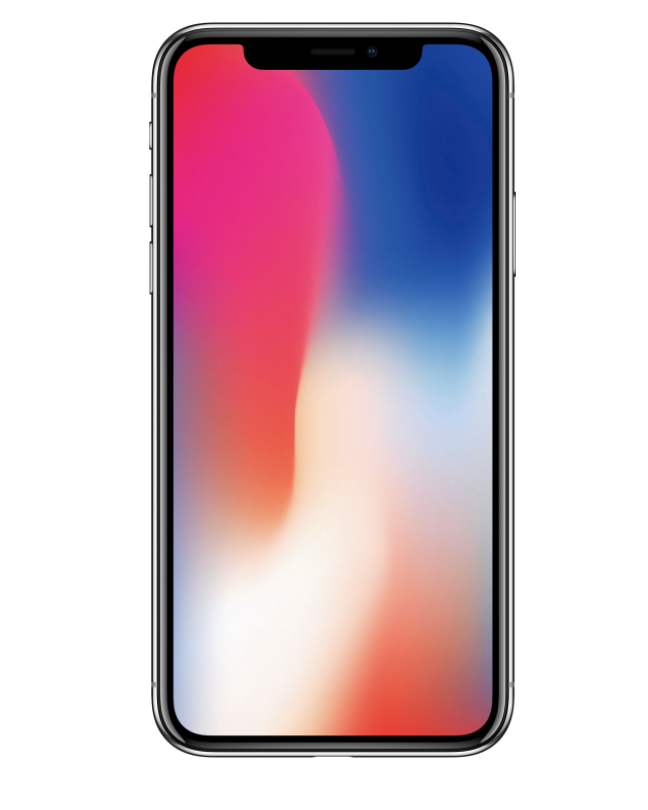
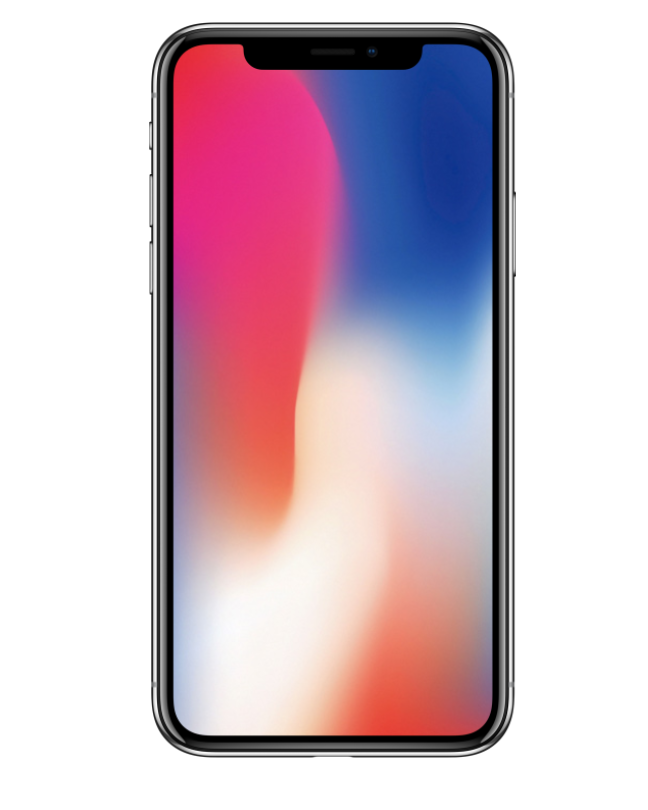
Rick Mansfield got in line early on launch day and snagged an iPhone X. We wanted to get a look, so we recorded this Theotek Extra. Here it is for your enjoyment.

Made by Google: Theotek Podcast #102
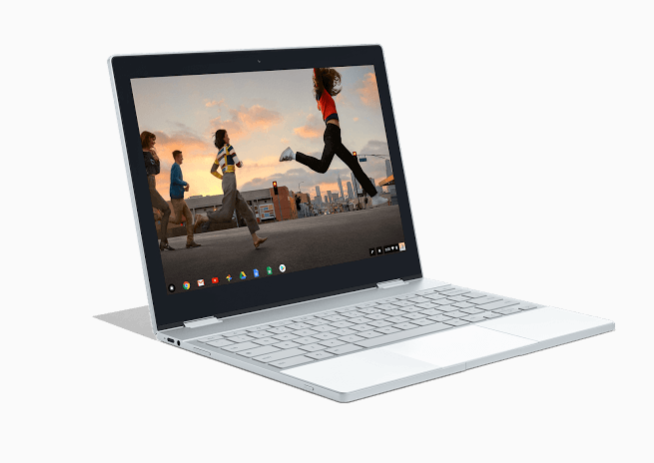
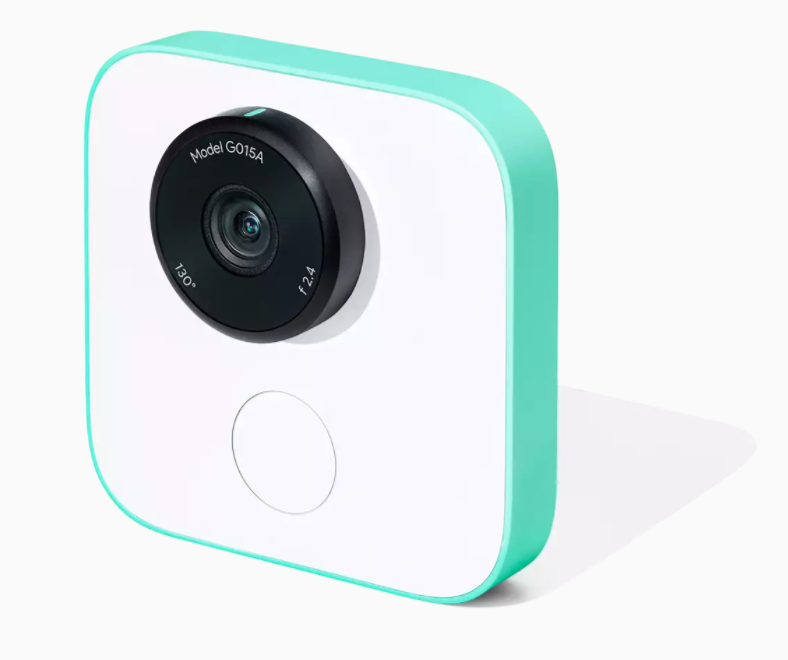
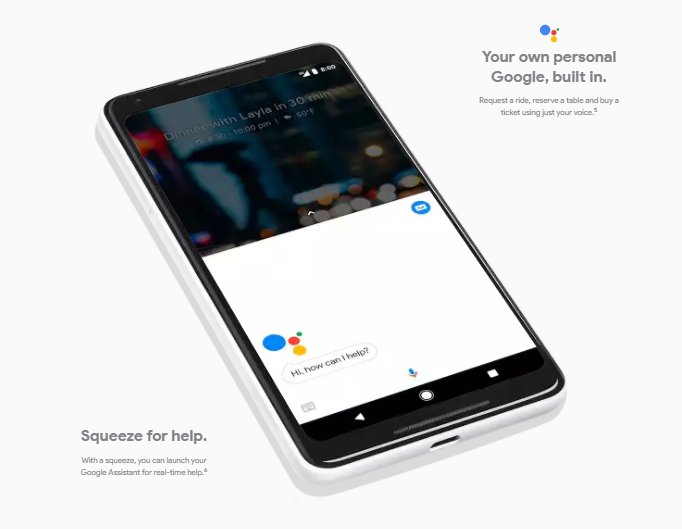
Google took to the state and announced a slew of new gadgets for geeks like us to drool over. In this episode of the Theotek Podcast, we talked about the new Google tools. We had some strong opinions about them so watch below or listen at the bottom of this post.https://www.youtube.com/watch?v=qYi0yivQRToIn all Google announced some phones, a new Chromebook, a few new Google Home devices and other accessories. Here's the list of the products with links to the Google device store pages for each item.
New Google Products
- Google Pixel 2 and Pixel 2 XL Phones - $649 for the smaller Pixel 2 and $849 for the larger Pixel 2 XL
- Google Home Mini - $49
- Google Home Max - $399
- Google Pixelbook Chromebook - $999 for the 128GB drive model with 8GB or RAM and a 7th Gen Intel Core i5; add $200 for 256GB drive and $650 for 512GB and a Core i7 processor; also add $99 for the stylus.
- Google Daydream View VR Goggles - $99 for new version
- Google Clips Camera - $249
- Google Pixel Buds Bluetooth Earbuds - $159




Apple iPhone 8 and iPhone X Announced: Theotek Podcast #101

Apple announced all their new gear a couple of weeks ago. Our team talked about the new iPhone 8 and iPhone X. We'll also talked about Apple TV and Apple Watch. Watch below or listen at the bottom of this post.https://www.youtube.com/watch?v=xMlSkcDIFEQ
Apple Products Pricing and Availability
- Apple iPhone 8 and 8 Plus - starting at $699 and $799
- Apple Watch Series 3 - starting at $329 or $399 with LTE
- 4K Apple TV - $179 with 32GB or $199 with 64GB
- Apple iPhone X - preorders go live on October 31 and ship November 3 for $999
Should You Upgrade?
Should you upgrade? That's the big question that people should answer. Here what our team recommends.From LaRosa Johnson...
Upgrade only if you can afford to buy it outright and your current phone is no longer working.
From Wes Allen...
If your phone is still functioning and allowing your workflow without getting in the way then, there is no need to upgrade. If you want to push the limits and want to pass on an older phone to someone while it’s still useful, then an upgrade can be a good idea.I have a 4K tv and am not getting the new unit. Also, I’m very happy with my 6s plus
From Rick Mansfield...
I can only speak for myself. I won’t upgrade to the new AppleTV because I don’t have a 4K television. If my current gen 1 Apple Watch ever gets lost or if the battery does not last the full day for multiple days in a week, I will get the new one with LTE. I’m getting the iPhone X because I’m in the Apple Upgrade program (so why not?), and I can legitimately write it off on my taxes because I use it for work extensively.
From Mark Allison (the new guy) ...
I had an Apple Watch Series 1 and liked it a lot, but sold it to buy a Garmin Fenix 3, that was a more capable watch for the things I like to do - hiking, mountain biking and other outdoor activities. The new Apple Watch includes an altimeter, which means it can record elevation accurately. It’s also water-resistant, a feature added in the last version of the watch, which makes it a more compelling upgrade for outdoor enthusiasts. I’m not happy about paying $10/month for the LTE version. Paying $120 a year for a watch adds up. Still, it’s nice to be able to make a call without a phone, and the call quality is supposed to be excellent.I have an iPhone 7, and I’m not planning on upgrading. iPhone 8 doesn’t have enough compelling features (in my mind). The iPhone X looks nice, but I’m more inclined to wait a year until they have all the kinks worked out. That’s saying a lot, because I typically get any new phone that Apple introduces. I guess I’m just happy with the iPhone 7 and don’t feel a strong compulsion to spend the money for features I’m not excited about.I have the original AppleTV and the newer one too (not the 4K version). I don’t have a 4K television, so it wouldn’t make much sense for me. If I had a 4K TV (and when I purchase one, it will have HDR, which I’m more excited about than 4K) I’d certainly get the latest version of the AppleTV.
 Here's my take. I love the latest greatest and am often upgrading faster than I ever need to, but the iPhone 8 is so boring an upgrade that I have no interest in it. I'll stick with my iPhone 7 Plus. The iPhone X is a terrible design. I hate the "notch" and think it's a ridiculous mistake. It's a rip off of the Samsung Galaxy S8+ with the Apple logo and all the cachet that goes with that. For some, they want the latest greatest Apple phone and can afford it. That's Rick's stance above. For most of us we should probably not upgrade if we're being frugal and good money managers. LaRosa said only get it if you can pay outright for it. At $1,000 for the X and $700 or higher for the 8, that's few people.As for the Apple Watch, only get one if you're an iPhone user and want a smartwatch and don't already own the earlier generations of Apple Watch. Same for the Apple TV.Remember that if you have an old device, sell it yourself on eBay, Craigslist or Facebook. Don't sell to the device trade-in services like Gazelle. Selling yourself is a pain, but you'll get more money. You'll often get enough to buy the new phone for half or even one-third the cost using the money from the sale of your old device.
WWJD at Apple WWDC 2017: Theotek Podcast #100
Our team talked about the Apple WWDC 2017 in our 100th episode of the Theotek Podcast. WWDC stands for World Wide Developer Conference and at this event Apple reveals their new plans for iOS and macOS as well as other interesting tidbits. It's for developers, but a lot consumer-focused information often hits the newswire after the keynote event that opens the conference. In this episode we talk about tvOS, which powers the Apple TV, as well as watchOS 4 for the Apple Watch. Then we discussed macOS High Sierra and MacBook Pros, iMacs and iMac Pros powered by the new updated operating system. Next, we discussed iOS 11, the new operating system that will run iPhones and iPads. Apple revealed a new iPad Pro with a 10.5-inch screen so we all discussed that as well. Finally, we covered the new HomePod Sierra speaker coming out this year just in time for Christmas.
 Watch the video from YouTube and of course, subscribe to your YouTube channel if that's your preferred way to enjoy Theotek Podcast. You can also scroll to the bottom of this post to listen to the audio version or click on our link in the menu to find out how to subscribe to the audio version.https://www.youtube.com/watch?v=piOPv5vzMIIAlso, if you want to watch the full Apple WWDC 2017 Keynote address, here it is.https://www.youtube.com/watch?v=oaqHdULqet0
Summer Hiatus
We're taking a summer hiatus. We might do some Theotek Extra Podcasts, but there won't be a regular Theotek Podcast with Wes, Rick, LaRosa, Antoine or Kevin until August. Our relaunch will likely take place in August or September.
Bible Software Training: Theotek Podcast #099
If you're a Bible software user, then you'll want world-class training on how to use your software like a master. We'll give you advice on how to best improve your skills and learn to use whatever program you prefer whether it's a Bible software program on Windows, Mac or an app on your smartphone or tablet.https://www.youtube.com/watch?v=g3oc3PkmbA8We started out talking about getting training direct from the software maker's website. For example, head over to the Accordance Bible Software website to find their large college of podcast, visual training offerings and even webinars or live seminars in your area. Other sites have them as well so go to your program's website and look for a support link or training link.Your next stop should be the company's support forums, if they have one. For example, one of the most active forums for a Bible software company comes from the Logos Community. You'll find an active collection of users ready to help out quickly. They get a little prickly if you complain about Logos, but they do like to help new users. Accordance has a good community too. Many of the others offer one as well. If you can't find the help you need or just want to learn more, then check out the in-software help files. They will open a great set of help files in most of the packages. Rick bragged that Accordance won an award for their in-app help system.
 It's not as easy to find the in-software help in Logos. If you click the Help menu button on a Mac, you'll find nothing. It's only there to conform to macOS menu standards. They should make it link to their help online or something. Instead click on the Home button in the upper left and then click on the Question Mark in the upper right. See the screenshot above.Another good place to look for help on Bible software is third-party sites like Udemy, which has a great set of Logos Help videos for a low price. If you use Logos, look into the Logos official trainer's Morris Proctor Seminars for help. They're not cheap, but he's talented. There's also LearnLogos.com.Finally, ask us. We like to help viewers and listeners. We're busy guys, but enjoy helping out when we can so send us an email using the contact info in our page about the Theotek Contributors.
Getting Fitness with Tech: Theotek Podcast #098
Our team all uses tech of some kind to track fitness and such. We'll talk about what we use to get fit, stay fit and track our health from fitness tracking watches to apps for calorie counters and devices we connect to our phones for keeping diabetes in check, at least for two of us.https://www.youtube.com/watch?v=YJwvVL1MIr0Sorry, no show notes with links. Just had to get this one up and it's been really busy as ministry happens!
Your Questions: Theotek Podcast #097
We take questions from our viewers and listeners in this week's episode of the Theotek Podcast. We won't list them or anything, so just watch the video below to enjoy those.https://www.youtube.com/watch?time_continue=3760&v=v-l35I8SB5A
Our Favorite Things
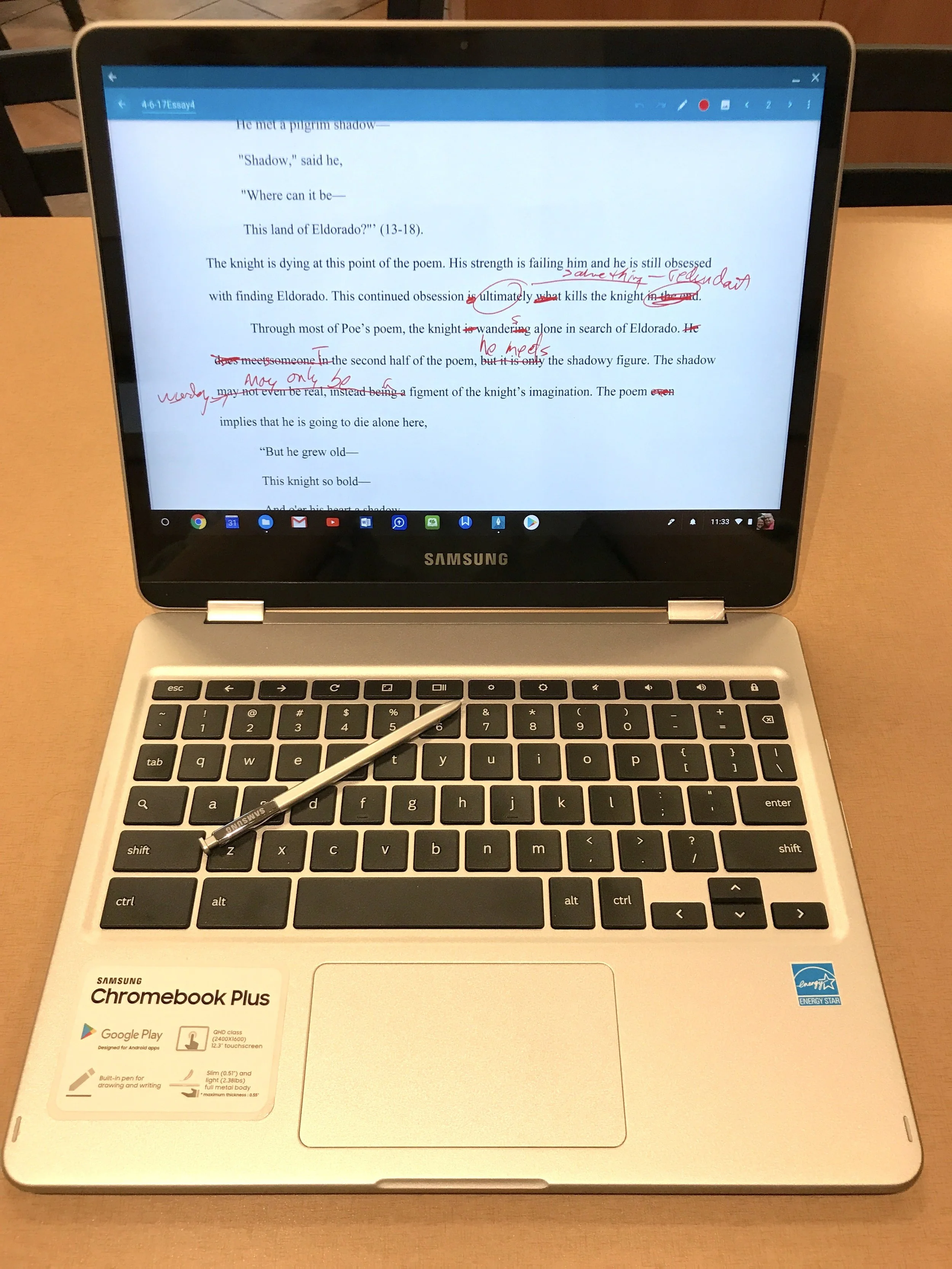
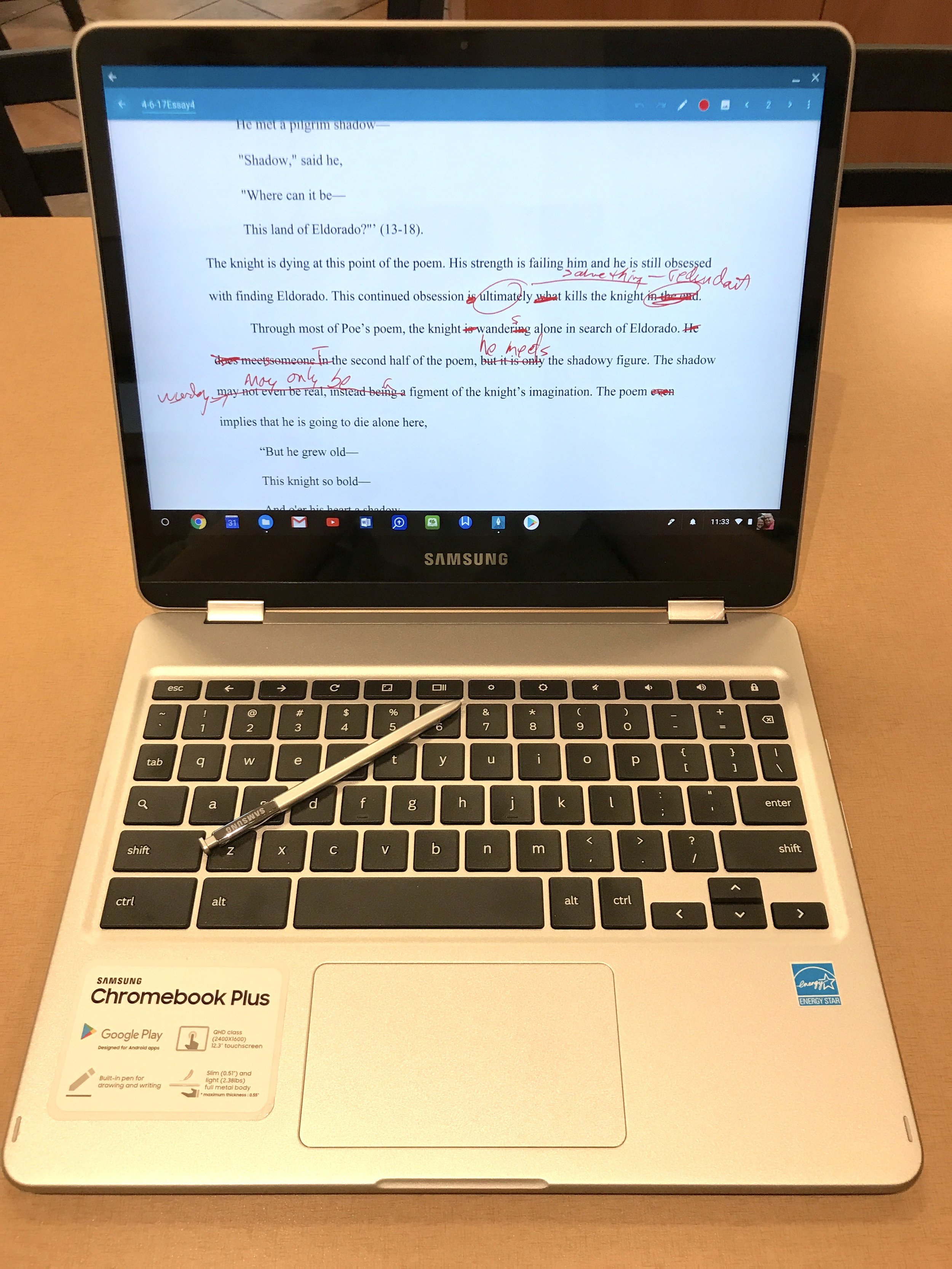
 I had two favorite things this week. The first is my new Samsung Chromebook Plus. I've got a full review over at GottaBeMobile.com. I love this Chromebook, partly for the great hardware quality and for the S Pen feature. You can use it as a tablet and take notes with a fine tip.
 The other favorite thing is a Mic I'm reviewing. It's the Samson Q2U Recording and Podcasting Pack. It's a nice USB and XLR microphone with a useful stand and other accessories.

Digital Libraries in Bible Software: Theotek Podcast #096

With the huge libraries of books available today in Bible software and eBook readers, some people now own massive libraries. Is this a good idea?In this episode of the Theotek Podcast, we talked about that and shared reasons to avoid it as well as tips for what to do if you already own a lot of eBooks in Kindle or in your digital library of Bible software. There's also a few ways to convert eBooks so you don't get stuck with books in a format you can't use anymore because the program goes away like the old Pradis software. This includes making Kindle books from Bible software book and converting Kindle books to a less proprietary DRM-laden format. We even get a workflow for converting papers books to digital library books using a scanner and cutting the binding off books at Kinkos or other office supply stores.https://www.youtube.com/watch?v=_fXaaY-d59I&feature=youtu.be
Convert Digital Libraries - To and From
We mentioned a few things in the Podcast. First, here's the link for exporting Logos books to Kindle using the Send to Kindle printer driver. You could adapt this to work with any books in any Bible software although it may not work as easily as this system found in the Logos user community forums.Next, Wes talked about converting Kindle books to other formats. He uses a tool called Calibre to do this. Digital Trends hosts a useful tutorial on how to convert books using Calibre among other tools.
Favorite Things
 Speaking of Kindle, we shared our favorite things and Antoine picked the Kindle Paperwhite ($120) as his. He likes to use it for distraction free reading. He also mentioned using a paper Bible, something Rick agreed is a good way to do your devotions.I shared the Christian Standard Bible or CSB translation as one of mine. You can buy paper copies of it or get the free CSBible app for iOS and Android. It's also online. Accordance Bible Software published the digital book first, followed by Olive Tree. WORDsearch will offer it soon for free to all users. Logos will release it April 5. I'm not sure about other software companies plans.Rick's favorite thing was his new Logitech 922x Webcam, which he used to podcast with in this episode. Get it for under $90 at Amazon.
Fujitsu Scanner for Converting Paper Books to Digital Libraries
The Fujitsu ScanSnap ix500 does a great job of scanning books once the user cuts the spine off the book. Scan with any sheet fed double-sided scanner, like the Fujitsu. Here's my review of this great scanner from Notebooks.com.http://notebooks.com/2016/10/22/fujitsu-scansnap-ix500-review/
Live Streaming Your Church: Theotek Podcast #095
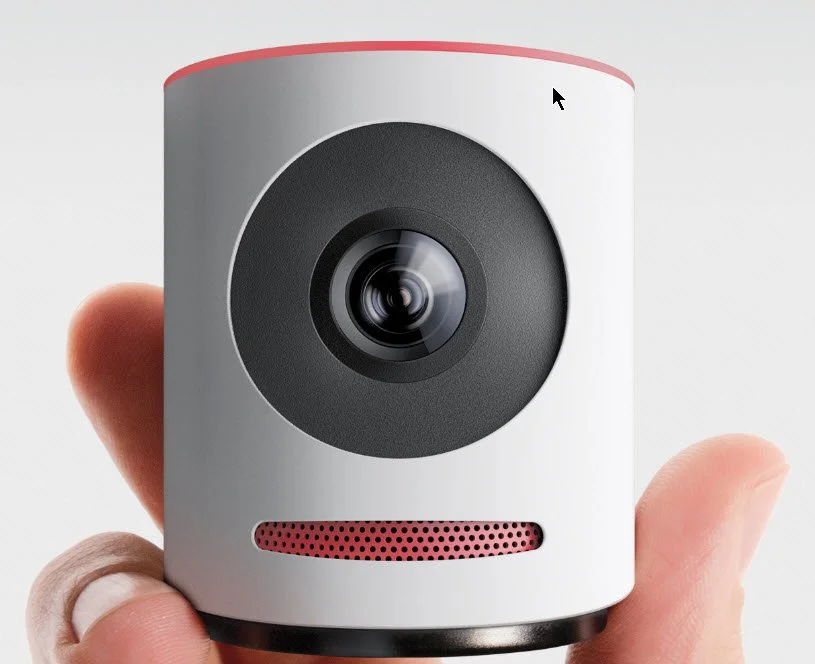
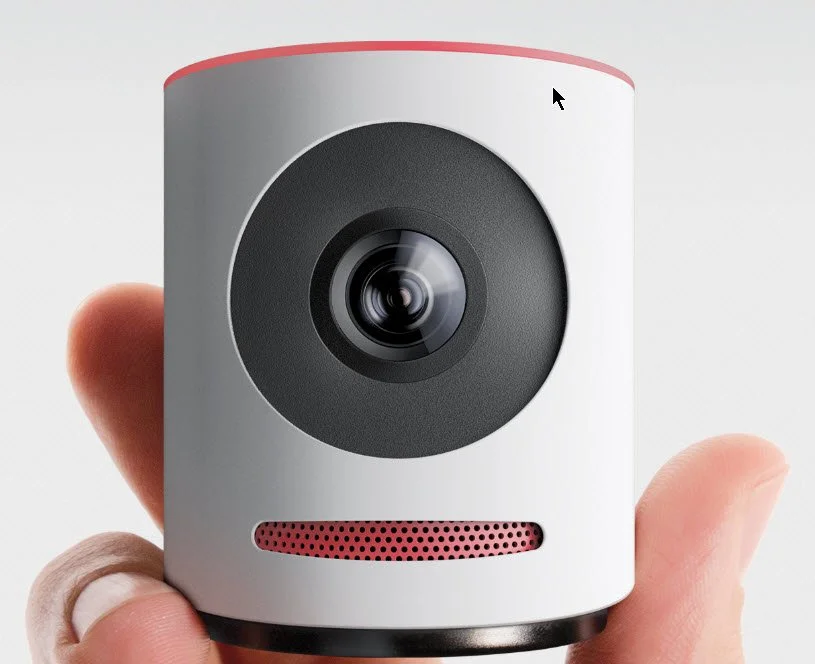
We do a live streaming podcast each week at Theotek Podcast so we thought we'd talk about whether a church should stream their services live each week. Then, we got into the best reasons to live stream and where to do it. Finally, we looked at the Mevo from LiveStream, which streams in high quality to Facebook Live and LiveStream. The company just announced a service which will live stream to YouTube as well.https://www.youtube.com/watch?v=ROkVBFKJ7LM&feature=youtu.be
Live Stream with Mevo
The Mevo camera that I mentioned in the podcast offers a great way to stream to Facebook Live and other services. The free version of the service only works with Facebook Live and LiveStream, but a paid service that costs $10/month just opened up. It streams to the following:
- Facebook Live
- Livestream
- YouTube Live
- Periscope
- Twitch
It claims to do this at the same time. I've not tried it out yet, so I can't say how well it works streaming to all five sites. I have tested it on my Facebook page and it worked well considering I don't yet fully get how to use the software.The Mevo streaming app runs only on iOS right now. They may come out with an Android version.
Our Favorite Things
For our favorite things this week, I talked about the Mevo camera. Just a few more details about the camera:
- Sony 4K Sensor.
- 12.4 Megapixels.
- 4K video resolution but streams at only 720p.
- 16:9 aspect ratio.
- 30fps streaming.
- H.264 codec.
- Dual analog mics with 65db signal to noise ratio.
- Streams audio in 8kHz to 192kHz at 8/10/12 bits.
- Inputs for audio via iPhone.
- Only works with iPhone, iPad, or iPod Touch.
- 802.11a/b/g/n Wi-Fi in either Access Point mode, which then streams through the iPhone or iPad's LTE network connection or over Wi-Fi through your local network's connection to the Internet.
- Bluetooth 4.0 used only for configuring the camera.
- Up to 1 hour battery life.
- 100Mbps over Ethernet if you get the Mevo Boost attachment which costs $249.99 and adds a USB charger and lifts the camera 6.18-inches and adds up to 10 hours of battery life.
 There's a bundle that buyers can get that includes the camera, the Mevo Boost and a case for carrying. It costs $699.97. You can get a $50 off coupon if you use this link.
BAGSMART Travel Universal Cable Organizer
 Rick shared a slightly less expensive accessory. The BAGSMART Travel Universal Cable Organizer costs less than $19 and keeps all of your cables and adapters in order in a nice zipper pouch.
Theotek Extra: LaRosa Johnson Author and Bible Software Engineer
LaRosa Johnson works for Olive Tree Bible Software helping them publish content and working on making it one of the best Bible apps on Android and iOS. He's also one of our Theotek Podcast co-hosts. We talked about his personal life, professional life and the projects he's working on outside of his work in the Bible software industry, which focuses on teaching scripture in creative ways.https://www.youtube.com/watch?v=hmWGVs28FKMYou can watch the video above and if you do, please subscribe to our Theotek Podcast YouTube Channel.Here's a list of links to things we talked about in the interview:
- LaRosa's website where you can find all of his online content.
- Devos.hiphop the devotional podcast where he takes a hip hop song and makes a devotional out of it.
- LaRosa's author page at Urban Scholar Books where you can get his great book Raw Material.
Blogging Tips and Tools: Theotek Podcast #094
Do you want to start a blog? Do you have something to say? Blogging offers a great outlet for ministers who want to share their ministry with the world or communicate directly with their church members outside of regular worship services or church meetings. No matter why you want to write on the Internet, we'll share what we've learned after decades of combined blogging experience between our four co-hosts in this week's episode of the Theotek Podcast. Watch it below or listen using the player at the bottom of this post.https://www.youtube.com/watch?v=YL0Rnd9NRLQ&feature=youtu.beIn this week's episode we mentioned a few tools. Here's the list of places to put your blog online:
Some of the tools we've used to post to our blogs include:
- Mars Edit for Mac
- Windows Live Writer - now defunct but an open source version called Open Live Writer now exists for Windows.
- WordPress app on iOS and Android
- Your browser
The following tips will help you to stay successful as a blogger.
Be Specific in Subject and Stay With It
Even if that topic is you and your ministry, stay with it. If you choose to blog about Bible verses you're studying and build an audience of people who want to read your posts about Bible passages, then throwing in a post about your favorite football team or politics might turn people off.Some bloggers start making it clear that they will post about all sorts of topics. Then the subject is their opinions. If that's what you want, great! Make it clear from the start.
Blog consistently
 On Theotek we put out about one post a week. Wes Allen posts almost every day on his blog PainfullyHopeful.me. Don't go weeks or months without a post. People will lose interest and start ignoring when you finally do post.
Include Images
 Not everyone agrees with this, but most successful blogs include images or even embedded videos. Most of the blogging software we mentioned above works fine with these media forms including JPG, YouTube Videos, Vimeo Videos, GIF and animated GIF and more.Don't just throw up a picture. Give it an ALT tag. A post from Yoast Search Engine Optimization explains what an ALT image tag is and why it's important.Posts with images and videos show up better in searches. So try to include them.

Take Note of Note Taking Apps and Tools: Theotek Podcast 090

Do you use your iPad, iPhone, Android device or Windows tablet for digital note taking? Then we have the show for you! We discussed our tools and techniques for digital note taking in this edition of the Theotek Podcast.Note taking is a very personal thing, so our crew shared their favorite apps and tools for taking notes. This includes everything from handwritten notes using the Apple Pencil, Surface Pen or a stylus, to typed notes and even some mind mapping. Watch the video below or scroll down to listen to the audio version at the bottom.https://www.youtube.com/watch?v=hdRPs50m55s&feature=youtu.be
Note Taking Apps
 The apps we use for taking handwritten notes mostly include the following:
 If you're going to type your notes then consider ...
- Evernote
- Apple Notes (part of iOS and macOS)
- Notepad (part of Windows)
- Google Keep
- OneNote
- Fargo
Wes Allen mentioned a mind-mapping app called iThoughts. Mind-mapping takes your ideas and puts them down on paper or on the screen in a graphical way using shapes, arrows and lines. Think of a flow chart for ideas. Take a look at the iPad app in action in the video below. They offer a macOS version too.https://www.youtube.com/watch?v=uNwTFPInKxI
The Best Stylus for Taking Notes
 What's the best stylus for taking notes. The first on all our lists is the Apple Pencil. It's almost perfect. For Windows users, the Surface Pen's just about as good.
 In addition we like the following stylus options:
 Adonit makes a bunch of these. The kind with the clear plastic disc at the end of the stylus doesn't work that well, so we don't recommend them. My personal favorites include the Pixel and Snap. The Snap looks like a carpenter's pencil, much like the Pencil by 53 does. It has a button that doubles as a camera shutter button on both iPhone and Android. Both of these work with both iOS and Android.
Sketchnotes
We also talked about the wonderful artwork that Antoine Wright does when he takes notes. He calls them Sketchnotes and has a whole album of them on Flickr. Here's the slide show of his beautiful notes.
Theotek Extra Live at CES 2017
Antoine Wright went to this year's Consumer Electronics Show and Wes Allen and I caught up with him during a Theotek Extra. These are shows outside or normal weekly podcast. We'll have more Theotek Extras coming soon. Here's the YouTube video.https://www.youtube.com/watch?v=-sPIQlWu2X8&t=1s

Tech New Years Resolutions: Theotek Podcast #089

Every year in January people make New Year's Resolutions, and often break them by the end of the month. Still we do it.Our team made some resolutions for our technology lives in the areas of general tech, church and Bible tech. We shared them in this week's episode of the Theotek Podcast. Watch it below and please consider clicking on the YouTube link and subscribing to our YouTube channel.https://www.youtube.com/watch?v=3g5qzUU8qqE&feature=youtu.beHere are the tech resolutions we made and shared in this video.
Wes Allen's Resolutions
Wes decided to switch his Bible reading app from the YouVersion Bible app back to Olive Tree's Bible Reader. He likes it better and enjoys not getting a bunch of unnecessary notifications like who started or finished what reading plan. He could just turn off the Bible app notifications, but he also likes the way Bible Reader handles devotional readings. The Adobe Capture CC app lets Wes capture an image and then turn it into a black and white image, which he then turns into clip art using his Apple Pencil to colorize or touch it up. So this year he's going to share them on OpenClipart.org to share with others. You can find his uploads at the site.For churches, Wes suggests they know their limitations and not try to do too much. Just because the big mega church uses the most expensive church database software or worship representation tool doesn't mean we have to in our small churches.
LaRosa Johnson's Resolutions
 We all talked about curbing the amount of tech we have in our lives. Since LaRosa just replaced his computer, tablet and watch with Apple products, he's going to put the brakes on buying new expensive tech this year. His resolution is to made do with what he has and learn to use it more efficiently.Our group suggested ways to meet this goal. Here's out list of tips for remaining satisfied with what you have and avoiding shattering the tenth commandment:
- Ask "What are you going to use it for" before buying new tech.
- Does it improve your life in a real way that you can define?
- If you can't answer these two questions definitively, then definitively say no to new tech.
- Another question to ask: Do I have something that will do this and if so why do I need this new item?
- Have a friend who can say no to your buying to keep you accountable.
The second part of his is to figure out how to get most out of what you already have. Again, here's a list of suggestions:
- What are ways I can make better use of what I have?
- Push to make them more useful by doing more with what you have.
- Use software and apps you own and become more proficient with them, like the Scrivenor app in LaRosa's case.
Third, LaRosa wants to also help others do more with their tech and software, specifically using Scrivener in his writing workflow. LaRosa wanted to suggest that churches take inventory of their online presence. He said something like this: if you're church website looks like it did in the 90s, then get it updated. Wes chimed in suggesting that people use free or low-cost services that can help them make their site look more up to date, like WordPress.com or SquareSpace.com.LaRosa then ended with the suggestion to share your sermons online using sites like YouTube or SoundCloud.
Antoine Wright's Resolutions
Antoine doesn't make resolutions, but thinks people need to just change behavior when they see need or learn to use new tools and skills as soon as they acquire them. However, some may like resolving to improve their lives at this time of year, so he still suggested some things we can do. Like LaRosa, Antoine wants to emphasize helping others in two specific areas:
- Remind people to change their passwords due to all hacking of site like Yahoo.
- Keep your eyes on what's coming in tech so you are ready for big shifts.
He also suggested that the people in the church branch out and get to know the rest of the body of Christ. We're very parochial in our local congregations, in our denominations and connecting with other members of the body can help you grow in your appreciate for the whole church and for God's people. As it relates to tech, we talked about using tech to experience new traditions even if we can't leave our churches to worship with other believers on Sunday or Wednesdays.
Kevin Purcell's Resolutions
I agreed with LaRosa about becoming more proficient with tech. I'm focusing on my Bible study software and other tools I already own. Lynda.com is one tool to help become more proficient with technology software and services.My second commitment is to get organized and de-clutter my life by organizing and getting rid of gadgets I don't use or need.Related to the above notion of changing your password, which Antoine suggested, I talked about doing a tech security audit. Make sure your Wi-Fi passwords are good and secure and change them often. Protect your computers and especially your church's membership data.
Rick Mansfield's Resolutions
Rick joined us late since he was traveling home with his roller scooter after the holidays, but he reiterated the security suggestions and also plans to pare down his tech and simplify in the new year.If you want to listen to our podcast, use the player below or subscribe using iTunes or your favorite podcasting app.