

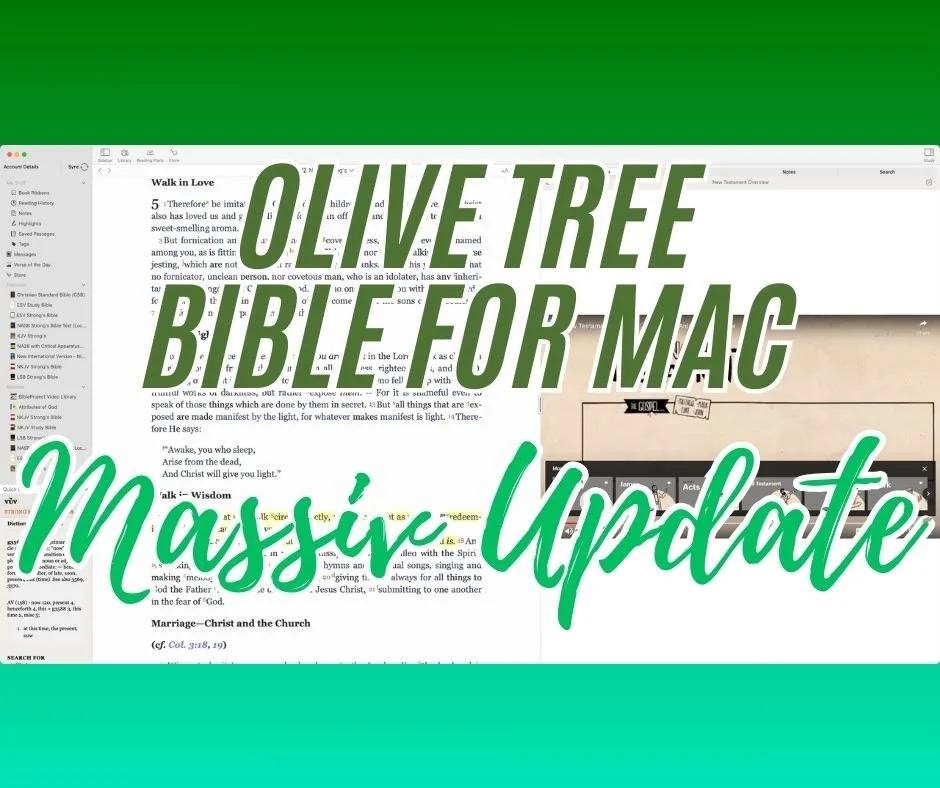
Olive Tree Bible for Mac with MASSIVE Update 3 Years in the Making
Olive Tree update their Bible. study app to make it look and work more like the iOS and iPadOS app. It now only has a few minor differences.
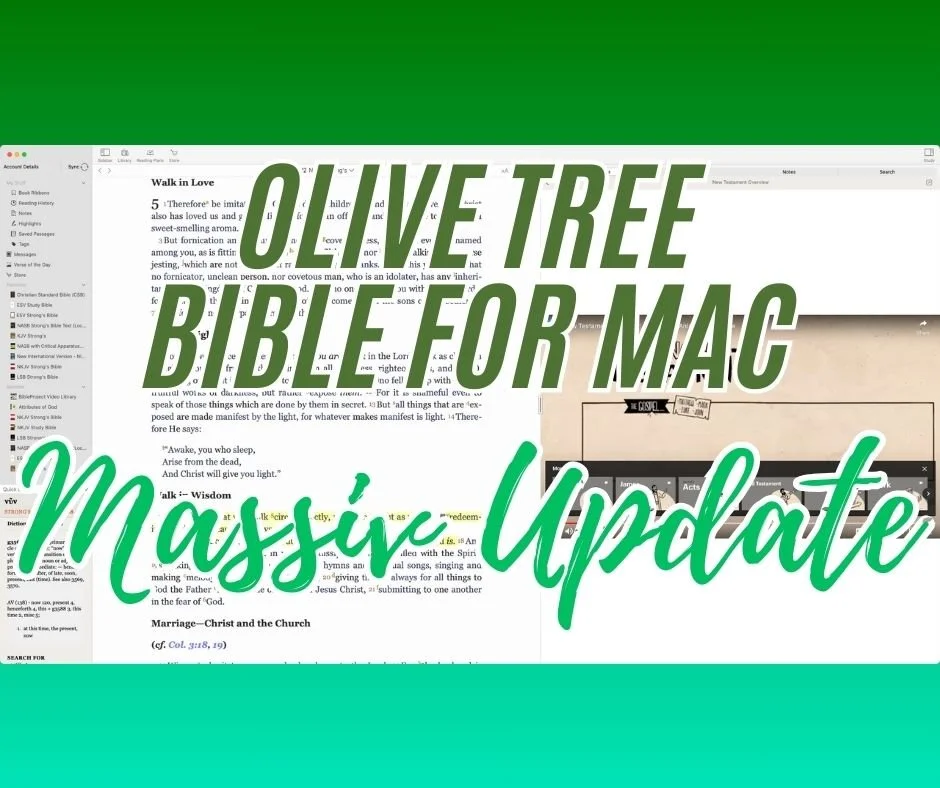
According to the Mac App Store page, the Olive Tree Bible app on the Mac desktop has received a "MASSIVE update three years in the making."

The jump to version 7.16 brings the iOS mobile app and the Mac app together with a similar look and feel. The app on Mac and iOS always looked similar. However, Olive Tree updated the Mac version to behave like what you'd see on an iPad. Here's what's new.
Audiobook Access on Olive Tree Mac Desktop

Your library provides access to audiobooks and other audio features. Open the Library from the button in the toolbar. Click on Add Filter and choose Audio. Your audiobooks will appear there. Open one and start listening. The controls let you jump to parts of the book.
The above steps also work on your iPad and iPhone. If you want, you can click the minimize button in the audio player and the player will show in your sidebar.
Access Video from the Resource Guide
When you open your Resource Guide, you may find video content. Scroll down till you see the Videos section of the guide. Click to open a video and it will play in the guide. You can also pop the video out using the button int he upper right corner of the player.

When you pop open the video player, you can jump to YouTube if the video comes from YouTube. Additionally, you can maximize a video. If you're playing it for your small group, you can see the full-screen video.
Other Changes in Olive Tree
The Message Center, which should probably be called the ad section, also appears now. It's in the left sidebar. The app also offers an improved Store and Shopping experience.
The Quick Details section from the lower left corner looks and acts just like the mobile app.
The Resource Guide gets some speed improvements. Everything will scroll faster, especially if you have a slightly older Mac.

The My Stuff section shows up in the left Side Bar towards the top, as seen above.
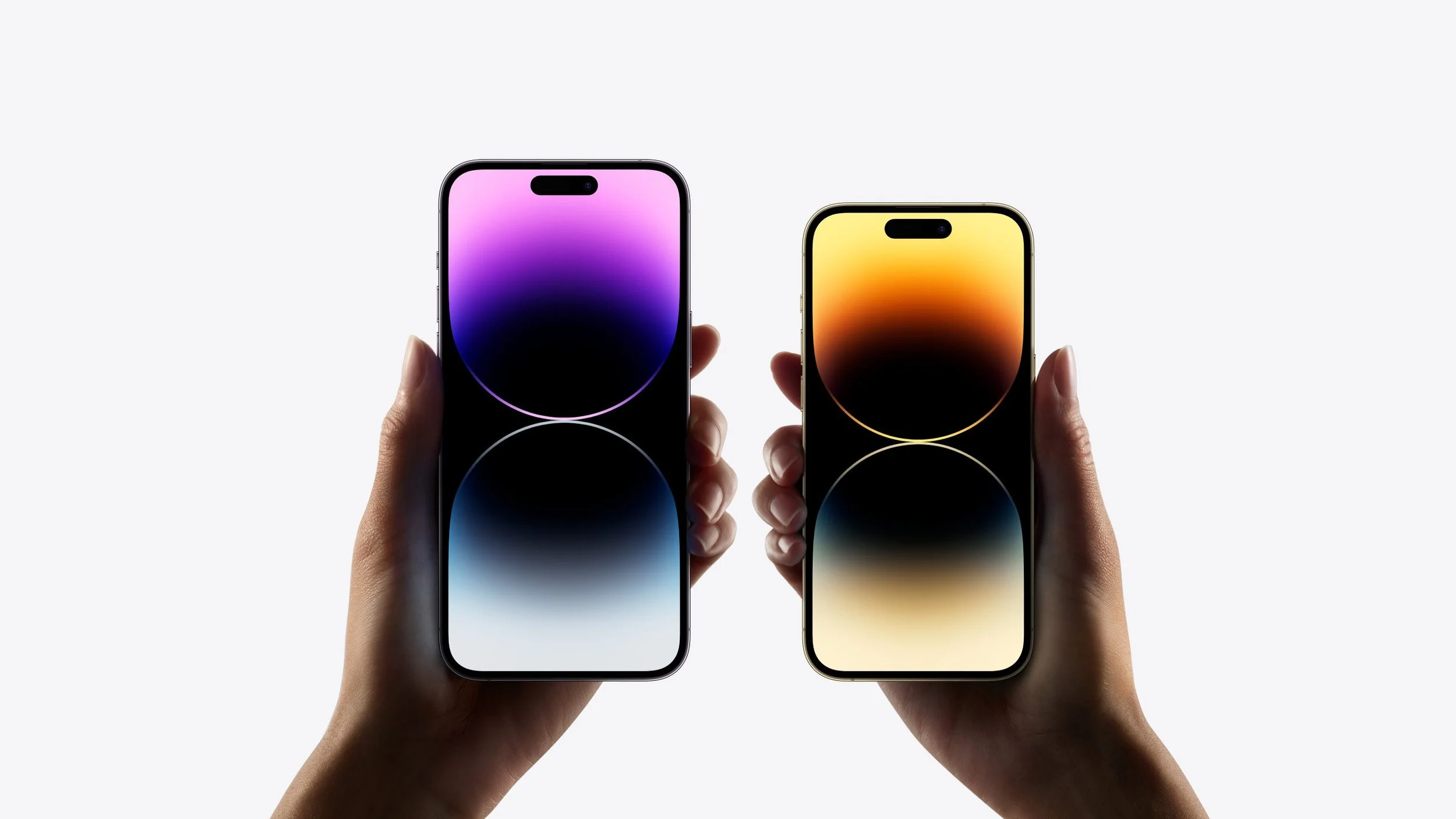
iPhone 14: Should You Upgrade?
Apple released the new iPhone 14 with a few new features. Should you upgrade? We advise you from a Christian perspective. So be sure to read to the end.
No!
Okay, that's not entirely accurate for everyone, but for most, it's that simple. Keep your current iPhone or Android phone. However, if you fit one of the following situations, it might be worth an upgrade.
iPhone 14 Replacing a Broken Phone

My wife uses an iPhone 8 Plus, and she's happy with it except for two problems. First, the fingerprint reader doesn't seem to work consistently, and her battery only lasts about 8 hours before she must recharge it.
Because her phone doesn't work great, she will get my iPhone 13 Pro Max, and I'll get the iPhone 14 Pro Max. She's happy with that, so don't complain that I'm giving her the leftovers. We do technology-hand-me-down all the time because I love having the latest and greatest, and she loves having devices that work.
Subscribe to iPhone Upgrade Program

Some of us love owning the latest and greatest technology. Apple caters to us with what they call the iPhone Upgrade Program. I joined this upgrade program this year. Here's what I'm getting...
- Get a new phone every year - 14 this year and the 15 next year and so on
- Apple Care+ is included
- Pay monthly with no interest and trade it in after 12 payments
- Use the phone with your carrier so long as it's one of the big four (AT&T, Sprint/T-Mobile, T-Moble, and Verizon
You don't have to upgrade if you entered the program last year or the previous year, but you might as well since you're getting the new phone for the same basic monthly payment.
How much does the Apple iPhone Upgrade Program cost? Here's the breakdown based on which model of iPhone 14 you buy.
- iPhone 14 - 128GB - $39.50, 256GB - $43.66, 512GB - $52.00
- iPhone 14 Plus - 128GB - $44.91, 256GB - $57.41, 512GB - $52.00
- iPhone 14 Pro - 128GB - $49.91, 256GB - $54.08, 512GB - $62.41, 1TB - $70.75
- iPhone 14 Pro Max - 128GB - $54.08, 256GB - $58.25, 512GB - $66.58, 1TB - $74.91
iPhone 14 Features Make Upgrading Worth It
The iPhone 14 doesn't add many new features, but you will get a few. Here's a list of what's new. You might want to upgrade if one of these looks compelling enough.

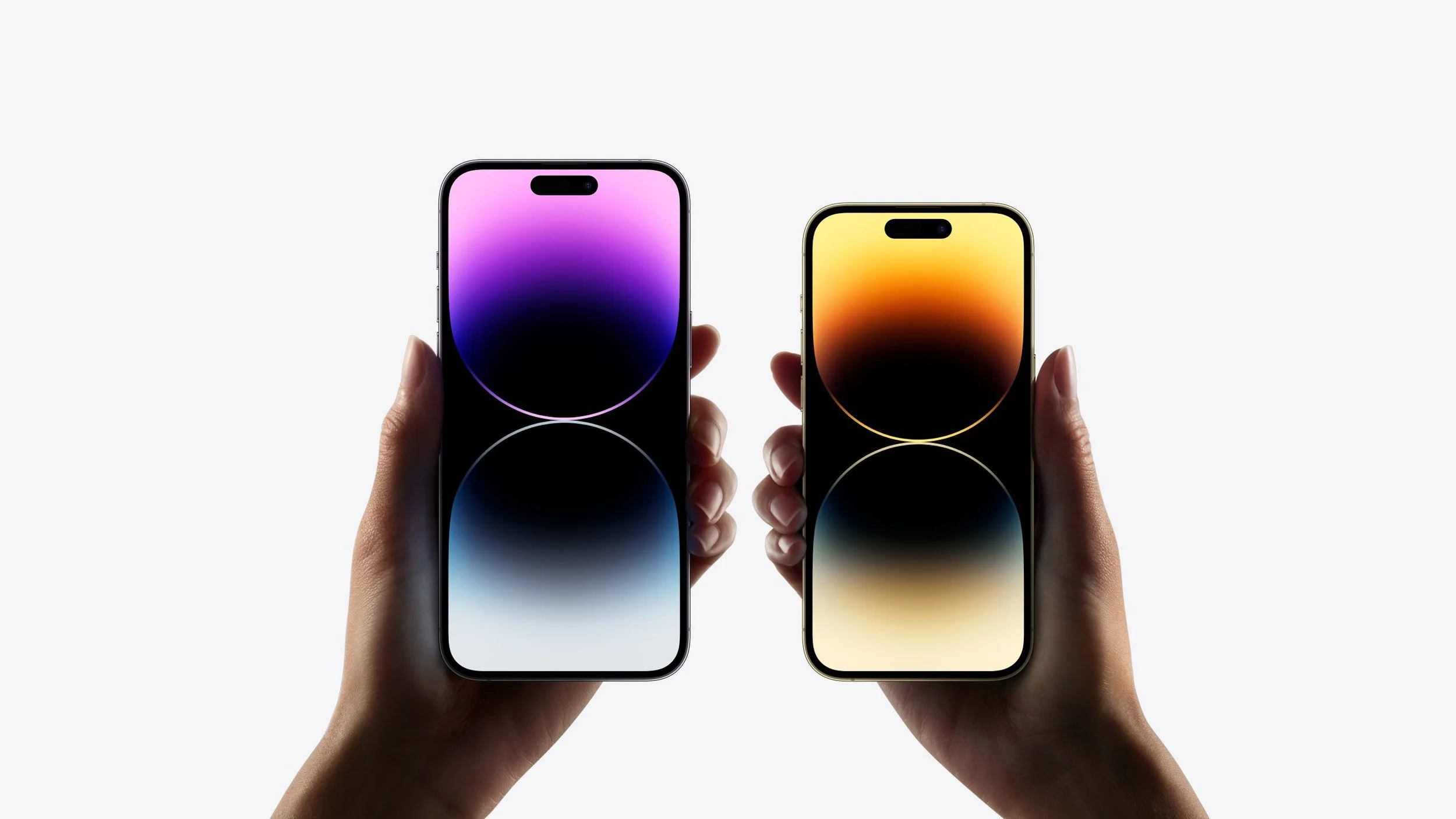
- Dynamic Island - instead of a notch or a hole where the camera would go, Apple created a wide pill shaped black part that encapsulates the front camera and sensors, but also dynamically changes to show notifications. It looks cool and you have to see it to understand what it really is.
- Longer battery life - Apple promises a little bit longer battery life with iPhone 14.
- Emergency SOS using Satellite Tech - send a brief text message to emergency services when you're out of coverage, and it will connect over Satellite. If you're often outside a cellular coverage area, this might make an upgrade to the iPhone 14 worth it.
- Improved Camera Features - iPhone buyers count on camera improvements each year. You'll get a number of improvements like better low-light images and more colorful pics. A 48-megapixel sensor potentially brings more detail and lets the camera stabilize shots better as it can zoom.
- The front selfie camera now has autofocus - people who take a lot of selfies or just use the front camera will love this.
- Faster processor - this matters most to gamers or people who edit photos and videos on the phone.
- Always on Display - the new iPhone 14 has a display that stays on but still doesn't use up too much battery life since it lowers the refresh rate to almost nothing.
- Widgets on the Lock Screen - you can get widgets on your lock screen, most from built-in Apple apps like their Weather app or activity apps.

You'll get a few more features, but we've touched on the highlights above. That's not a lot, so most people shouldn't bother with an upgrade. However, you might see something on the list that will improve your quality of life or work, making the upgrade worth the expense and effort.
You Give More than Ten Percent to Church and Charity

You won't see church and charity listed on any other tech enthusiast site. However, we need to consider this as Christians or people of faith. If you are a follower of Jesus or even a member of another faith, then you likely have an expectation that you give to help those in need or support your church.
Too many people spend too much money on themselves before giving to others. Traditional Christian churches believe in what's called tithing. I know not all believe this, but we should believe in being generous because of what Paul wrote in 2 Corinthians 9:7-8:
7 So let each one give as he purposes in his heart, not grudgingly or of necessity; for God loves a cheerful giver. 8 And God is able to make all grace abound toward you, that you, always having all sufficiency in all things, may have an abundance for every good work.
2 Corinthians 9:7-8, NKJV
God Wants to Bless You
Give and God will bless you. We're not saying he'll make you rich like the prosperity Gospel crowd who lie to con you out of your money. We're talking about God's promise to help you take care of your needs, shower you with his blessing of pleasure in your good works, and storing up treasures in heaven where moths and rust won't destroy.
I don't know if moths can destroy an iPhone 14, but I do know falls from 6 feet or higher, extreme heat, and general wear and tear can destroy any of Apple's products. Resist the temptation to upgrade if you're not giving generously. Then only upgrade if one of the above reasons applies to you.
It would be interesting to see a study done to find out how many people upgrade every year do so out of any kind of need or just out of want.
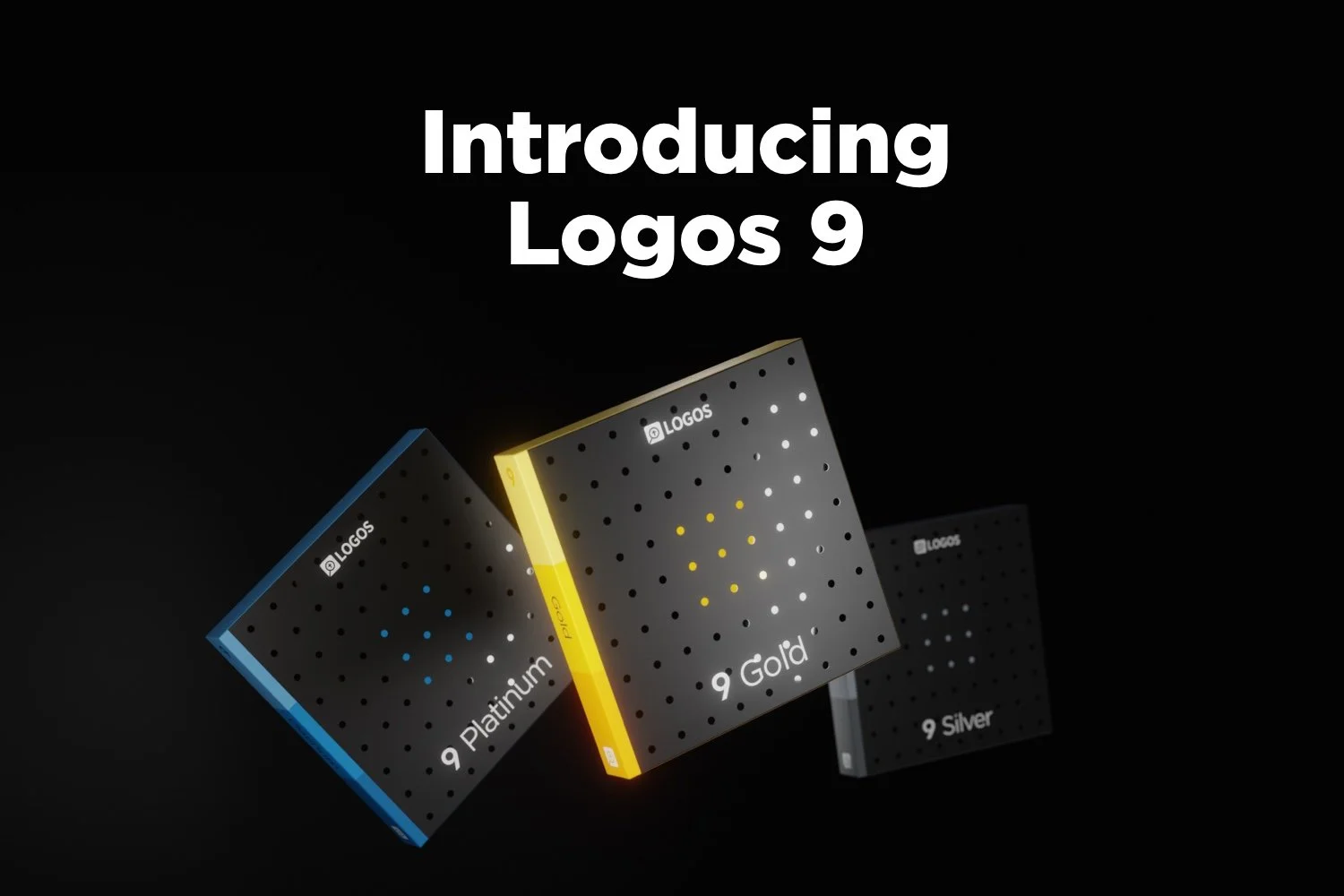
Logos 9 Upgrade is Here: Get a Discount Here
Logos 9 upgrade came out and you can get 15% off using my affiliate link, but should you? We’ll give you a recommendation here.
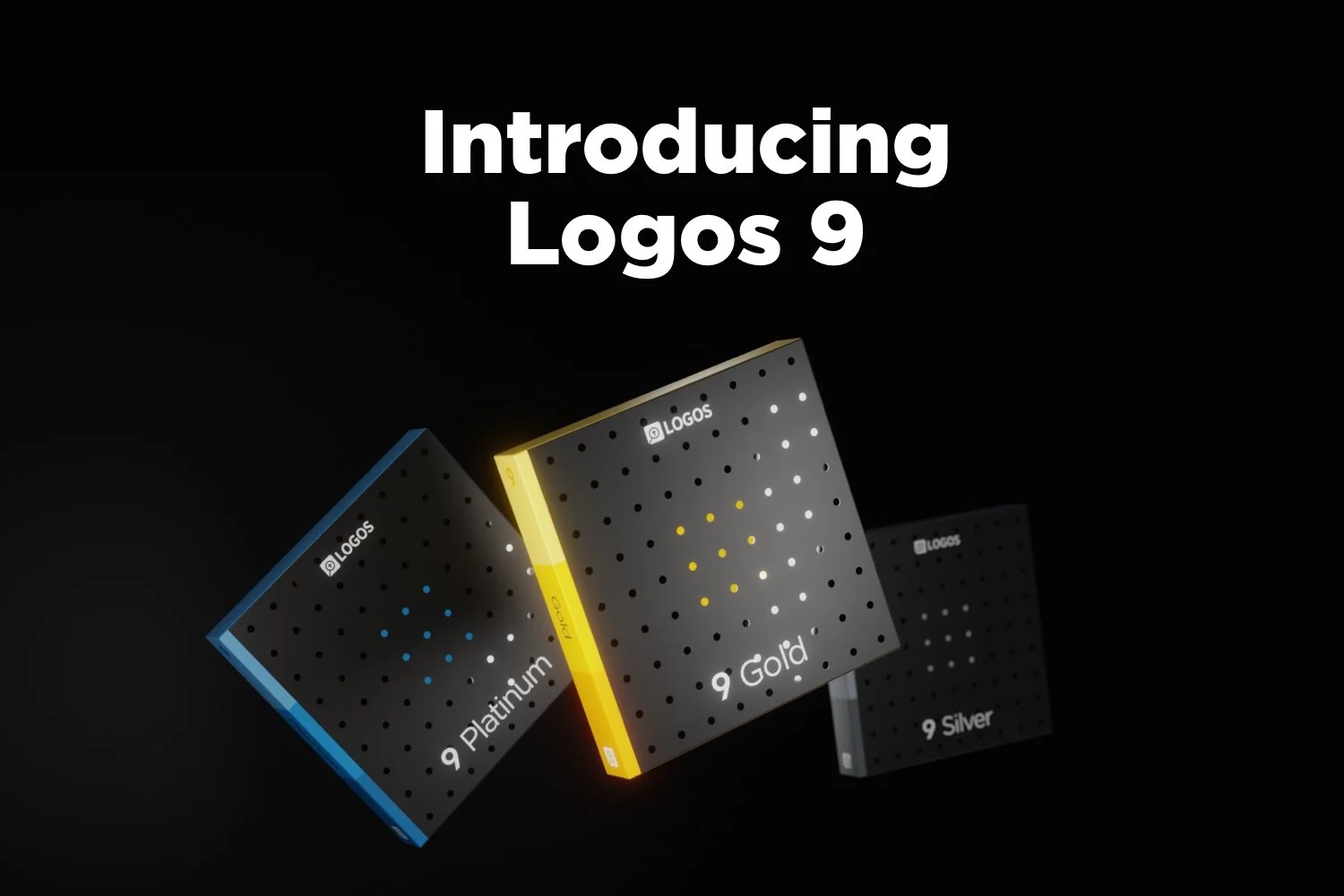
Logos 9 dropped October 26 with some updates to the program. A lot of you will upgrade and you can get Logos 9 for 15% off using this link.

For full disclosure, Logos gives me a commission if you use this link. I don’t normally use affiliate links, but I’m placing this here so you can save some money by buying the upgrade using that link. If you do it helps me out too.
I wrote an article at Church Tech Today about what are the most important updates to the program. To learn more for yourself before that post comes out, head over to the Logos 9 page at the company’s website.
Logos 9: Top 5 New Features
The best new features included in the Logos 9 upgrade includes the following top 5 new features...
- Factbook Upgrade - click a word in your text with the Factbook feature turned using a toolbar button and it opens the Factbook to that subject.
- Sermon Builder - an upgrade sermon planning feature that takes passages from your favorite lectionary and populates a calendar that you can display in list mode or a kind of pie graph.
- Commentaries in Guides - users can now sort commentaries section in the Passage Guide by different ways including the author’s denomination.
- Dark Mode - I’m not a fan of dark mode, but people love it, so it’s here in Logos 9.
- Images in Notes - you can now add images to your notes.
That’s not a complete list, but it shows what most people will find interesting.
I will upgrade because I am that guy who always wants the latest greatest of the programs I use. If there’s an update to Windows, macOS, MS Office, I’ve used it in Beta for the last few months to help write my article for Church Tech Today.
Logos upgrades every couple of years. If you’re a Logos fan you’ll likely want to get the upgrade. For Wordsearch users who came over when Logos bought it, you may want to wait till you get used to using Logos 8 to make sure you’re a good candidate for the update
Logos 9 Free Engine Upgrade
The free Logos 9 software without all the new bells and whistles will likely show up in 2021. It comes with nothing but the basic program update. However, you can’t get it this year. So, if you’re patient and don’t think you really see anything that interesting in the new features list, then hold off till next year.
![Accordance 13 Upgrade with 8 Exciting New Tools [Video]](https://images.squarespace-cdn.com/content/v1/690ba83ee90436386a0306e7/1762379317898-OE0KTDPYUU970RNR91MB/image-asset.jpeg)
Accordance 13 Upgrade with 8 Exciting New Tools [Video]
Accordance Bible Software recently updated their advanced Bible software to Accordance 13. It comes with some incredible new features to make this powerful Bible software package even more useful. Check out the brief descriptions of 8 new features demonstrated in the included video. Mark Allison and Rick Mansfield joined me on Theotek on Youtube.
Accordance 13 Upgrade Demo Video
Accordance 13 Dark Mode

The upgrade to macOS 10.15 Catalina included something called Dark Mode. Accordance adopted this with their software. If you love Dark Mode on a Mac then you'll likely love it in Accordance 13.
The way the company implemented Dark Mode lets you customize it so that if you don't want it in certain places you can turn it off. However, by default the entire user interface will show in Dark Mode when you turn it on.
Dark Mode does not work yet in the Windows version of Accordance. But it should come soon.

To turn on dark mode in Accordance you'll need to first turn it on in macOS System Preferences. Open System Preferences from the Dock or from the Apple Logo in your menu bar. Click on General and then click on either Dark Mode to turn it on all the time. You can also use it only in dark environments by using the Auto setting next to Dark Mode.

Now go to Accordance 13's settings from the Accordance menu in the upper left on your menu bar on your Mac and click on Preferences. Then open the Appearance setting screen in the list on the left of the preferences box. Now click on Automatically adjust to system dark mode. This will turn on Dark Mode if you turn it on in the Mac System Preferences. When you set this preference, it will require you to restart Accordance before it takes effect. Choose the Restart Now button unless you want to wait to apply it the next time you launch the program. After you click Restart Now you will have to click on the OK button to restart the program and you'll see the new Dark Mode.

6 New Themes in Accordance 13
Accordance 13 also adds new themes. These change the coloring and fonts used in the user interface. You can't choose these new themes if you keep the program in Dark Mode. The new Themes will work on Windows.
Switch to a new Theme from the same Appearance screen in Accordance Preferences. On Windows it will show up on the Edit menu. On Mac it's in the Accordance Menu.
Click on the General Theme drop down box (see image above). You'll see 6 options. Click on one and click the Preview button. Now you'll see the new theme applied.
Search Inside Accordance 13 Preferences

The Accordance 13 Preferences contains hundreds of options that the user can change, but finding them can get difficult. When you type in the box it starts showing possible entries guessing what you want. You can click one of the entries in the drop down list and it takes you to that page in the program's Preferences.
Built-in Accordance 13 Tutorials

Accordance has a vast array of Built-in Tutorials ready to help you learn to use the features in Accordance 13. In Windows, click on the Help menu and find Tutorials. A fly out menu shows up with a long list of them. In the top you will see them grouped by Difficulty level. Click on Easy, Intermediate or Advanced to see more Tutorials based on t hose levels of skill.
Below the Difficulty section you'll see them grouped by Topic. Click on a Topic to see the Tutorials related to that Topic.
Highlighting in Accordance 13

The new Highlighting feature brings some exciting new ways to mark up your Bible. You'll see the same old highlighting colors and icons, but now you've got some new ways. You can even use an Apple Pencil, if you own one. We'll show you how below.
Click on the Highlight toolbar button to open the dialog box. On top fo the box you'll see buttons for Highlighter, Pen and Eraser. The first one, called Highlighter shows your usual tools for highlighting words and verses.

The second one is labeled Pen. lets you draw circles and squares to name a couple. The program detects what you're drawing and cleans it up to make it look pretty. Then, if you want, you can also draw straight or curved lines to connect words. You can also draw arrows.
The lines and shapes can get challenging to draw accurately with a mouse or trackpad. A Windows machine with a Pen, like the Surface Pro, might make this easier. You can also use the new Sidecar feature in macOS 10.15 Catalina if you have a recent model Mac and iPad with Apple Pencil.
Eraser does as it says - erase your highlighting. Click it to get rid of hour highlights.
Highlighting Whiteboard Feature

Another Highlighting tool lets you draw all over the place like a whiteboard and marker. These don't get saved, but you can use this to teach with Accordance displayed on a screen or by recording your screen and uploading the video somewhere.
Turn on Whiteboard by checking the little box labeled Whiteboard Drawing to the right of the drawing color options in the Highlighting dialog box. After your done, you can clear the drawings by clicking on the Clear Whiteboard button.
To save the videos do a screenshot and then add that image to an Accordance Note. I'll create a video on this soon, so check back on this page or my YouTube channel for that video.
Accordance 13 Text Search Command

The Text Search command is a new way to enter special search features in Accordance 13. This helps you find things in your grammatically-tagged texts like the grammatically tagged Greek New Testament or BHS Tagged Hebrew Bible. This especially benefits users who don't know Greek or Hebrew because they can search for grammar tags while they're in an English text.
First, open a English Bible with Greek or Hebrew tags like the ESV with Strong's. Then open the Text Search box.

To open the Text Search Command box, go to the the Search menu and find Enter Command in the menu. A fly out menu shows up with Text on the list. Click it to open a new dialog box. Or you can use the Shift+Command+T to open the box.
Now you can use this to search by adding commands to help you find things based on grammar tags. The drop down box at the top lets you search in various Bibles. Pick a Greek or Hebrew Bible with grammatical tags like the Greek NT Tagged.
Now you'll see that both the Enter Command and Enter Tag boxes are active. They are drop down boxes that let you add either kind of search feature to the search box. Perform your search now using one or both.
Accordance 13 Amplify to Constructs
There's another new way of searching called the Amplify to Construct feature. This feature lets you create really complex searches using a graphical user interface.

Access this feature by selecting the some text that you want to search, like "God of peace" found in Romans 15:33. Select it and right-click and choose Construct and then choose one fo the four options. You will only see Word if you are using an English Bible with only Strong's tagging. You can also find this by using the Amplify menu and choosing Construct.
This opens a new dialog box that lets you change the search and add more features to your search. We don't have to room to show you all that this can do, so be sure to watch the YouTube video at the top where Rick Mansfield demonstrates the feature more in depth.
PDF Import in Accordance 13
Now users can import their PDF documents into Accordance 13. This is not perfect but works well with simple PDFs.

Import a PDF document by clicking on the User Tool button on the tool bar. If you don't have it, add it by right-clicking the tool bar and drag the button to the tool bar. A menu pops up and you'll choose Import... from the list.

Users can also import using the New menu. Click it and choose Import User Tool....

Regardless of which method you use to start the import process, it will open a new Import to Tool dialog box. In the drop down box at the top select PDF and then OK. The program will give you a copyright warning. Click OK and find the file on your hard drive.
After it imports the Accordance 13 displays the new User Tool. You can edit it just like you do any other tool or your notes.
Mouse Over Highlighting Between English, LXX and Hebrew Bible
Now with Accordance 13 you can open an English text with tags, a Hebrew Bible and the LXX and as you select a word in Hebrew it will show you that word in the other two.

Open a tagged Hebrew Bible, a Septuagint that's also tagged, and an English Bible with tags. Then hover over a Hebrew word and see what word that corresponds to in the Greek and English.
This helps users study Hebrew and Greek words even if they don't really know Hebrew or Greek.