

Bible Updates and Facebook Live: Theotek Podcast #104
Learn about Bible updates and the future of the Theotek Podcast in this week's show.In my previous post, I shared that we're changing our official home of the Theotek Podcast to Facebook Live. This is the first episode that we recorded using Ecamm Live over Facebook Live instead of using Google Hangouts and YouTube Live. Give it a watch below and go on over to our new Facebook Page where you can find all of our podcasts going forward. In this episode Rick Mansfield showed up of the updates that came in Accordance Bible software 12.2.2, bringing a build-in web browser. I love this new feature because it mean I can use Accordance and access my Logos books and WORDsearch books all from one program.https://www.youtube.com/watch?v=yQpNkluS04c&feature=youtu.beAfter that I shared updates to Laridian's PocketBible app for iOS and Logos Bible mobile app updates. I'm working on a full review. Go follow me on Twitter to get notice when that review goes live over at Church Tech Today.Here's the list of "Our Favorite Things" - the things recommend because we love them.
- DJI Spark Drone - a small 1080P drone that's compact and takes awesome photos and videos.
- LG UltraFine 5K Display - high-end display that's NOT 4K but 5K resolution.
- History of QuickVerse/Parsons Technology - history of QuickVerse Bible software and Parson's Technology from Craig Rairdin, the founder.
- SizzlingKeys - an app for controlling iTunes in a compact form.
- Ecamm Live and Call Recorder - software we used to record our Skype conversation directly to Facebook Live.
Google Pixelbook for Bible Study: A Review
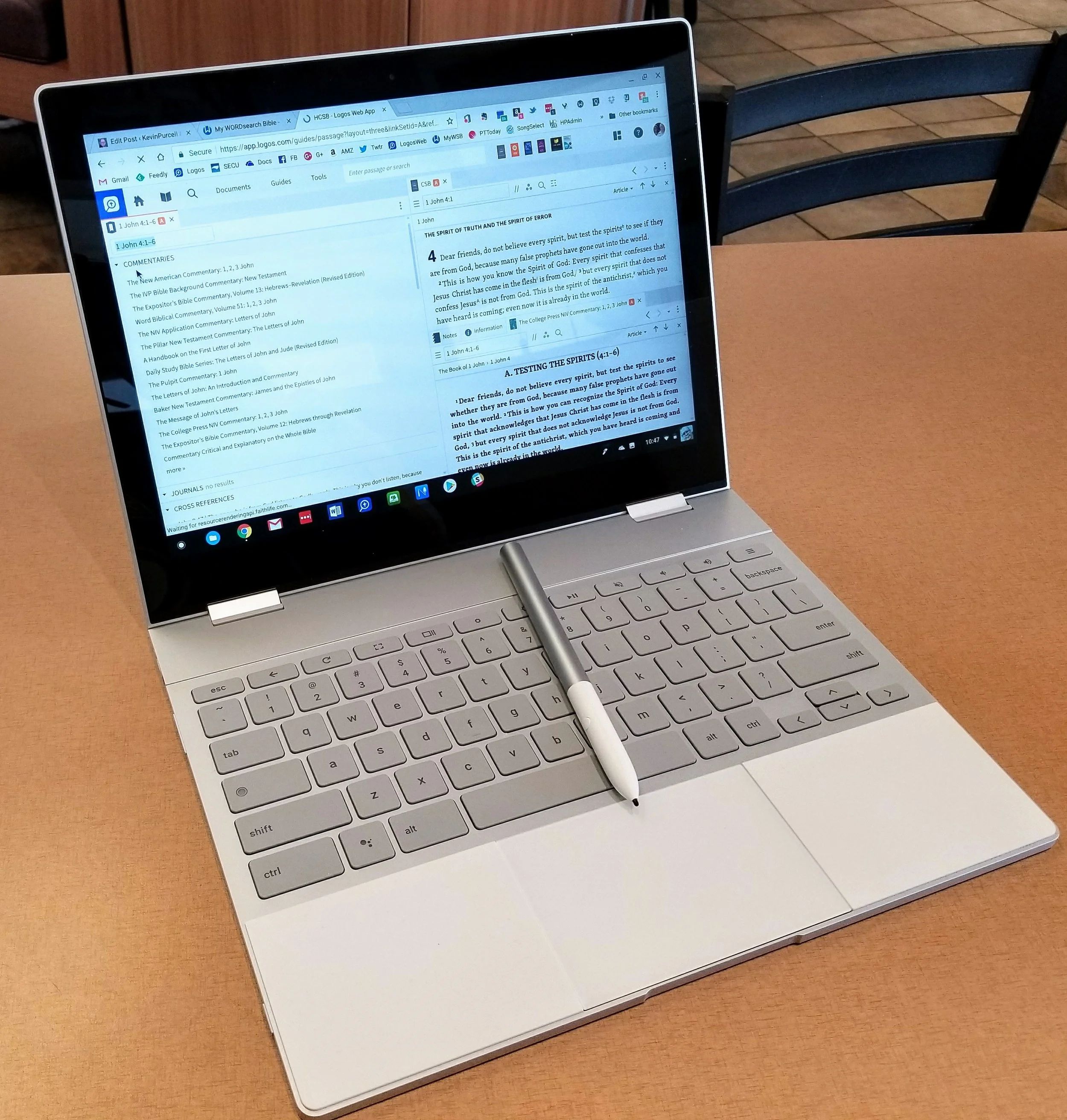
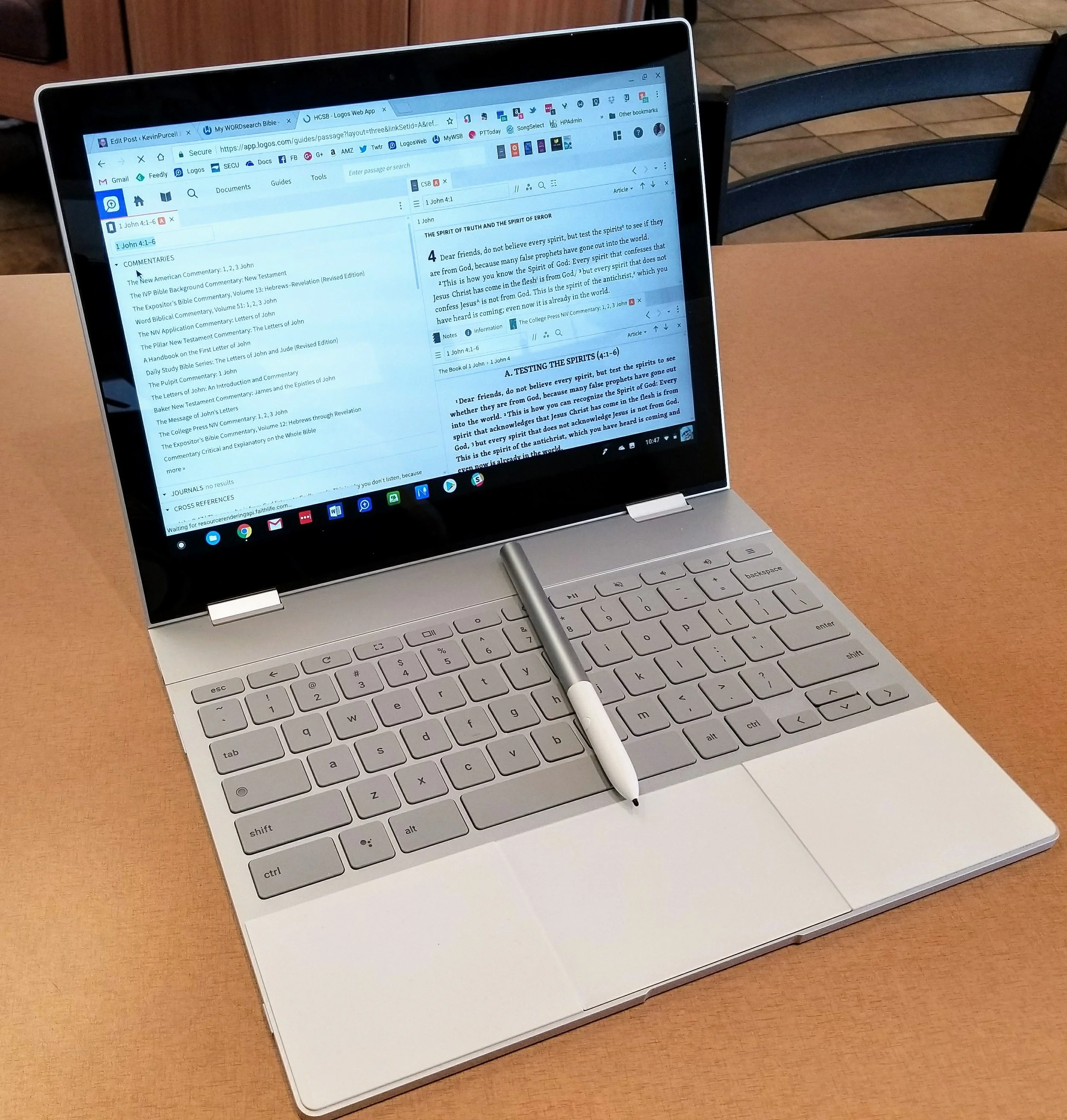
The Pixelbook, Google's latest high-end Chromebook, competes at the upper end of the market against the likes of the Apple iPad Pro and the Microsoft Surface Pro. It's a beautiful machine in all aspects, but if you're reading this site you probably wonder if someone can use the Pixelbook for Bible Study. I'll try to answer that and recommend whether you should pay the premium price.
Chrome OS
You may think of the Chromebook as a "browser" computer that only runs the Google Chrome browser. That's no longer accurate for a few reasons. First, web apps work well in many cases. There's also a number of great Bible study websites if you don't want to install an Android app. Second, in America at least, most people enjoy full-time access to the web at home, work and even on the go with Wi-Fi hotspots on phones or in coffee shops and airports. The popular idea that Chromebooks are just hardware web browsing machines is false. Google dispels the "myths" as they call them about the Chromebook in a video they produced.https://www.youtube.com/watch?v=87-8EqSHodAThe myths Google dispels in this video include:
- They're just browsers
- They have no storage
- Chromebooks don't run real software
- They only work online
We get web apps that work off-line and most Chromebooks today come with the Google Play Store out of the box. Others will get it soon in an update to Chrome OS.
Pixelbook Hardware
Every Chromebook includes at least 16GB of local storage and the Pixelbook has at least 128GB. Plus many add extra storage through an SD card reader, although Google didn't include a reader on he Pixelbook, frustrating some buyers. The Pixelbook gives users a high-end experience making it my favorite general use computer over my MacBook Pro, Surface Pro and iPad Pro. I used to own all four, but carry the Pixelbook and choose to use it more than any of the other three. In fact I just sold my MacBook. Here's what you get with a Pixelbook.
- Beautiful high-resolution 12.3-inch screen with 2400x1650 res display.
- Excellent chiclet style keyboard that's easy to type on quickly and accurately.
- Large smooth and accurate clickable touchpad that I use over a mouse 100% of the time
- Thin light and stylish design.
- Two-in-one convertible design that you can use as a laptop, tablet, and in stand mode.
- Incredible 8-10 hours of battery life that charges in about an hour from dead.
- 2 USB-C ports that charge the computer and transfer data.
- Spacious 128GB solid-state drive that's fast.
I usually prefer to connect a Bluetooth mouse for mobile computing with my laptops. I hate trackpads and always pair one with my Surface Pro and MacBook Pro, but I don't on the Pixelbook. That's a high compliment from me. It has a fantastic trackpad. Some people might see 128GB of storage and balk at that. That's not nearly enough for most people on a Windows or Mac laptop. However, on a Chromebook that runs Android apps, it's more than enough. That's because the OS and apps don't take up as much space. The only reason you'll need more is if you store large videos or tons of music, photos or other large files. Even the space-hogging Bible apps that you can download from the Google Play Store will not eat up that much of that 128GB.
 Samsung sells a pair of Chromebooks that comes with a stylus. I owned both the Samsung Chromebook Plus and the Pro, but sold them both. First I upgraded to the Pro and then sold it to get the Pixelbook. I'm glad I did. The Pixelbook is larger than the Samsung stylus which makes it more comfortable to use. I'm testing the built-in screen annotation feature with PowerPoint and may switch from using my iPad if I can make it work well enough. Right now it takes a screenshot to mark it up, but does offer a laser pointer, which might be enough for what I'm doing.
Using the Pixelbook Pen
 There's a great search feature available only on the Pixelbook with their Pen until another manufacturer gets access to the API that makes it work. Select something on-screen and the Google Assistant will search for the context within the selected area. Here's where that helps Bible students. Circle some text on the screen and the Assistant will search for it. For example, I chose to search for "false prophets" from 1 John 4:1 and you can see that the Google Assistant did a search for it for me (see image above).
 While doing presentations, the Pen lets you mark up your slides. I'm planning to start using a series of PDF file pages instead of PowerPoint. The Pixelbook Pen works much better in this case than it does on PowerPoint or Google Slides. I hope Google updates their own Slides app for better use in situations where the presenter wants to mark up the screen. If you want to see a similar style of Bible teaching, check out John Piper's A Look at the Book. I've included an example from YouTube below.https://www.youtube.com/watch?v=RU8AceqxttU
Getting Other Things Done
 Thanks to the Microsoft Office Android apps, I can write in Word and use PowerPoint somewhat. Word's fine, but PowerPoint's weak on Android. The presenter view doesn't do on-screen annotations as easily as the Windows or iPad program. I put my scripture on the screen and mark it up during my Wednesday Night Bible Study at church. I dislike the way PowerPoint handles this in Android because you can see the mark up buttons at the top of screen on the external display. That's distracting. As I said above, I may use the built-in laser pointer, but not yet.
 Thanks to Android apps I can now do some video editing and great photo editing. I use the following apps for these tasks:
- Adobe Lightroom CC for photo organizing and editing
- Snapseed for photo editing
- Action Director for video

The Pixelbook for Bible Study
Now for the reason we're here. Can you use the Pixelbook for Bible study? In a word, yes! However, there are a few trade offs.I usually install the Logos and Olive Tree Android apps on my Android phone and they both work on the Pixelbook. Accordance promises that they will soon ship an Android app that will at first let you read your books primarily. They plan to add more advanced features over time. It's currently in beta, so go learn more about it in their forums, but it's clearly beta and not ready for most users not tolerant of instability and lack of features. It will be great, I'm sure.The Logos Bible study app doesn't include all the advanced features available on the Mac or PC version. Olive Tree's mobile Bible study app and computer apps work similarly. That's because it's not as advanced or as complicated as the other two desktop programs. The WORDsearch Android app is atrocious so just use the MyWSB.com web app. It gives users a better experience. If you use notes to record your study discoveries, then you'll get frustrated using the Logos Android app because the note attached to a verse covers most of the screen. I like to open a notes file and then look at the Bible text and type in my observations. You can do this in Olive Tree easily, but it's hard to do in Logos. Olive Tree puts the notes on the right side of the screen and you can edit them while viewing the Bible window on the left (see above).
 Logos only shows the notes in a pop up window when you first open the editor or tap an existing note (see image above). If you want to attach the note to a verse reference, then it will strangely cover the entire screen (see image below).
 The current version of Logos Android beta app has a bug that only opens a notes file in a separate screen. It won't open in 2-screen view. Hopefully they'll fix that soon. Even when they fix it, the note doesn't automatically sync to the note attached the currently showing Bible passage. If you have a lot of notes you'll have to scroll through the long list of notes till you find it.
 Here's my work around. I open the app on my phone and then type into the Logos notes file on my Pixelbook. I'd use Olive Tree more for this, but most of my best commentaries and references are in Logos, not Olive Tree. Since most of us own a smartphone, this is a reasonable workaround. If you use Olive Tree primarily, then you'll enjoy the experience. Open the notes file in the right side. If you're like me and use Logos as your primary app, then you'll hate using notes on a Chromebook.
 Here's another workable option. Open your Bible app and a Word document, Google Docs file or some other text editor and use the keyboard shortcut to switch quickly between the Bible app and the text editor. Use ALT+TAB to switch between open apps.I've used the Pixelbook plus Samsung Galaxy Note 8 for two screen work for a few weeks now almost every day. I really like this workflow. I write my personal observations, then open word study tools and record those findings. Finally, I open other books like dictionaries, atlases, and then commentaries.The great screen, keyboard and trackpad make writing on the Pixelbook a dream. I love the crisp text even in small fonts. They look great and easy to read. The keyboard makes typing a pleasure and the spacious trackpad means no mouse needed. It's accurate but registers accidental palm touches while you're typing, so I turn off tap to click, like I do on my MacBook Pro. That's a product of a large sensitive trackpad.
 I write my sermons in Microsoft Word, which you can download from the Google Play Store. However, I notice that it's not stable on the Pixelbook. It doesn't crash, but typing can get laggy and sometimes the arrow keys on the lower right corner of the keyboard don't work. Sometimes the space and shift keys just don't register. This happens only in Word, so it's an app specific problem. To avoid this, use the online Word web app instead. It's nearly identical to the Android app for most users.
 Don't forget the great online Bible study sites. Logos, WORDsearch, Bible Gateway and many others include some nice features. The first two give access to most of your library if you already own books for use in their mobile and desktop apps.
My Recommendation
I love using the Pixelbook as my primary Bible study and sermon prep tool. Here's the list of strengths that make it my favorite laptop:
- Great accurate and crisp screen
- Beautiful and comfortable keyboard
- Large accurate and sensitive trackpad
- It's fast
- Great 8 hour battery life that charges quickly from a dead battery
- Android apps mostly work well on the Pixelbook
- Web apps fill in the gaps of poor web apps
It's not a perfect situation. Here's what I don't like:
- Android Bible apps not as good as Windows and Mac versions
- Word is buggy on the Pixelbook and Android PowerPoint's not as good as iOS or the desktop version
- Video editing is harder on a Chromebook than on a Mac where it is best or Windows where it's nearly as good as Mac
- It's expensive
For the first time, I prefer using a Chromebook nearly 100% of the time. I still prefer my desktop apps for a few Bible Study tasks, like complex word studies and sentence diagramming in Logos. However, I could even do those on my Pixelbook if needed without too much compromise.The Pixelbook's not for everyone. People committed to using Chrome OS won't find a better option, if they don't mind the $1000 for the computer and $100 if they want the Pen.
5 Best iPad Bible Study Apps
The iPad assists mobile Bible study thanks to a lot of iPad Bible Study apps. But which one should you use? How good are they and what can a person do with them. Let's look at the best iPad Bible Study apps to help preachers, teachers and Christians study the Bible.
iPad Bible Study Must Haves...
Recently we differentiated between mobile Bible Study apps and Devotional or Bible reading apps. Please see that post to understand the difference. The apps below fit in the more advanced Bible Study Apps sector. Users can use them for Bible reading and devotional Bible reading as well, but they are more than that. Here's what I think every good Bible Study app should include that might not show up in a simple devotional or Bible reading app.
- Original language tools
- References like commentaries, Bible dictionaries, atlases and more
- Dual pane view showing the Bible in one and a reference or language study tool in the other panes or showing two or more translations on the screen at once
- Feature-rich note taking within the app
The apps below all give us more than the four features above, but these are the bare minimum. I think they should also be good at helping you do your Bible reading. No one should have to install two Bible apps on a phone, tablet or Chromebook.
Logos Bible
UPDATE: Note that the screenshots and descriptions are of the latest beta of Logos Bible for iPad that will hopefully get released soon. Read more about it in the Logos forums and if you have an Android device you can actually sign up for access to the beta and download it now. The Logos Bible app is unique compared to the other apps in this roundup. It offers a Home page that shows a ton of content by default. I actually turn off much of this. Here's what you get right after installing the app.
- Featured Bibles - top Bibles that Logos thinks you'll like and want to use.
- Group Invites - Logos has the Faithlife community a kind of Christian social network that focuses on their products. You get invitations to join certain groups and they show up here.
- Today's Readings - reading plans for Bible readings, book readings, etc. Tap on them to see the most recent reading for that plan.
- Reading Plan Invitations - like the group invites, these offer potential reading plans like a Gospels in 90 days or Read Mark in a month.
- Verse of the Day - a graphical representation of a new verse of Scripture each day that you can quickly share online.
- Faithlife Today - the news about Faithlife, their products or interviews and skills development videos all focused on Bible study.
- News - text-based news links to the Logos blog.
 In addition to the Home screen, we also get other tabs (buttons across the bottom of the app's screen). These show your Library, Bible, Work Spaces, and a Plus button to add a new work space/tab. The Library button opens your list of books in the library so you can open them. Each book opens in a new Work Space screen. The Bible button opens a list of Bibles so you can add one to a new Work Space. The Work Spaces shrinks each work space and you can swipe between them. This screen also lets users sync the various screens. If you have a copy of the Bible on one Work Space and a copy of your favorite commentary on another, you can sync them so that as you navigate through the Bible from book to book or passage to passage, then the commentary will follow and keep up. Move from Matthew 18 to John 10 in the Bible and a synced commentary or Bible will also move there.
 The app lets users tap and hold on a word and a context menu opens. Here's what the context menu will show you.
- Copy - copy the selected text
- Look up - do some language study or look up in a dictionary
- Search - search your library, the Bible or book for selected text
- Share - post to social media or send to friends via a text message or an email
- Highlight - just like you would some text in your paper Bible with a highlighter
- Note - add a digital margin note like you might in your paper Bible
- Clipping - collect content in a clipping document while researching a topic or passage
- Visual Copy - creates an image of the text to share online or save for presentations
In the upper right corner there's a menu button (three vertical dots) that give options for the more powerful features like:
- Change Resource - replace the current book with another
- Search - search the Bible or open books and the entire library
- Passage Guide - research tool finding your text in reference tools like commentaries and more
- Make a Note - adds a note to the current passage or part of the book
- Add to Favorites - like a bookmark feature
- Text Comparison - shows the text in multiple translations all on-screen at the same time
- Make a Clipping - collect content just like you do with the button in the context menu above
- Exegetical Guide - runs an original language research of the present passage
- Visual Copy - same as the context menu above
- Share - like the context menu above share content with others
- Book Info - shows the front of the book info like publisher, author, etc.
- View Settings - change things like text size, font etc.
The iPad in recent versions of iOS offer a kind of widgets that Android users enjoyed for a long time. In iOS you find these on the iPad when you swipe down from the top of the screen and then swipe right to show the list of Notification Widgets. Logos has a widget that displays their Verse of the Day image that you'd also see on the app Home screen. Tap it to launch the Logos app and it opens to that verse in your currently open Bible. The Logos Notification Widget doesn't do as much as the Accordance widget. I wish it had a version chooser or let you open recent books read like the Accordance widget.
 Users can get the app free, but it works best if you own a library of book from Logos.com. Get one of their Logos Base Packages to bundle a library of books and save money versus buying each book individually.
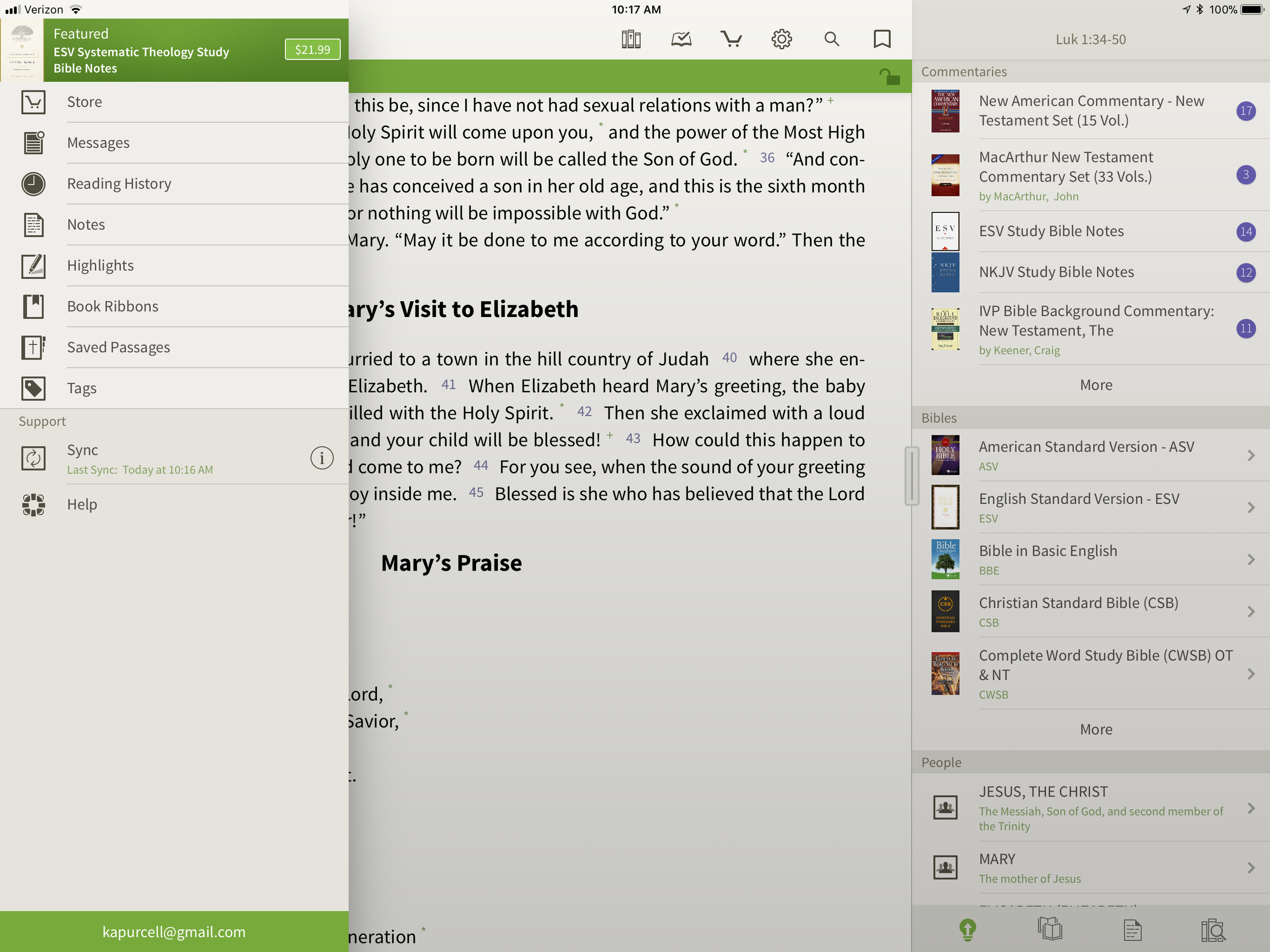
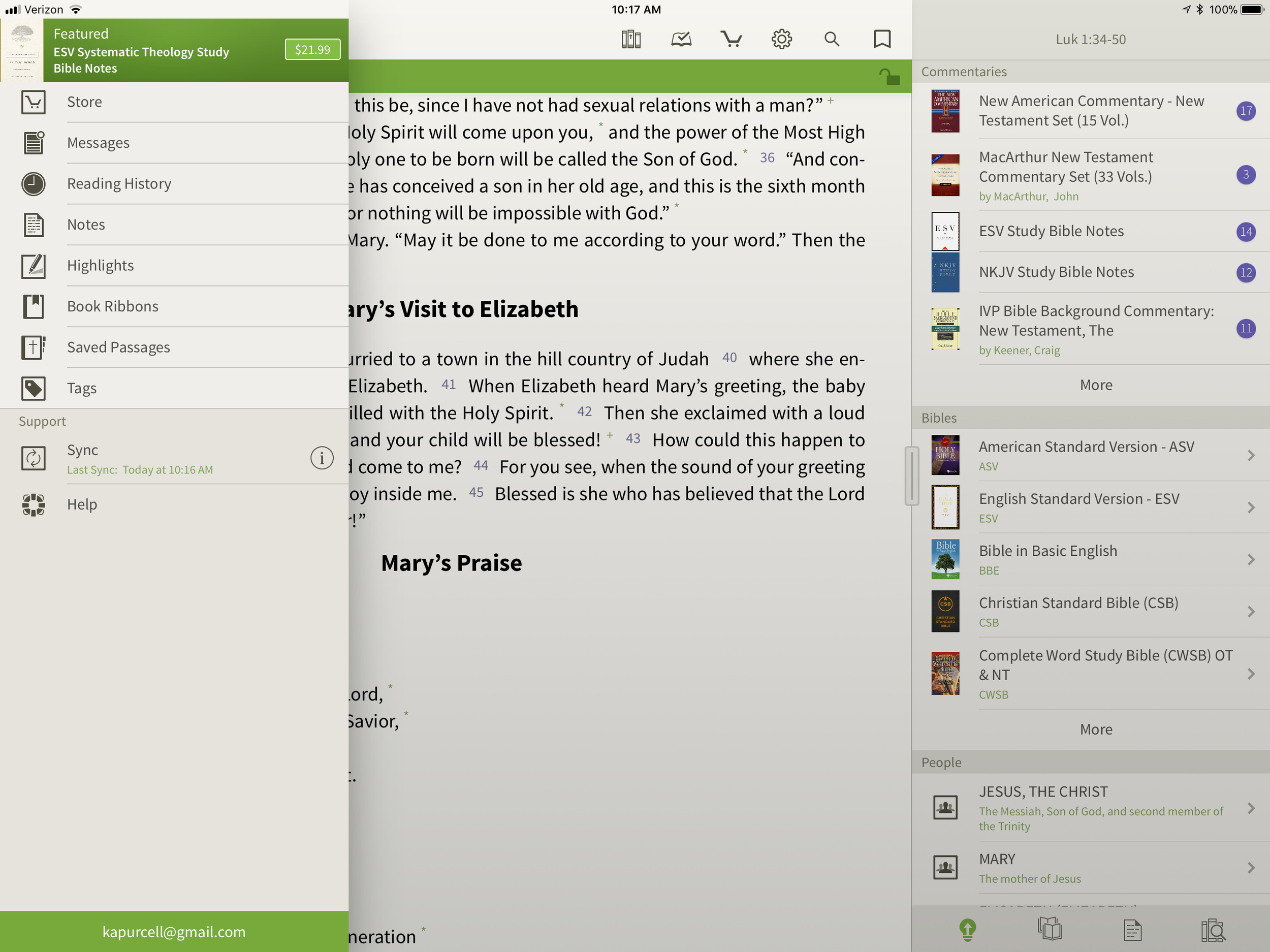
Bible by Olive Tree
 While Logos may offer more complex features, Olive Tree offers a simpler app with a great set of tools for doing advanced Bible study on a mobile device. In fact the Resource Guide might offer the simplest method of accessing all the content in the library related to a given passage on any of the mobile apps in this roundup.The Bible shows up in the left side with the Study Tools on the right. Inside Study Tools you'll find the Resource Guide along with a library button, a notes button, and the Lookup button, which lets you look up words in word search in dictionaries, the Bible and your notes.
 The Resource Guide is one of the Study Tools and it will arrange your library content by category. All the Related Verses, Commentaries, other Bibles, People, Topics, Maps, Charts, Introductions and more will show up in lists one after another. Each list will show your books ready to open to the content related to the passage or subject found in the verse showing in the left hand window. Tap them to see the content.
 On the top left there's a menu button to show...
- Suggested Resources - an ad for a book Olive Tree's pushing at that time
- Store - link to buy new books from within the app
- Messages - content from the blog often written by our own Theotek contributor LaRosa Johnson
- Reading History - the list of texts you've read in the Bible
- Notes - Shows your user notes
- Highlights - show your user highlights
- Book Ribbons - shows your user book ribbons which are like favorites
- Saved Passage - similar to Book Ribbons with a list of passages you've saved as bookmarks
- Tags - a list of all the tags you've created so you can make your own topical Bible
- Sync - lets you sync your app notes, ribbons, etc. with Olive Tree's servers
- Help - the Olive Tree help system
 Across the top of the Bible Screen we see two toolbars. The topmost toolbar has the following:
- Library - opens your library
- Reading Plan - opens the reading plan screen with suggested reading plans you can add or your own reading plans
- Store - opens the store to buy more books
- Quick Settings - change things like font, screen color (low light verse regular) and others
- Search - search the Bible
- Ribbon - add a ribbon to the current top most verse
Below the top-level toolbar you'll see a second toolbar that shows two buttons, the Select Verse button that opens a Book/Chapter/Verse style navigation tool and a lock button that keeps the toolbar from disappearing. I prefer this and I'm glad Olive Tree added this button for use on the iPad. The iPhone version is best without the toolbar showing so you don't cover up too much of the text on the smaller screen.The strength of Olive Tree's Bible is the simplicity and great library available. It also has the best notes feature available in these three. However, the weakness comes from the desktop app. The Accordance and Logos desktop/laptop apps offer far more than Olive Tree's. Download the app for free and get some free books to try it out. Then check out their store for more tools. They don't focus as much on bundled libraries of books, although they do offer them. I like this because you buy only what you want or need.
Bible Study With Accordance Mobile
At first look, the Accordance Mobile app seems like little more than a basic Bible and book reader tool with split-screen display options. Admittedly, I'm not a frequent user of Accordance Mobile. However, as I dig deeper and take time to discover the features, I realize they a user can do a lot with what looks like very little at first. The Accordance user-interface opens, after you've downloaded books, to show a Bible. There's a handle on the right side that opens a second window with another book. Tap the title of the book to bring up the library list of books. The left window library lists shows a list of the installed Bible Texts while the right shows Texts, Reference Tools like Commentaries or Study Bibles, and your Notes files.Open the Notes file and you'll see your notes. To add a note, select a word or verse and a menu pops up above it. Tap on Note and screen offers to add the note to one of your Notes files. Start typing inside that pop up box. It has a button to change the font, size, color and make the font Bold, Italics or Underlined. Sadly, even though you can see your notes on the right, you can edit them in place. To edit a note, select it and it offers to let you edit the note with a full-screen editor. This covers up the text. I like to make observations about the text in my notes and I can't see the text in Accordance. That's the same problem you have with Logos. At least in Logos you can open the Note file and edit in place. It's hard if you have a lot of notes in your file.Unfortunately, I experienced a problem with Notes Sync via Dropbox. They don't use their own servers and rely on Dropbox to sync between the desktop and mobile app. ON the desktop it's automatic, but not on mobile. That's a huge weakness of Accordance if you're a heavy notes user like me.
 If you open a book with Strong's Numbers tagging attached to the text, like the ESV or HCSB or KJV, then you can select a word and a box will pop up showing the original language information. You get the English word, Strong's number and the Greek word. Then it shows your favorite Greek word dictionary. OT shows Hebrew. Then tap on Search at the bottom of the pop up and it finds that word through the NT. The Amplify will let you search by word or the key number.
 The Library button lets you download your books over the Internet. You can also sync those if you have both the desktop and the iPad connected to the same Wi-Fi network. It doesn't work if your desktop isn't connected via Ethernet.The second button from the left lets you sync via Dropbox or via Wi-Fi. Notes and user tools sync via Dropbox while the syncing directly over Wi-Fi syncs your books from the desktop to the iPad.
 Accordance users will get a number of free books. However, it will work better if you buy a package to use on your iPad. The free Accordance Lite includes some good tools like ESV with Strong's plus some public domain books. To add books you can buy books or get a Collection. They start with the free Lite package and go up to more advanced sets like the Pro sets in English, Hebrew or Greek that each cost $999. If you want all three you can get what they call the "Triple" package in the Learner or Discoverer levels. There's also a graphics-focused set of tools called the Graphics Learner, Discoverer or Master.
PocketBible Bible Study
 I love PocketBible from Laridian because it's the first mobile Bible study app I ever used on my PocketPC a long time ago. Then I moved to Palm and there it was. I went to iPhone and then iPad and it was still available. On Android, eventually it came along for the ride.When you first install the app it offers a great help screen that shows you how to use the app from the get go. It's the best on-boarding experience for a new user. Then you'll get a single window, but no Bibles yet. Open the button at the bottom of the toolbar on the right. Find the Add/Remove books and download all of your books. If you're not registered, you can do that in the tutorial that opens when you first install.After you get some books installed open a book using the top button on the toolbar. You can use the Settings (third from the bottom) to add a second window. The rest of the buttons on the toolbar include:
- Open Books
- Navigate to passage
- Search
- Back
- Forward
- Calendar for Bible reading plan
- Button to open the toolbox pane (more on that below)
- Panes chooser lets you pick how many window panes to open at a time
- Font settings
- Reading controls for books with audio included
- Settings
- Menu where you can add/remove books, change other app settings and control books
 The toolbox holds another toolbar with six icons as follows (see the right most box in the image above):
- Find
- Bookmarks
- Highlights
- Notes
- Find Notes
- Journal
Select a word, phrase or more and a menu pops up above it with buttons as follows:
- Copy - copy the selected text
- Share - post to Facebook or send it over text or email to name a few
- Find - search the selected text
- Look Up - search your favorite dictionary
- More... - opens another menu with a number of other tools, functions and book controls
Laridian offers a number of books to buy. They offer PocketBible Library Collections ranging from $60 on up to $380. You can also buy books or commentary sets.PocketBible isn't as polished as some of the other tools. However, it's one of the easiest to learn and costs less for collections than some of the above options.
Splashtop 2 Remote Desktop
 This last option's not a Bible app at all, but rather a utility that lets you connect to a desktop. Install the Splashtop Streamer utility on your Mac or PC and let it run automatically. Download the app for iPad and run it. After you log in you'll see all of your computers running the Streamer listed. Tap the one you want to log into. It opens the computer and shows the screen.
 Now you can control anything on the computer including a full desktop class Bible software program. Above you'll see it running with Bibleworks 10 showing on the screen.
Bible Study Apps Versus Devotional Apps
With all the Bible study apps available on Android, iOS, Windows and Mac, it's easy to get confused about which app a person should use. I'll post a few recommendations over the next few weeks, but today I want to discuss a fundamental question. What do you plan to do with the app?People use their Bible study apps in different ways. How do you plan to use your Bible study app? Will you merely read the Bible, track your reading with a reading plan that the app provides or do you want to create your own personalized Bible reading plan? Will you highlight the passages on occasion or add personal notes, like you can do with a pen or pencil in the margin of your paper Bible? Maybe you want to work on a research paper for a Bible class in college or seminary. Some people need to translate the Bible into another language as part of a translator team or for a tribe in the jungles of South America in mission work. There are apps that can handle all the above functions of reading or studying the Bible, but many apps work better for some of the things listed above and don't do others that well.
Bible Reading and Devotional Bible Study
 Some people want little more than a book reader that displays at least one translation of the Bible and that's it. Maybe they want to search the Bible and even track their daily Bible reading. We call these devotional Bible reading apps. The list of common ways people describe these kinds of apps include...
- Bible reader app
- Devotional Bible app
- Bible app
- Bible study
The last name is a misnomer. I think Bible study apps include features that simple Bible reading or devotional apps don't often include. Also, calling a devotional or simple Bible reader app a Bible app is like calling both a minivan and a NASCAR vehicle a car. They're both cars but different people drive them. Jimmie Johnson, the driver of the #48 Lowes car in NASCAR may drive a minivan on occasion, but a man who drives his kids or grandkids to and from school or baseball practice probably never drives a racecar.Here's what every good devotional Bible app or simple Bible reading app should offer users.
- Bible reading in all the popular translations like KJV, NIV, CSB or ESV and more.
- Highlighting of verses
- Add personal notes to the Bible app
- Sharing on social networks
- Copying to other apps to send a verse in email or a text message to your spouse or friend
- Search the text of your translation
- Customized display of text (fonts, sizes, background colors)
Would you expect any other features in a simple Bible reading app? Please respond in the comments to add other features that you would include at a minimum. But read the next section first, since many of the other features a person wants in their Bible app will mean they really need more than a simple Bible reader app. They want a Bible study app.
Bible Study App
 Bible apps with more than the above features typically fit in the class of Bible study apps. These app developers target scholars, pastors, Bible teachers in Sunday school or informal communities of Bible students or people who want to study the Bible for personal development and spiritual growth.The list of basic minimum features you should expect in a quality Bible study apps include...
- All of the features included in a Bible reader or devotional Bible app
- Includes other resources like commentaries, Bible dictionaries, atlases, study Bibles, language study tools like Strong's dictionaries and lexicons
- Advanced search tools that do more than find a list of verses with the word "grace" or "holy" like boolean searches
- Multiple windows showing at the same time on-screen
- Notes with advanced formatting
- Library management that shows all of your books and lets you download or even remove books
- Offline reading and study tools
- Sync
 Some of the best apps in the iOS or Google Play Store don't include all the features in the above list. For example, Logos Bible from Faithlife doesn't let you do Exegetical study (original language study) on their iOS and Android app without an Internet connection. However, I'd still call it one of the better mobile Bible study apps available.What do you expect in a serious Bible study app? Let me know by commenting below.

Digital Libraries in Bible Software: Theotek Podcast #096
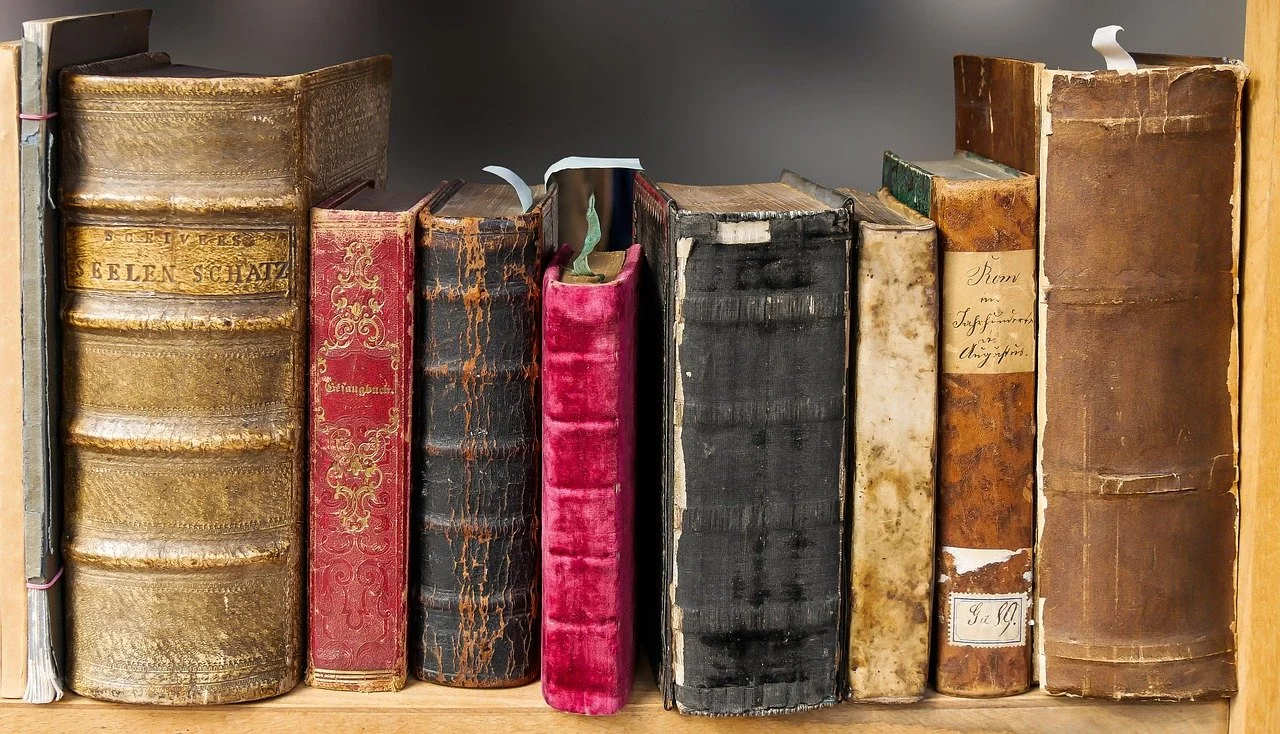
With the huge libraries of books available today in Bible software and eBook readers, some people now own massive libraries. Is this a good idea?In this episode of the Theotek Podcast, we talked about that and shared reasons to avoid it as well as tips for what to do if you already own a lot of eBooks in Kindle or in your digital library of Bible software. There's also a few ways to convert eBooks so you don't get stuck with books in a format you can't use anymore because the program goes away like the old Pradis software. This includes making Kindle books from Bible software book and converting Kindle books to a less proprietary DRM-laden format. We even get a workflow for converting papers books to digital library books using a scanner and cutting the binding off books at Kinkos or other office supply stores.https://www.youtube.com/watch?v=_fXaaY-d59I&feature=youtu.be
Convert Digital Libraries - To and From
We mentioned a few things in the Podcast. First, here's the link for exporting Logos books to Kindle using the Send to Kindle printer driver. You could adapt this to work with any books in any Bible software although it may not work as easily as this system found in the Logos user community forums.Next, Wes talked about converting Kindle books to other formats. He uses a tool called Calibre to do this. Digital Trends hosts a useful tutorial on how to convert books using Calibre among other tools.
Favorite Things
 Speaking of Kindle, we shared our favorite things and Antoine picked the Kindle Paperwhite ($120) as his. He likes to use it for distraction free reading. He also mentioned using a paper Bible, something Rick agreed is a good way to do your devotions.I shared the Christian Standard Bible or CSB translation as one of mine. You can buy paper copies of it or get the free CSBible app for iOS and Android. It's also online. Accordance Bible Software published the digital book first, followed by Olive Tree. WORDsearch will offer it soon for free to all users. Logos will release it April 5. I'm not sure about other software companies plans.Rick's favorite thing was his new Logitech 922x Webcam, which he used to podcast with in this episode. Get it for under $90 at Amazon.
Fujitsu Scanner for Converting Paper Books to Digital Libraries
The Fujitsu ScanSnap ix500 does a great job of scanning books once the user cuts the spine off the book. Scan with any sheet fed double-sided scanner, like the Fujitsu. Here's my review of this great scanner from Notebooks.com.http://notebooks.com/2016/10/22/fujitsu-scansnap-ix500-review/
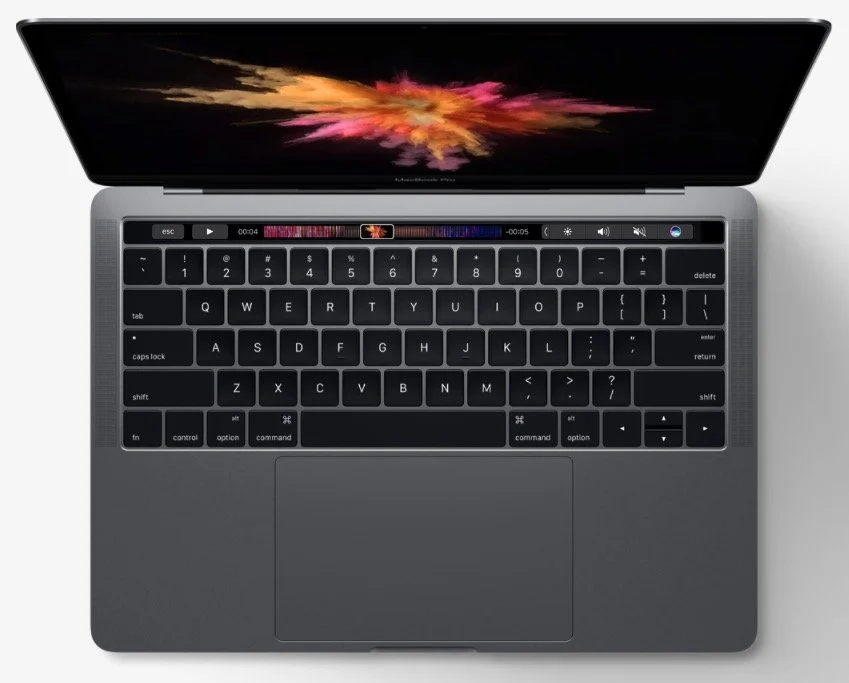
Is Apple Ruining Bible Software: Theotek Podcast #087
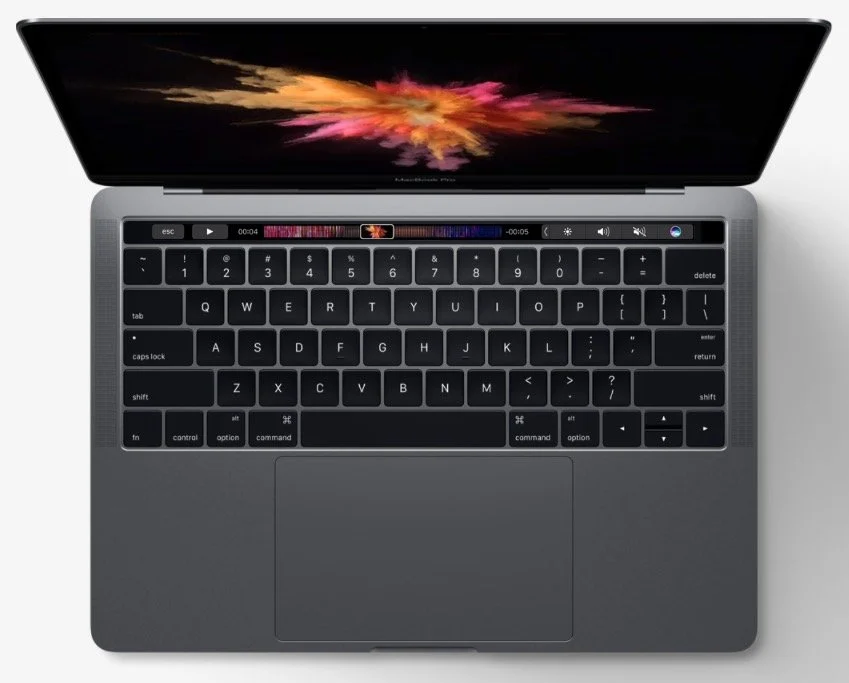
It seems that Apple is moving away from macOS towards an iOS-centric future. If the iPhone and iPad replaces the Mac, what does that mean for the church, Bible software and companies that make tools and software to help the church and believers make disciples? That's our discussion as we focused on the question, "Is Apple moving in that direction? If they are does that affect Windows, Mobile devices, and other platforms? What is the future of church software and technology in light of this possibility?"https://www.youtube.com/watch?v=R8EQKw7KXhM&feature=youtu.beThe conversation began, however, with our Christmas tech toys. The gifts we got for Christmas included some fun things like the following:
- Michael Purcell - my son joined us for this episode and got the Surface Pro 4, Type cover and Surface Pen. He explains why he loves his.
- Wes Allen - ThinkGeek toys like the BB8 Waffle Maker and the R2D2 Coffee Press. He also got an Apple Pencil.
- LaRosa Johnson - one of LaRosa's co-workers sold him the Blue Yeti mic.
- Antoine Wright - one of Antoine's Kickstarter campaign investments actually came through in a positive way. He got the Lumos Bike Helmet.
- Kevin Purcell - I got myself a Kindle Fire with the gift card for Amazon that my wife bought me.
You can always listen to the Theotek Podcast using the built-in player below or subsribe to us in iTunes and leave comments if you like us. We're also on other podcasting apps thanks to Stitcher Radio.
What's New in Accordance 12 and MacBook Pro with Touchbar: Theotek #086
Accordance 12's been out for a little while, but we got a chance to see all the new features demonstrated by Mark Allison, an official trainer for Accordance Bible Software. He showed off the new things like Stacks, Paper and more.https://www.youtube.com/watch?v=h4JqYLAxrp8&feature=youtu.beAlso, Rick Mansfield gave us his mini review of the new MacBook Pro with Touchbar. I showed off my Olloclip for iPhone 7. The shot below shows a wide-angle shot. Here's what it looks like without the Olloclip using only the iPhone 7 Plus camera.
 The Fish-eye is my favorite.
 Olloclip gives you a macro lens in the kit too.
 Wes Allen's favorite thing comes from Edovia. It's an app called Screens that lets you remotely control your computer from an iPad. He loves using it with the iPad Pro.Mark Allison gave us a recommendation called Quad Lock for iPhone. It's a case and mounting system for your phone and it attaches to bikes, a tripod and more.You can listen to the podcast below and the intro music comes from Incompetech.com. Please consider subscribing to our YouTube Channel.
The Value of Free Stuff: Theotek Podcast #080
Sometimes churches or believers can't afford the high-end or expensive option in many categories like Bible software or web services, so we've got some of the best free stuff or free alternatives for you. We shared our favorite freebies that churches, pastors, and believers can use to help build the kingdom of God in their context without wrecking their wallet or bank account balance.Below the video you'll see the list of freebies starting with the Bible Software free stuff and then a simple list of the other free stuff we talked about in this episode of the Theotek Podcast.https://www.youtube.com/watch?v=b7KWo7eQkLo
Bible Study Free Stuff
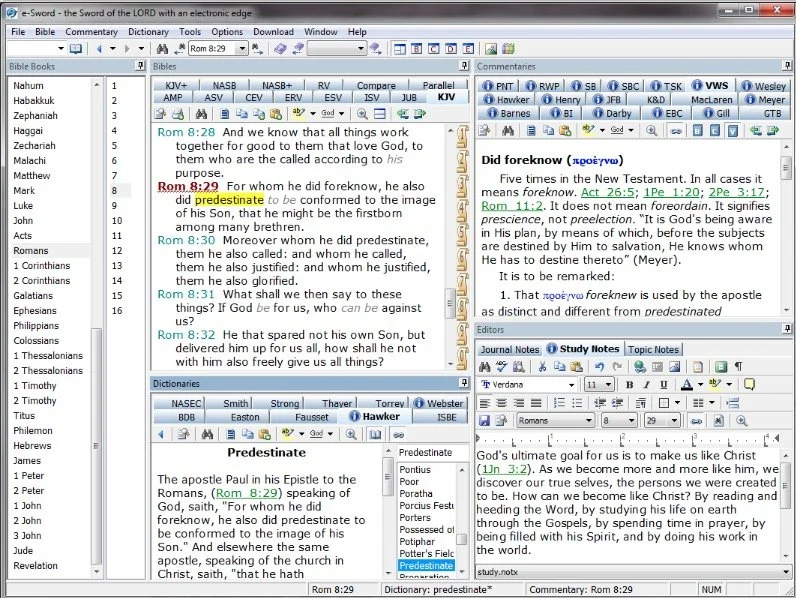
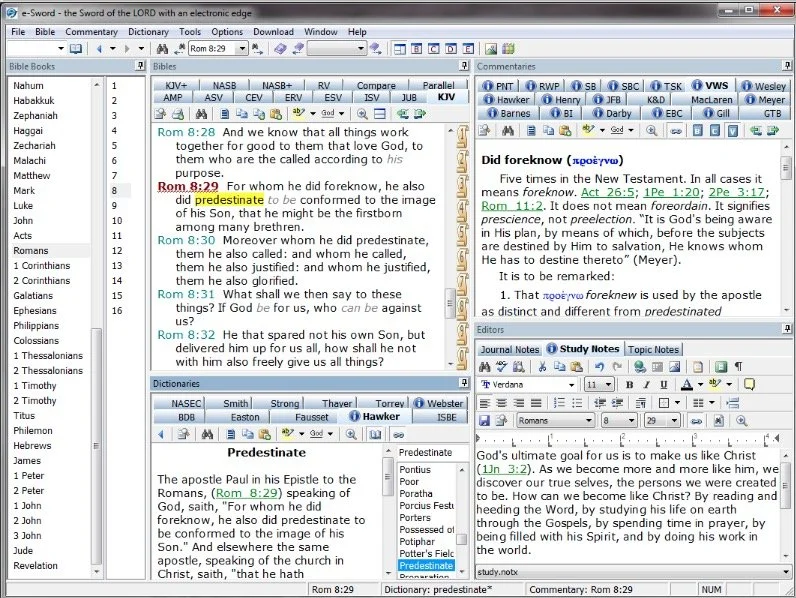
e-Sword is the best free Bible study app available. They make both PC version and a Mac version, that's not free but really inexpensive. Sticking with Bible study Rick Mansfield showed off the free Accordance Mobile app, which people can download on their iPhone or iPad and get a ton of free content, especially if you sign up for a free user account with Accordance. Rick showed off the great ESV interlinear Bible available in the app.
 Antoine showed us his favorite Bible app called Verse3. We had the developer of Verse3 on show #044. It's not free, but only costs $5.
 Olive Tree offers a free version of their Bible app for almost every platform you could want. Download the app on your computer or mobile device, get some free content and then, if you prefer, add some premium content later as needed.
 I showed off some free online Bible study sites that I wrote about a while ago in a two-part series. Here's part two.Finally, LaRosa also reminded us that WORDsearch, his former employer, offers what used to be called Bible Explorer. It's now called WORDsearch Basic and it's now their free option.
The Other Free Stuff
Here's our list of other Free Stuff to help you do your work for free or almost free.
- WordPress website management system also called a content management system or CMS. You can set up a free website and even buy a domain from a company like Hover that will forward that domain to your free WordPress site.‘
- YouTube for video hosting and for playing videos. Find tons of content from entertainment to music to educational content all on YouTube. Of course we use it to stream our Theotek Podcast.
- Microsoft Sway is a great presentation app that lets users share images and pictures. Think of it as a PowerPoint or Keynote alternative for online presentations.
- Facebook Live lets you record and host live video which people can then find later in recorded form on your Facebook wall.
- Libre Office offers a full free office suite with alternatives for Word, Excel, PowerPoint and more.
- Google gives away tons of free tools, including free office software like Google Docs, Sheets, Slides and Forms.
iPhone 7
We ended the show discussing the new iPhone 7, which Rick and I both had our hands on. I did an unboxing of the wrong phone. Watch me get totally disappointed because T-Mobile screwed up and sent me an iPhone 7 instead of the iPhone 7 Plus I actually ordered. Watch the above video to hear what Rick thinks of his iPhone 7 Plus.https://www.youtube.com/watch?v=OkI6psZCfdA
Logos 7 Arrives: Theotek Podcast #077
Faithlife shipped Logos 7. The update comes with a lot of new features for users of Logos 6. Logos Now users will feel like it's a pretty minor update.We covered the major new features in Logos 7 and talked about how users can upgrade or subscribe to Logos Now.https://www.youtube.com/watch?v=mkjflAmUXyM
What's New in Logos 7
 Logos 7 incorporates a bunch of new features including the QuickStart Layouts accessible from the Layouts menu. You'll find it on the toolbar towards the right next to the question mark icon. A box pops up and along the left inside that box you'll see a list of layouts. The top section shows your QuickStart Layouts. Think of them as predefined layouts ready for your use. Logos lets users arrange all the books on their desk the way they prefer and then save the layout. See the Saved Layouts in the bottom of the left hand list in the screenshot above. The QuickStart Layouts are layouts made by Logos designers.
 The Sermon Editor, accessed from the Sermon item in the Documents menu, gives users a sermon creation tool inside Logos 7. The sermons become searchable and show up when the user creates a Passage Guide search on a passage that includes a Sermon made in Sermon Editor.Inside the Sermon Editor users can instantly add the text of Bible verses by typing the reference. It will replace the reference with the text of that passage.
 The editor also makes slides instantly out of Headings, Bible passages and more. The user can export these slides to Faithlife's Proclaim presentation service or PowerPoint and others.
 The Courses Tool takes advantage of the Mobile Education feature introduced in earlier versions of Logos. The Courses quickly takes content from a user's library and creates a course. This feature will eventually make it possible for a person to make a course on their own or for teachers and professors to create their own courses for use in Sunday school classes, small groups or formal education settings. Until that happens in a future version, the user must use some of the courses already included in their library. It comes with some and users can buy more.Select from the list along the left of the tool's box that shows up when you open it from the Tools menu. Click a course and it offers to set it up on for a specific number of days or you can customize how fast you want to move through the course.There's a long list of new features with links to explanations of what the new features are in the Logos forums.
Samsung Galaxy Note 7
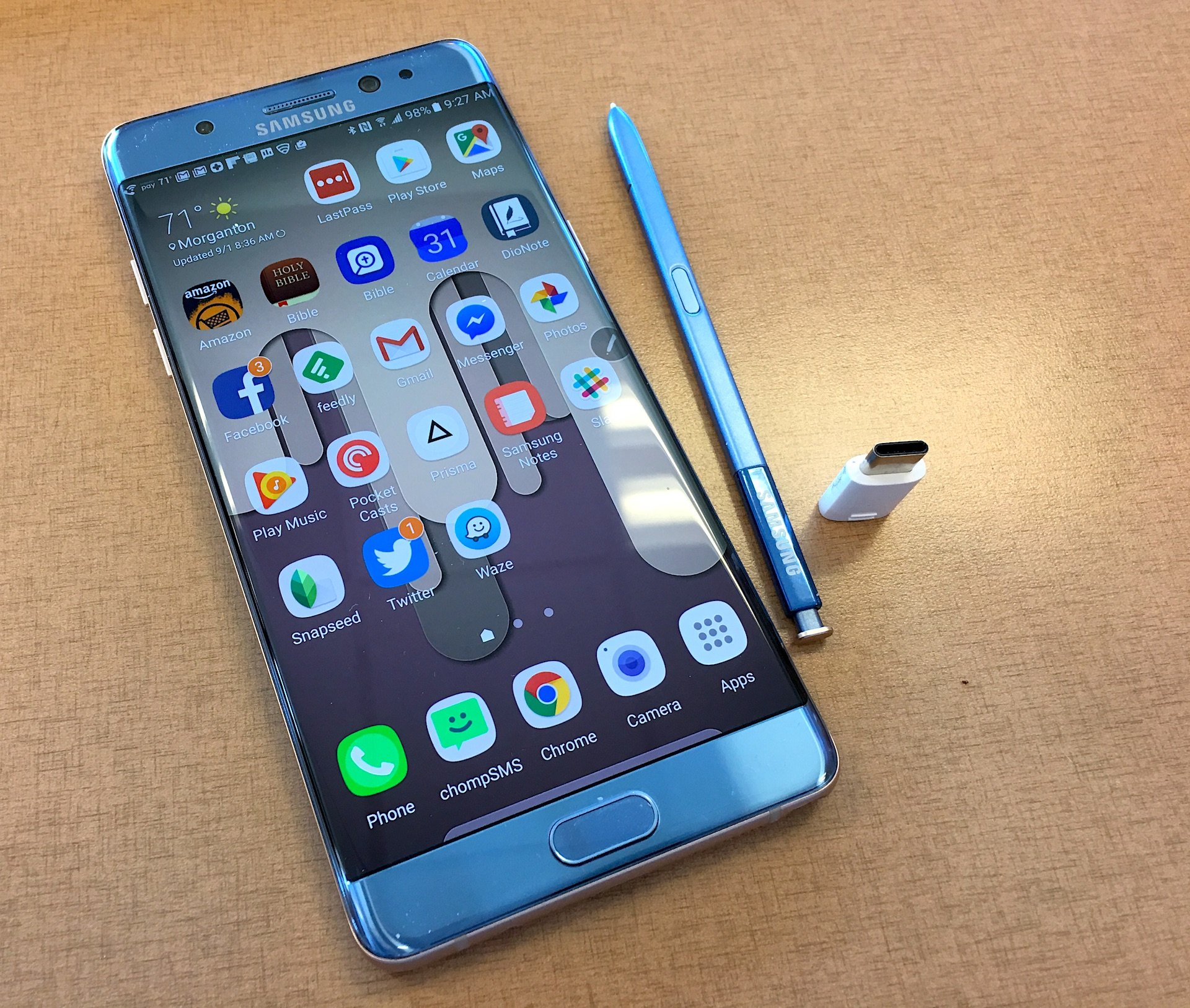
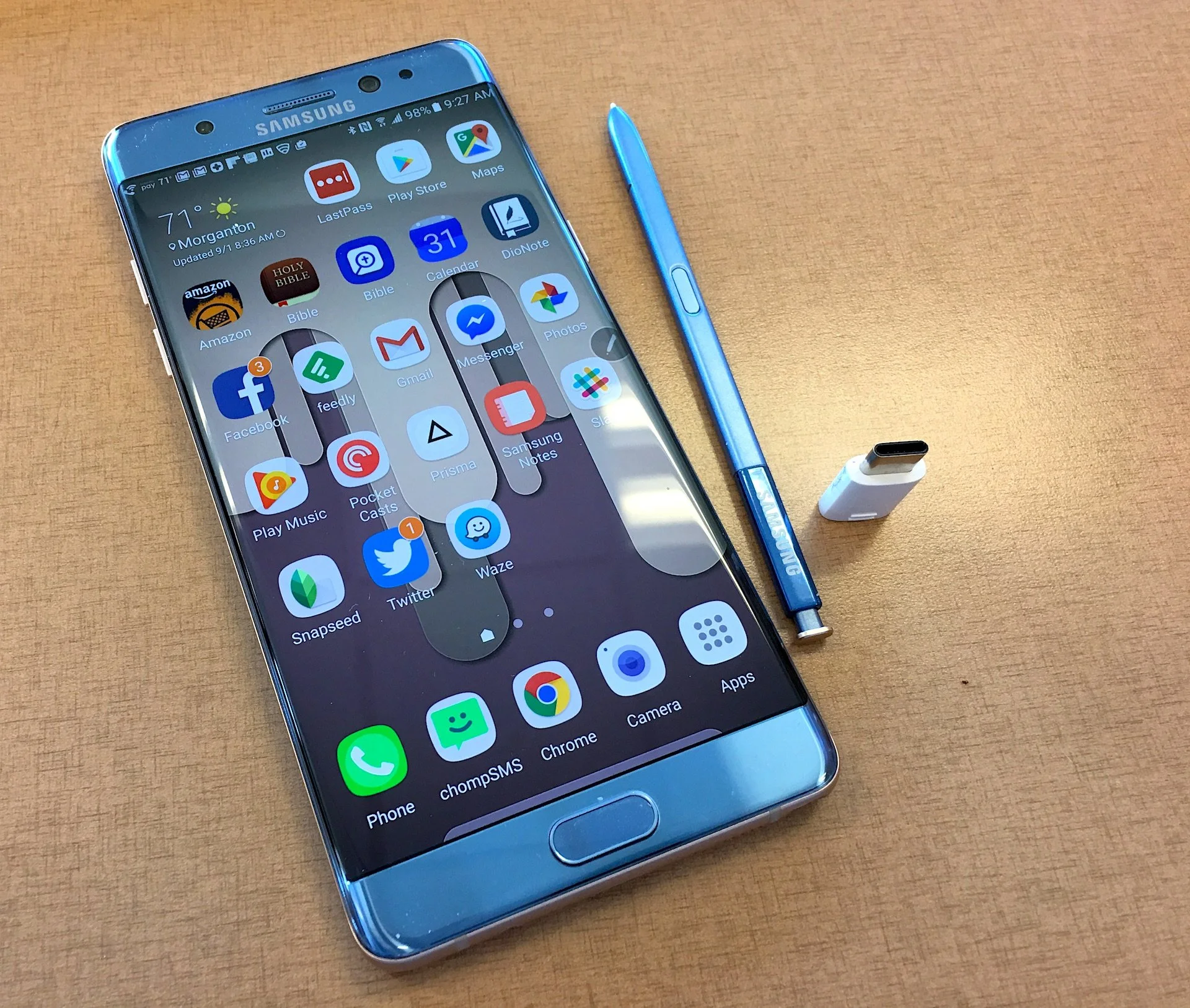
 After looking at Logos 7, I showed off my new Samsung Galaxy Note 7. The Note 7 is a great Android phone with an active Stylus and now includes a USB Type-C connector. It has a great screen and camera. I love this phone.
Bible Apps on ChromeOS and More: Theotek Podcast #072
We have a few topic for this week's Theotek Podcast. We'll see how well Android Bible apps run on a Chromebook with the new Android Apps on ChromeOS on the ASUS Chromebook Flip. Olive Tree Bible Study 6 for Mac came out this week so LaRosa Johnson will show that off. Finally, Rick Mansfield comes to us live from Asia where he's training for Accordance. We'll learn about the perils and pleasures of traveling internationally.https://www.youtube.com/watch?v=mia5KPRHDH0Check out the end for our Favorite Things too.
Sermon Prep Part 4: Theotek Podcast #068
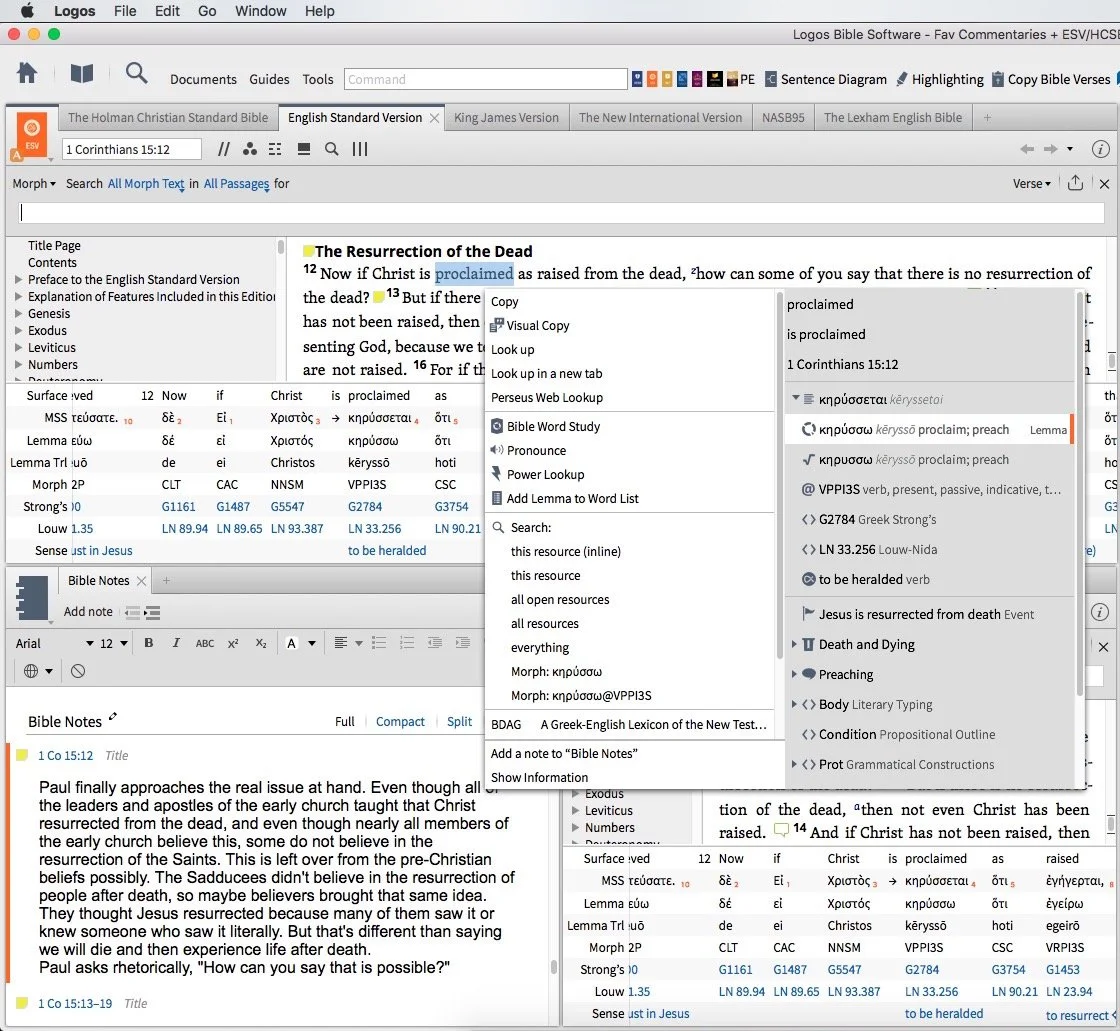
We talked about using Digital study tools to do word studies. Specifically we looked at Accordance Bible Software, Logos Bible Software and Bible Reader from Olive Tree.https://www.youtube.com/watch?v=W-v8fk3uhhMWe focused on studying the Bible in English using the tools built into Bible software that help users find the Greek or Hebrew words behind our English translations. Good language study tools focused on Greek and Hebrew tagging using Strong's numbers helps users get at the Biblical meaning of each word and words in context. Regardless of which software you use, start with a text that includes Strong's tagging. Usually they will let you right-click or double-click or even triple-click the word you want to study.Start this process by searching for a word and read it in context in the different places it's used in the Bible. Then use your software's built-in word study tools. For example both Accordance and Logos show you how the author uses words with graphs and charts that show how many times a word gets used in each book of the Bible or how many times the original word gets translated one way versus another. The next step, after searching the word, is to look up the word in Greek or Hebrew Lexicons. Most Bible software tools include some in base packages. Users can buy more advanced tools.Finally, if you still need some help, look up the word in an English Bible dictionary. Start with exegetical dictionaries like the Holman Treasury of Key Words or the AMG Complete Word Study Dictionary of the Greek or Hebrew.
Our Favorite Things
 This week in "Our Favorite Things" we got some interesting recommendations. First, Antoine recommended the 29 Watt Apple USB-C charger to charge your iPad Pro. It charges the iPad in about an hour, but costs $49. It also requires a USB-C to Lightning cable which adds $35. He still loves the speed of the charging and wished Apple included this charger with the iPad Pro.
 Rick recommended a similar device, the PowerCore+ 26800 & PowerPort+ 1 charger. It includes QuickCharge technology and with 2.4amp USB ports. It's got 3 ports and can even charge the MacBook or other USB-C devices that need a lot of power. The 26,800mAh battery handles almost anything you can throw at it.I showed off a new feature in the latest Developer Preview version of Windows 10. Microsoft has what they call the fast ring and slow ring for beta testers of their operating system. The fast ring version added a new feature that shows up in the system tray. The icon for this feature looks like a pen with a drawn line. Tap or click on it and a new pen-focused menu pops up with a few options as follows:
- Sticky notes
- Sketchpad - a white board
- Screen sketch - the ability to do a screenshot that opens into an editor with pen/pencil drawing on the screen shot
- Recently used - a few of the most recently opened Windows 10 Universal apps
- Suggested - pen/stylus focused apps from the Windows store
- Connect your pen - a link to the Settings where you can connect your Bluetooth Surface Pen or other stylus
 Microsoft calls this the Windows Ink Workspace.In the "Least Favorite Things" folder, I talked about Vufine. This was originally a Kickstarter project that I mistakenly backed. They call it an HD wearable display that fastens to your glasses and shows a tiny screen inside the little device that sits just off the front of your glasses. It comes with a cheap, flimsy pair of plastic glasses if you don't wear glasses regularly.The problem is the Vufine is to tiny it's nearly useless for anything. Some use it connected to a GoPro to see what the GoPro sees. But using at an actual display is nearly impossible since text is so small.
Sermon Prep Part 3: Theotek Podcast
In part 3 of the Sermon Prep series on Theotek, we covered digital reference books. Each member of the team recommends our favorite tools like Bible dictionaries, lexicons, and more.https://www.youtube.com/watch?v=6rsSX2N-shQFor review we covered the first steps of sermon prep in part one of our series. Then inWe started out with English Bible dictionaries. Here's a list of what we recommended.
- Anchor Bible Dictionary
- IVP Bible Dictionary
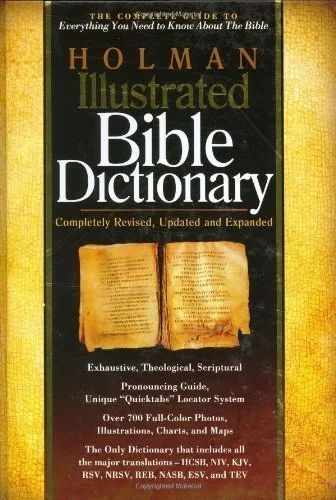
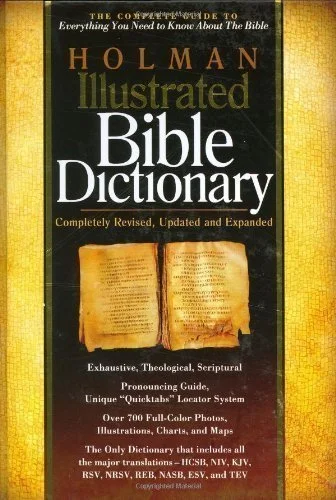
- Holman Illustrated Bible Dictionary
- Biblical Archaeology Review
- Hermeneia
- Bible Illustration from Holman
- Accordance Photo Guide
- Wikipedia
- CCEL
- Harper's Bible Dictionary
- Dictionary of Early Christian Beliefs
Here's a couple of Bible Background sources we prefer. These help you get at the cultural information that tells us more about the world of the Biblical writers.
- Zondervan Illustrated Bible Backgrounds Commentary
- Accordance Atlas - one of the best digital atlas resources in Bible software
Next we look at Bible commentaries. The series that we each picked included...
- Word Biblical Commentary
- Zondervan Illustrated Bible Backgrounds Commentary
- New American Commentary
- Ancient Christian Commentary
- IVP Bible Background Commentary
- JPS Commentary
 To find the best sources, we all agree that just one series isn't the best approach to building a good library of commentaries. Instead check out Best Commentaries on the web. It lists the commentaries by book of the Bible and rates the best options available. They update it when new works come out.
Our Favorite Things
 I recommend Visual Theology, a work that Olive Tree released recently.
 Antoine recommended the Google Cardboard, their inexpensive Virtual Reality tool that the user can put their phone into to get a VR experience. There are other VR options like Samsung Gear VR, which I don't recommend. The children's version comes from Mattel and uses the old View Master idea.Rick went the opposite direction and shared one of his least favorite things. He doesn't like the 12-inch MacBook. The screen's nice but the keyboard doesn't feel very good and performance suffers when doing more than word processing or surfing the web.
Sermon Prep Part Two: Theotek Podcast #066
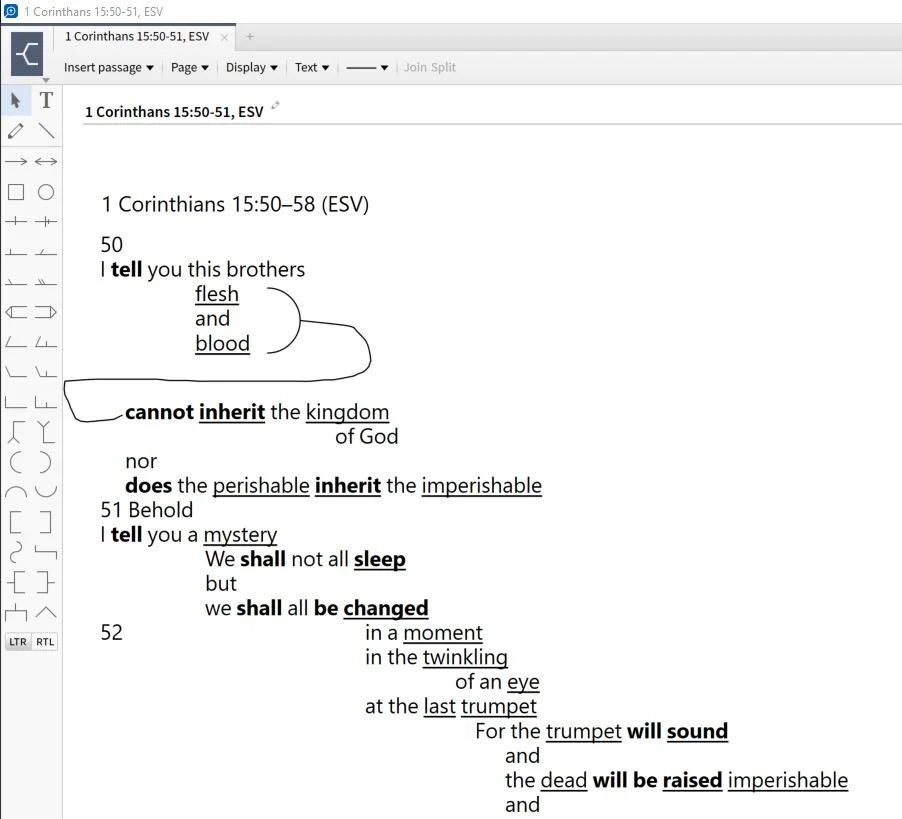
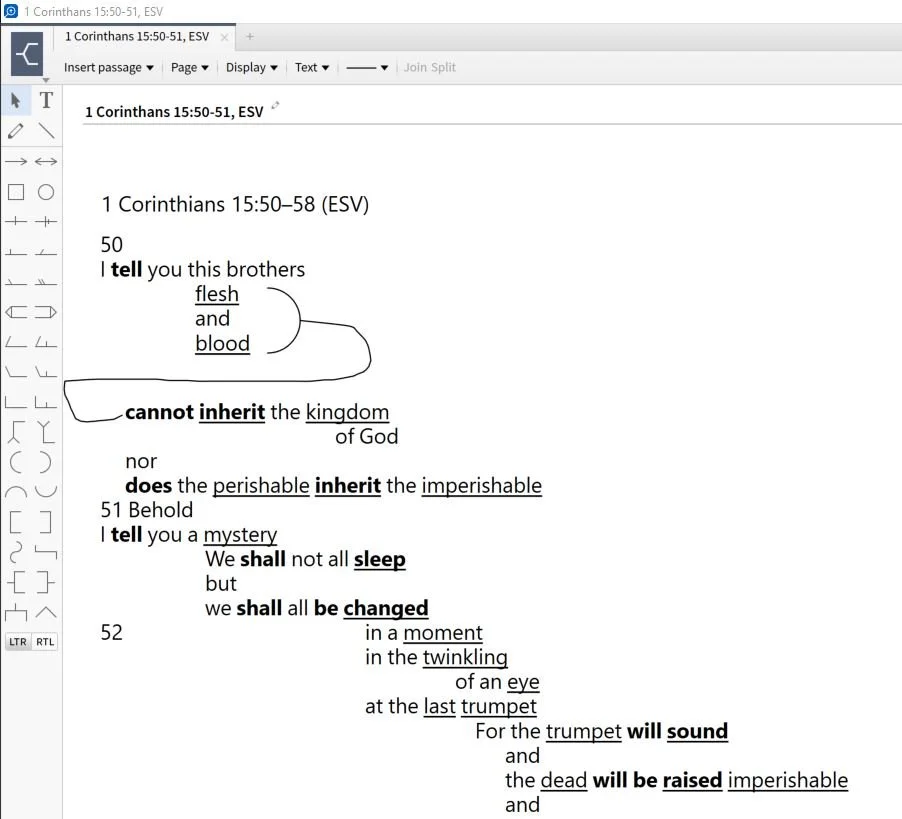
It's part two of our sermon prep series using Bible software to help us write a message. This week just Rick Mansfield and I tackle a little used tool - the passage outline. We show how to do so in a few BIble software packages and talk about doing it in the Notes tool of any program.https://www.youtube.com/watch?v=_1fzw6BndZ4&list=PL1-Xf_HZquDEcTTK8MLMMdmwvB--o1ShY&index=1We looked at the outlining features of both Accordance Bible Software and Logos. You can also do one of these in the notes tool of any Bible software that includes one. Just copy and past the text into the note and use the space or tab keys and the return button to arrange the text on-screen in way that shows the relationship of the ideas. For a good book on how to do good Bible passage outlines in English, see The 12 Essential Skills of Great Preaching by Dr. Wayne McDill, my preaching professor at Southeastern Baptist Theological Seminary.
Digital Sermon Prep Part 1: Theotek Podcast #065
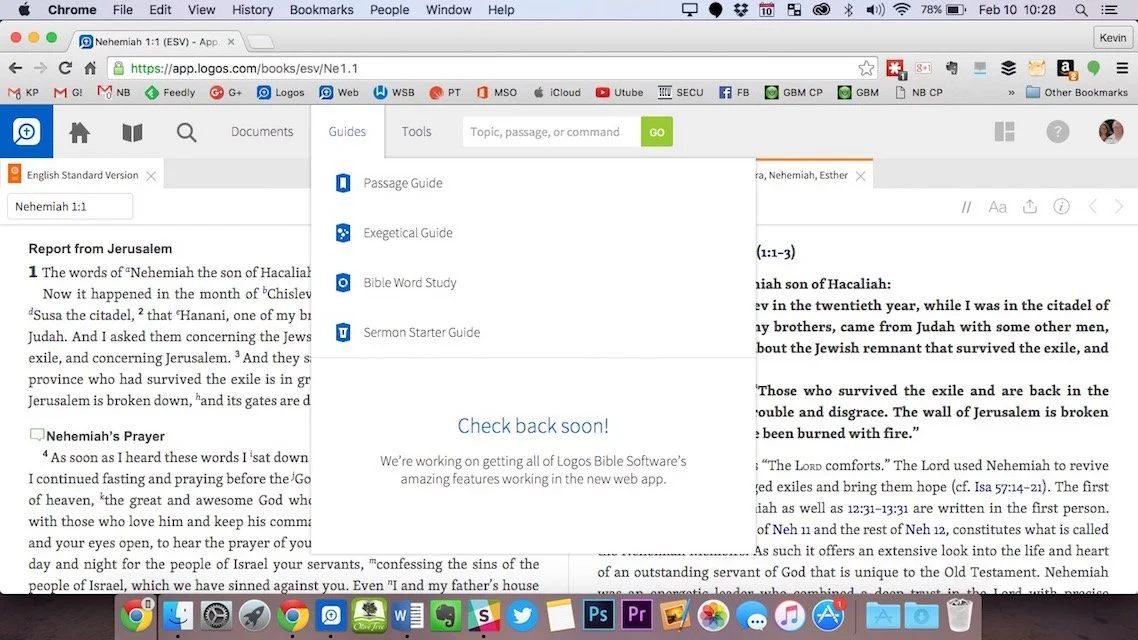
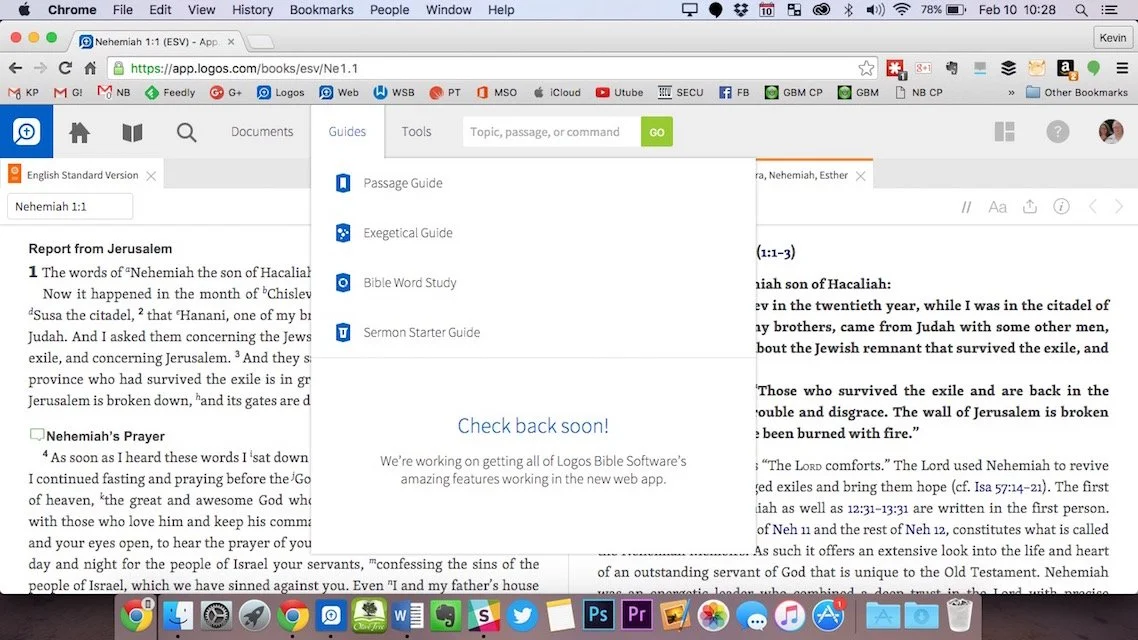
We started a series in this week's Theotek Podcast on doing digital sermon prep. Our team will take you through our steps of sermon prep using Bible software and digital tools.In this first step we focused on choosing a passage. Software packages come with tools to help you figure out what verses to include in your passage, or as the scholars call it, pericope. Then we look at other aspects of sermon prep. Watch the video below or listen to the audio version at the end of this post.https://www.youtube.com/watch?v=nb3ljTSXL3g&list=PL1-Xf_HZquDEcTTK8MLMMdmwvB--o1ShY&index=2We didn't have any recommendations in Our Favorite Things this week.
Bible Mark Up App Presents Bible: Theotek Podcast #063
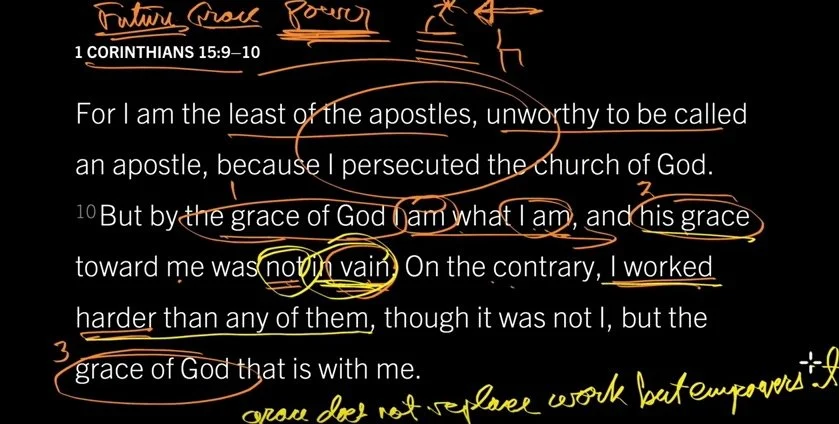
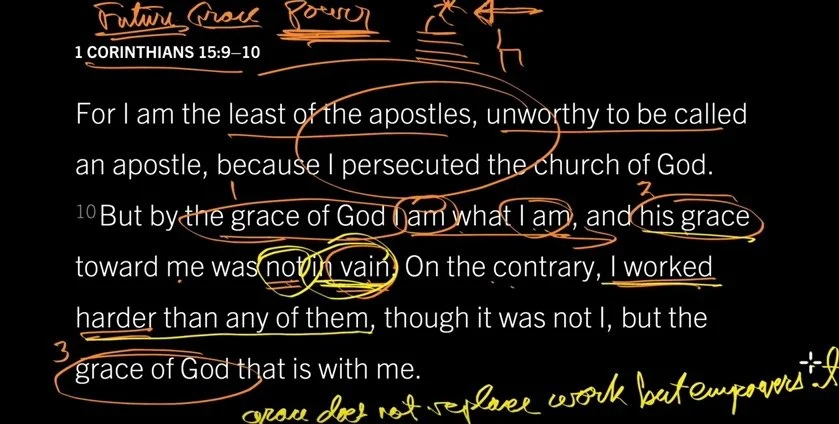
I’m always looking for some cool ways to present God’s word in my preaching and teaching ministry like the app Bible Mark Up. When I started watching John Piper’s Look at the Book video series on YouTube, I loved the simple and elegant black background with white Bible text that he uses in these videos. He draws on the text and screen using colorful marking pens. I investigated and discovered that Piper’s using something that inspired the developer of the app Bible Mark Up. The developer liked the videos and wanted a mobile version and so he created Bible Mark Up for Android and then ported Bible Mark Up over to iOS. We talked to Ernie Lail of Maranatha Technologies on this week's Theotek Podcast seen below. The audio is at the bottom of the page.https://www.youtube.com/watch?v=7tZ2Y32OPzQ
Bible Mark Up App
This free iPad or Android app inserts the Bible text from one of a number of translations on a black background. The teacher or Bible student uses the 9 colors to draw on the screen in Bible Mark Up. Watch John Piper to use a tool similar to Bible Mark Up, which inspired the app, in his "Look at the Book" video series on YouTube (seen below).https://www.youtube.com/watch?v=yBOKt8IVNJc&index=1&list=PLAcB0f-21Xj0MTWuh7NKKploqNgpbJsY2Logos Bible Software users can also buy these videos along with a nice study guide that goes with the videos. The free video series puts the videos and the study guide right inside Logos Bible Software. Piper draws circles and lines and underlines the text showing relationships between ideas and words. He uses colors to connect one part of the text with another. It’s simple but skillful. I’ve begun using it in my teaching ministry and plan to do more.The app includes some cool features. It’s got a lot of international translations in addition to the ESV, NASB and KJV. Sadly, they don’t offer my preferred HCSB translation. For teachers who use original languages it includes Greek Textus Receptus and Hebrew Aleppo Codex.We also get access to some public domain works like Strong’s, Lexicons and some Commentaries all online. I haven’t used anything but the English Bible texts, since I don’t plan to do my study in the app. I just use it to present.
 Ernie Lail, the developer of Bible Mark Up, told us that he created primarily as a study tool. He wanted something that lets him mark up the text like Piper does in his videos.Here’s the workflow. The opening screen asks the user to type in a Bible reference (see above). It will then copy the text to the black screen in portrait orientation at first. Tap on the end of the line to change the line breaks. At the bottom of the screen there’s a button that reads Modify Breaks. Tap it to move the next line up to the current line that you tapped. Repeat this till the lines all show up the way you want. Then tap on Scale & Move at the bottom and pinch to zoom or shrink the text. Remember to keep the text large enough so people in the back of the room can read the text.When you’re ready, turn the tablet into landscape mode and tap on Draw. Use the colored inking and markup buttons to draw when you wish. I will often underline or circle key words, put parenthesis around a phrase I’m discussing or draw lines to show relationship between words or phrases. Use multiple colors. For example, if a text is discussing one topic but has some sub topics, circle or underline all the words related to one of the subtopics in one color. Then use another color to visually link the next sub topic. Use lines to connect pronouns with the proper noun they represent.
 The app could use an update and here’s what I’d include?
- An erase button that removes all the markups in a single tap. Ernie told us he may add that soon.
- I’d like the ability to pay extra for other modern translations or reference works. I understand the app developer can’t make it free if he adds paid content, but I’d love to pay to get that kind of content.
- Add shapes like lines, ovals, boxes and more.
- Change from black to white background.
- If you change the background color then you need to change the text color. It’d be great if I could highlight a word or words and change just the color of those words.
Even if the developer never adds the above features, it’s still a worthwhile tool to install on your iPad or Android tablet.
Our Favorite Things
This week we actually started off with the first recommendation.
Ricoh Theta S 360-degree Camera
Watch as a I demo the Ricoh Theta S camera at the top of the podcast. It's a nice little 360-degree camera that uses two ultra wide-angle fish eye lenses to take a complete 360-degree photo at the tap of the button. It also shoots HD video. Users can post the photos and video online to the company's website made just for their shots or to YouTube in the case of video. Use the editing app to trim video or another one to create interesting images using the shots taken with the camera. Check out the examples below: The shot above shows the interesting results you can get with the Ricoh Theta S and the image editor on iOS.
The front of High Peak Baptist Church #theta360 - Spherical Image - RICOH THETA
I haven't posted any videos I'd want anyone else to see. Here's one from the online gallery at theta360.com.
Passing the Eiffel Tower in Paris, France - Spherical Image - RICOH THETA
I love my camera, but it's not cheap. Get it on Amazon for a couple bucks less than at Ricoh's online store. It's $350.
Dark Sky for iOS
 Rick showed off the great weather app called Dark Sky. They call it "hyperlocal" weather. It's incredibly accurate even nailing the start and stop times for rain. There's an Apple Watch extension built into the app.
iPhone SE
 LaRosa John chose to highlight the new iPhone SE. It's an iPhone 5s with the power and guts of an iPhone 6s without the 3D Touch screen. Apple sells it for a little less than they sell their flagship phones. He likes the smaller size and wants to pick on up.
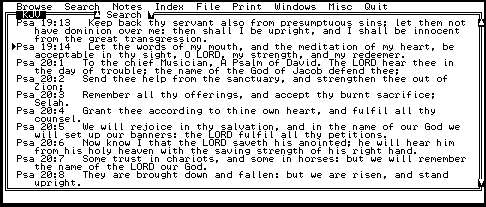
How Bible Software's Improved: Theotek Podcast #058
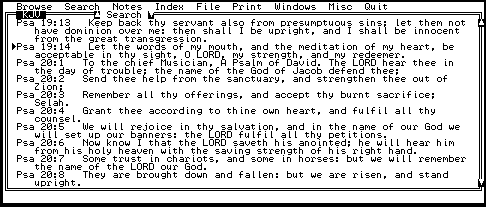
Listen to a bunch of old farts talk about Bible software then and now. We take a trip down memory lane and share what we used first in Bible software. We also talk a little about the best improvements that we enjoy.https://www.youtube.com/watch?v=uwAYkauxnLoListen below or watch above to enjoy. Our Favorite Things for this week: LaRosa Johnson mentioned one of our favorites, the Pencil by Fiftythree, which looks and works a lot like an art pencil.
 Rick, a Type 2 Diabetic, got the OneTouch Verio Sync glucose meter. It connects to an iPhone so you can track your blood sugar levels with your iPhone.
Accordance Mobile 2.3 Update: Theotek Podcast #056
What's new in Accordance Mobile 2.3 for iOS? Rick Mansfield from Accordance Bible Software shows off the new features in this big update. But first we offer Our Favorite Things - recommendations from each member of our Theotek team.We advertised this episode as Rick Mansfield's showing off the new Accordance Mobile 2.3 update with all the new features. He had some difficulties due to instability on Google's part. We took a look at Down Detector and they said Google was experiencing issues.https://www.youtube.com/watch?v=Fj5KVaUfdyE
What's New in Accordance Mobile 2.3
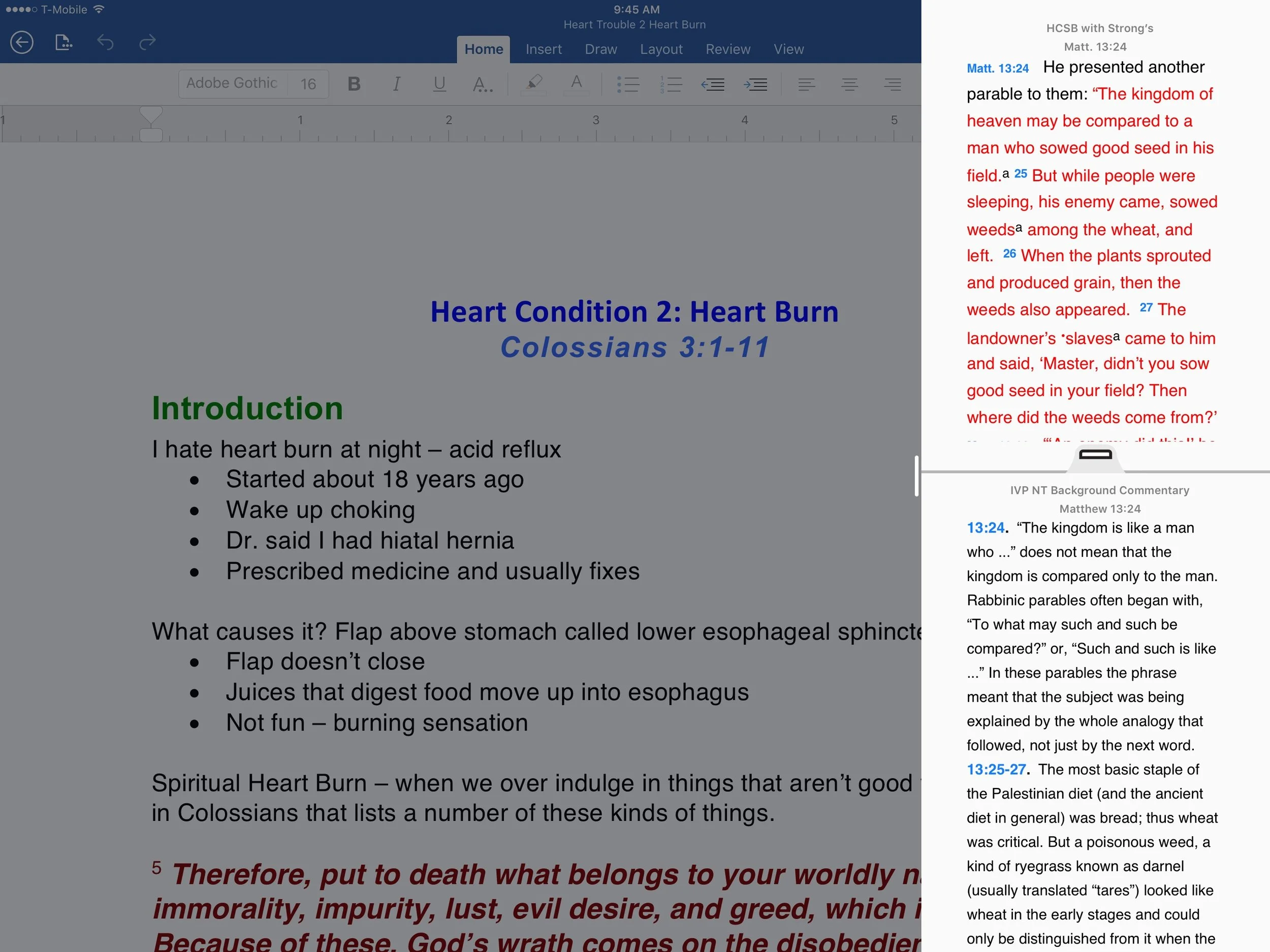
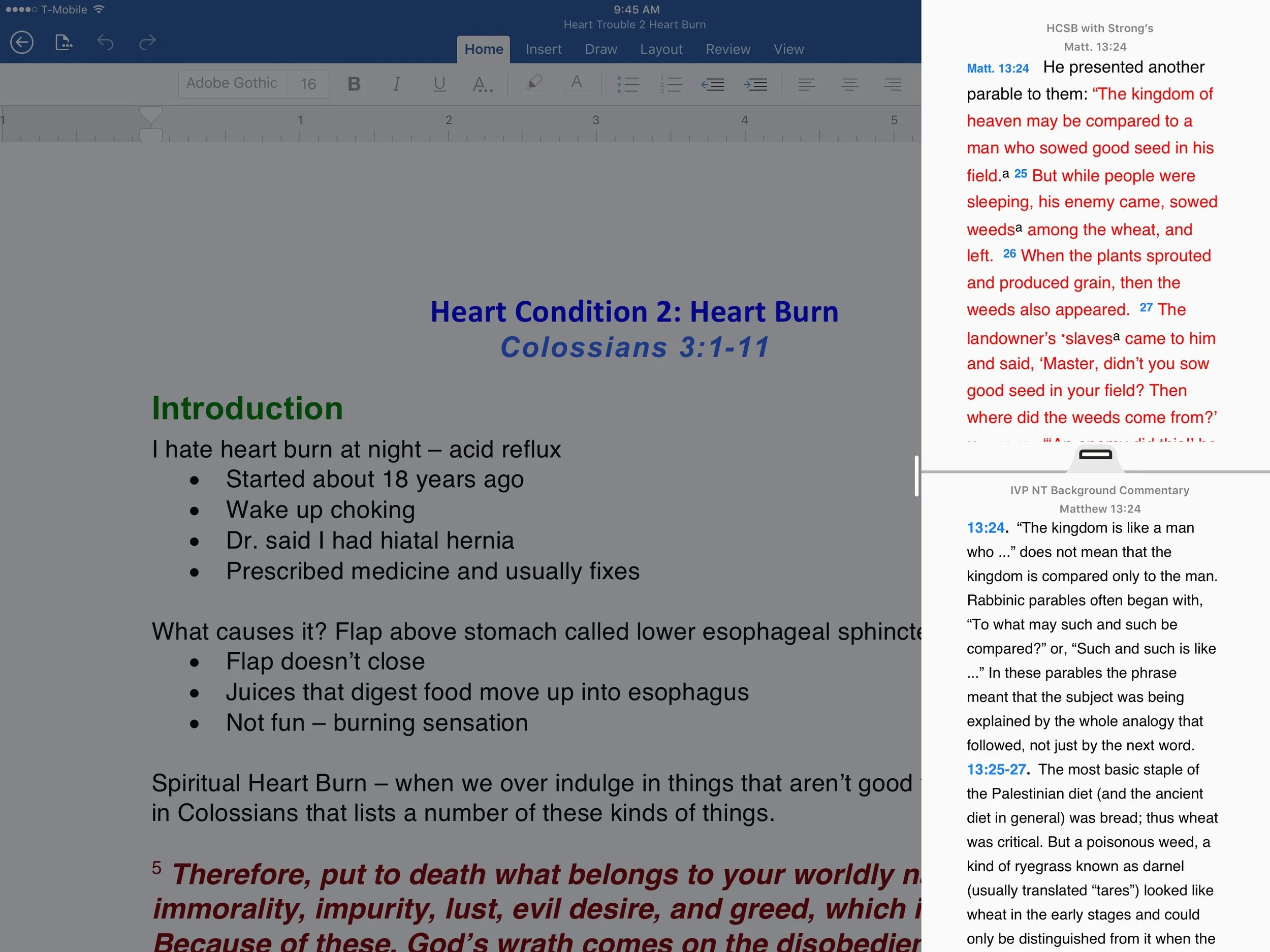
 Here's some of the great new features available in Accordance Mobile 2.3. First up, we see the new slide over feature that came in iOS 9. The user can slide from the right edge of their iPad and show a column of app icons that support slide over. Tap on one to see open an app window that takes up only about 20% of the screen. Use the handle in the middle of the border between the two apps to slide in and take up a quarter to one half of the screen.In addition to the slide-over feature, on newer iPads Accordance Mobile 2.3 now supports side-by-side. The above description explains how this works. The feature isn't available on older iPads or on the iPhone at all.Accordance Mobile now shows up in Spotlight search. Search for a key word or passage and the iPad's Spotlight Search feature will look inside Accordance and find the word. It uses your top-ranked bibles, but doesn't work when the Library page is open.Watch our video podcast to see it in action. For more information head over to Accordance's blog.
Our Favorite Things
Wes Allen recommended the Unitek 3 Port USB 3.0 Hub with Gigabit Ethernet adapter built-in. It costs $20 and gives users exactly what the name suggests.Antoine Wright recommended the 831 Podcast. The podcast host is Brandon Fasig and he says, "831 youth podcast [is] meant to strengthening your faith."LaRosa Johnson recommended the iOS weather app Dark Sky. I like it too because it gives more than simple weather data.At the end Antoine talked about a couple of opportunities he's involved in that you can take advantage of. Find out more at the following:
Online Bible Study: Theotek Podcast #055
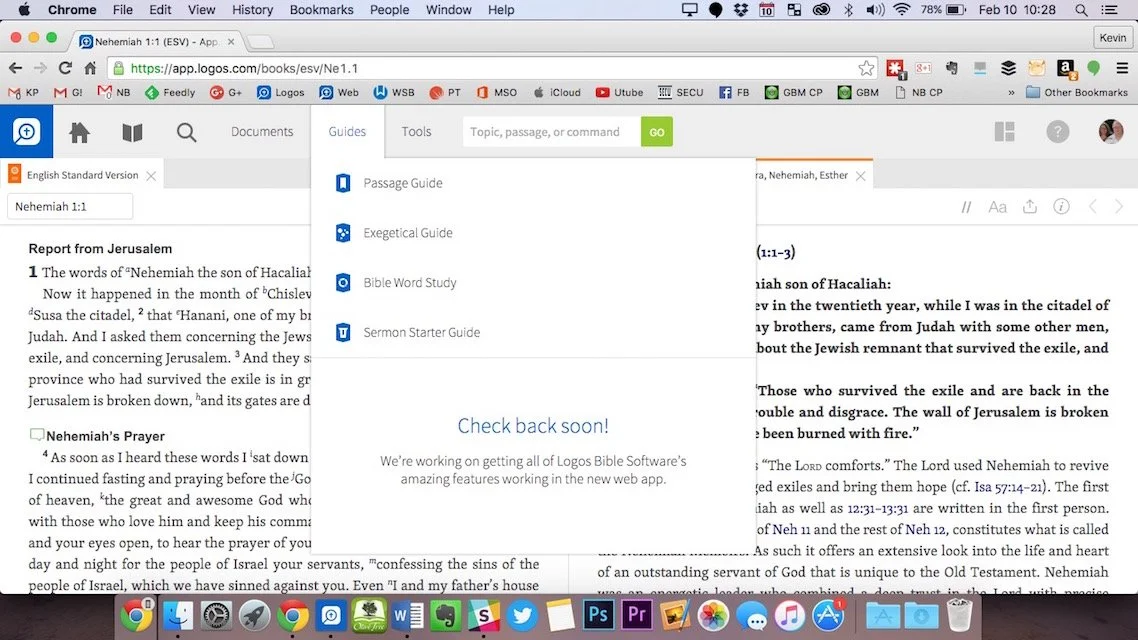
Can you prepare your sermons using online Bible study sites? We try to answer that question and give a few recommendations if you choose to give it a try. At the end of the podcast we also give a few recommendations in our new segment, "Our Favorite Things".https://www.youtube.com/watch?v=Nj4ixnyNm9sWe only had three of our team members in this podcast. Rick Mansfield works with Accordance Bible Software and didn't think that online Bible study sites were good enough to do full sermon prep yet. Users often don't have access to the Internet or they don't have a reliable connection. Most of the online sites don't give users enough power to do serious word study. Most them include limited options for commentaries and word study tools. The ones included usually are only public domain works.Antoine Wright from Mobile Ministry Magazine was a little more bullish since he's a mobile-first kind of guy. He recommended a site called Bible Web App. It suffers from the same weaknesses of the other online sites with limited options and mostly public domain. It's fast and clean and does most of what Antoine needs. I like online sites and use a few. Last year I reviewed 6 online Bible sites in a two-part post. You can find part one and part two to see the video demos of the 6 sites (three in each post). Two of the sites I reviewed are no longer my favorites. Instead of My Study Bible from WORDsearch and Lifeway, I now recommend their new site MyWSB.com. Second, Logos has a site for subscribers to either their Logos Now or Logos Cloud services. Learn more about Logos Now in a recent post and Logos Cloud in another post.
 The online sites from WORDsearch and Logos above will cost you a little bit. The best option for those looking for a free site comes from Bible.org. It's called Lumina.
Our Favorite Things
 In "Our Favorite Things" this week we recommended some apps, a utility and an accessory. Rick recommended a USB C dock for the new 12-inch MacBook (not the Air or Pro). It's the HyperDrive USB Type-C 5-in-1 Hub with Pass Through Charging for $50. It connects to the USB C port on the MacBook and adds ports for an SD card, micro-SD card, 2 USB 3.0 ports and a USB Type-C port for charging or hooking up a 4K video adapter.Antoine recommended a list of Lent Apps he put together on his website. They can help Christians who observe Lent.
 My recommendation comes from github. It's a free utility that helps the user switch their MacBook screen resolution. It's called DisableMonitor and runs in the OS X menu bar. A drop down box shows all the resolutions your monitor supports. This gives you far greater control over the screen resolution settings than the built-in Display Settings in System Preferences in OS X. I wrote up a full How To post on it at Notebooks.com.
Sermon Prep on iPad Pro Only
Now that I've used my iPad Pro for a couple of years, people ask me if it's really a good tool for writing sermons and doing digital Bible study. The answer is and resounding, "Sort of!"The iPad Pro works great for people with simple needs and some complex needs depending on your chosen Bible study software and app. iOS Bible study apps reached a maturity level in recent iterations with great original language tools, awesome library organization and decent layouts. No Bible study app provider takes the Apple Pencil seriously with my dream of writing in the margins or freeform drawing and highlighting. In fact using the Pencil creates a challenge for highlighting in some apps. It's supposed to mimic using a finger, but doesn't sometimes.
Studying the Bible on iPad Pro
Bible study apps on iOS work great. The best options include the following:
A few others deserve honorable mention. They're not as complete as the above programs, but preachers and teachers of the Bible can use them to develop sermons and studies.
You'll find dozens of other apps in the Apple App Store, but the top four will certainly give you what you need to do advanced digital Bible study for sermon prep. The second tier will work great if you already own them and feel familiar with the tools.I won't get into how to do digital sermon prep on an iPad. If you need help with the steps, consider checking out Biblical Preaching by Haddon Robinson or The 12 Essential Skills of Great Preaching by Wayne McDill or Christ-Centered Expository Preaching by Bryan Chapel. All three will teach you to write a sermon that focuses on the text instead of creating an outline and then plugging in some proof texts.Use your Bible study app to...
- Choose a text - read it in context and then select the beginning and ending of the passage or pericope.
- Familiarize yourself with the text - re-read it repeatedly in multiple translations
- Take notes - record your observations of what you already know and then ask good interpretive questions of the text like "who, what, when, where, why and how".
- Study the key words - search the bible for the Hebrew or Greek root, then look them up in lexicons, grammars, Bible dictionaries, and atlases, recording the answers in the notes created in step 3.
- Consult commentaries - by this step, you should already know what this passage teaches. Consulting commentaries can help confirm or correct your self-discovery. It also helps you find things you weren't thinking about as you studied.
I'm creating a video series on YouTube that shows how to do this with Logos on a desktop. The principles apply to the iPad apps somewhat.https://www.youtube.com/watch?v=GZTrMB0PnuQ&list=PL1-Xf_HZquDGvCiJtyisBrEULSH3McCSO&index=1Your Bible app will need the following features to do the above steps of study:
- Display multiple Bible translations and it's helpful to show them all on one screen.
- It's helpful if the app will show you the pericopes from the modern translations (section titles), but don't let them force you into following them since experts disagree how to divide the passages into pericopes.
- A notes feature with formatting and the ability to link to a verse, not just a word.
- Hebrew and Greek tools like looking up words using things like Strong's numbers and preferably the ability to search by root words.
- A great tool that will find all your reference works for you like a digital assistant that stacks all the lexicons, dictionaries, commentaries, etc.
- Parallel windows of at least two or more books open at a time.
- An export feature to copy passages to a word processor.
I use Logos since that's where most of my library resides. However, I prefer the Olive Tree user interface the most. Only PocketBible will show more than 2 books on-screen at a time in 3 or more window panes.
Writing Sermons on iPad Pro
The Apple App Store on the iPad Pro boasts dozens if not hundreds of options for writing your sermons. Some of the above iOS apps include sermon document creation within the app, like the Logos Bible Study app. While the Sermon Editor shows your sermon created in the desktop app, it's read-only now.Bible study apps often come with a Notes tool. Users could simply write their messages inside the notes, however, I don't recommend that either. Get one of the great word processing apps or writing apps instead. Which one depends on how you work. Here are some recommended apps for the writing process.
Microsoft Word iPad App
 Users of Word on a desktop or laptop should probably also use the mobile Microsoft Word for iPad app. If you're an Office 365 subscriber you'll get automatic sync between the computer program for Windows or Mac and your iPad app. I have a template set up with all the formatting I like and even have some basic tools in the template like an outline. It has some styles set up and a list of things I want to write down before I actually begin the writing process. These include the passage's picture of God, sins dealt with, solution to the sin problem and subject/complement as well as the purpose for the message.
Pages for iPad
I'm not a big Pages fan, but plenty of people who own a Mac and an iPad prefer it. They come free with both machines. It has all the tools most preachers or teachers need. You can even create a template of sorts like I do in Word.
Evernote
 I used to use Evernote all the time. It's a great tool for recording and saving content for later use. It's billed as an organizer and planner, like an old notebook with calendar, contacts and notes.Writers can use it to write with formatting. Create a template to use like I do with Word. Evernote backs up every document instantly. You can create folders for all your sermons organized the way you'd like to by date, location of preaching, subject, book fo the Bible and more.
Scrivener
Scrivener's a useful writing app that's primarily designed around longer format writing. However, you can use it for shorter things like sermons and Bible studies. We did a show on the old Theotek Podcast about how my friend Wes Allen uses it. We're not doing Theotek anymore, but the show's still there. See how he uses it to write sermons.https://www.youtube.com/watch?v=SHDYJdkAAic
Mind Mapping Apps
I don't use mind mapping apps, but a lot of people do. Consider using that for your sermon prep. Search the app store for a good one. With Apple Pencil, mind mapping works great on the iPad Pro.
Tips for Writing on iPad Pro
Just a couple of tips for people who wish to write on their iPad Pro. Open your Bible study app and then open your writing app. Arrange them side-by-side so you can see both.Get a good keyboard. I prefer the Apple Smart Cover. It connects to the iPad Pro 12.9-inch or 10.5-inch magnetically. It folds so you can use it as a stand with the keyboard ready for typing. You can also fold it to use it as a stand when you're not typing on the iPad. Logitech also makes a nice cover for the iPad with an integrated keyboard. I wrote about them both when I was at GottaBeMobile.https://www.youtube.com/watch?v=Qf7ikwPqLwQWhen I write my sermons I use color-coded text to help me quickly tell what I'm looking at. For example, Headings are larger font green text. I put the Bible passage text in the document and make it bright red. Quotations from other people are bright purple. Transitions from one point to the next are bold, italics text. My font is 14-point so I can see it better.
Preaching from iPad Pro
The workflow for preaching from iPad Pro depends on what apps you're using. Here's how I work.
- Save my Word document to OneDrive and close Word so that it's fully synced up on Sunday morning.
- Open Word on Sunday and turn it to landscape.
- Tap the button in the upper corner that puts the iPad in a special mobile view to make things easier to see while preaching.
- Preach.
 Some people prefer to have their Bible app open next to the document. Others also control a presentation from their iPad while they preach. I do this during a Wednesday Bible study. I open Keynote first and then I open the Word document to the right quarter of the screen in that special mobile mode.While I'm teaching with Keynote, I use my Apple Pencil to annotate the text of the Bible. Sometimes I put blank slides to use as a whiteboard.
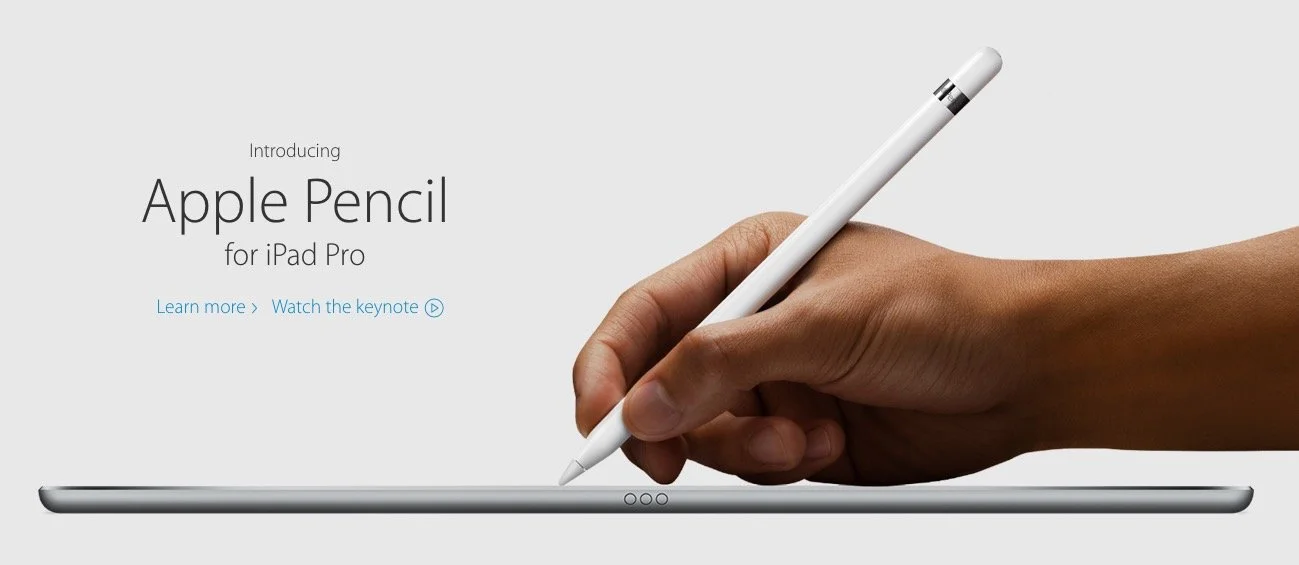
Preaching With an iPad Pro: Theotek Podcast #046
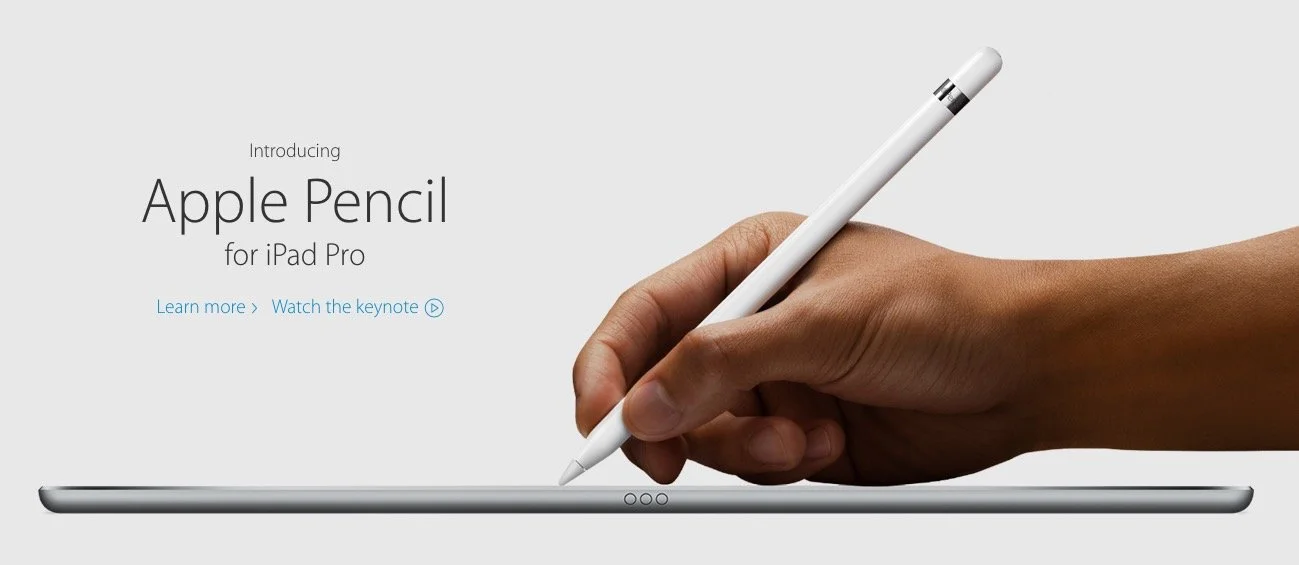
What is the new Apple iPad Pro like for studying the Bible, preaching or teaching? Rick Mansfield (@thislamp and thislamp.com) got one this week and we asked him a lot of questions about using it. Watch or listen below to hear his thoughts.https://www.youtube.com/watch?v=16v6TwpaPvEJust a summary of Rick's conclusions. First, he likes the side-by-side feature so that he can hold his Accordance Bible app next to Microsoft Word. This will help with both Bible study and preaching. The Keynote app and Word can sit on-screen at the same time. He uses the notes feature in Keynote, but after the podcast was over he tested and found out that you can run a Keynote presentation mirrored to an Apple TV and open Word in side-by-side mode.Second, he tested out the iPad keyboard and looks forward to getting one to use. He didn't like the Logitech keyboard case as much because it seems harder to remove from the iPad Pro.We talked about the Pencil, which is hard to come by until December. Wes tested it out at his local Apple Store and found that it was a great experience. They've done a good job of making it work well and feel more like writing on paper than older styli.At the end of the podcast I shared some first impressions of using the Apple TV 4th generation. It's a nice media device and the remote is both good and bad. Siri works great and AirPlay still works as well as before.