

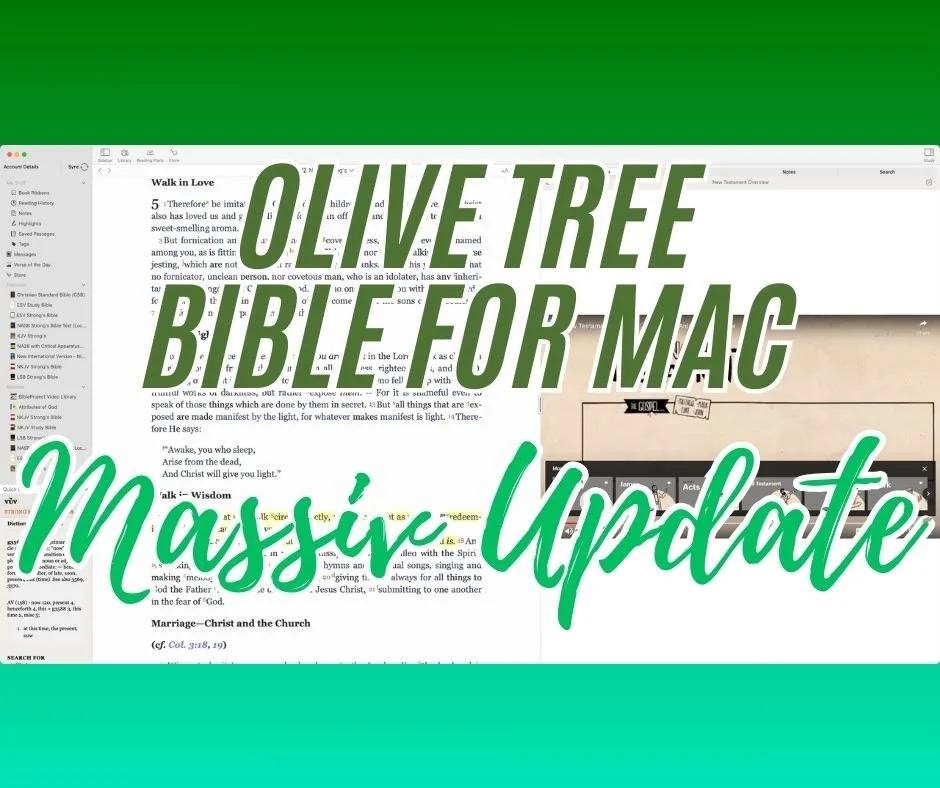
Olive Tree Bible for Mac with MASSIVE Update 3 Years in the Making
Olive Tree update their Bible. study app to make it look and work more like the iOS and iPadOS app. It now only has a few minor differences.
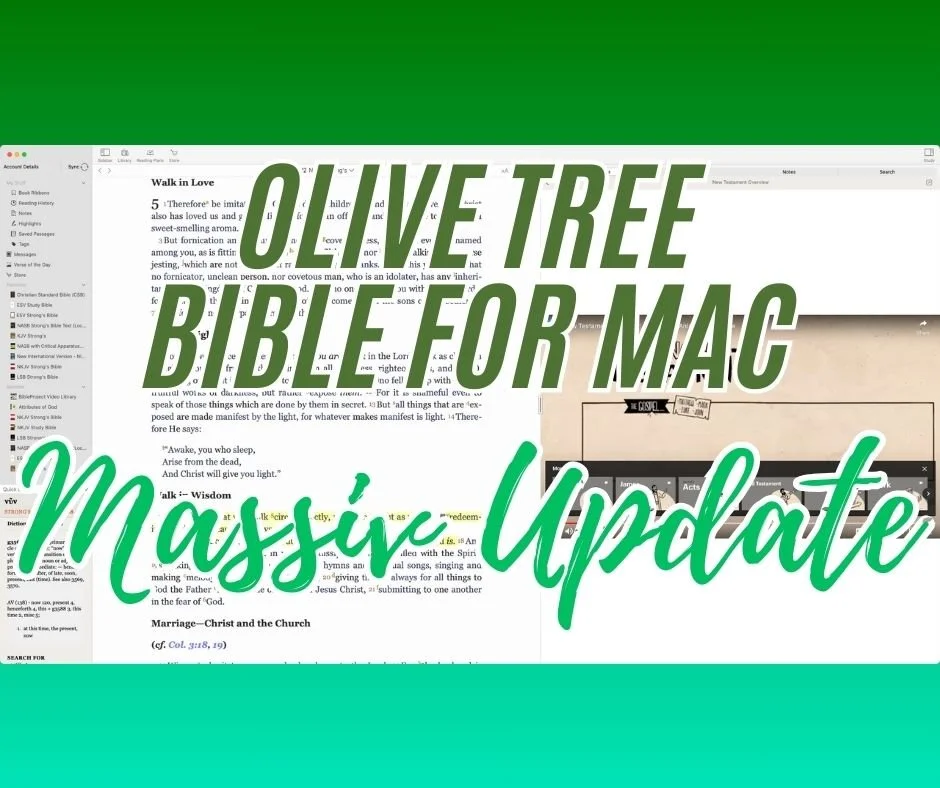
According to the Mac App Store page, the Olive Tree Bible app on the Mac desktop has received a "MASSIVE update three years in the making."

The jump to version 7.16 brings the iOS mobile app and the Mac app together with a similar look and feel. The app on Mac and iOS always looked similar. However, Olive Tree updated the Mac version to behave like what you'd see on an iPad. Here's what's new.
Audiobook Access on Olive Tree Mac Desktop

Your library provides access to audiobooks and other audio features. Open the Library from the button in the toolbar. Click on Add Filter and choose Audio. Your audiobooks will appear there. Open one and start listening. The controls let you jump to parts of the book.
The above steps also work on your iPad and iPhone. If you want, you can click the minimize button in the audio player and the player will show in your sidebar.
Access Video from the Resource Guide
When you open your Resource Guide, you may find video content. Scroll down till you see the Videos section of the guide. Click to open a video and it will play in the guide. You can also pop the video out using the button int he upper right corner of the player.

When you pop open the video player, you can jump to YouTube if the video comes from YouTube. Additionally, you can maximize a video. If you're playing it for your small group, you can see the full-screen video.
Other Changes in Olive Tree
The Message Center, which should probably be called the ad section, also appears now. It's in the left sidebar. The app also offers an improved Store and Shopping experience.
The Quick Details section from the lower left corner looks and acts just like the mobile app.
The Resource Guide gets some speed improvements. Everything will scroll faster, especially if you have a slightly older Mac.

The My Stuff section shows up in the left Side Bar towards the top, as seen above.
PocketBible for iOS and Mac Adds ChatGPT to Autostudy
There's a new version of Laridian's PocketBible for iOS, iPadOS and Mac that fixes some bugs, adds new features like an improved Reading Mode, and more importantly integration of ChatGPT AI Insights.
Laridian announced that they added ChatGPT to their Autostudy feature. This feature is available to subscribers of the company's Advanced Feature Set, which gives users more features than the free Bible study tool.

PocketBible for iOS is available on the App Store for iPhone and iPad and runs on Macs. The new version is 4.18. Find the full list of updates using the previous link.
How to Use Autostudy in PocketBible
The app's Autostudy feature helps users study their Bible with a simple report on a word or verse that the user selects. It's similar to the Guides in Logos, the Resource Guide found in Olive Tree.

To use Autostudy, hold down on a verse or double-tap a word. A toolbar with an icon that looks like a graduate's cap will pop up. Tap that to see the Autostudy window. Then tap on Show Results to see your Autostudy report.

The row at the top shows the content of your Autostudy. Swipe to see the rest of the row. Tap a category to jump to that category in the Autostudy list.
Autostudy includes the verse or passage report, which shows the following...
- Text from each of your Bibles (shown above).
- Strong's numbers.
- Dictionary definition of every word in the passage.
- Greek or Hebrew word definitions.
- Commentary entries from all the commentaries you own.
- Cross-references from Treasure of Scripture Knowledge or other cross-reference titles you own.
- Your user-created notes.
Autostudy for each word includes ...
- Definition from your selected dictionaries.
- Number of times that word is found in your Bible.
- Strong's number info if you own a Strong's tagged tool.
A new feature in the recent update offers Autostudy Devotions features, which include...
- Reading for today.
- Text of Bible passages referred to in your devotional.
Laridian includes a couple of nice features in PocketBible's Autostudy. Users can customize the report's look, which you see under Customize CSS when you run a report. They can also customize the order of content from within an Autostudy report.
ChatGPT Integration in Autostudy
Adding ChatGPT to Autostudy adds a lot of content to the app that a smaller company like Laridian could never add alone. In fact, big companies would likely struggle to add such far-reaching content.
From Laridian's Craig Rairdin...
We’ve spent a lot of time over the last year and a half designing prompts and instructions that cause it to give responses that are Bible-based and Bible-first. It avoids dogma and denominational bias and favors what it clearly reads in the Bible. It uses biblical terminology where political correctness would prefer non-biblical alternative language.

To use Autostudy, users must first subscribe to the Advanced Feature Set and turn on the AI feature in the settings. To do so, they tap and hold on a verse and then tap on the Autostudy button in the toolbar that appears.

In the Autostudy's first window, find Content and Order near the top. Tap it to open it. Ensure there's a checkmark in the AI Insights item at the bottom of the list (#1 above). You can also turn off other items by removing the checkmark. Hit Order (#2 above) in the upper right corner to change the order of the items in Autostudy.
Now, when you tap the Show Results item on Autostudy's first screen, it will find all the content it can from your library and ChatGPT. This takes longer than a regular report that doesn't use AI.
Example of AI Insights Results for Commentary
To give you an example of the results of AI Insights in PocketBible, I ran an Autostudy on John 3:3. Here's what the AI Commentary offered.
The Gospel of John, traditionally attributed to the Apostle John, is unique among the four Gospels in its theological depth and focus on the identity of Jesus as the Son of God. Written in the latter part of the first century, likely in Ephesus, it aims to strengthen the faith of believers and present a clear understanding of who Jesus is. John’s Gospel addresses a broad audience, including both Jewish and Gentile readers, and highlights the necessity of spiritual rebirth, a theme central to John 3:3.
In this verse, a conversation takes place between Jesus and Nicodemus, a Pharisee and member of the Jewish ruling council. This dialogue occurs at night, indicating Nicodemus’s cautious interest in Jesus and the disruptive nature of Jesus's teachings to the established religious order. The phrase “born again” introduces a pivotal theological concept that reflects on the necessity of spiritual transformation.
The context surrounding this verse encompasses the introduction of Jesus's public ministry and the manifestations of His divine authority, characterized by miraculous signs. John 3:1-21 emphasizes the contrast between human understanding based on earthly standards and the spiritual insights required to comprehend the Kingdom of God. Nicodemus, representing the religious elite, approaches Jesus, seeking clarification about His teachings and miracles, which sets the stage for Jesus's profound statement regarding the need for rebirth.
The phrase “unless one is born again” underscores the necessity of a radical inner transformation that is not achievable through human efforts or religious observance alone. This rebirth is explicitly spiritual, highlighting that entry into God's Kingdom requires a renewal of the heart and mind, an action attributed to the work of the Holy Spirit as described later in John 3:5-7.
The practical application of this teaching is substantial. It emphasizes the fundamental Christian belief in the necessity of conversion and the transformative power of God’s grace. For modern readers, it serves as a reminder that spiritual renewal is not merely a one-time event but an ongoing process of growth and reliance on God's spirit. It invites believers to examine their own spiritual lives, acknowledging that true faith encompasses a personal relationship with Christ and a transformation reflected in their thoughts, actions, and purposes.
The passage, therefore, teaches that understanding spiritual truths and entering into a relationship with God begins with an acknowledgment of one’s need for renewal, making it clear that human wisdom alone is insufficient for salvation. It aligns with the broader biblical narrative that presents salvation as a gift from God, to be received by faith and resulting in a changed life (Ephesians 2:8-10).
That's not bad! I wouldn't replace a solid, reliable commentary, but it's a nice supplement.
Other AI Insights that you get from PocketBible include...
- Bible Dictionary - a summary of info about the word or phrase studied.
- Inspirational Thoughts - a reflection for that day's Bible reading or other Bible passages.
- Applying Today's Verses - practical application for the day's Bible reading.
- Today In Christian History - info from church history.
Other New Features in PocketBible Update

Laridian added a new Reading Mode, removing distractions from the text so the reader can read their Bible. This mode removes the toolbars, toolbox, and other window stuff around the text. You open Reading Mode by tapping the button on the Toolbar with two arrows (second from the right).
If you wish to remove verse numbers, go to the app settings (the menu button is on the right of the toolbar) and choose Settings under the PROGRAM section. Tap on Hide Verse Numbers in the first section.
Finally, as with most apps or software, this update includes many bug fixes or minor feature changes.
How to Get PocketBible for iOS and Mac and Advanced Feature Set
You can download PocketBible for iOS or iPadOS in the Apple App Store on your iPhone or iPad. For Mac, get the app from Laridian's website. Both apps are free. The Advanced Feature Set costs $.99/month or $99/year through an in-app purchase or on the company's website.
5 Best Audio Bible Apps for iPhone or Android in 2024
We have the 5 best audio Bible Apps for iPhone, iPad, Android, and, in some cases, desktop and web. See if your favorite app shows up.
While I personally love reading my Bible, I know many people prefer listening to the Word. Most people consumed the original books of the Bible audibly instead of visually in a book or scroll. If you're looking for the best audio Bible app for your iPhone (or even Android!), this list is for you. We'll dive into the top 5 options, each with its unique features to enhance your Bible listening experience.
Dwell: Audio Bible - Best Audio Bible Apps for Dedicated Bible Listeners Willing to Pay for a Subscription
The Dwell: Audio Bible app runs on iPhone and iPad. Users can install it on a Mac thanks to Apple's M processors. Finally, it also works on Android.


When you open the app, you see a screen with four tabs across the bottom and the Settings icon in the upper right. This screen appears after you go through the first setup screen the first time you run the app.
Home shows you various listening options. There's an Explore tab to find something to listen to. The Bible tab lets you listen based on predefined listening plans or by book of the Bible split into two screens for the Old and New Testament. Finally, you can search the Bible, which will help you listen to a specific passage. You see the Me tab with Favorite verses, Downloads, Playlists, Plans, and your Listening Queue.
Try out Dwell app for free, but you'll need to buy a subscription to use the full feature set. It costs $39.99 a year or $7.99 a month. That's steep, but if you really love listening to the Bible, try it out and subscribe for a month. The $40/year will seem worth it if you find it useful. Otherwise, try one of the options below.
Bible from YouVersion - Best Free Audio Bible Apps
Most Bible listeners will enjoy free over $40 or $8. The most popular Bible app on mobile is YouVersion. The app does more than play audio of your favorite Bible. You can get it on iPhone, iPad, Android devices, and your computer through the browser.

The app includes audio Bibles, videos related to Scripture, and almost every translation you might want to read and download. You will also see many reading plans to choose from.
The Bible app includes social media components that let you follow the activities of other Bible readers and share yours.

Listen to a Bible by downloading one that includes audio. For example, I downloaded the NKJV, and it shows an audio icon next to the name in the translation chooser drop-down list. Open it, and the screen shows the text and a Play button. Go to your desired passage and click or tap the play icon.
You can't beat free; the other features make it a great option. The voices sound pretty good, but Dwell sounds better. The Store tab lets you buy books Bibles and books with audio.
Logos Bible Study - Best Audio Bible Apps for Cross Platform that Lets You Grow
Many people already own a Logos library, so don't overlook their listening features. We don't have time to explore everything the Logos Bible Study app can do, but the Audio features will help you enjoy an audio Bible inside your favorite Bible study app.
Some of the audio uses the built-in iOS voices, which sound pretty robotic. However, if you go to the Menu button in the lower right corner and choose Audio, you can find plenty of Audio Books, including some Bibles.

To listen to basic audio, open a Bible and tap on the Audio button in the Bible's toolbar (second from right). It opens the audio control screen at the bottom of the app.
If you want to listen to a better-quality Audio Bible, open one. Search the Library search box for "Audio," and you'll see many audiobooks. Everyone will own the Lexham English Bible Audio New Testament, but your library might include others.
The Logos Bible Study app doesn't cost anything. The most essential features and library also cost nothing. However, you'll want to buy a library to make the most out of it. As of this day, Logos has a great sale on Logos 10, which they call their Farewell Tour because Logos 11 will ship soon. Buy a library or upgrade package (affiliate link) now and save a lot of money. You can get the CSB Audio Bible if you buy one of the smaller packages. Everyone receives the LEB and ESV Audio Bibles.
Bible.IS for Free Apps Focused on Audio
Few people know about the excellent Bible.IS app. It's free and focuses on audio and text Bibles. There's an online version, the Android and iOS apps. You can listen to a few English translations like NKJV, NLT, ESV, and CEV. The app also offers 3 video versions (ESV, KJV, and NIV).

When we rounded up the 4 best Android Audio Bible Apps, Bible.IS won the award for our Winner: Best Audio Bible Apps for Android. After a few years, I think Dwell and YouVersion would win that award—Dwell for audio quality and YouVersion for the overall quality of the app's features and usefulness for more than audio.
Olive Tree Bible Study for High-Quality Audio Bibles
Olive Tree produced the best mobile Bible Study app for many years. Recently, others overcame their feature deficit and the quality of the user interface design. However, it's still a good tool for more than Audio Bibles.

The Audio Bible feature built into Olive Tree Bible Study works well. We included it in our roundup of Android apps a few years ago. You can read, study, and research your passage. However, to listen, open an Audiobook from the app's library, which appears on the main screen's toolbar next to the menu button on the left. There's a tab for Cloud and Device, which shows the books in your library that you downloaded (Device) or haven't yet downloaded (Cloud). The books with audio include a headphone icon on the bottom of the book cover in your library. Tap to open the book.
Many will have the KJV Complete Audio Bible Dramatized in their library. Click to open it and tap on the play button at the bottom of the screen. Navigate to your chosen passage by clicking the dark green button at the top of the window. A Book Chapter Verse chooser will pop up.
To get more books, tap on the Recommended tab in your library. It shows the Olive Tree Store where you can find more books, which may or may not include audio. It's easier to find them on their website.
Bible by YouVersion Downloaded 500 Million Times: 5 Reasons Why
The Bible app from YouVersion, and Life.church announced that people downloaded their app 500 million times. Here are 5 reasons why.
500,000.000! That’s half a billion. That’s how many times people like me downloaded the Bible app from the folks at YouVersion by Life.church. I recognize that I downloaded the app probably 20-40 times alone over the years, but even if the 500 Million downloads represent 100 Million actual people, that’s a lot of people reading the Bible.
What makes this simple Bible reading app so popular that such an enormous number of people installed the app on their iPhone, iPad, or Android device? After all, it doesn’t have any commentaries, Greek or Hebrew word studies, or other theological tools. It’s mostly just a Bible reading app with social media features and sharing built-in to name a few features.

Let me share with you the 5 reasons why users downloaded the Bible app 500,000,000 times. Not only will you learn what sets it apart, but how to get the most out of the simple Bible app.
Bible App is Simple
I usually recommend complex Bible study tools like the apps from Logos Bible and Accordance Bible. If that's too complex I drop to the second tier of apps from Olive Tree Bible, Laridian Pocket Bible, or a few other third-tier Bible study apps. Most of my readers want at least basic original language study in Greek or Hebrew, commentaries, Bible dictionaries, and complex searching. The Bible App includes none of these advanced features and that's why so many love the app. They prefer simplicity over power.
Fire up the app and you'll find the Verse of the Day on the Home tab displayed in the text, visual form, and as part of reading plans that include that verse. There's also a video about the verse (see image above).
Tap on the Bible tab at the bottom of the page to read the Bible in your preferred translation. Users can quickly move to a new passage using the button on the top of the screen. The other top center button opens the library of translations and you can read almost any translation you can think of in multiple languages (see image below).

Other options let users open multimedia resources related to the current passage. You can also change the look of the text...

Above you'll see highlighting (left), a selected verse with the menu that shows the list below, and images that you can put behind the verse text and share with social media or other places (right above).
While reading a passage, tap on a verse to…
- Select the verse
- Highlight a version in multiple styles
- Copy a verse
- Create a visual image of that verse
- Share the verse
- Compare the verse in different translation
- Add notes or bookmarks
- Create a prayer list item
- Find related verse
You will also see little note icons that display translation notes.
If you want to select multiple verses, keep tapping on more verses.
There’s a lot here, but compared to more complex research apps, the user interface is quite simple to use and figure out.
Bible App Includes a Large Collection of Simple Reading Plans and Translations

The Plans tap at the center bottom of the app shows you all the reading plans available in the Bible App (see left image above). Users can find a large collection of reading plans based on topics, books of the Bible, or sections of Scripture, like the Sermon on the Mount.
When users select one of the plans, they can do the following:
- Read the Bible
- Share you progress with friends inside the app or on social media
- Get notification reminders to read your daily reading
- Search for plans
Notice in the image above that you can find Reading Plans in the Discover section too (2nd from left button on the bottom - see image above).
Bible App Shares to Social Media and More
The Bible App not only helps people read the Bible but helps them read it as part of a community. Like other social media networks, the Bible App lets users follow friends and see their progress, Bible images, and more.
Go to the Home tab and choose either Today or Community at the top. The Today screen shows your Verse of the Day, reading plans you’re reading, and suggests people follow, among other things.
The Community tab shows things you’ve shared and what your friends share with others, like their reading plan progress or Bible images. You can then comment or like their content. If you like a reading plan that a friend shares, then you can choose to start reading it yourself.
If you choose something in the app, you can use the phone or tablet operating system sharing features to share to places like Facebook, Twitter, Instagram, or directly via a text or some other direct messaging app.
These social media features might do more to spread the Bible App to others than any other feature. As people share things with friends and family, recipients then choose to download the app.
Bible App Syncs Highlights and Notes Across Devices and Platforms

Most people own a computer, a smartphone, and maybe a tablet. Tech enthusiasts like me might own a few of teach. The Bible App works on all of them. You can install it on...
- iPhone
- iPad
- Android phones
- Android tablets
- Kindle tablets
- The Web via a browser
Whatever you do in the app on a device, like an iPhone shows up on the website, your Android tablet, or your Kindle tablet. All your highlights, notes, and reading plan progress show up on each of these platforms. Create an account and log in on each device to sync the various content or progress.
Bible App Adds Multimedia Like Video and Images
As mentioned above, the Bible App doesn't just show you the text of the Bible. You can also view multimedia content like the Verse of the Day superimposed over beautiful images. View the ones made by the app developers, your friends, or create your own.
If you tap on the Discover tab at the bottom of the main screen of the Bible App, you will see Podcasts, Videos, and images.
The Podcasts include simple things like audio book versions of the Bible read by talented readers. You can also hear traditional podcasts that cover things like Bible teaching, help for teachers, and popular content like J. Vernon McGee’s Thru the Bible in podcast form.
The videos come from multiple sources like The Spoken Gospel, which is a video Bible. You can also see scenes from the popular tv series The Chosen. The Bible Project videos also show up here as well as the Lumo Project, another video Bible in multiple languages. You can spend hours watching the videos included in the app.
Summary
I prefer more advanced Bible research and study apps for most of my mobile Bible reading or and study. But for quick and simple Bible reading and for sharing with others, the Bible App does the best job. Since it’s free, everyone should get it and drive that number far past the 500 Million downloads

5 Best Bible Apps for Android and Fire Tablets for 2021
What are the 5 best Bible apps for Android for 2021? These run on Android phones, tablets, and the Amazon Fire tablet.

If you own an Android smartphone or tablet or maybe an Amazon Fire Tablet, then we've got the 5 best Bible apps for Android. This list usually stays the same each year. So what has changed for 2021?

I tested these apps on the Samsung Galaxy Tab S6 Lite. I used to own the Tab S7 but handed it down to my son, an Android first guy. Most of the time, I use the iPad, but Android works great too. So, here's my list for 2021!
What's your favorite Bible app on Android or Amazon Fire Tablet. Comment below or head over to the YouTube video above and comment there.
Bible App by Olive Tree
Olive Tree's Bible App sits atop our list because it's still the best mobile Bible app available for reading, study, and sermon prep. Why do I call it the "best"? Olive Tree presents the Bible and Bible study material with the perfect balance of usefulness and simplicity. That's hard to do. Just ask the other more technical Bible study apps listed below.
UPDATE: The Bible App by Olive Tree is no longer supported on Amazon Fire tablets.

Open Olive Tree on a tablet, and you get two areas by default. On the left, you'll see a kind of Windows Explorer or macOS Finder kind of navigation window that takes up the left half of the screen when you tap the menu. To see this menu, you'll need to tap the menu button that looks like three horizontal lines in the upper left corner.

The Bible sits on the left when the menu isn't open. On the right, you'll see the Resource Guide. These two can link up so that when you scroll or swipe from page to page in the Bible, it will move the commentary you have open to the right.

Add word study features by opening a tagged Bible. Tap on a tagged word, and you'll see a popup window that defines the word in its original language. You also get Audiobooks, reading plans, devotionals, maps, highlights, note-taking, and it all syncs up with your computer version of Olive Tree.
There's more to this app, but this hits the highlights and explains why I put it first in my 5 Best Bible Apps for Android list.
Logos Bible App from Faithlife
The Logos Bible App (Amazon Fire App) and its other similar apps from Faithlife come in second in our roundup because of its power and array of useful features. It's a little bloated, but I'd rather have too many features that don't get in the way of the basics than not enough, like the ability to add user notes.

When you look at all that Faithlife packs into Logos, you can only say wow! There's a reason this ends up in our 5 Best Bible Apps for Android, but not at the number one spot.
The app divides into a few main areas.
- Home Screen - layouts for study are here, along with information from Faithlife about sales or books.
- Library - find your books to open and read.
- Book Reader - you can open a bunch of books, and they will show up on screen accessible via the center button, the toolbar at the bottom of the screen.
- Search Screen - use it to search your Bible or books.
- Main Menu - find all the major features of the Logos app here, like the Guides.

You can open multiple books and sync them using the center button on the bottom toolbar. Set up some or all of the books to sync up or don't. I have a few Bible translations and a few study Bible's or commentaries open all the time, all of which I set to sync up, so they move from verse to verse together. I also open books I'm reading too, but they don't sync with a Bible.

On the Bible, you can do word studies, searches, and add notes or highlights. Open the menu, and you can search your library in one of the Guides. A passage guide finds everything about your passage. The Exegetical Guide searches for content related to language study. Other guides work similarly.

You'll find many other features, mainly in the main menu at the far right on the bottom toolbar. And remember, it all syncs nicely with the computer app or their web app.
Faithlife also offers a few other apps for Bible study and reading. You can download...
- Faithlife Study Bible - focused on their study Bible and the Lexham English Bible translation.
- Faithlife eBooks - a simplified version of the app for reading books primarily, but still has some study features.
- Biblia - Spanish language version of the app.
- Verbum Catholic Bible - app focused on Catholic users.
The Bible App from Life.Church

I always fight with myself about adding The Bible App (Amazon Fire App) to my roundup of best Bible apps for any platform, but I always do it for one reason. It's the most popular Bible app available on mobile devices.
I don't like including The Bible App because it's not really a complete Bible study app. You can't do word studies or read commentaries and Bible dictionaries. But that's not what Life.Church intended for its users to do.

Instead of more advanced Bible study, The Bible App excels as a simple Bible reading app that also includes social networking built-in and sharing to social media easily and elegantly. You can...
- Download and read hundreds of versions of the Bible, most of them available offline.
- Listen to audio Bibles.
- Set the app to remind you to read a daily reading and devotion or see a verse of the day in text or visual format.
- See what your friends are reading, highlighting, sharing, or commenting about the Bible.
- Watch videos to help you understand the Bible.
- Bookmark verses.
- Share verses with others via social media, email, or text.

Accordance Bible Software
The Accordance App (Amazon Fire App) on Android has gotten better but still lags behind its iOS cousin and the other apps in our roundup for a couple of glaring weaknesses. First, you can't add your own user notes yet. That's gotta change, and Accordance should feel embarrassed they haven't added the feature in 2021.

Second, the syncing features in the app are weak by comparison. Accordance should add its own syncing tool to keep your user content fresh on Android and a computer.

While Accordance really needs the improvements above, it still deserves a spot in our top 5. Of course, you can read the Bible and other books in your library. Accordance sells a lot of great Bible study tools, thanks to a huge library of quality resources. They are often the first company to release a book when it gets published. For example, they released the new 2020 version of the NASB before the others on the list. Logos doesn't even have it out yet.

Accordance works great as a Bible or book reader. It lets you search, and you can select a word and Amplify it, which means study by searching for related content.
Tecarta Bible
Bible study observers may not know as much about Tecarta Bible (Amazon Fire App $5.99 for NIV) as the others in this roundup. But they should because it's a decent app.

The app includes the most-used translations. You can download the KJV for free and buy others for download. If you don't want to pay for a translation, you can "stream" them, which means use them as long as you have an Internet connection on your phone or tablet. You'll have to buy commentaries, but unlike others, Tecarta lets you try them.

The app displays parallel translations and shows the commentary in a 2nd or 3rd window. Add notes, bookmarks, highlights, or share verses.

If you tap and hold on a word, the app shows a box popup that says "Define," and it will go online to give you a definition from an Internet search.
5 Best Bible Apps for Android and Fire Tablets for 2021 Summary
Which of the 5 apps included in our roundup of the 5 Best Bible Apps for Android should you download? Why not download all of them? Of course, you should start with the app from the company you already use on a computer, if you own one. I'm a Logos Bible Software user on my Macs, so I primarily use Logos, even though I like Olive Tree better on mobile.
UPDATE: If you use an Amazon Fire Tablet, you can't download the Olive Tree app since it's no longer supported. For a fifth Bible app on a Fire Tablet, look at Laridian's Pocket Bible. It's also terrific.
Update: You can also install the Google Play Store on an Amazon Fire Tablet. It's complicated, but if you think you can handle it, fire up the Silk browser on your Fire and head over to the helpful how-to article at Android Police.
If you must make me recommend one over another, then I'm going with Olive Tree first. It's got the cleanest and simplest interface. It has enough features for most users. People who need more advanced tools will likely not work on a tablet or smartphone very long. They're using a computer-level Bible study suite from either Logos or Accordance. However, don't end your search with Olive Tree. You can try out all of them for free and settle on one with the best features for your needs.

Is Bible Software Getting Too Complicated

No matter what software program I bet there are features you never used, seldom use or don't even know exist. My dad owned an old ‘72 Oldsmobile and he worked on it a lot, mostly because it was a piece of junk. But he could work on it. Now, you need an engineering degree to work on an Oldsmobile or almost any car. You can do a few simple things like change tires, batteries and plugs. But the real work needs a computer system and a specialist with training most of us don’t possess. Bible software feels like that today.

Early Days of Bible Software
I've been using Bible software since I got my first computer back in the early 90s. It was QuickVerse, a program that back then, ran on a handful of 5.25-inch black floppy disks because the hard drive didn’t have space for it. It pretty much did two things, that I can remember anyway. You could read and search the NIV Bible.

If you searched for a broad term like grace or God, then you had to swap out the disks one after another as you looked through the hits on your search. The Pentateuch sat on disk one, the rest of the history books on disk two, poetry and major prophets on three and so on. I may be wrong about the break down, because ... you know ... it was nearly 30 years ago. But that was all I think it could do - search and display the NIV.
Now, you can install 24 GB of books and content on your hard drive. The menu of features rolls off the screen when you click it. You look at the books and you see dozens of ways to look at the data included. If I used everything in my chosen programs, I'd never have to time actually write my sermons. I'd study the passage for 60 hours.
I know that some people need very advanced searching and data presentation tools, but for the ordinary pastor who preaches simple sermons week-in-and week out, the answer is an YES!!! Many Bible Software programs are way too complicated.
Why is Bible Software So Complicated?
When I first started writing Bible study software reviews, I felt like I could share with my readers all the great features with some depth. Now, I'm just scratching the surface in a 2,000 word review. Recently I shared a 3,000 word review and still felt like I didn’t really cover all that the program could do.
Why is this so complicated? First, I think the developers are trying to please everyone in one package. More people are reading the Bible digitally than ever before, but few people go in depth the way a pastor or Bible scholar needs to. So, the program developer wants to make it useful for the person who just wants to read devotions on their Bible and the scholar who needs to do intricate searches.

Average Christians want to read the Bible and occasionally find out who King Darius was or see a map of where Edom might be. They would like the notes they get with their physical copy of a favorite Study Bible.
However, a pastor needs more. He wants to study what the original author intended to say and how translation effects the meaning of key ideas in a passage. What does it mean when Paul says in 1 Thessalonians 5:18 “Give thanks in everything for that is God’s will in Christ Jesus.” He can look up the words translated “give thangs” and “will” in any number of great lexicons. He can search on the Greek term and find every form of it in Paul’s letters, the whole New Testament or even the Old Testament Septuagint.

A scholar studying an obscure topic like the use of prepositions in poetry can get deep into technical things like textual criticism, Hebrew or even Aramaic study and more.
All of these purposes show up in some of the more complicated and powerful programs like Accordance Bible Software and Logos Bible Software. Some used to use BibleWorks before it went out of business.
Should Average Christians Use Complicated Bible Software?
Yes! That was easy. Here’s why.
The Christian is meant to grow deeper in their understanding and appreciation of God’s word. Sure, you can do that with a simple Bible app so long as you have some books in your library. But it’s just easier to grow more advanced with a program that offers a higher ceiling.
Let me illustrate with my own life. When I left home I took with me a trunk, a suitcase and a few boxes of belongings. This included some clothes, a radio and some mementos. Then I met my wife and we joined our simple collections of belongings. Soon we had our first and then our second son. What fit in the back of my family’s Pontiac Station Wagon in the summer of 1987 got replaced with a house full of stuff that we would struggle to fit in the average Uhaul.
Similarly, a Christians needs for Bible study can and often will grow with their discipleship. At first, you do well to read a few verses a day out of the Bible. Then you start needing to know more and you want a Bible dictionary, an atlas and a good study Bible. If you start to teach a Bible study now that you’ve grown into Christian maturity, a good commentary might help. Then what if God calls you to preach or scholarship.
The biggest mistake yo can make is buy books repeatedly. However, with Digital Bible Study that’s easy to do. Why not start with a powerful program that can grow with you but also makes it easy to read devotions in the early days?
What Should Bible Software Makers Do to Make Their Programs Simpler?
Stop making them too complicated? Again, that was easy. But you know I can’t leave it there. Here’s what I’d like to see from the larger companies.
I’d like to see the Bible software companies focus on a few things. First, focus on speed and simplicity of the User Interface. Bring in customers and experts in design. I have a friend who’s very good at this and he looks at Bible software shaking his head. It could be so much easier to use. Find a UI design genius like Antoine to help with strategies.
Second, make sure your program is fast. I regularly use three programs and one loads in seconds. They all load in seconds actually, but the fastest loads in under 5 seconds on a fast computer. The second one still loads quickly but it does take a little longer. A third takes half a minute to a minute depending in which system I use. Then, when I do work on that third one it takes longer to finish.
During installation all three programs take forever to get set up. I own very large libraries in all three. I wish they would find a way to download and sync with little to no interaction from me. Two of the three require me to reorganize my library each time I install the program because they don’t sync the books list as I have them organized. The slower program does sync the settings and library listings. I don’t know how to solve all these, but I would like to see them focus their creativity here before adding new whiz-bang features.
Let me turn off advertising. I know they gotta make money to keep offering cool features, but I’m going to go months between buying new books for my library. This annoys users and we should be able to limit the amount of advertising.
Focus on feature parity between platforms. Bible software runs on a Mac, Windows, Android tablets and phones, iPhones and iPads, and the Web. Before adding new features to any of those platforms, make them all look and act essentially the same.
I’ll use Wordsearch as an example since it’s now nearly defunct. They had a nice desktop program, a decent web app and a horrendously bad mobile app. One reason I think they got bought out and discontinued by Logos is the pitiful mobile app. If they had spent more time updating the mobile app, they would have succeeded. They didn’t and floundered into failure.
Accordance Bible Software 25 Day Switch Part Two - Accordance Mobile
While switching to Accordance Bible Software for the next 25 days, I will use Accordance Mobile alone as my iPad Bible study app. How does it handle sermon prep?
If you read the first post about why I'm testing out Accordance for 25 days, then you'll know I vowed not to open my primary Bible software until it's over. That means I'll use the Accordance Mobile apps instead of the Logos Bible app. My previous entry covered using the Notes feature in Accordance.
Awhile ago I wrote a review of Accordance Mobile for ChurchTechToda.com and gave it a high rating. That review happened while I was also using my other Bible apps. This is the the first time I've used no other Bible app. Accordance Mobile alone! If you want a full review, go to the ChurchTechToday article. Instead this will serve as a comparison. See this as my strengths versus weaknesses of Accordance Mobile.

Please see my review of the NAC Studies in Bible & Theology in Accordance.
Accordance Mobile User Interface
Accordance Mobile looks so simple it will surprise you how many features they pack into the mobile app. It deceptively looks like a simple Bible reader app that also happens to let you open other books. Yet, I recently wrote a sermon primarily using Accordance Mobile to read follow my sermon prep steps which include:
- Reading the text in multiple translations.
- Studying the passage inductively by recording observations in my app's notes.
- Asking key interpretive questions about the text and finding answers in references books, other than commentaries.
- Checking commentaries to make sure my interpretive decisions up to this point are not way out in left field.
- Copying the passage and other supporting verses to my chosen word processor.
- Writing the sermon in my word processor.
- While I probably won't choose a mobile app for 100% of my sermon prep, I enjoyed using Accordance Mobile on my iPad. It works great. Let's start with the ways it excels.
Strengths of Accordance Mobile

All of my books reside on the iPad which makes the app fast. I navigate to a text to study it and the apps jumps to the new spot in my Bible instantly. I keep two window panes open with my favorite commentary in the right side and the Bible in the left. Both books jump to the new passage faster than I can tap the book, chapter and then verse in the navigation tool.

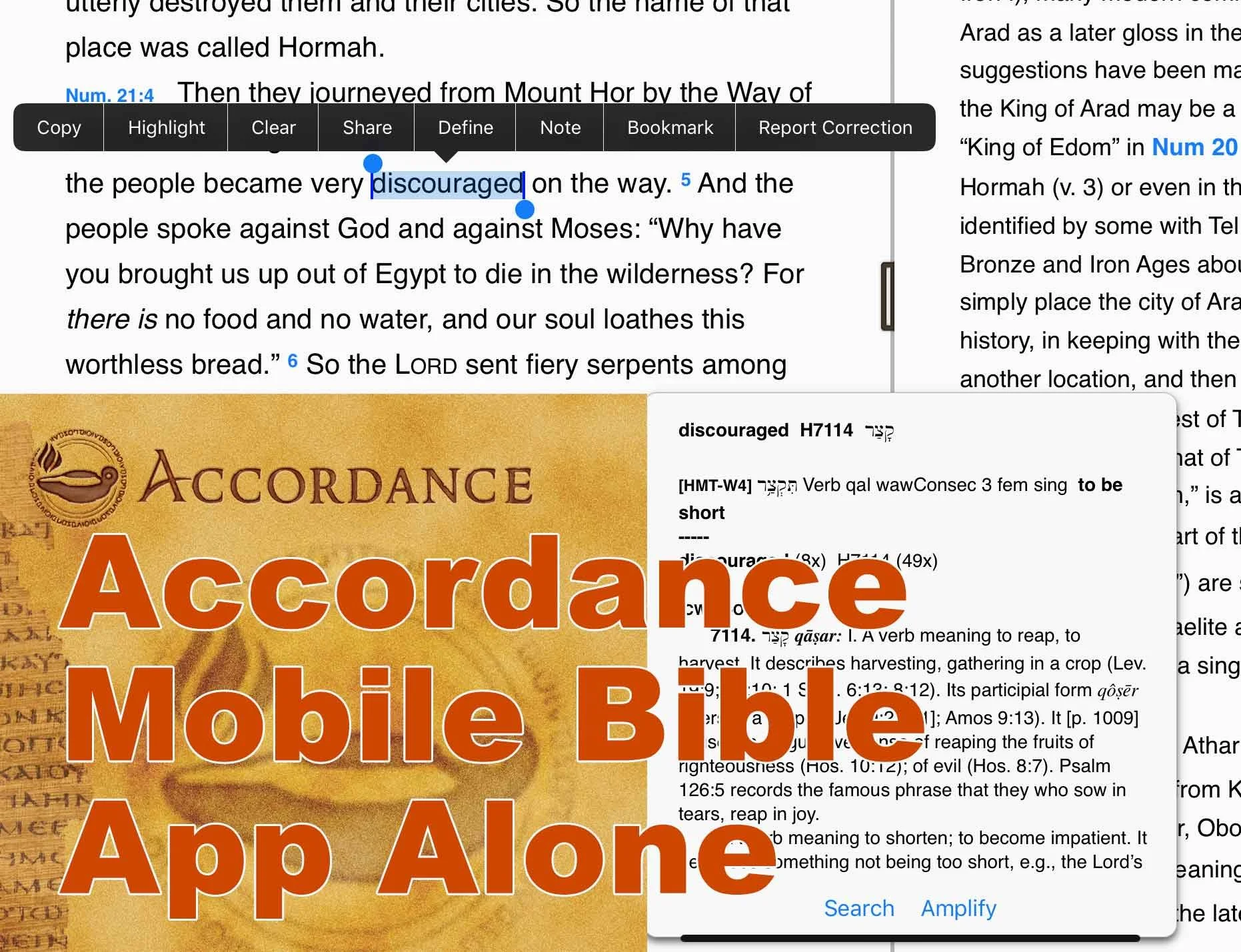
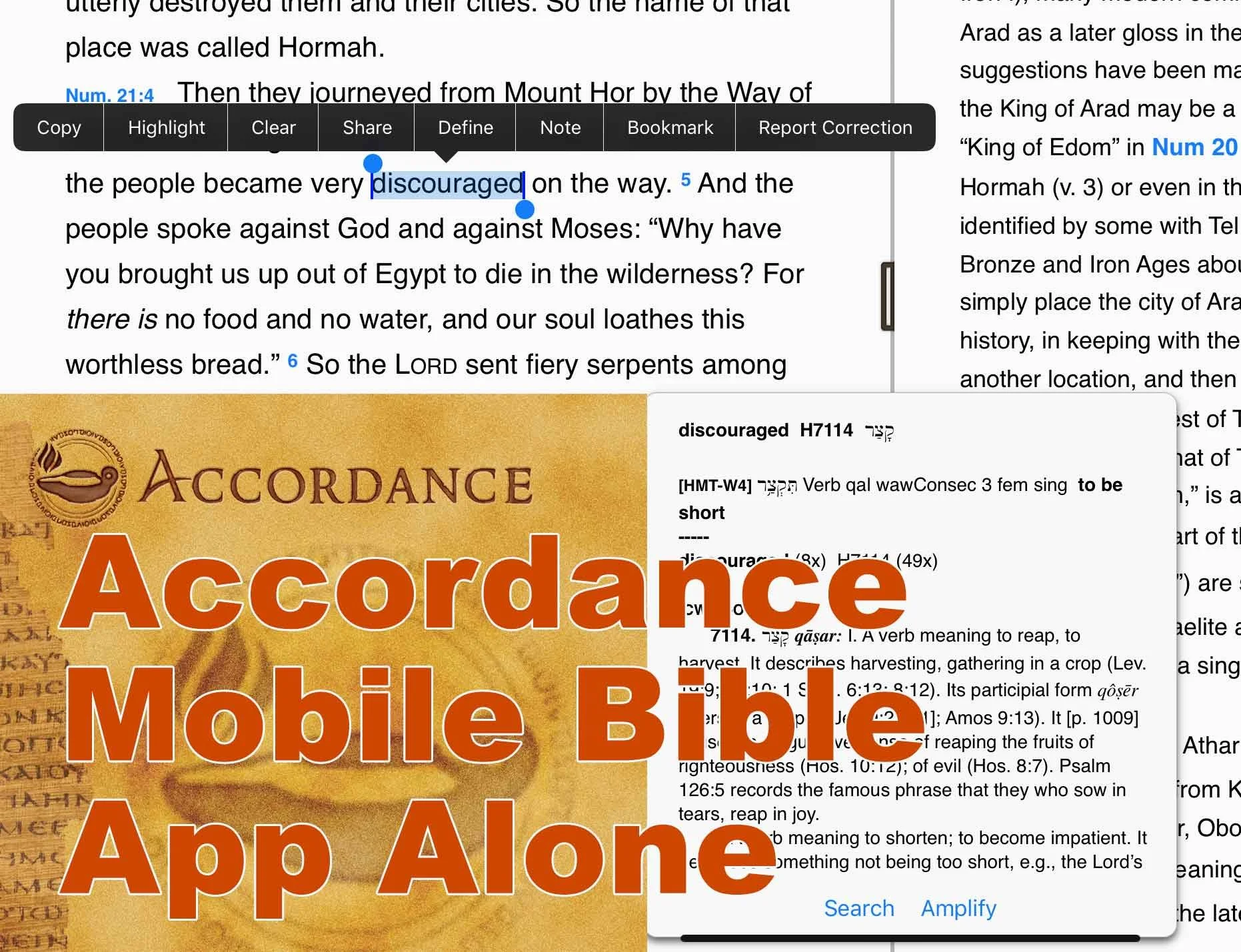
Doing word studies happens with a long press on a word. Above you'll notice I selected the word discouraged in Numbers 21:4 in the CSB. You'll see a popup box with the word study info from your top books. There's also a menu above the word. This menu doesn't help with word studies, but you'll see that you can do other things like "Define" the word in English.
You can also open a Hebrew or Greek text and do the same with Hebrew and Greek words. On those words, tap the Amplify button to see more details. Here you can study the Lexeme, Inflected word or the Root. The first pop up box also lets you choose to search for the word. It will search the English term in hour English text. If you have a Greek or Hebrew text open it will let you search by Lexeme, Inflected form, Root or the Tag.

The will let you share verses. Tap and hold on a verse number to do this. The top of the pop up menu let you add verses to the beginning or end of the chosen verse. That way you can copy a range of verses.
Finally, the Accordance system publishes an excellent collection of digital Bible study tools from every Bible text you probably want to a more commentaries than you can use. They have excellent reference tools and every tool I want to use works in my Accordance Mobile app.
People who want to also make a switch can jump from their chosen Bible software to Accordance by taking advantage of some crossgrade discounts. a crossgrade is like an upgrade, but instead it's buying a book you own in another company's library for a discounted price for use in Accordance. I saved hundreds of dollars over the years by taking advantage of this. I purchased the New American Commentary, Bible Speaks Today and more.
Compared to the Logos Mobile app, Accordance feels simpler and yet has some of the same powerful features. It's also not as cluttered. That said, I suggest the developers consider a few improvements.
Accordance Mobile Bible App Problems
As we noted in the post on Notes, you can't open your User Notes in the right hand window pane and edit it within the pane. Accordance has a real problem with this. You also can't do this on their desktop app.
At least on the desktop app you can open open it, click at an insertion point and start typing and the note's editor window pops up. On the mobile app you have to long press on the verse number and choose User Notes from the menu. Then you have to tap on the name of your User Notes document and it will open a pop up window that covers most of the window.
UPDATE: Please see the user comments below where Rick Mansfield from Accordance tells how to see your text. This makes what I wrote next less of an issue.
The Accordance Mobile notes user interface is a terrible design choice because I can't see the text of my Bible or a commentary while I'm typing in the note. It's the least usable notes user interface of any advanced Bible study app out there.
Since writing my last post on Accordance Notes, I've decided to stop using the notes function built into Bible software. Instead, I've started using Scrivener to record my sermon notes. I'm following a system that my friend a member of the Theotek Podcast team Wes Allen uses. See the video above for how he does that.
Accordance Mobile lacks one feature that I miss from Logos. On the Logos mobile app you can open their Text Comparison tool and read your passage in multiple translations seeing them all on screen at the same time. The desktop version has the new Text Browser tool. Select a verse and choose Text Browser from the Amplify drop down menu to open it.

Accordance added the Text Browser to appeal to Bibleworks users after that company announced they'd stop selling the program.
Logos offers a few other features that we don't find in Accordance.
- New tabbed user interface which lets you open more than two books at one time.
- Guides to help you study a passage or topic more quickly.
- User edited reading plans for Bibles and books.
I don't mind losing these features, but I mention it in case Logos users would feel limited in their study without them.
Olive Tree Bible searches your entire library and presents them in a easily accessible way thanks to the Resource Guide. We don't get anything like that in Accordance Mobile.
Conclusion
The desktop Accordance program goes toe-to-toe with the other Bible programs quite nicely. The Accordance Mobile app still lags behind a little. In spite of that, you can study the Bible using nothing but their iPad app. I wouldn't try doing it all on an iPhone or Android phone due to screen size, but I enjoyed doing my sermon prep last week with nothing but the Accordance Mobile app on my iPad.

Print or Digital Bible App: Which One Is Best?
What kind of Bible should you use? Some believe the traditional print Bible has special value over digital Bibles. While others prefer to use a digital Bible a lot, most or even all the time. I have to admit I fall in the second group and only use my print Bibles on occasion.

Strengths of Print over Digital Bible Apps
Recently Trevin Wax wrote a post for The Gospel Coalition entitled When the Bible Becomes an App. In it he argued for a number of reasons why people should still use a traditional physical print Bible, like the ones Wax’s organization publishes, because of the special value. He says the following strengths means most people should go with this kind of Bible...
- The beautiful format of a high-quality leather Bible shows the value of the words included.
- A small pocket-sized New Testament gives us quick and easy access saying something about the value of the word leading the owner to keep it always on hand.
- A book containing all the books of the Bible tells us that the canon of Scripture and the story’s wholeness in a single book.
- The print edition of the Bible lends itself better to "deep reading" instead of quick, skimming, "surface reading”.
- You lose the “Bible’s geography” meaning the feel for where the books are in the print edition or where the verse is in a book.
- The print edition opens us to the will of God on the page better than the print version.
This is a quick summary of the arguments. You should really read Trevin Wax’s article for your self.
A Rebuttal from a Digital Bible App Maker
Craig Rairdin from Laridian, a Bible app publisher, took exception with Trevin’s articles in a post on the company's blog. He offered a useful point-by-point argument for Digital Bible Apps, like PocketBible from Laridian. Please read it and consider his great points.To summarize, Rairdin says that most of the points above are not strong arguments against digital Bibles, but against certain forms and functions in Bible apps. For example, the argument that the reader can go deaper i print comes from studies saying that using digital print means readers retain less. However, Rairdin points out that other studies say this is so only when the user scrolls the book and not when they use a paginated Bible app. I’m not sure why that would make a difference, but a study said it did.
My Opinion
Both arguments seem convincing. I prefer using a digital Bible app on my phone or sometimes on my tablet for a few reasons.
- Convenience - I always have my phone and it’s small enough to fit in my pocket. Since I can carry my Bible on my phone, I always have access to multiple translations. When one preacher reads from the KJV, I can follow in that version. Another reads from the NIV and I can follow in that translation.
- Weight - Like convenience, I can carry a seminary calibre library in my pocket on my iPhone X. I can’t even conveniently carry two Bibles and a full commentary set plus a Bible dictionary, atlas and Greek or Hebrew lexicons.
- Complexity and Speed - Rairdin pionts out that he can do some advanced Bible study while he’s listening to another speaker teach a lesson or preach a sermon on a passage. I can’t do that on the spot.
The above three arguments are all versions of the same argument. It’s more convenient to follow various translations, do advanced Bible study, and always have my Bible and library with me using a Bible app.I still keep a Bible in the pulpit with me when I teach or preach. It’s a kind of prop, to show the value of the word of God. It also reassures people who do not like the idea of giving up the physical Bible. Plus, if something ever goes wrong, I can always open the Bible to my passage and muddle through my message from memory.What do you prefer? Let me know below and why.
Accordance Mobile Bible App Goes Android
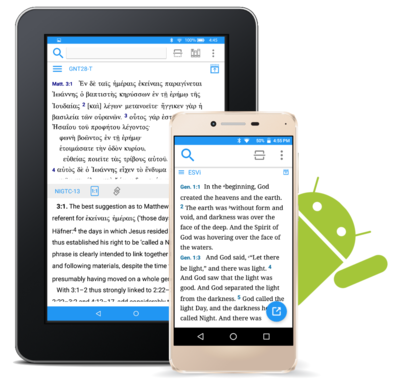
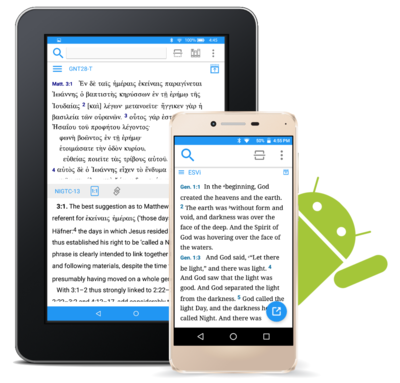
The Accordance Mobile Bible app for Android hit version 1.0 and it's available to download now and side load on your Android device. You can watch our latest Theotek Podcast where Mark Allison and Rick Mansfield showed off the app. Go over to our new Facebook Page and hit Like and you'll get updated each time we go live with a new podcast. Watch it below on Facebook or on YouTube under that.Here is the YouTube vide. Hit subscribe to get new videos after we record them live on Facebook.https://www.youtube.com/watch?v=82aJbwremE0You can download the app and side load it on Android. Get it from the Accordance Blog. Accordance will post it in the Google Play Store sometimes soon. You can follow the Theotek Podcast on Twitter to get an update when it's ready to God or follow Accordance on Twitter. You can also follow me.The Accordance Mobile app is only a book reader and searching tool at this point. Things like languages study, highlighting and notes will be added at a alter date.
5 Best iPad Bible Study Apps
The iPad assists mobile Bible study thanks to a lot of iPad Bible Study apps. But which one should you use? How good are they and what can a person do with them. Let's look at the best iPad Bible Study apps to help preachers, teachers and Christians study the Bible.
iPad Bible Study Must Haves...
Recently we differentiated between mobile Bible Study apps and Devotional or Bible reading apps. Please see that post to understand the difference. The apps below fit in the more advanced Bible Study Apps sector. Users can use them for Bible reading and devotional Bible reading as well, but they are more than that. Here's what I think every good Bible Study app should include that might not show up in a simple devotional or Bible reading app.
- Original language tools
- References like commentaries, Bible dictionaries, atlases and more
- Dual pane view showing the Bible in one and a reference or language study tool in the other panes or showing two or more translations on the screen at once
- Feature-rich note taking within the app
The apps below all give us more than the four features above, but these are the bare minimum. I think they should also be good at helping you do your Bible reading. No one should have to install two Bible apps on a phone, tablet or Chromebook.
Logos Bible
UPDATE: Note that the screenshots and descriptions are of the latest beta of Logos Bible for iPad that will hopefully get released soon. Read more about it in the Logos forums and if you have an Android device you can actually sign up for access to the beta and download it now. The Logos Bible app is unique compared to the other apps in this roundup. It offers a Home page that shows a ton of content by default. I actually turn off much of this. Here's what you get right after installing the app.
- Featured Bibles - top Bibles that Logos thinks you'll like and want to use.
- Group Invites - Logos has the Faithlife community a kind of Christian social network that focuses on their products. You get invitations to join certain groups and they show up here.
- Today's Readings - reading plans for Bible readings, book readings, etc. Tap on them to see the most recent reading for that plan.
- Reading Plan Invitations - like the group invites, these offer potential reading plans like a Gospels in 90 days or Read Mark in a month.
- Verse of the Day - a graphical representation of a new verse of Scripture each day that you can quickly share online.
- Faithlife Today - the news about Faithlife, their products or interviews and skills development videos all focused on Bible study.
- News - text-based news links to the Logos blog.
 In addition to the Home screen, we also get other tabs (buttons across the bottom of the app's screen). These show your Library, Bible, Work Spaces, and a Plus button to add a new work space/tab. The Library button opens your list of books in the library so you can open them. Each book opens in a new Work Space screen. The Bible button opens a list of Bibles so you can add one to a new Work Space. The Work Spaces shrinks each work space and you can swipe between them. This screen also lets users sync the various screens. If you have a copy of the Bible on one Work Space and a copy of your favorite commentary on another, you can sync them so that as you navigate through the Bible from book to book or passage to passage, then the commentary will follow and keep up. Move from Matthew 18 to John 10 in the Bible and a synced commentary or Bible will also move there.
 The app lets users tap and hold on a word and a context menu opens. Here's what the context menu will show you.
- Copy - copy the selected text
- Look up - do some language study or look up in a dictionary
- Search - search your library, the Bible or book for selected text
- Share - post to social media or send to friends via a text message or an email
- Highlight - just like you would some text in your paper Bible with a highlighter
- Note - add a digital margin note like you might in your paper Bible
- Clipping - collect content in a clipping document while researching a topic or passage
- Visual Copy - creates an image of the text to share online or save for presentations
In the upper right corner there's a menu button (three vertical dots) that give options for the more powerful features like:
- Change Resource - replace the current book with another
- Search - search the Bible or open books and the entire library
- Passage Guide - research tool finding your text in reference tools like commentaries and more
- Make a Note - adds a note to the current passage or part of the book
- Add to Favorites - like a bookmark feature
- Text Comparison - shows the text in multiple translations all on-screen at the same time
- Make a Clipping - collect content just like you do with the button in the context menu above
- Exegetical Guide - runs an original language research of the present passage
- Visual Copy - same as the context menu above
- Share - like the context menu above share content with others
- Book Info - shows the front of the book info like publisher, author, etc.
- View Settings - change things like text size, font etc.
The iPad in recent versions of iOS offer a kind of widgets that Android users enjoyed for a long time. In iOS you find these on the iPad when you swipe down from the top of the screen and then swipe right to show the list of Notification Widgets. Logos has a widget that displays their Verse of the Day image that you'd also see on the app Home screen. Tap it to launch the Logos app and it opens to that verse in your currently open Bible. The Logos Notification Widget doesn't do as much as the Accordance widget. I wish it had a version chooser or let you open recent books read like the Accordance widget.
 Users can get the app free, but it works best if you own a library of book from Logos.com. Get one of their Logos Base Packages to bundle a library of books and save money versus buying each book individually.
Bible by Olive Tree
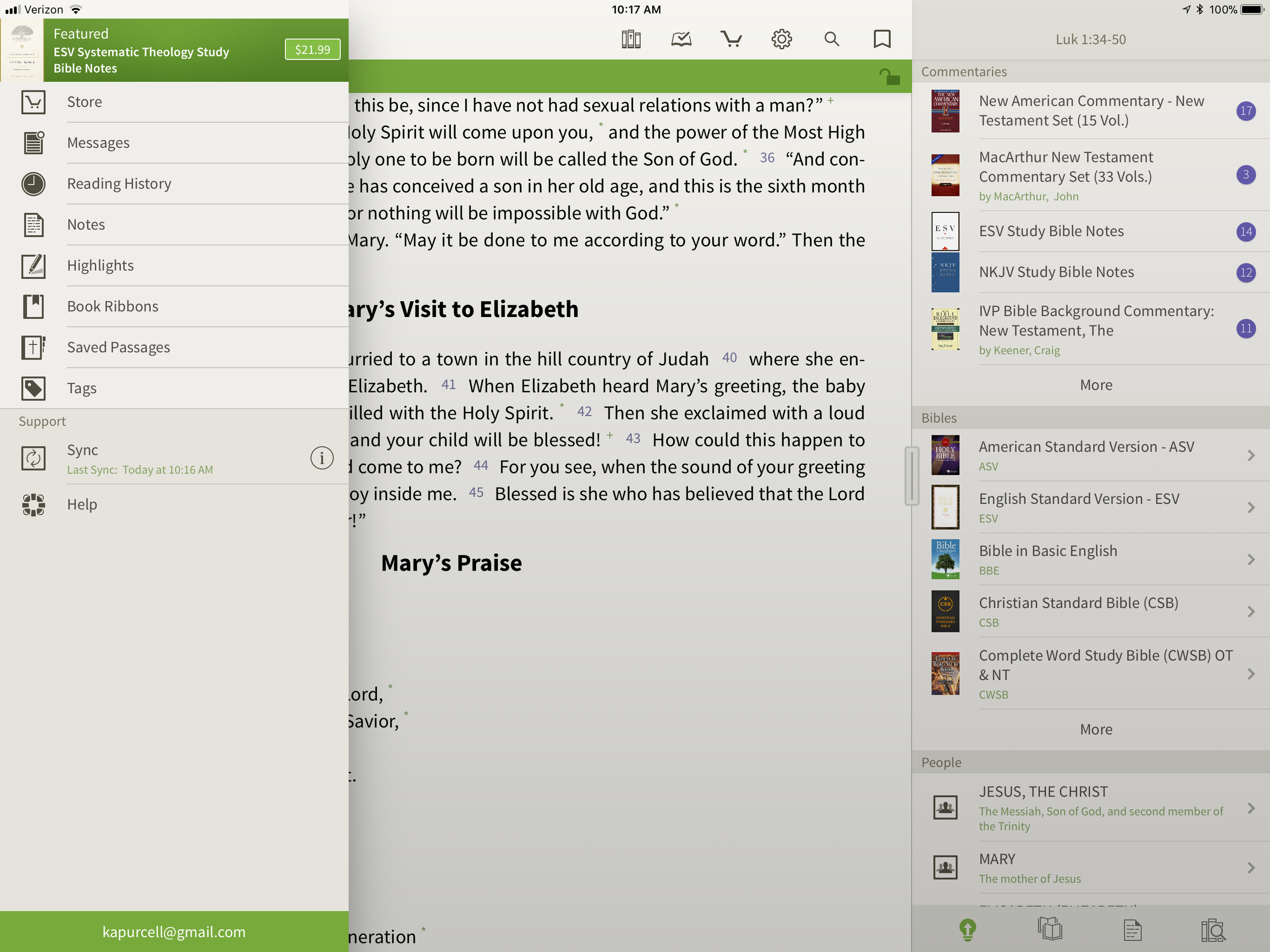
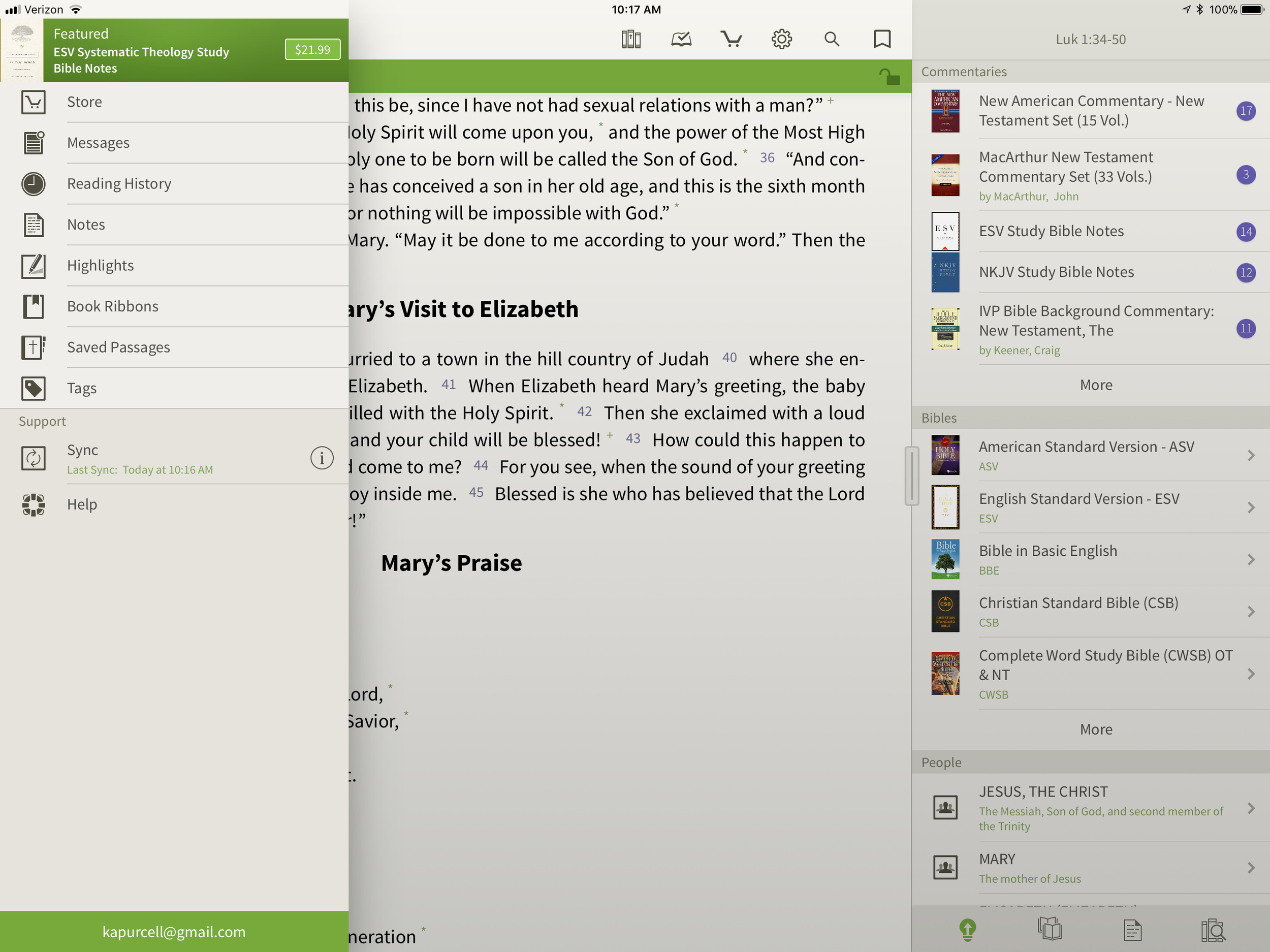
 While Logos may offer more complex features, Olive Tree offers a simpler app with a great set of tools for doing advanced Bible study on a mobile device. In fact the Resource Guide might offer the simplest method of accessing all the content in the library related to a given passage on any of the mobile apps in this roundup.The Bible shows up in the left side with the Study Tools on the right. Inside Study Tools you'll find the Resource Guide along with a library button, a notes button, and the Lookup button, which lets you look up words in word search in dictionaries, the Bible and your notes.
 The Resource Guide is one of the Study Tools and it will arrange your library content by category. All the Related Verses, Commentaries, other Bibles, People, Topics, Maps, Charts, Introductions and more will show up in lists one after another. Each list will show your books ready to open to the content related to the passage or subject found in the verse showing in the left hand window. Tap them to see the content.
 On the top left there's a menu button to show...
- Suggested Resources - an ad for a book Olive Tree's pushing at that time
- Store - link to buy new books from within the app
- Messages - content from the blog often written by our own Theotek contributor LaRosa Johnson
- Reading History - the list of texts you've read in the Bible
- Notes - Shows your user notes
- Highlights - show your user highlights
- Book Ribbons - shows your user book ribbons which are like favorites
- Saved Passage - similar to Book Ribbons with a list of passages you've saved as bookmarks
- Tags - a list of all the tags you've created so you can make your own topical Bible
- Sync - lets you sync your app notes, ribbons, etc. with Olive Tree's servers
- Help - the Olive Tree help system
 Across the top of the Bible Screen we see two toolbars. The topmost toolbar has the following:
- Library - opens your library
- Reading Plan - opens the reading plan screen with suggested reading plans you can add or your own reading plans
- Store - opens the store to buy more books
- Quick Settings - change things like font, screen color (low light verse regular) and others
- Search - search the Bible
- Ribbon - add a ribbon to the current top most verse
Below the top-level toolbar you'll see a second toolbar that shows two buttons, the Select Verse button that opens a Book/Chapter/Verse style navigation tool and a lock button that keeps the toolbar from disappearing. I prefer this and I'm glad Olive Tree added this button for use on the iPad. The iPhone version is best without the toolbar showing so you don't cover up too much of the text on the smaller screen.The strength of Olive Tree's Bible is the simplicity and great library available. It also has the best notes feature available in these three. However, the weakness comes from the desktop app. The Accordance and Logos desktop/laptop apps offer far more than Olive Tree's. Download the app for free and get some free books to try it out. Then check out their store for more tools. They don't focus as much on bundled libraries of books, although they do offer them. I like this because you buy only what you want or need.
Bible Study With Accordance Mobile
At first look, the Accordance Mobile app seems like little more than a basic Bible and book reader tool with split-screen display options. Admittedly, I'm not a frequent user of Accordance Mobile. However, as I dig deeper and take time to discover the features, I realize they a user can do a lot with what looks like very little at first. The Accordance user-interface opens, after you've downloaded books, to show a Bible. There's a handle on the right side that opens a second window with another book. Tap the title of the book to bring up the library list of books. The left window library lists shows a list of the installed Bible Texts while the right shows Texts, Reference Tools like Commentaries or Study Bibles, and your Notes files.Open the Notes file and you'll see your notes. To add a note, select a word or verse and a menu pops up above it. Tap on Note and screen offers to add the note to one of your Notes files. Start typing inside that pop up box. It has a button to change the font, size, color and make the font Bold, Italics or Underlined. Sadly, even though you can see your notes on the right, you can edit them in place. To edit a note, select it and it offers to let you edit the note with a full-screen editor. This covers up the text. I like to make observations about the text in my notes and I can't see the text in Accordance. That's the same problem you have with Logos. At least in Logos you can open the Note file and edit in place. It's hard if you have a lot of notes in your file.Unfortunately, I experienced a problem with Notes Sync via Dropbox. They don't use their own servers and rely on Dropbox to sync between the desktop and mobile app. ON the desktop it's automatic, but not on mobile. That's a huge weakness of Accordance if you're a heavy notes user like me.
 If you open a book with Strong's Numbers tagging attached to the text, like the ESV or HCSB or KJV, then you can select a word and a box will pop up showing the original language information. You get the English word, Strong's number and the Greek word. Then it shows your favorite Greek word dictionary. OT shows Hebrew. Then tap on Search at the bottom of the pop up and it finds that word through the NT. The Amplify will let you search by word or the key number.
 The Library button lets you download your books over the Internet. You can also sync those if you have both the desktop and the iPad connected to the same Wi-Fi network. It doesn't work if your desktop isn't connected via Ethernet.The second button from the left lets you sync via Dropbox or via Wi-Fi. Notes and user tools sync via Dropbox while the syncing directly over Wi-Fi syncs your books from the desktop to the iPad.
 Accordance users will get a number of free books. However, it will work better if you buy a package to use on your iPad. The free Accordance Lite includes some good tools like ESV with Strong's plus some public domain books. To add books you can buy books or get a Collection. They start with the free Lite package and go up to more advanced sets like the Pro sets in English, Hebrew or Greek that each cost $999. If you want all three you can get what they call the "Triple" package in the Learner or Discoverer levels. There's also a graphics-focused set of tools called the Graphics Learner, Discoverer or Master.
PocketBible Bible Study
 I love PocketBible from Laridian because it's the first mobile Bible study app I ever used on my PocketPC a long time ago. Then I moved to Palm and there it was. I went to iPhone and then iPad and it was still available. On Android, eventually it came along for the ride.When you first install the app it offers a great help screen that shows you how to use the app from the get go. It's the best on-boarding experience for a new user. Then you'll get a single window, but no Bibles yet. Open the button at the bottom of the toolbar on the right. Find the Add/Remove books and download all of your books. If you're not registered, you can do that in the tutorial that opens when you first install.After you get some books installed open a book using the top button on the toolbar. You can use the Settings (third from the bottom) to add a second window. The rest of the buttons on the toolbar include:
- Open Books
- Navigate to passage
- Search
- Back
- Forward
- Calendar for Bible reading plan
- Button to open the toolbox pane (more on that below)
- Panes chooser lets you pick how many window panes to open at a time
- Font settings
- Reading controls for books with audio included
- Settings
- Menu where you can add/remove books, change other app settings and control books
 The toolbox holds another toolbar with six icons as follows (see the right most box in the image above):
- Find
- Bookmarks
- Highlights
- Notes
- Find Notes
- Journal
Select a word, phrase or more and a menu pops up above it with buttons as follows:
- Copy - copy the selected text
- Share - post to Facebook or send it over text or email to name a few
- Find - search the selected text
- Look Up - search your favorite dictionary
- More... - opens another menu with a number of other tools, functions and book controls
Laridian offers a number of books to buy. They offer PocketBible Library Collections ranging from $60 on up to $380. You can also buy books or commentary sets.PocketBible isn't as polished as some of the other tools. However, it's one of the easiest to learn and costs less for collections than some of the above options.
Splashtop 2 Remote Desktop
 This last option's not a Bible app at all, but rather a utility that lets you connect to a desktop. Install the Splashtop Streamer utility on your Mac or PC and let it run automatically. Download the app for iPad and run it. After you log in you'll see all of your computers running the Streamer listed. Tap the one you want to log into. It opens the computer and shows the screen.
 Now you can control anything on the computer including a full desktop class Bible software program. Above you'll see it running with Bibleworks 10 showing on the screen.
Bible Study Apps Versus Devotional Apps
With all the Bible study apps available on Android, iOS, Windows and Mac, it's easy to get confused about which app a person should use. I'll post a few recommendations over the next few weeks, but today I want to discuss a fundamental question. What do you plan to do with the app?People use their Bible study apps in different ways. How do you plan to use your Bible study app? Will you merely read the Bible, track your reading with a reading plan that the app provides or do you want to create your own personalized Bible reading plan? Will you highlight the passages on occasion or add personal notes, like you can do with a pen or pencil in the margin of your paper Bible? Maybe you want to work on a research paper for a Bible class in college or seminary. Some people need to translate the Bible into another language as part of a translator team or for a tribe in the jungles of South America in mission work. There are apps that can handle all the above functions of reading or studying the Bible, but many apps work better for some of the things listed above and don't do others that well.
Bible Reading and Devotional Bible Study
 Some people want little more than a book reader that displays at least one translation of the Bible and that's it. Maybe they want to search the Bible and even track their daily Bible reading. We call these devotional Bible reading apps. The list of common ways people describe these kinds of apps include...
- Bible reader app
- Devotional Bible app
- Bible app
- Bible study
The last name is a misnomer. I think Bible study apps include features that simple Bible reading or devotional apps don't often include. Also, calling a devotional or simple Bible reader app a Bible app is like calling both a minivan and a NASCAR vehicle a car. They're both cars but different people drive them. Jimmie Johnson, the driver of the #48 Lowes car in NASCAR may drive a minivan on occasion, but a man who drives his kids or grandkids to and from school or baseball practice probably never drives a racecar.Here's what every good devotional Bible app or simple Bible reading app should offer users.
- Bible reading in all the popular translations like KJV, NIV, CSB or ESV and more.
- Highlighting of verses
- Add personal notes to the Bible app
- Sharing on social networks
- Copying to other apps to send a verse in email or a text message to your spouse or friend
- Search the text of your translation
- Customized display of text (fonts, sizes, background colors)
Would you expect any other features in a simple Bible reading app? Please respond in the comments to add other features that you would include at a minimum. But read the next section first, since many of the other features a person wants in their Bible app will mean they really need more than a simple Bible reader app. They want a Bible study app.
Bible Study App
 Bible apps with more than the above features typically fit in the class of Bible study apps. These app developers target scholars, pastors, Bible teachers in Sunday school or informal communities of Bible students or people who want to study the Bible for personal development and spiritual growth.The list of basic minimum features you should expect in a quality Bible study apps include...
- All of the features included in a Bible reader or devotional Bible app
- Includes other resources like commentaries, Bible dictionaries, atlases, study Bibles, language study tools like Strong's dictionaries and lexicons
- Advanced search tools that do more than find a list of verses with the word "grace" or "holy" like boolean searches
- Multiple windows showing at the same time on-screen
- Notes with advanced formatting
- Library management that shows all of your books and lets you download or even remove books
- Offline reading and study tools
- Sync
 Some of the best apps in the iOS or Google Play Store don't include all the features in the above list. For example, Logos Bible from Faithlife doesn't let you do Exegetical study (original language study) on their iOS and Android app without an Internet connection. However, I'd still call it one of the better mobile Bible study apps available.What do you expect in a serious Bible study app? Let me know by commenting below.
Bible Mark Up App Presents Bible: Theotek Podcast #063
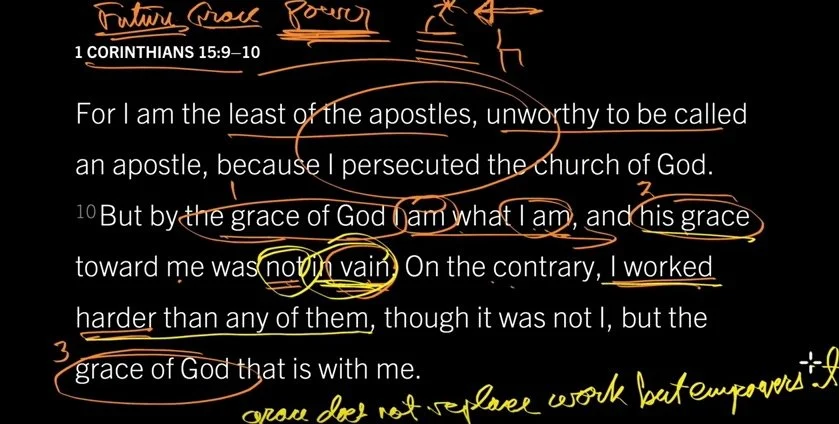
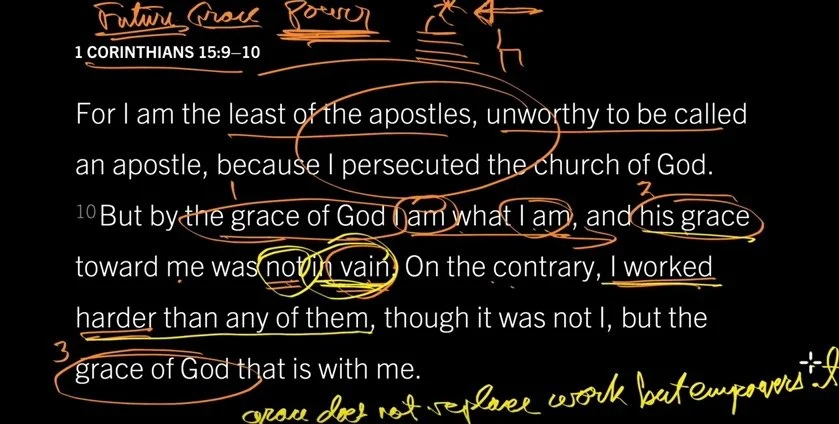
I’m always looking for some cool ways to present God’s word in my preaching and teaching ministry like the app Bible Mark Up. When I started watching John Piper’s Look at the Book video series on YouTube, I loved the simple and elegant black background with white Bible text that he uses in these videos. He draws on the text and screen using colorful marking pens. I investigated and discovered that Piper’s using something that inspired the developer of the app Bible Mark Up. The developer liked the videos and wanted a mobile version and so he created Bible Mark Up for Android and then ported Bible Mark Up over to iOS. We talked to Ernie Lail of Maranatha Technologies on this week's Theotek Podcast seen below. The audio is at the bottom of the page.https://www.youtube.com/watch?v=7tZ2Y32OPzQ
Bible Mark Up App
This free iPad or Android app inserts the Bible text from one of a number of translations on a black background. The teacher or Bible student uses the 9 colors to draw on the screen in Bible Mark Up. Watch John Piper to use a tool similar to Bible Mark Up, which inspired the app, in his "Look at the Book" video series on YouTube (seen below).https://www.youtube.com/watch?v=yBOKt8IVNJc&index=1&list=PLAcB0f-21Xj0MTWuh7NKKploqNgpbJsY2Logos Bible Software users can also buy these videos along with a nice study guide that goes with the videos. The free video series puts the videos and the study guide right inside Logos Bible Software. Piper draws circles and lines and underlines the text showing relationships between ideas and words. He uses colors to connect one part of the text with another. It’s simple but skillful. I’ve begun using it in my teaching ministry and plan to do more.The app includes some cool features. It’s got a lot of international translations in addition to the ESV, NASB and KJV. Sadly, they don’t offer my preferred HCSB translation. For teachers who use original languages it includes Greek Textus Receptus and Hebrew Aleppo Codex.We also get access to some public domain works like Strong’s, Lexicons and some Commentaries all online. I haven’t used anything but the English Bible texts, since I don’t plan to do my study in the app. I just use it to present.
 Ernie Lail, the developer of Bible Mark Up, told us that he created primarily as a study tool. He wanted something that lets him mark up the text like Piper does in his videos.Here’s the workflow. The opening screen asks the user to type in a Bible reference (see above). It will then copy the text to the black screen in portrait orientation at first. Tap on the end of the line to change the line breaks. At the bottom of the screen there’s a button that reads Modify Breaks. Tap it to move the next line up to the current line that you tapped. Repeat this till the lines all show up the way you want. Then tap on Scale & Move at the bottom and pinch to zoom or shrink the text. Remember to keep the text large enough so people in the back of the room can read the text.When you’re ready, turn the tablet into landscape mode and tap on Draw. Use the colored inking and markup buttons to draw when you wish. I will often underline or circle key words, put parenthesis around a phrase I’m discussing or draw lines to show relationship between words or phrases. Use multiple colors. For example, if a text is discussing one topic but has some sub topics, circle or underline all the words related to one of the subtopics in one color. Then use another color to visually link the next sub topic. Use lines to connect pronouns with the proper noun they represent.
 The app could use an update and here’s what I’d include?
- An erase button that removes all the markups in a single tap. Ernie told us he may add that soon.
- I’d like the ability to pay extra for other modern translations or reference works. I understand the app developer can’t make it free if he adds paid content, but I’d love to pay to get that kind of content.
- Add shapes like lines, ovals, boxes and more.
- Change from black to white background.
- If you change the background color then you need to change the text color. It’d be great if I could highlight a word or words and change just the color of those words.
Even if the developer never adds the above features, it’s still a worthwhile tool to install on your iPad or Android tablet.
Our Favorite Things
This week we actually started off with the first recommendation.
Ricoh Theta S 360-degree Camera
Watch as a I demo the Ricoh Theta S camera at the top of the podcast. It's a nice little 360-degree camera that uses two ultra wide-angle fish eye lenses to take a complete 360-degree photo at the tap of the button. It also shoots HD video. Users can post the photos and video online to the company's website made just for their shots or to YouTube in the case of video. Use the editing app to trim video or another one to create interesting images using the shots taken with the camera. Check out the examples below: The shot above shows the interesting results you can get with the Ricoh Theta S and the image editor on iOS.
The front of High Peak Baptist Church #theta360 - Spherical Image - RICOH THETA
I haven't posted any videos I'd want anyone else to see. Here's one from the online gallery at theta360.com.
Passing the Eiffel Tower in Paris, France - Spherical Image - RICOH THETA
I love my camera, but it's not cheap. Get it on Amazon for a couple bucks less than at Ricoh's online store. It's $350.
Dark Sky for iOS
 Rick showed off the great weather app called Dark Sky. They call it "hyperlocal" weather. It's incredibly accurate even nailing the start and stop times for rain. There's an Apple Watch extension built into the app.
iPhone SE
 LaRosa John chose to highlight the new iPhone SE. It's an iPhone 5s with the power and guts of an iPhone 6s without the 3D Touch screen. Apple sells it for a little less than they sell their flagship phones. He likes the smaller size and wants to pick on up.
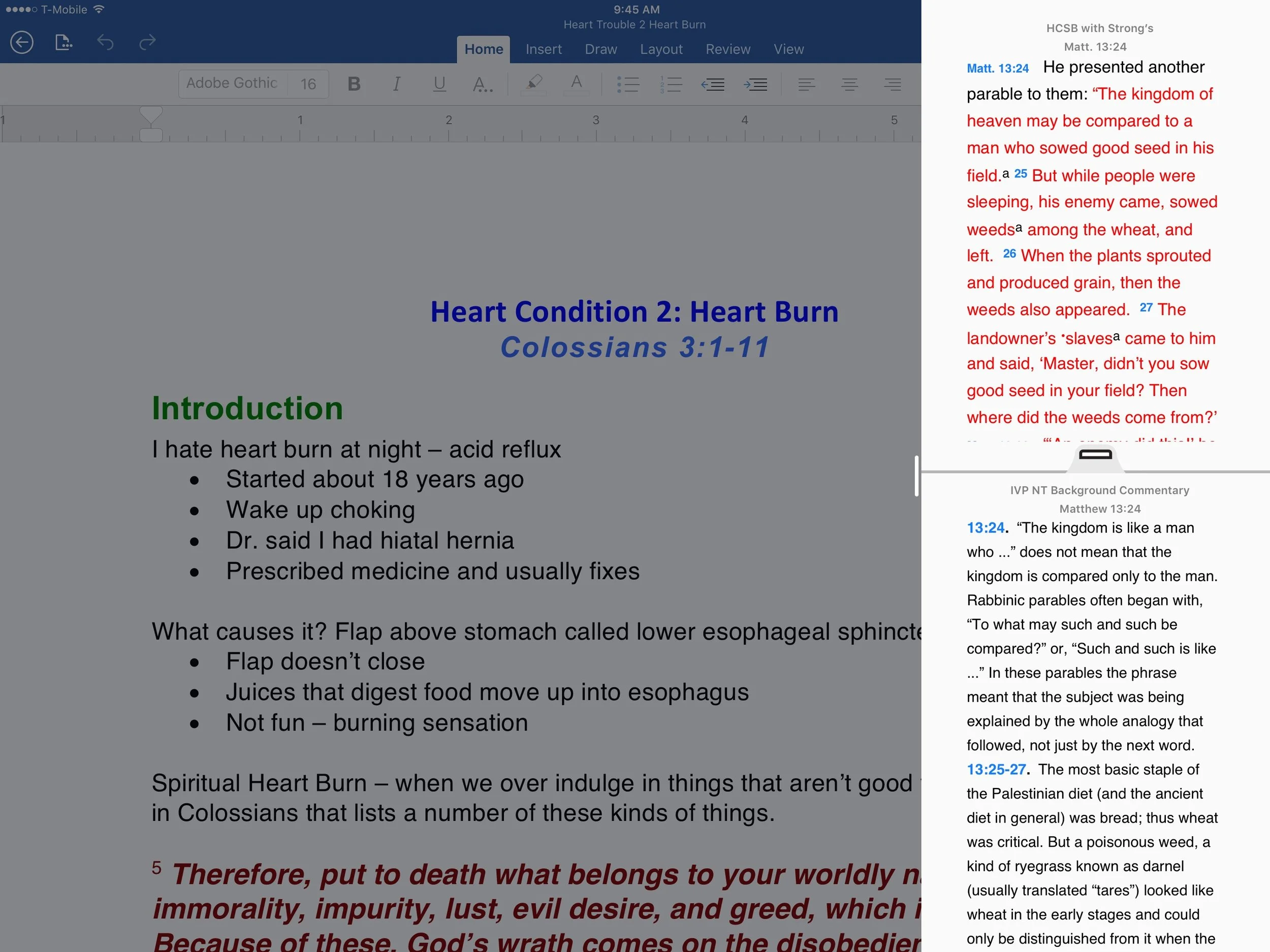
Accordance Mobile 2.3 Update: Theotek Podcast #056
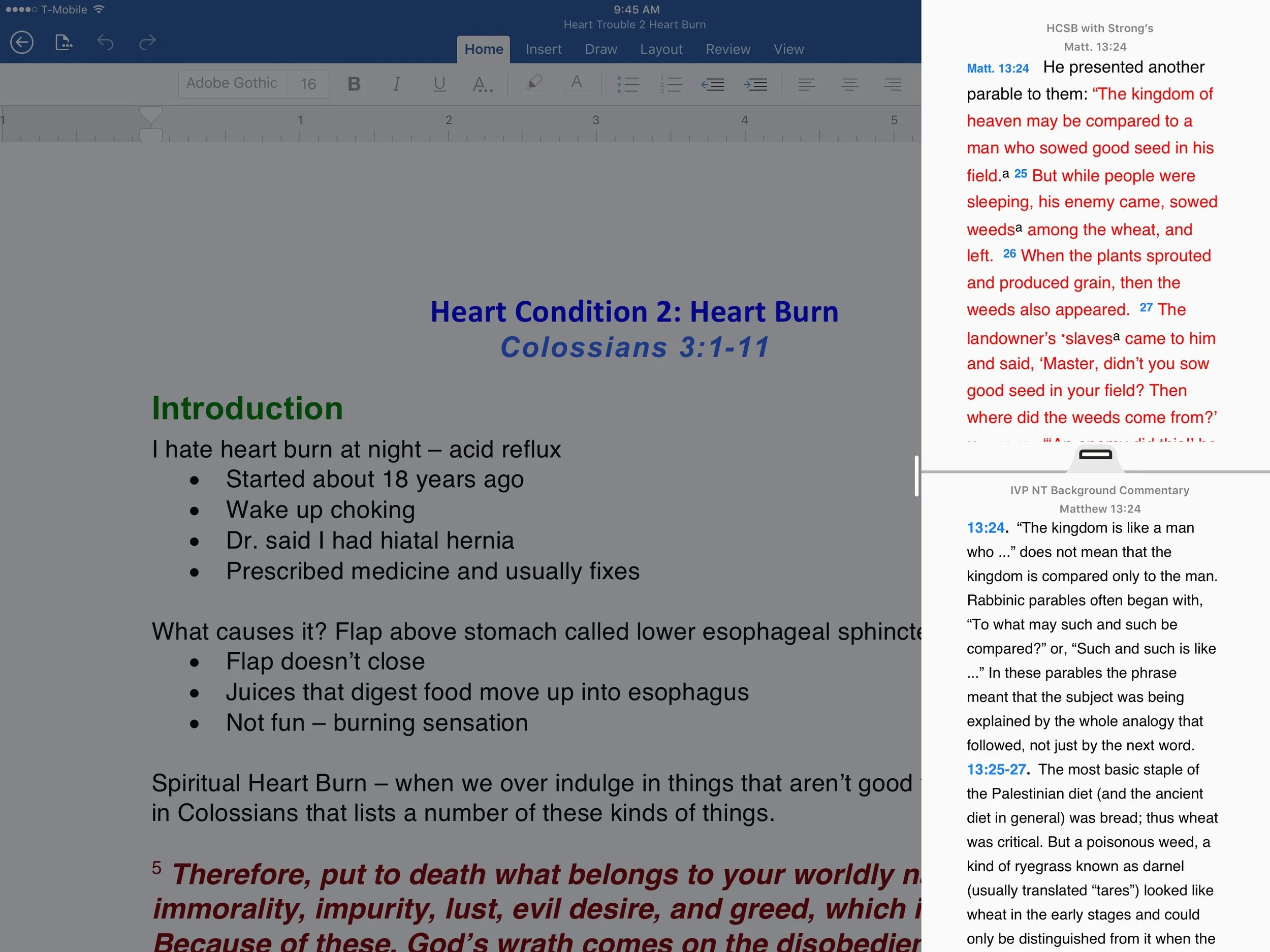
What's new in Accordance Mobile 2.3 for iOS? Rick Mansfield from Accordance Bible Software shows off the new features in this big update. But first we offer Our Favorite Things - recommendations from each member of our Theotek team.We advertised this episode as Rick Mansfield's showing off the new Accordance Mobile 2.3 update with all the new features. He had some difficulties due to instability on Google's part. We took a look at Down Detector and they said Google was experiencing issues.https://www.youtube.com/watch?v=Fj5KVaUfdyE
What's New in Accordance Mobile 2.3
 Here's some of the great new features available in Accordance Mobile 2.3. First up, we see the new slide over feature that came in iOS 9. The user can slide from the right edge of their iPad and show a column of app icons that support slide over. Tap on one to see open an app window that takes up only about 20% of the screen. Use the handle in the middle of the border between the two apps to slide in and take up a quarter to one half of the screen.In addition to the slide-over feature, on newer iPads Accordance Mobile 2.3 now supports side-by-side. The above description explains how this works. The feature isn't available on older iPads or on the iPhone at all.Accordance Mobile now shows up in Spotlight search. Search for a key word or passage and the iPad's Spotlight Search feature will look inside Accordance and find the word. It uses your top-ranked bibles, but doesn't work when the Library page is open.Watch our video podcast to see it in action. For more information head over to Accordance's blog.
Our Favorite Things
Wes Allen recommended the Unitek 3 Port USB 3.0 Hub with Gigabit Ethernet adapter built-in. It costs $20 and gives users exactly what the name suggests.Antoine Wright recommended the 831 Podcast. The podcast host is Brandon Fasig and he says, "831 youth podcast [is] meant to strengthening your faith."LaRosa Johnson recommended the iOS weather app Dark Sky. I like it too because it gives more than simple weather data.At the end Antoine talked about a couple of opportunities he's involved in that you can take advantage of. Find out more at the following:
Verse3 a New iOS Bible App: Theotek Podcast #044
With the new iPad Pro coming out this month and iOS 9 supporting side-by-side windows of 2 apps, a tool like Verse3 makes a lot of sense. This simple Bible app that doesn't use the same Bible display framework we're used to. In fact it takes the focus and puts it on the person listening to a sermon or Bible study. The user can open multiple verses on the screen at a time and add their notes inline with those verses.https://www.youtube.com/watch?v=okMuE0Afr2gHere are a few of the benefits of Verse3 ($4.99 in the iTunes app store).
- Fast and simple to use
- Minimalistic design
- Fuzzy search feature where you can search for love and it returns all forms of that word
- Share your notes and verses in Dropbox as text files
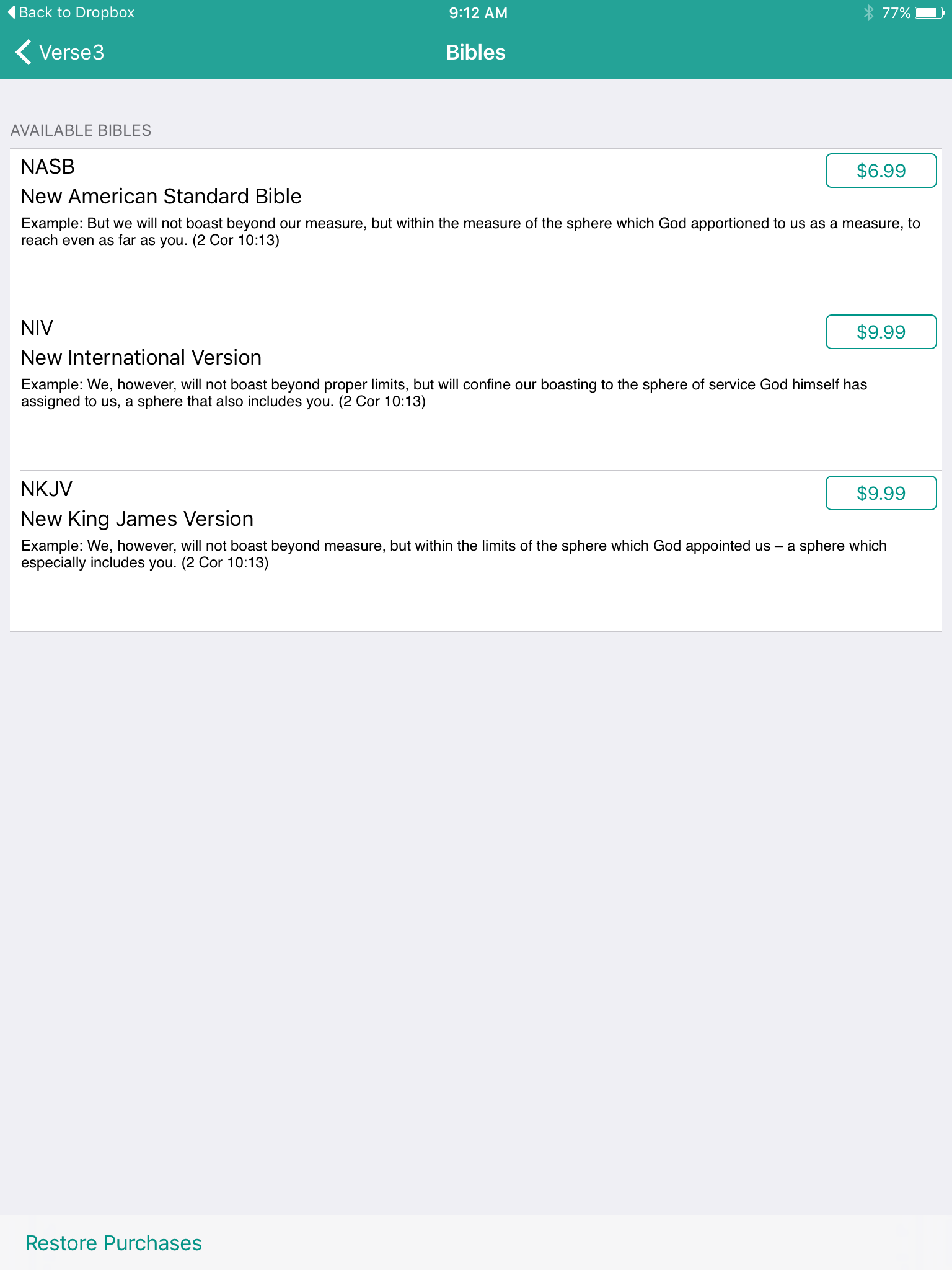
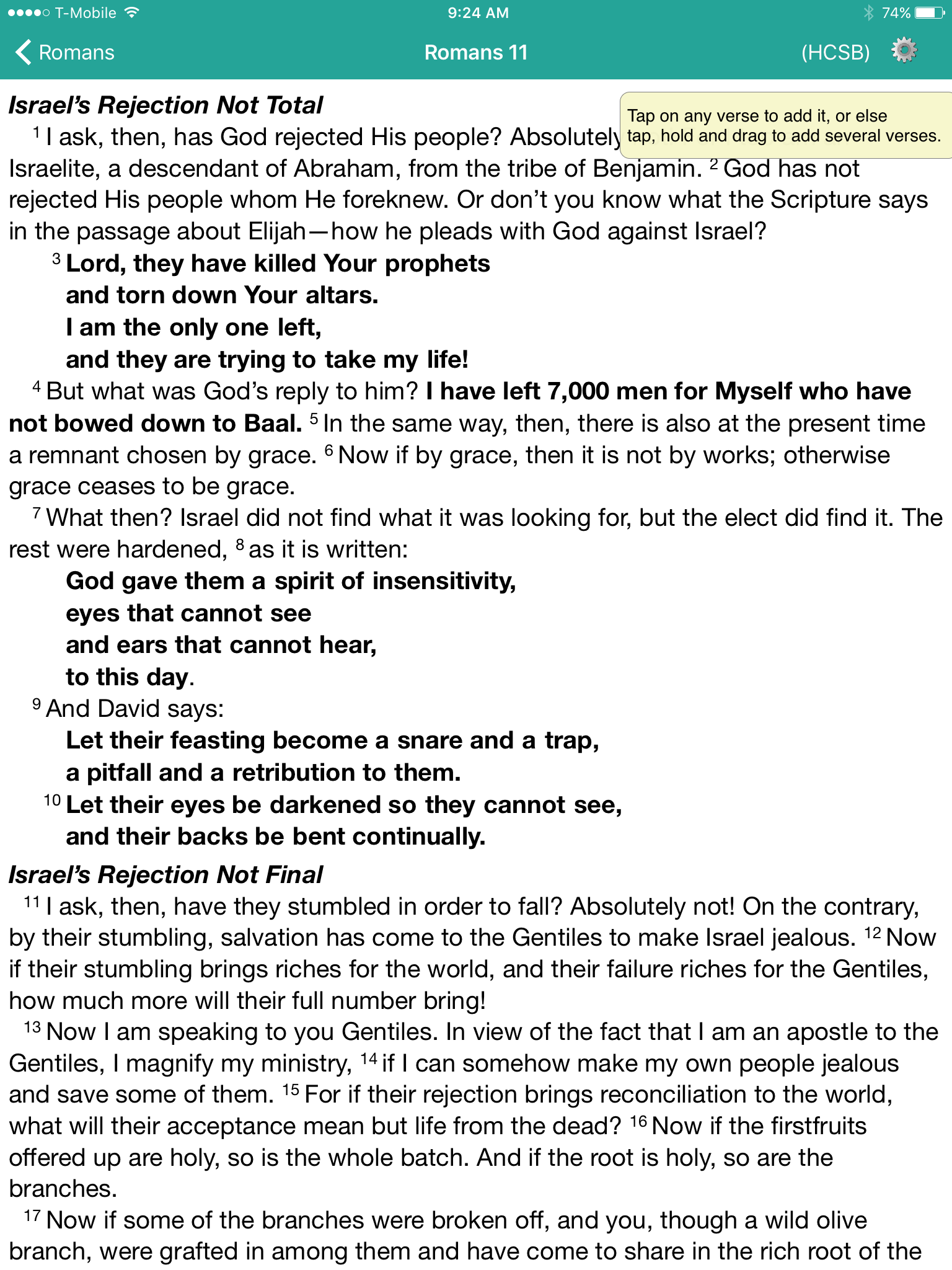
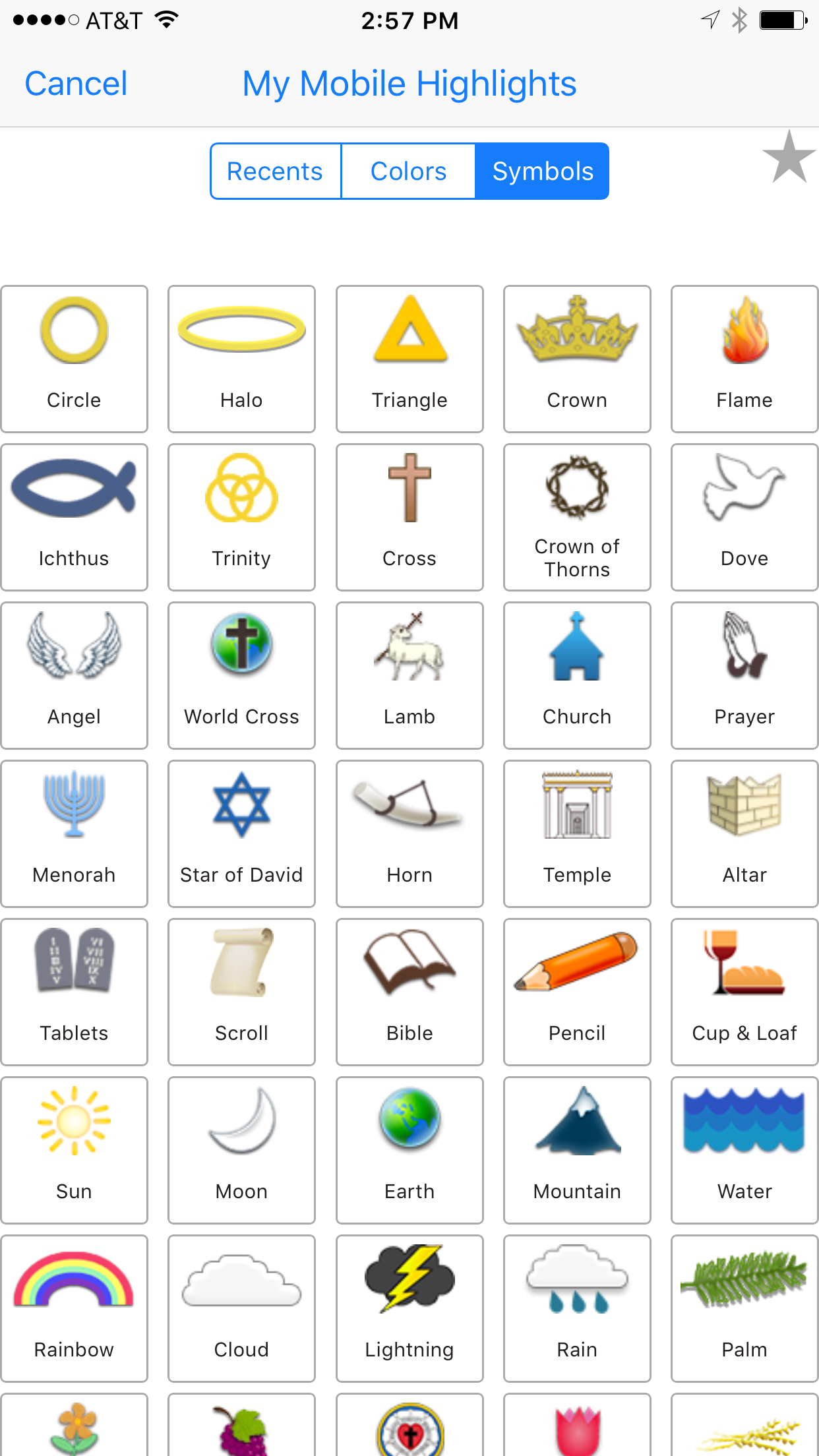
5 Ways Accordance Mobile 2 is Vastly Improved
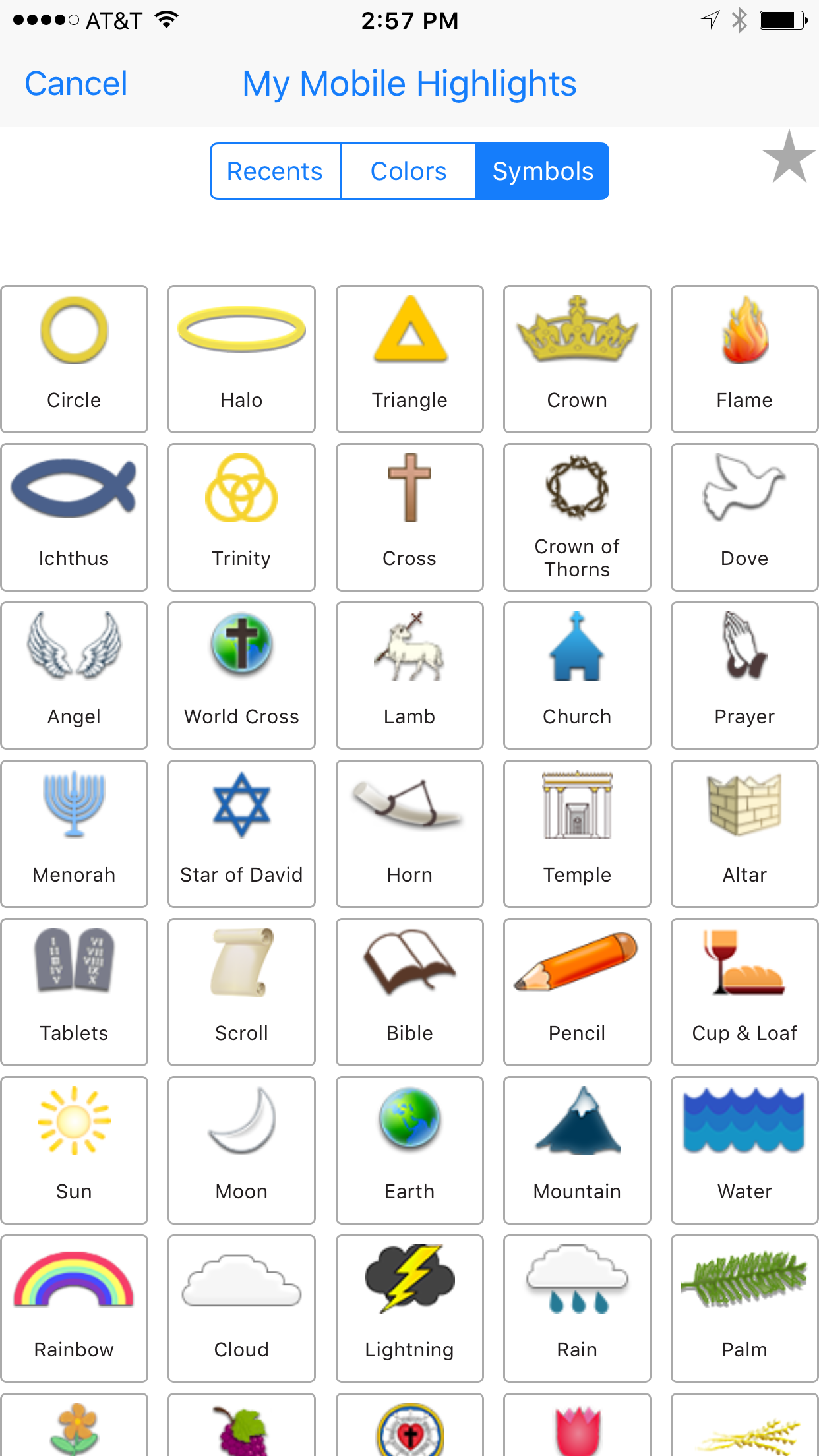
Accordance Bible Software released a new version of their mobile app awhile back. It includes a bunch of great new features that make it vastly improved over the earlier versions, which I never really used much due to the sub par quality. However, these new features entice me to open Accordance Mobile more than ever before. Here's the 5 ways that Accordance Mobile 2 is vastly improved over the earlier version.Here's Accordance's own video highlighting the update.https://vimeo.com/122677075
Quickly Link and Unlink Parallel Panes in Accordance Mobile
 It seems strange, but Accordance didn't handle unlinking of window panes well until version 2. Now the app includes a button on the toolbar that quickly links or unlink the two open window panes.Open two window panes as normal. Then tap on the link button to either link them or unlink them. When the user unlink the two, the second pane will not scroll along with the first. This makes it easier to deal with commentaries where a person wants to read an entry from a previous passage without moving the Bible text to the earlier verse.
Download All Option in Library Manager
 When installing books in Accordance Mobile 2, there's now a download all button that makes it easy to quickly install the entire Accordance Mobile library. Before we had to select each book and then download them.Other mobile Bible apps need this feature. I've begged one app developer to add this feature since the iPad first came out.
Text Display Improvements
 Accordance rewrote their text display engine for a more attractive and complex set of features. Now users can change the fonts and color of text. The font button opens a dialog box with the following customization:
- Display brightness slider
- Font larger/smaller buttons
- Day and Night Theme selector
- Font selection
- Font color
- Background color
- Link to full display settings in the app
Awesome New Notes Features in Accordance Mobile
 Accordance really improved the notes features in Accordance Mobile. For example, users can now format their notes with things like font, font size, the color and format of the font (bold, italics, underlining). Users can also copy their notes and share them with others via iOS share sheets. Define words in notes and search for selected text in notes. Accordance Mobile 2 now lets users change the background color of their notes as well.
iPhone 6 Plus Capability
The iPhone 6 Plus lets people use apps in landscape mode thanks to the large 6.5-inch screen with high-resolution retina display. Accordance uses all that screen real estate to show more content in a side-by-side parallel pane view.
Notifications Section Today Screen Shortcut to Accordance Mobile
 Thanks to the notifications section in iOS, Accordance Mobile can put a shortcut to the app in the Today section. Slide down from the top of the screen and tap on the Edit button at the bottom of the Today section. You'll see a list of available Today section widgets. Tap the plus icon next to any one of them, including Accordance Mobile. This puts the widget in the list at the top of this screen. Rearrange the order of the notifications Today section widgets by dragging on the handle that looks like three horizontal lines to the right of the item.In the above screenshot I've only got on link. However, all recently opened resources will show up. It could list many more than the one book like mine does above.
Expanded Action Menu
 Now when a user selects text in a book or Bible text, a new expanded action menu appears above the selected text with new features.
- Copy
- Highlight
- Clear
- Share
- Search
- Amplify
- Define
- Note
- Bookmark
The Search and Amplify features won't show up on the action bar that appears above selected text when there's a Bible with Strong's tags opened, like the ESV, HCSB or KJV. In that case a box opens up (called the Instant Details) below the word with a definition from Strong's and two hyperlinks with Search and Amplify there instead.
Better and More Highlight Options
 In addition to the traditional color highlighting of text, Accordance Mobile 2 adds highlight symbols. Tap the symbols tab that shows up in the highlighting dialog box and choose a symbol. That symbol will show up below the text of the verse selected when the use added the highlight.There's also a Recents tab which shows the user's recent highlight symbols or styles. Also, uses can add other highlight styles and choose them by tapping the Highlights title.
2 More Free Resources
Who doesn't love free stuff. Accordance Mobile 2 will include 2 more free resources.Accordance added the Dr. J's Bible Study Methods tool, which teaches people who to study the Bible using Dr. J's methods in Accordance. He's the guy in the video above. Use this as a tutorial for Accordance like a quick start guide to studying the Bible with the program's powerful features. They also added Bill Mounce's Biblical Training course. There's 17 of them available free.Get more info at Accordance and download the app from the App Store.