

5 Best Audio Bible Apps for iPhone or Android in 2024
We have the 5 best audio Bible Apps for iPhone, iPad, Android, and, in some cases, desktop and web. See if your favorite app shows up.
While I personally love reading my Bible, I know many people prefer listening to the Word. Most people consumed the original books of the Bible audibly instead of visually in a book or scroll. If you're looking for the best audio Bible app for your iPhone (or even Android!), this list is for you. We'll dive into the top 5 options, each with its unique features to enhance your Bible listening experience.
Dwell: Audio Bible - Best Audio Bible Apps for Dedicated Bible Listeners Willing to Pay for a Subscription
The Dwell: Audio Bible app runs on iPhone and iPad. Users can install it on a Mac thanks to Apple's M processors. Finally, it also works on Android.


When you open the app, you see a screen with four tabs across the bottom and the Settings icon in the upper right. This screen appears after you go through the first setup screen the first time you run the app.
Home shows you various listening options. There's an Explore tab to find something to listen to. The Bible tab lets you listen based on predefined listening plans or by book of the Bible split into two screens for the Old and New Testament. Finally, you can search the Bible, which will help you listen to a specific passage. You see the Me tab with Favorite verses, Downloads, Playlists, Plans, and your Listening Queue.
Try out Dwell app for free, but you'll need to buy a subscription to use the full feature set. It costs $39.99 a year or $7.99 a month. That's steep, but if you really love listening to the Bible, try it out and subscribe for a month. The $40/year will seem worth it if you find it useful. Otherwise, try one of the options below.
Bible from YouVersion - Best Free Audio Bible Apps
Most Bible listeners will enjoy free over $40 or $8. The most popular Bible app on mobile is YouVersion. The app does more than play audio of your favorite Bible. You can get it on iPhone, iPad, Android devices, and your computer through the browser.

The app includes audio Bibles, videos related to Scripture, and almost every translation you might want to read and download. You will also see many reading plans to choose from.
The Bible app includes social media components that let you follow the activities of other Bible readers and share yours.

Listen to a Bible by downloading one that includes audio. For example, I downloaded the NKJV, and it shows an audio icon next to the name in the translation chooser drop-down list. Open it, and the screen shows the text and a Play button. Go to your desired passage and click or tap the play icon.
You can't beat free; the other features make it a great option. The voices sound pretty good, but Dwell sounds better. The Store tab lets you buy books Bibles and books with audio.
Logos Bible Study - Best Audio Bible Apps for Cross Platform that Lets You Grow
Many people already own a Logos library, so don't overlook their listening features. We don't have time to explore everything the Logos Bible Study app can do, but the Audio features will help you enjoy an audio Bible inside your favorite Bible study app.
Some of the audio uses the built-in iOS voices, which sound pretty robotic. However, if you go to the Menu button in the lower right corner and choose Audio, you can find plenty of Audio Books, including some Bibles.

To listen to basic audio, open a Bible and tap on the Audio button in the Bible's toolbar (second from right). It opens the audio control screen at the bottom of the app.
If you want to listen to a better-quality Audio Bible, open one. Search the Library search box for "Audio," and you'll see many audiobooks. Everyone will own the Lexham English Bible Audio New Testament, but your library might include others.
The Logos Bible Study app doesn't cost anything. The most essential features and library also cost nothing. However, you'll want to buy a library to make the most out of it. As of this day, Logos has a great sale on Logos 10, which they call their Farewell Tour because Logos 11 will ship soon. Buy a library or upgrade package (affiliate link) now and save a lot of money. You can get the CSB Audio Bible if you buy one of the smaller packages. Everyone receives the LEB and ESV Audio Bibles.
Bible.IS for Free Apps Focused on Audio
Few people know about the excellent Bible.IS app. It's free and focuses on audio and text Bibles. There's an online version, the Android and iOS apps. You can listen to a few English translations like NKJV, NLT, ESV, and CEV. The app also offers 3 video versions (ESV, KJV, and NIV).

When we rounded up the 4 best Android Audio Bible Apps, Bible.IS won the award for our Winner: Best Audio Bible Apps for Android. After a few years, I think Dwell and YouVersion would win that award—Dwell for audio quality and YouVersion for the overall quality of the app's features and usefulness for more than audio.
Olive Tree Bible Study for High-Quality Audio Bibles
Olive Tree produced the best mobile Bible Study app for many years. Recently, others overcame their feature deficit and the quality of the user interface design. However, it's still a good tool for more than Audio Bibles.

The Audio Bible feature built into Olive Tree Bible Study works well. We included it in our roundup of Android apps a few years ago. You can read, study, and research your passage. However, to listen, open an Audiobook from the app's library, which appears on the main screen's toolbar next to the menu button on the left. There's a tab for Cloud and Device, which shows the books in your library that you downloaded (Device) or haven't yet downloaded (Cloud). The books with audio include a headphone icon on the bottom of the book cover in your library. Tap to open the book.
Many will have the KJV Complete Audio Bible Dramatized in their library. Click to open it and tap on the play button at the bottom of the screen. Navigate to your chosen passage by clicking the dark green button at the top of the window. A Book Chapter Verse chooser will pop up.
To get more books, tap on the Recommended tab in your library. It shows the Olive Tree Store where you can find more books, which may or may not include audio. It's easier to find them on their website.
4 Best Audio Bible Apps for Android for 2021
Do you love to listen to the Bible? Then we've got the best audio Bible apps for Android for 2021. These also work on Amazon Fire Tablets plus your favorite Android smartphone from Google or Samsung Galaxy. I tested them out on a Samsung Galaxy S21 Ultra 5G primarily, but also on a Samsung Galaxy Tab S7. Give this a read and then download them for a good listen to the good book.
If you're looking for the Best Audio Bible Apps for iOS, then keep reading. These also come with iOS versions.
Bible.is - Our Winner: Best Audio Bible Apps for Android

People who want to listen to the Bible and do little else should look at Bible.is and nowhere else. Users agree with a 4.6 rating in the Google Play Store for this free app. You can also find it on iOS. Just a few of the key features that make it great include the following:
- Listen to the Bible in hundreds of languages with more coming all the time
- Create your own listening plans like you can with Bible reading apps - see the first and third screenshot below
- Share plans with other Bible.is users
- Read along with the audio Bible or just read when you can't conveniently listen - see the middle screenshot below
- Search the Bible by keyword, Bible text and phrases, or other words
- Watch Bible-based films like The Jesus Film

The Faith Comes By Hearing folks respond to user support issues and do a great job of pleasing those who have issues with the app. I've never experienced a problem.
YouVersion Bible App - Best Audio Bible Apps for Android with Social Networking
If you only downloaded one Bible app on your phone or tablet, it likely came from Life.church. Life.church brags millions of downloads and often shows up in the list of top apps on iOS and Android.

The church created the Bible app years ago and keeps developing it and improving it. The app excels as a basic Bible reader app with an elegant user interface. It primarily serves as a Bible reading app but adds audio Bible listening and does it well.
I include it here because of its great social networking features. Share Bible verses in a visual way. If your friends post pretty photos with Bible verses imposed over the top of them, the share likely came from the Bible app.
To use the audio Bible features, open in the Bib reader and you'll see a small audio icon in the top toolbar second from the right. Tap it to show the Bible reader pop up as seen in the left screenshot above. You can play from the current location in the Bible shown in the reader window. The fast forward and rewind buttons go forward or back by a chapter.
The settings at the bottom of the pop-up window control the speed and set a timer for how long the app will read the Bible. There's also a button to hide the controls. If you do, then you'll see the screen on the right which shows you smaller rewind, play, and forward buttons. They function the same way as the larger pop-up window.
Olive Tree Bible - Best Audio Bible Apps for Android with Advanced Bible Study Tools
Olive Tree makes the Bible overall Bible study app on Android and iOS. The app includes tools for advanced language study, commentaries, Bible dictionaries, media tools, and more. In addition, they offer a decent library of audiobooks. Check out the Audio Bibles sold on the Olive Tree website.

Open Olive Tree and go to the library to find your audiobooks. The books with audio show a headphone icon. Tap it to open it. You'll then see the audio controls to go back, play, and go forward. Below that, you'll see a toolbar with volume, playback speed, driving mode, and Bluetooth connection.

If you want to use your app while driving tap on the Driving mode icon. The larger play button and skip back button help you play or go back in case you missed something. The icon with the headphone inside a bookmark icon creates a bookmark so you can quickly go back to the spot in the book.
The Olive Tree app plays Bibles and other books too.
Logos - Best Audio Bible Apps for Android Honorable Mention
I've written a lot about Logos over the years including their advanced mobile app. It includes audiobooks too. Open them from the menu button in the lower right corner of the app. Find a book in your library and open it. You might also want to download the book from the library using the tiny download button next to the book title.

Once the audiobook is open you'll see the playback controls as seen above on the right. You can go back and forward by chapter or in 30-second intervals. Play or pause the book. The Contents button lets you jump to any place in the table of contents. There's also a playback speed control.
Recommendation
The playback interface in Logos offers the most options and controls. However, it's also the most complex of the apps and will overwhelm those who don't want to do advanced Bible study.
Bible.IS is the simplest for people who just want to listen to the Bible. If you also want to read and interact with other Bible readers then use the YouVersion Bible app from Life.church. The best overall mobile Bible app comes from Olive Tree. It's not as complex as Logos, but gives you more Bible study tools than the simpler apps.
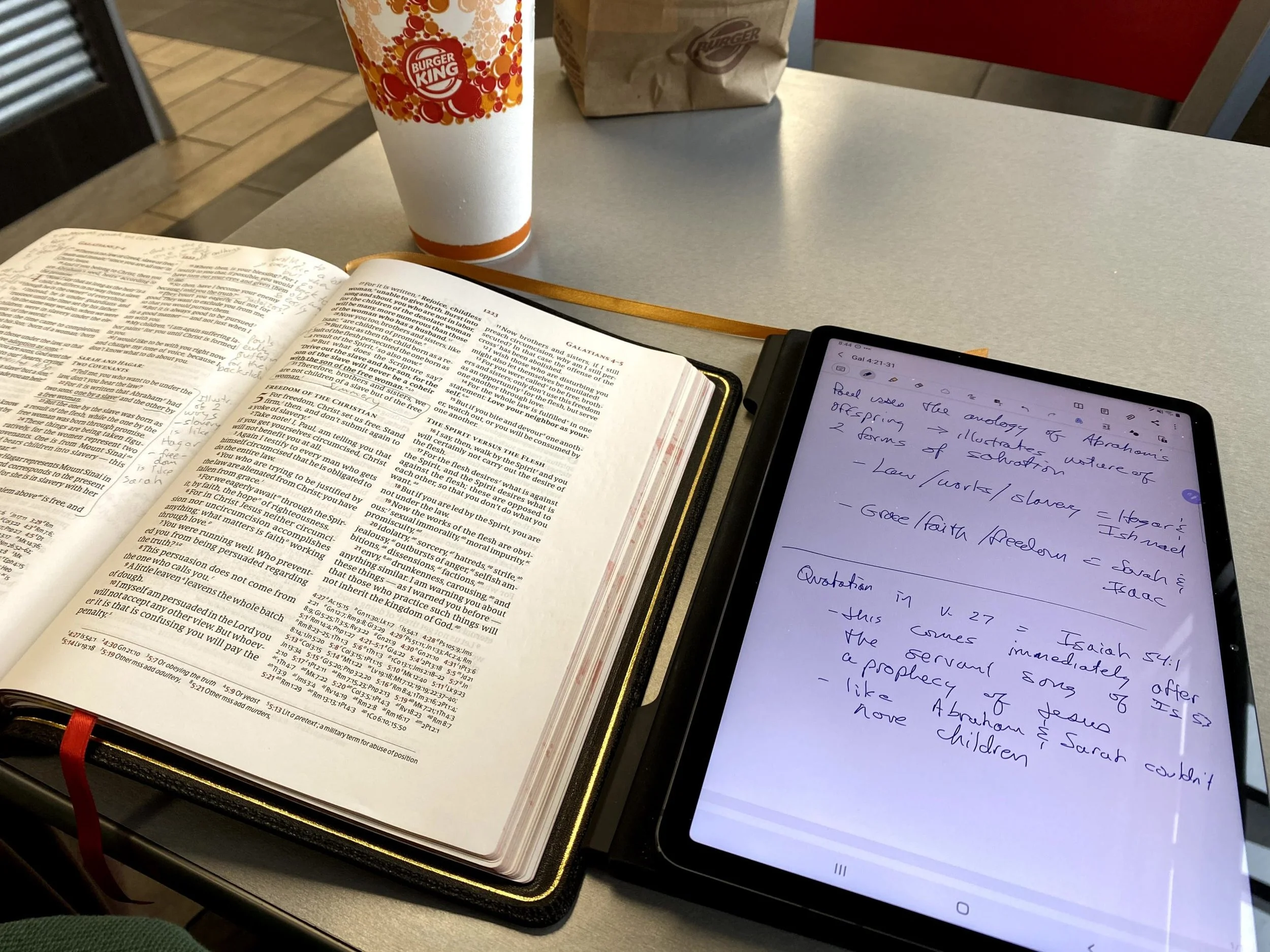
Samsung Galaxy Tab S7 Review for Ministers
The Samsung Galaxy Tab S7 is a premium Android tablet. The iPad dominates the tablet market. Is this tablet a useful tool for ministers?
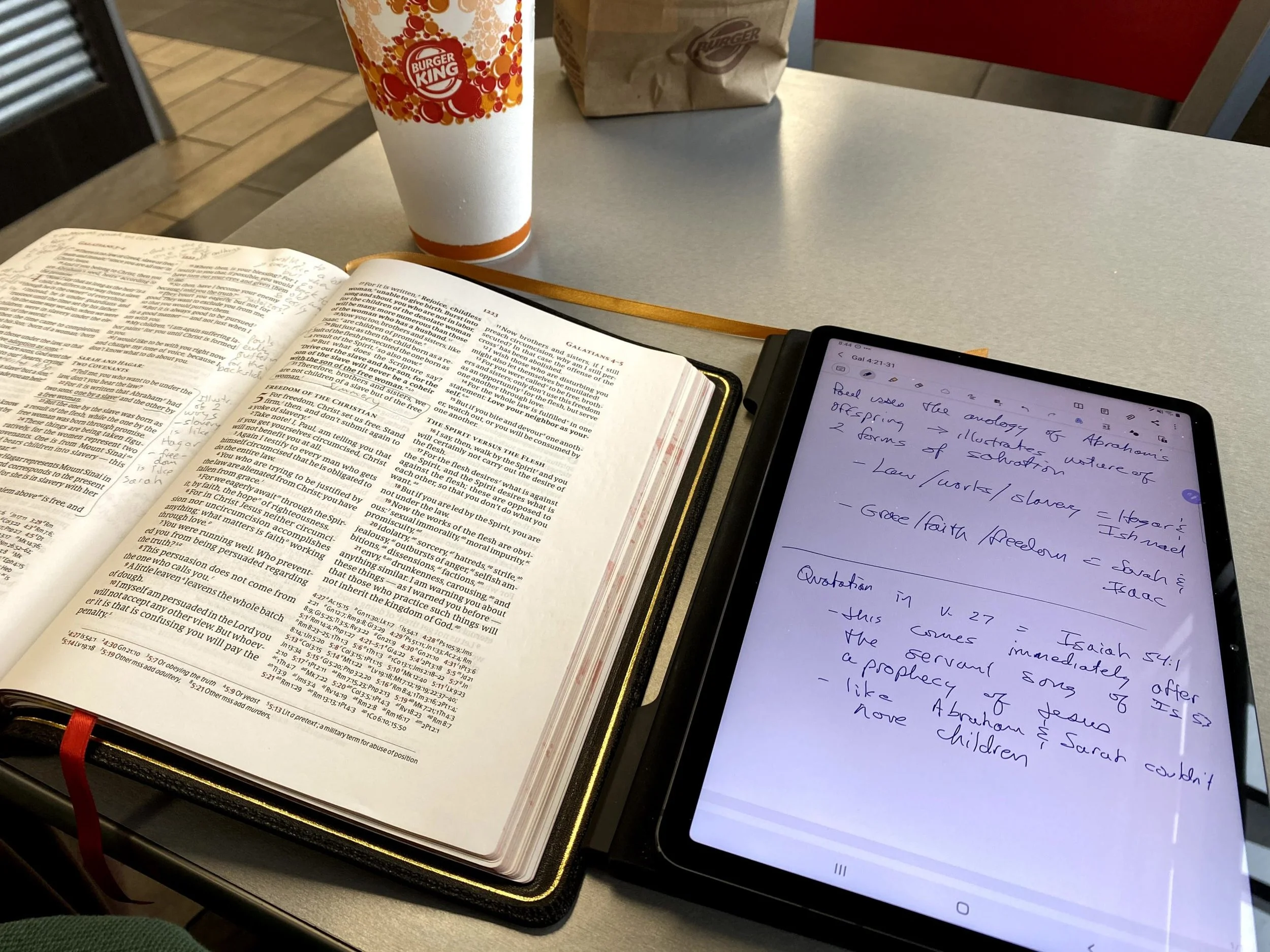
Probably hundreds or even thousands of sites posted a Samsung Galaxy Tab S7 Review when it came out earlier this fall (2020). So, why does the Internet need another one? It doesn’t! Thanks for stopping by.
Actually, I’ll publish one anyway, because I want to focus on how I use the Samsung Galaxy Tab S7 in my ministry. My Samsung Galaxy Tab S7 Review will focus on the following:
- Bible study
- Reading books, magazines websites
- Preaching
- Presenting in a teaching situation
- Note-taking in meetings or study
- General tablet use including email, social media, web surfing, playing games, and watching video online

Samsung Galaxy Tab S7 Review: Screen and Input
The Samsung Galaxy Tab S7 blows away every other Android tablet. If you want a cheap tablet to read books, watch videos and play a few games, then consider a Kindle Fire. But if you want the best Android tablet available, then buy the Samsung Galaxy Tab S7 or S7+. I have a friend who is an Apple fan through and through. He said the Tab S7 is good enough to make him consider switching, almost.

Samsung offers two iterations of this stellar tablet each in three colors (Mystic Bronze, Mystic Black, Mystic Silver). One comes with an 11-inch WQXGA LCD with a 2560 x 1600 resolution. It's a beautiful screen even though the larger 12.4-inch Super AMOLED display with a 2800 x 1752 resolution. I looked at both at the store and wanted the smaller more portable tablet and didn't see a very big difference between the two screens. In theory, a Super AMOLED display should look much better, but the LCD on my tablet still looks amazing.
I primarily bought the tablet because I wanted a smaller tablet for reading, taking notes, and general media consumption. The S Pen competes well against the Apple Pencil on the iPad, whether you use the second generation Pencil on the iPad Pro or the older Pencil on an iPad mini, iPad Air, or regular iPad. It's a better size and fits in my large hands perfectly. I love taking notes in Samsung Notes. If they offered a slightly smaller 9-10 inch screen I probably would have picked that version, but my 11-inch S7 isn't unwieldy.
Samsung Galaxy Tab S7 Performance
The 865+ Qualcomm Snapdragon processor feels very fast with an Octa-Core 3.09GHz rating. Both tablets run on the same processor. The 11 gives users 8GB of RAM while the 12.4 strangely only has 6GB. You can buy them with three storage options - 128, 256, and 512GB of built-in storage. Add up to 1TB of expendable micro-SD card storage.
Specs don't matter if the software doesn't run fast. The Samsung Galaxy Tab S7 does. Everything feels smooth. Apps jump to life. I started it up and timed the boot and it took 28 seconds from start-up to the point I could launch apps. That does not include the few seconds when I paused my timer while I entered my password and restarted it as it finished booting.
I don't play a lot of games, but the few I do ran smoothly. You won't worry about speed on the Tab S7 or S7+. Find out all the detailed specs at Samsung's website, but here's the list of highlights.
Samsung Galaxy Tab S7 Specs
- Software: Android 10 and Samsung's One UI 2.5
- Processor: Octa-Core (3.09GHz,2.4GHz,1.8GHz)
- Display: 11-inch WQXGA display with a 2560 x 1600 TFT
- Memory: 128, 256, 512 GB storage, 8 GB RAM for 11-inch and 6 GB for 12.4-inch; up to 1TB micro-SD card slot
- Camera: Front = 8MP, Rear = 13 and 5 MP; Video Recording UHD 4K 30fps
- S-Pen support; Optional Keyboard case
- Wi-Fi -802.11 a/b/g/n/ac/ax 2.4G+5GHz, HE80, MIMO, 1024-QAM; LTE optional
- USB Type C; Bluetooth v. 5
- Fingerprint scanner and Face recognition security
- Weight: 1.1lb, Dimensions: 6.51x9.99x.25 inches
Samsung Galaxy Tab S7 Review: Bible Study and Reading Books
Many ministers will use their Tablets for reading and Bible study and I'm one of them. I primarily run Logos Bible Android App, Olive Tree Bible, and Accordance Bible. Sometimes I run the Bible app from Life.Church too.

These apps run perfectly fine. The Accordance and Olive Tree Bible apps will let you store your books on the micro-SD card, which helps if you have a really large library or want to keep them on external storage in case you have to erase the internal storage.

In addition to Bible apps, I use the Kindle app and read PDF files on my tablet. The screen may seem a little large for some, especially compared to a Kindle or smaller Kindle Fire. But I like it. I am getting older and can boost the font size to easily read.
Write in the Margins or Highlight like a Paper Book
If you convert your books to PDF format, you can import them into Samsung Notes or some other note-taking app and mark them up as you would with a pencil or pen and a paper book.

Samsung ships the tablet with Noteshelf, a great note-taking app that's also good for marking up books. When you create a new note, you can import a document and choose your PDF book from internal storage, the SD card, or a sync service like Dropbox or OneDrive. You have to set those services up and then they will show up as options in the Noteshelf import dialog box.

Now, use the S Pen to write notes in the margin or highlight the book. When you're done reading the book export the PDF with a slightly different name, like Book Name Finished.PDF.
Samsung Galaxy Tab S7 Review: Preaching from Digital Notes
When I preach, I don't take paper notes into the pulpit. I use my tablet. For years I used the iPad and then iPad Pro 12.9-inch. Now, I like using the Samsung Galaxy Tab S7 because it's a little smaller.

I write my sermons in Microsoft Word and then load them into the Android app on my Tab S7. In the upper right corner, there's an icon that looks like an open book. Tap that to get to Reader view. It loads the document in a larger font that you can adjust. Swipe left/right like a notebook. This view hides the toolbar.
Using the tablet is great. I think Microsoft needs to make their Reading Mode work on Android the same as iOS. You can swipe left/right like a notebook or scroll up down on iOS. You can scroll up/down on Android.
Presenting Using the Tab S7
Presenting requires connecting the tablet to an external display or projector. I use a USB C to HDMI cable for a reliable connection. Hook that up to a projector, as I do. Then I fire up Microsoft PowerPoint.

I love that I can annotate my slides using the S Pen. Touch in the top black bar above the slide to show the inking tools. Then when you're finished you can close the presentation and either keep or discard the ink markups.
Samsung Galaxy Tab S7 Note Taking
Notetakers can use one of the dozens or even hundreds of note-taking apps in the Android App Store. Samsung ships with its Samsung Notes app, my primary choice because it's simple to use and I don't really need much more than that. I can use the S Pen and when I write on screen I can rest my wrist on the screen while writing.

Samsung also ships with the above mentioned Noteshelf. It's also a simple note-taking app. I don't think it adds much that you can't get from Samsung Notes, so I don't use it.

INKredible offers another more powerful note-taking option. The one reason I like it is the zoom feature. See the image above. It pops open a box at the bottom of the screen. As you write in the zoom box, it enters the handwriting in the spot of the note above the zoom box. As you write, a gray shaded section appears at the left end of the line. When you finish writing at the end of the box you start writing in the left side gray area and it automatically moves the entry box over to the right of that line and then to the next line as you get to the end of the line. See it in the demo below, which is admittedly very old and out of date.
I take my Tab S7 everywhere. I take notes in meetings, when I'm doing my devotions with my print Bible, or when I'm brainstorming ideas for ministry or even my personal life. It's a great companion and I love taking notes on it.
Samsung Galaxy Tab S7 Review: Games, Media and Web Usage
As I said above, I don't play a lot of games. However, I enjoy simple games like the Microsoft Solitaire app, Real Pool 3D, and others. People who play more power-hungry games will likely enjoy using the tablet with 8GB of RAM and a fast Octa-Core 3.09GHz processor. Below you'll see a video demo of more powerful games like PubG Mobile from a gamer.
I do watch some videos, mostly using YouTube, Netflix, and YouTube TV. It's a great solution for that while out and about waiting for. The sound won't blow anyone away, but it's very good for what it does. They advertise the Dolby Atmos support, but my aging ears don't hear that much difference between average speakers and better quality sound like the Tab S7 should offer.
Volume sounds loud enough at about 75% in a somewhat noisy room. You can pump it to 100% to get louder audio, but your neighbors will get annoyed. Plug in or use wireless earbuds for most of your usage and you'll get better sound.
Samsung Dex
Some users long for a device that serves as their mobile phone or tablet and as a desktop computer. With Samsung Dex, you get just such an application.
I plugged my Samsun Galaxy Tab S7 into a monitor using a USB C to HDMI cable. Then I paired a Bluetooth mouse and keyboard to the tablet. The screen shows up on the monitor and works as a desktop computer.
Dex works as expected, but I don't really want to use Android as my desktop system. So, I didn't really use it much. I could in a pinch and I could see carrying around a good Bluetooth keyboard and mouse. You can also use the optional Samsung Keyboard Cover, but it's not cheap and doubles the thickness of the tablet and it's not easy to remove quickly for reading or taking handwritten notes with the S Pen. So, I don't bother. I returned the keyboard cover and got the thinner and lighter Book Cover. I used to carry around the mouse and keyboard but seldom used it so I quit doing that. You'll need to decide if you want to make use of Dex.
Recommendation
If you're looking for the best Android tablet in general, then go get the Samsung Galaxy Tab S7. If you want a larger 12.4-inch screen to use as a computer replacement, then get the larger Tab S7+, but that's the only reason. The smaller S7 holds up fine for the majority of users.
People who only want a tablet for reading, playing light games, watching videos, and doing some basic Internet activities, should really consider one of the very inexpensive Amazon Kindle Fire tablets. Get whatever size you prefer.
If you're deeply emersed in the Apple world, consider the iPad, iPad Air, or iPad mini depending on what size you want and what budget. The great Apple Pencil works on all of them.
3 Best Android Bible Study Apps for 2019
Here are the 3 best Android Bible study apps for 2019. This focuses on serious study and not just Bible reading apps.
It's been a while since we rounded up the best Android Bible study apps so lets take another shot at it for 2019. This list of the best Android Bible study apps for 2019 includes Bible study apps as opposed to Bible reading apps. What’s the difference?
- Study original language with more than just Strong’s
- Offers modern translations and powerful searching
- Offers modern scholarly, pastoral and devotional commentaries
- May also offer other eBooks and digital reference books like dictionaries, lexicons and atlases
Please note that we've updated this to the 5 Best Bible Apps for Android. Click here to see it.

Many Bible apps will include a few of the above, but they usually only include public domain or just one or two. Instead the Android apps we're offering helps users study the Bible on a deeper level. A scholar or pastor could use them while mobile. Maybe they won't fully replace a desktop Bible research tool, but they can help the studier stay productive on the go while they wait at a restaurant for a spouse who’s shopping or while sitting in the car picking up their child from school or soccer practice.
To test these out and compare them, we'll give them a score of 1 to 20 in a five different areas.
- Ease of Use
- Cost of Ownership (app plus books)
- Quality of Features
- Library Size and Quality
- Attractiveness of the App’s Design
To get a full score in each of these the app would mean the app’s perfect in that area. So let’s take a look at the 5 Best Android Bible Study Apps for 2019!
Olive Tree Bible
It's not surprising that we'd put Olive Tree Bible (Free plus cost of add-on books) on this list since it made our list of top Kindle Fire Bible apps.
Olive Tree looks beautiful on most platforms. It's not as pretty on Android as it is on other devices, but does look nice and professional. You can tell that designers made the buttons and menus instead of just coders cobbling together something that's functional.

Olive Tree does a great job of quickly showing the user all of their content thanks to the Resource Guide. This section looks at the current passage and then display all the content in the user's library related to that passage. You can quickly find all the commentary entries, all the cross references and more.
For original language study, you tap a word with Strong's tagging added and a popup will show a definition of the Greek or Hebrew word. This will also let you look the word up in other lexicons and dictionaries as well as search the Bible for that word.
It's one of the easiest of the five to use, but could be easier. For example, it's a little clunky to add personal notes. A pop up note editor blocks your content. You can also use the Resource Guide to add and view notes, however, you can't do that and see your Bible and commentary or lexicon or dictionary at the same time.
The app is free but add-on books cost extra. They aren't the most expensive, but you can end up paying thousands for a scholarly level library. The company offers one of the biggest libraries of add-on books and their not just public domain books. You can get high-quality content.
Olive Tree packed more features into this app in a way that's easy to get at them.

- Ease of Use - 3
- Cost of Ownership (app plus books) - 2
- Quality of Features - 3
- Library Size and Quality - 4
- Attractiveness of the App’s Design - 3
- TOTAL SCORE - 15
We could say a lot more about this excellent app. Instead read my full review over at ChurchTechToday. Also see the video above.
Logos
Faithlife publishes the Logos Bible suite of apps. They don’t just offer one, but multiple apps. You can get the following apps.
- Logos Bible Study Tools - their main app with more advanced features.
- Study Bible by Faithlife - the same app with a focus on their Faithlife Study Bible book which is a nice study Bible.
- Verbum Catholic Bible Study - Like the main app (first above) but focused on Catholic students.
- Faithlife Ebooks (formerly Vyrso) - Focused mainly on reading eBooks instead of serious Bible study and not recommended for this list.
Logos offers an excellent collection of training videos, so that's one of the best ways for you to learn more about the Logos Bible apps.
The app opens to show you how to the main features work the first time you start it. Then it shows the main home page. From there you can use the tabs at the bottom to view the various sections of the app.
The app shows Bibles and books in a tabbed environment. The center button is where you open these tabs. You can connect them so they all advance to the same passages or just connect certain tabs.
The library shows all your books and lets you check out new books in the store. There's also a store button on the toolbar of the app. Open the menu to see all the advanced features like the Passage Guide (looks for content related to a passage and shows a list of entries), Exegetical Guide (same as passage guide but focuses on language study tools) and more.
The app includes a ton of features. In fact it's the most feature packed app in our roundup. You can use things like...
- Atlas
- Prayer lists
- Clippings (collections of things you find in your study)
- Word studies
- Text comparisons (show more than one translation at a time)
- Audio books
- Courses (Faithlife has a rich collection of high-quality courses similar to what you might get in a seminary or Bible college)

We scored Logos as follows:
- Ease of Use - 2
- Cost of Ownership (app plus books) - 2
- Quality of Features - 4
- Library Size and Quality - 4
- Attractiveness of the App’s Design - 2
- TOTAL SCORE - 14
We're just scraping the surface in this description. Take a look at my post about which Logos Mobile App to Use and my series on how to do creative digital sermon prep using Logos. I also wrote a review last year at ChurchTechToday.
Accordance Mobile
Accordance Mobile brings us one of the latest entries into the Android Bible app space. Their iOS version never really measured up till recently, but now they're doing a great job on both iOS and Android.
The app seems deceptively simple at first. However, under the hood, it has a lot of advanced features for you to discover. You can view two books at once with the main book and secondary book syncing up to scroll through a passage together if you wish.
Tap on verses to get more study options and tap on words to learn more about the word, especially if the Bible has strong's numbers attached.
The powerful Accordance search engine comes to mobile in the app. They're still adding more advanced features and it's growing more powerful all the time.

Here's how I'm rating the app:
- Ease of Use - 2
- Cost of Ownership (app plus books) - 3
- Quality of Features - 3
- Library Size and Quality - 4
- Attractiveness of the App’s Design - 3
- TOTAL SCORE - 15
While the app looks deceptively simple, it does have some powerful features. However, it's not as strong as it could be. In a year I expect that to change. You also have to play around to discover the advanced language study features it does have. Be sure to check out their excellent tutorials. Accordance also offers a great library of add-ons available to buy at great prices. If you already own a book on another platform, ask the company and they will likely give you a deal. I've saved hundreds by buying that way from Accordance.
I should probably add a category for support, because Accordance really shines in this area with some of the best training post purchase of any of the companies. They have live webinars both online and in person. Here's a recent podcast covering the Accordance Mobile app on iOS.
Here's a link to an episode of their podcast covering Android.
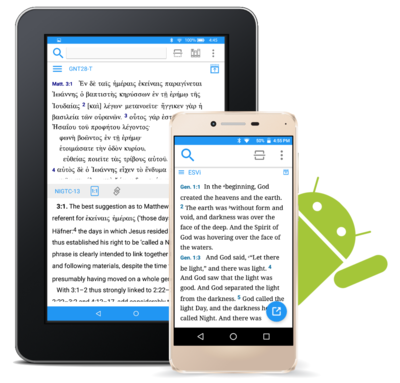
Accordance Mobile Bible App Goes Android
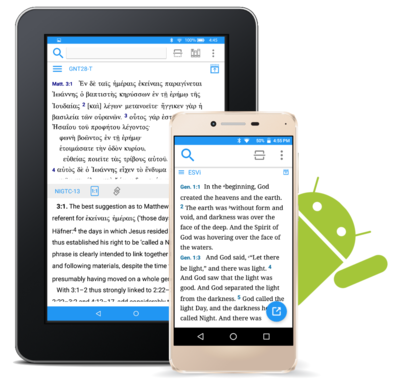
The Accordance Mobile Bible app for Android hit version 1.0 and it's available to download now and side load on your Android device. You can watch our latest Theotek Podcast where Mark Allison and Rick Mansfield showed off the app. Go over to our new Facebook Page and hit Like and you'll get updated each time we go live with a new podcast. Watch it below on Facebook or on YouTube under that.Here is the YouTube vide. Hit subscribe to get new videos after we record them live on Facebook.https://www.youtube.com/watch?v=82aJbwremE0You can download the app and side load it on Android. Get it from the Accordance Blog. Accordance will post it in the Google Play Store sometimes soon. You can follow the Theotek Podcast on Twitter to get an update when it's ready to God or follow Accordance on Twitter. You can also follow me.The Accordance Mobile app is only a book reader and searching tool at this point. Things like languages study, highlighting and notes will be added at a alter date.