

iPad Mini 6 Review for Ministers and Everyone Else
One of the best tablets for pastors is the iPad mini 6. Here's why I love it so much for ministry and general use.
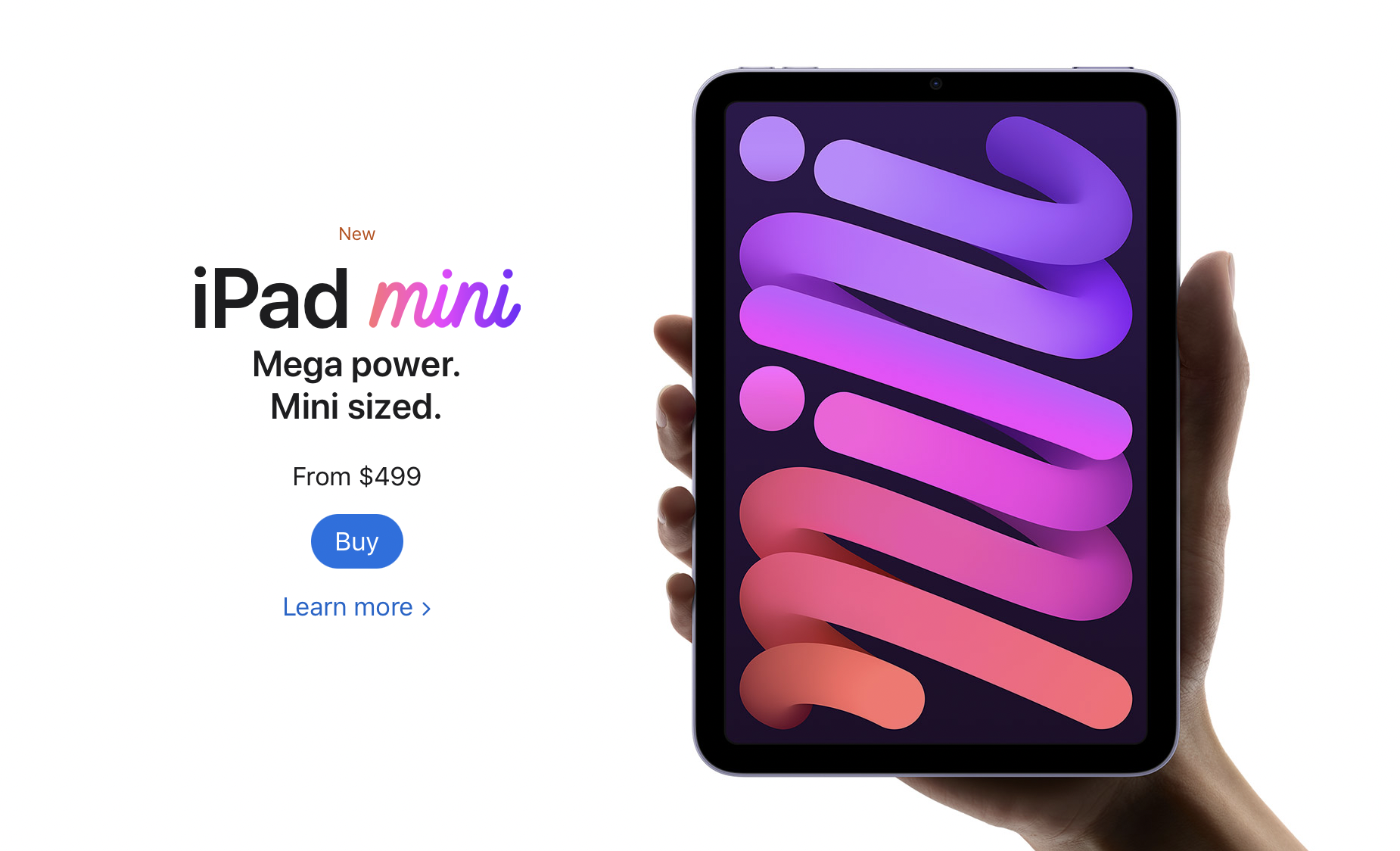
The Apple iPad mini 6 came out and I couldn't resist getting one. In fact, I sold my 12.9-inch iPad Pro and my iPad mini 5 so I could get the 256GB model. Here's my iPad mini 6 review for ministers and everyone else.
Let's start with how the iPad mini 6 ($499 for base, $649 as reviewed) fits in my life. I use it as my primary tablet and, for a little while, my only iOS device because a couple of months ago I switched from using an iPhone 12 Pro Max to a Samsung Galaxy S21 Ultra 5G. I moved back to the iPhone after that failed experiment. I shared thoughts on that transition in another post. The iPad mini 6 handles...
- Reading my Bible and others books in Bible apps and the Kindle app.
- A complement to my phone for checking email, Facebook, Twitter, and Instagram.
- Watching videos or listening to podcasts using YouTube, YouTube TV, Pocket Casts, and other streaming video services.
- Playing casual games.
- Quick photo editing for posting online.
- Quick video editing - mostly trimming videos, combining clips, color correcting, adding titles, and music but not complex edits.
- Flying my DJI Mini 2 drone.
- Taking notes in meetings with Notability and the Apple Pencil.
- Preaching from my tablet with Word or using Keynote for presentations.
We'll look at the uses listed above and then the hardware. If you just want to see what I think without the detailed iPad mini 6 Review, then jump to the bottom to get my recommendation.
iPad mini 6 Review: Bible Study and Reading Books
The screen on the iPad mini 6 looks pretty nice while reading books. The iPad mini 6 works well for studying the Bible in several Bible study apps and the Kindle app for reading books. Read magazines using the Apple News app.

I like reading on a screen. My wife prefers the Kindle Paperwhite and won't read books on a tablet, but I love using the iPad mini thanks to the sharp and clear display. If you hate reading on a screen and prefer e-ink or real paper, then don't buy the iPad mini 6 for reading. You won't enjoy it. However, I would recommend trying it out. Borrow a friend’s mini or spend some time at an Apple Store or Best Buy reading to see if you could use it. It’s nice caring only one tablet for reading.

All the Bible apps that run nicely on an iPhone look great on the mini 6. The screen's just big enough to open 2 books at once time or open a book and a note screen. The new window management in the iPad mini 6 or any of Apple's iPad thanks to iPadOS 15 makes it easier than ever to open two apps at once. You can...
- Open one Bible app and take notes in another
- Open your Bible app and a word processor like Word, Pages, or Notes
- Use your inking app, like Notability, and take handwritten notes while also studying the Bible in your favorite Bible app.
- Research topics on the Internet while and studying the Bible in your chosen Bible app.

The Kindle app and Apple News app look great. Reading other text in a browser, email, or social media also looks sharp and crisp.
Margins Notes or Highlighting like a Paper Book
Most of the Bible apps and the Kindle app won't let you take handwritten notes inside the app. iPadOS 15 added a new feature where you can grab your Apple Pencil 2 (sorry, but the first-gen Pencil doesn't work) and swipe from the lower right corner. Apple Notes opens a note and you can take what they call Quick Notes. These Quick Notes are attached to the content on screen. You can type or draw and write in your own penmanship.

While I would not use this for really important Bible study and research notes, it's great for a quick note that you can save and later add to the notes feature. I type faster than I can write with the Pencil, but Quick Notes works great for those instant observations in another app outside your main Bible app, hence the name Apple gave the feature.

If you love to write in the margins of your books, then convert them to PDF and get an app like Notability, Liquid Text, or Good Notes. You can find others, but make sure they support importing PDF files. I use Liquid Text for this. It supports PDFs and Word docs. By the way, the OneNote app also supports handwriting with the Apple Pencil.
You could always highlight the Bible in the best Bible apps. This also works great on the iPad mini 6.
iPad mini 6 Review: Preaching from Digital Notes

When I preach, I always bring my iPad into the pulpit and view my sermon notes in Microsoft Word. It worked great on my 12.9 iPad Pro. Young people or those with great eyesight will love using the iPad mini 6, but it's a little too small to lay down on the pulpit. Word will enlarge the text, but then you don't see enough of the outline at one time. So, going forward I will not use my iPad mini 6. However, if you want to, open the document, put it in reader mode by tapping the icon on the toolbar (see the GIF above), and then pinch to zoom text.
You'll need to decide if your eyes see well enough to use the smaller iPad mini 6 for preaching notes. If you used an older iPad mini, then you'll like the new one. The screen measures slightly larger than the old version with an 8.3-inch display versus the older 7.9-inch on the 5.
Presenting Using the iPad mini 6

Presenting suffers the same problem for my older eyes as reading my preaching notes. However, I can use it and if you've used a small display for presentations before, then the iPad mini 6 will work for you.
If you simply plug in and swipe or tap to advance slides, the iPad mini 6 will work great. If you like to write or draw on the screen as I do (see above GIF), then the size might limit you. It's harder to present on the smaller screen compared to the 12.9-inch Pro display or the 10-11-inch display on the basic iPad, iPad Air, or smaller iPad pro.
With iPadOS 15 and macOS Monterey on a Mac, you can send the display of your iPad to the Mac using screen sharing (see GIF above). This would let you connect to a Mac hooked up to a projector or TV. Then screen share your iPad screen to the Mac.
iPad mini 6 Review: Screen and Input
Pick up the small and light iPad mini 6 and type on the screen with your fingers or write using Scribble, the new Pencil-based input system in iPadOS 15. The mini 6 handles this kind of input. However, I don’t really like Scribble, so I’ve installed a keyboard that lets me draw text and it converts it to printed text on the screen. It’s called Handwriting and handles handwritten text input better than Scribble.
iPad mini 6 Review: Performance
I'm not going to run benchmarks or battery tests. You can find those on more technical reviews elsewhere. Rene Ritchie does a great job of these kinds of reviews on his YouTube channel.
If you plan to use the iPad mini 6 as a tool in ministry, it performs efficiently and offers a nice improvement over the 5. It's snappier, scrolls through websites and books faster, and the inking smoothly displays your handwriting and drawing.
Some people report seeing a strange effect while scrolling. It's the great "Jelly Scrolling" controversy of 2021. See the effect in the video below.
The jelly scrolling issue clearly shows up in the video above. But, I don't see it on mine. It seems like you have to really look for it to see it. And if you do, then you may not see it again. If you get one that looks more noticeable, then get return it and get a replacement.
Since I don't notice the problem, I can't complain about it here.
Other than the Jelly Scroll issue, the iPad mini 6 performs well. I played videos, games, and read on it a lot over the first couple of weeks, and loved the experience. It feels like a good improvement over the 5, which I owned.
iPad mini 6: Video and Photo Samples
Most people will still use their phone or a dedicated camera to take pictures or shoot videos. However, I use my iPad mini to scan documents and the rear-facing camera works great. I import documents into my note-taking apps or scan them for storage in my OneDrive folder. After worship, I scan all the guest cards to contact them. I also scan new member cards to add them to our church role.
More people will use the front-facing camera to stream themselves on social media or for FaceTime, Skype, or Zoom calls. The camera works fine for these situations.
A new feature on the iPad mini 6 enables ultra-wide video so that the camera will follow you around your room even if the iPad remains stationary. The software will zoom in and focus on your face so you can get up and move left or right and then back to the center frame.
In a pinch, the camera does a nice job of taking photos and videos. Here's a sample of photos taken on the iPad mini 6 camera. They are all without edits and exported from Photos to JPG. The one of me in my orange shirt is taken with the front-facing camera. The other four are taken with the rear camera.


The colors look nice. Each photo seems sharp enough for snapshots. I wouldn't try to get high-art photographs with the camera. All of that said, the camera impressed me. Until this model, I wouldn't even consider taking this much time in a review to discuss the quality. But this camera works better than any previous iPad camera.
iPad mini 6 Review: Flying My DJI Mini 2 Drone

Flying a drone usually starts with connecting a phone to the drone controller. However, I never really liked using the small screen of the flown. There's too much on the screen for even a large screen like the one you get with the iPhone 13 Pro Max. So, flying a drone with an iPad mini 6 makes drone pilots happy.


The above set of screenshots shows the interface of the DJI Fly app, used to control the DJI Mini 2 drone. All the controls show up with plenty of room to see the images from the drone's camera.
To fly a DJI drone with the iPad mini 6, you'll need a special attachment like the Drone Valley Gear Tablet Mount ($18.95) that I bought on Amazon. It fits an iPhone, iPad mini 6, or another tablet of similar or even larger size.

If you want to learn more about the mount, see Drone Valley's video below.
iPad mini 6 Accessories
I bought the official Apple Smart Folio in Electric Orange for $59. I also accidentally got the Dark Cherry, but it showed smudges too much, so I stuck with the bright orange Smart Folio and I'm glad I did.

The case covers the back of the iPad mini 6 then wraps around the left side of the device to cover the front. The back snaps into place thanks to magnets that reliably hold it on the iPad.

The front part of the Smart Folio folds up into a triangle to turn into a stand. It will hold the iPad up in an angle best for watching a video and a lower angle for drawing.

The magnets in the front part of the Smart Folio snap onto the front part of the iPad and this turns the screen off until you open the case and it turns the screen back on. It also folds onto the back and snaps into place so you can hold it and read or do other things.
The Apple Smart Folio case feels like it will hold up, but for $59 it seems like it should feel more premium. It has a bit of a cheap feel to it. You can find cheaper cases, but I like Apple’s because they’re designed better even if the raw materials aren’t as premium.
The Folio also comes off easily making the iPad mini 6 lighter and therefore easier to read on it.

The Apple Pencil 2 snaps onto the right side (in portrait orientation) and automatically pairs with the iPad. It also charges while connected. The magnets seem stronger this time than my old 2020 12.9-inch iPad Pro.
The Apple Pencil costs $129, a little steep for a stylus. However, it's one of the best you can get especially for artists.

I don't use the iPad mini for typing very often, but Logitech makes the best keyboard you can pair with the iPad mini 6 or any tablet. The new Logitech Mx Keys Mini costs $99, a lot for an iPad mini keyboard. I use it with other devices so it's worth the price. You get a great keyboard that's small enough to carry in a bag but small enough that it doesn't take up too much space.
Add to the Mx Keys Mini, Logitech's great MX Anywhere 3 mouse, also pricey at $79.99, and you get a mini-computer on the go.
The above image shows a pair of Samsung Galaxy Buds 2, but the best wireless Bluetooth earbuds are the Apple Airpods Pro. They automatically switch to the iPad mini 6 when you put them in your ears and start playing media.
iPad mini 6 Review: Specs
- Screen
- 8.3-inch display with 2266x1488 pixels and 327 pixels per inch
- IPS LCD with 60Hz refresh rate
- 500 nits brightness
- System Hardware
- Apple's A15 Bionic processor
- Hexa-core 64-big
- 64 or 256GB storage
- Battery
- 5078 mAh LI-Polymer battery
- Runs over 10 hours in most tests
- Cameras
- Rear camera - single 12MP with F1.8 aperture
- Video recording at 4K 60fps and 1080P at 240fps
- Front camera - single 12MP with 1080P video
- Connectivity
- 5G, LTE Celular with dual sim support
- Wi-Fi 6
- Bluetooth 5.0
- Physical Size and Details
- 7.69 x 5.31 x .25 inches
- 10.34 ounces
- Volume up/down and power button with integrated fingerprint reader
- USB-C charging port with cable and brink included
- Comes in Space Gray, Pink, Purple, and Startlight
Recommendation
I love my iPad mini 6. It was nearly the perfect update over the 5 with a better camera, USB-C, faster processor, and just an overall better experience. If you own an old iPad mini, then seriously consider upgrading, especially if it’s a 4 or older. If you own an Android tablet or. Kindle, then the iPad mini 6 will cost more, but it’s worth it. Android phones might compete well with the iPhone, but I’ve never used an Android tablet that meets my needs as well as the iPad.

Setapp Review: Worth the Cost to Get Dozens of Great Apps?
Setapp collects some useful Mac apps & utilities users can install and use so long as they pay for the subscription. Is it worth the price?

What if you could pay one fee and get access to dozens of great apps? That's what the Setapp subscription service offers. You pay monthly or yearly, and while you're paying, you can use any of the included services.

These kinds of bundles pop up on the Mac side, but Setapp is available all the time and keeps adding new apps that you can use all for one monthly fee.
Setapp made a name for itself because it doesn't just provide you with garbage apps no one wants from developers trying to make a name for themselves and can't get people to buy them. They don't offer old versions like those British computer magazines used to offer on a disk with the magazine I used to buy at Barnes and Noble. You actually get some established names too.
I subscribed months ago and used it to download some cool utilities and programs on my Mac and even my iPad. We'll look at the service and the apps and then decide if the price is right. We'll also list some of the best apps available.
See reviews of other tech products here on our site.
Video Review of Setapp
Here is my video review of the Setapp service from the Theotek YouTube Page. Go there and subscribe if you like this video.
How Does Setapp Work?
Install Setapp on your Mac. There's a 7-day free trial offer to test it out. I wish they gave a longer trial, like 30 days.

Run the app, and it puts an icon in your Menu Bar. You can click it, and you'll see a small popup window. This small window shows apps you can install, or you can open the full app. There's also a Settings icon in the lower right corner. Use it to close the app or change preferences.
Take a look at all the apps curated in Setapp and install the ones you might find useful. You can also get them on an iPhone or iPad.

The apps install through the Setapp app, which looks like the Mac App Store. On the left side of the app, there's a list of categories. A slideshow at the top shows the recommended apps. In the main section of the window, users will see Recommended for you, New arrivals, and Recently updated.

To see all the apps installed, click on the On this Mac section on the upper left. The Favorites section shows apps you choose as your favorites by clicking on the heart icon next to an app title (see above). Setapp sets up Collections of apps based on the ways you might use apps.

When you find an app, you might want, click on the app icon to learn more about the app. You can install it from that screen or the previous screen.

Install Apps on iOS
People who want to install apps on their iPhone or iPad can do so by going to the Available on iOS section at the bottom of the list on the left of the Setapp window.

Let's say I want to install the 2Do app on my Mac and iPhone. Install it first on your Mac using the Install button next to the app title. Then you'll see the iOS app button with a checkmark in the button next to the Install button. Click it to install the app.

Setapp shows you a QR code that links to the app in the iOS App Store. Use your phone's camera to scan the QR Code. After installing the app on your phone, click on the Next button on Setapp on your Mac. You'll see another QR Code that unlocks the app on iOS so you now own the app.

Value of the Setapp Service is in the Apps Available
The apps make Setapp worth $10/month or $9/month if you pay annually. I installed only a handful of apps on my Mac, but these apps' total cost if I bought them separately makes it worth the price. The 2Do app costs $50 alone. That's half the price of the subscription for a year. I also use Clean My Mac X, which costs $35/year in the app store or $90 for a one-time fee. Those two apps alone make it worth the cost for a year.

You have to factor in that you must pay every year. So some apps don't have subscriptions. You pay once and own it. If you only use those kinds of apps, then Setapp might not hold value for you.
I like that I can try out all the apps without paying extra. It's all you can eat. That's a good value.
I've discovered apps that I love, like News Explorer. It's an RSS reader, which curates news sites. I can open it and see my favorite blog headlines and open just those I care to read.
Setapp Categories
Setapp contains the following categories:
- All Apps
- Lifestyle
- Creativity
- Developer Tools
- Productivity
- Mac Hacks
- Writing & Blogging
- Education
- Maintenance
- Task Management
- Personal Finance
- Available on iOS
In the lists below, I mention the apps in one category even though some apps show up in multiple categories. For example, Gifox shows up in Lifestyle and Developer Tools. I only list it in the category where it best fits.
Lifestyle Apps Worth Downloading

Here's a list of some of my favorite Setapp Apps in Lifestyle:
- Canary Mail - one of the most popular Mac Email apps.
- Downie - download videos from video hosting sites.
- News Explorer - RSS feed reader mentioned above.
- Photolemur - a nice AI-powered photo editor.
- Swift Publisher - a powerful desktop publishing app.
- Touch Retouch - edit photos and remove distracting background people or objects in photos.
Creativity Apps to Look At

Check out these great Creativity apps on Setapp:
- Cleanshot X - a great screen capture app.
- FotoMagico Pro - powerful slideshow creation tool that puts your photos into beautiful videos of photo slide shows.
- GlueMotion - create time lapse videos using your photos.
Developer Tools
I'm no developer but even I find a few of these useful. Give a look to these Setapp Developer Tools apps:
- Coherence X - turns a website into a Chrome web app, great for Google Chrome browser users who work on a Mac and a Chromebook.
- Gifox - records screen and saves it as an animated Gif.
- Marked - write in markdown code and see what it will look like on your website.
Best Productivity Apps on Setapp
For people trying to get some work done, try some of these Productivity apps.
- 2Do - powerful task manager.
- BusyCal - a great Calendar replacement that runs from the Menu Bar and supports natural language input.
- InstaCal - another great calendar app that runs from the Menu Bar. which I like but not as well as BusyCal, but you may disagree so try both out.
- PDF Search and PDF Pen - two great PDF tools that give you a little more than just using the Preview app for PDF reading, writing, and markup.
Great Mac Hacks Apps
Here's a list of my favorite Mac Hacks apps:
- Bartender - a popular tool to keep your Menu Bar from getting too cluttered.
- Jump Desktop - a great remote computer application, which lets you access another computer over the Internet from your mac and also lets you access the Mac on which you install Jump Desktop.
Writes will Love These Writing & Blogging Apps

Are you a writer or blogger? Then try out these great apps on Setapp:
- MarsEdit - turn your blog into a word processor so you can write offline and then upload after you get your text just right.
- Ulysses - one of the best long document editing tools that helps writers compose their books, screen plays, or other long documents.
Education Apps You'll Love in Setapp
Educators and students will find these apps useful:
- MarginNote - a powerful note taking and annotating tool with automation features that make it incredibly useful for students.
- MindNode - create mind maps to help you organize papers, thoughts, or just study topics.
Cool Maintenance Apps to Make Your Mac Work Better
You can speed up your Mac or make it work more efficiently with these tools:
- BetterTouchTool - lets you program the Touch Bar on your MacBook Pro.
- ClearVPN - a basic VPN client that wouldn't be my first choice, but since it's here for free to Setapp subscribers, I use it and works.
- iStatMenus - get more information about your machine with this little Menu Bar app.
Available on iOS
Install the following apps on your iPhone or iPad:
- 2Do - task manager for Mac and iOS.
- MindNode - great mind mapper for Mac and iOS.
- Ulysses - also runs on an iPad.
Conclusion and Recommendation
The last two categories (Task Management and Personal Finance apps) don't include any apps that weren't already mentioned in the other categories. That's why you don't see them listed above.
Setapp costs $9.99/month. If you buy the one-year subscription, you'll save $12 for the year. You can get a family subscription that lets you install Setapp on up to 4 machines. That might help if you own more than 2 Macs. People with two will pay an extra $2.49/month for the second Mac. Add an iOS device for $2.49/month.
Try Setapp for one month and see what apps you'll use. Then do the math to see if the subscription saves you money over a couple of years. The apps I use would cost me hundreds of dollars, so it's worth paying for 2 Macs and one iPad.
Setapp would be a better deal if the $19.99/month family deal applied to Macs and iOS devices. I'd buy that and install apps on my 2 Macs and my iPhone and iPad.
I like that they add new apps almost every month or two. This increases the value. I'd like to see video demos of the apps inside Setapp. However, the apps include a link to the developer's website. These sites usually show more information that you get inside Setapp.
Does Grammarly Improve Writing Enough to Justify $140/Year Subscription?
Grammarly improves writing by checking your spelling, grammar, and writing style in real-time. You can use it for free to find simple problems in your writing, but is the subscription worth the money? Check out my review ot find out.
I recently discovered the writing service Grammarly. Grammarly runs on various platforms and analyzes writing for grammar, spelling, and style problems. You can use it for free and get spelling and punctuation assistance, or you can get advanced analysis by paying for a subscription. And it's not cheap! Is it worth the price?
Where Can You Use Grammarly?
Writers can run Grammarly wherever they write, so long as they use one of the supported platforms, which include:
- Microsoft Word Plug-in
- Browser Plug-in for Safari, Chrome, Firefox, or Microsoft Edge
- Web Application
- Desktop App for Mac and Windows
- Mobile Keyboard App for iOS and Android

When you install the Word plug-in, you write, and Grammarly offers corrections that you can easily click to change. The quick correction suggestions speed up my writing because I don't worry about going back to fix typos or errors until I finish typing a paragraph or more. Then I click a few times to fix things, thanks to the plug-in.
Open your Safari or Chrome browser, and you can correct as you type anywhere on the Internet. The extension checks your spelling, grammar, and style to help you write better. Grammarly helps when writing inside web forms or other places where there's usually no spell-checking or only rudimentary spell-checking. It's helped me with my writing in WordPress.
Grammarly Web App and Desktop or iPad App

To use Grammarly as a web app, open the site and create a new document. You'll see three columns. The writing area on the left has a toolbar on the bottom for formatting text and paragraphs.
There's a narrow column called the Assistant on the right that shows your document's analysis. It tells you whether your document has any problems and how clear, engaging, and grammatically correct it rates your document.
When there's an error, Grammarly shows the correction in the center column. Users can click to fix things quickly without retyping text.
Grammarly as a Replacement Keyboard


The mobile keyboard on iOS or Android replaces the built-in keyboard. As a user types into a text entry box or a document, the keyboard analyzes the words typed and offers to correct them in real-time. The keyboard includes things like slide to an insertion point by pressing and holding on the space bar, like the built-in iOS keyboard. I can't say if the Android keyboard does this since I've not tried it.
Value and Recommendation
Grammarly is a subscription service with three tiers.
- Free - The free version works in all the various apps and services listed above. Still, it only shows you spelling, grammar, and punctuation errors.
- Premium - Premium enhances the analysis to include writing style for multiple audiences and settings. Imagine an editor helping with more than simple errors to improvise your writing style.
- Business - The Business level subscription adds more features for a team of users.
How much does each level cost? Here's the breakdown:
- Premium Monthly - $29.95
- Premium Quarterly - $19.98 for 3 months = $59.94
- Premium Annually - $11.66 for 12 months = $139.92
The Business Plan changes in price depending on the number of users. If you pay monthly, the company charges $25/month for each member. However, if you pay annually, you get a discount as follows:
- 3 to 9 members — $12.50/member/month
- 10 to 49 members — $12.08/member/month
- 50 to 149 members — $11.67/member/month
The best recommendation I can give you is this: I bought Grammarly for one year. It really helps me with my poor typing skills. I use it as my primary keyboard on my iPad and iPhone. I installed the Word plugin and used it in Safari on my MacBook Pro and Edge on my Windows desktop.
The price seems steep. After telling a friend that I bought the subscription, I learned about something similar called Antidote. He uses it, and it costs half as much. They offer a free version, too, so give it a try before paying for Grammarly. You may get a better deal than I got with Grammarly. If you don't like it, give Grammarly a try. I decided it was worth the price to speed up my typing and protect me from making as many mistakes.
Samsung Galaxy Tab S7 Review for Ministers
The Samsung Galaxy Tab S7 is a premium Android tablet. The iPad dominates the tablet market. Is this tablet a useful tool for ministers?
Probably hundreds or even thousands of sites posted a Samsung Galaxy Tab S7 Review when it came out earlier this fall (2020). So, why does the Internet need another one? It doesn’t! Thanks for stopping by.
Actually, I’ll publish one anyway, because I want to focus on how I use the Samsung Galaxy Tab S7 in my ministry. My Samsung Galaxy Tab S7 Review will focus on the following:
- Bible study
- Reading books, magazines websites
- Preaching
- Presenting in a teaching situation
- Note-taking in meetings or study
- General tablet use including email, social media, web surfing, playing games, and watching video online

Samsung Galaxy Tab S7 Review: Screen and Input
The Samsung Galaxy Tab S7 blows away every other Android tablet. If you want a cheap tablet to read books, watch videos and play a few games, then consider a Kindle Fire. But if you want the best Android tablet available, then buy the Samsung Galaxy Tab S7 or S7+. I have a friend who is an Apple fan through and through. He said the Tab S7 is good enough to make him consider switching, almost.

Samsung offers two iterations of this stellar tablet each in three colors (Mystic Bronze, Mystic Black, Mystic Silver). One comes with an 11-inch WQXGA LCD with a 2560 x 1600 resolution. It's a beautiful screen even though the larger 12.4-inch Super AMOLED display with a 2800 x 1752 resolution. I looked at both at the store and wanted the smaller more portable tablet and didn't see a very big difference between the two screens. In theory, a Super AMOLED display should look much better, but the LCD on my tablet still looks amazing.
I primarily bought the tablet because I wanted a smaller tablet for reading, taking notes, and general media consumption. The S Pen competes well against the Apple Pencil on the iPad, whether you use the second generation Pencil on the iPad Pro or the older Pencil on an iPad mini, iPad Air, or regular iPad. It's a better size and fits in my large hands perfectly. I love taking notes in Samsung Notes. If they offered a slightly smaller 9-10 inch screen I probably would have picked that version, but my 11-inch S7 isn't unwieldy.
Samsung Galaxy Tab S7 Performance
The 865+ Qualcomm Snapdragon processor feels very fast with an Octa-Core 3.09GHz rating. Both tablets run on the same processor. The 11 gives users 8GB of RAM while the 12.4 strangely only has 6GB. You can buy them with three storage options - 128, 256, and 512GB of built-in storage. Add up to 1TB of expendable micro-SD card storage.
Specs don't matter if the software doesn't run fast. The Samsung Galaxy Tab S7 does. Everything feels smooth. Apps jump to life. I started it up and timed the boot and it took 28 seconds from start-up to the point I could launch apps. That does not include the few seconds when I paused my timer while I entered my password and restarted it as it finished booting.
I don't play a lot of games, but the few I do ran smoothly. You won't worry about speed on the Tab S7 or S7+. Find out all the detailed specs at Samsung's website, but here's the list of highlights.
Samsung Galaxy Tab S7 Specs
- Software: Android 10 and Samsung's One UI 2.5
- Processor: Octa-Core (3.09GHz,2.4GHz,1.8GHz)
- Display: 11-inch WQXGA display with a 2560 x 1600 TFT
- Memory: 128, 256, 512 GB storage, 8 GB RAM for 11-inch and 6 GB for 12.4-inch; up to 1TB micro-SD card slot
- Camera: Front = 8MP, Rear = 13 and 5 MP; Video Recording UHD 4K 30fps
- S-Pen support; Optional Keyboard case
- Wi-Fi -802.11 a/b/g/n/ac/ax 2.4G+5GHz, HE80, MIMO, 1024-QAM; LTE optional
- USB Type C; Bluetooth v. 5
- Fingerprint scanner and Face recognition security
- Weight: 1.1lb, Dimensions: 6.51x9.99x.25 inches
Samsung Galaxy Tab S7 Review: Bible Study and Reading Books
Many ministers will use their Tablets for reading and Bible study and I'm one of them. I primarily run Logos Bible Android App, Olive Tree Bible, and Accordance Bible. Sometimes I run the Bible app from Life.Church too.

These apps run perfectly fine. The Accordance and Olive Tree Bible apps will let you store your books on the micro-SD card, which helps if you have a really large library or want to keep them on external storage in case you have to erase the internal storage.

In addition to Bible apps, I use the Kindle app and read PDF files on my tablet. The screen may seem a little large for some, especially compared to a Kindle or smaller Kindle Fire. But I like it. I am getting older and can boost the font size to easily read.
Write in the Margins or Highlight like a Paper Book
If you convert your books to PDF format, you can import them into Samsung Notes or some other note-taking app and mark them up as you would with a pencil or pen and a paper book.

Samsung ships the tablet with Noteshelf, a great note-taking app that's also good for marking up books. When you create a new note, you can import a document and choose your PDF book from internal storage, the SD card, or a sync service like Dropbox or OneDrive. You have to set those services up and then they will show up as options in the Noteshelf import dialog box.

Now, use the S Pen to write notes in the margin or highlight the book. When you're done reading the book export the PDF with a slightly different name, like Book Name Finished.PDF.
Samsung Galaxy Tab S7 Review: Preaching from Digital Notes
When I preach, I don't take paper notes into the pulpit. I use my tablet. For years I used the iPad and then iPad Pro 12.9-inch. Now, I like using the Samsung Galaxy Tab S7 because it's a little smaller.

I write my sermons in Microsoft Word and then load them into the Android app on my Tab S7. In the upper right corner, there's an icon that looks like an open book. Tap that to get to Reader view. It loads the document in a larger font that you can adjust. Swipe left/right like a notebook. This view hides the toolbar.
Using the tablet is great. I think Microsoft needs to make their Reading Mode work on Android the same as iOS. You can swipe left/right like a notebook or scroll up down on iOS. You can scroll up/down on Android.
Presenting Using the Tab S7
Presenting requires connecting the tablet to an external display or projector. I use a USB C to HDMI cable for a reliable connection. Hook that up to a projector, as I do. Then I fire up Microsoft PowerPoint.

I love that I can annotate my slides using the S Pen. Touch in the top black bar above the slide to show the inking tools. Then when you're finished you can close the presentation and either keep or discard the ink markups.
Samsung Galaxy Tab S7 Note Taking
Notetakers can use one of the dozens or even hundreds of note-taking apps in the Android App Store. Samsung ships with its Samsung Notes app, my primary choice because it's simple to use and I don't really need much more than that. I can use the S Pen and when I write on screen I can rest my wrist on the screen while writing.

Samsung also ships with the above mentioned Noteshelf. It's also a simple note-taking app. I don't think it adds much that you can't get from Samsung Notes, so I don't use it.

INKredible offers another more powerful note-taking option. The one reason I like it is the zoom feature. See the image above. It pops open a box at the bottom of the screen. As you write in the zoom box, it enters the handwriting in the spot of the note above the zoom box. As you write, a gray shaded section appears at the left end of the line. When you finish writing at the end of the box you start writing in the left side gray area and it automatically moves the entry box over to the right of that line and then to the next line as you get to the end of the line. See it in the demo below, which is admittedly very old and out of date.
I take my Tab S7 everywhere. I take notes in meetings, when I'm doing my devotions with my print Bible, or when I'm brainstorming ideas for ministry or even my personal life. It's a great companion and I love taking notes on it.
Samsung Galaxy Tab S7 Review: Games, Media and Web Usage
As I said above, I don't play a lot of games. However, I enjoy simple games like the Microsoft Solitaire app, Real Pool 3D, and others. People who play more power-hungry games will likely enjoy using the tablet with 8GB of RAM and a fast Octa-Core 3.09GHz processor. Below you'll see a video demo of more powerful games like PubG Mobile from a gamer.
I do watch some videos, mostly using YouTube, Netflix, and YouTube TV. It's a great solution for that while out and about waiting for. The sound won't blow anyone away, but it's very good for what it does. They advertise the Dolby Atmos support, but my aging ears don't hear that much difference between average speakers and better quality sound like the Tab S7 should offer.
Volume sounds loud enough at about 75% in a somewhat noisy room. You can pump it to 100% to get louder audio, but your neighbors will get annoyed. Plug in or use wireless earbuds for most of your usage and you'll get better sound.
Samsung Dex
Some users long for a device that serves as their mobile phone or tablet and as a desktop computer. With Samsung Dex, you get just such an application.
I plugged my Samsun Galaxy Tab S7 into a monitor using a USB C to HDMI cable. Then I paired a Bluetooth mouse and keyboard to the tablet. The screen shows up on the monitor and works as a desktop computer.
Dex works as expected, but I don't really want to use Android as my desktop system. So, I didn't really use it much. I could in a pinch and I could see carrying around a good Bluetooth keyboard and mouse. You can also use the optional Samsung Keyboard Cover, but it's not cheap and doubles the thickness of the tablet and it's not easy to remove quickly for reading or taking handwritten notes with the S Pen. So, I don't bother. I returned the keyboard cover and got the thinner and lighter Book Cover. I used to carry around the mouse and keyboard but seldom used it so I quit doing that. You'll need to decide if you want to make use of Dex.
Recommendation
If you're looking for the best Android tablet in general, then go get the Samsung Galaxy Tab S7. If you want a larger 12.4-inch screen to use as a computer replacement, then get the larger Tab S7+, but that's the only reason. The smaller S7 holds up fine for the majority of users.
People who only want a tablet for reading, playing light games, watching videos, and doing some basic Internet activities, should really consider one of the very inexpensive Amazon Kindle Fire tablets. Get whatever size you prefer.
If you're deeply emersed in the Apple world, consider the iPad, iPad Air, or iPad mini depending on what size you want and what budget. The great Apple Pencil works on all of them.
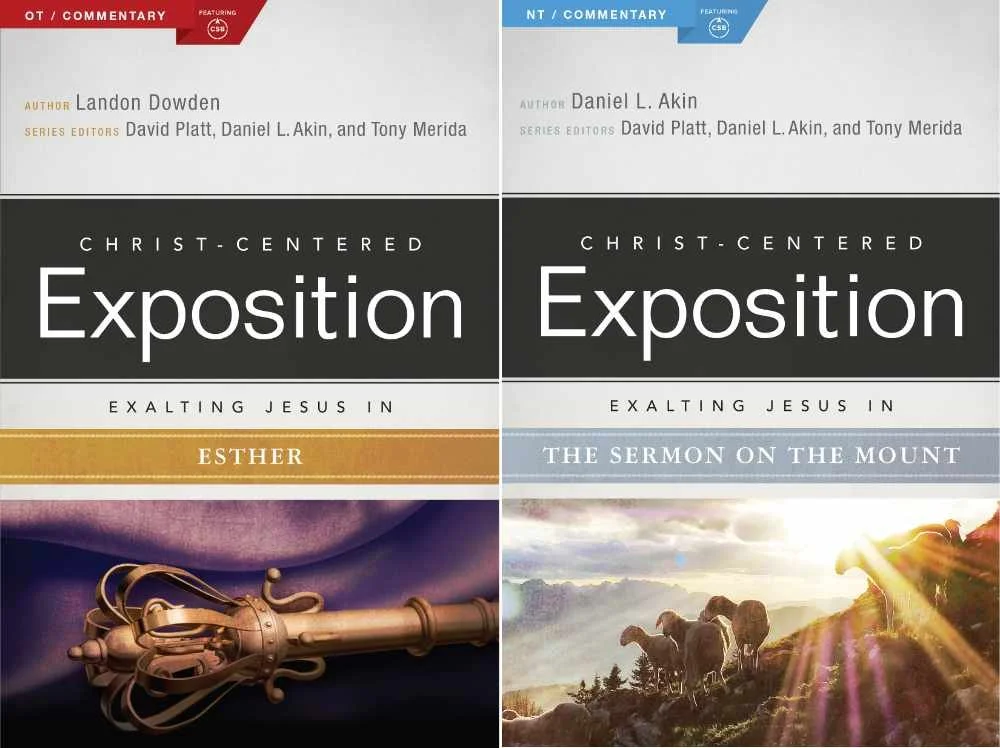
Christ Centered Exposition Commentary for Accordance Review
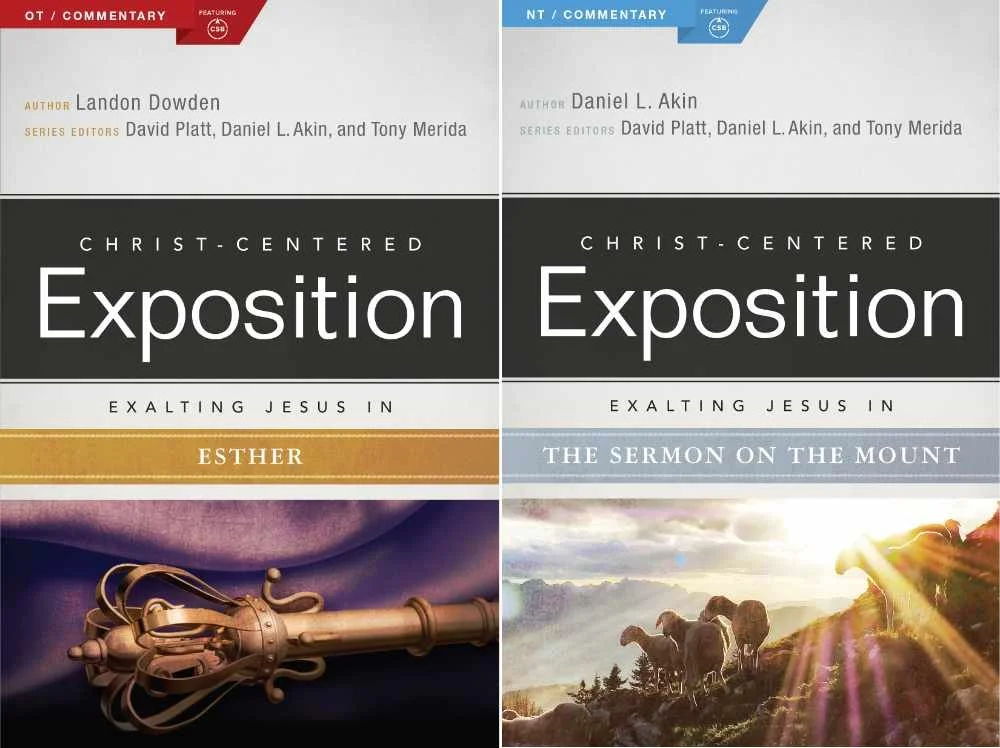
The Christ-Centered Exposition Commentary went on sale at Accordance recently and they gave me a chance to review it for you. How does this series help pastors and Bible students study the word? We'll let you know and show how to use it inside the Bible study suite.

What is the Christ-Centered Exposition Commentary?
Most commentaries come in one of a few categories depending on who will use them. Imagine a spectrum from right to left. Furthest to the left you'd find the most scholarly and technical commentaries that likely make use of original languages and focus a lot on translation, textual critical tools that help scholars at the graduate school or seminary level. You coudl imagine professors and translators using these.
On the far right end you would find what we call a devotional commentary that's meant to be read alongside the Bible for an average Christian whose reading their devotions and just wants a quick paragraph about a chapter or passage. Study Bibles fit in this spot on the spectrum.
The New American Commentary is one of my favorite sets and I own it in every Bible software package I own. It's closer to the center or slightly right of center depending on who you ask.
So where does the Christ-Centered Exposition Commentary fit? It's closer to the devotional side than the middle. It doesn't give users a word-for-word or even a verse-by-verse approach to Bible interpretation. Instead it reads a lot like the notes a preacher would make while preparing for a sermon. What if that preacher then chose to release those notes in book form and you get something like this commentary?
Tony Merida describes the series as looking at the text like one would use a magnifying glass to get up close to a subject or using a wide angle lens to get a wide vista. I would say it seems more wide angel than magnifying glass. But that's a good thing for teachers and preachers after they've spent time with the magnifying glass from other tools.
The commentary series includes 25 volumes from both the Old and New Testament. Here's the list of current books included and their authors.
Old Testament
- Exodus by Tony Merida (2014)
- Leviticus by Allan Moseley (2015)
- 1 & 2 Samuel by Heath Thomas and J.D. Greear (2016)
- 1 & 2 Kings by Tony Merida (2015)
- Ezra and Nehemiah by James M. Hamilton (2014)
- Proverbs by Daniel L. Akin and Jonathan Akin (2017)
- Ecclesiastes by Daniel L. Akin and Jonathan Akin (2016)
- Song of Songs by Daniel L. Akin (2015)
- Isaiah by Andrew M. Davis (2017)
- Ezekiel by Landon Dowden (2015)
- Daniel by Daniel L. Akin (2017)
- Jonah, Micah, Nahum, Habbakuk by Eric Redmond, Bill Curtis, and Ken Fentress (2016)
- Zephaniah, Haggai, Zechariah, Malachi by Micah Fries, Stephen Rummage, and Robby Gallaty (2015)
New Testament
- Matthew by David Platt (2013)
- Mark by Daniel L. Akin (2014)
- Acts by Tony Merida (2017)
- Galatians by David Platt and Tony Merida (2014)
- Ephesians by Tony Merida (2014)
- Philippians by Tony Merida and Francis Chan (2016)
- 1 & 2 Thessalonians by Mark Howell (2015)
- 1 & 2 Timothy and Titus by David Platt, Daniel L. Akin, and Tony Merida (2013)
- Hebrews by R. Albert Mohler, Jr. (2017)
- James by David Platt (2014)
- 1, 2, 3 John by Daniel L. Akin (2014)
- Revelation by Daniel L. Akin (2016)
Buyers can rest assured that the series authors hold a high view of the inerrancy and authority of scripture. They also put a strong emphasis on the role of Christ in every passage of the Bible, as the title suggests.
Editors David Platt, Daniel Akin and Tony Merida come from my denomination, the Southern Baptist Convention. Merida and Platt crafted the series with a pastor's heart while Akin brings a to the series his expertise as the President of Southeastern Baptist Theological Seminary in Wake Forest, NC.
Examples of Key Passages
Take the book of Daniel as an example. The commentary starts out with an introduction from this volume's author, Daniel Akin. The section for Daniel 1 begins with the Main Idea as follows:
Even in times of great trial and opposition, Christians must remain faithful to God and his gospel, imitating Christ’s own steadfastness as he endured persecution and death for our sakes.
Daniel Akin, Christ-Centered Exposition Commentary: Daniel (chapter 1 Main Idea).
As I've preached through both Ezekiel and Daniel over the last couple of years in my church, I've used this series from another software program. I've always appreciated that it offers thoughtful interpretation, with a scholarly background that doesn't hit you in the face. The authors are sure to show us how this passage offers a Gospel message where appropriate. It truly puts Christ at the center of their expository approach.
Readers will not get high-level discussions of grammar, translation or extensive history background. The authors do give the reader enough information about those sorts of details as they help support their interpretation.
Fast foward to Daniel 11:3-4 we get the following entry from Akin.
God Breaks and Divides as He Chooses (11:3–4)
There is a 150–year gap between verses 2 and 3. What happened in that period is not important for the story God wishes to reveal in this vision. Scholars agree that the “warrior king” (ESV, “mighty king”) of verse 3 is the Greek Alexander the Great (336–323 BC). Historians have written volumes about him. God gives him one verse in this chapter! He was a powerful king who conquered the known world of his day and ruled with absolute power. He indeed did whatever he wanted. But he died at age thirty-three. So, as soon as he is established, his kingdom will be broken up and divided to the four winds of heaven, but not to his descendants; it will not be the same kingdom that he ruled, because his kingdom will be uprooted and will go to others besides them. (v. 4)
This is precisely what happened. Alexander’s sons were murdered, and no part of his vast empire went to his descendants. As we mentioned [Dan, p. 140] earlier, following his death, four of his generals divided up his kingdom into four parts:
• Cassander took Macedonia and Greece.
• Lysimachus took Thrace and portions of Asia Minor.
• Ptolemy took Egypt and Israel.
• Seleucus took Syria and Mesopotamia.However, none of these kingdoms ever came close to matching the power and strength of Alexander’s brief empire. God plucked Alexander’s kingdom up, divided it into four pieces, and gave to others as he saw fit. And with that the great Alexander is finished. He served God’s plan and purposes. Off he goes!
Daniel Akin, Christ-Centered Exposition Commentary: Daniel (chapter 11 Main Idea).
Notice Akin brings out the history following the division of the Greek Empire after the death of Alexander the Great.
Jump forward to the book of Matthew and we read about the Sermon on the Mount in Matthew 5-7. David Platt writes in a way that reads like a sermon.
Platt introduced the section with a story about the great Billy Sunday, a 19th century evangelist. Sunday addressed vices from his day like dancing and playing cards. I bet few of us today would worry about such "vices" as Sunday called them. Platt uses the idea to illustrate that we should be extreme different than the secular world.
There was to be a clear line of demarcation between believers and unbelievers. These were things that marked off the people of God—things that marked out holiness, godliness, and salvation. He had a certain picture of what it looks like to be a believer in Jesus, and anything outside that didn’t fit.
David Platt, Christ-Centered Exposition Commentary: Matthew, Matthew 5-7
Platt then gives background on the sermon and dives into the text. This could easily be heard as a message in Platt's church. That's a good thing for preachers or Bible study teachers planning to share the message of the Sermon on the Mount. An ethical teacher or preacher could even use the story citing Platt as their own message introduction.
Tips for Getting the Most Out of the Commentary
When you buy the Christ-Centered Exposition Commentary, you'll download it using Easy Install in Accordance Bible Software. I recommend going into your Accordance Library and move it up the list towards the top. Even if you don't keep there, put there at first. This reminds you to use it each time you study a passage for a sermon, Bible study or your personal edification.
To promote it towards the top of your commentary list, open the Library from the toolbar button. It looks like an open book and by default sits on the left end of the toolbar.
If you removed the Library button, you can access it using the keyboard shortcut COMMAND+OPTION+1 or CONTROL+ALT+1 on Windows. You can also open it from the Window menu.

Expand your Commentaries section the Library. Look for the two new books added to your Library by Easy Install. They'll probably show up at the very bottom of the section. If you have the two-volume set with one book for OT and one for NT, then look for Jesus in the NT and Jesus in the OT. If you bought the single volume set, then look for Christ-Centered Exposition. I wish they would have titled them more like the original titles with something like "Christ Centered Exposition" still keeping it short so you don't have a really long entry in your Library.
When you find them, drag them to the top or near the top. I put them just below New American Commentary, which is my favorite.

Now, if you use the Info Pane or the Amplify menu, the books will show up where you dragged them, in my case just after NAC.

Recommendation
The Christ-Centered Exposition Commentary serves it's purpose well. God used it to help me better focus my study of the books of Ezekiel and Daniel plus other texts from various books of the Bible over the last several years. I look forward to seeing the missing books of the Bible added. Three volumes that you can get in physical or eBook form still don't show up in the set available from Accordance. You can see the whole list with more detailed information about each book at the commentary's website.
Don't expect in-depth exposition on every detail and word. Do expect a pastor approach to the text.
I used the series after doing my own carful observations, word studies, and reading more scholarly commentaries. But I seldom preached a passage without first reading this work if it had a volume on the book I was preaching. I also, often found the preaching focus useful as I introduced a passage using one of the stories the authors included or driving the main idea home for my audience with concluding illustrations borrowed from the authors.
Learn more about the Christ-Centered Exposition Commentary series from Accordance. If you think you could use a commentary that more than just a devotional commentary, but also more accessible than more advanced scholarly sets, then hurry over to Accordance to get on sale until October 26. It's on sale for $99.90 or $50 as a crossgrade if you own it in another Bible program.
For full disclosure I was given a free copy of the set in order to write this review. However, I liked it enough to pay for it in another program when it first came out a few years ago.
Note this version of this article was updated to explain that there's a 2-volume version and that the publishers have a few more books available net yet showing up in the Accordance version.
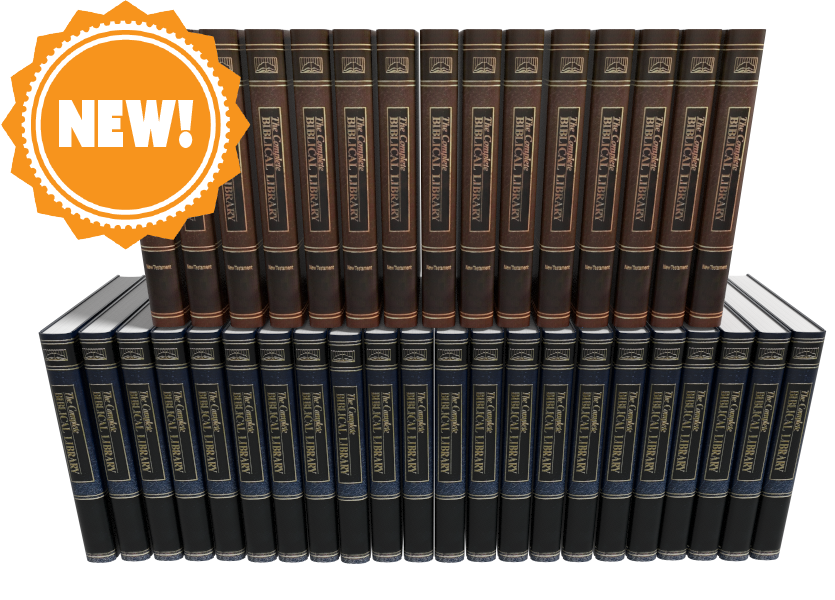
Complete Biblical Library in Accordance Bible Software
The Complete Biblical Library for Accordance Bible Software just came out and we got a chacne to take a look, What's included in this package and is it worth your time and book budget to add to your library?
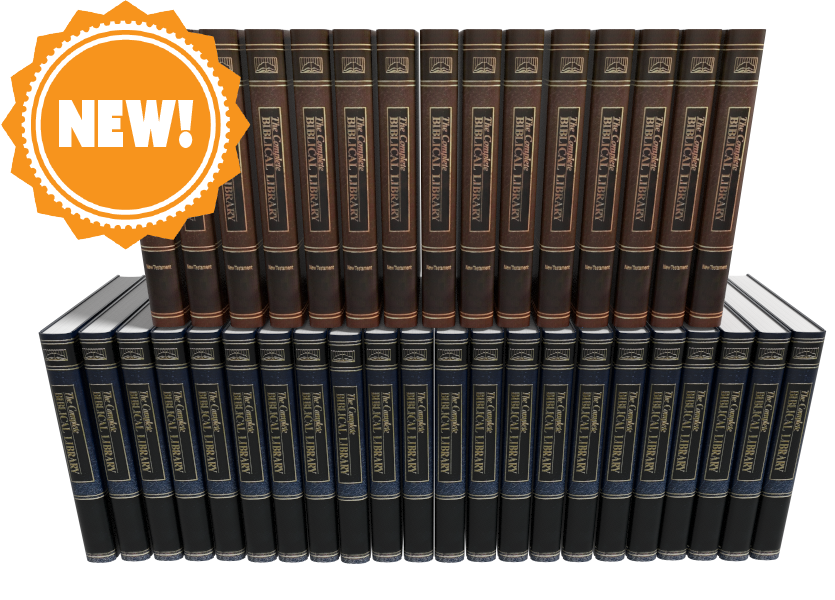
Accordance Bible Software released the Complete Biblical Library this past week making Accordance only the second digital Bible study distributor to offer this tool. We'll take a look at the Accordance version and let you know if it merits an investment of your Bible study tool dollars.

What's Included in the Complete Biblical Library
The Complete Biblical Library includes an advanced Study Bible of the Old and New Testament and Hebrew and Greek dictionaries. Book versions of the Complete Biblical Library are now out of print and pretty expensive. People familiar with the library will wonder what happened to the other parts of the Library? Where are the other tools normally included in the Complete Biblical Library? From the Accordance website:
The CBL Greek grammar is in development and will be added at a later date. The CBL Gospel parallels and CBL Interlinear did not add extra value over similar material already included in Accordance, so we do not have plans to release these two components for Accordance.
Product Details from Accordance website
You can get those other tools from the 17 volume book version or from Wordsearch, but both will cost you more than Accordance Bible Software's version. During this introductory deal the Wordsearch version will cost more than twice as much and after $50 more.
Accordance users will recognize that the software already gives users a great interlinear on many translations of the Bible. You can also use their Gospel Parallels. They both come as part of their basic $100 Starter Collection.
Complete Biblical Library Study Bible
You probably own a number of study Bibles. Most of them offer a few things...
- Introductions to books of the Bible.
- Short notes on pericopes or sometimes each verse of the text.
- Some add extra graphical content like charts, maps, graphs, tables and more that enhance understanding of the text.
The Complete Biblical Library includes some of these, but think of it as a study Bible that wants to be a more advanced commentary.

The Complete Biblical Library Study Bible begins each book with an nice book introduction. That introduction will include an overview of the text with an outline and some commentary on each section as a whole before it gets the verse-by-verse section.
Following the book introduction, you'll get the verse-by-verse commentary of the text.
CBL Study Bible Verse-by-verse Commentary

Each verse or passage includes two things...
- The verse in the KJV with alternative translations from dozens of other translations, but none of them are the more modern translations like ESV, CSB, NIV or others since the Complete Biblical Library came out before most of those landed. The translation identifiers are hyperlinks to the key which identifies what the translation abbreviation refers to. That helps because the library includes some obscure translation. Click it or hover over it and it either opens the pages from the library that explains what the abbreviations stand for or it pops up in your Instant Detail window.
- Commentary on the verse. We're used to a few lines per verse, but you'll often see a few paragraphs per verse like a full commentary. That's why I call this a Study Bible that wants to be a full commentary.

Bible students often tout the ESV Study Bible as one of the best, and I agree. I like it a lot and it's one of my top 3. However, compare the content of the two. You get much more with the Complete Biblical Library.
Here's the entry for Mark 5:25-26 in the CBL...
And a certain woman, which had an issue of blood twelve years: . . . had been troubled by bleeding, —ALBA . . . ben in the blodi fluxe twelue yere, —WCLF.
And had suffered many things of many physicians: . . . suffered much under many doctors, —BECK . . . had been treated in many ways, —LTMR . . . had been greatly tortured, —FNTN . . . under a number of doctors, —MOFT.
and had spent all that she had: . . . expended all her property, —WLSN . . . spent all her savings, —KLGS . . . in the process, —PHLP.
and was nothing bettered, but rather grew worse: . . . but to no avail, —ALBA . . . and profiting nothing, —CLMT . . . had not been benefited, —HNSN . . . was not even one bit improved, —WUST . . . without receiving any relief, —CMPB . . . and felte none amendment at all, —TNDL, —CRNM.5:25, 26. It is not possible to know with certainty what the “issue of blood” was, but the traditional suggestion is the best, namely, an abnormal bleeding from the womb.
Such a condition would have been physically debilitating. Mark’s Gospel includes the information that the woman “had suffered many things of many physicians.” Luke, who appreciated the limitations of a physician, says she “could not be healed by any one” (8:43, RSV).
What the woman may have suffered can be estimated from the Talmud, (Shabbath 2:110) which includes a list of treatments for “the woman that has an issue of blood.” Among them were: “Take of the gum of Alexandria the weight of a zuzee (a fractional silver coin); of alum the same; of crocus the same. Let them be bruised together, and given in wine to the woman that has an issue of blood. If this does not benefit, take of Persian onions three logs (pints); boil them in wine, and give her to drink, and say, ‘Arise from thy flux.’ If this does not cure her, set her in a place where two ways meet, and let her hold a cup of wine in her right hand, and let some one come behind and frighten her, and say, ‘Arise from thy flux.’ But if that do no good, take a handful of cummin (a kind of fennel), a handful of crocus, and a handful of fenugreek (another kind of fennel). Let these be boiled in wine and give them her to drink, and say, ‘Arise from thy flux!’”
Many additional potions and rituals were suggested of the following kind: “Let them dig seven ditches, in which let them burn some cuttings of vines, not yet four years old. Let her take in her hand a cup of wine, and let them lead her away from this ditch, and make her sit down over that. And let them remove her from that, and make her sit down over another, saying to her at each remove, ‘Arise from thy flux!’” (See Vincent, Word Studies in the New Testament, 1:189.)
One can readily see why the cure was many times worse than the disease, so that she “was nothing bettered, but rather grew worse.”Mark 5:25-56 entry of Complete Biblical Library
Now look at the ESV...
5:25–27 While Jesus is on his way to heal Jairus’s daughter, Mark interjects the simultaneous event of the healing of the woman with a constant discharge of blood (vv. 25–34; see note on Matt. 9:20). On account of her condition, she is ceremonially unclean (cf. Lev. 15:25–28) and is not permitted to enter the temple section reserved for women; nor is she permitted to be in public without making people aware that she is unclean. By touching Jesus’ garment, she technically renders him ceremonially unclean (cf. Lev. 15:19–23), but Jesus is greater than any purity laws, for he makes her clean by his power instead of becoming unclean himself (cf. Mark 1:41; 5:41).
ESV Study Bible entry for Mark 4:25-27
But it's not just the amount, but the quality. That's why I really like the CBL. It's a nice balance of simplicity for the average pastor or Bible study leader, but has enough rich content that makes it more than the average or even above average study Bible. The ESV Study Bible serves people who just need a quick hit about what the passage says. The Complete Biblical Library Study Bible gives more advanced understanding like a pastoral commentary would.
Complete Biblical Library Dictionary
In addition to the Old and New Testament Study Bible, Accordance adds the Hebrew and Greek Dictionaries of the Complete Biblical Library. Each entry explains the word with some useful information that you often don't get in other language dictionaries. The links to other lexicons alone almost makes it a worthwhile tool.
Put the CBL dictionaries at the top of your list of Greek and Hebrew Lexicons in your library and you can quickly open the CBL Dictionaries with the Triple Click action. Just click on an English word three times in the text and it opens a new window with the dictionary pointed to that word in Greek.
The Amplify feature in Accordance also brings up the dictionaries. Highlight your word and click on the Amplify button on the toolbar. It will drop down a list of your reference titles. Go to Greek or Hebrew Lexicons. A new list flies out and you can find the CBL Greek or Hebrew Dictionaries there. The books also show up in your Library under the Lexicons section.

When you view a Hebrew word in the Complete Biblical Hebrew Dictionary, you'll see the following:
- The Hebrew word and an English transliteration
- Part of speech like verb, noun, etc.
- A brief definition of the word
- Hebrew Cognates
- Synonyms and their Greek and transliterated forms
- Concordance listing of the word in the OT
- Discussion of the use of the term in the OT
- Links ot other Hebrew dictionaries like BDB, NIDOT, Strong, etc.
Here's an example of the Hebre word lavav (hear from Ezra 7:10)
3955. לָבַב lāvav
verb
to gain insight
Cognates:
לֵב lēv (3949)
לֵב lēv (A3950)
לְבַב lᵉvav (A3956)
לְבִבָה lᵉvivāh (3957)
לִבָּה libbāh (3959)Concordance
2 Sam. 13:6 and make me a couple of cakes 3
13:8 and made cakes in his sight, 3Job 11:12 vain man would be wise, 2
S 4:9 Thou hast ravished my heart, my sister, 3
4:9 thou hast ravished my heart with one 3
Three of the five occurrences of this verb in the Hebrew Bible (Job 11:12; S.S. 4:9) are denominatives from lēv (HED #3949), “heart,” “interior,” “will,” “mind.” It has cognates, all of which are likewise denominatives, though not all are based upon these same nominal nuances. The remaining context is a denominative from lᵉvivāh (HED #3957), “cake.”
In the speech of Job’s visitor, Zophar, lāvav means “to become wise.” Job was accused of falsely asserting innocence, for Zophar assumed that all calamities were divine punishment for sinful deeds. Job’s sudden fall from material bliss fit the pattern of divine retribution. Zophar asserted that Job’s claim of innocence was perjury and that Job’s words could not change reality. He expressed this through a simile, saying, “A vain man would be wise, though man be born like a wild ass’ colt.” His point was that Job’s understanding could not compare to Yahweh’s, so he should accept his guilt, and then try to appease Yahweh.
Lāvav appears twice in the context of the proclamation of the groom to his beloved, that her physical presence has had a profound effect upon him (S.S. 4:9). The verb is usually translated something to the effect “you have ravished my heart.” This works contextually, but it is not so clear etymologically. Clearly, the heart or will of the groom has been affected by the glance of the woman, or by a glimpse of her. How to define precisely this action on her part is difficult, hence the usual translation. The problem is that there is no verbal idiom in English which corresponds to this verb.
The final context involves a completely different meaning, possibly formed from lēv as well. Here lāvav refers to “baking” cakes of bread.BDB 525
DCH לָבַב
KB 2:514–15
NIDOT 2:749
STRONG H3823
TDOT 7:399–437
TWOT 1:466–67Entry in Complete Biblical Library Hebrew Dictionary for the word lavav
The Greek Dictionary shows the Greek word and a transliteration in English. You then also get...
- Part of speech (Noun, Verb, etc.)
- Brief definition of the word
- Synonyms and their Greek and transliterated forms
- Septuagint listing of entries for the word
- Grammatical Forms of the word
- Concordance listing of the word
- Discussion of the classical Greek and Septuagint usage of the word
- Discussion of the terms usage in the New Testament
- Links to other Greek dictionaries of the word like Strong, Bauer, Liddel-Scott etc.

Here's an example from the Greek dictionary for the word rhusis (bleeding from Mark 5:25).
4368. ῥύσις rhusis
noun
A flowing, an issue.
STRONG 0
Synonyms
4339 ῥέω rheō
Septuagint
2183 זוּב zûv Have a discharge (Lv 15:2).
2184 זוֹב zôv Discharge (Lv 15:3, 25f.,30,33).
4888 מָקוֹר māqôr Flow (Lv 20:18).
7425 קָרֶה qāreh Emission (Dt 23:10).
8916 תְּעָלָה tᵉꜥālāh Channel (Jb 38:25).Grammatical Forms
ῥύσις rhusis nom sing fem
ῥύσει rhusei dat sing fem
Concordance
2 which had an issue of blood twelve years, Mark 5:25 (KJV)
2 a woman having an issue of blood twelve years, Luke 8:43 (KJV)
1 and immediately her issue of blood stanched. Luke 8:44 (KJV)Classical Greek and Septuagint Usage
New Testament Usage
STRONG 4511
BAUER 738
MOULTON-MILLIGAN 565
LIDDELL-SCOTT 1577
COLIN BROWN 1:682–83
SILVA “ῥύσις”All three occurrences in the New Testament refer to a woman who had an “issue of blood” for 12 years (Mark 5:25; Luke 8:43, 44). Having heard of Jesus’ miracles, this woman believed that if she could just touch His clothes she would be made “whole” (Mark 5:28). Pressing through the crowd she managed to touch His garment and was immediately healed (verse 27). Jesus then told her it was because of her faith that she had been made whole (verse 34).
Entry in Complete Biblical Library Greek Dictionary for rhusis
Value and Recommendation
Accordance users should jump at the chance to get the Complete Biblical Library at the introductory discount of $200. They also offer a Crossgrade price for people who already own it in Wordsearch. You'll pay $85 for the OT Crossgrade and $75 for the NT Crossgrade for a total of $160. That's a pretty good deal considering the full-price is $450 or currently $1000 in physical book form for used editions. With Crossgrades in Accordance you'll have to fill out a form showing you bought the books before in Wordsearch.
If you already missed the discount, then the $450 price may cause pause for some. I like the tool and think people who want a good verse-by-verse commentary, with excellent book introductions, should take a look and strongly consider adding it to their library. The dictionaries give the user a lot of useful information in a central location. The links to other dictionaries makes it a great option to look at first in your word study as you prepare a sermon or Bible study.
For these reasons above, the Accordance Bible Software Complete Biblical Library gives pastors, Bible study leaders and serious students a great value at the discounted price and is still worth it at the ongoing price.
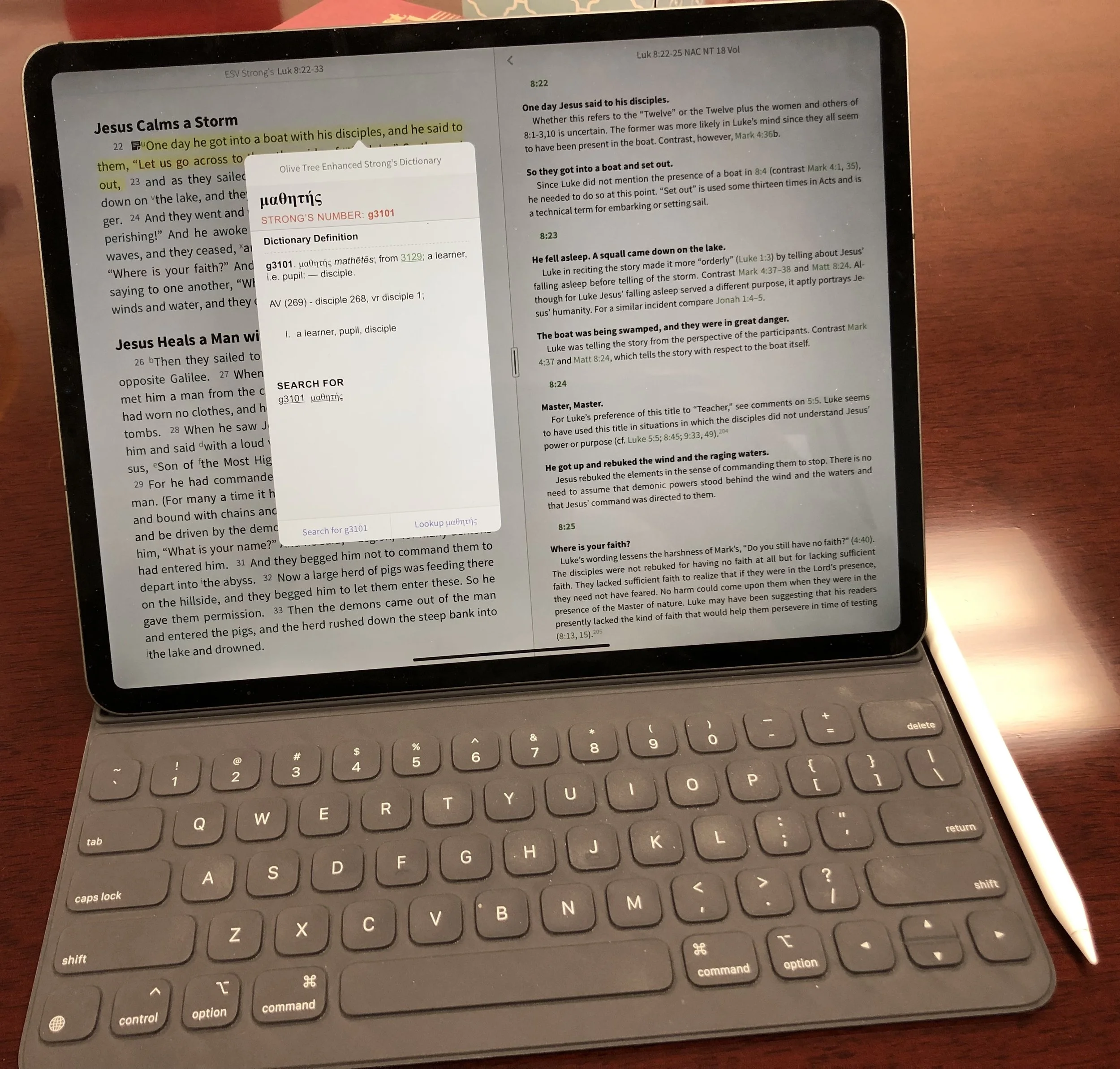
New 2018 Apple iPad Pro for Bible Study
The new 2018 Apple iPad Pro is getting a lot of love from reviewers. How well does it handle Bible study? We’ll look at it from a pastor’s perspective.
The new 2018 Apple iPad Pro is a beautiful piece of hardware and works great for Bible study, sermon prep and general use for pastors and ministers. In fact, I'm really tempted to make it my primary computer for 90% of what I do.
Is the New iPad Pro Better for Bible Study?
Not really! The major difference between the older iPad Pro and the new 2018 Apple iPad Pro comes from the speed and size and the new Pencil. Apple gave it a little facelift to modernize the look.https://youtu.be/HoLs0V8T5AAAn Apple A12X Bionic CPU powers the new 2018 iPad Pro, or as some say it over powers it. That's sounds really cool and gives me memories of Steve Austin, the Bionic Man (see video above) running really slowly as that wonderful music plays behind him. However, there's nothing slow about this chip. I did a review of Olive Tree Bible Study for all the platforms they support. I edited the video on my new 2018 Apple iPad Pro with Luma Fusion, a great video editing app. The video ran about ten minutes and took about a minute to render on the iPad. That's half the time it used to take. It's also faster than Premiere Pro can render a ten minute 1080p video on my 2017 MacBook Pro.In spite of the great speed, the Bible app makers don't exactly require that much power. Few digital Bible students own the new iPad so they can't make their apps to take advantage of the power. However, the faster CPU will help with the initial start-up of apps like Faithlife's Logos Bible app, which does some data crunching in the background after you first start it up.In addition to speed we get a nice looking design with a new keyboard and Apple Pencil. The physical redesign means two things. First, the screen covers more of the front with smaller bezels. That means you'll need to hold it more carefully, however, the accidental touch detection keeps you from accidentally tapping as you hold it and your thumb or fingers accidentally touch the screen. The iPad weighs a little less and takes up less space in your computer bag, if you use one. However, you wont notice that unless you hold them side-by-side. I like that the new Apple Smart Keyboard now covers the back as well as the screen. The screen's beautiful, which makes it a great tool for Bible study. Reading text on a screen for long periods of time requires a high quality screen with great resolution and excellent contrast.
Apple Pencil and Bible Study
 Why won't Bible study creators integrate the Apple Pencil or any stylus in their apps? It would feel so natural to add a handwritten note or highlight with the Pencil. I would love it if the Bible apps would recognize the Apple Pencil and put the app in a special mode where anything the Pencil writes would get saved as a vector drawing attached to the verse or the paragraph with an indicator icon, like they do with text notes now.Developers working at some of the Bible app makers tell me that adding drawing is not a simple thing. Do they spend limited development time on something that a small fraction of the population can take advantage of or on features in great demand that a large percentage of users want? However, I think that the first Bible app maker who figures this out will really stand out and could easily demand a nice premium for this.Until some app maker puts my inking dream into reality, we'll have to use the Pencil as a glorified finger, pointing and selecting. The tip is finer than my man paw fingers. So, I can get more fine pointing with it than I can with my massive digits.
 I love that the Pencil snaps into place on the edge of the iPad Pro when not in use. it also charges wirelessly so that it's always ready to go. The old Pencil would use battery power even while not in use. You had to charge it by plugging into the Lightning port on the bottom/side fo the iPad. This was awkward.I use my iPad for presentations during Bible studies. The Pencil lets me ink on the slides of Bible verses. Sometimes I would plug in my cable to send the video signal over a Lightning to HDMI adapter to our projector. The old Pencil would lose it's connection and if I forgot to plug it in before each Bible study I often had to do without or unplug the video cable, something not ideal while a room of 20-30 people are staring at the screen.The new 2018 iPad Pro and Apple Pencil solves most of these problems. However, carrying it around with the Pencil along the edge makes me nervous. I hit the iPad in just the right way with a hand or my side while carrying it and the iPad goes flying off. Today it landed in a puddle and scared me to death. I can share that a puddle won't destroy the Pencil immediately. We'll see if it has an effects over time.
Writing on the Apple Smart Keyboard
 The new Apple Smart Keyboard is both smaller and heavier at the same time. The old keyboard felt like folding origami at time, especially if you tried to use it as a stand with the keyboard on the back. The new Smart Keyboard's simpler. The special connector sits on the back of the iPad. The new keyboard has two grooves that the long edge of the iPad sit in. This gives the user two angles.
 Since the new 2018 iPad Pro measures less width than the old one, the keyboard does too. However, the keys go edge-to-edge so you still get a comfortably sized keyboard for touch-typing. I can work on it for a long time without problem. The keys give you enough travel to feel nice while typing. I actually type more accurately on my iPad than on my MacBook with its terrible butterfly keyboard.
Conclusion
Using the new 2018 iPad Pro for my work as a pastor is an improvement for a few reasons.
- Smaller size
- Better Apple Pencil
- Nice keyboard
- Excellent display
- Super fast processor
If you own the most recent iPad Pro, then I don't think this thing's enough of an upgrade to make the jump. It is a big change, but can you justify the expense when your "old" iPad will last you for many years to come. I upgraded, but I'm crazy about having the latest greatest.People who own an older iPad or who don't have one now and want and iPad for doing a lot of their work can with this iPad. Here's a few things I enjoy more on my iPad Pro than on another device:
- Editing video
- Typing
- Playing games
- Casual web surfing
- Short stints of reading
- Checking email and social media
However, I'll still prefer my MacBook Pro over my iPad for the following:
- Serious Bible study with desktop class Bible software instead of mobile apps
- Creating slides for my sermons/Bible study presentations
I don't use it for long stints reading. The Kindle Paperwhite works best for reading for extended periods of time. The TV is my choice for watching movies and videos; call me old-fashioned.What would it take to use the iPad Pro 100% of the day? The Bible apps have to get better. Mobile apps do a better job today than they did when I bought my first iPad back in April 2010. I'm not very good at creating my slides on the iPad, but I hope to get there. I could if I was better with using Affinity Photo, which is good enough. But using Adobe Photoshop on my desktop is easy because I have a decade of muscle memory that helps me do things quickly.
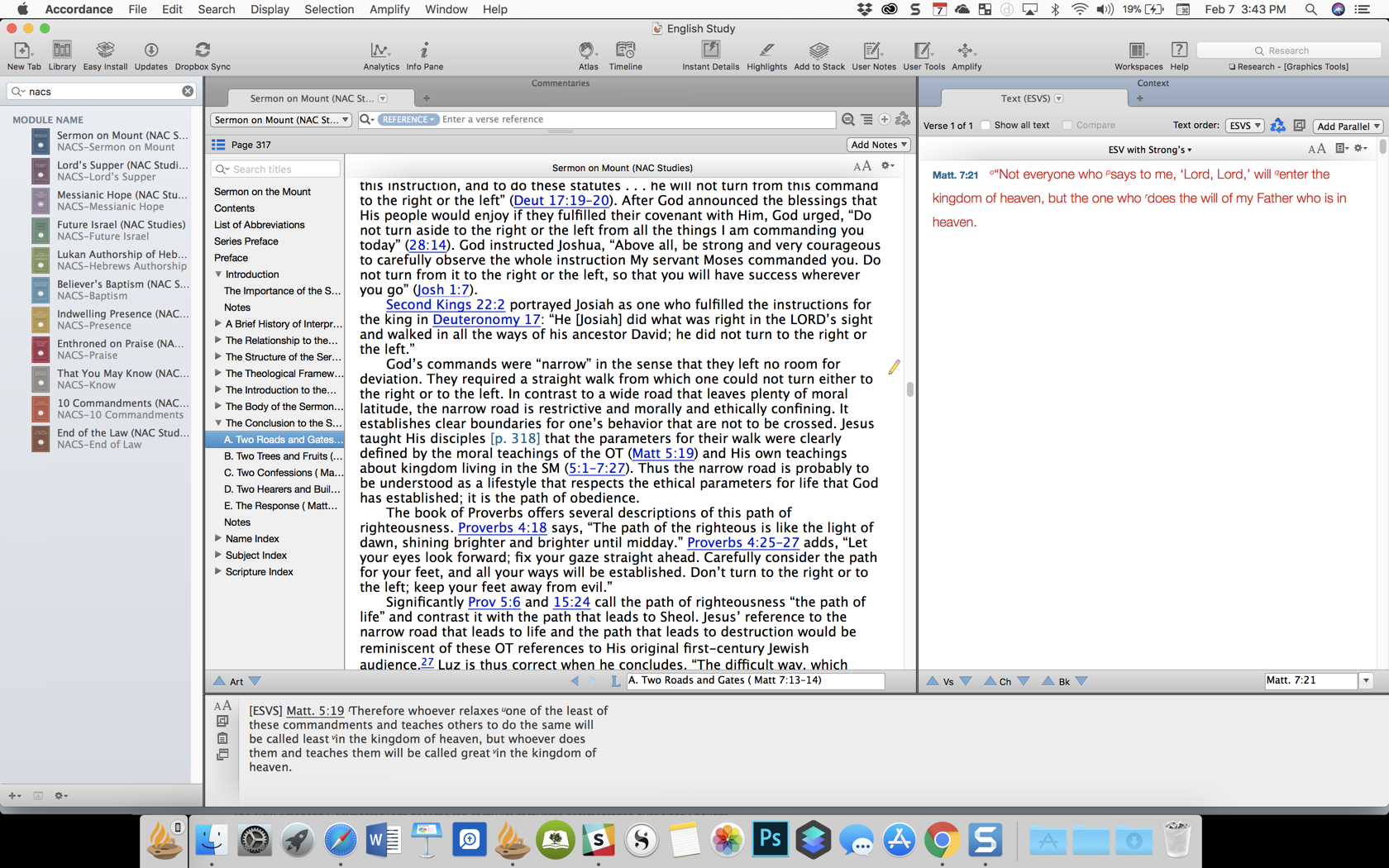
NAC Studies in Bible & Theology for Accordance Review
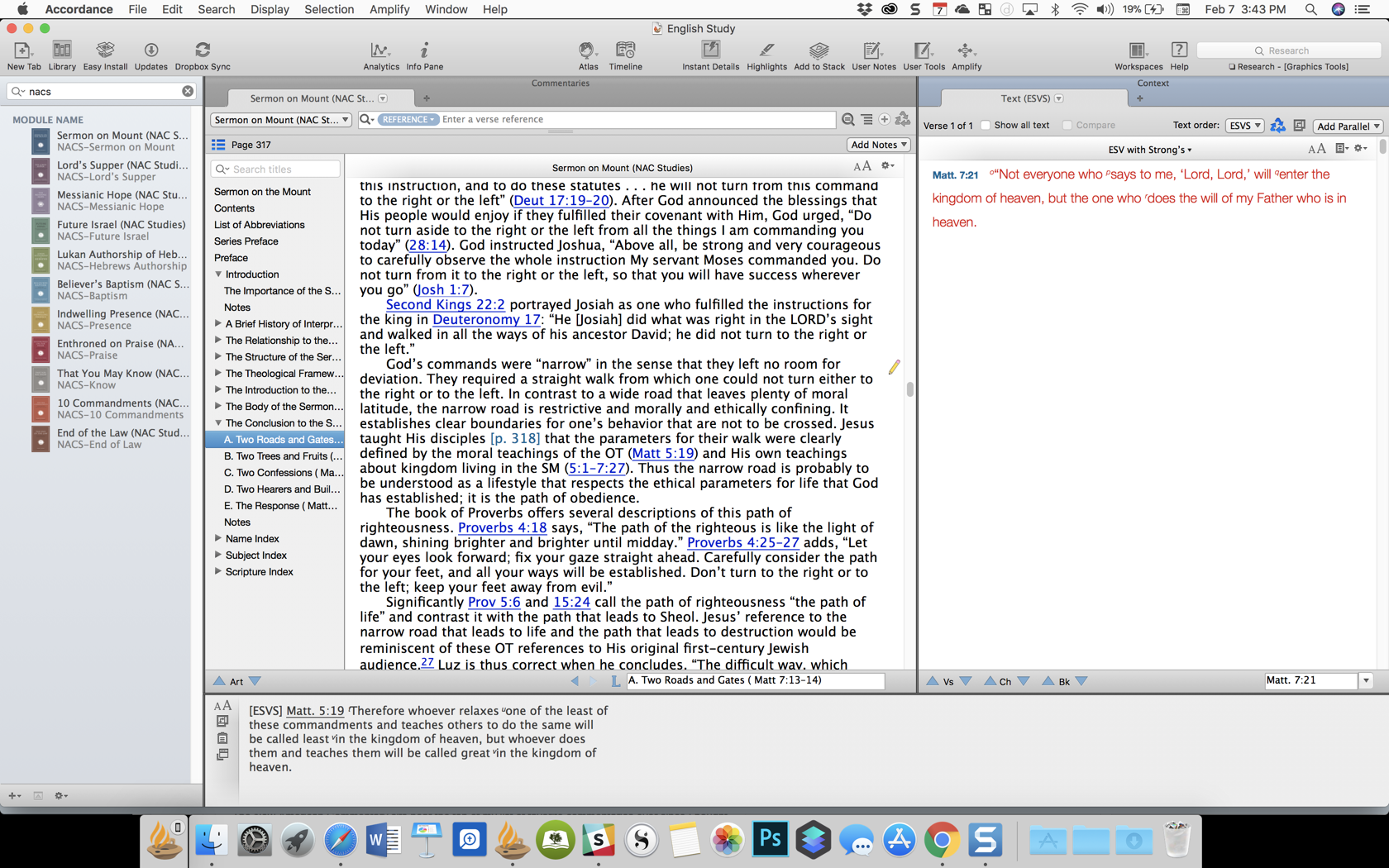
The New American Commentary sits near the top of my list of favorite commentaries ever since I bought the physical books as they first came out in the early nineties. I bought them on subscription from Broadman & Holman as the publisher released each new volume. So when Accordance asked me to review the New American Commentary Studies in Bible & Theology, I jumped at the chance.The New American Commentary creators chose to expand on 11 important subjects in Biblical studies and theology. Readers should see them as addendum to the NAC series.https://www.youtube.com/watch?v=H7OViiJWh2k&feature=youtu.be
What's Included in the NAC Studies in Bible & Theology
Accordance published the set of 11 books for Accordance Bible Software and their Mobile apps this past week. In the set you'll find 11 topics of advanced study written in a way that will stretch average Christian readers, but not so much that they can't benefit from the scholarship included.The Lukan Authorship of Hebrews by David Allen first found its way into the public as Allen's Ph.D. dissertation. He adapted it for this series and I found it extremely interesting. Allen considers the authorship of Hebrews, an often hotly debated subject. He argues for Lukan authorship based on the similarity between the language of Hebrews in Greek and the language of Luke-Acts, among other things. He supports this view by citing the early church fathers, many of whom also attributed the book to Luke.The book doesn't just jump into proving Luke's authorship. He first considers other authors, like Barnabas, Apollos and Paul. I remember listening to my New Testament professor in college tell us that he was certain Apollos wrote the book. The arguments against Apollos, Paul and Barnabas are brief, but they do show up.Chapter three to the end of the book discuss various reasons for trusting Lukan authorship in a convincing way that I look forward to finishing.The complete list of books included in the NAC Studies in Bible & Theology include:
- David L. Allen, Lukan Authorship of Hebrews
- Christopher D. Bass, That You May Know: Assurance in 1 John
- James M. Hamilton Jr., God’s Indwelling Presence: The Holy Spirit in the Old & New Testaments
- Barry E. Horner, Future Israel: Why Christian Anti-Judaism Must Be Challenged
- Jason C. Meyer, The End of the Law: Mosaic Covenant in Pauline Theology
- Timothy M. Pierce, Enthroned on Our Praise: An Old Testament Theology of Worship
- Charles Quarles, Sermon on the Mount: Restoring Christ’s Message to the Modern Church
- Mark F. Rooker, The Ten Commandments: Ethics for the Twenty-First Century
- Michael Rydelnik, The Messianic Hope: Is the Hebrew Bible Really Messianic?
- Thomas R. Schreiner & Matthew R. Crawford, The Lord’s Supper: Remembering and Proclaiming Christ Until He Comes
- Thomas R. Schreiner & Shawn D. Wright, Believer’s Baptism: Sign of the New Covenant in Christ
Seeing Mark Rooker's volume, The Ten Commandments: Ethics for the Twenty-First Century excited me since I sat under his teaching at Southeastern Theological Seminary learning Hebrew, or at least attempting to do so. He graciously gave me a pair of Bs for the two courses. There's one extremely minor complaint with Accordance's versions of these books. The titles seem a bit cryptic when you look for them in the library on the mobile app. Notice the titles of the volumes circled in red above. The real titles are That You May Know: Assurance in 1 John and Enthroned on Our Praise: An Old Testament Theology of Worship. That's nit-picky criticism, but I did have to open the books to figure out what I was looking at.
Accordance Treatment of the Series
People can read books like the NACS series another digital reader like a Kindle. There's a number of important benefits to reading Christian books in a Bible study app like Accordance. With the Kindle versions you'll miss tags that link to other books or the Bible. When the author refers to a Bible verse, you don't want to put down the Kindle and pick up a Bible or close the book and manually type in the Bible reference to find out what it says. In the Accordance Bible mobile app, you can tap on the reference to read it in a popup. Open the books in Accordance Bible Software on your Mac or Windows PC and you can put your Bible to the right and click on a reference and instantly read it. Also, just hovering over the reference shows the Bible passage in the Instant Details window. Footnotes will show up as pop ups too on the mobile app or in the Instant Details window on the desktop app.When you move to a new place in the book or to another book in the mobile app, just tap the screen to show the toolbar and hit the back arrow at the top left to go back to where you were reading in the NACS book.Aside from the pop ups and links, you can take "margin notes" in Accordance and later save those for use in a research paper or a Bible study on the topic discussed in the book. Plus, when you're studying one of the topics like Baptism, these volumes will show up as pertinent results in a search of your library for "baptism" (Believer's Baptism: Sign of the New Covenant in Christ by Thomas Schreiner and Shawn D. Wright).
 Using Stacks in Accordance lets you keep track of important information that you find as you read these books. Highlight text in the book and hit Add to Stack from the toolbar in the desktop app.
Recommendation
The whole set of NAC Studies in Bible & Theology currently costs $159. Each volume individually costs either $13.90 or $16.90 when you buy them by themselves. That introductory price lasts until February 12, so act quickly if you want to buy them. You can always use one of their payment plans to buy the set of books. For example, paying for them over 6 months will cost $41.50/month. That includes a small fee for handling the payments.Should you get them? If you are a lay scholar (pastor, serious student of scripture) then grab the volumes of interest to you. They are informative, written well, and will benefit your study. Pastors may want to get the volumes that they can use as inspiration for a study at church. You may not do a 6 week Bible study on the Lukan authorship of Hebrews, but if you're preaching or teaching through the Sermon on the Mount, then that volume by Charles Quarles would be invaluable. I just finished teaching through 1 John and wish I had That You May Know: Assurance of Salvation in 1 John by Christopher David Bass.Seminary students or professors will find them useful in their educational endeavors. In interest of full-disclosure I was given a copy of the books for this review, I would definitely choose to buy them. I'll be consulting the volumes the next time I'm studying the Ten Commandments, the Sermon on the Mount or one of the other topics addressed.You'll pay more for the Accordance versions of these books than you would on Kindle, but I still wouldn't go that route for the following reasons:
- Accordance tags gives quick links to verses, etc in Instant Details or to open in a Bible window next to the book on the desktop app.
- The mobile app will show pop ups of verses and footnotes.
- Record your thoughts using the great Accordance notes feature.
- Save to stacks important content that will help you in useful research.
- Quick back and forth navigation helps keep you reading without losing your space.
Bible Mark Up App Presents Bible: Theotek Podcast #063
I’m always looking for some cool ways to present God’s word in my preaching and teaching ministry like the app Bible Mark Up. When I started watching John Piper’s Look at the Book video series on YouTube, I loved the simple and elegant black background with white Bible text that he uses in these videos. He draws on the text and screen using colorful marking pens. I investigated and discovered that Piper’s using something that inspired the developer of the app Bible Mark Up. The developer liked the videos and wanted a mobile version and so he created Bible Mark Up for Android and then ported Bible Mark Up over to iOS. We talked to Ernie Lail of Maranatha Technologies on this week's Theotek Podcast seen below. The audio is at the bottom of the page.https://www.youtube.com/watch?v=7tZ2Y32OPzQ
Bible Mark Up App
This free iPad or Android app inserts the Bible text from one of a number of translations on a black background. The teacher or Bible student uses the 9 colors to draw on the screen in Bible Mark Up. Watch John Piper to use a tool similar to Bible Mark Up, which inspired the app, in his "Look at the Book" video series on YouTube (seen below).https://www.youtube.com/watch?v=yBOKt8IVNJc&index=1&list=PLAcB0f-21Xj0MTWuh7NKKploqNgpbJsY2Logos Bible Software users can also buy these videos along with a nice study guide that goes with the videos. The free video series puts the videos and the study guide right inside Logos Bible Software. Piper draws circles and lines and underlines the text showing relationships between ideas and words. He uses colors to connect one part of the text with another. It’s simple but skillful. I’ve begun using it in my teaching ministry and plan to do more.The app includes some cool features. It’s got a lot of international translations in addition to the ESV, NASB and KJV. Sadly, they don’t offer my preferred HCSB translation. For teachers who use original languages it includes Greek Textus Receptus and Hebrew Aleppo Codex.We also get access to some public domain works like Strong’s, Lexicons and some Commentaries all online. I haven’t used anything but the English Bible texts, since I don’t plan to do my study in the app. I just use it to present.
 Ernie Lail, the developer of Bible Mark Up, told us that he created primarily as a study tool. He wanted something that lets him mark up the text like Piper does in his videos.Here’s the workflow. The opening screen asks the user to type in a Bible reference (see above). It will then copy the text to the black screen in portrait orientation at first. Tap on the end of the line to change the line breaks. At the bottom of the screen there’s a button that reads Modify Breaks. Tap it to move the next line up to the current line that you tapped. Repeat this till the lines all show up the way you want. Then tap on Scale & Move at the bottom and pinch to zoom or shrink the text. Remember to keep the text large enough so people in the back of the room can read the text.When you’re ready, turn the tablet into landscape mode and tap on Draw. Use the colored inking and markup buttons to draw when you wish. I will often underline or circle key words, put parenthesis around a phrase I’m discussing or draw lines to show relationship between words or phrases. Use multiple colors. For example, if a text is discussing one topic but has some sub topics, circle or underline all the words related to one of the subtopics in one color. Then use another color to visually link the next sub topic. Use lines to connect pronouns with the proper noun they represent.
 The app could use an update and here’s what I’d include?
- An erase button that removes all the markups in a single tap. Ernie told us he may add that soon.
- I’d like the ability to pay extra for other modern translations or reference works. I understand the app developer can’t make it free if he adds paid content, but I’d love to pay to get that kind of content.
- Add shapes like lines, ovals, boxes and more.
- Change from black to white background.
- If you change the background color then you need to change the text color. It’d be great if I could highlight a word or words and change just the color of those words.
Even if the developer never adds the above features, it’s still a worthwhile tool to install on your iPad or Android tablet.
Our Favorite Things
This week we actually started off with the first recommendation.
Ricoh Theta S 360-degree Camera
Watch as a I demo the Ricoh Theta S camera at the top of the podcast. It's a nice little 360-degree camera that uses two ultra wide-angle fish eye lenses to take a complete 360-degree photo at the tap of the button. It also shoots HD video. Users can post the photos and video online to the company's website made just for their shots or to YouTube in the case of video. Use the editing app to trim video or another one to create interesting images using the shots taken with the camera. Check out the examples below: The shot above shows the interesting results you can get with the Ricoh Theta S and the image editor on iOS.
The front of High Peak Baptist Church #theta360 - Spherical Image - RICOH THETA
I haven't posted any videos I'd want anyone else to see. Here's one from the online gallery at theta360.com.
Passing the Eiffel Tower in Paris, France - Spherical Image - RICOH THETA
I love my camera, but it's not cheap. Get it on Amazon for a couple bucks less than at Ricoh's online store. It's $350.
Dark Sky for iOS
 Rick showed off the great weather app called Dark Sky. They call it "hyperlocal" weather. It's incredibly accurate even nailing the start and stop times for rain. There's an Apple Watch extension built into the app.
iPhone SE
 LaRosa John chose to highlight the new iPhone SE. It's an iPhone 5s with the power and guts of an iPhone 6s without the 3D Touch screen. Apple sells it for a little less than they sell their flagship phones. He likes the smaller size and wants to pick on up.