

Logos 9 Basic Now Available for Free - What's Included
Faithlife released Logos 9 Basic edition, the free version of their software. Find out what's included and what's not included and get a discount on some expansion libraries.
Last fall, Faithlife released Logos 9 Bible Software, a powerful and complete Bible program useful to Biblical scholars, preachers, and teachers alike. Now they released Logos 9 Basic, the free version of the upgraded program.

When Logos releases a major new update, they wait for a few months before releasing the program's basic version with a diminished feature set. This month we finally saw that Logos 9 Basic version for free.
Logos 9 Basic Features Included
Here's what you get with the Logos 9 Basic version if you never downloaded a previous version of Logos. If you have an older version, you may already own some of the following.
- Reverse Interlinear Support
- Interactive Media
- Workflows that help you study the Bible in a systematic way
- Over 40 Books and Bible study tools
- Customizable Bible reading plans
- Customizable book reading plans
- Take notes with formatting and links to websites or other tools inside Logos
- Highlight books and the Bible
- Read devotionals
- Tie commentaries to the Bible displayed in the program
- ESV and Lexham English Bible Audio Bibles
Some of the books you get include Faithlife Study Bible, Charles Hodge's Systematic Theology, the Christian Standard Bible, and the Lexham English Bible. You can also use Easton's Bible Dictionary and Matthew Henry's Concise Commentary.
The total value of the free books included in the basic version hits a value of over $900.
Users can run Logos 9 on their Mac or Windows computers. It also syncs up with mobile devices running iOS or Android, including Amazon's Fire tablets.
If you need helps with Logos, then head over to their active forums full of users willing to help.
Discounts on Paid Packages
If you download and like Logos 9 Basic edition, then consider upgrading to one of the following packages. If you use my affiliate link, you'll help me out with the cost of hosting this website. The deals below run through February 2021.
Logos 9 Fundamentals with 5 Additional Books
You can get the following books with Logos 9 for only $50. That's half off the normal price of Logos 9 Fundamentals. The prices below are the normal cost if you bought them individually:
- A Critical and Exegetical Commentary on Genesis $37.99
- The Atonement: In Its Relations to the Covenant, the Priesthood, the
- Intercession of Our Lord $ 9.99
- Studies in Theology $9.99
- How to Study the Bible for the Greatest Profit $12.99
- Spurgeon Commentary: 1 Peter $12.99
Library Expansion Sale

Faithlife offers a set of Library Expansion packages that help new users add more books at a discount. Again, using the link here gives me a little kickback to help defray the costs of hosting Theotek here and my YouTube Page and new Podcast.
What's Missing in the Basic Edition
With the paid versions of Logos 9, you'll get more books. For example, the Logos 9 Standard Versions add anywhere from 70 to 700 resources. You also will get more feature sets with the larger versions of Logos 9. You'll get some advanced preaching and ministry tools, 40 reverse interlinear Bibles for language study. Compare them on the Starter page.
Logos includes a lot of great visual tools like maps, visual ways of displaying information, and great interactive media.
Accordance Deals: 7 Perfect Price Points to Grow Your Library
Get some of these great Accordance deals on some excellent resources. I share my thoughts on them and what you should buy.
If you're an Accordance Bible Software user, then be sure to head over to their website and take a look at their 7 price point Accordance deals to help you grow your library. You might already know about the sale since they send out an email to customers. But let's take a look at what's included in these 7 price points to help you decide what you might want to invest in for your Accordance Bible Software library.

I'm not getting any kickback or free content from Accordance for this post. These are some great commentaries, reference books, and tools that Accordance users should look at.
Accordance divided this wonderful list of Accordance Deals into 7 different price points, which they call Choose Your Savings. The deals start at $200 on the high end and falling to $0 for the cheapest set. See below for the books included in each price point with some info about my experience using some of these tools.
$200 Accordance Deals
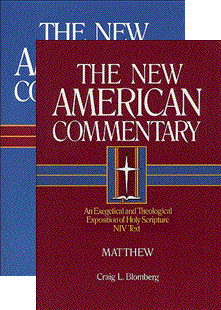
The three commentary sets that cost about $200 includes one of my favorites. The New American Commentary looks at the text with the pastor and advanced Bible student in mind. It's also useful for scholars, with some technical detail in the treatment of each scripture passage.

As a brand new pastor in 1993, I began subscribing to this set in book form. Broadman & Holman sent me a new book every few months. This continued for years until they slowed down. Today, they're still missing a couple of volumes. The books missing include...
- Psalms 1-72 - no known release date
- Ephesians - projected release date of October 2022
NAC uses the NIV text. It's not too technical, so that most believers could make use of this excellent set.
The other sets included in this deal at $200 includes...
- SIL Exegetical Summary Series - gives a summary of how many different scholars treat a text. Students could begin with this and then jump to other commentaries based on what they find in this summary.
- Preacher's Outline and Sermon Bible - this commentary also includes a detailed outline of each passage. Buyers will get the commentary focusing on helping the preacher organize sermons with exegetical outlines of the text and suggestions for teaching the text. I often consult POSB when I'm struggling to outline the text or, after I'm done, to check my understanding.
$150 Accordance Deals

Bible Speaks Today - The commentary set focuses on making their commentaries understandable and readable while still covering the important details of the text. The resource helps teachers and preachers with applicable and understandable exposition. It's in my top 10 list of commentaries that I consult when I preach.
Reformed Expository Commentary - as the name suggests, this work takes a reformed approach. I'm not familiar with it since I don't own it and don't consider myself reformed. According to Accordance, the series is "accessible to both pastors and lay readers" with "exposition that gives careful attention to the biblical text" from a reformed, Christ-centered focus.
Mentor Commentary Bundle - like the Reformed Expository Commentary, I'm not familiar with this set. Accordance brags about the set holding to a "high view of Scripture and stays close to "orthodoxy while appreciating and learning from the latest theological research. This unique combination allows the reader to see what recent scholarly research has discovered without losing sight of the inerrancy of scripture."
$100 Accordance Deals
Old Testament and New Testament for Everyone - Accordance separates this set into two, so you're really paying $200 for both. However, this lets people buy one or the other if they prefer. The OT set is written by John Goldingay and covers every single passage of the OT with a simple explanation for the average person. This makes a nice devotional commentary that users can also consult as they teach a small group. The NT volume, written by NT Wright, includes his own translation of every passage in the NT. If focuses on relevance for today making it also a good devotional tool
Perspectives Series - think of this as an issues-based work with the debate over "the most challenging issues in biblical studies, theology, and pastoral ministry. You get a point-counterpoint style approach to the big issues, including things like Family Ministry, the Doctrine of God, the Sabbath, and Your Child's Education, to name a few.
$80 Accordance Deals
Lenski's Commentary on the New Testament - most of the time a commentary authored by one writer might not offer the best option. However, sometimes that one person did a great job and so you jump in. Lenski translated each passage and then covers it with a conservative viewpoint. He discusses the language and translation with great detail.
Barclay's New Daily Study Bible New Testament - people who want a devotional commentary with depth will enjoy this work. The updated version in this work helps this generation understand Barclay's illustrations and discussion.
Introduction to the Old Testament - four volume introduction to the OT. I'm not familiar with it, so take a look at the description of each work from Accordance.
$50 Accordance Deals

John Phillips OT and NT Exploring Commentaries - this work focuses on practical application in an accessible format for lay people and pastors alike. It's full of illustrations that teachers and preachers can use in their expositions. I haven't used it a lot, but do occasionally consult it for help in bringing a passage to life.
Gold Nuggets: Sermon Outlines - the Golden Nuggets comes from The Preacher's Goldmine, a monthly publication of outlines aimed at helping preachers. They organized them into annual collections and put them together in this resource in digital form with Accordance.
For Everyone Bible Study Guides by NT Wright - go through the New Testament using this Bible study guide, which uses inductive study to come to an understanding of the meaning and application of each passage in the NT. It's a great resource to get you started in preparing Bible study lessons for a small group.
Accordance Deals Under $40

Complete Word Study Dictionary of OT and NT - while I own many scholarly and detailed word study tools, I usually prefer to look at this work when I'm preparing my sermons and studies. That's because each word has plenty of cross references, that help the reader understand the Greek or Hebrew word translated in an Old or New Testament passage. It's advanced by not as technical as other lexicons. I use the other ones too, but start here.
Portable Seminary 2nd Edition - think of this as a seminary in one tool with content related to Bible surveys, theology, history, homiletics and more. Authors like my mentor Haddon Robinson as well as other contemporary writers help readers learn about how to lead the church today.
Handbook of Bible Application - this book organizes itself by topic aiming to help readers apply the scriptures to everyday life.
Hard Sayings of the Bible - tackle the tough issues in Scripture with this reference of 500+ difficult to understand passages.
Life Essentials Study Bible Notes - Gene Getz gets at the topics in this set of notes on topics and passages simply and accessibly. The goal is to support preachers and small group leaders or teachers who want to help their students and church members understand in a practical way how to live out the truths of Scripture. I love this set and own it now in three different forms and just bought it for Accordance too.
5 Free Abraham Lincoln Collection Books
Get five free books about the Great Emancipator. You'll get the following works:

- Abe Lincoln’s Anecdotes and Stories: “A Collection of the best stories told by Lincoln which made him famous as America’s best storyteller.” Compiled by R. D. Wordsworth in 1908.
- Abraham Lincoln’s Religion: By Madison C. Peters (1908)
- Lincoln’s Use of the Bible: By S. Tervena Jackson (1909)
- The Soul of Abraham Lincoln: By William E. Barton (1920)
- Abraham Lincoln: Was He a Christian?: By John E. Remsburg (1893)

Ways to Make Logos Work Like Wordsearch
How can you make Logos work like Wordsearch to help users transition. We'll offer a few tips.

Jumping from Wordsearch Bible Software to new owner Faithlife's Logos 9 proves difficult for some users who don't have time to learn all the complex and powerful features available in Logos. We'll look at XXX ways to make Logos work like Wordsearch. This will help users make the Logos feel more familiar for Wordsearch users.

Take advantage of these tricks, but also work to learn the more advanced features in Logos to get the most out of the program. Don't take the keys to your new Ford F250 and drive it like a VW Beetle. Learn more about the features of Logos 9 so you can become more effective in using your new software.
If you didn't upgrade to Logos 9 when it shipped last fall, consider it. Logos gave Wordsearch users version 8 for free but wanted to grab some money from their new customers. It' might be worth adding one of the cheaper base packages.
Use Layouts to Make Logos Work Like Wordsearch
Both Logos and Wordsearch include a feature to set up a desktop layout so you can quickly get to work after opening the program. You can make Logos work like Wordsearch by creating a Layout that mimics the features of Wordsearch.
Open Logos and start with an empty layout. Logos 9 has a button in the upper right corner of the toolbar that closes everything with one click. Hit that button and you're ready to get started (see image below).
Many Wordsearch users like the Library pane that shows up on the left-hand side of the window. So, find your Library button on the toolbar and click and drag it to the left-hand edge of the empty layout (step one below).

There's a drop-down button in the Library window toolbar (step 2 below). If you click it, it will show three views:
- Cover View
- Title View
- Details View
You want the Details View. Choose that and it will show all of your books in a long list. Now you want to use the Facet menu (three horizontal lines next to the Find resources search box; step 3 in image above). Click the Facet menu and you can now click on the Type Facet to see your library grouped by the type of book, like Bible, Bible Commentary, and more. This works like Wordsearch's library book folders for each kind of book.
Resize the window to make it smaller, but not so small that you can no longer see the Facet menu.
Find your favorite Bible and open it by dragging it from the library to the space just right of the Library window. Then grab any other book you want to place it on the right.
Saving Your New Layout to Make Logos Work Like Wordsearch

We want to save this layout so you can use it quickly and easily. Click on the Layout button in the upper right corner next to the Close All button we used above (see step one below). The first item listed in the right column of the drop-down list shows a link that reads Save as named layout (see image above). Click that and a box opens for you to type a new name. I typed Wordsearch. Hit enter.

You can tweak your layout as you use it. Each time you change something.
- Open the layout drop-down as you did above (step one above).
- Then right-click on the thumbnail (step two above).
- Choose Update to current snapshot (step three above).
The layout's not the same as Wordsearch and you can't easily turn the Library window on and off as you can in Wordsearch. But you can set things up this way temporarily while you get used to Logos. After you do, close this window and just use the drop-down Library from the button on the toolbar.
Copy Bible Verses Replaces ZipScript to Make Logos Work Like Wordsearch

Fans of Wordsearch used ZipScript to quickly insert Bible passages into other programs like Microsoft Word. It ran in the Windows system tray (see above). Click the little icon and enter the passage (see below).

Logos doesn't offer a separate app like ZipScript, but you can use what they call Copy Bible Verses. In the layout I created above, I placed the Copy Bible Verses window on the right. Open it from the Passages section of the Tools menu.

Using the Copy Bible Verses is easy to start, but it can do some powerful things. Here's what I did to make it work best for me.
I start by selecting the Bible verses I want to copy to Microsoft Word. Then, in the Copy Bible Verses window, I make sure to select three things at the to; of the window just below the text entry box. You'll see three hyperlinks that behave like drop-down boxes.
- Set the format of the text you copy.
- Select the translation of the verses you wish to copy.
- Select the destination of the verses.
The destinations available will depend on what operating system you're using. Click the link and see what you can use on your computer.
Formatting in Copy Bible Verses
Logos ships with a bunch of formats preset for you to pick. However, at the bottom of the pop-up formatting box, you see an option to Create a new style. I created a style that I like my Bible quotations to use when I paste them into Word. There's a lot of ways to customize your style and Logos offers help in figuring it all out. This link will open the Help page inside Logos for creating new styles if you have Logos installed. As the help page instructs, start with an existing style and edit it to look the way you want.

I created a style that makes text a shade of red, 14 point Helvetica type, and spaced with space above and below each paragraph.
Users can choose to insert the text automatically or just copy it to the clipboard and then paste it manually. If you copy and paste it automatically, it chooses the most recently used document in the program you choose to paste to from the menu.
Select a style most like what you want your text to resemble. Right-click on that style from the formatting drop-down box and choose Edit Style. At the top give a new style a name by clicking on the current style name. When you get the style to look the way you want, then click on Save. Thanks to the Logos syncing feature, it will show up any time you click the link to display the drop-down box on this and any other computer with your copy of Logos installed.
Set Up Parallel Bibles to Make Logos Work Like Wordsearch
If you opened more than one translation to show parallel Bibles in Wordsearch you can take advantage of that feature in Logos. Here's how to do it.

Logos calls this feature the Text Comparison Tool and you open it from the Tools menu. The tool displays text in a few different ways. First, you can put in columns using the menu button at the right end of the window's toolbar. It looks like 3 vertical dots (see above). Choose from the following display options:
- Automatic Layout - switches between horizontal and vertical layouts based on window size
- Horizontal Layout - puts your Bibles in columns like a traditional parallel Bible
- Vertical Layout - puts them on successive lines with an option o show them in Interlinear mode or Verses mode (see the drop-down box in the image below).
You'll also see options on the menu to show differences or not. The image above shows the blue text. That indicates how the translations differ from the first column's translation.

Also, notice the hyperlinked translation abbreviations. Click those to change which translations show up in your Text Comparison window.
Logos includes a feature that compares to most of the features found in Wordsearch. Not everything will make it into Logos nor will all of your books. However, I think you'll find that Logos will meet your needs if you take the time to learn them. Until you get skilled at studying the Bible in Logos, you can use the above tips to help make it a little more friendly.
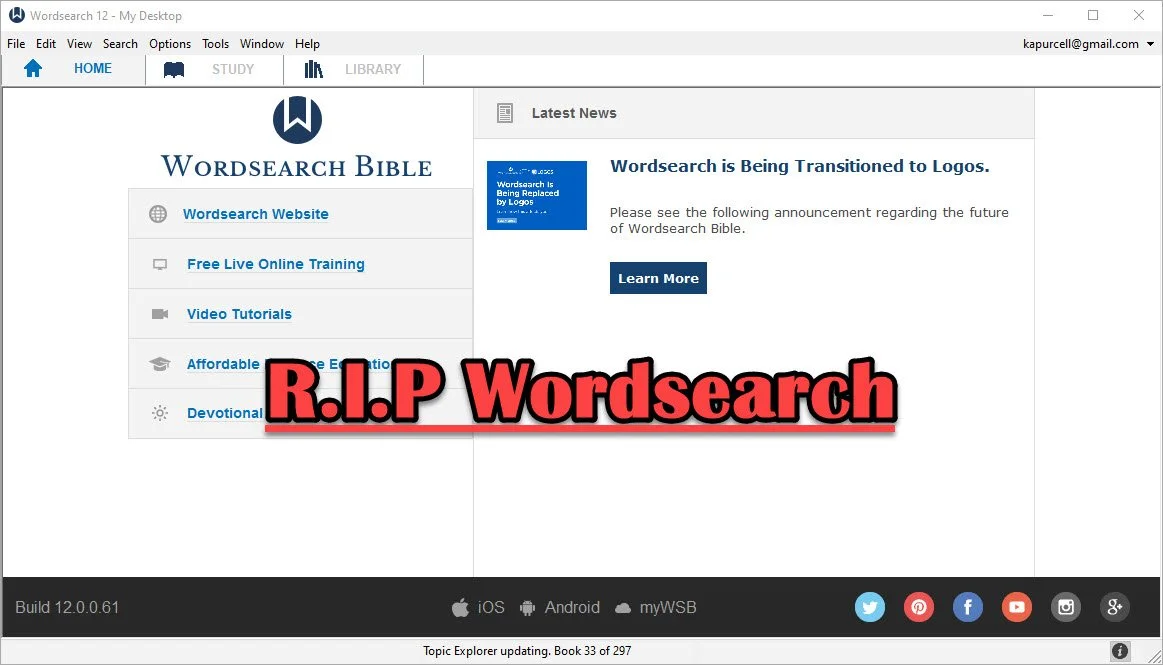
Logos Bible Software Bought Wordsearch. What does it mean for me?
Now that Faithlife bought Wordsearch, what does it mean for users of both programs and where will Bible software go in the future?
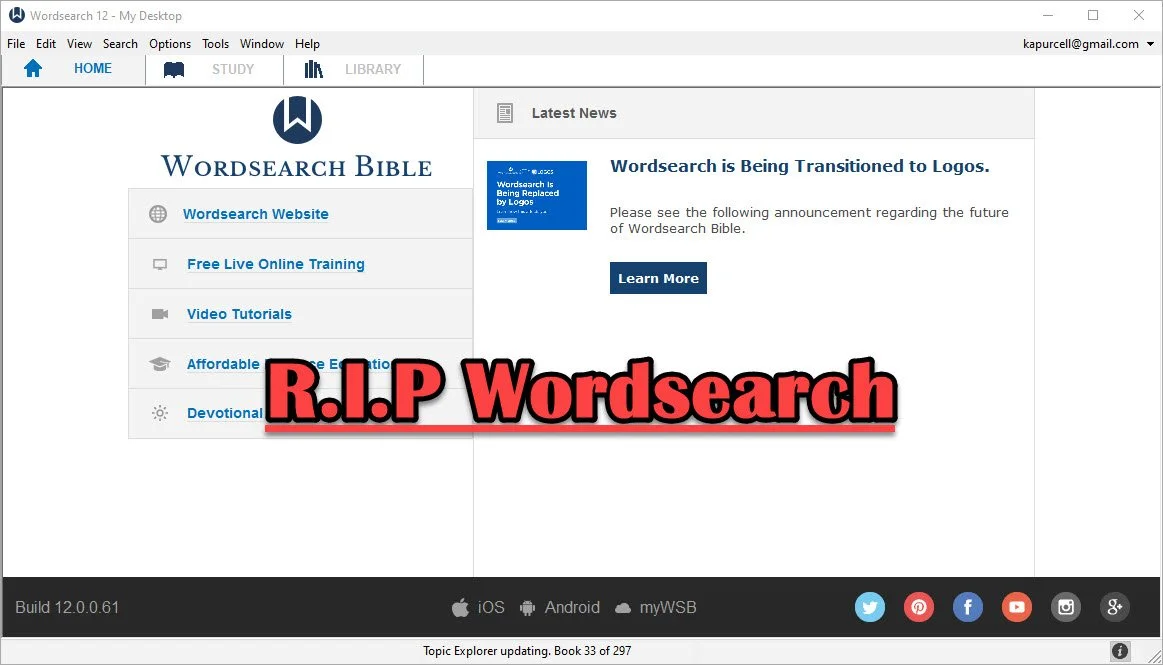
In case you didn't know, the publishers of Logos Bible Software and Proclaim Worship Software, Faithlife, bought Wordsearch Bible Software from LifeWay, the publishing arm of the Southern Baptist Convention. I shared a little about it here and at ChurchTechToday.com, where I sometimes write.
When we face significant changes, we feel afraid and wonder what will happen and how will it affect us. Those feelings will affect Wordsearch customers more than Logos customers. However, it will also offer some positive changes. We'll look at both the negatives and the positives and then consider the future of Bible software.
Simplicity and Comfort with Wordsearch for Users
People who used Wordsearch for a long time liked that they could collect a large library of excellent Bible study tools and ministry books from excellent publishers. Wordsearch produced a lot of great digital content for their software users. Wordsearch also presented those excellent tools in a simple, familiar format. The program added features and changed the way it looked over time, but it always had a look that reminded us of Windows Explorer or macOS Finder. The list of content showed up in easy to recognize folders along the left, while the content showed up on the right. You could display a Bible in one window, a commentary in another, and notes in a third. It all made sense.

Moving from Wordsearch to another program felt more jarring than most moves because the other high-powered windows software looked very different. At least Accordance had the library list on the left. Logos hid their library in a drop-down list that you could open as a window and put on the left, but it took some work to set up a familiar layout that Wordsearch users would consider familiar.

Disappearing ZipScript; Gone But Not Forgotten
ZipScript appealed to Wordsearch users and many of those trying to jump to Logos, the new Wordsearch overlords, experience consternation at seeing it go away when the program stops working. Understand that the deadline won't come anytime soon. But one day it will quit.
ZipScript ran in the background and grabbed scripture from a chosen Bible from the Wordsearch library. Users could quickly paste it into a Word document or some other text editor or even a website. It worked simply and elegantly.
Logos has something similar in the Copy Bible Verse tool, but you have to open Logos to get at it. We'll show you how to use Copy Bible Verses in Logos below.

And that leads me to some hope for Wordsearch users. You can do most of what you really love in Logos or some other third-party application. It will take some time and training to get the most out of it. So let's look at the hopeful side of the buyout of Wordsearch by Faithlife.
Reasons for Hope for Both Logos and Wordsearch Bible Software Users
Logos users will experience the most hopefulness with the purchase of Wordsearch. Users now can access a large library of books and tools not available before in Logos.
The Complete Biblical Library includes a commentary and some language study tools to name a few resources. Logos didn't offer this package until now. Wordsearch and Accordance did. That's just one of the hundreds of books Logos users can now buy and use. More will become available as they finish converting the digital files into Logos book formats.
Wordsearch users will also get access to a lot of resources that weren't available to them before. Both customer bases could buy thousands of Bibles, commentaries, reference books, and other titles. Now they can get even more.
In addition to more books, Wordsearch users willing to take the time to learn how to use the powerful and complex features in Logos 9 will discover that their new program is more like owning an aircraft carrier than a 400-foot luxury yacht. Both float in the water and both will get you across the Pacific Ocean, but one can do it in a simple familiar way while the other feels more like a highly technical piece of machinery ready to attack any task with skill and advanced expertise like nothing else in existence. I think Accordance would disagree with that last bit. It's similarly powerful, but I hope you get the meaning of my flawed analogy.
I recommend that Wordsearch users patiently take the time to learn to use Logos. Here are a few ways to help...
- Logos Support Page has plenty of training
- Logos community forums is full of helpful users
- Check out one of the advanced training schools online like Morris Proctor and LearnLogos
- Visit Theotek here and on YouTube
- Take time to look around the software
- Open Wordsearch and Logos at the same time and take a look at what you love about Wordsearch and try to mimic that capability inside Logos
- Take a look at other Bible software like Accordance, Olive Tree, e-Sword, PocketBible and more.
- Keep using Wordsearch until you can't
The last recommendation above is important. Just because you won't likely get any software updates in the future from Logos, the program will probably keep running fine until Microsoft updates Windows and breaks it. If that happens, then don't upgrade windows. I'm guessing you can keep using Wordsearch for at least another year or more. That might extend for years, especially if you don't mind staying on current versions of Windows. Eventually, however, it will shut down and you'll have to move on.
The Future of Bible Software
Where will the Bible software community end up in a couple of years or longer? That's a hard question to answer and I've never been a good prognosticator. I thought Covid would last a few weeks at most. But let's give it a try.
Bible software is both expanding and contracting at the same time. Over at ChurchTechToday.com my editor, Lauren Hunter, wrote about the future of Bible software quoting Rick Meyers, the generous creator of e-Sword. He said...
“This same decade has seen new Bible software companies emerge who are embracing these new hardware/platform changes. So, in the decade which saw WORDsearch first sold to LifeWay, and now to Faithlife, we have seen the rise of YouVersion. One generation of programmers hands off the baton to the next generation of programmers; meanwhile, God’s Word remains as popular as ever.”
I agree. We see more options for quality Bible software. At the same time, we now have fewer options for the advanced Bible study needed for academic Bible study or translating the Bible into more languages on the mission field.
With that, I think that Bible software companies that offer a strong online presence will win in the long run. And that means Logos. They are the only advanced Bible study option that works on all platforms including...
- Windows
- Mac
- iPhone
- iPad
- Android
- Online
- Chromebooks
- Kindle
Others work on many of those like Olive Tree, but they don't offer a website for Bible study. Accordance is in the same boat.
Some of the best online sites work great in a desktop browser, but not as well on mobile. Some of those show up as apps in the app store, but not all.
With the contraction of the number of powerful programs, it may seem like Bible software is in trouble. However, the big names are strong and not going anywhere soon. So, I'm hopeful.
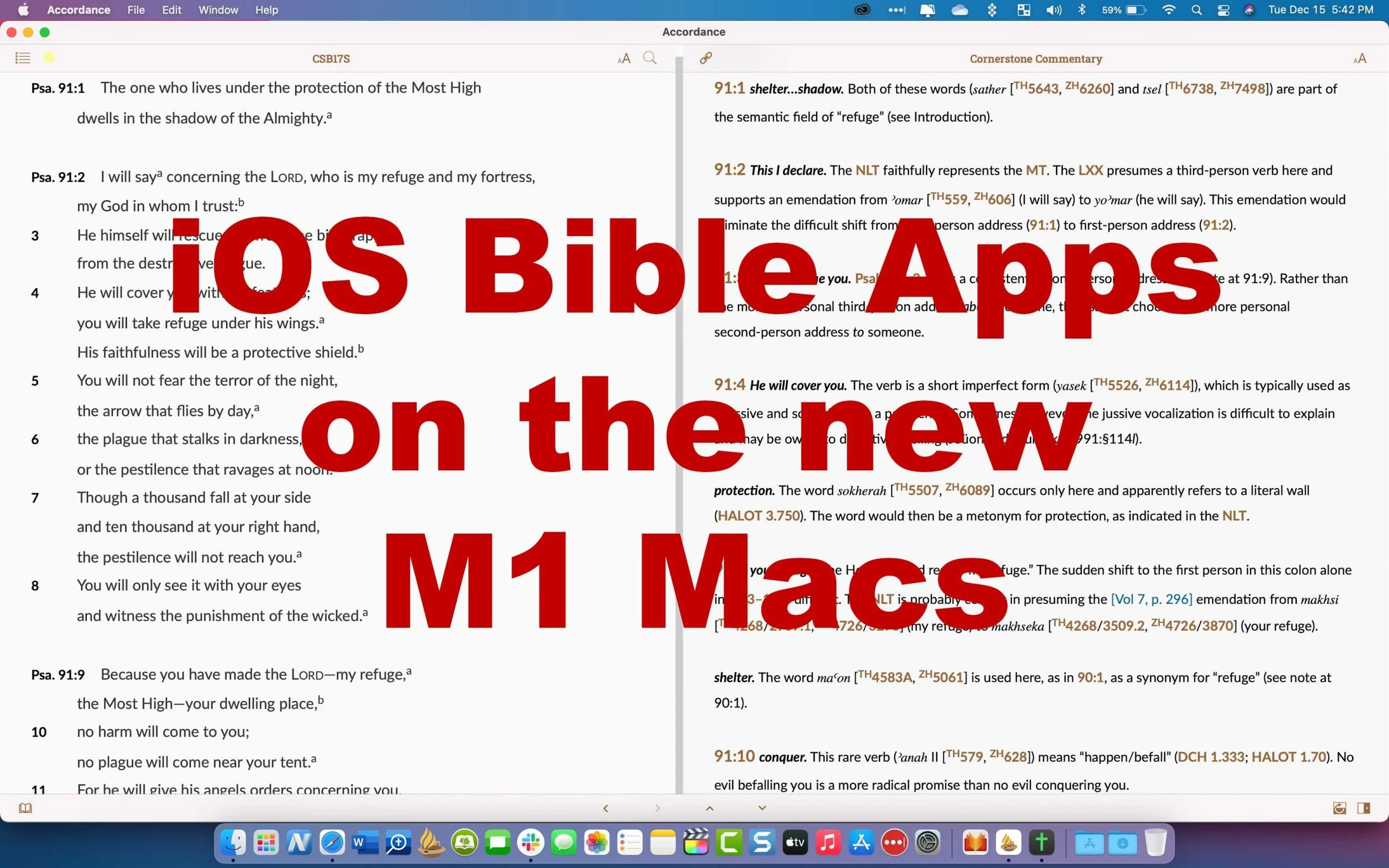
7 Best iOS Bible Study Apps on M1 Macs
What are the best iOS Bible apps that you can run on an M1 MacBook or M1 Mac mini? We offer some suggestions after showing how and asking if you should.
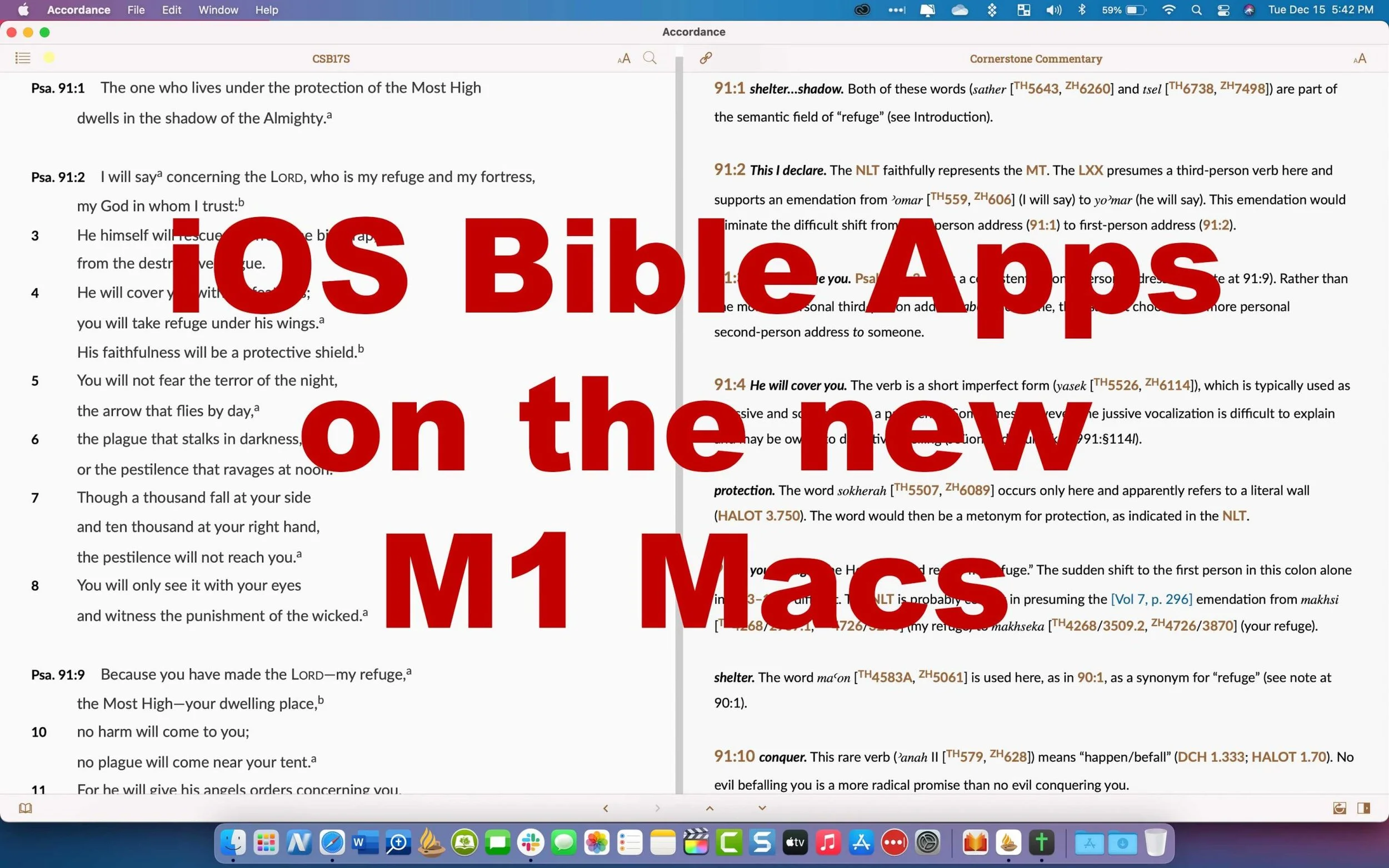
Did you know you can install iOS Bible Study Apps on an M1 Mac? You can, but should you? We'll take a look at the best iOS Bible Study apps that you can install on your Apple silicon Mac with macOS Big Sur.

When Apple released the M1 MacBook Air, Pro, and Mac mini, they possibly revolutionized the computer market with their incredibly efficient Apple silicon processors. These processors speed up things like video editing and encoding on powerful programs like Final Cut Pro. It also makes the MacBook Air or MacBook Pro run fast. But not all Bible study programs built for macOS run faster than they do on Intel-based Macs. So, let's take a look at the iOS Bible Study apps available from the app store.
How to Install iOS Bible Study Apps on an M1 MacBook
If you want to install one of these iOS apps, open the Mac App Store on macOS Big Sur as you would normally. In the upper left corner, you'll see the search box. Note, this doesn't work on older versions of macOS or on any computers that do not use M1 Apple Silicon processors, like the MacBook Pro, MacBook Air, or Mac mini.
Type in the name of an iOS Bible Study app like Logos Bible or Accordance Bible.

The next screen will show the search results for macOS apps. Click on the iPhone & iPad Apps tab as seen below.

This will show you the available apps that you can install on your M1 Mac.
Not all developers will let you install their iOS apps on a Mac. They have to turn this on, so contact them if you don't see it. Below you'll see the ones we like that you can find as of the date this article was published.
Why Only Some iOS Apps Will Install on M1 Macs
Since not all Bible Study Apps will install on an M1 Mac with Apple Silicon, we've got a list that will look different than our favorite five Bible Study apps. When you do see one taht's available it might give you a warning that isn't verified by the developer to run on the computer.

There's a link under the name of most of these apps as seen above. Click it to get an explanation from Apple. It reads as follows:
Most iPhone and iPad apps are compatible with a Mac with M1, but some may not be available because they require capabilities unique to iPhone or iPad. A developer may also choose to make their app unavailable on Mac.
"Not verified for macOS"
Some apps available on Mac may not function as they normally would on iPhone or iPad. For example, features that rely on hardware unique to iPhone or IPad - such as a gyroscope or a screen that supports complex Multi-Touch gestures - may not work on Mac.
That only means the apps that you can install may not work properly and some won't install because the developer chose to block you from installing.

To log into a couple of these apps I had to enter my computer password and/or my Apple account password.
7 Best iOS Bible Study Apps to Install on M1 Macs
Here's our roundup of the 7 best apps to install on your M1 MacBook Air, Pro, Mac mini.

- Logos Bible Study Tools - because the desktop version of Logos runs a little slow, it's not bad to install their iPad app. It's a bit awkward to get it going, but once you do it works well.
- Accordance Bible Software - the best mobile app for use on a Mac comes from Accordance. It runs okay and lets users enjoy all the mobile features. It did crash. a couple of times, but once I got books installed it seemed to run great.

- Bible from Life. church - not technically a Bible study tool but still good to install on your Mac. This gives access to some of the multimedia content in the Bible app but on a computer. You can also use the NASB 2020, something you won't find in many apps.
- Tecarta Bible - this useful study Bible style app works great. Download your tools and run the app. You can't use Tecarta on a Mac any other way.

- Laridian PocketBible - one of the first apps to offer a Mac version for M1 computers came from Laridian. It runs just like it does on an iPad making it one of the best of this breed.
- The Bible by eBible - if you're an eBible user on the web, you'll possibly enjoy using it on your phone, tablet and now Mac. It installs fine, but only runs in a small window.
- Mantis Study Bible - this humble little app was once one of the best mobile apps and it runs fine on a Mac, although only in a small window.
Did I miss any? Comment below which mobile Bible apps you want to see running on the M1 MacBook Air, Pro, or Mac mini?
Should You Run iOS Bible Apps?
All of the discussion about running iOS Bible apps on your new M1 MacBook Air, Pro, or Mac mini begs the question, "Should you run iOS Bible apps or iPad Bible apps meant to run on an iPad or iPhone?"
Most of the time you shouldn't bother. I'm I can now install these apps on my M1 MacBook Pro, but after a few weeks I haven't run many at all. I wanted to run the Logos Bible app because they need to fix a few minor annoyances with their Mac-based software. However, the Logos iOS app doesn't run as well as other apps either. So, I probably won't really run many.
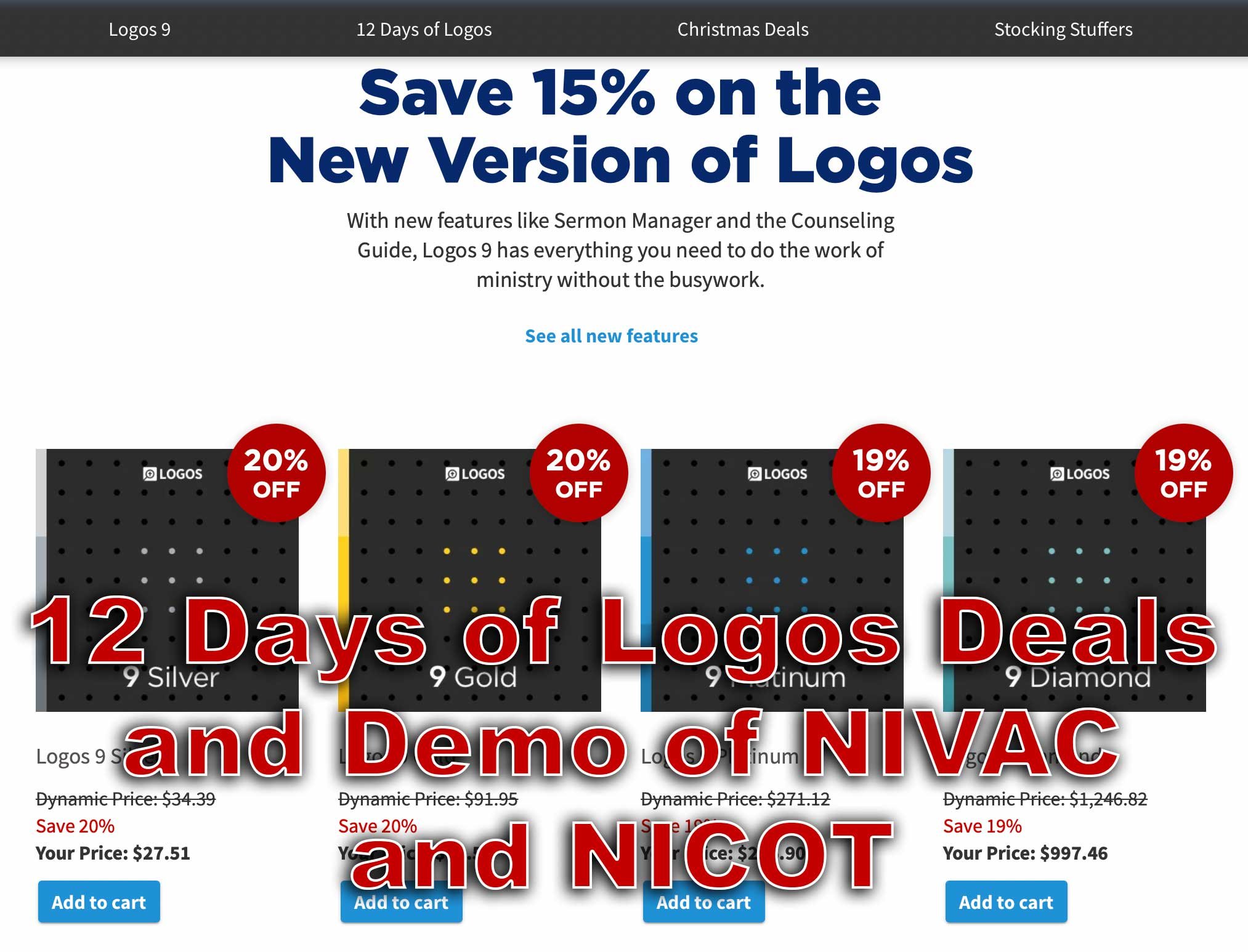
12 Days of Logos Deals and Demo in Logos 9
The 12 Days of Logos brings steep discounts on Logos Bible Software books and tools as well as packages. Use the link in this article to save up to 60%.
Every year Faithlife offers what they call the 12 Days of Logos, where they offer 12 different products for steep discounts. That benefits you if you want to buy any of these 12 products for Logos 9. We'll take a look at them and give you some tips as to which ones you should consider and maybe avoid.
What are the 12 Products Available This Year?
On our list this year, we get some really great books and tools for Logos 9 and Logos Bible Software, which you can use with their latest desktop version of Logos 9 or you can get it on their mobile Logos 9 Mobile app. They also work on the web app.

Here's the list of the 12 products and how much they cost. If you want to buy one of these, I ask you to consider using my affiliate link because it helps me continue my work of writing reviews and how-to articles about Bible software and ministry-related tech topics.
- Bible for Everyone Commentary Collection (35 vols.) 62% off, $119.99 sale price
- Challies Recommends: Best Old Testament Commentaries (55 vols.) 50% off, $442.99 sale price
- Romans-Philemon, 21 vols. (New Testament Technical Commentary Collection) 65% off, $232.99 sale price
- New Studies in Biblical Theology Series Collection | NSBT (50 vols.) 52% off, $299.99 sale price
- NIV Application Commentary: New Testament | NIVAC (20 vols) 55% off, $199.99 sale price
- New International Commentary: Old Testament | NIC (28 vols.) 51% off, $499.99 sale price
- Popular Patristics Series Collection (53 vols) 54% off, $229.99 sale price
- Ancient Christian Reference Collection (55 vols.) 50% off, $549.99 sale price
- Smyth & Helwys Bible Commentary | SHBC (36 vols.) 55% off, $499.99 sale price
- Welwyn Commentary Series | WCS (56 vols.) 60% off, $199.99 sale price
- New Covenant Commentary Series | NCCS (16 vols.) 54% off, $99.99 sale price
- The Life Application Bible Commentary (17 vols.) 60% off, $49.99 sale price
Let me highlight a couple of the above books. I use the New International Commentary: Old and New Testament sets regularly. Faithlife is offering the Old Testament package for only $500, a 51% discount. That's steep. It's both an easy to understand commentary, but has a technical level of information for advanced Bible students and people who teach and preach the Bible.
The NIV Application Commentary: New Testament comments on the text and then offers some practical application to the commentary. This helps the average Bible student or the teacher/preacher alike. You'll pay only $200, a great price for this product.
The Life Application Bible Commentary focuses on real-world use of the teachings of scripture to help Christians in their growth. It comes in at 60% off.
Deals on Logos 9 Packages

In addition to the above tools, you can also get one of the Logos 9 packages available from Faithlife with some deals. Logos identifies them by colorful names like Silver, Gold, and Platinum. You can follow my affiliate link, which gives me a 5% commission to help me continue writing helpful reviews and how-to articles about Bible software and ministry tech.
M1 MacBook Pro and Bible Study Apps
How well do the top five Mac Bible study apps run on the new M1 MacBook Pro? We ran five of the best programs and share our results.
Are you curious how the new M1 MacBook Pro handles Bible study apps and programs? I was too and couldn't wait to test this out. You can find the results as I tested Logos 9, Accordance 13, Olive Tree, Laridian Pocket Bible, and e-Sword X on the new M1 MacBook Pro.

UPDATE: Added a video under the Logos 9 on M1 MacBook Pro section below.
Why I Bought the M1 MacBook Pro
For the past year, I actually transitioned to a Windows-centric computer experience by giving my 2018 MacBook Pro to my son, a videographer and photographer who really wanted to go Mac. I bought an excellent HP Spectre x360 13 2-in-1, but then reluctantly decided to go back to Apple after my office PC failed and I got a Mac mini from a friend.
I bought the 2020 MacBook Pro that Apple released earlier this year based on Intel's processor. That was in late October and then Apple released the new M1 MacBook Air, M1 MacBook Pro, and M1 Mac mini. Fortunately, I got mine at Best Buy and I could return so I did and picked the M1 MacBook Pro with 8GB of RAM and 500. It's not the highest-end M1 MacBook, but it's what could get in exchange without paying too much more.

Best Buy shocked me and told me I could get the new computer the next day, but that was wrong. It showed up the Monday before Thanksgiving instead of one week before Thanksgiving. That's not bad considering Apple shows a date in mid-December before you can get one directly from them.
Installing Bible Programs on the M1 MacBook Pro
The new M1 MacBook Pro showed up and I unboxed it and starting setting things up. Soon I was installing my Bible study programs. I use three Bible apps but for this test, I installed five of the best Mac Bible study programs you can buy today.
- Accordance 13
- e-Sword X
- Laridian Pocket Bible
- Logos 9
- Olive Tree Bible Study
For the most part, these apps installed without much concern. It's interesting that the first time you install a program that's not optimized for the M1 chip, macOS 11 Big Sur will ask you if you want to install something called Rosetta 2. It didn't take long to download and install, but it stops you from launching your app. I had to launch Logos 9 again after Rosetta 2 finished installing.
The other apps installed quickly. Accordance takes a little while to download your books if you have a large library. Olive Tree Bible Reader, Laridian PocketBible and e-Sword X don't take as long. In fact PocketBible has the best installation process of the group. It takes little time at all.
Logos 9 on M1 MacBook Pro
Let's first talk about Logos 9 because it's the most demanding of the five programs. It Typically, I start the installation, plug in my laptop, and leave for hours. When I come overnight or after a full day away, it finishes and we're ready to study the Bible.
As you can see from the video above showing the installation and indexing process, it took 3 hours and 47 minutes to install, download my 27GB library, and index the library. The download seemed faster than normal. Then indexing went quickly.
My friend LaRosa compared the indexing process to taking a long trip on an Interstate. It takes a little while to get on the road, but once you do and get up to speed, it runs quickly. Then, the off-ramp time slows down. That's how things went with the M1 MacBook Pro. It starts slow, speeds up, and then finishes slowly.
Normally, when Logos 9 indexes the library it takes up a lot of resources and you can't really use your computer much. You can, but it's infuriating because Logos takes up all the memory and processor. However, with the M1 MacBook Pro, Logos 9 ran slowly, but the rest of the system ran smoothly. For example, I hit the Home button in Logos 9 and scrolled through the Home page. It stuttered running haltingly. It's not smooth at all.
In spite of how slowly Logos 9 itself performs, the rest of the system runs smoothly during the indexing. That's abnormal with Intel or AMD based computers. They usually don't run smoothly.
Battery Life for Running Bible Study Apps on M1 MacBook Pro

The battery life stood out on my new M1 MacBook Pro. The process of installing Logos 9 on laptops usually kills a battery. On my previous HP x360 13 and my older 2018 MacBook Pro, I would never attempt to install Logos without plugging in. I didn't have to on this computer.
Add the wonderfully bright screen and crisp text, you get a fantastic experience writing and reading. I put the screen at 50 percent and it looks like other computers I'm used to using when they are set to 75-80 percent.
After I killed the battery installing Logos I used it for a couple hours and went to bed with it at 40 percent. This morning, after running on battery at 50% for about 4 hours, my battery reads 76% left. That's fantastic. My 2020 12.9-inch iPad Pro doesn't last as long in real-world use.
Hard to Tell Difference on M1 MacBook Pro

What's the final takeaway for running Bible study apps on the M1 MacBook Pro? For four out of our five apps, there's little to no different. I couldn't tell the difference between running Accordance, e-Sword X, Olive Tree Bible, or PocketBible on this computer.
Logos 9 is a little different. Installation was a slightly better experience. You can set it to download and index your library and get some other work done while it happens in the background. That's a huge improvement compared to running the program's installation on other computers.
Once you install Logos 9, it runs well. There's one issue that's more a Big Sur problem than an M1 MacBook Pro problem. Over in the Logos 9 forum, there's a post listing one issue as follows:
The Logos Desktop Team has tested Logos 9 and Logos 8 on macOS 11 "Big Sur." So far we discovered some minor styling issues (see below), but have not encountered any major issues.
Known Issue: Table of Contents arrows are duplicated.From Logos 9 forum

The above issue with arrows is an extremely minor issue. You may find others, but right now that's all.
In another Logos forum post, Phil Gons from Faithlife said the company has no definite plans to make Logos 9 run as an M1 Mac application. That's not saying they won't do it, but they are not announcing anything publicly. I'd expect this to take a long time since the current version of the software works so well. I look forward to the time when these five all run as a native app.
There's one thing that you can say about running Bible study applications on the new M1 MacBook Pro. Launching these apps takes a lot less time than they used to. Of our five, Laridian PocketBible and e-Sword X jump onto the screen instantly. Olive Tree Bible Reader loads in a couple of seconds and Accordance launches in a few seconds. Sadly, Logos 9 still takes longer than the others. But it loads faster than it did on Intel Macs. Running the programs speeds up on these new M1 chips too.
Slide Over on iPad Makes Your Bible Study More Productive
How can Slide Over on iPad make your more efficient and productive as you study and prepare for sermons or Bible studies? We'll show you how.
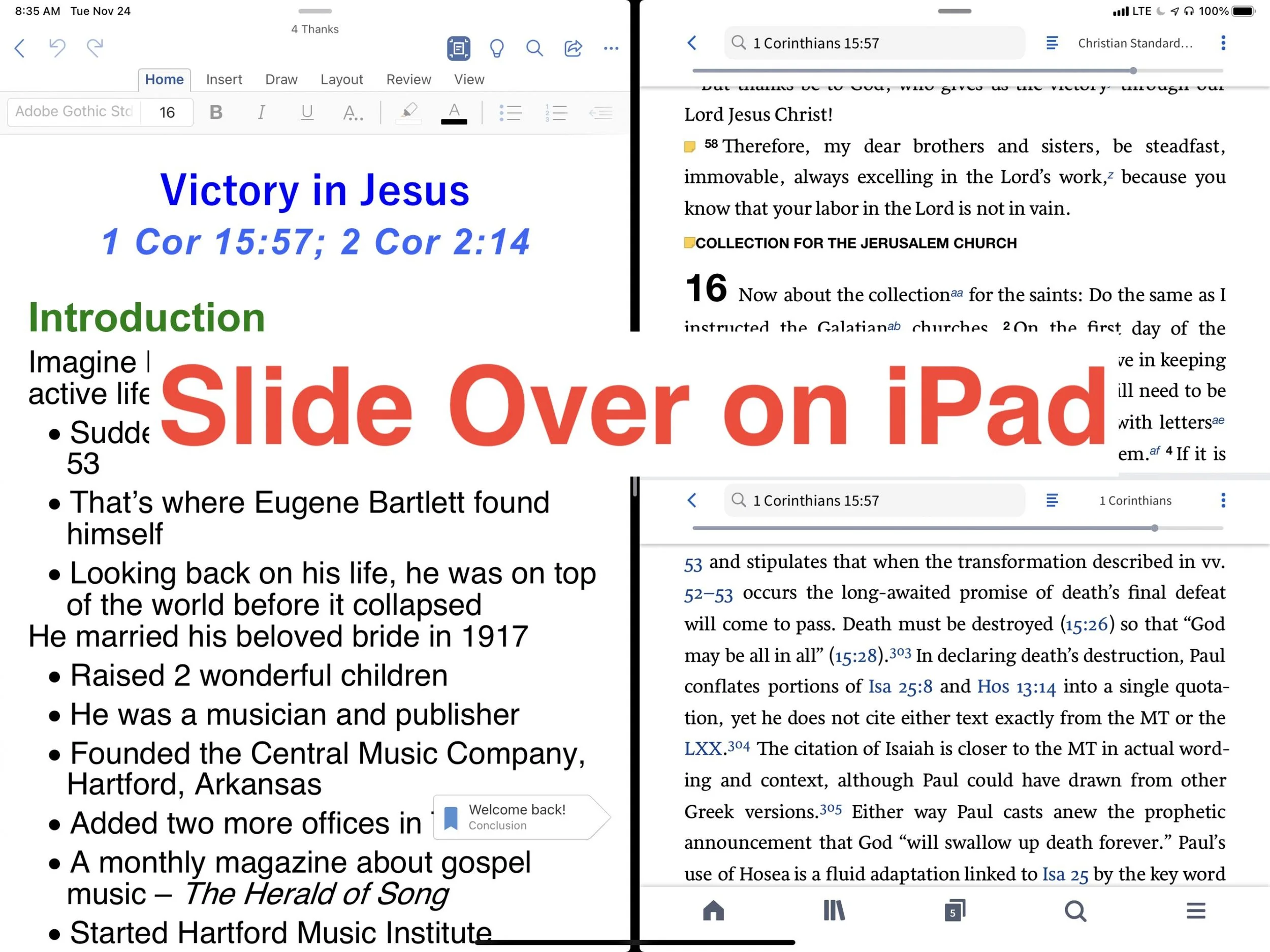
Do you use Slide Over on iPad as you study the Bible? If not, you should because it can increase productivity. Take a look at the following tips for effectively using Slide Over on iPad as you study the Bible or do other tasks on your iPad.

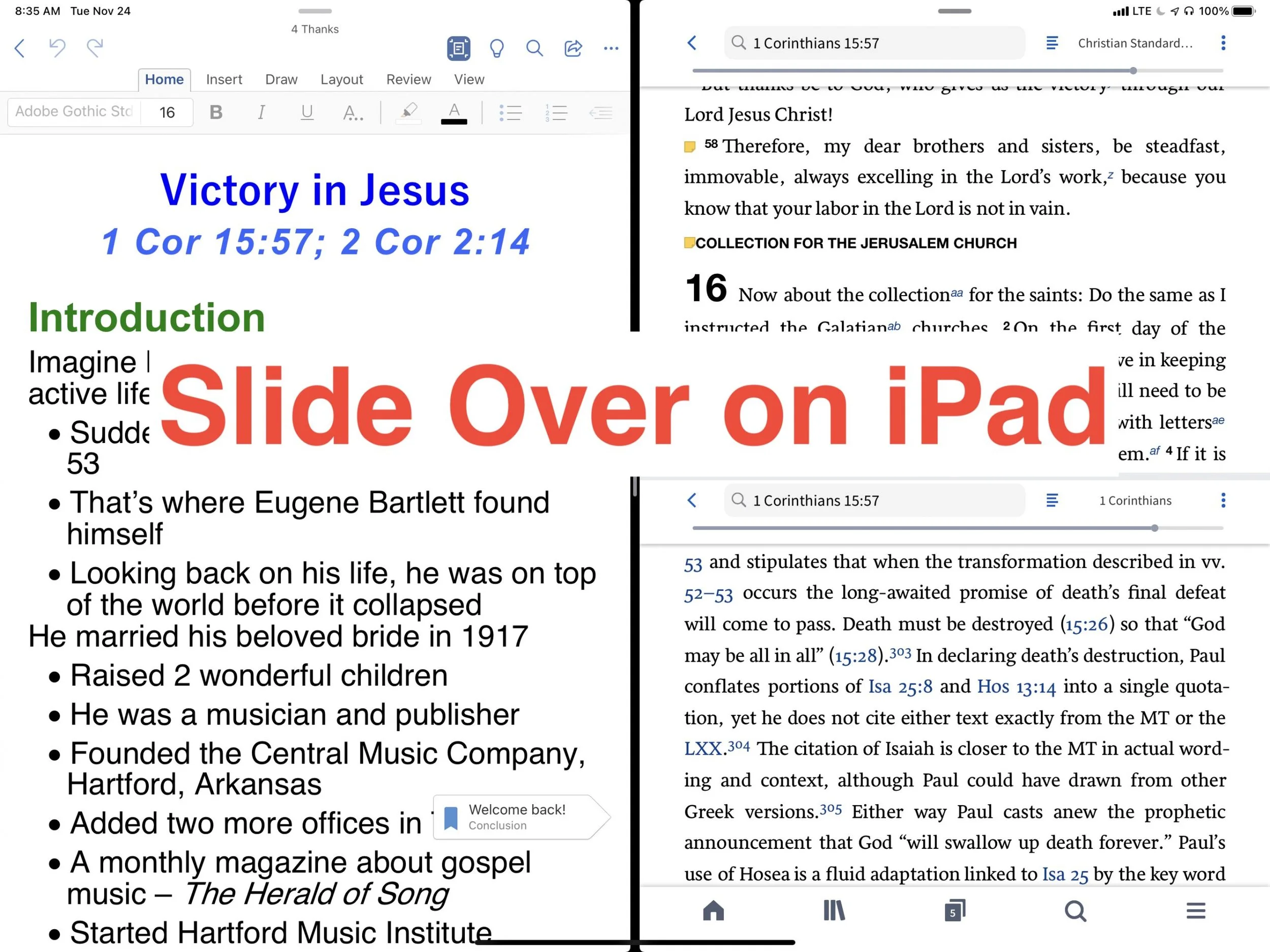
Switching back and forth from your Bible study app to your word processor or other mobile apps, while prepping sermons feels laborious. However, thanks to Slide Over with iPadOS digital Bible students can productively work with two apps at a time on larger iPad screens.
What is Slide Over on iPad?
When Apple released the first version of iPadOS more than a year ago, they perfected a feature called Slide Over. Think of it as two apps on the screen at the same time. Apple didn’t do it first, but iPad users found it cumbersome to use in previous releases.
The iPadOS will show you two apps at once. You can view them with both apps taking up half the screen or you can view them with one covering two thirds and the second app covering another third. The smaller window can sit on the left or the right side of the screen.
How do You Turn On Slide Over?
To open an app in Slide Over the app has to show up in your iPadOS dock. The dock sits at the bottom of the screen and holds all of your favorite or most-used apps plus three of the most recently used apps.

I keep my most-used Bible study app in the dock. But if you want to use another Bible study app that you don’t have in the dock, then open it first. Now slide up from the bottom of the screen slightly. You see a black line just above the bottom edge of the screen start swiping from that line and swipe about half an inch or so until you see the dock. Tap and hold a second app from the dock and drag it up to the right or left side of the screen. If a menu pops up then keep dragging up and over to the side of the screen.

The screen will show your two apps each taking up half the screen. If you want to adjust the size of the apps, drag from the line in the middle of the screen to the right or left to make one app smaller than the other.
When do I Use Slide Over in Bible Study?
I own a few Bible study apps that I regularly use in my sermon and Bible study prep. Sometimes, I want to read books in one app, but keep all my notes attached to the passage I’m studying in the same app. So, I open the app where I want to keep my notes and then I open the other app. That way I can read the second app while writing notes in the first.
During the sermon or Bible study writing phase, I’ll open Microsoft Word and my Bible app where I’ve kept all the study notes. That way I can easily refer to the notes as I write my sermon or Bible study.

Sometimes I want to research some idea on the web in order to come up with an interesting sermon illustration. I keep Word and Safari open at the same time. Sometimes I’ll open a video in YouTube or some other streaming app to quote the video in my sermon. Any app you might use it prep a sermon that supports Slide Over can be opened.
If I’m presenting while preaching or teaching, I’ll open Keynote and my sermon in Word at the same time. Or, I open Keynote and Safari to drag and drop images from the web as I put the presentation together.
Tips for Using Slide Over
You can master Slide Over with the following tips:
- Open apps not in your dock before trying to use Slide Over so they will appear in the recently used section of the dock on the right where your three most-used apps show up.
- If one app doesn’t need half the screen, give more screen inches to the other app by sliding the center adjustment line over a little.
- Set up multiple app combinations for Slide Over and use the switching feature to switch between these multiple app combinations.
- You change one of the two apps into a floating window by dragging from a small dark line at the top of the active app by pulling down slightly and hold it till it pops from the side to a floating window. Grab the line and pull down and to the right to put it back.
- While in the floating view, you can remove the window by swiping up or down to swipe it away.
- Move an app from one side to another by dragging it from the tiny black bar at the top and then slide it over to the other side of the screen until it snaps into place.
- Create multiple pairs of windows and swipe between them the same way you would swipe between apps.
Logos 9 Upgrade is Here: Get a Discount Here
Logos 9 upgrade came out and you can get 15% off using my affiliate link, but should you? We’ll give you a recommendation here.
Logos 9 dropped October 26 with some updates to the program. A lot of you will upgrade and you can get Logos 9 for 15% off using this link.

For full disclosure, Logos gives me a commission if you use this link. I don’t normally use affiliate links, but I’m placing this here so you can save some money by buying the upgrade using that link. If you do it helps me out too.
I wrote an article at Church Tech Today about what are the most important updates to the program. To learn more for yourself before that post comes out, head over to the Logos 9 page at the company’s website.
Logos 9: Top 5 New Features
The best new features included in the Logos 9 upgrade includes the following top 5 new features...
- Factbook Upgrade - click a word in your text with the Factbook feature turned using a toolbar button and it opens the Factbook to that subject.
- Sermon Builder - an upgrade sermon planning feature that takes passages from your favorite lectionary and populates a calendar that you can display in list mode or a kind of pie graph.
- Commentaries in Guides - users can now sort commentaries section in the Passage Guide by different ways including the author’s denomination.
- Dark Mode - I’m not a fan of dark mode, but people love it, so it’s here in Logos 9.
- Images in Notes - you can now add images to your notes.
That’s not a complete list, but it shows what most people will find interesting.
I will upgrade because I am that guy who always wants the latest greatest of the programs I use. If there’s an update to Windows, macOS, MS Office, I’ve used it in Beta for the last few months to help write my article for Church Tech Today.
Logos upgrades every couple of years. If you’re a Logos fan you’ll likely want to get the upgrade. For Wordsearch users who came over when Logos bought it, you may want to wait till you get used to using Logos 8 to make sure you’re a good candidate for the update
Logos 9 Free Engine Upgrade
The free Logos 9 software without all the new bells and whistles will likely show up in 2021. It comes with nothing but the basic program update. However, you can’t get it this year. So, if you’re patient and don’t think you really see anything that interesting in the new features list, then hold off till next year.
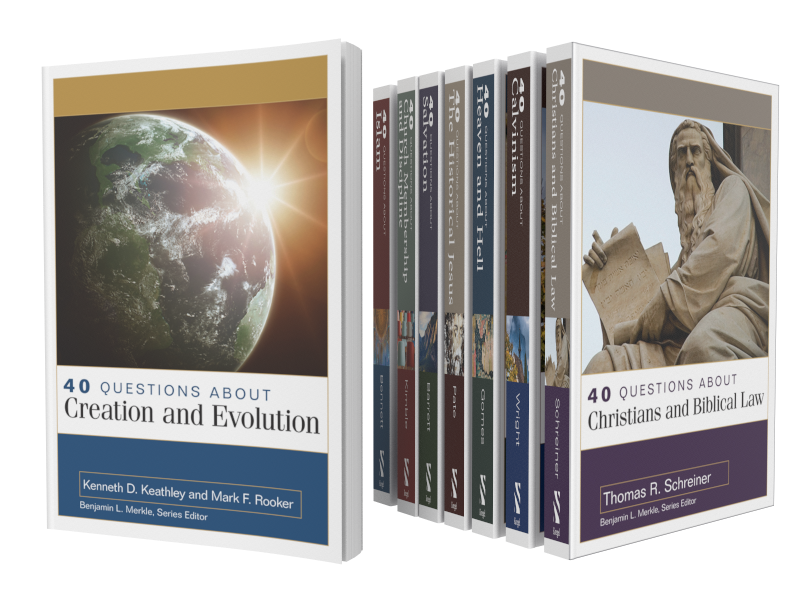
40 Questions Series for Accordance Review
The 40 Questions Series for Accordance Bible Software seeks to answer questions about 8 different topics from an evangelical perspective. This review focuses on the content of the series and using them in Accordance Bible Software for various platforms.
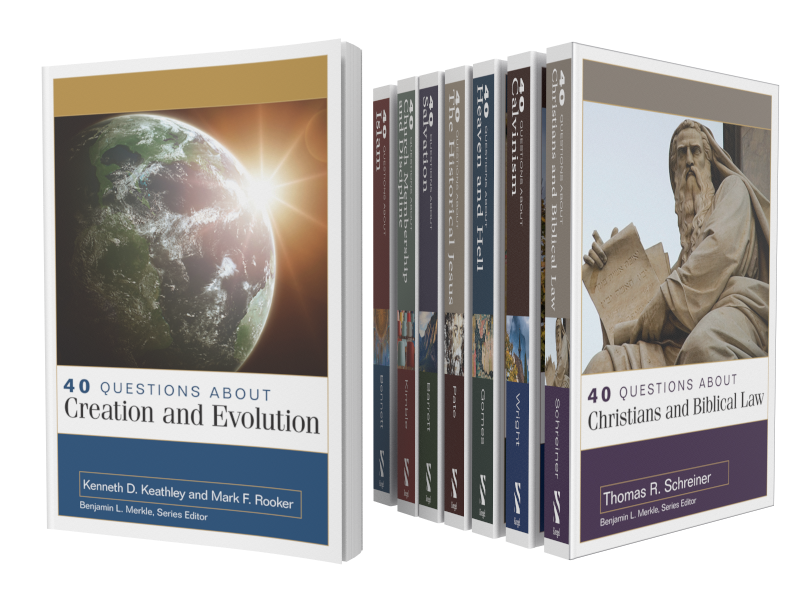
The 40 Questions Series from Kregel Publications for Accordance Bible Software puts into digital format 8 of the useful theological series that seeks to answer questions that Bible students might have on a range of topics from Calvinism to Church Membership. The series includes 8 of the 17 books in the set, each with 40 questions about a topic included in the book. Is it a good addition to your Accordance library? We'll take a look at the series itself and at using it in Accordance Bible Software.

For full disclosure Accordance gave me a review copy of the set. They offer a special until October 26 on the series taking $52 off to give you almost a 30% discount. Buyers can also get the individual volumes for a discount. Here's what you get.
- 40 Questions about Creation and Evolution (Keathley, Rooker)
- 40 Questions about the Historical Jesus (Pate)
- 40 Questions about Heaven and Hell (Gomes)
- 40 Questions about Salvation (Barrett)
- 40 Questions about Calvinism (Wright)
- 40 Questions about Christians and Biblical Law (Schreiner)
- 40 Questions about Islam (Bennett)
- 40 Questions about Church Membership and Discipline (Kimble)
The other books in the series are not yet available on Accordance but they will be soon.
40 Questions Series: How the Series Answers Questions in Accordance
Since Accordance gave me a copy to review for their sale, I did not have time to read all 8 books in the series. I started with 40 Questions about Calvinism by Shawn Wright. He's a church historian, pastor and professor at Southern Baptist Theological Seminary in Louisville.

Each book includes 40 questions that introduce and examine the topic of that book. For example, some of the questions from Wright's book on Calvinism asks things like...
- What's the Difference between "Calvinism" and the "Reformed Tradition"?
- What are the Five Points of Calvinism?
- Does God Love All People?
- Is the Arminian Doctrine of Prevenient Grace Biblical?
The book breaks up the 40 questions in to sections on things like general questions, questions about God's character, about salvation, about human responsibility and more. The last section covers more practical questions.
I'm not a Calvinist nor an Arminian. You might call me a Molinist because I affirm free will and eternal security like most traditional Southern Baptists.
The book helped me understand what many Calvinists believe and how they don't really like being put in the box of the TULIP 5 Points. The fact that those points came as a reaction to Arminian theology helps add some depth to what I was pejoratively taught about Calvinism.
In spite of learning more about what Calvinists believe, I was not convinced. However, I would recommend Wright's book for anyone who wants clarity about Calvinism from a Calvinist.
Accordance does a very good job of creating quality digital versions of the books they sell. They're formatted nicely for screens. The book creators do a good job producing mostly error-free copies of their books, so you can trust them.
Installing 40 Questions Series in Accordance Bible Software's Various Platforms
If you purchase the 40 Questions Series for Accordance, you'll want to do a few things to make them more convenient to use. You probably already know how to download new books, but if you don't follow these steps:
- Open Easy Install from the Accordance menu on macOS or from the Utilities menu on Windows.
- Click on the Easy Install tab at the top of the dialog box.
- Click the boxes next to the book name
- Hit the Download button at the bottom of the Easy Install box.
- Let it download the books and when it asks hit the Install button to shut down Accordance and Install the books.
After that the program will restart. You'll find them in the various sections of your library. For example the following five books show up in the Theological section of your Library.
- 40 Questions: Calvinism
- 40 Questions: Christians and Biblical Law
- 40 Questions: Creation and Evolution
- 40 Questions: Heaven and Hell
- 40 Questions: Salvation
You'll find the other 3 in other sections. 40 Questions: Membership and Discipleship shows up in the Practical section. You'll find the last two on Islam and Historical Jesus in the History section.
If you don't see the library on the left hand side of the window, open it from the Library button or the Window menu. You can also use the keyboard shortcut OPTION+COMMAND+1 on Mac or CTRL+ALT+1 on Windows.
To make the new books easier to find you may want to move the books to the top of your Theological section by dragging and dropping them using your mouse or trackpad. Or you can right-click the section name and choose Alphabetize to put them in alphabetical order. We showed you how to do this in our review of the Christi-Centered Exposition Commentary for Accordance.

To install the books on your phone or tablet, tap on the center of the app and then tap your Library icon in the bottom left corner on iPhone or iPad. Then tap on the Download button in the lower left corner and wait for the list to show your books. Hit the select all button in the upper right corner 2nd from the left. Then tap on the download button in the upper left corner.

On Android, tap on the screen to show your menu. Hit the Menu button with 3 lines in the upper left corner. Tap on Easy Install to open the Easy Install box.
If you're not sure which section of the library holds a book, then just start typing in the search box at the top of the Library.
Reading Books in Accordance Bible Software and Apps
Reading and highlighting books in iOS and Android versions of Accordance are a pleasure. As you'll see below, note-taking with Accordance mobile is not possible right now. I hope this changes very soon.
It's pretty easy to simply read books in the Accordance Bible Software on your Mac or Windows computer. Just open them up and read. You'll find them in the various sections of your Accordance Library as seen above.
If you want to add notes or highlights, you can do so easily.

To add notes hover over a section you want to annotate, a plus button will show up to the right of the paragraph. Click it and it opens a notes editor.
Unfortunately, you can't add notes to books in the mobile apps. iOS lets you add notes to Bible verses, but not books like the 40 Questions Series. Android doesn't even let you add notes to Bible verses. If you prefer to read on a mobile device like me, you'll need to open another app and put notes there and then sync that note file to your comptuer and copy and paste to into the desktop versions of Accordance. It's not ideal, but is a way to get around the limitations.
I asked Rick Mansfield of Accordance Bible Software about this and he said that the developers see the importance of notes and want to add them soon.

Adding highlights requires you to select the text you want to highlight and then choose the highlight style from the highlighter tool that pops up or you can open the the Highlight pallette box by hitting the button on the toolbar. Make sure you select the right highlight file from the dropdown box in the pallette box. After that it's easiest to just use the little tool you will see just above your highlighted text. The previously used highlight style shows up on the left (#1 in image above) and the tool pallette box opens if you hit the other button (#2 in image above).
I use My Mobile Highlights, created by default when you install the program. This file syncs with your mobile device using either the built-in syncing feature that requires you to have the computer program open and the mobile device open.
A lot of people own convertible or 2-in-1 Windows computers these days. If you like reading books on yours, then you'll enjoy reading in the Windows version of Accordance. It's not as convenient on a Mac since Apple doesn't make a handheld version of a MacBook.
Syncing Notes and Highlights Between Different Operating Systems
The built-in Wi-Fi syncing in Accordance is not very convenient. I never use it and you shouldn't either unless you have a problem using Dropbox. The Dropbox highlighting is only a little better, but it is better than the Wi-Fi system. You have to connect your installation with Dropbox. See the video below for how to sync using Dropbox.
Accordance needs to improve it's syncing features. That's my biggest complaint regarding Accordance Bible Software's platform. You have to use a third-party service to sync. They need to bring it in house and make it secure. Second, it's not always automatic. You can set the Mac or Windows versions to automatically sync when you open and close the program, but you have to do it manually on iOS or Android. Third, they need to sync settings and library organization between all platforms too. Other Bible software platforms do.
Until they add automatic syncing, you'll want to sync manually. Use the same steps from above on how to install the books on your iOS or Android device and chose the Sync button. Make it a happen to do this each time you open and close the app.
Recommendation
First, I like the 40 Questions Series and look forward to reading the remaining 7 titles after enjoying and learning a lot from Wright's book on Calvinism. Second, Accordance does a nice job and offers them all for a great price right now of $122 for the set. Make sure you get them before the deal ends October 26.
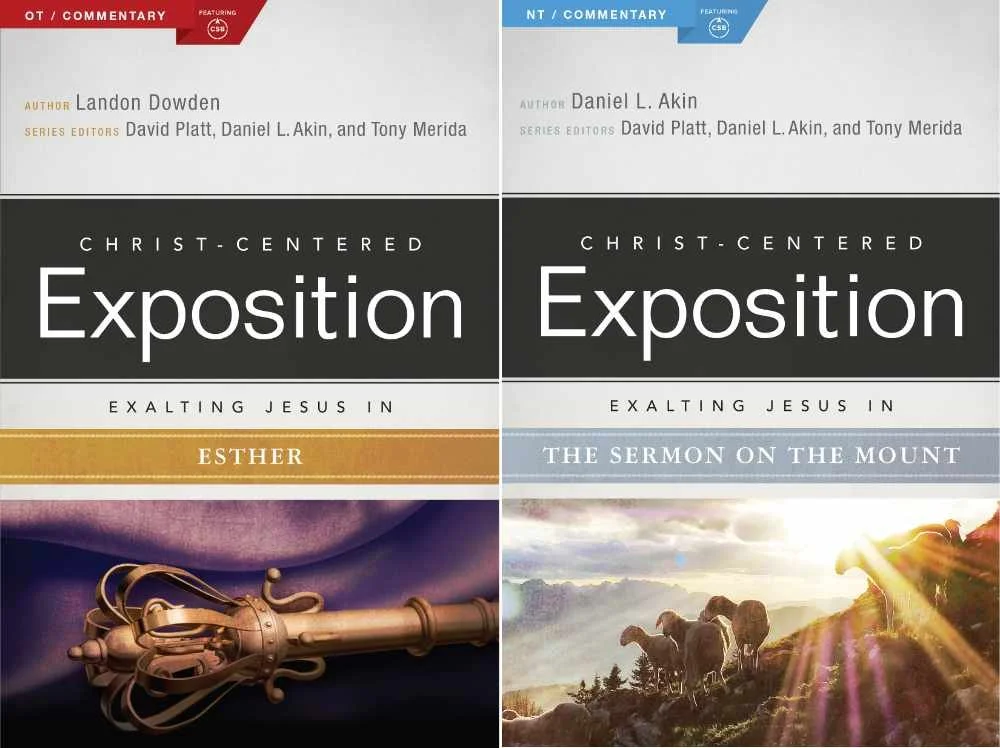
Christ Centered Exposition Commentary for Accordance Review
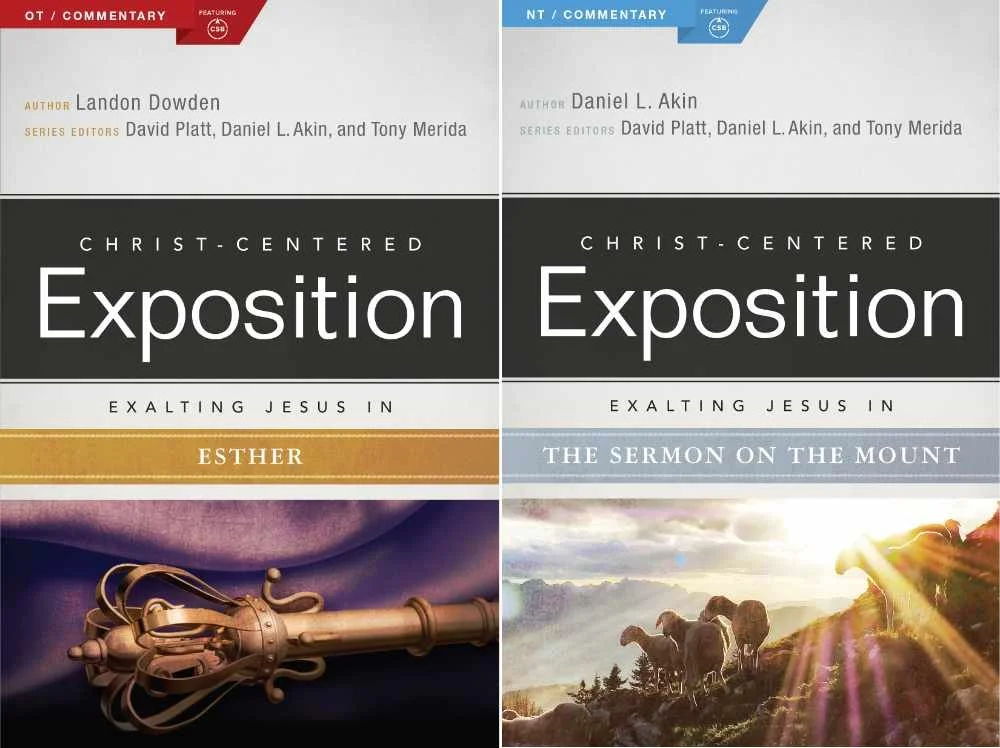
The Christ-Centered Exposition Commentary went on sale at Accordance recently and they gave me a chance to review it for you. How does this series help pastors and Bible students study the word? We'll let you know and show how to use it inside the Bible study suite.

What is the Christ-Centered Exposition Commentary?
Most commentaries come in one of a few categories depending on who will use them. Imagine a spectrum from right to left. Furthest to the left you'd find the most scholarly and technical commentaries that likely make use of original languages and focus a lot on translation, textual critical tools that help scholars at the graduate school or seminary level. You coudl imagine professors and translators using these.
On the far right end you would find what we call a devotional commentary that's meant to be read alongside the Bible for an average Christian whose reading their devotions and just wants a quick paragraph about a chapter or passage. Study Bibles fit in this spot on the spectrum.
The New American Commentary is one of my favorite sets and I own it in every Bible software package I own. It's closer to the center or slightly right of center depending on who you ask.
So where does the Christ-Centered Exposition Commentary fit? It's closer to the devotional side than the middle. It doesn't give users a word-for-word or even a verse-by-verse approach to Bible interpretation. Instead it reads a lot like the notes a preacher would make while preparing for a sermon. What if that preacher then chose to release those notes in book form and you get something like this commentary?
Tony Merida describes the series as looking at the text like one would use a magnifying glass to get up close to a subject or using a wide angle lens to get a wide vista. I would say it seems more wide angel than magnifying glass. But that's a good thing for teachers and preachers after they've spent time with the magnifying glass from other tools.
The commentary series includes 25 volumes from both the Old and New Testament. Here's the list of current books included and their authors.
Old Testament
- Exodus by Tony Merida (2014)
- Leviticus by Allan Moseley (2015)
- 1 & 2 Samuel by Heath Thomas and J.D. Greear (2016)
- 1 & 2 Kings by Tony Merida (2015)
- Ezra and Nehemiah by James M. Hamilton (2014)
- Proverbs by Daniel L. Akin and Jonathan Akin (2017)
- Ecclesiastes by Daniel L. Akin and Jonathan Akin (2016)
- Song of Songs by Daniel L. Akin (2015)
- Isaiah by Andrew M. Davis (2017)
- Ezekiel by Landon Dowden (2015)
- Daniel by Daniel L. Akin (2017)
- Jonah, Micah, Nahum, Habbakuk by Eric Redmond, Bill Curtis, and Ken Fentress (2016)
- Zephaniah, Haggai, Zechariah, Malachi by Micah Fries, Stephen Rummage, and Robby Gallaty (2015)
New Testament
- Matthew by David Platt (2013)
- Mark by Daniel L. Akin (2014)
- Acts by Tony Merida (2017)
- Galatians by David Platt and Tony Merida (2014)
- Ephesians by Tony Merida (2014)
- Philippians by Tony Merida and Francis Chan (2016)
- 1 & 2 Thessalonians by Mark Howell (2015)
- 1 & 2 Timothy and Titus by David Platt, Daniel L. Akin, and Tony Merida (2013)
- Hebrews by R. Albert Mohler, Jr. (2017)
- James by David Platt (2014)
- 1, 2, 3 John by Daniel L. Akin (2014)
- Revelation by Daniel L. Akin (2016)
Buyers can rest assured that the series authors hold a high view of the inerrancy and authority of scripture. They also put a strong emphasis on the role of Christ in every passage of the Bible, as the title suggests.
Editors David Platt, Daniel Akin and Tony Merida come from my denomination, the Southern Baptist Convention. Merida and Platt crafted the series with a pastor's heart while Akin brings a to the series his expertise as the President of Southeastern Baptist Theological Seminary in Wake Forest, NC.
Examples of Key Passages
Take the book of Daniel as an example. The commentary starts out with an introduction from this volume's author, Daniel Akin. The section for Daniel 1 begins with the Main Idea as follows:
Even in times of great trial and opposition, Christians must remain faithful to God and his gospel, imitating Christ’s own steadfastness as he endured persecution and death for our sakes.
Daniel Akin, Christ-Centered Exposition Commentary: Daniel (chapter 1 Main Idea).
As I've preached through both Ezekiel and Daniel over the last couple of years in my church, I've used this series from another software program. I've always appreciated that it offers thoughtful interpretation, with a scholarly background that doesn't hit you in the face. The authors are sure to show us how this passage offers a Gospel message where appropriate. It truly puts Christ at the center of their expository approach.
Readers will not get high-level discussions of grammar, translation or extensive history background. The authors do give the reader enough information about those sorts of details as they help support their interpretation.
Fast foward to Daniel 11:3-4 we get the following entry from Akin.
God Breaks and Divides as He Chooses (11:3–4)
There is a 150–year gap between verses 2 and 3. What happened in that period is not important for the story God wishes to reveal in this vision. Scholars agree that the “warrior king” (ESV, “mighty king”) of verse 3 is the Greek Alexander the Great (336–323 BC). Historians have written volumes about him. God gives him one verse in this chapter! He was a powerful king who conquered the known world of his day and ruled with absolute power. He indeed did whatever he wanted. But he died at age thirty-three. So, as soon as he is established, his kingdom will be broken up and divided to the four winds of heaven, but not to his descendants; it will not be the same kingdom that he ruled, because his kingdom will be uprooted and will go to others besides them. (v. 4)
This is precisely what happened. Alexander’s sons were murdered, and no part of his vast empire went to his descendants. As we mentioned [Dan, p. 140] earlier, following his death, four of his generals divided up his kingdom into four parts:
• Cassander took Macedonia and Greece.
• Lysimachus took Thrace and portions of Asia Minor.
• Ptolemy took Egypt and Israel.
• Seleucus took Syria and Mesopotamia.However, none of these kingdoms ever came close to matching the power and strength of Alexander’s brief empire. God plucked Alexander’s kingdom up, divided it into four pieces, and gave to others as he saw fit. And with that the great Alexander is finished. He served God’s plan and purposes. Off he goes!
Daniel Akin, Christ-Centered Exposition Commentary: Daniel (chapter 11 Main Idea).
Notice Akin brings out the history following the division of the Greek Empire after the death of Alexander the Great.
Jump forward to the book of Matthew and we read about the Sermon on the Mount in Matthew 5-7. David Platt writes in a way that reads like a sermon.
Platt introduced the section with a story about the great Billy Sunday, a 19th century evangelist. Sunday addressed vices from his day like dancing and playing cards. I bet few of us today would worry about such "vices" as Sunday called them. Platt uses the idea to illustrate that we should be extreme different than the secular world.
There was to be a clear line of demarcation between believers and unbelievers. These were things that marked off the people of God—things that marked out holiness, godliness, and salvation. He had a certain picture of what it looks like to be a believer in Jesus, and anything outside that didn’t fit.
David Platt, Christ-Centered Exposition Commentary: Matthew, Matthew 5-7
Platt then gives background on the sermon and dives into the text. This could easily be heard as a message in Platt's church. That's a good thing for preachers or Bible study teachers planning to share the message of the Sermon on the Mount. An ethical teacher or preacher could even use the story citing Platt as their own message introduction.
Tips for Getting the Most Out of the Commentary
When you buy the Christ-Centered Exposition Commentary, you'll download it using Easy Install in Accordance Bible Software. I recommend going into your Accordance Library and move it up the list towards the top. Even if you don't keep there, put there at first. This reminds you to use it each time you study a passage for a sermon, Bible study or your personal edification.
To promote it towards the top of your commentary list, open the Library from the toolbar button. It looks like an open book and by default sits on the left end of the toolbar.
If you removed the Library button, you can access it using the keyboard shortcut COMMAND+OPTION+1 or CONTROL+ALT+1 on Windows. You can also open it from the Window menu.

Expand your Commentaries section the Library. Look for the two new books added to your Library by Easy Install. They'll probably show up at the very bottom of the section. If you have the two-volume set with one book for OT and one for NT, then look for Jesus in the NT and Jesus in the OT. If you bought the single volume set, then look for Christ-Centered Exposition. I wish they would have titled them more like the original titles with something like "Christ Centered Exposition" still keeping it short so you don't have a really long entry in your Library.
When you find them, drag them to the top or near the top. I put them just below New American Commentary, which is my favorite.

Now, if you use the Info Pane or the Amplify menu, the books will show up where you dragged them, in my case just after NAC.

Recommendation
The Christ-Centered Exposition Commentary serves it's purpose well. God used it to help me better focus my study of the books of Ezekiel and Daniel plus other texts from various books of the Bible over the last several years. I look forward to seeing the missing books of the Bible added. Three volumes that you can get in physical or eBook form still don't show up in the set available from Accordance. You can see the whole list with more detailed information about each book at the commentary's website.
Don't expect in-depth exposition on every detail and word. Do expect a pastor approach to the text.
I used the series after doing my own carful observations, word studies, and reading more scholarly commentaries. But I seldom preached a passage without first reading this work if it had a volume on the book I was preaching. I also, often found the preaching focus useful as I introduced a passage using one of the stories the authors included or driving the main idea home for my audience with concluding illustrations borrowed from the authors.
Learn more about the Christ-Centered Exposition Commentary series from Accordance. If you think you could use a commentary that more than just a devotional commentary, but also more accessible than more advanced scholarly sets, then hurry over to Accordance to get on sale until October 26. It's on sale for $99.90 or $50 as a crossgrade if you own it in another Bible program.
For full disclosure I was given a free copy of the set in order to write this review. However, I liked it enough to pay for it in another program when it first came out a few years ago.
Note this version of this article was updated to explain that there's a 2-volume version and that the publishers have a few more books available net yet showing up in the Accordance version.
6 Best Online Bible Study Sites in 2020 - Part One
With Wordsearch about to bite the dust, we lose one of the best online Bible study sites probably by the end of 2020 or early in 2021. So, that means we need to reexamine the online platform for studying God's word.
Five years ago I wrote, "Bible study's going online, not entirely, but increasingly so." Today online bible study is more mainstream, but still not the primary way most people study their Bibles. However, it's better than ever in 2020.
So here's the first 3 of my 6 best online Bible study sites that you can use on a Chromebook, a tablet, or even a smartphone. Fire up any web browser and study your Bible. You'll find that you might not need to run one of the complicated Bible study suites that you install on a Mac or Windows computer.
Why Use Online Bible Study Sites?

With limited storage these computers can't handle huge libraries from the complex Bible study programs like Logos, Accordance or Olive Tree to name some of the most popular.
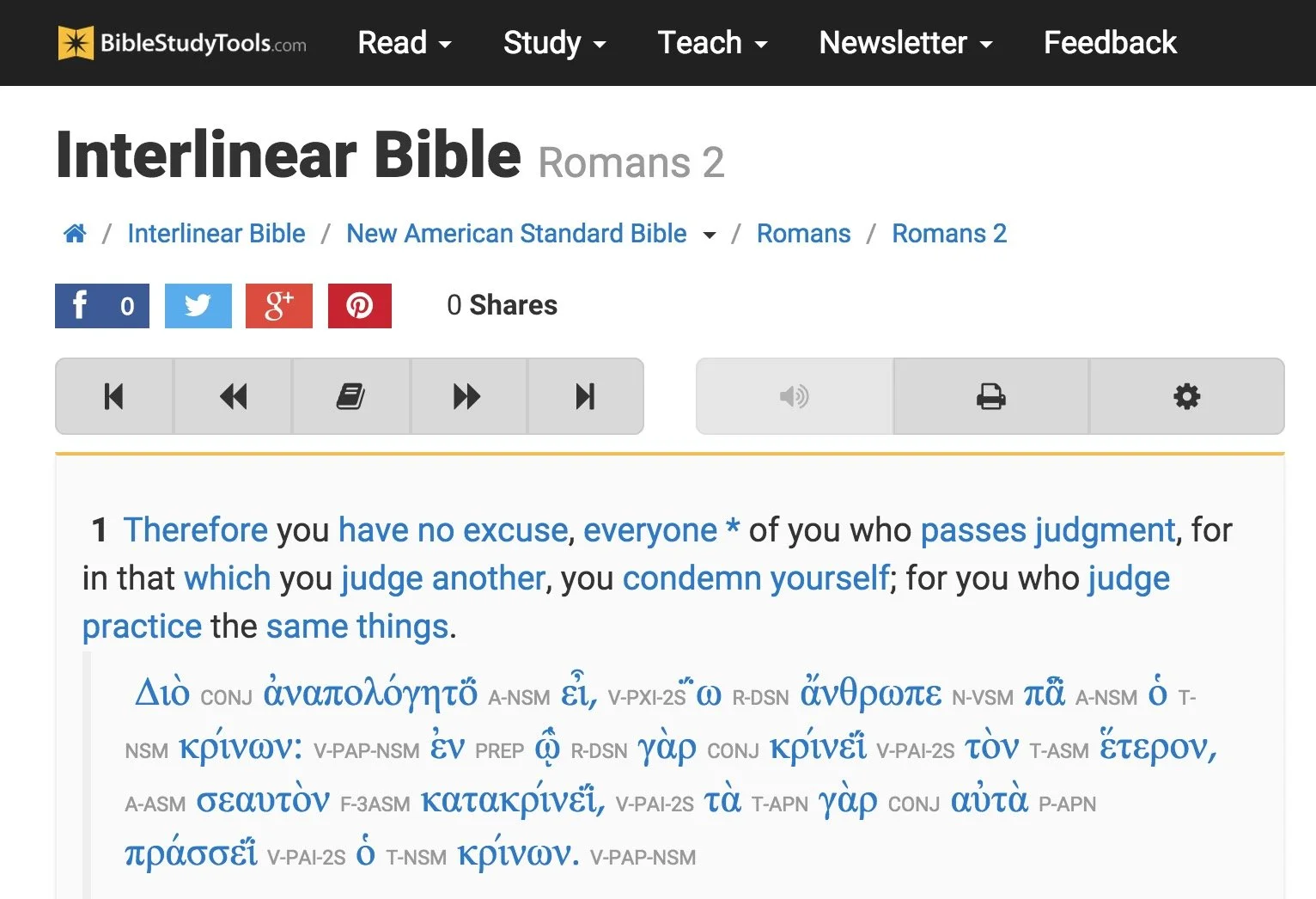
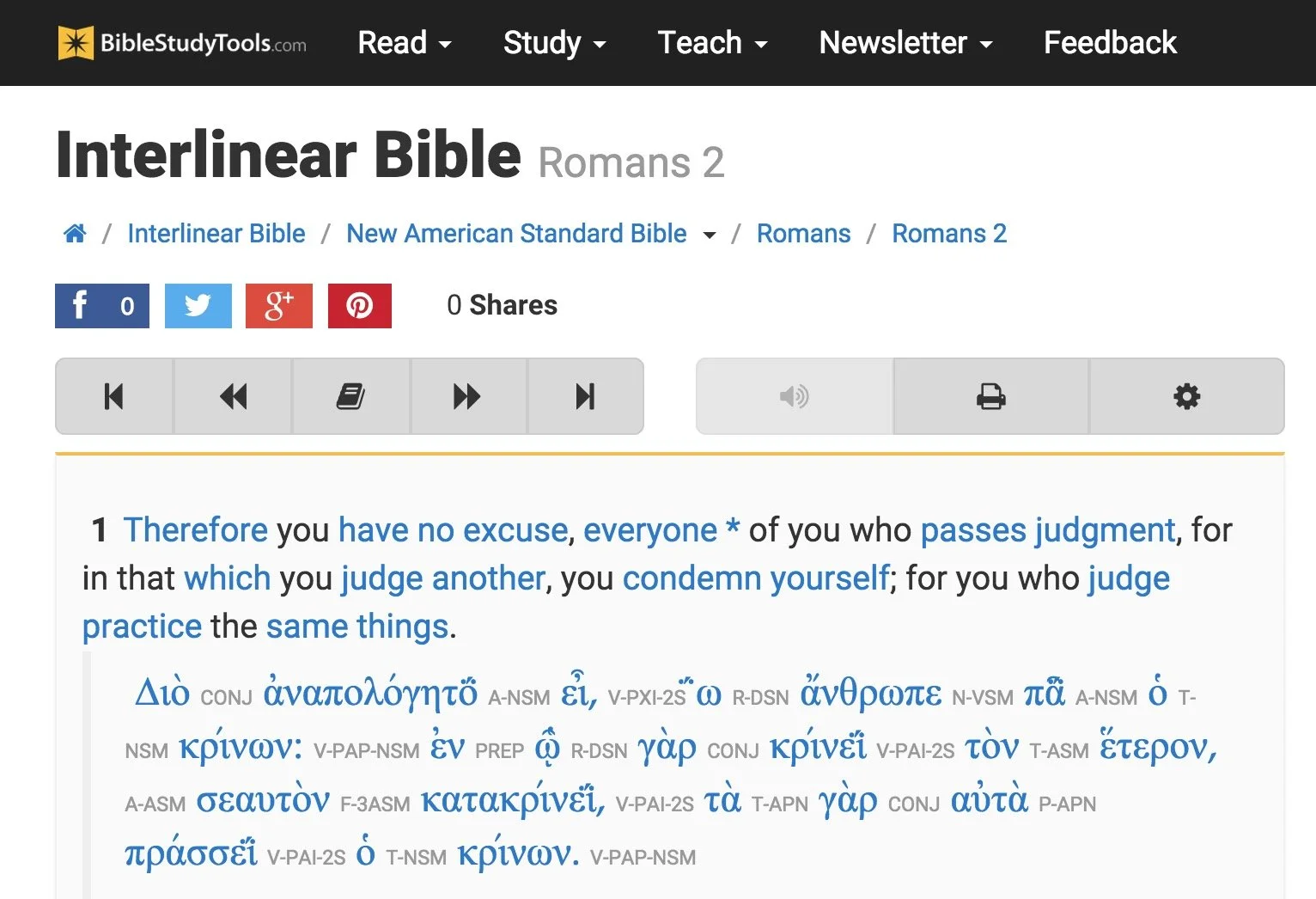
BibleStudyTools.com

We first look at BibleStudyTools.com. What makes this a viable option for intermediate level Bible study software? Users can search the Bible, read it, track daily Bible reading plans and share scripture via copy/paste or links to post to popular social media outlets. Almost every online Bible can do those things. Here's what this site offers in addition to the basics.
Bible Study Tools adds some public domain tools like ...
- Commentaries
- Dictionaries
- The International Standard Bible Encyclopedia
- Old and New Testament Greek Lexicons
- Classic sermons from past scholars and preachers

The site includes a number of modern and public domain Bible translations. The list of Bibles includes...
- ASV
- CEB
- Douay-Rheims Catholic Bible
- ESV
- God's Word
- Good News
- CSB
- Jubile Bible 2000
- KJV
- Lexham English Bible
- NASB
- NIV
- NKJV
- NLT
- NRSV
- RSV
- The Message
There's also some limited original language study. You can use an Interlinear Bible for languages study.
The site will collect user notes and highlights for those who sign up for a free account. The Bible student can mark up their Bibles and save their study findings for future reference.

While the site doesn't offer as many modern reference tools, a user with simple needs can get a lot done. Read a text, highlight it and write observations in a note attached to a verse. Then open the interlinear Bibles based on the KJV and NASB to do some original language study. Search the text for some cross references related to the topics in the passage. This gives any Bible student a good start in understanding their passage.
The Interlinear Hebrew text comes from Biblia Hebraica Stuttgartensia from United Bible Societies. The Greek text comes from Center For Computer Analysis of Texts, University of Pennsylvania based on Nestle Aland 26.
Here's a demo of the old 2015 site. Look for an updated video soon.
After these early steps, open some commentaries, dictionaries or the ISBE and learn more about the passage and what others said years ago. Record those findings in the notes. Then find the passage's Big Idea and come up with an outline using an online word processor like Google Docs or Office 365's version of Word online.
If I had to compare the site to a piece of Bible software, I'd say it can do almost as much as e-Sword with a few modern translations added to it.
Bible Hub

The next of these six best online Bible study websites comes from Online Parallel Bible Project in the form of BibleHub.com. The interface looks a little cluttered, but it's still a useful site with plenty of resources. In fact, it's a deceptively useful tool.
Enter a Bible reference in the top search box and the site opens the verse in all the translations and commentaries available in the left column. Along the right column we find some helpful tools like the context of the passage, cross references and Treasury of Scripture Knowledge.
Here's a demo of the old 2015 site. Look for an updated video soon.
Across the top of the site there's a toolbar that helps people navigate to specific passages in any of the supported translations. The site includes a large collection of modern and public domain translations. The toolbar also includes some public domain commentaries. Access them through drop down lists.
The toolbar buttons put many of the tools a click away. We get a parallel Bible button, cross references and a context button that shows the single verse within the pericope. In addition there's links to a few specific commentaries and more.
Like the other sites, Bible Hub lets me share to Facebook, Twitter and Google+. It includes some nice pictures, maps and outlines.
Biblia

Logos Bible Software users will want to go first to Biblia.com. The site offers a simplified version of what the company offers their customers in their Logos 9 Webapp. You'll need to own one of their expensive software packages or subscribe to Faithlife Connect to access the webapp. You can also check it out because it's very powerful for an online site. We'll look at it in part two of this article.
Biblia gives users access to their Logos Bible Software library online and a selection of tools and features even if you just sign up for a free account. You'll want to pay to really make good use of Biblia. And in that case you'd do better to use the Logos 9 Webapp. However, mobile users may like Biblia since it has a very nice Mobile version of the site.
Here's a demo of the old 2015 site. Look for an updated video soon.
The left hand column includes four tabs with the following features:
- Home - Shows reading plans and the About Biblia list of links.
- Library - List of books available to a user whether they pay for the suite of Faithlife Bible tools, subscribe to Faithlife Connect or sign up for a free account.
- Search - Search one book or other books in the library.
- Notes - Shows notes on a particular verse or book passage from the Faithflife.com community, but not a Logos Bile Software user's notes created in the computer program or mobile apps. You also have to sign into even see this tab.
The main part of the Biblia screen includes two window pane. The user can open books in either side. For example, open a Bible in the center column and a commentary on the right. The two will sync up to the same verse when a user turns the feature on using instructions explained below.
Use a mouse wheel or swipe on a laptop trackpad to scroll through the Bible from Genesis 1:1 all the way to the end of Revelations 22.

Click on the menu button (three dots) in the upper right corner of the window pane to show view settings. The user can do the following:
- Change the font size
- Sync the two panes
- Open the book's table of contents
- Change the reading view from column, stretched across both pans or full-screen reading view
- Toggle the community notes from other Faithlife users (but not personal notes from the computer or mobile apps_
The sharing tool will let you post to Twitter or Facebook, get a link to the verse on Biblia.com to post online or email, and an embed code to post to a website. See image below.

Here's part two of this roundup of the 6 best online Bible study sites.
The Bible Project YouTube Channel Uses Animation to Teach the Bible
This week I plan to start a sermon series on the Book of Daniel. Good modern preachers who want to use multimedia to communicate God's word will see what media they can find to simplify the preaching process. So, I searched for the Book of Daniel on Google and came up with a link to a YouTube Channel of animated videos about the Bible called The Bible Project.
The Bible Project YouTube Channel includes the follow self-description:
Bible Project is a nonprofit animation studio that produces short-form, fully animated videos. Our videos and all of our other resources are available for free to help people everywhere experience the unified story of the Bible.
From The Bible Project About page on YouTube
The Bible Project Videos
On the channel, viewers will find some visually rich and interesting videos that explain various aspects of the Bible including...
- How to Read the Bible
- Biblical Themes
- Spiritual Beings
- Old Testament - overview of the OT and book overviews
- New Testament - overview of the NT and book overviews
- Torah Series - focus on the first five books of the Bible
- Wisdom Series - focus on the wisdom books of Psalm, Proverbs, etc.

Usefulness of Videos
People could use the videos on the site in many ways.
- Personal Study
- When your pastor is preaching through a book
- Sunday School class
- Family Bible study time
- Home school lessons
- Add a Bible element to your children's education if they go to a public school where they won't get Biblical content
If you want to learn more about The Bible Project, you can so look at their website. It includes links to their videos on YouTube and their site Podcast.
During the virus pandemic, many people are still at home instead of attending church with their church family. The folks at Bible Project have a page dedicated to helping people study the Bible in such a situation. After the pandemic this could also be used for people who are sick and can't go to church for an extended period of time.
The videos look beautiful and they're simple enough for older children to understand but not too juvenile. Adults can get a lot of out the videos as well.
Olive Tree Resource Guide - How to Customize the Guide
The Olive Tree Resource Guide shows all the content in your library related to a passage when it's displayed in the main window. Here's how to customize it.
Olive Tree Bible Reader helped revolutionize the study of a passage with their useful Olive Tree Resource Guide. The guide behaves like a study assistant and goes to your library and finds all the books with content related to the passage shown in the Olive Tree Bible Reader. We'll show you how to get more out of the Olive Tree Resource Guide using the Windows version by customizing the guide to your preferences. This looks almost identical on the Mac, so you can use this guide if you run it on macOS. We'll also give some tips for what to change in the guide.
How to Reorder the Olive Tree Resource Guide List of Resources

Before you can effectively customize the Olive Tree Resource Guide, you want to open it. You do this by clicking on the link at the lower right-hand corner of your Bible Reader window.

Now you can see the contents of the guide. You'll also see three other tabs in the new Window that shows up on the right-hand side. Look for the four icons in the lower right corner of the program. They include:
- Resourced Guide - as shown above
- Parallel - a window to show tow books on screen at once and lists all your books in alphabetical order when you first open it.
- Notes - shows your notes.
- Search All - a search box shows up that lets you search your entire library.
Here's a list of the contents of the guide in the order they show up by default.
- Content - shows content from the Bibles like cross references seen in verse notes indicated by an asterisk in the Olive Tree Bible text reader.
- Related Verses - shows the cross references based on translation. For example the ESV shows up in the list and when the user clicks it they will see the related verses for the passage from that translation's notes.
- Commentaries - commentary entries for the current passage.
- Bibles - displays text of your other translations so you can see them parallel to your main window's Bible translation.
- People - shows content about people mentioned in the passage shown in the main window.
- Places - shows content about places mentioned in the passage shown in the main window.
- Topics - shows topics from the main window passage and then shows various content from your library about that topic, like topical Bibles, dictionaries and more.
- Maps - shows maps from atlases and other books related to the main passage.
- Charts - charts from things like study Bibles and such related to main passage.
- Images - any images from your library of books related to the passage in the main window.
- Sermons - sermons from sermon collections on this current passage in the window.
- Outlines - outlines from books that contain them like commentaries.
- Introductions - book introductions from books that have introductions to each book of the Bible.
- My Notes - notes attached the current verse.
- Tags - tags you've created for the current passage.
- Get More - a link to a built-in store to buy more Olive Tree books.
You can customize the resource guide in one of three ways. First, you can reorder the sections. Second, you can add or remove sections. Finally you can do both of those books in each section. Here's how to make those changes.

Click on the Settings button the Olive Tree toolbar. Then choose Advanced Settings from the drop down menu. Clicking on the Advanced Settings button will open the more advanced settings screen.

At the top you'll notice an option to go into Advanced View. In the resulting Advanced Settings window, click on the Resource Guide from the left-hand list. You'll see a list of the sections that show up in the guide. You can click on the buttons to turn off certain sections. Which sections you turn off depends on your preference on how to use the program.
On this screen you can turn on and off each book from each section. You can also reorder the book list by clicking and then holding down the right mouse button and then drag up or down. Click on each section from the left-hand list to change each section. Then go back using the arrow in the upper left corner to go back to the main screen.
On the main Resource Guide screen in settings you can reorder the sections by dragging them up or down.
Tips for Better Using the Resource Guide
On Settings Screen seen above, you can off the Content section. That is the first one listed above. Turn it off. Just trust me. It shows the content of all the other sections in one section, but it's too hard to manage. It's much more manageable to work with each section instead of this one monster section that contains all the content from every other section.
Start by turning off sections you don't want to use. Then reorder the sections. Here's the order I prefer...
- Commentaries
- My Notes
- Related Verses
- Introductions
- Outlines
- People
- Places
- Topics
- Maps
- Charts
- Images
- Sermons
- Bibles
I turn off Tags and Content because I don't use them. Here's the next step.
Hit the Advanced View link at the top of the screen. I turn off the commentaries I don't use first and then reorder them by my preference. I usually put my more advanced commentaries first and then study Bibles after the more advanced commentaries.
Now you can turn off books you don't use from each section. For example, from the Commentaries section, I only use a handful of my commentaries. I can still open them from the library, but I almost never do. So I turn them off here.
In some sections there's not to reorder. You just turn them on or off.
If you own multiple sets of a commentary, you may want to turn off the ones with fewer volumes. For example, I own the New American Commentary. Instead of showing up just once, you get multiple entries. One for the Old and New Testament individually. There's also a15, 17 and 18 volume New Testament set. The Old Testament set has one with 23 or 25 volumes. I turn off the 15 and 17 New Testament sets and the 23 volume Old Testament set. You will then see those entries in places like Introductions and Outlines as well. So, turn them off there too.
Other Settings to Change in Olive Tree
While you're in the settings screen, click on the General Settings tab. Take a look at settings you may want to change here. Then do the same for Colors and Fonts section and the Privacy section.

As an example, I have the following settings in my General section:
- Last Opened for Default Bible for Hyperlinks
- Sync Enabled (on)
- Color Jesus words (on)
- Hide/Show Strong' numbers set to Hide (off)
- Verses don't start new lines (off)
- Show notes and highlights in text (on)
- Iinclude verse numbers (on)
- INclude reference (on)
- At the beginning (off)
- Place on its own line (off)
- Exclude title (off)
Notice that as you turn the above settings on or off the setting text description changes. So the list above shows whether I turn the setting On or Off.
In Colors and Fonts and in Privacy I use the default settings.

How Use Logos Important Passages Guide to Create Sermon Series
How can preachers us the Important Passages Guide in Logos 8 to help them craft exciting sermon series on a given topic in the Bible? We'll show you how.

Would you like to preach a sermon series on a topic in the Bible but also want to preach expositorially? You can use Logos Bible Software and the Important Passages Guide to select passages to study and preach for a sermon series on a topic. Each sermon will cover one passage, but the series serves as a topical sermon series instead of preaching through a book of the Bible as many Expository preachers prefer.

I was going over the new features in Logos 8 recently and forgot about the Important Passages Guide. As I looked over this new tool in Logos 8, it hit me - this would work great for picking passages to study and preach while crafting a sermon series on a particular topic.
Most expository preachers like to preach through books of the Bible. I am one of those. But I also like to choose passages that cover a topic and then study the passage covering that topic to preach expository messages on them. We'll show you how to put together a sermon series on passages found using the Important Passages Guide in Logos 8.
What is the Important Passages Guide in Logos?

Logos added the Important Passages Guide when it released Logos 8 back in 2018. Users will see it from the Guides Menu on the Logos toolbar. Find it quickly by typing in the Guides search box the first part of the guide's name "Important" and it will show up as the first item in the Bible Reference Guides section. You can also scroll down to the Bible Reference Guides section.

When it opens, it looks totally blank. Type a passage into the box at the top of the new window like John 3:16. It will search the index and find passages related to the topics in that verse.

After searching for a passage, you'll see the results that will like the image above. You see a few things.
- The top line says "References of All Types To all passage" - these help you choose what will show up in the list of passages. Click on All Types to change the types of passages. Click on To to change whether the passages will go out from the selections below or to the selections below. More on these options below.
- The Add menu lets users add types of datasets. Click it to see what you can add.
- Under each passage you see hyperlinks to various kinds of content found in Logos. These links will open the Factbook. For example, the above image shows the Factbook entry for God: Love. You'll see other kinds of links.
- The links at the bottom of the window will...
- Show more passages found
- Save the list as a Passage List
- Open all of the found passages in your top Bible translation
The To and From links in part 1 above will change the list of passages as follows:
- To - To finds cross references from other passages that link to your passage. So if a passage links to John 3:16 it will show up in this list.
- From - All cross references in your various translations that go out from John 3:16 will show up when you select From.
How to Use The Important Passages Guide to Choose Sermon Topics
I often read a passage in my quite time or while I'm listening to another Bible teacher or preacher and think, "That passage make a great sermon." Then as I look at the passage it leads me to look up others and inspires me to preach a series of 3-6 sermons or more on that topic.
You can quickly find a lot of passages from the Important Passages Guide by entering the verse that inspired you into the search box of the guide. Then read through the resulting searches.
Take this a step further by adding various kinds of datasets. Click on the Add button and choose something like Topics. This gives you more passages from that dataset. A dataset refers to sets of information that Logos organized around that kind of info. In this case, they collected the Topics together into the Topics dataset.
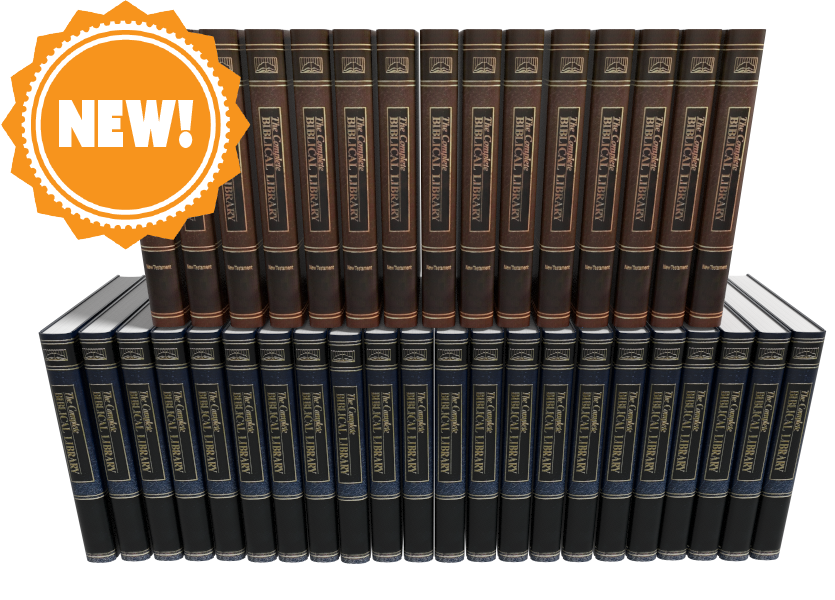
Complete Biblical Library in Accordance Bible Software
The Complete Biblical Library for Accordance Bible Software just came out and we got a chacne to take a look, What's included in this package and is it worth your time and book budget to add to your library?
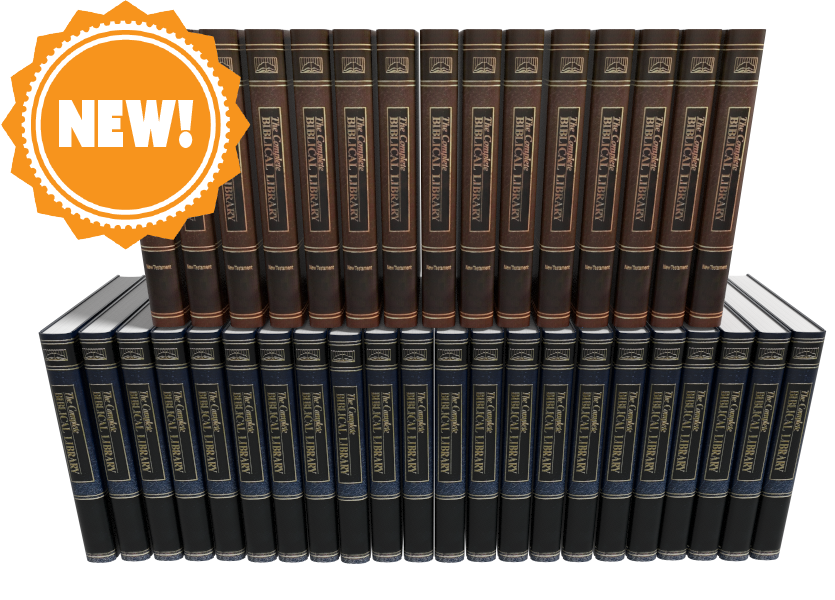
Accordance Bible Software released the Complete Biblical Library this past week making Accordance only the second digital Bible study distributor to offer this tool. We'll take a look at the Accordance version and let you know if it merits an investment of your Bible study tool dollars.

What's Included in the Complete Biblical Library
The Complete Biblical Library includes an advanced Study Bible of the Old and New Testament and Hebrew and Greek dictionaries. Book versions of the Complete Biblical Library are now out of print and pretty expensive. People familiar with the library will wonder what happened to the other parts of the Library? Where are the other tools normally included in the Complete Biblical Library? From the Accordance website:
The CBL Greek grammar is in development and will be added at a later date. The CBL Gospel parallels and CBL Interlinear did not add extra value over similar material already included in Accordance, so we do not have plans to release these two components for Accordance.
Product Details from Accordance website
You can get those other tools from the 17 volume book version or from Wordsearch, but both will cost you more than Accordance Bible Software's version. During this introductory deal the Wordsearch version will cost more than twice as much and after $50 more.
Accordance users will recognize that the software already gives users a great interlinear on many translations of the Bible. You can also use their Gospel Parallels. They both come as part of their basic $100 Starter Collection.
Complete Biblical Library Study Bible
You probably own a number of study Bibles. Most of them offer a few things...
- Introductions to books of the Bible.
- Short notes on pericopes or sometimes each verse of the text.
- Some add extra graphical content like charts, maps, graphs, tables and more that enhance understanding of the text.
The Complete Biblical Library includes some of these, but think of it as a study Bible that wants to be a more advanced commentary.

The Complete Biblical Library Study Bible begins each book with an nice book introduction. That introduction will include an overview of the text with an outline and some commentary on each section as a whole before it gets the verse-by-verse section.
Following the book introduction, you'll get the verse-by-verse commentary of the text.
CBL Study Bible Verse-by-verse Commentary

Each verse or passage includes two things...
- The verse in the KJV with alternative translations from dozens of other translations, but none of them are the more modern translations like ESV, CSB, NIV or others since the Complete Biblical Library came out before most of those landed. The translation identifiers are hyperlinks to the key which identifies what the translation abbreviation refers to. That helps because the library includes some obscure translation. Click it or hover over it and it either opens the pages from the library that explains what the abbreviations stand for or it pops up in your Instant Detail window.
- Commentary on the verse. We're used to a few lines per verse, but you'll often see a few paragraphs per verse like a full commentary. That's why I call this a Study Bible that wants to be a full commentary.

Bible students often tout the ESV Study Bible as one of the best, and I agree. I like it a lot and it's one of my top 3. However, compare the content of the two. You get much more with the Complete Biblical Library.
Here's the entry for Mark 5:25-26 in the CBL...
And a certain woman, which had an issue of blood twelve years: . . . had been troubled by bleeding, —ALBA . . . ben in the blodi fluxe twelue yere, —WCLF.
And had suffered many things of many physicians: . . . suffered much under many doctors, —BECK . . . had been treated in many ways, —LTMR . . . had been greatly tortured, —FNTN . . . under a number of doctors, —MOFT.
and had spent all that she had: . . . expended all her property, —WLSN . . . spent all her savings, —KLGS . . . in the process, —PHLP.
and was nothing bettered, but rather grew worse: . . . but to no avail, —ALBA . . . and profiting nothing, —CLMT . . . had not been benefited, —HNSN . . . was not even one bit improved, —WUST . . . without receiving any relief, —CMPB . . . and felte none amendment at all, —TNDL, —CRNM.5:25, 26. It is not possible to know with certainty what the “issue of blood” was, but the traditional suggestion is the best, namely, an abnormal bleeding from the womb.
Such a condition would have been physically debilitating. Mark’s Gospel includes the information that the woman “had suffered many things of many physicians.” Luke, who appreciated the limitations of a physician, says she “could not be healed by any one” (8:43, RSV).
What the woman may have suffered can be estimated from the Talmud, (Shabbath 2:110) which includes a list of treatments for “the woman that has an issue of blood.” Among them were: “Take of the gum of Alexandria the weight of a zuzee (a fractional silver coin); of alum the same; of crocus the same. Let them be bruised together, and given in wine to the woman that has an issue of blood. If this does not benefit, take of Persian onions three logs (pints); boil them in wine, and give her to drink, and say, ‘Arise from thy flux.’ If this does not cure her, set her in a place where two ways meet, and let her hold a cup of wine in her right hand, and let some one come behind and frighten her, and say, ‘Arise from thy flux.’ But if that do no good, take a handful of cummin (a kind of fennel), a handful of crocus, and a handful of fenugreek (another kind of fennel). Let these be boiled in wine and give them her to drink, and say, ‘Arise from thy flux!’”
Many additional potions and rituals were suggested of the following kind: “Let them dig seven ditches, in which let them burn some cuttings of vines, not yet four years old. Let her take in her hand a cup of wine, and let them lead her away from this ditch, and make her sit down over that. And let them remove her from that, and make her sit down over another, saying to her at each remove, ‘Arise from thy flux!’” (See Vincent, Word Studies in the New Testament, 1:189.)
One can readily see why the cure was many times worse than the disease, so that she “was nothing bettered, but rather grew worse.”Mark 5:25-56 entry of Complete Biblical Library
Now look at the ESV...
5:25–27 While Jesus is on his way to heal Jairus’s daughter, Mark interjects the simultaneous event of the healing of the woman with a constant discharge of blood (vv. 25–34; see note on Matt. 9:20). On account of her condition, she is ceremonially unclean (cf. Lev. 15:25–28) and is not permitted to enter the temple section reserved for women; nor is she permitted to be in public without making people aware that she is unclean. By touching Jesus’ garment, she technically renders him ceremonially unclean (cf. Lev. 15:19–23), but Jesus is greater than any purity laws, for he makes her clean by his power instead of becoming unclean himself (cf. Mark 1:41; 5:41).
ESV Study Bible entry for Mark 4:25-27
But it's not just the amount, but the quality. That's why I really like the CBL. It's a nice balance of simplicity for the average pastor or Bible study leader, but has enough rich content that makes it more than the average or even above average study Bible. The ESV Study Bible serves people who just need a quick hit about what the passage says. The Complete Biblical Library Study Bible gives more advanced understanding like a pastoral commentary would.
Complete Biblical Library Dictionary
In addition to the Old and New Testament Study Bible, Accordance adds the Hebrew and Greek Dictionaries of the Complete Biblical Library. Each entry explains the word with some useful information that you often don't get in other language dictionaries. The links to other lexicons alone almost makes it a worthwhile tool.
Put the CBL dictionaries at the top of your list of Greek and Hebrew Lexicons in your library and you can quickly open the CBL Dictionaries with the Triple Click action. Just click on an English word three times in the text and it opens a new window with the dictionary pointed to that word in Greek.
The Amplify feature in Accordance also brings up the dictionaries. Highlight your word and click on the Amplify button on the toolbar. It will drop down a list of your reference titles. Go to Greek or Hebrew Lexicons. A new list flies out and you can find the CBL Greek or Hebrew Dictionaries there. The books also show up in your Library under the Lexicons section.

When you view a Hebrew word in the Complete Biblical Hebrew Dictionary, you'll see the following:
- The Hebrew word and an English transliteration
- Part of speech like verb, noun, etc.
- A brief definition of the word
- Hebrew Cognates
- Synonyms and their Greek and transliterated forms
- Concordance listing of the word in the OT
- Discussion of the use of the term in the OT
- Links ot other Hebrew dictionaries like BDB, NIDOT, Strong, etc.
Here's an example of the Hebre word lavav (hear from Ezra 7:10)
3955. לָבַב lāvav
verb
to gain insight
Cognates:
לֵב lēv (3949)
לֵב lēv (A3950)
לְבַב lᵉvav (A3956)
לְבִבָה lᵉvivāh (3957)
לִבָּה libbāh (3959)Concordance
2 Sam. 13:6 and make me a couple of cakes 3
13:8 and made cakes in his sight, 3Job 11:12 vain man would be wise, 2
S 4:9 Thou hast ravished my heart, my sister, 3
4:9 thou hast ravished my heart with one 3
Three of the five occurrences of this verb in the Hebrew Bible (Job 11:12; S.S. 4:9) are denominatives from lēv (HED #3949), “heart,” “interior,” “will,” “mind.” It has cognates, all of which are likewise denominatives, though not all are based upon these same nominal nuances. The remaining context is a denominative from lᵉvivāh (HED #3957), “cake.”
In the speech of Job’s visitor, Zophar, lāvav means “to become wise.” Job was accused of falsely asserting innocence, for Zophar assumed that all calamities were divine punishment for sinful deeds. Job’s sudden fall from material bliss fit the pattern of divine retribution. Zophar asserted that Job’s claim of innocence was perjury and that Job’s words could not change reality. He expressed this through a simile, saying, “A vain man would be wise, though man be born like a wild ass’ colt.” His point was that Job’s understanding could not compare to Yahweh’s, so he should accept his guilt, and then try to appease Yahweh.
Lāvav appears twice in the context of the proclamation of the groom to his beloved, that her physical presence has had a profound effect upon him (S.S. 4:9). The verb is usually translated something to the effect “you have ravished my heart.” This works contextually, but it is not so clear etymologically. Clearly, the heart or will of the groom has been affected by the glance of the woman, or by a glimpse of her. How to define precisely this action on her part is difficult, hence the usual translation. The problem is that there is no verbal idiom in English which corresponds to this verb.
The final context involves a completely different meaning, possibly formed from lēv as well. Here lāvav refers to “baking” cakes of bread.BDB 525
DCH לָבַב
KB 2:514–15
NIDOT 2:749
STRONG H3823
TDOT 7:399–437
TWOT 1:466–67Entry in Complete Biblical Library Hebrew Dictionary for the word lavav
The Greek Dictionary shows the Greek word and a transliteration in English. You then also get...
- Part of speech (Noun, Verb, etc.)
- Brief definition of the word
- Synonyms and their Greek and transliterated forms
- Septuagint listing of entries for the word
- Grammatical Forms of the word
- Concordance listing of the word
- Discussion of the classical Greek and Septuagint usage of the word
- Discussion of the terms usage in the New Testament
- Links to other Greek dictionaries of the word like Strong, Bauer, Liddel-Scott etc.

Here's an example from the Greek dictionary for the word rhusis (bleeding from Mark 5:25).
4368. ῥύσις rhusis
noun
A flowing, an issue.
STRONG 0
Synonyms
4339 ῥέω rheō
Septuagint
2183 זוּב zûv Have a discharge (Lv 15:2).
2184 זוֹב zôv Discharge (Lv 15:3, 25f.,30,33).
4888 מָקוֹר māqôr Flow (Lv 20:18).
7425 קָרֶה qāreh Emission (Dt 23:10).
8916 תְּעָלָה tᵉꜥālāh Channel (Jb 38:25).Grammatical Forms
ῥύσις rhusis nom sing fem
ῥύσει rhusei dat sing fem
Concordance
2 which had an issue of blood twelve years, Mark 5:25 (KJV)
2 a woman having an issue of blood twelve years, Luke 8:43 (KJV)
1 and immediately her issue of blood stanched. Luke 8:44 (KJV)Classical Greek and Septuagint Usage
New Testament Usage
STRONG 4511
BAUER 738
MOULTON-MILLIGAN 565
LIDDELL-SCOTT 1577
COLIN BROWN 1:682–83
SILVA “ῥύσις”All three occurrences in the New Testament refer to a woman who had an “issue of blood” for 12 years (Mark 5:25; Luke 8:43, 44). Having heard of Jesus’ miracles, this woman believed that if she could just touch His clothes she would be made “whole” (Mark 5:28). Pressing through the crowd she managed to touch His garment and was immediately healed (verse 27). Jesus then told her it was because of her faith that she had been made whole (verse 34).
Entry in Complete Biblical Library Greek Dictionary for rhusis
Value and Recommendation
Accordance users should jump at the chance to get the Complete Biblical Library at the introductory discount of $200. They also offer a Crossgrade price for people who already own it in Wordsearch. You'll pay $85 for the OT Crossgrade and $75 for the NT Crossgrade for a total of $160. That's a pretty good deal considering the full-price is $450 or currently $1000 in physical book form for used editions. With Crossgrades in Accordance you'll have to fill out a form showing you bought the books before in Wordsearch.
If you already missed the discount, then the $450 price may cause pause for some. I like the tool and think people who want a good verse-by-verse commentary, with excellent book introductions, should take a look and strongly consider adding it to their library. The dictionaries give the user a lot of useful information in a central location. The links to other dictionaries makes it a great option to look at first in your word study as you prepare a sermon or Bible study.
For these reasons above, the Accordance Bible Software Complete Biblical Library gives pastors, Bible study leaders and serious students a great value at the discounted price and is still worth it at the ongoing price.
![Accordance 13 Upgrade with 8 Exciting New Tools [Video]](https://images.squarespace-cdn.com/content/v1/690ba83ee90436386a0306e7/1762379317898-OE0KTDPYUU970RNR91MB/image-asset.jpeg)
Accordance 13 Upgrade with 8 Exciting New Tools [Video]
Accordance Bible Software recently updated their advanced Bible software to Accordance 13. It comes with some incredible new features to make this powerful Bible software package even more useful. Check out the brief descriptions of 8 new features demonstrated in the included video. Mark Allison and Rick Mansfield joined me on Theotek on Youtube.
Accordance 13 Upgrade Demo Video
Accordance 13 Dark Mode

The upgrade to macOS 10.15 Catalina included something called Dark Mode. Accordance adopted this with their software. If you love Dark Mode on a Mac then you'll likely love it in Accordance 13.
The way the company implemented Dark Mode lets you customize it so that if you don't want it in certain places you can turn it off. However, by default the entire user interface will show in Dark Mode when you turn it on.
Dark Mode does not work yet in the Windows version of Accordance. But it should come soon.

To turn on dark mode in Accordance you'll need to first turn it on in macOS System Preferences. Open System Preferences from the Dock or from the Apple Logo in your menu bar. Click on General and then click on either Dark Mode to turn it on all the time. You can also use it only in dark environments by using the Auto setting next to Dark Mode.

Now go to Accordance 13's settings from the Accordance menu in the upper left on your menu bar on your Mac and click on Preferences. Then open the Appearance setting screen in the list on the left of the preferences box. Now click on Automatically adjust to system dark mode. This will turn on Dark Mode if you turn it on in the Mac System Preferences. When you set this preference, it will require you to restart Accordance before it takes effect. Choose the Restart Now button unless you want to wait to apply it the next time you launch the program. After you click Restart Now you will have to click on the OK button to restart the program and you'll see the new Dark Mode.

6 New Themes in Accordance 13
Accordance 13 also adds new themes. These change the coloring and fonts used in the user interface. You can't choose these new themes if you keep the program in Dark Mode. The new Themes will work on Windows.
Switch to a new Theme from the same Appearance screen in Accordance Preferences. On Windows it will show up on the Edit menu. On Mac it's in the Accordance Menu.
Click on the General Theme drop down box (see image above). You'll see 6 options. Click on one and click the Preview button. Now you'll see the new theme applied.
Search Inside Accordance 13 Preferences

The Accordance 13 Preferences contains hundreds of options that the user can change, but finding them can get difficult. When you type in the box it starts showing possible entries guessing what you want. You can click one of the entries in the drop down list and it takes you to that page in the program's Preferences.
Built-in Accordance 13 Tutorials

Accordance has a vast array of Built-in Tutorials ready to help you learn to use the features in Accordance 13. In Windows, click on the Help menu and find Tutorials. A fly out menu shows up with a long list of them. In the top you will see them grouped by Difficulty level. Click on Easy, Intermediate or Advanced to see more Tutorials based on t hose levels of skill.
Below the Difficulty section you'll see them grouped by Topic. Click on a Topic to see the Tutorials related to that Topic.
Highlighting in Accordance 13

The new Highlighting feature brings some exciting new ways to mark up your Bible. You'll see the same old highlighting colors and icons, but now you've got some new ways. You can even use an Apple Pencil, if you own one. We'll show you how below.
Click on the Highlight toolbar button to open the dialog box. On top fo the box you'll see buttons for Highlighter, Pen and Eraser. The first one, called Highlighter shows your usual tools for highlighting words and verses.

The second one is labeled Pen. lets you draw circles and squares to name a couple. The program detects what you're drawing and cleans it up to make it look pretty. Then, if you want, you can also draw straight or curved lines to connect words. You can also draw arrows.
The lines and shapes can get challenging to draw accurately with a mouse or trackpad. A Windows machine with a Pen, like the Surface Pro, might make this easier. You can also use the new Sidecar feature in macOS 10.15 Catalina if you have a recent model Mac and iPad with Apple Pencil.
Eraser does as it says - erase your highlighting. Click it to get rid of hour highlights.
Highlighting Whiteboard Feature

Another Highlighting tool lets you draw all over the place like a whiteboard and marker. These don't get saved, but you can use this to teach with Accordance displayed on a screen or by recording your screen and uploading the video somewhere.
Turn on Whiteboard by checking the little box labeled Whiteboard Drawing to the right of the drawing color options in the Highlighting dialog box. After your done, you can clear the drawings by clicking on the Clear Whiteboard button.
To save the videos do a screenshot and then add that image to an Accordance Note. I'll create a video on this soon, so check back on this page or my YouTube channel for that video.
Accordance 13 Text Search Command

The Text Search command is a new way to enter special search features in Accordance 13. This helps you find things in your grammatically-tagged texts like the grammatically tagged Greek New Testament or BHS Tagged Hebrew Bible. This especially benefits users who don't know Greek or Hebrew because they can search for grammar tags while they're in an English text.
First, open a English Bible with Greek or Hebrew tags like the ESV with Strong's. Then open the Text Search box.

To open the Text Search Command box, go to the the Search menu and find Enter Command in the menu. A fly out menu shows up with Text on the list. Click it to open a new dialog box. Or you can use the Shift+Command+T to open the box.
Now you can use this to search by adding commands to help you find things based on grammar tags. The drop down box at the top lets you search in various Bibles. Pick a Greek or Hebrew Bible with grammatical tags like the Greek NT Tagged.
Now you'll see that both the Enter Command and Enter Tag boxes are active. They are drop down boxes that let you add either kind of search feature to the search box. Perform your search now using one or both.
Accordance 13 Amplify to Constructs
There's another new way of searching called the Amplify to Construct feature. This feature lets you create really complex searches using a graphical user interface.

Access this feature by selecting the some text that you want to search, like "God of peace" found in Romans 15:33. Select it and right-click and choose Construct and then choose one fo the four options. You will only see Word if you are using an English Bible with only Strong's tagging. You can also find this by using the Amplify menu and choosing Construct.
This opens a new dialog box that lets you change the search and add more features to your search. We don't have to room to show you all that this can do, so be sure to watch the YouTube video at the top where Rick Mansfield demonstrates the feature more in depth.
PDF Import in Accordance 13
Now users can import their PDF documents into Accordance 13. This is not perfect but works well with simple PDFs.

Import a PDF document by clicking on the User Tool button on the tool bar. If you don't have it, add it by right-clicking the tool bar and drag the button to the tool bar. A menu pops up and you'll choose Import... from the list.

Users can also import using the New menu. Click it and choose Import User Tool....

Regardless of which method you use to start the import process, it will open a new Import to Tool dialog box. In the drop down box at the top select PDF and then OK. The program will give you a copyright warning. Click OK and find the file on your hard drive.
After it imports the Accordance 13 displays the new User Tool. You can edit it just like you do any other tool or your notes.
Mouse Over Highlighting Between English, LXX and Hebrew Bible
Now with Accordance 13 you can open an English text with tags, a Hebrew Bible and the LXX and as you select a word in Hebrew it will show you that word in the other two.

Open a tagged Hebrew Bible, a Septuagint that's also tagged, and an English Bible with tags. Then hover over a Hebrew word and see what word that corresponds to in the Greek and English.
This helps users study Hebrew and Greek words even if they don't really know Hebrew or Greek.
Best Bible Software for Average People in the Pew
What are the best Bible software apps for people who aren't studying the Bible to preach or write a commentary or teach in seminary? This roundup of the best Bible software for the person in the pew will answer your questions.
What is the best Bible software for people in the pew? That question doesn't get a lot of attention, especially here. However, I want to change that with this post. What are the best Bible software options for the lay Bible student? These all run on one of the most popular platforms - Windows, Mac, iPhone, iPad or Android. A few will run on all of these platforms.
Advanced Bible Study software gets most of the focus on this site, but plenty of Bible students don't need the high-powered scholarly Bible study software that a pastor, researcher or Bible translator needs. They only need to do a few things like...
- Search for verses
- Read the Bible
- Study the Bible for teaching a class
- Writing blog posts
- Personally study the Bible
These lay people want more than a simple Bible reading app but don't need as much as the expensive and powerful suites offer for hundreds of dollars. If you're interested in simple Bible study apps to just read the Bible, look up some verses by searching by word or topic, and creating a reading plan, then take a look at my list of the best simple Bible apps that I published over at ChurchTechToday.com. Our purpose in this post is to look at the apps and software that fit between those simple Bible reading apps and the powerful tools that scholars and pastors need.
Olive Tree Bible
Olive Tree Bible fits in an in-between spot. A Bible study software user can get past the simple or basic Bible study level, but it really shines for the user who wants more than just reading plans and sharing to Facebook. You can do both of those, but you can do a lot more.

It runs on almost every platform from computers to smart phones and tablets. The app or software costs nothing and you'll get some public domain books for free plus a modern Bible or two. To get a little more advanced you need to pay for extra commentaries.
Open the app on your computer or mobile device and you can just read the Bible. You can also open the Study Center (the right hand section in the image above) to look at the Resource Guide where you'll find all the books in your library related to that passage open in the current Bible.

Tap or click on words to search, look them up in dictionaries or find out what a Strong's tagged dictionary says about the world. This lets users who don't know Greek or Hebrew understand the original languages behind the English words. You'll need a Bible with Strong's numbers tagging, like the KJV seen above. Olive Tree sells a lot of them.
Keep notes or highlight. You can also bookmark verses. If you enjoy listening to books, then buy some audio books to hear the book instead of read it. They have a lot of titles in the Christian Living category. You can also listen to your Bible or to other books.
Olive Tree Bible runs on all of the top platforms with a free app download and costs extra for the best books.
e-Sword
The top dog in free apps deserves a spot in our list of the best Bible software for lay people because it's free and easy to use. In addition, if you want to spend some money, you can buy some more modern translations, books and commentaries at eStudySource.com.
e-Sword comes with a simple layout in four quadrants plus a list of the books of the Bible along the left. In each quadrant, you get tabs for each Bible or book installed. On each tab you'll find a book or Bible with a toolbar for performing basic tasks.

The program's main toolbar lets users search the Bible or book, jump to passages or change the layout. You don't have to use the four main quadrant layout. You can show just one, two or three as well.

If you use a Bible with Strong's numbers, then you can click on it to see the definitions in a tooltip popup. Also, scripture links in the other books will show up as links. They have tool tips too.
e-Sword has a user note system, bookmarks and highlighting too. Take a look at see if it will fit your needs. The Windows version is totally free. The Mac version is called e-Sword X and will cost $9.99 from the Mac App Store. I wrote about it when it first came out for Mac. The iPad app costs $4.99. Look for e-Sword HD in the app store. The version that runs on an iPhone costs $2.99 in the iPhone app store.
I love that there's a large community of users who've made their own books out of public domain books. Check out eswordlibrary.com, one such source. And you can buy modern translations and recently published commentaries, Bible dictionaries and more from eStudySource.com as mentioned above.
Wordsearch Bible
Wordsearch Bible software offers a lot of power in a simple to use package. However, it only runs on Windows and Mac. There's also a very poor mobile version for Android and iOS, but don't bother if that's where you want to study the most. Also, if you're a Mac and iOS user only, I don't recommend it because it's not a native macOS program. They created it using the Windows software and put it in an emulation package. I include it here, because on Windows it's great! Also, for Chromebook users or Mac and iPad users, MyWSB.com gives access to your library on the web inside a browser. And it's pretty good.
Wordsearch 12 opens by default to a homepage, but the real magic come with you click on the Study tab or Library tab across the top of the windows. They also have links to their social media (bottom right) and app store sites for their mobile and online versions of Wordsearch.

The main Study screen has a Windows Explorer style layout with the Bible displayed on the right and the library and books shown on the left.You can show or hide both of these lists.
Other great features include...
- Parallel Bibles
- Templates to save your study environment
- Integration with OneNote for syncing files
- LessonMaker tool to quickly create studies
- Powerful search features
- A large library of books with a lot of free options
- Free training online
PocketBible
The first Bible study app I ever used came from QuickVerse. The creator of QuickVerse saw the value in mobile Bible study early on before the iPhone even existed. Now you can use PocketBible on all platforms including Windows, Mac, iOS, and Android. It comes from Laridian and the creator, Craig Rairdin is a pioneer in Bible software.

Notice above that the app can show a lot on screen at the same time. This is true, not only on Windows and Mac, but also on the iPad and Android tablets. Few mobile apps let you view more than one or two books at a time.
The mobile version is also very capable. You can use it on iPad, iPhone and Android.
You can use the “Advanced Feature Set” that comes at a small upgrade price of $17.99 on all of these platforms. It’s slightly less on just one platform. There’s a journal feature, an auto study feature that finds all of your books with content related to a particular passage or a word. There’s an audio Bible included. On iOS you can use a reading mode that shows only the text on screen without the toolbars for a distraction free environment. There’s more so check it out at their website related to the advanced features.
3 Best Android Bible Study Apps for 2019
Here are the 3 best Android Bible study apps for 2019. This focuses on serious study and not just Bible reading apps.
It's been a while since we rounded up the best Android Bible study apps so lets take another shot at it for 2019. This list of the best Android Bible study apps for 2019 includes Bible study apps as opposed to Bible reading apps. What’s the difference?
- Study original language with more than just Strong’s
- Offers modern translations and powerful searching
- Offers modern scholarly, pastoral and devotional commentaries
- May also offer other eBooks and digital reference books like dictionaries, lexicons and atlases
Please note that we've updated this to the 5 Best Bible Apps for Android. Click here to see it.

Many Bible apps will include a few of the above, but they usually only include public domain or just one or two. Instead the Android apps we're offering helps users study the Bible on a deeper level. A scholar or pastor could use them while mobile. Maybe they won't fully replace a desktop Bible research tool, but they can help the studier stay productive on the go while they wait at a restaurant for a spouse who’s shopping or while sitting in the car picking up their child from school or soccer practice.
To test these out and compare them, we'll give them a score of 1 to 20 in a five different areas.
- Ease of Use
- Cost of Ownership (app plus books)
- Quality of Features
- Library Size and Quality
- Attractiveness of the App’s Design
To get a full score in each of these the app would mean the app’s perfect in that area. So let’s take a look at the 5 Best Android Bible Study Apps for 2019!
Olive Tree Bible
It's not surprising that we'd put Olive Tree Bible (Free plus cost of add-on books) on this list since it made our list of top Kindle Fire Bible apps.
Olive Tree looks beautiful on most platforms. It's not as pretty on Android as it is on other devices, but does look nice and professional. You can tell that designers made the buttons and menus instead of just coders cobbling together something that's functional.

Olive Tree does a great job of quickly showing the user all of their content thanks to the Resource Guide. This section looks at the current passage and then display all the content in the user's library related to that passage. You can quickly find all the commentary entries, all the cross references and more.
For original language study, you tap a word with Strong's tagging added and a popup will show a definition of the Greek or Hebrew word. This will also let you look the word up in other lexicons and dictionaries as well as search the Bible for that word.
It's one of the easiest of the five to use, but could be easier. For example, it's a little clunky to add personal notes. A pop up note editor blocks your content. You can also use the Resource Guide to add and view notes, however, you can't do that and see your Bible and commentary or lexicon or dictionary at the same time.
The app is free but add-on books cost extra. They aren't the most expensive, but you can end up paying thousands for a scholarly level library. The company offers one of the biggest libraries of add-on books and their not just public domain books. You can get high-quality content.
Olive Tree packed more features into this app in a way that's easy to get at them.

- Ease of Use - 3
- Cost of Ownership (app plus books) - 2
- Quality of Features - 3
- Library Size and Quality - 4
- Attractiveness of the App’s Design - 3
- TOTAL SCORE - 15
We could say a lot more about this excellent app. Instead read my full review over at ChurchTechToday. Also see the video above.
Logos
Faithlife publishes the Logos Bible suite of apps. They don’t just offer one, but multiple apps. You can get the following apps.
- Logos Bible Study Tools - their main app with more advanced features.
- Study Bible by Faithlife - the same app with a focus on their Faithlife Study Bible book which is a nice study Bible.
- Verbum Catholic Bible Study - Like the main app (first above) but focused on Catholic students.
- Faithlife Ebooks (formerly Vyrso) - Focused mainly on reading eBooks instead of serious Bible study and not recommended for this list.
Logos offers an excellent collection of training videos, so that's one of the best ways for you to learn more about the Logos Bible apps.
The app opens to show you how to the main features work the first time you start it. Then it shows the main home page. From there you can use the tabs at the bottom to view the various sections of the app.
The app shows Bibles and books in a tabbed environment. The center button is where you open these tabs. You can connect them so they all advance to the same passages or just connect certain tabs.
The library shows all your books and lets you check out new books in the store. There's also a store button on the toolbar of the app. Open the menu to see all the advanced features like the Passage Guide (looks for content related to a passage and shows a list of entries), Exegetical Guide (same as passage guide but focuses on language study tools) and more.
The app includes a ton of features. In fact it's the most feature packed app in our roundup. You can use things like...
- Atlas
- Prayer lists
- Clippings (collections of things you find in your study)
- Word studies
- Text comparisons (show more than one translation at a time)
- Audio books
- Courses (Faithlife has a rich collection of high-quality courses similar to what you might get in a seminary or Bible college)

We scored Logos as follows:
- Ease of Use - 2
- Cost of Ownership (app plus books) - 2
- Quality of Features - 4
- Library Size and Quality - 4
- Attractiveness of the App’s Design - 2
- TOTAL SCORE - 14
We're just scraping the surface in this description. Take a look at my post about which Logos Mobile App to Use and my series on how to do creative digital sermon prep using Logos. I also wrote a review last year at ChurchTechToday.
Accordance Mobile
Accordance Mobile brings us one of the latest entries into the Android Bible app space. Their iOS version never really measured up till recently, but now they're doing a great job on both iOS and Android.
The app seems deceptively simple at first. However, under the hood, it has a lot of advanced features for you to discover. You can view two books at once with the main book and secondary book syncing up to scroll through a passage together if you wish.
Tap on verses to get more study options and tap on words to learn more about the word, especially if the Bible has strong's numbers attached.
The powerful Accordance search engine comes to mobile in the app. They're still adding more advanced features and it's growing more powerful all the time.

Here's how I'm rating the app:
- Ease of Use - 2
- Cost of Ownership (app plus books) - 3
- Quality of Features - 3
- Library Size and Quality - 4
- Attractiveness of the App’s Design - 3
- TOTAL SCORE - 15
While the app looks deceptively simple, it does have some powerful features. However, it's not as strong as it could be. In a year I expect that to change. You also have to play around to discover the advanced language study features it does have. Be sure to check out their excellent tutorials. Accordance also offers a great library of add-ons available to buy at great prices. If you already own a book on another platform, ask the company and they will likely give you a deal. I've saved hundreds by buying that way from Accordance.
I should probably add a category for support, because Accordance really shines in this area with some of the best training post purchase of any of the companies. They have live webinars both online and in person. Here's a recent podcast covering the Accordance Mobile app on iOS.
Here's a link to an episode of their podcast covering Android.
Accordance Bible Software 25-Day Switch: Observations
Conclusions about my 25-day switch from Logos Bible Software to Accordance Bible Software are here.
It's been more than 25 days since I decided to use only Accordance Bible Software and Accordance Mobile for my Bible study needs. During that time I both enjoyed using Accordance and felt frustrated using Accordance. I really wanted to choose to switch over to Accordance as my primary Bible study tool. Here's a list of the 3 reasons to choose Accordance over Logos.

Accordance Bible Software Speed
Accordance runs faster than Logos. It starts faster, it takes less time to install and there's no indexing stage that forces the user to step away from their computer. You can keep using Logos, but unless you own a super powerful computer, then it's just better to step away for an hour or more. Once you install both systems, Accordance runs faster.
The mobile apps run similarly on tablets and phones. However, Accordance does pop to attention faster than Logos.
Accordance Bible Software Simplicity
On desktop and on mobile, the user interface looks simpler on Accordance. On mobile Accordance looks deceptively simple, but it's still an advanced Bible study app.
The desktop apps both have incredible features with a high ceiling for Bible study users. You can start out as a avid Bible student. Then if God calls you to the ministry, a seminary student can grow into the more powerful features of both. Then, if you want to become a Biblical linguist or an Old Testament or New Testament scholar, you can't find two more powerful programs.
With all the power contained in both programs, when a new user opens Accordance and Logos, they will not feel as lost in Accordance. It has the traditional File Explorer or Finder look with your folders of library book genres on the left and the contents of books on the right and a toolbar across the top.
Accordance Bible Software Cost and Library Simplicity
You can get a decent library for a decent price from both companies. However, the cost of ownership of Accordance is lower. You need less powerful hardware. The cost of books are similar, however to move from say Olive Tree or Wordsearch to Accordance will cost much less thanks to their crossgrade program. You can buy a book that you own in the other programs and pay far less with Accordance than Logos. Also, upgrades to the software comes with every feature in Accordance while Logos requires you to pay to get all the features. You don't have to, but if you want them you'll pay more.
Buying a commentary set in Logos and Accordance outright usually costs about the same. On occasion a publisher will give one company a special discount they don't offer the other company's customers. But that's rare.
Logos Strengths
Understanding the above Accordance strengths, there are also some important strengths from Logos. I will outline those in the next article coming soon...