

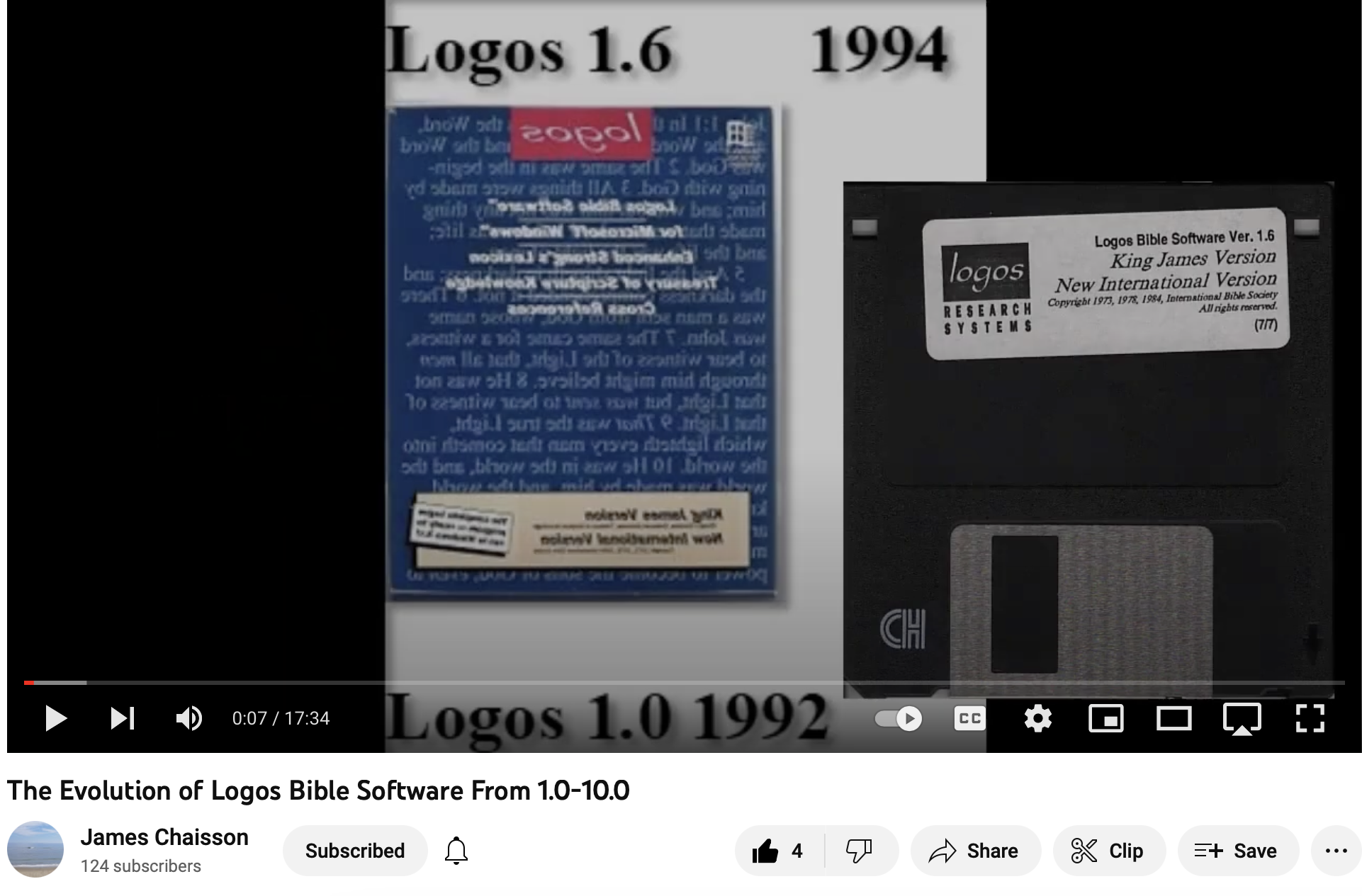
Logos Bible Software Through the Years Video
Logos user James Chaisson made a great video that shows off Logos Bible Software through the years. I share it here for your enjoyment.
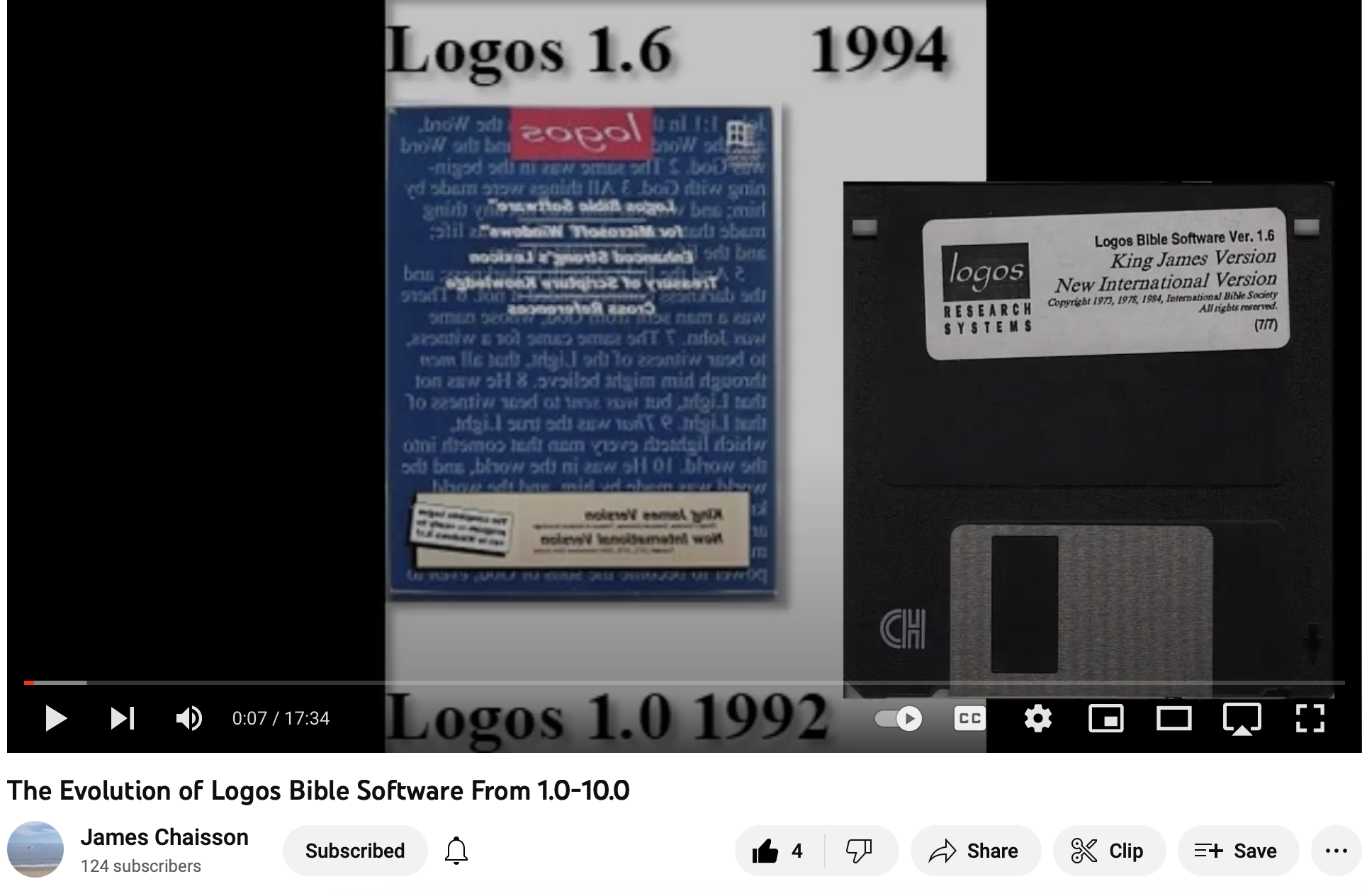
I didn't make this video of the evolution of Logos Bible Software through the years, but I wish I had. James Chaisson made it and he did a greet job. It's fun to see the way a complex and powerful program like Logos evolved from the first version all the way up to Logos 10, which just launched last month.
My History with Logos Bible Software Through the Years
As you'll see in this video the software advanced beyond the primitive origins. It was the third version that I first bought at a Sam's Club in Wilmington, NC a long time ago. The ability to enter a passage and find all the books in the library amazed me. I quickly started added books with an academic discount for seminary students while I worked on my Doctorate at Gordon Conwell Theological Seminary in the early 2000s. This add a huge library for $500. I felt like I was mortgaging my future, but I've since added a tone of other great content.
Make sure to go to James' YouTube channel and subscribe. He has some great Logos content.
Jumping on the Logos 10 Bandwagon

Also, if you want to join the Logos family, consider using my affiliate link to buy a package for Logos 10. You can also get 5 free books and the same 15 or 30 percent discount on packages depending on whether you're a current or new customers.
What makes Logos worth your time? First, it's the powerful feature set including som anew features that we outline in our last post along with a video which you can see below.
Another reason to go with Logos is the huge library of content available. They make sure to present books in a high quality format and their book formatters respond to your error reports.
Logos 10: What's New and How to Get a Discount?
What's new in Logos 10 Bible software? Read about each new feature and watch my video demo.
That's right; Logos 10 shipped on 10-10-2022. Despite the marketing department at Logos taking advantage of the date and version number, this was a big upgrade. It marks the 30th anniversary of Logos first hitting the Bible software world. They weren't the first, but they indeed have outlasted most.
Users get some interesting new features with the latest version of Logos 10. I want to highlight what's new in Logos 10 on the desktop or laptop version, the mobile version, and the web app.
Many of the features listed below only come in advanced packages, like the Gold or Bronze. You can buy a package using my affiliate link. This gets you either 15% or 30% off the price plus five free books. I'll get a cut of the sale as well.
Logos 10 User Interface Changes

Users of Logos 10 will notice the new user interface immediately. The software displays the toolbar on the left instead of the top of the window. Users can change this, but it might conserve screen space if you use the program on a wide 16:9 screen aspect ratio.
I won't keep the toolbar on the left because I like to display the button label text to remind me of what each one does. You can show the labels on the left, but that takes up too much screen space. Without labels, people who can remember what each button does can collapse the toolbar. Here's how to change the position and collapse or expand the toolbar.
How to Move the New Logos 10 Toolbar Between Top or Left

Open your Program Settings. You can do that from the menu. On a Mac, click on Logos in the upper left corner and then choose Program Settings. The Logos menu in the upper left doesn't appear on Windows, only on Mac. The second item in the settings list will change position. Click the drop-down arrow to choose Top or Left.

Optionally, in the lower left, there's a menu button with three vertical dots. Click it, choose Program Settings, and then choose the drop-down arrow to select Top of Left.

Millions of New Factbook Tags
A new visual filter in Logos 10 shows users millions of new tags from the Factbook. The Logos 10 Factbook, like the one in previous versions, serves as an information treasure trove to help Bible students understand what their reading and studying in God's word.

With Logos 10, these tags appear as an underlined word with information about that term in the Factbook. You might find things like...
- Greek and Hebrew Lemmas - open them to study the original languages for that word in English or another language.
- Information about People, Places, and Things.
- Terms with theological significance like Propitiation or the word Conform from Romans 12.
Logos described these underlined terms like the Kindle X-Ray feature that shows definitions of words in your Kindle digital books.
How to Turn On or Off Factbook Tags in Logos 10
See my post about How to Get the Most Out of the Factbook in Logos

Factbook tags are like Visual Filters, but you don't turn them on or off from the Visual Filters menu. Instead, the Factbook gets its own button in a Bible or book window. It looks like a book with a checkmark and a drop-down arrow next to it. Click the arrow to open the menu and select which tags you want to turn off or on.

Not everyone will get these new Factbook tags. First, if you upgrade and buy a Started collection, you'll get the People tags. The bronze level will add Theological terms and Greek words. You'll need to buy Silver to add Hebrew and Aramaic.
Everyone must have their computer connected to the Internet to use the new Factbook tags. If you're not connected, then they won't work. Logos 10 still works, but the tag underlines don't show up.
Church History Themes
Another Factbook improvement comes from a dataset and resource that shows Church History Themes.

To find them open the Factbook from the toolbar. You'll see the three horizontal lines often called the Hamburger menu button. Click on the Dropdown box and find Church History Theme from the list.

You can also find it in the Advanced Timeline (see more below about the Advanced Timeline). Open the Timeline and click on the Hamburger menu (three horizontal lines). Find the Event Type section and then click on Church History Theme.
The information comes from two resources - the Essential Lexham Dictionary of Church History and the Church History Themes dataset. Open them from the Library and read or search for them from there.
Simpler Search Terms
To search in older versions of Logos, users had to know some complex boolean search terms to get advanced searches. With Logos 10, you get simpler search terms.

Logos gave the following example of one more straightforward search you can now perform in Logos 10 but could not in version 9 or earlier. If you wanted to find out where in the Bible Jesus mentioned Moses, you'd type in a search box the following:
<Person Moses> WITHING (Speaker <Person Jesus>) and hit enter.
Now, just type:
person:Moses IN speaker:Jesus
That's much easier to remember and to type.
Logos will auto-complete suggested search terms to help you. You may not even need to remember the search terms to search your Bible.
Another simpler search lets you do a Search All, and Logos 10 will find results in all your datasets without you even knowing the dataset exists.
Bring Your Print Library Into Logos 10
You can add your print books to Logos 10 without buying digital copies. This also works with Kindle books too. When you add such books to Logos using the camera on your iPhone and the ISBN code on a print book, the book shows up in the Logos 10 Library. When you search for something and find it in the books added, it shows them in your list of returned search results. You can find it by page number, open that book from your bookshelf, and turn to that page.
To import a print book into your Logos 10 Library, open the app and then tap on the menu button in the lower right corner. Next, tap on Print Library ISBN Scanner. Finally, scan the ISBN code on the back of the book.

2. Tap on Print Library ISBN Scanner.
3. Scan the ISBN code on the back of the book.
The feature comes with a few caveats.
- This only works with books in the Logos catalog of books. If they don't already have the digital text of a book, it won't work.
- You must spend time and effort adding your books one at a time.
- The search results only show a snippet of the content from the book. You'll have to read the book in the print edition.
- Only people who buy the Gold package will get access to the feature.
Searching the Print Library
The new books in your print library will appear in general searches, but you can't open those books. Instead, Logos tells you where to find the content in your print book by page number. You'll open the physical copy of the book and find the content.

However, if you want to search your print library books, you can use the Library window. Open a Library window and look for the Print Library item on the left-hand side of the Library window. Find the book you want to search, right-click, and choose Search this resource.

If you want to search the entire library, follow the above steps, but instead of right-clicking first, select all the books in the Print Library. Do this using the keyboard shortcut CTR+A on Windows or CMD+A on Mac.
After selecting all the books, you can right-click one of the selected books and choose Search these resources. This opens the Search panel. Type in your search phrase or word to find items in the book.

You will see results in the Search window. Find the Print Books section as seen above. Look at the results and find the entry in the book. Grab your book and open it to the page listed or the section listed. Not all books will show page numbers.
Import Multiple Sermons into the Sermon Manager in Logos 10
Logos 10 now supports importing a collection of sermons into the sermon manager. After you add them, you will get tags added for Scripture references in the text of the Word document.
The Sermon Manager import only supports Microsoft Word's DOCX format. Only buyers of the Gold package or higher in Logos 10 will get access to the tool. If you want to upgrade, use this link to get 5 free books and a discount.

Access the import tool by opening the Tools button from the toolbar (9 dots on it) and either click on Sermon Manager or type it in the search box to find it quickly. The Sermon Manager will open. Click on the menu button (three vertical dots) in the upper right corner of the Sermon Manager. Choose Import and then click on the Choose Files button in the lower part of the Import dialog box. Navigate to the folder that holds the sermons you want to import. You can select multiple files with the CTRL+A or CMD+A.

How to Find Imported Sermons
To find your sermons open the Sermon Manager in a separate full-screen window and choose the Date you preached the sermon. This makes working with the Sermon Manager easier, especially if you're using a small screen.
I had to open the Grid view and select All from the top of the window. I opened one of my sermons, and it the formatting I used didn't work with the Import very well. If you use the built-in Microsoft Word Headings, then it will work better for you.
Now you will want to clean up your imported sermons. Edit them to use things like Headings, the information pane that opens on the right side, and the slides. If you make slides from your sermon, then you can export them to programs like PowerPoint, Keynote, Faithlife Proclaim, or PDF documents.
Popular Quotes in Sermon Builder
The Sermon Builder gets an added feature called Popular Quotes. Preachers search for quotes to add to their sermons inside the Sermon Builder.

Open a new Sermon using the Sermon Builder from the Tools button (grid with 9 dots on the toolbar). Create a sermon and then choose the Popular Quotes button on the right when you want to add a quote. The button looks like a quotation mark.

A list of quotes will appear. Drag and drop any quote you want to add to your sermon from the right-hand column to the Sermon Builder. The Sermon Builder will add the default slide. Change it by clicking on the slide thumbnail. You'll see a menu appear. The list of options includes...
- Edit - change the look of the slide.
- Apply this style to quote slides - change all quotation slides to match this.
- Apply this style to all slides - change all slides in general to match this slide.
- Delete - delete this slide.
Advanced Timeline
The new Advanced Timeline shows historical events in the context of the era in which that event occurred. The timeline offers this in a visual way. Users can filter events to focus on what they're most interested in seeing.

To open the Advanced Timeline, click on the Tools button on the toolbar. It looks like a grid of 9 dots. Either type Advanced Timeline or scroll down to the Reference section on the Tools menu and click Advanced Timeline.
This feature only works on Bronze packages or above. You can buy the Bronze package at this link and get a discount plus 5 free books.

Interact with the Advanced Timeline using the sidebar or the toolbar. The toolbar at the top has the following...
- Button to open the sidebar, which lets you select the kinds of content you want to hide or show.
- A time range box where you enter years like 20-100 AD.
- Search box where you type what you're looking for.
- Zoom in, fit, and zoom out buttons.
- View the dropdown menu to limit by things like Bible & Church Eras or Western History Eras
- Info button
- Menu (three vertical dots)
Speed Improvements
Logos 10 boasts faster performance, especially for users of Silicon Macs that use M1 or M2 branding. These are modern processors that run more efficiently than Intel chips. They claim a 35% speed boost, especially while indexing your library. I can attest to this improvement. It used to take hours to index my library with 8,000+ resources. It now does it in around an hour.

The computer still chugs along while the program indexes the library. However, Logos 10 takes far less time to index on my M1 MacBook Pro, M1 Mac mini, and M2 MacBook Air.
For Windows users, you'll see a small speed boost. It comes thanks to something called .NET 6.
Auto Translation

In almost any book, open a side panel on the right that shows a translation of the book's text. To use it, open a book. Click on the Sidebar button in the upper right corner. A new window opens with the default language. You can use the language dropdown list to pick from dozens of languages. The above image shows a French translation of the open book.
If you want to copy the contents in the Sidebar, choose the copy button to the right of the language dropdown list.
Your computer needs an Internet connection to use the Auto Translation feature. You also have to own the Gold Package, which you can buy here and get a discount plus 5 free books.
Questions and Answers
Think of Dear Abbey only for Bible study. The Questions and Answers feature answers common questions you might have about the Bible. It also includes some obscure answers too. This all comes from a new dataset.

Use the feature by typing a question in the search box (magnifying glass icon on the toolbar). The program notices you worded it as a question and tries to find your answer in the dataset. The results come from your library. It also includes other kinds of results, so scroll down to the Questions & Answers card.
7 Best Apps for Writing Sermons Digitally
What are the best apps for writing sermons? We have a bunch of options in 7 categories for sermon writing tools.
What tools do you use to write your sermons digitally? We've got the best apps for writing sermons digitally and we'll explain why each works great and recommend the best single option.
Most of us no longer write out sermons by hand or type them on an old-fashioned typewriter. We write in Bible study software, a word processor, a notepad app, a note program, or some other software.
Microsoft Word or Another Word Processor are Some of the Best Apps for Writing Sermons Digitally
The granddaddy of word processors comes from Microsoft. Most people who use a word processor write with Microsoft Word. Other options include a form of the open-source OpenOffice, like Libre Office Writer. OpenOffice is the foundation for Libre Office. It's a great tool if you use Linus or want a powerful tool that you can get for free.

and then open the notes on an iPad or Android tablet to preach from them.
If you write your sermons with one of these powerful word processors, you will likely come up with your sermon outline, copy and paste text from a Bible program or the Internet, and formate it for preaching.
When I write in Microsoft Word, I format the document with large text for each major sermon division (read points). Each sermon has large green text so I can see it in the pulpit easily as I preach with my sermon notes open. Bible quotes use large bright red text and standard quotes from people or commentaries use large purple text.
The sermon syncs to my iPad using OneDrive and I open it in Word. The iPad sits on my podium so I can look down and check my notes as I preach through the sermon.
This works with an Android tablet or a Windows computer like a Microsoft Surface tablet.

If you're all in using Apple Hardware and software, go with Apple Pages and iCloud sync. It works well even if Pages doesn't come with all the powerful features of Word or one of these open-source word processors.
Android and Chromebook users can take advantage of Google Docs and Drive.
Remember that Microsoft Word costs at least $6.99/month for the basic Microsoft 365 subscription. You can often find deals online on eBay or Amazon, but be careful that you're buying from a reputable buyer.
Bible Study Software Sermon Writing Tools

Open the Sermon Builder to create one sermon.
Logos 9 includes a useful Sermon Manager to create your sermon preaching calendar for weeks to years out in advance. Then, you open a single document with a tool called the Sermon Builder. This was a huge part of the Logos 9 upgrade. They worked to overall the sermon writing and organizing features to make it more usable.
Logos 9 users will love the way the built-in Sermon Builder syncs with their Proclaim worship presentation software. If you use it in your church, then you can create sermons in Logos 9 and it will sync to Presentation for the date the preacher is scheduled to preach that sermon.

Using Logos and Proclaim together lets the preacher publish his sermon online in text mode. Plus the church can record both audio and video to publish podcasts or worship service videos.
Accordance Bible Software also lets users write inside the software. The Papers option works best. The video below shows how to create and edit Papers in Accordance 12 and later.
You could also use things like Notes files and most Bible study apps. But the above two options work best for creating sermons that you can store inside the program and search later to reuse part or all of the sermon.
The cost of Bible software varies wildly depending on which vendor you buy from, what package of tools you purchase, and whether it's on sale.
To get Logos 9 10% off, I'd appreciate you using my affiliate link at www.logos.com/KevinPurcell where you can buy a package and get a few free books too. I get a commission which helps me do my work here on this site and on my YouTube channel.
Tools like Olive Tree and Laridian PocketBible are free to cheap to get the basic app.
Note Apps Built Into Your Operating System are Useful Apps for Writing Sermons Digitally
As I said above, you could just write plant text or simply formatted text in a Note attached to a passage inside your Bible study program. If you use something Like Olive Tree or PocketBible, this might offer the best option.

Writing in a note gives you a simpler option when compared to complex word processors or advanced Bible software with a Sermon Builder or Paper feature like Logos or Accordance mentioned above.
Notability or Other iOS Apps for Writing Sermons by Hand
For users on iOS and Mac, try out the great note-taking apps like Notability on iPad and macOS. You can write using your handwriting, or typing. When you're finished you can export the results as a PDF or image file.
There's a segment of users who enjoy mind mapping their sermons. I'm not one but I've read about them. People like this will organize their sermon notes by putting the major subject in the center of the screen in a circle or box. Then they will draw lines away from the center to another shape for each major sermon division or point. Under each or around each they show their explanation, proof, and application for each main sub idea in the sermon. Add an introduction and conclusion and you've got a visual method of displaying the sermon.

Above you'll see a visual form of those from my friend Antoine Wright who visited my church and did what he called a "Sketch Note" of my sermon that day. You could do something like this for your sermon notes. If you're not artistically inclined like Antoine, then you can use text or print instead of images.
You could use other note-taking apps like Apple Notes, Good Notes, and more.
Samsung Notes or Other Apps for Writing Sermons by Hand on Galaxy Android Devices
Another option for Android and Samsung users is Samsung Notes. It's built into Samsung's version of Android. I like using it because it's simple and easy to learn. However, it has fewer features than Notability. If you could use. Notability on an Android device I would.
Use Samsung Notes to create notes with handwriting or type using a keyboard. The strategy is the same as it is for iOS handwriting apps.
Sermonary for Online Sermon Writing the Best of Online Apps for Writing Sermons Digitally
A final option includes a website that lets you write online called Sermonary. Here's how it works. Create a new sermon and then add your sermon elements. Add sermon divisions or points. Then create subpoints for the explanation, proof, and application.

Sermonary includes Templates for different styles of sermons. You can use...
- 3 Point Sermons
- Andy Stanley's ME-WE-GOD-YOU-ME format
- Running commentary format
- Defender's Outline for an apologetics sermon
- Children's Leader
- Youth Pastor

The service adds resources to help you preach the word including some visuals, sermon series ideas, and more.
Sermonary costs nothing for the basic editor. Add more features and you'll pay $19/month or $69/month for a bundle with Sermonary and Ministry Pass. That adds sermon series ideas, visuals for presentations, holiday sermons, plus sermon illustrations.
In addition to Sermonary, instead, you could use any online writing tools like...
- Google Docs
- Word Online
- Grammarly
Text-based Writing Tools with Markup to Write Sermons in Plain Text

Some people prefer simple text editors. Almost every computer or mobile device includes a text-based writing app like Notepad on Windows, Apple Text Edit on macOS, and Apple Notes on iOS, iPadOS, or macOS.

If you're an Android user, you might find a good text editor, but sometimes you need to download one from the Google Play Store. Consider Writer Plus a great Android text editor available on both iOS and Android. Use it as a basic text editor or add markdown to format your text. The app is free with the option to donate via in-app purchase.
Recommendation for Writing Sermons
If you have access to Microsoft Word, then go with it. It's cross-platform meaning you can move from iOS to Android to Windows to Mac and back. Second, it's not tied to one Bible study program. The death of Bibleworks and Wordsearch recently proves we should move carefully deeper into one platform's ecosystem. I like to keep as much as possible separate from my Bible software.
Which Apple iPad is Best for Bible Study?
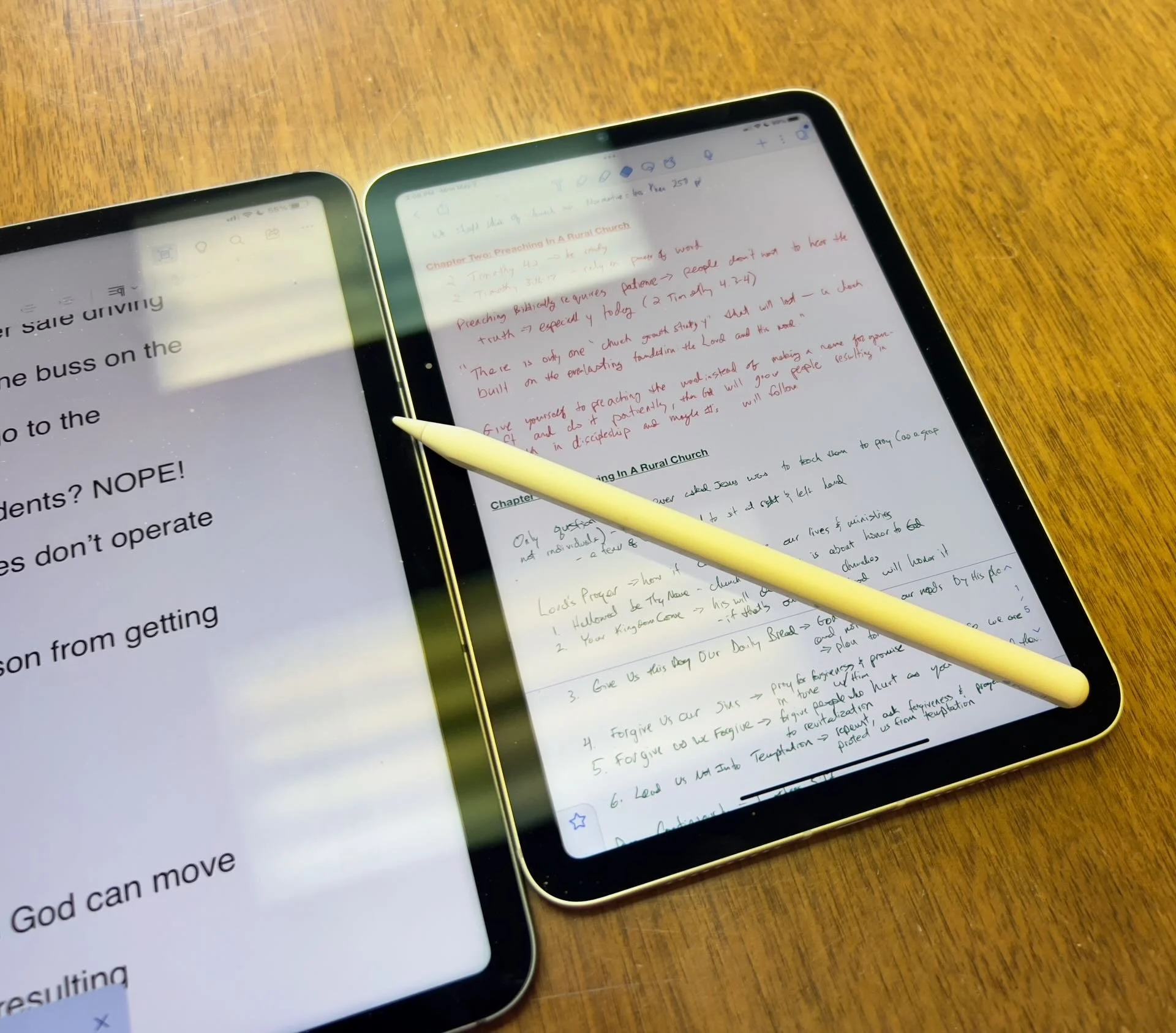
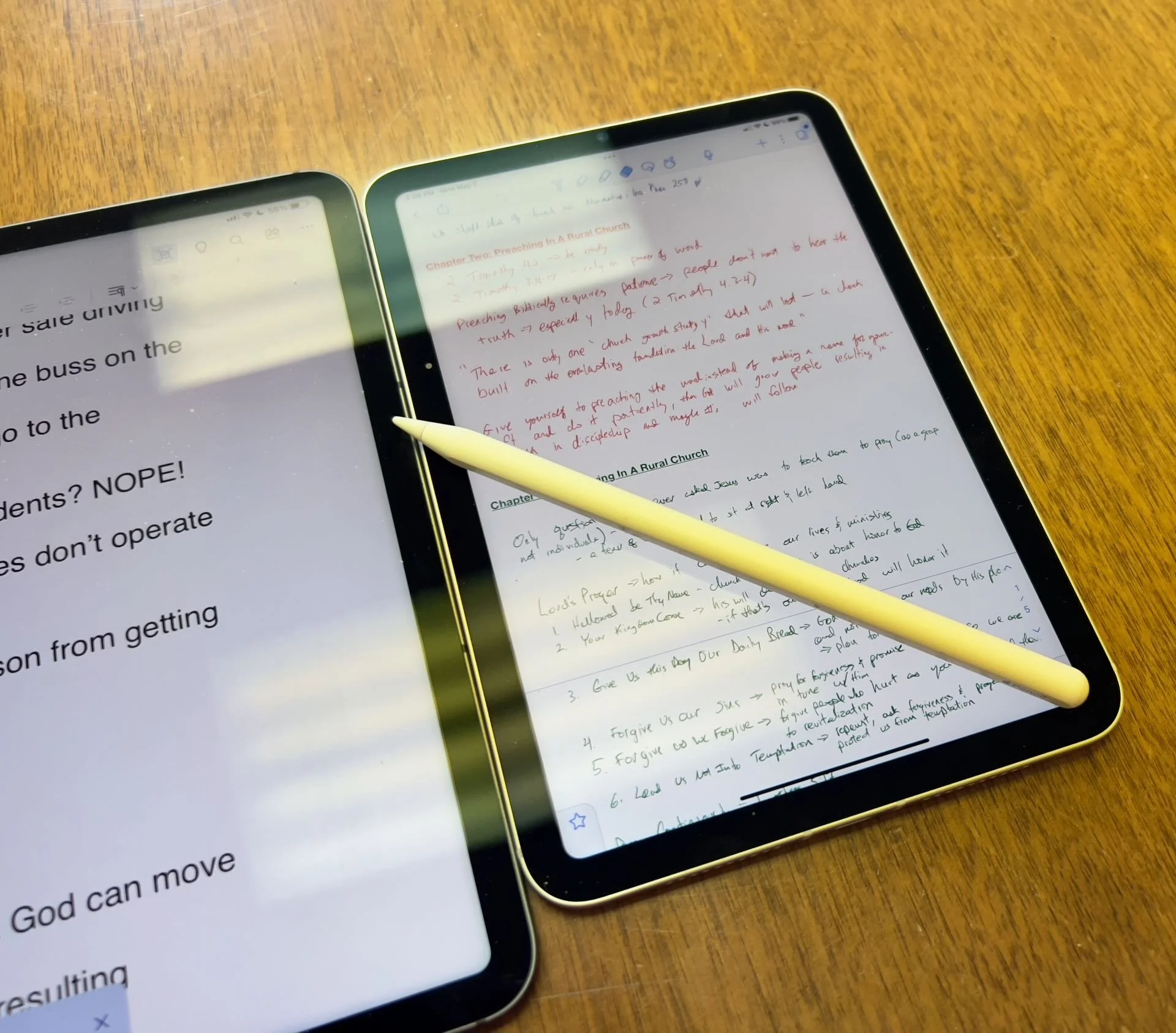
The Apple iPad in whatever form factor destroys the Android competition for great Bible study on a tablet. Windows comes in a close second because you can install a desktop-class Bible study program on it if you have the storage.
Even if you assume I’m correct about the iPad, which is a big assumption, what iPad should Bible students choose and why?

To just get the conclusion, jump to the end for my Conclusion at the end of the page.
The 4 Apple iPad Form Factors
All four Apple iPads include a slab of glass housed in a rectangular case. They come with varying qualities of screens, speakers, and speed. However, users will not see a huge difference in running the most popular Bible study apps from Logos, Olive Tree, Accordance, and more on any of the four current-generation Apple iPad. Still, let's take a look at each starting from smallest to largest.

The smallest iPad also gives users the most mobile experience. The iPad mini feels more like reading a book than the other iPads. It comes with an 8.3-inch liquid retina screen when measured diagonally. That's 7.69-inches tall and 5.3-inches wide, about the same size as a small Bible but capable of carrying an entire theological library.

The iPad Air has Touch ID on the power button, a convenient security feature. You will also get some pretty decent speakers on the two shorter edges and USB-C for connecting chargers or accessories.
If you want to carry your whole theological library, then you’ll likely also want one with 256GB of storage. Unfortunately Apple stubbornly only offers two storage options. You can get a meager 64GB or too much for Bible students with the larger 256GB option. Most people need more than 64 and less than 256.

The two storage options cost $499 for the base model iPad mini 6 with Wi-Fi only. With 256GB you add $150. That's ridiculous, but necessary because after you own the mini for a while, you'll want to use it more and more because it's so convenient to carry out. So plan to pay the extra coin.
I personally chose to add Cellular as well making it cost $$800. I like that I can just open the cover and start working no matter where I am, almost since there are some areas without coverage in my semi-rural community.
Throw in an Apple Pencil 2 and a cover and you're over $900. That's a lot of money, but you can get it on a 0% interest payment plan with your wireless carrier or with an Apple Card.
The newer Apple Pencil 2 connects and charges while connected to the side of the iPad. It's a great stylus but costs. More on that below.

Some people call the basic model the iPad 9 or iPad nothing because it doesn't include a descriptive name like the mini, Air, or Pro. It's the cheapest option at only $329 for 64GB of storage and no Cellular.
It includes a larger screen at 10.2-inches diagonally or 9.8-inches by 6.8-inches when measuring the long and wide sizes of the entire device.
The iPad doesn't support Face ID but you can unlock it by touching the Home button, which has Touch ID built-in. It uses older technology than the Air or even the mini. However, it's a great starter iPad for most people. And if you only plan to study the Bible, strongly consider it since it costs less than any other device. Users can use the Smart Keyboard.
The iPad 9 comes with the same problems as the iPad mini with only two storage options - 64 and 256 GB. So you really want the larger storage option which brings the price to $479. If you want Cellular, then add $130 bringing your total to $609. Most looking for this budget model won't want Cellular, but get the 256 because 64 isn't enough.
The other problems with the regular iPad include...
- Lightning connector is slower and makes accessories more expensive since creators have to pay Apple for the right to include Lightning.
- Lower resolution screen that's not as good as the mini and much worse than the Air or Pro models.
- Slower A13 Bionic Chip compared to the A15 in the mini and the M1 Chips in the Air and Pro models
- Uses the older first-generation Apple Pencil that charges by sticking it into the Lightning port making it easier to break off the connector or lose the cap.
Apple offers the iPad as the budget option and that makes it a great tool for people who want a device for basic needs, including Bible study, reading, and Bible app research. You can also pair it with a Bluetooth keyboard for writing. Just don't expect the latest and greatest. Those tech specs aren't included.
Some call this the best deal on an iPad today. You get the most bang for your buck. However, it will cost you more than the iPad and iPad mini. It has a much better screen and a super fast and efficient M1 chip. Plus it records 4K video with the back camera and has a front camera that follows you when you're video conferencing. They call that Center Stage because it centers the camera on the subject.
The Air speakers sound great and the screen looks amazing. You can use the awesome iPad Magic Keyboard case or the awesome Smart Keyboard Folio with the trackpad. I love this keyboard. Also, the newer Apple Pencil 2 connects and charges while connected to the side of the iPad.
However, we still see the annoying storage issue with only 64GB or 256GB. Plus Cellular swells the price by another $150. That brings the total with 256GB and Cellular to $899. For Wi-Fi alone, you pay $749. Why does Cellular cost more on the Air than on the mini or the basic iPad?

The iPad Air is the prettiest coming in one of five colors including Space Gray, Pink, Purple, Blue, and Starlight.
The iPad Pro below comes in two sizes, 12.9 inches, and 11 inches. Don't get the 11-inch iPad Pro. Instead, get the iPad Air.

The most expensive, powerful, and feature-rich iPad seems more like a mobile computer than a tablet. The iPad Pro which you can get in 11-inch or 12.9-inch screen sizes offers the most power of the four sizes. It costs $799 for the 11-inch and $1099 for the 12.9-inch.
Apple offers 128GB for the base price. That's the sweet spot and should be the lowest storage offered on any device made by Apple. It's the perfect storage for most buyers. However, you can get 256, 512, 1TB, or 2TB. You don't need anything more than 128 for Bible study. However, you may want to choose higher storage if you plan to use this iPad for much more than Bible studies, like video and photo editing, gaming, and more complex uses.
Users may want the large 12.9-inch screen because they want more screen real estate for Bible study.
Other specs to excite buyers include:
- Liquid Retina XDR Display
- ProMotion
- M1 Chip with more memory than the others
- Face ID and Center Stage camera
- 5G Cellular optional along with Wi-Fi 6
- LiDar support for things like 3D modeling
- Thunderbolt USB-C port that's fast and will connect to a Thunderbolt monitor or incredible docks with a lot of ports
Recommendation for Bible Study Only

If you only want to study the Bible then you have to ask yourself a few questions. Do you want something small and easy to carry around like a small Bible? Then get the iPad mini. If you need a bigger screen then get the iPad Air. It's the most future-proof and with all the tech inside it will last for a long time. However, budget-conscious buyers should go with yesterday's technology in the basic Apple iPad.
Just remember this. I've never met anyone who actually used a tablet only for Bible study. So, you can see yourself possibly needing a little more power, a good typing experience, or some screen real estate to edit your photos or make video masterpieces, then get the Apple iPad Air.
Recommendation for Bible Study and High-End Multimedia
If you just read the above paragraph, then you know I recommend the Apple iPad Air for people who want to study their Bible with Logos, Accordance, Olive Tree, or some other Bible app and work with multimedia. But which iPad Air should you get?
The 256 is, unfortunately, the best option until Apple gets its head out of the sand and starts offering a 128GB option.
Recommendation for Those Needing a Large Screen

Buy the Apple iPad Pro 12.9-inch model with 128 GB if you only want to study the Bible or 256GB or more if you want to do high-end work like multimedia creation.
I bought the 12.9 Pro because I teach and preach from my iPad and due to my aging eyes the mini's just not big enough. The iPad Pro 12.9 means typing on a keyboard that's wide enough to enjoy. The Air was too narrow for my big hands. I spent more than I needed to. Until Apple offers a larger Air with 128GB, I'll happily keep my Apple iPad Pro 12.9-inch.
Recommendation for Buyers on a Budget
This one's simple. Get the basic Apple iPad for $329 if you don't own a large Bible library or pay more for the 256GB model. You won't get all the power and specs and it may feel old in a shorter time since it's not as fast, but for buyers on a budget, it's the best way to go.
The only other budget option is to buy a used device or get an older one. Look at your budget and something that fits in your budget that also fits your preferred form factor.
You can check out Apple's Refurbished store. For example, they offer the iPad mini 5 for the same price as the newest base model iPad. For slightly more than the base model you can get an Air with Wi-Fi for just $419.
Check out eBay, Facebook Marketplace, and Swappa as other options for used and refurbished products. You can get a great deal.
Must-Have Accessories
When you buy an iPad, you also have to factor in buying accessories. Other tables like the Samsung Galaxy Tabs come with at least a writing device. You can use the tablet alone, but I wouldn't. You'll need the following accessories.

- Cover or Case - you will want to protect your device.
- Keyboard or Keyboard Cover - you can study the Bible on your iPad more efficiently with a keyboard connected.
- Apple Pencil - you may want a Pencil to write or take handwritten notes in apps that you can use alongside your Bible apps.
- Screen Protector - I used to not protect the screens on my tablets, but when you carry it around naked you should.
- Headphones - many Bible apps include audiobooks or videos.

Let me offer my top recommendation for each category above.
- The Apple covers or cases work best, but if you want to save money go with cases from Moko, Spigen, or Moshi.
- Apple's Keyboards or Keyboard Covers are the best options for the Air or Pro. The Magic Keyboard is $300 and the Smart Keyboard Folio costs $180. I love typing on my Magic Keyboard cover connected to my iPad Pro 12.9. However, Logitech makes great keyboards too if you want to use your iPad at a desktop. I have the Logitech MX Keys and MX Keys mini. You can also buy Apple's Magic Keyboards with or without Touch ID.
- Apple Pencil is the best writing device and I wouldn't buy another one. However, the Logitech Crayon is a $70 alternative.

- Screen Protectors are a budget item. They shouldn't cost a lot of money. Just get a glass screen protector. However, here's one alternative that some people really like. Get a Paperlike screen protector, which does two things. It protects the screen and gives users a paper-like experience for drawing and writing.
- Get the Apple Airpods or Beats to use for Headphones. They work best with Apple products and sound really good. However, not everyone wants to pay that much. Be careful which ones you buy, because sub-$100 Bluetooth earbuds usually sound like junk. To save money get Apple's USB-C to stereo adapter and plug-in wired headphones.
Conclusion

To do only Bible study, then get the iPad mini. You'll enjoy using it for hand-held study. If you want to put it on a table and need more screen real estate, then buy the iPad Air with an Apple Magic Keyboard. Add an Apple Pencil to either device if you plan to take notes in your own handwriting or want to write. Add a handwriting keyboard replacement app like Handwriting Keyboard ($3.99). Throw in a great note-taking app like Notability or Good Notes. This way you can have the Bible app on one side and the note-taking app on the other while holding the tablet.
Get Logos Legacy Library for 25% Off
If you need to buy a good Bible software package, consider using my affiliate link to get Logos Bible Software. You can get what they call "Legacy Libraries" for a nice discount of 25% off. A legacy library is a collection of books that they sold when they released previous versions of Logos from versions 5 through 8.
4 Ways Logos Bible Software Can Help You Share God's Word
Logos 9 Bible Software can help you share God's word. Check out these best posts on Logos 9 and a way to save 20%.
Logos Bible Software is one of the top Bible study programs you can buy for both Mac and PC. It's powerful, helps users access a large library of excellent content, and beginners and advanced Bible software users can quickly get used to the program.
I've written a lot about the program so I'm going to share some of my best posts and then show you how you can get a discount on the software.
Open the Logos Guides From Inside Accordance

Some of you might be coming over to Logs from Accordance or vice versa. You don't have to uninstall the old one. Just use them together. You can open a Passage Guide or any of the great guides inside Accordance and make use of your Logos library.
Find out how to do this great little hack in my post: How to Use Accordance Amplify to Website to Open Your Logos Library.
The Factbook: What is it and How Do You Use It?

Think of the Factbook as a Bible Encyclopedia on steroids. It's got a lot of facts about the bible. You can learn more about people, places, things, theological ideas, books of the Bible, and a ton more. So read the article about how to use it and watch the video below that demonstrates the Logos 9 Factbook.
Make Logos Work Like Wordsearch
If you loved Wordsearch, then you likely felt abandoned when Lifeway sold the program and all of its assets to Faithlife, the makers of Logos. But, I wrote a post on How to Make Logos Work More Like Wordsearch. So check that article out.
Get 20% Off Base Packages

Maybe you don't already own Logos 9 and would like to. You can get 20% off a base package using my affiliate link. The like will work from April 1 till May 3rd. For full disclosure, I will get 10% of the purchase price from Faithlife as a commission.
Morris Proctor MPSeminars.com Logos Bible Software Training Review
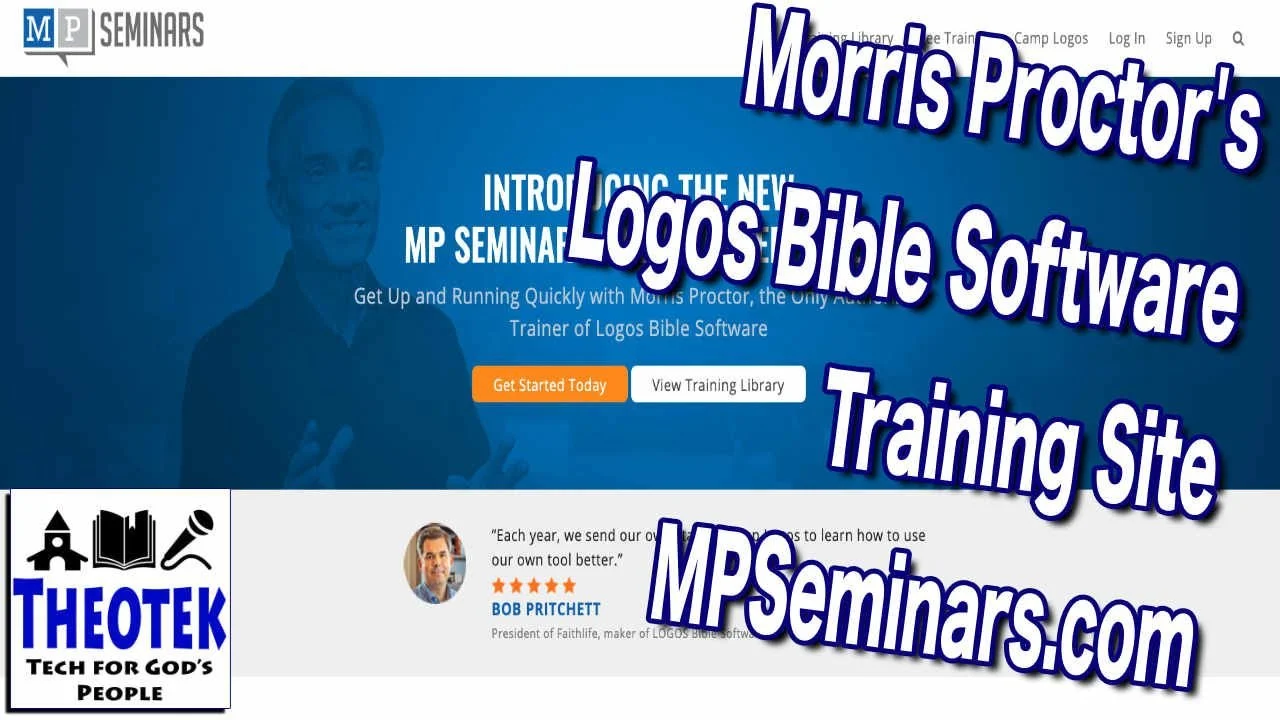
If you use Logos Bible Software, you should consider Morris Proctors MPSeminars.com. I review this training subscription service here and on YouTube. See my video and read the review here.
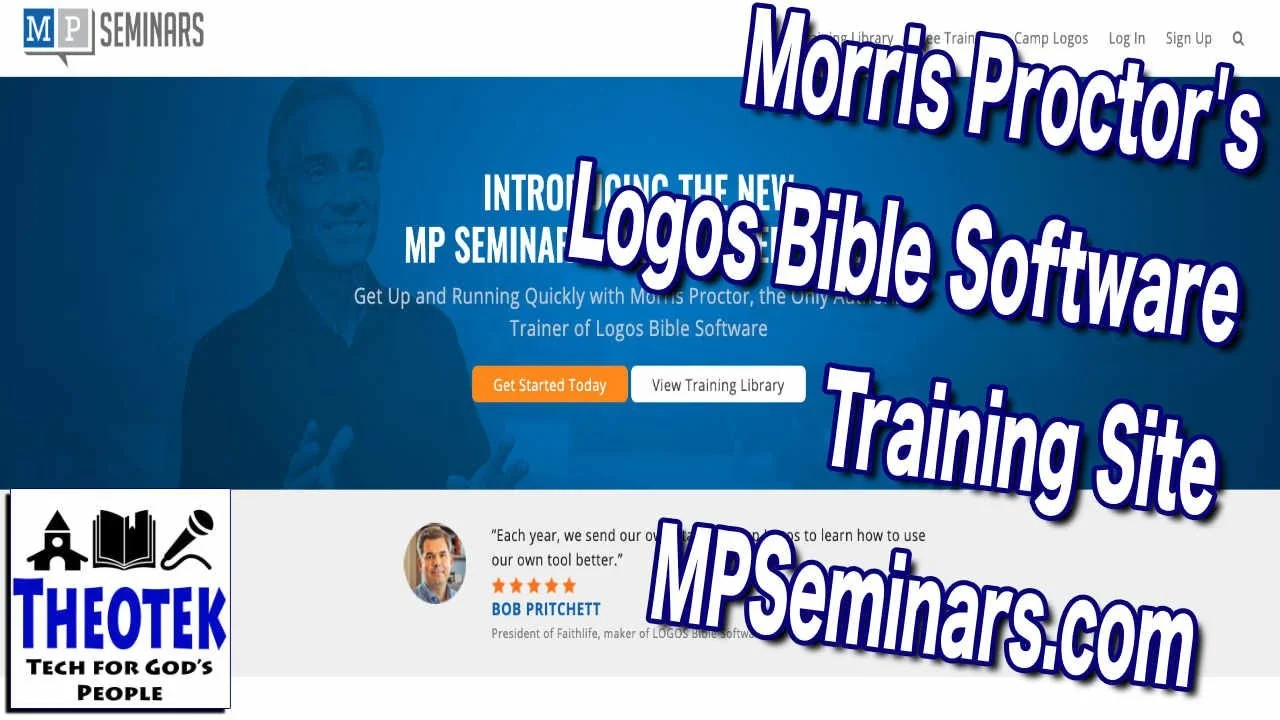
Thanks to MPSeminars.com from Morris Proctor, you can comprehensively learn how to use Logos Bible Software. This service offers a slew of videos and courses on how to use the powerful computer (desktop and laptop) software for studying the Bible.
Note that I've republished this review from two years ago because of a nice update to the training site. Look below for the bold and italicized paragraph under the "User-Interface" section.
In this review, we'll look at the courses and how well the service works. Let's judge MPSeminars.com on three criteria...
- Quality of Training
- User Interface
- Value for Money

Morris Proctor MPSeminars.com Quality of Training
I subscribed to the Morris Proctor's MPseminars.com Logos Bible Software training library for a few months now. In that time, I went through a few courses and watched maybe 100 videos so far. Morris Proctor knows not only how Logos works, but he also knows how to effectively teach users to use this complex and powerful Bible study tool.

Each video has excellent sound and Morris Proctor speaks clearly. His voice is easy to listen to and I enjoyed taking the courses.
Back in 2005 I bought my first package of Logos 3.0 and have been using Logos off and on for the last 14 plus years. I'd call myself an intermediate user. Plenty of people have a better understanding of the more arcane tools built into Logos Bible Software, but I'm no beginner.
In spite of nearly 15 years of use, I still learned some things from Morris Proctor and MPSeminars.com.
Morris Proctor MPSeminars.com User Interface
I like the user interface generally but have a few gripes. The site follows the blue and white branding of Logos and has a modern look and arrangement. When you open the site, you can clearly see where to go for different parts of the subscription service.
The first page, after a user logs into their account, mimics the look of the Home Page in Logos 8 with cards in a 3 column grid similar to the columns of cards in Logos 8's home page.
At the top you will see a set of tabs for the following:
- Training Library - the bulk of the training courses show up here and they offer courses for both Logos 7 and Logos 8.
- Free Training - you don't have to pay to use MPSeminars.com. They offer some free courses on this section, which they organized like a blog with articles for each topic of training.
- Camp Logos - if you want to get live training in person, the go here to sign up for the scheduled Camp Logos. As of this writing we see only one Camp Logos course in Murfreesboro, TN for Dec. 9-11, 2019 and it costs $129-$329 depending on whether you want to attend the live webinar (online with no travel to TN necessary) or in-person. You can also rent a computer so you don't need to bring yours. I'd recommend you bring your own.
- Account - shows your specific account interface and lets you manage your subscriptions.
- Logout - log out of the site.
- Search - a button to search the site.
Users will spend most of their time in the Training Library. It has training for both Logos 7 and Logos 8. I'm a Logos 8 users, so we'll focus on that part of the library.
You find courses like "What's new in Logos 8" and "Quickstart for Logos Bible Software Version 8". A more comprehensive list of courses shows up under the Logos 8 A to Z: A Video Reference Guide, which includes courses for most of the features, if not all of them, found in Logos 8. Use this as a reference guide. If you have a question on one specific tool, head here to find a video to learn how to use it.
Strangely, even though I'm a subscriber, I get this message that pops up when I first clicked this part of the Training Library instructing me to click on the Take this Course button to add it to my list of "My Courses". That seems silly. I'd rather just click and let it open the list of courses.
MPSeminars.com Video Interface
Once you begin taking a course, the website falls down a little. When I watch the videos, I like to watch them in a faster speed. It sounds funny, but you get through the course quicker. People who don't like this don't have to do it. You won't even notice this unless you change it. However, I do like to speed up the videos.

To watch the videos in their fastest speed and highest quality, 1080p and at 1.5x times speed, I have to change this setting every time. I like that I can change it, but the videos default to lower quality and 1x speed. For most people, it should default to lower quality and 1x speed. But once I change it, I wish I didn't have to keep changing it. I suspect this is a limitation of the software they use to present the videos. It looks a lot like Vimeo, a service like YouTube. And they probably don't offer the option. I just wish MPSeminars.com could find a way to add this feature.

After you start watching the videos in a course, the site shows your progress with a visual progress bar and a list of the course outline to the right of the video. The completed sections show an orange checkmark next to the section. Incomplete sections show up as a gray empty circle where the checkmark will go once the user completes that course.
At the end of each video, you can mark that video as complete. It would be ideal if the website would automatically mark it or give the learner an option for the site to mark it complete automatically. When you click on the Mark Complete button, it will automatically take you to the next video without any interaction from the learner.
UPDATE: The folks at MP Seminars found a way to fix one of the above complaints. Users can now watch a video and the site automatically advance to the next video marking the previously watched video as complete.
A few courses look like they have videos that are slightly out of date. It doesn't happen often. The user can still learn from the course, but you get little differences between the current version and the way the software looks in the video. For example, in a course entitled "Bible Study with God and Guides - Passage Study" you see a problem. In the video, it says enter Luke 4:1-4 and you'll see Open Passage in the command box. That's not the way the program behaves in the current version. Instead, it says Open Passage Study Guide to Luke 4:1-4. It's a minor annoyance, but can confuse beginning users getting started with the most recent version of Logos 8.
Value for Money
Morris Proctor does a great job on MPSeminars.com of training users. The cost of the service is not cheap and you can get a lot of what you get for free on the Logos Training website. There's a reason Morris is the official trainer of the company. He does a great job. But he also charges a pretty penny for his courses.
The monthly subscription costs $19.99. There's an annual subscription for $199.99 too. You can buy courses without paying, but I like that I get all updated courses, even when Logos 9 comes out, which I assume will happen by the end of 2019.
To buy the courses instead of subscribing you'll have to pay. The Logos A to Z course, their most comprehensive training on Logos 8, costs $500. The What's New in Logos 8 course costs $100. They offer a Time-Saving Tips and Tricks course for $50. And a few courses are only available to subscribers.
The service even taught me, a long-time user some new things. Plus it reminds you of the features that you might have stopped using, thinking they are too basic but have improved since you quit using them. For example, I tried the Canvas tool early on, but never really liked it. The training on the What's New course on Logos 8 inspired me to try it out again and I like it.
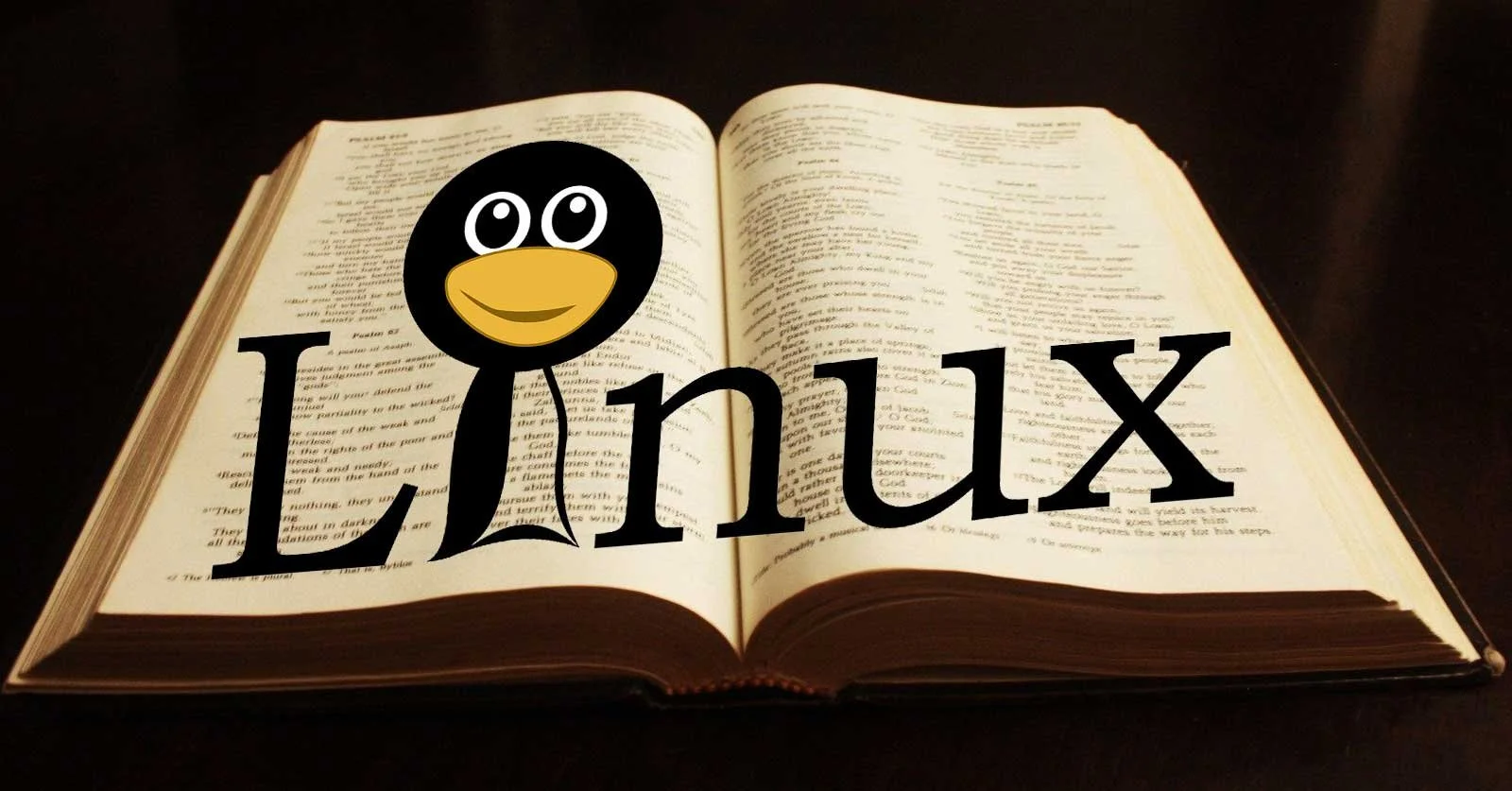
5 Best Linux Bible Apps You Can Use Today
If you're a Bible student and a Linux user then consider these 5 Best Linux Bible apps. We have some good ones.
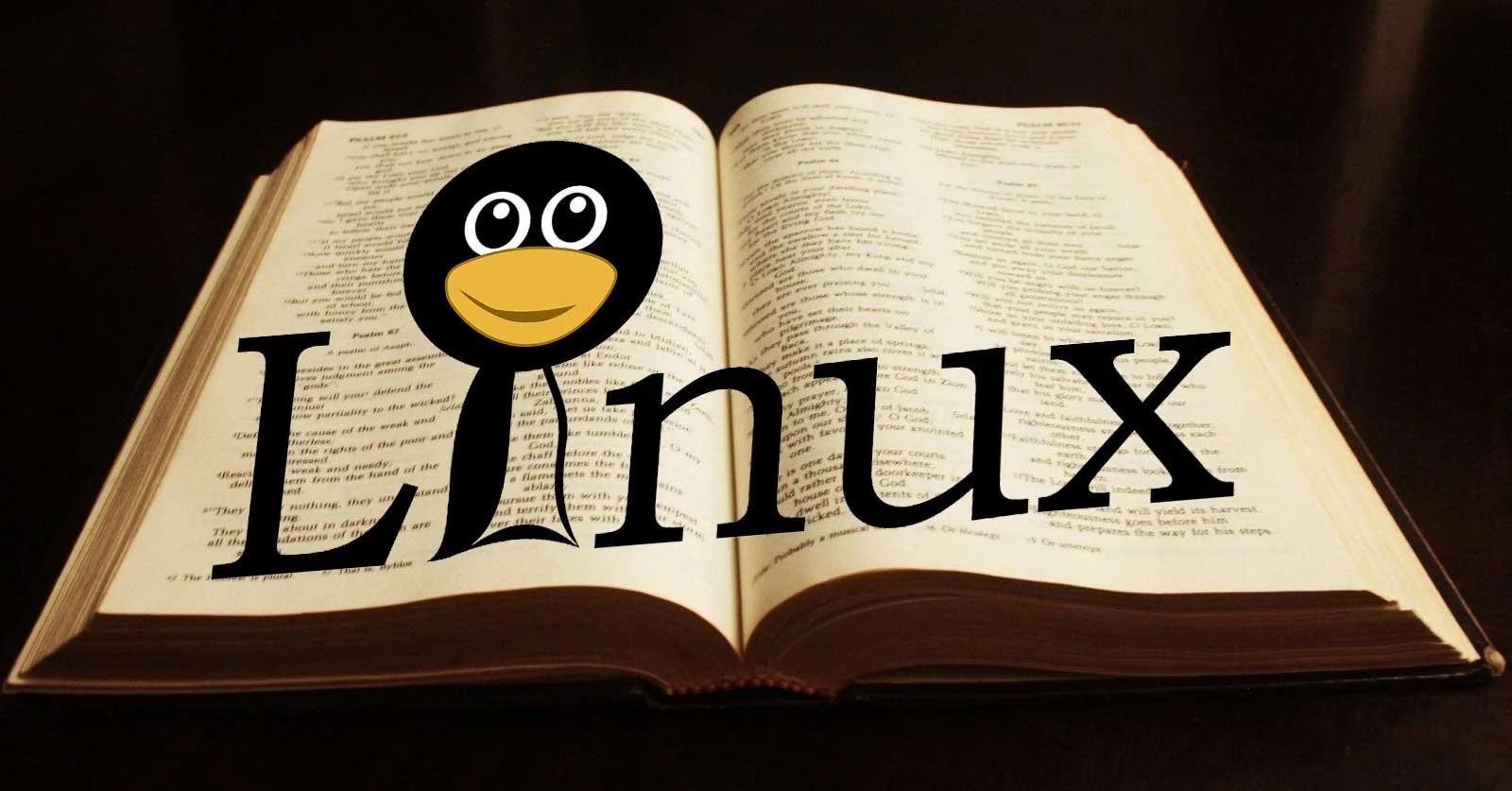
Linux doesn't get as much attention as Apple macOS, Microsoft Windows, or even Chromecast. However, Linux users love their operating system of choice and Christians can run a group of Linux Bible apps that will help you study God's word. Take a look at these 5 Best Linux Bible apps that you can use today to study the Bible digitally on the lesser-known operating system of choice.
Before we go any further, I have to admit that I'm an inexperienced Linux user. So, you will need to get help with these from other sources. To install them or get them running if you face a glitch, you'll need to find help from Linux power users. I'm not your guy. I'm recommending these Linux Bible apps based on trusted sources and not personal experience.
Sword Project from Crosswire Bible Society

First, I want to share the standard, The Sword Project. The other apps in this roundup all use The Sword Project's book server to download and install Bibles and tools.
The Sword Project offers the books and lets you search the text, including commentaries, Lexicons, and dictionaries in addition to Bible texts.
Crosswire curates a list of Sword Project Linux Bible Apps and apps for other operating systems, like Windows or Mac.
Xiphos Bible Study Tool for Linux

Learn more about Xiphos at their website. The program, formerly called GnomeSword, has a substantial online user manual and a community of users who will also help you get the program running.

Xiphos runs on Gnome desktop. It's based on the Sword Project, which gives users access to a large library of tools for Bible study.

You'll enjoy a tabbed display, quick searching features, an audio reading out loud feature, a parallel mode for comparing translations, and plenty of user-created tools.
Above you'll see a demo on installing Xiphos Linux Bible app on Gnome.
BibleTime Runs on Linux, Windows, and macOS
Next, we have one of the few Linux Bible apps that will run on Linux and the more popular Windows and macOS operating systems. Find it on Github.
With BibleTime, users will have to install the app, and then they will need to add books because the basic installer doesn't come with any. The Settings menu shows the Bookshelf Manager where you can add books.
Like Xiphos, BibleTime uses Sword Project books. That gives you access to a large library of books to use in your study.
Bible Desktop

The Bible Desktop Linux Bible app also runs on The Sword Project engine and gives us a simple user interface to study the Bible.

There's a Bible comparison tool in Bible Desktop that shows you the differences between translations. Pick the base translation like the ESV chosen in the screenshot above. Then choose another translation and it will show the two translations in the first and third column with differences in the center second column.
Users can choose between a window mode or a tabbed mode.
Run Bible Desktop on your Mac, Windows PC, and of course it's also one of our favorite Linux Bible apps.
Logos Bible Software on Linux Through WINE
WINE lets users install Windows software on Linux. Getting these up and running can present a challenge, especially to novice users. However, if you can use Linux, you can likely get WINE working to run Bible software on Linux.
Logos Bible Software works on Linux using WINE, sort of. You can find a long thread in the Logos Forums that cover getting the program to work on Linux.
Go Online and Run a Web-based Linux Bible App
I know. This feels like a cop-out, but the best way to do great Bible study on Linux probably requires nothing more than your web browser.
I created a series of the best online Bible study websites and that still holds up despite one site that's now gone. Wordsearch's Bible site is on the way out.
Bible by YouVersion Downloaded 500 Million Times: 5 Reasons Why
The Bible app from YouVersion, and Life.church announced that people downloaded their app 500 million times. Here are 5 reasons why.
500,000.000! That’s half a billion. That’s how many times people like me downloaded the Bible app from the folks at YouVersion by Life.church. I recognize that I downloaded the app probably 20-40 times alone over the years, but even if the 500 Million downloads represent 100 Million actual people, that’s a lot of people reading the Bible.
What makes this simple Bible reading app so popular that such an enormous number of people installed the app on their iPhone, iPad, or Android device? After all, it doesn’t have any commentaries, Greek or Hebrew word studies, or other theological tools. It’s mostly just a Bible reading app with social media features and sharing built-in to name a few features.

Let me share with you the 5 reasons why users downloaded the Bible app 500,000,000 times. Not only will you learn what sets it apart, but how to get the most out of the simple Bible app.
Bible App is Simple
I usually recommend complex Bible study tools like the apps from Logos Bible and Accordance Bible. If that's too complex I drop to the second tier of apps from Olive Tree Bible, Laridian Pocket Bible, or a few other third-tier Bible study apps. Most of my readers want at least basic original language study in Greek or Hebrew, commentaries, Bible dictionaries, and complex searching. The Bible App includes none of these advanced features and that's why so many love the app. They prefer simplicity over power.
Fire up the app and you'll find the Verse of the Day on the Home tab displayed in the text, visual form, and as part of reading plans that include that verse. There's also a video about the verse (see image above).
Tap on the Bible tab at the bottom of the page to read the Bible in your preferred translation. Users can quickly move to a new passage using the button on the top of the screen. The other top center button opens the library of translations and you can read almost any translation you can think of in multiple languages (see image below).

Other options let users open multimedia resources related to the current passage. You can also change the look of the text...

Above you'll see highlighting (left), a selected verse with the menu that shows the list below, and images that you can put behind the verse text and share with social media or other places (right above).
While reading a passage, tap on a verse to…
- Select the verse
- Highlight a version in multiple styles
- Copy a verse
- Create a visual image of that verse
- Share the verse
- Compare the verse in different translation
- Add notes or bookmarks
- Create a prayer list item
- Find related verse
You will also see little note icons that display translation notes.
If you want to select multiple verses, keep tapping on more verses.
There’s a lot here, but compared to more complex research apps, the user interface is quite simple to use and figure out.
Bible App Includes a Large Collection of Simple Reading Plans and Translations

The Plans tap at the center bottom of the app shows you all the reading plans available in the Bible App (see left image above). Users can find a large collection of reading plans based on topics, books of the Bible, or sections of Scripture, like the Sermon on the Mount.
When users select one of the plans, they can do the following:
- Read the Bible
- Share you progress with friends inside the app or on social media
- Get notification reminders to read your daily reading
- Search for plans
Notice in the image above that you can find Reading Plans in the Discover section too (2nd from left button on the bottom - see image above).
Bible App Shares to Social Media and More
The Bible App not only helps people read the Bible but helps them read it as part of a community. Like other social media networks, the Bible App lets users follow friends and see their progress, Bible images, and more.
Go to the Home tab and choose either Today or Community at the top. The Today screen shows your Verse of the Day, reading plans you’re reading, and suggests people follow, among other things.
The Community tab shows things you’ve shared and what your friends share with others, like their reading plan progress or Bible images. You can then comment or like their content. If you like a reading plan that a friend shares, then you can choose to start reading it yourself.
If you choose something in the app, you can use the phone or tablet operating system sharing features to share to places like Facebook, Twitter, Instagram, or directly via a text or some other direct messaging app.
These social media features might do more to spread the Bible App to others than any other feature. As people share things with friends and family, recipients then choose to download the app.
Bible App Syncs Highlights and Notes Across Devices and Platforms

Most people own a computer, a smartphone, and maybe a tablet. Tech enthusiasts like me might own a few of teach. The Bible App works on all of them. You can install it on...
- iPhone
- iPad
- Android phones
- Android tablets
- Kindle tablets
- The Web via a browser
Whatever you do in the app on a device, like an iPhone shows up on the website, your Android tablet, or your Kindle tablet. All your highlights, notes, and reading plan progress show up on each of these platforms. Create an account and log in on each device to sync the various content or progress.
Bible App Adds Multimedia Like Video and Images
As mentioned above, the Bible App doesn't just show you the text of the Bible. You can also view multimedia content like the Verse of the Day superimposed over beautiful images. View the ones made by the app developers, your friends, or create your own.
If you tap on the Discover tab at the bottom of the main screen of the Bible App, you will see Podcasts, Videos, and images.
The Podcasts include simple things like audio book versions of the Bible read by talented readers. You can also hear traditional podcasts that cover things like Bible teaching, help for teachers, and popular content like J. Vernon McGee’s Thru the Bible in podcast form.
The videos come from multiple sources like The Spoken Gospel, which is a video Bible. You can also see scenes from the popular tv series The Chosen. The Bible Project videos also show up here as well as the Lumo Project, another video Bible in multiple languages. You can spend hours watching the videos included in the app.
Summary
I prefer more advanced Bible research and study apps for most of my mobile Bible reading or and study. But for quick and simple Bible reading and for sharing with others, the Bible App does the best job. Since it’s free, everyone should get it and drive that number far past the 500 Million downloads
4 Best Audio Bible Apps for Android for 2021
Do you love to listen to the Bible? Then we've got the best audio Bible apps for Android for 2021. These also work on Amazon Fire Tablets plus your favorite Android smartphone from Google or Samsung Galaxy. I tested them out on a Samsung Galaxy S21 Ultra 5G primarily, but also on a Samsung Galaxy Tab S7. Give this a read and then download them for a good listen to the good book.
If you're looking for the Best Audio Bible Apps for iOS, then keep reading. These also come with iOS versions.
Bible.is - Our Winner: Best Audio Bible Apps for Android

People who want to listen to the Bible and do little else should look at Bible.is and nowhere else. Users agree with a 4.6 rating in the Google Play Store for this free app. You can also find it on iOS. Just a few of the key features that make it great include the following:
- Listen to the Bible in hundreds of languages with more coming all the time
- Create your own listening plans like you can with Bible reading apps - see the first and third screenshot below
- Share plans with other Bible.is users
- Read along with the audio Bible or just read when you can't conveniently listen - see the middle screenshot below
- Search the Bible by keyword, Bible text and phrases, or other words
- Watch Bible-based films like The Jesus Film

The Faith Comes By Hearing folks respond to user support issues and do a great job of pleasing those who have issues with the app. I've never experienced a problem.
YouVersion Bible App - Best Audio Bible Apps for Android with Social Networking
If you only downloaded one Bible app on your phone or tablet, it likely came from Life.church. Life.church brags millions of downloads and often shows up in the list of top apps on iOS and Android.

The church created the Bible app years ago and keeps developing it and improving it. The app excels as a basic Bible reader app with an elegant user interface. It primarily serves as a Bible reading app but adds audio Bible listening and does it well.
I include it here because of its great social networking features. Share Bible verses in a visual way. If your friends post pretty photos with Bible verses imposed over the top of them, the share likely came from the Bible app.
To use the audio Bible features, open in the Bib reader and you'll see a small audio icon in the top toolbar second from the right. Tap it to show the Bible reader pop up as seen in the left screenshot above. You can play from the current location in the Bible shown in the reader window. The fast forward and rewind buttons go forward or back by a chapter.
The settings at the bottom of the pop-up window control the speed and set a timer for how long the app will read the Bible. There's also a button to hide the controls. If you do, then you'll see the screen on the right which shows you smaller rewind, play, and forward buttons. They function the same way as the larger pop-up window.
Olive Tree Bible - Best Audio Bible Apps for Android with Advanced Bible Study Tools
Olive Tree makes the Bible overall Bible study app on Android and iOS. The app includes tools for advanced language study, commentaries, Bible dictionaries, media tools, and more. In addition, they offer a decent library of audiobooks. Check out the Audio Bibles sold on the Olive Tree website.

Open Olive Tree and go to the library to find your audiobooks. The books with audio show a headphone icon. Tap it to open it. You'll then see the audio controls to go back, play, and go forward. Below that, you'll see a toolbar with volume, playback speed, driving mode, and Bluetooth connection.

If you want to use your app while driving tap on the Driving mode icon. The larger play button and skip back button help you play or go back in case you missed something. The icon with the headphone inside a bookmark icon creates a bookmark so you can quickly go back to the spot in the book.
The Olive Tree app plays Bibles and other books too.
Logos - Best Audio Bible Apps for Android Honorable Mention
I've written a lot about Logos over the years including their advanced mobile app. It includes audiobooks too. Open them from the menu button in the lower right corner of the app. Find a book in your library and open it. You might also want to download the book from the library using the tiny download button next to the book title.

Once the audiobook is open you'll see the playback controls as seen above on the right. You can go back and forward by chapter or in 30-second intervals. Play or pause the book. The Contents button lets you jump to any place in the table of contents. There's also a playback speed control.
Recommendation
The playback interface in Logos offers the most options and controls. However, it's also the most complex of the apps and will overwhelm those who don't want to do advanced Bible study.
Bible.IS is the simplest for people who just want to listen to the Bible. If you also want to read and interact with other Bible readers then use the YouVersion Bible app from Life.church. The best overall mobile Bible app comes from Olive Tree. It's not as complex as Logos, but gives you more Bible study tools than the simpler apps.
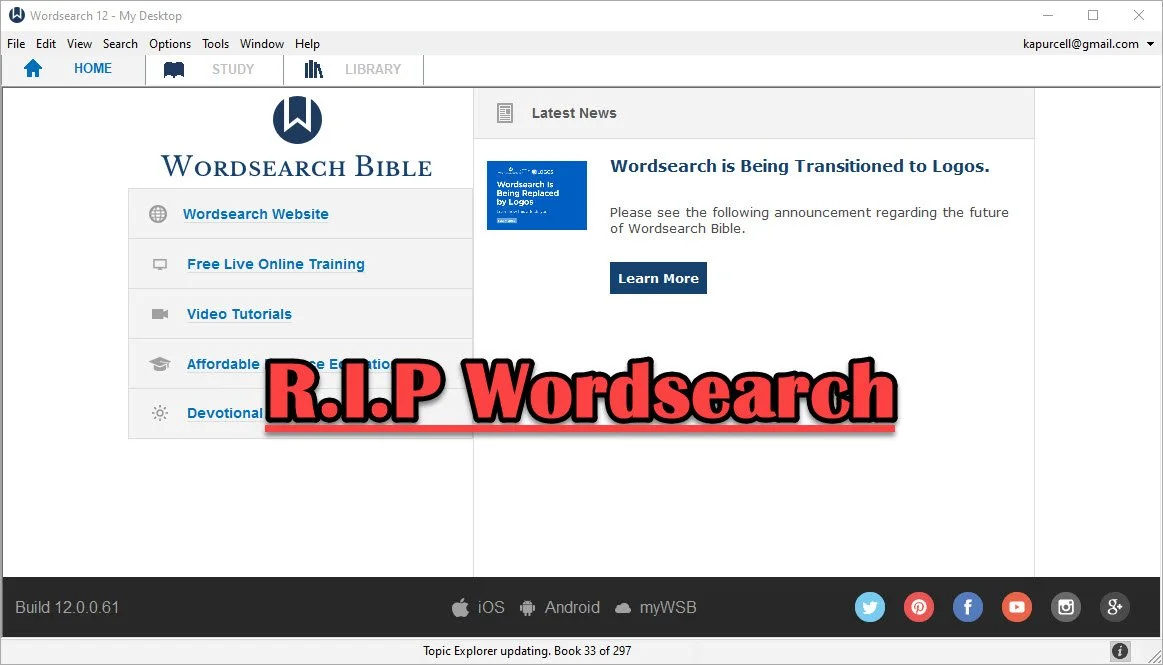
Wordsearch Support by Logos Ended, Now What?
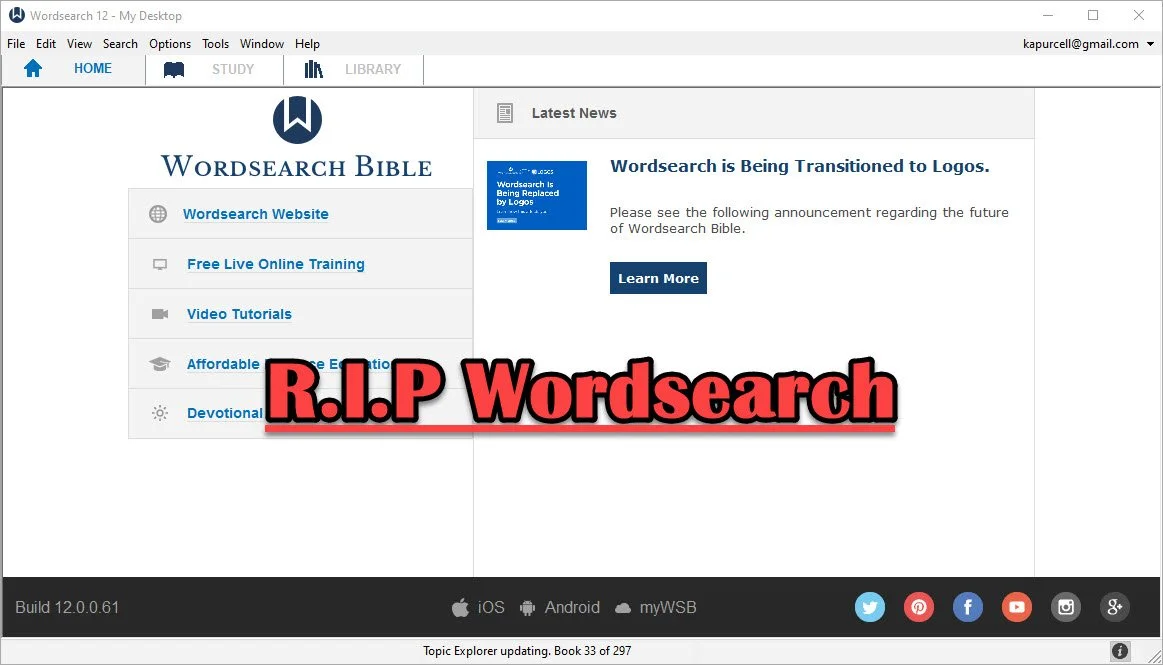
People who used and loved Wordsearch were likely disappointed when Logos and Faithlife bought the company and announced they would eventually shut it down. That time has come so what should a Wordsearch user do now? Here's the best way to continue studying the Bible digitally now that Faithlife and Logos ended support for Wordsearch Bible Software.
Logos Stops Wordsearch Support: What Does It Mean to Me?
Logos announced they planned to stop supporting Wordsearch, but that doesn't mean you can't use the software. You can. Just don't uninstall it or buy a new computer unless you have the installer and your books backed up.
Logos sent out an email to Wordsearch owners that said:
- You will not be able to download the desktop and mobile apps in the future
- You will not be able to download your books to the desktop/laptop or mobile Wordsearch apps.
That's frustrating if you want to keep using Wordsearch after buying a new computer, phone, or tablet. You'll need to find a new different way to get access to the program or start using Logos or some other app or program.
On your desktop or laptop computer, you can do a backup of your computer that includes your installation of Wordsearch and find a way to port it over to your new computer or a computer that you had to reformat or erase. That's more complicated than we have time to discuss in this post. A Google search will likely find dozens of options for Windows or Mac users.
Wordsearch users can also keep using the program on their current computer, phone, or tablet. The company won't cripple Wordsearch apps for software already installed. So keep using it knowing you won't get app or book updates. You also can't add new content, so if that commentary series you love gets a new volume, you'll have to find it in another format to enjoy it digitally.
Start Using Logos Instead of Wordsearch
Logos would love for you to start using their software. That's the whole reason they bought out Wordsearch, to get their users and their library of books.
If you want to start using Logos, then go over to the Logos website and see what version of Logos they gave you when they bought out Wordsearch.
In addition to a version of Logos, you will also get most of your books from your Wordsearch library in Logos. They will download after you install Logos on your computer or mobile device. A small percentage of books won't make the trip over to Logos.
See our post on using Logos and setting it up like Wordsearch.
Switch to Accordance
The best alternative comes from the folks at Accordance Bible Software. They offer a complex and powerful software program that brings you every feature you need to study the Bible at a scholarly level but also works well for pastors, teachers, and lay Bible students.
Switching from Wordsearch will cost more than going to Logos since Logos offers free software and gives you most of the books you own in Wordsearch format. However, you may not want to use Logos. You can get the $200 Crossgrade for Accordance. Crossgrades take the term "upgrade" and marry it with cross-over to form a crossgrade.
In addition to the Wordsearch crossgrade, you can crossgrade many of your books. Just contact Accordance to learn what it will cost. In both cases, you'll need to fill out a form proving you already own either Wordsearch or the books you want to buy via crossgrade.
Other Bible Software Options

Logos and Accordance aren't the only games in town. You can also find great options from the following:
- n Olive Tree Bible - Olive Tree provides a decent desktop or laptop computer program, but also has the best mobile app you can get on iOS or Android. They sell a lot of books too.
- Laridian PocketBible - You won't get as many books with Laridian as you will with Olive Tree, Accordance, or Logos. However, the developer does a nice job of creating a stable platform with some unique features, like showing 4 or more window pains on mobile, something can't get from any other app that I know of. With Book Builder you can make your own books for PocketBible on Android, Windows, iOS and Mac.
- e-Sword - The long time free Bible study program from Rick Meyers will seem simplistic compared to the other programs in this article. However, if a user doesn't like Logos and can't afford the others, then free books from e-Sword will help you with your study needs until you can afford something a little more advanced. Some Wordsearch users will find that it's all they need. If you want some modern Bibles and books you can buy them from eStudySource.

Recommendation
What should you do if you were a Wordsearch user who wished they were still in business?
- Keep using Wordsearch. You can still use it as long as you don't change computers and even then might be able to jump through some technical hoops to get it to work on a new computer.
- Go ahead and get Logos installed, if you have space on your computer's hard drive. You can also install it on your mobile devices. If you used the minimalist Wordsearch mobile apps, you will find that Logos does so much more. This will confuse some users who were Wordsearch's simple book reader app. But most will view it as a huge upgrade on mobile. Spend time about Logos until you feel comfortable using it for your digital Bible study.
- Get free versions of Accordance, Olive Tree, e-Sword, or Laridian's PocketBible. Try them out and see which one you like best. Then start looking into getting the books you need for your study.
Mobile users should look at Logos, Olive Tree, or Laridian first. They are the best mobile apps for serious Bible study. Accordance gets honorable mention if you are using iOS, but Android users should look elsewhere because Accordance on Android is too limited right now. They plan to upgrade making it more useful, but Logos, Olive Tree, and Laridian are so much better on Android.
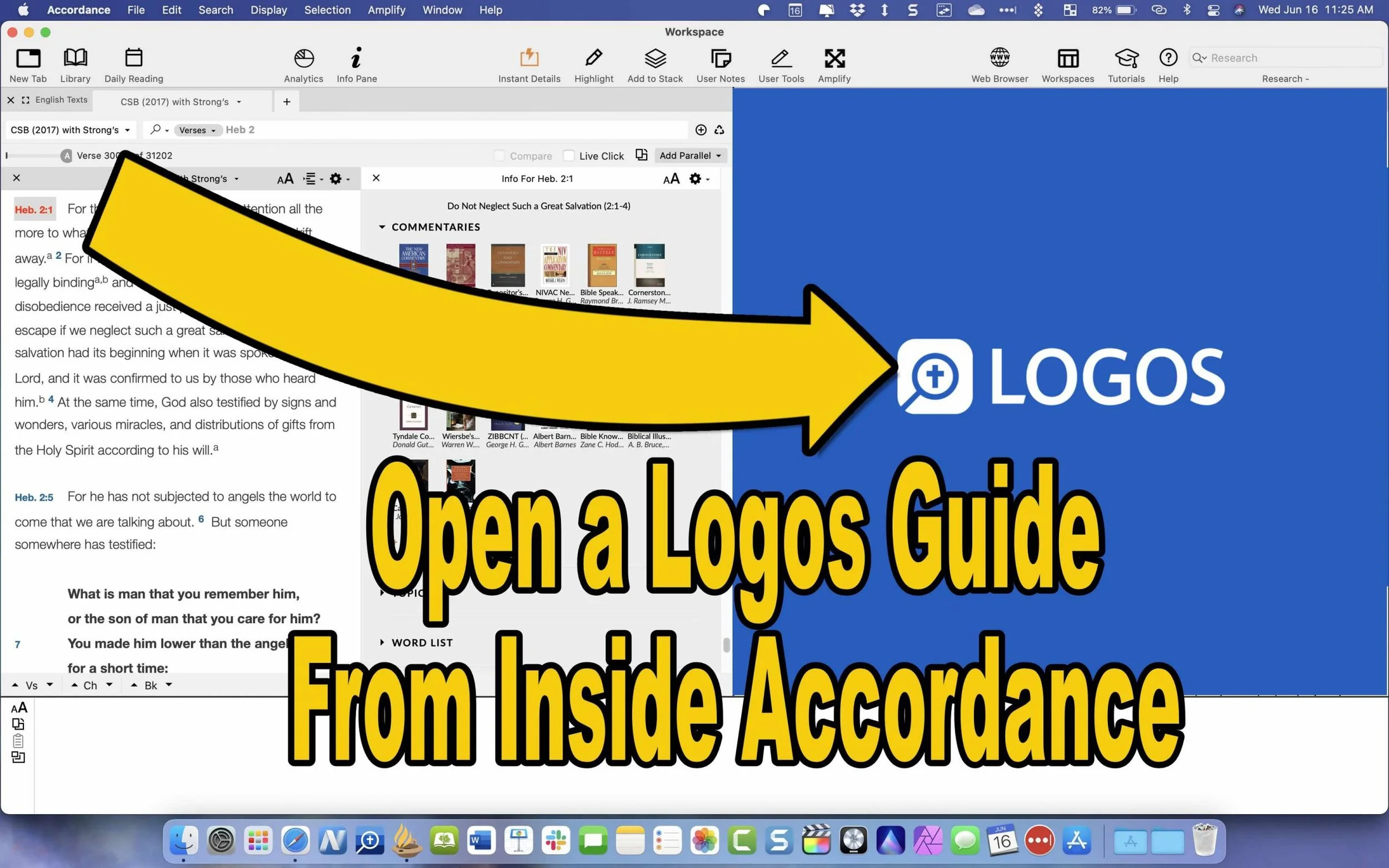
How to Use Accordance Amplify to Website to Open Your Logos Library
Did you know you can open a Logos Passage Guide inside Accordance using the Accordance Amplify to Website? We'll show you how.
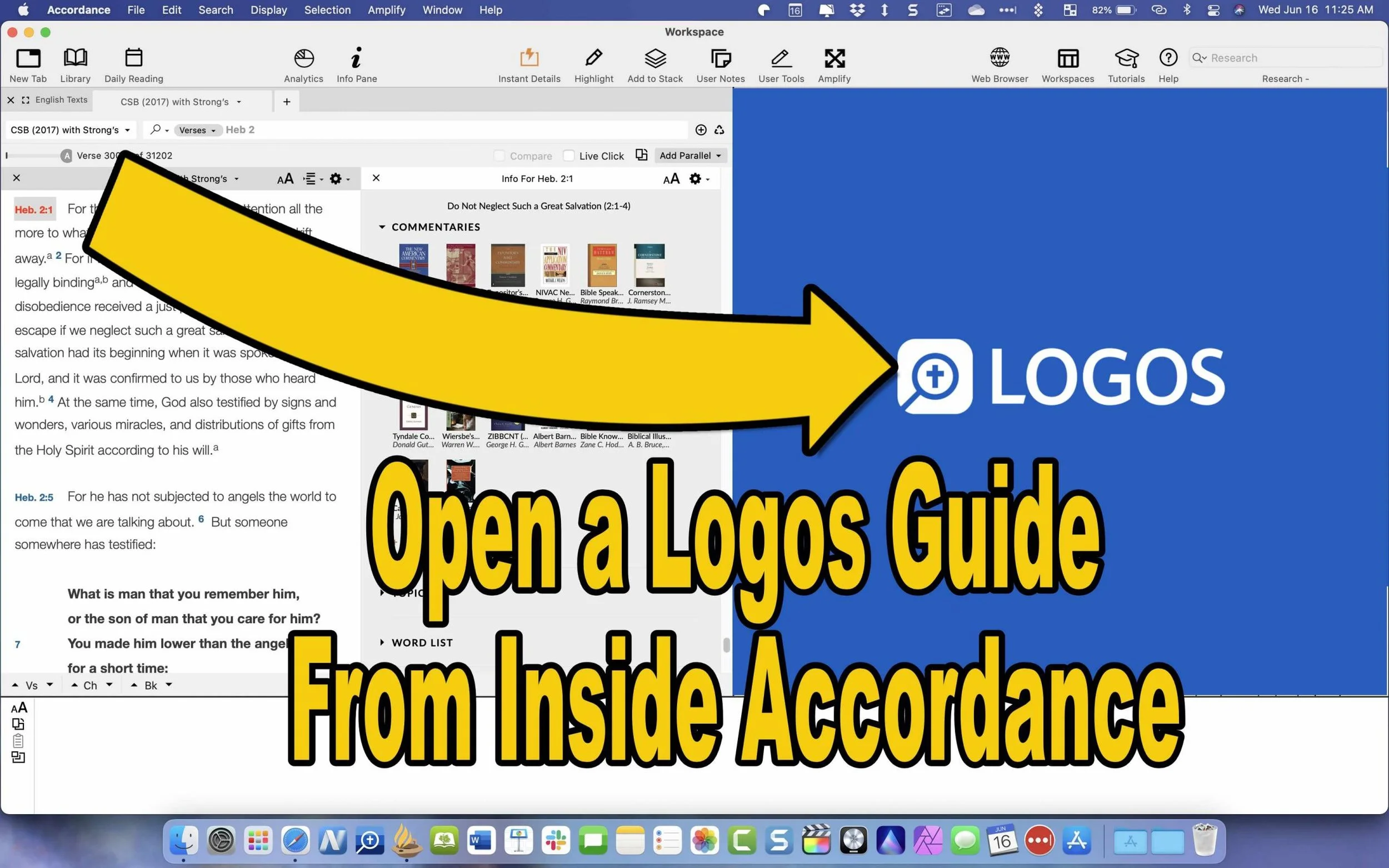
Accordance Bible Software will let you use their Accordance Amplify to Website feature to open other websites while using Accordance to research Bible studies. With these features, people with books in Logos Bible Software who have access to their Web App will let you access your library inside Accordance. First, we'll show you how to set this up and then how to use it.
Use 'Accordance Amplify to Website' to Open Logos Guides
Accordance includes two awesome features that make it possible to open a Logos Passage Guide from inside Accordance. The Accordance Amplify to Website feature will help you. Here's how to add Logos to the menu in Accordance.
To add Logos, you'll have to add a few things to Accordance. I found out about this in the Accordance forums, which are a great option for learning how to use Accordance features and asking for help in using the software.

Open Accordance Preferences from the Accordance menu item in the upper left or by using the keystroke CMD+,. Next, click on the External Websites item on the left side of the Preferences window. Thanks to Accordance user Paul Meiklejohn for these steps.

Then choose the New button to add a new link.
Click on New at the bottom of that box. A new box pops up where you can add your website links so you can use the Accordance Amplify to Website feature to open the Logos Web App.

Now use the links you'll find from the Accordance Forums. Here are a few that I added for Logos.
- Passage Guide: https://app.logos.com/guides/passage?layout=reading&reference=***
- Word Study Guide: https://app.logos.com/guides/word?layout=reading&reference=***
- Exegetical Guide: https://app.logos.com/guides/exegetical?layout=reading&reference=***
- Search Logos: https://app.logos.com/search?layout=reading&q=***&resources=yourBible&tile=right
The above came from Accordance user jarcher who posted them in the forums.
Some other links you'll find there include:
- Blue Letter Bible: https://www.blueletterbible.org/search/preSearch.cfm?criteria=*** (from user dandennison)
- Bible Gateway: https://www.biblegateway.com/quicksearch/?quicksearch=***&qs_version=NET.(from user Drewster; change the last three letters to your chosen translation, like NIV or CSB)
Use Accordance Web Browser to Open Logos Webapp
Now that we've added the sites to Logos and other sites, how do we use these? Open a Bible in Accordance and select the verse along the left. Then right-click the verse, and a large pop-up menu appears. Next, click on the Website in that menu. Choose your new item added in the step above.

For example, in the animate GIF above, I selected Hebrews 2:1 and then opened a Passage Guide in the Logos Web App.
Have you created any Accordance Amplify to Website links that aren't listed above? Then, comment below with your chosen link and let us know how to use it in Accordance.

5 Ways to Build a Digital Theological Library
Here are 5 tips to help you save money while you build a digital theological library for your Bible study and research.

How big is your Digital Theological Library compared to your traditional book library? When I went to Southeastern Baptist Theological Seminary back in the mid-90s, our seminary President told us we should graduate with a library of at least 2,000 books. Compare that to the size of my digital library, and the digital library now blows Dr. Patterson's challenge away! In Logos, I own nearly 8,000 books. Add to those libraries in Accordance, Olive Tree, Laridian PocketBible, and other mobile apps, and it probably jumps to 5 times Dr. Patterson's 2,000 book library count challenge.
While my total book count soars past the 2,000 books my seminary President recommended, how many of those books have I read or do I use regularly? Far fewer! I've wasted a lot of money and hard drive space on books I don't use or need.
Other people struggle because they can't afford a huge library of books. They only own a selection of public domain books in e-Sword or some other free or incredibly low-cost app or program. How can a person like this grow their library to a useful size?
I've got 5 helpful strategies to build a digital theological library. Follow these and you won't overbuy nor will you struggle with a meager library that limits your digital Bible study research.
Don't Overbuy Your Digital Theological Library
Video by Matthias Groeneveld from Pexels
It's tempting when there's a great deal on a new collection of books or low-cost add-ons to your digital theological library. However, many collections will include a large number of books, but few that you'll actually use. I took a look at a collection from one major Bible software maker. It costs $1,000, but that price adds over $10,000 worth of books. You'll get 250+ books. They offer a monthly payment plan under $60. In the collection, you'll get...
- 17 English Bibles - only 5 of which would I ever use
- 137 Commentary Volumes - but I'd only likely consult 3 of them
- 11 Bible Dictionaries - 3 of which looked valuable to me
- 200+ Other Books - only about a dozen of these seemed valuable to me
Peruse the major Bible software maker's websites, and you'll find a similar situation. Tons of books bragging thousands of dollars in savings, but about 10% are books most average pastors or Bible teachers will use.
Buy a base package, but don't overbuy. Get one that gives you all the features and an introductory collection of Bibles, commentaries, dictionaries, lexicons, and more. Resist the temptation to buy expensive collections to get more total books.
Try to Focus on One Bible Software Platform
At one time I owned...
- Logos
- Accordance
- Bibleworks
- WordSearch
- Laridian
- Mantis Bible
- Olive Tree
- QuickVerse
- PC Study Bible
- Tecarta
I installed all of them on my computers, tablets, and phones. However, I never really used them all. However, I felt like I needed my favorite Bibles, commentaries, and language tools in each of them. That leads to buying books multiple times.

I'm unique because I write about Bible software. The average person should focus on one Bible software platform and use it on all their devices. That way, they avoid buying too many programs or buying more than one copy of books.
Which Bible software platform should people buy? If you own one now, then stick with it. That changes if you're unhappy with what you use now. I can't recommend one in this space. However, let me offer suggestions.
- Make sure your chosen software runs well on all the platforms you use. For example, one maker has great tools for Mac and Windows, but their mobile software's not as good. Another one focused on mobile, but the Mac or Windows programs don't run well. Nobody makes an excellent Linux program.
- Look for a program that lets you buy books and gives away the book reader or charges for one platform but doesn't make you buy one program for each operating system.
- Try before you buy so you can test what each program or app does. Buy the ones that do what you want really well and don't settle. Take your time to buy the right platform for you. Scholars should avoid mobile-first applications. People who only need a Bible reader with dictionaries, study Bibles, and maps, should avoid paying hundreds for a complicated program.
Find Ways to Use 2 Bible Software Programs Together
Believe it or not, you can run 2 programs together. Why would you? Maybe you already own one program but see features in another program or app. It's possible that some books don't come on your favorite program or app. You may have to use two to get all the books you need for your work.

Look for ways that the programs can work together. This really applies mainly to two programs, Accordance, and Logos. Accordance includes a built-in web browser. Logos offers a web-based version of their program. So, you can open the Logos Web App inside Accordance. I wrote about this previously. However, the instructions are slightly out of date. But you can read it to get the basic gist of how to run Accordance and Logos together.
Save Money With Packages, Deals, and Training Opportunities
Earlier, we said to avoid packages full of books you won't use. However, you can save some money by finding collections or packages of books that you will use. If you see a package that includes many books that you will use, get it and save money.
Also, sign up for alerts to learn when your software maker offers specials or deals, including free books. Most of them offer a freebie occasionally, and some offer them weekly or monthly. Also, you can save money by regularly looking at their website or subscribing to email notifications.
Take advantage of training deals. Some companies offer deals for people who sit through an online live webinar or attend a training conference. See if your software maker offers these kinds of deals. You'll learn more about using your program, and you'll get a deal on some books you want to buy.
Finally, you can sometimes get hidden deals by contacting the software maker's sales staff. For example, I have a salesman with one program seller, and he often knows about specials that don't show up on the website. So he sends me an email when one of these deals shows up.
Don't Forget Free Content on the Internet or eBooks
Using one program for all your Bible study needs feels convenient, but it can cost more. Plenty of websites offer free content that can help you study the Bible, especially if you're not a Bible scholar. Find free websites like those in my roundup of the 6 best Bible study sites, part one and part two.
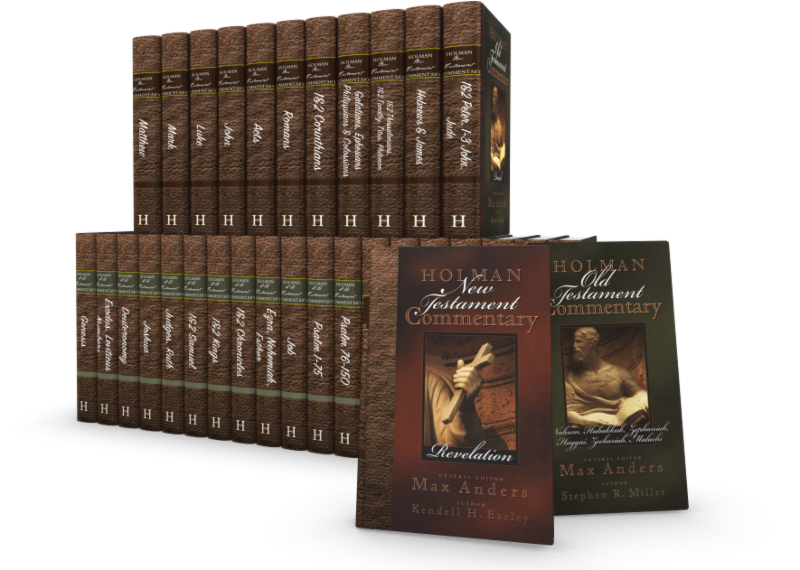
Accordance Deals on B&H Publishing Books
You can save a lot on these wonderful Accordance Deals on B&H Publishing works. They include commentaries, practical books, and theologies.
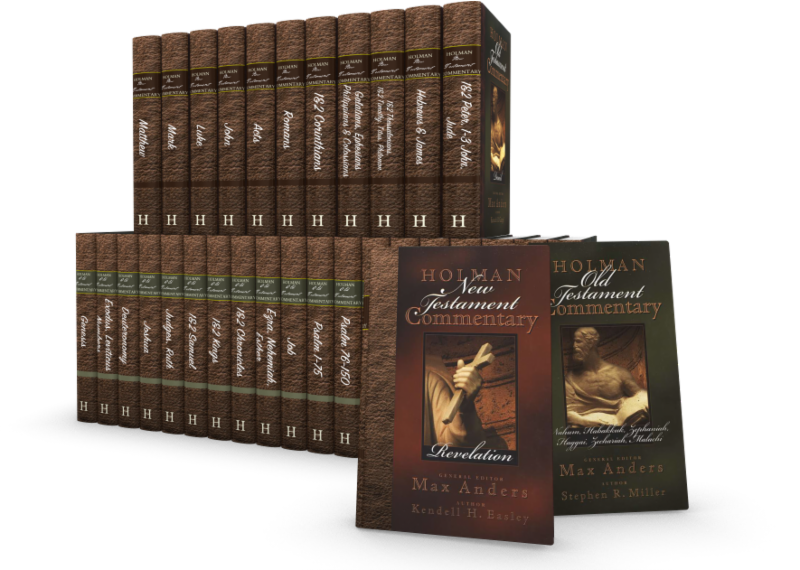
Accordance users know that the company produces great digital Bible study tools, and now you can add to those with some Accordance Deals on B&H Publishing. I've used many of these and even did a review of one of these sets. Here's a look at what you can get with these great Accordance Deals.
Accordance Deals on B&H Publishing Commentaries
These commentary deals will save a nice chunk of change.

- New American Commentary Series - OT Only $149, NT Only $99.90, and Full NAC Series $199.
- Christ Exposition Commentary - $99.90
- Holman Bible Commentary - Old and New Testament $79.90
- Exegetical Guide to the Greek New Testament - $99.90
- Teacher's Bible Commentary - $19.90
Those who can afford to should get the entire NAC series. It's one of my favorite commentary series. I own it on every platform that I use, and the Accordance Deals on this make it a no-brainer. Get the full set for $400 off their regular price.

I also like the Holman Bible Commentary. It's a nice tool for anyone who teaches Bible studies because each passage of scripture contains some illustrations to introduce the chapter's topic. Then you get exposition and application.
The Christ Exposition Commentary is decent. It seems like a collection of sermons organized into a commentary, which can help preachers working through books of the Bible in the series.
Other B&H Publishing Accordance Deals
Here's the list of the other Accordance deals you can find on their website. First, we'll look at new B&H Publishing releases...
- Theology for the Church - $20.90
- Theology of the Reformers - $17.90
- The World and the Word: An Introduction to the Old Testament - $15.90
- Letters to Timothy: A Handbook for Pastors - $11.90
- Engaging Exposition: A 3-D Approach to Preaching - $16.90
- Anointed Expository Preaching - $14.90
- The Great Commission to Worship - $11.90
- The Ministers Manual for Funerals - $9.90
Of the above, I'm most interested in Letters to Timothy. It sounds like a useful tool for pastors who want a Biblical approach to the ministry.
I've read Anointed Expository Preaching. I don't recommend it. Olford's too captivated by alliteration, which clouds understanding instead of improving it. Check out Bryan Chappell's Christ-Centered Preaching instead.
Book Sets on Sale in the Accordance Deals
The NAC studies in Bible & Theology comes with 11 volumes of excellent content about various theology and Biblical studies subjects. It costs $99.90 as a set, and I recommended it in my review last year.
The Perspectives Series Bundle costs $99.90 which gives you a set of debates from leading scholars on subjects in Biblical studies, theology, and pastoral ministry. The books present a point-counterpoint approach to the topics.
The "Is" Series Bundle comes with three books including...
- Evangelism Is...
- Ministry Is...
- Pastoral Leadership Is...
Each book covers the topics in brief chapters on each aspect of the three topics. They explain the aspects of the three parts of ministry.
18 New Features in Logos 9.5 Update
Faithlife recently released a Logos 9.5 Update to their popular Logos Bible Software. It comes with 18 new features and updates.
Logos 9.5 Update came out recently, and it brought some interesting new features and fixes. Here's a list of the X new features in Logos 9.5 that you can enjoy right now by updating your copy of Logos. If you're not yet running Logos 9, now's a good time to update. See my 6-month later review to get a 15% discount until June 15, 2021.

Download and update inside Logos 9 using the Update Now command in the Command Box. It sits on the toolbar on the left side with the big green GO button as seen in the screen shot above.
Counseling Guide Improvements

- New Journals Guide Section
- New Lectures Guide Section
- New Web Resources Guide Section
- New Bookstore Guide Section
- More Link takes you to Monographs and Dictionaries Sections.
Factbook Improvements
See our post about how to use the new Factbook
- Added the ability to see your results in the autocomplete drop-down when there are no results in your localized language.
- Added a keyboard switcher to the Factbook auto-completer.
- Improved the transliterations in Factbook autocomplete

My Library

There's now a new facet in the My Library for Factbook in the tabs for Yours and Store, which refers to books the user owns or books from the Logos store. So first, open the Library, and you'll find these tabs in the upper right part of the window on the toolbar. Next, open the Facets list by clicking on the Facets button, which looks like three horizontal lines next to the search box in the Library window.
When a user clicks on the "more:" link in the Facets list, it adds up to 100 new items instead of just 50 as it previously did.
Other New Features in the Library
From the Logos 9.5 Update wiki...
- Added support to persist Library settings in Favorites, Shortcuts, History, and Bookmarks.
- Added support to retain the selected tab and filter state when copying the panel URL.
- The update moved the Language facet to the top in the Store tab.
Resource Info Panel Improvement

If you use the reading plans in Logos 9, you'll love the new feature they added to the Resource Info Panel in the Logos 9.5 Update. First, open a book and click on the resource panel by clicking on the three vertical dots button at the right end of the book's toolbar. Then, click on the Start reading plan button in the list.
Sermon Builder Improvements
In this version, you can now edit passage blocks in the Sermon Builder. This also works with quote blocks. When you hit Enter, the cursor will leave the blockquote box. Also, Logos will now auto-publish the date changes on a sermon's occasion.
Two other minor updates include a new Store button on the toolbar. This is a little annoying because it takes up space that may be precious to users on smaller screens.
Before the Logos 9.5 update, when you created a customized guide using one of the default guides as your starting point, Logos never added new sections in later updates. Now, if you add sections or remove sections from the default guides, then Logos will not only keep your changes, but add anything they added to the default guides. New things added in future updates would not be added to your customized version, but Logos fixed that in this update.

3 Great Logos Deals You Can Get Right Now
Logos Bible software users can get 3 great Logos deals right now.

Logos Bible software users can get 3 great Logos deals right now. The first one is an older deal that remains in place until June 15. The other three just started this June.
Do you use Logos Bible Software for your study? Logos 9 is a great package to study the Bible personally, for sermons, Bible studies, teaching, preaching, and for your scholarly study.

Save 15% on Logos Deal on Logos 9 Base Package Sales
We shared last month during our 6-month later review. You can get 5 free books from a select collection of titles plus get 15% off Logos 9 Base Packages. Here's the link to get the deal.
The base packages will let you upgrade to Logos 9 if you haven't already. If you did, you can jump up to a higher level or get the next level for your denominational base package.
50% Off Eerdmen Publishing Resources for Logos

Check out these great deals and add to your research or study library books like...
- NICOT and NICNT - a great in-depth commentary series on the Bible with "thorough and modern scholarship" on the books of the Bible covered by the New International Commentary series. You save over $600 off the $1599.99 regular price.
- Eerdman's Biblical Reference Collection - resources on language study, additions to the Factbook, and the Theological Dictionary of the OT and NT. The collection retails for $1,138.99, but you can buy it in this sale for $569.99.

- Theological Dictionary of the OT and NT - a great set for theological linguistic research and study. It normally costs $849.99, but with this Logos deal, save 40% and pay $509.99.
- International Standard Bible Encyclopedia Revised - ISBE was a standard reference for almost any important word or topic in the Bible with a huge collection of 1,500 photos and 342 maps. Instead of paying $129.99, you only pay $77.99.
- Two Horizons Commentary Series - get 23 volumes with excellent biblical exegesis and theological study. It covers the Bible paragraph by paragraph rather than verse by verse. Pay just $249.99, saving 28% off the $349.99.
Logos Deal on Free Book of the Month
Every month Logos offers a free book of the month, where users can save and get a free book. Sign up for the email to get the book. You can also get other books drastically discounted. For example, this month get...
- Hard Sayings of the Bible - explains over 500 passages difficult to understand. Free
- The Spirit of Grace - part of the Christian Belief for Everyone Series, which gives readers an accessible explanation of the doctrines of the faith. This is the 4th volume covering "the Holy Spirit, the holy Catholic Church, the communion of the Saints, and the forgiveness of sins." $.99
- Psalms: An Introduction and Commentary - part of the Tyndale Commentaries series. $1.99
- The Person of Christ - focuses on the person of Christ in the history of church doctrine. $2.99
- 2 Corinthians The IVP NT Commentary - part of this commentary series and covers the book in a practical and theological way covering passage by passage comments. $3.99
- The Temple and the Church's Mission: A Biblical Theology of the Dwelling Place of God - G.K. Beale discusses the OT tabernacle and temple as symbols of the indwelling of Christ and talks about how this applies to NT understanding thanks to Christ. $4.99
- The Bible for Everyone - a new version of the Bible written to make it more accessible for everyone. $5.99
- Exodus Apollos OT Commentary - discusses the book focusing on the Exodus event and how we learn of God's love for his people as he changes the lives of people who were similarly victimized. $6.99
- Foundations of the Christian Faith: A Comprehensive & Readable Theology Revised and Expanded - a readable theology for the average believer. $7.99
- The Revelation to John: A Commentary on the Greek Text of the Apocalypse - Dr. Stephen Smalley offers a commentary on the Greek text of the book of Revelation. $8.99
- Pre-order Changed into His Likeness: A Biblical Theology of Personal Transformation - Gary Miller covers the issue of the Gospel where many promise too much and others expect too little of converts. $7.99
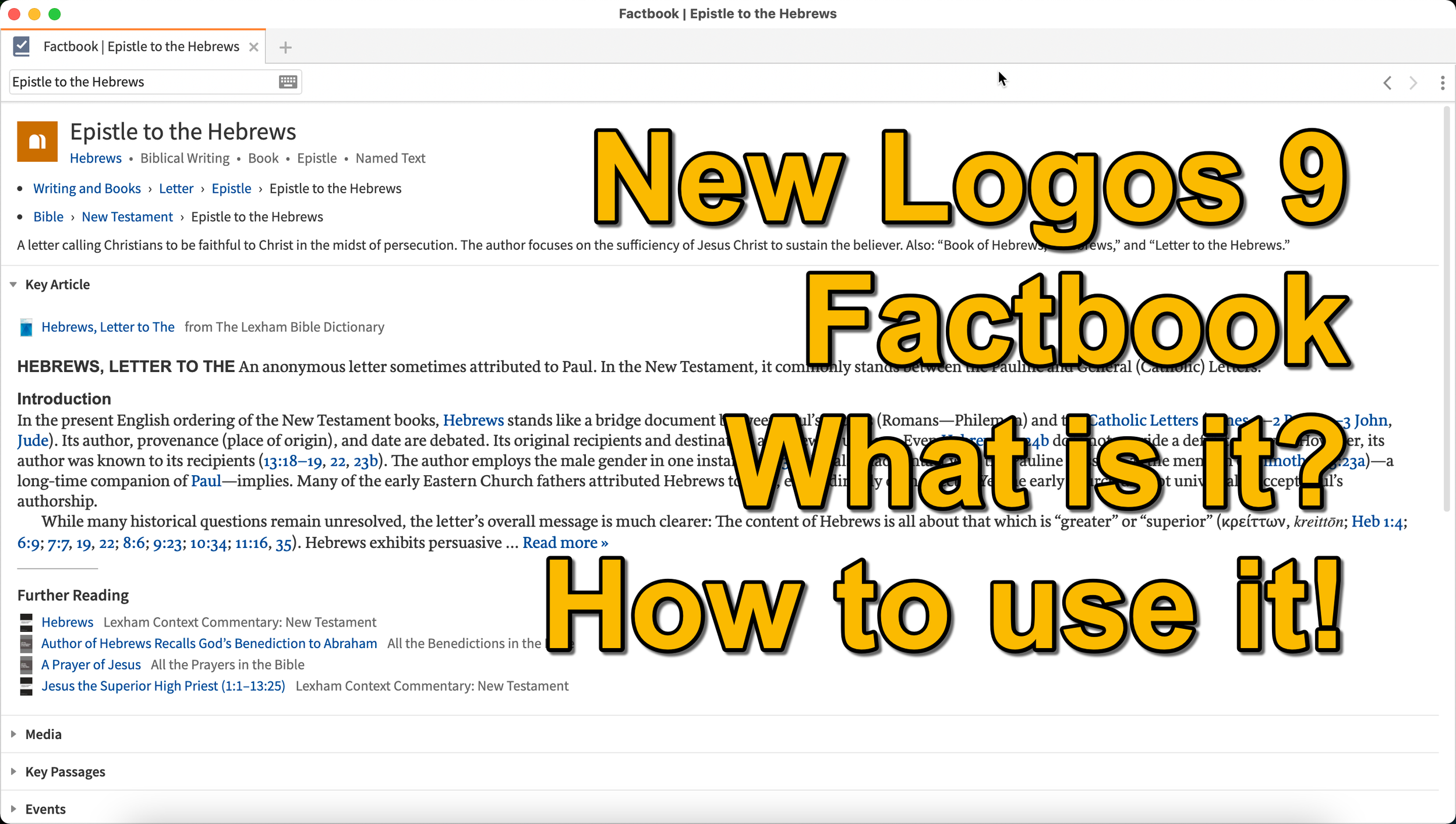
Logos 9 Factbook: How To Get the Most Out of the New Features in Logos 9
What is the new Logos 9 Factbook and how can it help you study the Bible more efficiently. We'll look at it in this series on new Logos 9 features.
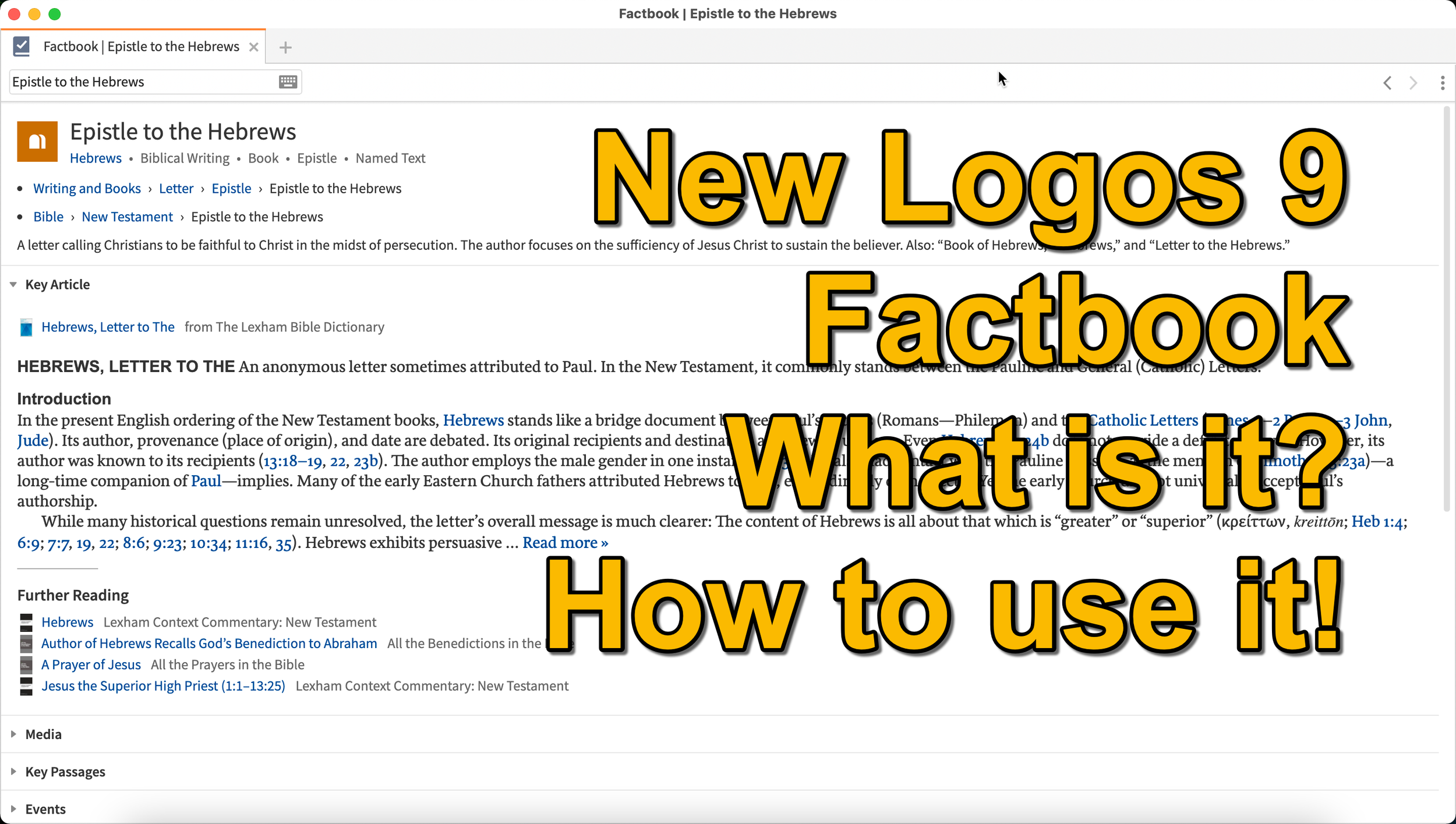
What is the Logos 9 Factbook, and how can you get the most out of this new feature if you upgraded to Logos 9? We'll take a look at each of the new features in Logos 9 now that we've had plenty of time to use them.
It's now been six months+ since Logos 9 came out. Since we've had it in hand that long I wrote a 6-months-later review. In addition to reading that, you can see my original post about the release of Logos 9. In this post, we will do a deep dive into all the new features starting with the one Logos made the most of in their advertising of Logos 9, the Logos 9 Factbook.
If you'd like to get a discount on Logos 9, you can use my affiliate link to give you 15% off, some free books, and my appreciation. I get a kickback to help me with expenses related to my website, podcast, and YouTube channels. Use the code PARTNEROFFER9 when you follow that link to get the discount and free books.
What is the Logos 9 Factbook?
Logos says, "The Factbook is one of the most powerful features of Logos, and it makes almost any biblical or theological term easily searchable." I compare it to a Bible encyclopedia on steroids. Just about anything you want to learn about in a Bible text will show up in the Factbook.
Past versions of Logos included the Factbook. However, it received a lot of attention in the update to version 9. A minor update comes in the form of the new icon. It now looks like a book with a checkmark on it.

New Sections in the Factbook
Second, Logos added a bunch of new topics to search for in Factbook. The new things include...
- Biblical Senses - these are translations of the Greek or Hebrew word. Biblical Senses give you an understanding of different ways the original language terms were translated in various places.
- Hebrew & Greek lemmas - you can now start a Greek or Hebrew word study from the Factbook report.
- Counseling Guide - start a study of the counseling guide on topics related to counseling, like marriage or addiction.
- Theological Guide - start a study of theological words or concepts from Factbook.
- Denominational Content - find all content on the topic from a denominational library, like Baptist or Lutheran.
- Lists as Topics - when you search for a topic, like a person's name. You'll see entries in the Factbook with lists related to that person's name or book of the Bible. For example, if I search for Matthew, it will find people named Matthew, topics or preaching themes from the book of Matthew, and more.
- Show All Topics - when you type a search term in the box in the Factbook, it will show a drop-down list of some searches you might be wanting as you type. At the bottom of the list, you'll see Show All Topics, which gives you a new list with all the Factbook topics containing your search term.
- Pericopes as Topics - search for a reference like John 3:16, and you'll get a list of pericopes (passages) with links to open the passage in the Lexham Context Commentary plus Media, Events, Sermons, and a See Also section.
These make up the list of the major new parts found in the updated Factbook.
Other Parts of the Logos 9 Factbook Still Available
Below, you'll see a list of other topics still included (from Logos support). The sections that show up in it are listed below:
- Info - basic information about the item search. This shows up in every search.
- Key Article - a section at the top from one of the common books in your library. Logos says the Lexham Bible Dictionary is an example of the book this Key Article will show. You get part of that article shown there in the list. Faithlife picked what Key Articles will show up for each kind of search item. The company focuses on its own tools, like Lexham Theological Library for original language terms.
- Media - images from any of your media resources.
- Letters - Personal Letter resources by an author if that's what you searched.
- Works - works created by the author showing links either to books in your library or store pages on Logos.com.
- Passages - shows a list of passages, like concordance of the word, topic, or thing. A link lets you instantly create a Passage List from the resulting list in the Passages section.
- Events - links to the Timeline and Biblical Event Navigator if a user owns that book.
- Dictionaries - articles in your dictionaries.
- Preaching Resources - topics from your preaching-themed resources.
- Referred To As - Bible verses organized by the way the search item is referred to with a list of the verses and a graph showing where that shows up in the Bible.
- Cultural Concepts - shows links to the Lexham Cultural Ontology Glossary, "which shows a hierarchy of the concept’s type, and search results for the concept within your Library" (from Logos Support site).
- Library - books in your library with content related to the search item.
- Journals - links to journals in your library with content related to the search.
- Sermons - links to sermons found in your library with content related to the search.
- Community Tags - these are tags that Logos users added to a section related to the search item. If I tagged a part of a book as "grace," then it would show up in other users' searches for grace.
- Bookstore - shows books for sale related to the search item.
- See Also - shows other things in your library that don't fit in the above section.
How to Open the Logos 9 Factbook
To open the Factbook you can do one of the following...
- Toolbar - Click the Factbook icon on the main window's toolbar. Enter what you want to search for in the search box.
- Go Box - start typing in the Go Box, and Logos 9 shows links to Open the Factbook to that topic, word, passage, etc. It also shows up as one of the taps that opens when you enter a search term and hit enter or click on the Go button.
- Tools Menu - You can also open it from the Tools menu. Either look for Factbook or type that in the search box at the top of the menu. Or it usually shows up in the shortcuts area at the top of the Tools menu.
- Context or Right-click Menu - Select a word in the text of your book or Bible and right-click, bringing up the context menu. You'll see the Factbook links in many places usuually in the right when you highlight a subject on the left.
- Visual Filters Button - There's now a toolbar icon in the Bible window for the Factbook. Click to turn it on and from now on you'll see blue dotted lines under words with Factbook entries. Don't confuse those with other solid blue lines that may show up if you've created other visual filters, like I did for parts of speech. Click those words to open a Factbook window for that word.
- Search Panels - When you search for things in a search box, the Factbook sits near the top somewhere in your search results. It moves around depending on what you searched for, but it will show up near the top of the results.

If you use the last method to turn on the Factbook, you can turn on or off what Factbook features will show when you click using Visual filters (see image above). Turn on or off different parts of the Factbook by clicking the down arrow next to the Factbook button. A list with checkboxes shows up, ready to turn off and on.
Bible Book Guides

The Bible Book Guides in the new Logos 9 Factbook shows up when looking at a book of the Bible in the Factbook. For example, if you search for the book of Hebrews, it will show you a section about the book. This section will help if you're going to do a study of a book of the Bible. You'll see the following sections:
- Content - Introduction, outlines, and contents mostly from commentaries on the book that you search for in Factbook
- Origin - Links to the books in your library with information about the book's author, date, and purpose.
- Background - Shows books with content about historical context, recipients of a book, and the author's location when writing the book.
- Objects - Books with geographical, date, location, and key people in the book.
- Canon - Discussions about the canonization of the book.
- Form - Discussions of the book's composition, text, title, style, and structure.
- Meaning - Books with info on the book's themes, emphases, interpretation, theology, significance, and spiritual content.
- Additional Information - Links to Bible dictionaries and commentaries with additional info about the book.

5 Best Bible Apps for Android and Fire Tablets for 2021
What are the 5 best Bible apps for Android for 2021? These run on Android phones, tablets, and the Amazon Fire tablet.
If you own an Android smartphone or tablet or maybe an Amazon Fire Tablet, then we've got the 5 best Bible apps for Android. This list usually stays the same each year. So what has changed for 2021?

I tested these apps on the Samsung Galaxy Tab S6 Lite. I used to own the Tab S7 but handed it down to my son, an Android first guy. Most of the time, I use the iPad, but Android works great too. So, here's my list for 2021!
What's your favorite Bible app on Android or Amazon Fire Tablet. Comment below or head over to the YouTube video above and comment there.
Bible App by Olive Tree
Olive Tree's Bible App sits atop our list because it's still the best mobile Bible app available for reading, study, and sermon prep. Why do I call it the "best"? Olive Tree presents the Bible and Bible study material with the perfect balance of usefulness and simplicity. That's hard to do. Just ask the other more technical Bible study apps listed below.
UPDATE: The Bible App by Olive Tree is no longer supported on Amazon Fire tablets.

Open Olive Tree on a tablet, and you get two areas by default. On the left, you'll see a kind of Windows Explorer or macOS Finder kind of navigation window that takes up the left half of the screen when you tap the menu. To see this menu, you'll need to tap the menu button that looks like three horizontal lines in the upper left corner.

The Bible sits on the left when the menu isn't open. On the right, you'll see the Resource Guide. These two can link up so that when you scroll or swipe from page to page in the Bible, it will move the commentary you have open to the right.

Add word study features by opening a tagged Bible. Tap on a tagged word, and you'll see a popup window that defines the word in its original language. You also get Audiobooks, reading plans, devotionals, maps, highlights, note-taking, and it all syncs up with your computer version of Olive Tree.
There's more to this app, but this hits the highlights and explains why I put it first in my 5 Best Bible Apps for Android list.
Logos Bible App from Faithlife
The Logos Bible App (Amazon Fire App) and its other similar apps from Faithlife come in second in our roundup because of its power and array of useful features. It's a little bloated, but I'd rather have too many features that don't get in the way of the basics than not enough, like the ability to add user notes.

When you look at all that Faithlife packs into Logos, you can only say wow! There's a reason this ends up in our 5 Best Bible Apps for Android, but not at the number one spot.
The app divides into a few main areas.
- Home Screen - layouts for study are here, along with information from Faithlife about sales or books.
- Library - find your books to open and read.
- Book Reader - you can open a bunch of books, and they will show up on screen accessible via the center button, the toolbar at the bottom of the screen.
- Search Screen - use it to search your Bible or books.
- Main Menu - find all the major features of the Logos app here, like the Guides.

You can open multiple books and sync them using the center button on the bottom toolbar. Set up some or all of the books to sync up or don't. I have a few Bible translations and a few study Bible's or commentaries open all the time, all of which I set to sync up, so they move from verse to verse together. I also open books I'm reading too, but they don't sync with a Bible.

On the Bible, you can do word studies, searches, and add notes or highlights. Open the menu, and you can search your library in one of the Guides. A passage guide finds everything about your passage. The Exegetical Guide searches for content related to language study. Other guides work similarly.

You'll find many other features, mainly in the main menu at the far right on the bottom toolbar. And remember, it all syncs nicely with the computer app or their web app.
Faithlife also offers a few other apps for Bible study and reading. You can download...
- Faithlife Study Bible - focused on their study Bible and the Lexham English Bible translation.
- Faithlife eBooks - a simplified version of the app for reading books primarily, but still has some study features.
- Biblia - Spanish language version of the app.
- Verbum Catholic Bible - app focused on Catholic users.
The Bible App from Life.Church

I always fight with myself about adding The Bible App (Amazon Fire App) to my roundup of best Bible apps for any platform, but I always do it for one reason. It's the most popular Bible app available on mobile devices.
I don't like including The Bible App because it's not really a complete Bible study app. You can't do word studies or read commentaries and Bible dictionaries. But that's not what Life.Church intended for its users to do.

Instead of more advanced Bible study, The Bible App excels as a simple Bible reading app that also includes social networking built-in and sharing to social media easily and elegantly. You can...
- Download and read hundreds of versions of the Bible, most of them available offline.
- Listen to audio Bibles.
- Set the app to remind you to read a daily reading and devotion or see a verse of the day in text or visual format.
- See what your friends are reading, highlighting, sharing, or commenting about the Bible.
- Watch videos to help you understand the Bible.
- Bookmark verses.
- Share verses with others via social media, email, or text.

Accordance Bible Software
The Accordance App (Amazon Fire App) on Android has gotten better but still lags behind its iOS cousin and the other apps in our roundup for a couple of glaring weaknesses. First, you can't add your own user notes yet. That's gotta change, and Accordance should feel embarrassed they haven't added the feature in 2021.

Second, the syncing features in the app are weak by comparison. Accordance should add its own syncing tool to keep your user content fresh on Android and a computer.

While Accordance really needs the improvements above, it still deserves a spot in our top 5. Of course, you can read the Bible and other books in your library. Accordance sells a lot of great Bible study tools, thanks to a huge library of quality resources. They are often the first company to release a book when it gets published. For example, they released the new 2020 version of the NASB before the others on the list. Logos doesn't even have it out yet.

Accordance works great as a Bible or book reader. It lets you search, and you can select a word and Amplify it, which means study by searching for related content.
Tecarta Bible
Bible study observers may not know as much about Tecarta Bible (Amazon Fire App $5.99 for NIV) as the others in this roundup. But they should because it's a decent app.

The app includes the most-used translations. You can download the KJV for free and buy others for download. If you don't want to pay for a translation, you can "stream" them, which means use them as long as you have an Internet connection on your phone or tablet. You'll have to buy commentaries, but unlike others, Tecarta lets you try them.

The app displays parallel translations and shows the commentary in a 2nd or 3rd window. Add notes, bookmarks, highlights, or share verses.

If you tap and hold on a word, the app shows a box popup that says "Define," and it will go online to give you a definition from an Internet search.
5 Best Bible Apps for Android and Fire Tablets for 2021 Summary
Which of the 5 apps included in our roundup of the 5 Best Bible Apps for Android should you download? Why not download all of them? Of course, you should start with the app from the company you already use on a computer, if you own one. I'm a Logos Bible Software user on my Macs, so I primarily use Logos, even though I like Olive Tree better on mobile.
UPDATE: If you use an Amazon Fire Tablet, you can't download the Olive Tree app since it's no longer supported. For a fifth Bible app on a Fire Tablet, look at Laridian's Pocket Bible. It's also terrific.
Update: You can also install the Google Play Store on an Amazon Fire Tablet. It's complicated, but if you think you can handle it, fire up the Silk browser on your Fire and head over to the helpful how-to article at Android Police.
If you must make me recommend one over another, then I'm going with Olive Tree first. It's got the cleanest and simplest interface. It has enough features for most users. People who need more advanced tools will likely not work on a tablet or smartphone very long. They're using a computer-level Bible study suite from either Logos or Accordance. However, don't end your search with Olive Tree. You can try out all of them for free and settle on one with the best features for your needs.
Logos 9 Upgrade 6 Months Later - Is It Still Worth the Upgrade Cost?
It's been about six months since Faithlife released Logos 9 upgrade to focus on some key improvements to the computer app and the mobile app. Also, you can save $1,600 on a Logos 9 Base Package plus get 5 free books using the link provided in this article.
It's been about six months since Faithlife released Logos 9 upgrade to focus on some key improvements to the computer app and the mobile app. I published my review over at ChurchTechToday.com on October 30, 2020, and talked about it here as well.
The Logos 9 upgrade brought the following key improvements, like...
- Some user interface tweaks make the software easier to use.
- An update to the Factbook in the Logos 9 Upgrade
- The interesting Sermon Manager and Sermon Builder
- A Counseling Guide
- New sorting features in the Bible commentaries section of the Passage Guide
- Improvements to the Reading Plans and the Reading Queue
In addition to the above improvements in the Logos 9 Upgrade, we also saw some decent changes in the mobile app. They added the Factbook to the menu seen in the toolbar at the bottom right corner of the app. You can also use your iPad or tablet for preaching, thanks to the new preaching mode in the mobile app. I actually love using my iPad to preach.
15% Off Discount on Logos 9 Upgrade to Base Packages and 5 Free Books
From now till June 15, 2021, you can get 15% off a Base Package upgrade. To do that, follow this affiliate link, and you'll get a discount. Full-disclosure, I'll get a little kickback from Faithlife.
Follow that link, and not only will you get the 15% off discount when you use the code PARTNEROFFER9 at Checkout, but you can also get 5 free books. Select from 28 different books, including some great titles.

Here's a list of my recommendations.
- Spurgeon Commentary 1 Peter
- Lexham Research Commentary: Colossians
- St. Paul's Epistles to the Thessalonians by George J. Ellicott
- The Essentials of Prayer by EM Bounds
- The Life of St. Paul by James Stalker

Faithlife offers a myriad of Base Packages. Here's what I recommend depending on what you already own.
- Logos 9 Bronze - Great for people who are just getting started.
- Logos 9 Gold - Jump to this level if you already own a pretty big library.
At the bottom of the page, you see a link to see the other Base Packages. Follow that to find the Logos 9 Upgrade packages for Anglican, Baptist, Lutheran, Messianic Jewish, Methodist & Wesleyan, Orthodox, Pentecostal & Charismatic, Reformed, SDA, or Catholic (Verbum) users.
Logos 9 Upgrade: Best Feature is New User Interface Tweaks
One improvement stands above the rest. I like the features listed above, but the simple tweaks to the user interface on the computer version of Logos 9 made the most difference in my productivity with the Logos 9 upgrade six months after Faithlife released the update.

It sounds crazy, but the new button on the upper right corner of the screen helps users a lot. First, you can quickly jump to your account to see what you have or what pre-orders you might see published soon. You can also jump to Your Faithlife Profile, where you can interact with other users and see answers to your questions.

The other amazing new tweaks include transforming the program toolbar. For example, right-click on a book icon that you placed on the toolbar like I did as seen in the image above.

you now get a drop-down menu holding those books in that folder.
The new tweaks to the toolbar give you a drop-down list of icons from the toolbar that no longer fit on a narrow screen on small screens. See the image below to understand what I mean.
There's a new light mode, dark mode toggle in settings. People love dark mode, and I don't understand why. But if you do, then you now have it.

Other New Features in Logos 9 Upgrade
Logos seems most proud of the other new features in Logos, which include...
- Factbook
- Sermon Builder
- Sermon Manager
- Counseling Guide
- Improved Reading Plans
I like all of those, and you should see my review linked in the top section of this post from ChurchTechToday. The second feature I'm most excited about also doesn't seem big. Faithlife now added a feature to organize my library in a more useful way when I fun a Passage Guide.
Go to the Commentaries section of the Passage Guide and look in the upper right corner. You'll see ways to sort your books including...
- Priority - follows your customization where you rank certain commentaries above the others.
- Series - groups the commentaries by series, like the New American Commentary series or the Word Biblical Commentary series.
- Author - who wrote it?
- Denomination - what is the denomination of the publisher/editor/author depending on the commentary.
- Type - is it a technical or devotional commentary?
- Era - when was it published?
Mobile App Improvements
Logos added the Factbook to the mobile app too. You'll find it in the menu button in the lower right corner.
Faithlife added a preaching mode to the mobile app. That way, you can build and manage your sermons in the computer app. Then you can put your app in preaching mode and preach from the app.

Logos March Matchups Starts Today with Big Savings
Logos March matchups starts today with 40% off New International Commentary on the Old and New Testament. Find out what it is and how you can save money.

I love March Madness. I used to find a set of NCAA basketball brackets and fill them out. Then I'd watch as many NCAA college basketball games as I could find time to watch. The Logos March Matchups comes along at the same time to promote Logos Bible Software.

Logos March Matchups promotes the software to customers with some deals on commentaries during the March Madness season. Logos started the promotion today, and you can start voting on which books you want to be discounted. By the way, the above link is an affiliate link. That means if you use it to buy books, then you'll help me out since Logos gives me a kickback.
How Logos March Matchups Works
You can participate and vote on what books they offer at the best prices. The College Basketball March Madness works like this: they rank teams in four sections from 1 to 16. The best teams are ranked 1 with the weaker teams ranked 16. Take four groups of 16 and you get 64.
Each group of sixteen plays a single-elimination tournament. The winner gets to compete in the Final Four. That's the four winners of the four 16-team tournaments.
Logos does the same, putting 64 commentary sets in a bracket. Instead of playing a game, they let people vote on which commentary sets they want to receive the steepest discount. Since they start with 64 sets, they pair them up in 32 polls in the first round. The sets that voters choose move on to the second round. In that round, Logos pairs 32 sets and 16 can win based on the votes of users. This continues to the third round with 16 teams, the fourth round with 8 teams, the final four, and the final pair. By the end, voters pick one commentary set to get the steepest discount.
Buyers get smaller discounts in the earlier rounds. The final winning commentary set will cost 60% less after March 22, the end of the tournament.
What Can Users Vote On?
Buyers can get the "Hall of Fame" commentary set, the New International Commentary on the Old and New Testament, for 40% off today. You don't have to wait for the end of the Logos March Matchups tournament. Here's how Logos describes this work:
This massive collection combines the available New International Commentary (NIC) volumes covering the books of the Old Testament and the New Testament to provide an exposition of Scripture that is thorough and abreast of modern scholarship, yet at the same time loyal to Scripture as the infallible Word of God. This conviction, shared by all contributors to New International Commentary (NIC), defines the goal of this ambitious series of commentaries.
The brackets for the Logos March Matchups tournament show the following commentary sets...

Here's my list of recommendations from each division of the brackets.
Division 1 - This section includes the New American Commentary series, my favorite set of commentaries. However, a lot of people like Word Biblical Commentary, so I think it may win the division. However, consider the Lexham Geographic Commentaries. Logos says, "The Lexham Geographic Commentaries deliver fresh insight by drawing attention to an often overlooked component of biblical stories—their geographical setting."
Division 2 - I expect that Evangelical Exegetical Commentary will win this division. It's a critical commentary written by and for Evangelicals. They focused on creating a digital tool. The other set that should challenge for the win is the Pillar New Testament Commentary. It's slightly less technical that some commentary sets making it a nice choice for preachers or teachers not doing scholarly work.
Division 3 - The New International Greek Testament Commentary Series should take this division. In fact I'll call it now.
Division 4 - Either the Zondervan Exegetical Commentary Collection or Anchor Yale Bible Commentary will take this part of the bracket. However, I'd prefer The IVP New Testament Commentary Series.
The final round should result in either Word or EEC winning it all. What do you think? Answer below to tell me what your favorite commentary is and which one you think will win it all.
Fans of Mobile Education and Verbum will also enjoy their own bracket.

What Do We Mean by Creative Digital Sermon Preparation?
In our series on Creative Digital Sermon Preparation, what do we mean by "creative" or "creativity"? This post answers that part of the equation.

We started this series on Creative Digital Sermon Preparation with an overview and introduction to the series. Now we take another look at the overall idea after hitting step one, prayerfully choosing a text. What do we mean by "Creative Digital Sermon Prep."
See our series on Creative Digital Sermon Preparation!
I assume readers understand what we mean by sermon preparation...
- Choosing a passage under God's direction.
- Studying the text using Inductive Bible study.
- Planning to present the message of that text.

That's sermon preparation. We add the term digital because we use digital tools instead of analog paper books and Bibles. This series covers the process of digital sermon prep using Logos Bible Software. We'll then take a stab at it with Accordance and Olive Tree and maybe some others. If you don't use Logos, what do you use? Comment below.
How do we prepare creatively? And then how do we present the message creatively? Here's what I mean by Creative Digital Sermon Preparation and Preaching.
Creativity Pictured
Young Kevin sat in the auditorium listening to Pastor Bob Stiles preach. He couldn't wait to get out of there and eat lunch. Maybe mom would let them go to the Italian place with the great spaghetti and garlic sticks with butter sauce.

"Everyone take out the Hershey's Kiss our ushers passed out before the service began," Pastor Stiles directed. Kevin already ate his. Mom looked at him, wondering where Kevin put his. Kevin looked up at her and smiled as innocently as he could.
"Why did that old man want me to eat a Hershey's Kiss? They're pretty good."
He enjoyed his 25 minutes earlier. Now he wished he had another.
"They say 'Big Things Come in Small Packages.' Remember that the next time you eat a Hershey's Kiss or any other small piece of chocolate candy," the pastor said, unwrapping a Kiss. "The tongue is tiny but can deliver a ton of pain when we say unkind words meant to stab at the heart of a loved one."
Just then, a video played on the screen showing a man building a fire while a narrator read the passage from James 3:1-12.
So too, though the tongue is a small part of the body, it boasts great things. Consider how a small fire sets ablaze a large forest.
(James 3:5, CSB)
For the first time, little Kevin paid attention to the sermon, at least during the sermon.

A few days later, Kevin and his Uncle Mike stood in line at the CVS, waiting to pay for some medicine Uncle Mike needed for his bad back. Kevin looked at him, wondering, "Will he say, 'Yes?'" He did, and Kevin grabbed a small bag of 6 Hershey's Kisses from the rack below the checkout counter.

He wanted Hershey's Kisses after the pastor mentioned them in church Sunday. After Uncle Mike paid, Kevin tore into the bag, unwrapped his first Kiss, and gobbled it up like a starving vagrant.
"Get your fat little brat out of the way," a heavyset older woman yelled at Kevin's Uncle. Did she mean him? He never really considered himself fat, but he was plump. The pain of her words pierced his heart.
Creative Digital Sermon Preparation in Biblical Hermeneutics
As we preach, the creative elements of the sermon make them memorable. In the fictitious example above, a sermon on James 3 grabbed little Kevin's mind. Days later, when he experienced what the pastor exemplified by his candy analogy, it meant more to Kevin. He learned thanks to Pastor Stiles's small object lesson on the potency of the tongue. Candy grabs a boy's attention more than eloquent speech.
A motion video of words from a Bible verse with sound instead of accenting the words grab attention more powerfully than reading the text from a paper Bible. A multi-sensory experience where the audience hears the message, sees the message, feels the massage, and even tastes the message, will tattoo itself to the heart more indelibly than a traditional spoken word.
Creativity in sermon preparation and delivery empowers the message as nothing else can. That's why we want to creatively study the word, looking for the multi-sensory aspects of the text, and take note of those examples so we can creatively reproduce them for our audiences.
Examples of Creative Digital Sermon Preparation for Communicating the the Bible
The Bible is rife with creativity and objects lessons. The Eden tree served as an object lesson of boundaries, commitment, and the temptation of Adam and Even. The flood taught Noah a lesson through an experience of all the senses as no sermon could. God used a dove to illustrate a message of waiting on God to act. The rich sensory experience of sacrifice stamped the idea of atonement on the Israelites' hearts as they smelled, heard, felt, saw, and in some cases tasted that atoning sacrifice.

The Lord's Supper and Baptism are two of the most important worship rituals of the church. We experience them a rich multi-sensory experience that we will unlikely never forget. Who can't remember their own baptism as the water poured over the face and then dripped off a robe or t-shirt and shorts? We taste a tiny cup of juice or wine, depending on our traditions.
Baptism and the Lord's Supper were commanded by Christ for many reasons. I believe that he commanded us to do them in part as a means of indelibly stamping the truth on our hearts reinforced by the sense of taste, touch, smell, site, and hearing.
Find the Sensory Signals in Scripture and Communicate Using Senses
Expository preachers argue that we communicate the Scriptures' messages by letting the message of God's word direct our words as we preach. We don't bring our opinions into the Big Idea of the text. We let the words in the passage direct our main points and message.


I usually preach expository sermons. So, I support the idea of letting the text speak. However, I think we miss another way that the text should direct our message. Let the tone, sensory imagery, creativity, and word-picture of the text direct our presentation methods. A convicting message from a text will contain a more prophetic tone as we preach. A lighthearted story filled with humor should also contain humor. When a Psalm uses strong sensory images, the sermons should grab hold of those same or similar sensory images.
Spotting the art in Scripture becomes part of our preparation while we study a passage. Learn the Big Idea of a text and learn how the Bible communicates the Big Ideas by tickling our five senses.