

Using Scrivener to Write Sermons
Preachers use different tools to write their sermons, from Microsoft Word, a simple text editor, word processors built into Bible software or something like Scrivener. Wes Allen, one of the Theotek Podcast contributors and American Baptist Church pastor, uses Scrivener to prepare his sermons. We talked about his workflow and why he uses the program in a recent Theotek Podcast that we recorded live on our Theotek Podcast Facebook page.Scrivener is a word processor. That's the simple way to describe it, but there's more to it than that. Some people think of the program as a tool for writing books or long form documents, like a doctoral dissertation. Wes uses it that way, but also uses it for shorter form documents, like his weekly sermons. That's because the built-in organization and writing tools work better for him that what most preachers probably use - Microsoft Word.https://www.youtube.com/watch?v=SHDYJdkAAic&t=30sPlease watch the video above from our YouTube Channel. In it Wes talks about...
- The way to format text using styles
- Setting up templates for outline forms
- Using the dual pane view to see the text of the sermon next to the other documents
- Organizing the files and folders
- Exporting for use in preaching and writing books from a sermon series
... and more!
Scrivener Organization for Sermon Prep
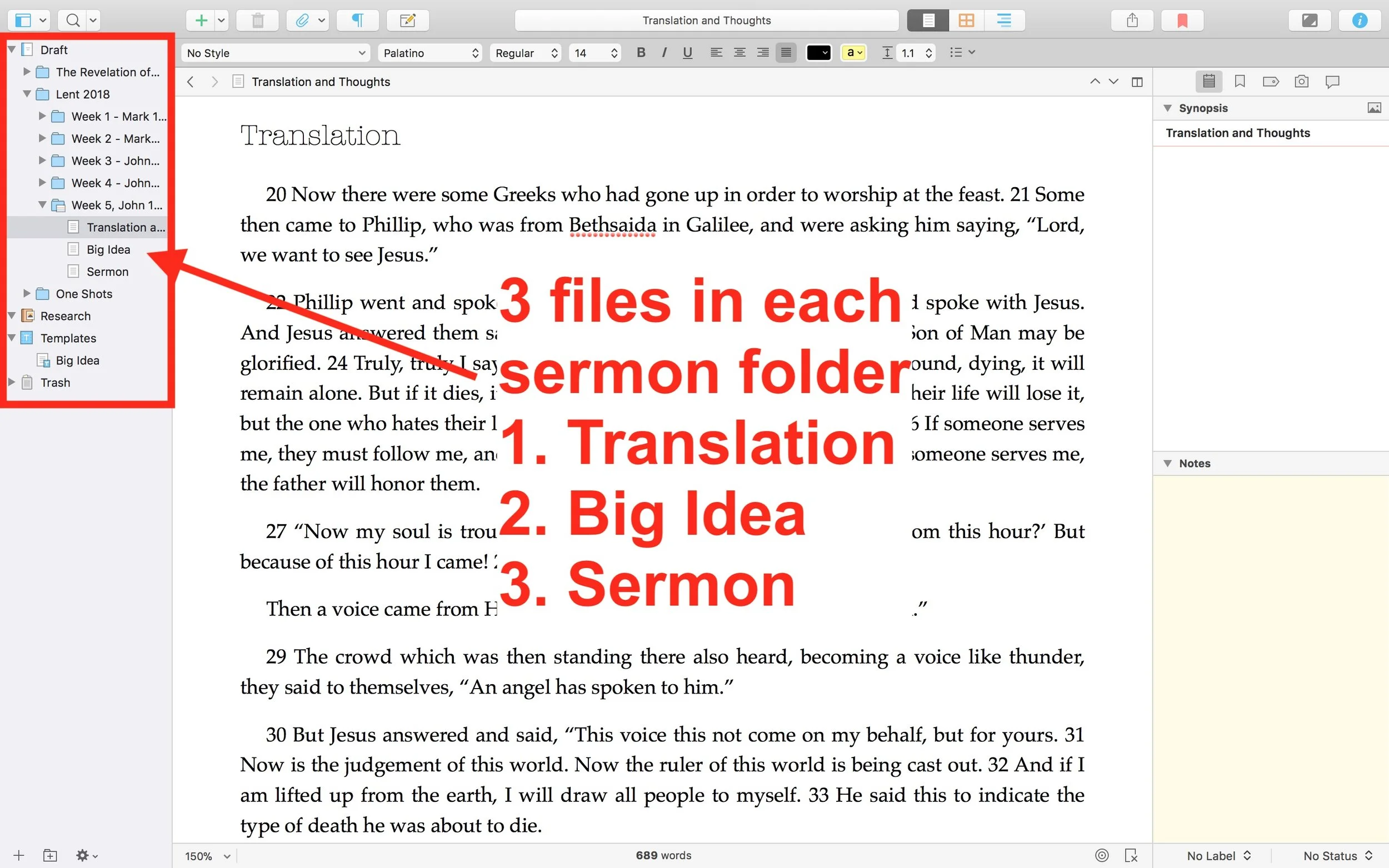
 He uses one Scrivener file per year. He then creates folders inside Scrivener for each sermon series or season. This lets him organize things easily within Scrivener. Under each series or season, he creates folders for each sermon. Then in those folders he places three documents (see image above).
- Translation of the primary text - he creates his own translation of the Greek or Hebrew text.
- Big Idea - the main idea of his message explained in a single document.
- Sermon Text - this document where he writes the sermon itself.
My Scrivener Organization
I really like this way of organizing each sermon. However, I don't do a full translation of my sermon. So I might organize things in Scrivener similarly, but in a slightly different way that better fits how prepare my sermons.First, I will organize my sermons around sermon series instead of year. That's because I sometimes preach through a book of the Bible and this might take more than one year or I might start it in September, take a break for the holidays, and then go back to it in January. Organizing that series by year would break it into two files. So, instead, I'd create a Scrivener file for First, Second and Third John, the last sermon series I recently finished just before the Easter season in February.Next, in each sermon folder I plan to create one Scrivener document for study notes called Text Notes. I create these notes in my Bible software while I'm studying the text. Then, I'll copy and paste the text of the Bible passage and the notes into the Text Notes document in Scrivener. I usually use one of a few sermon outlines and I will create templates in Scrivener (see the video to see what I mean by templates) for each of these formats.
- Motivated sequence
- One-point inductive
- Negative options indicative outline
Motivated Sequence Outline
A Motivated Sequence outline comes from the book 12 Essential Skills for Great Preaching by Wayne McDill, my seminary professor who taught at Southeastern Seminary. Here's the outline for this kind of sermon:
- Attention Getter - a way to grab the audience's attention with an anecdote, controversial statement or quote, joke or video.
- Need Element - some call this the Fallen Condition Focus; it's a way of showing the way the passage deals with our problems, which draw people into listening to your sermon and show the answer from the passage.
- Solution - the body of the message will offer the solution to the need mentioned above with as many outline points as needed to cover the ideas in the passage.
- Explanation - explain how text solves the problem.
- Illustration - illustrates the meaning of the text's main ideas and illustrate how to put the ideas into action.
- Proof - shows that the ideas are true since people don't just assume that the Bible is true like we believers do.
- Application - clear and concrete ways to apply the ideas presented.
- Visualization - show what the solution looks like with an illustration, story or video that helps people see how to apply the message.
- Appeal - tangible way or ways that the audience can respond to the message with specific and concrete steps.
Inductive Sermon Outlines
The other two outlines I use are inductive outlines. They both offer a single main idea. The one-point inductive approach will follow the outline below:
- Grab attention.
- Share a need that the passage solves.
- explain that need
- illustrate how that need affects the hearers
- Explain how the how the passage deals with the need.
- sharing details first
- then offer the main idea
- Illustrate how that passage solves that need.
- Prove the idea
- Apply the passage's solution in that Big Idea with an appeal to the audience to do something with the idea.
The last outline follows a negative solutions offered by people and then turns to the way the passage shows that God solves this problem. It is also inductive and a single main idea presented after exploring some ways the humans try to solve the fallen condition focus. These come from the passage just as the main idea.
Logos Bible Software Sermon Prep Part Two: Choosing a Text to Preach
Many preachers prefer to preach a topic found in multiple texts that the preacher expounds during a single sermon. I prefer to look for a single Bible text and that one text will dominate the sermon. In this second part of our series on Logos Bible Software Sermon Prep, we'll look at how the program can help the preacher choose a text to preach an expository sermon. The first part focused on using Logos to find a good sermon subject, for Topical Preaching or Topical Textual Preaching.This method of preaching will dominate the rest of our sermon prep series.
UPDATED: I added the Lectionary Tool at the end of this post.
What is Expository Preaching
I don't have the space look at the benefits of expository preaching versus topical preaching. Check out Lifeway's helpful list of 9 Benefits of Expository Preaching by Tony Merida. However, let me quickly define what I mean by this. Expository preaching includes the following:
- One single text dominates sermon's content.
- The main message comes out of the text. Some call this the Big Idea, as Haddon Robinson did in Biblical Preaching.
- The text will also dominate the tone and style of preaching. Poetry should have a poetic feel while narrative should include the story as a primary part of the sermon. Positive tone should not result in a harsh sermon.
- The preacher will explain, illustrate, prove and apply the Big Idea of the text while preaching that text.
What Kind of Text Are You Looking For?
Your expository preaching can include the following:
- A single passage or pericope of scripture, like my sermon this week on John 13:31-35.
- Part of a book like The Sermon on the Mount or Jesus' Farewell Discourse in John.
- A full book of the Bible like John's Epistles.
I've preached through all three taking anywhere from a single message to multiple years. This week I'm preaching on John 13:31-35 but I'm not preaching through John or through one section like the Farewell Discourse of Jesus in John's Gospel. I've preached through the Sermon on the Mount, but not through the book of Matthew ... yet. And last year I preached through John's letters. All of the above sermons or series of sermons were expository sermons and my Logos Bible Software sermon prep benefitted from the tools explained below.https://www.youtube.com/watch?v=MV9Viuw_xgc&feature=youtu.be
Tools for Finding a Text in Logos Bible Software Sermon Prep
Logos Bible Software sermon prep will use a number of tools to help you choose a single text or a longer part of a book or a full book of the Bible. In our earlier post we looked at finding a topic to preach. Topical preaching isn't my favorite way to preach. I don't go so far as some to say it's sinful or evil. However, we should use it sparingly.You can use the same tools used in the earlier post to find a single passage for your expository sermon instead of using them to find proof texts for a topical sermon with multiple texts. So head over to that post and use those steps for finding a single text on a particular topic.To find a text for an expository sermon, you can just start reading the Bible and get inspired by what you've read. Or you can hear someone quote a passage or read a book that refers to one. However, you pick that single passage you'll want to start reading it.
One Bible
 My first step is narrowing the text (choosing where to begin and end my sermon). I start by reading the text in context multiple times. In your Logos Bible Software sermon prep process, open your favorite translation. Go to your library by clicking the library button, second from the left next to the home button on the toolbar. Or click in the command box and type Go to John 13:31-35 or whatever your chosen text might be. Read the text in context as follows:
- Narrative - read the story and read those passages before and after.
- Poetry - find the beginning and end of the poem and if it's in context of another genre then read the parts before and after. Psalms are a single unit of text by themselves so just read the chapter.
- Proverbs - read the chapter and decide if your Proverb is part of a collection of Proverbs about a subject, then pay attention to the other Proverbs about this topic. If it's not part of a section of Proverbs on a single topic, then read your single Proverb (note some Proverbs might include multiple verses).
- Didactic - teaching passages like the epistles require us to find the letter's overall argument and then look for this particular part of the argument to find how your text fits in the overall argument. This overall argument might include the entire book or a large section of the book, like Romans 1-11 or Ephesians 1-3.
- Prophetic - find the overall prophecy, often in poetic genre and other times as part of a narrative. One prophetic message will become one preaching text.
- Legal - read laws in context of their overall application, like laws about the priesthood in Leviticus or the feast days, etc. and choose your text-based on this overall section.
You can do this in any software. Logos doesn't do it better or worse than any other program. You can even do it in a paper Bible (shudder to imagine it).
Passage Analysis Tool
Checking out multiple translations can help you decide what verses to include in your passage. Logos Bible Software Sermon Prep will benefit from the Passage Analysis Tool. Go to Tools and click on Passage Analysis. Type your passage into the command box in the upper left corner. It will visually show the boundaries of the various pericopes in your top translations. Next to the command box you'll see a drop down box that reads "Pericope Sets". Click it to choose your translations by putting a check in the check box of your preferred translations. If you own too many books with pericopes, you may need to scroll to show them all. (What is a pericope?) After you finish choosing your translations, they will show up in columns in order of your rankings. Along the left you'll see links to the text that you can click to open your preferred Bible to that verse.The columns will show boxes that represent a pericope. For example, in the image above, notice that the ESV (dark blue column on left) has more pericopes than the NLT (green column third from the right above). Click on a pericope box and it opens in your top translation, but not that specific translation that you clicked. I'd expect it to open in that translation, but it doesn't for some reason.How does this help in choosing your text? You can see how all the various translation teams chose to break up the pericopes. They often vary wildly as in our chosen passage in John 13 above. The ESV, HCSB, NKJV, NRSV and UBS4 all agree that John 13:31-35 forms a single unit or pericope. However, the NASB, NIV 1984, and NLT all include John 13:31-38. If you scroll up you'll see that all but the NASB 1995 agree that the pericope begins with verse 31 (see below)..
 The two steps above should help you find a single pericope. You can probably preach single sermon on that passage. Or it may take too long to preach in a single message and you decide to break it up into a series covered over a few weeks.
Sermon Starter Guide
If you're still struggling to choose which verse to include in your expository sermon in your Logos Bible Software Sermon Prep work, then consider firing up the Sermon Starter Guide. Thanks to Graham Criddle in the Logos forums for this suggestion. You'll find it under Tools in the menu. Click on Sermon Starter Guide from the list along the left of the box that pops up. This opens the guide to the passage in your open Bible. You can type in your text and run the guide.
 For this step, we'll focus on three sections of the Sermon Starter Guide. Look at the Sermons, Sermon Outlines and Outlines sections. Under each you can see how other preachers or scholars have divided the passage and preached it or handled it in a commentary. You'll have to own books that include these three kinds of information. Open them and read over them to see what these other preachers chose as their text.At this early state, be careful to use these tools only as a guide for picking your sermon text. Don't read too much of the content because it might push you in the wrong direction and keep you from discovering your own Big Idea or sermon thesis.
What's Next
Now that you've looked at the text in multiple translations, checked out the Passage Analysis Tool and looked over the Sermon Starter Guide, it's time to pick the beginning and ending of the text.You'll want to consider another issue. How much can you cove run the time given. I preach in a traditional Baptist Church and the people typically expect about a 25 to 35 minutes sermon. I can stretch that to 45 on occasion. On Wednesday evening we have an hour and prayer requests take up about ten minutes, so I can easily go 50 minutes since it's a discussion time and not just my lecture.Choose the first and last verses and stick with your choice. Prayer will also help throughout the process, before, during and after you preach.
Pick a Book or Longer Passage to Preach
The above steps help preachers pick a passage for a single sermon. How do we find passages or books to preach in our Logos Bible Software sermon prep? Use the topical search steps from part one of this series and look at the context of the passages that you discover. You may find that an entire section will make up a good sermon series through a chapter of the Bible. For example, let's say you searched for a passage on prayer. You opened the Sermon Starter Guide and typed in Prayer. It returned the Lexham Theological Workbook. You opened it and found John 15:7. After reading the passage, you decide that you want to cover the entire topic of John 15 on remaining in Jesus. Or maybe you see a group of Psalms and so you decide to pick a few of them to preach through Psalms on Prayer.
 Maybe you like to preach through books of the Bible. Search for some topics that you're concerned about in your church. Use the following steps to search through your commentaries. If you don't already have a Logos Collection that includes your commentaries, create one using the steps in the company's helpful Logos Pro Training on the topic.Open the Logos Search feature from the search button on the toolbar. Choose a Basic search and then click the link labeled Everything, Type the name of your new Collection the box that pops up. Click it from the list that shows up below the search box. Now click in the Search box and type the topic. You'll find commentaries that include that word. Focus on the Introduction sections of the commentaries. You may find that a book fo the Bible talks a lot about a topic. Consider preaching through one of those books based on this search method.
Logos Lectionary Tools
I neglected to include the Lectionary Tool in the original version of this article because I'm not a lectionary preacher. However, many users will want to use it.Even if you're not someone who follows it regularly, it can offer some suggestions for preaching passages when you're not coming up with any ideas using the above tools or when a topical search (from part one) doesn't help. The lectionary follows the church calendar, so it's a good way to keep in step with the rest of Christendom. Logos includes various lectionaries and you can add them to your Home Page. I've done that and you can see it in the upper left corner. Edit your Home Page by clicking on the tiny gear icon in the upper right corner next to your name.
 This opens a new window that pops up. See it below. Along the left there's a list of things you can include on the left column of the Home Page. The list on the right of the pop up will show items to include I the main section of the Home Page.
 For the purpose of this article, notice the various lectionaries included. I have my mouse over the Revised Common Lectionary, one of the more popular lectionaries used today. I have the Christian Worship Three Year Lectionary selected. You can choose more than one or just your favorite by putting a check mark in the box next to the name.Now that you've selected your favorite lectionary or multiple lectionaries, click outside the pop up box to close it. The Home Page will refresh to update to the new settings. The lectionary will show up in the upper left. Click on the verse to open a new desktop Layout. You can also open this using the Layouts menu item from the toolbar. Click on Layouts. Make sure the Home Page Layouts section is open in the Layouts pop up. Then choose Lectionary.
 The Layout will open your Lectionary on the left to that entry. In the center you'll get two window panes. The top pane has your top 5 Bibles listed in the Library prioritization list in their own tabs. The bottom pane opens your top Commentary that includes that verse in one pane and your top devotional in the other pane showing the date of that lectionary entry.The smaller column on the right shows two panes. The top will do a search to find books in your library that include references to the passage from the lectionary. The bottom pane shows a Bible Explorer Tool window open to that passage. The Explorer gives you things like Biblical People, Places, Events, Thing and Media. You'll also see sections for your content, cross references and commentaries for that passage.If you're a lectionary preacher, then you likely already know that you can preach on one of the passages or include more than one. When I have used the lectionary to pick a passage, I just read them all and choose one that I want to preach.
Logos Hears Outcry & Reneges on Shelving Logos Now, Mostly
And a great outcry was heard from the Logos forums as the masses wailed and moaned the loss of Logos Now and Faithlife Connect replacing it. Then, their outcry was heard from Bellingham and grace was issued to all.A biblical writer might write the account of Logos Now that way, if we lived in those times. We don't and this doesn't rise to the level of biblical disaster, but the decision to do away with Logos Now hurt a lot of the Logos faithful and the outcry was great.
What Was Logos Now
 If you're not a Logos Bible Software user, then you may not understand what I'm talking about. The software produced by the company formerly known as Logos Bible Software and now called Faithlife, led by former Microsoft employee Bob Pritchett, began a subscription service awhile back called Logos Now. Some who disliked the idea joking called the service, "paying to beta test new features" while others liked getting the new features before a major .0 update, like the upcoming Logos 8.0, which I'd expect sometime this summer or fall.Logos Now included a bunch of things. the customers mostly like the getting new features NOW. Hence the name, Logos Now. About every 6 weeks the developers of Logos on both Mac and Windows released new tools or features in their desktop computer software.https://www.youtube.com/watch?v=aSBkxOZ1LeQPeople like me who love getting the latest greatest enjoyed the updates. It was fun to fire up your favorite Bible program and see that it was downloading something new. I'd rush over to the forums and find out what the new update included.A lof the new features that came out were a bit obscure and not something I really used. Occasionally they'd hit on something that people really liked.Included in these new features were the latest greatest version of Logos. So when version 7 came out, we didn't have to necessarily pay to get all the new tools rolled into the program. We already had some of them, but others came along for the ride in our subscription that costs about $10/month at first and then later became $99/year.To sweeten the deal, Faithlife threw in a few extras. At least that's the way we saw it. Here's what we enjoyed as subscribers:
- The new features about every 6 weeks.
- Access to a Mobile Ed course (video course on subjects; kind of like seminary inside Logos Bible Software).
- Discounts on new books.
- Access to a different resource to try each month and a discount if you wanted to keep it after the month.
- Discount when a new version of Logos comes out.
That's not a comprehensive list, but it includes the highlights. All that comes for under $100/year. I was happy.
Faithlife's Disconnect with Faithlife Connect
Then it all came crashing down. Faithlife employee Chris duMond took to the forums to announce the end of Logos Now and then introduction of Faithlife Connect. Here's what he wrote about the change from Logos Now to Faithlife Connect.
How Faithlife Connect affects Logos Now and Logos Cloud customersBecause this product includes many of the same features and benefits of both Logos Now and Logos Cloud, we’re migrating everyone who has a subscription to Logos Now and Logos Cloud to a subscription to Faithlife Connect. We’ll transition Logos Cloud and Logos Now customers into Faithlife Connect over the next day or so as we configure things on the back end. All active subscribers will retain their Logos Now/Cloud benefits through their subscription period.
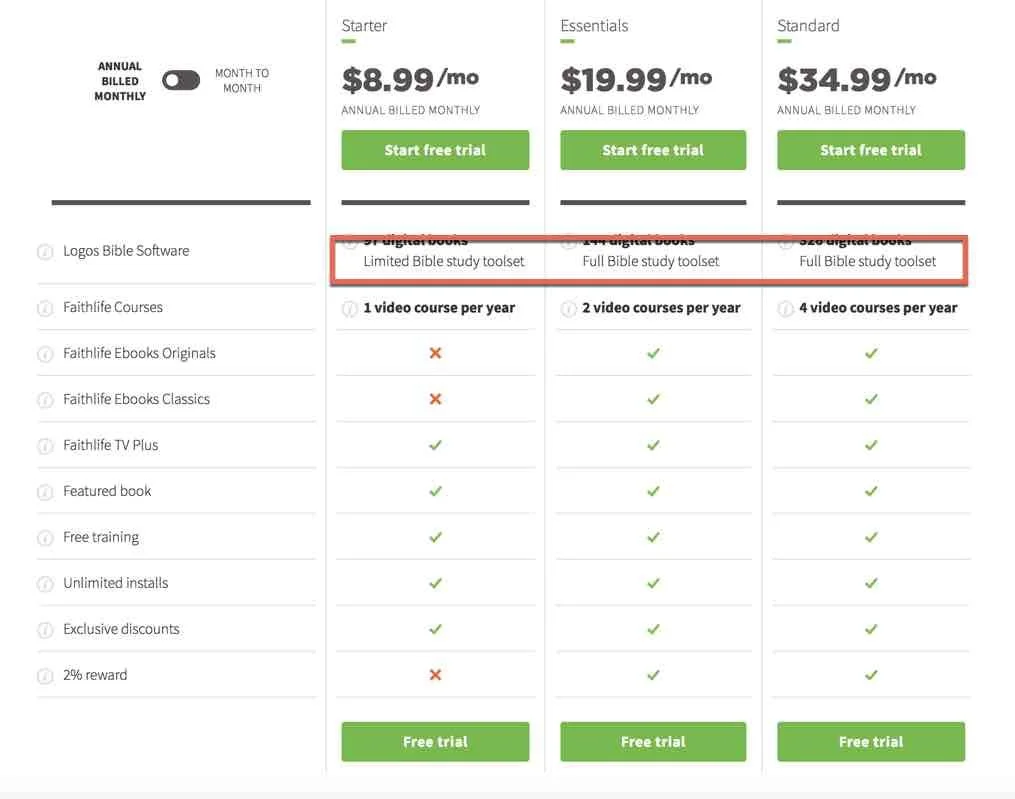
 The change shocked many people, like me, who liked Logos Now. Why was this a problem? to get everything we enjoyed in Logos Now we'd have to subscribe to Faithlife Connect Essentials, a $19.99 subscription charged annually at about $240/year. So our subscription went from about $100/year to $240, a 140% price increase. They claimed it was better because it included services like...
- Faithlife TV - a kind of Netflix for Christian movies and documentaries.
- 2 video courses (Mobile Ed) per year.
- Discounts.
- Free eBooks.
- Rewards of 2% - kind of like cash back or airlines miles.
Many of us didn't see these things as a big benefit. Not enough to more than double the price. We just wanted to the new features NOW. The outcry was great, indeed. Just read the huge thread that followed the announcement.Faithlife automatically migrated Logos Now subscribers to the new Faithlife Connect. This also angered many users who made that clear in another forum thread. Another thread stated that "Faithlife Connect punishes Logos' best customers!". People got angry, probably overreacted and many of us immediately went to our subscription page and turned off our auto-renew, which Faithlife automatically turned on for all customers they migrated from Logos Now to Faithlife Connect.In defense of Faithlife, they said that all Logos Now customers would get to keep their Logos Now features until their current subscription ran out or until early November 2018 whichever lasted the longest. I saw that some had paid up through 2019, so they would get to keep Logos Now for a long time still before having to decide what to do about the new service.
Happy Ending, For Now
 Faithlife CEO Bob Pritchett took to the forums and made a new announcement on Friday, March 2 entitled "Logos Now to continue at same price (with new name)". He wrote:
I am sorry for how we communicated the Logos Now / Faithlife Connect change. This was my fault, not the team's.We have been listening to your feedback and you have caused us to change our plan.The bottom line: We are reversing this change, and you do not have to do anything. You will be automatically returned to the situation as of two weeks ago, before our announcement.We are effectively restoring Logos Now at the same price, only with more value. This configuration will be called Faithlife Connect Essentials (No Library), and will come with everything in Faithlife Connect Essentials (https://connect.faithlife.com/) except the subscription-based access to the library.This is everything Logos Now was and a bit more, and will include other (non-library) improvements/benefits to Faithlife Connect Essentials as they are released.If you were happy with Logos Now, this is the same, with no change in price. As a Logos Now subscriber, you are grandfathered into this package and price point.
The ensuing thread filled up quickly with people thanking Bob for the change.
What Should You Do?
If you were a Logos Now subscriber, you have to decide what to do next. Here's a list of possible responses to the situation.
- Nothing - just enjoy the new feature and stick with what you have enjoying the features of Logos Now in a newly named service called Faithlife Connect Essentials (No library). That's what I think most people will do. That's what I'll probably do. I went to reinstate my auto-renew status. I have until November before I have to decide since my current subscription does not run out till then.
- Migrate to Faithlife Connect - for the few people who's saw the change and loved it, take the leap and get the new Faithlife Connect at one of several levels ranging in price from the Starter package at $9/moth with no new tools unless you buy them and own them to $200/month for Faithlife Connect Ultimate which gives you everything you can get in the service.
- Stop Subscribing and Buy - some users feel the pain of subscription which can change on the whim of the software publisher. So, they decided to stop subscribing, but they won't leave their Logos library behind. Instead, they'll just buy the new features when the company releases them, usually every two years.
- Move to Another Bible Program - a few users, even though Faithlife chose to renege on killing Logos Now, sort of, feel frustrated and whipped about emotionally. They plan to switch on principle to another program, like Accordance, WORDsearch, Bibleworks or Olive Tree. Those are the best solutions and probably Accordance offers the most since it has large library options and advanced study features. If a library matters most, then consider WORDsearch or Olive Tree. People who use mobile more should definitely pick Olive Tree, the best mobile Bible app that's not made by Faithlife. Only consider WORDsearch if you really love a large library, don't use mobile much, and will run the program on Windows only.
- Stop Buying Digital Libraries - my friend and Theotek contributor LaRosa Johnson has a great blog about Bible Study in general. He recommends not building a huge digital Bible study library.
For now, I'm doing two things. First, I've decided to take the next 8 months and consider whether the new Faithlife Connect Essentials (No library) will best meet my Bible study software needs. Before all of this, I was a fairly committed Logosian. Now I'm not as sure and feel a little uneasy about the company. I was planning to jump ship entirely before they reversed their decision, so they did at least temporarily keep me as a user.Second, I plan to get more proficient with Accordance Bible Software. They seem to offer the best solution for my needs.
- Fast - starting up Accordance 12 compared to starting up Logos 7 is like racing a station wagon against a Corvette.
- Full-featured - I can do most of the things I could do in Logos 7, albeit in different ways, using the features of Accordance.
- Library - Accordance includes a huge library of Bible study tools that offer competitive prices and their tagging is often superior to Logos.
- Mac-like/Windows-like user-interface - the Accordance user-interface looks more like a native Mac or a native Windows program while Logos wants to make their user-interface look the same on both platforms. This means they have used technology that creates an overlay on top of native window drawing tools in OS X and in Windows. This is why Logos runs slower than other programs. It was a mistake made in version 4 and they've never recovered from it. It's better, but still not as native as other programs. Many Logos users see this as a strength, however, I'm not one of them.
- Trustworthy - I know many of the people who work for Accordance and know I can trust that they will not make drastic changes to their policies without considering the needs of the user first, plus they work hard to respond to user's requests, needs and concerns. Please don't see this as a slam against any other company. I'm just endorsing Accordance Bible Software as trustworthy because of my past experience.
I still struggle with a few things. Logos syncs with other platforms except their web app exceptionally well. Accordance relies on Dropbox and on mobile you have to do this manually and their Android app's too new to even include sync of notes, highlights and other user-created tools. The notes features in Logos are better than Accordance. They offer better text formatting and will automatically create Bible verse links when they're typed. I don't have to manually add the link to turn a Bible verse into a pop-up or hyperlink. The diagramming tool in Logos is great and Accordance doesn't offer an analog.
Billy Graham, Technology and the Church
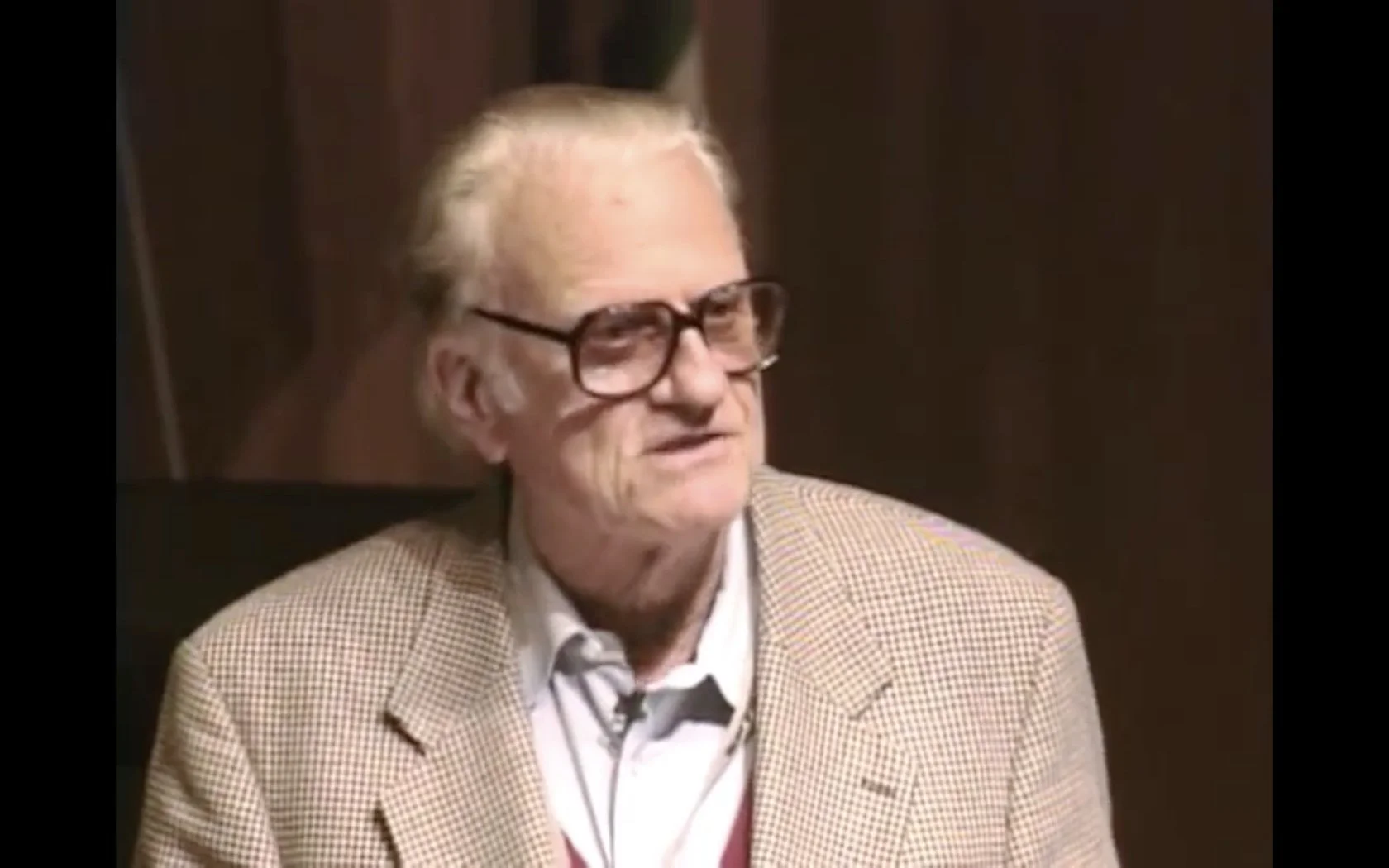
Billy Graham died today at the age of 99 after years of faithful ministry.One thing that surprised me to learn when I toured the Billy Graham library was his forward thinking use of technology to spread the Gospel. I'm not sure why it surprised me, but I'd never thought of him and tech together. In the library in Charlotte, NC there's an entire room dedicated to things like his use of film, radio, TV, and now the Internet to spread the message of God's grace. He used any means to share what "... the Bible says."Billy Graham even spoke at TED. It was back in 1999 and he talked about the use of technology in his ministry.If you're not family with TED talks, these short speeches cover areas of interest to a mostly technology enthusiast crowd in various places around the world. You can get their apps on your phone or streaming boxes and online.Here's his TED Talk in California back in 1999 in California.https://www.youtube.com/watch?v=90mj79GqWhc
Logos Bible Software Sermon Prep Part One: Choosing a Topic to Preach
How do you use Logos Bible Software to find a good topic to preach or teach? In this first of two parts, we'll look at how to find a passage or topic to preach and we'll use Logos Bible Software to make that happen. This is the first step in preparing a sermon or Bible study using Logos Bible Software. Over next few weeks we'll cover the major steps to preparing and preaching using Logos. Now, Logos Bible Software has a bunch of built-in tools that will help you use a topic to find a passage or multiple passages to then preach or teach. In this tutorial we'll use the topic of redemption and use things like the Bible Word Study tool, the Sermon Starter Guide, and other tools to get inspiration for your sermon.We've got a couple of ways you can learn this first step. You can read the article below. You can watch this video, or better, do both. Either way, Logos Bible Software gives a number of launch boards for the sermon preparation process.https://www.youtube.com/watch?v=GZTrMB0PnuQBefore we jump in, let's look at the three primary approaches to preaching.
- Topical Preaching - If you're a topical preacher, then you often start by looking saying, "I want top reach on redemption." Usually it's more narrow than such a broad topic. Logos can help you in a few ways to get inspired to preach on a topic and in this first part we'll show users how to start finding inspiration for a sermon a topic.
- Textual Topical Preaching - Textual Topical preachers often begin with the topic in mind, but then use that to search for a specific passage of scripture to preach and then approach the sermon preparation in a textual way letting the text drive the content.
- Expository Preaching - Expository preachers start with the text, often working their way through portions of scriptures, like a book of the Bible or a passage like the Sermon on the Mount or the Psalms of Ascents. We'll approach that in part two.
Here's what's great about using Logos to find your sermon's topic.
How to Use Logos Bible Software to Find a Topic or Passage to Preach or Teach
Logos Bible Software lets preachers jump into their search from many starting places. The easiest sits on top of the Logos Home page. Click the Home button in the upper left corner, if it's not already showing. Then use the Command box that sits about a third of the way to the right from the Home button. Type the topic you're interested in here and it will run a Bible Word Study on that word. We'll use the topic, "Redemption". That link opens the Bible Word Study Guide in Logos on a computer.
Bible Word Study Guide
You can also run the Bible Word Study by clicking on the Guides button on the toolbar. Then choose Bible Word Study from the left hand column in the box the pops up. The Bible Word Study Guide will offer a few categories of searches. First, we see the title section explained above. shows your word and lets you enter a Title and some notes about the guide. Each guide in Logos has a title section. Give our search a title to save it. You might want to come back to this search, especially if you use the Notes feature under each section of the guide to save some of your discoveries or inspiration.Now, we get the Topic section next. It shows links to the topic you searched in various dictionaries, like the Lexham Theological Workbook (link opens Logos if you're on your computer).
 If you have enough dictionaries, you'll see a "more" link below the list. Click it to see the rest of the books with the topic included. Hover over the links to see a preview pop-up of that entry. Click it to open the book.Below the list of books you'll see a link to open the Topic Guide and the Sermon Starter Guide. If you click either of these links, Logos will perform a search using that guide. More on that below.
 Don't just quit after the "Topic" section. There are two sections focused on Hebrew and then Greek word studies. These will help us find the Hebrew and Greek words translated redemption or redeem or something similar. Each section has a graph showing the various words for our topic in Hebrew or Greek. Click on the graph to see the verses or over each section. You can then see a preview pop-up of that verse when you over the verse.If you preach topically or use the textual topical approach, then you might choose to include one of these verses in the sermon. If so, you've already gleaned what you need. However, the rest of the Bible Word Study Guide might still inspire you to preach on that topic. Scroll down to see the last three sections included in the guide.
- Phrases - shows the topic if it's part of a phrase, like "grace of God" if you're searching for grace.
- Lemma in Passage - shows the lemma of a word in commentaries. There's a drop-down list labelled "Settings" that will let you narrow this search to certain collections or books.
- Textual Searches - find the topic in your top Bibles. The list comes from the Bibles prioritized in the Logos library. Logos shows you how to do that.
If you search using a Greek or Hebrew word you'll see a lot of other sections, but for our purpose, we're focusing on finding a topic to preach. Most people will do that by searching in English, so we'll skip Greek or Hebrew words.
Sermon Starter Guide
Another guide will help with topic discovery. The Sermon Starter Guide works like the Bible Word Study Guide, but looks in different parts of your library. It focuses on sermon-related resources. It's probably a better place to start than the Bible Word Study Guide.Run the Sermon Starter Guide from the Guides menu. Type the word in the search box and it returns a list of links. Here's what you'll find in the guide. Again we'll run one for "redemption" which you can open in Logos on your computer by clicking this link. Again we have the title section as explained above.
- Theme - The Theme section that shows a brief definition of the topic and links to open the Logos Factbook and a Topic Guide search. Make sure to open the Factbook and learn more about your topic there. This is a great tool for using the topical approach to sermon or Bible study preparation.
- Passages - we get a sampling of "Key Passages" which cover the topic that you searched for. There are also "Pericopes" listed. Below that you can add these passages to a Passage List or open every one of the passages found.
- Sermons - If your library includes books of sermons, they'll show up here. Read some sermons to get inspired. I personally would avoid this section at this point. Do your own study first before reading what other preachers preached about your topic.
- Preaching Resources - You'll mostly find sermon illustrations in this list or sermons. You'll also find some outlines and hymns.
- Sermon Outlines - If your library includes some sermon outline books, then they'll show up here.
- Thematic Outlines - For topical preachers, this section might offer the most help. More on it below.
- Journals - Find Journal articles on your topic, which can be helpful in learning more about it, often from. scholarly level.
- Collections - Searches your Collections, which include books that you put together, like Romans Commentaries. Find out more about them from the Logos training pages. This section's not as helpful for our purpose.
- Interactives - Interactive tools like the Psalms Explorer.
- Media Resources & Media Collections - Find images related to the topic.
- Soundfaith, Faithlife Music, Bookstore and Lightstock - all sections that take you to resources you can buy related to the topic.
Take a close look at the Thematic Outlines section of the Sermon Starter Guide. If you're preparing a topical outline for a sermon, then this section might do a lot of the work for you. You'll still need to study the passages included in these outlines, but this section alone could give you your outlines. Take our topic redemption. The Thematic Outlines section offers a few subtopics. We get a list of passages about "God as Redeemer" with a synopsis of the topic first. Then a few more subtopics about that subtopic like "God as the sole redeemer of Israel" and "God redeems his people from difficult personal circumstances" to name two. Each has some passages of scripture. Hover over each passage to view a pop up in your top Bible or click to open the top Bible.
Topic Guide
The Topic Guide (click here to run one on Redemption) is another great place to start looking for inspiration to preach a particular topic. Open it from the Guides menu and enter your search in the box. Here's what Logos includes in the Topic Guide. At the top you get the title section where you can save this Guide for future use. Put an explanation of the guide and each section has a Notes section to keep notes.
- Topic - This section lists links to the topic in dictionaries. Click "more" to see the entire list. You also see a link to the Facebook, Sermon Starter Guide, Bible Sense Lexicon and links to search the library for words related tot your topic.
- Related Verses - Finds verses about the topic.
- Sermons, Illustrations, Illustrations, Interactives, Media Collections Sections - like the Sermon Starter Guide finds things in each of those kinds of resources related to our topic.
- Atlas - finds things in atlas for our topic.
- Biblical People, Places, Things and Events Sections - These tools are like a search for each of these kinds of information with visuals and books that tell us about them.
- Soundfaith - online sermon database of audio.
- Topics.Logos.com - opens links to the online Logos resource related to our topic.
- Bookstore and Lightstock - links to buy content related to our topic.
Like the Sermon Starter Guide, the Topic Guide might offer the best options for our purpose. However, since we've covered most of these sections above, we won't rehash them here.
Create Your Own Personal Guide
These guides offer a lot for a user, but you know what you want to search for. So, create your own personal guide for searching Logos for a topic. To do this, click on the Guides menu (#1 below) and choose "Make a new guide template" at the bottom of the list and then click the drop down list on the right (see #2 below). The four options will change the list of sections to include that we see along the left side of the screen (see #3 below). It begins with the list of sections already in the pre-defined guides give to us by Logos. So, if you're searching for a topic, you'll probably want to select Preaching Theme or Topic. The Preaching Theme template has more sections, so click that to get started. Here's what I'd include in my own personal topic search guide.
- Thematic Outlines
- Themes
- Passages
- Preaching Resources
- Sermons
- Faithlife Music
 Don't forget to give your guide a title in the upper left corner. Click the box with the tiny pencil icon (see above). Now it will show up in the Guides menu.
Logos Bible Software Tools for Topical Preaching
By now you probably have a lot to get started with. However, a few other tools will also help. You'll find these in the Logos Bible Software Tools Menu.
- Bible Browser - a few of the tools found in the Bible Browser will help.
- People, Places, Things and Events - great for finding passages about a person in the Bible if you want to preach on Disciples doing character studies or some other person-focused study or sermon. You could also do a study of a place or objects as jumping off points for a series on something like the Temple.
- Miracles or Parables - a great source for a series on either.
- Preaching Themes - we found this in the Sermon Starter Guide and I put it in my Personal Topic Guide.
- Topics - of course perfect if we're looking for topics to preach.
- Sacrifices - study on the various sacrifices in the Old Testament.
- Factbook - we found this mentioned above.
- Interactives - Logos includes a bunch of interactive tools and click this link with Logos on the computer and it will open to them.
10 Ways Your Bible Software Needs to Improve
The present state of Bible software feels both amazing and terrible at the same time. I decided to propose my the top 10 ways your Bible software stinks and how I wish the Bible software and app creators should fix these problems.
Stylus Support in Bible Software
 First, Bible study software needs better stylus support. A lot of Bible study programs will run on a tablet or touchscreen and the user can point and select onscreen elements using a stylus. This includes the Apple iPad Pro and Apple Pencil or the Microsoft Surface Pro with the Surface Pen. Android apps run on the Google Pixelbook, which converts to a tablet and has a great stylus. That's not what I mean by stylus support. Instead I want to draw or write with a stylus inside the Bible software or app. Think of your paper Bible and highlighting, underlining or margin notes.
 I know of no Bible apps or software that support writing directly on the text of the Bible or in the "margins". There's one app called Bible Mark Up that lets you add a Bible verse from a few translations. You can write on the screen, but it's primarily a teaching or presentation tool. We featured the app on the Theotek Podcast.https://www.youtube.com/watch?v=7tZ2Y32OPzQThe app works a lot like Look at the Book by John Piper on YouTube. Below you'll find a Look at the Book video covering Psalm 132:2.https://www.youtube.com/watch?v=JOdXZJoqG-AI'd like to write in the margins or directly on the text. Programmers tell me this is not as easy as it sounds to add to apps. Also, Bible software makers don't seem interested in prioritizing this with their limited resources. Maybe, they could give us a kind of margin notes by adding drawings to Bible notes. For example, in Olive Tree I tap or click on the verse number. A menu offers to add a note. What if it also had a button for a "drawing"?
Better Bible Software Touchscreen Support
In addition to adding support for drawing or writing on the screen in Bible software or mobile Bible apps, I'd like better integration with touchscreen computers in Windows.Mobile Bible apps on iOS and Android handle touch with their user interfaces. They design these apps with fingers in mind, not small tips of a stylus or mouse. There isn't a touchscreen Mac and Windows Bible software doesn't make touch convenient. That's what I want. The icons on toolbars and links in books don't work well with big finger tips. I often hit the wrong tiny toolbar button while using Bible software on my Surface Pro in tablet mode. If you get multiple links in a lexicon like the one above, it's often hard to tap on the right Bible verse. The publishers could solve this by implementing a "touchscreen" mode. Tap a button or put a feature in the settings that let me turn this on with a keystroke. Even better, when the computer enters tablet mode, the software should recognize this and switch or offer to switch the Bible software display to touch mode.Tablet mode in Bible software would increase text size and buttons. The programs could also include pinch out to zoom, so that the tiny links look bigger and easier to tap.
Get My Notes Out of Your Silo
Bibleworks saves user notes in RTF format. I can open the notes in a word processor like Microsoft Word or OpenOffice. Very few other Bible software programs offer the same convenience. Most don't even let the user export their notes, unless you count printing a passage with notes or copying and pasting notes from the software to a word processor. If a company keeps the user's notes in their silo, then they're putting their own interests above the user's. They may not do so intentionally, but that's the result. Some companies might choose to do this knowing that users are less likely to leave the program behind if they can't get their user content out of the software easily. Most probably do this out of convenience or because they didn't consider the problem when they first coded the user notes feature. Now they might not have the man-power to correct it.I'm not a programmer, but is it that hard to strip away all but the bare text of the user notes? Offer an export feature that saves the text in a simple TXT file and attach the Bible reference to each note or label any notes attached to a single word or phrase with that word or phrase.
Sync Notes and User Content Between All Platforms AUTOMATICALLY!
Two programs shine and others fail at automatic syncing of user content. If I take a note in Logos or Olive Tree, the company uses their own servers to automatically sync the notes from your iPad to your Windows computer or from your Mac to your Android phone. It's great!https://vimeo.com/126882018Accordance offers a sync feature using Dropbox as the middle-man. However, notes in Accordance does not automatically sync between various platforms. That's more important now that they have apps for iOS and Android as well as programs on Windows and Mac.First, I have to save the note by hitting a button after I'm done editing it. I can set the desktop software up to sync my notes to Dropbox or from Dropbox every time I open or close the software on my Mac or PC. However, on iPad or iPhone (Android's not supported yet) you have to do this manually. Learn how to do it in a helpful blog post made by Rick Mansfield, one of our Theotek co-hosts. Watch his video above.You have manually sync by tapping on the library button on your iPad or iPhone and then tap on the sync button on the bottom toolbar. That's a strange place to hide this button. I wish it showed up on the main screen. In addition to notes, I want to sync other user-created content. Sync my highlights, bookmarks, favorites, and documents. Some programs let me create books that I can use inside the software. Few of these programs let me sync these tools to mobile.The problem gets worse when I write a bunch of important notes on my iPad and then want to use them on my Mac. If I forget to sync on the iPad and then leave it at home, then I can't access them on my Mac or PC.
Reduce Clicks for Simple Tasks
The above wish highlights another problem that many of the programs and apps suffer from, too many clicks to do simple things. For example, to sync my Accordance Mobile notes with Dropbox, I have to tap on the library button, then the sync button and then on the "Sync user content with Dropbox" button. That's too many taps for something that should work automatically without any user input. Let's not only pick on Accordance. In the Logos Bible mobile app I used to link two books together with a couple of taps. I could open the ESV and the ESV Study Bible in one pane and then link them together with a button on the main screen. When I navigate from John 1 to Genesis 25 in my Bible, the study Bible will also go to that spot.To sync two books now, I have to tap the new Logos Tabs button and then the link button and then select the panes I want to link and then tap the Done button. It went from a couple of taps to at least four taps. Granted, I can now link more than two panes at a time, but it seems that it should not take as many taps to link the two panes on-screen at that time.We don't have space to highlight every situation where we have too many taps or clicks in all the Bible apps and software programs. This problem shows up in nearly every Bible app or software where it's even worse than the apps. Developers need to make the primary features accessible in two clicks or less or go redesign their programs/apps.
Add a Note in One Tap/Click
Going back to notes, let me add a note with only a single tap or click. The app or program needs a button on the screen that I can tap on the mobile app or click on the desktop program to quickly add a note. The Accordance mobile app lets me add a note with two actions. I can select the verse number and a menu pops up with an option to add a User Note in the pop up menu (see above). Logos does the same, but to add the note to a verse I have to tap the Reference tab in the notes editor on the mobile app (see below). That's 3 actions.
 Olive Tree also adds a note with two clicks/taps. It works just like Accordance except you tap instead of select the verse number.With the Logos desktop apps you have to right-click the verse, select the reference in the pop up menu and then select your notes document listed in the same pop up menu, if it's open or you've used it recently. If you haven't used the note document in a while, you'll have to open it first for it to show up in the list.https://www.youtube.com/watch?v=G1SSoPjV9kMBibleworks and e-Sword both handle this best. Open the notes window pane and then navigate to the verse you want to add a note to. Click in it notes editor and start typing. Switch to a new verse and click in the notes editor to add a note to that new verse. See the Bibleworks notes function demonstrated in the video above. After you open Notes in these programs, you get exactly what I want - a single action to create a new note.
 Accordance on Windows and Mac will add a note using one action. Hover over a verse and a pencil icon appears to the right of the verse. Click on it and a note editor box pops up. However, in Accordance you need to save your note or you'll lose it. The editor should save it automatically each time you close it or click anywhere else in the program.As you can see, these programs still don't do what I'm asking. Accordance is close in the desktop program. e-Sword and Bibleworks work if you open the Notes editor first. However, none of the mobile apps offer this feature that I know of.
Save Space and Let Me Pick What Books to Install
I'm looking at you Logos. Almost every other Bible study program will let me choose which books to install. If I have a huge hard drive I don't care if I have to install all of my books. But a large library eats up a lot of space. What if I only have a 64GB or 128GB MacBook Air or a small 32GB Windows tablet? Logos runs horribly on these small Windows tablets if you put it on an SD card. Let me pick only the books I know I'll use instead of forcing me to download and then index every one book in my 18GB library. Thank you nearly every other Bible software or app maker.
Tagged Bible Comparison Tool for Word Studies Within the Tool
When I open an English Bible that has Hebrew and Greek tags, I can often do some simple word studying. Also, these kinds of tags show up in most of their Greek and Hebrew Bibles too.Some programs have a "reverse interlinear" that shows the English translation in the top row and then underneath that shows Greek or Hebrew words, transliterations, parsing details and a lexical form and definition. You can also hover over an English word in a regular Bible book sometimes a pop-up will show these details. Other programs let me double or triple click the word. Still others have a right-click menu to open language study tools.These tools help me do some language study, but I'd like a parallel Bible or Bible comparison tool that has the same kind of tags. You can put the various tagged English, Greek and Hebrew Bibles in parallel windows. I really like the layout of the Logos Bible Software Text Comparison tool. It has columns for each verse and shows visually the differences (see above). A verse, like John 3:16, shows up in my preferred translation on the left. See above I have the CSB in column one with the other translations in the next columns. That gives me the CSB next to ESV, NASB, NKJV, KJV and NIV. I can add or subtract any translation I want. I can also add the Greek or Hebrew Bibles.Unfortunately, the Logos Text Comparison tool doesn't include tags for language study. I can't hover over words, right-click them or double/triple click to show Greek or Hebrew info.
 Bibleworks will show various translations with one after another listed from top to bottom. I can get language information by hovering or clicking. I prefer the layout in the Logos tool so I wish Logos would add this.Accordance also presents the various translations with tagged words if I use the Interlinear tool. Open the Bible and then use the "Choose interlinear rows to display" button. It's next to the text tool in your Bible's window in the upper right corner (see #1 above). You can hover over the word and the Instant Detail window will show you the language details for that word (see #2 above). Triple click a word and the word will open in your favorite Greek or Hebrew lexicon based on the Strong's number of the word you triple clicked.None of the mobile tools will do what I'm asking.
Create Books Without Programming Language
The Bible software programs that let me create my own books, do not make it a simple task. I want a tool, built into the program, that lets me import a simple Word document, TXT or RTF file or even a PDF. The program should then convert that file to the format that the software uses to display their books.After I import the document, the programs should find all Bible references and turn them into links with a pop-up window to display the verse. If I click/tap the link it will open that verse in my Bible. It should let me add notes, highlights and bookmarks to the document. If I format it with the right heading styles, then it should break it up into chapters and sections for regular books. If I add a bible verse per line it should see the document as a Bible and make it work like the Bible's in their program. Many of the programs (Accordance, Logos, WORDsearch, Bibleworks, and e-Sword to name some) will let me create books to use in the program or even from within the program. But many of them seem too complicated for the average user.
Sync My User Created Books to Mobile Devices and Other Computers
Following the previous gripe, the program should then let me sync these books to my other devices automatically. I should not have to go through a manual sync process or copy it using iTunes or Dropbox, unless the program uses Dropbox or another 3rd-party server for automatic syncing.
Export Books to Kindle, Word or PDF
 The inability to export books probably isn't the fault of the Bible software companies. In fact, Logos had an export to Kindle feature before the book publishers or Amazon or both stopped them from including it.I want to open a book in my Bible software and hit export to save the book in a file on my computer that I can then open on my iPad, iPhone, Android phone or tablet or on my Kindle and read on one of those devices. Some books are more enjoyable to read this way, like Christian Living books.https://www.youtube.com/watch?v=ANfakC6QSlw&feature=youtu.beIf you want to export a book from Logos, you can follow the steps outlined in a forum post by Mark Barnes, an expert in Logos Bible Software. You can watch Mark's video from YouTube above.
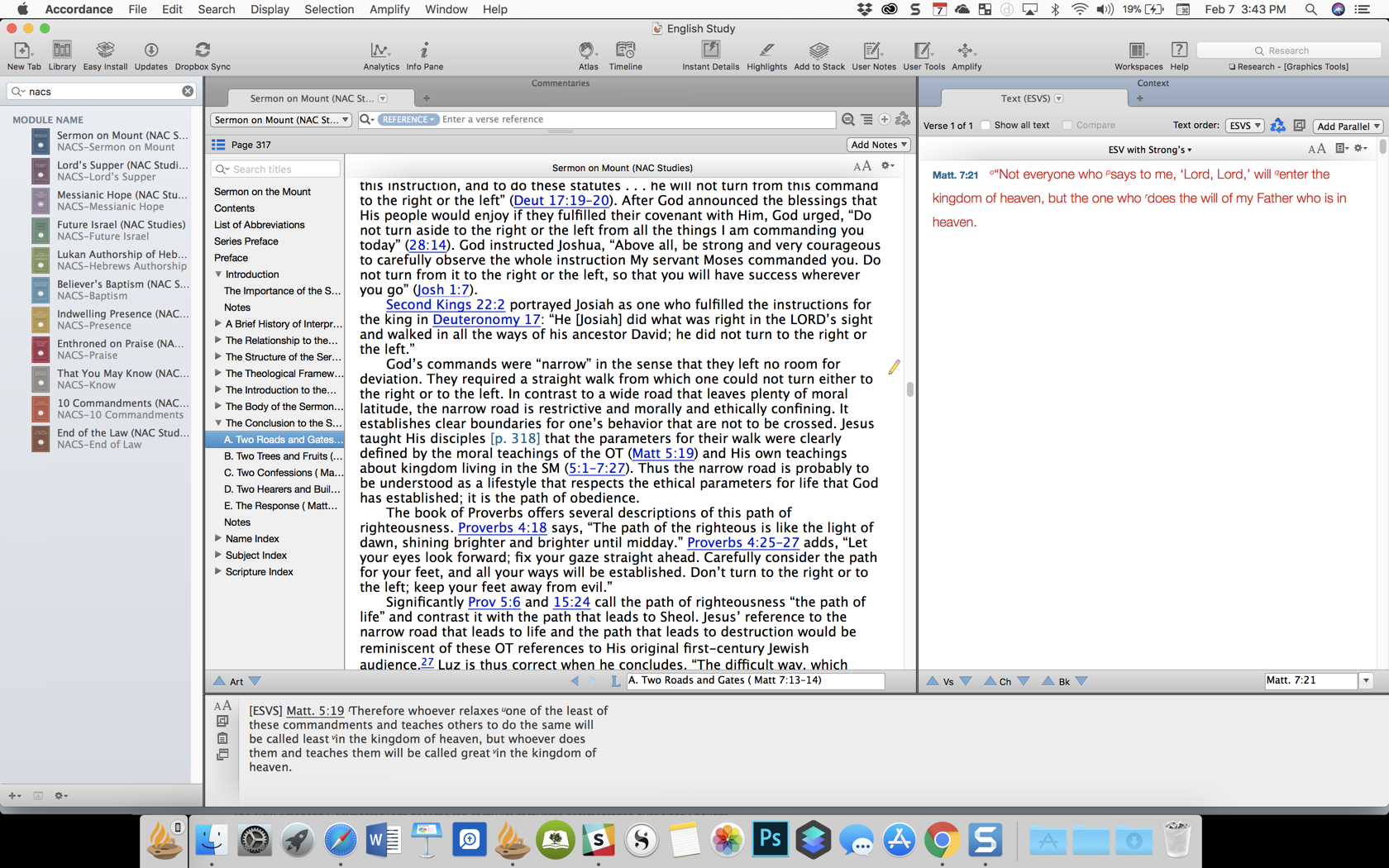
NAC Studies in Bible & Theology for Accordance Review
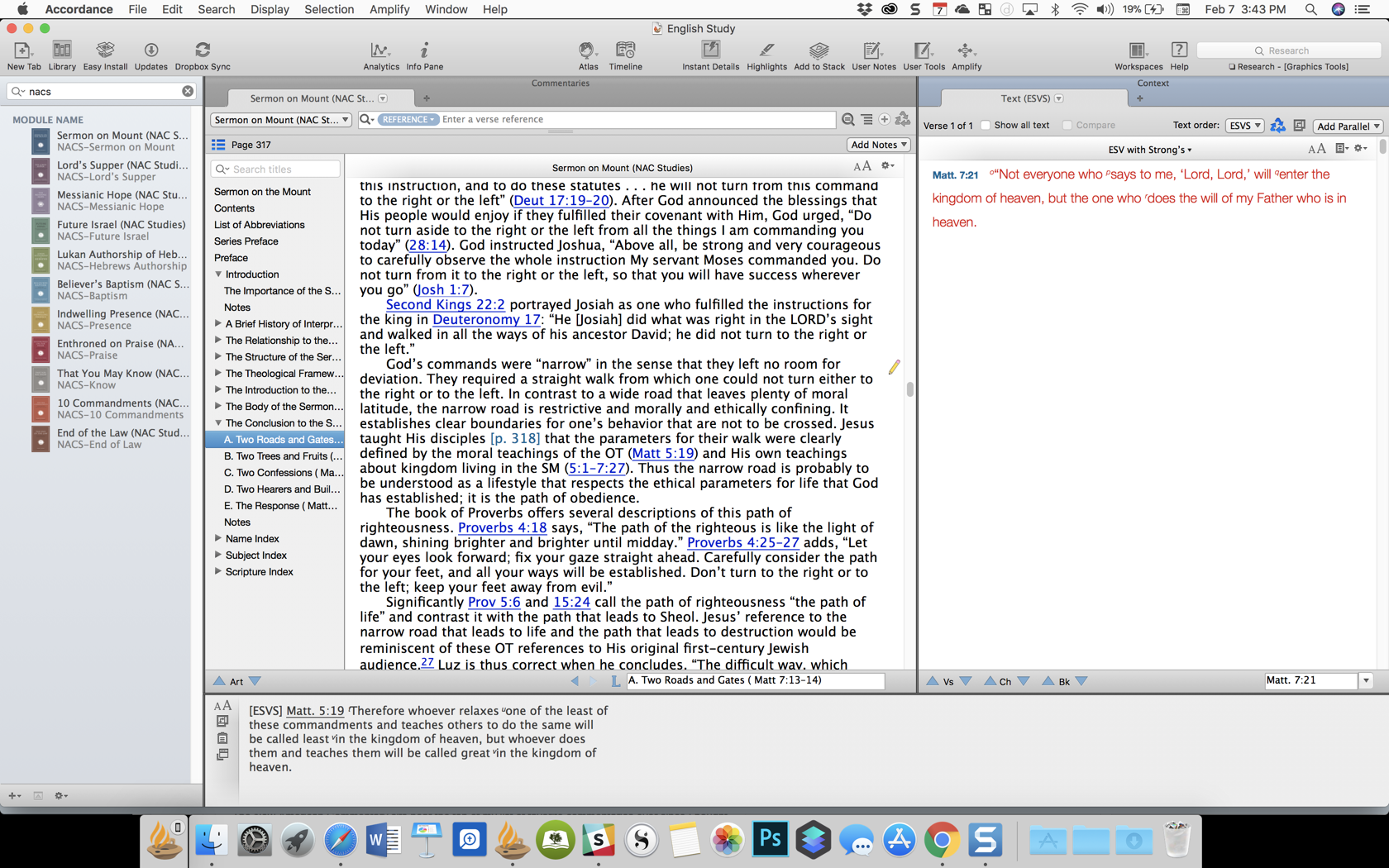
The New American Commentary sits near the top of my list of favorite commentaries ever since I bought the physical books as they first came out in the early nineties. I bought them on subscription from Broadman & Holman as the publisher released each new volume. So when Accordance asked me to review the New American Commentary Studies in Bible & Theology, I jumped at the chance.The New American Commentary creators chose to expand on 11 important subjects in Biblical studies and theology. Readers should see them as addendum to the NAC series.https://www.youtube.com/watch?v=H7OViiJWh2k&feature=youtu.be
What's Included in the NAC Studies in Bible & Theology
Accordance published the set of 11 books for Accordance Bible Software and their Mobile apps this past week. In the set you'll find 11 topics of advanced study written in a way that will stretch average Christian readers, but not so much that they can't benefit from the scholarship included.The Lukan Authorship of Hebrews by David Allen first found its way into the public as Allen's Ph.D. dissertation. He adapted it for this series and I found it extremely interesting. Allen considers the authorship of Hebrews, an often hotly debated subject. He argues for Lukan authorship based on the similarity between the language of Hebrews in Greek and the language of Luke-Acts, among other things. He supports this view by citing the early church fathers, many of whom also attributed the book to Luke.The book doesn't just jump into proving Luke's authorship. He first considers other authors, like Barnabas, Apollos and Paul. I remember listening to my New Testament professor in college tell us that he was certain Apollos wrote the book. The arguments against Apollos, Paul and Barnabas are brief, but they do show up.Chapter three to the end of the book discuss various reasons for trusting Lukan authorship in a convincing way that I look forward to finishing.The complete list of books included in the NAC Studies in Bible & Theology include:
- David L. Allen, Lukan Authorship of Hebrews
- Christopher D. Bass, That You May Know: Assurance in 1 John
- James M. Hamilton Jr., God’s Indwelling Presence: The Holy Spirit in the Old & New Testaments
- Barry E. Horner, Future Israel: Why Christian Anti-Judaism Must Be Challenged
- Jason C. Meyer, The End of the Law: Mosaic Covenant in Pauline Theology
- Timothy M. Pierce, Enthroned on Our Praise: An Old Testament Theology of Worship
- Charles Quarles, Sermon on the Mount: Restoring Christ’s Message to the Modern Church
- Mark F. Rooker, The Ten Commandments: Ethics for the Twenty-First Century
- Michael Rydelnik, The Messianic Hope: Is the Hebrew Bible Really Messianic?
- Thomas R. Schreiner & Matthew R. Crawford, The Lord’s Supper: Remembering and Proclaiming Christ Until He Comes
- Thomas R. Schreiner & Shawn D. Wright, Believer’s Baptism: Sign of the New Covenant in Christ
Seeing Mark Rooker's volume, The Ten Commandments: Ethics for the Twenty-First Century excited me since I sat under his teaching at Southeastern Theological Seminary learning Hebrew, or at least attempting to do so. He graciously gave me a pair of Bs for the two courses. There's one extremely minor complaint with Accordance's versions of these books. The titles seem a bit cryptic when you look for them in the library on the mobile app. Notice the titles of the volumes circled in red above. The real titles are That You May Know: Assurance in 1 John and Enthroned on Our Praise: An Old Testament Theology of Worship. That's nit-picky criticism, but I did have to open the books to figure out what I was looking at.
Accordance Treatment of the Series
People can read books like the NACS series another digital reader like a Kindle. There's a number of important benefits to reading Christian books in a Bible study app like Accordance. With the Kindle versions you'll miss tags that link to other books or the Bible. When the author refers to a Bible verse, you don't want to put down the Kindle and pick up a Bible or close the book and manually type in the Bible reference to find out what it says. In the Accordance Bible mobile app, you can tap on the reference to read it in a popup. Open the books in Accordance Bible Software on your Mac or Windows PC and you can put your Bible to the right and click on a reference and instantly read it. Also, just hovering over the reference shows the Bible passage in the Instant Details window. Footnotes will show up as pop ups too on the mobile app or in the Instant Details window on the desktop app.When you move to a new place in the book or to another book in the mobile app, just tap the screen to show the toolbar and hit the back arrow at the top left to go back to where you were reading in the NACS book.Aside from the pop ups and links, you can take "margin notes" in Accordance and later save those for use in a research paper or a Bible study on the topic discussed in the book. Plus, when you're studying one of the topics like Baptism, these volumes will show up as pertinent results in a search of your library for "baptism" (Believer's Baptism: Sign of the New Covenant in Christ by Thomas Schreiner and Shawn D. Wright).
 Using Stacks in Accordance lets you keep track of important information that you find as you read these books. Highlight text in the book and hit Add to Stack from the toolbar in the desktop app.
Recommendation
The whole set of NAC Studies in Bible & Theology currently costs $159. Each volume individually costs either $13.90 or $16.90 when you buy them by themselves. That introductory price lasts until February 12, so act quickly if you want to buy them. You can always use one of their payment plans to buy the set of books. For example, paying for them over 6 months will cost $41.50/month. That includes a small fee for handling the payments.Should you get them? If you are a lay scholar (pastor, serious student of scripture) then grab the volumes of interest to you. They are informative, written well, and will benefit your study. Pastors may want to get the volumes that they can use as inspiration for a study at church. You may not do a 6 week Bible study on the Lukan authorship of Hebrews, but if you're preaching or teaching through the Sermon on the Mount, then that volume by Charles Quarles would be invaluable. I just finished teaching through 1 John and wish I had That You May Know: Assurance of Salvation in 1 John by Christopher David Bass.Seminary students or professors will find them useful in their educational endeavors. In interest of full-disclosure I was given a copy of the books for this review, I would definitely choose to buy them. I'll be consulting the volumes the next time I'm studying the Ten Commandments, the Sermon on the Mount or one of the other topics addressed.You'll pay more for the Accordance versions of these books than you would on Kindle, but I still wouldn't go that route for the following reasons:
- Accordance tags gives quick links to verses, etc in Instant Details or to open in a Bible window next to the book on the desktop app.
- The mobile app will show pop ups of verses and footnotes.
- Record your thoughts using the great Accordance notes feature.
- Save to stacks important content that will help you in useful research.
- Quick back and forth navigation helps keep you reading without losing your space.
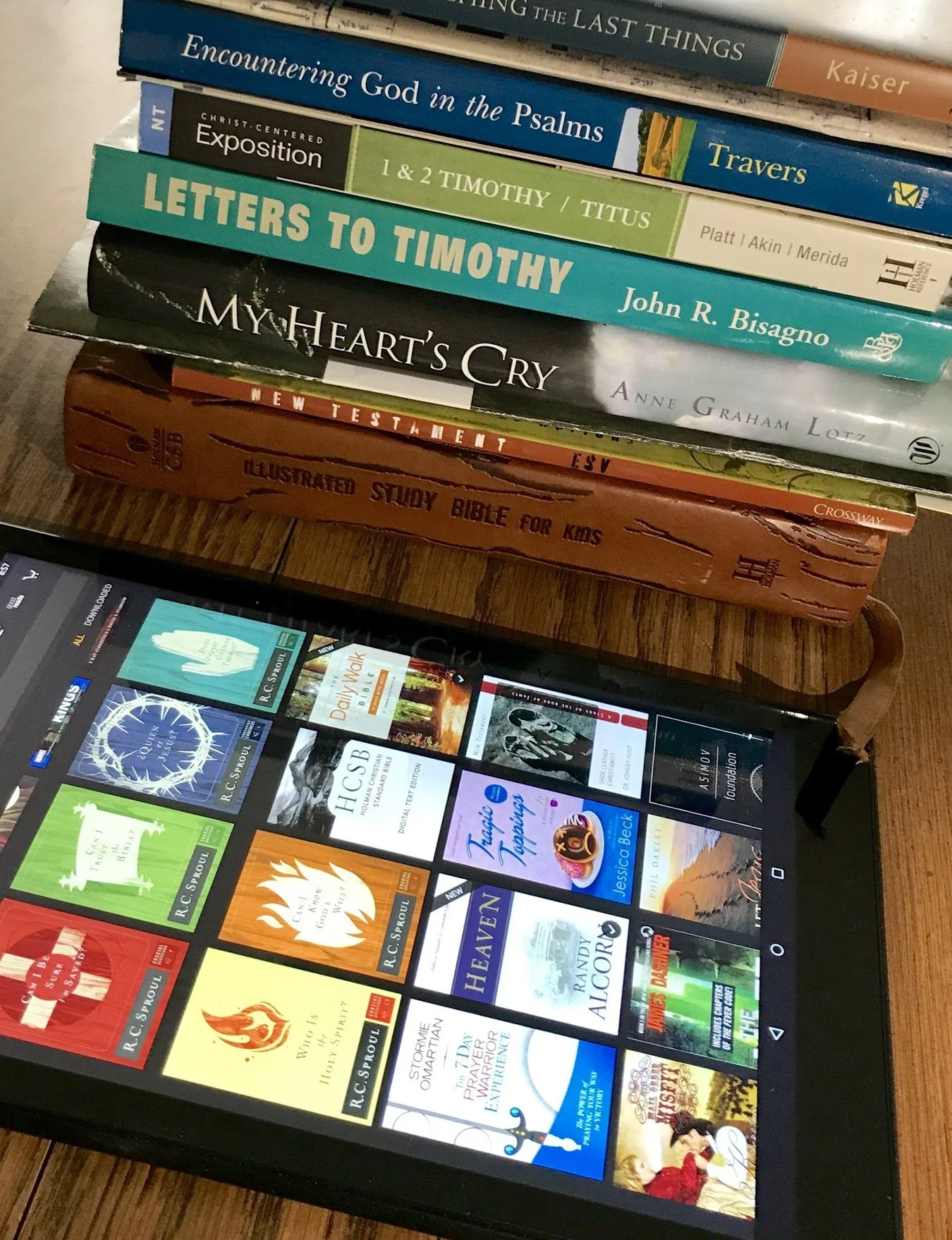
How to Convert Books to Digital Books While Destroying Them
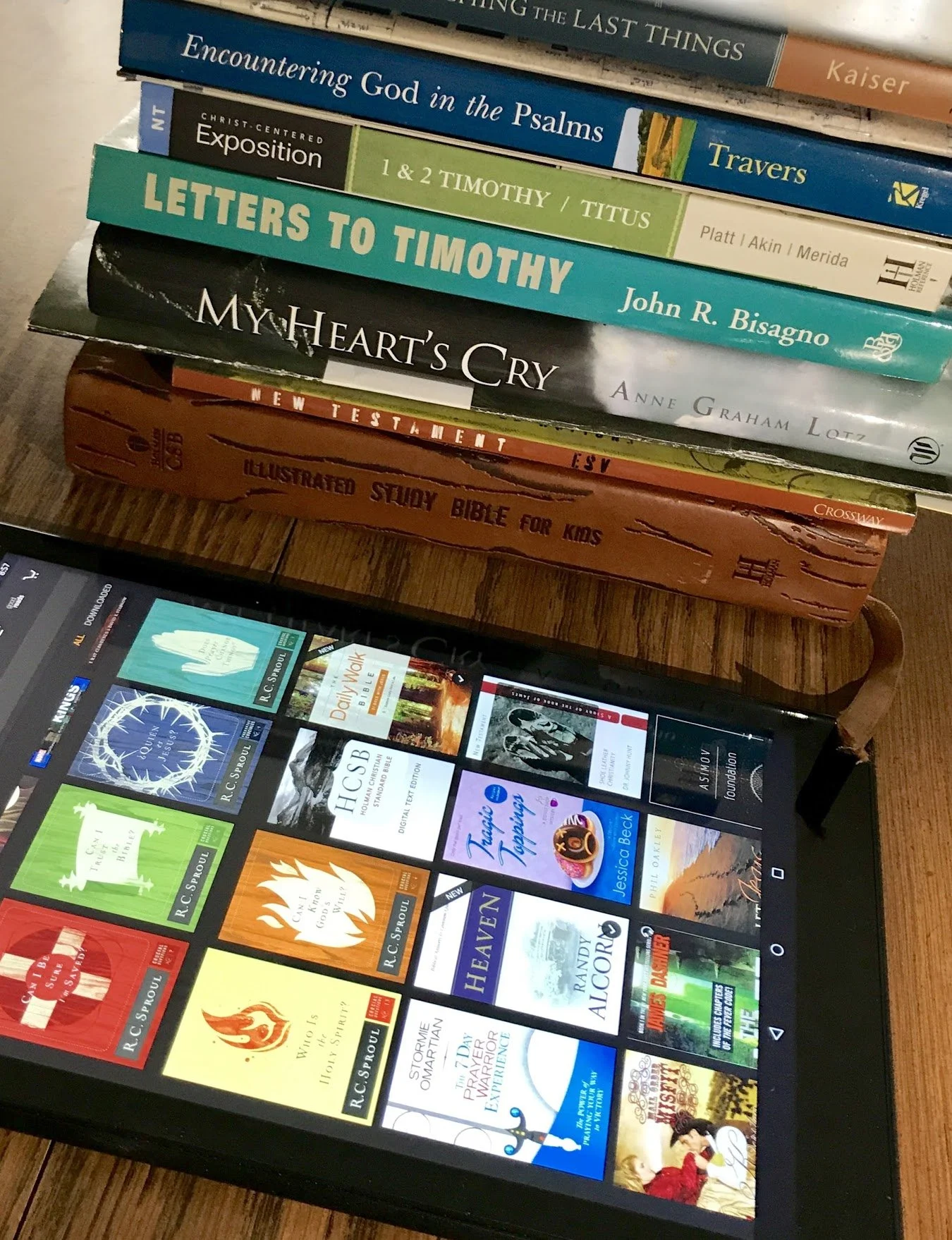
Do you own a stack of books or even a library full of print books that you'd love to read, but prefer to read digital books?Who wants to carry around a backpack full of books when you can carry one small device full of eBooks? You could just buy digital versions of these books on Kindle, Nook or in an eBook app or in your favorite Bible software, but that can get expensive. That's why, in certain circumstances, scanning the book and saving them as a PDF gives readers the best option. Here are the steps to convert books to digital books using a scanner.
- Cut the binding off the book at a copy shop or office supply store.
- Scan the book in a sheet fed scanner or multi-function printer.
- Save it as a PDF file or other format.
- Upload it to a cloud storage site, like Dropbox, OneDrive or Google Drive or in the case of an eInk Kindle book reader email it to your Kindle.
- Open it in your favorite tablet book reading app or on your eBook reader.

Preparing to Convert Paper Books to Digital Books
To get started pick out the books you want to scan. Start with one book to see if this process works for you.I don't convert books to digital books with my hardback books or to books that are special to me. I have a few books with author signatures or that I know I'll want to share with others by letting them read the paper book. Also, you want to display some books on the shelf. I usually pick books I will only use once like the study guides for big Bible studies that I teach at my church. The local Staples store in my town will cut the binding off a book for about $2 depending on the size of the book. Go ask the copy center of your favorite office supply store or a local print shop. Kinko's will do this also. You could just saw them off yourself, but that's not easy and it will probably end up with a mess that's hard to send through the scanner.After cutting off the binding, fan the pages to make sure they cut through the book. Sometimes a few pages will stick together. Usually the first page after the front and back cover will not come loose without your help.
Scan the Book Using a Sheet Fed Scanner
 I reviewed a Fujitsu ScanScan professional sheet fed scanner when I used to write for Notebooks.com. It's a great scanner that does the job perfectly nearly ever time. However, it's also costly.You probably own a sheet fed scanner if you have a multi-function printer that scans, faxes, copies and prints. These have a feeder on top that sends multiple pages through. You need one that will scan both sides of the page at once. However, you can make do with using the kind that only scans one side at a time. Your scanning software will need to combine such books by collating the odd and even pages to put them in order. It will take a long time to manually collate the odd and even pages so they show up in order if you're scanning a long book. It's better to buy the digital book or just read it in paper form.
 Most sheet fed scanners will work best with a limited number of pages. I try to scan as many as I can at once, but seldom more than 100 pages (that's a 200 page books with pages on both sides of each page). The ScanSnap software handles this job very well automatically saving it as a PDF file when it detects that it's scanning text on a page instead of photos. It then asks me where I want to save the file, but it automatically saves it to a folder on my computer that I choose the first time I open the software on my computer.I open the PDF file on the computer first to check it and Adobe Acrobat will automatically recognize the text, which we call optical character recognition or OCR. This makes the book searchable.https://www.youtube.com/watch?v=y37V2wqUFloSometimes I have to fix a page or two by rotating images. That seldom happens, but on occasion it will. For some reason the software sees the image and thinks the page was loaded sideways even when it wasn't.
Send the Converted Digital Book to Your Device
Finally, I save the file in my Dropbox folder, which automatically loads it to the cloud storage site. Then, I go to my iPad or Kindle Fire and download it from Dropbox.If you plan to open the file on a Kindle with eInk display instead of a Kindle Fire or tablet that runs apps like the Dropbox app, then you'll need to email the file to your Kindle. You can find this email at Amazon's site. Amazon has a help page to show how to do this. You can find the email address on your Amazon Manage Your Devices page.https://www.youtube.com/watch?v=aOmuJX09X5o&feature=youtu.beA Kindle or Kindle Fire will manage PDF, Word Docs, Kindle's .MOBI, .AZW files, image files or HTML files. If you plan to read your books on an iPad, then get a good PDF file app. I use Metamoji Note, a note taking app that lets me import PDF files and then mark them up using my Apple Pencil on an iPad Pro. This also syncs so that I can see the PDF in the app on my iPhone, Windows computer, or Android device. Other apps like it include Notability, Liquid Text or even the Kindle App. The previous links send you to the iOS App Store site. Metamoji Note is the only one that runs on Android too. See a demo in the video above. You can email books to the Amazon Kindle app on your iPad, iPhone or Android tablet/phone too using the same steps found in the Amazon site linked above.
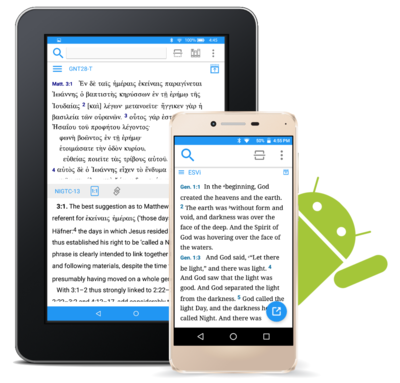
Accordance Mobile Bible App Goes Android
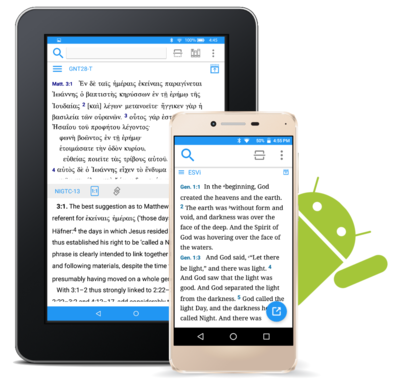
The Accordance Mobile Bible app for Android hit version 1.0 and it's available to download now and side load on your Android device. You can watch our latest Theotek Podcast where Mark Allison and Rick Mansfield showed off the app. Go over to our new Facebook Page and hit Like and you'll get updated each time we go live with a new podcast. Watch it below on Facebook or on YouTube under that.Here is the YouTube vide. Hit subscribe to get new videos after we record them live on Facebook.https://www.youtube.com/watch?v=82aJbwremE0You can download the app and side load it on Android. Get it from the Accordance Blog. Accordance will post it in the Google Play Store sometimes soon. You can follow the Theotek Podcast on Twitter to get an update when it's ready to God or follow Accordance on Twitter. You can also follow me.The Accordance Mobile app is only a book reader and searching tool at this point. Things like languages study, highlighting and notes will be added at a alter date.
Bible Updates and Facebook Live: Theotek Podcast #104
Learn about Bible updates and the future of the Theotek Podcast in this week's show.In my previous post, I shared that we're changing our official home of the Theotek Podcast to Facebook Live. This is the first episode that we recorded using Ecamm Live over Facebook Live instead of using Google Hangouts and YouTube Live. Give it a watch below and go on over to our new Facebook Page where you can find all of our podcasts going forward. In this episode Rick Mansfield showed up of the updates that came in Accordance Bible software 12.2.2, bringing a build-in web browser. I love this new feature because it mean I can use Accordance and access my Logos books and WORDsearch books all from one program.https://www.youtube.com/watch?v=yQpNkluS04c&feature=youtu.beAfter that I shared updates to Laridian's PocketBible app for iOS and Logos Bible mobile app updates. I'm working on a full review. Go follow me on Twitter to get notice when that review goes live over at Church Tech Today.Here's the list of "Our Favorite Things" - the things recommend because we love them.
- DJI Spark Drone - a small 1080P drone that's compact and takes awesome photos and videos.
- LG UltraFine 5K Display - high-end display that's NOT 4K but 5K resolution.
- History of QuickVerse/Parsons Technology - history of QuickVerse Bible software and Parson's Technology from Craig Rairdin, the founder.
- SizzlingKeys - an app for controlling iTunes in a compact form.
- Ecamm Live and Call Recorder - software we used to record our Skype conversation directly to Facebook Live.
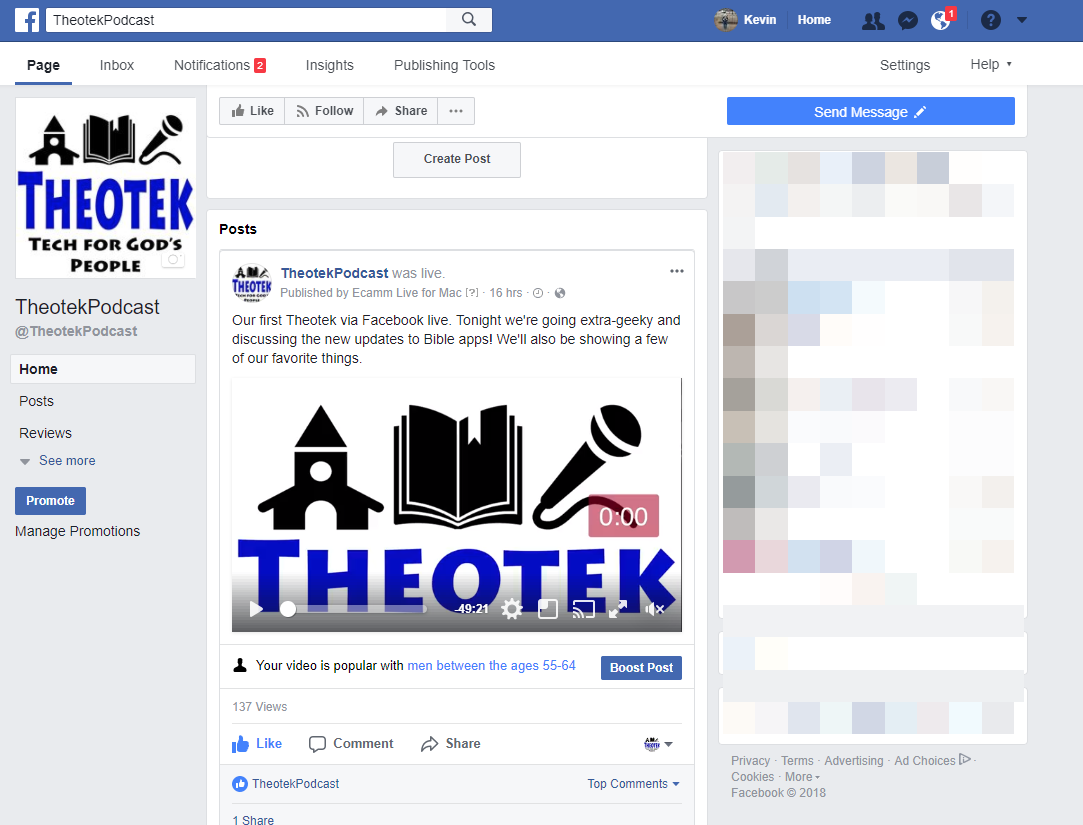
Theotek Podcast Changes Coming
Over three years ago the Theotek Podcast got its start as a trio of tech lovers took the YouTube and recorded what we first called Theotek News. You can see that first episode below. At first LaRosa Johnson, Antoine Wright and I discussed Bible software and more. It was pretty rough. That was when I was still writing for Christian Computing Magazine, Antoine still had the Mobile Ministry Magazine and I was into Google+ big time. LaRosa announced the sale of Olive Tree to Harper Collins. What a blast from the past.https://www.youtube.com/watch?v=45DlwIjM_OoLater we added Wes Allen and then Rick Mansfield and recently Mark Allison. We often branch out of Bible or Church software and technology into the realm of general technology. But we've kept at it for over 100 shows.Now it's time for a change. It seems Google's changing the way they want customers to use Google Hangouts On Air. We feel like it's no longer a reliable tool for recording our Theotek Podcast. Going forward we're going to use Facebook Live through our new Theotek Podcast Facebook page. The team will get together over Skype and Wes will record it on his Mac using Ecamm Live software, a great tool for streaming live to Facebook or YouTube, but not both. It costs $40 for the basic program. Then you add their Call Recorder for Skype which costs another $40. We tried it with our show this week and it worked really well.We'll still be active on Twitter @TheotekPodcast and you can still watch for a while at YouTube. Going forward that YouTube Channel will primarily consist of my stuff, like a review I did of the Google Pixelbook recently. By the way I also wrote about using the Pixelbook for Bible Study here on this site.Please consider subscribing over at Facebook. Follows us on Twitter. Here's my statement on the YouTube channel.https://www.youtube.com/watch?v=ED-1fGXMD_Q
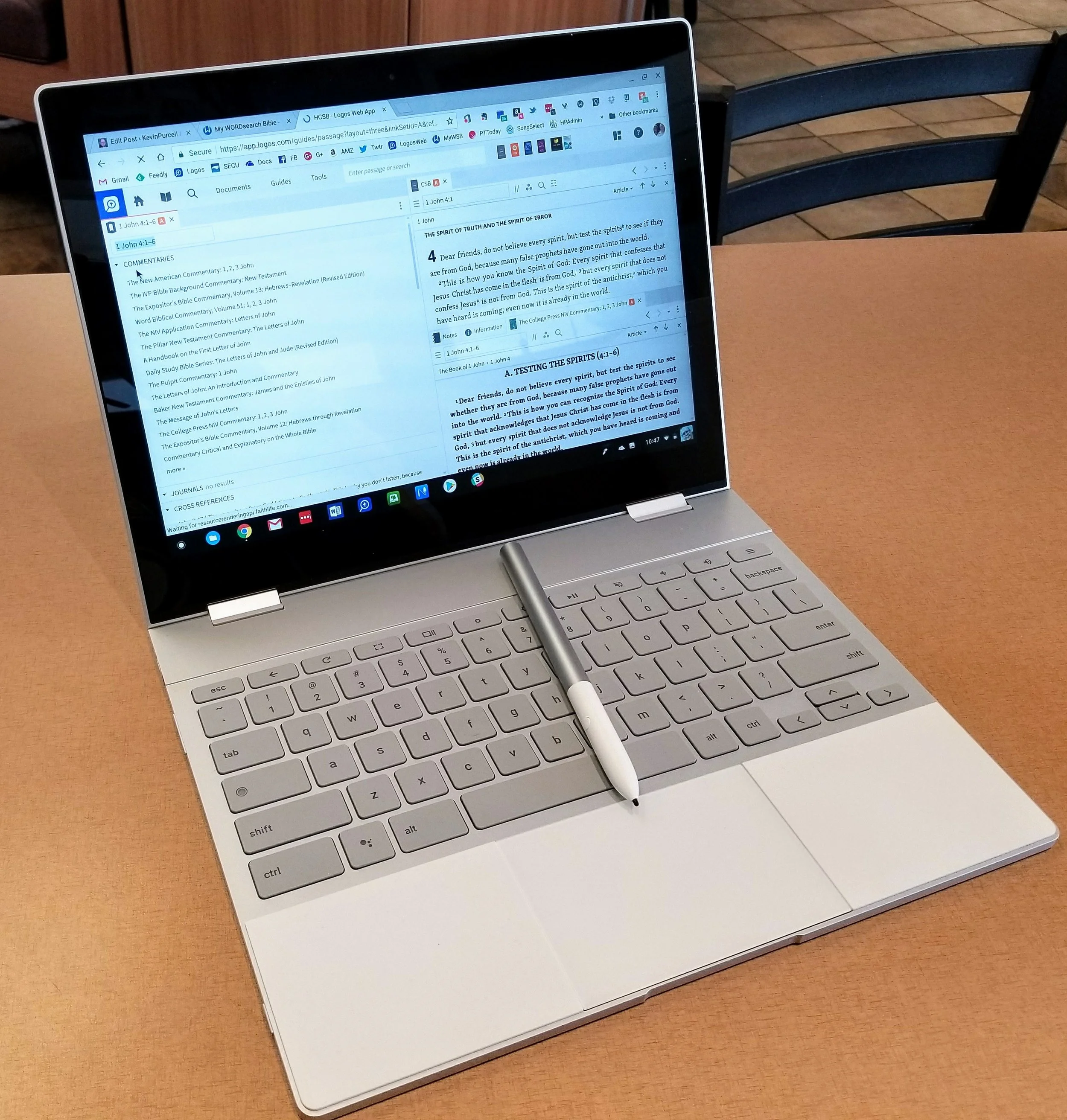
Google Pixelbook Review
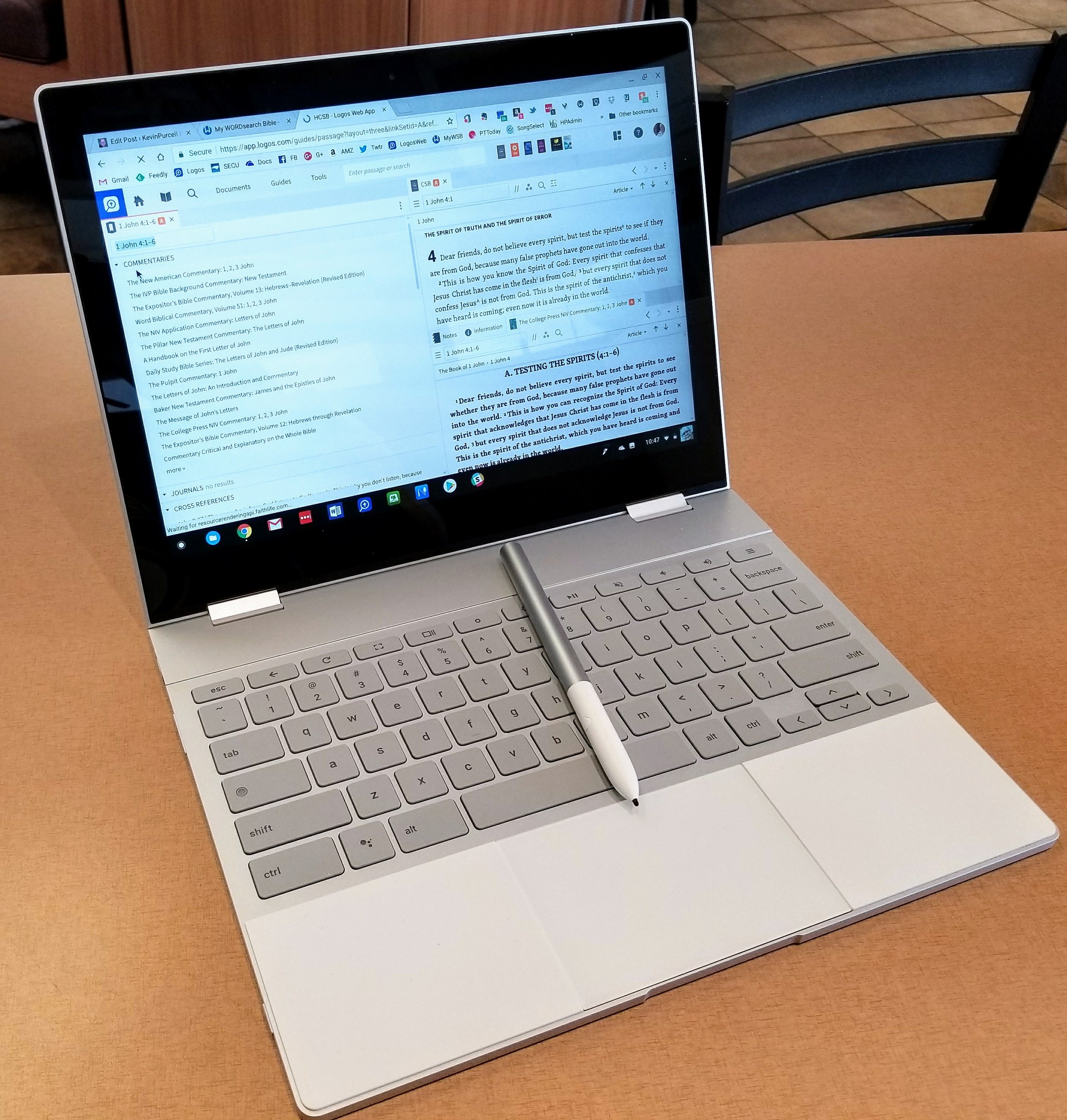
4nvPaying $999 for a Chromebook, and $1,098 when you add the Google Pixelbook Pen, seems like a ridiculous extravagance for many of the mainstream tech site reviewers. I've seen reviewers say it was...
- a "hard sell" for anyone who's not already a Chrome OS user - TechCrunch
- made for "well-heeled Android and chromebook fans" (yes they forgot to capitalize Chromebook) - PC Mag
- only for the "die-hard Chrome OS fan" who looks for "the very best Chromebook available" - Digital Trends
 Let me say at the outset that I think these reviews all came from people who don't fully understand the power and elegance of Chrome OS, so they can't fully appreciate the benefits of a high-end Chromebook like the Pixelbook. We'll step back to look first at the hardware. Then, we'll see how the Pixelbook handles Chrome OS and apps from the Google Play Store, including using Bible study apps, which we already covered in a previous post.
Google Pixelbook Review Video
https://www.youtube.com/watch?v=pCH2xcHT7uw&feature=youtu.be
Pixelbook Internal Hardware
 In a word, the Pixelbook's hardware is fantastic. I bought the base unit that comes with a 7th generation Intel Core i5 processor, 8GB of RAM and 128GB of fast solid state storage. Those sound like decent specs for a Windows machine, but Chrome OS runs on a pretty lean machine, so a 7th gen Intel Core i5 with 8GB of RAM works nicely on Chrome OS.
 Over the years at Notebooks.com and GottaBeMobile.com I reviewed about a dozen Chromebooks. I've never seen a score of 29,238 on Octane before.In addition to the blazing speed, the Pixelbook looks beautiful. It's incredibly thin and light. Other devices claim the same weight, but Google engineered the internals in a wonderfully balanced way. When you hold it in tablet mode or just carry it around it feels sleek. Just look at the clean lines and clear attention to detail.
 The computer includes 2 USB-C ports that will both charge and transfer data. They will also work as external display ports with an adapter.
 Google put a Hardware Security Module in the Pixelbook, giving it a business class level of security. While a home user like me won't really appreciate this, business users might.
 Convertible designs give users versatility that a traditional laptop doesn't. Use it as a laptop for regular work. Then fold the display back nearly 360 degrees to use it as a tablet.
 Adjust the screen so that it faces forward in a V-shape or Tent mode as seen in the image above. We can also use the Pixelbook with the keyboard facing down and the screen facing forward in a mode useful for viewing videos or presentations. Display mode lets the user adjust the angle more easily than tent mode.
Pixelbook Pen
Before I began using the Pixelbook Pen, the Apple Pencil was the best stylus I'd used. However, I prefer the Pixelbook Pen because it's shorter, thicker and feels better in your hand. Because of the shorter length it has a better weight distribution than the Apple Pencil. Both work better than the Microsoft Surface Pen, but not much. All three work great. Pixelbook users needing a stylus will get a great one with the Pen. The Pixelbook Pen has a button on the side that turns on the Google Assistant when the user selects on-screen content. Users can search with voice commands using the special keyboard button but this doesn't work with the Pixelbook Pen, which is stupid. The Apple Pencil doesn’t do anything like that. Surface Pen users can work with Cortana via the buttons. I like the right-click button of the Surface Pen and wish the Pixelbook Pen had the feature or let users customize the one button it does have.The Apple Pencil lets recharges via the Lightning Port on the iPad Pro. That sounds like a benefit, but it also means you have to charge it more often. The AAAA battery in the Pens from Google and Microsoft last forever. When they finally do quit, just swap them out. They're hard to find in my small town, but I ordered a four-pack replacement from Amazon for less than $10. Now I've got plenty of backups in my battery drawer at home.The Pixelbook Pen doesn't drop its connection like the Apple Pencil. I have to plug the Pencil into the Lightning port on my iPad almost every time I want to use it. I never have that problem with the Pixelbook Pen.
 The Pen does a lot of great things. Google has a help article to name many of these cool functions, which I've listed below:
- Capture screen content and save it or annotate it with Google Keep
- Search content by selecting it with the Google Assistant button the Pixelbook Pen pressed while drawing around content
- Take notes without unlocking the Pixelbook
- Draw or take notes in apps designed for this like my favorite Metamoji Note or Squid
- Use the pen as a laser pointer in presentation app when connected to an external display or Chromecast
Pixelbook Keyboard and Trackpad
 I've used plenty of terrible keyboards and great keyboards and I love the Pixelbook. It's better than my MacBook Pro from 2013. I hate the new MacBook keyboards. The Pixelbook’s as thin as the new Apple MacBook and MacBook Pro with their butterfly mechanism keyboards, but feels superior when you type.It’s easy to type accurately quickly for hours with comfort. The interesting soft silicon surface that flanks either side of the trackpad feels great while resting your palms. It's a brilliant non-skid surface and I'm glad Google thought to put them their. I hope they don't discolor too much over time. Cleaning them was easy after I got a bit of residue from a soft drink on my hands that I didn’t notice. I just wiped it with a damp cloth.
 The keys have a hint of texture making them easy to type on. They're back-lit, but the light is a little strange. They don't look that great in light making it hard to see the key labels. In a dark room they look fine.
 The keyboard layout's perfect and the useful function keys along the top of Chrome OS does away with the ridiculous F keys on most computer keyboards. You don't need them in Chrome OS.
 Google added a couple of keys to the new layout of their Chromebook keyboard. First, there's the Google Assistant key. We'll cover that more below when we discuss the Assistant. There's also a nice Launcher button in the spot above the Shift key on the left side of the keyboard. It functions similar to the Windows key on most Windows PCs. Tap the key and start typing the name of an app to show it and then tap or click to launch the app or web app. It also functions like a CAPS LOCK key for those who miss it using a key combination.
 As effective as the keyboard works, the trackpad is better. I hate trackpads, so any computer that keeps me from pulling out my Bluetooth mouse has to be good. I paired my Logitech MX Anywhere 2 mouse with the Pixelbook the first time and used it for a couple of hours. Now it sits in my bag. I actually prefer the Pixelbook trackpad. It's spacious, accurate and smooth.I did have to turn off the tap to click feature of the trackpad in Settings. I'm a lazy typists who lets my wrist rest on the space beside the trackpads so my thumbs kept tapping the trackpad accidentally, so I turned off the feature. I don't mind losing tap to click. I prefer to click when I use a trackpad.
 When you use the Pixelbook in laptop mode and tap the screen, the hinges aren’t strong enough to hold the screen in place. It wobbles a bit. If you plan to use it as a touchscreen only for watching videos, display pictures or a presentation to a friend, then use the tent mode to keep this from happening. I've also gotten good at holding the top or sides with my other fingers as I tap with my thumb for quick taps while in laptop mode.
Pixelbook Display and Audio
The 12.3" LCD 2400 x 1600, which gives us 235 pixels per inch, looks beautiful. Text and images look crisp and color accurate. It's bright enough that I mostly use it at 50% brightness except in bright rooms or sunlight. I don't watch a lot of video on my laptops, but I can on the Pixelbook without compromise. Natively, the Pixelbook comes out of the box running at 1280 x 800. That's a little low, even at 12.3 inches. However, it worked fine while using it at this resolution.
 Users can change to the native resolution of 2400 x 1600, but you won't be able to use it that way for long because text looks too small to read (see below). I left it at 1280 x 800 (see above) until recently, when I switched to 1350 x 900. That makes things look smaller but not too small to read even for my middle-aged eyes. Everything still runs smoothly and I can fit more on the screen, a great option when using Bible apps on the screen with two books open at once. Since most Android Bible apps fill the entire screen on Chrome OS, the lower resolution works fine.
 Like most laptops, the Pixelbook speakers aren't great. The sound okay for occasional listening, but no one will want to use this device for a lot of music, gaming and movies if they put a premium on great audio. Get some excellent headphones and plug them into the audio port, which the Pixelbook has, thankfully.
Pixelbook and Google Assistant
I'm not a big Google Assistant user, but the Pixelbook adds this function both in the keyboard and the Pixelbook Pen. The Pen has a dedicated Google Assistant button that works as well as the Google Assistant does using it any other way. There's also a dedicated button for the Google Assistant, as we mentioned above. Tap it and the Assistant starts listening. Google Assistant will search the web, add appointments, tasks or notes to Google Keep. You can also control things on your Chromebook, launch apps and interact with the system.The Pixelbook Pen lets you press the button and then circle something on the screen. The Google Assistant will then show relevant information based on what you circled. Here's a list of some of the things you can do according to the Google help article:
- Find restaurant information by circling its name on a website
- Circle a photo of a famous person and find out who it is or learn more about the person
- Add a date to your calendar by circling it
- Create an appointment
- Add reminders
- Play media like videos from YouTube or music from Google Play Music
The Apple Pencil can't do many of these things and the Surface Pen can do some of them. Siri and Cortana don't work as well in my experience as the Google Assistant for most tasks.
Pixelbook Software
Chrome OS comes with a number of important benefits that a lot of people don't see because they're too focused on the limitations.
- Chrome OS is dead simple by itself with easy use and quick reset to factory default settings via Powerwash.
- Google Play Store adds complexity but also functionality that makes the complexity worth it.
- Great web apps that you can now use offline (Google Docs, Sheets, etc).
- Microsoft Office Mobile apps compatible with Chrome OS with Google Play Store apps.
- Use iCloud apps from Apple via their website.
- Chrome OS is more secure than other operating systems thanks to no viruses affecting it yet.
 We do see some limitations with Chrome OS. It's harder to do complicated video and photo editing. Running two apps on-screen at the same time doesn't work yet in the stable version of the operating system. Google's working on it.
Conclusion
I love my Pixelbook and feel like the $999 plus $99 for the Pixelbook Pen was a good investment. I'm productive with it writing article on my blog, writing sermons and Bible studies, researching my sermon and Bible study passages and doing general Internet tasks. I can edit photos most of the time since I'm not a serious photographer. Snapseed and the other online photo editing tools I use work fine with my Pixelbook. I also don't do complex video editing. Most of the time I'm just cutting off the front or back of a video and splicing together a few clips that I then upload to Facebook or YouTube.If you're like me and want a great piece of hardware, then Pixelbook is your pick. It's the best Chromebook money can buy. If you don't want to spend $1000, then I can also recommend the Samsung Chromebook Plus or Pro, both also great Chromebook with an active stylus. The Samsung stylus is smaller and not as good as the Pixelbook Pen and it doesn't have the Google Assistant built-in. The Samsung Chromebook Plus or Pro keyboards aren't as good and the trackpads on both machines stink compared to the Pixelbook. The screens on those devices look as good, but I prefer the 12-inch nearly square 4:3 aspect ratio. Also the Pixelbook feel like a premium laptop and even works for occasional tablet use.The Pixelbook works great for Bible study and sermon prep with only a few compromises. This boils down to your past usage and how much you need some of the more complicated features available on a Mac, Windows PC or even iOS with the iPad Pro. I prefer the Pixelbook for most of my writing tasks and even most of my online work.

2017 Theotek Christmas Gift Guide: Theotek Extra

The Theotek team offers up some of our favorite gift ideas for the 2017 Theotek Christmas Gift Guide in this Theotek Extra. In this gift guide, three of our team members share their options for great Christmas presents for the Geek on your gift list. Here's the video of our gift guide. We didn't do an audio version since this is such a visual show. Watch the video below and then check out the links for each item in our round-up after the video.https://www.youtube.com/watch?v=4bET5tX0A9g&feature=youtu.be
Wes Allen's Gift Guide Suggestions
 Wes showed off his TASCAM DR-40 4-Track Portable Digital Recorder. He uses it for professional reasons, since he often records video and audio for his work with the ABCNJ tech ministry. Here's a sample video that Wes shot using the recorder.https://www.youtube.com/watch?v=MGuy5e2qaIA&feature=youtu.beThat sounds pretty good. Here's another sample test recording audio in various situations.https://www.youtube.com/watch?v=Tqwe8_XTXok&feature=youtu.beThe recorder costs a little over $170 at Amazon. Wes recommended this as one of Our Favorite Things during a past show.
 Wes also shared the newest version of Scrivener, a great writing tool for people creating a little more complex projects, like a book or research paper. He uses it also for sermon writing and keeps them all in a single folder by year in Scrivener. Literature and Latte just released version 3.0 for Mac and is working on the Windows update. Get it for $45 unless you own a earlier version. Then you can update it for $15 off. The iOS version costs $20.
Mark Allison's Gift Guide Suggestions
We get a few recommendations from Mark Allison. He started things off with the TPU Docking Stand Holder for the 38mm Apple Watch. It holds the Apple Watch on your night stand or desk and you can use it like an alarm clock with the watch plugged in and display set to turn on showing the time. It only costs $6.34 on eBay. Next we get the Anker SoundCore Bluetooth Speaker for $32.99 on Amazon. This Bluetooth battery-powered speaker lets you play your music from a phone or tablet on the go or at home. He loves his. It comes in black, blue or red.Mark also recommends getting an SSD for your computer. He picked one up from Newegg, but you can find them anywhere. He said that the one he has isn't necessarily the best. Get one that fits your storage needs and size of your laptop. Putting one in your computer shouldn't take too much technical skill. The hardest part is replacing the boot drive and getting all your software back on the drive. Also, many newer computers don't have user-upgradable drives. For example, you can upgrade the new MacBooks or MacBook Pros. These can cost as little as under $100 and as much as over $1,000 for extremely fast drives. He said that getting a more costly drive usually means faster performance and more storage.
 The last thing Mark recommended didn't have anything to do with tech. It's Millie's All Natural Organic Gluten-Free Vegetable Sipping Broth. It's like tea without the tea. These come in tea bags and you pour hot water over them and let them soak about 3 minutes. As of the time of this post, they're not available where he gets them, on Amazon. They offer other flavors that are available now, like Thai Lemongrass for $15 for a pack of 12 bags. You can ask Amazon to email you when they're ready.
Kevin Purcell's Gift Guide Suggestion
 I picked just one gift to recommend. I just picked up the DJI Spark mini drone. It's a high-end consumer grade drone with a 12MP camera that also shoots in 1080p video. The battery lasts about 15-20 minutes. It's on sale for $399 now, but normally costs $499. I recommend getting the bundle that includes a remote control that connects to your phone or tablet. It also has the propeller guards and extra battery, which you'll likely need.
Other Great Gift Options
If you need a few more recommendations, we've got some ideas. First, consider gift cards. Find out what platform the person uses for their smart phone. Get Apple Gift Cards for iPhone, iPad and Mac users. Get Google Play Gift Cards for Android users. We also love Amazon Gift Cards. That way we can pick out whatever we want. Also consider giving them some store credit for their favorite Bible software from Logos, Accordance, Olive Tree, WORDsearch and others.
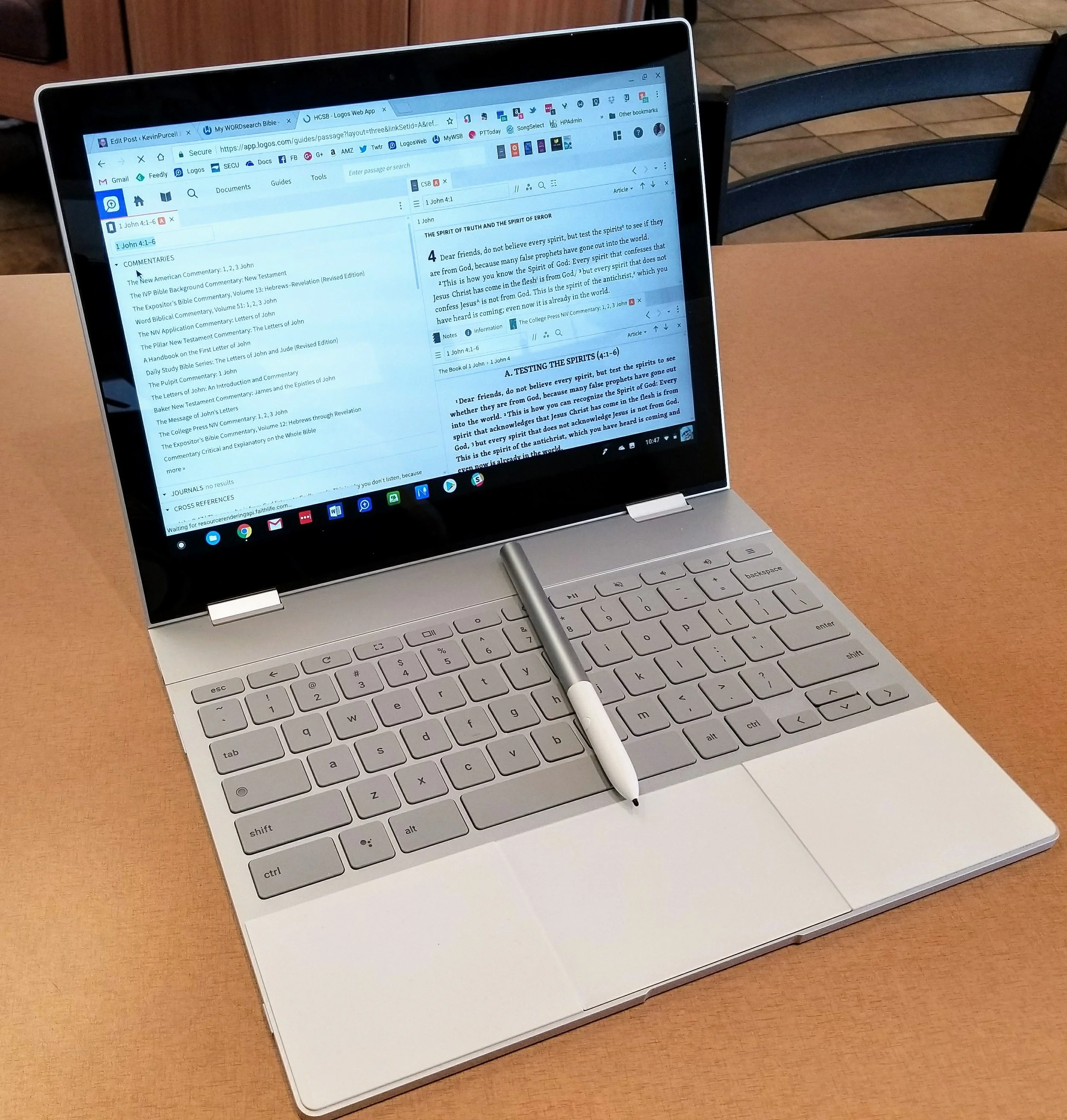
Google Pixelbook for Bible Study: A Review
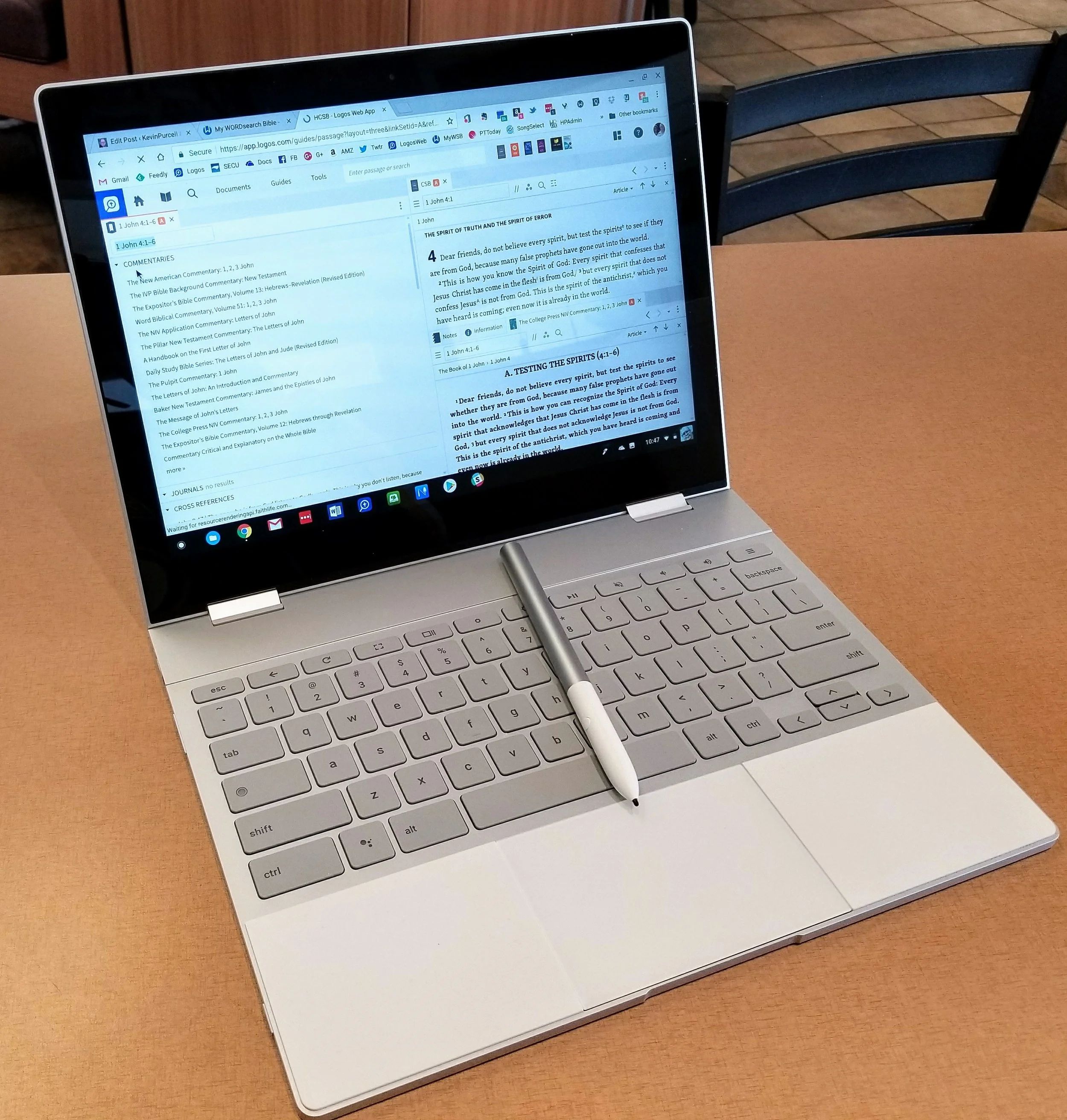
The Pixelbook, Google's latest high-end Chromebook, competes at the upper end of the market against the likes of the Apple iPad Pro and the Microsoft Surface Pro. It's a beautiful machine in all aspects, but if you're reading this site you probably wonder if someone can use the Pixelbook for Bible Study. I'll try to answer that and recommend whether you should pay the premium price.
Chrome OS
You may think of the Chromebook as a "browser" computer that only runs the Google Chrome browser. That's no longer accurate for a few reasons. First, web apps work well in many cases. There's also a number of great Bible study websites if you don't want to install an Android app. Second, in America at least, most people enjoy full-time access to the web at home, work and even on the go with Wi-Fi hotspots on phones or in coffee shops and airports. The popular idea that Chromebooks are just hardware web browsing machines is false. Google dispels the "myths" as they call them about the Chromebook in a video they produced.https://www.youtube.com/watch?v=87-8EqSHodAThe myths Google dispels in this video include:
- They're just browsers
- They have no storage
- Chromebooks don't run real software
- They only work online
We get web apps that work off-line and most Chromebooks today come with the Google Play Store out of the box. Others will get it soon in an update to Chrome OS.
Pixelbook Hardware
Every Chromebook includes at least 16GB of local storage and the Pixelbook has at least 128GB. Plus many add extra storage through an SD card reader, although Google didn't include a reader on he Pixelbook, frustrating some buyers. The Pixelbook gives users a high-end experience making it my favorite general use computer over my MacBook Pro, Surface Pro and iPad Pro. I used to own all four, but carry the Pixelbook and choose to use it more than any of the other three. In fact I just sold my MacBook. Here's what you get with a Pixelbook.
- Beautiful high-resolution 12.3-inch screen with 2400x1650 res display.
- Excellent chiclet style keyboard that's easy to type on quickly and accurately.
- Large smooth and accurate clickable touchpad that I use over a mouse 100% of the time
- Thin light and stylish design.
- Two-in-one convertible design that you can use as a laptop, tablet, and in stand mode.
- Incredible 8-10 hours of battery life that charges in about an hour from dead.
- 2 USB-C ports that charge the computer and transfer data.
- Spacious 128GB solid-state drive that's fast.
I usually prefer to connect a Bluetooth mouse for mobile computing with my laptops. I hate trackpads and always pair one with my Surface Pro and MacBook Pro, but I don't on the Pixelbook. That's a high compliment from me. It has a fantastic trackpad. Some people might see 128GB of storage and balk at that. That's not nearly enough for most people on a Windows or Mac laptop. However, on a Chromebook that runs Android apps, it's more than enough. That's because the OS and apps don't take up as much space. The only reason you'll need more is if you store large videos or tons of music, photos or other large files. Even the space-hogging Bible apps that you can download from the Google Play Store will not eat up that much of that 128GB.
 Samsung sells a pair of Chromebooks that comes with a stylus. I owned both the Samsung Chromebook Plus and the Pro, but sold them both. First I upgraded to the Pro and then sold it to get the Pixelbook. I'm glad I did. The Pixelbook is larger than the Samsung stylus which makes it more comfortable to use. I'm testing the built-in screen annotation feature with PowerPoint and may switch from using my iPad if I can make it work well enough. Right now it takes a screenshot to mark it up, but does offer a laser pointer, which might be enough for what I'm doing.
Using the Pixelbook Pen
 There's a great search feature available only on the Pixelbook with their Pen until another manufacturer gets access to the API that makes it work. Select something on-screen and the Google Assistant will search for the context within the selected area. Here's where that helps Bible students. Circle some text on the screen and the Assistant will search for it. For example, I chose to search for "false prophets" from 1 John 4:1 and you can see that the Google Assistant did a search for it for me (see image above).
 While doing presentations, the Pen lets you mark up your slides. I'm planning to start using a series of PDF file pages instead of PowerPoint. The Pixelbook Pen works much better in this case than it does on PowerPoint or Google Slides. I hope Google updates their own Slides app for better use in situations where the presenter wants to mark up the screen. If you want to see a similar style of Bible teaching, check out John Piper's A Look at the Book. I've included an example from YouTube below.https://www.youtube.com/watch?v=RU8AceqxttU
Getting Other Things Done
 Thanks to the Microsoft Office Android apps, I can write in Word and use PowerPoint somewhat. Word's fine, but PowerPoint's weak on Android. The presenter view doesn't do on-screen annotations as easily as the Windows or iPad program. I put my scripture on the screen and mark it up during my Wednesday Night Bible Study at church. I dislike the way PowerPoint handles this in Android because you can see the mark up buttons at the top of screen on the external display. That's distracting. As I said above, I may use the built-in laser pointer, but not yet.
 Thanks to Android apps I can now do some video editing and great photo editing. I use the following apps for these tasks:
- Adobe Lightroom CC for photo organizing and editing
- Snapseed for photo editing
- Action Director for video

The Pixelbook for Bible Study
Now for the reason we're here. Can you use the Pixelbook for Bible study? In a word, yes! However, there are a few trade offs.I usually install the Logos and Olive Tree Android apps on my Android phone and they both work on the Pixelbook. Accordance promises that they will soon ship an Android app that will at first let you read your books primarily. They plan to add more advanced features over time. It's currently in beta, so go learn more about it in their forums, but it's clearly beta and not ready for most users not tolerant of instability and lack of features. It will be great, I'm sure.The Logos Bible study app doesn't include all the advanced features available on the Mac or PC version. Olive Tree's mobile Bible study app and computer apps work similarly. That's because it's not as advanced or as complicated as the other two desktop programs. The WORDsearch Android app is atrocious so just use the MyWSB.com web app. It gives users a better experience. If you use notes to record your study discoveries, then you'll get frustrated using the Logos Android app because the note attached to a verse covers most of the screen. I like to open a notes file and then look at the Bible text and type in my observations. You can do this in Olive Tree easily, but it's hard to do in Logos. Olive Tree puts the notes on the right side of the screen and you can edit them while viewing the Bible window on the left (see above).
 Logos only shows the notes in a pop up window when you first open the editor or tap an existing note (see image above). If you want to attach the note to a verse reference, then it will strangely cover the entire screen (see image below).
 The current version of Logos Android beta app has a bug that only opens a notes file in a separate screen. It won't open in 2-screen view. Hopefully they'll fix that soon. Even when they fix it, the note doesn't automatically sync to the note attached the currently showing Bible passage. If you have a lot of notes you'll have to scroll through the long list of notes till you find it.
 Here's my work around. I open the app on my phone and then type into the Logos notes file on my Pixelbook. I'd use Olive Tree more for this, but most of my best commentaries and references are in Logos, not Olive Tree. Since most of us own a smartphone, this is a reasonable workaround. If you use Olive Tree primarily, then you'll enjoy the experience. Open the notes file in the right side. If you're like me and use Logos as your primary app, then you'll hate using notes on a Chromebook.
 Here's another workable option. Open your Bible app and a Word document, Google Docs file or some other text editor and use the keyboard shortcut to switch quickly between the Bible app and the text editor. Use ALT+TAB to switch between open apps.I've used the Pixelbook plus Samsung Galaxy Note 8 for two screen work for a few weeks now almost every day. I really like this workflow. I write my personal observations, then open word study tools and record those findings. Finally, I open other books like dictionaries, atlases, and then commentaries.The great screen, keyboard and trackpad make writing on the Pixelbook a dream. I love the crisp text even in small fonts. They look great and easy to read. The keyboard makes typing a pleasure and the spacious trackpad means no mouse needed. It's accurate but registers accidental palm touches while you're typing, so I turn off tap to click, like I do on my MacBook Pro. That's a product of a large sensitive trackpad.
 I write my sermons in Microsoft Word, which you can download from the Google Play Store. However, I notice that it's not stable on the Pixelbook. It doesn't crash, but typing can get laggy and sometimes the arrow keys on the lower right corner of the keyboard don't work. Sometimes the space and shift keys just don't register. This happens only in Word, so it's an app specific problem. To avoid this, use the online Word web app instead. It's nearly identical to the Android app for most users.
 Don't forget the great online Bible study sites. Logos, WORDsearch, Bible Gateway and many others include some nice features. The first two give access to most of your library if you already own books for use in their mobile and desktop apps.
My Recommendation
I love using the Pixelbook as my primary Bible study and sermon prep tool. Here's the list of strengths that make it my favorite laptop:
- Great accurate and crisp screen
- Beautiful and comfortable keyboard
- Large accurate and sensitive trackpad
- It's fast
- Great 8 hour battery life that charges quickly from a dead battery
- Android apps mostly work well on the Pixelbook
- Web apps fill in the gaps of poor web apps
It's not a perfect situation. Here's what I don't like:
- Android Bible apps not as good as Windows and Mac versions
- Word is buggy on the Pixelbook and Android PowerPoint's not as good as iOS or the desktop version
- Video editing is harder on a Chromebook than on a Mac where it is best or Windows where it's nearly as good as Mac
- It's expensive
For the first time, I prefer using a Chromebook nearly 100% of the time. I still prefer my desktop apps for a few Bible Study tasks, like complex word studies and sentence diagramming in Logos. However, I could even do those on my Pixelbook if needed without too much compromise.The Pixelbook's not for everyone. People committed to using Chrome OS won't find a better option, if they don't mind the $1000 for the computer and $100 if they want the Pen.
Creative Tools for Ministry: Theotek Podcast #103
If you work on a website for your church or ministry or if you create images, videos or art for worship, then this podcast is for you. We talked about the creative tools that we use and what we think of Adobe's recent update to their Creative Cloud suite. Plus watch the podcast to find out about alternatives if you don't like the subscription model of paying for your creative apps.https://www.youtube.com/watch?v=PC-1vkB5TsQIf you're interested in the new tools from Adobe, check out their website to learn more. We talked mainly about photography programs Lightroom and Photoshop since that's what we use most. But the other apps got some love and they added a new subscription storage option.
Alternatives to Adobe Creative Tools for Ministry
 MacPhun does a great job with some of their new apps. They now offers something called Luminar 2018 and it works on both Mac and Windows. Luminar does Raw photo file editing. It has the advanced features of Photoshop and Lightroom built into Luminar. Pre-order for $60 or upgrade from $40. And for HDR tools check out MacPhun's Aurora package. These are both great creative tools for ministry.For iPad and Mac users Pixelmator does a nice job. They also will offer Pixelmator Pro which give you a single window interface and it does what it does really fast. It's not as good at text and Lightroom may do a better job with some adjustments, but the app on iPad and on Mac is a great option.
 Final Cut Pro from Apple is an expensive alternative. It's a one time only fee, but the price is $300. However, that's 6 months of the Adobe Creative Cloud subscription. It only runs on a Mac.
 LumaFusion on iPad gives the user a great user interface, a powerful video editor and lets you edit with a finger. That gives me precision editing that I can't get with my mouse. It includes a multi-track editing interface. You can have 3 tracks for video, audio and images. Then add 3 more audio tracks for things like voice overs or music.Most people think of Camtasia as a screen recorder. It is, but it also allows for simple video editing with simple titles and call-outs. It's great for creating videos of software.On the audio editing side of things Adobe offers Adobe Audition. However, Ferrite is in iOS audio editor that we can use for some great audio projects.For Windows and Mac, use the free and open source program called Audacity. It's powerful and simple at the same time. The supporting community makes a lot of plug-ins.On the Mac there's Sound Studio by Felt Tip Software. It's an excellent option for sound creative tools users.Those who need to create websites might user Dreamweaver form Adobe. However, we mentioned a few alternatives for web design.
- WordPress is a content management system and a web host, although you can self host using the files from WordPress.org.
- Rapid Weaver for Mac is the most like Dreamweaver. It's a piece of software on your Mac that creates websites.
- Squarespace is like WordPress because it's a content management system. You'll have to use their servers as your host and it costs a little.
Our Favorite Things
We've got a few more recommendations. We always offer "Our Favorite Things" which are recommendations from the Theotek team. Here's the list of Our Favorite Things.https://www.youtube.com/watch?v=wUuSYpW4ZIoAntoine visited the National Museum of African American History and Culture in Washington DC. Here's their own description of the museum.
The National Museum of African American History and Culture is the only national museum devoted exclusively to the documentation of African American life, history, and culture. It was established by Act of Congress in 2003, following decades of efforts to promote and highlight the contributions of African Americans. To date, the Museum has collected more than 36,000 artifacts and nearly 100,000 individuals have become charter members. The Museum opened to the public on September 24, 2016, as the 19th and newest museum of the Smithsonian Institution.
 People who need a great text editor for Mac will love BBedit. Mark Allison recommends it for text editing and for programming.Rick didn't recommend the Samsung Galaxy Tab S3 he got to test out Accordance Bible on Android because he hates the limitations of Android tablets and Samsung's launcher. Samsung puts an overlay on top of Android called TouchWiz on his tablet and now it's called Samsung Experience on their latest phones. Since he does a lot of the training for Accordance, he wanted to share his screen to record help videos for their new Accordance Android app. Samsung doesn't let you connect an HDMI adapter like other devices. So he found a tool called AirServer Connect in the Google Play Store that lets him share the screen to Reflector. It tricks Reflector into thinking the Android device is an iPad or iPhone. Reflector tricks the device into thinking your computer's an Apple TV. There's also a version for iOS and on the Amazon App Store.Wes decided to "waste time" with his pic. He chose the Stranger Things video game based on the hit Netflix Original series that recently released in season two. It's a fun time waster on Android and iOS.
 My pick this week was the new Kindle Fire. I got the 10-inch version, but they offer an 7 and 8 inch mode. It's faster than the earlier version and seriously fun. You can also install the Google Play Store with some tricks found here. The 10-inch starts at $150 but you can get the 7-inch for only $50 and the 8-inch for $80. They have a durable 7-inch version for kids that starts at $100 and comes with a 2-year warranty that lets you replace it even if the kid drops and breaks the screen. I really love mine.
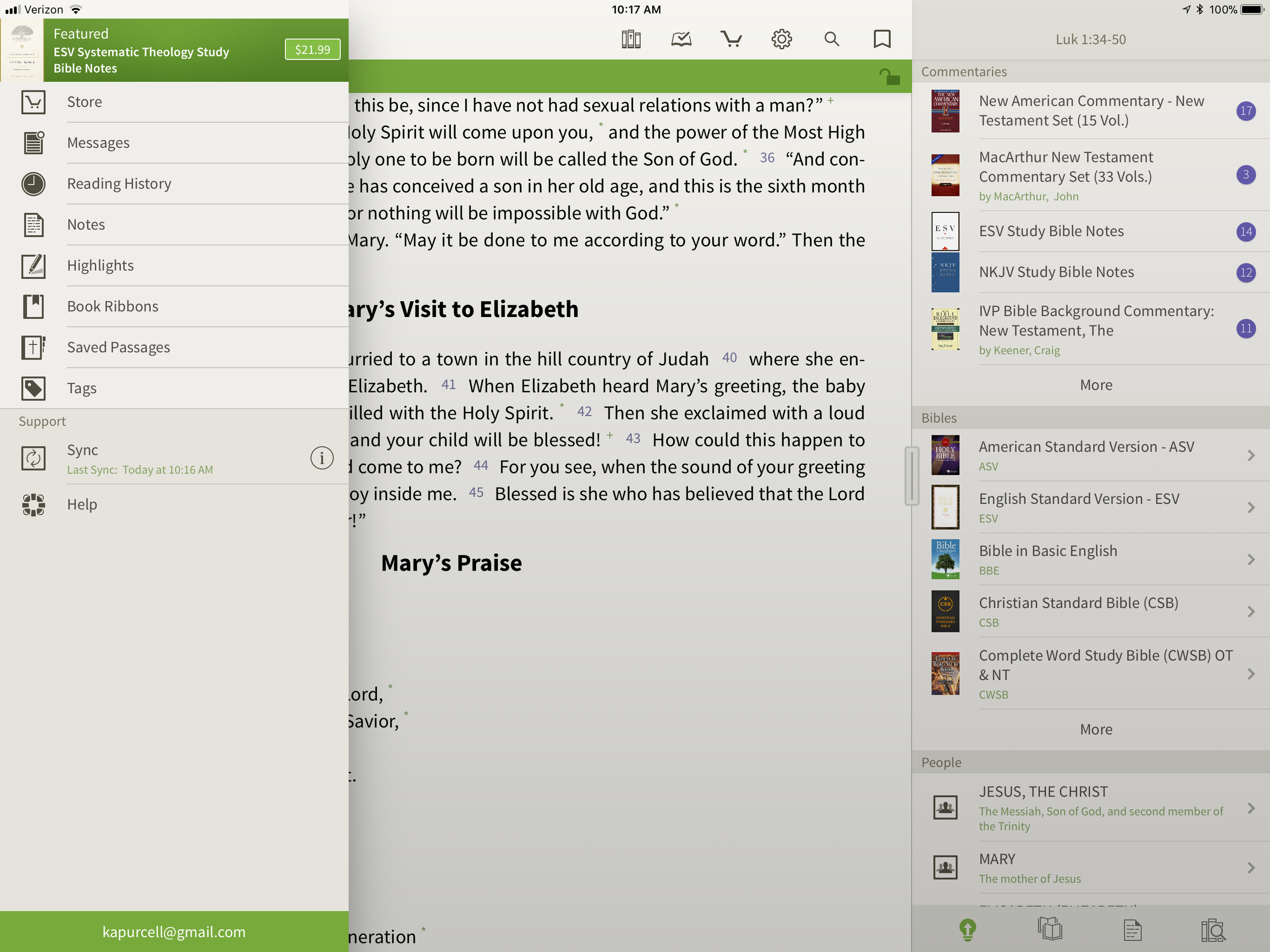
5 Best iPad Bible Study Apps
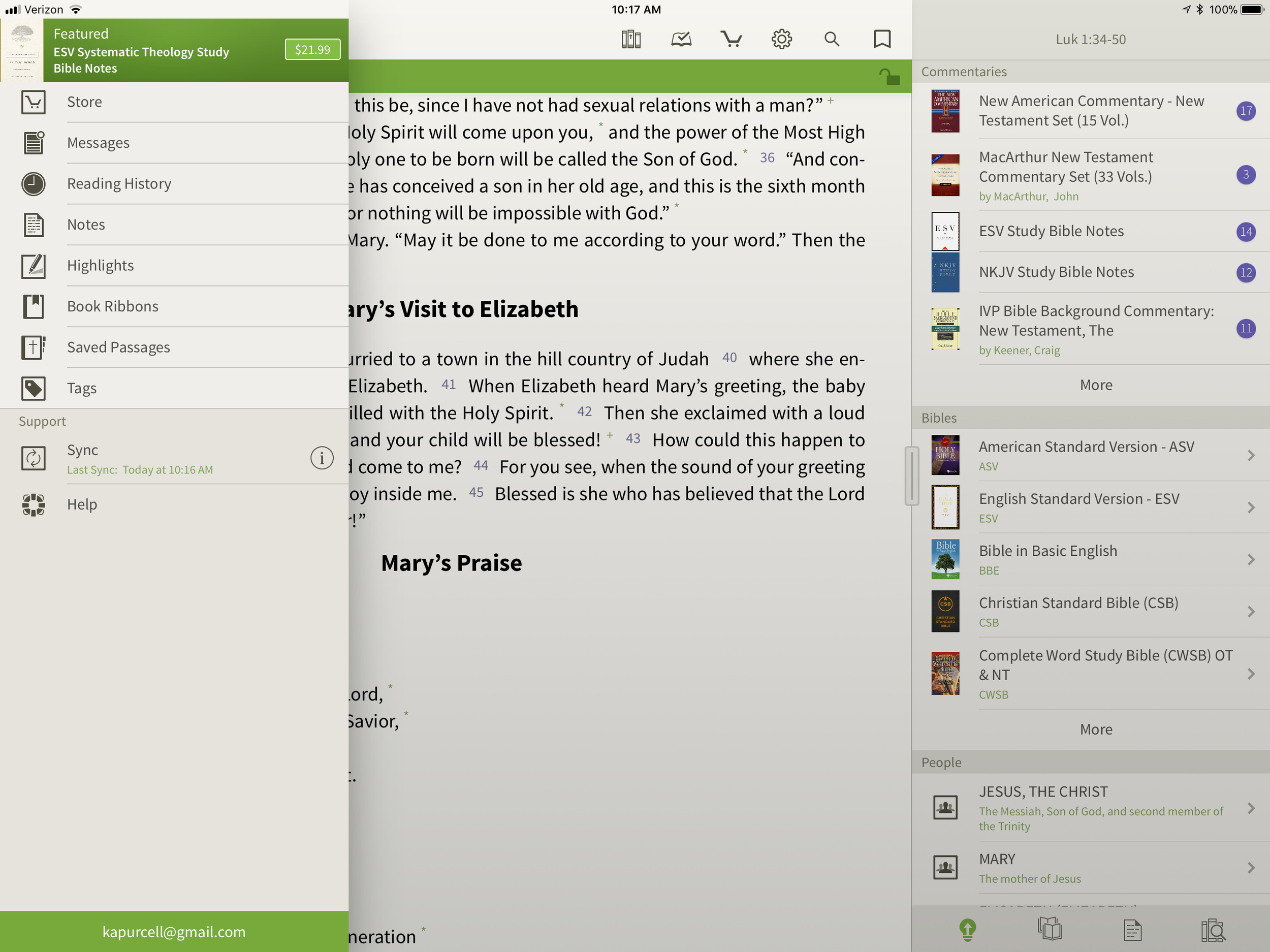
The iPad assists mobile Bible study thanks to a lot of iPad Bible Study apps. But which one should you use? How good are they and what can a person do with them. Let's look at the best iPad Bible Study apps to help preachers, teachers and Christians study the Bible.
iPad Bible Study Must Haves...
Recently we differentiated between mobile Bible Study apps and Devotional or Bible reading apps. Please see that post to understand the difference. The apps below fit in the more advanced Bible Study Apps sector. Users can use them for Bible reading and devotional Bible reading as well, but they are more than that. Here's what I think every good Bible Study app should include that might not show up in a simple devotional or Bible reading app.
- Original language tools
- References like commentaries, Bible dictionaries, atlases and more
- Dual pane view showing the Bible in one and a reference or language study tool in the other panes or showing two or more translations on the screen at once
- Feature-rich note taking within the app
The apps below all give us more than the four features above, but these are the bare minimum. I think they should also be good at helping you do your Bible reading. No one should have to install two Bible apps on a phone, tablet or Chromebook.
Logos Bible
UPDATE: Note that the screenshots and descriptions are of the latest beta of Logos Bible for iPad that will hopefully get released soon. Read more about it in the Logos forums and if you have an Android device you can actually sign up for access to the beta and download it now. The Logos Bible app is unique compared to the other apps in this roundup. It offers a Home page that shows a ton of content by default. I actually turn off much of this. Here's what you get right after installing the app.
- Featured Bibles - top Bibles that Logos thinks you'll like and want to use.
- Group Invites - Logos has the Faithlife community a kind of Christian social network that focuses on their products. You get invitations to join certain groups and they show up here.
- Today's Readings - reading plans for Bible readings, book readings, etc. Tap on them to see the most recent reading for that plan.
- Reading Plan Invitations - like the group invites, these offer potential reading plans like a Gospels in 90 days or Read Mark in a month.
- Verse of the Day - a graphical representation of a new verse of Scripture each day that you can quickly share online.
- Faithlife Today - the news about Faithlife, their products or interviews and skills development videos all focused on Bible study.
- News - text-based news links to the Logos blog.
 In addition to the Home screen, we also get other tabs (buttons across the bottom of the app's screen). These show your Library, Bible, Work Spaces, and a Plus button to add a new work space/tab. The Library button opens your list of books in the library so you can open them. Each book opens in a new Work Space screen. The Bible button opens a list of Bibles so you can add one to a new Work Space. The Work Spaces shrinks each work space and you can swipe between them. This screen also lets users sync the various screens. If you have a copy of the Bible on one Work Space and a copy of your favorite commentary on another, you can sync them so that as you navigate through the Bible from book to book or passage to passage, then the commentary will follow and keep up. Move from Matthew 18 to John 10 in the Bible and a synced commentary or Bible will also move there.
 The app lets users tap and hold on a word and a context menu opens. Here's what the context menu will show you.
- Copy - copy the selected text
- Look up - do some language study or look up in a dictionary
- Search - search your library, the Bible or book for selected text
- Share - post to social media or send to friends via a text message or an email
- Highlight - just like you would some text in your paper Bible with a highlighter
- Note - add a digital margin note like you might in your paper Bible
- Clipping - collect content in a clipping document while researching a topic or passage
- Visual Copy - creates an image of the text to share online or save for presentations
In the upper right corner there's a menu button (three vertical dots) that give options for the more powerful features like:
- Change Resource - replace the current book with another
- Search - search the Bible or open books and the entire library
- Passage Guide - research tool finding your text in reference tools like commentaries and more
- Make a Note - adds a note to the current passage or part of the book
- Add to Favorites - like a bookmark feature
- Text Comparison - shows the text in multiple translations all on-screen at the same time
- Make a Clipping - collect content just like you do with the button in the context menu above
- Exegetical Guide - runs an original language research of the present passage
- Visual Copy - same as the context menu above
- Share - like the context menu above share content with others
- Book Info - shows the front of the book info like publisher, author, etc.
- View Settings - change things like text size, font etc.
The iPad in recent versions of iOS offer a kind of widgets that Android users enjoyed for a long time. In iOS you find these on the iPad when you swipe down from the top of the screen and then swipe right to show the list of Notification Widgets. Logos has a widget that displays their Verse of the Day image that you'd also see on the app Home screen. Tap it to launch the Logos app and it opens to that verse in your currently open Bible. The Logos Notification Widget doesn't do as much as the Accordance widget. I wish it had a version chooser or let you open recent books read like the Accordance widget.
 Users can get the app free, but it works best if you own a library of book from Logos.com. Get one of their Logos Base Packages to bundle a library of books and save money versus buying each book individually.
Bible by Olive Tree
 While Logos may offer more complex features, Olive Tree offers a simpler app with a great set of tools for doing advanced Bible study on a mobile device. In fact the Resource Guide might offer the simplest method of accessing all the content in the library related to a given passage on any of the mobile apps in this roundup.The Bible shows up in the left side with the Study Tools on the right. Inside Study Tools you'll find the Resource Guide along with a library button, a notes button, and the Lookup button, which lets you look up words in word search in dictionaries, the Bible and your notes.
 The Resource Guide is one of the Study Tools and it will arrange your library content by category. All the Related Verses, Commentaries, other Bibles, People, Topics, Maps, Charts, Introductions and more will show up in lists one after another. Each list will show your books ready to open to the content related to the passage or subject found in the verse showing in the left hand window. Tap them to see the content.
 On the top left there's a menu button to show...
- Suggested Resources - an ad for a book Olive Tree's pushing at that time
- Store - link to buy new books from within the app
- Messages - content from the blog often written by our own Theotek contributor LaRosa Johnson
- Reading History - the list of texts you've read in the Bible
- Notes - Shows your user notes
- Highlights - show your user highlights
- Book Ribbons - shows your user book ribbons which are like favorites
- Saved Passage - similar to Book Ribbons with a list of passages you've saved as bookmarks
- Tags - a list of all the tags you've created so you can make your own topical Bible
- Sync - lets you sync your app notes, ribbons, etc. with Olive Tree's servers
- Help - the Olive Tree help system
 Across the top of the Bible Screen we see two toolbars. The topmost toolbar has the following:
- Library - opens your library
- Reading Plan - opens the reading plan screen with suggested reading plans you can add or your own reading plans
- Store - opens the store to buy more books
- Quick Settings - change things like font, screen color (low light verse regular) and others
- Search - search the Bible
- Ribbon - add a ribbon to the current top most verse
Below the top-level toolbar you'll see a second toolbar that shows two buttons, the Select Verse button that opens a Book/Chapter/Verse style navigation tool and a lock button that keeps the toolbar from disappearing. I prefer this and I'm glad Olive Tree added this button for use on the iPad. The iPhone version is best without the toolbar showing so you don't cover up too much of the text on the smaller screen.The strength of Olive Tree's Bible is the simplicity and great library available. It also has the best notes feature available in these three. However, the weakness comes from the desktop app. The Accordance and Logos desktop/laptop apps offer far more than Olive Tree's. Download the app for free and get some free books to try it out. Then check out their store for more tools. They don't focus as much on bundled libraries of books, although they do offer them. I like this because you buy only what you want or need.
Bible Study With Accordance Mobile
At first look, the Accordance Mobile app seems like little more than a basic Bible and book reader tool with split-screen display options. Admittedly, I'm not a frequent user of Accordance Mobile. However, as I dig deeper and take time to discover the features, I realize they a user can do a lot with what looks like very little at first. The Accordance user-interface opens, after you've downloaded books, to show a Bible. There's a handle on the right side that opens a second window with another book. Tap the title of the book to bring up the library list of books. The left window library lists shows a list of the installed Bible Texts while the right shows Texts, Reference Tools like Commentaries or Study Bibles, and your Notes files.Open the Notes file and you'll see your notes. To add a note, select a word or verse and a menu pops up above it. Tap on Note and screen offers to add the note to one of your Notes files. Start typing inside that pop up box. It has a button to change the font, size, color and make the font Bold, Italics or Underlined. Sadly, even though you can see your notes on the right, you can edit them in place. To edit a note, select it and it offers to let you edit the note with a full-screen editor. This covers up the text. I like to make observations about the text in my notes and I can't see the text in Accordance. That's the same problem you have with Logos. At least in Logos you can open the Note file and edit in place. It's hard if you have a lot of notes in your file.Unfortunately, I experienced a problem with Notes Sync via Dropbox. They don't use their own servers and rely on Dropbox to sync between the desktop and mobile app. ON the desktop it's automatic, but not on mobile. That's a huge weakness of Accordance if you're a heavy notes user like me.
 If you open a book with Strong's Numbers tagging attached to the text, like the ESV or HCSB or KJV, then you can select a word and a box will pop up showing the original language information. You get the English word, Strong's number and the Greek word. Then it shows your favorite Greek word dictionary. OT shows Hebrew. Then tap on Search at the bottom of the pop up and it finds that word through the NT. The Amplify will let you search by word or the key number.
 The Library button lets you download your books over the Internet. You can also sync those if you have both the desktop and the iPad connected to the same Wi-Fi network. It doesn't work if your desktop isn't connected via Ethernet.The second button from the left lets you sync via Dropbox or via Wi-Fi. Notes and user tools sync via Dropbox while the syncing directly over Wi-Fi syncs your books from the desktop to the iPad.
 Accordance users will get a number of free books. However, it will work better if you buy a package to use on your iPad. The free Accordance Lite includes some good tools like ESV with Strong's plus some public domain books. To add books you can buy books or get a Collection. They start with the free Lite package and go up to more advanced sets like the Pro sets in English, Hebrew or Greek that each cost $999. If you want all three you can get what they call the "Triple" package in the Learner or Discoverer levels. There's also a graphics-focused set of tools called the Graphics Learner, Discoverer or Master.
PocketBible Bible Study
 I love PocketBible from Laridian because it's the first mobile Bible study app I ever used on my PocketPC a long time ago. Then I moved to Palm and there it was. I went to iPhone and then iPad and it was still available. On Android, eventually it came along for the ride.When you first install the app it offers a great help screen that shows you how to use the app from the get go. It's the best on-boarding experience for a new user. Then you'll get a single window, but no Bibles yet. Open the button at the bottom of the toolbar on the right. Find the Add/Remove books and download all of your books. If you're not registered, you can do that in the tutorial that opens when you first install.After you get some books installed open a book using the top button on the toolbar. You can use the Settings (third from the bottom) to add a second window. The rest of the buttons on the toolbar include:
- Open Books
- Navigate to passage
- Search
- Back
- Forward
- Calendar for Bible reading plan
- Button to open the toolbox pane (more on that below)
- Panes chooser lets you pick how many window panes to open at a time
- Font settings
- Reading controls for books with audio included
- Settings
- Menu where you can add/remove books, change other app settings and control books
 The toolbox holds another toolbar with six icons as follows (see the right most box in the image above):
- Find
- Bookmarks
- Highlights
- Notes
- Find Notes
- Journal
Select a word, phrase or more and a menu pops up above it with buttons as follows:
- Copy - copy the selected text
- Share - post to Facebook or send it over text or email to name a few
- Find - search the selected text
- Look Up - search your favorite dictionary
- More... - opens another menu with a number of other tools, functions and book controls
Laridian offers a number of books to buy. They offer PocketBible Library Collections ranging from $60 on up to $380. You can also buy books or commentary sets.PocketBible isn't as polished as some of the other tools. However, it's one of the easiest to learn and costs less for collections than some of the above options.
Splashtop 2 Remote Desktop
 This last option's not a Bible app at all, but rather a utility that lets you connect to a desktop. Install the Splashtop Streamer utility on your Mac or PC and let it run automatically. Download the app for iPad and run it. After you log in you'll see all of your computers running the Streamer listed. Tap the one you want to log into. It opens the computer and shows the screen.
 Now you can control anything on the computer including a full desktop class Bible software program. Above you'll see it running with Bibleworks 10 showing on the screen.
iPhone X First Look: Theotek Extra
Rick Mansfield got in line early on launch day and snagged an iPhone X. We wanted to get a look, so we recorded this Theotek Extra. Here it is for your enjoyment.
Bible Study Apps Versus Devotional Apps
With all the Bible study apps available on Android, iOS, Windows and Mac, it's easy to get confused about which app a person should use. I'll post a few recommendations over the next few weeks, but today I want to discuss a fundamental question. What do you plan to do with the app?People use their Bible study apps in different ways. How do you plan to use your Bible study app? Will you merely read the Bible, track your reading with a reading plan that the app provides or do you want to create your own personalized Bible reading plan? Will you highlight the passages on occasion or add personal notes, like you can do with a pen or pencil in the margin of your paper Bible? Maybe you want to work on a research paper for a Bible class in college or seminary. Some people need to translate the Bible into another language as part of a translator team or for a tribe in the jungles of South America in mission work. There are apps that can handle all the above functions of reading or studying the Bible, but many apps work better for some of the things listed above and don't do others that well.
Bible Reading and Devotional Bible Study
 Some people want little more than a book reader that displays at least one translation of the Bible and that's it. Maybe they want to search the Bible and even track their daily Bible reading. We call these devotional Bible reading apps. The list of common ways people describe these kinds of apps include...
- Bible reader app
- Devotional Bible app
- Bible app
- Bible study
The last name is a misnomer. I think Bible study apps include features that simple Bible reading or devotional apps don't often include. Also, calling a devotional or simple Bible reader app a Bible app is like calling both a minivan and a NASCAR vehicle a car. They're both cars but different people drive them. Jimmie Johnson, the driver of the #48 Lowes car in NASCAR may drive a minivan on occasion, but a man who drives his kids or grandkids to and from school or baseball practice probably never drives a racecar.Here's what every good devotional Bible app or simple Bible reading app should offer users.
- Bible reading in all the popular translations like KJV, NIV, CSB or ESV and more.
- Highlighting of verses
- Add personal notes to the Bible app
- Sharing on social networks
- Copying to other apps to send a verse in email or a text message to your spouse or friend
- Search the text of your translation
- Customized display of text (fonts, sizes, background colors)
Would you expect any other features in a simple Bible reading app? Please respond in the comments to add other features that you would include at a minimum. But read the next section first, since many of the other features a person wants in their Bible app will mean they really need more than a simple Bible reader app. They want a Bible study app.
Bible Study App
 Bible apps with more than the above features typically fit in the class of Bible study apps. These app developers target scholars, pastors, Bible teachers in Sunday school or informal communities of Bible students or people who want to study the Bible for personal development and spiritual growth.The list of basic minimum features you should expect in a quality Bible study apps include...
- All of the features included in a Bible reader or devotional Bible app
- Includes other resources like commentaries, Bible dictionaries, atlases, study Bibles, language study tools like Strong's dictionaries and lexicons
- Advanced search tools that do more than find a list of verses with the word "grace" or "holy" like boolean searches
- Multiple windows showing at the same time on-screen
- Notes with advanced formatting
- Library management that shows all of your books and lets you download or even remove books
- Offline reading and study tools
- Sync
 Some of the best apps in the iOS or Google Play Store don't include all the features in the above list. For example, Logos Bible from Faithlife doesn't let you do Exegetical study (original language study) on their iOS and Android app without an Internet connection. However, I'd still call it one of the better mobile Bible study apps available.What do you expect in a serious Bible study app? Let me know by commenting below.
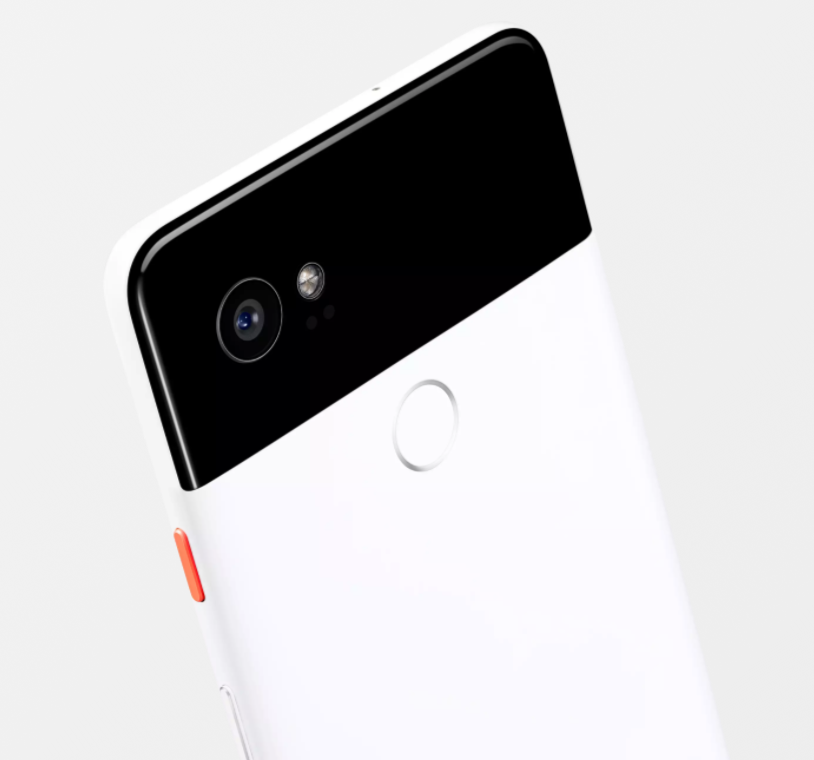
Made by Google: Theotek Podcast #102
Google took to the state and announced a slew of new gadgets for geeks like us to drool over. In this episode of the Theotek Podcast, we talked about the new Google tools. We had some strong opinions about them so watch below or listen at the bottom of this post.https://www.youtube.com/watch?v=qYi0yivQRToIn all Google announced some phones, a new Chromebook, a few new Google Home devices and other accessories. Here's the list of the products with links to the Google device store pages for each item.
New Google Products
- Google Pixel 2 and Pixel 2 XL Phones - $649 for the smaller Pixel 2 and $849 for the larger Pixel 2 XL
- Google Home Mini - $49
- Google Home Max - $399
- Google Pixelbook Chromebook - $999 for the 128GB drive model with 8GB or RAM and a 7th Gen Intel Core i5; add $200 for 256GB drive and $650 for 512GB and a Core i7 processor; also add $99 for the stylus.
- Google Daydream View VR Goggles - $99 for new version
- Google Clips Camera - $249
- Google Pixel Buds Bluetooth Earbuds - $159
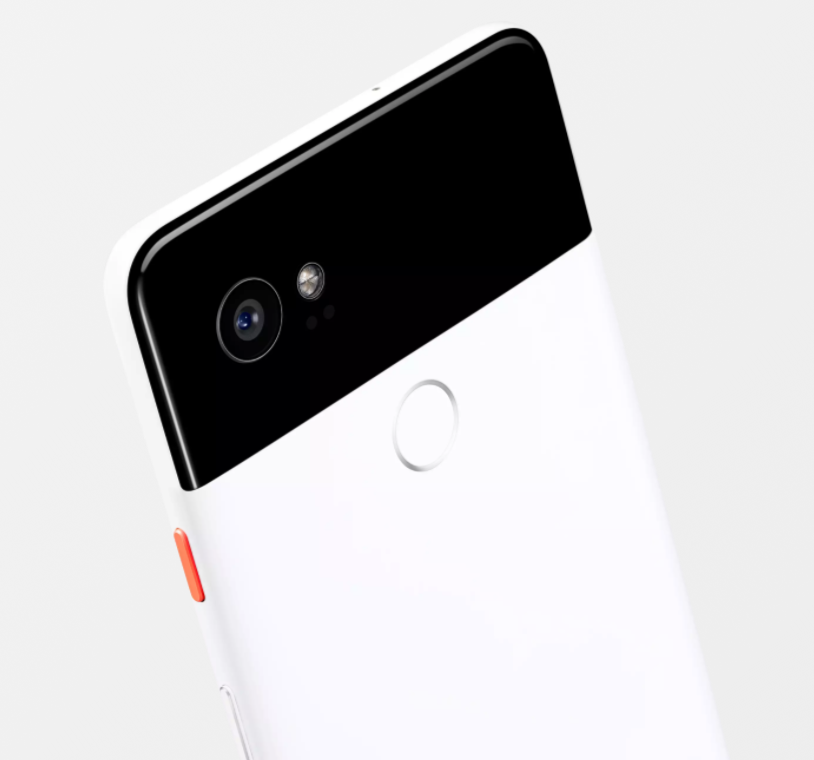

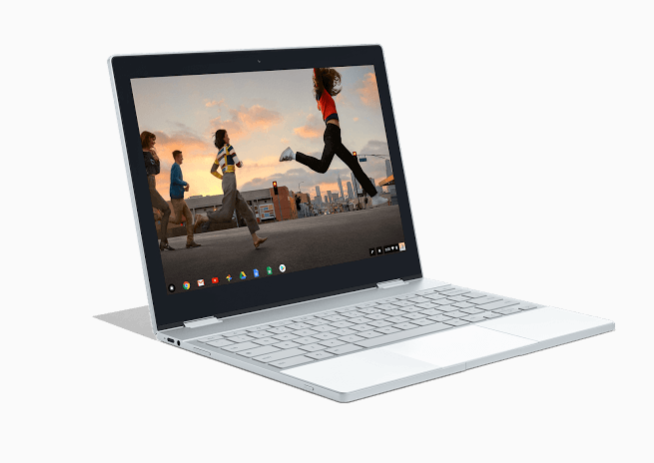
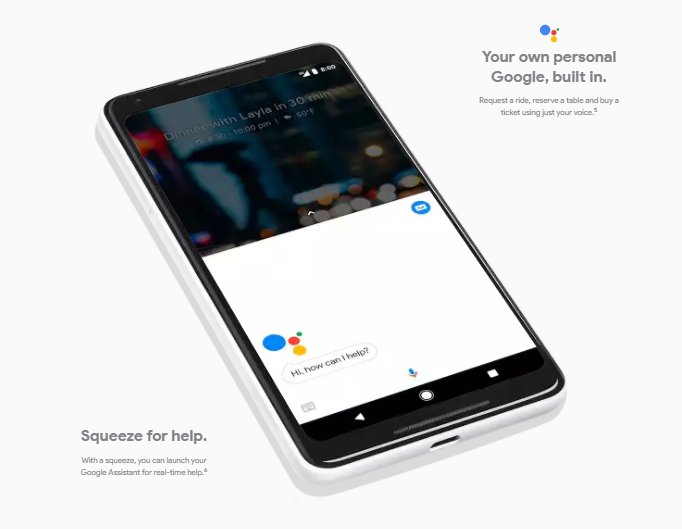
Apple iPhone 8 and iPhone X Announced: Theotek Podcast #101
Apple announced all their new gear a couple of weeks ago. Our team talked about the new iPhone 8 and iPhone X. We'll also talked about Apple TV and Apple Watch. Watch below or listen at the bottom of this post.https://www.youtube.com/watch?v=xMlSkcDIFEQ
Apple Products Pricing and Availability
- Apple iPhone 8 and 8 Plus - starting at $699 and $799
- Apple Watch Series 3 - starting at $329 or $399 with LTE
- 4K Apple TV - $179 with 32GB or $199 with 64GB
- Apple iPhone X - preorders go live on October 31 and ship November 3 for $999
Should You Upgrade?
Should you upgrade? That's the big question that people should answer. Here what our team recommends.From LaRosa Johnson...
Upgrade only if you can afford to buy it outright and your current phone is no longer working.
From Wes Allen...
If your phone is still functioning and allowing your workflow without getting in the way then, there is no need to upgrade. If you want to push the limits and want to pass on an older phone to someone while it’s still useful, then an upgrade can be a good idea.I have a 4K tv and am not getting the new unit. Also, I’m very happy with my 6s plus
From Rick Mansfield...
I can only speak for myself. I won’t upgrade to the new AppleTV because I don’t have a 4K television. If my current gen 1 Apple Watch ever gets lost or if the battery does not last the full day for multiple days in a week, I will get the new one with LTE. I’m getting the iPhone X because I’m in the Apple Upgrade program (so why not?), and I can legitimately write it off on my taxes because I use it for work extensively.
From Mark Allison (the new guy) ...
I had an Apple Watch Series 1 and liked it a lot, but sold it to buy a Garmin Fenix 3, that was a more capable watch for the things I like to do - hiking, mountain biking and other outdoor activities. The new Apple Watch includes an altimeter, which means it can record elevation accurately. It’s also water-resistant, a feature added in the last version of the watch, which makes it a more compelling upgrade for outdoor enthusiasts. I’m not happy about paying $10/month for the LTE version. Paying $120 a year for a watch adds up. Still, it’s nice to be able to make a call without a phone, and the call quality is supposed to be excellent.I have an iPhone 7, and I’m not planning on upgrading. iPhone 8 doesn’t have enough compelling features (in my mind). The iPhone X looks nice, but I’m more inclined to wait a year until they have all the kinks worked out. That’s saying a lot, because I typically get any new phone that Apple introduces. I guess I’m just happy with the iPhone 7 and don’t feel a strong compulsion to spend the money for features I’m not excited about.I have the original AppleTV and the newer one too (not the 4K version). I don’t have a 4K television, so it wouldn’t make much sense for me. If I had a 4K TV (and when I purchase one, it will have HDR, which I’m more excited about than 4K) I’d certainly get the latest version of the AppleTV.
 Here's my take. I love the latest greatest and am often upgrading faster than I ever need to, but the iPhone 8 is so boring an upgrade that I have no interest in it. I'll stick with my iPhone 7 Plus. The iPhone X is a terrible design. I hate the "notch" and think it's a ridiculous mistake. It's a rip off of the Samsung Galaxy S8+ with the Apple logo and all the cachet that goes with that. For some, they want the latest greatest Apple phone and can afford it. That's Rick's stance above. For most of us we should probably not upgrade if we're being frugal and good money managers. LaRosa said only get it if you can pay outright for it. At $1,000 for the X and $700 or higher for the 8, that's few people.As for the Apple Watch, only get one if you're an iPhone user and want a smartwatch and don't already own the earlier generations of Apple Watch. Same for the Apple TV.Remember that if you have an old device, sell it yourself on eBay, Craigslist or Facebook. Don't sell to the device trade-in services like Gazelle. Selling yourself is a pain, but you'll get more money. You'll often get enough to buy the new phone for half or even one-third the cost using the money from the sale of your old device.