

6 Best Online Bible Study Sites in 2020 - Part One
With Wordsearch about to bite the dust, we lose one of the best online Bible study sites probably by the end of 2020 or early in 2021. So, that means we need to reexamine the online platform for studying God's word.
Five years ago I wrote, "Bible study's going online, not entirely, but increasingly so." Today online bible study is more mainstream, but still not the primary way most people study their Bibles. However, it's better than ever in 2020.
So here's the first 3 of my 6 best online Bible study sites that you can use on a Chromebook, a tablet, or even a smartphone. Fire up any web browser and study your Bible. You'll find that you might not need to run one of the complicated Bible study suites that you install on a Mac or Windows computer.
Why Use Online Bible Study Sites?

With limited storage these computers can't handle huge libraries from the complex Bible study programs like Logos, Accordance or Olive Tree to name some of the most popular.
BibleStudyTools.com

We first look at BibleStudyTools.com. What makes this a viable option for intermediate level Bible study software? Users can search the Bible, read it, track daily Bible reading plans and share scripture via copy/paste or links to post to popular social media outlets. Almost every online Bible can do those things. Here's what this site offers in addition to the basics.
Bible Study Tools adds some public domain tools like ...
- Commentaries
- Dictionaries
- The International Standard Bible Encyclopedia
- Old and New Testament Greek Lexicons
- Classic sermons from past scholars and preachers

The site includes a number of modern and public domain Bible translations. The list of Bibles includes...
- ASV
- CEB
- Douay-Rheims Catholic Bible
- ESV
- God's Word
- Good News
- CSB
- Jubile Bible 2000
- KJV
- Lexham English Bible
- NASB
- NIV
- NKJV
- NLT
- NRSV
- RSV
- The Message
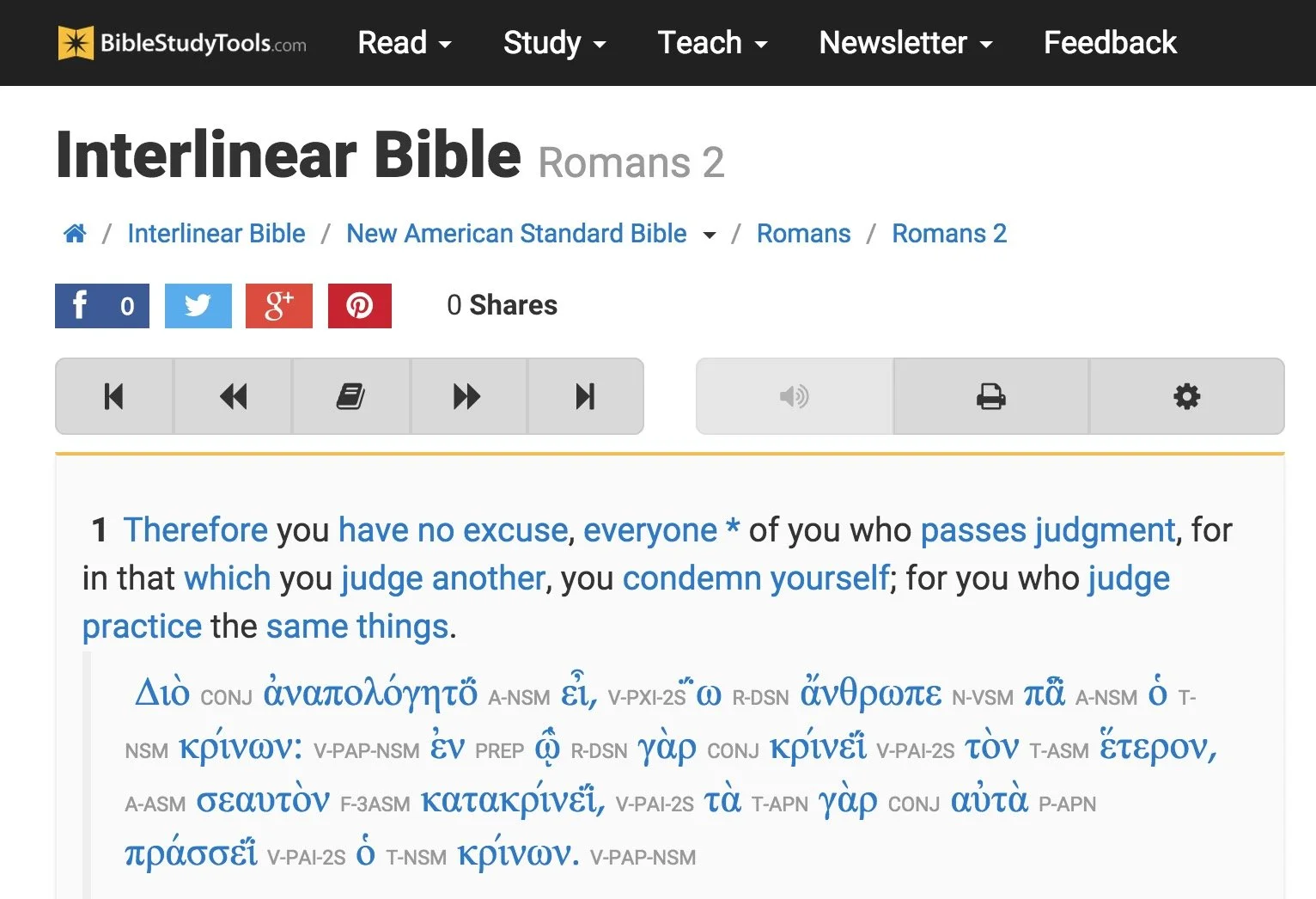
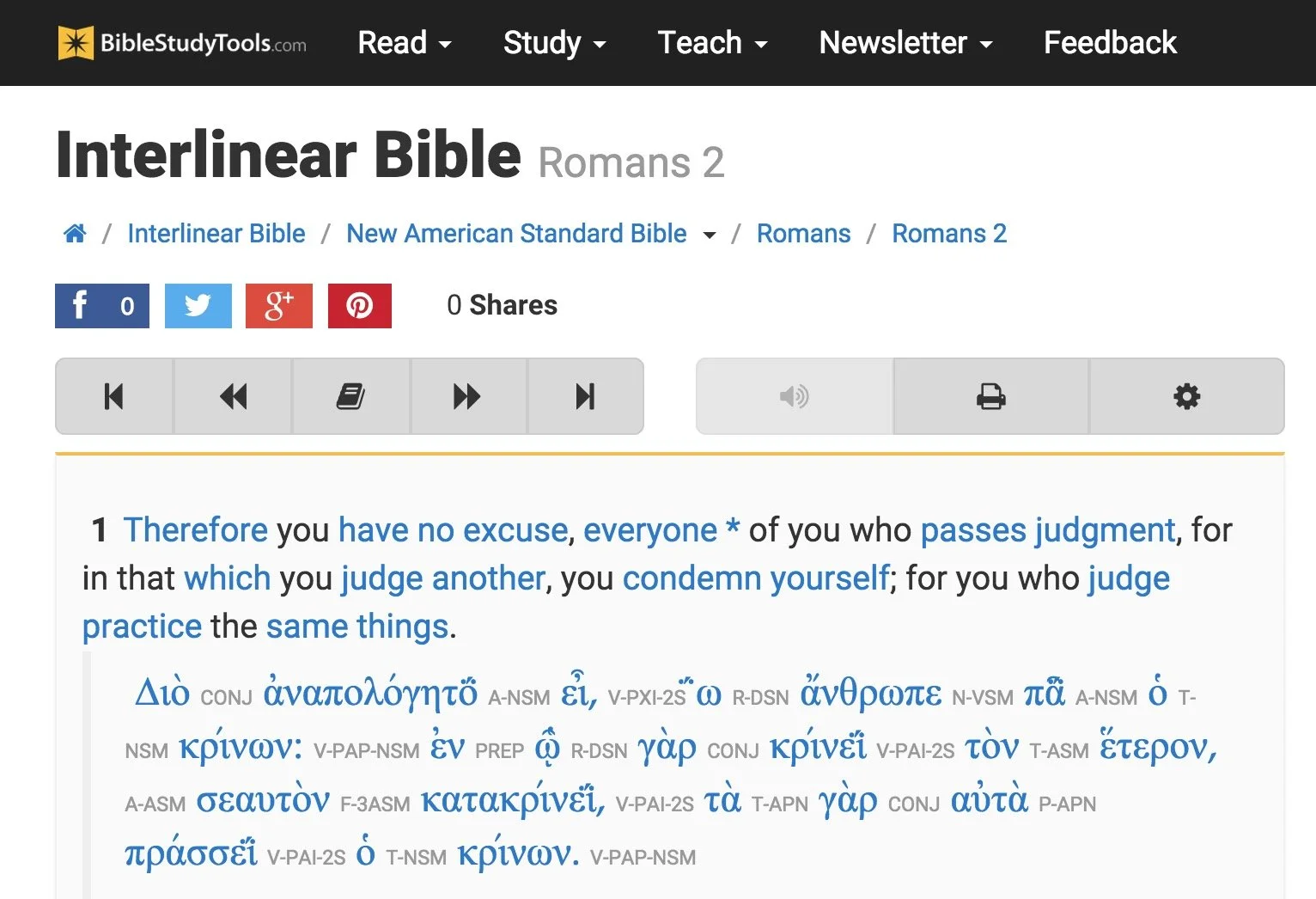
There's also some limited original language study. You can use an Interlinear Bible for languages study.
The site will collect user notes and highlights for those who sign up for a free account. The Bible student can mark up their Bibles and save their study findings for future reference.

While the site doesn't offer as many modern reference tools, a user with simple needs can get a lot done. Read a text, highlight it and write observations in a note attached to a verse. Then open the interlinear Bibles based on the KJV and NASB to do some original language study. Search the text for some cross references related to the topics in the passage. This gives any Bible student a good start in understanding their passage.
The Interlinear Hebrew text comes from Biblia Hebraica Stuttgartensia from United Bible Societies. The Greek text comes from Center For Computer Analysis of Texts, University of Pennsylvania based on Nestle Aland 26.
Here's a demo of the old 2015 site. Look for an updated video soon.
After these early steps, open some commentaries, dictionaries or the ISBE and learn more about the passage and what others said years ago. Record those findings in the notes. Then find the passage's Big Idea and come up with an outline using an online word processor like Google Docs or Office 365's version of Word online.
If I had to compare the site to a piece of Bible software, I'd say it can do almost as much as e-Sword with a few modern translations added to it.
Bible Hub

The next of these six best online Bible study websites comes from Online Parallel Bible Project in the form of BibleHub.com. The interface looks a little cluttered, but it's still a useful site with plenty of resources. In fact, it's a deceptively useful tool.
Enter a Bible reference in the top search box and the site opens the verse in all the translations and commentaries available in the left column. Along the right column we find some helpful tools like the context of the passage, cross references and Treasury of Scripture Knowledge.
Here's a demo of the old 2015 site. Look for an updated video soon.
Across the top of the site there's a toolbar that helps people navigate to specific passages in any of the supported translations. The site includes a large collection of modern and public domain translations. The toolbar also includes some public domain commentaries. Access them through drop down lists.
The toolbar buttons put many of the tools a click away. We get a parallel Bible button, cross references and a context button that shows the single verse within the pericope. In addition there's links to a few specific commentaries and more.
Like the other sites, Bible Hub lets me share to Facebook, Twitter and Google+. It includes some nice pictures, maps and outlines.
Biblia

Logos Bible Software users will want to go first to Biblia.com. The site offers a simplified version of what the company offers their customers in their Logos 9 Webapp. You'll need to own one of their expensive software packages or subscribe to Faithlife Connect to access the webapp. You can also check it out because it's very powerful for an online site. We'll look at it in part two of this article.
Biblia gives users access to their Logos Bible Software library online and a selection of tools and features even if you just sign up for a free account. You'll want to pay to really make good use of Biblia. And in that case you'd do better to use the Logos 9 Webapp. However, mobile users may like Biblia since it has a very nice Mobile version of the site.
Here's a demo of the old 2015 site. Look for an updated video soon.
The left hand column includes four tabs with the following features:
- Home - Shows reading plans and the About Biblia list of links.
- Library - List of books available to a user whether they pay for the suite of Faithlife Bible tools, subscribe to Faithlife Connect or sign up for a free account.
- Search - Search one book or other books in the library.
- Notes - Shows notes on a particular verse or book passage from the Faithflife.com community, but not a Logos Bile Software user's notes created in the computer program or mobile apps. You also have to sign into even see this tab.
The main part of the Biblia screen includes two window pane. The user can open books in either side. For example, open a Bible in the center column and a commentary on the right. The two will sync up to the same verse when a user turns the feature on using instructions explained below.
Use a mouse wheel or swipe on a laptop trackpad to scroll through the Bible from Genesis 1:1 all the way to the end of Revelations 22.

Click on the menu button (three dots) in the upper right corner of the window pane to show view settings. The user can do the following:
- Change the font size
- Sync the two panes
- Open the book's table of contents
- Change the reading view from column, stretched across both pans or full-screen reading view
- Toggle the community notes from other Faithlife users (but not personal notes from the computer or mobile apps_
The sharing tool will let you post to Twitter or Facebook, get a link to the verse on Biblia.com to post online or email, and an embed code to post to a website. See image below.

Here's part two of this roundup of the 6 best online Bible study sites.
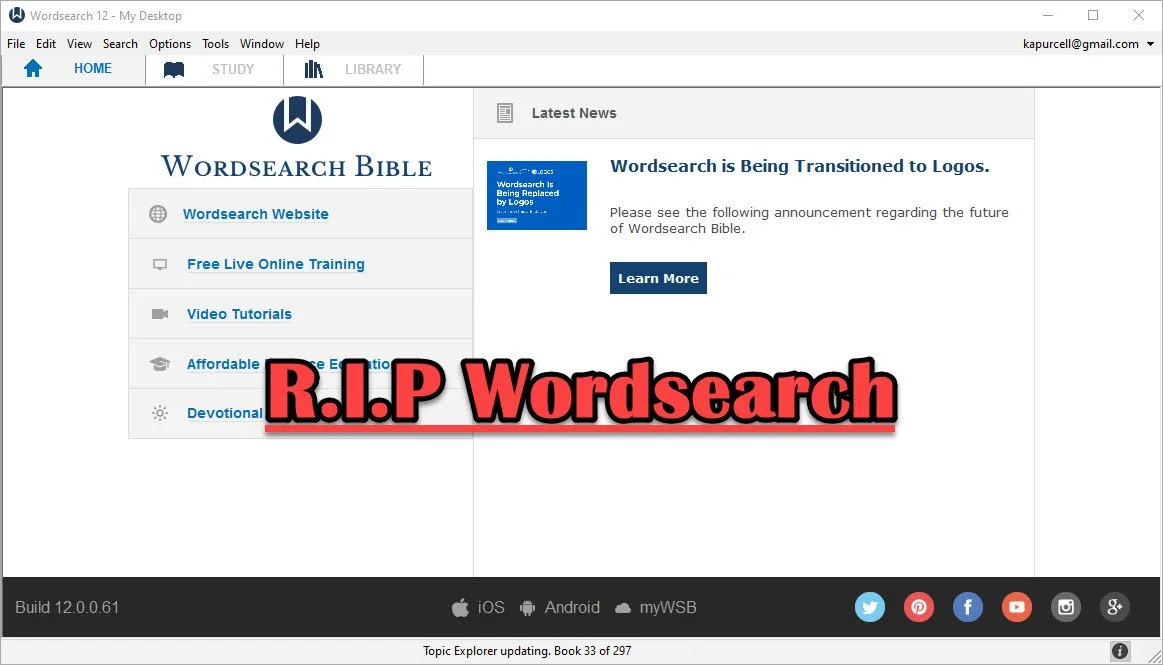
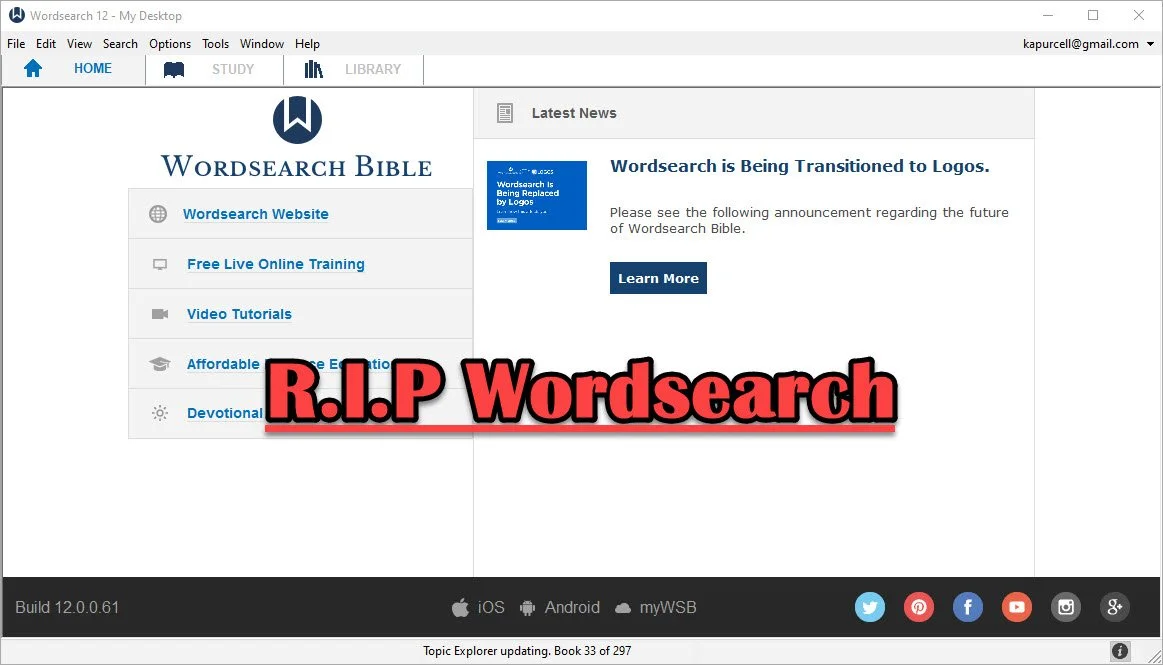
Wordsearch is Dead, Long Live Wordsearch with Logos
Wordsearch, one of the more popular Bible study packages, went the way of Bibleworks when Faithlife bought the company from LifeWay Christian Resources.Whoo. That's a lot of company names!
Some people may not recognize Faithlife's name, but they make Logos Bible Software. The company announced on September 18, 2020 that they acquired the software and the rights to the large library of distributed for use in Wordsearch. They also get their large customer base.

What Wordsearch Customers Can Expect
Heading over to the old Wordsearch website directs users to a site on LifeWay.com announcing the transition.

Click the Learn More link at the top to read the FAQ about the transition. Here's a list of the highlights...Your old Wordsearch/LifeWay account will convert over to a Logos/Faithlife account automatically if you use the same email address for your old Wordsearch account and have one already with Logos.
- If you didn't already have a Logos account, the company created one using your email address from Wordsearch. If you need help just reach out to Logos Customer Service by email.
- You can set up your new Logos account by adding a password on their account setup site.
- For those who used a different email for their two accounts, contact Logos Customer Service by email to get help merging them.
- Most of your old Wordsearch books will transfer to Logos. In fact many are ready for you to download in Logos right now. However, be patient as they have a huge backlog of people needing help.
- If your books are not yet available it could be for one of a few reasons...
- Logos doesn't have that book yet set up to work in Logos but will by the end of the year, hopefully. That's their target at least.
- Some books never will transfer because Wordsearch lost the rights to those books and so when Logos bought them, they didn't get the rights to distribute them. Sadly, that's the penalty for using digital books. You might lose them if your software company dies.
- If you just bought Wordsearch and want a refund, they will honor that at LifeWay. This time contact LifeWay Customer Service.
Wordsearch customers will likely experience some frustration from this transition. Your old user created content won't make the move with you until 2021, according to LifeWay. Some features in Wordsearch may never make the journey. You can find some good alternatives. The Logos user forums will help.
Users of both Wordsearch and Logos might recognize Nathan Parker. He created a great post in the Logos user forums that lists the Wordsearch features and then shows the name of the similar feature in Logos.

Speaking of the user forums, long time Wordsearch customers will remember that Wordsearch used to have a great community of users built into the software. That fell by the wayside a long time ago. Logos still has an incredibly active user forum as well, plus their own social media site. I've never really used the social part, but you'll find me in the user forums occasionally. Ask a question there and you'll get an answer from at least a few of the knowledgeable user and sometimes the staff at Faithlife chime in too including Bob Pritchett the CEO. You'll want to go over the Wordsearch sub forum first.
UPDATE: Faithlife added a page that will summarize your migration of books from Wordsearch to Logos. See if your books show up, if they will already show up in your Logos library or if they’re in progress of being created or not yet started. You can also see if the book shows up as a full Logos book or just an eBooks. Faithlife eBooks don’t come with as many custom links or tags. Often books start as simple eBooks and then get converted to full Logos book. Both work in Logos, but eBooks don’t include as many features.
What If I Don't Want to Use Logos?
My first reaction is this: give it a shot. Take a look. You now own it for free, if you were a Wordsearch customers. Download it and try it out for awhile.
If you're not happy with Logos, then continue to use Wordsearch while you search for an alternative. When Bibleworks went out of business two years ago, I posted about the best options. Here's a list of the programs I recommended.
- Accordance Bible Software - powerful and free to try with large library
- Olive Tree Bible Software - not as powerful, but simpler and also a large library
- e-Sword - free and simple to use, but mostly public domain content with a smaller library of premium paid books available from third-parties
- Laridian PocketBible - a simple and useful program that works great on mobile and has a decent library of tools
- Online sites like the ones I published in part one and part two of the best online Bible sites.
Wordsearch Not the Only Buyout
With Bibleworks dying two years ago and Wordsearch this year, it makes users wonder how much longer their favorite Bible study suite will work.
Six years ago Harper Collins bought out Olive Tree Bible Software and ran it until recently. A new company bought them from Harper Collins and plans to continue development. Steven Cummings, who was Vice President of Operations with Olive Tree created Gospel Technologies and bought the company from Harper Collins.
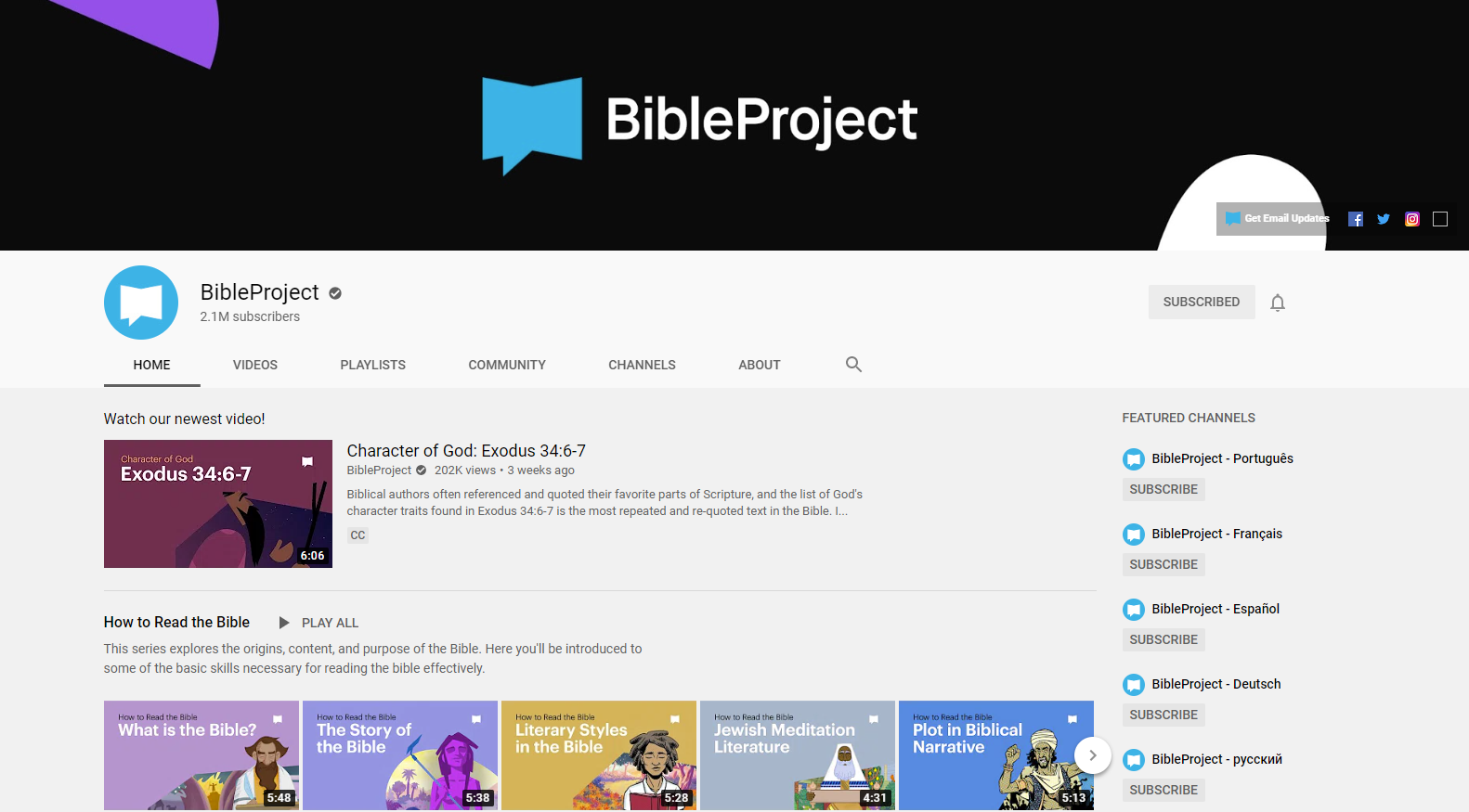
The Bible Project YouTube Channel Uses Animation to Teach the Bible
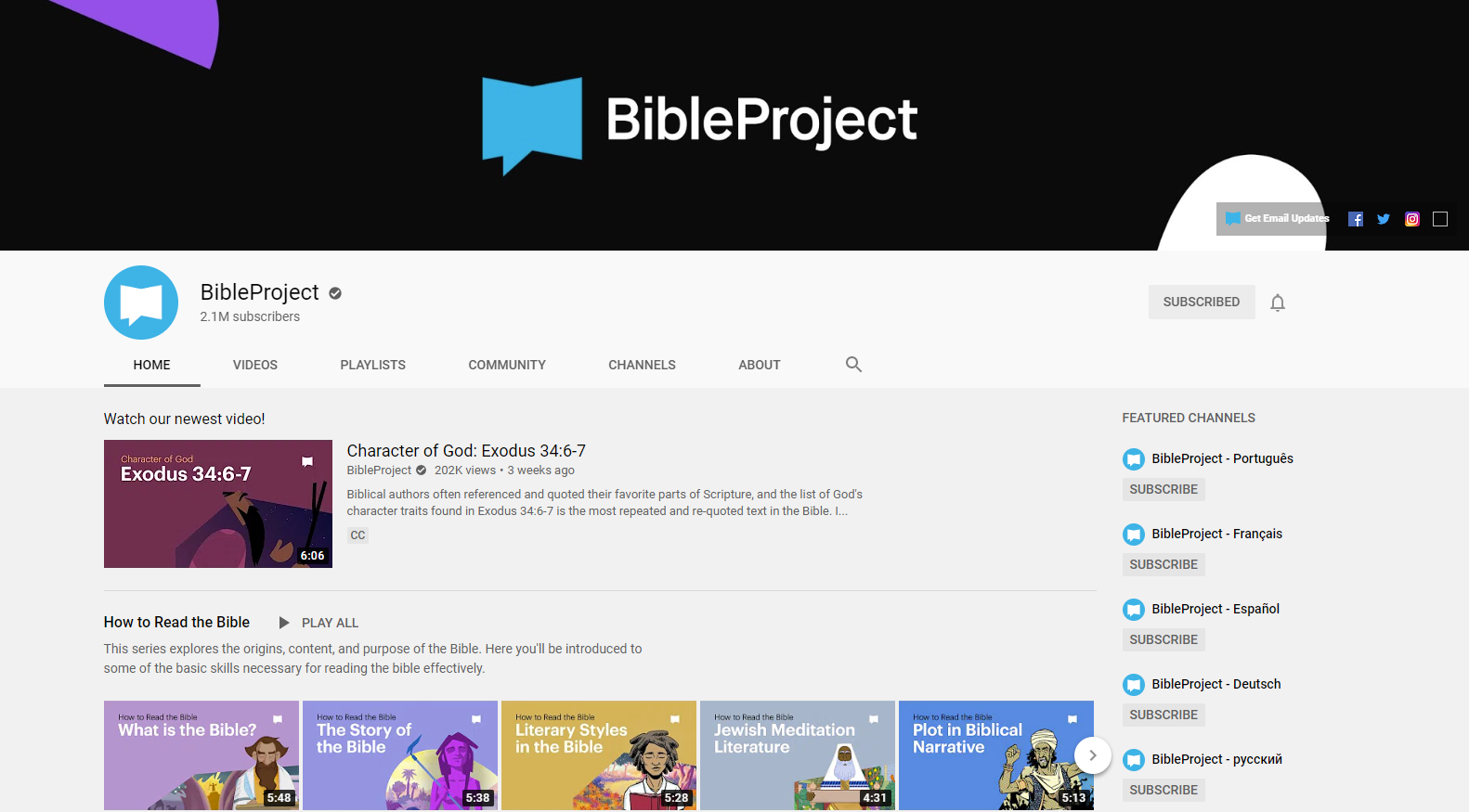
This week I plan to start a sermon series on the Book of Daniel. Good modern preachers who want to use multimedia to communicate God's word will see what media they can find to simplify the preaching process. So, I searched for the Book of Daniel on Google and came up with a link to a YouTube Channel of animated videos about the Bible called The Bible Project.
The Bible Project YouTube Channel includes the follow self-description:
Bible Project is a nonprofit animation studio that produces short-form, fully animated videos. Our videos and all of our other resources are available for free to help people everywhere experience the unified story of the Bible.
From The Bible Project About page on YouTube
The Bible Project Videos
On the channel, viewers will find some visually rich and interesting videos that explain various aspects of the Bible including...
- How to Read the Bible
- Biblical Themes
- Spiritual Beings
- Old Testament - overview of the OT and book overviews
- New Testament - overview of the NT and book overviews
- Torah Series - focus on the first five books of the Bible
- Wisdom Series - focus on the wisdom books of Psalm, Proverbs, etc.

Usefulness of Videos
People could use the videos on the site in many ways.
- Personal Study
- When your pastor is preaching through a book
- Sunday School class
- Family Bible study time
- Home school lessons
- Add a Bible element to your children's education if they go to a public school where they won't get Biblical content
If you want to learn more about The Bible Project, you can so look at their website. It includes links to their videos on YouTube and their site Podcast.
During the virus pandemic, many people are still at home instead of attending church with their church family. The folks at Bible Project have a page dedicated to helping people study the Bible in such a situation. After the pandemic this could also be used for people who are sick and can't go to church for an extended period of time.
The videos look beautiful and they're simple enough for older children to understand but not too juvenile. Adults can get a lot of out the videos as well.
Olive Tree Resource Guide - How to Customize the Guide
The Olive Tree Resource Guide shows all the content in your library related to a passage when it's displayed in the main window. Here's how to customize it.
Olive Tree Bible Reader helped revolutionize the study of a passage with their useful Olive Tree Resource Guide. The guide behaves like a study assistant and goes to your library and finds all the books with content related to the passage shown in the Olive Tree Bible Reader. We'll show you how to get more out of the Olive Tree Resource Guide using the Windows version by customizing the guide to your preferences. This looks almost identical on the Mac, so you can use this guide if you run it on macOS. We'll also give some tips for what to change in the guide.
How to Reorder the Olive Tree Resource Guide List of Resources

Before you can effectively customize the Olive Tree Resource Guide, you want to open it. You do this by clicking on the link at the lower right-hand corner of your Bible Reader window.

Now you can see the contents of the guide. You'll also see three other tabs in the new Window that shows up on the right-hand side. Look for the four icons in the lower right corner of the program. They include:
- Resourced Guide - as shown above
- Parallel - a window to show tow books on screen at once and lists all your books in alphabetical order when you first open it.
- Notes - shows your notes.
- Search All - a search box shows up that lets you search your entire library.
Here's a list of the contents of the guide in the order they show up by default.
- Content - shows content from the Bibles like cross references seen in verse notes indicated by an asterisk in the Olive Tree Bible text reader.
- Related Verses - shows the cross references based on translation. For example the ESV shows up in the list and when the user clicks it they will see the related verses for the passage from that translation's notes.
- Commentaries - commentary entries for the current passage.
- Bibles - displays text of your other translations so you can see them parallel to your main window's Bible translation.
- People - shows content about people mentioned in the passage shown in the main window.
- Places - shows content about places mentioned in the passage shown in the main window.
- Topics - shows topics from the main window passage and then shows various content from your library about that topic, like topical Bibles, dictionaries and more.
- Maps - shows maps from atlases and other books related to the main passage.
- Charts - charts from things like study Bibles and such related to main passage.
- Images - any images from your library of books related to the passage in the main window.
- Sermons - sermons from sermon collections on this current passage in the window.
- Outlines - outlines from books that contain them like commentaries.
- Introductions - book introductions from books that have introductions to each book of the Bible.
- My Notes - notes attached the current verse.
- Tags - tags you've created for the current passage.
- Get More - a link to a built-in store to buy more Olive Tree books.
You can customize the resource guide in one of three ways. First, you can reorder the sections. Second, you can add or remove sections. Finally you can do both of those books in each section. Here's how to make those changes.

Click on the Settings button the Olive Tree toolbar. Then choose Advanced Settings from the drop down menu. Clicking on the Advanced Settings button will open the more advanced settings screen.

At the top you'll notice an option to go into Advanced View. In the resulting Advanced Settings window, click on the Resource Guide from the left-hand list. You'll see a list of the sections that show up in the guide. You can click on the buttons to turn off certain sections. Which sections you turn off depends on your preference on how to use the program.
On this screen you can turn on and off each book from each section. You can also reorder the book list by clicking and then holding down the right mouse button and then drag up or down. Click on each section from the left-hand list to change each section. Then go back using the arrow in the upper left corner to go back to the main screen.
On the main Resource Guide screen in settings you can reorder the sections by dragging them up or down.
Tips for Better Using the Resource Guide
On Settings Screen seen above, you can off the Content section. That is the first one listed above. Turn it off. Just trust me. It shows the content of all the other sections in one section, but it's too hard to manage. It's much more manageable to work with each section instead of this one monster section that contains all the content from every other section.
Start by turning off sections you don't want to use. Then reorder the sections. Here's the order I prefer...
- Commentaries
- My Notes
- Related Verses
- Introductions
- Outlines
- People
- Places
- Topics
- Maps
- Charts
- Images
- Sermons
- Bibles
I turn off Tags and Content because I don't use them. Here's the next step.
Hit the Advanced View link at the top of the screen. I turn off the commentaries I don't use first and then reorder them by my preference. I usually put my more advanced commentaries first and then study Bibles after the more advanced commentaries.
Now you can turn off books you don't use from each section. For example, from the Commentaries section, I only use a handful of my commentaries. I can still open them from the library, but I almost never do. So I turn them off here.
In some sections there's not to reorder. You just turn them on or off.
If you own multiple sets of a commentary, you may want to turn off the ones with fewer volumes. For example, I own the New American Commentary. Instead of showing up just once, you get multiple entries. One for the Old and New Testament individually. There's also a15, 17 and 18 volume New Testament set. The Old Testament set has one with 23 or 25 volumes. I turn off the 15 and 17 New Testament sets and the 23 volume Old Testament set. You will then see those entries in places like Introductions and Outlines as well. So, turn them off there too.
Other Settings to Change in Olive Tree
While you're in the settings screen, click on the General Settings tab. Take a look at settings you may want to change here. Then do the same for Colors and Fonts section and the Privacy section.

As an example, I have the following settings in my General section:
- Last Opened for Default Bible for Hyperlinks
- Sync Enabled (on)
- Color Jesus words (on)
- Hide/Show Strong' numbers set to Hide (off)
- Verses don't start new lines (off)
- Show notes and highlights in text (on)
- Iinclude verse numbers (on)
- INclude reference (on)
- At the beginning (off)
- Place on its own line (off)
- Exclude title (off)
Notice that as you turn the above settings on or off the setting text description changes. So the list above shows whether I turn the setting On or Off.
In Colors and Fonts and in Privacy I use the default settings.

How Use Logos Important Passages Guide to Create Sermon Series
How can preachers us the Important Passages Guide in Logos 8 to help them craft exciting sermon series on a given topic in the Bible? We'll show you how.

Would you like to preach a sermon series on a topic in the Bible but also want to preach expositorially? You can use Logos Bible Software and the Important Passages Guide to select passages to study and preach for a sermon series on a topic. Each sermon will cover one passage, but the series serves as a topical sermon series instead of preaching through a book of the Bible as many Expository preachers prefer.

I was going over the new features in Logos 8 recently and forgot about the Important Passages Guide. As I looked over this new tool in Logos 8, it hit me - this would work great for picking passages to study and preach while crafting a sermon series on a particular topic.
Most expository preachers like to preach through books of the Bible. I am one of those. But I also like to choose passages that cover a topic and then study the passage covering that topic to preach expository messages on them. We'll show you how to put together a sermon series on passages found using the Important Passages Guide in Logos 8.
What is the Important Passages Guide in Logos?

Logos added the Important Passages Guide when it released Logos 8 back in 2018. Users will see it from the Guides Menu on the Logos toolbar. Find it quickly by typing in the Guides search box the first part of the guide's name "Important" and it will show up as the first item in the Bible Reference Guides section. You can also scroll down to the Bible Reference Guides section.

When it opens, it looks totally blank. Type a passage into the box at the top of the new window like John 3:16. It will search the index and find passages related to the topics in that verse.

After searching for a passage, you'll see the results that will like the image above. You see a few things.
- The top line says "References of All Types To all passage" - these help you choose what will show up in the list of passages. Click on All Types to change the types of passages. Click on To to change whether the passages will go out from the selections below or to the selections below. More on these options below.
- The Add menu lets users add types of datasets. Click it to see what you can add.
- Under each passage you see hyperlinks to various kinds of content found in Logos. These links will open the Factbook. For example, the above image shows the Factbook entry for God: Love. You'll see other kinds of links.
- The links at the bottom of the window will...
- Show more passages found
- Save the list as a Passage List
- Open all of the found passages in your top Bible translation
The To and From links in part 1 above will change the list of passages as follows:
- To - To finds cross references from other passages that link to your passage. So if a passage links to John 3:16 it will show up in this list.
- From - All cross references in your various translations that go out from John 3:16 will show up when you select From.
How to Use The Important Passages Guide to Choose Sermon Topics
I often read a passage in my quite time or while I'm listening to another Bible teacher or preacher and think, "That passage make a great sermon." Then as I look at the passage it leads me to look up others and inspires me to preach a series of 3-6 sermons or more on that topic.
You can quickly find a lot of passages from the Important Passages Guide by entering the verse that inspired you into the search box of the guide. Then read through the resulting searches.
Take this a step further by adding various kinds of datasets. Click on the Add button and choose something like Topics. This gives you more passages from that dataset. A dataset refers to sets of information that Logos organized around that kind of info. In this case, they collected the Topics together into the Topics dataset.
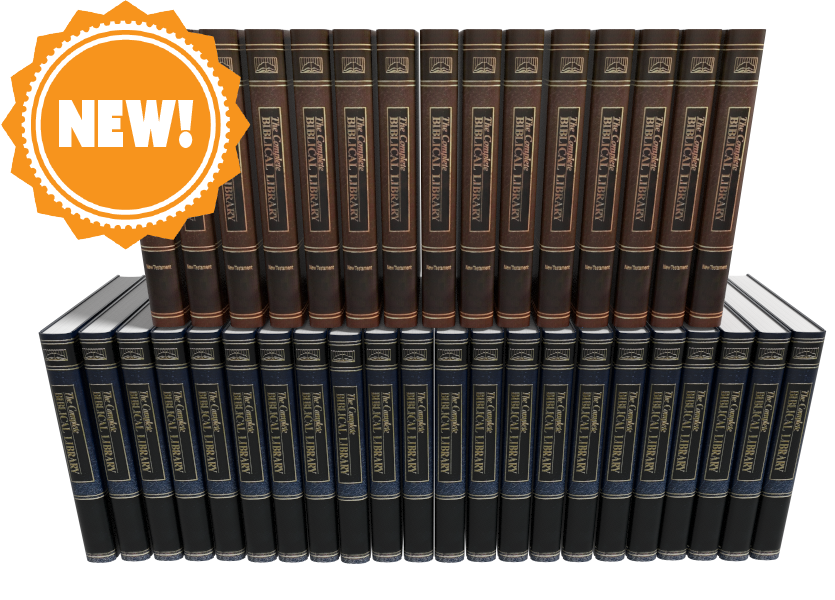
Complete Biblical Library in Accordance Bible Software
The Complete Biblical Library for Accordance Bible Software just came out and we got a chacne to take a look, What's included in this package and is it worth your time and book budget to add to your library?
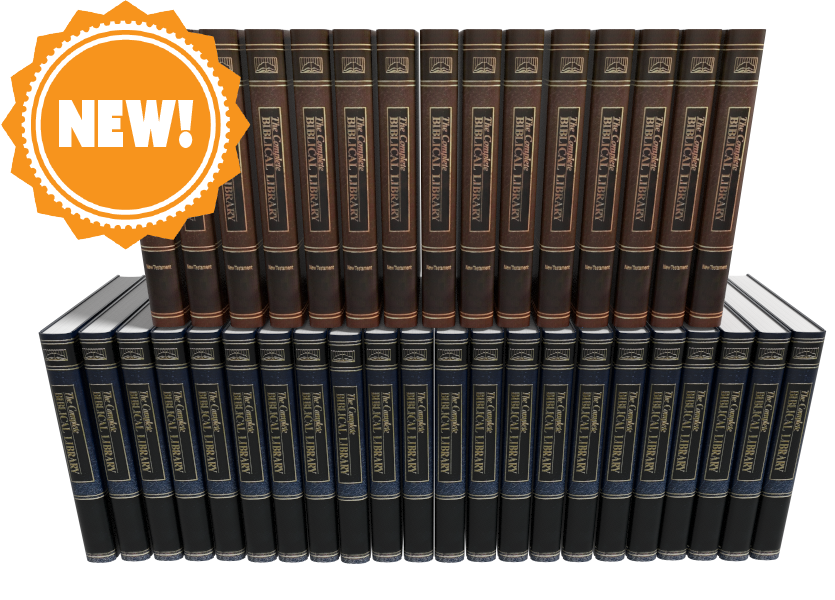
Accordance Bible Software released the Complete Biblical Library this past week making Accordance only the second digital Bible study distributor to offer this tool. We'll take a look at the Accordance version and let you know if it merits an investment of your Bible study tool dollars.

What's Included in the Complete Biblical Library
The Complete Biblical Library includes an advanced Study Bible of the Old and New Testament and Hebrew and Greek dictionaries. Book versions of the Complete Biblical Library are now out of print and pretty expensive. People familiar with the library will wonder what happened to the other parts of the Library? Where are the other tools normally included in the Complete Biblical Library? From the Accordance website:
The CBL Greek grammar is in development and will be added at a later date. The CBL Gospel parallels and CBL Interlinear did not add extra value over similar material already included in Accordance, so we do not have plans to release these two components for Accordance.
Product Details from Accordance website
You can get those other tools from the 17 volume book version or from Wordsearch, but both will cost you more than Accordance Bible Software's version. During this introductory deal the Wordsearch version will cost more than twice as much and after $50 more.
Accordance users will recognize that the software already gives users a great interlinear on many translations of the Bible. You can also use their Gospel Parallels. They both come as part of their basic $100 Starter Collection.
Complete Biblical Library Study Bible
You probably own a number of study Bibles. Most of them offer a few things...
- Introductions to books of the Bible.
- Short notes on pericopes or sometimes each verse of the text.
- Some add extra graphical content like charts, maps, graphs, tables and more that enhance understanding of the text.
The Complete Biblical Library includes some of these, but think of it as a study Bible that wants to be a more advanced commentary.

The Complete Biblical Library Study Bible begins each book with an nice book introduction. That introduction will include an overview of the text with an outline and some commentary on each section as a whole before it gets the verse-by-verse section.
Following the book introduction, you'll get the verse-by-verse commentary of the text.
CBL Study Bible Verse-by-verse Commentary

Each verse or passage includes two things...
- The verse in the KJV with alternative translations from dozens of other translations, but none of them are the more modern translations like ESV, CSB, NIV or others since the Complete Biblical Library came out before most of those landed. The translation identifiers are hyperlinks to the key which identifies what the translation abbreviation refers to. That helps because the library includes some obscure translation. Click it or hover over it and it either opens the pages from the library that explains what the abbreviations stand for or it pops up in your Instant Detail window.
- Commentary on the verse. We're used to a few lines per verse, but you'll often see a few paragraphs per verse like a full commentary. That's why I call this a Study Bible that wants to be a full commentary.

Bible students often tout the ESV Study Bible as one of the best, and I agree. I like it a lot and it's one of my top 3. However, compare the content of the two. You get much more with the Complete Biblical Library.
Here's the entry for Mark 5:25-26 in the CBL...
And a certain woman, which had an issue of blood twelve years: . . . had been troubled by bleeding, —ALBA . . . ben in the blodi fluxe twelue yere, —WCLF.
And had suffered many things of many physicians: . . . suffered much under many doctors, —BECK . . . had been treated in many ways, —LTMR . . . had been greatly tortured, —FNTN . . . under a number of doctors, —MOFT.
and had spent all that she had: . . . expended all her property, —WLSN . . . spent all her savings, —KLGS . . . in the process, —PHLP.
and was nothing bettered, but rather grew worse: . . . but to no avail, —ALBA . . . and profiting nothing, —CLMT . . . had not been benefited, —HNSN . . . was not even one bit improved, —WUST . . . without receiving any relief, —CMPB . . . and felte none amendment at all, —TNDL, —CRNM.5:25, 26. It is not possible to know with certainty what the “issue of blood” was, but the traditional suggestion is the best, namely, an abnormal bleeding from the womb.
Such a condition would have been physically debilitating. Mark’s Gospel includes the information that the woman “had suffered many things of many physicians.” Luke, who appreciated the limitations of a physician, says she “could not be healed by any one” (8:43, RSV).
What the woman may have suffered can be estimated from the Talmud, (Shabbath 2:110) which includes a list of treatments for “the woman that has an issue of blood.” Among them were: “Take of the gum of Alexandria the weight of a zuzee (a fractional silver coin); of alum the same; of crocus the same. Let them be bruised together, and given in wine to the woman that has an issue of blood. If this does not benefit, take of Persian onions three logs (pints); boil them in wine, and give her to drink, and say, ‘Arise from thy flux.’ If this does not cure her, set her in a place where two ways meet, and let her hold a cup of wine in her right hand, and let some one come behind and frighten her, and say, ‘Arise from thy flux.’ But if that do no good, take a handful of cummin (a kind of fennel), a handful of crocus, and a handful of fenugreek (another kind of fennel). Let these be boiled in wine and give them her to drink, and say, ‘Arise from thy flux!’”
Many additional potions and rituals were suggested of the following kind: “Let them dig seven ditches, in which let them burn some cuttings of vines, not yet four years old. Let her take in her hand a cup of wine, and let them lead her away from this ditch, and make her sit down over that. And let them remove her from that, and make her sit down over another, saying to her at each remove, ‘Arise from thy flux!’” (See Vincent, Word Studies in the New Testament, 1:189.)
One can readily see why the cure was many times worse than the disease, so that she “was nothing bettered, but rather grew worse.”Mark 5:25-56 entry of Complete Biblical Library
Now look at the ESV...
5:25–27 While Jesus is on his way to heal Jairus’s daughter, Mark interjects the simultaneous event of the healing of the woman with a constant discharge of blood (vv. 25–34; see note on Matt. 9:20). On account of her condition, she is ceremonially unclean (cf. Lev. 15:25–28) and is not permitted to enter the temple section reserved for women; nor is she permitted to be in public without making people aware that she is unclean. By touching Jesus’ garment, she technically renders him ceremonially unclean (cf. Lev. 15:19–23), but Jesus is greater than any purity laws, for he makes her clean by his power instead of becoming unclean himself (cf. Mark 1:41; 5:41).
ESV Study Bible entry for Mark 4:25-27
But it's not just the amount, but the quality. That's why I really like the CBL. It's a nice balance of simplicity for the average pastor or Bible study leader, but has enough rich content that makes it more than the average or even above average study Bible. The ESV Study Bible serves people who just need a quick hit about what the passage says. The Complete Biblical Library Study Bible gives more advanced understanding like a pastoral commentary would.
Complete Biblical Library Dictionary
In addition to the Old and New Testament Study Bible, Accordance adds the Hebrew and Greek Dictionaries of the Complete Biblical Library. Each entry explains the word with some useful information that you often don't get in other language dictionaries. The links to other lexicons alone almost makes it a worthwhile tool.
Put the CBL dictionaries at the top of your list of Greek and Hebrew Lexicons in your library and you can quickly open the CBL Dictionaries with the Triple Click action. Just click on an English word three times in the text and it opens a new window with the dictionary pointed to that word in Greek.
The Amplify feature in Accordance also brings up the dictionaries. Highlight your word and click on the Amplify button on the toolbar. It will drop down a list of your reference titles. Go to Greek or Hebrew Lexicons. A new list flies out and you can find the CBL Greek or Hebrew Dictionaries there. The books also show up in your Library under the Lexicons section.

When you view a Hebrew word in the Complete Biblical Hebrew Dictionary, you'll see the following:
- The Hebrew word and an English transliteration
- Part of speech like verb, noun, etc.
- A brief definition of the word
- Hebrew Cognates
- Synonyms and their Greek and transliterated forms
- Concordance listing of the word in the OT
- Discussion of the use of the term in the OT
- Links ot other Hebrew dictionaries like BDB, NIDOT, Strong, etc.
Here's an example of the Hebre word lavav (hear from Ezra 7:10)
3955. לָבַב lāvav
verb
to gain insight
Cognates:
לֵב lēv (3949)
לֵב lēv (A3950)
לְבַב lᵉvav (A3956)
לְבִבָה lᵉvivāh (3957)
לִבָּה libbāh (3959)Concordance
2 Sam. 13:6 and make me a couple of cakes 3
13:8 and made cakes in his sight, 3Job 11:12 vain man would be wise, 2
S 4:9 Thou hast ravished my heart, my sister, 3
4:9 thou hast ravished my heart with one 3
Three of the five occurrences of this verb in the Hebrew Bible (Job 11:12; S.S. 4:9) are denominatives from lēv (HED #3949), “heart,” “interior,” “will,” “mind.” It has cognates, all of which are likewise denominatives, though not all are based upon these same nominal nuances. The remaining context is a denominative from lᵉvivāh (HED #3957), “cake.”
In the speech of Job’s visitor, Zophar, lāvav means “to become wise.” Job was accused of falsely asserting innocence, for Zophar assumed that all calamities were divine punishment for sinful deeds. Job’s sudden fall from material bliss fit the pattern of divine retribution. Zophar asserted that Job’s claim of innocence was perjury and that Job’s words could not change reality. He expressed this through a simile, saying, “A vain man would be wise, though man be born like a wild ass’ colt.” His point was that Job’s understanding could not compare to Yahweh’s, so he should accept his guilt, and then try to appease Yahweh.
Lāvav appears twice in the context of the proclamation of the groom to his beloved, that her physical presence has had a profound effect upon him (S.S. 4:9). The verb is usually translated something to the effect “you have ravished my heart.” This works contextually, but it is not so clear etymologically. Clearly, the heart or will of the groom has been affected by the glance of the woman, or by a glimpse of her. How to define precisely this action on her part is difficult, hence the usual translation. The problem is that there is no verbal idiom in English which corresponds to this verb.
The final context involves a completely different meaning, possibly formed from lēv as well. Here lāvav refers to “baking” cakes of bread.BDB 525
DCH לָבַב
KB 2:514–15
NIDOT 2:749
STRONG H3823
TDOT 7:399–437
TWOT 1:466–67Entry in Complete Biblical Library Hebrew Dictionary for the word lavav
The Greek Dictionary shows the Greek word and a transliteration in English. You then also get...
- Part of speech (Noun, Verb, etc.)
- Brief definition of the word
- Synonyms and their Greek and transliterated forms
- Septuagint listing of entries for the word
- Grammatical Forms of the word
- Concordance listing of the word
- Discussion of the classical Greek and Septuagint usage of the word
- Discussion of the terms usage in the New Testament
- Links to other Greek dictionaries of the word like Strong, Bauer, Liddel-Scott etc.

Here's an example from the Greek dictionary for the word rhusis (bleeding from Mark 5:25).
4368. ῥύσις rhusis
noun
A flowing, an issue.
STRONG 0
Synonyms
4339 ῥέω rheō
Septuagint
2183 זוּב zûv Have a discharge (Lv 15:2).
2184 זוֹב zôv Discharge (Lv 15:3, 25f.,30,33).
4888 מָקוֹר māqôr Flow (Lv 20:18).
7425 קָרֶה qāreh Emission (Dt 23:10).
8916 תְּעָלָה tᵉꜥālāh Channel (Jb 38:25).Grammatical Forms
ῥύσις rhusis nom sing fem
ῥύσει rhusei dat sing fem
Concordance
2 which had an issue of blood twelve years, Mark 5:25 (KJV)
2 a woman having an issue of blood twelve years, Luke 8:43 (KJV)
1 and immediately her issue of blood stanched. Luke 8:44 (KJV)Classical Greek and Septuagint Usage
New Testament Usage
STRONG 4511
BAUER 738
MOULTON-MILLIGAN 565
LIDDELL-SCOTT 1577
COLIN BROWN 1:682–83
SILVA “ῥύσις”All three occurrences in the New Testament refer to a woman who had an “issue of blood” for 12 years (Mark 5:25; Luke 8:43, 44). Having heard of Jesus’ miracles, this woman believed that if she could just touch His clothes she would be made “whole” (Mark 5:28). Pressing through the crowd she managed to touch His garment and was immediately healed (verse 27). Jesus then told her it was because of her faith that she had been made whole (verse 34).
Entry in Complete Biblical Library Greek Dictionary for rhusis
Value and Recommendation
Accordance users should jump at the chance to get the Complete Biblical Library at the introductory discount of $200. They also offer a Crossgrade price for people who already own it in Wordsearch. You'll pay $85 for the OT Crossgrade and $75 for the NT Crossgrade for a total of $160. That's a pretty good deal considering the full-price is $450 or currently $1000 in physical book form for used editions. With Crossgrades in Accordance you'll have to fill out a form showing you bought the books before in Wordsearch.
If you already missed the discount, then the $450 price may cause pause for some. I like the tool and think people who want a good verse-by-verse commentary, with excellent book introductions, should take a look and strongly consider adding it to their library. The dictionaries give the user a lot of useful information in a central location. The links to other dictionaries makes it a great option to look at first in your word study as you prepare a sermon or Bible study.
For these reasons above, the Accordance Bible Software Complete Biblical Library gives pastors, Bible study leaders and serious students a great value at the discounted price and is still worth it at the ongoing price.
7 Best Tools for Streaming Church Services
Here's the list of the best software or services for streaming church services live on Facebook, YouTube or other services.
What software and services can churches use for streaming church services live on Facebook or YouTube or other platforms. This last part of our series on streaming church services rounds out the tools and gear needed to put together a professional solution for the future.
For most of the options below, you'll need to connect a camera up to you computer and you'll probably want to hook up your sound board to the computer as well. Then use the software solutions below to take that video and audio and send it out onto the Internet.
Here are the other posts in this series:
- Streaming Church Services Live from a Phone Made Simple
- The Four Best Camera Styles for Streaming Church Services Live
- Streaming Church Services Live Using Facebook or YouTube Apps or Pages
- Stream Church Services Live and Cheap
Ecamm Live on Mac for Streaming Church Services Live
My first choice runs only on Mac, making it a great tool if you own one, but not useful for Windows machines. Ecamm handles...
- Streaming church services on Facebook Live.
- Uploading to YouTube after your finished streaming.
- Saving the video file for editing or uploading to other services.
- Saving the audio file to create a podcasts or to upload to audio services.
You can download and test Ecamm Live for free. It comes with a watermark on the video, so I don't recommend using it for a long time. But test out the software.
The company offers guides on how to set up your whole system of audio and video equipment. You can use these same guides with the other software below, but it may take some tweaking if you're not using Ecamm.
If you users choose to go all-in with Ecamm, it will cost you $12/month billed annually. A pro version costs $20/month billed annually. With the paid versions you get...
- Watermark removed from video.
- Use other services like Restream (more on that below) to stream to multiple sites like YouTube and Facebook simultaneously.
- Use overlays to show branding of your church or graphics during the service to add a professional look.
- Green screen support.
- Support for talking to guests over Skype.
The pro version adds...
- 4K Streaming.
- Live video monitor to any display hooked up to the computer.
- Audio monitor much like many churches use in their nursery.
- Cross post to multiple pages on Facebook.
- Shows real-time bandwidth stats.
- Higher level tech support.
What if you don't have a Mac? Then consider one of the following services instead.
OBS Studio for Windows or Mac For Free
There's a free option out there called OBS Studio. It's a lot more complex than Ecamm Live. However, it's also free. If you have a tech savvy volunteer or staff member, then this might work better. It has a lot of the features you find with Ecamm, but you have to know what you're doing or spend some time learning how to use it.

OBS also offers some setup guides and shows users how to use it. Once you set things up, you can stream to Facebook, YouTube and even Twitter. If your service offers a way to setup third-party streaming services, you can configure that too. You'll need something called the RTMP information.
OBS will let you stream multiple cameras easily. Hook them up to the computer and the software makes switching between them easily. You could also easily share your screen to the video stream. You might want to show the slides on a song, Bible passage or the pastor's sermon images and notes.
OBS has more power and therefore more complexity than Ecamm.
XSplit Broadcaster - 3rd Best Option

XSplit Broadcaster ($25 to $200) - The third best option comes from XSplit Broadcaster. It's a marriage of Ecamm's simplicity with OBS Studio's power, but at a higher cost.
- 3-month subscription for $25
- 1-year subscription for $60
- 3-year subscription for $150
- Lifetime cost is $200
XSplit offers multiple camera inputs and sharing your images from the worship presentation. You can do Skype interviews and stream to more than one place at a time, like Facebook and YouTube or your own service.
Churches that want to stream to an overflow room or the nursery, can set up a monitor and stream to it locally over your own network.
Other Live Streaming Options
In addition to the above three best options, you can choose others. If you want a little more hand holding in the process consider some services for streaming church services. These will not help you stream to Facebook or YouTube, but that might work better for you. You have more control of your channel.
- Faithlife LiveStream ($90/month to $200/month) - If you're familiar with Logos Bible Software, then you may already know about Faithlife. They offer a live streaming solution. It's expensive but adds more than video streaming church services. You'll get online digital giving, Podcasting, and users can install an app to watch your service along with other church services.
- Restream.io ($16 or $41/month billed annually) - Churches can stream their services to as many as 30 different services at once with Restream.io. It has the benefit of working within a browser instead of installing software using Restream Studio. You can interact with viewers on all of the platforms from their Chat service. It also works with other software like Ecamm, OBS, Zoom and more. IT starts with a free level but subscribers can also stream to other services not officially supported. The Pro level takes away the Restream branding and lets you brand yourself. They'll soon add multi-camera setups.
- Dacast - ($X) - Dacast lets churches stream their services from their own website. I've used it and it's not bad, for people who want to set up their own site for streams. They host the video and you embed it on your sight.
- VMix - (Free to $1200) - I'm not as familiar with VMix but hear that it works very well. To get 1080p streams you will want to pay for Basic HD level at $60. It compares nicely to XSplit or Ecamm above. With that level of software you can stream to up to 3 services at cone and use overlay graphics. It also has the ability to stream to a monitor so you could send it to a hardwired overflow room or nursery.
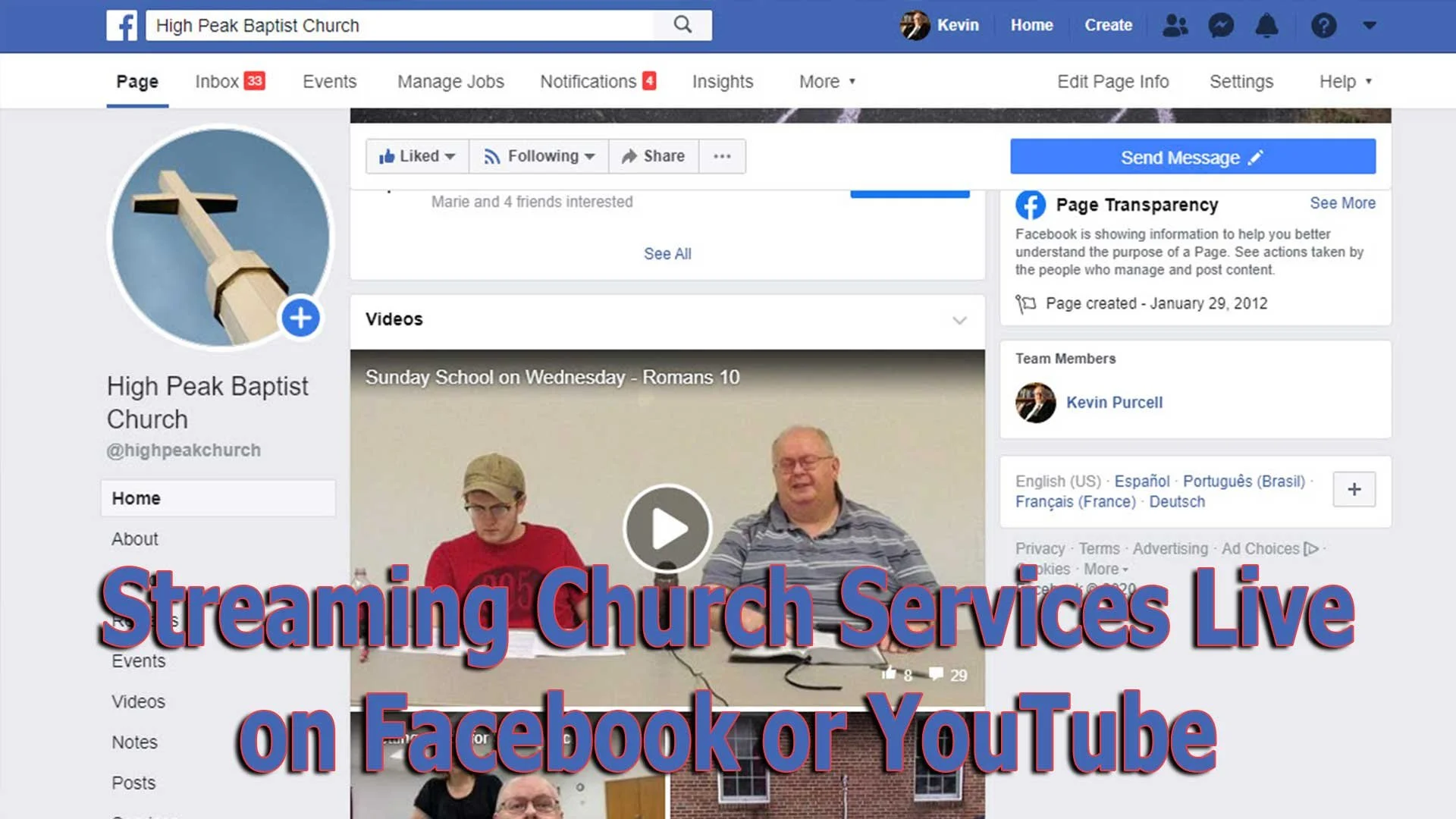
Streaming Church Services Live Using Facebook or YouTube Apps or Pages
Streaming church services live on Facebook and YouTube extends your reach as a church. We'll show you how to use their apps and websites for streaming.
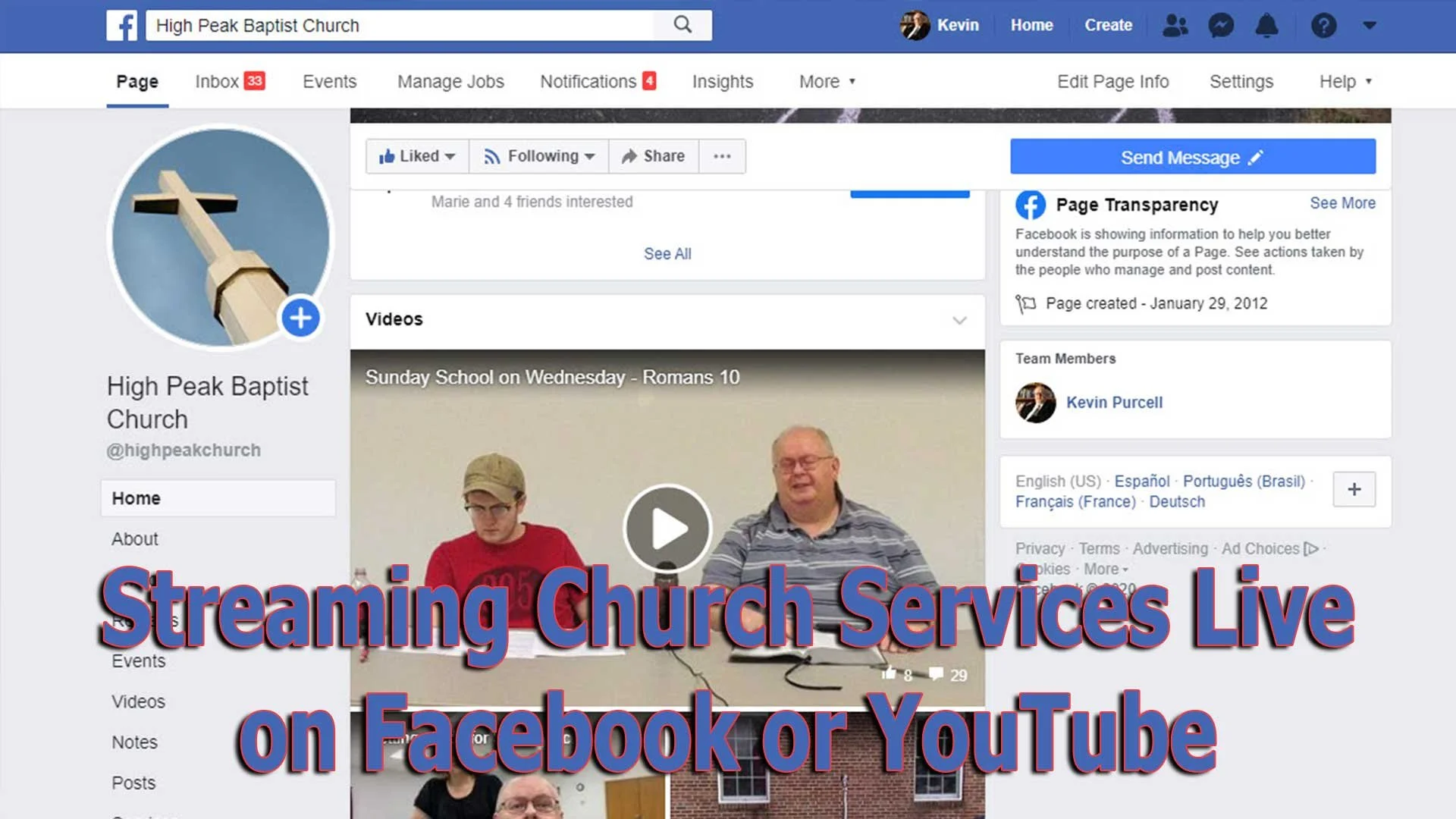
Choosing the right software for streaming church services live actually impacts the rest of the decisions you'll make - equipment, cameras and accessories. If you want to start streaming church services live, then you will need some kind of software. We'll look at using Facebook or YouTube . Churches can choose between using an iPhone or Android phone and the mobile apps for these services. However, you probably should pick a computer with a camera hooked up and streaming using the Facebook or YouTube websites instead of a mobile app.
Here are the other posts in this series:
- The Four Best Camera Styles for Streaming Church Services Live
- Streaming Church Services Live Using Facebook or YouTube Apps or Pages
- 7 Best Tools for Streaming Church Services
- Streaming Church Services Life and Cheap
A lot of streaming platforms exist to help churches. You can buy a subscription to a dedicated service, but they can cost hundreds to thousands of dollars a year. It's also harder to garner an audience if you're a small to mid-sized church using one of these dedicated subscription services like the ones mentioned at the end of our post on the 7 Best Tools for Streaming Church Services. You can find even more services listed at ChurchTechToday.com. They range in price from $25/month to almost $150.

Most people reading this will opt for streaming to Facebook or YouTube since they're free and easier to discover by potential viewers.
Streaming Church Services with Facebook or YouTube Apps from a Phone
The Facebook app on an iPhone or Android phone does a decent job of helping churches share their worship services. However, in our last post in this series we argued for using a dedicated camera for a lot of reasons. You get better images, more versatility and placement is better with a dedicated camera.
However, if you must use an iPhone or Android phone you can go live from their mobile apps. The video below shows you how to stream from your mobile app to Facebook.
People who have enough subscribers can use the YouTube app on their iPhone or Android phone to live stream. The video below shows you how to use the app and how to go live if you don't have enough subscribers. By the way, you'll need 1,000 subscribers on YouTube to go live from the mobile app. But this videos shows you alternatives.
Streaming to Facebook resulted in more engagement for our church than we saw on YouTube. We used to go live on YouTube and would get at most 10-20 people for regular worship services and no more than 100 for special services. We moved to Facebook and those jumpers soared sometimes reaching hundreds of views. We average 80=110 in worship.
Streaming from the Facebook or YouTube Websites
Since it's better to hook up a dedicated camera to a computer for higher quality and more versatility, using the Facebook or YouTube websites will result in better quality streams. Third-party software gives churches more versatility, than the Facebook or YouTube websites. We'll cover that in our next post in this series.

To get started on Facebook, you'll want to set up a Facebook Page for your church. Facebook offers a good help page for doing this. Once you're done following that guide, you can log into your account, go to your Facebook page and then start a live stream. Take a look at the slideshow below.


First, click on the Pages link along the left (first image above). Then click on your page name in the resulting page. On that page click on Live (second image above).

Follow the steps in red above. First click on Use Camera. Then choose your camera and your microphone. Next, along the right, click on drop down menus to choose where you want your video to go. It should read "Share to a Page You Manage" and then the name of the page for your church.
Give your video a title in step 6 above. Make sure the video looks right in the box in the lower right (#7 above). Then when you're ready, hit the Go Live button in the lower left.
The resulting page will show you the feed and you can interact with viewers. I recommend putting a comment in the video and make it stick to the top that reads:
We welcome you to our church's worship service here on Facebook. If this is your first time viewing our Facebook Live worship service, hit the heart and we will get back to you with a special gift.
Now you can send them something special, like a coupon to a local restaurant's take out business and some info about your church. At the very least, leave off the gift and then just follow up with a note.
Since things change quickly and often on Facebook, if the above instructions don't work, head over to Facebook's Live Broadcasting help page.
YouTube Live Streaming Church Services
I prefer streaming to Facebook since most churches will see more engagement, but some prefer YouTube. You might already have a presence on YouTube. If you have over 1,000 subscribers, then you can stream live to YouTube too.


Click on the little camera icon in the upper right corner and choose Go live from the drop down menu. This opens a screen (second image above) if it's the first time you've tried to stream. It asks you to give permission for using your microphone and camera. Hit allow (third image above) and you're reading to set things up.

Give your stream a Title in the top box. Make it public, if it's not alreayd. Then click whether it's made for kids or not. Most churches should click No, not because it's not appropriate for kids, but because you are not targeting kids. You might be in a special service for kids. That comes with a special set of requirements that are not useful for this purpose.

Click on the More Options button at the bottom and make sure you selected the right camera and microphone. Also add it to the right camera by clicking the drop down box above the camera option. Choose Nonprofits from the list. The content above the category comes from the default description from your channel.
The Advanced Settings button opens another screen. Click the Allow Chat on or off depending on whether you want comments. You should leave it on unless you have some special reason for stopping viewers from commenting. Videos with comments get more engagement on YouTube.
Since you're a church, you should not take ads, so turn off the option that reads "This contains paid promotions...". Not click the back arrow. Then click Next and it will take a photo as a thumbnail. You should later replace this with a branded image for your church.
Next, you'll see a Stream preview. You can edit the details and share the stream on social media. In the Live Chat you should add a post targeting guests. Ask them to respond so you can follow.
Hit Go Live and you're streaming. When it's over you can end the stream and save it. You will want to edit things now like the thumbnail.
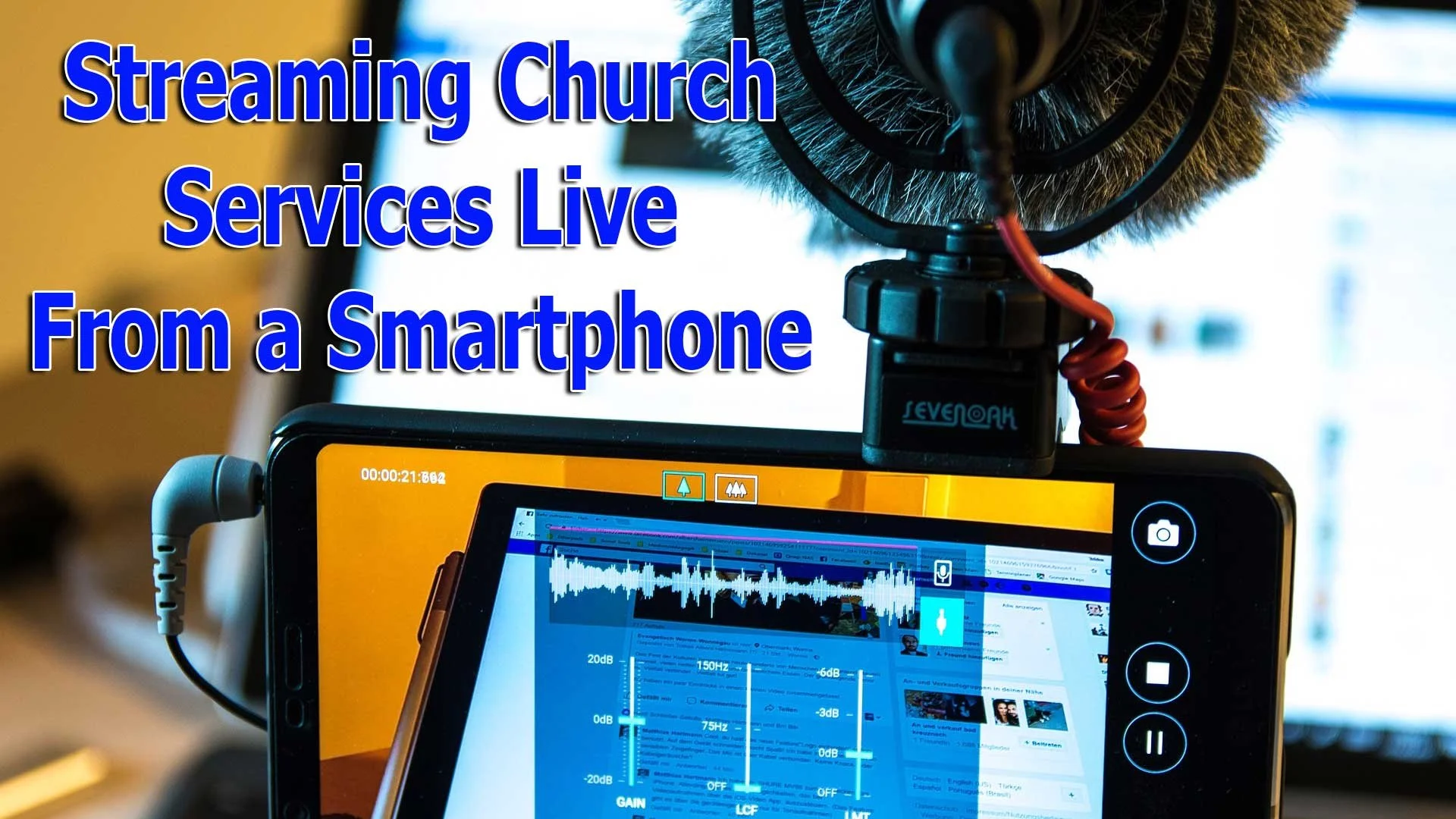
Streaming Church Services Live from a Phone Made Simple
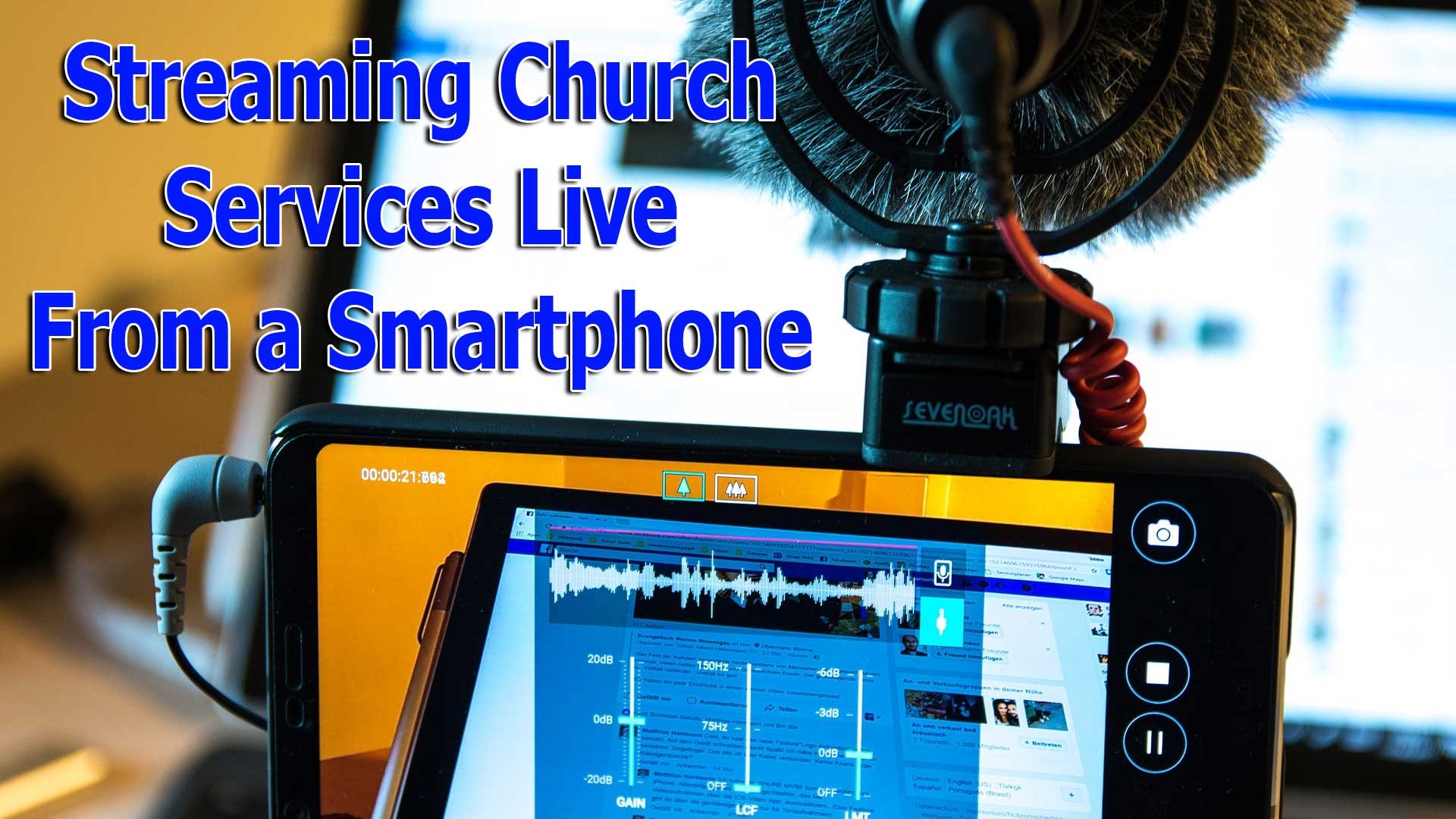
Churches that want to extend their reach should consider streaming church services to platforms like Facebook Live or YouTube. Church leaders might not know how to get started and what they need to stream church services live online. We'll help church leaders choose tools for streaming church services online live.

This first article in a series about streaming church services will focus on making the decision on how to stream and what tools you'll need to stream from a smartphone. Next, we look at the tools needed for streaming with higher quality cameras and equipment in article two. Then, we'll look at the software and streaming services in the third article. Finally, we'll put it all together in the final installment of this series on streaming church services live online.
Here are the other posts in this series:
- The Four Best Camera Styles for Streaming Church Services Live
- Streaming Church Services Live Using Facebook or YouTube Apps or Pages
- 7 Best Tools for Streaming Church Services
- Streaming Chruch Services Life and Cheap
Should You Use a Phone for Streaming Church Services?
First, let’s talk about how you plan to stream your worship services and more. Most people will stream their Sunday morning worship services. For a lot of us that takes place at 11:00 a.m. on Sunday.
Churches stream their worship service in a lot of different ways.
- Streaming Church Services on a Smartphone
- Stream from a dedicated camera through a computer or other device
- A professional setup with multiple cameras, a switcher and visual animations like a TV news broadcast
Of the three styles of streaming church services, the first costs the least. It's also more accessible for people with little to no tech skills. However, it also doesn't look as professional and will often sound subpar.
Sound is important and that's the biggest reason why I'd shy away from streaming from your iPhone or Android phone. You can still use it and if you connect an external microphone or find a way to connect the phone to your sound system, then it will sound better and seem more professional.
Some churches can't afford to pay for a camera, any accessories needed to connect to your sound system or make it sound better, or an installer to set things up. Just load up the Facebook app and stream using Facebook. You'll need someone to hold the camera from the front row. Tell them to hold it very still and don't make a sound.
For those who decide they still want to use their phone but want better sound and a stable video feed, consider buying the following tools:
- An external microphone
- A tripod
- A holder for your phone
Before you go all-in using your smartphone remember the following:
- Phone cameras can't get close enough to the speaker and singers on stage for a professional looking stream without distracting the service attendees.
- Pointing a phone up at a raised platform from the front row looks bad especially if you can't see the speaker or singer behind the podium.
- Holding a phone results in a wobbly video unless you put it on a tripod, which might not look very good to the worship service attendees.
- A phone mic sounds bad compared to your church sound system that you paid hundreds or more likely thousands of dollars to sound good.
- Unless you have someone operating the camera at all times, you're forced to frame the video so that the speaker or singer is always in view of the camera, which looks too far apart.
But how do you stream using your iPhone or Android phone and still make it look and sound decent enough for viewers to continue watching? Will they watch and consider joining you in person in the future?
Tripod for Streaming Church Services with a Phone
You've decided to stick with a smartphone like your Apple iPhone or a good Android phone with a decent camera. What do you need to make the stream look good enough to keep people watching?
First, use a tripod to keep the video stable. Any tripod will do if you get the right accessory to hold the phone. I like products from smartphone accessory maker Joby. They offer phone tripod mounts that work great and don't cost too much. Take a look at their guide on buying mounts for your phone. These will hold the phone in either portrait or landscape mode and attach the phone to any standard tripod. They even sell tripods.

The Joby GripTight Pro Phone mount costs $30 and secures the phone tightly. Screw it into a tripod mount with a typical 1/4"-20 tripod mount. That's the little screw that you screw into the bottom of a traditional camera on top of the tripod.
This mount will rotate from portrait to landscape mode. That means holding the phone so it looks tall (portrait) or wide (landscape). The best option for professional looking streams is landscape or wide mode. The person watching on a phone can rotate their phone but the person watching on a computer or a TV with the phone or computer connected to it can't rotate the computer or TV screen easily.
Always use widescreen mode unless you know that 100% of your viewers want to watch it on portrait or tall mode.
You can use almost any tripod to hold the phone. A full-size tripod will offer the most stable option, but it might look bad to people attending the service since it has to sit close to the front of the auditorium.
You could choose something like a mount that holds the camera from on the front pew or seat. Joby also offers great options like their GorillaPod Line of tripods. You can get the above GripTight mount and the GorillaPod Tripod for $59.95 together.
This has legs that bend so you can fasten it to the front pew or seat back. You can also fasten it to anything else to bring the camera on your phone closer to the stage.
Any mount and tripod combination will work so long as the mount holds your phone in widescreen/landscape mode. Make sure the mount will fit your phone. Most modern mounts will, but measure it before you buy.
Sound for Streaming Church Services from a Phone
While camera phones often come with excellent cameras, they seldom come with decent microphones. That's compounded by the fact that you're usually not holding the phone close enough to yourself while speaking or singing. If a singer uses a canned accompaniment track or other instruments, they are not close to the camera.
The single biggest consideration for streaming live video isn't the video quality. It's the sound quality. Viewers care more about sound and will forgive lower quality video if it sounds good. Services like Facebook and YouTube actually put more of their focus on streaming good audio if the Internet connection gets week.
You can fix the audio problem by connecting a good mic system or by hooking your phone up to the church sound system. Let me offer three options.
Best Option: Wired Connection to the Sound System
Run a wire from your sound system to the phone. Find an output on your sound system and connect a wire to that output connection. Then connect the other end to the phone. If only it was that simple!
Your phone camera might sit too far away from the sound system to make this convenient. Try to run a longer cable if possible. It's the best option.
What kind of cable should you use? That depends on the sound system and the phone input. Let's start with the phone.

All recent iPhones use a Lightning connection and don't include a sound port anymore. You'll need to connect a Lightning to 3.5 mm Headphone Jack Adapter. It's only $9 at Apple.com. Don't bother with anything else. This works and they're cheap.
To connect the cable to the board you'll need what's called a TRRS to TRS adapter. What's that? If you don't care and just want buy one, check out Amazon. That link takes you to a search result on Amazon. Find one that's highly rated and read the reviews. Ask the buyer if it will work on a church sound system and see what they say. Now skip to the next heading below. If you do care what TRRS and TRS stand for keep reading.

Here's the explanation if you want it. A TRRS to TRS adapter lets you plug a cable with three lines to one with two. The letters stand for Tip, Ring and Sleeve (see above image). The ring separates the two black lines, which connect the wires in the cable to the device you're plugging into. So the above image shows a stereo cable with left and right audio.
A typical sound cable used just for sound will have a quarter-inch or 3.5mm jack with TRS like the image above. That means it has two wires for left and right sound connections.

If the cable has three (Tip, Ring, Ring, Sleeve or TRRS), it's designed for a phone with left, right and mic. These are used for earbuds or headphones with a mic so you can listen and talk on your phone. A sound system can't handle the TRRS or three connectors. So you need an adapter to take it from three to two.
Some sound systems have two outputs, one for left channel and one for right. Typically they will look like a red and white connector. If that's the case you'll need one of those too. Some use a larger quarter-inch jack to connect to the sound system. So, you'll need an adapter to connect the quarter inch to the smaller 3.5mm jack.
Second Best Option: External Microphone
If you don't connect the phone to your sound system, then you should get an external microphone. The best option comes from a company called Rode.
The Rode Wireless Go comes in two pieces, a transmitter and receiver, which wirelessly connect to each other. The receiver connects to the phone with a 3.5mm cable. You can use the adapter from the above part about connecting to your sound system.
The transmitter of the Rode Wireless God works like a lapel mic. It has a built-in mic. Turn both parts on and they will connect to each other wirelessly. The transmitter with mic works like a regular mic.
The transmitter also has an input for a 3.5mm connection from an external mic. I have a mic with a 3.5mm jack and plug it into the Rode Wireless transmitter.
Hooking Up an Android Phone
The above discussion focused mainly on an iPhone. Android phones have one of two connections. Does your Android phone have a headphone jack or not? If it does, then just use the cables mentioned above without the Lightning to 3.5 mm adapter from Apple. You don't need it.
How do you tell if your Android phone has a headphone jack? Look for a little round hole like the one below.

If your phone doesn't come with a headphone jack, did the manufacturer supply an adapter for you to plug into the power port? You can use that adapter or buy a new one like it. Most of these use USB-C connectors or they might have a micro-USB adapter.

USB Type-C users can get the Apple USB-C to 3.5 mm adapter. It works with Android phones and only costs $9 at Amazon. For Micro-USB to headphone adapters, check out this highly rated adapter from Amazon for $10.
Now use the above instructions in the previous section for what you need to hook up your phone to your sound system.
Should You Use the Zoom Feature on Your Phone to Get Closer?
If you're happy with the way your phone looks and where you placed it in your auditorium, then you can skip this section and the next one. However, some people may still want to put their phone back further while getting a close-up shot of the speaker or singer. Should you use the phone's zoom feature, where you pinch out to make things look closer? Some cameras like the iPhone 11 have multiple optical lenses so you'll see a .5 (for wide angle), 1x or 2X button in the camera app. Those are fine. But should you go beyond the 2X setting and zoom closer?

Do not use the digital zoom, where you go closer than the 2X if you have 2 lenses. Use only the optical zoom. Digital zoom looks terrible. It blows up the photo beyond what the camera lens sees naturally and degrades the image quality.
If you don't believe me, take out your phone. Take a photo of the pulpit in your church. Us the regular zoom level, the 2x Zoom and then go in closer with digital zoom. Now compare the photos. The regular image and the 2X will look fine. The digital will look grainy and even blurry. DON'T USE IT even if you think it looks fine. Almost no one else, including potential visitors will agree!!
But what if you want to get closer than the 2X zoom lets you?
Adding a Physical Lens to Your Phone
You can add zoom lenses that add closer zoom capability to your camera phone without degrading the image quality. These do not come cheap if you want one that looks good. Search on Amazon or Google and you'll find a bunch of garbage options that cost $10 or $20. You get what you pay for.

I've found two companies that make decent zoom lenses for the iPhone or popular Android phones. The best option comes from a company called Moment Lens. I own a set of their lenses and they're fantastic. They make a number of lenses, but for our purpose take a look at their zoom lens. The 58mm lens doubles the zoom of the built-in lens using high-quality optical lenses. Connect the lens to a case on your phone to make it a 2X on the main lens or a 4X on the built-in 2X zoom on an iPhone 11. Other phones offer other zoom levels and the Moment 58mm lens will double those zooms.

The Moment lens costs $119.99. It ain't cheap. but it's still cheaper than a dedicated camera and makes an phones like the iPhone, Samsung Galaxy s10 and Google Pixel 4 usable.
To use the Moment Lens you'll need a case for your phone. They offer cases for iPhones, Galaxy phones and Pixel phones. Buyers can also get a mount that will fit on other phones. They're not as good as a case, but still work well with other phones besides the ones they make cases for. These cases and mounts start at $20 and cost as much as $50.
Olloclip makes cheaper lenses, but they're not as good. They use lower quality lenses and work with fewer phones. I don't recommend them.
Putting it All Together
Now that you have the gear and the understanding that using your phone works for people who need a low-budget option, let's put it all together.
Connect everything you bought...
- Put your case or mount on your phone.
- Hook the lens to the case or mount.
- Attach the cables and adapters to the sound system.
- Put your phone in the mount that you've attached to the tripod.
- Turn on your camera app and test the recording.
Remember that playing back your recorded video won't play on the phone until you unplug the cable connected to the sound board. Test it out and then plug it back in.
If it doesn't work, make sure everything is connected properly. Reverse the audio cables or adapters if need be. If it still doesn't work, it could mean a faulty cable or adapter. It also could mean you plugged the cable into the soundboard in the wrong place.
We don't have to the time to talk out how to use Facebook for streaming church services live. The step-by-step will show up in a later post in this series. For now, use the steps from the video above.
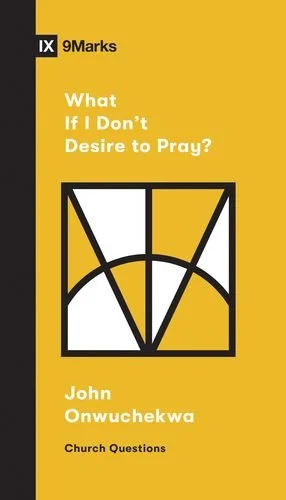
What If I Don’t Desire to Pray - a Book Review
We all know the importance of a healthy prayer relationship with God. Unfortunately, too many believers struggle to maintain one because it feels like a chore, a duty that we must check off on a list of things to do to make God happy. John Onwuchekwa, the pastor of Cornerstone Church in Atlanta, tries to encourage believers, in his short book What If I Don’t Desire to Pray, who feel this way by suggesting we find a new attitude about prayer.

Crossway ($4.99) gave me a digital copy to review. I fired it up on my eBook reader and devoured it in just a couple of days. It took me about four hours over two reading session to breeze through the encouraging book.
The book comes as a part of a series from 9Marks called the Church Questions series. Take a look at those titles over at their site.
What If I Don’t Desire to Pray - Synopsis
The 7 sections takes us from the issue of prayer or a lack of desire to pray to the key to a meaningful prayer relationship. Onwucheckwa writes that the key to meaningful prayer comes from understanding that we get to relate to the Savior who rose from the grave.

Manny books on prayer focus on HOW to pray instead of the WHY we pray. Onwucheckwa’s book focuses on this motivation issue over the mechanical nuts and bolts of a prayer regimen. He doesn’t write as a giant or super hero prayer warrior but a fellow struggler facing the need in his own life.
The author moves through the solution, which is a proper attitude about prayer instead of seeking a proper regimen of prayer. He uses effective and interesting real-world analogies that bring into focus the ideas he presents.
Early on I reacted to the book’s solutions writing in the margin “seems simplistic”. However, as I kept reading I realized that’s the strength, not the problem. Prayer is simple! An effective prayer life is simple too. We make it too complicated looking for better routines or outlines. We want a magic programmatic solution with steps and keys and skills. However, we need Jesus!
We can find the source of a meaningful prayer life in two places - the word of God and the people of God. A focus on the words, actions and attitudes of Jesus can transform our attitude about prayer. Add a connection with fellow believers with the same focus and you can find a powerful impetus to a consistent prayer life.
Now I know what you’re going to say. "I just to read my bible more and go to church more? That's too simplistic and burdensome." Yes and no! We need those things, but instead, the author’s message tells us we can find our motivation in those two sources.
Jesus and the Gospel motivates us to pray. Then as we pray, we will further enjoy the motivation to dig deeper into the person and relationship that comes from a relationship with Jesus.
Recommendation
Seminary professors and scholars seeking to understand all the depths of what God says about prayer or what models of praying works best in the lives of believers shouldn’t pick up What If I Don’t Desire to Pray. That's not the purpose of this little book. However, the average person who wants to get closer to their Creator and Savior will find encouragement in this book.
The book doesn’t cost much in terms of dollars or time. You can knock it out in one setting or over a few short sessions. Then consider sharing it with some others in a small group discussion time.
If I Don’t Desire to Pray reminded me that we find the best motivation to pray the person of Jesus. The author does so in an accessible, interesting and even at times entertaining way.

The Day Kobe Bryant Died - Reflection on Death in Modern Times

Sunday, January 26, 2020 will long be remembered, at least in the near future in America, as the day Kobe Bryant died. My family and I returned home from lunch after a morning of worship at our church and learned of his death.
A lot of people took to social media to...
- See if the news was accurate
- Share shock and sadness
- Share bitter hatred
- Commiserate
- Seek emotional catharsis
I tried to find confirmation and looked at Twitter first. It seemed it wouldn't load at times. I opened Facebook and entered a fan group for my favorite team, the Milwaukee Bucks. At first people complained that people posted fake news and cussed those posting it. Then it became clear that Kobe died.

Image by Pexels from Pixabay
My wife asked me to turn on the news so we fired up YouTube TV. We watched the news and learned about the death. Then we tried to find the details. How many people died? Who was with Kobe? Did his fell ex-Laker Rick Fox die with him? Was it 1, 2, 3 or all four of his daughters? Was his wife with him? Was he flying the helicopter?
Kobe Bryant's Death and Surprising Emotions
Most celebrity deaths come and go and I don't get to worked up. However, this one seemed different because Kobe Bryant was a legendary star. My son and I tried to compare this to other sports figures or other celebrities. What if Tom Hanks suddenly died? The death of Reggie White hit me because I loved him as a Packer fan. He was my favorite player during the 90s. NASCAR fans remember when Dale Earnhardt died at Daytona 20 years ago. We watched it happen and the wreck didn't look that bad, but then we found out after the race he was gone.
Kobe's death didn't hit me that hard at first until I learned that he had a newborn that would now have to grow up without dad. As a father my emotion bubbled to the surface. His three younest daughters will never be able to seek their dad for advice, support, encouragment and love. His wife will have to raise their girls without him. That hit me!
I lost my dad a little over a year ago, but I had 49 years with him. My mom died ten years ago. I got 40 years with her.
Kobe Bryant's Eternal Destiny
After thinking about Kobe's daughters and wife, I considered his eternity. People are saying, "Rest in Peace." Often people say, "She's in a better place" as they discuss the death of someone they love.
But will Kobe rest in peace and is he in a better place. I saw one post from a person I know who talked about his rap accusation. That disqualified him for eternal peace in the mind of this person. Did it?
I believe that Jesus Christ came to repair a broken relationship between God the Father and His creation. We are all sinners. We make mistakes and my lies are no worse than rape or adultery. We all deserve punishment. However, I thankfully learned the good news about Jesus Christ. He forgives sins for anyone who believes and repents of their sins committing their lives to Jesus.
Did Kobe ever believe?
The above post showed that he had an opportunity. There was hope that he was telling the truth, but we never heard an open and passionate testimony of his faith in Jesus like we got from people like Russel Wilson, Tim Tebow and Reggie White.
The above Tweet showed up in a Daily Wire post about Kobe's Catholic faith. Read that article and you'll learn that after Kobe was accuse din 2003 of rape, he turned to his life-long Catholic faith for strength. He admitted the sexual encounter with the woman, but denied he raped her. During the legal case he consulted a priest for advice.
Apparently that mistake led him to make a change in his behavior and renewed his faith. I hope so.
How Do We Know
It's hard to know whether some people are truly saved. I remember talked to a friend about his faith. I shared Jesus' parable of the sower from Matthew 13. In that story, Jesus compared the people who hear the Gospel to soil. A farmer sowed seed in four kinds of soil...
- Path - represents those who reject the Gospel outright saying the seed burned up and died without sprouting roots.
- Rocky Soil - represents those who hear the Gospel and seem to accept it but quickly give up on the faith since seed does sprout but doesn't put roots into the ground.
- Thorny Soil - represents the hearer who listens and seems to repent and believe because they even try to live a Christian life for awhile but they give up when the cares of the word distract them from their faith because the seed sprouts and begins to grow but the weeds and thorns choke the life out of the plant.
- Good Soil - this seed sprouts and grows producing a lot of fruit 30, 60 or 100 times over.

Image by katsuwow from Pixabay
As I shared this story with my friend I said that the first kind of soil represents the people who clearly don't believe and are destined to eternity without Christ. The last kind of soil represents those who obviously do believe and as well as we can know are saved. The issue comes with those who may fall into the two middle groups.
I asked my friend which soil he was and he said he was the rocky soil. That's the kind of soil we can't know for sure about their faith or salvation. Therefore, we can't know about their eternal destiny. So, we prayed and he found assurance and promised Jesus he would do his best to repent and bear good fruit. I pray he will follow through and at this point has.
It's not my place to judge Kobe Bryant. Some say he found a deep faith and attended mass regularly. He did a lot of good with the wealth he amassed in his basketball career. I hope I'll get to see him in heaven.
What About You?

Image by Gerd Altmann from Pixabay
The real question is not about Kobe. Maybe he was a believer and maybe God saved him and welcomed him into eternity on January 26, 2020. However, will you? Which soil are you? Do you know for sure that God will welcome you into eternity because you have...
- Admitted you are a sinner and asked forgiveness for your sins.
- Believed that Jesus died for you and rose again and he's alive today ready to forgive your sins.
- Committed to repent and live for Jesus as best you can from this point till the day you die or Jesus comes back.
I'd love to talk more with you about this. You can contact me via email or on Twitter @kapurcell.
Blueridge Christian News Articles
I began writing for a local Christian publication called Blueridge Christian News. This local paper serves the Christian community in the Burke County area and the wider area.

I’ve focused on my area of expertise, Bible software and apps. However, I just submitted a study of 1 Corinthians 10:13 asking “Why doesn’t God bless me?”
You can find my articles there, when they also post them on their website. If you live in this area, pick one up and many of the businesses and of course most churches distribute the paper as well.
![Accordance 13 Upgrade with 8 Exciting New Tools [Video]](https://images.squarespace-cdn.com/content/v1/690ba83ee90436386a0306e7/1762379317898-OE0KTDPYUU970RNR91MB/image-asset.jpeg)
Accordance 13 Upgrade with 8 Exciting New Tools [Video]
Accordance Bible Software recently updated their advanced Bible software to Accordance 13. It comes with some incredible new features to make this powerful Bible software package even more useful. Check out the brief descriptions of 8 new features demonstrated in the included video. Mark Allison and Rick Mansfield joined me on Theotek on Youtube.
Accordance 13 Upgrade Demo Video
Accordance 13 Dark Mode

The upgrade to macOS 10.15 Catalina included something called Dark Mode. Accordance adopted this with their software. If you love Dark Mode on a Mac then you'll likely love it in Accordance 13.
The way the company implemented Dark Mode lets you customize it so that if you don't want it in certain places you can turn it off. However, by default the entire user interface will show in Dark Mode when you turn it on.
Dark Mode does not work yet in the Windows version of Accordance. But it should come soon.

To turn on dark mode in Accordance you'll need to first turn it on in macOS System Preferences. Open System Preferences from the Dock or from the Apple Logo in your menu bar. Click on General and then click on either Dark Mode to turn it on all the time. You can also use it only in dark environments by using the Auto setting next to Dark Mode.

Now go to Accordance 13's settings from the Accordance menu in the upper left on your menu bar on your Mac and click on Preferences. Then open the Appearance setting screen in the list on the left of the preferences box. Now click on Automatically adjust to system dark mode. This will turn on Dark Mode if you turn it on in the Mac System Preferences. When you set this preference, it will require you to restart Accordance before it takes effect. Choose the Restart Now button unless you want to wait to apply it the next time you launch the program. After you click Restart Now you will have to click on the OK button to restart the program and you'll see the new Dark Mode.

6 New Themes in Accordance 13
Accordance 13 also adds new themes. These change the coloring and fonts used in the user interface. You can't choose these new themes if you keep the program in Dark Mode. The new Themes will work on Windows.
Switch to a new Theme from the same Appearance screen in Accordance Preferences. On Windows it will show up on the Edit menu. On Mac it's in the Accordance Menu.
Click on the General Theme drop down box (see image above). You'll see 6 options. Click on one and click the Preview button. Now you'll see the new theme applied.
Search Inside Accordance 13 Preferences

The Accordance 13 Preferences contains hundreds of options that the user can change, but finding them can get difficult. When you type in the box it starts showing possible entries guessing what you want. You can click one of the entries in the drop down list and it takes you to that page in the program's Preferences.
Built-in Accordance 13 Tutorials

Accordance has a vast array of Built-in Tutorials ready to help you learn to use the features in Accordance 13. In Windows, click on the Help menu and find Tutorials. A fly out menu shows up with a long list of them. In the top you will see them grouped by Difficulty level. Click on Easy, Intermediate or Advanced to see more Tutorials based on t hose levels of skill.
Below the Difficulty section you'll see them grouped by Topic. Click on a Topic to see the Tutorials related to that Topic.
Highlighting in Accordance 13

The new Highlighting feature brings some exciting new ways to mark up your Bible. You'll see the same old highlighting colors and icons, but now you've got some new ways. You can even use an Apple Pencil, if you own one. We'll show you how below.
Click on the Highlight toolbar button to open the dialog box. On top fo the box you'll see buttons for Highlighter, Pen and Eraser. The first one, called Highlighter shows your usual tools for highlighting words and verses.

The second one is labeled Pen. lets you draw circles and squares to name a couple. The program detects what you're drawing and cleans it up to make it look pretty. Then, if you want, you can also draw straight or curved lines to connect words. You can also draw arrows.
The lines and shapes can get challenging to draw accurately with a mouse or trackpad. A Windows machine with a Pen, like the Surface Pro, might make this easier. You can also use the new Sidecar feature in macOS 10.15 Catalina if you have a recent model Mac and iPad with Apple Pencil.
Eraser does as it says - erase your highlighting. Click it to get rid of hour highlights.
Highlighting Whiteboard Feature

Another Highlighting tool lets you draw all over the place like a whiteboard and marker. These don't get saved, but you can use this to teach with Accordance displayed on a screen or by recording your screen and uploading the video somewhere.
Turn on Whiteboard by checking the little box labeled Whiteboard Drawing to the right of the drawing color options in the Highlighting dialog box. After your done, you can clear the drawings by clicking on the Clear Whiteboard button.
To save the videos do a screenshot and then add that image to an Accordance Note. I'll create a video on this soon, so check back on this page or my YouTube channel for that video.
Accordance 13 Text Search Command

The Text Search command is a new way to enter special search features in Accordance 13. This helps you find things in your grammatically-tagged texts like the grammatically tagged Greek New Testament or BHS Tagged Hebrew Bible. This especially benefits users who don't know Greek or Hebrew because they can search for grammar tags while they're in an English text.
First, open a English Bible with Greek or Hebrew tags like the ESV with Strong's. Then open the Text Search box.

To open the Text Search Command box, go to the the Search menu and find Enter Command in the menu. A fly out menu shows up with Text on the list. Click it to open a new dialog box. Or you can use the Shift+Command+T to open the box.
Now you can use this to search by adding commands to help you find things based on grammar tags. The drop down box at the top lets you search in various Bibles. Pick a Greek or Hebrew Bible with grammatical tags like the Greek NT Tagged.
Now you'll see that both the Enter Command and Enter Tag boxes are active. They are drop down boxes that let you add either kind of search feature to the search box. Perform your search now using one or both.
Accordance 13 Amplify to Constructs
There's another new way of searching called the Amplify to Construct feature. This feature lets you create really complex searches using a graphical user interface.

Access this feature by selecting the some text that you want to search, like "God of peace" found in Romans 15:33. Select it and right-click and choose Construct and then choose one fo the four options. You will only see Word if you are using an English Bible with only Strong's tagging. You can also find this by using the Amplify menu and choosing Construct.
This opens a new dialog box that lets you change the search and add more features to your search. We don't have to room to show you all that this can do, so be sure to watch the YouTube video at the top where Rick Mansfield demonstrates the feature more in depth.
PDF Import in Accordance 13
Now users can import their PDF documents into Accordance 13. This is not perfect but works well with simple PDFs.

Import a PDF document by clicking on the User Tool button on the tool bar. If you don't have it, add it by right-clicking the tool bar and drag the button to the tool bar. A menu pops up and you'll choose Import... from the list.

Users can also import using the New menu. Click it and choose Import User Tool....

Regardless of which method you use to start the import process, it will open a new Import to Tool dialog box. In the drop down box at the top select PDF and then OK. The program will give you a copyright warning. Click OK and find the file on your hard drive.
After it imports the Accordance 13 displays the new User Tool. You can edit it just like you do any other tool or your notes.
Mouse Over Highlighting Between English, LXX and Hebrew Bible
Now with Accordance 13 you can open an English text with tags, a Hebrew Bible and the LXX and as you select a word in Hebrew it will show you that word in the other two.

Open a tagged Hebrew Bible, a Septuagint that's also tagged, and an English Bible with tags. Then hover over a Hebrew word and see what word that corresponds to in the Greek and English.
This helps users study Hebrew and Greek words even if they don't really know Hebrew or Greek.
iPhone 11 Pro Max Review for Pastors and Ministers
I bought an iPhone 11 Pro Max. Find out how well it works in a minister's life and why a minister might want to consider the upgrade.
A lot of my pastor friends love Apple products. I thought I'd write up a review focused on what the new Apple iPhone 11 Pro Max brings to the table for those of us serving in ministry. Is there anything here to make you want to upgrade or replace another phone running Android? Find out below.
Apple iPhone 11 Pro Max Camera
If you're like me, you take a lot of photos of your church ministry activities. In addition, I've started a YouTube channel focused on my ministry activity as a small church pastor that I call Behind the Pulpit.
I was really excited to get the new iPhone 11 Pro Max for the camera alone. Here's what Apple put in this new version...


- 3 cameras on the Pro Max for an ultra wide 13mm f2.4 lens, regular 26mm f1.8mm lens and a 2x 52mm f2.0 telephotos telephoto lens (see a comparison of 3 shots plus the camera interface above). These camera lenses give three options for focal lengths so you can get shots close up that won't cut off the edges of the scene while also grabbing a shot of something further away.

- Smooth zoom between the .5, 1 and 2x lenses with up to 10x zoom, but above the 2X images start to look really bad. See the sccreenshot above.
- Amazing 4K video with up to 60fps and excellent slow motion video on the front and back cameras. The front camera slow motion they called a "slofie" which the Internet erupted in ridicule over.
- Night mode that helps you take pictures at night that look like you had a bright flash on your camera.
- Better portrait mode, which you can use to take photos of people and even objects with the background all blurred out.
- New shooting modes where you can take a video by holding down the camera button in the camera app while you're set to take a photo and drag to the right to keep the camera video recording or release to stop. You can also press and drag left to get a burst of many quick shots in a row. See Apple's support demo video below.
- Thanks to the 3 cameras you can actually take photos of more than what you see on the screen.
- Object image stabilization which results in videos without as much shake.
All of the above translates to a great camera. You may not fully understand everything listed above, but head over to Apple's website to learn more. You can also find out more by watching the video below by one of my favorite YouTubers, Matti Haapoja.
So why should a pastor or minister care about the iPhone 11 Pro camera? First, if you already have an X or Xs, you don't. This phone doesn't offer enough to upgrade and I probably shouldn't have (see my video - the first one on this post above). However, if you have an older phone and think you're phone's getting a little long in the tooth, has some problems like a battery that's no longer getting you through the day or the camera creates ridiculously bad video, then consider it.
We ministers can do a lot to further our ministry by taking photos and videos and sharing them online via Facebook, Instagram, Twitter, TikTok and more. This helps us reach a more plugged-in audience like the younger crowd. If you do this, do it with excellence.
I took a class about using the vlogg format to boost your ministry reach. Trey VanCamp taught the course and inspired me to start my channel. Check out my article about the course on ChurchTechToday.com.
A vlogg shares parts of your day in a kind of "behind-the-scenes" or "reality-TV" format. This helps your church or ministry participants see a different side of your life. It also opens the door for prospective people to learn more about you or your church. Finally, it extends your reach beyond your local region.
In addition to social media, a good website will include a lot of media like video and photos. Shoot both and upload them so people can see what your church is like.
You can also use these photos and videos in your worship services. I took video of my family walking near a local park and used it in my YouTube channel video and showed a clip of it in my worship service as part of a sermon illustration. Why not do the same with the amazing iPhone 11 Pro Max camera?
Faster iPhone 11 Pro Max A13 Bionic Chip Speeds Up Apps
You may not notice the faster processor (the part that works like the brain of your phone). However, it will speed up some things. If you use an app that needs more power, this will help. Most Bible apps don't, but the Logos/Faithlife Bible apps on iPhone do need more power. Also, encoding video on your phone as you edit in the mobile version of iMovie or LumaFusion, the best video editor on iOS.
Extra Hours of Battery Life for Long Ministry Days
The A13 chip will mostly benefit users by giving them longer battery life. Apple says it lasts about 5 hours longer than the previous generation iPhone Xs Max. In other words, if your previous phone lasted until supper time, this one will take you to bedtime. My phone would get me through the day, but you never know when you might get called away to the emergency room at 9:45 p.m. because a Sunday school teacher had a car accident. With the extra battery life, you won't need to look for an outlet to charge your phone when you most need it to just work and you need to focus on your church members facing a crisis.
Super Retina XDR Screen Makes Bible Apps Text Easier to Read
You probably use your phone for a lot of reading, including a Bible app, the Amazon Kindle app, checking email or reading websites. Thanks to the awesome new screen, you get better text crispness that's easier to read. Also, your photos and videos look better. Watching TV as you wait for something to happen looks better on this beautiful screen.
Stronger iPhone 11 Pro Max Glass Survives Bumps and Drops Sort Of
Have you ever dropped your phone? I hope you had a case and even a tempered glass screen protector on it. If you didn't you probably at least ended up with some scratches or dents.
The new iPhone 11 Pro Max has a tougher body and screen. Apple promises it will break less often during drops of six feet or fewer.
One popular Apple fan girl who goes by the name iJustine dropped her iPhone 11 Pro while testing out the front facing slow motion camera.
In spite of the stronger glass, I still recommend getting a case. Don't pay for the expensive Apple branded cases. Get one off Amazon for under $20 unless you're a phone punisher. Then pay extra for a good rugged case like those you get from Amazon.

iPhone 11 Pro Max is More Water Resistant, They Say
Like drops, water can destroy a phone unless it comes with iP68 certification. That term means that it meets an objective third party standard that says it should survive dropping it into some water that's up to 30 minutes at a depth of 1.5 meters (nearly 5 feet).
I'm not going to test the water resistance of my phone. I don't trust it, but I have accidentally splashed water on it and it works fine.
Sounds Better With or Without Headphones
People who listen to music, videos and more on their phone will want good speakers. I recommend Apple's own AirPods. I love mine. However, you can listen to the sound right out of the phone. Thanks to Dolby Atmos certification, the speakers should sound better.
Apple also advertised something called Audio Sharing. If you have AirPods you can connect two sets of AirPods (two pairs) to one phone and listen to the same thing at the same time. That's great for letting people listen to a video of a recent church event. Audio Sharing works in iOS 13 on some older phones too. See how to do this in the video below.
Shoot your video of a worship event, fellowship, or other activity at church. Then head over to a shut-in's house or the hospital and let the person hear the video, either on the phone or if they also have AirPods on those.
Dual Sim Support for International Mission Trips
Do you travel outside the country for mission trips or other reasons? Maybe you're a missionary and you want a phone plan for the United States and another country. Apple now supports dual sims. You can actually have two lines on one phone.
Some churches don't have an office. Maybe you're a small church pastor or a church planter without a building yet. You can have your church phone number and your home number on the same phone.
Consider Apple Watch Series 5 with WatchOS 6
I already mentioned the AirPods above. There was another new accessory released with the new iPhone 11 Pro Max. The Apple Watch update didn't add enough for people to upgrade from a Series 3 or 4 Apple Watch. However, if you don't own one or have one of the first generations, then consider the upgrade.

I love that now I can actually see the time all the time. That's right, the previous generations of the watch turned off the screen. You had to lift it and look at it to get it to show up. Sometimes you had to actually wiggle your wrist. That's unconscionably bad. However, that problem no longer exists. You can glance down at your watch during meetings or a worship service without it being noticeable. See the two images above (left is fully on and the right is dimmed "always-on" low power mode).
Face it! We pastors are often fat! I'm tired of it and so I've started to work at losing weight. As of the day I 'm writing this, I'm down over 80 lbs. in about 3.5 mounts.
The Apple watch offer some nice activity tracking to help you get active and fit. You can track workouts. It reminds you to move every hour on the 50th minute if you haven't already moved that hour. And you can track how much you walk and how many calories you burn in a day.
For all the reasons above, the iPhone 11 Pro Max offers a nice upgrade for people who own an iPhone 7 or older. iPhone 8 users will even see a nice bump, but people who own an iPhone X or Xs should probably not bother unless you just want to or need to due to problems with your phone.
Best Bible Software for Average People in the Pew
What are the best Bible software apps for people who aren't studying the Bible to preach or write a commentary or teach in seminary? This roundup of the best Bible software for the person in the pew will answer your questions.
What is the best Bible software for people in the pew? That question doesn't get a lot of attention, especially here. However, I want to change that with this post. What are the best Bible software options for the lay Bible student? These all run on one of the most popular platforms - Windows, Mac, iPhone, iPad or Android. A few will run on all of these platforms.
Advanced Bible Study software gets most of the focus on this site, but plenty of Bible students don't need the high-powered scholarly Bible study software that a pastor, researcher or Bible translator needs. They only need to do a few things like...
- Search for verses
- Read the Bible
- Study the Bible for teaching a class
- Writing blog posts
- Personally study the Bible
These lay people want more than a simple Bible reading app but don't need as much as the expensive and powerful suites offer for hundreds of dollars. If you're interested in simple Bible study apps to just read the Bible, look up some verses by searching by word or topic, and creating a reading plan, then take a look at my list of the best simple Bible apps that I published over at ChurchTechToday.com. Our purpose in this post is to look at the apps and software that fit between those simple Bible reading apps and the powerful tools that scholars and pastors need.
Olive Tree Bible
Olive Tree Bible fits in an in-between spot. A Bible study software user can get past the simple or basic Bible study level, but it really shines for the user who wants more than just reading plans and sharing to Facebook. You can do both of those, but you can do a lot more.

It runs on almost every platform from computers to smart phones and tablets. The app or software costs nothing and you'll get some public domain books for free plus a modern Bible or two. To get a little more advanced you need to pay for extra commentaries.
Open the app on your computer or mobile device and you can just read the Bible. You can also open the Study Center (the right hand section in the image above) to look at the Resource Guide where you'll find all the books in your library related to that passage open in the current Bible.

Tap or click on words to search, look them up in dictionaries or find out what a Strong's tagged dictionary says about the world. This lets users who don't know Greek or Hebrew understand the original languages behind the English words. You'll need a Bible with Strong's numbers tagging, like the KJV seen above. Olive Tree sells a lot of them.
Keep notes or highlight. You can also bookmark verses. If you enjoy listening to books, then buy some audio books to hear the book instead of read it. They have a lot of titles in the Christian Living category. You can also listen to your Bible or to other books.
Olive Tree Bible runs on all of the top platforms with a free app download and costs extra for the best books.
e-Sword
The top dog in free apps deserves a spot in our list of the best Bible software for lay people because it's free and easy to use. In addition, if you want to spend some money, you can buy some more modern translations, books and commentaries at eStudySource.com.
e-Sword comes with a simple layout in four quadrants plus a list of the books of the Bible along the left. In each quadrant, you get tabs for each Bible or book installed. On each tab you'll find a book or Bible with a toolbar for performing basic tasks.

The program's main toolbar lets users search the Bible or book, jump to passages or change the layout. You don't have to use the four main quadrant layout. You can show just one, two or three as well.

If you use a Bible with Strong's numbers, then you can click on it to see the definitions in a tooltip popup. Also, scripture links in the other books will show up as links. They have tool tips too.
e-Sword has a user note system, bookmarks and highlighting too. Take a look at see if it will fit your needs. The Windows version is totally free. The Mac version is called e-Sword X and will cost $9.99 from the Mac App Store. I wrote about it when it first came out for Mac. The iPad app costs $4.99. Look for e-Sword HD in the app store. The version that runs on an iPhone costs $2.99 in the iPhone app store.
I love that there's a large community of users who've made their own books out of public domain books. Check out eswordlibrary.com, one such source. And you can buy modern translations and recently published commentaries, Bible dictionaries and more from eStudySource.com as mentioned above.
Wordsearch Bible
Wordsearch Bible software offers a lot of power in a simple to use package. However, it only runs on Windows and Mac. There's also a very poor mobile version for Android and iOS, but don't bother if that's where you want to study the most. Also, if you're a Mac and iOS user only, I don't recommend it because it's not a native macOS program. They created it using the Windows software and put it in an emulation package. I include it here, because on Windows it's great! Also, for Chromebook users or Mac and iPad users, MyWSB.com gives access to your library on the web inside a browser. And it's pretty good.
Wordsearch 12 opens by default to a homepage, but the real magic come with you click on the Study tab or Library tab across the top of the windows. They also have links to their social media (bottom right) and app store sites for their mobile and online versions of Wordsearch.

The main Study screen has a Windows Explorer style layout with the Bible displayed on the right and the library and books shown on the left.You can show or hide both of these lists.
Other great features include...
- Parallel Bibles
- Templates to save your study environment
- Integration with OneNote for syncing files
- LessonMaker tool to quickly create studies
- Powerful search features
- A large library of books with a lot of free options
- Free training online
PocketBible
The first Bible study app I ever used came from QuickVerse. The creator of QuickVerse saw the value in mobile Bible study early on before the iPhone even existed. Now you can use PocketBible on all platforms including Windows, Mac, iOS, and Android. It comes from Laridian and the creator, Craig Rairdin is a pioneer in Bible software.

Notice above that the app can show a lot on screen at the same time. This is true, not only on Windows and Mac, but also on the iPad and Android tablets. Few mobile apps let you view more than one or two books at a time.
The mobile version is also very capable. You can use it on iPad, iPhone and Android.
You can use the “Advanced Feature Set” that comes at a small upgrade price of $17.99 on all of these platforms. It’s slightly less on just one platform. There’s a journal feature, an auto study feature that finds all of your books with content related to a particular passage or a word. There’s an audio Bible included. On iOS you can use a reading mode that shows only the text on screen without the toolbars for a distraction free environment. There’s more so check it out at their website related to the advanced features.
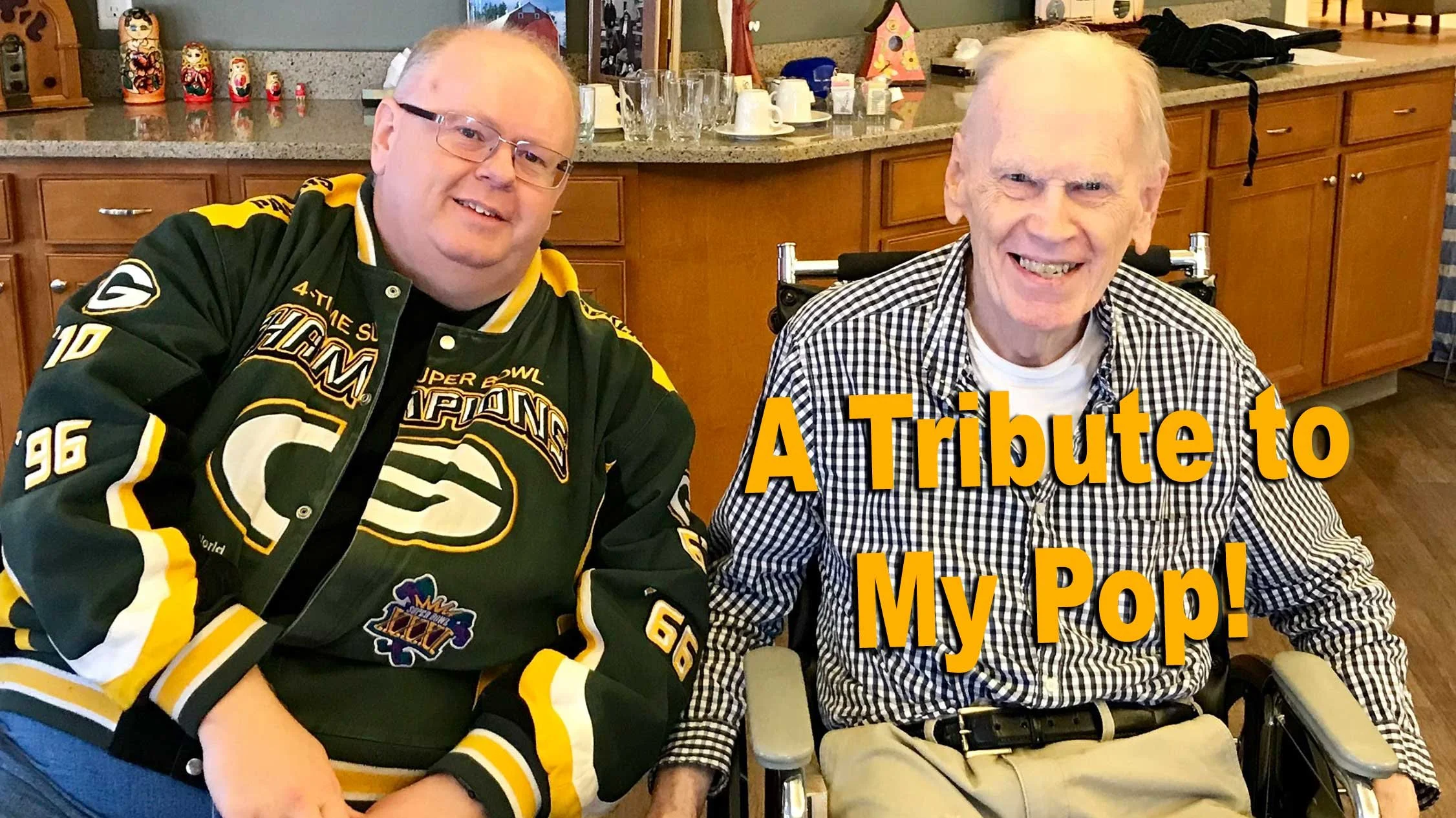
A Tribute to My Pop - Latest YouTube Video
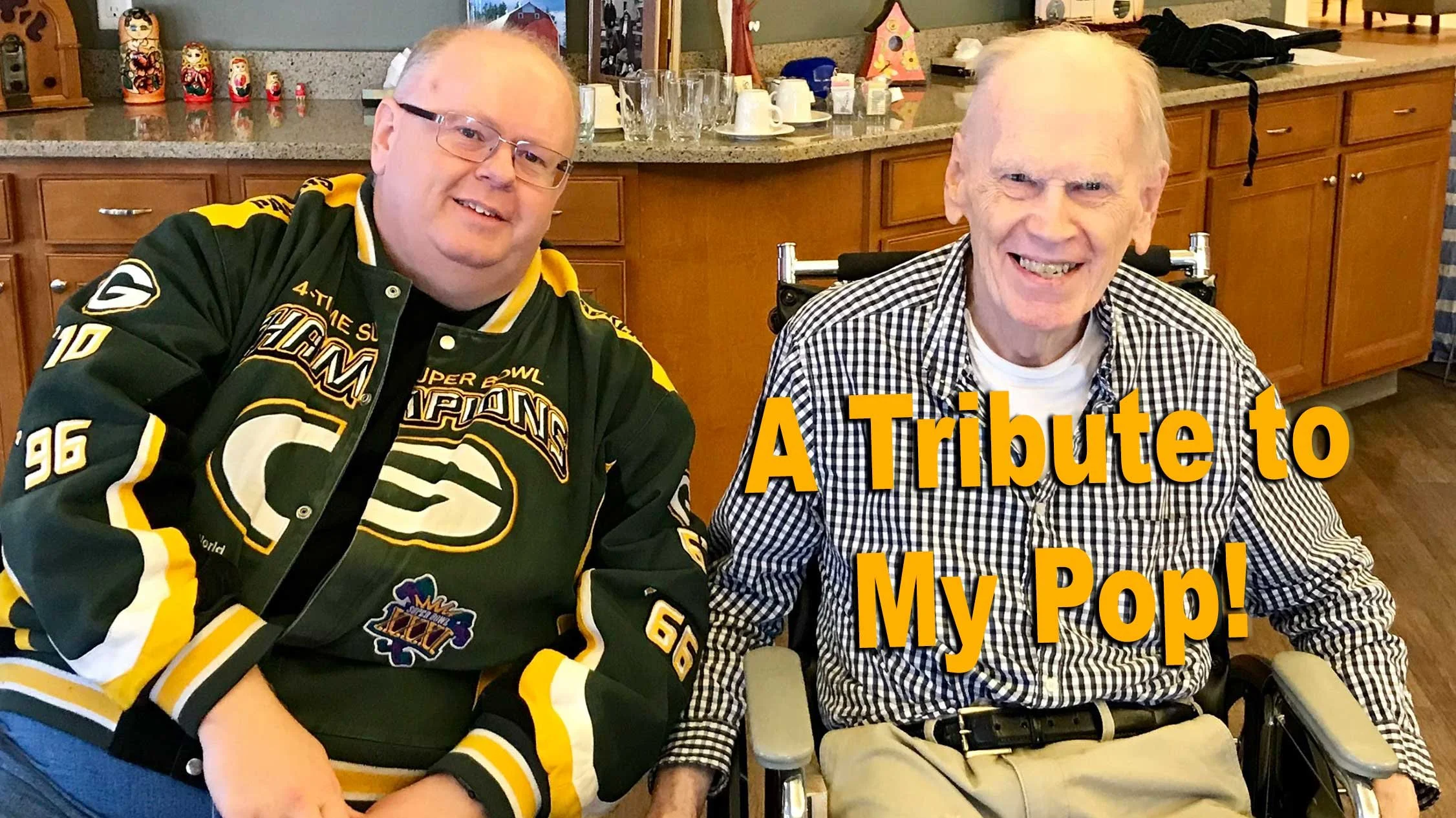
As you may or may not know, I started vlogging on YouTube and this is my latest video. It's a kind of Tribute to My Pop!!
3 Best Android Bible Study Apps for 2019
Here are the 3 best Android Bible study apps for 2019. This focuses on serious study and not just Bible reading apps.
It's been a while since we rounded up the best Android Bible study apps so lets take another shot at it for 2019. This list of the best Android Bible study apps for 2019 includes Bible study apps as opposed to Bible reading apps. What’s the difference?
- Study original language with more than just Strong’s
- Offers modern translations and powerful searching
- Offers modern scholarly, pastoral and devotional commentaries
- May also offer other eBooks and digital reference books like dictionaries, lexicons and atlases
Please note that we've updated this to the 5 Best Bible Apps for Android. Click here to see it.

Many Bible apps will include a few of the above, but they usually only include public domain or just one or two. Instead the Android apps we're offering helps users study the Bible on a deeper level. A scholar or pastor could use them while mobile. Maybe they won't fully replace a desktop Bible research tool, but they can help the studier stay productive on the go while they wait at a restaurant for a spouse who’s shopping or while sitting in the car picking up their child from school or soccer practice.
To test these out and compare them, we'll give them a score of 1 to 20 in a five different areas.
- Ease of Use
- Cost of Ownership (app plus books)
- Quality of Features
- Library Size and Quality
- Attractiveness of the App’s Design
To get a full score in each of these the app would mean the app’s perfect in that area. So let’s take a look at the 5 Best Android Bible Study Apps for 2019!
Olive Tree Bible
It's not surprising that we'd put Olive Tree Bible (Free plus cost of add-on books) on this list since it made our list of top Kindle Fire Bible apps.
Olive Tree looks beautiful on most platforms. It's not as pretty on Android as it is on other devices, but does look nice and professional. You can tell that designers made the buttons and menus instead of just coders cobbling together something that's functional.

Olive Tree does a great job of quickly showing the user all of their content thanks to the Resource Guide. This section looks at the current passage and then display all the content in the user's library related to that passage. You can quickly find all the commentary entries, all the cross references and more.
For original language study, you tap a word with Strong's tagging added and a popup will show a definition of the Greek or Hebrew word. This will also let you look the word up in other lexicons and dictionaries as well as search the Bible for that word.
It's one of the easiest of the five to use, but could be easier. For example, it's a little clunky to add personal notes. A pop up note editor blocks your content. You can also use the Resource Guide to add and view notes, however, you can't do that and see your Bible and commentary or lexicon or dictionary at the same time.
The app is free but add-on books cost extra. They aren't the most expensive, but you can end up paying thousands for a scholarly level library. The company offers one of the biggest libraries of add-on books and their not just public domain books. You can get high-quality content.
Olive Tree packed more features into this app in a way that's easy to get at them.

- Ease of Use - 3
- Cost of Ownership (app plus books) - 2
- Quality of Features - 3
- Library Size and Quality - 4
- Attractiveness of the App’s Design - 3
- TOTAL SCORE - 15
We could say a lot more about this excellent app. Instead read my full review over at ChurchTechToday. Also see the video above.
Logos
Faithlife publishes the Logos Bible suite of apps. They don’t just offer one, but multiple apps. You can get the following apps.
- Logos Bible Study Tools - their main app with more advanced features.
- Study Bible by Faithlife - the same app with a focus on their Faithlife Study Bible book which is a nice study Bible.
- Verbum Catholic Bible Study - Like the main app (first above) but focused on Catholic students.
- Faithlife Ebooks (formerly Vyrso) - Focused mainly on reading eBooks instead of serious Bible study and not recommended for this list.
Logos offers an excellent collection of training videos, so that's one of the best ways for you to learn more about the Logos Bible apps.
The app opens to show you how to the main features work the first time you start it. Then it shows the main home page. From there you can use the tabs at the bottom to view the various sections of the app.
The app shows Bibles and books in a tabbed environment. The center button is where you open these tabs. You can connect them so they all advance to the same passages or just connect certain tabs.
The library shows all your books and lets you check out new books in the store. There's also a store button on the toolbar of the app. Open the menu to see all the advanced features like the Passage Guide (looks for content related to a passage and shows a list of entries), Exegetical Guide (same as passage guide but focuses on language study tools) and more.
The app includes a ton of features. In fact it's the most feature packed app in our roundup. You can use things like...
- Atlas
- Prayer lists
- Clippings (collections of things you find in your study)
- Word studies
- Text comparisons (show more than one translation at a time)
- Audio books
- Courses (Faithlife has a rich collection of high-quality courses similar to what you might get in a seminary or Bible college)

We scored Logos as follows:
- Ease of Use - 2
- Cost of Ownership (app plus books) - 2
- Quality of Features - 4
- Library Size and Quality - 4
- Attractiveness of the App’s Design - 2
- TOTAL SCORE - 14
We're just scraping the surface in this description. Take a look at my post about which Logos Mobile App to Use and my series on how to do creative digital sermon prep using Logos. I also wrote a review last year at ChurchTechToday.
Accordance Mobile
Accordance Mobile brings us one of the latest entries into the Android Bible app space. Their iOS version never really measured up till recently, but now they're doing a great job on both iOS and Android.
The app seems deceptively simple at first. However, under the hood, it has a lot of advanced features for you to discover. You can view two books at once with the main book and secondary book syncing up to scroll through a passage together if you wish.
Tap on verses to get more study options and tap on words to learn more about the word, especially if the Bible has strong's numbers attached.
The powerful Accordance search engine comes to mobile in the app. They're still adding more advanced features and it's growing more powerful all the time.

Here's how I'm rating the app:
- Ease of Use - 2
- Cost of Ownership (app plus books) - 3
- Quality of Features - 3
- Library Size and Quality - 4
- Attractiveness of the App’s Design - 3
- TOTAL SCORE - 15
While the app looks deceptively simple, it does have some powerful features. However, it's not as strong as it could be. In a year I expect that to change. You also have to play around to discover the advanced language study features it does have. Be sure to check out their excellent tutorials. Accordance also offers a great library of add-ons available to buy at great prices. If you already own a book on another platform, ask the company and they will likely give you a deal. I've saved hundreds by buying that way from Accordance.
I should probably add a category for support, because Accordance really shines in this area with some of the best training post purchase of any of the companies. They have live webinars both online and in person. Here's a recent podcast covering the Accordance Mobile app on iOS.
Here's a link to an episode of their podcast covering Android.
Accordance Bible Software 25-Day Switch: Observations
Conclusions about my 25-day switch from Logos Bible Software to Accordance Bible Software are here.
It's been more than 25 days since I decided to use only Accordance Bible Software and Accordance Mobile for my Bible study needs. During that time I both enjoyed using Accordance and felt frustrated using Accordance. I really wanted to choose to switch over to Accordance as my primary Bible study tool. Here's a list of the 3 reasons to choose Accordance over Logos.

Accordance Bible Software Speed
Accordance runs faster than Logos. It starts faster, it takes less time to install and there's no indexing stage that forces the user to step away from their computer. You can keep using Logos, but unless you own a super powerful computer, then it's just better to step away for an hour or more. Once you install both systems, Accordance runs faster.
The mobile apps run similarly on tablets and phones. However, Accordance does pop to attention faster than Logos.
Accordance Bible Software Simplicity
On desktop and on mobile, the user interface looks simpler on Accordance. On mobile Accordance looks deceptively simple, but it's still an advanced Bible study app.
The desktop apps both have incredible features with a high ceiling for Bible study users. You can start out as a avid Bible student. Then if God calls you to the ministry, a seminary student can grow into the more powerful features of both. Then, if you want to become a Biblical linguist or an Old Testament or New Testament scholar, you can't find two more powerful programs.
With all the power contained in both programs, when a new user opens Accordance and Logos, they will not feel as lost in Accordance. It has the traditional File Explorer or Finder look with your folders of library book genres on the left and the contents of books on the right and a toolbar across the top.
Accordance Bible Software Cost and Library Simplicity
You can get a decent library for a decent price from both companies. However, the cost of ownership of Accordance is lower. You need less powerful hardware. The cost of books are similar, however to move from say Olive Tree or Wordsearch to Accordance will cost much less thanks to their crossgrade program. You can buy a book that you own in the other programs and pay far less with Accordance than Logos. Also, upgrades to the software comes with every feature in Accordance while Logos requires you to pay to get all the features. You don't have to, but if you want them you'll pay more.
Buying a commentary set in Logos and Accordance outright usually costs about the same. On occasion a publisher will give one company a special discount they don't offer the other company's customers. But that's rare.
Logos Strengths
Understanding the above Accordance strengths, there are also some important strengths from Logos. I will outline those in the next article coming soon...
Apple-Pages Presenter Mode for Preaching is Awesome
Apple Pages Presenter Mode works great for teaching and preaching. Here's how to set it up.
I recently discovered the Pages Presenter Mode in Apple's iWork app for the iPad. It's awesome! So, here's how to turn on it on on your iPad so you can use it every time you teach or preach from your iPad.
The Pages Presenter Mode changes the way your document looks in Pages. You can use it on both iPhone and iPad. However, it works great on an iPad. The look of the document changes depending not he settings you choose in the mode.
Turn on Pages Presenter Mode

Turning on Pages Presenter Mode is easy. Open your document in Pages on our iPad or iPhone. In the upper right corner you'll see the menu button. It looks like three dots. It shows the Pages menu, which includes a slew of options. In the third section of the menu you'll see the Presenter Mode menu option. Tap it to turn it on.
The look of your Pages document changes. By default it gives the user a black background with text white, unless you've given it a different color in your formatting. So, red text stays red or yellow text stays yellow. But the black text turns white.
If you like the way the text and formatting looks and don't want the text to scroll automatically, then you're done. Just scroll through your text while you preach as you might if you preached from the Pages document.
Pages Presenter Mode Settings

Preachers or teachers that want to change the look of Pages Presenter Mode can tap on the Aa icon in the upper right corner of the screen. A menu pops up with six options as follows:
- Text size (smaller to larger)
- Background color (white, gold, dark gray, black)
- Font face - tap to show the available font faces that work in Presenter Mode
- Text Options
- Auto Scroll
- Scroll speed (slower to faster)

The Text Options item includes three settings. You can change the text to All Caps, if you think that's easier to read. Traditional prompters use all capital letters, so those used to this in traditional teleprompters. There's also an option to change the Line Spacing. I prefer to use single Line Spacing, but some want wider Line Spacing. Finally, you can change the Margins from smaller to larger Margins. Tap the plus or minus icons in the Line Spacing and Margins options.
The Auto Scroll settings will turn on this feature. With it turned on the text will slowly scroll up the screen as you speak. This works great for people who read their text as they speak. I don't believe preachers or teachers should preach that way. It's difficult for listens to pay attention to a preacher reading text unless the preacher possesses an extreme level of reading skill. Few do.
When a person turns on Auto Scroll, they can control the spread. The last option has a bar that you can drag from slow to fast. The slow end on the left shows a turtle with a rabbit on the right. That's a fun touch.
My Recommendations
I discovered Pages Presenter Mode only a week ago because Apple highlighted it in the App Store. This past Sunday I used it to preach my Sunday morning sermon and it was fantastic. I love this newly discovered feature in Pages.
Here's how I set up my Presenter Mode settings.
- Black background
- Helvetica font
- All Caps turned off in Text Options
- Line Spacing set and single space in Text Options
- Margins set to 5% on iPhone in Text Options or 10% on iPad, the device I use 95% of the time
- Auto Scroll turned off
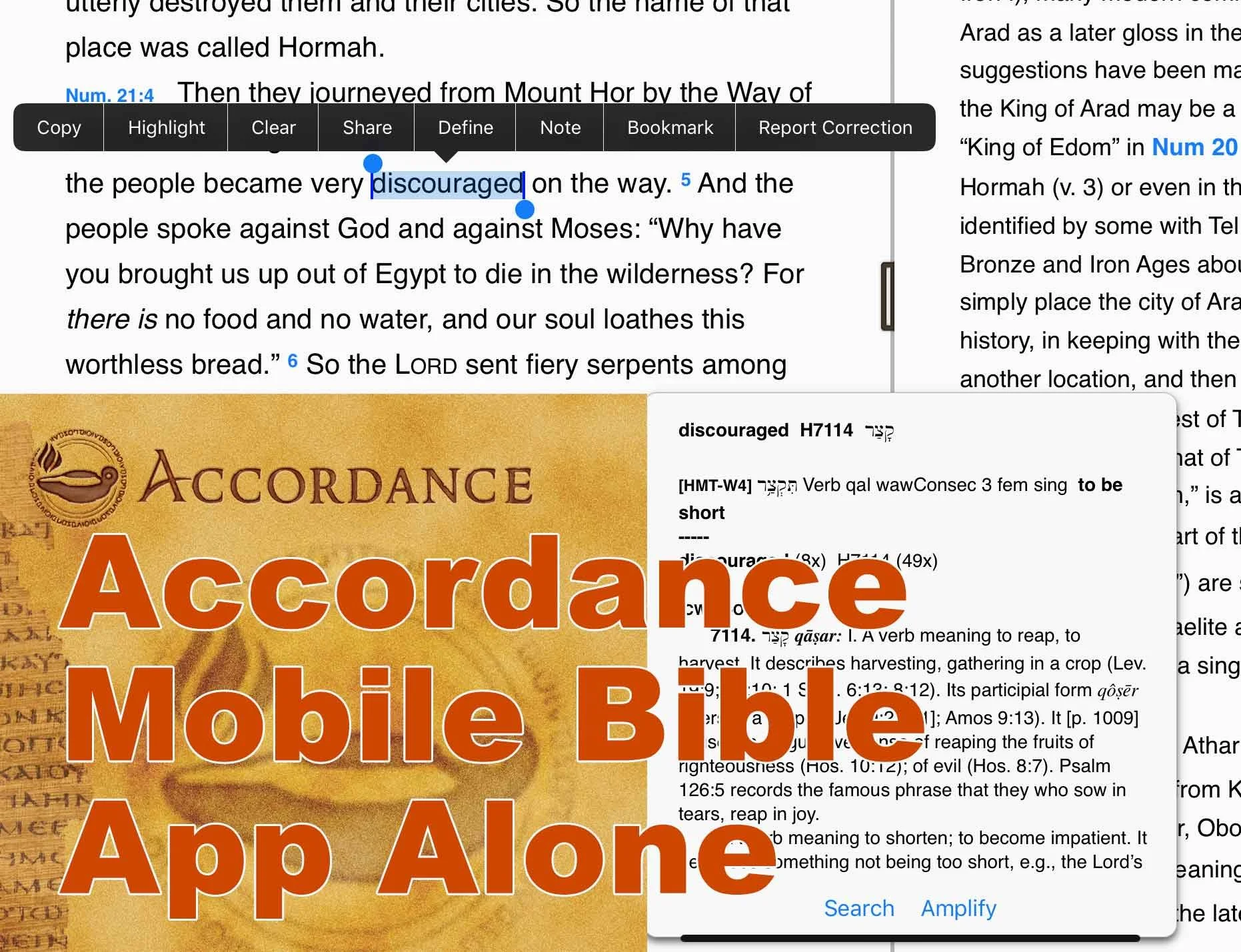
Accordance Bible Software 25 Day Switch Part Two - Accordance Mobile
While switching to Accordance Bible Software for the next 25 days, I will use Accordance Mobile alone as my iPad Bible study app. How does it handle sermon prep?
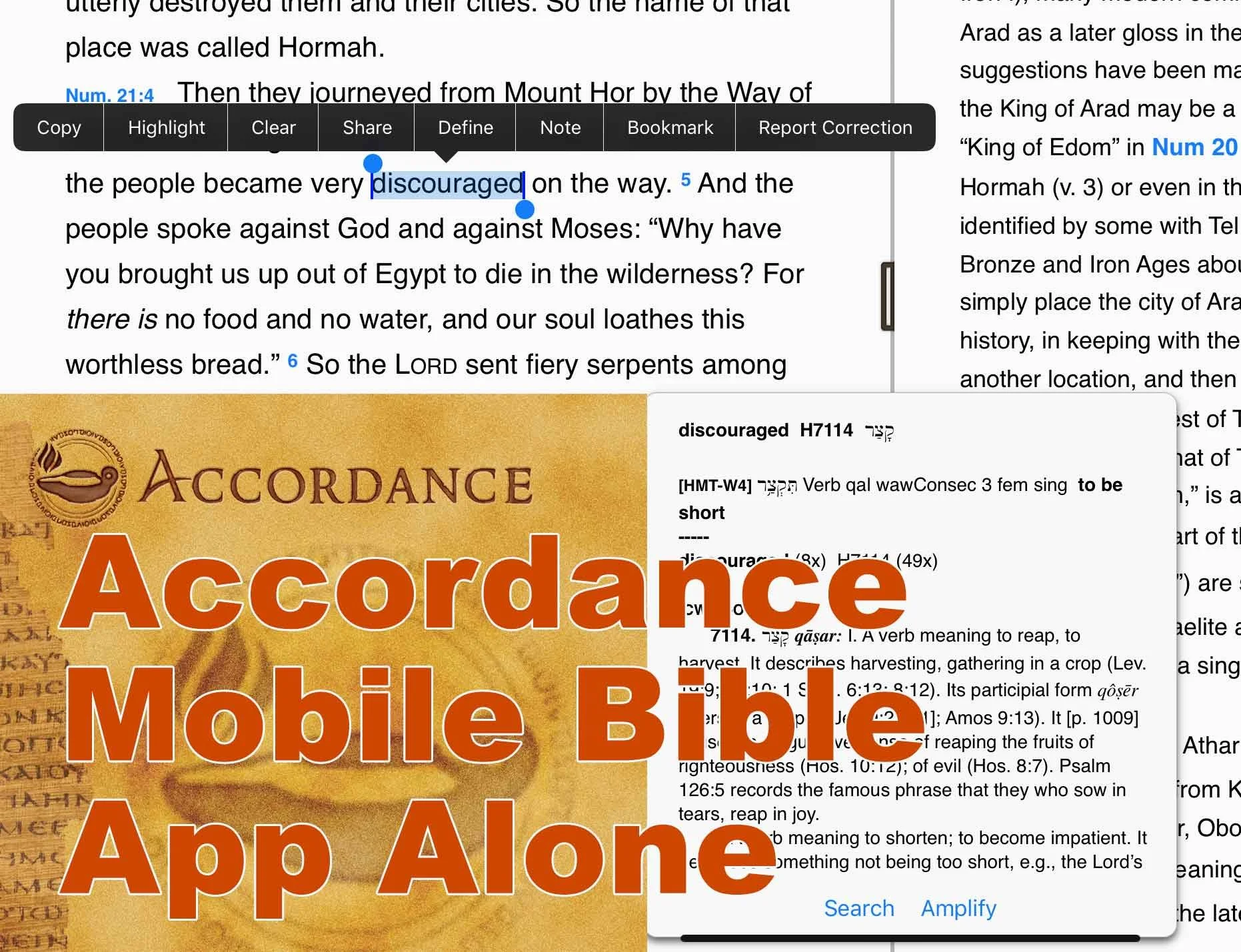
If you read the first post about why I'm testing out Accordance for 25 days, then you'll know I vowed not to open my primary Bible software until it's over. That means I'll use the Accordance Mobile apps instead of the Logos Bible app. My previous entry covered using the Notes feature in Accordance.
Awhile ago I wrote a review of Accordance Mobile for ChurchTechToda.com and gave it a high rating. That review happened while I was also using my other Bible apps. This is the the first time I've used no other Bible app. Accordance Mobile alone! If you want a full review, go to the ChurchTechToday article. Instead this will serve as a comparison. See this as my strengths versus weaknesses of Accordance Mobile.

Please see my review of the NAC Studies in Bible & Theology in Accordance.
Accordance Mobile User Interface
Accordance Mobile looks so simple it will surprise you how many features they pack into the mobile app. It deceptively looks like a simple Bible reader app that also happens to let you open other books. Yet, I recently wrote a sermon primarily using Accordance Mobile to read follow my sermon prep steps which include:
- Reading the text in multiple translations.
- Studying the passage inductively by recording observations in my app's notes.
- Asking key interpretive questions about the text and finding answers in references books, other than commentaries.
- Checking commentaries to make sure my interpretive decisions up to this point are not way out in left field.
- Copying the passage and other supporting verses to my chosen word processor.
- Writing the sermon in my word processor.
- While I probably won't choose a mobile app for 100% of my sermon prep, I enjoyed using Accordance Mobile on my iPad. It works great. Let's start with the ways it excels.
Strengths of Accordance Mobile

All of my books reside on the iPad which makes the app fast. I navigate to a text to study it and the apps jumps to the new spot in my Bible instantly. I keep two window panes open with my favorite commentary in the right side and the Bible in the left. Both books jump to the new passage faster than I can tap the book, chapter and then verse in the navigation tool.

Doing word studies happens with a long press on a word. Above you'll notice I selected the word discouraged in Numbers 21:4 in the CSB. You'll see a popup box with the word study info from your top books. There's also a menu above the word. This menu doesn't help with word studies, but you'll see that you can do other things like "Define" the word in English.
You can also open a Hebrew or Greek text and do the same with Hebrew and Greek words. On those words, tap the Amplify button to see more details. Here you can study the Lexeme, Inflected word or the Root. The first pop up box also lets you choose to search for the word. It will search the English term in hour English text. If you have a Greek or Hebrew text open it will let you search by Lexeme, Inflected form, Root or the Tag.

The will let you share verses. Tap and hold on a verse number to do this. The top of the pop up menu let you add verses to the beginning or end of the chosen verse. That way you can copy a range of verses.
Finally, the Accordance system publishes an excellent collection of digital Bible study tools from every Bible text you probably want to a more commentaries than you can use. They have excellent reference tools and every tool I want to use works in my Accordance Mobile app.
People who want to also make a switch can jump from their chosen Bible software to Accordance by taking advantage of some crossgrade discounts. a crossgrade is like an upgrade, but instead it's buying a book you own in another company's library for a discounted price for use in Accordance. I saved hundreds of dollars over the years by taking advantage of this. I purchased the New American Commentary, Bible Speaks Today and more.
Compared to the Logos Mobile app, Accordance feels simpler and yet has some of the same powerful features. It's also not as cluttered. That said, I suggest the developers consider a few improvements.
Accordance Mobile Bible App Problems
As we noted in the post on Notes, you can't open your User Notes in the right hand window pane and edit it within the pane. Accordance has a real problem with this. You also can't do this on their desktop app.
At least on the desktop app you can open open it, click at an insertion point and start typing and the note's editor window pops up. On the mobile app you have to long press on the verse number and choose User Notes from the menu. Then you have to tap on the name of your User Notes document and it will open a pop up window that covers most of the window.
UPDATE: Please see the user comments below where Rick Mansfield from Accordance tells how to see your text. This makes what I wrote next less of an issue.
The Accordance Mobile notes user interface is a terrible design choice because I can't see the text of my Bible or a commentary while I'm typing in the note. It's the least usable notes user interface of any advanced Bible study app out there.
Since writing my last post on Accordance Notes, I've decided to stop using the notes function built into Bible software. Instead, I've started using Scrivener to record my sermon notes. I'm following a system that my friend a member of the Theotek Podcast team Wes Allen uses. See the video above for how he does that.
Accordance Mobile lacks one feature that I miss from Logos. On the Logos mobile app you can open their Text Comparison tool and read your passage in multiple translations seeing them all on screen at the same time. The desktop version has the new Text Browser tool. Select a verse and choose Text Browser from the Amplify drop down menu to open it.

Accordance added the Text Browser to appeal to Bibleworks users after that company announced they'd stop selling the program.
Logos offers a few other features that we don't find in Accordance.
- New tabbed user interface which lets you open more than two books at one time.
- Guides to help you study a passage or topic more quickly.
- User edited reading plans for Bibles and books.
I don't mind losing these features, but I mention it in case Logos users would feel limited in their study without them.
Olive Tree Bible searches your entire library and presents them in a easily accessible way thanks to the Resource Guide. We don't get anything like that in Accordance Mobile.
Conclusion
The desktop Accordance program goes toe-to-toe with the other Bible programs quite nicely. The Accordance Mobile app still lags behind a little. In spite of that, you can study the Bible using nothing but their iPad app. I wouldn't try doing it all on an iPhone or Android phone due to screen size, but I enjoyed doing my sermon prep last week with nothing but the Accordance Mobile app on my iPad.