


5 Best Linux Bible Apps You Can Use Today
If you're a Bible student and a Linux user then consider these 5 Best Linux Bible apps. We have some good ones.

Linux doesn't get as much attention as Apple macOS, Microsoft Windows, or even Chromecast. However, Linux users love their operating system of choice and Christians can run a group of Linux Bible apps that will help you study God's word. Take a look at these 5 Best Linux Bible apps that you can use today to study the Bible digitally on the lesser-known operating system of choice.
Before we go any further, I have to admit that I'm an inexperienced Linux user. So, you will need to get help with these from other sources. To install them or get them running if you face a glitch, you'll need to find help from Linux power users. I'm not your guy. I'm recommending these Linux Bible apps based on trusted sources and not personal experience.
Sword Project from Crosswire Bible Society

First, I want to share the standard, The Sword Project. The other apps in this roundup all use The Sword Project's book server to download and install Bibles and tools.
The Sword Project offers the books and lets you search the text, including commentaries, Lexicons, and dictionaries in addition to Bible texts.
Crosswire curates a list of Sword Project Linux Bible Apps and apps for other operating systems, like Windows or Mac.
Xiphos Bible Study Tool for Linux

Learn more about Xiphos at their website. The program, formerly called GnomeSword, has a substantial online user manual and a community of users who will also help you get the program running.

Xiphos runs on Gnome desktop. It's based on the Sword Project, which gives users access to a large library of tools for Bible study.

You'll enjoy a tabbed display, quick searching features, an audio reading out loud feature, a parallel mode for comparing translations, and plenty of user-created tools.
Above you'll see a demo on installing Xiphos Linux Bible app on Gnome.
BibleTime Runs on Linux, Windows, and macOS
Next, we have one of the few Linux Bible apps that will run on Linux and the more popular Windows and macOS operating systems. Find it on Github.
With BibleTime, users will have to install the app, and then they will need to add books because the basic installer doesn't come with any. The Settings menu shows the Bookshelf Manager where you can add books.
Like Xiphos, BibleTime uses Sword Project books. That gives you access to a large library of books to use in your study.
Bible Desktop

The Bible Desktop Linux Bible app also runs on The Sword Project engine and gives us a simple user interface to study the Bible.

There's a Bible comparison tool in Bible Desktop that shows you the differences between translations. Pick the base translation like the ESV chosen in the screenshot above. Then choose another translation and it will show the two translations in the first and third column with differences in the center second column.
Users can choose between a window mode or a tabbed mode.
Run Bible Desktop on your Mac, Windows PC, and of course it's also one of our favorite Linux Bible apps.
Logos Bible Software on Linux Through WINE
WINE lets users install Windows software on Linux. Getting these up and running can present a challenge, especially to novice users. However, if you can use Linux, you can likely get WINE working to run Bible software on Linux.
Logos Bible Software works on Linux using WINE, sort of. You can find a long thread in the Logos Forums that cover getting the program to work on Linux.
Go Online and Run a Web-based Linux Bible App
I know. This feels like a cop-out, but the best way to do great Bible study on Linux probably requires nothing more than your web browser.
I created a series of the best online Bible study websites and that still holds up despite one site that's now gone. Wordsearch's Bible site is on the way out.
Bible by YouVersion Downloaded 500 Million Times: 5 Reasons Why
The Bible app from YouVersion, and Life.church announced that people downloaded their app 500 million times. Here are 5 reasons why.
500,000.000! That’s half a billion. That’s how many times people like me downloaded the Bible app from the folks at YouVersion by Life.church. I recognize that I downloaded the app probably 20-40 times alone over the years, but even if the 500 Million downloads represent 100 Million actual people, that’s a lot of people reading the Bible.
What makes this simple Bible reading app so popular that such an enormous number of people installed the app on their iPhone, iPad, or Android device? After all, it doesn’t have any commentaries, Greek or Hebrew word studies, or other theological tools. It’s mostly just a Bible reading app with social media features and sharing built-in to name a few features.

Let me share with you the 5 reasons why users downloaded the Bible app 500,000,000 times. Not only will you learn what sets it apart, but how to get the most out of the simple Bible app.
Bible App is Simple
I usually recommend complex Bible study tools like the apps from Logos Bible and Accordance Bible. If that's too complex I drop to the second tier of apps from Olive Tree Bible, Laridian Pocket Bible, or a few other third-tier Bible study apps. Most of my readers want at least basic original language study in Greek or Hebrew, commentaries, Bible dictionaries, and complex searching. The Bible App includes none of these advanced features and that's why so many love the app. They prefer simplicity over power.
Fire up the app and you'll find the Verse of the Day on the Home tab displayed in the text, visual form, and as part of reading plans that include that verse. There's also a video about the verse (see image above).
Tap on the Bible tab at the bottom of the page to read the Bible in your preferred translation. Users can quickly move to a new passage using the button on the top of the screen. The other top center button opens the library of translations and you can read almost any translation you can think of in multiple languages (see image below).

Other options let users open multimedia resources related to the current passage. You can also change the look of the text...

Above you'll see highlighting (left), a selected verse with the menu that shows the list below, and images that you can put behind the verse text and share with social media or other places (right above).
While reading a passage, tap on a verse to…
- Select the verse
- Highlight a version in multiple styles
- Copy a verse
- Create a visual image of that verse
- Share the verse
- Compare the verse in different translation
- Add notes or bookmarks
- Create a prayer list item
- Find related verse
You will also see little note icons that display translation notes.
If you want to select multiple verses, keep tapping on more verses.
There’s a lot here, but compared to more complex research apps, the user interface is quite simple to use and figure out.
Bible App Includes a Large Collection of Simple Reading Plans and Translations

The Plans tap at the center bottom of the app shows you all the reading plans available in the Bible App (see left image above). Users can find a large collection of reading plans based on topics, books of the Bible, or sections of Scripture, like the Sermon on the Mount.
When users select one of the plans, they can do the following:
- Read the Bible
- Share you progress with friends inside the app or on social media
- Get notification reminders to read your daily reading
- Search for plans
Notice in the image above that you can find Reading Plans in the Discover section too (2nd from left button on the bottom - see image above).
Bible App Shares to Social Media and More
The Bible App not only helps people read the Bible but helps them read it as part of a community. Like other social media networks, the Bible App lets users follow friends and see their progress, Bible images, and more.
Go to the Home tab and choose either Today or Community at the top. The Today screen shows your Verse of the Day, reading plans you’re reading, and suggests people follow, among other things.
The Community tab shows things you’ve shared and what your friends share with others, like their reading plan progress or Bible images. You can then comment or like their content. If you like a reading plan that a friend shares, then you can choose to start reading it yourself.
If you choose something in the app, you can use the phone or tablet operating system sharing features to share to places like Facebook, Twitter, Instagram, or directly via a text or some other direct messaging app.
These social media features might do more to spread the Bible App to others than any other feature. As people share things with friends and family, recipients then choose to download the app.
Bible App Syncs Highlights and Notes Across Devices and Platforms

Most people own a computer, a smartphone, and maybe a tablet. Tech enthusiasts like me might own a few of teach. The Bible App works on all of them. You can install it on...
- iPhone
- iPad
- Android phones
- Android tablets
- Kindle tablets
- The Web via a browser
Whatever you do in the app on a device, like an iPhone shows up on the website, your Android tablet, or your Kindle tablet. All your highlights, notes, and reading plan progress show up on each of these platforms. Create an account and log in on each device to sync the various content or progress.
Bible App Adds Multimedia Like Video and Images
As mentioned above, the Bible App doesn't just show you the text of the Bible. You can also view multimedia content like the Verse of the Day superimposed over beautiful images. View the ones made by the app developers, your friends, or create your own.
If you tap on the Discover tab at the bottom of the main screen of the Bible App, you will see Podcasts, Videos, and images.
The Podcasts include simple things like audio book versions of the Bible read by talented readers. You can also hear traditional podcasts that cover things like Bible teaching, help for teachers, and popular content like J. Vernon McGee’s Thru the Bible in podcast form.
The videos come from multiple sources like The Spoken Gospel, which is a video Bible. You can also see scenes from the popular tv series The Chosen. The Bible Project videos also show up here as well as the Lumo Project, another video Bible in multiple languages. You can spend hours watching the videos included in the app.
Summary
I prefer more advanced Bible research and study apps for most of my mobile Bible reading or and study. But for quick and simple Bible reading and for sharing with others, the Bible App does the best job. Since it’s free, everyone should get it and drive that number far past the 500 Million downloads
4 Best Audio Bible Apps for Android for 2021
Do you love to listen to the Bible? Then we've got the best audio Bible apps for Android for 2021. These also work on Amazon Fire Tablets plus your favorite Android smartphone from Google or Samsung Galaxy. I tested them out on a Samsung Galaxy S21 Ultra 5G primarily, but also on a Samsung Galaxy Tab S7. Give this a read and then download them for a good listen to the good book.
If you're looking for the Best Audio Bible Apps for iOS, then keep reading. These also come with iOS versions.
Bible.is - Our Winner: Best Audio Bible Apps for Android

People who want to listen to the Bible and do little else should look at Bible.is and nowhere else. Users agree with a 4.6 rating in the Google Play Store for this free app. You can also find it on iOS. Just a few of the key features that make it great include the following:
- Listen to the Bible in hundreds of languages with more coming all the time
- Create your own listening plans like you can with Bible reading apps - see the first and third screenshot below
- Share plans with other Bible.is users
- Read along with the audio Bible or just read when you can't conveniently listen - see the middle screenshot below
- Search the Bible by keyword, Bible text and phrases, or other words
- Watch Bible-based films like The Jesus Film

The Faith Comes By Hearing folks respond to user support issues and do a great job of pleasing those who have issues with the app. I've never experienced a problem.
YouVersion Bible App - Best Audio Bible Apps for Android with Social Networking
If you only downloaded one Bible app on your phone or tablet, it likely came from Life.church. Life.church brags millions of downloads and often shows up in the list of top apps on iOS and Android.

The church created the Bible app years ago and keeps developing it and improving it. The app excels as a basic Bible reader app with an elegant user interface. It primarily serves as a Bible reading app but adds audio Bible listening and does it well.
I include it here because of its great social networking features. Share Bible verses in a visual way. If your friends post pretty photos with Bible verses imposed over the top of them, the share likely came from the Bible app.
To use the audio Bible features, open in the Bib reader and you'll see a small audio icon in the top toolbar second from the right. Tap it to show the Bible reader pop up as seen in the left screenshot above. You can play from the current location in the Bible shown in the reader window. The fast forward and rewind buttons go forward or back by a chapter.
The settings at the bottom of the pop-up window control the speed and set a timer for how long the app will read the Bible. There's also a button to hide the controls. If you do, then you'll see the screen on the right which shows you smaller rewind, play, and forward buttons. They function the same way as the larger pop-up window.
Olive Tree Bible - Best Audio Bible Apps for Android with Advanced Bible Study Tools
Olive Tree makes the Bible overall Bible study app on Android and iOS. The app includes tools for advanced language study, commentaries, Bible dictionaries, media tools, and more. In addition, they offer a decent library of audiobooks. Check out the Audio Bibles sold on the Olive Tree website.

Open Olive Tree and go to the library to find your audiobooks. The books with audio show a headphone icon. Tap it to open it. You'll then see the audio controls to go back, play, and go forward. Below that, you'll see a toolbar with volume, playback speed, driving mode, and Bluetooth connection.

If you want to use your app while driving tap on the Driving mode icon. The larger play button and skip back button help you play or go back in case you missed something. The icon with the headphone inside a bookmark icon creates a bookmark so you can quickly go back to the spot in the book.
The Olive Tree app plays Bibles and other books too.
Logos - Best Audio Bible Apps for Android Honorable Mention
I've written a lot about Logos over the years including their advanced mobile app. It includes audiobooks too. Open them from the menu button in the lower right corner of the app. Find a book in your library and open it. You might also want to download the book from the library using the tiny download button next to the book title.

Once the audiobook is open you'll see the playback controls as seen above on the right. You can go back and forward by chapter or in 30-second intervals. Play or pause the book. The Contents button lets you jump to any place in the table of contents. There's also a playback speed control.
Recommendation
The playback interface in Logos offers the most options and controls. However, it's also the most complex of the apps and will overwhelm those who don't want to do advanced Bible study.
Bible.IS is the simplest for people who just want to listen to the Bible. If you also want to read and interact with other Bible readers then use the YouVersion Bible app from Life.church. The best overall mobile Bible app comes from Olive Tree. It's not as complex as Logos, but gives you more Bible study tools than the simpler apps.
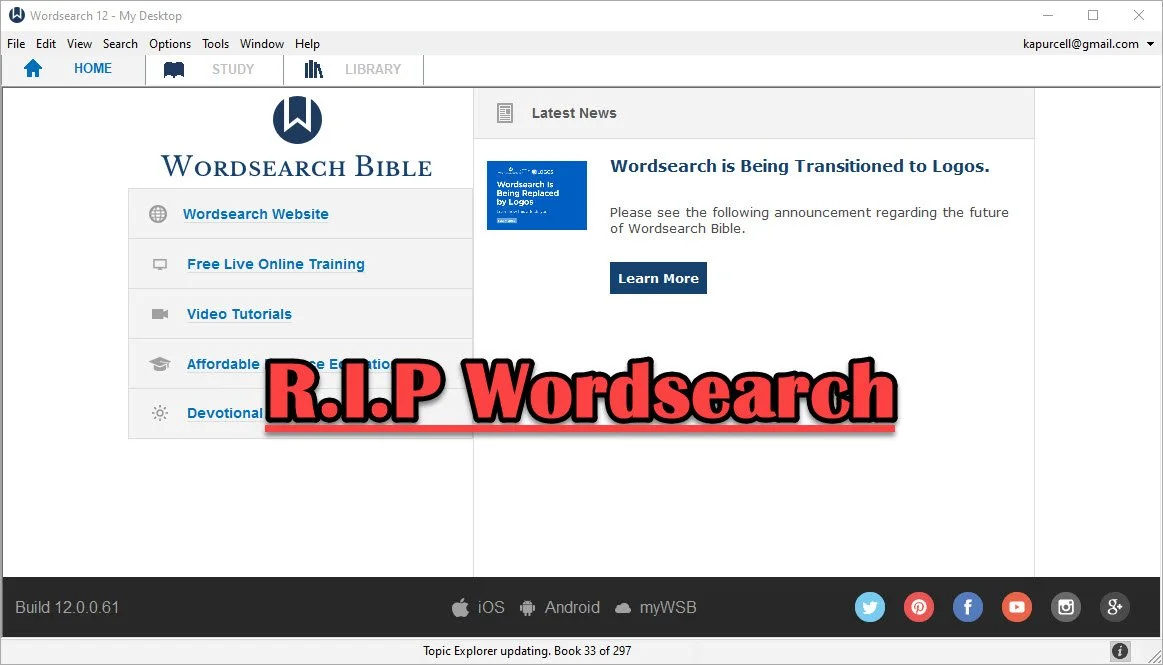
Wordsearch Support by Logos Ended, Now What?
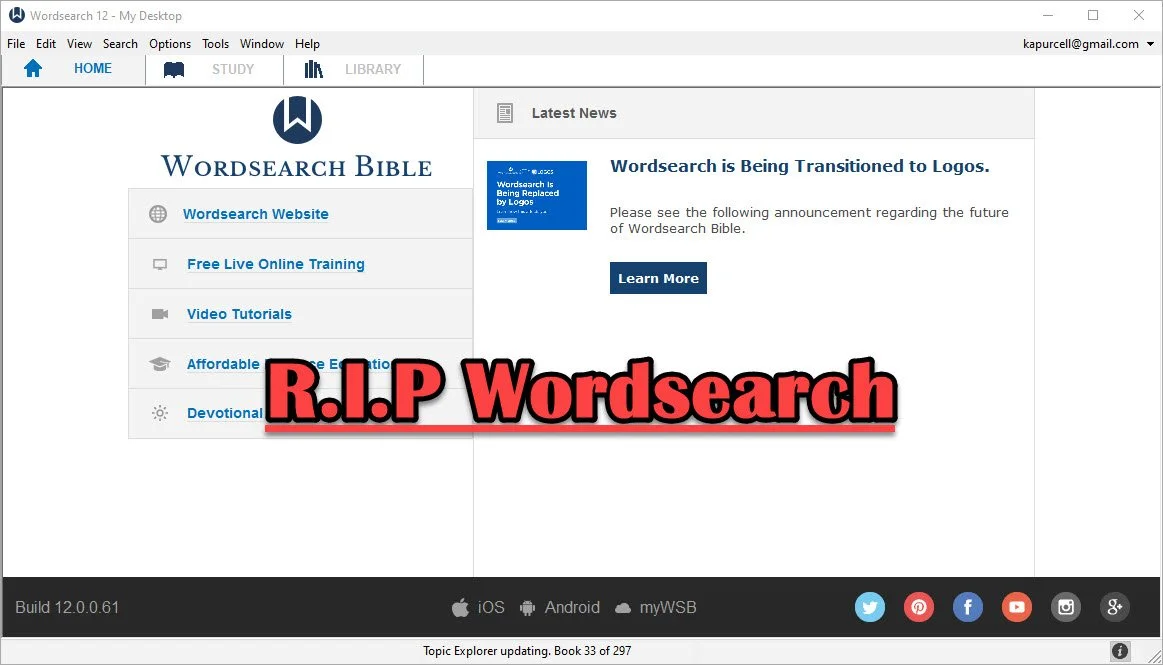
People who used and loved Wordsearch were likely disappointed when Logos and Faithlife bought the company and announced they would eventually shut it down. That time has come so what should a Wordsearch user do now? Here's the best way to continue studying the Bible digitally now that Faithlife and Logos ended support for Wordsearch Bible Software.
Logos Stops Wordsearch Support: What Does It Mean to Me?
Logos announced they planned to stop supporting Wordsearch, but that doesn't mean you can't use the software. You can. Just don't uninstall it or buy a new computer unless you have the installer and your books backed up.
Logos sent out an email to Wordsearch owners that said:
- You will not be able to download the desktop and mobile apps in the future
- You will not be able to download your books to the desktop/laptop or mobile Wordsearch apps.
That's frustrating if you want to keep using Wordsearch after buying a new computer, phone, or tablet. You'll need to find a new different way to get access to the program or start using Logos or some other app or program.
On your desktop or laptop computer, you can do a backup of your computer that includes your installation of Wordsearch and find a way to port it over to your new computer or a computer that you had to reformat or erase. That's more complicated than we have time to discuss in this post. A Google search will likely find dozens of options for Windows or Mac users.
Wordsearch users can also keep using the program on their current computer, phone, or tablet. The company won't cripple Wordsearch apps for software already installed. So keep using it knowing you won't get app or book updates. You also can't add new content, so if that commentary series you love gets a new volume, you'll have to find it in another format to enjoy it digitally.
Start Using Logos Instead of Wordsearch
Logos would love for you to start using their software. That's the whole reason they bought out Wordsearch, to get their users and their library of books.
If you want to start using Logos, then go over to the Logos website and see what version of Logos they gave you when they bought out Wordsearch.
In addition to a version of Logos, you will also get most of your books from your Wordsearch library in Logos. They will download after you install Logos on your computer or mobile device. A small percentage of books won't make the trip over to Logos.
See our post on using Logos and setting it up like Wordsearch.
Switch to Accordance
The best alternative comes from the folks at Accordance Bible Software. They offer a complex and powerful software program that brings you every feature you need to study the Bible at a scholarly level but also works well for pastors, teachers, and lay Bible students.
Switching from Wordsearch will cost more than going to Logos since Logos offers free software and gives you most of the books you own in Wordsearch format. However, you may not want to use Logos. You can get the $200 Crossgrade for Accordance. Crossgrades take the term "upgrade" and marry it with cross-over to form a crossgrade.
In addition to the Wordsearch crossgrade, you can crossgrade many of your books. Just contact Accordance to learn what it will cost. In both cases, you'll need to fill out a form proving you already own either Wordsearch or the books you want to buy via crossgrade.
Other Bible Software Options

Logos and Accordance aren't the only games in town. You can also find great options from the following:
- n Olive Tree Bible - Olive Tree provides a decent desktop or laptop computer program, but also has the best mobile app you can get on iOS or Android. They sell a lot of books too.
- Laridian PocketBible - You won't get as many books with Laridian as you will with Olive Tree, Accordance, or Logos. However, the developer does a nice job of creating a stable platform with some unique features, like showing 4 or more window pains on mobile, something can't get from any other app that I know of. With Book Builder you can make your own books for PocketBible on Android, Windows, iOS and Mac.
- e-Sword - The long time free Bible study program from Rick Meyers will seem simplistic compared to the other programs in this article. However, if a user doesn't like Logos and can't afford the others, then free books from e-Sword will help you with your study needs until you can afford something a little more advanced. Some Wordsearch users will find that it's all they need. If you want some modern Bibles and books you can buy them from eStudySource.

Recommendation
What should you do if you were a Wordsearch user who wished they were still in business?
- Keep using Wordsearch. You can still use it as long as you don't change computers and even then might be able to jump through some technical hoops to get it to work on a new computer.
- Go ahead and get Logos installed, if you have space on your computer's hard drive. You can also install it on your mobile devices. If you used the minimalist Wordsearch mobile apps, you will find that Logos does so much more. This will confuse some users who were Wordsearch's simple book reader app. But most will view it as a huge upgrade on mobile. Spend time about Logos until you feel comfortable using it for your digital Bible study.
- Get free versions of Accordance, Olive Tree, e-Sword, or Laridian's PocketBible. Try them out and see which one you like best. Then start looking into getting the books you need for your study.
Mobile users should look at Logos, Olive Tree, or Laridian first. They are the best mobile apps for serious Bible study. Accordance gets honorable mention if you are using iOS, but Android users should look elsewhere because Accordance on Android is too limited right now. They plan to upgrade making it more useful, but Logos, Olive Tree, and Laridian are so much better on Android.
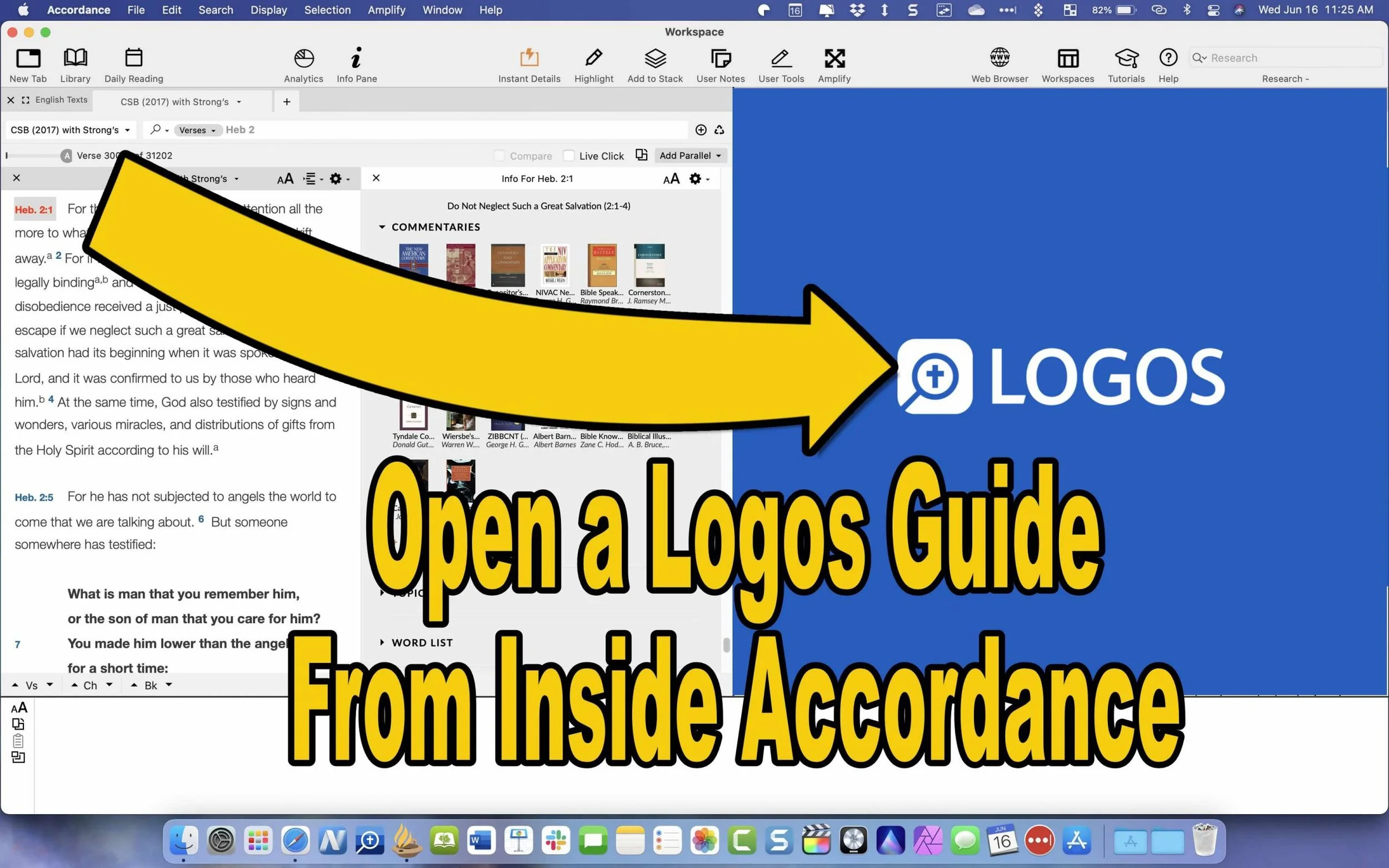
How to Use Accordance Amplify to Website to Open Your Logos Library
Did you know you can open a Logos Passage Guide inside Accordance using the Accordance Amplify to Website? We'll show you how.
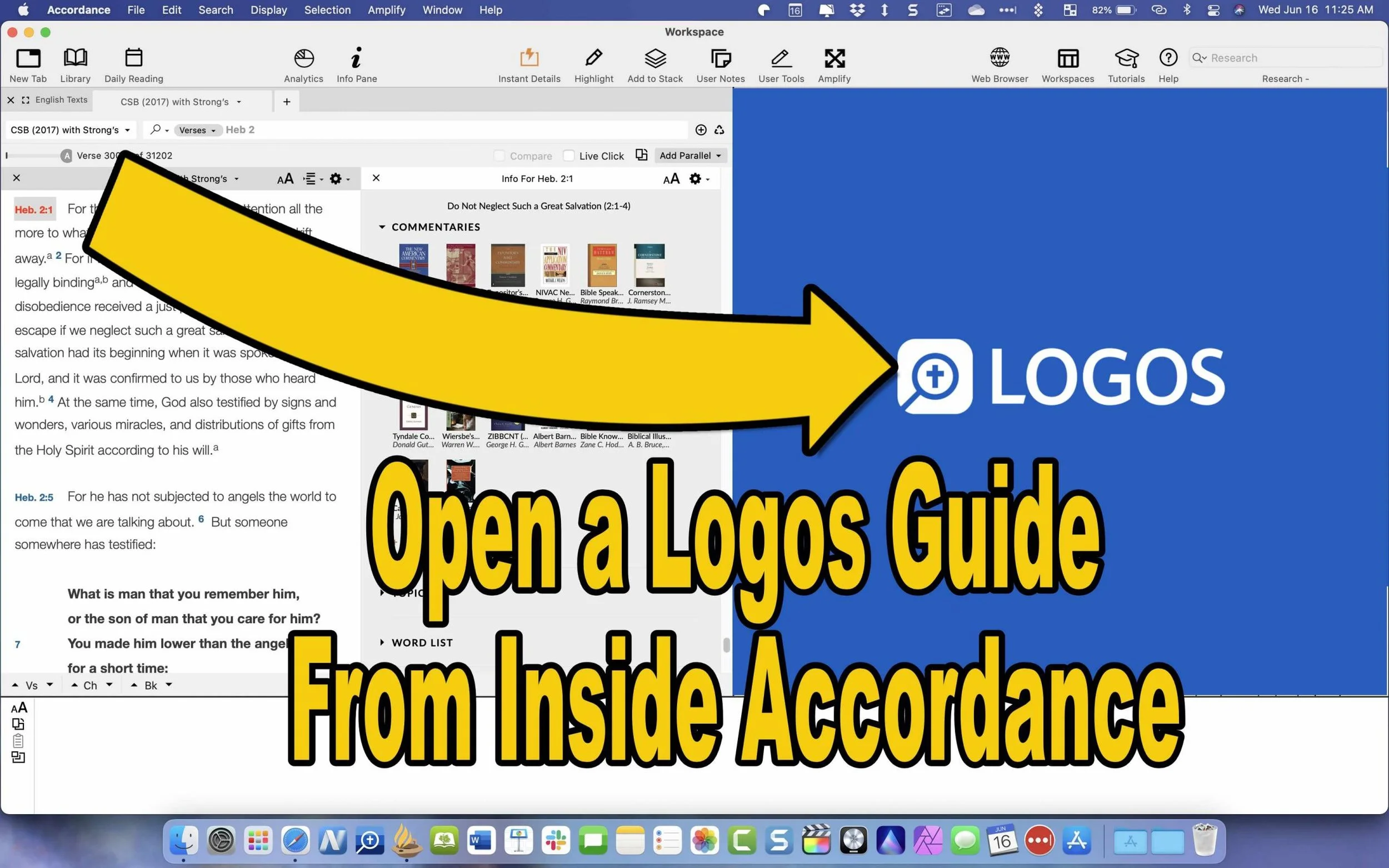
Accordance Bible Software will let you use their Accordance Amplify to Website feature to open other websites while using Accordance to research Bible studies. With these features, people with books in Logos Bible Software who have access to their Web App will let you access your library inside Accordance. First, we'll show you how to set this up and then how to use it.
Use 'Accordance Amplify to Website' to Open Logos Guides
Accordance includes two awesome features that make it possible to open a Logos Passage Guide from inside Accordance. The Accordance Amplify to Website feature will help you. Here's how to add Logos to the menu in Accordance.
To add Logos, you'll have to add a few things to Accordance. I found out about this in the Accordance forums, which are a great option for learning how to use Accordance features and asking for help in using the software.

Open Accordance Preferences from the Accordance menu item in the upper left or by using the keystroke CMD+,. Next, click on the External Websites item on the left side of the Preferences window. Thanks to Accordance user Paul Meiklejohn for these steps.

Then choose the New button to add a new link.
Click on New at the bottom of that box. A new box pops up where you can add your website links so you can use the Accordance Amplify to Website feature to open the Logos Web App.

Now use the links you'll find from the Accordance Forums. Here are a few that I added for Logos.
- Passage Guide: https://app.logos.com/guides/passage?layout=reading&reference=***
- Word Study Guide: https://app.logos.com/guides/word?layout=reading&reference=***
- Exegetical Guide: https://app.logos.com/guides/exegetical?layout=reading&reference=***
- Search Logos: https://app.logos.com/search?layout=reading&q=***&resources=yourBible&tile=right
The above came from Accordance user jarcher who posted them in the forums.
Some other links you'll find there include:
- Blue Letter Bible: https://www.blueletterbible.org/search/preSearch.cfm?criteria=*** (from user dandennison)
- Bible Gateway: https://www.biblegateway.com/quicksearch/?quicksearch=***&qs_version=NET.(from user Drewster; change the last three letters to your chosen translation, like NIV or CSB)
Use Accordance Web Browser to Open Logos Webapp
Now that we've added the sites to Logos and other sites, how do we use these? Open a Bible in Accordance and select the verse along the left. Then right-click the verse, and a large pop-up menu appears. Next, click on the Website in that menu. Choose your new item added in the step above.

For example, in the animate GIF above, I selected Hebrews 2:1 and then opened a Passage Guide in the Logos Web App.
Have you created any Accordance Amplify to Website links that aren't listed above? Then, comment below with your chosen link and let us know how to use it in Accordance.

5 Ways to Build a Digital Theological Library
Here are 5 tips to help you save money while you build a digital theological library for your Bible study and research.

How big is your Digital Theological Library compared to your traditional book library? When I went to Southeastern Baptist Theological Seminary back in the mid-90s, our seminary President told us we should graduate with a library of at least 2,000 books. Compare that to the size of my digital library, and the digital library now blows Dr. Patterson's challenge away! In Logos, I own nearly 8,000 books. Add to those libraries in Accordance, Olive Tree, Laridian PocketBible, and other mobile apps, and it probably jumps to 5 times Dr. Patterson's 2,000 book library count challenge.
While my total book count soars past the 2,000 books my seminary President recommended, how many of those books have I read or do I use regularly? Far fewer! I've wasted a lot of money and hard drive space on books I don't use or need.
Other people struggle because they can't afford a huge library of books. They only own a selection of public domain books in e-Sword or some other free or incredibly low-cost app or program. How can a person like this grow their library to a useful size?
I've got 5 helpful strategies to build a digital theological library. Follow these and you won't overbuy nor will you struggle with a meager library that limits your digital Bible study research.
Don't Overbuy Your Digital Theological Library
Video by Matthias Groeneveld from Pexels
It's tempting when there's a great deal on a new collection of books or low-cost add-ons to your digital theological library. However, many collections will include a large number of books, but few that you'll actually use. I took a look at a collection from one major Bible software maker. It costs $1,000, but that price adds over $10,000 worth of books. You'll get 250+ books. They offer a monthly payment plan under $60. In the collection, you'll get...
- 17 English Bibles - only 5 of which would I ever use
- 137 Commentary Volumes - but I'd only likely consult 3 of them
- 11 Bible Dictionaries - 3 of which looked valuable to me
- 200+ Other Books - only about a dozen of these seemed valuable to me
Peruse the major Bible software maker's websites, and you'll find a similar situation. Tons of books bragging thousands of dollars in savings, but about 10% are books most average pastors or Bible teachers will use.
Buy a base package, but don't overbuy. Get one that gives you all the features and an introductory collection of Bibles, commentaries, dictionaries, lexicons, and more. Resist the temptation to buy expensive collections to get more total books.
Try to Focus on One Bible Software Platform
At one time I owned...
- Logos
- Accordance
- Bibleworks
- WordSearch
- Laridian
- Mantis Bible
- Olive Tree
- QuickVerse
- PC Study Bible
- Tecarta
I installed all of them on my computers, tablets, and phones. However, I never really used them all. However, I felt like I needed my favorite Bibles, commentaries, and language tools in each of them. That leads to buying books multiple times.

I'm unique because I write about Bible software. The average person should focus on one Bible software platform and use it on all their devices. That way, they avoid buying too many programs or buying more than one copy of books.
Which Bible software platform should people buy? If you own one now, then stick with it. That changes if you're unhappy with what you use now. I can't recommend one in this space. However, let me offer suggestions.
- Make sure your chosen software runs well on all the platforms you use. For example, one maker has great tools for Mac and Windows, but their mobile software's not as good. Another one focused on mobile, but the Mac or Windows programs don't run well. Nobody makes an excellent Linux program.
- Look for a program that lets you buy books and gives away the book reader or charges for one platform but doesn't make you buy one program for each operating system.
- Try before you buy so you can test what each program or app does. Buy the ones that do what you want really well and don't settle. Take your time to buy the right platform for you. Scholars should avoid mobile-first applications. People who only need a Bible reader with dictionaries, study Bibles, and maps, should avoid paying hundreds for a complicated program.
Find Ways to Use 2 Bible Software Programs Together
Believe it or not, you can run 2 programs together. Why would you? Maybe you already own one program but see features in another program or app. It's possible that some books don't come on your favorite program or app. You may have to use two to get all the books you need for your work.

Look for ways that the programs can work together. This really applies mainly to two programs, Accordance, and Logos. Accordance includes a built-in web browser. Logos offers a web-based version of their program. So, you can open the Logos Web App inside Accordance. I wrote about this previously. However, the instructions are slightly out of date. But you can read it to get the basic gist of how to run Accordance and Logos together.
Save Money With Packages, Deals, and Training Opportunities
Earlier, we said to avoid packages full of books you won't use. However, you can save some money by finding collections or packages of books that you will use. If you see a package that includes many books that you will use, get it and save money.
Also, sign up for alerts to learn when your software maker offers specials or deals, including free books. Most of them offer a freebie occasionally, and some offer them weekly or monthly. Also, you can save money by regularly looking at their website or subscribing to email notifications.
Take advantage of training deals. Some companies offer deals for people who sit through an online live webinar or attend a training conference. See if your software maker offers these kinds of deals. You'll learn more about using your program, and you'll get a deal on some books you want to buy.
Finally, you can sometimes get hidden deals by contacting the software maker's sales staff. For example, I have a salesman with one program seller, and he often knows about specials that don't show up on the website. So he sends me an email when one of these deals shows up.
Don't Forget Free Content on the Internet or eBooks
Using one program for all your Bible study needs feels convenient, but it can cost more. Plenty of websites offer free content that can help you study the Bible, especially if you're not a Bible scholar. Find free websites like those in my roundup of the 6 best Bible study sites, part one and part two.
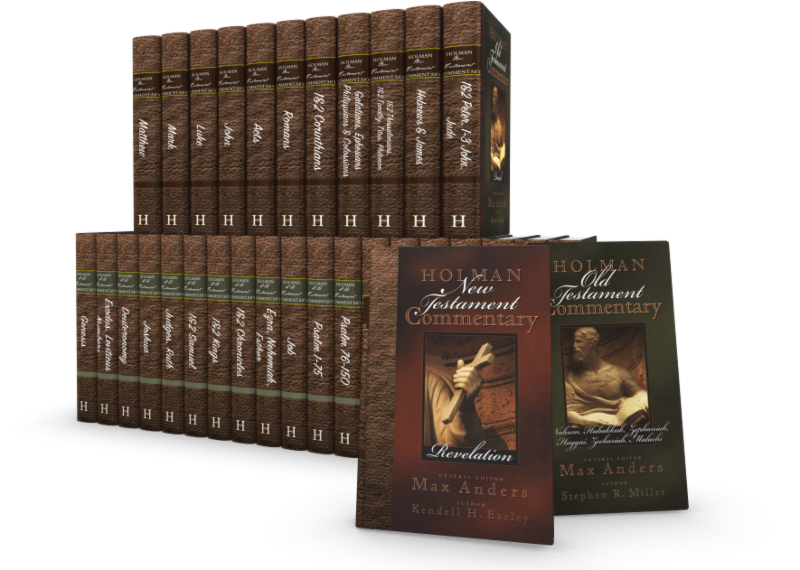
Accordance Deals on B&H Publishing Books
You can save a lot on these wonderful Accordance Deals on B&H Publishing works. They include commentaries, practical books, and theologies.
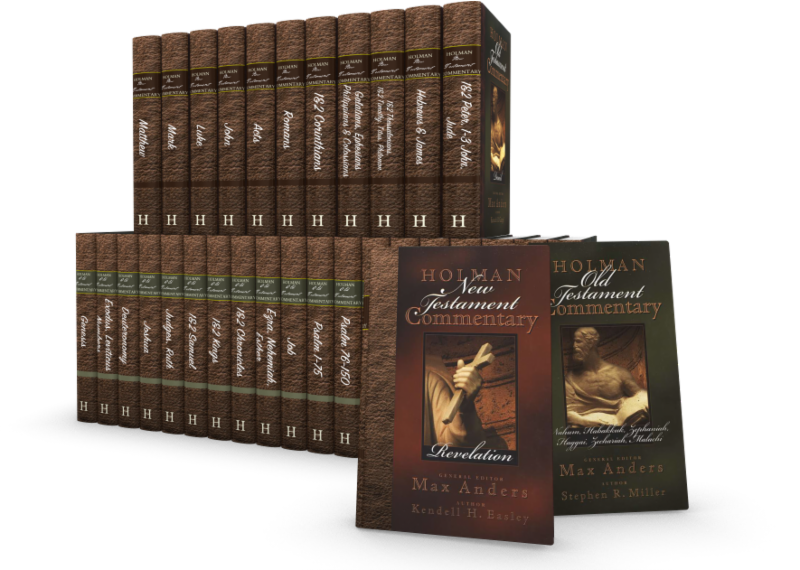
Accordance users know that the company produces great digital Bible study tools, and now you can add to those with some Accordance Deals on B&H Publishing. I've used many of these and even did a review of one of these sets. Here's a look at what you can get with these great Accordance Deals.
Accordance Deals on B&H Publishing Commentaries
These commentary deals will save a nice chunk of change.

- New American Commentary Series - OT Only $149, NT Only $99.90, and Full NAC Series $199.
- Christ Exposition Commentary - $99.90
- Holman Bible Commentary - Old and New Testament $79.90
- Exegetical Guide to the Greek New Testament - $99.90
- Teacher's Bible Commentary - $19.90
Those who can afford to should get the entire NAC series. It's one of my favorite commentary series. I own it on every platform that I use, and the Accordance Deals on this make it a no-brainer. Get the full set for $400 off their regular price.

I also like the Holman Bible Commentary. It's a nice tool for anyone who teaches Bible studies because each passage of scripture contains some illustrations to introduce the chapter's topic. Then you get exposition and application.
The Christ Exposition Commentary is decent. It seems like a collection of sermons organized into a commentary, which can help preachers working through books of the Bible in the series.
Other B&H Publishing Accordance Deals
Here's the list of the other Accordance deals you can find on their website. First, we'll look at new B&H Publishing releases...
- Theology for the Church - $20.90
- Theology of the Reformers - $17.90
- The World and the Word: An Introduction to the Old Testament - $15.90
- Letters to Timothy: A Handbook for Pastors - $11.90
- Engaging Exposition: A 3-D Approach to Preaching - $16.90
- Anointed Expository Preaching - $14.90
- The Great Commission to Worship - $11.90
- The Ministers Manual for Funerals - $9.90
Of the above, I'm most interested in Letters to Timothy. It sounds like a useful tool for pastors who want a Biblical approach to the ministry.
I've read Anointed Expository Preaching. I don't recommend it. Olford's too captivated by alliteration, which clouds understanding instead of improving it. Check out Bryan Chappell's Christ-Centered Preaching instead.
Book Sets on Sale in the Accordance Deals
The NAC studies in Bible & Theology comes with 11 volumes of excellent content about various theology and Biblical studies subjects. It costs $99.90 as a set, and I recommended it in my review last year.
The Perspectives Series Bundle costs $99.90 which gives you a set of debates from leading scholars on subjects in Biblical studies, theology, and pastoral ministry. The books present a point-counterpoint approach to the topics.
The "Is" Series Bundle comes with three books including...
- Evangelism Is...
- Ministry Is...
- Pastoral Leadership Is...
Each book covers the topics in brief chapters on each aspect of the three topics. They explain the aspects of the three parts of ministry.
18 New Features in Logos 9.5 Update
Faithlife recently released a Logos 9.5 Update to their popular Logos Bible Software. It comes with 18 new features and updates.
Logos 9.5 Update came out recently, and it brought some interesting new features and fixes. Here's a list of the X new features in Logos 9.5 that you can enjoy right now by updating your copy of Logos. If you're not yet running Logos 9, now's a good time to update. See my 6-month later review to get a 15% discount until June 15, 2021.

Download and update inside Logos 9 using the Update Now command in the Command Box. It sits on the toolbar on the left side with the big green GO button as seen in the screen shot above.
Counseling Guide Improvements

- New Journals Guide Section
- New Lectures Guide Section
- New Web Resources Guide Section
- New Bookstore Guide Section
- More Link takes you to Monographs and Dictionaries Sections.
Factbook Improvements
See our post about how to use the new Factbook
- Added the ability to see your results in the autocomplete drop-down when there are no results in your localized language.
- Added a keyboard switcher to the Factbook auto-completer.
- Improved the transliterations in Factbook autocomplete

My Library

There's now a new facet in the My Library for Factbook in the tabs for Yours and Store, which refers to books the user owns or books from the Logos store. So first, open the Library, and you'll find these tabs in the upper right part of the window on the toolbar. Next, open the Facets list by clicking on the Facets button, which looks like three horizontal lines next to the search box in the Library window.
When a user clicks on the "more:" link in the Facets list, it adds up to 100 new items instead of just 50 as it previously did.
Other New Features in the Library
From the Logos 9.5 Update wiki...
- Added support to persist Library settings in Favorites, Shortcuts, History, and Bookmarks.
- Added support to retain the selected tab and filter state when copying the panel URL.
- The update moved the Language facet to the top in the Store tab.
Resource Info Panel Improvement

If you use the reading plans in Logos 9, you'll love the new feature they added to the Resource Info Panel in the Logos 9.5 Update. First, open a book and click on the resource panel by clicking on the three vertical dots button at the right end of the book's toolbar. Then, click on the Start reading plan button in the list.
Sermon Builder Improvements
In this version, you can now edit passage blocks in the Sermon Builder. This also works with quote blocks. When you hit Enter, the cursor will leave the blockquote box. Also, Logos will now auto-publish the date changes on a sermon's occasion.
Two other minor updates include a new Store button on the toolbar. This is a little annoying because it takes up space that may be precious to users on smaller screens.
Before the Logos 9.5 update, when you created a customized guide using one of the default guides as your starting point, Logos never added new sections in later updates. Now, if you add sections or remove sections from the default guides, then Logos will not only keep your changes, but add anything they added to the default guides. New things added in future updates would not be added to your customized version, but Logos fixed that in this update.
6 Tips for Productivity in Ministry
You can waist time or excel at productivity in ministry. We have 6 tips to find the right balance between productivity without workaholism.
Everyone wants to achieve a level of productivity in ministry. Recently the Theotek podcast covered this subject with 6 tips for ministry productivity. We didn't cover things like use To-Do lists or the best calendar apps. That's easy to find other places. Instead, we focused on ways to make yourself more productive in ministry. These are for pastors or others serving the church on staff, as a volunteer, or in an organization that supports the church as a para-church organization.
Our 6 Tips for Productivity in Ministry comes from the latest Theotek podcast episode of the same name. Kevin Purcell and Rick Mansfield share 3 tips each to help make you more productive.
Always Have a Backup Plan
Rick Mansfield told us a story of how he used the Kobayashi Maru scene from Star Trek to cheat the system when a professor tried to test his preparedness while he was presenting in a class during his college years.
If you're using technology in ministry, ask yourselves, "What if the technology doesn't work?" Pastors need to create a backup plan. When might this apply?
- When you're preaching from your iPad or another tablet, have a paper copy of the sermon notes.
- If you plan to teach using a visual presentation, make handouts if the tech doesn't work.
- While driving to a new location, use GPS on your phone. How will you get to where you're going?
Productivity in Ministry Using Bible Software
Use your Bible software's research tools to quickly search for all the content related to your preaching passage. Here's what that means in the top Bible software research programs.

- Accordance - Info Pane shows your passage in your Commentaries, Topics lists, Word lists that you can search, Study Bibles, your own tools that you create and then define.
- Logos - Guides that search your whole library or parts of your library depending on the guide you're using, like the Exegetical Guide (Greek and Hebrew tools) or the Passage Guide (varied tools that help you study a passage).
- Olive Tree - Resource Guide finds content for the current verse displayed in the Bible window in all of your various library tools like commentaries, Bibles, topic lists, and more.
- e-Sword - 4-pane view that shows your passage in all translations, all your commentaries, dictionaries, and notes all in tabs to show every book installed.
If your preferred Bible software isn't listed above, search your help features or comment below, and we'll try to help you find the equivalent feature in your preferred Bible software.
Learn Your Professional Tools Like a Pro
Rick shared that pastors and ministers should learn to use their professional tools like a professional. For example, if you're a preacher and you use Bible software, then take advantage of the high-quality training available for free from companies like Accordance, Logos, and Olive Tree.

- Accordance offers excellent live webinars, and if you participate, you'll also get some discounts on new books or resources.
- Accordance also has what they call eAcademies, which show practical ways to use Accordance Bible software in topics related to the software. For example, they offered an academy called "Hebrew Fundamentals: The Participle" in May 2021. You can still find these online.
- Accordance Tutorials Feature built into the software shows you how to do things from beginner to advanced options.
- e-Sword has a Training page on their website. And they let you download them so you don't need to maintain an Internet connection to view their training.
- Logos has a support site too, and it includes Logos Training, which shows you how to use all the features with videos.
- Morris Proctor is the official trainer of Logos and he hosts live camps where users can get a crash course in using Logos. He also offers a subscription site called MP Seminars, which costs $20/month, and you can watch all of his training videos. If you would like to know more about this service, check out my review.
- Olive Tree doesn't offer as many avenues for training. You can take a look at their Help site.
- PocketBible from Laridian has some online help at their FAQ site.
Do you use church management software? Maybe you don't have to maintain it or work with it, but you should still understand all it can do. Go to your company's website and find some training to familiarize yourself with the basic functions. Add to that your worship presentation tool.
Don't forget that you don't just use Bible, church, or worship software. We recommend two other useful sites for more common software, like your computer's operating system, creative editing and creation software, and your office suite. First, YouTube is free. You can probably find some videos teaching you how to use your software. Second, take a look at LinkedIn Learning. It used to be called Lynda Learning, named after the founder. They host extensive, professional videos on using all kinds of tools like Adobe products, Microsoft products, and more. It cost about $30/month.
Remember the 4th Commandment
Remember the Sabbath day, to keep it holy. Six days you shall labor, and do all your work, but the seventh day is the Sabbath of the LORD your God. In it you shall not do any work, you, or your son, or your daughter, your male servant, or your female servant, or your livestock, or the sojourner who is within your gates. For in six days the LORD made heaven and earth, the sea, and all that is in them, and rested on the seventh day. Therefore the LORD blessed the Sabbath day and made it holy.
Exodus 20:8-11
Few pastors or ministers would consider killing someone or having an affair. They'd be embarrassed to learn that someone discovered they lied or lusted or coveted their neighbor's wife. We would never admit idolizing any other thing as a god. However, we seem to brag about working too hard and neglecting the 4th commandment.
We pastors and ministers almost brag about neglecting weekly rest, relaxation, and recharging as the 4th commandment intended. God rested to remind us we need it. So rest regularly. Unplug and disconnect from anything that gives you stress.
How can tech helps us keep the 4th commandment? First, don't answer your phone or text messages unless they are immediate emergencies. In other words, when a member is on a deathbed, you probably need to jump into ministry mode. For example, suppose the youth room has a toilet leaking. You might need to rush to the church building. However, if a member wants to complain, they can complain in your office on Monday afternoon or after the midweek prayer time. So, use your phone to schedule meetings and set reminders.
Use your phone or tablet to find ways to schedule or plan vacations or weekend day trips on Saturday or on Monday.
Can you think of other ways that tech will help you rest, relax, and recharge weekly? Let us know in the comments below.
When Possible Don't Let Tech Replace In-person Ministry
People who enjoy or love technology let it replace face-to-face ministry. For example, during Covid, we had to separate and use Zoom for meetings or make calls instead of visit people in their homes or at the hospital.
Now that most of the Covid restrictions are living, we should try to minister in person. Don't let tech replace personal interactions.
Find Extra Time During Time-Wasting Activities
This sounds crazy, but you waste a lot of time that robs you of productivity in ministry like...
- Waiting in the car to pick up the kids
- Driving down the road
- Waiting for someone to arrive at a meeting
- Sitting alone at lunch, breakfast, supper, or snack time

You get the idea. Use these times for more than checking email, Twitter, or Facebook. Always have your phone ready to open to a book or your current preaching passage. Take five minutes to do some word studies. Highlight, take notes, clip content, or copy/paste to a note document so you can later find the research.
You can also listen to books from Audible or even audiobooks in Bible apps. I seldom turn on my radio in the car. Instead, I hooked my phone up to the Bluetooth in my car and mounted a Magsafe Apple Charger. I snap my iPhone 12 Pro Max onto the charger and unlock the phone and open up my audio listening app of choice.
The worst time sucks for audio include podcasts that aren't productive. Find good sermons or leadership podcasts. Or listen to books that don't need your eyeballs to gain benefit. I love biographies, history books, and stories with redeeming quality.

3 Great Logos Deals You Can Get Right Now
Logos Bible software users can get 3 great Logos deals right now.

Logos Bible software users can get 3 great Logos deals right now. The first one is an older deal that remains in place until June 15. The other three just started this June.
Do you use Logos Bible Software for your study? Logos 9 is a great package to study the Bible personally, for sermons, Bible studies, teaching, preaching, and for your scholarly study.

Save 15% on Logos Deal on Logos 9 Base Package Sales
We shared last month during our 6-month later review. You can get 5 free books from a select collection of titles plus get 15% off Logos 9 Base Packages. Here's the link to get the deal.
The base packages will let you upgrade to Logos 9 if you haven't already. If you did, you can jump up to a higher level or get the next level for your denominational base package.
50% Off Eerdmen Publishing Resources for Logos

Check out these great deals and add to your research or study library books like...
- NICOT and NICNT - a great in-depth commentary series on the Bible with "thorough and modern scholarship" on the books of the Bible covered by the New International Commentary series. You save over $600 off the $1599.99 regular price.
- Eerdman's Biblical Reference Collection - resources on language study, additions to the Factbook, and the Theological Dictionary of the OT and NT. The collection retails for $1,138.99, but you can buy it in this sale for $569.99.

- Theological Dictionary of the OT and NT - a great set for theological linguistic research and study. It normally costs $849.99, but with this Logos deal, save 40% and pay $509.99.
- International Standard Bible Encyclopedia Revised - ISBE was a standard reference for almost any important word or topic in the Bible with a huge collection of 1,500 photos and 342 maps. Instead of paying $129.99, you only pay $77.99.
- Two Horizons Commentary Series - get 23 volumes with excellent biblical exegesis and theological study. It covers the Bible paragraph by paragraph rather than verse by verse. Pay just $249.99, saving 28% off the $349.99.
Logos Deal on Free Book of the Month
Every month Logos offers a free book of the month, where users can save and get a free book. Sign up for the email to get the book. You can also get other books drastically discounted. For example, this month get...
- Hard Sayings of the Bible - explains over 500 passages difficult to understand. Free
- The Spirit of Grace - part of the Christian Belief for Everyone Series, which gives readers an accessible explanation of the doctrines of the faith. This is the 4th volume covering "the Holy Spirit, the holy Catholic Church, the communion of the Saints, and the forgiveness of sins." $.99
- Psalms: An Introduction and Commentary - part of the Tyndale Commentaries series. $1.99
- The Person of Christ - focuses on the person of Christ in the history of church doctrine. $2.99
- 2 Corinthians The IVP NT Commentary - part of this commentary series and covers the book in a practical and theological way covering passage by passage comments. $3.99
- The Temple and the Church's Mission: A Biblical Theology of the Dwelling Place of God - G.K. Beale discusses the OT tabernacle and temple as symbols of the indwelling of Christ and talks about how this applies to NT understanding thanks to Christ. $4.99
- The Bible for Everyone - a new version of the Bible written to make it more accessible for everyone. $5.99
- Exodus Apollos OT Commentary - discusses the book focusing on the Exodus event and how we learn of God's love for his people as he changes the lives of people who were similarly victimized. $6.99
- Foundations of the Christian Faith: A Comprehensive & Readable Theology Revised and Expanded - a readable theology for the average believer. $7.99
- The Revelation to John: A Commentary on the Greek Text of the Apocalypse - Dr. Stephen Smalley offers a commentary on the Greek text of the book of Revelation. $8.99
- Pre-order Changed into His Likeness: A Biblical Theology of Personal Transformation - Gary Miller covers the issue of the Gospel where many promise too much and others expect too little of converts. $7.99
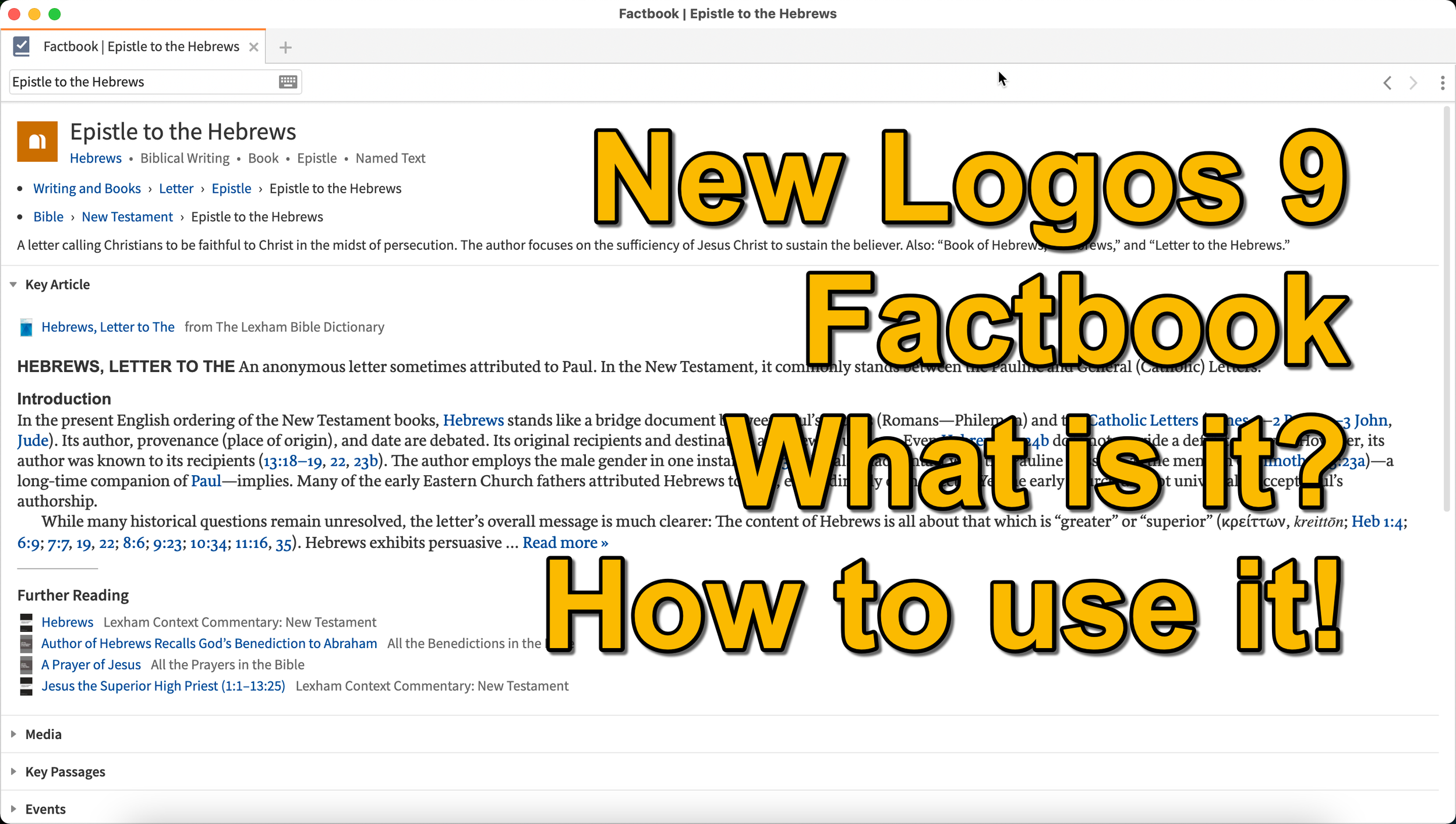
Logos 9 Factbook: How To Get the Most Out of the New Features in Logos 9
What is the new Logos 9 Factbook and how can it help you study the Bible more efficiently. We'll look at it in this series on new Logos 9 features.
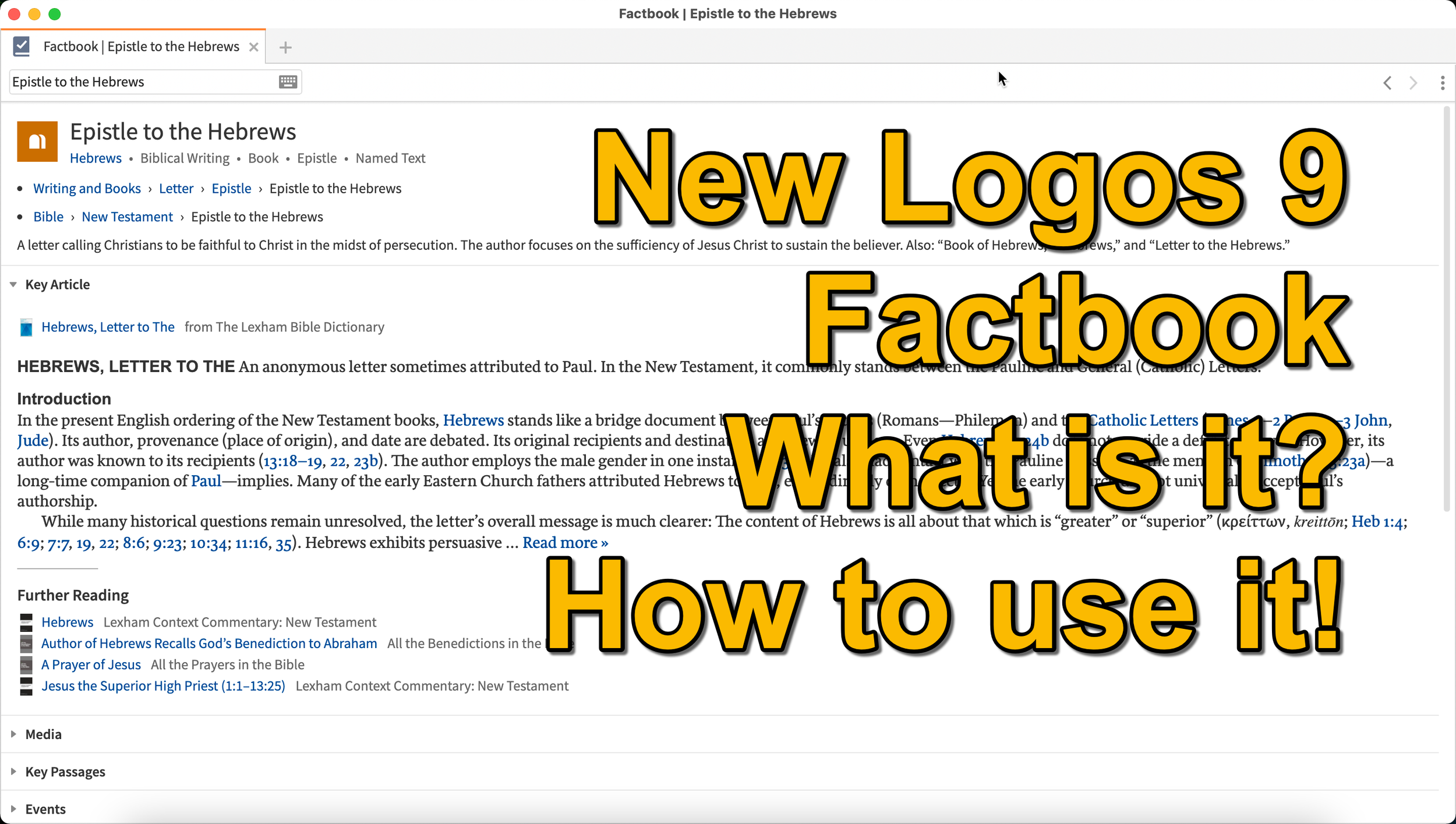
What is the Logos 9 Factbook, and how can you get the most out of this new feature if you upgraded to Logos 9? We'll take a look at each of the new features in Logos 9 now that we've had plenty of time to use them.
It's now been six months+ since Logos 9 came out. Since we've had it in hand that long I wrote a 6-months-later review. In addition to reading that, you can see my original post about the release of Logos 9. In this post, we will do a deep dive into all the new features starting with the one Logos made the most of in their advertising of Logos 9, the Logos 9 Factbook.

If you'd like to get a discount on Logos 9, you can use my affiliate link to give you 15% off, some free books, and my appreciation. I get a kickback to help me with expenses related to my website, podcast, and YouTube channels. Use the code PARTNEROFFER9 when you follow that link to get the discount and free books.
What is the Logos 9 Factbook?
Logos says, "The Factbook is one of the most powerful features of Logos, and it makes almost any biblical or theological term easily searchable." I compare it to a Bible encyclopedia on steroids. Just about anything you want to learn about in a Bible text will show up in the Factbook.
Past versions of Logos included the Factbook. However, it received a lot of attention in the update to version 9. A minor update comes in the form of the new icon. It now looks like a book with a checkmark on it.

New Sections in the Factbook
Second, Logos added a bunch of new topics to search for in Factbook. The new things include...
- Biblical Senses - these are translations of the Greek or Hebrew word. Biblical Senses give you an understanding of different ways the original language terms were translated in various places.
- Hebrew & Greek lemmas - you can now start a Greek or Hebrew word study from the Factbook report.
- Counseling Guide - start a study of the counseling guide on topics related to counseling, like marriage or addiction.
- Theological Guide - start a study of theological words or concepts from Factbook.
- Denominational Content - find all content on the topic from a denominational library, like Baptist or Lutheran.
- Lists as Topics - when you search for a topic, like a person's name. You'll see entries in the Factbook with lists related to that person's name or book of the Bible. For example, if I search for Matthew, it will find people named Matthew, topics or preaching themes from the book of Matthew, and more.
- Show All Topics - when you type a search term in the box in the Factbook, it will show a drop-down list of some searches you might be wanting as you type. At the bottom of the list, you'll see Show All Topics, which gives you a new list with all the Factbook topics containing your search term.
- Pericopes as Topics - search for a reference like John 3:16, and you'll get a list of pericopes (passages) with links to open the passage in the Lexham Context Commentary plus Media, Events, Sermons, and a See Also section.
These make up the list of the major new parts found in the updated Factbook.
Other Parts of the Logos 9 Factbook Still Available
Below, you'll see a list of other topics still included (from Logos support). The sections that show up in it are listed below:
- Info - basic information about the item search. This shows up in every search.
- Key Article - a section at the top from one of the common books in your library. Logos says the Lexham Bible Dictionary is an example of the book this Key Article will show. You get part of that article shown there in the list. Faithlife picked what Key Articles will show up for each kind of search item. The company focuses on its own tools, like Lexham Theological Library for original language terms.
- Media - images from any of your media resources.
- Letters - Personal Letter resources by an author if that's what you searched.
- Works - works created by the author showing links either to books in your library or store pages on Logos.com.
- Passages - shows a list of passages, like concordance of the word, topic, or thing. A link lets you instantly create a Passage List from the resulting list in the Passages section.
- Events - links to the Timeline and Biblical Event Navigator if a user owns that book.
- Dictionaries - articles in your dictionaries.
- Preaching Resources - topics from your preaching-themed resources.
- Referred To As - Bible verses organized by the way the search item is referred to with a list of the verses and a graph showing where that shows up in the Bible.
- Cultural Concepts - shows links to the Lexham Cultural Ontology Glossary, "which shows a hierarchy of the concept’s type, and search results for the concept within your Library" (from Logos Support site).
- Library - books in your library with content related to the search item.
- Journals - links to journals in your library with content related to the search.
- Sermons - links to sermons found in your library with content related to the search.
- Community Tags - these are tags that Logos users added to a section related to the search item. If I tagged a part of a book as "grace," then it would show up in other users' searches for grace.
- Bookstore - shows books for sale related to the search item.
- See Also - shows other things in your library that don't fit in the above section.
How to Open the Logos 9 Factbook
To open the Factbook you can do one of the following...
- Toolbar - Click the Factbook icon on the main window's toolbar. Enter what you want to search for in the search box.
- Go Box - start typing in the Go Box, and Logos 9 shows links to Open the Factbook to that topic, word, passage, etc. It also shows up as one of the taps that opens when you enter a search term and hit enter or click on the Go button.
- Tools Menu - You can also open it from the Tools menu. Either look for Factbook or type that in the search box at the top of the menu. Or it usually shows up in the shortcuts area at the top of the Tools menu.
- Context or Right-click Menu - Select a word in the text of your book or Bible and right-click, bringing up the context menu. You'll see the Factbook links in many places usuually in the right when you highlight a subject on the left.
- Visual Filters Button - There's now a toolbar icon in the Bible window for the Factbook. Click to turn it on and from now on you'll see blue dotted lines under words with Factbook entries. Don't confuse those with other solid blue lines that may show up if you've created other visual filters, like I did for parts of speech. Click those words to open a Factbook window for that word.
- Search Panels - When you search for things in a search box, the Factbook sits near the top somewhere in your search results. It moves around depending on what you searched for, but it will show up near the top of the results.

If you use the last method to turn on the Factbook, you can turn on or off what Factbook features will show when you click using Visual filters (see image above). Turn on or off different parts of the Factbook by clicking the down arrow next to the Factbook button. A list with checkboxes shows up, ready to turn off and on.
Bible Book Guides

The Bible Book Guides in the new Logos 9 Factbook shows up when looking at a book of the Bible in the Factbook. For example, if you search for the book of Hebrews, it will show you a section about the book. This section will help if you're going to do a study of a book of the Bible. You'll see the following sections:
- Content - Introduction, outlines, and contents mostly from commentaries on the book that you search for in Factbook
- Origin - Links to the books in your library with information about the book's author, date, and purpose.
- Background - Shows books with content about historical context, recipients of a book, and the author's location when writing the book.
- Objects - Books with geographical, date, location, and key people in the book.
- Canon - Discussions about the canonization of the book.
- Form - Discussions of the book's composition, text, title, style, and structure.
- Meaning - Books with info on the book's themes, emphases, interpretation, theology, significance, and spiritual content.
- Additional Information - Links to Bible dictionaries and commentaries with additional info about the book.

5 Ways of Using Apple TV in Church
The new Apple TV is a great tool for fun, but you can also use Apple TV in church. We've got 5 uses for Apple TV in church or ministry.
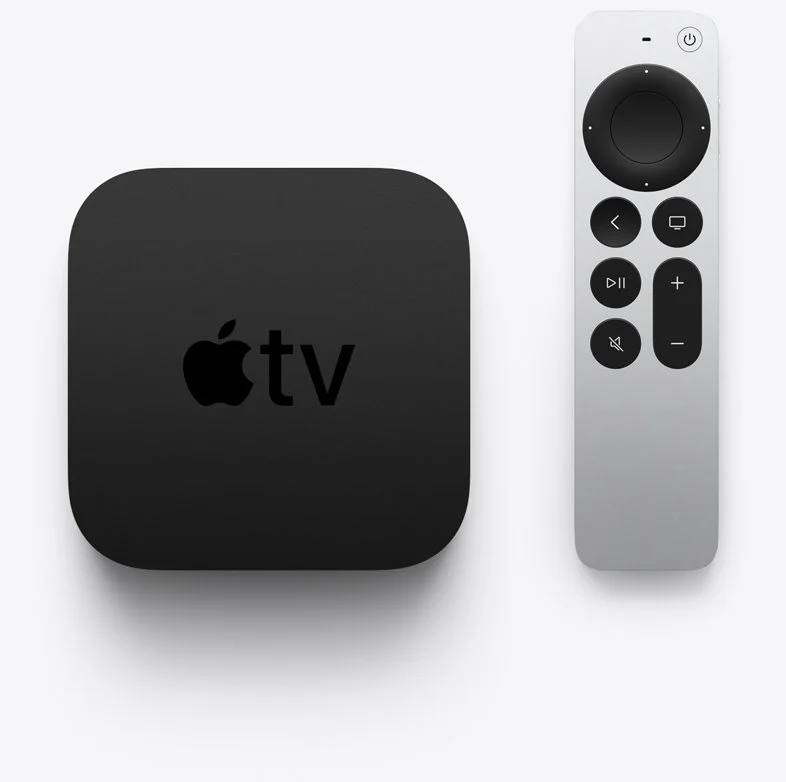
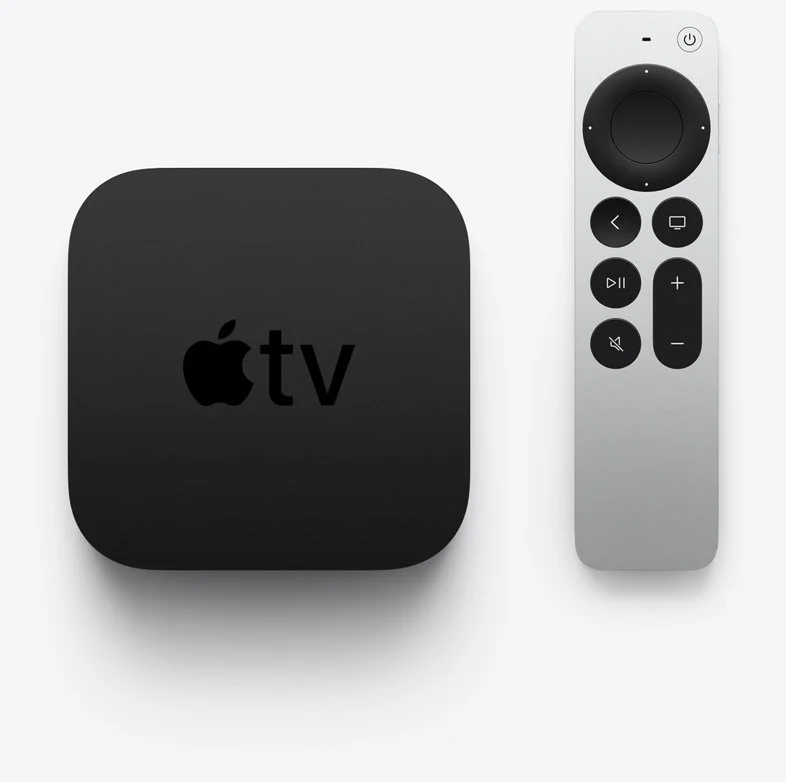
Apple just shipped the new Apple TV and I got one because I love the little black box but hated the old remote. It got me thinking about using Apple TV in church and I came up with 5 ways you can use the new Apple TV in church or in ministry.

What Is the New Apple TV?
Apple first produced a set-top box way back in September 2006, but it didn't really take off till the company updated it 4 years later. Now it's a small black box that looks like an oversized hockey puck. It now comes with a metal remote that's tiny and useful for watching streamed content and even playing some casual games. You can connect a keyboard or a game controller via Bluetooth. You can also connect Bluetooth headphones, Apple AirPods, or a speaker.

Apple added a streaming service called Apple TV+ that includes content made for the service and gathers content from other streaming apps that run on the Apple TV like Netflix, Amazon Prime, Hulu, and more.
Apple added a streaming service called Apple TV+ that includes content made for the service and gathers content from other streaming apps that run on the Apple TV like Netflix, Amazon Prime, Hulu, and more.

This week (May 2021) Apple starting shipping the 6th version of the Apple TV. The following list shows the specs of the latest version, also called the Apple TV 4K 2nd Generation...
- Fast A12 Bionic processor
- High frame rate 60fps HDR
- HDMI 2.1
- Wi-Fi 6
- New color optimization using the iPhone camera
- tvOS 14.5 or higher
- AirPlay
- New and improved remote replacing the horrifically bad touch remote from previous generations

Most people probably think of Apple TV as a way to consume content for entertainment or maybe education. It's also a gaming system for casual gamers. However, you can use it in ministry or the church. So, we've got some tips for using Apple TV in Church.

The new Apple TV costs $179 for a 32GB model and $199 for a 64 GB model. Unless you think you'll install a lot of games or apps, you can get the 32GB model. However, I'd recommend buying the 64GB model since it only costs $20.
Using Apple TV in Church for Presentations
This tip seems obvious. Use an Apple TV in Church for wireless presentations from either your Mac, iPad, or iPhone. If you have an Android device, you can find apps that work with Apple's AirPlay.

Start with traditional presentation apps like Keynote, PowerPoint, or a lesser-known presentation app. Use AirPlay to connect to the Apple TV and fire up the app. It will allow you to mirror the screen or display your slides on the Apple TV and the presenter's view on the iPad, iPhone, or Mac.

If you need the details about how to connect over Airplay, use the tips on Apple's support site. Here's the support page for using a Mac to present.
Set Up a Foyer Information or Announcement Kiosk
You can display photo slideshows on an Apple TV. That's a great use for an Apple TV in Church. Get a TV in the foyer or in any room where you need to display announcements or informational slides. Hook up an Apple TV and set it to play the slideshow.
Put all your photos or slides in an album in the Photos app for the account connected to the Apple TV. Then follow the steps on this Apple Support page for setting up the Photos App to display the slides or photos.
You can use it for...
- Announcements
- Informational slides - for visitors, families, etc.
- Slideshows of events from recent activities in the church - consider putting these in the midst of the announcements or info slides.
- Play a video message - you can also place this in the slideshow of photos or announcements and info slides.
Play Music to Set Tone of a Room or Worship Event
Sometimes I fire up the Apple TV in our church's fellowship room and play some background music. It's great at holiday events or a supper for the church or groups in the church. I also occasionally play music to set the tone for a Bible study or worship event. Then after the event's over, I might fire up the music again with a playlist that sets the tone of how we want to send people on their way.
Stream Video Content
Of course you can stream video content on an Apple TV in church, but why would you?
- Show videos of past events
- Share a video message from a shut-in shot on an iPhone and stored in Photos
- Use one of the many Christian and Bible-centered apps like the Life.Church Bible, Faithlife TV, or RightNow Media Media.
- YouTube videos
- Facebook Watch videos
- Plex to stream your own videos
- Hold a movie party for a small group
That's just a handful of useful ways to use the streaming capabilities of the Apple TV in Church. You can watch any video that you want, so long as you're not breaking copyright laws.
Educate People on Using Software and Websites
If your church just got a new Church app, then use the Apple TV to demonstrate how to use the new app. AirPlay the screen on your iPhone or iPad. You could create a video and stream it.
Use AirPlay to show off your church's new website. Maybe you want your people to use another website. Demo it using Apple TV.

If you have a group of people who want to learn more about studying their Bible with Bible study software or an app, then you can teach them by opening the app or software and then use AirPlay to connect the computer, iPad, or iPhone.
Conclusion
The Apple TV can help save money and make you more successful in communicating with your church. Instead of a long cable run, connect an Apple TV to a projector. Also, it's cheaper a whole computer hooked up to a display.
While the new Apple TV is a great box for using an Apple TV in church, you might want to consider an older 1080P Apple TV. They're cheaper and will still work great. If you're getting one of the new 4K models for home, then maybe you can re-purpose an old 1080P model for the church.
5 Best Bible Apps for Android and Fire Tablets for 2021
What are the 5 best Bible apps for Android for 2021? These run on Android phones, tablets, and the Amazon Fire tablet.
If you own an Android smartphone or tablet or maybe an Amazon Fire Tablet, then we've got the 5 best Bible apps for Android. This list usually stays the same each year. So what has changed for 2021?

I tested these apps on the Samsung Galaxy Tab S6 Lite. I used to own the Tab S7 but handed it down to my son, an Android first guy. Most of the time, I use the iPad, but Android works great too. So, here's my list for 2021!
What's your favorite Bible app on Android or Amazon Fire Tablet. Comment below or head over to the YouTube video above and comment there.
Bible App by Olive Tree
Olive Tree's Bible App sits atop our list because it's still the best mobile Bible app available for reading, study, and sermon prep. Why do I call it the "best"? Olive Tree presents the Bible and Bible study material with the perfect balance of usefulness and simplicity. That's hard to do. Just ask the other more technical Bible study apps listed below.
UPDATE: The Bible App by Olive Tree is no longer supported on Amazon Fire tablets.

Open Olive Tree on a tablet, and you get two areas by default. On the left, you'll see a kind of Windows Explorer or macOS Finder kind of navigation window that takes up the left half of the screen when you tap the menu. To see this menu, you'll need to tap the menu button that looks like three horizontal lines in the upper left corner.

The Bible sits on the left when the menu isn't open. On the right, you'll see the Resource Guide. These two can link up so that when you scroll or swipe from page to page in the Bible, it will move the commentary you have open to the right.

Add word study features by opening a tagged Bible. Tap on a tagged word, and you'll see a popup window that defines the word in its original language. You also get Audiobooks, reading plans, devotionals, maps, highlights, note-taking, and it all syncs up with your computer version of Olive Tree.
There's more to this app, but this hits the highlights and explains why I put it first in my 5 Best Bible Apps for Android list.
Logos Bible App from Faithlife
The Logos Bible App (Amazon Fire App) and its other similar apps from Faithlife come in second in our roundup because of its power and array of useful features. It's a little bloated, but I'd rather have too many features that don't get in the way of the basics than not enough, like the ability to add user notes.

When you look at all that Faithlife packs into Logos, you can only say wow! There's a reason this ends up in our 5 Best Bible Apps for Android, but not at the number one spot.
The app divides into a few main areas.
- Home Screen - layouts for study are here, along with information from Faithlife about sales or books.
- Library - find your books to open and read.
- Book Reader - you can open a bunch of books, and they will show up on screen accessible via the center button, the toolbar at the bottom of the screen.
- Search Screen - use it to search your Bible or books.
- Main Menu - find all the major features of the Logos app here, like the Guides.

You can open multiple books and sync them using the center button on the bottom toolbar. Set up some or all of the books to sync up or don't. I have a few Bible translations and a few study Bible's or commentaries open all the time, all of which I set to sync up, so they move from verse to verse together. I also open books I'm reading too, but they don't sync with a Bible.

On the Bible, you can do word studies, searches, and add notes or highlights. Open the menu, and you can search your library in one of the Guides. A passage guide finds everything about your passage. The Exegetical Guide searches for content related to language study. Other guides work similarly.

You'll find many other features, mainly in the main menu at the far right on the bottom toolbar. And remember, it all syncs nicely with the computer app or their web app.
Faithlife also offers a few other apps for Bible study and reading. You can download...
- Faithlife Study Bible - focused on their study Bible and the Lexham English Bible translation.
- Faithlife eBooks - a simplified version of the app for reading books primarily, but still has some study features.
- Biblia - Spanish language version of the app.
- Verbum Catholic Bible - app focused on Catholic users.
The Bible App from Life.Church

I always fight with myself about adding The Bible App (Amazon Fire App) to my roundup of best Bible apps for any platform, but I always do it for one reason. It's the most popular Bible app available on mobile devices.
I don't like including The Bible App because it's not really a complete Bible study app. You can't do word studies or read commentaries and Bible dictionaries. But that's not what Life.Church intended for its users to do.

Instead of more advanced Bible study, The Bible App excels as a simple Bible reading app that also includes social networking built-in and sharing to social media easily and elegantly. You can...
- Download and read hundreds of versions of the Bible, most of them available offline.
- Listen to audio Bibles.
- Set the app to remind you to read a daily reading and devotion or see a verse of the day in text or visual format.
- See what your friends are reading, highlighting, sharing, or commenting about the Bible.
- Watch videos to help you understand the Bible.
- Bookmark verses.
- Share verses with others via social media, email, or text.

Accordance Bible Software
The Accordance App (Amazon Fire App) on Android has gotten better but still lags behind its iOS cousin and the other apps in our roundup for a couple of glaring weaknesses. First, you can't add your own user notes yet. That's gotta change, and Accordance should feel embarrassed they haven't added the feature in 2021.

Second, the syncing features in the app are weak by comparison. Accordance should add its own syncing tool to keep your user content fresh on Android and a computer.

While Accordance really needs the improvements above, it still deserves a spot in our top 5. Of course, you can read the Bible and other books in your library. Accordance sells a lot of great Bible study tools, thanks to a huge library of quality resources. They are often the first company to release a book when it gets published. For example, they released the new 2020 version of the NASB before the others on the list. Logos doesn't even have it out yet.

Accordance works great as a Bible or book reader. It lets you search, and you can select a word and Amplify it, which means study by searching for related content.
Tecarta Bible
Bible study observers may not know as much about Tecarta Bible (Amazon Fire App $5.99 for NIV) as the others in this roundup. But they should because it's a decent app.

The app includes the most-used translations. You can download the KJV for free and buy others for download. If you don't want to pay for a translation, you can "stream" them, which means use them as long as you have an Internet connection on your phone or tablet. You'll have to buy commentaries, but unlike others, Tecarta lets you try them.

The app displays parallel translations and shows the commentary in a 2nd or 3rd window. Add notes, bookmarks, highlights, or share verses.

If you tap and hold on a word, the app shows a box popup that says "Define," and it will go online to give you a definition from an Internet search.
5 Best Bible Apps for Android and Fire Tablets for 2021 Summary
Which of the 5 apps included in our roundup of the 5 Best Bible Apps for Android should you download? Why not download all of them? Of course, you should start with the app from the company you already use on a computer, if you own one. I'm a Logos Bible Software user on my Macs, so I primarily use Logos, even though I like Olive Tree better on mobile.
UPDATE: If you use an Amazon Fire Tablet, you can't download the Olive Tree app since it's no longer supported. For a fifth Bible app on a Fire Tablet, look at Laridian's Pocket Bible. It's also terrific.
Update: You can also install the Google Play Store on an Amazon Fire Tablet. It's complicated, but if you think you can handle it, fire up the Silk browser on your Fire and head over to the helpful how-to article at Android Police.
If you must make me recommend one over another, then I'm going with Olive Tree first. It's got the cleanest and simplest interface. It has enough features for most users. People who need more advanced tools will likely not work on a tablet or smartphone very long. They're using a computer-level Bible study suite from either Logos or Accordance. However, don't end your search with Olive Tree. You can try out all of them for free and settle on one with the best features for your needs.
Logos 9 Upgrade 6 Months Later - Is It Still Worth the Upgrade Cost?
It's been about six months since Faithlife released Logos 9 upgrade to focus on some key improvements to the computer app and the mobile app. Also, you can save $1,600 on a Logos 9 Base Package plus get 5 free books using the link provided in this article.
It's been about six months since Faithlife released Logos 9 upgrade to focus on some key improvements to the computer app and the mobile app. I published my review over at ChurchTechToday.com on October 30, 2020, and talked about it here as well.
The Logos 9 upgrade brought the following key improvements, like...
- Some user interface tweaks make the software easier to use.
- An update to the Factbook in the Logos 9 Upgrade
- The interesting Sermon Manager and Sermon Builder
- A Counseling Guide
- New sorting features in the Bible commentaries section of the Passage Guide
- Improvements to the Reading Plans and the Reading Queue
In addition to the above improvements in the Logos 9 Upgrade, we also saw some decent changes in the mobile app. They added the Factbook to the menu seen in the toolbar at the bottom right corner of the app. You can also use your iPad or tablet for preaching, thanks to the new preaching mode in the mobile app. I actually love using my iPad to preach.
15% Off Discount on Logos 9 Upgrade to Base Packages and 5 Free Books
From now till June 15, 2021, you can get 15% off a Base Package upgrade. To do that, follow this affiliate link, and you'll get a discount. Full-disclosure, I'll get a little kickback from Faithlife.
Follow that link, and not only will you get the 15% off discount when you use the code PARTNEROFFER9 at Checkout, but you can also get 5 free books. Select from 28 different books, including some great titles.

Here's a list of my recommendations.
- Spurgeon Commentary 1 Peter
- Lexham Research Commentary: Colossians
- St. Paul's Epistles to the Thessalonians by George J. Ellicott
- The Essentials of Prayer by EM Bounds
- The Life of St. Paul by James Stalker

Faithlife offers a myriad of Base Packages. Here's what I recommend depending on what you already own.
- Logos 9 Bronze - Great for people who are just getting started.
- Logos 9 Gold - Jump to this level if you already own a pretty big library.
At the bottom of the page, you see a link to see the other Base Packages. Follow that to find the Logos 9 Upgrade packages for Anglican, Baptist, Lutheran, Messianic Jewish, Methodist & Wesleyan, Orthodox, Pentecostal & Charismatic, Reformed, SDA, or Catholic (Verbum) users.
Logos 9 Upgrade: Best Feature is New User Interface Tweaks
One improvement stands above the rest. I like the features listed above, but the simple tweaks to the user interface on the computer version of Logos 9 made the most difference in my productivity with the Logos 9 upgrade six months after Faithlife released the update.

It sounds crazy, but the new button on the upper right corner of the screen helps users a lot. First, you can quickly jump to your account to see what you have or what pre-orders you might see published soon. You can also jump to Your Faithlife Profile, where you can interact with other users and see answers to your questions.

The other amazing new tweaks include transforming the program toolbar. For example, right-click on a book icon that you placed on the toolbar like I did as seen in the image above.

you now get a drop-down menu holding those books in that folder.
The new tweaks to the toolbar give you a drop-down list of icons from the toolbar that no longer fit on a narrow screen on small screens. See the image below to understand what I mean.
There's a new light mode, dark mode toggle in settings. People love dark mode, and I don't understand why. But if you do, then you now have it.

Other New Features in Logos 9 Upgrade
Logos seems most proud of the other new features in Logos, which include...
- Factbook
- Sermon Builder
- Sermon Manager
- Counseling Guide
- Improved Reading Plans
I like all of those, and you should see my review linked in the top section of this post from ChurchTechToday. The second feature I'm most excited about also doesn't seem big. Faithlife now added a feature to organize my library in a more useful way when I fun a Passage Guide.
Go to the Commentaries section of the Passage Guide and look in the upper right corner. You'll see ways to sort your books including...
- Priority - follows your customization where you rank certain commentaries above the others.
- Series - groups the commentaries by series, like the New American Commentary series or the Word Biblical Commentary series.
- Author - who wrote it?
- Denomination - what is the denomination of the publisher/editor/author depending on the commentary.
- Type - is it a technical or devotional commentary?
- Era - when was it published?
Mobile App Improvements
Logos added the Factbook to the mobile app too. You'll find it in the menu button in the lower right corner.
Faithlife added a preaching mode to the mobile app. That way, you can build and manage your sermons in the computer app. Then you can put your app in preaching mode and preach from the app.
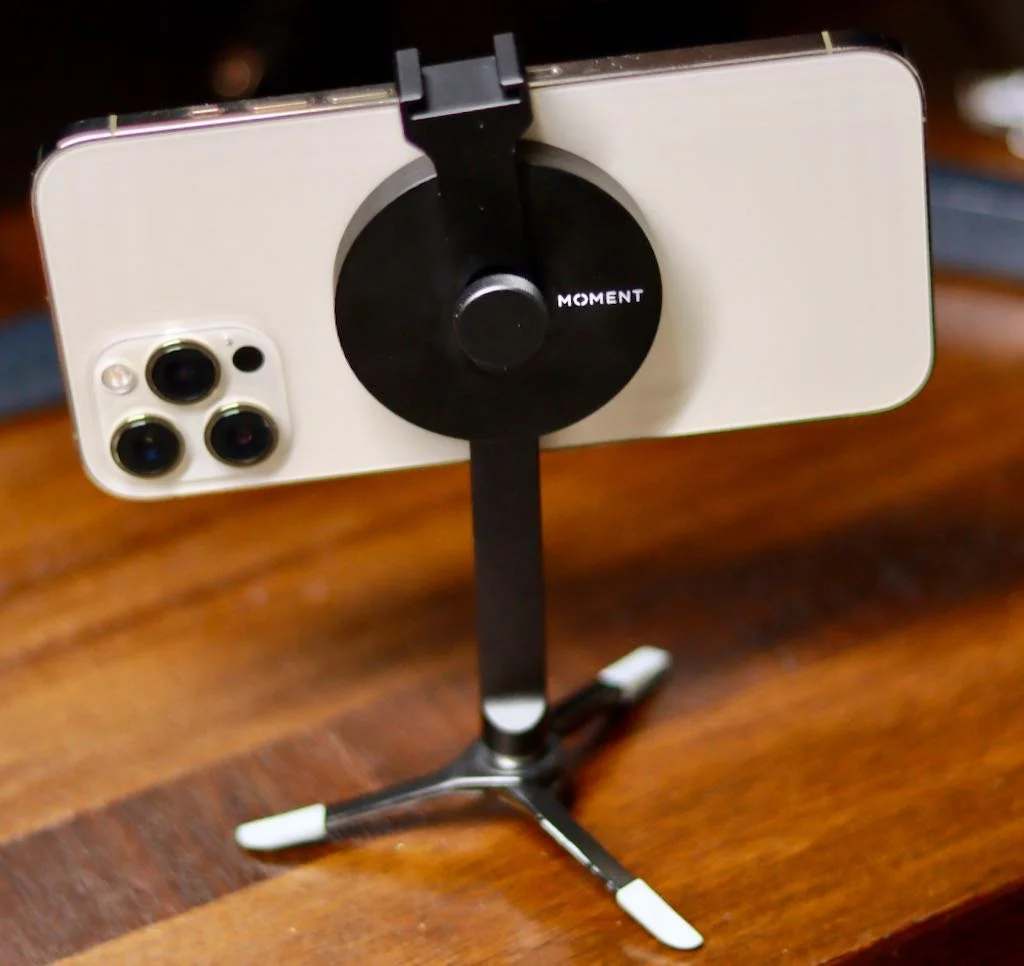
Moment Pro Tripod Mount with MagSafe for iPhone 12 Review
The Moment Pro Tripod Mount with MagSafe for iPhone 12, iPhone 12 Pro, and iPhone 12 Pro Max uses the magnet to quickly snap a tripod onto the iPhone. Does it fulfill the promise?
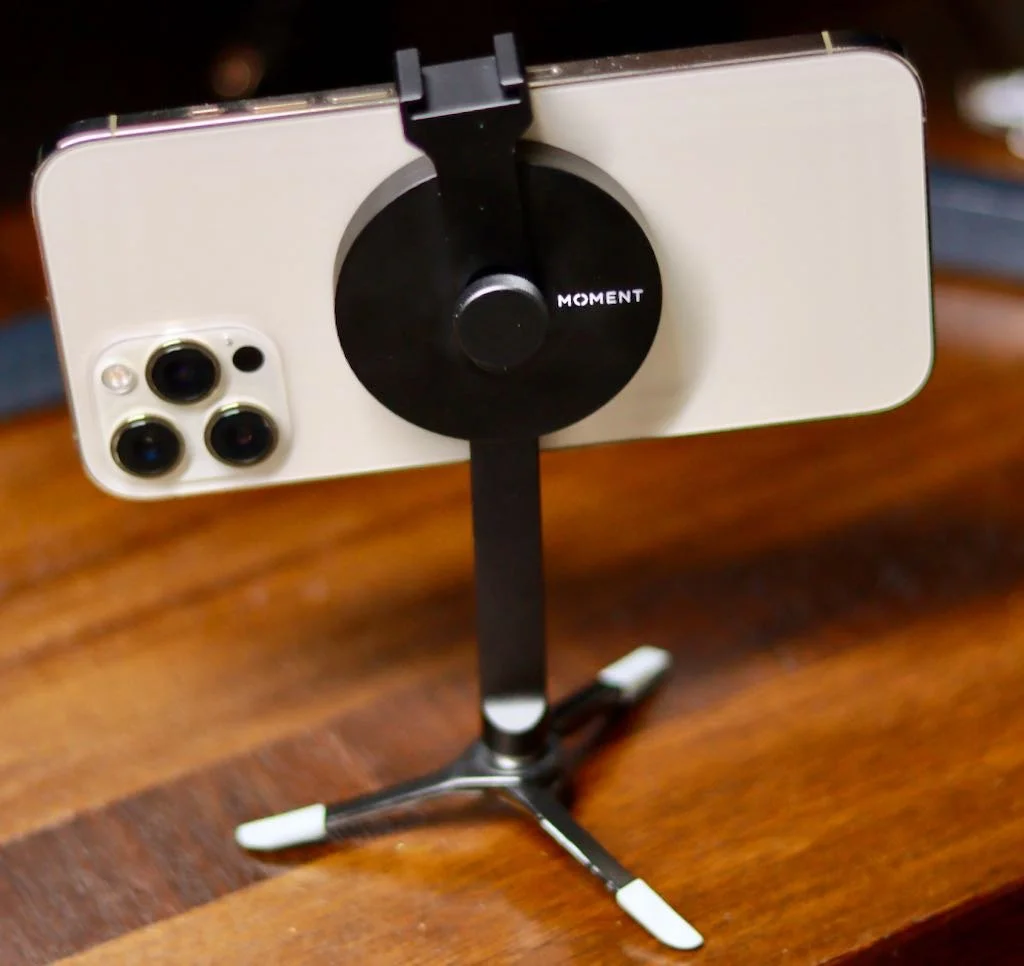
Moment began their business by selling lenses for iPhones and recently added photography gear for a wide variety of cameras. Yet, they still excel at creating great accessories for iPhone photographers. The Moment Pro Tripod Mount with MagSafe continues that line of iPhone photo gear using the MagSafe magnets in the iPhone 12, iPhone 12 Pro, and iPhone 12 Pro Max. The mount promises a quick and easy solution for taking steady photos and videos with the iPhone 12. How well does Moment deliver on that promise? Did they make another great accessory for iPhone photographers?
Moment Pro Tripod Mount with Magsafe for iPhone 12 - Design
The mount comes in two varieties, one for use as a landscape-only device. The other works in both landscape and portrait and has a longer shaft. I bought the one that works in both landscape and portrait modes.

The Moment Pro Tripod Mount with Magsafe connects to the back of your iPhone 12. The magnet in the MagSafe connector snaps onto the mount and holds it firmly. The round disk holds a cold shoe mount screwed onto the back of the mount. There's a short piece coming down out of the disk. There's a 1/4-20 connector so that the photographer can attach it to a tripod, whether it's something like a professional tripod or the small feet that came with my Joby GripTight tripod. The pad on the disk that snaps onto the back of the phone has a softer material. This keeps the metal on the mount from scratching the phone's back.

I also connected it to a clamp mount that I recently bought on Amazon. The Slow Dolphin Tripod Clip Clamp Mount screws into the 1/4-20 connector on the bottom of the MagSafe Tripod Mount. The two hold the iPhone in place for photography or for just viewing videos on Netflix, YouTube, or some other content (see below).

Users can swivel the holder to watch content in the landscape, as seen above. Or you can use it in portrait for those fantastic TikTok videos you shoot.

On top of the mount you'll find a cold shoe mount. Put a light or a mic like the Rode Wireless GO II Microphone.
Moment Pro Tripod Mount with MagSafe for iPhone 12 - Quality
Moment did a great job designing the Moment Pro Tripod Mount with MagSafe for iPhone 12. I've only had it a few days and used it for a few tasks plus every night for streaming Netflix. It works exactly as designed and probably will not fall apart easily. The disk holds the shaft with the 1/4-20 securely and firmly.
The cold shoe mount also serves to secure the phone in place. Press the cold shoe mount down against the phone to keep both in place.

On the back of the mount you there's a screw that holds the cold shoe mount to the MagSafe disk. Unfortunately, it doesn't seem to screw tightly. You have to press it against the phone, or it becomes loose. I'm not sure if that's by design or a design flaw. It doesn't seem to keep the cold shoe mount from working for now, but I'll be keeping an eye on it.

I do not use my iPhone with a case unless I'm taking photos with the set of Moment Lenses I own. I've tested it with my Moment Thin Case, and it does not hold the phone very well at all. That's a huge problem. You can see in the video below that it fall off the mount far too easily with the case on the iPhone 12 Pro Max.
Moment promises that it will work with any MagSafe compatible case. In fact, the magnet in Moment's tripod feels like it snaps to the phone more securely than Apple's own MagSafe products when I don't use a case. However, it's coming off too easily, so you can't confidently mount your iPhone 12 Prom Max with Moment's own case needed to use their lenses.
The mount sits on my nightstand so I can quickly throw it in my bag. The metal design means I need to be careful where I put it because I don't want to scratch my MacBook or iPad.
Recommendation
Moment Pro Tripod Mount with MagSafe for iPhone 12, iPhone 12 Pro, and iPhone 12 Pro Max works as designed on my naked iPhone 12 Pro Max. It's made of quality materials. At $60, it better work well. I love the idea of MagSafe and hope we see some other equally creative accessories. I wish the screw on the back held the cold show mount more securely, but it does work. I also wish it held my phone in a case more securely.

Moment makes several different MagSafe devices including...
- The landscape tripod mount - $59.99
- The landscape and portrait tripod mount - $59.99
- A wall mount that fastens to a magnet stuck to a wall - $19.99
- A car vent mount that holds onto the vents of your car's heater/air conditioner - $39.99*
- A cold shoe mount which is like the one I reviewed, but it doesn't have the shaft with the 1/4-20 connector - $39.99*
- A version of the tripod mount without the cold shoe mount - $49.99*
- A multi-threaded mount with 7 threaded holes on the back and no shaft or cold shoe mount - $39.99*
The items above with the asterisk (*) are either pre-orders or back-ordered. In other words, don't assume you'll get one within the next few weeks. It could take many months like mine did.
I didn't particularly appreciate having to wait for as long as I did to receive the mount. I ordered it soon after they announced that it was available for pre-order. It took many months to show up. Moment always has trouble getting things sent out, and new products often end up back-ordered. They promise that if you order today, you'll get it shipped starting the next day. You should receive it within a week to ten days depending on where you live instead of in 4 months.
Streaming Church Services Live and Cheap
Most churches start streaming church services live during Covid. You probably wish to continue that, but how do you do it without paying thousands of dollars?
Since Covid closed down America's in-person worship services in March 2020, most churches started streaming church services live on Facebook or other services. You can spend thousands of dollars on equipment and service fees, or you can spend far less. In fact, if you follow my recommendations, you can start streaming this week for far less than a thousand hundred dollars.

We'll look at the cameras you can use cheaply. You can buy inexpensive software and use what you already likely have in your church's sound booth to connect it all.
Streaming Church Services - The Camera
Most people start by thinking about a camera. The number one post on my site covers the 4 styles of the camera for streaming church services. Please read that post first for a comprehensive guide to choosing a camera. However, I recommend one kind for budget streaming.
Why not use your phone? Many smartphones come with a great camera. You can, but I don't think it gives you the best option. If you can't afford the cameras below, then use your phone. But you'll need to buy a mic anyway, so spend a little more and get a great dedicated camera that you don't have to worry about charging, getting intrusive notifications, and can't zoom or pan while recording as easily.

Get a decent 1080p camcorder with a clean HDMI out signal (see image and caption above) that will run for at least as long as your worship service, plus about 20 minutes. That could mean you leave it plugged in, or the battery lasts at least that long. What does all of that mean, and which one should you buy? Let's break it down...
- 1080p refers to the resolution. Some people recommend a 4K camera, but that's too much for most churches, and it will cost too much. However, if you already have one, then use it. Just set it for 1080p. 1080p means the resolution of the camera is 1920 pixels horizontally and 1080 pixels vertically. The P stands for pixels.
- Get a camcorder like everyone used to buy before cell phone cameras became so powerful. Make sure it has a 30x optical zoom. Ignore the digital zoom because it makes things look really blurry. Turn off the digital zoom. Only use optical zoom and make sure it does 30x, especially if the camera sits in the back of the auditorium. You want it in the back, so you don't distract attendees.
- Make sure the camera supports a clean HDMI signal (see above image and caption for description). If it doesn't support a clean single, then you'll see things like the battery indicator and the other onscreen display items you see on the small screen on the camcorder. How do you know if the camera supports a clean HDMI signal output? Look at the specs of the camera or ask the person selling it. You can also go to Amazon and ask about the camera.
- The camera needs to run on battery at least 20 minutes longer than your worship service. That way, you can turn it on and test everything before the service. The best camcorders run on AC power plugged into an electric outlet instead of running them off battery power.
We don't have room to go into more detail about camera specs. Adhering to the four things above will give you a great camera. Let me recommend a couple of cameras.
Canon VIXIA HF R800 Camcorder

The Canon VIXIA HF R800 will stream your church service, fulfilling the four requirements above. It supports 1080p and has a clean HDMI signal that would show the distracting icons on the built-in display to your viewers.
The camera supports 32x optical zoom for streaming church services live. Ignore the 57x digital zoom because when you zoom in that far, two things happen. Video quality degrades, and your camera operator will struggle to keep the image stable.
Finally, the camera operator can plug it in a while streaming church services live. The camera will run for about one hour and forty minutes on battery life.
There's one problem with the R800. It costs $300 at B&H Photo and that was cheapest price we could find.
Panasonic HC-V180K Camcorder

Take a look at the Panasonic HC-V180K for a slightly less expensive camera ($229.99 at B&H Photo). It supports a clean 1080p HDMI signal with a nice 50x optical zoom. Again, ignore the 90x "intelligent zoom," which is a misnomer because you'd be stupid to use it.
Consider looking for each of these cameras used. You can often find a camera that is in good condition for less than the retail value.
Streaming Church Services - Software
The cheapest place to stream also invites the largest audience. That's Facebook.
I've tried dedicated streaming services like Dacast and going live to YouTube before settling on Facebook. Google now requires 1,000 subscribers on a channel before they can stream live to their service using the YouTube user interface. Churches can also subscribe to expensive services that put your live stream on your website, or there's for anywhere from hundreds of dollars a year to thousands.
Facebook lets churches stream for free, and they don't need a minimum number of subscribers or followers. Whether you like Facebook or like the way they've limited or allowed certain kinds of accounts and content, it's the cheapest available. That's what my church uses.

How can you get the signal from the camera to Facebook? We'll talk about the connecting accessories below. First, what software should you use? Facebook has its own streaming user interface. Set up a Facebook page and then use their live streaming feature built into the website.
You can add some cool features like lower thirds, text written at the bottom of the video to show what's on your stream. Use it to put the names of people leading worship or the title of the pastor's sermon. To get that you'll need some software.
Take a look at three options below:
- OBS Studio - a free, powerful, open-source program that lets you stream live to Facebook and more. It's complex, but with some time and effort to learn the program, OBS Studio gives users the most powerful solution for no cost to their church.
- Ecamm Live - a great piece of software that makes streaming to Facebook easy, but it's at least a $16/month subscription.
- Restream - a program like Ecamm but offers a free version. I've not used it, but a lot of people prefer it.
- Dacast - a more costly program like Ecamm and Restream. It's more of a service, which offers streaming that you can embed on your church's website.
Of the two above options, I'd recommend OBS Studio if you don't want to use the Facebook page streaming interface. I only mentioned Ecamm Live because I use it at my church. We're grandfathered into the pre-subscription model. You can't get that now, but the software is easy to use. They charge either $16 or $32 per month to use it. They offer a 14-day trial.
Restream is another program that streams videos for you. It's slightly more expensive than Ecamm at the high end. It starts at $16 per month for the subscription version with some of the bells and whistles. The higher tier sells for $41 per month.
OBS Studio is more powerful but more complicated and also free. Ecamm is the easiest tool for churches without someone who can figure out OBS, but it's also expensive due to a monthly subscription. You could say the same for Restream and Dacast.
Other streaming software exists, but it's usually more expensive. If your church already subscribes to software for worship presentation, it might also include streaming features. Proclaim from Faithlife has an option for streaming and Podcasting.
Streaming Church Services - Computer
We put this hardware item last because it's honestly the least important. My church uses a 2014 Mac mini. I upgraded the internal hard drive with a 500GB SSD, and it runs fine. I paid $200 for the computer used and less than $75 for the SSD.

You can also get a recent model Windows computer. Desktops usually cost less than laptops. If you can run Windows 10, you can likely stream from it. Streaming doesn't require a high-end computer. Some people bring their own laptops to church and use them.
If you can afford a brand new system, I'd recommend the new M1-based Mac mini, which costs $800 for a basic version. It's not a "cheap" solution, but it will last a long time in most cases and can handle all that we've talked about for streaming. It's still not incredibly expensive, like a $2000 multimedia PC or MacBook Pro.
Connecting the Camera, Computer, Software, and Sound
Our church sanctuary has a balcony with our soundboard, computer, and camera in the center front of it. We can easily connect our camera, computer, and soundboard because they're within 6 feet of each other. If those three things sit further apart, it will potentially get harder to connect them. If you're set up like we are, then you can follow the first example below.

We put our camera on a sturdy tripod and plug it into a power outlet so that we don't have to worry about the battery running out. We use a mini-HDMI to full-sized HDMI cable coming out of the camera. It plugs into a box made by Blackmagicdesign ($160). It has an HDMI input on one side and a USB-C port on the other. Plug that into your computer.
The computer will "see" this input as a camera, and Facebook or other streaming software will let the operator choose it as the video source.
Connecting Soundboard to Computer
Don't use the sound from the camera for streaming church services live. You probably have a professional sound system with mics meant for soloists and speaking. Use it instead. Connect the soundboard to the computer's sound input using whatever kind of cable you have for sound output.
Our soundboard has a stereo output port with reliable white and red jacks, also called RCA jacks. On the other end of the cable, there's a 3.5mm stereo connector. That goes into the computer using the kind of cable you see below.

You will need this adapter if you have a Mac with a 3.5mm sound jack input. The Mac expects a cable with 3 signals coming in from something like the white Apple earbuds. Your white Apple earbuds or other earbuds or headphones with a mic have three signals going into the computer. One handles the voice coming from the mic in the earbuds or headphones. The other two are the right and left coming from the computer into the headphones. It would help if you had an adapter to change the stereo signal from the soundboard into something the computer jack can handle. For a complete explanation of TRS and TRRS connectors, watch the video below.
Windows PC users may also need the above kind of cable. They might not. There are too many different kinds of Windows PCs to explain how each of them works.

If your church soundboard doesn't have RCA outputs, you may need to use a quarter-inch to 3.5mm TRRS cable. The above video explained that thes "TS Cables" are quarter-inch connectors. But they work the same way. You can find them on Amazon for $10-$20 like this one. Some people will need an XLR cable that converts to 3.5mm TRRS. You can get either a male or female version.
A Better Sound Interface - USB
While the above cables will most likely work, a more expensive solution definitely will work. Get a good USB audio capture device. These devices connect to the computer using USB. Plug your audio cable from the soundboard into the device. It converts it to a digital version that the computer receives over USB.

An expensive high-end version comes from Zoom. The Podtrack P4 works great. I use it for my Wednesday night live streams at church. However, it costs $200 and has more than you need.

If you need a budget option that costs less that $50, take a look at a USB capture device like the Foxnova Game Capture Card. I have to admit, I've not used this one. However, it supports capturing both the HDMI and audio signal so you could potentially ditch the Blackmagjicdesign UltraStudio 3G we looked at above. Take a look at the video below to see an unboxing video.
To Sum It All Up
Let's sum it all up. To start, grab one of the cameras above or see if someone owns a camcorder in your church. They may donate it. Make sure it supports 1080P, clean HDMI output has at least 30x optical zoom. That should cost between $220-$350.
Grab the Blackmagicdesign UltraStudio 3G or the Foxnova Game Capture Card for $50-$160, depending on which one you choose. I'd start with the Foxnova card. It's cheaper. If it doesn't work, return it to Amazon and get the Blackmagicdesign.
Connect the camera to the box with the right mini HDMI cable. Connect the soundboard with the right kind of cable. These should cost less than $50 depending on what you buy.
If you don't already have a computer, try and find a used Mac mini ($200-$400) or get the latest M1 Mac mini ($700).
The software should be free unless you buy something like Ecamm Live.
All of the above hardware adds up to $550 to $1260. That's far less than most churches probably paid for their equipment, cables, and software.
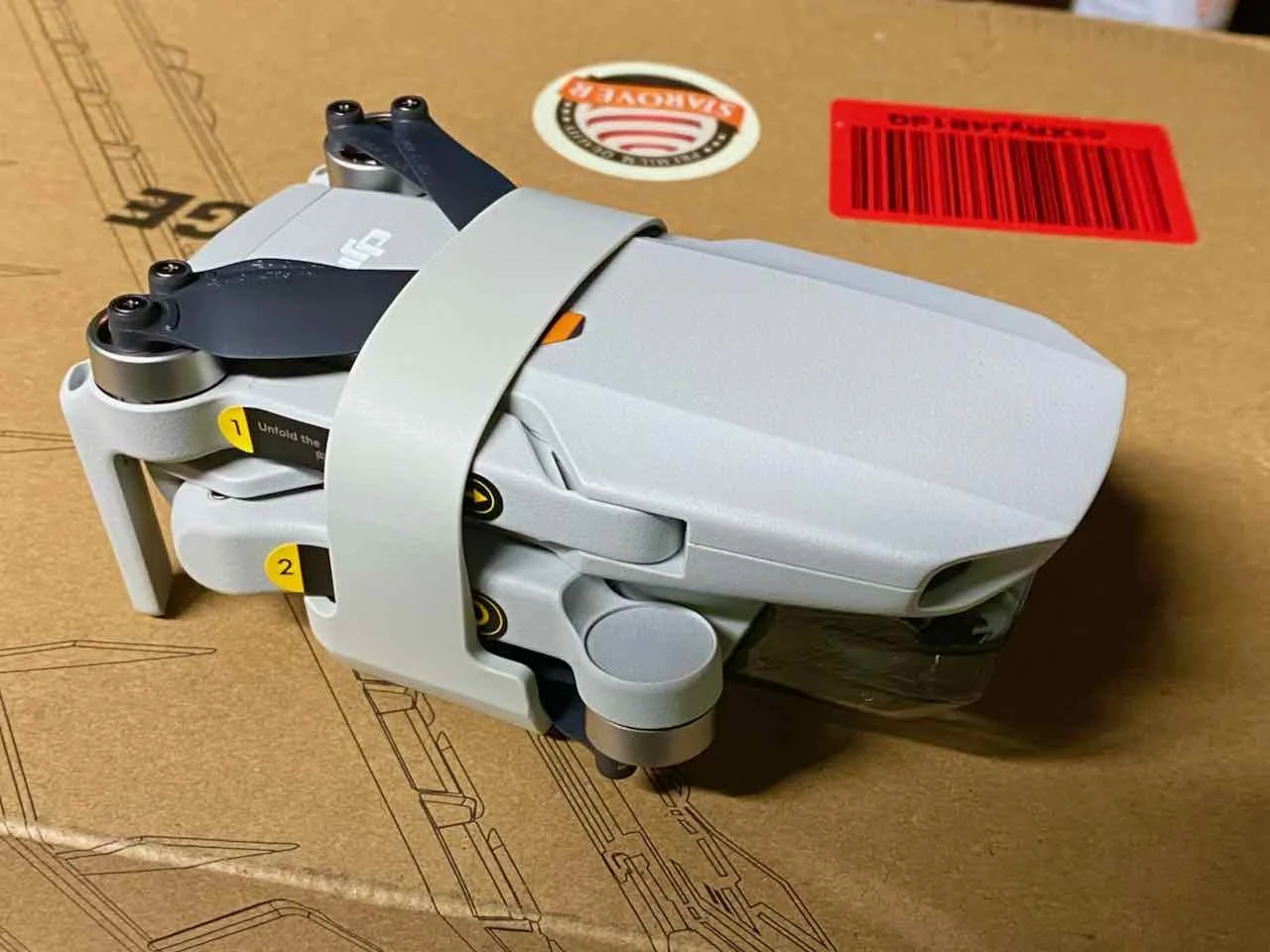
Drone Tricks: 6 Ways to Use a Drone Like the DJI Mini 2 for Church and Ministry
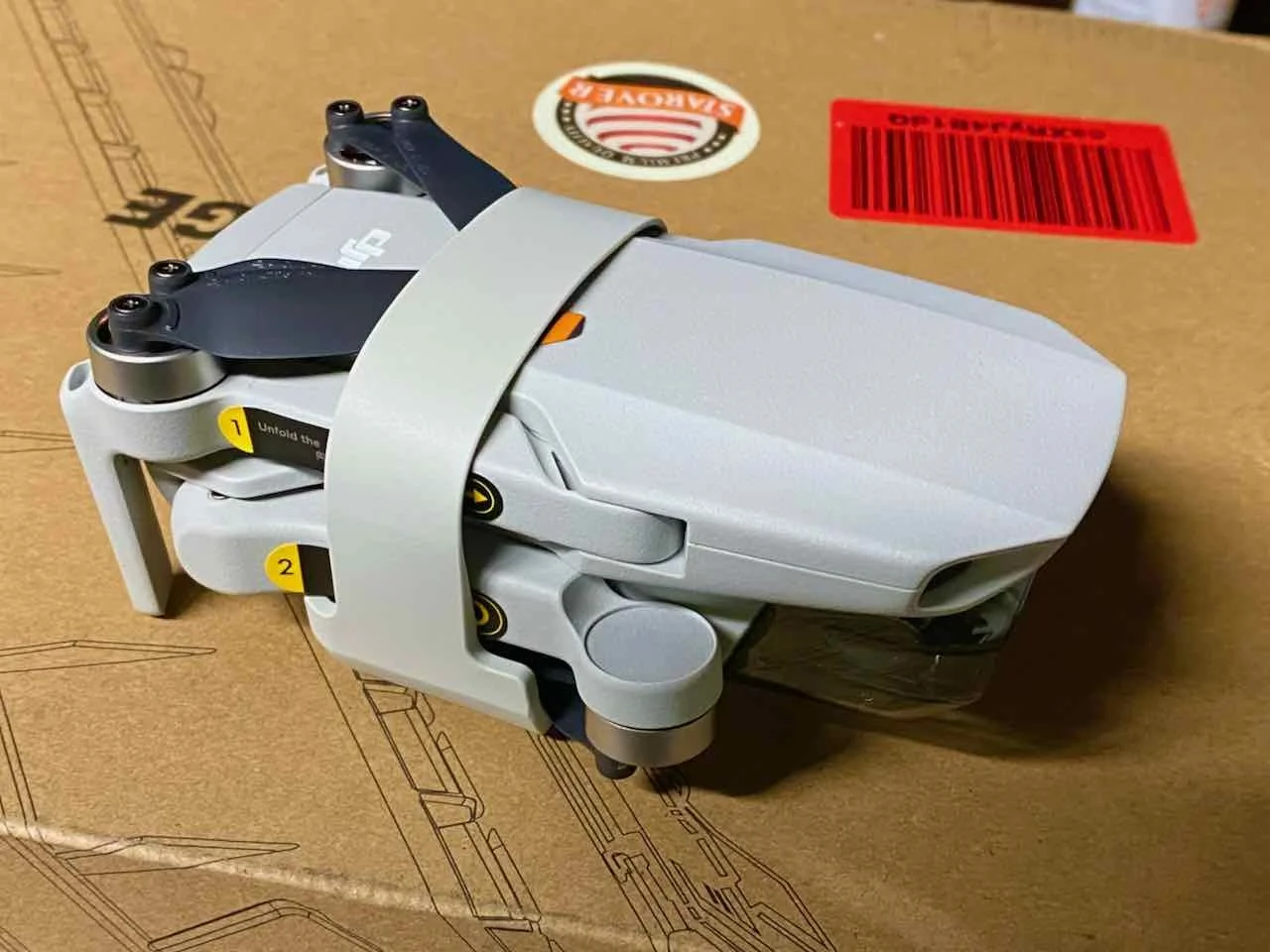
I bought the DJI Mini 2 drone for church ministry and fun. At the same time, I love flying it for fun because it's a simple to use drone that doesn't break your bank and is easy to fly. However, it's also a great tool for church ministry. So, I rounded up 6 Awesome ways to use the DJI Mini 2 for church and ministry. These will work with almost any drone like the DJI Mavic Air 2, the Skydio 2, or any other drone.

DJI Mini 2 Drone Overview
DJI promotes the Mini 2 as a light drone that weighs under the 250kg that the United States FAA sets as the limit for registering a drone. The DJI Mini 2 comes in below that number, so pilots don't need to register the drone with the FAA.
The company also advertises the 4K camera and 31 minutes of flight per battery. It costs less than most drones making it a great option for an entry-level drone buyer. That means it will also fit well in a church or ministry toolbox. It's cheap, doesn't require a lot of training to pass a government test, nor does it mean you have to register the drone.
The DJI Mini 2 serves the budget-minded drone pilot costing $449. Here's the list of what's in the box:
- The DJI Mini 2 drone
- OcuSync 2 Remote Control with Control Sticks
- 1 Battery
- Cables to connect to Android or Apple devices
- Spare propellers and the screws/screwdriver to connect spare propellors
Add $150 to get the Fly More Combo. You'll get...
- 2 extra batteries
- A nice charger to charge three batteries
- A protective cover for your gimbal and camera
- A strap to protect your propellor blades while it's stored away.
The gimbal and propeller strap makes it easier to throw the DJI Mini 2 in the Fly More Combo bag or throw it in a backpack.
Most of the DJI Mini 2 users brag about the excellent OcuSync controller. The wireless technology means pilots can fly their drones further away than older models without the new technology.
Specs hunters can read more about the technical details of the drone at the DJI website. Some of the highlights include...
- 31 minutes of flight time/battery
- 4k video and 12MP images
- 35mm sensor and f2.8 aperture
- Shoots in JPG+RAW
- Video supports 4K, 2.7K, and 1080P video at 24/25/30fps in 4K, 24/25/30/48/50/60fps in 2.7K, and 24/25/30/48/50/60fps in 1080p
- It has 4K 2X Zoom
- micro-SD Cards supported for storage
Inspect Your Church's Building with Your Drone
Recently one of our church's leaders noticed some discoloration on the backside of our steeple. He asked me if I could fly my DJI Mini 2 close enough to see what the discoloration came from in a meeting. I wasn't sure, but I certainly was excited to try it. I actually said, "You don't have to beg me to fly my drone."

The next day, I took off, got as close to the steeple, shot some video, and took photos of everything I could find. We found out that we had some mold and a few places where the paint bubbled up and cracked, revealing some dark spots below the white paint.

The DJI Mini 2 has a 2X zoom feature, as many smartphones have. I used that to get close with the camera while still flying far enough away from the steeple. That way, the wind didn't blow the drone into the steeple. The DJI Mini 2 handles moderate to light wind fine, but I still wanted to fly safely.
Take a Large Group Selfie with Your Drone
Have you ever tried to get a selfie of a large group? Rick Mansfield on the Theotek podcast described a time when he took part in one of these large group shots. The photographer climbed a ladder and yelled at the participants until they were all in place. She took the shot.

The old-fashioned group shot leaves out one person unless she's got a remote or uses the timer. But a drone can easily take off and move up and away far enough to take a shot with everyone in it. Plus, the group shot will look a lot cooler with some elevation. You can also make some videos using the cool automated shots that a lot of drones include.
Video Directions Shot with Your Drone
Your church website should include at the very least your church's address and a photo of the building. Wouldn't it look cooler to offer a video that shows how a person can find your church building?
Guests can drive to our church from four different directions. So, I took off and took a shot of every direction and then created an image with visual indicators of finding their way from those four different directions.
Be careful shooting video or taking photos of traffic patterns. Never fly directly above roads with cars on them. Get the video or photos when there's almost no traffic. You can also fly your drone over a field or large yard next to the road.
Also, don't shoot video while driving a car. Never shoot video or take photos during heavy traffic, even if you're not the one driving the car.
Scenic Video for Worship Service Presentations
Have you ever seen beautiful scenic videos shown during worship as lyric backgrounds in a song or behind a Bible passage? Why not create your own? This works best when you know what the lyrics or Bible text says. Then try to find some video or photos that are thematically connected.
The video below shows how one media person creates motion looping video. He created his video with a drone.
Create Cards, Posters, Instagram Stories, or Any Inspiring Media Using Pictures Taken With Your Drone
We post a lot of images online, so why not make your own. It's fun, and you don't have to pay for images from stock sites or deal with copyright from a public domain or creative commons file stores.

Use your drone shots in the following ways:
- Send photo postcards to people in your church that haven't attended in a while.
- Create a welcome card for guests with a scenic view of the community, church members, or other inspiring photos.
- Put a photo on the cover of your bulletin if you still print one.
- Post images on social media of events taken with your drone.
- Illustrate the Bible passage for this week's sermon, a Sunday school lesson, or a Bible study topic.
- Shoot video of events and create a memories video for participants to share online.
The list above hits on just a handful of cool ways to use your media shot on a drone.
Make Awesome Videos to Put on Social Media Grabbing Attention
Use your creative skills to create fun or attention-grabbing videos to put on social media. A cool video of events at your church will grab some attention with drone shots added to your videos. You're only limited by your creative ability.
How to Subscribe to Podcasts in Your Favorite App
If you want to enjoy the new Theotek podcast, we'll show you how to subscribe to podcasts in various apps or with an RSS link.
You hear a lot about podcasts, but how do you listen to them easily without going to the podcast's website? We'll look at how to subscribe to podcasts in your favorite app, like Apple Podcasts, Google Podcasts, Spotify, or my favorite, Pocket Casts.

Listeners can easily subscribe to podcasts by opening their podcast app of choice and search for it. If you own an iPhone you have an accept podcast app already. Apple Podcasts come installed on your iPhone. If you removed it or it's not there, just search the App Store on your iPhone or iPad and download it.
How to Subscribe to Podcasts in Apple Podcasts

Fire up the app, hit the Search tab in the lower right corner, and type in the Podcast title. If you type in Theotek, it should be the first one on the list, but the jerks at Apple prioritize other shows not named Theotek, so slide right to find it. Tap the cover art as seen above and then hit the three little dots menu button in the upper right. Choose Subscribe.
How to Subscribe to Podcasts in Pocket Casts

My favorite podcast app works so much better than Apple's app. Pocket Casts finds the right Theotek podcast when you search the title. Open it up and tap on Discover instead of Search like you did in Apple Podcasts. Type in the tame Theotek or another podcast title. Tap on the cover art that shows our faces and hit Subscribe.
I don't use Google Podcasts or Spotify, the other most popular apps. Unfortunately, the Google Podcast app doesn't find the right Theotek podcast. It finds the old one that we used to host on our website. So you'll need to use this link to subscribe to Google Podcasts from the web. Here's a link for the podcast on Spotify.
How to Subscribe to Podcasts Using the RSS Feed Link

If you want to subscribe to the Theotek podcast or any other podcast using an RSS feed, then you'll need to find the feed link for the podcasts. For example, here's Theotek's RSS feed link.
https://anchor.fm/s/4739b4e8/podcast/rss
You can also go to the Anchor.fm website to find links to your favorite Podcast service.
Every podcast has a unique URL called an RSS feed. A URL is a website address like www.kevinpurcell.org for this site. However, an RSS feed tells a Podcast app or an RSS reader important information to find a new episode of a podcast and tell your podcast or newsreader to get the new episode.
I use an app called Pocket Casts. The app finds every episode each time the app sends a message to the website asking if there's new content. If there's new content, the RSS feed replies saying, "Yes. We have a great new episode, and you can download it at this address."

Using Pocket Casts, users can add a new RSS feed by going to the Search tab and paste the RSS feed into the search field. Hit the Search button, and it will show you the Podcast. Tap it to go to the page. Tap the Subscribe button in the upper right corner.
Other apps or services have similar methods of subscribing to a podcast. For example, Google Podcasts allows you to add them on the website - podcast.google.com.

In the upper left corner of Google Podcasts website, you will see a link that reads + Add by RSS Feed. Click it to add the podcast RSS feed URL manually.
How to Add a Podcast RSS Feed Link to Apple Podcasts

Using Apple Podcasts, you can subscribe with an RSS feed too. Tap on the Library tab at the bottom of the page. Then find the Edit button in the upper right corner. Tap it and select Add a Show by URL... at the bottom of the list.
Apple Spring Loaded Event with New iMacs, iPads, and iPhones - Who Cares?
Our new episode of Theotek covers the Apple Spring Loaded event where Apple announced iMacs, iPad Pros, and more. Find out what Rick and Kevin thought and hear the opinions of their two guests.
On Tuesday, April 20, 2021, Apple released their Apple Spring Loaded announcement video in which they showed off a lot of new tech toys. We saw a set of new colorful entry-level iMacs with the new M1 chips, an incredibly thin design that makes it look like an oversized 24-inch iPad on a stand. Also, they showed off an updated 2021 iPad Pro in both 11 and 12.9-inch sizes. They boosted the quality of the displays and added a Thunderbolt port for high-speak communication with displays and storage.
Apple Spring Loaded - Theotek Episode #002 with Kevin and Rick
My friend Rick Mansfield and I released our second episode of the new and improved Theotek, a podcast about ministry tech made easy. This show covered all things Apple Spring Loaded.
We invited our friends, including Antoine Wright, who works with government agencies designing websites and user interfaces. LaRosa Smith also joined us. He now works as a contract designer of Bible study books for companies like Olive Tree Bible Software. He just published his second book, Bible Study Tips, which carries the same name as his YouTube show, in which he teaches the Bible and how to study the Bible. Here's one of his videos below:
Theotek Facebook Page

Please consider going over to our Theotek Facebook page. Due to naming rights, we call ourselves Theotek Media over there. Please like the page.
In the future, we plan to do a live feed of us recording our podcasts. You can watch all the fun behind the scenes as well as hear our content live. Use the above link or search for TheotekMedia.
What If I’m Discouraged in My Evangelism - Book Review
The little book What If I'm Discouraged in My Evangelism will encourage you with an emphasis on God's power meeting our willingness.
We all face it, and Isaac Adams takes a vulnerable approach to the subject in his short 9Marks title What If I’m Discouraged in My Evangelism. The book is part of a series called Church Questions. I reviewed another title in this series of helpful short books for believers called What If I Don't Desire to Pray.
In this title, Adams tackles evangelism's big problem in modern 21st-century churches with a hopeful approach. Too many believers struggle with evangelism because of fear, inadequacy, or just apathy. Adams tries to encourage believers struggling with sharing their faith by focusing on God's hopeful promises and his character. As he says, the book aims at "those who want to share the gospel message but, for whatever reasons, struggle to do so faithfully."

The Content of What If I’m Discouraged in My Evangelism
The book contains 9 sections discussing the Hope we Christians have in God. There's a great illustration for our reaction to the reaction by others to our message. Too many would-be evangelists avoid telling their story because they fear rejection by the recipient. Adams compares us to a mailman. Does a mailman feel anxious that those on his route will reject the letters, bills, and junk mail she delivers? No! She does her job and faithfully delivers the mail every day between Noon and 2:00 p.m. to the Purcell house.
After this great illustration, Adams begins dealing with the question: “What’s Our Hope?“ Each of the 9 answers comes with biblical support and real-world examples meant to encourage the reader. We read that we should...
- ”...fix your eyes on Jesus.” to avoid discouragement.
- Remember that we are evangelists in the home with our children.
- Be like Paul or Jonah and preach the word, whether you do so with great skill or meager efforts.
- Remember that God is the one who saves, not us or our methods!
- Know that rejection is a cause for celebration because it makes us more like Christ, who was rejected and promised we’d face rejection.
These are a few of the encouragements Adams offers.

One Nitpick Criticism
Under the sixth answer to the question “What’s Our Hope?”, the author uses Jonah as an example of a “reluctant evangelist.” I agree, as we all should, that Jonah didn’t want to go to Nineveh. He ran the opposite way. However, he also returned when God gave him a second chance. That’s a hopeful reminder.
The problem arises when Adams says Jonah then offered “the most pathetic call to repentance in all of Scripture.” He quoted Jonah 3:4, where we’re told Jonah measly said, “Yet forty days and Nineveh shall be overthrown.” The argument is that we get no other message or pronouncement. Is that true?
The book of Jonah doesn’t tell us of any other statements by Jonah, but the implication is that Jonah stood up and said nothing else in Nineveh. The converts began pouring down the aisles seeking salvation. Not really, but that’s how it would happen in a modern revivalist era. In Jonah’s day, they believed God and repented.
Did Jonah really never say another thing? I don’t know. Isn’t it possible that Jonah did say other things, but all we get is a brief summary? After all, we’re told in John 21:25 that we don’t get a record of all Jesus did because the world couldn’t hold all the books necessary to tell every detail of his life. Maybe the same holds true for Jonah.
As I said, that's a minor criticism of an otherwise fine work.
Recommendation
Isaac Adams did a good job of offering some simple encouragement with biblical support for the most part. He offers practical explanations of his main points and the practical application of how to move forward in hope.
The short little book won’t take you long to read. You could easily consume it over days with one section per day read devotionally along with your other scripture reading and prayer. You could also sit down and attack it in one or two sittings as I did.
However, you read the book, read it. As a pastor, I’ll possibly take the content and passages used to cover each of the 9 answers and turn them into a sermon series or, more likely, a three-part Bible study for a Wednesday night discipleship time.