


5 Amazing Desktop Gadgets to Improve Your Productivity

I recently bought a new desk for my home office, so I needed to improve my desktop setup. So, I found five amazing, cool desktop gadgets that made me more productive in my home office while doing digital Bible study or other ministry work. Here's my list below, with links to where I got them.
After you read about my favorite Desktop Gadgets, please comment below. What's your favorite Desktop Gadget? Either share an alternative to one of these or a new gadget I've not included.
HUANUO HNSS7 Monitor Mount Stand Desktop Gadget

I own a large 32-inch 4K monitor, and the stand that came with it takes up a lot of desk space. Mounting this monitor to the HUANUO HNSS7 Mount Stand freed up some desk space.
Below my monitor, I placed a stand for my iPad, which connects to my MacBook Pro for a third monitor. Thanks to Apple Continuity and Universal Control features, I can control the iPad with my desktop mouse and keyboard.

The stand connects to the back edge of my desk with a clamp. You can also put a hole through the desktop and mount it that way, but installing with the clamp takes less time and effort and works as well.
When I posted this roundup, the stand cost $90 with a 10% coupon, making it $81 with free Amazon Prime Shipping.
What I really like...
- Holds a large, heavy monitor up to 26 lbs.
- Easy installation with a strong clamp.
- It comes with a USB cable to connect to a monitor hub.
- The cable runs through the arm of the stand.
- With slight adjustments, the arm easily raises and lowers.
- The display can rotate 90 degrees.
Problems...
- Instructions are confusing.
- Adjustments aren't easy to make due to poor instructions causing many bad reviews on Amazon.
LG UltraGear QHD 32-inch Gaming Monitor
I love this monitor. It's designed with gamers in mind, but for under $500, it competes with high-end professional monitors with a 32-inch Nano IPS display, which offers superior color accuracy and a wider color gamut than conventional IPS monitors. This Nano IPS technology brings a more vivid and lifelike color representation to the screen, making it an excellent choice for writing with crisp text, color-accurate photo and video editing, and design work.

The refresh rate of 165Hz reduces the time it takes for the monitor to refresh new images, reducing eye strain while working for long editing sessions. A 1ms response time makes it adept at minimizing ghosting and providing a clearer, blur-free visual experience.
The stand's tilt/swivel/pivot/height adjustability provides maximum comfort for extended use. This makes it suitable for those long work sessions, allowing users to adjust the monitor to their most comfortable viewing angle.

What I really like...
- Excellent image quality and fast refresh rates.
- A large 32-inch screen makes it easy to read and see what you're working on.
- Adjustable tilt/swivel/pivot/height adjustments.
- Decent price for what you get.
- HDMI and DVI ports.
- Simple switching if you use more than one device with the monitor.
- Picture-in-picture and 2-in-1 feature with included software.
Problems...
- No built-in speakers.
- No USB-C in the USB hub.
- The on-screen control menu is annoying.
- Included control software is not good on a Mac.
You can get the LG UntraGear QHD 32-inch Gaming Monitor at Amazon for under $500.
ADEELIA 2-in-1 Foldable Magnetic Wireless Charging Stand

I wanted a cheaper charging dock for the road and found this gem for $36 as of May 2023. It charges an iPhone and AirPods at the same time wirelessly. However, it also claims to work with Samsung, LG, Google, Sony, and ONEPLUS phones. I only tested it with my iPhone 14 Pro Max, and it works great on the road and at home.

The will fold up for travel. I put it in my computer bag and folded it up. It takes up very little space. It charges with a USB cable. I have a ton of those and didn't use the included USB A to C cable.
When you fold it up, lay the charger flat or set it up so that it holds your phone up at multiple angles in both portrait and landscape.
You can get the Adeelia 2-in-1 Foldable Magnetic Wireless Charging Stand at Amazon for $35.99. There's a $5 coupon right now, so hit the link above and pick one up for your desktop or mobile kit bag.
What I really like...
- Works with MagSafe and other magnetic charging devices like Android phones.
- Charge in portrait or landscape mode.
- Versatile charging modes with foldable design.
Problems...
- Moving from mode to mode by rotating the two charging pads is stiff.
Focusrite Scarlett Solo 3rd Gen USB Audio Interface Desktop Gadget for Sound
Most people use their computer's audio interface to play music, video, or edit. You may also have a mic built into the computer. However, you can get better-sounding audio with the Focusrite Scarlett Solo 3rd Gen USB Audio Interface.

They advertise it as "professional audio" but I wouldn't go that far. However, for only $100, it sounds really good if you pair them with great speakers and a quality mic.
The company makes a bunch of these USB Audio Interfaces, but for one person, the Solo works best. It connects to my Mac via USB-C. On the back, you get two quarter-inch jacks to plug into a left and a right speaker. On the front, it has an XLR mic input, a quarter-inch input (for an instrument typically), and a quarter-inch output for headphones. The large volume knob controls the audio, not your computer.
The 48V button lets users switch between a 48-volt phantom power mic interface or non-phantom power. Check your mic to see if it needs the power. Another button labeled INST turns the front quarter-inch jack into an instrument interface. Otherwise, you can use a line-level input like a keyboard or external audio mixer via the quarter-inch jack.
Each front input has its own gain knob to get the right sound levels.
The device also comes with some excellent software bundled. Ableton Live, a 3-month subscription to Avid Pro Tools, a 3-month subscription to Splice Sounds library, and more.
Amazon sells the Focusrite Scarlett 3rd Gen USB Audio Interface for $99.99 as of the date of this post.
What I really like...
- The simple interface.
- A physical volume control ready to turn it up or all the way down without fumbling in software.
- Excellent sound outputs for two monitor speakers.
- USB-C.
- Small.
- The clipping indicator on each front input with colors indicates that you're getting close to clipping (orange).
Problems...
- The sound going to the computer can be low.
- If you need to control the audio input from software, you can't on a Mac.
Desktop Gadgets I Use With the Scarlett
I use the following accessories with my Scarlett Solo:
- WORLDS BEST CABLES Quad Balanced XLR - $27
- Hosa HSS-001.5 REAN Balanced Quarter-inch Cables - $7
- PreSonus Eris E3.5-3.5-inch Near Field Studio Monitor Pair - $99
- Shure SM58 Cardioid Dynamic Mic - $99

The Shure SM58 mics and the PreSonus speakers are excellent! They sound professional and don't break the bank. I have had no problems whatsoever.
Bose QuietComfort 45 Bluetooth Headphones
The Bose QuietComfort 45 Bluetooth Headphones sound great and feel comfortable. You can probably find better headphones on Amazon, but not for the under $300 price point.

Do you hate Bluetooth headphones? Great! You can use the Bose QC45s with a wired connection too. In fact, I've connected mine to the Focusrite Solo 3rd Gen USB Audio Interface above with a 3.5mm to quarter-inch conversion cable, and they sound better than over Bluetooth.

I like the convenience of Bluetooth. When I'm listening to music, watching a movie, or editing audio/video, I prefer connecting these headphones. They fit well on my big ears, and I can wear them for a long time before taking a break.
The headphones offer noise-canceling sound. You can switch from canceling to aware mode to hear your environment if needed.
Connect to more than one source and listen over Bluetooth for hours. Bose advertises 22 hours, and I can't dispute that because I've never worn out the battery before charging them.
Get them right now for $279 on Amazon.
What I really like...
- Great sound quality.
- Versatile with Bluetooth connection to 2 devices or a wired connection.
- Long battery life.
- Nice carrying case with all the cables you need.
Problems...
- I can't think of any.
Note all links above to the product purchase pages are affiliate links.
How to Use ChatGPT to Make Sermons More Interesting But Not More Biblical
You shouldn't use ChatGPT to study your passage but you can use it to make it more interesting. We look at how AI can help in sermon prep.
Everyone's amazed at the usefulness of ChatGPT while also concerned about it replacing so much in our culture. This includes good sermon preparation. Should pastors and preachers use ChatGPT to prepare their sermons? We will examine how to use ChatGPT to make sermons more interesting but not more Biblical.
Will the artificial intelligence tool make your sermons more interesting? How about more biblical? Can you even trust it?
I started using ChatGPT in my sermon preparation, but not how most people might think.

The Ethical Concerns Over ChatGPT for Sermon Preparation
Ethical preachers do their best to let the hearer know they didn't come up with the content on their own unless they did it on their own.
I once preached a narrative sermon telling a third-person story about a marathon running in the Corinthian games. It was an in-depth story that made my key points based on a passage from 1 Corinthians. I wrote it. It was original to me. So, I never cited anyone.
After the message, a church member told me she loved that story and couldn't remember where she first read it, but was glad I told it. I didn't have the heart to contradict her, so I said, "Thank you!" I left it there. But I wrote it.
At the same time, I heard a preacher quote an entire chapter from a Max Lucado book verbatim while he preached a revival at my church. After that service, I approached him and said, "I enjoyed listening to that. I, too like to read Max Lucado's books." I wanted him to know without being too confrontational that I knew he just passed off non-original work as his own.
Do You Always Cite Sources?

That brings us to the question of citing sources. Do you always cite every source you glean information from? Do you say, "The New American Commentary says..." about a passage? I don't always do that. If the material is unique and especially creative, I will clarify that I found this somewhere else. If it's ordinary and you can find the same content in five different Lexicons or Bible dictionaries, then it's not that revolutionary. You don't need to cite it.
That leads us to ChatGPT. Too much of the content we discover doesn't come with good citations. You can ask for references, but sometimes the information is wrong. So, ethical preachers should carefully use content from ChatGPT.
I don't use the tool for learning about language study, historical information, or other content I can find using something like Logos Bible Software. It's not good for that. Don't do it!
If you ask ChatGPT to write a full outline, you must cite it. It could be interesting, especially if you can find a way to connect that to the message. You might say, "I used ChatGPT to develop this outline." Some won't care, while your "lazy" sermon prep will scandalize others. However, in the end, you could make a point about life that ChatGPT illustrates. I can't imagine such an illustration, but you might.
I say that because...
ChatGPT Won't Replace Good Exposition of Scripture
Use your Bible Software or your seminary language study skills to learn what the author of Hebrews means by "Faith is the substance of things hoped for, the evidence of things unseen."
- You don't know whether you can trust the sources for studying Greek or Hebrew languages.
- You don't know whether you can trust the sources for church history, hermeneutics, or English-based dictionaries.
Fill in the blanks with any source. ChatGPT doesn't provide good sources, so you'll need to cite ChatGPT, and the tool often gets things wrong. A site called Analytics India Magazine posted a list of problems with ChatGPT. This ranged from bias to factually false info to bad math.
Don't use ChatGPT to study your passage. It's not good at it. If you have any experience preaching or training in exposition, then you're better at studying scripture than ChatGPT.
Use ChatGPT to Make Sermons More Interesting by Finding Illustrations
ChatGPT does a decent job of finding good sermon illustrations. Everyone knows a good sermon illustration will help you create interest. So you can use ChatGPT to make sermons more interesting by asking for great sermon illustrations.

Ask for historical or news-based examples of your topic. For example, ask ChatGPT, "What's a good example of a news story that took place since 2010 that shows what it is like to forgive?"
You'll notice a clipboard icon right of the answer when you get your answer. Click it to copy the content and then paste it into your sermon. Here's what the site offered when I wrote the above question.
One notable news story that demonstrates the power of forgiveness is the case of Rachel Denhollander, a former gymnast and lawyer, who in 2018 became the first woman to publicly accuse Larry Nassar, the former USA Gymnastics national team doctor, of sexual abuse. Denhollander's brave decision to come forward eventually led to Nassar being convicted and sentenced to up to 175 years in prison.
During Nassar's sentencing hearing, over 150 women shared their stories of abuse, and some even expressed forgiveness towards their abuser. In her victim impact statement, Denhollander said, "I pray you experience the soul-crushing weight of guilt, so you may someday experience true repentance and true forgiveness from God, which you need far more than forgiveness from me."
Denhollander's statement not only showcases her own strength and resilience, but also highlights the power of forgiveness. The courage and empathy displayed by her and the other survivors in offering forgiveness, despite the immense pain and suffering they endured, is a testament to the healing potential of forgiveness. This case gained widespread attention, opening up conversations about the importance of acknowledging and addressing sexual abuse in sports and other institutions.
ChatGPT
Other examples could include things like...
- What's a good quote from one of our founding fathers on the value of learning?
- Give me a literary example of mercy.
- Are there any movies from the last five years that show the value of family?
Remember that when ChatGPT gives you a result, you can narrow the results. When I typed the third prompt, I asked it not to give me any Disney movies. It included the movies Coco and Onward, both Disney films.
Use ChatGPT to Make Sermons More Interesting by Finding Just the Right Words
I don't make a big deal out of sermon titles. We don't publish them in our bulletin or post them on the church sign. However, I sometimes state them if they're interesting and grab attention. If you want to do that, ChatGPT can reword your sermon title or the Big Idea sentence (main idea of the sermon) in a more memorable way.
I asked ChatGPT, "what's a catchy way to say Approved by Faith" since that's my subject for an upcoming Bible study on Hebrews 11:4-6. Here's the response I received:
A catchy way to say "Approved by Faith" could be "Faith-Certified" or "Blessed by Belief." These phrases maintain the essence of the original statement while adding a touch of flair and memorability.
ChatGPT response.
I like Faith-Certified because it not only sounds interesting but sparked an idea for an opening illustration about getting certified. Some authority says you're qualified in a particular area when you receive certification. You could pick programming, something from a job some congregation members hold, the certification to do CPR and save lives, or maybe to use a powerful tool safely.
What's new in Accordance 14?
What's new in Accordance 14 Bible software. We go over what those new features are and how to use them with video.
The Accordance 14 update came out with interesting new features and a troubling lack of quality control. Even though Accordance 14 came to users' computers last fall, I held off writing this until it became stable. While it's still not great, it's better on Mac, so let's look at what's new in Accordance 14 Bible software. Check out the sections below for each major new feature and the video demonstrating the Accordance 14 update on macOS. It looks and works the same on Windows with minor exceptions.
Below you can watch the demo video made by Accordance.
Open Accordance 14 Dynamic Word Study
Accordance 14 adds a new word study tool that you can use to study English, Greek, or Hebrew words. Bible students can understand the word and learn how to teach, preach, or apply it personally.
The most used way of opening these word studies comes from the context menu. Select a word in your Bible and right-click on it. Then look for the Research section of the right-click menu. Under that, you'll see Word Study. Select it to show the fly-out menu. You'll see options for Word or Key Number.

Each option shows content about the Word you're studying. Choose Word, and it will search the English term. Choose Key Number, and it will search using Hebrew or Greek Key Numbers as the foundation. A Word-based Word Study shows details about that word, like...
- Word Count - how many times it shows up in the Bible.
- Definition - shows the word in your highest-ranked dictionary.
- Text Compare - shows the difference between translations in English.
- Visual Details - pie or bar graphs on what Hebrew or Greek words were translated into English words.
- Dictionaries - shows your top five Bible dictionaries for that word.
The choice opens a new window with a Word Study tab open

Users open an Accordance 14 Word Study using the File menu. Click on File and New Tab. Then look for the Research section. Under it, you'll see Word Study with a fly-out menu offering three options for English, Greek, or Hebrew word studies. Choose one by clicking it. This opens a new tab ready to perform word studies based on the open Bible.

If you haven't opened a Bible yet, Accordance 14 will connect the new tab to your top-ranked Bible with language study tagging. You can also open the new tab using the New Tab button on your toolbar. Find the Research section, and click Word Study just below the section title. Choose one of the three language options to open a new Word Study tab.
How to Use Accordance 14 Dynamic Word Study
With the Word Study tab open, type in a word. You can type English words, and the results showing up after you hit enter come from that word in the translation selected in the drop-down menu in the upper left of the Word Study Tab.
Change your translation by clicking on the drop-down and selecting a new translation. This changes the results in the tab.
You'll see a few sections in this tab based on what kind of word you searched for. For example, an English search gives you...
- Word Info - content from your top English Bible dictionary.
- Text Compare - shows a list of the instances of your English word in the top translation. Click the plus icon to add other translations based on your text ranking in the Library.
- Word Graphs - includes Pie, Bar, and Frequency Graphs based on usage in your top Text. Add texts to see more graphs.
- Dictionaries - a list of your Bible dictionaries with that word in them.
Custom Phrasing
With the new Custom Phrasing feature, users can create diagrams of the text to show the text in a visual way. This shows the relationship between parts of the text to other parts.

Go into a Bible text in any language and use the setting drop-down box in the upper right corner of the pane.

Select Phrasing, and a new menu flies out to the right. The options include...
- Phrasing Break [Shift + Enter] adds a new line to a verse so you can show a phrase below another in a single verse.
- Phrasing Indent [Shift+Tab]moves the margin on the left of English texts over one tab at a time to place that phrase below a specific word above it.
- Phrasing Delete [Shift+Backspace] removes the tabs created with Phrasing Indent or Break.
- Hide Phrasing [No KB Shortcut] temporarily returns the look to the prior state. After doing this, go to the menu and click on Show Phrasing to bring it back.
- Lock Phrasing [No KB Shortcut] keeps the changes in place.
Why would a user want to create Custom Phrasing? This shows how various parts of the text relate to other parts of an idea. I use them to show things like major ideas and subpoints. You can also create visual lists in a text, like Galatians 5:22-23 which tells us about the "fruit of the Spirit."
Learn the keyboard shortcuts listed above to create these diagrams. It will speed up creating these Custom Phrasing outlines.
Easy Answers

Some books include things like questions with space to answer. In paper form, users could write in the space provided. Think about a workbook for your Hebrew class in Bible college or seminary class.
Digital versions of these books may still show discussion questions at the end of a section or in a workbook, but they're not easy to work with. You can add notes. But now Easy Answers helps for books that take advantage of the feature.

Easy Answers promises to make this possible in Accordance 14. You'll have to own a book that supports the feature. So look for this in future updates to books. I don't own any I know of, so I can't recommend or show you this feature. You'll have to search your library or the Accordance store for books with Easy Answers support. I know that Christian Worker's Commentary has this feature. See the screenshot above.
I will warn you that this feature is buggy on Mac. I experienced a few crashes while using it. It seems that when you open a Bible by clicking a link in the commentary, that it crashes once you click in the text box to add your answer.
Accordance 14 Offers New Citation Formats
Accordance added a few new official citation formats. You could always use Turabian, SBL, and Simple citations. But now you can use APA, Chicago Manual of Style, and MLA.

To change the default format, go into your preferences or settings. On a Mac, use the Accordance menu in the upper left of the menu bar. Then choose Preferences. You can also use the keyboard shortcut COMMAND + , (the Command key and the comma).

The above sets the default form of citation. Select something you want to copy with your preferred citation format. Right-click the selection and choose Copy As in the pop-up menu. Then choose Citation in the new flout menu. You could also use the keyboard shortcut COMMAND + CONTROL + C on a Mac.

Unicode Text in User-Created Tools
Tools created by the user can now use Unicode Text. Why is this important? Users creating tools in languages like Asian or other non-Latin languages.
Quick-Click Verse Picker - AKA Book/Chapter/Verse Chooser

Click on the new Quick-Click Verse Picker tool in the upper left corner of the Bible window in Accordance 14. Then a drop-down shows up with abbreviated Bible book names. Pick your book, then the chapter, and the verse. It opens the Bible to that reference. See the above animated GIF.
User Created Dictionaries & Commentaries

Accordance 14 offers new options for user-created tools. As a result, you can now create custom dictionaries, lexicons, and commentaries.

To create these, open the File menu, choose User Files, and then New User Tool.... Creating these tools is similar to creating General tools in previous versions.
Recommendations on Buying and Using Accordance 14
Should you go and upgrade to Accordance 14? Because it's not that expensive, I'd recommend you do so. At this point, version 14 has a lot of bugs that the company needs to fix. The Windows version has many more than the Mac version. Also, the iOS and Android verses are woefully behind the competition. If you buy the upgrade, you might want to keep 13 around by entering your Applications folder in macOS and renaming Accordance to Accordance 13. Then you can install Accordance 14. Look at our post on downgrading from 14 if you already installed it.
What's New in Logos 10 Web App with Video
Now that Logos 10 is here, check out this demo of the Logos 10 Web App. We go over the major new features in the Logos online Bible study site.
When Faithlife released Logos 10, they also updated the Logos 10 Mobile app and the Logos 10 Web app. We've got the major new features of the Logos 10 Web App, with screenshots and a video showing how to use each feature.
If you want to upgrade to Logos 10, consider using my affiliate link to get a discount and help me pay for this site and the video I made about the update.

Why would you want to use a web app instead of software?
- Chromebook users can install the Android app, but it's not as good as the iOS app and not even close to the desktop app. The web app does a good job of presenting users with some good Bible study tools.
- People sometimes use a computer they don't own and can't install the software. Travel to a friend's house or borrow your spouse's system and log onto the Web App and you can access all your books and many of the advanced Bible study tools of the mobile and desktop apps.
- Small SSDs in systems like the Microsoft Surface Go or other older systems can run the Web App and still use your huge Logos library.
- A web browser and the Logos 10 Web App run faster than Logos 10 on the desktop. You might want to read some text or quickly run a simple search.
The new Logos 10 Web App offers a slightly changed user interface. You also get a few other features that we'll demonstrate in the video below and in each section after that below.
Video Demonstrating the Logos 10 Web App New Features
Logos 10 Web App Simpler Search
Logos 10 simplified search and ported that feature to the Logos 10 Web App. The new Simpler Search cuts down on some of the arcane syntax users needed in previous versions. The example they give is as follows:
For example, <Person Moses> WITHIN {Speaker <Person Jesus>} becomes person:Moses IN speaker:Jesus, to find all the times Jesus talks about Moses.
You no longer need brackets or curly braces to search in Logos. They say it’s more like a Google search. That’s a good thing because searching in Logos made things too complicated. Many of us just opened a browser and searched Google for simple searches trying to find a specific passage.
For the Logos 10 Web App, you can use their auto-complete to add search terms for special syntax. You can still use the old terms if you struggle to remember the changed syntax. Logos will translate it into a new way of searching.

To use the feature, click the Search button and then type in your search into the search box, as seen above.
Logos 10 Web App Sermon Import
The Logos Web App now lets users add their sermons thanks to the Sermon Importing feature. Add sermons you wrote in other software like Word or Google Docs. Then automatically create slides to export to Proclaim, PowerPoint, or Keynote. The Web App offers other options as well.
You can import existing sermons into Logos to take advantage of Preaching Mode, automatic slide creation, Sermon Manager planning, and wider integration into Logos.

Open the Sermon Manager from the tools menu. Then click on the three vertical dots in the upper right corner of the Sermon Manager and click on Import to add your sermon files. A dialog box opens up. Click on Choose files. Select one or more documents to import.

Logos 10 Web App processes the files adding tags for things like Bible passages. You can edit each file with the information you might find in the Sermon manager's Sermon Info sidebar on the right after selecting a file.
Popular Quotes in Logos 10 Web App
Using Sermon Builder, you can search for quotations to help illustrate ideas in your message. Open the Web App, go to the Tools menu (the 9 dots in 3 rows), and open Sermon Builder.

You'll see a single quotation mark in the upper right corner of the Sermon Builder. Click on it to open the Popular Quotes feature. You'll now see an entry box that you can use to search for passages, text, or topics. The tool searches the quotations dataset and finds applicable quotes.

Find your quote and drag it to the sermon editor. The Web App will create a slide to export to Proclaim, Keynote, PowerPoint, or other useful destinations. If I used it, I could export it to the worship presentation tool made by Faithlife called Proclaim.

Only customers who bought the Silver package or above of Logos 10 will see this feature in the Logos Web App.
Advanced Timeline in Logos 10 Web App

Logos updated the Timeline feature in the Logos 10 Web App and gave it a new name: Advanced Timeline. Open it from the Tools button on the toolbar (9 dots in three rows next to the search box on the main toolbar). You'll see Advanced Timeline in the drop-down box.
You'll need the Bronze package of Logos 10 or higher to access the new Advanced Timeline.
Church History Themes
The new Church History Themes feature brings a "combination of a new dataset and resource" to the Logos 10 Web App, which will help users better understand theology in the historical setting.
Logos added many pages to the Church History Themes section of the Factbook. These themes show the historical movements inside the history of the church. The entry in the Logos communities says...
Every Theme begins with a summary and lists Key Developments. It goes on to identify key People, Events, Places, Concepts, and Documents, which link out to other Factbook pages for further detail.

Here's how to use it. Open the Web App and then click on the Factbook icon, which looks like a book with a checkmark next to the search icon on the toolbar. In the Factbook, click on the drop-down list and choose Church History Themes.

You'll see a list of items in the left column of the Factbook. Choose one to study that item. The main window to the right shows content from the Factbook and your library regarding the item you selected.
How to Open Church History Themes from Advanced Timeline
Users can also open the Church History Themes feature from the Logos Web App Advanced Timeline. Click the Tools button on the toolbar. Then choose Advanced Timeline to open it.

Now click on the Facets button in the upper left of the Advanced Timeline Window. You may need to open the Subject Area section. Click on Church History to see the Church History Themes in the timeline.
How to Open Church History Themes from Library

You can also open the Church History Themes content from your Library of Resources. Click on the Library button on the main toolbar. Then search for either...
- Essential Lexham Dictionary of Church History
- Church History Themes
You can open one or both of these books to read and find content.
Auto Translation in Logos 10 Web App
Users can open a resource or book, and on the right side of the window, there's a new feature to translate the book or resource from the currently published language to another language.

See the screenshot above. Click the button second from the right in the resource's window. This opens the Auto Translation Tool. Choose the language you want to translate from the drop-down box that lists the languages. The Web App instantly translates the open book into the new language.
Logos New Year's Sale Saves Up to 55 Percent
Logos has a great deal on a bunch of resources as part of their Logos New Year's Sale. Find out what's included and how to save.

Logos began a Logos New Year's Sale this week, with 2023 starting Sunday. This sale can help you save up to 55%. Let's take a look and save some money using my affiliate link.
As people think about a new year, they often turn to Bible study as one "resolution" or goal they set for the new year. You can find some good strategies for successfully starting and continuing a personal Bible reading plan here on my site. So, let's take a look at the deals in this Logos New Year's Sale.
New Year's Sale on Logos Bible Study Tools

If you want to read your Bible daily in 2023, look at some of these deals. People who want to read their Bible every day and grow in their study skills can grab some Greek or Hebrew resources. The sale includes...
- Mobile Ed courses like the first one on their page cover the Wisdom of John in Mobile Ed: NT 221.
- Other courses on Discipleship, a commentary on Romans, and one on Christian Life from a Kingdom Perspective
- Audiobooks using the new audiobook feature in Logos 10 and Logos 10 Mobile.
- Biblical Studies tools on theology, the book of Matthew, and the History of Biblical Interpretation.
- Plenty of other tools for studying church history, theology, and more.
Some of the resources I'm looking at getting include...
- Bonhoeffer on the Christian Life: From the Cross, for the World
- How to Know God Exists: Solid Reasons to Believe in God, Discover Truth, and Find Meaning in Your Life
- Expositional Preaching: How We Speak God’s Word Today
If you head over to the site, you'll see a lot of audiobooks. I love the new audiobook reader in Logos 10. It's a great way to enjoy our library while on the go or as you do something else that doesn't require much mental attention, like cleaning, walking, driving, or other things.
Logos 10 Packages Plus 5 Free Books
Logos extended their Logos 10 Packages sale. Buy a new package either as a brand new customer or as someone upgrading your previous version of Logos, and you'll get the discount and five free books if you use my affiliate link.

New customers get $15 off on a package while existing upgrades will enjoy 30% off. Most companies do this the other way around to entice new customers. They offer their general color-coded packages (silver, bronze, gold, etc.) and their denomination packages for Baptists, Anglicans, Lutherans, and others. People in the Academic world or advanced Bible study enthusiasts can choose from the Academic packages. You can find a package if you're a preacher or counselor. Customers who want only the feature upgrades and no new books can also get those at a discount.
This Month's Free Book Plus Deals on Other Low-Cost Books

Every month Logos offers a free book. Choose After God's Own Heart: The Gospel According to David this January 2023. Get this and the other discounted books on their site using my affiliate link. The other books and their prices are as follows:
- God with Us: The Meaning of the Cross and Resurrection—Then and Now - 99 cents
- According to Plan: The Unfolding Revelation of God in the Bible - $1.99
- Genesis 1-4: A Linguistic, Literary, And Theological Commentary - $2.99
- A Still and Quiet Mind: Twelve Strategies for Changing Unwanted Thoughts - $3.99
- A Theology of James: Wisdom for God’s People (Explorations in Biblical Theology) - $4.99
- The Message of Salvation: By God’s Grace, for God’s Glory - $5.99
- The Holy Trinity: In Scripture, History, Theology, and Worship, Revised and Expanded - $6.99
- Exploring the Religion of Ancient Israel: Prophet, Priest, Sage and People - $7.99
- Matthew, 2 vols. (Reformed Expository Commentary | REC) - $8.99
- Exploring the New Testament (2 vols.) - $9.99
- The Whole Counsel of God, Volume 1: God’s Mighty Acts in the Old Testament - $10.99
- A History of Evangelicalism Series Collection (5 vols.) - $15.99
You can also pre-order the volume of The Book of Ezra and Nehemiah (New International Commentary on the Old Testament or NICOT) for $48.99.
Best Bible Reading Plan for 2023
Its time to commit to a Bible reading plan, so we've got some advice to stay committed and keep reading through the new year.
Every year it seems that Christians resolve to read their Bible more. Seasoned Bible Reading Plan veterans know what to do and how to do it but may lack the willpower or passion for keeping with it all year. However, novices could use some advice on the best Bible reading plans for the new year. So, here's our best advice for how to read the Bible on a regular schedule in 2023.
1. Pick a Good Translation for Your Bible Reading Plan

What's the best Bible translation for your Bible reading plan in 2023? That's a loaded question.
Many people already have a favorite translation that they understand and enjoy reading. Some read the Bible in a community and share a single translation with friends, family, or your church family. In those cases, stick with what you like and know. For other people, consider the following...
- Pick a translation that you know you can understand and will keep reading. The more modern translation usually offer the best results.
- Unless you're comfortable with the KJV, consider a more modern translation. They use contemporary language instead of terms that have changed since the translators of the KJV completed their work.
- Don't use a paraphrase despite how easy they are to read. They're not as accurate, and you'll need something more accurate as your Bible study grows more in-depth.
What are the Best Translations in 2023?
So what translations should the new Bible reader consider? Let me share one important trait of modern translations. We judged them from the most literal to the least. That doesn't mean that a translation that's not as literal will be worse than a more literal translation. Translators often choose to go with a less literal translation because it confuses modern readers or makes it harder to read in a flow.
The Greek and Hebrew writers didn't put words in a rigid word order like we do in English. They often emphasize the most important word by placing it at the beginning of a sentence. But our modern English rules say that's not the right way to do things. Here's an example:
The man drove that car right off the cliff.
What's the most important word? The writer of the sentence may want to emphasize the danger put, so "cliff" is the most important word. She might want us to focus on "car" instead. Either way Greek writer might write it as follows:
The cliff the man drove the car right off.
That's awkward in English but makes perfect sense to an ancient Greek reader, except for not knowing what a car is.
My Recommendations for the Best Translations for Your Bible Reading Plan
I use the Christian Standard Bible (CSB). It's a revision of the Holman Christian Standard Bible (HCSB). The team that translated sought to make it accurate, consistent with conservative, Evangelical theology, but equivalent to modern English so that readers in 2023 and beyond could easily understand it.

In 2022 the Legacy Standard Bible came out. The LSB fits in the family of the New American Standard Bible, which I grew up reading and studying thanks to my home church pastor. He preferred its accuracy and literal translation emphasis. It's not as flowery as more modern translations but fits great in a serious Bible student's toolbox. The NASB first hit the Christian world in 1977 and received an update in 1995 and in 2020. Unfortunately, from 1995 to 2020, it changed in a way that made people think the translators were less interested in literal translation and more in modern terminology. I don't know if that's true, but I prefer the LSB because the team that produced it continued the firm emphasis on making as literal an English translation as possible in 2022.
Other great options include...
- NKJV - The New King James Version isn't as modern, but it's still very good and comforts people who grew up reading the KJV.
- ESV - The English Standard Version comes from the line of the first American English translation, the ASV. It later received an update and the name RSV. The ESV translators worked to stay in that line and produced an excellent translation.
2. Don't Start at the Beginning
Readers start most books on page one, but the Bible's a unique kind of book. So, don't start on page one if you want to get through it.
When I counsel new believers, I suggest they start reading the book of John. It's simpler to read than Genesis. You don't deal with complicated and strange passages like the legal code in Leviticus or genealogies in Genesis 5 and 10. Finally, the stories about Jesus are more familiar than the Old Testament stories.
Combat the boredom of reading these difficult passages in the first five books of the Bible by using a different reading plan than going verse by verse, as many new Bible readers often choose. See the next section below for the best Bible reading plan recipes to help you succeed.
3. Follow a Recipe for Success in Your Bible Reading Plan
When we call a Bible reading plan a recipe, we mean what passages or what genre of passages you should read in each reading session. Your Bible or Bible app can help you find a good Bible reading plan that helps readers succeed in getting through the entire Bible and keep reading without giving up after a few days, weeks, or months.

Does your Study Bible include a Bible reading plan? The Bible app also includes hundreds of Bible reading plans. Those plans range in scope, including a topical plan that offers a week of reading plans and devotions to go with the daily topics. Alternatively, you can choose a plan that reads the entire New Testament in 30 days. Most of us will choose something between these two extremes.
See the hue scope of reading plans at the Bible app's site. You'll also find these in the Bible app on your phone or tablet. Other apps offer Bible reading plans, including the Logos Bible app on mobile or desktop.

Open the Library in Logos on a desktop. Type in your translation in the search box that pops up. Then click on the three dots at the right of the translation entry in the Library list. Choose Start reading plan from the drop-down list.
Other apps with reading plans include Olive Tree, Accordance, and more. You'll get the best digital Bible reading plans from the Bible app or Logos.
4. Set a System to Remind You to Read
A digital Bible reading plan helps keep you reading because you can set a reminder on your phone, tablet, or computer. We don't have time to explain how to set these reminders in each app, so check with your chosen Bible app to learn how to set them.
Even if you don't plan to use a digital Bible reading plan, you can still use your phone's reminders or To-Do app to remind you to read the Bible daily. In iOS, you have Reminders, and on Android phones, you can find a number of options.
At the very least, write a note and keep it somewhere you won't miss it. Keep a Bible on your nightstand or near your morning breakfast spot in the kitchen or dining room. Make it conspicuous so you won't forget.
5. Share What You Learn With Others
The four previous strategies will help with your Bible reading plan. This fifth strategy helps the most. Find a friend who will keep you accountable. This person can help with more than your Bible reading plan. They can keep you accountable for your moral choices, personal discipline, and relationship behavior. Who should you choose? You might have a name in mind without much thought. Let me suggest a few things to help you select the right person.
- Same Gender - don't enter into this spiritually intimate relationship with a member of the opposite gender. A man picking a woman or a woman choosing a man can cause problems, especially if you're in a committed relationship (marriage, engaged, or long-term committed romantic relationship).
- Trustworthy - the worst thing you can do is admit your failures to someone who will gossip about your private sins. You can get hurt, embarrassed, or if you know they're not reliable, then you could lose trust and not openly admit your failures.
- Reliable - you can trust some people to keep your secrets, but they don't respect your time. You end up without an accountability partner because they won't keep the schedule you made.
Answer Below in the Comments
What do you recommend regarding daily Bible reading plans? Which plans work best for you? What apps or websites help? Who do you have to help you stay true to your commitment to reading the Bible regularly?

12 Days of Logos Christmas Deals Available Now
The annual 12 Days of Logos Christmas sale is now live with some Logos deals on great packages. Here's what they're offering and how to get them now.

The annual 12 Days of Logos Christmas sale is live with some Logos 10 deals on great packages. Here's what they're offering and how to get them now. They aren't exclusive to Logos 10. Many of these 12 Days of Logos will work if you're still on older versions of Logos.

These deals are available from December 12 at 10:00 a.m. PST/1:00 p.m. EST until 12 days later, which brings us to Christmas Eve. You might be able to get them after Christmas, but don't count on it.
12 Days of Logos Christmas Deals
Head over to the Logos store website to find these deals. Full disclosure: the link is an affiliate link which gives me a small commission. I'd appreciate you helping me out by clicking the link. It helps me pay for this site and my YouTube channel.
- Logos 9 Master Library Expansion, XL - 73.2% off, $1,499.99 sale price
- Lexham Press 2022 Collection (54 vols.) - 40% off, $599.99 sale price
- B&H Academic Biblical and Theological Studies Collection (162 vols.) - 70% off, $756.89 sale price
- New Testament Technical Commentary Collection (53 vols.) - 65% off, $629.99 sale price
- Bible Speaks Today: Commentaries and Themes (76 vols.) - 60% off, $331.19 sale price
- Crossway Studies in Biblical, Doctrinal, and Systematic Theology (76 vols.) - 65% off, $482.99 sale price
- Reformed New Testament Expository and Homiletical Commentaries (71 vols.) - 60% off, $399.99 sale price
- Pillar New Testament Commentary | PNTC (15 vols.) - 52.7% off, $199.99 sale price
- Zondervan Academic Research Library (52 vols.) - 63.6% off, $349.99 sale price
- Paideia: Commentaries on the New Testament | PAI (18 vols.) - 50.1% off, $268.99 sale price
- The Oxford Handbooks Religion Collection (26 vols.) - 65.7% off, $599.99 sale price
- Lexham Press Church Fathers Bundle (11 vols.) - 40% off, $104.99 sale price
Days of Logos Deals Logos 9 Master Library Expansion XL

The first deal for the Logos 9 Master Library Expansion XL gives you a ton of books that normally cost around $5,600. You'll pay only $1,500. You'll get a little of everything like...
- Classic Commentaries series
- High Definition Commentaries, which have great information and visual explanations
- Lexham Geographic Commentary, which addresses geographic considerations in interpretations
- Lexham Research Commentary, which collects some scholarship on the book of the Bible to save you time finding it yourself
- Pocket Dictionary series
- Extensive collection of Old and New Testament studies books
- Bible Surveys and Intros of books of the Bible to help you with a book study or sermon series
Some of the other great resources you'll find in the Logos 9 Master Library Expansion XL sale include four great courses, which would cost you $2,200 alone. You'll get a course on each of the following:
- Mobile Ed: NT101 Introducing New Testament: Its Structure and Story (6-hour course)
- Mobile Ed: NT305 New Testament Theology (12-hour course)
- Mobile Ed: OT101 Introducing Old Testament: Its Structure and Story (6-hour course)
- Mobile Ed: OT300 Old Testament Theology (16-hour course)
As a pastor, I appreciate the preaching tools in this Expansion pack. You'll get some preaching and sermon resources, like Stott's The Preacher's Notebook, my friend Alan Carr's The Sermon Notebook, and sermon collections from Spurgeon.
This gives us only a few of the huge collection of resources. They'd cost you over $26,000 if you bought them from Logos individually.
Lexham Press 2022 Collection with 54 Volumes

You could pay $1,000 for the Lexham Press 2022 Collection, or you could buy it in the 12 Days of Logos sale and pay only $600, saving 40%. If you do, you'll get...
- Commentaries on the NT from the Talmud and Midrash vol 1&2
- Reading the Book of the Twelve Minor Prophets
- Faith in the New Testament: A Study in Biblical Theology
- The Word from the Beginning: The Person and Work of Jesus in the Gospel of John
- Endure: Building Faith for the Long Run
- Faith in the Wilderness: Words of Exhortation from the Chinese Church
- Finding Hope in a Dark Place: Facing Loneliness, Depression, and Anxiety with the Power of Grace
- Finding Hope in a Dark Place: Facing Loneliness, Depression, and Anxiety with the Power of Grace
- Fount of Heaven: Prayers of the Early Church
- Unexpected Jesus: How the Resurrected Christ Finds Us, Meets Us, Heals Us
- What Grace Is: Meditations on the Mercy of Our God
- Christ and Calamity: Grace and Gratitude in the Darkest Valley (audio)
- Faith in the Wilderness: Words of Exhortation from the Chinese Church (audio)
- Jesus and Gender: Living as Sisters and Brothers in Christ (audio)
- Illustrating Well: Preaching Sermons that Connect
- All Thy Lights Combine: Figural Reading in the Anglican Tradition
- Ruth: A Guide to Reading Biblical Hebrew
- A Bond between Souls: Friendship in the Letters of Augustine
- Christ, the Way: Augustine’s Theology of Wisdom
- How the Church Fathers Read the Bible: A Short Introduction
- Reformed Dogmatics in Dialogue: The Theology of Karl Barth and Jonathan Edwards
- Suffering, Not Power: Atonement in the Middle Ages
- The Quest to Save the Old Testament: Mathematics, Hieroglyphics, and Providence in Enlightenment England
- The Theological Correspondence of John Frame: Volume 2
- Formation for Mission: Discipleship and Identity for Emerging Adults
- Great Is Thy Faithfulness: The Trinity Story *
- On Earth as in Heaven: Theopolis Fundamentals
- Pastoral Ethics: Moral Formation as Life in the Trinity
- Uncommon Unity: Wisdom for the Church in an Age of Division
- 50 Ethical Questions: Biblical Wisdom for Confusing Times
- The Gates of Hell: An Untold Story of Faith and Perseverance in the Early Soviet Union
- After the Revolution: Sex and the Single Evangelical
- Amidst Us Our Belovèd Stands: Recovering Sacrament in the Baptist Tradition
- Jesus and Gender: Living as Sisters and Brothers in Christ
- Justification by the Word: Restoring Sola Fide
- Theology of Mission: A Concise Biblical Theology
- Virtuous Persuasion: A Theology of Christian Mission
- Abraham Kuyper Collected Works in Public Theology
- Stewards of the Earth: Christianity and Creation Care
- The Klaas Schilder Reader: The Essential Theological Writing
- Tolkien Dogmatics: Theology through Mythology in Middle-Earth
This collection gives you a lot of resources for less than the Expansion pack above. Check out the books included, and you may find them worth the price.
Other Awesome Tools
You see the list at the beginning of this post. The books or collections I'm most interested in picking up or have and use are the B&H Academic Biblical and Theological Studies Collection, Crossway Studies in Biblical, Doctrinal, and Systematic Theology, and the Zondervan Academic Research Library. With these, you'd save 70%, 65%, and 63%, respectively.
Take a look and be sure to comment below...
- Tell us which one you want most and why.
- Share your experience if you already own any of the above resources.
See More In-Depth Over on Theotek Facebook Page
If you want to see a more in-depth overview of what's in the sale, head over to my Theotek Facebook Page. There I did a live video showing what's in the sale.
Google Chrome for Mac Users Update Now
Update Google Chrome for Mac right away thanks to a zero day bug that can let malicious hackers do damage to your system.
Do you use a Mac and run Google Chrome for Mac as your browser of choice? Then update it right away.
The update fixes a security hole in Google Chrome for Mac that would let a malicious attacker harm your computer if you went to a specifically coded website meant to take advantage of the vulnerability.
Google rates the vulnerability with its HIGH designation, meaning it is severe and needs updating quickly. Here's how to fix the problem.
Please see our best Bible apps on ChromeOS and More
How to Update Google Chrome for Mac
Open Chrome and click on Chrome in the menu bar at the top left of the screen. Then choose Preferences. You could also use the keyboard shortcut COMMAND+, (that's a comma).

Now click on the About Chrome link in the lower left corner of the Settings page (#1 above) and then look at the status of the updater (#2 above). If you turned on Automatically update Chrome for all users, then it will automatically download this update. Click on Relaunch (#3 above) when it finishes downloading the update.

On other computers, users can find the Google Chrome settings in the menu found at the right end of the toolbar with the URL bar, as seen above. Click the Menu button (three vertical dots) and then click on Settings.
Should You Use Google Chrome or Safari as Your Mac Browser?
Security problems like this seem frequent in Google Chrome on the Mac. That leads many to wonder if they should use Safari instead.
Prefernce dictates which browser you should use. The options include...
Safari - it's built into macOS and seems a little more security pulse you can blog ads and use a user-friendly reading view more easily. There aren't as many plugins, which means it may come with more security but less functionality. Also, pages sometimes don't load as well.
Google Chrome - users can customize it with a larger collection of plugins and features, making it more vulnerable. The browser software itself seems to come with more security issues lately. It works better with a larger percentage of websites than Safari. I've seen more problems with Safari lately.
Firefox - also comes with a lot of plugins and greater speed, but sometimes suffers because websites don't test for Firefox compatibility due to how unpopular it is.
Others to consider - Brave, Opera, Edge Chromium (yes that Edge).
Logos 10 Mobile App: What's New?
Here are the top new features of the Logos 10 Mobile app with a demo video and instructions on how to use them.
Faithlife, the makers of Logos Bible Software, updated their suite of Bible study apps and desktop/laptop programs, releasing Logos 10 Mobile for iPad, iPhone, and Android. Most new features work best on the iPad, but many also work on iPhone and Android. We've got a demo of all the most significant upgrades with instructions on how to use these new features.
Logos 10 Mobile App Adds New Selection Menu
When you want to select a verse or some text to highlight it, add a note, or look up information, the Logos 10 Mobile App improves the selection menu.


If you tap on a verse, a popup menu shows up with a few things in it. Depending on your selection, you'll see highlighters, buttons to interact with the verse, some information from your user notes, the Factbook, or other content. This works in non Bibles too.
The highlights come from the most recent first and then the top highlights in your highlighters tool.
The buttons that you can use to interact with a Bible verse include the following:
- Copy the verse
- Share the passage
- Add a Note
- Search
- Compare in multiple translations
- Perform a Passage Guide on the passage
- Perform an Exegetical Guide on the passage
- Mark the passage as a Favorite
- Translate the text using the new Logos 10 Translation tool
- Clip the selected content
- Create a Visual Copy, which makes the selection into an image to share on social media, save, or use in your presentation.
Below the buttons, you will see cards for items found in the selected text. These take you to the Factbook or Bible dictionaries. It might show an entry from a Lexicon. What it shows depends on what it finds in the selected text.

Slide left or right on the cards to see more of them. Use the menu button in the upper right corner of each card (it looks like three vertical dots) to do more with the content in the cards.

Press and hold on a single word and bring up a different kind of menu that shows info about that one word. You'll see Word Info that comes from tags on the word. For example, it will show an entry from your top Greek or Hebrew lexicon. You can open it by tapping on the More button.
You'll also see an entry from an English dictionary or Bible dictionary.
Print Library Tool
Now in Logos 10 you can search your Print Library. However, you'll have to first add books to the Print Library using the Logos 10 Mobile App.

Tap on the More button, which looks like three horizontal lines in the lower right corner of the screen. If it's not showing up, tap on the book's title that's open on the screen. In the top Library section of the menu, tap on the Print Library ISBN Scanner entry. This opens the camera. You might have to give the app permission first.

You can only add books to the Print Library if Logos also has the book in its digital library store. That's because they have to have the text of the book in their library to search for text in the book. Any book that you have with an ISBN bar code or QR code will work.
Now, when you search for words or phrases, they will return entries in the Print Library. You can't read the whole book in Logos, but the Logos 10 Mobile App will tell you where you can find it in your print copy of the book.
Read Aloud in Logos 10 Mobile App

If you like audiobooks, then you'll love the improvements to the Read Aloud feature in the Logos 10 Mobile app. It's easy to find in the open book's top toolbar. It looks like a sound icon. Tap it, and it brings up the reading feature at the bottom of the screen.
In the Read Aloud feature, listeners can pause and play the audio. They can also skip back a verse or a whole book of the Bible. Skip forward a verse or a book too. There's a speed option to read the book or Bible faster. I like to listen at 1.5 times to many books.
If the book comes with an audiobook version, a download button appears next to the X in the Read Aloud feature box.

Most phones let users add different voices to read books that don't come with an audiobook version. Open your phone's Settings app. In iOS, go to Accessibility and then tap on Spoken Content. That opens the screen where you can choose Voices to select your voice.
iOS lists voices by language first and then name. I tapped on English at the top and chose Samantha. The phone gives the user two options. One is regular Samantha and the other reads "enhanced". I picked the enhanced version and downloaded her voice.
Go back to Logos, choose a book that doesn't already have an audiobook associated with it, and follow the instructions at the beginning of this section to listen to the book using the iOS voice we chose in settings.

The Android version of the Logos 10 Mobile App plays audio almost identically, except for changing the voices.
Sermon Manager Update
The update to the Sermon Manager in the Logos 10 Mobile App allows users to edit and read sermons created, either in the app or on the desktop. Open the Sermon Manager from the More button, which looks like three horizontal lines stacked on top of each other in the lower right corner of the toolbar.

You'll find the Sermon Manager in the Tools section of the menu. Tap on it to open it.
You will see all the important features of the Sermon Manager on your iPad. This only works on iPad.
You can also open the Sermon Manager from the tabs button. Hit a plus button to open from the Tools section of the new tab feature.
Canvas Tool on iPad

A canvas shows information in a visual way. The iPad and desktop app tools include many drawing tools, diagramming tools, and text formatting. Add images, icons, and shapes. Do this all to show information in a visual way for presentations or documents. You could create them for your own benefit.


To open or create a Canvas, go to the More button (three horizontal lines in the lower right) and tap on it. Head to the Documents section. Tap on the Canvas item, and you'll see a list of any Canvases already in your library. Tap one to open it. Work with the canvas, and then you can work with the Canvas.
You can also create a new one from the Tabs screen. Tap the plus icon and go to the Documents tab (right button on the Tabs toolbar). Now tap on the plus icon at the top of the box, which shows a list of the kinds of documents you can add. Tap on Canvas to make a new one.
The Canvas feature is available only on iPad, and only in Bronze packages, and above.
Draw On Screen Feature on iPad
Teaching using Logos as a visual aid got easier with the update to Logos 10 Mobile thanks to my favorite new feature, the Draw On Screen feature on the iPad only. You can now draw on your screen and save that as a screenshot in notes or share it elsewhere.


Open the More button (three horizontal lines in the lower right) and choose Draw On Screen from the Tools section. This brings up the Apple annotation feature, which lets you draw using your Apple Pencil, a third-party stylus, or your fingers.
Drawings can use a pen, highlighter, pencil, eraser, selection tool, and ruler to make straight lines.
When you're finished drawing on the screen, share the drawing or exit without saving it. You can share the image in a few ways.
- Copy Image - copy it for pasting in a document or note.
- Save to Photos - save it in the iOS Photos app.
- Save as Note - saves the drawing as an unattached note, which you can then manually attach to a verse or paragraph.
- Share - use the iOS Share Sheet feature to send it to a Facebook post, a file on the iPad, Instagram, or other services you use.
Enhanced Panel Linking
You've been able to link books before so that your commentary would move along with your Bible as you swiped to advance to the next passage. Now, you can tweak these settings a little so that the Bible drives the link relationship.

Open a book and then slip the screen into at least two books. When you do, a new book will fill the second half. Then, if you like, then add other books. You'll see a box with the word None in it and a pair of linked chain links. Tap it to bring up the Enhanced Panel Linking feature. Tap the A to link to the other book. Then tap on Follow Only so that this book won't make the other book move, but the other book will move this one.
For example, I have the NASB and Faithlife Study Bible open above. If I choose Follow Only, then as I swipe up and down on the NASB or left and right in widescreen mode, the FSB will follow it so that the verse in the Bible matches the verse in the study Bible. However, if I choose Set all panels to match, then any book will force the others to follow it. Moving to a new chapter in the FSB will move to that channel in all linked Bibles.
You can also set this from the main book menu in the upper right corner of each book panel, which looks like three vertically stacked dots.
New Logos 10 Mobile App User Interface with More Tiles
The user interface on Logos 10 Mobile gets a much-needed feature update. You can now open as many as six books on your iPad. However, this doesn't work on the phone since it would be impractical to open that many on a small screen.


To open a layout with more tiles, tap on the Layouts icon in the bottom toolbar on the right. You'll see a little popup with options for...
- 1 book
- 2 books side-by-side
- 2 books, top and bottom
- 3 books with one on the left and two splitting the right side column
- 3 books with one on the right and two splitting the left side column
- 3 books arranged in verbal columns
- 4 books splitting the screen into four equal quadrants
- 4 books with 2 each in the vertical columns on the left and middle and two splitting the third column
To add two more books, open the layout in the top right of the popup. Then, from the toolbar at the top, tap on the 3 dots which opens the options menu. Choose Split this tile.
Deal on New Logos Books
If you want to get the new Logos 10 upgrade, then head over to my affiliate page to get a nice discount on Logos and some free books. This way you can use the Logos 10 Mobile app
Logos Black Friday Deals on Books on Software
You can save a nice stack of cash by taking advantage Logos Black Friday Deals this month. We've got what's on offer and how much they cost.
I hate Black Friday, but these days few have to wait in line a store to get deals. In fact you don't even have to wait till Black Friday anymore if you shop on line at places like Logos Bible Software. They've already got Logos Black Friday deals going. Here's what you can get and save money on this month on books and the upgrade to Logos 10, which I shared with you in my overview of the new version.

Logos Black Friday Deals on Zondervan Courses and Mobile Education
These deals go from November 8th to 15th. You can save up to 85% on these courses. For example, save on courses to learn Biblical Greek or Hebrew. You can go for something as simple as a quick course on how to learn the alphabet for either $15.52 (Greek) or $21.36 (Hebrew). Then study the languages for $189.99 for Greek and Hebrew. Find them on my Affiliate page.

You can find other courses on Theology, Church History, Counseling, and Preaching. One thing I like to do is preach through books of the Bible. So, I get a course on a book of the Bible and study it as I prepare to preach through the book.
Other Deals Coming the Rest of the Month
Other deals are coming in the Logos Black Friday Deals include things like Commentary Mini-Bundles and Publisher Spotlight deals.
In addition, you can still get a nice discount on Logos 10. If you're new to Logos, you'll get 15% off. Prior customers get 30% off. And everyone will get 5 free books when they buy Logos 10 and a package deal, like the denomination collections, collections for preacher or counselors, or the basic color-themed collections, like Gold, Silver, etc.
You can use my affiliate link to get the 5 free books in this deal.

Every month Logos also offers free books and heavily discounted books. You can find the list of November's free and discounted titles here. Here's whats on offer this month...
- Luke (The Preacher's Commentary Series, Volume 26 | TPC) - Free
- Jon Courson's Application Commentary: New Testament - Free
- Thru the Bible Vol. 56: The Epistles (1 John) - 99 cents
- Did You Know? More Than 6,000 Bible Questions and Answers - 99 cents
- MacArthur's Quick Reference Guide to the Bible - $1.99
- Visual Survey of the Bible - $1.99
- God in the Manger - $2.99
- All the Parables of the Bible - $2.99
- KJV Bible Commentary - $3.99
- Proverbs (The Preacher's Commentary, Volume 15 | TPC) - $3.99
- 1 Peter (NIV Application Commentary | NIVAC) - $4.99
- Sermon on the Mount (Story of God Bible Commentary | SGBC) - $4.99
- 1 and 2 Thessalonians (Story of God Bible Commentary | SGBC)
- New International Bible Dictionary
- Ecclesiastes (Word Biblical Commentary, Volume 23a | WBC)
- Illustrated Manners and Customs of the Bible
- Joel: A Discourse Analysis of the Hebrew Bible (Zondervan Exegetical Commentary on the Old Testament)
- Believer’s Bible Commentary
- Mark (Zondervan Exegetical Commentary on the New Testament | ZECNT)
- Acts (NIV Application Commentary | NIVAC)
- John, 2nd ed. (Word Biblical Commentary, vol. 36 | WBC)
- Thinking through Paul: An Introduction to His Life, Letters, and Theology
In addition, Logos offers a pre-order for $34.99, It's the Leviticus: A Discourse Analysis of the Hebrew Bible from Zondervan Exegetical Commentary on the Old Testament (AKA: ZECOT)
6 Fun Cameras to Take Your Church Media Up a Notch
These 6 fun cameras will take your church media to the next level. Check out the cameras and have fun shooting creative images.
I love cameras, which help me promote my church and communicate with people. Most church media people or pastors take photos and videos with a phone like the new Apple iPhone 14 or the new Samsung Z Fold 4. Others have a DSLR or a mirrorless camera. Many people use a point-and-shoot they bought for $100-$200. But you can create more creative and fun images with these 6 fun cameras that can take your church media up a notch.
6 Fun Cameras and Their Uses in Church Media
What can you do with these cameras?
- Create social media posts that grab attention for your Facebook, Instagram, Twitter, TikTok or more.
- Add fun images of your church activities to the above sites or post them to your own website to drive people there more regularly.
- Share what groups and ministries in your church do to serve others and fellowship together, like Youth outings, Senior adult events, special programs by the children, or others.
- Create art for your church building walls.
- Add attractive images to your worship presentations for backgrounds, lyrics, Bible verses, announcements, or attention-grabbing loops before and after services.
- Illustrate ideas in your worship service, especially the sermon.
- Don't forget videos, like welcome videos or announcements.
However you use your camera, consider moving beyond the smartphone to something that makes more creative images.
GoPro Hero 11 or Earlier

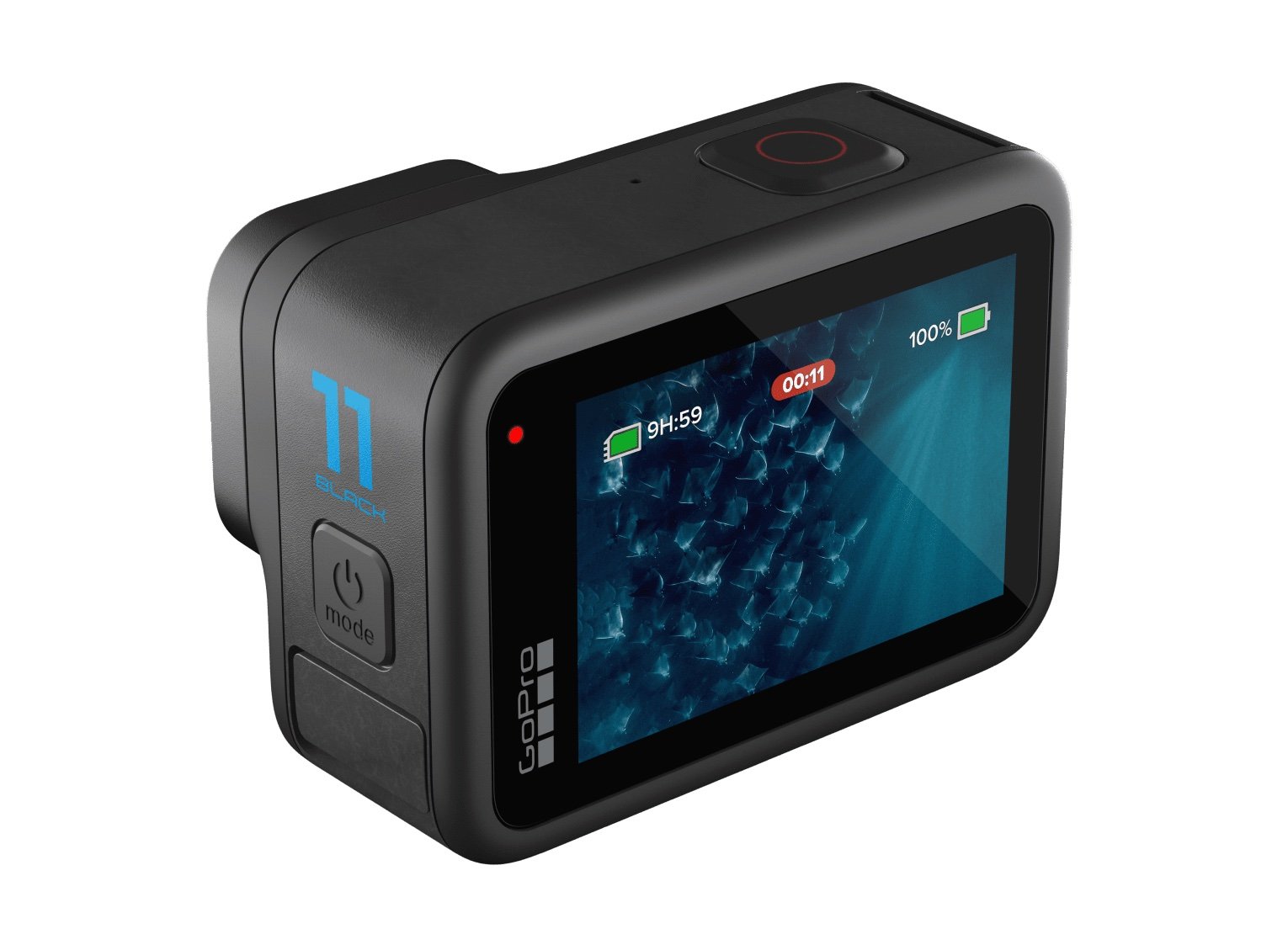
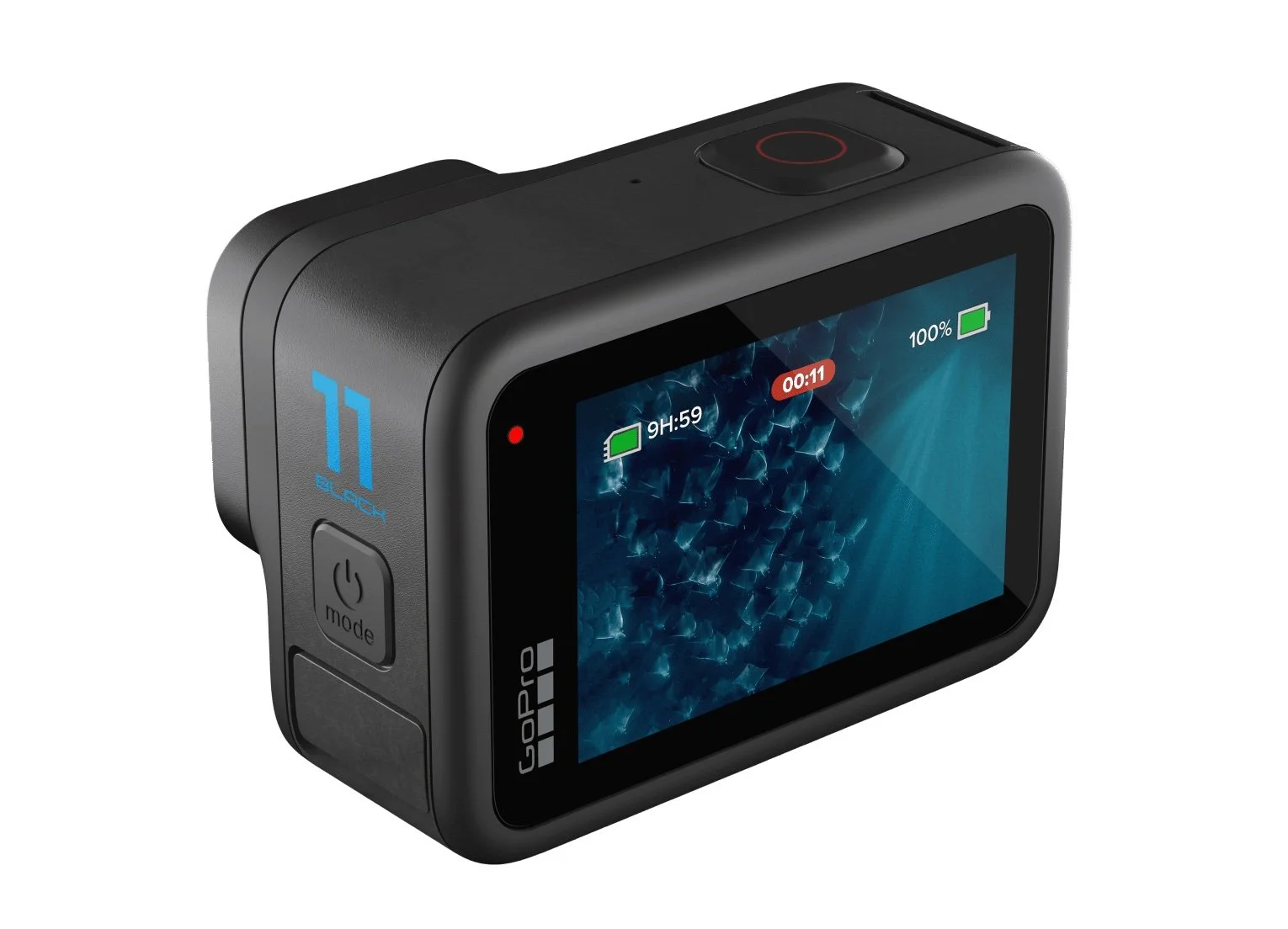
The GoPro created the "action camera" or at least popularized it. Most people think of them as tools for extreme sports. You can use it for that. If your youth or young adults go skiing, bring a GoPro to take some fantastic shots to show off the following week at church. You can also put them on the youth page of your website or social media. Save the shots or videos to promote the trip next year.

GoPro just released the GoPro Hero 11, and I upgraded my Hero 10. I probably shouldn't have, but I love having the latest and greatest. It costs $349.99 with a one-year subscription to their cloud backup service. If you buy from other stores, it will cost $100 more. The best deal costs $50 more with 2 extra batteries, a charger that charges up 3 batteries, a nice selfie stick that floats in water, plus a 32GB micro-SD card.
You absolutely should get one accessory for your GoPro. It's the GoPro Volta, a battery and tripod in one. It costs $129.99. Put the GoPro on the tripod and then plug in the cable to extend your GoPro battery. GoPros are notorious for short battery life, so an external battery like this will help.

DJI Osmo Action 3
I love DJI cameras. The DJI Osmo Action 3 is the competitor to the GoPro above. I post it here because it doesn't cost as much and has a few cool features you don't get on the GoPro. First, the price makes it worth a look. For the same price as a GoPro Hero 11, you'll get the DJI Osmo Action 3 plus some great accessories, like a magnetic connector that you can then snap to an excellent mount for your helmet, to a mount for your car, on a selfie stick, and more. It starts at $329, but the great combo packages run up to $439.


I did a nice slow-motion video of the leaves falling from a treat in my front yard. You could create a looping background out of a video like this for lyrics, or other fall uses in worship. It could also illustrate a sermon idea like a dying spirit that looks healthy but eventually becomes cold and worthless in the kingdom due to no connection with the tree, which is the church.
Which camera would I buy? I'd probably go with the GoPro Hero 11. The Osmo Action 3 produces slightly soft video; some even say their camera shoots blurry videos. Mine is not as bad, but it's not as sharp as I'd like.
Drone Cameras Like the DJI Mini 3 Pro

Did I say I love DJI? The DJI Mini 3 Pro drone can help you get some fantastic shots of your church property, activities, or general scenery. Use the images or video as slide backgrounds or foreground images to illustrate ideas. I shot the above photo using the bracketing feature on the Mini 3 Pro. It takes 3 or 5 images that are exposed differently so that they are...
- 2 stops darker
- 1 stop darker
- the main exposure
- 1 stop brighter
- 2 stops brighter
If you chose 3 images, you get the primary exposure plus one brighter and one darker.


I took the five shots and put them in a program called Luminar Neo which automatically combines them so that areas where you might see no detail because it's too bright or too dark, now shows plenty of detail. Tweak the photo to get better overall exposure, detail, and color. Then export it and add the words in a program like Photoshop, Affinity Photo, or Canva.

You can do a lot with a drone. Take photos of activities from above. Don't forget you can use it for close-up shots too. It makes an excellent tripod for large groups.
I recommend the DJI Mini 3 Pro because it's a fantastic starter drone. It's small, which makes it easy to take with you. It also weighs less than 250 grams, which makes it easier to use because larger drones come with additional FAA regulations.
DJI Osmo Pocket 2
Another DJI camera? Yes, because they are crushing it with creativity. The DJI Osmo Pocket 2 is a tiny gimbal camera that fits in your pocket and stays with you all the time. You can also mount it on a tripod or use other cool connections, but it shines as a handheld camera.
I had the first version, and it was pretty good. The 2 improves image quality and stability for $349. You can get it in white or black. There's a bundle with some great accessories for $499.
The video and images look good. For such a small camera, you'll get great quality.
Having the camera with you always means you don't have to worry about carrying around a big camera, and you'll get more stable shots than most phones.
You can connect it to your phone, giving you a larger image of what the camera's shooting. Or you can use it standalone, which is how I used the previous version most of the time.
Insta360 Go 2
The Insta360 Go 2 gives users a unique way of shooting 1st-person photos and videos by placing the camera on their chest, a hat, or on their head. You can put it in other places depending on your creativity.
The camera comes with some excellent stabilization, so it looks stable while you're running or walking around as you wear the camera. The case charges the camera and holds it to give you an instant tripod. It's so tiny, and you can carry it everywhere.


You'll get some decent-quality images that you can frame using the app on your phone. Also, the images look pretty good.
The camera costs $300 for a 32GB model, but I'd get the 64GB version at $329.
Insta360 One RS 1-Inch Edition or Insta360 X3
360-degree cameras shoot two photos or videos with two lenses on opposite sides of the camera. The software in the camera stitches the two images together to create a 360-degree photo or video.

I love 360-degree tiny planet photos. They're fun and show the scene in a unique way that you can't get with a traditional or phone camera. These images get attention on social media.
The two cameras I recommend come from the same company. Inste360 makes both of these cameras and the Go 2 mentioned above. They started making consumer-grade 360-degree cameras a decade ago. They weren't great, but today the Insta360 One RS 1-inch Edition shoots professional-quality images. You can do the fun photos above or shoot videos of events.
Our church held its Trunk-or-Treat event on Halloween night to give families an alternative to worldly events. There were people everywhere. Shooting with a traditional camera means you might miss what's behind you or beside you. With a 360-degree camera, you can shoot it all at once time and then choose later what to focus on by editing in the app on a phone or tablet or on a piece of software on your computer. The video above was shot using the Insta360 One RS 1-inch Edition.
What's the difference between the Insta360 One X3 and the Insta360 One RS 1-inch Edition? The X3 costs half as much at $450. It has a larger display, so you can better see the settings and the image. The One RS 1-inch has a modular design and better quality lenses for $800. I own the more expensive version and love it. But I do wish mine had a larger display.
Both cameras connect to an app on your phone. The app lets you set the shooting settings, edit the video or photos, and updates the camera. You can also live stream on Facebook or YouTube.
Which of These 6 Fun Cameras Should You Buy?
So which camera should you get? First, if you don't have anything but a phone, then grab the GoPro Hero 11. The DJI Osmo Action 3 will cost less, so it's an excellent second choice.
People looking for the most unique and attention-grabbing shots or videos look at a 360 camera. I'd start with the Insta360 E3. It's cheaper than the RS 1-inch Edition and works great. However, people who want higher-quality images should pay extra for the RS.
A drone is also a fantastic tool. The DJI Mini 3 Pro is the best first drone you can buy right now. However, I also own the DJI Air 2S. It's bigger and holds up better in the wind. If you plan to shoot near the ocean or up in higher altitude, you might want to consider it instead.
Logos 10: What's New and How to Get a Discount?
What's new in Logos 10 Bible software? Read about each new feature and watch my video demo.
That's right; Logos 10 shipped on 10-10-2022. Despite the marketing department at Logos taking advantage of the date and version number, this was a big upgrade. It marks the 30th anniversary of Logos first hitting the Bible software world. They weren't the first, but they indeed have outlasted most.
Users get some interesting new features with the latest version of Logos 10. I want to highlight what's new in Logos 10 on the desktop or laptop version, the mobile version, and the web app.
Many of the features listed below only come in advanced packages, like the Gold or Bronze. You can buy a package using my affiliate link. This gets you either 15% or 30% off the price plus five free books. I'll get a cut of the sale as well.
Logos 10 User Interface Changes

Users of Logos 10 will notice the new user interface immediately. The software displays the toolbar on the left instead of the top of the window. Users can change this, but it might conserve screen space if you use the program on a wide 16:9 screen aspect ratio.
I won't keep the toolbar on the left because I like to display the button label text to remind me of what each one does. You can show the labels on the left, but that takes up too much screen space. Without labels, people who can remember what each button does can collapse the toolbar. Here's how to change the position and collapse or expand the toolbar.
How to Move the New Logos 10 Toolbar Between Top or Left

Open your Program Settings. You can do that from the menu. On a Mac, click on Logos in the upper left corner and then choose Program Settings. The Logos menu in the upper left doesn't appear on Windows, only on Mac. The second item in the settings list will change position. Click the drop-down arrow to choose Top or Left.

Optionally, in the lower left, there's a menu button with three vertical dots. Click it, choose Program Settings, and then choose the drop-down arrow to select Top of Left.

Millions of New Factbook Tags
A new visual filter in Logos 10 shows users millions of new tags from the Factbook. The Logos 10 Factbook, like the one in previous versions, serves as an information treasure trove to help Bible students understand what their reading and studying in God's word.

With Logos 10, these tags appear as an underlined word with information about that term in the Factbook. You might find things like...
- Greek and Hebrew Lemmas - open them to study the original languages for that word in English or another language.
- Information about People, Places, and Things.
- Terms with theological significance like Propitiation or the word Conform from Romans 12.
Logos described these underlined terms like the Kindle X-Ray feature that shows definitions of words in your Kindle digital books.
How to Turn On or Off Factbook Tags in Logos 10
See my post about How to Get the Most Out of the Factbook in Logos

Factbook tags are like Visual Filters, but you don't turn them on or off from the Visual Filters menu. Instead, the Factbook gets its own button in a Bible or book window. It looks like a book with a checkmark and a drop-down arrow next to it. Click the arrow to open the menu and select which tags you want to turn off or on.

Not everyone will get these new Factbook tags. First, if you upgrade and buy a Started collection, you'll get the People tags. The bronze level will add Theological terms and Greek words. You'll need to buy Silver to add Hebrew and Aramaic.
Everyone must have their computer connected to the Internet to use the new Factbook tags. If you're not connected, then they won't work. Logos 10 still works, but the tag underlines don't show up.
Church History Themes
Another Factbook improvement comes from a dataset and resource that shows Church History Themes.

To find them open the Factbook from the toolbar. You'll see the three horizontal lines often called the Hamburger menu button. Click on the Dropdown box and find Church History Theme from the list.

You can also find it in the Advanced Timeline (see more below about the Advanced Timeline). Open the Timeline and click on the Hamburger menu (three horizontal lines). Find the Event Type section and then click on Church History Theme.
The information comes from two resources - the Essential Lexham Dictionary of Church History and the Church History Themes dataset. Open them from the Library and read or search for them from there.
Simpler Search Terms
To search in older versions of Logos, users had to know some complex boolean search terms to get advanced searches. With Logos 10, you get simpler search terms.

Logos gave the following example of one more straightforward search you can now perform in Logos 10 but could not in version 9 or earlier. If you wanted to find out where in the Bible Jesus mentioned Moses, you'd type in a search box the following:
<Person Moses> WITHING (Speaker <Person Jesus>) and hit enter.
Now, just type:
person:Moses IN speaker:Jesus
That's much easier to remember and to type.
Logos will auto-complete suggested search terms to help you. You may not even need to remember the search terms to search your Bible.
Another simpler search lets you do a Search All, and Logos 10 will find results in all your datasets without you even knowing the dataset exists.
Bring Your Print Library Into Logos 10
You can add your print books to Logos 10 without buying digital copies. This also works with Kindle books too. When you add such books to Logos using the camera on your iPhone and the ISBN code on a print book, the book shows up in the Logos 10 Library. When you search for something and find it in the books added, it shows them in your list of returned search results. You can find it by page number, open that book from your bookshelf, and turn to that page.
To import a print book into your Logos 10 Library, open the app and then tap on the menu button in the lower right corner. Next, tap on Print Library ISBN Scanner. Finally, scan the ISBN code on the back of the book.

2. Tap on Print Library ISBN Scanner.
3. Scan the ISBN code on the back of the book.
The feature comes with a few caveats.
- This only works with books in the Logos catalog of books. If they don't already have the digital text of a book, it won't work.
- You must spend time and effort adding your books one at a time.
- The search results only show a snippet of the content from the book. You'll have to read the book in the print edition.
- Only people who buy the Gold package will get access to the feature.
Searching the Print Library
The new books in your print library will appear in general searches, but you can't open those books. Instead, Logos tells you where to find the content in your print book by page number. You'll open the physical copy of the book and find the content.

However, if you want to search your print library books, you can use the Library window. Open a Library window and look for the Print Library item on the left-hand side of the Library window. Find the book you want to search, right-click, and choose Search this resource.

If you want to search the entire library, follow the above steps, but instead of right-clicking first, select all the books in the Print Library. Do this using the keyboard shortcut CTR+A on Windows or CMD+A on Mac.
After selecting all the books, you can right-click one of the selected books and choose Search these resources. This opens the Search panel. Type in your search phrase or word to find items in the book.

You will see results in the Search window. Find the Print Books section as seen above. Look at the results and find the entry in the book. Grab your book and open it to the page listed or the section listed. Not all books will show page numbers.
Import Multiple Sermons into the Sermon Manager in Logos 10
Logos 10 now supports importing a collection of sermons into the sermon manager. After you add them, you will get tags added for Scripture references in the text of the Word document.
The Sermon Manager import only supports Microsoft Word's DOCX format. Only buyers of the Gold package or higher in Logos 10 will get access to the tool. If you want to upgrade, use this link to get 5 free books and a discount.

Access the import tool by opening the Tools button from the toolbar (9 dots on it) and either click on Sermon Manager or type it in the search box to find it quickly. The Sermon Manager will open. Click on the menu button (three vertical dots) in the upper right corner of the Sermon Manager. Choose Import and then click on the Choose Files button in the lower part of the Import dialog box. Navigate to the folder that holds the sermons you want to import. You can select multiple files with the CTRL+A or CMD+A.

How to Find Imported Sermons
To find your sermons open the Sermon Manager in a separate full-screen window and choose the Date you preached the sermon. This makes working with the Sermon Manager easier, especially if you're using a small screen.
I had to open the Grid view and select All from the top of the window. I opened one of my sermons, and it the formatting I used didn't work with the Import very well. If you use the built-in Microsoft Word Headings, then it will work better for you.
Now you will want to clean up your imported sermons. Edit them to use things like Headings, the information pane that opens on the right side, and the slides. If you make slides from your sermon, then you can export them to programs like PowerPoint, Keynote, Faithlife Proclaim, or PDF documents.
Popular Quotes in Sermon Builder
The Sermon Builder gets an added feature called Popular Quotes. Preachers search for quotes to add to their sermons inside the Sermon Builder.

Open a new Sermon using the Sermon Builder from the Tools button (grid with 9 dots on the toolbar). Create a sermon and then choose the Popular Quotes button on the right when you want to add a quote. The button looks like a quotation mark.

A list of quotes will appear. Drag and drop any quote you want to add to your sermon from the right-hand column to the Sermon Builder. The Sermon Builder will add the default slide. Change it by clicking on the slide thumbnail. You'll see a menu appear. The list of options includes...
- Edit - change the look of the slide.
- Apply this style to quote slides - change all quotation slides to match this.
- Apply this style to all slides - change all slides in general to match this slide.
- Delete - delete this slide.
Advanced Timeline
The new Advanced Timeline shows historical events in the context of the era in which that event occurred. The timeline offers this in a visual way. Users can filter events to focus on what they're most interested in seeing.

To open the Advanced Timeline, click on the Tools button on the toolbar. It looks like a grid of 9 dots. Either type Advanced Timeline or scroll down to the Reference section on the Tools menu and click Advanced Timeline.
This feature only works on Bronze packages or above. You can buy the Bronze package at this link and get a discount plus 5 free books.

Interact with the Advanced Timeline using the sidebar or the toolbar. The toolbar at the top has the following...
- Button to open the sidebar, which lets you select the kinds of content you want to hide or show.
- A time range box where you enter years like 20-100 AD.
- Search box where you type what you're looking for.
- Zoom in, fit, and zoom out buttons.
- View the dropdown menu to limit by things like Bible & Church Eras or Western History Eras
- Info button
- Menu (three vertical dots)
Speed Improvements
Logos 10 boasts faster performance, especially for users of Silicon Macs that use M1 or M2 branding. These are modern processors that run more efficiently than Intel chips. They claim a 35% speed boost, especially while indexing your library. I can attest to this improvement. It used to take hours to index my library with 8,000+ resources. It now does it in around an hour.

The computer still chugs along while the program indexes the library. However, Logos 10 takes far less time to index on my M1 MacBook Pro, M1 Mac mini, and M2 MacBook Air.
For Windows users, you'll see a small speed boost. It comes thanks to something called .NET 6.
Auto Translation

In almost any book, open a side panel on the right that shows a translation of the book's text. To use it, open a book. Click on the Sidebar button in the upper right corner. A new window opens with the default language. You can use the language dropdown list to pick from dozens of languages. The above image shows a French translation of the open book.
If you want to copy the contents in the Sidebar, choose the copy button to the right of the language dropdown list.
Your computer needs an Internet connection to use the Auto Translation feature. You also have to own the Gold Package, which you can buy here and get a discount plus 5 free books.
Questions and Answers
Think of Dear Abbey only for Bible study. The Questions and Answers feature answers common questions you might have about the Bible. It also includes some obscure answers too. This all comes from a new dataset.

Use the feature by typing a question in the search box (magnifying glass icon on the toolbar). The program notices you worded it as a question and tries to find your answer in the dataset. The results come from your library. It also includes other kinds of results, so scroll down to the Questions & Answers card.
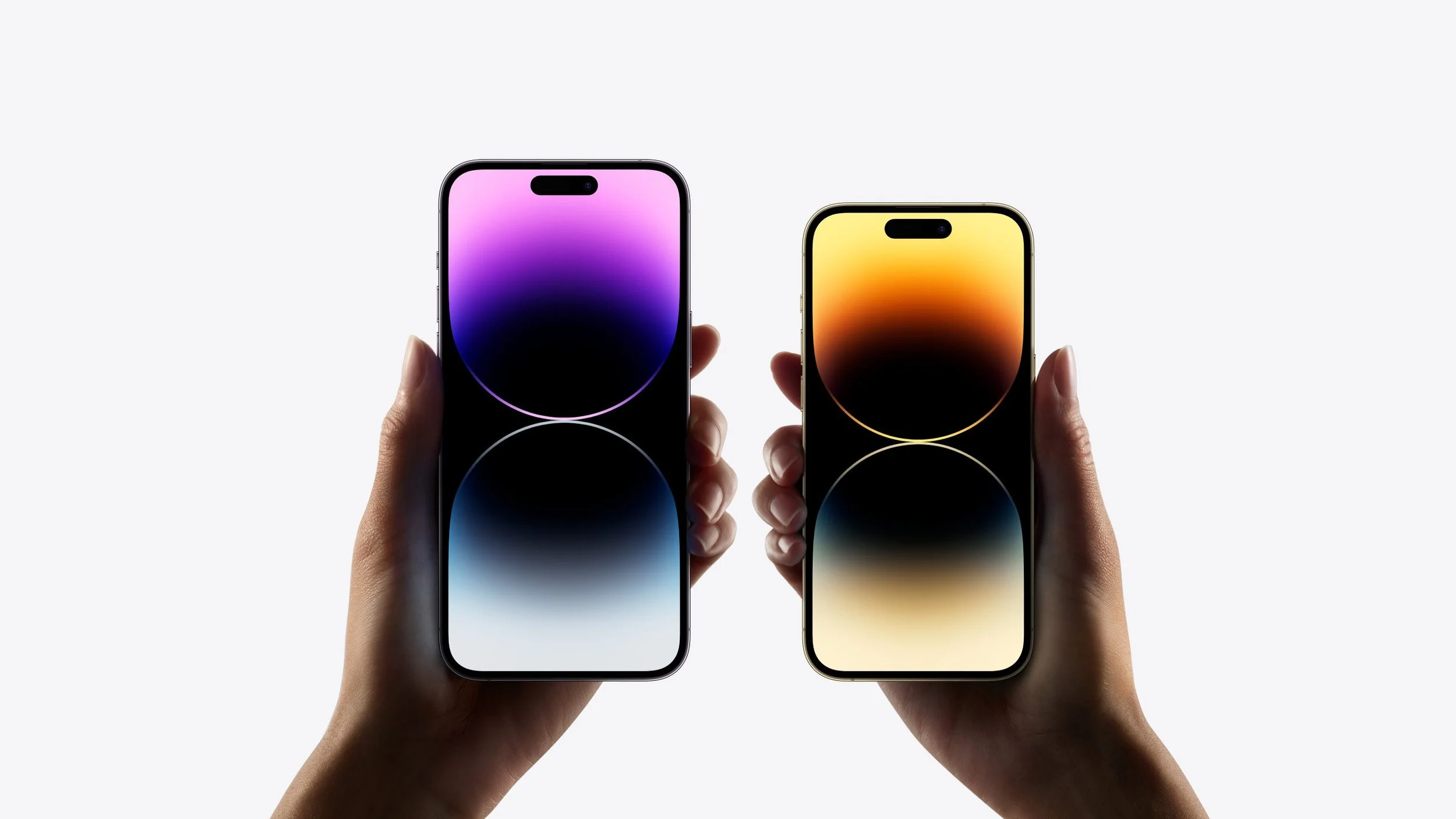
iPhone 14: Should You Upgrade?
Apple released the new iPhone 14 with a few new features. Should you upgrade? We advise you from a Christian perspective. So be sure to read to the end.
No!
Okay, that's not entirely accurate for everyone, but for most, it's that simple. Keep your current iPhone or Android phone. However, if you fit one of the following situations, it might be worth an upgrade.
iPhone 14 Replacing a Broken Phone

My wife uses an iPhone 8 Plus, and she's happy with it except for two problems. First, the fingerprint reader doesn't seem to work consistently, and her battery only lasts about 8 hours before she must recharge it.
Because her phone doesn't work great, she will get my iPhone 13 Pro Max, and I'll get the iPhone 14 Pro Max. She's happy with that, so don't complain that I'm giving her the leftovers. We do technology-hand-me-down all the time because I love having the latest and greatest, and she loves having devices that work.
Subscribe to iPhone Upgrade Program

Some of us love owning the latest and greatest technology. Apple caters to us with what they call the iPhone Upgrade Program. I joined this upgrade program this year. Here's what I'm getting...
- Get a new phone every year - 14 this year and the 15 next year and so on
- Apple Care+ is included
- Pay monthly with no interest and trade it in after 12 payments
- Use the phone with your carrier so long as it's one of the big four (AT&T, Sprint/T-Mobile, T-Moble, and Verizon
You don't have to upgrade if you entered the program last year or the previous year, but you might as well since you're getting the new phone for the same basic monthly payment.
How much does the Apple iPhone Upgrade Program cost? Here's the breakdown based on which model of iPhone 14 you buy.
- iPhone 14 - 128GB - $39.50, 256GB - $43.66, 512GB - $52.00
- iPhone 14 Plus - 128GB - $44.91, 256GB - $57.41, 512GB - $52.00
- iPhone 14 Pro - 128GB - $49.91, 256GB - $54.08, 512GB - $62.41, 1TB - $70.75
- iPhone 14 Pro Max - 128GB - $54.08, 256GB - $58.25, 512GB - $66.58, 1TB - $74.91
iPhone 14 Features Make Upgrading Worth It
The iPhone 14 doesn't add many new features, but you will get a few. Here's a list of what's new. You might want to upgrade if one of these looks compelling enough.

- Dynamic Island - instead of a notch or a hole where the camera would go, Apple created a wide pill shaped black part that encapsulates the front camera and sensors, but also dynamically changes to show notifications. It looks cool and you have to see it to understand what it really is.
- Longer battery life - Apple promises a little bit longer battery life with iPhone 14.
- Emergency SOS using Satellite Tech - send a brief text message to emergency services when you're out of coverage, and it will connect over Satellite. If you're often outside a cellular coverage area, this might make an upgrade to the iPhone 14 worth it.
- Improved Camera Features - iPhone buyers count on camera improvements each year. You'll get a number of improvements like better low-light images and more colorful pics. A 48-megapixel sensor potentially brings more detail and lets the camera stabilize shots better as it can zoom.
- The front selfie camera now has autofocus - people who take a lot of selfies or just use the front camera will love this.
- Faster processor - this matters most to gamers or people who edit photos and videos on the phone.
- Always on Display - the new iPhone 14 has a display that stays on but still doesn't use up too much battery life since it lowers the refresh rate to almost nothing.
- Widgets on the Lock Screen - you can get widgets on your lock screen, most from built-in Apple apps like their Weather app or activity apps.

You'll get a few more features, but we've touched on the highlights above. That's not a lot, so most people shouldn't bother with an upgrade. However, you might see something on the list that will improve your quality of life or work, making the upgrade worth the expense and effort.
You Give More than Ten Percent to Church and Charity

You won't see church and charity listed on any other tech enthusiast site. However, we need to consider this as Christians or people of faith. If you are a follower of Jesus or even a member of another faith, then you likely have an expectation that you give to help those in need or support your church.
Too many people spend too much money on themselves before giving to others. Traditional Christian churches believe in what's called tithing. I know not all believe this, but we should believe in being generous because of what Paul wrote in 2 Corinthians 9:7-8:
7 So let each one give as he purposes in his heart, not grudgingly or of necessity; for God loves a cheerful giver. 8 And God is able to make all grace abound toward you, that you, always having all sufficiency in all things, may have an abundance for every good work.
2 Corinthians 9:7-8, NKJV
God Wants to Bless You
Give and God will bless you. We're not saying he'll make you rich like the prosperity Gospel crowd who lie to con you out of your money. We're talking about God's promise to help you take care of your needs, shower you with his blessing of pleasure in your good works, and storing up treasures in heaven where moths and rust won't destroy.
I don't know if moths can destroy an iPhone 14, but I do know falls from 6 feet or higher, extreme heat, and general wear and tear can destroy any of Apple's products. Resist the temptation to upgrade if you're not giving generously. Then only upgrade if one of the above reasons applies to you.
It would be interesting to see a study done to find out how many people upgrade every year do so out of any kind of need or just out of want.
Best Visual Preaching Tools for Bringing Sermons to Life
I'm not an artist, but I use visual tools to make my sermons more interesting. Let's take a look at the best tools for Visual Preaching in order to bring your sermons to life and appeal to all ages while you preach.
Visual Preaching - What It Means?
In the Matthew visual Bible, actor Bruce Marciano portrayed Jesus as a smiling jovial Jesus. This seemed different from past actors' portrayals.
In the Sermon on the Mount, he portrayed Jesus' teaching about removing the log from your own eye before complaining that another person suffers from a speck in their eye. In other words, deal with your own struggles with righteousness which might look worse to onlookers, before judging people for their failures.

Bruce Marciano illustrated this by holding a large stick up to his eye and giggling as he said the words of Jesus in Matthew 7:5.
Hypocrite! First, take the beam of wood out of your eye, and then you will see clearly to take the splinter out of your brother’s eye.
Matthew 7:5, CSB
The object lesson Jesus used exemplifies Visual Preaching. That's something anyone can do regardless of technical skill or artistic ability. Preachers use these in children's sermons all the time. My first "sermon" used an object lesson of a toy airplane. I talked about how Jesus lifts us up and helps us soar above our sin like wings on an airplane. It wasn't a masterpiece, but it was Visual Preaching. I was nine years old.
Visual Preaching Made Easy
You can easily add visual elements to any sermon using the following:
- Object Lessons - an object lesson more powerfully illustrate ideas in a sermon because it's more memorial than a photo or video.
- Items Handed Out to Listeners - I once passed out Hershey's Kisses to illustrate the idea that something small, like a tongue, can have a big impact. Hershey's had an ad campaign that said "Big things come in small packages." I told the congregation not to open it or eat it till I instructed them to do so. Then we all ate it at the point in the sermon when I discussed the idea from James 3:5, which says, "So too, though the tongue is a small part of the body, it boasts great things. Consider how a small fire sets ablaze a large forest." (CSB)
- Images or Video Shown On a Screen - Instead of quoting someone, find a photo that you can display. While talking about children, present videos or photos of kids playing or interacting. We'll talk about where to find these photos or videos in the section below.
Can you think of other sources of visuals you can use in preaching? Comment below your ideas and share how you used any of the above examples.
Sources of Images for Visual Preaching
Copyright affects how we use photos and where we can find them. Using your own photos taken with your camera or smartphone will not infringe on anyone else's copyright. We'll discuss this below.
If you don't take good photos, don't have a photographer, or don't plan early enough to assign a photo shot list, then you can find them online. I get photos for free using one of three sites.
- Pixabay
- Pexels
- Google Image Search using creative commons or commercial license images
Using Google Image Search
Google Image Search returns thousands of photos on almost any topic you can find. However, you'll face a few issues. First, search carefully. Some seemingly innocent search teams can return illicit pornography, violent imagery, or other offensive shots. You can restrict Google search to family-friendly search results. They call it SafeSearch, and you can learn how to turn this on in Google Support.


Click on the Settings link in the lower right corner of the Google search page on your computer and select Search settings in the popup menu or click this link. Then click on the Turn on SafeSearch check box on the resulting page. Now scroll down and click on the Save button. A box will pop up saying you've changed your settings. Click OK.

Next, go back to the Google search page and search for the image you want. For example, let's search for a cross in order to find a photo of the cross. If you search from the main page, then Google will show a list of websites with some thumbnails on the right. Either click on the Images link below the search box (#1 in the screenshot above) or click on one of the thumbnails in the section to the right (#2 in the screenshot above).
Filter Image Search Results

Change the copyright and size of results by clicking on the Tools link below the right end of the Google search box. A menu pops up below the row that reads Size, Color, Type, and Usage Rights. You will change these, but we'll first select Size. From the popup menu, choose Large so you'll only get large enough images to display on a screen at church.
Next, choose Usage Rights. The popup menu has three options.
- All - the default that you'll see if you don't make changes to this filter.
- Creative Commons licenses - images that the copyright owner said others could use under Creative Commons so long as you don't change the image.
- Commercial & other licenses - images that the copyright owner allows for use in business and nonprofits, like a church. Choose this option.
Right-click to save the image. Your browser will read something like Save image as or Save image to with a folder on your drive where you download files to. This changes depending on the browser you use.
How to Use Pixabay or Pexels in Visual Preaching
Find higher quality free images on services designed for sharing images to use in things like presentations. Two sites that offer these for free include Pixabay and Pexels. Both sites offer a large database of high-quality photos that users of the sites upload and generously let other users download and use in their work. They hope you'll give attribution so that people might come and find their work.

Pixabay offers...
- Photos
- Illustrations
- Vector images
- Videos
- Music
- Sound Effects
They started sharing photos, which means the other categories of files include fewer files. You might still find good files for use in your preaching if you need some looping video with a sound effect and/or music. Photos usually grab attention more than computer generated illustrations, which look too much like the old clipart that sometimes looks less professional.
Pexels lists Photos and Videos as options. You won't video as much here, but the filtering helps you limit your results to what you want. For example, you can limit photos by orientation from portrait to landscape. Landscape fits with presentations better most of the time.
Other Free and Paid Media Sites for Sermon Presentations
I don't use stock photos that users pay for because they're often too expensive. A preacher can usually find what they need using sites like Pixabay, Pexels, or Google Image Search. There are others we didn't list. However, if you need an image you can't find on free sites, then consider looking for them using services like...
Capterra offers a list of 20 great sources for images useful in the church. If found a few of the above using an article on the site.
Custom Photos and Videos
Why not create your own visual elements? Most of us carry a great camera with us everywhere we go. It's part of our iPhone or Android phone. After studying your sermon, make a list in an app on your device of some pictures you could use in your sermon delivery. Take photos while out and around in order to supplement the content of the sermon.
Do you have a good photographer in your church or family? Ask them to help you out and send them a shot list at the beginning of each week or, better a week to two ahead of time. It will require some planning, but it's worth it.
Let's look at some examples. I'll soon preach 2 Timothy 4:2, which says...
Preach the word; be ready in season and out of season; correct, rebuke, and encourage with great patience and teaching.
2 Timothy 4:2, CSB
The issue of preaching "in season and out of season" might inspire the preacher to use a sermon illustration about harvesting vegetables from a garden. If it's the right time of the year, you could take a photo of your garden or someone else's garden using your phone camera. To illustrate the idea of great teaching, you could take a photo of one of your Sunday school teachers standing in front of their youth or adult class. Only creativity limits the photographer.
Consider also using video. Video loops work great as backgrounds for verses, especially if the looping video illustrates the main idea of the verse. Below you will see a video tutorial on how to create a looping video.
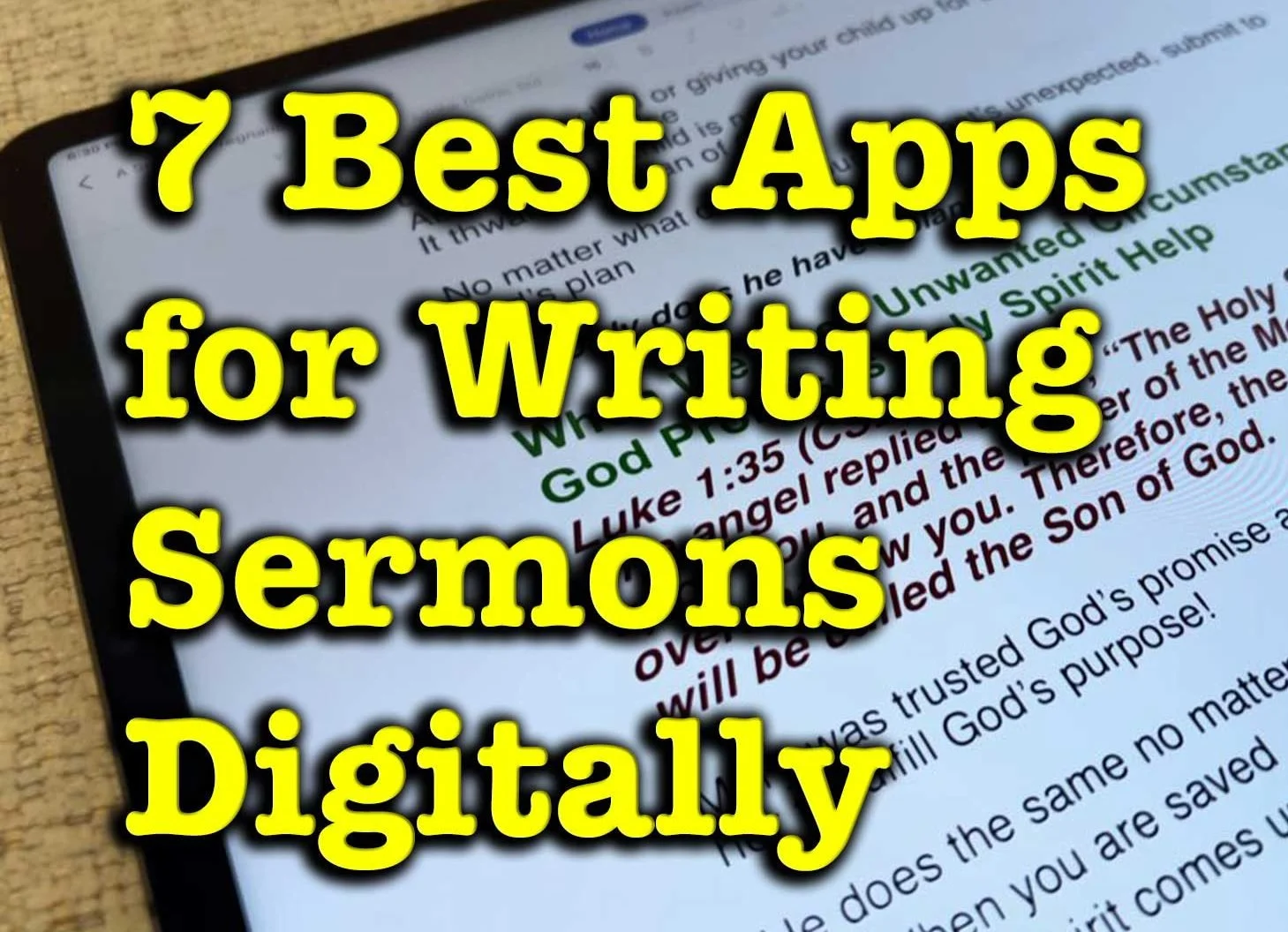
7 Best Apps for Writing Sermons Digitally
What are the best apps for writing sermons? We have a bunch of options in 7 categories for sermon writing tools.
What tools do you use to write your sermons digitally? We've got the best apps for writing sermons digitally and we'll explain why each works great and recommend the best single option.
Most of us no longer write out sermons by hand or type them on an old-fashioned typewriter. We write in Bible study software, a word processor, a notepad app, a note program, or some other software.
Microsoft Word or Another Word Processor are Some of the Best Apps for Writing Sermons Digitally
The granddaddy of word processors comes from Microsoft. Most people who use a word processor write with Microsoft Word. Other options include a form of the open-source OpenOffice, like Libre Office Writer. OpenOffice is the foundation for Libre Office. It's a great tool if you use Linus or want a powerful tool that you can get for free.

and then open the notes on an iPad or Android tablet to preach from them.
If you write your sermons with one of these powerful word processors, you will likely come up with your sermon outline, copy and paste text from a Bible program or the Internet, and formate it for preaching.
When I write in Microsoft Word, I format the document with large text for each major sermon division (read points). Each sermon has large green text so I can see it in the pulpit easily as I preach with my sermon notes open. Bible quotes use large bright red text and standard quotes from people or commentaries use large purple text.
The sermon syncs to my iPad using OneDrive and I open it in Word. The iPad sits on my podium so I can look down and check my notes as I preach through the sermon.
This works with an Android tablet or a Windows computer like a Microsoft Surface tablet.

If you're all in using Apple Hardware and software, go with Apple Pages and iCloud sync. It works well even if Pages doesn't come with all the powerful features of Word or one of these open-source word processors.
Android and Chromebook users can take advantage of Google Docs and Drive.
Remember that Microsoft Word costs at least $6.99/month for the basic Microsoft 365 subscription. You can often find deals online on eBay or Amazon, but be careful that you're buying from a reputable buyer.
Bible Study Software Sermon Writing Tools

Open the Sermon Builder to create one sermon.
Logos 9 includes a useful Sermon Manager to create your sermon preaching calendar for weeks to years out in advance. Then, you open a single document with a tool called the Sermon Builder. This was a huge part of the Logos 9 upgrade. They worked to overall the sermon writing and organizing features to make it more usable.
Logos 9 users will love the way the built-in Sermon Builder syncs with their Proclaim worship presentation software. If you use it in your church, then you can create sermons in Logos 9 and it will sync to Presentation for the date the preacher is scheduled to preach that sermon.

Using Logos and Proclaim together lets the preacher publish his sermon online in text mode. Plus the church can record both audio and video to publish podcasts or worship service videos.
Accordance Bible Software also lets users write inside the software. The Papers option works best. The video below shows how to create and edit Papers in Accordance 12 and later.
You could also use things like Notes files and most Bible study apps. But the above two options work best for creating sermons that you can store inside the program and search later to reuse part or all of the sermon.
The cost of Bible software varies wildly depending on which vendor you buy from, what package of tools you purchase, and whether it's on sale.
To get Logos 9 10% off, I'd appreciate you using my affiliate link at www.logos.com/KevinPurcell where you can buy a package and get a few free books too. I get a commission which helps me do my work here on this site and on my YouTube channel.
Tools like Olive Tree and Laridian PocketBible are free to cheap to get the basic app.
Note Apps Built Into Your Operating System are Useful Apps for Writing Sermons Digitally
As I said above, you could just write plant text or simply formatted text in a Note attached to a passage inside your Bible study program. If you use something Like Olive Tree or PocketBible, this might offer the best option.

Writing in a note gives you a simpler option when compared to complex word processors or advanced Bible software with a Sermon Builder or Paper feature like Logos or Accordance mentioned above.
Notability or Other iOS Apps for Writing Sermons by Hand
For users on iOS and Mac, try out the great note-taking apps like Notability on iPad and macOS. You can write using your handwriting, or typing. When you're finished you can export the results as a PDF or image file.
There's a segment of users who enjoy mind mapping their sermons. I'm not one but I've read about them. People like this will organize their sermon notes by putting the major subject in the center of the screen in a circle or box. Then they will draw lines away from the center to another shape for each major sermon division or point. Under each or around each they show their explanation, proof, and application for each main sub idea in the sermon. Add an introduction and conclusion and you've got a visual method of displaying the sermon.

Above you'll see a visual form of those from my friend Antoine Wright who visited my church and did what he called a "Sketch Note" of my sermon that day. You could do something like this for your sermon notes. If you're not artistically inclined like Antoine, then you can use text or print instead of images.
You could use other note-taking apps like Apple Notes, Good Notes, and more.
Samsung Notes or Other Apps for Writing Sermons by Hand on Galaxy Android Devices
Another option for Android and Samsung users is Samsung Notes. It's built into Samsung's version of Android. I like using it because it's simple and easy to learn. However, it has fewer features than Notability. If you could use. Notability on an Android device I would.
Use Samsung Notes to create notes with handwriting or type using a keyboard. The strategy is the same as it is for iOS handwriting apps.
Sermonary for Online Sermon Writing the Best of Online Apps for Writing Sermons Digitally
A final option includes a website that lets you write online called Sermonary. Here's how it works. Create a new sermon and then add your sermon elements. Add sermon divisions or points. Then create subpoints for the explanation, proof, and application.

Sermonary includes Templates for different styles of sermons. You can use...
- 3 Point Sermons
- Andy Stanley's ME-WE-GOD-YOU-ME format
- Running commentary format
- Defender's Outline for an apologetics sermon
- Children's Leader
- Youth Pastor

The service adds resources to help you preach the word including some visuals, sermon series ideas, and more.
Sermonary costs nothing for the basic editor. Add more features and you'll pay $19/month or $69/month for a bundle with Sermonary and Ministry Pass. That adds sermon series ideas, visuals for presentations, holiday sermons, plus sermon illustrations.
In addition to Sermonary, instead, you could use any online writing tools like...
- Google Docs
- Word Online
- Grammarly
Text-based Writing Tools with Markup to Write Sermons in Plain Text

Some people prefer simple text editors. Almost every computer or mobile device includes a text-based writing app like Notepad on Windows, Apple Text Edit on macOS, and Apple Notes on iOS, iPadOS, or macOS.

If you're an Android user, you might find a good text editor, but sometimes you need to download one from the Google Play Store. Consider Writer Plus a great Android text editor available on both iOS and Android. Use it as a basic text editor or add markdown to format your text. The app is free with the option to donate via in-app purchase.
Recommendation for Writing Sermons
If you have access to Microsoft Word, then go with it. It's cross-platform meaning you can move from iOS to Android to Windows to Mac and back. Second, it's not tied to one Bible study program. The death of Bibleworks and Wordsearch recently proves we should move carefully deeper into one platform's ecosystem. I like to keep as much as possible separate from my Bible software.
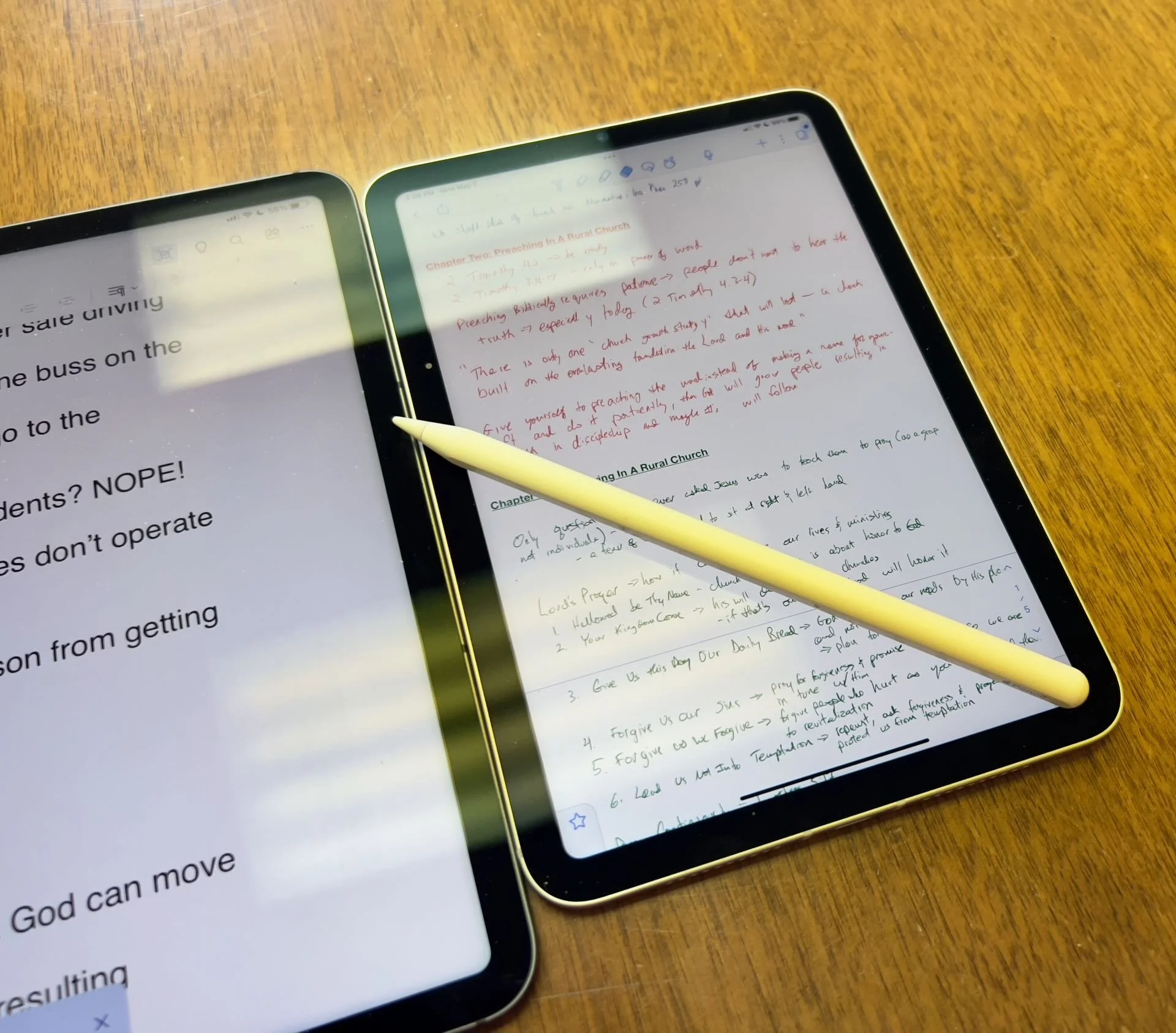
Which Apple iPad is Best for Bible Study?
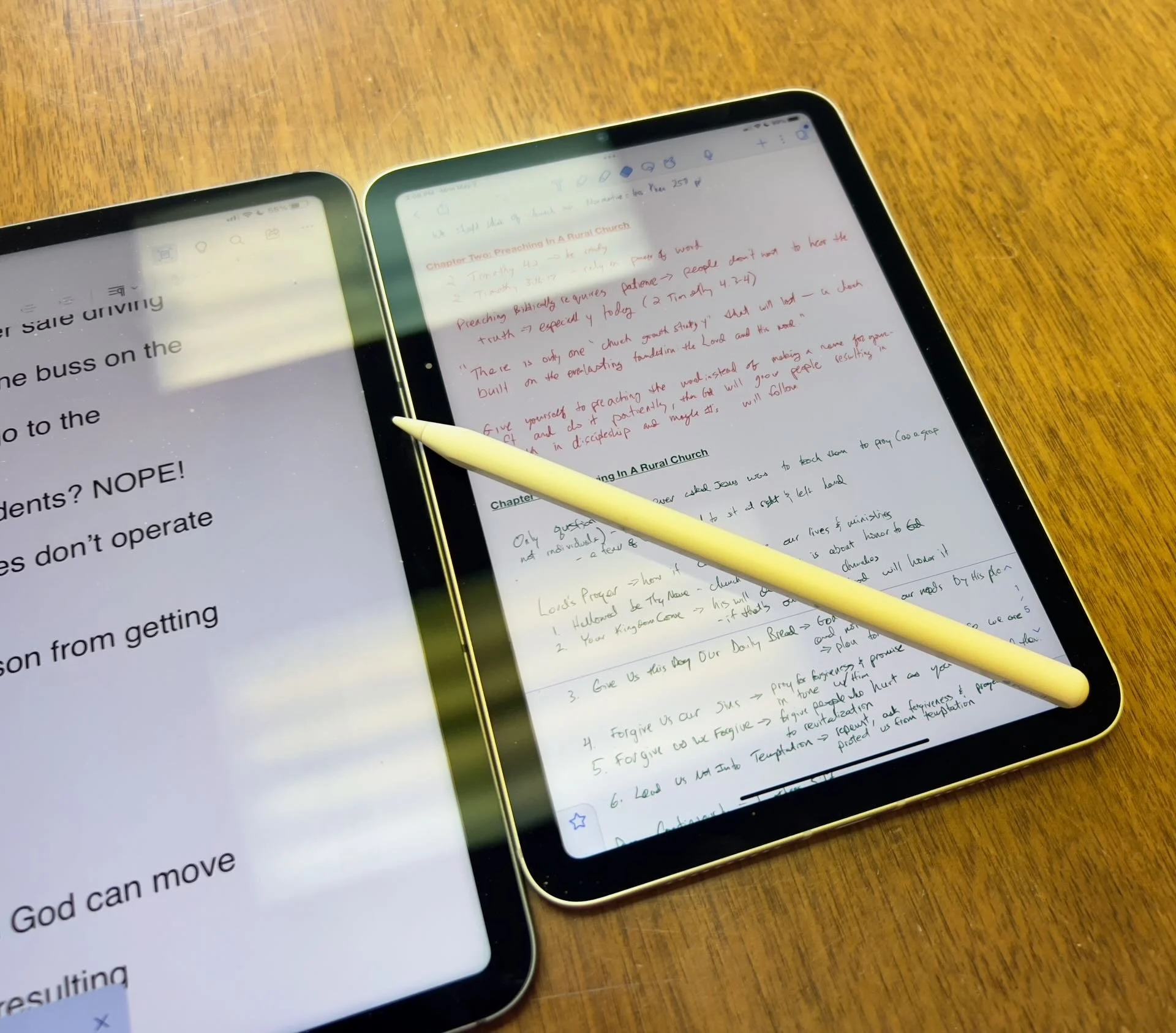
The Apple iPad in whatever form factor destroys the Android competition for great Bible study on a tablet. Windows comes in a close second because you can install a desktop-class Bible study program on it if you have the storage.
Even if you assume I’m correct about the iPad, which is a big assumption, what iPad should Bible students choose and why?

To just get the conclusion, jump to the end for my Conclusion at the end of the page.
The 4 Apple iPad Form Factors
All four Apple iPads include a slab of glass housed in a rectangular case. They come with varying qualities of screens, speakers, and speed. However, users will not see a huge difference in running the most popular Bible study apps from Logos, Olive Tree, Accordance, and more on any of the four current-generation Apple iPad. Still, let's take a look at each starting from smallest to largest.

The smallest iPad also gives users the most mobile experience. The iPad mini feels more like reading a book than the other iPads. It comes with an 8.3-inch liquid retina screen when measured diagonally. That's 7.69-inches tall and 5.3-inches wide, about the same size as a small Bible but capable of carrying an entire theological library.

The iPad Air has Touch ID on the power button, a convenient security feature. You will also get some pretty decent speakers on the two shorter edges and USB-C for connecting chargers or accessories.
If you want to carry your whole theological library, then you’ll likely also want one with 256GB of storage. Unfortunately Apple stubbornly only offers two storage options. You can get a meager 64GB or too much for Bible students with the larger 256GB option. Most people need more than 64 and less than 256.

The two storage options cost $499 for the base model iPad mini 6 with Wi-Fi only. With 256GB you add $150. That's ridiculous, but necessary because after you own the mini for a while, you'll want to use it more and more because it's so convenient to carry out. So plan to pay the extra coin.
I personally chose to add Cellular as well making it cost $$800. I like that I can just open the cover and start working no matter where I am, almost since there are some areas without coverage in my semi-rural community.
Throw in an Apple Pencil 2 and a cover and you're over $900. That's a lot of money, but you can get it on a 0% interest payment plan with your wireless carrier or with an Apple Card.
The newer Apple Pencil 2 connects and charges while connected to the side of the iPad. It's a great stylus but costs. More on that below.

Some people call the basic model the iPad 9 or iPad nothing because it doesn't include a descriptive name like the mini, Air, or Pro. It's the cheapest option at only $329 for 64GB of storage and no Cellular.
It includes a larger screen at 10.2-inches diagonally or 9.8-inches by 6.8-inches when measuring the long and wide sizes of the entire device.
The iPad doesn't support Face ID but you can unlock it by touching the Home button, which has Touch ID built-in. It uses older technology than the Air or even the mini. However, it's a great starter iPad for most people. And if you only plan to study the Bible, strongly consider it since it costs less than any other device. Users can use the Smart Keyboard.
The iPad 9 comes with the same problems as the iPad mini with only two storage options - 64 and 256 GB. So you really want the larger storage option which brings the price to $479. If you want Cellular, then add $130 bringing your total to $609. Most looking for this budget model won't want Cellular, but get the 256 because 64 isn't enough.
The other problems with the regular iPad include...
- Lightning connector is slower and makes accessories more expensive since creators have to pay Apple for the right to include Lightning.
- Lower resolution screen that's not as good as the mini and much worse than the Air or Pro models.
- Slower A13 Bionic Chip compared to the A15 in the mini and the M1 Chips in the Air and Pro models
- Uses the older first-generation Apple Pencil that charges by sticking it into the Lightning port making it easier to break off the connector or lose the cap.
Apple offers the iPad as the budget option and that makes it a great tool for people who want a device for basic needs, including Bible study, reading, and Bible app research. You can also pair it with a Bluetooth keyboard for writing. Just don't expect the latest and greatest. Those tech specs aren't included.
Some call this the best deal on an iPad today. You get the most bang for your buck. However, it will cost you more than the iPad and iPad mini. It has a much better screen and a super fast and efficient M1 chip. Plus it records 4K video with the back camera and has a front camera that follows you when you're video conferencing. They call that Center Stage because it centers the camera on the subject.
The Air speakers sound great and the screen looks amazing. You can use the awesome iPad Magic Keyboard case or the awesome Smart Keyboard Folio with the trackpad. I love this keyboard. Also, the newer Apple Pencil 2 connects and charges while connected to the side of the iPad.
However, we still see the annoying storage issue with only 64GB or 256GB. Plus Cellular swells the price by another $150. That brings the total with 256GB and Cellular to $899. For Wi-Fi alone, you pay $749. Why does Cellular cost more on the Air than on the mini or the basic iPad?

The iPad Air is the prettiest coming in one of five colors including Space Gray, Pink, Purple, Blue, and Starlight.
The iPad Pro below comes in two sizes, 12.9 inches, and 11 inches. Don't get the 11-inch iPad Pro. Instead, get the iPad Air.

The most expensive, powerful, and feature-rich iPad seems more like a mobile computer than a tablet. The iPad Pro which you can get in 11-inch or 12.9-inch screen sizes offers the most power of the four sizes. It costs $799 for the 11-inch and $1099 for the 12.9-inch.
Apple offers 128GB for the base price. That's the sweet spot and should be the lowest storage offered on any device made by Apple. It's the perfect storage for most buyers. However, you can get 256, 512, 1TB, or 2TB. You don't need anything more than 128 for Bible study. However, you may want to choose higher storage if you plan to use this iPad for much more than Bible studies, like video and photo editing, gaming, and more complex uses.
Users may want the large 12.9-inch screen because they want more screen real estate for Bible study.
Other specs to excite buyers include:
- Liquid Retina XDR Display
- ProMotion
- M1 Chip with more memory than the others
- Face ID and Center Stage camera
- 5G Cellular optional along with Wi-Fi 6
- LiDar support for things like 3D modeling
- Thunderbolt USB-C port that's fast and will connect to a Thunderbolt monitor or incredible docks with a lot of ports
Recommendation for Bible Study Only

If you only want to study the Bible then you have to ask yourself a few questions. Do you want something small and easy to carry around like a small Bible? Then get the iPad mini. If you need a bigger screen then get the iPad Air. It's the most future-proof and with all the tech inside it will last for a long time. However, budget-conscious buyers should go with yesterday's technology in the basic Apple iPad.
Just remember this. I've never met anyone who actually used a tablet only for Bible study. So, you can see yourself possibly needing a little more power, a good typing experience, or some screen real estate to edit your photos or make video masterpieces, then get the Apple iPad Air.
Recommendation for Bible Study and High-End Multimedia
If you just read the above paragraph, then you know I recommend the Apple iPad Air for people who want to study their Bible with Logos, Accordance, Olive Tree, or some other Bible app and work with multimedia. But which iPad Air should you get?
The 256 is, unfortunately, the best option until Apple gets its head out of the sand and starts offering a 128GB option.
Recommendation for Those Needing a Large Screen

Buy the Apple iPad Pro 12.9-inch model with 128 GB if you only want to study the Bible or 256GB or more if you want to do high-end work like multimedia creation.
I bought the 12.9 Pro because I teach and preach from my iPad and due to my aging eyes the mini's just not big enough. The iPad Pro 12.9 means typing on a keyboard that's wide enough to enjoy. The Air was too narrow for my big hands. I spent more than I needed to. Until Apple offers a larger Air with 128GB, I'll happily keep my Apple iPad Pro 12.9-inch.
Recommendation for Buyers on a Budget
This one's simple. Get the basic Apple iPad for $329 if you don't own a large Bible library or pay more for the 256GB model. You won't get all the power and specs and it may feel old in a shorter time since it's not as fast, but for buyers on a budget, it's the best way to go.
The only other budget option is to buy a used device or get an older one. Look at your budget and something that fits in your budget that also fits your preferred form factor.
You can check out Apple's Refurbished store. For example, they offer the iPad mini 5 for the same price as the newest base model iPad. For slightly more than the base model you can get an Air with Wi-Fi for just $419.
Check out eBay, Facebook Marketplace, and Swappa as other options for used and refurbished products. You can get a great deal.
Must-Have Accessories
When you buy an iPad, you also have to factor in buying accessories. Other tables like the Samsung Galaxy Tabs come with at least a writing device. You can use the tablet alone, but I wouldn't. You'll need the following accessories.

- Cover or Case - you will want to protect your device.
- Keyboard or Keyboard Cover - you can study the Bible on your iPad more efficiently with a keyboard connected.
- Apple Pencil - you may want a Pencil to write or take handwritten notes in apps that you can use alongside your Bible apps.
- Screen Protector - I used to not protect the screens on my tablets, but when you carry it around naked you should.
- Headphones - many Bible apps include audiobooks or videos.

Let me offer my top recommendation for each category above.
- The Apple covers or cases work best, but if you want to save money go with cases from Moko, Spigen, or Moshi.
- Apple's Keyboards or Keyboard Covers are the best options for the Air or Pro. The Magic Keyboard is $300 and the Smart Keyboard Folio costs $180. I love typing on my Magic Keyboard cover connected to my iPad Pro 12.9. However, Logitech makes great keyboards too if you want to use your iPad at a desktop. I have the Logitech MX Keys and MX Keys mini. You can also buy Apple's Magic Keyboards with or without Touch ID.
- Apple Pencil is the best writing device and I wouldn't buy another one. However, the Logitech Crayon is a $70 alternative.

- Screen Protectors are a budget item. They shouldn't cost a lot of money. Just get a glass screen protector. However, here's one alternative that some people really like. Get a Paperlike screen protector, which does two things. It protects the screen and gives users a paper-like experience for drawing and writing.
- Get the Apple Airpods or Beats to use for Headphones. They work best with Apple products and sound really good. However, not everyone wants to pay that much. Be careful which ones you buy, because sub-$100 Bluetooth earbuds usually sound like junk. To save money get Apple's USB-C to stereo adapter and plug-in wired headphones.
Conclusion

To do only Bible study, then get the iPad mini. You'll enjoy using it for hand-held study. If you want to put it on a table and need more screen real estate, then buy the iPad Air with an Apple Magic Keyboard. Add an Apple Pencil to either device if you plan to take notes in your own handwriting or want to write. Add a handwriting keyboard replacement app like Handwriting Keyboard ($3.99). Throw in a great note-taking app like Notability or Good Notes. This way you can have the Bible app on one side and the note-taking app on the other while holding the tablet.
Get Logos Legacy Library for 25% Off
If you need to buy a good Bible software package, consider using my affiliate link to get Logos Bible Software. You can get what they call "Legacy Libraries" for a nice discount of 25% off. A legacy library is a collection of books that they sold when they released previous versions of Logos from versions 5 through 8.
4 Ways Logos Bible Software Can Help You Share God's Word
Logos 9 Bible Software can help you share God's word. Check out these best posts on Logos 9 and a way to save 20%.
Logos Bible Software is one of the top Bible study programs you can buy for both Mac and PC. It's powerful, helps users access a large library of excellent content, and beginners and advanced Bible software users can quickly get used to the program.
I've written a lot about the program so I'm going to share some of my best posts and then show you how you can get a discount on the software.
Open the Logos Guides From Inside Accordance

Some of you might be coming over to Logs from Accordance or vice versa. You don't have to uninstall the old one. Just use them together. You can open a Passage Guide or any of the great guides inside Accordance and make use of your Logos library.
Find out how to do this great little hack in my post: How to Use Accordance Amplify to Website to Open Your Logos Library.
The Factbook: What is it and How Do You Use It?

Think of the Factbook as a Bible Encyclopedia on steroids. It's got a lot of facts about the bible. You can learn more about people, places, things, theological ideas, books of the Bible, and a ton more. So read the article about how to use it and watch the video below that demonstrates the Logos 9 Factbook.
Make Logos Work Like Wordsearch
If you loved Wordsearch, then you likely felt abandoned when Lifeway sold the program and all of its assets to Faithlife, the makers of Logos. But, I wrote a post on How to Make Logos Work More Like Wordsearch. So check that article out.
Get 20% Off Base Packages

Maybe you don't already own Logos 9 and would like to. You can get 20% off a base package using my affiliate link. The like will work from April 1 till May 3rd. For full disclosure, I will get 10% of the purchase price from Faithlife as a commission.
Accordance Can Show Your Logos and Wordsearch Books
If you own Accordance and also own libraries in Logos Bible Software and Wordsearch Bible Software, there's a way to use your books in Accordance. I'll show you how to create a simple workspace in Accordance to use the two web apps in the program. This also works with other online Bible study sites as well as any site you use in sermon and Bible study prep.

UPDATE: Wordsearch is no longer in production so the parts of this article that apply to it are no longer applicable. Also, Logos has changed the way you change the function to enable compatibility mode. Instead open settings as described below and then change the Enable limited view mode from NO to YES.

Follow the steps in the next section to create a new workspace in Accordance so you can quickly open your new browser workspace. You can also make the Logos Web App your default page in the Accordance Preferences. Open Preferences and go to Web & Text Browser and add the website URL HTTP://app.logos.com to the Homepage box.
Create a New Workspace
UPDATE: You don't have to create a new workspace, but it's best if you want to save this setup for future use.
First, lets create a new workspace in Accordance. If you already know how to do that, skip to the next section.

Click on the File menu and choose New Workspace. Next, we'll open the books and the Accordance Web Browser.
Open any book you want to use in Accordance. Let's assume you want just a Bible and maybe your notes.
Open the translation of the Bible you want. I use NKJV primarily. So I opened that on the left side of the Workspace where my Library shows the books I own. If your library is not open, which it normally does by default when you create a new workspace, then open it from the toolbar using the Library button second from the left.

To open a Web Browser, go to File and the New Tab and then Web Browser at the bottom of the New Tab menu. Now, enter the addresses for the web apps for Logos and Wordsearch Bible. They are as follows:
- Logos: app.logos.com
- Wordsearch: https://app.wordsearchbible.com/reader
What other Bible web sites do you enjoy using? I've created a round up of some of the best online bibles part one and part two, so give them a look.

Remember that with Logos's web app you will need to turn on compatibility mode. If you do not, you will not be able to select a word and then right-click the word and do an search. To do that, when you have the web app open, click on your user icon in the upper left.
UPDATE: Save the new Workspace from the File menu.
UPDATE 2: This also works with Amazon Cloud Reader. See below:

Search Accordance from a Selected Word in Logos or Wordsearch Web Apps.

Why would you want to do this? You can select a word in your Wordsearch or Logos web app Bible and search for it in Accordance books. Let's say I have a book I don't own in Accordance, but I do own it in one of the other programs - like a commentary or a Greek or Hebrew text. I can select that word and then find it in your dictionaries or I can select a verse reference in a commentary or other book and open it in Accordance to do some research in Accordance.

Take Advantage of Switcher and Crossgrade Deals
If you want to switch from Logos or Wordsearch or something other program and can show the company your proof of purchase, you can get nice discounts. Take a look at the How to Buy page for more information.
Just an explanation, Accordance has not given me any books to write this post. I have years ago been given books when I reviewed Accordance at ChurchTechToday.com and at the now defunct Christian Computing Magazine. I was also given a copy of some books when I reviewed just those books on this site.
Morris Proctor MPSeminars.com Logos Bible Software Training Review
If you use Logos Bible Software, you should consider Morris Proctors MPSeminars.com. I review this training subscription service here and on YouTube. See my video and read the review here.
Thanks to MPSeminars.com from Morris Proctor, you can comprehensively learn how to use Logos Bible Software. This service offers a slew of videos and courses on how to use the powerful computer (desktop and laptop) software for studying the Bible.
Note that I've republished this review from two years ago because of a nice update to the training site. Look below for the bold and italicized paragraph under the "User-Interface" section.
In this review, we'll look at the courses and how well the service works. Let's judge MPSeminars.com on three criteria...
- Quality of Training
- User Interface
- Value for Money

Morris Proctor MPSeminars.com Quality of Training
I subscribed to the Morris Proctor's MPseminars.com Logos Bible Software training library for a few months now. In that time, I went through a few courses and watched maybe 100 videos so far. Morris Proctor knows not only how Logos works, but he also knows how to effectively teach users to use this complex and powerful Bible study tool.

Each video has excellent sound and Morris Proctor speaks clearly. His voice is easy to listen to and I enjoyed taking the courses.
Back in 2005 I bought my first package of Logos 3.0 and have been using Logos off and on for the last 14 plus years. I'd call myself an intermediate user. Plenty of people have a better understanding of the more arcane tools built into Logos Bible Software, but I'm no beginner.
In spite of nearly 15 years of use, I still learned some things from Morris Proctor and MPSeminars.com.
Morris Proctor MPSeminars.com User Interface
I like the user interface generally but have a few gripes. The site follows the blue and white branding of Logos and has a modern look and arrangement. When you open the site, you can clearly see where to go for different parts of the subscription service.
The first page, after a user logs into their account, mimics the look of the Home Page in Logos 8 with cards in a 3 column grid similar to the columns of cards in Logos 8's home page.
At the top you will see a set of tabs for the following:
- Training Library - the bulk of the training courses show up here and they offer courses for both Logos 7 and Logos 8.
- Free Training - you don't have to pay to use MPSeminars.com. They offer some free courses on this section, which they organized like a blog with articles for each topic of training.
- Camp Logos - if you want to get live training in person, the go here to sign up for the scheduled Camp Logos. As of this writing we see only one Camp Logos course in Murfreesboro, TN for Dec. 9-11, 2019 and it costs $129-$329 depending on whether you want to attend the live webinar (online with no travel to TN necessary) or in-person. You can also rent a computer so you don't need to bring yours. I'd recommend you bring your own.
- Account - shows your specific account interface and lets you manage your subscriptions.
- Logout - log out of the site.
- Search - a button to search the site.
Users will spend most of their time in the Training Library. It has training for both Logos 7 and Logos 8. I'm a Logos 8 users, so we'll focus on that part of the library.
You find courses like "What's new in Logos 8" and "Quickstart for Logos Bible Software Version 8". A more comprehensive list of courses shows up under the Logos 8 A to Z: A Video Reference Guide, which includes courses for most of the features, if not all of them, found in Logos 8. Use this as a reference guide. If you have a question on one specific tool, head here to find a video to learn how to use it.
Strangely, even though I'm a subscriber, I get this message that pops up when I first clicked this part of the Training Library instructing me to click on the Take this Course button to add it to my list of "My Courses". That seems silly. I'd rather just click and let it open the list of courses.
MPSeminars.com Video Interface
Once you begin taking a course, the website falls down a little. When I watch the videos, I like to watch them in a faster speed. It sounds funny, but you get through the course quicker. People who don't like this don't have to do it. You won't even notice this unless you change it. However, I do like to speed up the videos.

To watch the videos in their fastest speed and highest quality, 1080p and at 1.5x times speed, I have to change this setting every time. I like that I can change it, but the videos default to lower quality and 1x speed. For most people, it should default to lower quality and 1x speed. But once I change it, I wish I didn't have to keep changing it. I suspect this is a limitation of the software they use to present the videos. It looks a lot like Vimeo, a service like YouTube. And they probably don't offer the option. I just wish MPSeminars.com could find a way to add this feature.

After you start watching the videos in a course, the site shows your progress with a visual progress bar and a list of the course outline to the right of the video. The completed sections show an orange checkmark next to the section. Incomplete sections show up as a gray empty circle where the checkmark will go once the user completes that course.
At the end of each video, you can mark that video as complete. It would be ideal if the website would automatically mark it or give the learner an option for the site to mark it complete automatically. When you click on the Mark Complete button, it will automatically take you to the next video without any interaction from the learner.
UPDATE: The folks at MP Seminars found a way to fix one of the above complaints. Users can now watch a video and the site automatically advance to the next video marking the previously watched video as complete.
A few courses look like they have videos that are slightly out of date. It doesn't happen often. The user can still learn from the course, but you get little differences between the current version and the way the software looks in the video. For example, in a course entitled "Bible Study with God and Guides - Passage Study" you see a problem. In the video, it says enter Luke 4:1-4 and you'll see Open Passage in the command box. That's not the way the program behaves in the current version. Instead, it says Open Passage Study Guide to Luke 4:1-4. It's a minor annoyance, but can confuse beginning users getting started with the most recent version of Logos 8.
Value for Money
Morris Proctor does a great job on MPSeminars.com of training users. The cost of the service is not cheap and you can get a lot of what you get for free on the Logos Training website. There's a reason Morris is the official trainer of the company. He does a great job. But he also charges a pretty penny for his courses.
The monthly subscription costs $19.99. There's an annual subscription for $199.99 too. You can buy courses without paying, but I like that I get all updated courses, even when Logos 9 comes out, which I assume will happen by the end of 2019.
To buy the courses instead of subscribing you'll have to pay. The Logos A to Z course, their most comprehensive training on Logos 8, costs $500. The What's New in Logos 8 course costs $100. They offer a Time-Saving Tips and Tricks course for $50. And a few courses are only available to subscribers.
The service even taught me, a long-time user some new things. Plus it reminds you of the features that you might have stopped using, thinking they are too basic but have improved since you quit using them. For example, I tried the Canvas tool early on, but never really liked it. The training on the What's New course on Logos 8 inspired me to try it out again and I like it.
iPad Mini 6 Review for Ministers and Everyone Else
One of the best tablets for pastors is the iPad mini 6. Here's why I love it so much for ministry and general use.

The Apple iPad mini 6 came out and I couldn't resist getting one. In fact, I sold my 12.9-inch iPad Pro and my iPad mini 5 so I could get the 256GB model. Here's my iPad mini 6 review for ministers and everyone else.
Let's start with how the iPad mini 6 ($499 for base, $649 as reviewed) fits in my life. I use it as my primary tablet and, for a little while, my only iOS device because a couple of months ago I switched from using an iPhone 12 Pro Max to a Samsung Galaxy S21 Ultra 5G. I moved back to the iPhone after that failed experiment. I shared thoughts on that transition in another post. The iPad mini 6 handles...
- Reading my Bible and others books in Bible apps and the Kindle app.
- A complement to my phone for checking email, Facebook, Twitter, and Instagram.
- Watching videos or listening to podcasts using YouTube, YouTube TV, Pocket Casts, and other streaming video services.
- Playing casual games.
- Quick photo editing for posting online.
- Quick video editing - mostly trimming videos, combining clips, color correcting, adding titles, and music but not complex edits.
- Flying my DJI Mini 2 drone.
- Taking notes in meetings with Notability and the Apple Pencil.
- Preaching from my tablet with Word or using Keynote for presentations.
We'll look at the uses listed above and then the hardware. If you just want to see what I think without the detailed iPad mini 6 Review, then jump to the bottom to get my recommendation.
iPad mini 6 Review: Bible Study and Reading Books
The screen on the iPad mini 6 looks pretty nice while reading books. The iPad mini 6 works well for studying the Bible in several Bible study apps and the Kindle app for reading books. Read magazines using the Apple News app.

I like reading on a screen. My wife prefers the Kindle Paperwhite and won't read books on a tablet, but I love using the iPad mini thanks to the sharp and clear display. If you hate reading on a screen and prefer e-ink or real paper, then don't buy the iPad mini 6 for reading. You won't enjoy it. However, I would recommend trying it out. Borrow a friend’s mini or spend some time at an Apple Store or Best Buy reading to see if you could use it. It’s nice caring only one tablet for reading.

All the Bible apps that run nicely on an iPhone look great on the mini 6. The screen's just big enough to open 2 books at once time or open a book and a note screen. The new window management in the iPad mini 6 or any of Apple's iPad thanks to iPadOS 15 makes it easier than ever to open two apps at once. You can...
- Open one Bible app and take notes in another
- Open your Bible app and a word processor like Word, Pages, or Notes
- Use your inking app, like Notability, and take handwritten notes while also studying the Bible in your favorite Bible app.
- Research topics on the Internet while and studying the Bible in your chosen Bible app.

The Kindle app and Apple News app look great. Reading other text in a browser, email, or social media also looks sharp and crisp.
Margins Notes or Highlighting like a Paper Book
Most of the Bible apps and the Kindle app won't let you take handwritten notes inside the app. iPadOS 15 added a new feature where you can grab your Apple Pencil 2 (sorry, but the first-gen Pencil doesn't work) and swipe from the lower right corner. Apple Notes opens a note and you can take what they call Quick Notes. These Quick Notes are attached to the content on screen. You can type or draw and write in your own penmanship.

While I would not use this for really important Bible study and research notes, it's great for a quick note that you can save and later add to the notes feature. I type faster than I can write with the Pencil, but Quick Notes works great for those instant observations in another app outside your main Bible app, hence the name Apple gave the feature.

If you love to write in the margins of your books, then convert them to PDF and get an app like Notability, Liquid Text, or Good Notes. You can find others, but make sure they support importing PDF files. I use Liquid Text for this. It supports PDFs and Word docs. By the way, the OneNote app also supports handwriting with the Apple Pencil.
You could always highlight the Bible in the best Bible apps. This also works great on the iPad mini 6.
iPad mini 6 Review: Preaching from Digital Notes

When I preach, I always bring my iPad into the pulpit and view my sermon notes in Microsoft Word. It worked great on my 12.9 iPad Pro. Young people or those with great eyesight will love using the iPad mini 6, but it's a little too small to lay down on the pulpit. Word will enlarge the text, but then you don't see enough of the outline at one time. So, going forward I will not use my iPad mini 6. However, if you want to, open the document, put it in reader mode by tapping the icon on the toolbar (see the GIF above), and then pinch to zoom text.
You'll need to decide if your eyes see well enough to use the smaller iPad mini 6 for preaching notes. If you used an older iPad mini, then you'll like the new one. The screen measures slightly larger than the old version with an 8.3-inch display versus the older 7.9-inch on the 5.
Presenting Using the iPad mini 6

Presenting suffers the same problem for my older eyes as reading my preaching notes. However, I can use it and if you've used a small display for presentations before, then the iPad mini 6 will work for you.
If you simply plug in and swipe or tap to advance slides, the iPad mini 6 will work great. If you like to write or draw on the screen as I do (see above GIF), then the size might limit you. It's harder to present on the smaller screen compared to the 12.9-inch Pro display or the 10-11-inch display on the basic iPad, iPad Air, or smaller iPad pro.
With iPadOS 15 and macOS Monterey on a Mac, you can send the display of your iPad to the Mac using screen sharing (see GIF above). This would let you connect to a Mac hooked up to a projector or TV. Then screen share your iPad screen to the Mac.
iPad mini 6 Review: Screen and Input
Pick up the small and light iPad mini 6 and type on the screen with your fingers or write using Scribble, the new Pencil-based input system in iPadOS 15. The mini 6 handles this kind of input. However, I don’t really like Scribble, so I’ve installed a keyboard that lets me draw text and it converts it to printed text on the screen. It’s called Handwriting and handles handwritten text input better than Scribble.
iPad mini 6 Review: Performance
I'm not going to run benchmarks or battery tests. You can find those on more technical reviews elsewhere. Rene Ritchie does a great job of these kinds of reviews on his YouTube channel.
If you plan to use the iPad mini 6 as a tool in ministry, it performs efficiently and offers a nice improvement over the 5. It's snappier, scrolls through websites and books faster, and the inking smoothly displays your handwriting and drawing.
Some people report seeing a strange effect while scrolling. It's the great "Jelly Scrolling" controversy of 2021. See the effect in the video below.
The jelly scrolling issue clearly shows up in the video above. But, I don't see it on mine. It seems like you have to really look for it to see it. And if you do, then you may not see it again. If you get one that looks more noticeable, then get return it and get a replacement.
Since I don't notice the problem, I can't complain about it here.
Other than the Jelly Scroll issue, the iPad mini 6 performs well. I played videos, games, and read on it a lot over the first couple of weeks, and loved the experience. It feels like a good improvement over the 5, which I owned.
iPad mini 6: Video and Photo Samples
Most people will still use their phone or a dedicated camera to take pictures or shoot videos. However, I use my iPad mini to scan documents and the rear-facing camera works great. I import documents into my note-taking apps or scan them for storage in my OneDrive folder. After worship, I scan all the guest cards to contact them. I also scan new member cards to add them to our church role.
More people will use the front-facing camera to stream themselves on social media or for FaceTime, Skype, or Zoom calls. The camera works fine for these situations.
A new feature on the iPad mini 6 enables ultra-wide video so that the camera will follow you around your room even if the iPad remains stationary. The software will zoom in and focus on your face so you can get up and move left or right and then back to the center frame.
In a pinch, the camera does a nice job of taking photos and videos. Here's a sample of photos taken on the iPad mini 6 camera. They are all without edits and exported from Photos to JPG. The one of me in my orange shirt is taken with the front-facing camera. The other four are taken with the rear camera.


The colors look nice. Each photo seems sharp enough for snapshots. I wouldn't try to get high-art photographs with the camera. All of that said, the camera impressed me. Until this model, I wouldn't even consider taking this much time in a review to discuss the quality. But this camera works better than any previous iPad camera.
iPad mini 6 Review: Flying My DJI Mini 2 Drone

Flying a drone usually starts with connecting a phone to the drone controller. However, I never really liked using the small screen of the flown. There's too much on the screen for even a large screen like the one you get with the iPhone 13 Pro Max. So, flying a drone with an iPad mini 6 makes drone pilots happy.


The above set of screenshots shows the interface of the DJI Fly app, used to control the DJI Mini 2 drone. All the controls show up with plenty of room to see the images from the drone's camera.
To fly a DJI drone with the iPad mini 6, you'll need a special attachment like the Drone Valley Gear Tablet Mount ($18.95) that I bought on Amazon. It fits an iPhone, iPad mini 6, or another tablet of similar or even larger size.

If you want to learn more about the mount, see Drone Valley's video below.
iPad mini 6 Accessories
I bought the official Apple Smart Folio in Electric Orange for $59. I also accidentally got the Dark Cherry, but it showed smudges too much, so I stuck with the bright orange Smart Folio and I'm glad I did.
The case covers the back of the iPad mini 6 then wraps around the left side of the device to cover the front. The back snaps into place thanks to magnets that reliably hold it on the iPad.
The front part of the Smart Folio folds up into a triangle to turn into a stand. It will hold the iPad up in an angle best for watching a video and a lower angle for drawing.

The magnets in the front part of the Smart Folio snap onto the front part of the iPad and this turns the screen off until you open the case and it turns the screen back on. It also folds onto the back and snaps into place so you can hold it and read or do other things.
The Apple Smart Folio case feels like it will hold up, but for $59 it seems like it should feel more premium. It has a bit of a cheap feel to it. You can find cheaper cases, but I like Apple’s because they’re designed better even if the raw materials aren’t as premium.
The Folio also comes off easily making the iPad mini 6 lighter and therefore easier to read on it.

The Apple Pencil 2 snaps onto the right side (in portrait orientation) and automatically pairs with the iPad. It also charges while connected. The magnets seem stronger this time than my old 2020 12.9-inch iPad Pro.
The Apple Pencil costs $129, a little steep for a stylus. However, it's one of the best you can get especially for artists.

I don't use the iPad mini for typing very often, but Logitech makes the best keyboard you can pair with the iPad mini 6 or any tablet. The new Logitech Mx Keys Mini costs $99, a lot for an iPad mini keyboard. I use it with other devices so it's worth the price. You get a great keyboard that's small enough to carry in a bag but small enough that it doesn't take up too much space.
Add to the Mx Keys Mini, Logitech's great MX Anywhere 3 mouse, also pricey at $79.99, and you get a mini-computer on the go.
The above image shows a pair of Samsung Galaxy Buds 2, but the best wireless Bluetooth earbuds are the Apple Airpods Pro. They automatically switch to the iPad mini 6 when you put them in your ears and start playing media.
iPad mini 6 Review: Specs
- Screen
- 8.3-inch display with 2266x1488 pixels and 327 pixels per inch
- IPS LCD with 60Hz refresh rate
- 500 nits brightness
- System Hardware
- Apple's A15 Bionic processor
- Hexa-core 64-big
- 64 or 256GB storage
- Battery
- 5078 mAh LI-Polymer battery
- Runs over 10 hours in most tests
- Cameras
- Rear camera - single 12MP with F1.8 aperture
- Video recording at 4K 60fps and 1080P at 240fps
- Front camera - single 12MP with 1080P video
- Connectivity
- 5G, LTE Celular with dual sim support
- Wi-Fi 6
- Bluetooth 5.0
- Physical Size and Details
- 7.69 x 5.31 x .25 inches
- 10.34 ounces
- Volume up/down and power button with integrated fingerprint reader
- USB-C charging port with cable and brink included
- Comes in Space Gray, Pink, Purple, and Startlight
Recommendation
I love my iPad mini 6. It was nearly the perfect update over the 5 with a better camera, USB-C, faster processor, and just an overall better experience. If you own an old iPad mini, then seriously consider upgrading, especially if it’s a 4 or older. If you own an Android tablet or. Kindle, then the iPad mini 6 will cost more, but it’s worth it. Android phones might compete well with the iPhone, but I’ve never used an Android tablet that meets my needs as well as the iPad.