

4 Ways Logos Bible Software Can Help You Share God's Word
Logos 9 Bible Software can help you share God's word. Check out these best posts on Logos 9 and a way to save 20%.
Logos Bible Software is one of the top Bible study programs you can buy for both Mac and PC. It's powerful, helps users access a large library of excellent content, and beginners and advanced Bible software users can quickly get used to the program.
I've written a lot about the program so I'm going to share some of my best posts and then show you how you can get a discount on the software.
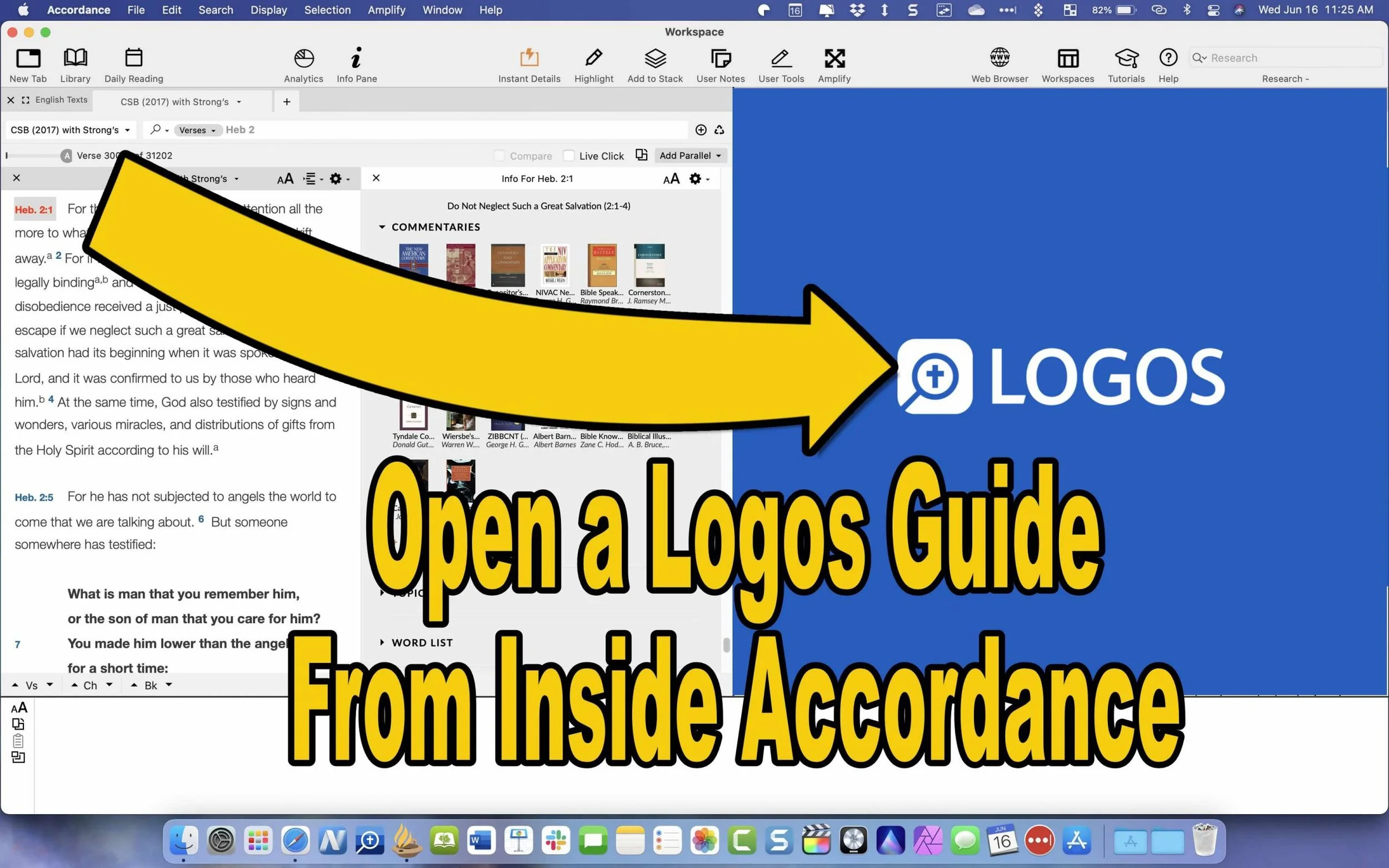
Open the Logos Guides From Inside Accordance

Some of you might be coming over to Logs from Accordance or vice versa. You don't have to uninstall the old one. Just use them together. You can open a Passage Guide or any of the great guides inside Accordance and make use of your Logos library.
Find out how to do this great little hack in my post: How to Use Accordance Amplify to Website to Open Your Logos Library.
The Factbook: What is it and How Do You Use It?

Think of the Factbook as a Bible Encyclopedia on steroids. It's got a lot of facts about the bible. You can learn more about people, places, things, theological ideas, books of the Bible, and a ton more. So read the article about how to use it and watch the video below that demonstrates the Logos 9 Factbook.
Make Logos Work Like Wordsearch
If you loved Wordsearch, then you likely felt abandoned when Lifeway sold the program and all of its assets to Faithlife, the makers of Logos. But, I wrote a post on How to Make Logos Work More Like Wordsearch. So check that article out.
Get 20% Off Base Packages

Maybe you don't already own Logos 9 and would like to. You can get 20% off a base package using my affiliate link. The like will work from April 1 till May 3rd. For full disclosure, I will get 10% of the purchase price from Faithlife as a commission.
5 Best Linux Bible Apps You Can Use Today
If you're a Bible student and a Linux user then consider these 5 Best Linux Bible apps. We have some good ones.
Linux doesn't get as much attention as Apple macOS, Microsoft Windows, or even Chromecast. However, Linux users love their operating system of choice and Christians can run a group of Linux Bible apps that will help you study God's word. Take a look at these 5 Best Linux Bible apps that you can use today to study the Bible digitally on the lesser-known operating system of choice.
Before we go any further, I have to admit that I'm an inexperienced Linux user. So, you will need to get help with these from other sources. To install them or get them running if you face a glitch, you'll need to find help from Linux power users. I'm not your guy. I'm recommending these Linux Bible apps based on trusted sources and not personal experience.
Sword Project from Crosswire Bible Society

First, I want to share the standard, The Sword Project. The other apps in this roundup all use The Sword Project's book server to download and install Bibles and tools.
The Sword Project offers the books and lets you search the text, including commentaries, Lexicons, and dictionaries in addition to Bible texts.
Crosswire curates a list of Sword Project Linux Bible Apps and apps for other operating systems, like Windows or Mac.
Xiphos Bible Study Tool for Linux

Learn more about Xiphos at their website. The program, formerly called GnomeSword, has a substantial online user manual and a community of users who will also help you get the program running.

Xiphos runs on Gnome desktop. It's based on the Sword Project, which gives users access to a large library of tools for Bible study.

You'll enjoy a tabbed display, quick searching features, an audio reading out loud feature, a parallel mode for comparing translations, and plenty of user-created tools.
Above you'll see a demo on installing Xiphos Linux Bible app on Gnome.
BibleTime Runs on Linux, Windows, and macOS
Next, we have one of the few Linux Bible apps that will run on Linux and the more popular Windows and macOS operating systems. Find it on Github.
With BibleTime, users will have to install the app, and then they will need to add books because the basic installer doesn't come with any. The Settings menu shows the Bookshelf Manager where you can add books.
Like Xiphos, BibleTime uses Sword Project books. That gives you access to a large library of books to use in your study.
Bible Desktop

The Bible Desktop Linux Bible app also runs on The Sword Project engine and gives us a simple user interface to study the Bible.

There's a Bible comparison tool in Bible Desktop that shows you the differences between translations. Pick the base translation like the ESV chosen in the screenshot above. Then choose another translation and it will show the two translations in the first and third column with differences in the center second column.
Users can choose between a window mode or a tabbed mode.
Run Bible Desktop on your Mac, Windows PC, and of course it's also one of our favorite Linux Bible apps.
Logos Bible Software on Linux Through WINE
WINE lets users install Windows software on Linux. Getting these up and running can present a challenge, especially to novice users. However, if you can use Linux, you can likely get WINE working to run Bible software on Linux.
Logos Bible Software works on Linux using WINE, sort of. You can find a long thread in the Logos Forums that cover getting the program to work on Linux.
Go Online and Run a Web-based Linux Bible App
I know. This feels like a cop-out, but the best way to do great Bible study on Linux probably requires nothing more than your web browser.
I created a series of the best online Bible study websites and that still holds up despite one site that's now gone. Wordsearch's Bible site is on the way out.
4 Best Audio Bible Apps for Android for 2021
Do you love to listen to the Bible? Then we've got the best audio Bible apps for Android for 2021. These also work on Amazon Fire Tablets plus your favorite Android smartphone from Google or Samsung Galaxy. I tested them out on a Samsung Galaxy S21 Ultra 5G primarily, but also on a Samsung Galaxy Tab S7. Give this a read and then download them for a good listen to the good book.
If you're looking for the Best Audio Bible Apps for iOS, then keep reading. These also come with iOS versions.
Bible.is - Our Winner: Best Audio Bible Apps for Android

People who want to listen to the Bible and do little else should look at Bible.is and nowhere else. Users agree with a 4.6 rating in the Google Play Store for this free app. You can also find it on iOS. Just a few of the key features that make it great include the following:
- Listen to the Bible in hundreds of languages with more coming all the time
- Create your own listening plans like you can with Bible reading apps - see the first and third screenshot below
- Share plans with other Bible.is users
- Read along with the audio Bible or just read when you can't conveniently listen - see the middle screenshot below
- Search the Bible by keyword, Bible text and phrases, or other words
- Watch Bible-based films like The Jesus Film

The Faith Comes By Hearing folks respond to user support issues and do a great job of pleasing those who have issues with the app. I've never experienced a problem.
YouVersion Bible App - Best Audio Bible Apps for Android with Social Networking
If you only downloaded one Bible app on your phone or tablet, it likely came from Life.church. Life.church brags millions of downloads and often shows up in the list of top apps on iOS and Android.

The church created the Bible app years ago and keeps developing it and improving it. The app excels as a basic Bible reader app with an elegant user interface. It primarily serves as a Bible reading app but adds audio Bible listening and does it well.
I include it here because of its great social networking features. Share Bible verses in a visual way. If your friends post pretty photos with Bible verses imposed over the top of them, the share likely came from the Bible app.
To use the audio Bible features, open in the Bib reader and you'll see a small audio icon in the top toolbar second from the right. Tap it to show the Bible reader pop up as seen in the left screenshot above. You can play from the current location in the Bible shown in the reader window. The fast forward and rewind buttons go forward or back by a chapter.
The settings at the bottom of the pop-up window control the speed and set a timer for how long the app will read the Bible. There's also a button to hide the controls. If you do, then you'll see the screen on the right which shows you smaller rewind, play, and forward buttons. They function the same way as the larger pop-up window.
Olive Tree Bible - Best Audio Bible Apps for Android with Advanced Bible Study Tools
Olive Tree makes the Bible overall Bible study app on Android and iOS. The app includes tools for advanced language study, commentaries, Bible dictionaries, media tools, and more. In addition, they offer a decent library of audiobooks. Check out the Audio Bibles sold on the Olive Tree website.

Open Olive Tree and go to the library to find your audiobooks. The books with audio show a headphone icon. Tap it to open it. You'll then see the audio controls to go back, play, and go forward. Below that, you'll see a toolbar with volume, playback speed, driving mode, and Bluetooth connection.

If you want to use your app while driving tap on the Driving mode icon. The larger play button and skip back button help you play or go back in case you missed something. The icon with the headphone inside a bookmark icon creates a bookmark so you can quickly go back to the spot in the book.
The Olive Tree app plays Bibles and other books too.
Logos - Best Audio Bible Apps for Android Honorable Mention
I've written a lot about Logos over the years including their advanced mobile app. It includes audiobooks too. Open them from the menu button in the lower right corner of the app. Find a book in your library and open it. You might also want to download the book from the library using the tiny download button next to the book title.

Once the audiobook is open you'll see the playback controls as seen above on the right. You can go back and forward by chapter or in 30-second intervals. Play or pause the book. The Contents button lets you jump to any place in the table of contents. There's also a playback speed control.
Recommendation
The playback interface in Logos offers the most options and controls. However, it's also the most complex of the apps and will overwhelm those who don't want to do advanced Bible study.
Bible.IS is the simplest for people who just want to listen to the Bible. If you also want to read and interact with other Bible readers then use the YouVersion Bible app from Life.church. The best overall mobile Bible app comes from Olive Tree. It's not as complex as Logos, but gives you more Bible study tools than the simpler apps.
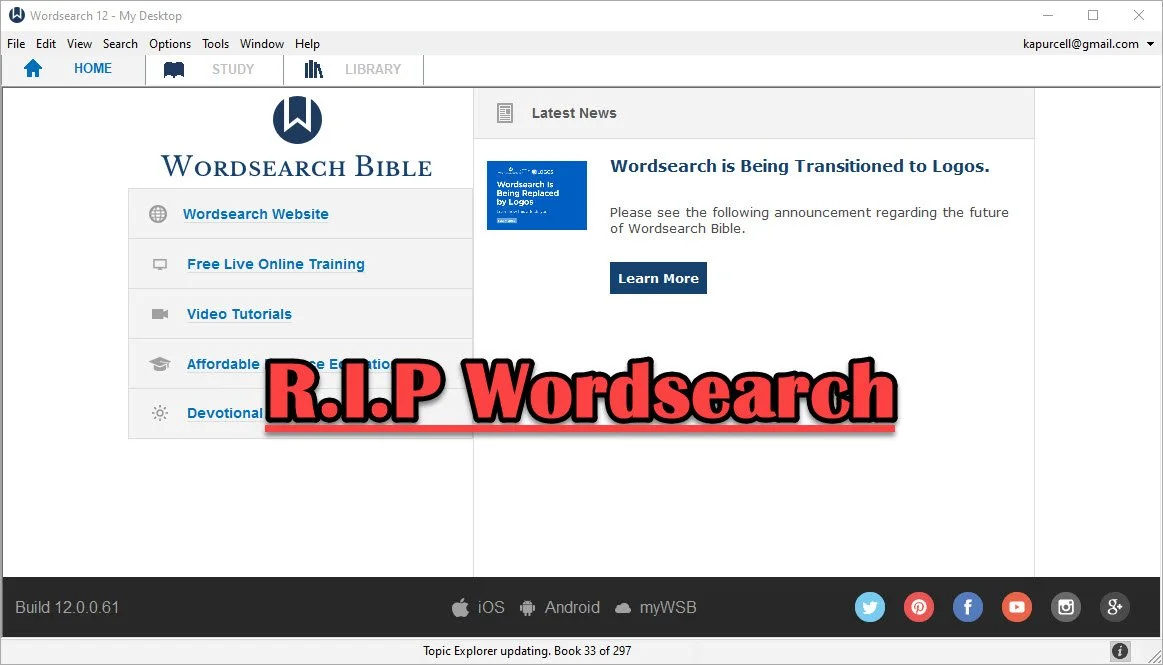
Wordsearch Support by Logos Ended, Now What?
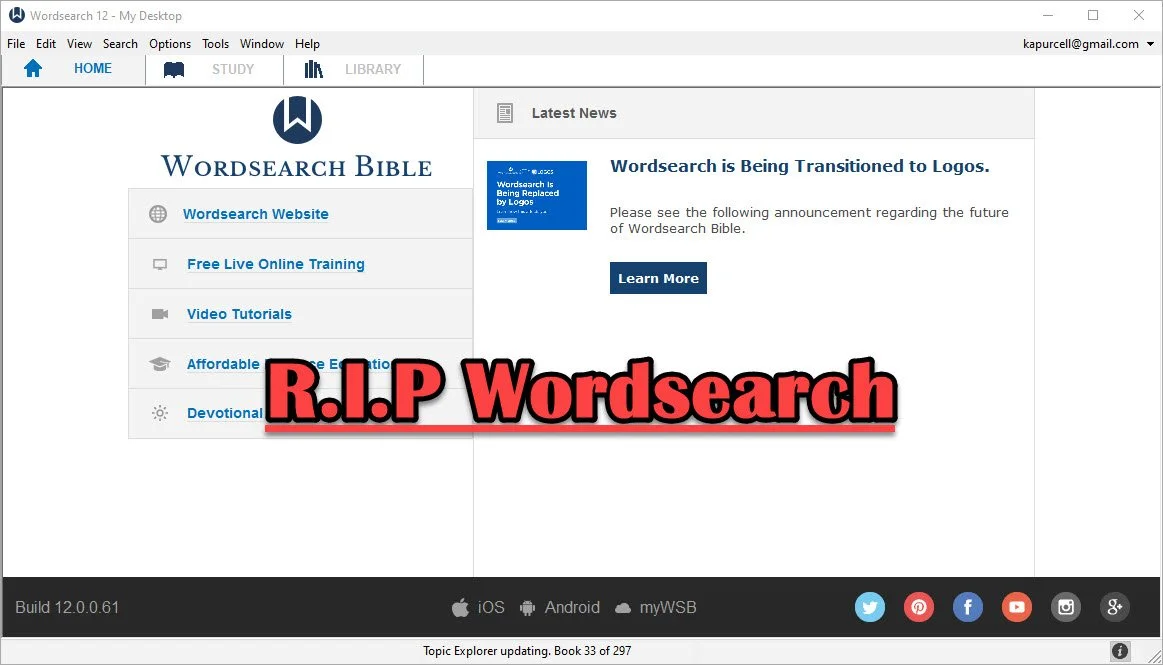
People who used and loved Wordsearch were likely disappointed when Logos and Faithlife bought the company and announced they would eventually shut it down. That time has come so what should a Wordsearch user do now? Here's the best way to continue studying the Bible digitally now that Faithlife and Logos ended support for Wordsearch Bible Software.
Logos Stops Wordsearch Support: What Does It Mean to Me?
Logos announced they planned to stop supporting Wordsearch, but that doesn't mean you can't use the software. You can. Just don't uninstall it or buy a new computer unless you have the installer and your books backed up.
Logos sent out an email to Wordsearch owners that said:
- You will not be able to download the desktop and mobile apps in the future
- You will not be able to download your books to the desktop/laptop or mobile Wordsearch apps.
That's frustrating if you want to keep using Wordsearch after buying a new computer, phone, or tablet. You'll need to find a new different way to get access to the program or start using Logos or some other app or program.
On your desktop or laptop computer, you can do a backup of your computer that includes your installation of Wordsearch and find a way to port it over to your new computer or a computer that you had to reformat or erase. That's more complicated than we have time to discuss in this post. A Google search will likely find dozens of options for Windows or Mac users.
Wordsearch users can also keep using the program on their current computer, phone, or tablet. The company won't cripple Wordsearch apps for software already installed. So keep using it knowing you won't get app or book updates. You also can't add new content, so if that commentary series you love gets a new volume, you'll have to find it in another format to enjoy it digitally.
Start Using Logos Instead of Wordsearch
Logos would love for you to start using their software. That's the whole reason they bought out Wordsearch, to get their users and their library of books.
If you want to start using Logos, then go over to the Logos website and see what version of Logos they gave you when they bought out Wordsearch.
In addition to a version of Logos, you will also get most of your books from your Wordsearch library in Logos. They will download after you install Logos on your computer or mobile device. A small percentage of books won't make the trip over to Logos.
See our post on using Logos and setting it up like Wordsearch.
Switch to Accordance
The best alternative comes from the folks at Accordance Bible Software. They offer a complex and powerful software program that brings you every feature you need to study the Bible at a scholarly level but also works well for pastors, teachers, and lay Bible students.
Switching from Wordsearch will cost more than going to Logos since Logos offers free software and gives you most of the books you own in Wordsearch format. However, you may not want to use Logos. You can get the $200 Crossgrade for Accordance. Crossgrades take the term "upgrade" and marry it with cross-over to form a crossgrade.
In addition to the Wordsearch crossgrade, you can crossgrade many of your books. Just contact Accordance to learn what it will cost. In both cases, you'll need to fill out a form proving you already own either Wordsearch or the books you want to buy via crossgrade.
Other Bible Software Options

Logos and Accordance aren't the only games in town. You can also find great options from the following:
- n Olive Tree Bible - Olive Tree provides a decent desktop or laptop computer program, but also has the best mobile app you can get on iOS or Android. They sell a lot of books too.
- Laridian PocketBible - You won't get as many books with Laridian as you will with Olive Tree, Accordance, or Logos. However, the developer does a nice job of creating a stable platform with some unique features, like showing 4 or more window pains on mobile, something can't get from any other app that I know of. With Book Builder you can make your own books for PocketBible on Android, Windows, iOS and Mac.
- e-Sword - The long time free Bible study program from Rick Meyers will seem simplistic compared to the other programs in this article. However, if a user doesn't like Logos and can't afford the others, then free books from e-Sword will help you with your study needs until you can afford something a little more advanced. Some Wordsearch users will find that it's all they need. If you want some modern Bibles and books you can buy them from eStudySource.

Recommendation
What should you do if you were a Wordsearch user who wished they were still in business?
- Keep using Wordsearch. You can still use it as long as you don't change computers and even then might be able to jump through some technical hoops to get it to work on a new computer.
- Go ahead and get Logos installed, if you have space on your computer's hard drive. You can also install it on your mobile devices. If you used the minimalist Wordsearch mobile apps, you will find that Logos does so much more. This will confuse some users who were Wordsearch's simple book reader app. But most will view it as a huge upgrade on mobile. Spend time about Logos until you feel comfortable using it for your digital Bible study.
- Get free versions of Accordance, Olive Tree, e-Sword, or Laridian's PocketBible. Try them out and see which one you like best. Then start looking into getting the books you need for your study.
Mobile users should look at Logos, Olive Tree, or Laridian first. They are the best mobile apps for serious Bible study. Accordance gets honorable mention if you are using iOS, but Android users should look elsewhere because Accordance on Android is too limited right now. They plan to upgrade making it more useful, but Logos, Olive Tree, and Laridian are so much better on Android.
How to Use Accordance Amplify to Website to Open Your Logos Library
Did you know you can open a Logos Passage Guide inside Accordance using the Accordance Amplify to Website? We'll show you how.
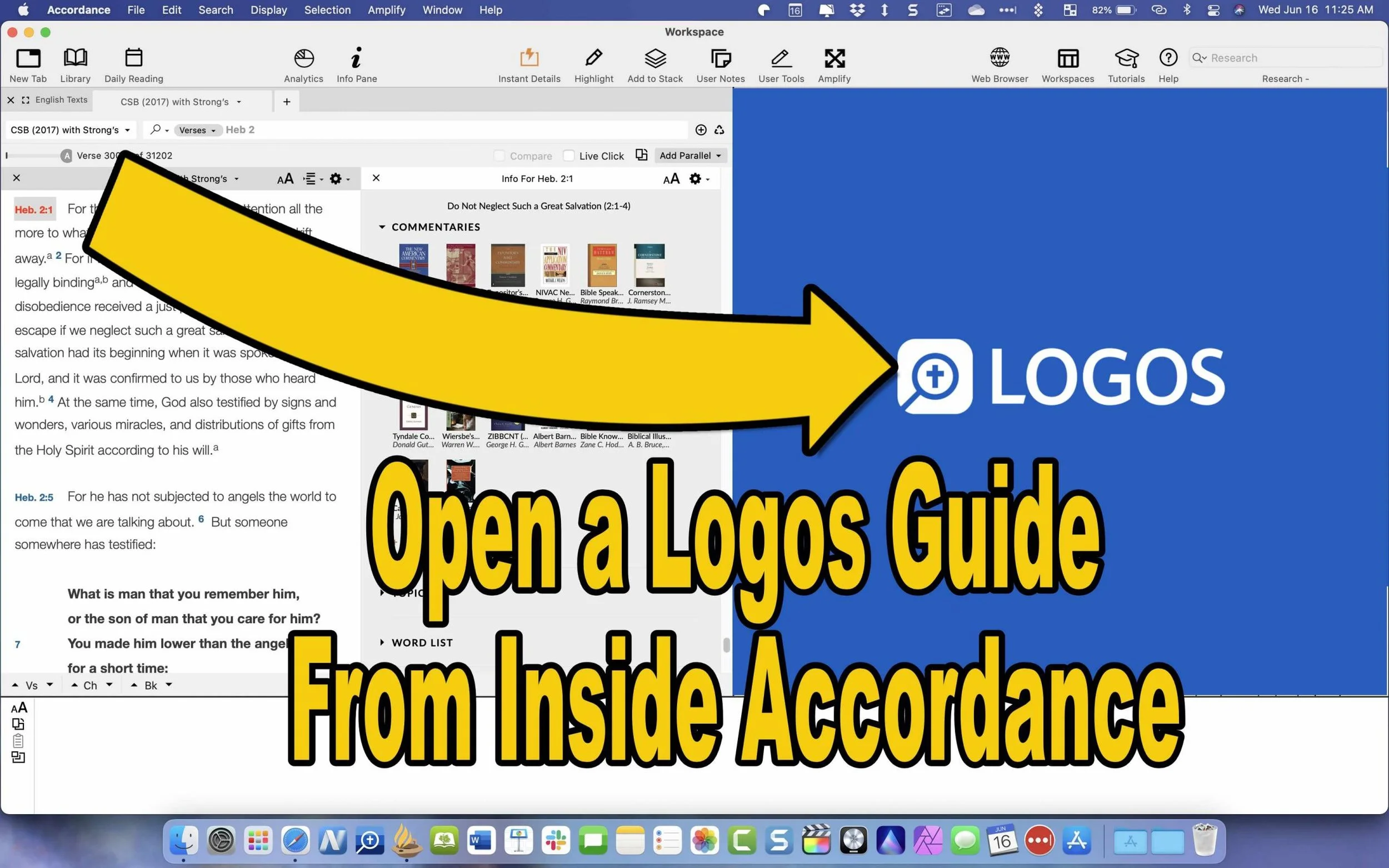
Accordance Bible Software will let you use their Accordance Amplify to Website feature to open other websites while using Accordance to research Bible studies. With these features, people with books in Logos Bible Software who have access to their Web App will let you access your library inside Accordance. First, we'll show you how to set this up and then how to use it.
Use 'Accordance Amplify to Website' to Open Logos Guides
Accordance includes two awesome features that make it possible to open a Logos Passage Guide from inside Accordance. The Accordance Amplify to Website feature will help you. Here's how to add Logos to the menu in Accordance.
To add Logos, you'll have to add a few things to Accordance. I found out about this in the Accordance forums, which are a great option for learning how to use Accordance features and asking for help in using the software.

Open Accordance Preferences from the Accordance menu item in the upper left or by using the keystroke CMD+,. Next, click on the External Websites item on the left side of the Preferences window. Thanks to Accordance user Paul Meiklejohn for these steps.

Then choose the New button to add a new link.
Click on New at the bottom of that box. A new box pops up where you can add your website links so you can use the Accordance Amplify to Website feature to open the Logos Web App.

Now use the links you'll find from the Accordance Forums. Here are a few that I added for Logos.
- Passage Guide: https://app.logos.com/guides/passage?layout=reading&reference=***
- Word Study Guide: https://app.logos.com/guides/word?layout=reading&reference=***
- Exegetical Guide: https://app.logos.com/guides/exegetical?layout=reading&reference=***
- Search Logos: https://app.logos.com/search?layout=reading&q=***&resources=yourBible&tile=right
The above came from Accordance user jarcher who posted them in the forums.
Some other links you'll find there include:
- Blue Letter Bible: https://www.blueletterbible.org/search/preSearch.cfm?criteria=*** (from user dandennison)
- Bible Gateway: https://www.biblegateway.com/quicksearch/?quicksearch=***&qs_version=NET.(from user Drewster; change the last three letters to your chosen translation, like NIV or CSB)
Use Accordance Web Browser to Open Logos Webapp
Now that we've added the sites to Logos and other sites, how do we use these? Open a Bible in Accordance and select the verse along the left. Then right-click the verse, and a large pop-up menu appears. Next, click on the Website in that menu. Choose your new item added in the step above.

For example, in the animate GIF above, I selected Hebrews 2:1 and then opened a Passage Guide in the Logos Web App.
Have you created any Accordance Amplify to Website links that aren't listed above? Then, comment below with your chosen link and let us know how to use it in Accordance.

5 Ways to Build a Digital Theological Library
Here are 5 tips to help you save money while you build a digital theological library for your Bible study and research.

How big is your Digital Theological Library compared to your traditional book library? When I went to Southeastern Baptist Theological Seminary back in the mid-90s, our seminary President told us we should graduate with a library of at least 2,000 books. Compare that to the size of my digital library, and the digital library now blows Dr. Patterson's challenge away! In Logos, I own nearly 8,000 books. Add to those libraries in Accordance, Olive Tree, Laridian PocketBible, and other mobile apps, and it probably jumps to 5 times Dr. Patterson's 2,000 book library count challenge.
While my total book count soars past the 2,000 books my seminary President recommended, how many of those books have I read or do I use regularly? Far fewer! I've wasted a lot of money and hard drive space on books I don't use or need.
Other people struggle because they can't afford a huge library of books. They only own a selection of public domain books in e-Sword or some other free or incredibly low-cost app or program. How can a person like this grow their library to a useful size?
I've got 5 helpful strategies to build a digital theological library. Follow these and you won't overbuy nor will you struggle with a meager library that limits your digital Bible study research.
Don't Overbuy Your Digital Theological Library
Video by Matthias Groeneveld from Pexels
It's tempting when there's a great deal on a new collection of books or low-cost add-ons to your digital theological library. However, many collections will include a large number of books, but few that you'll actually use. I took a look at a collection from one major Bible software maker. It costs $1,000, but that price adds over $10,000 worth of books. You'll get 250+ books. They offer a monthly payment plan under $60. In the collection, you'll get...
- 17 English Bibles - only 5 of which would I ever use
- 137 Commentary Volumes - but I'd only likely consult 3 of them
- 11 Bible Dictionaries - 3 of which looked valuable to me
- 200+ Other Books - only about a dozen of these seemed valuable to me
Peruse the major Bible software maker's websites, and you'll find a similar situation. Tons of books bragging thousands of dollars in savings, but about 10% are books most average pastors or Bible teachers will use.
Buy a base package, but don't overbuy. Get one that gives you all the features and an introductory collection of Bibles, commentaries, dictionaries, lexicons, and more. Resist the temptation to buy expensive collections to get more total books.
Try to Focus on One Bible Software Platform
At one time I owned...
- Logos
- Accordance
- Bibleworks
- WordSearch
- Laridian
- Mantis Bible
- Olive Tree
- QuickVerse
- PC Study Bible
- Tecarta
I installed all of them on my computers, tablets, and phones. However, I never really used them all. However, I felt like I needed my favorite Bibles, commentaries, and language tools in each of them. That leads to buying books multiple times.

I'm unique because I write about Bible software. The average person should focus on one Bible software platform and use it on all their devices. That way, they avoid buying too many programs or buying more than one copy of books.
Which Bible software platform should people buy? If you own one now, then stick with it. That changes if you're unhappy with what you use now. I can't recommend one in this space. However, let me offer suggestions.
- Make sure your chosen software runs well on all the platforms you use. For example, one maker has great tools for Mac and Windows, but their mobile software's not as good. Another one focused on mobile, but the Mac or Windows programs don't run well. Nobody makes an excellent Linux program.
- Look for a program that lets you buy books and gives away the book reader or charges for one platform but doesn't make you buy one program for each operating system.
- Try before you buy so you can test what each program or app does. Buy the ones that do what you want really well and don't settle. Take your time to buy the right platform for you. Scholars should avoid mobile-first applications. People who only need a Bible reader with dictionaries, study Bibles, and maps, should avoid paying hundreds for a complicated program.
Find Ways to Use 2 Bible Software Programs Together
Believe it or not, you can run 2 programs together. Why would you? Maybe you already own one program but see features in another program or app. It's possible that some books don't come on your favorite program or app. You may have to use two to get all the books you need for your work.

Look for ways that the programs can work together. This really applies mainly to two programs, Accordance, and Logos. Accordance includes a built-in web browser. Logos offers a web-based version of their program. So, you can open the Logos Web App inside Accordance. I wrote about this previously. However, the instructions are slightly out of date. But you can read it to get the basic gist of how to run Accordance and Logos together.
Save Money With Packages, Deals, and Training Opportunities
Earlier, we said to avoid packages full of books you won't use. However, you can save some money by finding collections or packages of books that you will use. If you see a package that includes many books that you will use, get it and save money.
Also, sign up for alerts to learn when your software maker offers specials or deals, including free books. Most of them offer a freebie occasionally, and some offer them weekly or monthly. Also, you can save money by regularly looking at their website or subscribing to email notifications.
Take advantage of training deals. Some companies offer deals for people who sit through an online live webinar or attend a training conference. See if your software maker offers these kinds of deals. You'll learn more about using your program, and you'll get a deal on some books you want to buy.
Finally, you can sometimes get hidden deals by contacting the software maker's sales staff. For example, I have a salesman with one program seller, and he often knows about specials that don't show up on the website. So he sends me an email when one of these deals shows up.
Don't Forget Free Content on the Internet or eBooks
Using one program for all your Bible study needs feels convenient, but it can cost more. Plenty of websites offer free content that can help you study the Bible, especially if you're not a Bible scholar. Find free websites like those in my roundup of the 6 best Bible study sites, part one and part two.
18 New Features in Logos 9.5 Update
Faithlife recently released a Logos 9.5 Update to their popular Logos Bible Software. It comes with 18 new features and updates.
Logos 9.5 Update came out recently, and it brought some interesting new features and fixes. Here's a list of the X new features in Logos 9.5 that you can enjoy right now by updating your copy of Logos. If you're not yet running Logos 9, now's a good time to update. See my 6-month later review to get a 15% discount until June 15, 2021.

Download and update inside Logos 9 using the Update Now command in the Command Box. It sits on the toolbar on the left side with the big green GO button as seen in the screen shot above.
Counseling Guide Improvements

- New Journals Guide Section
- New Lectures Guide Section
- New Web Resources Guide Section
- New Bookstore Guide Section
- More Link takes you to Monographs and Dictionaries Sections.
Factbook Improvements
See our post about how to use the new Factbook
- Added the ability to see your results in the autocomplete drop-down when there are no results in your localized language.
- Added a keyboard switcher to the Factbook auto-completer.
- Improved the transliterations in Factbook autocomplete

My Library

There's now a new facet in the My Library for Factbook in the tabs for Yours and Store, which refers to books the user owns or books from the Logos store. So first, open the Library, and you'll find these tabs in the upper right part of the window on the toolbar. Next, open the Facets list by clicking on the Facets button, which looks like three horizontal lines next to the search box in the Library window.
When a user clicks on the "more:" link in the Facets list, it adds up to 100 new items instead of just 50 as it previously did.
Other New Features in the Library
From the Logos 9.5 Update wiki...
- Added support to persist Library settings in Favorites, Shortcuts, History, and Bookmarks.
- Added support to retain the selected tab and filter state when copying the panel URL.
- The update moved the Language facet to the top in the Store tab.
Resource Info Panel Improvement

If you use the reading plans in Logos 9, you'll love the new feature they added to the Resource Info Panel in the Logos 9.5 Update. First, open a book and click on the resource panel by clicking on the three vertical dots button at the right end of the book's toolbar. Then, click on the Start reading plan button in the list.
Sermon Builder Improvements
In this version, you can now edit passage blocks in the Sermon Builder. This also works with quote blocks. When you hit Enter, the cursor will leave the blockquote box. Also, Logos will now auto-publish the date changes on a sermon's occasion.
Two other minor updates include a new Store button on the toolbar. This is a little annoying because it takes up space that may be precious to users on smaller screens.
Before the Logos 9.5 update, when you created a customized guide using one of the default guides as your starting point, Logos never added new sections in later updates. Now, if you add sections or remove sections from the default guides, then Logos will not only keep your changes, but add anything they added to the default guides. New things added in future updates would not be added to your customized version, but Logos fixed that in this update.

3 Great Logos Deals You Can Get Right Now
Logos Bible software users can get 3 great Logos deals right now.

Logos Bible software users can get 3 great Logos deals right now. The first one is an older deal that remains in place until June 15. The other three just started this June.
Do you use Logos Bible Software for your study? Logos 9 is a great package to study the Bible personally, for sermons, Bible studies, teaching, preaching, and for your scholarly study.

Save 15% on Logos Deal on Logos 9 Base Package Sales
We shared last month during our 6-month later review. You can get 5 free books from a select collection of titles plus get 15% off Logos 9 Base Packages. Here's the link to get the deal.
The base packages will let you upgrade to Logos 9 if you haven't already. If you did, you can jump up to a higher level or get the next level for your denominational base package.
50% Off Eerdmen Publishing Resources for Logos

Check out these great deals and add to your research or study library books like...
- NICOT and NICNT - a great in-depth commentary series on the Bible with "thorough and modern scholarship" on the books of the Bible covered by the New International Commentary series. You save over $600 off the $1599.99 regular price.
- Eerdman's Biblical Reference Collection - resources on language study, additions to the Factbook, and the Theological Dictionary of the OT and NT. The collection retails for $1,138.99, but you can buy it in this sale for $569.99.

- Theological Dictionary of the OT and NT - a great set for theological linguistic research and study. It normally costs $849.99, but with this Logos deal, save 40% and pay $509.99.
- International Standard Bible Encyclopedia Revised - ISBE was a standard reference for almost any important word or topic in the Bible with a huge collection of 1,500 photos and 342 maps. Instead of paying $129.99, you only pay $77.99.
- Two Horizons Commentary Series - get 23 volumes with excellent biblical exegesis and theological study. It covers the Bible paragraph by paragraph rather than verse by verse. Pay just $249.99, saving 28% off the $349.99.
Logos Deal on Free Book of the Month
Every month Logos offers a free book of the month, where users can save and get a free book. Sign up for the email to get the book. You can also get other books drastically discounted. For example, this month get...
- Hard Sayings of the Bible - explains over 500 passages difficult to understand. Free
- The Spirit of Grace - part of the Christian Belief for Everyone Series, which gives readers an accessible explanation of the doctrines of the faith. This is the 4th volume covering "the Holy Spirit, the holy Catholic Church, the communion of the Saints, and the forgiveness of sins." $.99
- Psalms: An Introduction and Commentary - part of the Tyndale Commentaries series. $1.99
- The Person of Christ - focuses on the person of Christ in the history of church doctrine. $2.99
- 2 Corinthians The IVP NT Commentary - part of this commentary series and covers the book in a practical and theological way covering passage by passage comments. $3.99
- The Temple and the Church's Mission: A Biblical Theology of the Dwelling Place of God - G.K. Beale discusses the OT tabernacle and temple as symbols of the indwelling of Christ and talks about how this applies to NT understanding thanks to Christ. $4.99
- The Bible for Everyone - a new version of the Bible written to make it more accessible for everyone. $5.99
- Exodus Apollos OT Commentary - discusses the book focusing on the Exodus event and how we learn of God's love for his people as he changes the lives of people who were similarly victimized. $6.99
- Foundations of the Christian Faith: A Comprehensive & Readable Theology Revised and Expanded - a readable theology for the average believer. $7.99
- The Revelation to John: A Commentary on the Greek Text of the Apocalypse - Dr. Stephen Smalley offers a commentary on the Greek text of the book of Revelation. $8.99
- Pre-order Changed into His Likeness: A Biblical Theology of Personal Transformation - Gary Miller covers the issue of the Gospel where many promise too much and others expect too little of converts. $7.99
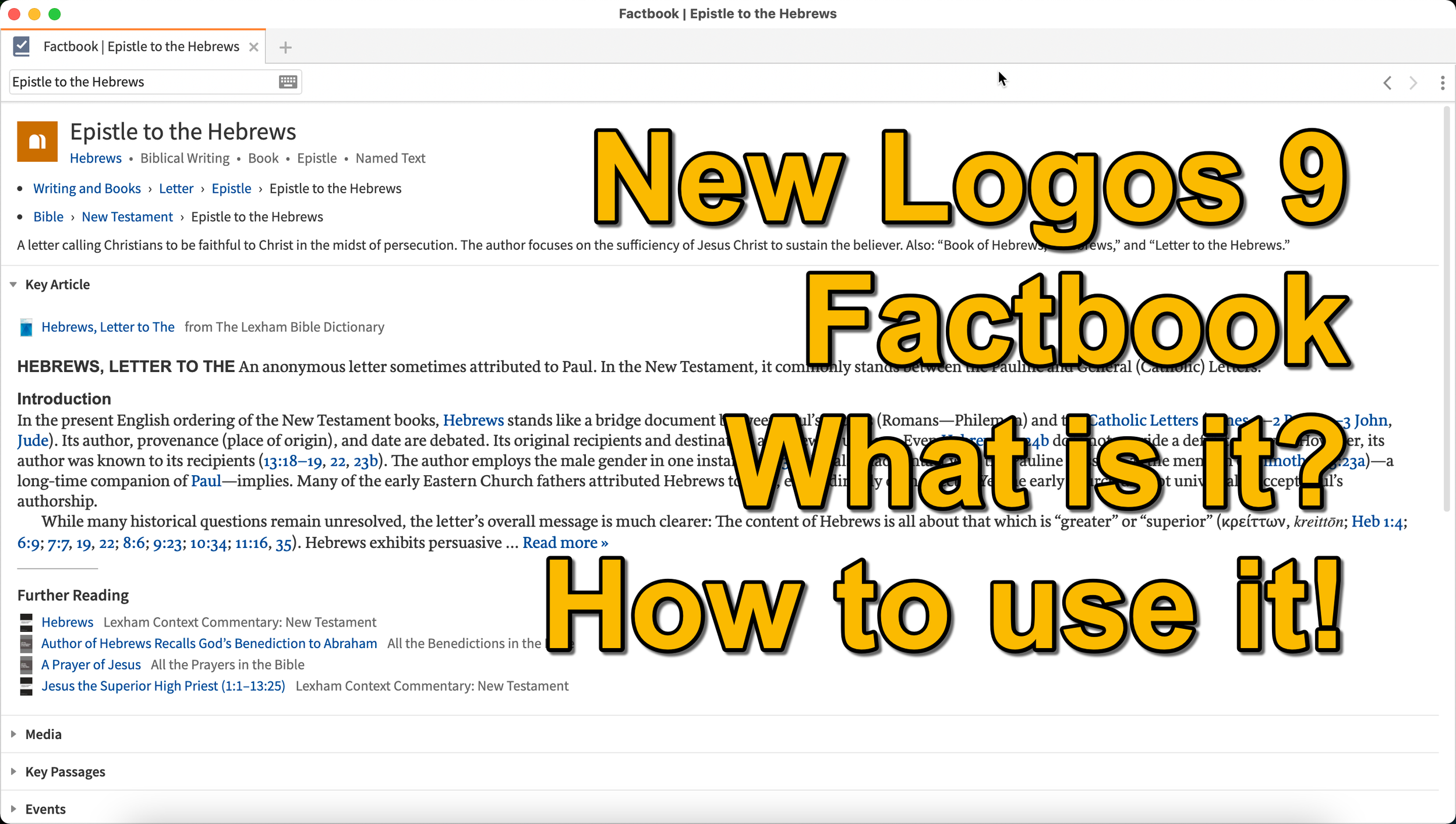
Logos 9 Factbook: How To Get the Most Out of the New Features in Logos 9
What is the new Logos 9 Factbook and how can it help you study the Bible more efficiently. We'll look at it in this series on new Logos 9 features.
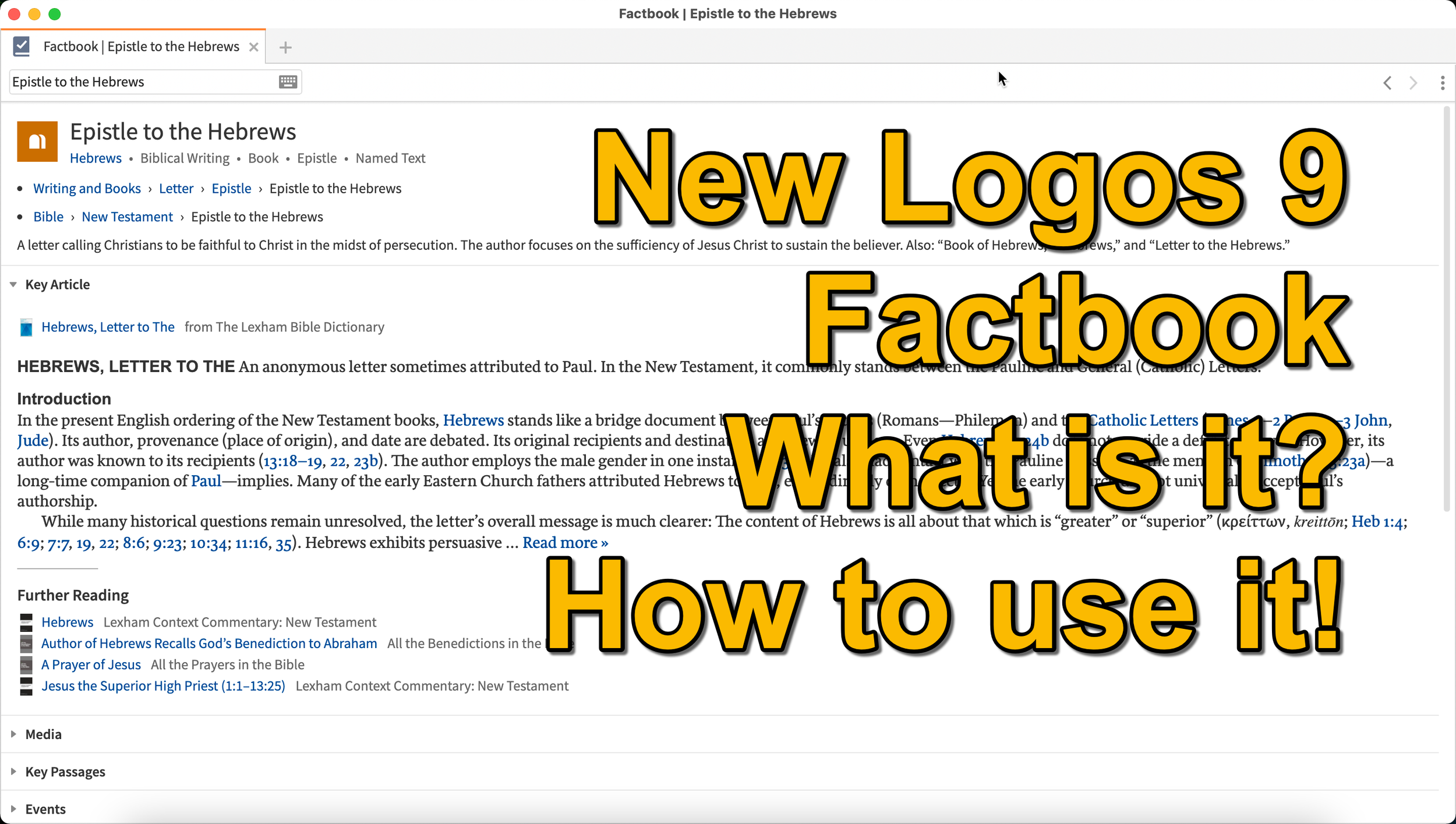
What is the Logos 9 Factbook, and how can you get the most out of this new feature if you upgraded to Logos 9? We'll take a look at each of the new features in Logos 9 now that we've had plenty of time to use them.
It's now been six months+ since Logos 9 came out. Since we've had it in hand that long I wrote a 6-months-later review. In addition to reading that, you can see my original post about the release of Logos 9. In this post, we will do a deep dive into all the new features starting with the one Logos made the most of in their advertising of Logos 9, the Logos 9 Factbook.
If you'd like to get a discount on Logos 9, you can use my affiliate link to give you 15% off, some free books, and my appreciation. I get a kickback to help me with expenses related to my website, podcast, and YouTube channels. Use the code PARTNEROFFER9 when you follow that link to get the discount and free books.
What is the Logos 9 Factbook?
Logos says, "The Factbook is one of the most powerful features of Logos, and it makes almost any biblical or theological term easily searchable." I compare it to a Bible encyclopedia on steroids. Just about anything you want to learn about in a Bible text will show up in the Factbook.
Past versions of Logos included the Factbook. However, it received a lot of attention in the update to version 9. A minor update comes in the form of the new icon. It now looks like a book with a checkmark on it.

New Sections in the Factbook
Second, Logos added a bunch of new topics to search for in Factbook. The new things include...
- Biblical Senses - these are translations of the Greek or Hebrew word. Biblical Senses give you an understanding of different ways the original language terms were translated in various places.
- Hebrew & Greek lemmas - you can now start a Greek or Hebrew word study from the Factbook report.
- Counseling Guide - start a study of the counseling guide on topics related to counseling, like marriage or addiction.
- Theological Guide - start a study of theological words or concepts from Factbook.
- Denominational Content - find all content on the topic from a denominational library, like Baptist or Lutheran.
- Lists as Topics - when you search for a topic, like a person's name. You'll see entries in the Factbook with lists related to that person's name or book of the Bible. For example, if I search for Matthew, it will find people named Matthew, topics or preaching themes from the book of Matthew, and more.
- Show All Topics - when you type a search term in the box in the Factbook, it will show a drop-down list of some searches you might be wanting as you type. At the bottom of the list, you'll see Show All Topics, which gives you a new list with all the Factbook topics containing your search term.
- Pericopes as Topics - search for a reference like John 3:16, and you'll get a list of pericopes (passages) with links to open the passage in the Lexham Context Commentary plus Media, Events, Sermons, and a See Also section.
These make up the list of the major new parts found in the updated Factbook.
Other Parts of the Logos 9 Factbook Still Available
Below, you'll see a list of other topics still included (from Logos support). The sections that show up in it are listed below:
- Info - basic information about the item search. This shows up in every search.
- Key Article - a section at the top from one of the common books in your library. Logos says the Lexham Bible Dictionary is an example of the book this Key Article will show. You get part of that article shown there in the list. Faithlife picked what Key Articles will show up for each kind of search item. The company focuses on its own tools, like Lexham Theological Library for original language terms.
- Media - images from any of your media resources.
- Letters - Personal Letter resources by an author if that's what you searched.
- Works - works created by the author showing links either to books in your library or store pages on Logos.com.
- Passages - shows a list of passages, like concordance of the word, topic, or thing. A link lets you instantly create a Passage List from the resulting list in the Passages section.
- Events - links to the Timeline and Biblical Event Navigator if a user owns that book.
- Dictionaries - articles in your dictionaries.
- Preaching Resources - topics from your preaching-themed resources.
- Referred To As - Bible verses organized by the way the search item is referred to with a list of the verses and a graph showing where that shows up in the Bible.
- Cultural Concepts - shows links to the Lexham Cultural Ontology Glossary, "which shows a hierarchy of the concept’s type, and search results for the concept within your Library" (from Logos Support site).
- Library - books in your library with content related to the search item.
- Journals - links to journals in your library with content related to the search.
- Sermons - links to sermons found in your library with content related to the search.
- Community Tags - these are tags that Logos users added to a section related to the search item. If I tagged a part of a book as "grace," then it would show up in other users' searches for grace.
- Bookstore - shows books for sale related to the search item.
- See Also - shows other things in your library that don't fit in the above section.
How to Open the Logos 9 Factbook
To open the Factbook you can do one of the following...
- Toolbar - Click the Factbook icon on the main window's toolbar. Enter what you want to search for in the search box.
- Go Box - start typing in the Go Box, and Logos 9 shows links to Open the Factbook to that topic, word, passage, etc. It also shows up as one of the taps that opens when you enter a search term and hit enter or click on the Go button.
- Tools Menu - You can also open it from the Tools menu. Either look for Factbook or type that in the search box at the top of the menu. Or it usually shows up in the shortcuts area at the top of the Tools menu.
- Context or Right-click Menu - Select a word in the text of your book or Bible and right-click, bringing up the context menu. You'll see the Factbook links in many places usuually in the right when you highlight a subject on the left.
- Visual Filters Button - There's now a toolbar icon in the Bible window for the Factbook. Click to turn it on and from now on you'll see blue dotted lines under words with Factbook entries. Don't confuse those with other solid blue lines that may show up if you've created other visual filters, like I did for parts of speech. Click those words to open a Factbook window for that word.
- Search Panels - When you search for things in a search box, the Factbook sits near the top somewhere in your search results. It moves around depending on what you searched for, but it will show up near the top of the results.

If you use the last method to turn on the Factbook, you can turn on or off what Factbook features will show when you click using Visual filters (see image above). Turn on or off different parts of the Factbook by clicking the down arrow next to the Factbook button. A list with checkboxes shows up, ready to turn off and on.
Bible Book Guides

The Bible Book Guides in the new Logos 9 Factbook shows up when looking at a book of the Bible in the Factbook. For example, if you search for the book of Hebrews, it will show you a section about the book. This section will help if you're going to do a study of a book of the Bible. You'll see the following sections:
- Content - Introduction, outlines, and contents mostly from commentaries on the book that you search for in Factbook
- Origin - Links to the books in your library with information about the book's author, date, and purpose.
- Background - Shows books with content about historical context, recipients of a book, and the author's location when writing the book.
- Objects - Books with geographical, date, location, and key people in the book.
- Canon - Discussions about the canonization of the book.
- Form - Discussions of the book's composition, text, title, style, and structure.
- Meaning - Books with info on the book's themes, emphases, interpretation, theology, significance, and spiritual content.
- Additional Information - Links to Bible dictionaries and commentaries with additional info about the book.


5 Best Bible Apps for Android and Fire Tablets for 2021
What are the 5 best Bible apps for Android for 2021? These run on Android phones, tablets, and the Amazon Fire tablet.

If you own an Android smartphone or tablet or maybe an Amazon Fire Tablet, then we've got the 5 best Bible apps for Android. This list usually stays the same each year. So what has changed for 2021?

I tested these apps on the Samsung Galaxy Tab S6 Lite. I used to own the Tab S7 but handed it down to my son, an Android first guy. Most of the time, I use the iPad, but Android works great too. So, here's my list for 2021!
What's your favorite Bible app on Android or Amazon Fire Tablet. Comment below or head over to the YouTube video above and comment there.
Bible App by Olive Tree
Olive Tree's Bible App sits atop our list because it's still the best mobile Bible app available for reading, study, and sermon prep. Why do I call it the "best"? Olive Tree presents the Bible and Bible study material with the perfect balance of usefulness and simplicity. That's hard to do. Just ask the other more technical Bible study apps listed below.
UPDATE: The Bible App by Olive Tree is no longer supported on Amazon Fire tablets.

Open Olive Tree on a tablet, and you get two areas by default. On the left, you'll see a kind of Windows Explorer or macOS Finder kind of navigation window that takes up the left half of the screen when you tap the menu. To see this menu, you'll need to tap the menu button that looks like three horizontal lines in the upper left corner.

The Bible sits on the left when the menu isn't open. On the right, you'll see the Resource Guide. These two can link up so that when you scroll or swipe from page to page in the Bible, it will move the commentary you have open to the right.

Add word study features by opening a tagged Bible. Tap on a tagged word, and you'll see a popup window that defines the word in its original language. You also get Audiobooks, reading plans, devotionals, maps, highlights, note-taking, and it all syncs up with your computer version of Olive Tree.
There's more to this app, but this hits the highlights and explains why I put it first in my 5 Best Bible Apps for Android list.
Logos Bible App from Faithlife
The Logos Bible App (Amazon Fire App) and its other similar apps from Faithlife come in second in our roundup because of its power and array of useful features. It's a little bloated, but I'd rather have too many features that don't get in the way of the basics than not enough, like the ability to add user notes.

When you look at all that Faithlife packs into Logos, you can only say wow! There's a reason this ends up in our 5 Best Bible Apps for Android, but not at the number one spot.
The app divides into a few main areas.
- Home Screen - layouts for study are here, along with information from Faithlife about sales or books.
- Library - find your books to open and read.
- Book Reader - you can open a bunch of books, and they will show up on screen accessible via the center button, the toolbar at the bottom of the screen.
- Search Screen - use it to search your Bible or books.
- Main Menu - find all the major features of the Logos app here, like the Guides.

You can open multiple books and sync them using the center button on the bottom toolbar. Set up some or all of the books to sync up or don't. I have a few Bible translations and a few study Bible's or commentaries open all the time, all of which I set to sync up, so they move from verse to verse together. I also open books I'm reading too, but they don't sync with a Bible.

On the Bible, you can do word studies, searches, and add notes or highlights. Open the menu, and you can search your library in one of the Guides. A passage guide finds everything about your passage. The Exegetical Guide searches for content related to language study. Other guides work similarly.

You'll find many other features, mainly in the main menu at the far right on the bottom toolbar. And remember, it all syncs nicely with the computer app or their web app.
Faithlife also offers a few other apps for Bible study and reading. You can download...
- Faithlife Study Bible - focused on their study Bible and the Lexham English Bible translation.
- Faithlife eBooks - a simplified version of the app for reading books primarily, but still has some study features.
- Biblia - Spanish language version of the app.
- Verbum Catholic Bible - app focused on Catholic users.
The Bible App from Life.Church

I always fight with myself about adding The Bible App (Amazon Fire App) to my roundup of best Bible apps for any platform, but I always do it for one reason. It's the most popular Bible app available on mobile devices.
I don't like including The Bible App because it's not really a complete Bible study app. You can't do word studies or read commentaries and Bible dictionaries. But that's not what Life.Church intended for its users to do.

Instead of more advanced Bible study, The Bible App excels as a simple Bible reading app that also includes social networking built-in and sharing to social media easily and elegantly. You can...
- Download and read hundreds of versions of the Bible, most of them available offline.
- Listen to audio Bibles.
- Set the app to remind you to read a daily reading and devotion or see a verse of the day in text or visual format.
- See what your friends are reading, highlighting, sharing, or commenting about the Bible.
- Watch videos to help you understand the Bible.
- Bookmark verses.
- Share verses with others via social media, email, or text.

Accordance Bible Software
The Accordance App (Amazon Fire App) on Android has gotten better but still lags behind its iOS cousin and the other apps in our roundup for a couple of glaring weaknesses. First, you can't add your own user notes yet. That's gotta change, and Accordance should feel embarrassed they haven't added the feature in 2021.

Second, the syncing features in the app are weak by comparison. Accordance should add its own syncing tool to keep your user content fresh on Android and a computer.

While Accordance really needs the improvements above, it still deserves a spot in our top 5. Of course, you can read the Bible and other books in your library. Accordance sells a lot of great Bible study tools, thanks to a huge library of quality resources. They are often the first company to release a book when it gets published. For example, they released the new 2020 version of the NASB before the others on the list. Logos doesn't even have it out yet.

Accordance works great as a Bible or book reader. It lets you search, and you can select a word and Amplify it, which means study by searching for related content.
Tecarta Bible
Bible study observers may not know as much about Tecarta Bible (Amazon Fire App $5.99 for NIV) as the others in this roundup. But they should because it's a decent app.

The app includes the most-used translations. You can download the KJV for free and buy others for download. If you don't want to pay for a translation, you can "stream" them, which means use them as long as you have an Internet connection on your phone or tablet. You'll have to buy commentaries, but unlike others, Tecarta lets you try them.

The app displays parallel translations and shows the commentary in a 2nd or 3rd window. Add notes, bookmarks, highlights, or share verses.

If you tap and hold on a word, the app shows a box popup that says "Define," and it will go online to give you a definition from an Internet search.
5 Best Bible Apps for Android and Fire Tablets for 2021 Summary
Which of the 5 apps included in our roundup of the 5 Best Bible Apps for Android should you download? Why not download all of them? Of course, you should start with the app from the company you already use on a computer, if you own one. I'm a Logos Bible Software user on my Macs, so I primarily use Logos, even though I like Olive Tree better on mobile.
UPDATE: If you use an Amazon Fire Tablet, you can't download the Olive Tree app since it's no longer supported. For a fifth Bible app on a Fire Tablet, look at Laridian's Pocket Bible. It's also terrific.
Update: You can also install the Google Play Store on an Amazon Fire Tablet. It's complicated, but if you think you can handle it, fire up the Silk browser on your Fire and head over to the helpful how-to article at Android Police.
If you must make me recommend one over another, then I'm going with Olive Tree first. It's got the cleanest and simplest interface. It has enough features for most users. People who need more advanced tools will likely not work on a tablet or smartphone very long. They're using a computer-level Bible study suite from either Logos or Accordance. However, don't end your search with Olive Tree. You can try out all of them for free and settle on one with the best features for your needs.
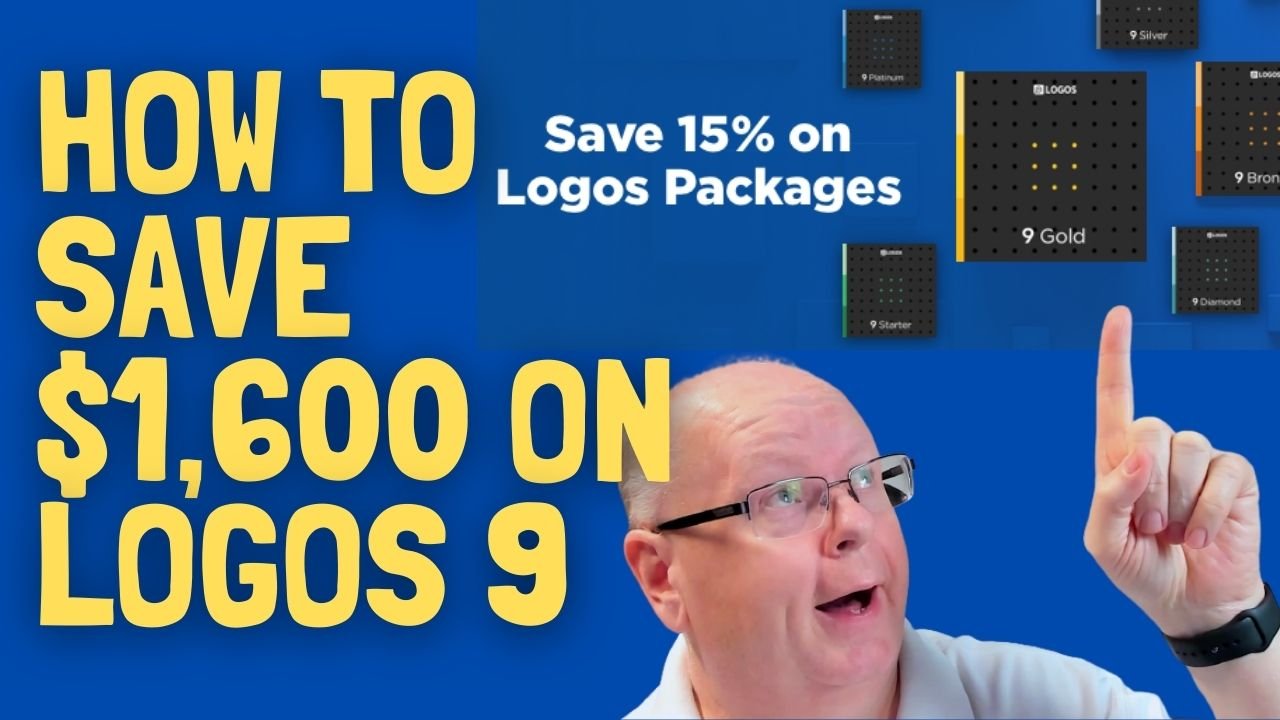
Logos 9 Upgrade 6 Months Later - Is It Still Worth the Upgrade Cost?
It's been about six months since Faithlife released Logos 9 upgrade to focus on some key improvements to the computer app and the mobile app. Also, you can save $1,600 on a Logos 9 Base Package plus get 5 free books using the link provided in this article.
It's been about six months since Faithlife released Logos 9 upgrade to focus on some key improvements to the computer app and the mobile app. I published my review over at ChurchTechToday.com on October 30, 2020, and talked about it here as well.
The Logos 9 upgrade brought the following key improvements, like...
- Some user interface tweaks make the software easier to use.
- An update to the Factbook in the Logos 9 Upgrade
- The interesting Sermon Manager and Sermon Builder
- A Counseling Guide
- New sorting features in the Bible commentaries section of the Passage Guide
- Improvements to the Reading Plans and the Reading Queue
In addition to the above improvements in the Logos 9 Upgrade, we also saw some decent changes in the mobile app. They added the Factbook to the menu seen in the toolbar at the bottom right corner of the app. You can also use your iPad or tablet for preaching, thanks to the new preaching mode in the mobile app. I actually love using my iPad to preach.
15% Off Discount on Logos 9 Upgrade to Base Packages and 5 Free Books
From now till June 15, 2021, you can get 15% off a Base Package upgrade. To do that, follow this affiliate link, and you'll get a discount. Full-disclosure, I'll get a little kickback from Faithlife.
Follow that link, and not only will you get the 15% off discount when you use the code PARTNEROFFER9 at Checkout, but you can also get 5 free books. Select from 28 different books, including some great titles.

Here's a list of my recommendations.
- Spurgeon Commentary 1 Peter
- Lexham Research Commentary: Colossians
- St. Paul's Epistles to the Thessalonians by George J. Ellicott
- The Essentials of Prayer by EM Bounds
- The Life of St. Paul by James Stalker

Faithlife offers a myriad of Base Packages. Here's what I recommend depending on what you already own.
- Logos 9 Bronze - Great for people who are just getting started.
- Logos 9 Gold - Jump to this level if you already own a pretty big library.
At the bottom of the page, you see a link to see the other Base Packages. Follow that to find the Logos 9 Upgrade packages for Anglican, Baptist, Lutheran, Messianic Jewish, Methodist & Wesleyan, Orthodox, Pentecostal & Charismatic, Reformed, SDA, or Catholic (Verbum) users.
Logos 9 Upgrade: Best Feature is New User Interface Tweaks
One improvement stands above the rest. I like the features listed above, but the simple tweaks to the user interface on the computer version of Logos 9 made the most difference in my productivity with the Logos 9 upgrade six months after Faithlife released the update.

It sounds crazy, but the new button on the upper right corner of the screen helps users a lot. First, you can quickly jump to your account to see what you have or what pre-orders you might see published soon. You can also jump to Your Faithlife Profile, where you can interact with other users and see answers to your questions.

The other amazing new tweaks include transforming the program toolbar. For example, right-click on a book icon that you placed on the toolbar like I did as seen in the image above.

you now get a drop-down menu holding those books in that folder.
The new tweaks to the toolbar give you a drop-down list of icons from the toolbar that no longer fit on a narrow screen on small screens. See the image below to understand what I mean.
There's a new light mode, dark mode toggle in settings. People love dark mode, and I don't understand why. But if you do, then you now have it.

Other New Features in Logos 9 Upgrade
Logos seems most proud of the other new features in Logos, which include...
- Factbook
- Sermon Builder
- Sermon Manager
- Counseling Guide
- Improved Reading Plans
I like all of those, and you should see my review linked in the top section of this post from ChurchTechToday. The second feature I'm most excited about also doesn't seem big. Faithlife now added a feature to organize my library in a more useful way when I fun a Passage Guide.
Go to the Commentaries section of the Passage Guide and look in the upper right corner. You'll see ways to sort your books including...
- Priority - follows your customization where you rank certain commentaries above the others.
- Series - groups the commentaries by series, like the New American Commentary series or the Word Biblical Commentary series.
- Author - who wrote it?
- Denomination - what is the denomination of the publisher/editor/author depending on the commentary.
- Type - is it a technical or devotional commentary?
- Era - when was it published?
Mobile App Improvements
Logos added the Factbook to the mobile app too. You'll find it in the menu button in the lower right corner.
Faithlife added a preaching mode to the mobile app. That way, you can build and manage your sermons in the computer app. Then you can put your app in preaching mode and preach from the app.
Logos 9 Basic Now Available for Free - What's Included
Faithlife released Logos 9 Basic edition, the free version of their software. Find out what's included and what's not included and get a discount on some expansion libraries.
Last fall, Faithlife released Logos 9 Bible Software, a powerful and complete Bible program useful to Biblical scholars, preachers, and teachers alike. Now they released Logos 9 Basic, the free version of the upgraded program.

When Logos releases a major new update, they wait for a few months before releasing the program's basic version with a diminished feature set. This month we finally saw that Logos 9 Basic version for free.
Logos 9 Basic Features Included
Here's what you get with the Logos 9 Basic version if you never downloaded a previous version of Logos. If you have an older version, you may already own some of the following.
- Reverse Interlinear Support
- Interactive Media
- Workflows that help you study the Bible in a systematic way
- Over 40 Books and Bible study tools
- Customizable Bible reading plans
- Customizable book reading plans
- Take notes with formatting and links to websites or other tools inside Logos
- Highlight books and the Bible
- Read devotionals
- Tie commentaries to the Bible displayed in the program
- ESV and Lexham English Bible Audio Bibles
Some of the books you get include Faithlife Study Bible, Charles Hodge's Systematic Theology, the Christian Standard Bible, and the Lexham English Bible. You can also use Easton's Bible Dictionary and Matthew Henry's Concise Commentary.
The total value of the free books included in the basic version hits a value of over $900.
Users can run Logos 9 on their Mac or Windows computers. It also syncs up with mobile devices running iOS or Android, including Amazon's Fire tablets.
If you need helps with Logos, then head over to their active forums full of users willing to help.
Discounts on Paid Packages
If you download and like Logos 9 Basic edition, then consider upgrading to one of the following packages. If you use my affiliate link, you'll help me out with the cost of hosting this website. The deals below run through February 2021.
Logos 9 Fundamentals with 5 Additional Books
You can get the following books with Logos 9 for only $50. That's half off the normal price of Logos 9 Fundamentals. The prices below are the normal cost if you bought them individually:
- A Critical and Exegetical Commentary on Genesis $37.99
- The Atonement: In Its Relations to the Covenant, the Priesthood, the
- Intercession of Our Lord $ 9.99
- Studies in Theology $9.99
- How to Study the Bible for the Greatest Profit $12.99
- Spurgeon Commentary: 1 Peter $12.99
Library Expansion Sale

Faithlife offers a set of Library Expansion packages that help new users add more books at a discount. Again, using the link here gives me a little kickback to help defray the costs of hosting Theotek here and my YouTube Page and new Podcast.
What's Missing in the Basic Edition
With the paid versions of Logos 9, you'll get more books. For example, the Logos 9 Standard Versions add anywhere from 70 to 700 resources. You also will get more feature sets with the larger versions of Logos 9. You'll get some advanced preaching and ministry tools, 40 reverse interlinear Bibles for language study. Compare them on the Starter page.
Logos includes a lot of great visual tools like maps, visual ways of displaying information, and great interactive media.
Ways to Make Logos Work Like Wordsearch
How can you make Logos work like Wordsearch to help users transition. We'll offer a few tips.
Jumping from Wordsearch Bible Software to new owner Faithlife's Logos 9 proves difficult for some users who don't have time to learn all the complex and powerful features available in Logos. We'll look at XXX ways to make Logos work like Wordsearch. This will help users make the Logos feel more familiar for Wordsearch users.

Take advantage of these tricks, but also work to learn the more advanced features in Logos to get the most out of the program. Don't take the keys to your new Ford F250 and drive it like a VW Beetle. Learn more about the features of Logos 9 so you can become more effective in using your new software.
If you didn't upgrade to Logos 9 when it shipped last fall, consider it. Logos gave Wordsearch users version 8 for free but wanted to grab some money from their new customers. It' might be worth adding one of the cheaper base packages.
Use Layouts to Make Logos Work Like Wordsearch
Both Logos and Wordsearch include a feature to set up a desktop layout so you can quickly get to work after opening the program. You can make Logos work like Wordsearch by creating a Layout that mimics the features of Wordsearch.
Open Logos and start with an empty layout. Logos 9 has a button in the upper right corner of the toolbar that closes everything with one click. Hit that button and you're ready to get started (see image below).
Many Wordsearch users like the Library pane that shows up on the left-hand side of the window. So, find your Library button on the toolbar and click and drag it to the left-hand edge of the empty layout (step one below).

There's a drop-down button in the Library window toolbar (step 2 below). If you click it, it will show three views:
- Cover View
- Title View
- Details View
You want the Details View. Choose that and it will show all of your books in a long list. Now you want to use the Facet menu (three horizontal lines next to the Find resources search box; step 3 in image above). Click the Facet menu and you can now click on the Type Facet to see your library grouped by the type of book, like Bible, Bible Commentary, and more. This works like Wordsearch's library book folders for each kind of book.
Resize the window to make it smaller, but not so small that you can no longer see the Facet menu.
Find your favorite Bible and open it by dragging it from the library to the space just right of the Library window. Then grab any other book you want to place it on the right.
Saving Your New Layout to Make Logos Work Like Wordsearch

We want to save this layout so you can use it quickly and easily. Click on the Layout button in the upper right corner next to the Close All button we used above (see step one below). The first item listed in the right column of the drop-down list shows a link that reads Save as named layout (see image above). Click that and a box opens for you to type a new name. I typed Wordsearch. Hit enter.

You can tweak your layout as you use it. Each time you change something.
- Open the layout drop-down as you did above (step one above).
- Then right-click on the thumbnail (step two above).
- Choose Update to current snapshot (step three above).
The layout's not the same as Wordsearch and you can't easily turn the Library window on and off as you can in Wordsearch. But you can set things up this way temporarily while you get used to Logos. After you do, close this window and just use the drop-down Library from the button on the toolbar.
Copy Bible Verses Replaces ZipScript to Make Logos Work Like Wordsearch

Fans of Wordsearch used ZipScript to quickly insert Bible passages into other programs like Microsoft Word. It ran in the Windows system tray (see above). Click the little icon and enter the passage (see below).

Logos doesn't offer a separate app like ZipScript, but you can use what they call Copy Bible Verses. In the layout I created above, I placed the Copy Bible Verses window on the right. Open it from the Passages section of the Tools menu.

Using the Copy Bible Verses is easy to start, but it can do some powerful things. Here's what I did to make it work best for me.
I start by selecting the Bible verses I want to copy to Microsoft Word. Then, in the Copy Bible Verses window, I make sure to select three things at the to; of the window just below the text entry box. You'll see three hyperlinks that behave like drop-down boxes.
- Set the format of the text you copy.
- Select the translation of the verses you wish to copy.
- Select the destination of the verses.
The destinations available will depend on what operating system you're using. Click the link and see what you can use on your computer.
Formatting in Copy Bible Verses
Logos ships with a bunch of formats preset for you to pick. However, at the bottom of the pop-up formatting box, you see an option to Create a new style. I created a style that I like my Bible quotations to use when I paste them into Word. There's a lot of ways to customize your style and Logos offers help in figuring it all out. This link will open the Help page inside Logos for creating new styles if you have Logos installed. As the help page instructs, start with an existing style and edit it to look the way you want.

I created a style that makes text a shade of red, 14 point Helvetica type, and spaced with space above and below each paragraph.
Users can choose to insert the text automatically or just copy it to the clipboard and then paste it manually. If you copy and paste it automatically, it chooses the most recently used document in the program you choose to paste to from the menu.
Select a style most like what you want your text to resemble. Right-click on that style from the formatting drop-down box and choose Edit Style. At the top give a new style a name by clicking on the current style name. When you get the style to look the way you want, then click on Save. Thanks to the Logos syncing feature, it will show up any time you click the link to display the drop-down box on this and any other computer with your copy of Logos installed.
Set Up Parallel Bibles to Make Logos Work Like Wordsearch
If you opened more than one translation to show parallel Bibles in Wordsearch you can take advantage of that feature in Logos. Here's how to do it.

Logos calls this feature the Text Comparison Tool and you open it from the Tools menu. The tool displays text in a few different ways. First, you can put in columns using the menu button at the right end of the window's toolbar. It looks like 3 vertical dots (see above). Choose from the following display options:
- Automatic Layout - switches between horizontal and vertical layouts based on window size
- Horizontal Layout - puts your Bibles in columns like a traditional parallel Bible
- Vertical Layout - puts them on successive lines with an option o show them in Interlinear mode or Verses mode (see the drop-down box in the image below).
You'll also see options on the menu to show differences or not. The image above shows the blue text. That indicates how the translations differ from the first column's translation.

Also, notice the hyperlinked translation abbreviations. Click those to change which translations show up in your Text Comparison window.
Logos includes a feature that compares to most of the features found in Wordsearch. Not everything will make it into Logos nor will all of your books. However, I think you'll find that Logos will meet your needs if you take the time to learn them. Until you get skilled at studying the Bible in Logos, you can use the above tips to help make it a little more friendly.
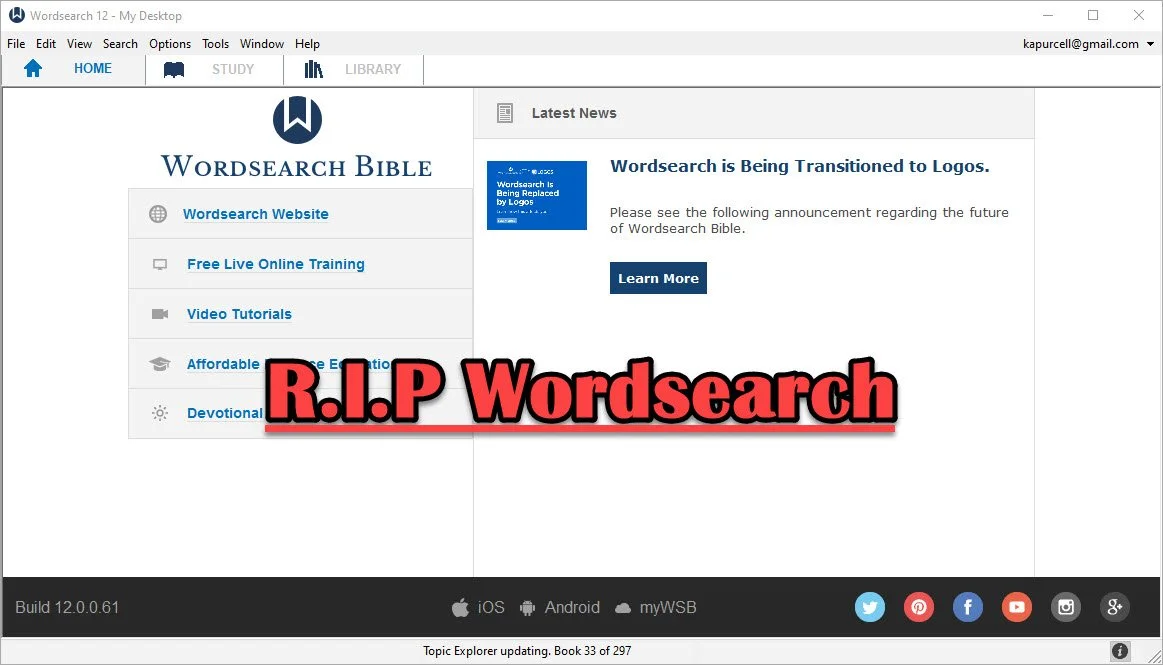
Logos Bible Software Bought Wordsearch. What does it mean for me?
Now that Faithlife bought Wordsearch, what does it mean for users of both programs and where will Bible software go in the future?
In case you didn't know, the publishers of Logos Bible Software and Proclaim Worship Software, Faithlife, bought Wordsearch Bible Software from LifeWay, the publishing arm of the Southern Baptist Convention. I shared a little about it here and at ChurchTechToday.com, where I sometimes write.
When we face significant changes, we feel afraid and wonder what will happen and how will it affect us. Those feelings will affect Wordsearch customers more than Logos customers. However, it will also offer some positive changes. We'll look at both the negatives and the positives and then consider the future of Bible software.
Simplicity and Comfort with Wordsearch for Users
People who used Wordsearch for a long time liked that they could collect a large library of excellent Bible study tools and ministry books from excellent publishers. Wordsearch produced a lot of great digital content for their software users. Wordsearch also presented those excellent tools in a simple, familiar format. The program added features and changed the way it looked over time, but it always had a look that reminded us of Windows Explorer or macOS Finder. The list of content showed up in easy to recognize folders along the left, while the content showed up on the right. You could display a Bible in one window, a commentary in another, and notes in a third. It all made sense.

Moving from Wordsearch to another program felt more jarring than most moves because the other high-powered windows software looked very different. At least Accordance had the library list on the left. Logos hid their library in a drop-down list that you could open as a window and put on the left, but it took some work to set up a familiar layout that Wordsearch users would consider familiar.

Disappearing ZipScript; Gone But Not Forgotten
ZipScript appealed to Wordsearch users and many of those trying to jump to Logos, the new Wordsearch overlords, experience consternation at seeing it go away when the program stops working. Understand that the deadline won't come anytime soon. But one day it will quit.
ZipScript ran in the background and grabbed scripture from a chosen Bible from the Wordsearch library. Users could quickly paste it into a Word document or some other text editor or even a website. It worked simply and elegantly.
Logos has something similar in the Copy Bible Verse tool, but you have to open Logos to get at it. We'll show you how to use Copy Bible Verses in Logos below.

And that leads me to some hope for Wordsearch users. You can do most of what you really love in Logos or some other third-party application. It will take some time and training to get the most out of it. So let's look at the hopeful side of the buyout of Wordsearch by Faithlife.
Reasons for Hope for Both Logos and Wordsearch Bible Software Users
Logos users will experience the most hopefulness with the purchase of Wordsearch. Users now can access a large library of books and tools not available before in Logos.
The Complete Biblical Library includes a commentary and some language study tools to name a few resources. Logos didn't offer this package until now. Wordsearch and Accordance did. That's just one of the hundreds of books Logos users can now buy and use. More will become available as they finish converting the digital files into Logos book formats.
Wordsearch users will also get access to a lot of resources that weren't available to them before. Both customer bases could buy thousands of Bibles, commentaries, reference books, and other titles. Now they can get even more.
In addition to more books, Wordsearch users willing to take the time to learn how to use the powerful and complex features in Logos 9 will discover that their new program is more like owning an aircraft carrier than a 400-foot luxury yacht. Both float in the water and both will get you across the Pacific Ocean, but one can do it in a simple familiar way while the other feels more like a highly technical piece of machinery ready to attack any task with skill and advanced expertise like nothing else in existence. I think Accordance would disagree with that last bit. It's similarly powerful, but I hope you get the meaning of my flawed analogy.
I recommend that Wordsearch users patiently take the time to learn to use Logos. Here are a few ways to help...
- Logos Support Page has plenty of training
- Logos community forums is full of helpful users
- Check out one of the advanced training schools online like Morris Proctor and LearnLogos
- Visit Theotek here and on YouTube
- Take time to look around the software
- Open Wordsearch and Logos at the same time and take a look at what you love about Wordsearch and try to mimic that capability inside Logos
- Take a look at other Bible software like Accordance, Olive Tree, e-Sword, PocketBible and more.
- Keep using Wordsearch until you can't
The last recommendation above is important. Just because you won't likely get any software updates in the future from Logos, the program will probably keep running fine until Microsoft updates Windows and breaks it. If that happens, then don't upgrade windows. I'm guessing you can keep using Wordsearch for at least another year or more. That might extend for years, especially if you don't mind staying on current versions of Windows. Eventually, however, it will shut down and you'll have to move on.
The Future of Bible Software
Where will the Bible software community end up in a couple of years or longer? That's a hard question to answer and I've never been a good prognosticator. I thought Covid would last a few weeks at most. But let's give it a try.
Bible software is both expanding and contracting at the same time. Over at ChurchTechToday.com my editor, Lauren Hunter, wrote about the future of Bible software quoting Rick Meyers, the generous creator of e-Sword. He said...
“This same decade has seen new Bible software companies emerge who are embracing these new hardware/platform changes. So, in the decade which saw WORDsearch first sold to LifeWay, and now to Faithlife, we have seen the rise of YouVersion. One generation of programmers hands off the baton to the next generation of programmers; meanwhile, God’s Word remains as popular as ever.”
I agree. We see more options for quality Bible software. At the same time, we now have fewer options for the advanced Bible study needed for academic Bible study or translating the Bible into more languages on the mission field.
With that, I think that Bible software companies that offer a strong online presence will win in the long run. And that means Logos. They are the only advanced Bible study option that works on all platforms including...
- Windows
- Mac
- iPhone
- iPad
- Android
- Online
- Chromebooks
- Kindle
Others work on many of those like Olive Tree, but they don't offer a website for Bible study. Accordance is in the same boat.
Some of the best online sites work great in a desktop browser, but not as well on mobile. Some of those show up as apps in the app store, but not all.
With the contraction of the number of powerful programs, it may seem like Bible software is in trouble. However, the big names are strong and not going anywhere soon. So, I'm hopeful.
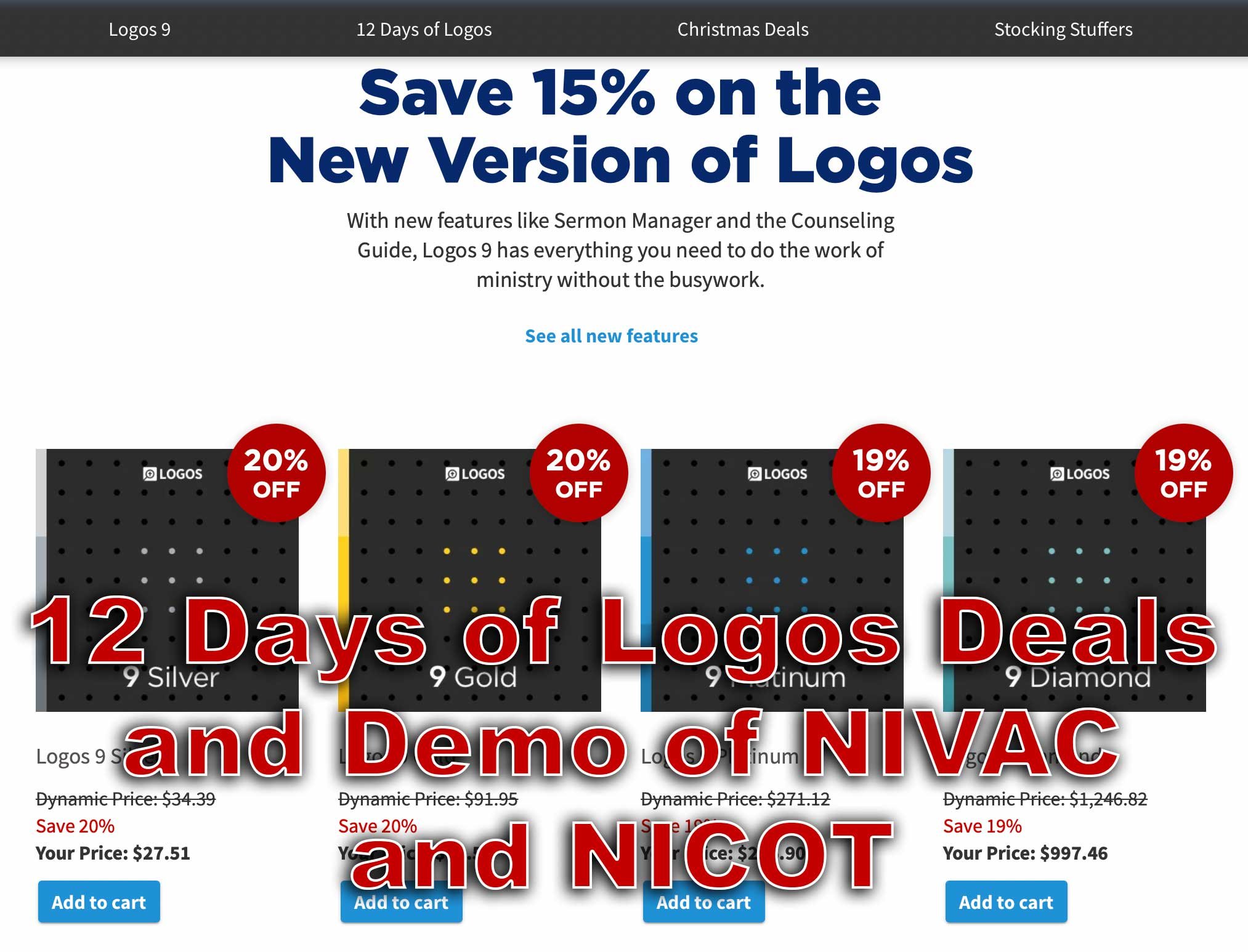
12 Days of Logos Deals and Demo in Logos 9
The 12 Days of Logos brings steep discounts on Logos Bible Software books and tools as well as packages. Use the link in this article to save up to 60%.
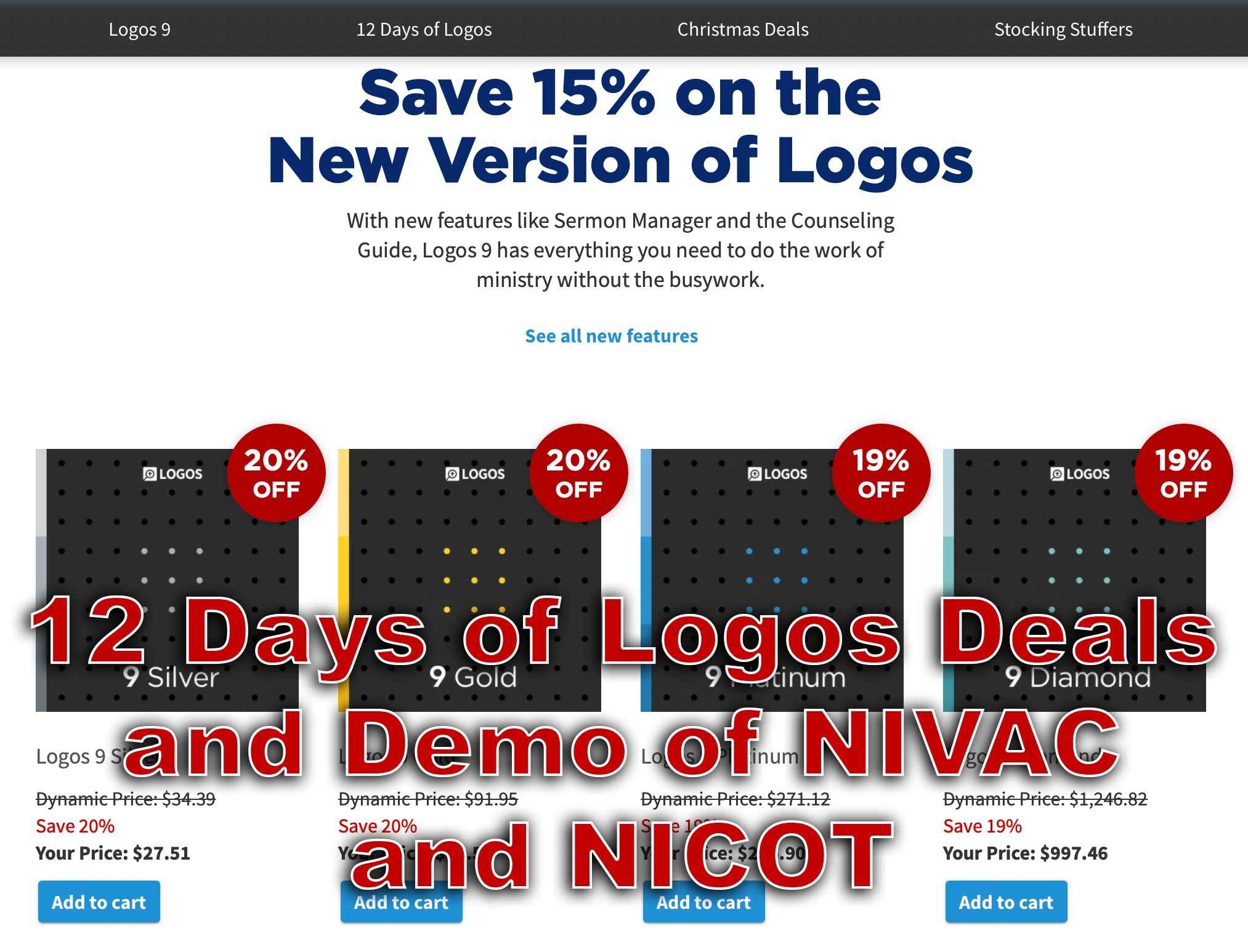
Every year Faithlife offers what they call the 12 Days of Logos, where they offer 12 different products for steep discounts. That benefits you if you want to buy any of these 12 products for Logos 9. We'll take a look at them and give you some tips as to which ones you should consider and maybe avoid.
What are the 12 Products Available This Year?
On our list this year, we get some really great books and tools for Logos 9 and Logos Bible Software, which you can use with their latest desktop version of Logos 9 or you can get it on their mobile Logos 9 Mobile app. They also work on the web app.

Here's the list of the 12 products and how much they cost. If you want to buy one of these, I ask you to consider using my affiliate link because it helps me continue my work of writing reviews and how-to articles about Bible software and ministry-related tech topics.
- Bible for Everyone Commentary Collection (35 vols.) 62% off, $119.99 sale price
- Challies Recommends: Best Old Testament Commentaries (55 vols.) 50% off, $442.99 sale price
- Romans-Philemon, 21 vols. (New Testament Technical Commentary Collection) 65% off, $232.99 sale price
- New Studies in Biblical Theology Series Collection | NSBT (50 vols.) 52% off, $299.99 sale price
- NIV Application Commentary: New Testament | NIVAC (20 vols) 55% off, $199.99 sale price
- New International Commentary: Old Testament | NIC (28 vols.) 51% off, $499.99 sale price
- Popular Patristics Series Collection (53 vols) 54% off, $229.99 sale price
- Ancient Christian Reference Collection (55 vols.) 50% off, $549.99 sale price
- Smyth & Helwys Bible Commentary | SHBC (36 vols.) 55% off, $499.99 sale price
- Welwyn Commentary Series | WCS (56 vols.) 60% off, $199.99 sale price
- New Covenant Commentary Series | NCCS (16 vols.) 54% off, $99.99 sale price
- The Life Application Bible Commentary (17 vols.) 60% off, $49.99 sale price
Let me highlight a couple of the above books. I use the New International Commentary: Old and New Testament sets regularly. Faithlife is offering the Old Testament package for only $500, a 51% discount. That's steep. It's both an easy to understand commentary, but has a technical level of information for advanced Bible students and people who teach and preach the Bible.
The NIV Application Commentary: New Testament comments on the text and then offers some practical application to the commentary. This helps the average Bible student or the teacher/preacher alike. You'll pay only $200, a great price for this product.
The Life Application Bible Commentary focuses on real-world use of the teachings of scripture to help Christians in their growth. It comes in at 60% off.
Deals on Logos 9 Packages

In addition to the above tools, you can also get one of the Logos 9 packages available from Faithlife with some deals. Logos identifies them by colorful names like Silver, Gold, and Platinum. You can follow my affiliate link, which gives me a 5% commission to help me continue writing helpful reviews and how-to articles about Bible software and ministry tech.
M1 MacBook Pro and Bible Study Apps
How well do the top five Mac Bible study apps run on the new M1 MacBook Pro? We ran five of the best programs and share our results.
Are you curious how the new M1 MacBook Pro handles Bible study apps and programs? I was too and couldn't wait to test this out. You can find the results as I tested Logos 9, Accordance 13, Olive Tree, Laridian Pocket Bible, and e-Sword X on the new M1 MacBook Pro.

UPDATE: Added a video under the Logos 9 on M1 MacBook Pro section below.
Why I Bought the M1 MacBook Pro
For the past year, I actually transitioned to a Windows-centric computer experience by giving my 2018 MacBook Pro to my son, a videographer and photographer who really wanted to go Mac. I bought an excellent HP Spectre x360 13 2-in-1, but then reluctantly decided to go back to Apple after my office PC failed and I got a Mac mini from a friend.
I bought the 2020 MacBook Pro that Apple released earlier this year based on Intel's processor. That was in late October and then Apple released the new M1 MacBook Air, M1 MacBook Pro, and M1 Mac mini. Fortunately, I got mine at Best Buy and I could return so I did and picked the M1 MacBook Pro with 8GB of RAM and 500. It's not the highest-end M1 MacBook, but it's what could get in exchange without paying too much more.

Best Buy shocked me and told me I could get the new computer the next day, but that was wrong. It showed up the Monday before Thanksgiving instead of one week before Thanksgiving. That's not bad considering Apple shows a date in mid-December before you can get one directly from them.
Installing Bible Programs on the M1 MacBook Pro
The new M1 MacBook Pro showed up and I unboxed it and starting setting things up. Soon I was installing my Bible study programs. I use three Bible apps but for this test, I installed five of the best Mac Bible study programs you can buy today.
- Accordance 13
- e-Sword X
- Laridian Pocket Bible
- Logos 9
- Olive Tree Bible Study
For the most part, these apps installed without much concern. It's interesting that the first time you install a program that's not optimized for the M1 chip, macOS 11 Big Sur will ask you if you want to install something called Rosetta 2. It didn't take long to download and install, but it stops you from launching your app. I had to launch Logos 9 again after Rosetta 2 finished installing.
The other apps installed quickly. Accordance takes a little while to download your books if you have a large library. Olive Tree Bible Reader, Laridian PocketBible and e-Sword X don't take as long. In fact PocketBible has the best installation process of the group. It takes little time at all.
Logos 9 on M1 MacBook Pro
Let's first talk about Logos 9 because it's the most demanding of the five programs. It Typically, I start the installation, plug in my laptop, and leave for hours. When I come overnight or after a full day away, it finishes and we're ready to study the Bible.
As you can see from the video above showing the installation and indexing process, it took 3 hours and 47 minutes to install, download my 27GB library, and index the library. The download seemed faster than normal. Then indexing went quickly.
My friend LaRosa compared the indexing process to taking a long trip on an Interstate. It takes a little while to get on the road, but once you do and get up to speed, it runs quickly. Then, the off-ramp time slows down. That's how things went with the M1 MacBook Pro. It starts slow, speeds up, and then finishes slowly.
Normally, when Logos 9 indexes the library it takes up a lot of resources and you can't really use your computer much. You can, but it's infuriating because Logos takes up all the memory and processor. However, with the M1 MacBook Pro, Logos 9 ran slowly, but the rest of the system ran smoothly. For example, I hit the Home button in Logos 9 and scrolled through the Home page. It stuttered running haltingly. It's not smooth at all.
In spite of how slowly Logos 9 itself performs, the rest of the system runs smoothly during the indexing. That's abnormal with Intel or AMD based computers. They usually don't run smoothly.
Battery Life for Running Bible Study Apps on M1 MacBook Pro

The battery life stood out on my new M1 MacBook Pro. The process of installing Logos 9 on laptops usually kills a battery. On my previous HP x360 13 and my older 2018 MacBook Pro, I would never attempt to install Logos without plugging in. I didn't have to on this computer.
Add the wonderfully bright screen and crisp text, you get a fantastic experience writing and reading. I put the screen at 50 percent and it looks like other computers I'm used to using when they are set to 75-80 percent.
After I killed the battery installing Logos I used it for a couple hours and went to bed with it at 40 percent. This morning, after running on battery at 50% for about 4 hours, my battery reads 76% left. That's fantastic. My 2020 12.9-inch iPad Pro doesn't last as long in real-world use.
Hard to Tell Difference on M1 MacBook Pro

What's the final takeaway for running Bible study apps on the M1 MacBook Pro? For four out of our five apps, there's little to no different. I couldn't tell the difference between running Accordance, e-Sword X, Olive Tree Bible, or PocketBible on this computer.
Logos 9 is a little different. Installation was a slightly better experience. You can set it to download and index your library and get some other work done while it happens in the background. That's a huge improvement compared to running the program's installation on other computers.
Once you install Logos 9, it runs well. There's one issue that's more a Big Sur problem than an M1 MacBook Pro problem. Over in the Logos 9 forum, there's a post listing one issue as follows:
The Logos Desktop Team has tested Logos 9 and Logos 8 on macOS 11 "Big Sur." So far we discovered some minor styling issues (see below), but have not encountered any major issues.
Known Issue: Table of Contents arrows are duplicated.From Logos 9 forum

The above issue with arrows is an extremely minor issue. You may find others, but right now that's all.
In another Logos forum post, Phil Gons from Faithlife said the company has no definite plans to make Logos 9 run as an M1 Mac application. That's not saying they won't do it, but they are not announcing anything publicly. I'd expect this to take a long time since the current version of the software works so well. I look forward to the time when these five all run as a native app.
There's one thing that you can say about running Bible study applications on the new M1 MacBook Pro. Launching these apps takes a lot less time than they used to. Of our five, Laridian PocketBible and e-Sword X jump onto the screen instantly. Olive Tree Bible Reader loads in a couple of seconds and Accordance launches in a few seconds. Sadly, Logos 9 still takes longer than the others. But it loads faster than it did on Intel Macs. Running the programs speeds up on these new M1 chips too.
Logos 9 Upgrade is Here: Get a Discount Here
Logos 9 upgrade came out and you can get 15% off using my affiliate link, but should you? We’ll give you a recommendation here.
Logos 9 dropped October 26 with some updates to the program. A lot of you will upgrade and you can get Logos 9 for 15% off using this link.
For full disclosure, Logos gives me a commission if you use this link. I don’t normally use affiliate links, but I’m placing this here so you can save some money by buying the upgrade using that link. If you do it helps me out too.
I wrote an article at Church Tech Today about what are the most important updates to the program. To learn more for yourself before that post comes out, head over to the Logos 9 page at the company’s website.
Logos 9: Top 5 New Features
The best new features included in the Logos 9 upgrade includes the following top 5 new features...
- Factbook Upgrade - click a word in your text with the Factbook feature turned using a toolbar button and it opens the Factbook to that subject.
- Sermon Builder - an upgrade sermon planning feature that takes passages from your favorite lectionary and populates a calendar that you can display in list mode or a kind of pie graph.
- Commentaries in Guides - users can now sort commentaries section in the Passage Guide by different ways including the author’s denomination.
- Dark Mode - I’m not a fan of dark mode, but people love it, so it’s here in Logos 9.
- Images in Notes - you can now add images to your notes.
That’s not a complete list, but it shows what most people will find interesting.
I will upgrade because I am that guy who always wants the latest greatest of the programs I use. If there’s an update to Windows, macOS, MS Office, I’ve used it in Beta for the last few months to help write my article for Church Tech Today.
Logos upgrades every couple of years. If you’re a Logos fan you’ll likely want to get the upgrade. For Wordsearch users who came over when Logos bought it, you may want to wait till you get used to using Logos 8 to make sure you’re a good candidate for the update
Logos 9 Free Engine Upgrade
The free Logos 9 software without all the new bells and whistles will likely show up in 2021. It comes with nothing but the basic program update. However, you can’t get it this year. So, if you’re patient and don’t think you really see anything that interesting in the new features list, then hold off till next year.
How Use Logos Important Passages Guide to Create Sermon Series
How can preachers us the Important Passages Guide in Logos 8 to help them craft exciting sermon series on a given topic in the Bible? We'll show you how.
Would you like to preach a sermon series on a topic in the Bible but also want to preach expositorially? You can use Logos Bible Software and the Important Passages Guide to select passages to study and preach for a sermon series on a topic. Each sermon will cover one passage, but the series serves as a topical sermon series instead of preaching through a book of the Bible as many Expository preachers prefer.

I was going over the new features in Logos 8 recently and forgot about the Important Passages Guide. As I looked over this new tool in Logos 8, it hit me - this would work great for picking passages to study and preach while crafting a sermon series on a particular topic.
Most expository preachers like to preach through books of the Bible. I am one of those. But I also like to choose passages that cover a topic and then study the passage covering that topic to preach expository messages on them. We'll show you how to put together a sermon series on passages found using the Important Passages Guide in Logos 8.
What is the Important Passages Guide in Logos?

Logos added the Important Passages Guide when it released Logos 8 back in 2018. Users will see it from the Guides Menu on the Logos toolbar. Find it quickly by typing in the Guides search box the first part of the guide's name "Important" and it will show up as the first item in the Bible Reference Guides section. You can also scroll down to the Bible Reference Guides section.

When it opens, it looks totally blank. Type a passage into the box at the top of the new window like John 3:16. It will search the index and find passages related to the topics in that verse.

After searching for a passage, you'll see the results that will like the image above. You see a few things.
- The top line says "References of All Types To all passage" - these help you choose what will show up in the list of passages. Click on All Types to change the types of passages. Click on To to change whether the passages will go out from the selections below or to the selections below. More on these options below.
- The Add menu lets users add types of datasets. Click it to see what you can add.
- Under each passage you see hyperlinks to various kinds of content found in Logos. These links will open the Factbook. For example, the above image shows the Factbook entry for God: Love. You'll see other kinds of links.
- The links at the bottom of the window will...
- Show more passages found
- Save the list as a Passage List
- Open all of the found passages in your top Bible translation
The To and From links in part 1 above will change the list of passages as follows:
- To - To finds cross references from other passages that link to your passage. So if a passage links to John 3:16 it will show up in this list.
- From - All cross references in your various translations that go out from John 3:16 will show up when you select From.
How to Use The Important Passages Guide to Choose Sermon Topics
I often read a passage in my quite time or while I'm listening to another Bible teacher or preacher and think, "That passage make a great sermon." Then as I look at the passage it leads me to look up others and inspires me to preach a series of 3-6 sermons or more on that topic.
You can quickly find a lot of passages from the Important Passages Guide by entering the verse that inspired you into the search box of the guide. Then read through the resulting searches.
Take this a step further by adding various kinds of datasets. Click on the Add button and choose something like Topics. This gives you more passages from that dataset. A dataset refers to sets of information that Logos organized around that kind of info. In this case, they collected the Topics together into the Topics dataset.