

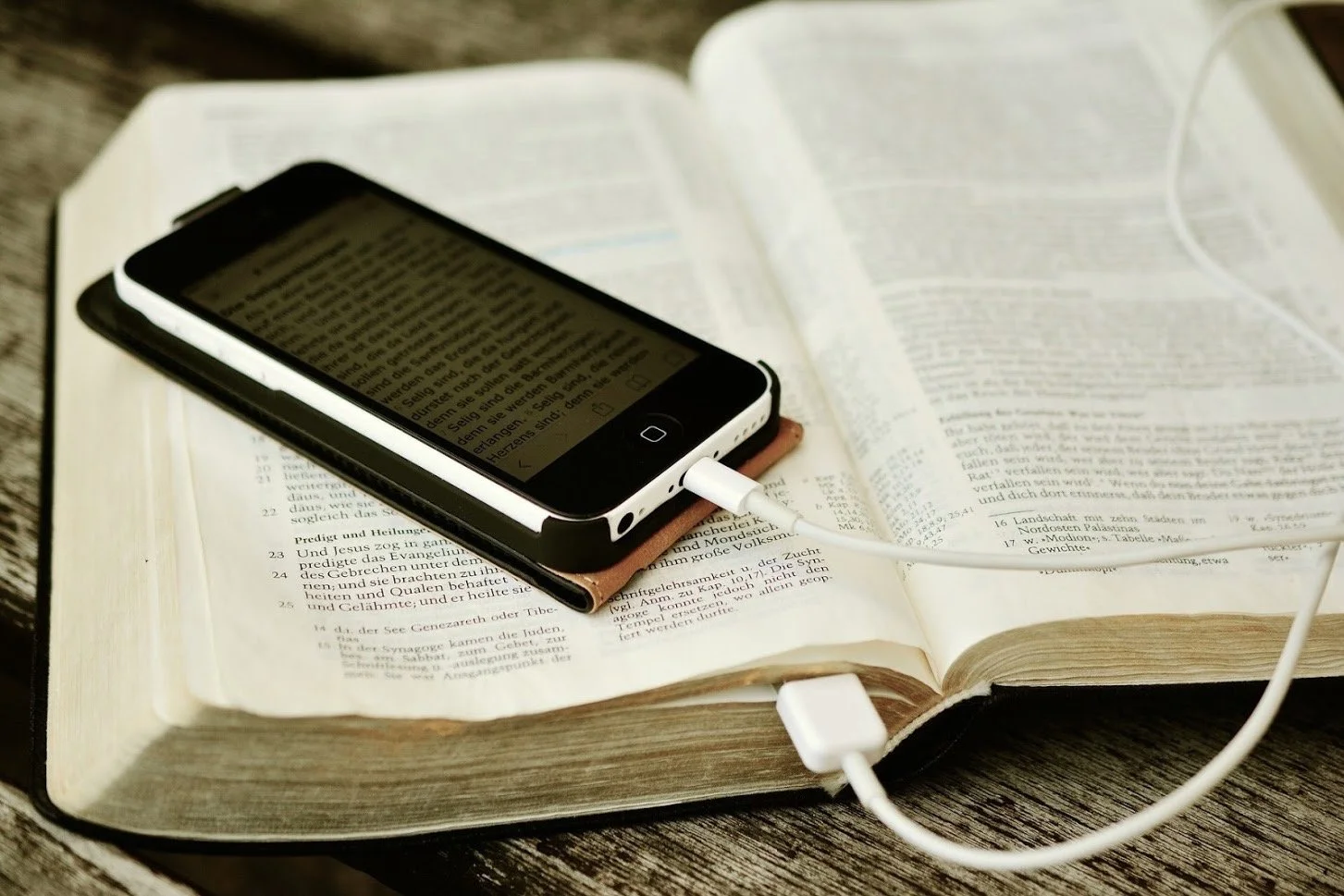
5 Best Audio Bible Apps for iPhone or Android in 2024
We have the 5 best audio Bible Apps for iPhone, iPad, Android, and, in some cases, desktop and web. See if your favorite app shows up.
While I personally love reading my Bible, I know many people prefer listening to the Word. Most people consumed the original books of the Bible audibly instead of visually in a book or scroll. If you're looking for the best audio Bible app for your iPhone (or even Android!), this list is for you. We'll dive into the top 5 options, each with its unique features to enhance your Bible listening experience.
Dwell: Audio Bible - Best Audio Bible Apps for Dedicated Bible Listeners Willing to Pay for a Subscription
The Dwell: Audio Bible app runs on iPhone and iPad. Users can install it on a Mac thanks to Apple's M processors. Finally, it also works on Android.


When you open the app, you see a screen with four tabs across the bottom and the Settings icon in the upper right. This screen appears after you go through the first setup screen the first time you run the app.
Home shows you various listening options. There's an Explore tab to find something to listen to. The Bible tab lets you listen based on predefined listening plans or by book of the Bible split into two screens for the Old and New Testament. Finally, you can search the Bible, which will help you listen to a specific passage. You see the Me tab with Favorite verses, Downloads, Playlists, Plans, and your Listening Queue.
Try out Dwell app for free, but you'll need to buy a subscription to use the full feature set. It costs $39.99 a year or $7.99 a month. That's steep, but if you really love listening to the Bible, try it out and subscribe for a month. The $40/year will seem worth it if you find it useful. Otherwise, try one of the options below.
Bible from YouVersion - Best Free Audio Bible Apps
Most Bible listeners will enjoy free over $40 or $8. The most popular Bible app on mobile is YouVersion. The app does more than play audio of your favorite Bible. You can get it on iPhone, iPad, Android devices, and your computer through the browser.

The app includes audio Bibles, videos related to Scripture, and almost every translation you might want to read and download. You will also see many reading plans to choose from.
The Bible app includes social media components that let you follow the activities of other Bible readers and share yours.

Listen to a Bible by downloading one that includes audio. For example, I downloaded the NKJV, and it shows an audio icon next to the name in the translation chooser drop-down list. Open it, and the screen shows the text and a Play button. Go to your desired passage and click or tap the play icon.
You can't beat free; the other features make it a great option. The voices sound pretty good, but Dwell sounds better. The Store tab lets you buy books Bibles and books with audio.
Logos Bible Study - Best Audio Bible Apps for Cross Platform that Lets You Grow
Many people already own a Logos library, so don't overlook their listening features. We don't have time to explore everything the Logos Bible Study app can do, but the Audio features will help you enjoy an audio Bible inside your favorite Bible study app.
Some of the audio uses the built-in iOS voices, which sound pretty robotic. However, if you go to the Menu button in the lower right corner and choose Audio, you can find plenty of Audio Books, including some Bibles.

To listen to basic audio, open a Bible and tap on the Audio button in the Bible's toolbar (second from right). It opens the audio control screen at the bottom of the app.
If you want to listen to a better-quality Audio Bible, open one. Search the Library search box for "Audio," and you'll see many audiobooks. Everyone will own the Lexham English Bible Audio New Testament, but your library might include others.
The Logos Bible Study app doesn't cost anything. The most essential features and library also cost nothing. However, you'll want to buy a library to make the most out of it. As of this day, Logos has a great sale on Logos 10, which they call their Farewell Tour because Logos 11 will ship soon. Buy a library or upgrade package (affiliate link) now and save a lot of money. You can get the CSB Audio Bible if you buy one of the smaller packages. Everyone receives the LEB and ESV Audio Bibles.
Bible.IS for Free Apps Focused on Audio
Few people know about the excellent Bible.IS app. It's free and focuses on audio and text Bibles. There's an online version, the Android and iOS apps. You can listen to a few English translations like NKJV, NLT, ESV, and CEV. The app also offers 3 video versions (ESV, KJV, and NIV).

When we rounded up the 4 best Android Audio Bible Apps, Bible.IS won the award for our Winner: Best Audio Bible Apps for Android. After a few years, I think Dwell and YouVersion would win that award—Dwell for audio quality and YouVersion for the overall quality of the app's features and usefulness for more than audio.
Olive Tree Bible Study for High-Quality Audio Bibles
Olive Tree produced the best mobile Bible Study app for many years. Recently, others overcame their feature deficit and the quality of the user interface design. However, it's still a good tool for more than Audio Bibles.

The Audio Bible feature built into Olive Tree Bible Study works well. We included it in our roundup of Android apps a few years ago. You can read, study, and research your passage. However, to listen, open an Audiobook from the app's library, which appears on the main screen's toolbar next to the menu button on the left. There's a tab for Cloud and Device, which shows the books in your library that you downloaded (Device) or haven't yet downloaded (Cloud). The books with audio include a headphone icon on the bottom of the book cover in your library. Tap to open the book.
Many will have the KJV Complete Audio Bible Dramatized in their library. Click to open it and tap on the play button at the bottom of the screen. Navigate to your chosen passage by clicking the dark green button at the top of the window. A Book Chapter Verse chooser will pop up.
To get more books, tap on the Recommended tab in your library. It shows the Olive Tree Store where you can find more books, which may or may not include audio. It's easier to find them on their website.

Best Bible Reading Plan for 2023
Its time to commit to a Bible reading plan, so we've got some advice to stay committed and keep reading through the new year.

Every year it seems that Christians resolve to read their Bible more. Seasoned Bible Reading Plan veterans know what to do and how to do it but may lack the willpower or passion for keeping with it all year. However, novices could use some advice on the best Bible reading plans for the new year. So, here's our best advice for how to read the Bible on a regular schedule in 2023.
1. Pick a Good Translation for Your Bible Reading Plan

What's the best Bible translation for your Bible reading plan in 2023? That's a loaded question.
Many people already have a favorite translation that they understand and enjoy reading. Some read the Bible in a community and share a single translation with friends, family, or your church family. In those cases, stick with what you like and know. For other people, consider the following...
- Pick a translation that you know you can understand and will keep reading. The more modern translation usually offer the best results.
- Unless you're comfortable with the KJV, consider a more modern translation. They use contemporary language instead of terms that have changed since the translators of the KJV completed their work.
- Don't use a paraphrase despite how easy they are to read. They're not as accurate, and you'll need something more accurate as your Bible study grows more in-depth.
What are the Best Translations in 2023?
So what translations should the new Bible reader consider? Let me share one important trait of modern translations. We judged them from the most literal to the least. That doesn't mean that a translation that's not as literal will be worse than a more literal translation. Translators often choose to go with a less literal translation because it confuses modern readers or makes it harder to read in a flow.
The Greek and Hebrew writers didn't put words in a rigid word order like we do in English. They often emphasize the most important word by placing it at the beginning of a sentence. But our modern English rules say that's not the right way to do things. Here's an example:
The man drove that car right off the cliff.
What's the most important word? The writer of the sentence may want to emphasize the danger put, so "cliff" is the most important word. She might want us to focus on "car" instead. Either way Greek writer might write it as follows:
The cliff the man drove the car right off.
That's awkward in English but makes perfect sense to an ancient Greek reader, except for not knowing what a car is.
My Recommendations for the Best Translations for Your Bible Reading Plan
I use the Christian Standard Bible (CSB). It's a revision of the Holman Christian Standard Bible (HCSB). The team that translated sought to make it accurate, consistent with conservative, Evangelical theology, but equivalent to modern English so that readers in 2023 and beyond could easily understand it.

In 2022 the Legacy Standard Bible came out. The LSB fits in the family of the New American Standard Bible, which I grew up reading and studying thanks to my home church pastor. He preferred its accuracy and literal translation emphasis. It's not as flowery as more modern translations but fits great in a serious Bible student's toolbox. The NASB first hit the Christian world in 1977 and received an update in 1995 and in 2020. Unfortunately, from 1995 to 2020, it changed in a way that made people think the translators were less interested in literal translation and more in modern terminology. I don't know if that's true, but I prefer the LSB because the team that produced it continued the firm emphasis on making as literal an English translation as possible in 2022.
Other great options include...
- NKJV - The New King James Version isn't as modern, but it's still very good and comforts people who grew up reading the KJV.
- ESV - The English Standard Version comes from the line of the first American English translation, the ASV. It later received an update and the name RSV. The ESV translators worked to stay in that line and produced an excellent translation.
2. Don't Start at the Beginning
Readers start most books on page one, but the Bible's a unique kind of book. So, don't start on page one if you want to get through it.
When I counsel new believers, I suggest they start reading the book of John. It's simpler to read than Genesis. You don't deal with complicated and strange passages like the legal code in Leviticus or genealogies in Genesis 5 and 10. Finally, the stories about Jesus are more familiar than the Old Testament stories.
Combat the boredom of reading these difficult passages in the first five books of the Bible by using a different reading plan than going verse by verse, as many new Bible readers often choose. See the next section below for the best Bible reading plan recipes to help you succeed.
3. Follow a Recipe for Success in Your Bible Reading Plan
When we call a Bible reading plan a recipe, we mean what passages or what genre of passages you should read in each reading session. Your Bible or Bible app can help you find a good Bible reading plan that helps readers succeed in getting through the entire Bible and keep reading without giving up after a few days, weeks, or months.

Does your Study Bible include a Bible reading plan? The Bible app also includes hundreds of Bible reading plans. Those plans range in scope, including a topical plan that offers a week of reading plans and devotions to go with the daily topics. Alternatively, you can choose a plan that reads the entire New Testament in 30 days. Most of us will choose something between these two extremes.
See the hue scope of reading plans at the Bible app's site. You'll also find these in the Bible app on your phone or tablet. Other apps offer Bible reading plans, including the Logos Bible app on mobile or desktop.

Open the Library in Logos on a desktop. Type in your translation in the search box that pops up. Then click on the three dots at the right of the translation entry in the Library list. Choose Start reading plan from the drop-down list.
Other apps with reading plans include Olive Tree, Accordance, and more. You'll get the best digital Bible reading plans from the Bible app or Logos.
4. Set a System to Remind You to Read
A digital Bible reading plan helps keep you reading because you can set a reminder on your phone, tablet, or computer. We don't have time to explain how to set these reminders in each app, so check with your chosen Bible app to learn how to set them.
Even if you don't plan to use a digital Bible reading plan, you can still use your phone's reminders or To-Do app to remind you to read the Bible daily. In iOS, you have Reminders, and on Android phones, you can find a number of options.
At the very least, write a note and keep it somewhere you won't miss it. Keep a Bible on your nightstand or near your morning breakfast spot in the kitchen or dining room. Make it conspicuous so you won't forget.
5. Share What You Learn With Others
The four previous strategies will help with your Bible reading plan. This fifth strategy helps the most. Find a friend who will keep you accountable. This person can help with more than your Bible reading plan. They can keep you accountable for your moral choices, personal discipline, and relationship behavior. Who should you choose? You might have a name in mind without much thought. Let me suggest a few things to help you select the right person.
- Same Gender - don't enter into this spiritually intimate relationship with a member of the opposite gender. A man picking a woman or a woman choosing a man can cause problems, especially if you're in a committed relationship (marriage, engaged, or long-term committed romantic relationship).
- Trustworthy - the worst thing you can do is admit your failures to someone who will gossip about your private sins. You can get hurt, embarrassed, or if you know they're not reliable, then you could lose trust and not openly admit your failures.
- Reliable - you can trust some people to keep your secrets, but they don't respect your time. You end up without an accountability partner because they won't keep the schedule you made.
Answer Below in the Comments
What do you recommend regarding daily Bible reading plans? Which plans work best for you? What apps or websites help? Who do you have to help you stay true to your commitment to reading the Bible regularly?
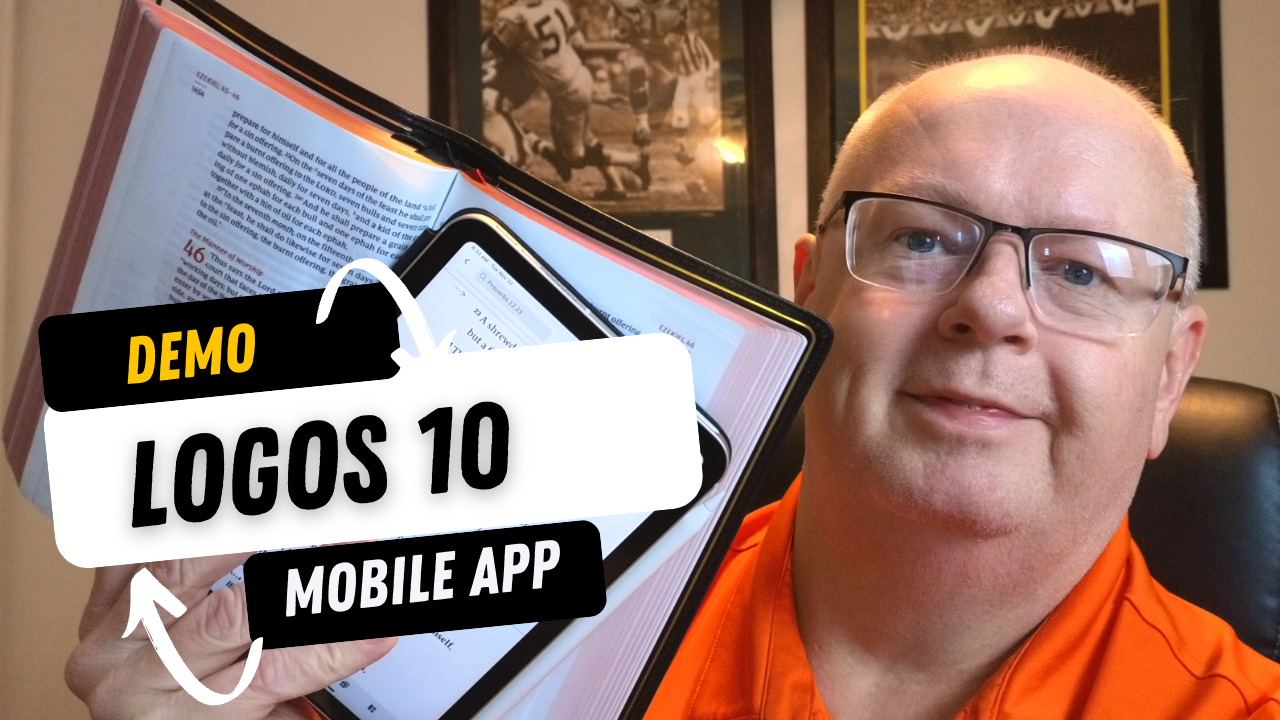
Logos 10 Mobile App: What's New?
Here are the top new features of the Logos 10 Mobile app with a demo video and instructions on how to use them.
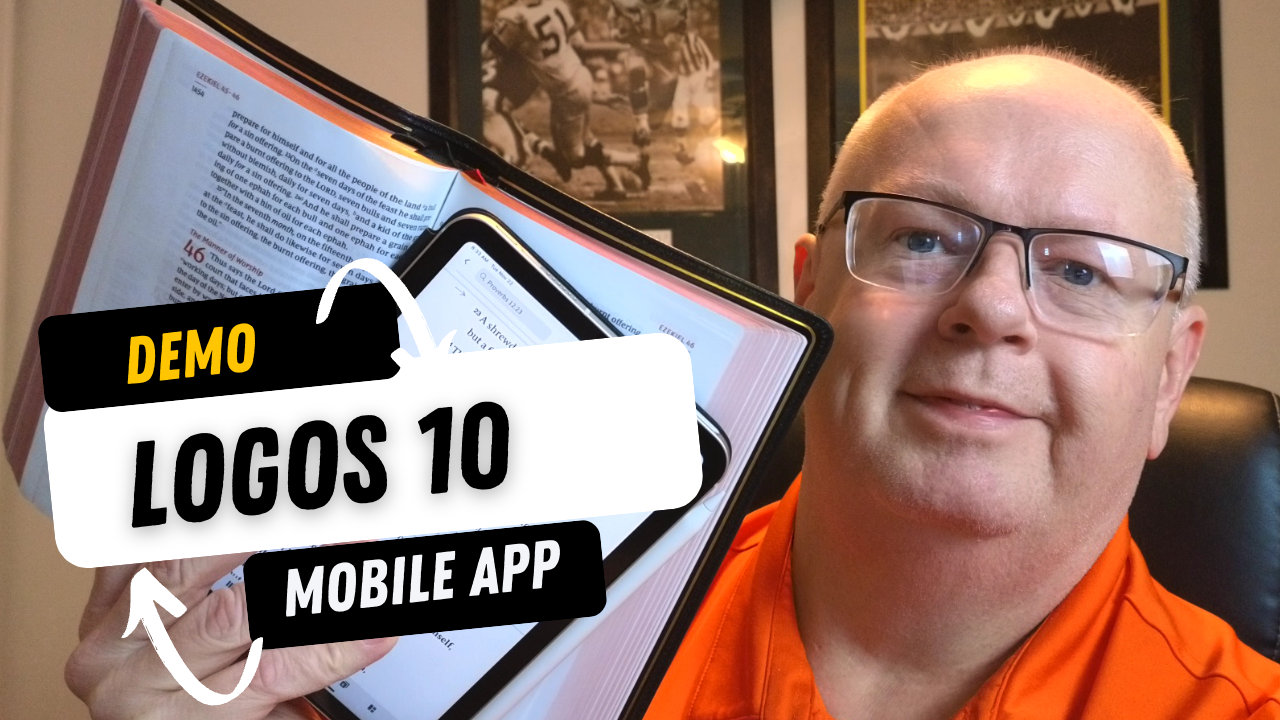
Faithlife, the makers of Logos Bible Software, updated their suite of Bible study apps and desktop/laptop programs, releasing Logos 10 Mobile for iPad, iPhone, and Android. Most new features work best on the iPad, but many also work on iPhone and Android. We've got a demo of all the most significant upgrades with instructions on how to use these new features.
Logos 10 Mobile App Adds New Selection Menu
When you want to select a verse or some text to highlight it, add a note, or look up information, the Logos 10 Mobile App improves the selection menu.


If you tap on a verse, a popup menu shows up with a few things in it. Depending on your selection, you'll see highlighters, buttons to interact with the verse, some information from your user notes, the Factbook, or other content. This works in non Bibles too.
The highlights come from the most recent first and then the top highlights in your highlighters tool.
The buttons that you can use to interact with a Bible verse include the following:
- Copy the verse
- Share the passage
- Add a Note
- Search
- Compare in multiple translations
- Perform a Passage Guide on the passage
- Perform an Exegetical Guide on the passage
- Mark the passage as a Favorite
- Translate the text using the new Logos 10 Translation tool
- Clip the selected content
- Create a Visual Copy, which makes the selection into an image to share on social media, save, or use in your presentation.
Below the buttons, you will see cards for items found in the selected text. These take you to the Factbook or Bible dictionaries. It might show an entry from a Lexicon. What it shows depends on what it finds in the selected text.

Slide left or right on the cards to see more of them. Use the menu button in the upper right corner of each card (it looks like three vertical dots) to do more with the content in the cards.

Press and hold on a single word and bring up a different kind of menu that shows info about that one word. You'll see Word Info that comes from tags on the word. For example, it will show an entry from your top Greek or Hebrew lexicon. You can open it by tapping on the More button.
You'll also see an entry from an English dictionary or Bible dictionary.
Print Library Tool
Now in Logos 10 you can search your Print Library. However, you'll have to first add books to the Print Library using the Logos 10 Mobile App.

Tap on the More button, which looks like three horizontal lines in the lower right corner of the screen. If it's not showing up, tap on the book's title that's open on the screen. In the top Library section of the menu, tap on the Print Library ISBN Scanner entry. This opens the camera. You might have to give the app permission first.

You can only add books to the Print Library if Logos also has the book in its digital library store. That's because they have to have the text of the book in their library to search for text in the book. Any book that you have with an ISBN bar code or QR code will work.
Now, when you search for words or phrases, they will return entries in the Print Library. You can't read the whole book in Logos, but the Logos 10 Mobile App will tell you where you can find it in your print copy of the book.
Read Aloud in Logos 10 Mobile App

If you like audiobooks, then you'll love the improvements to the Read Aloud feature in the Logos 10 Mobile app. It's easy to find in the open book's top toolbar. It looks like a sound icon. Tap it, and it brings up the reading feature at the bottom of the screen.
In the Read Aloud feature, listeners can pause and play the audio. They can also skip back a verse or a whole book of the Bible. Skip forward a verse or a book too. There's a speed option to read the book or Bible faster. I like to listen at 1.5 times to many books.
If the book comes with an audiobook version, a download button appears next to the X in the Read Aloud feature box.

Most phones let users add different voices to read books that don't come with an audiobook version. Open your phone's Settings app. In iOS, go to Accessibility and then tap on Spoken Content. That opens the screen where you can choose Voices to select your voice.
iOS lists voices by language first and then name. I tapped on English at the top and chose Samantha. The phone gives the user two options. One is regular Samantha and the other reads "enhanced". I picked the enhanced version and downloaded her voice.
Go back to Logos, choose a book that doesn't already have an audiobook associated with it, and follow the instructions at the beginning of this section to listen to the book using the iOS voice we chose in settings.

The Android version of the Logos 10 Mobile App plays audio almost identically, except for changing the voices.
Sermon Manager Update
The update to the Sermon Manager in the Logos 10 Mobile App allows users to edit and read sermons created, either in the app or on the desktop. Open the Sermon Manager from the More button, which looks like three horizontal lines stacked on top of each other in the lower right corner of the toolbar.

You'll find the Sermon Manager in the Tools section of the menu. Tap on it to open it.
You will see all the important features of the Sermon Manager on your iPad. This only works on iPad.
You can also open the Sermon Manager from the tabs button. Hit a plus button to open from the Tools section of the new tab feature.
Canvas Tool on iPad

A canvas shows information in a visual way. The iPad and desktop app tools include many drawing tools, diagramming tools, and text formatting. Add images, icons, and shapes. Do this all to show information in a visual way for presentations or documents. You could create them for your own benefit.


To open or create a Canvas, go to the More button (three horizontal lines in the lower right) and tap on it. Head to the Documents section. Tap on the Canvas item, and you'll see a list of any Canvases already in your library. Tap one to open it. Work with the canvas, and then you can work with the Canvas.
You can also create a new one from the Tabs screen. Tap the plus icon and go to the Documents tab (right button on the Tabs toolbar). Now tap on the plus icon at the top of the box, which shows a list of the kinds of documents you can add. Tap on Canvas to make a new one.
The Canvas feature is available only on iPad, and only in Bronze packages, and above.
Draw On Screen Feature on iPad
Teaching using Logos as a visual aid got easier with the update to Logos 10 Mobile thanks to my favorite new feature, the Draw On Screen feature on the iPad only. You can now draw on your screen and save that as a screenshot in notes or share it elsewhere.


Open the More button (three horizontal lines in the lower right) and choose Draw On Screen from the Tools section. This brings up the Apple annotation feature, which lets you draw using your Apple Pencil, a third-party stylus, or your fingers.
Drawings can use a pen, highlighter, pencil, eraser, selection tool, and ruler to make straight lines.
When you're finished drawing on the screen, share the drawing or exit without saving it. You can share the image in a few ways.
- Copy Image - copy it for pasting in a document or note.
- Save to Photos - save it in the iOS Photos app.
- Save as Note - saves the drawing as an unattached note, which you can then manually attach to a verse or paragraph.
- Share - use the iOS Share Sheet feature to send it to a Facebook post, a file on the iPad, Instagram, or other services you use.
Enhanced Panel Linking
You've been able to link books before so that your commentary would move along with your Bible as you swiped to advance to the next passage. Now, you can tweak these settings a little so that the Bible drives the link relationship.

Open a book and then slip the screen into at least two books. When you do, a new book will fill the second half. Then, if you like, then add other books. You'll see a box with the word None in it and a pair of linked chain links. Tap it to bring up the Enhanced Panel Linking feature. Tap the A to link to the other book. Then tap on Follow Only so that this book won't make the other book move, but the other book will move this one.
For example, I have the NASB and Faithlife Study Bible open above. If I choose Follow Only, then as I swipe up and down on the NASB or left and right in widescreen mode, the FSB will follow it so that the verse in the Bible matches the verse in the study Bible. However, if I choose Set all panels to match, then any book will force the others to follow it. Moving to a new chapter in the FSB will move to that channel in all linked Bibles.
You can also set this from the main book menu in the upper right corner of each book panel, which looks like three vertically stacked dots.
New Logos 10 Mobile App User Interface with More Tiles
The user interface on Logos 10 Mobile gets a much-needed feature update. You can now open as many as six books on your iPad. However, this doesn't work on the phone since it would be impractical to open that many on a small screen.


To open a layout with more tiles, tap on the Layouts icon in the bottom toolbar on the right. You'll see a little popup with options for...
- 1 book
- 2 books side-by-side
- 2 books, top and bottom
- 3 books with one on the left and two splitting the right side column
- 3 books with one on the right and two splitting the left side column
- 3 books arranged in verbal columns
- 4 books splitting the screen into four equal quadrants
- 4 books with 2 each in the vertical columns on the left and middle and two splitting the third column
To add two more books, open the layout in the top right of the popup. Then, from the toolbar at the top, tap on the 3 dots which opens the options menu. Choose Split this tile.
Deal on New Logos Books
If you want to get the new Logos 10 upgrade, then head over to my affiliate page to get a nice discount on Logos and some free books. This way you can use the Logos 10 Mobile app
4 Best Audio Bible Apps for Android for 2021
Do you love to listen to the Bible? Then we've got the best audio Bible apps for Android for 2021. These also work on Amazon Fire Tablets plus your favorite Android smartphone from Google or Samsung Galaxy. I tested them out on a Samsung Galaxy S21 Ultra 5G primarily, but also on a Samsung Galaxy Tab S7. Give this a read and then download them for a good listen to the good book.
If you're looking for the Best Audio Bible Apps for iOS, then keep reading. These also come with iOS versions.
Bible.is - Our Winner: Best Audio Bible Apps for Android

People who want to listen to the Bible and do little else should look at Bible.is and nowhere else. Users agree with a 4.6 rating in the Google Play Store for this free app. You can also find it on iOS. Just a few of the key features that make it great include the following:
- Listen to the Bible in hundreds of languages with more coming all the time
- Create your own listening plans like you can with Bible reading apps - see the first and third screenshot below
- Share plans with other Bible.is users
- Read along with the audio Bible or just read when you can't conveniently listen - see the middle screenshot below
- Search the Bible by keyword, Bible text and phrases, or other words
- Watch Bible-based films like The Jesus Film

The Faith Comes By Hearing folks respond to user support issues and do a great job of pleasing those who have issues with the app. I've never experienced a problem.
YouVersion Bible App - Best Audio Bible Apps for Android with Social Networking
If you only downloaded one Bible app on your phone or tablet, it likely came from Life.church. Life.church brags millions of downloads and often shows up in the list of top apps on iOS and Android.

The church created the Bible app years ago and keeps developing it and improving it. The app excels as a basic Bible reader app with an elegant user interface. It primarily serves as a Bible reading app but adds audio Bible listening and does it well.
I include it here because of its great social networking features. Share Bible verses in a visual way. If your friends post pretty photos with Bible verses imposed over the top of them, the share likely came from the Bible app.
To use the audio Bible features, open in the Bib reader and you'll see a small audio icon in the top toolbar second from the right. Tap it to show the Bible reader pop up as seen in the left screenshot above. You can play from the current location in the Bible shown in the reader window. The fast forward and rewind buttons go forward or back by a chapter.
The settings at the bottom of the pop-up window control the speed and set a timer for how long the app will read the Bible. There's also a button to hide the controls. If you do, then you'll see the screen on the right which shows you smaller rewind, play, and forward buttons. They function the same way as the larger pop-up window.
Olive Tree Bible - Best Audio Bible Apps for Android with Advanced Bible Study Tools
Olive Tree makes the Bible overall Bible study app on Android and iOS. The app includes tools for advanced language study, commentaries, Bible dictionaries, media tools, and more. In addition, they offer a decent library of audiobooks. Check out the Audio Bibles sold on the Olive Tree website.

Open Olive Tree and go to the library to find your audiobooks. The books with audio show a headphone icon. Tap it to open it. You'll then see the audio controls to go back, play, and go forward. Below that, you'll see a toolbar with volume, playback speed, driving mode, and Bluetooth connection.

If you want to use your app while driving tap on the Driving mode icon. The larger play button and skip back button help you play or go back in case you missed something. The icon with the headphone inside a bookmark icon creates a bookmark so you can quickly go back to the spot in the book.
The Olive Tree app plays Bibles and other books too.
Logos - Best Audio Bible Apps for Android Honorable Mention
I've written a lot about Logos over the years including their advanced mobile app. It includes audiobooks too. Open them from the menu button in the lower right corner of the app. Find a book in your library and open it. You might also want to download the book from the library using the tiny download button next to the book title.

Once the audiobook is open you'll see the playback controls as seen above on the right. You can go back and forward by chapter or in 30-second intervals. Play or pause the book. The Contents button lets you jump to any place in the table of contents. There's also a playback speed control.
Recommendation
The playback interface in Logos offers the most options and controls. However, it's also the most complex of the apps and will overwhelm those who don't want to do advanced Bible study.
Bible.IS is the simplest for people who just want to listen to the Bible. If you also want to read and interact with other Bible readers then use the YouVersion Bible app from Life.church. The best overall mobile Bible app comes from Olive Tree. It's not as complex as Logos, but gives you more Bible study tools than the simpler apps.

5 Ways to Build a Digital Theological Library
Here are 5 tips to help you save money while you build a digital theological library for your Bible study and research.

How big is your Digital Theological Library compared to your traditional book library? When I went to Southeastern Baptist Theological Seminary back in the mid-90s, our seminary President told us we should graduate with a library of at least 2,000 books. Compare that to the size of my digital library, and the digital library now blows Dr. Patterson's challenge away! In Logos, I own nearly 8,000 books. Add to those libraries in Accordance, Olive Tree, Laridian PocketBible, and other mobile apps, and it probably jumps to 5 times Dr. Patterson's 2,000 book library count challenge.
While my total book count soars past the 2,000 books my seminary President recommended, how many of those books have I read or do I use regularly? Far fewer! I've wasted a lot of money and hard drive space on books I don't use or need.
Other people struggle because they can't afford a huge library of books. They only own a selection of public domain books in e-Sword or some other free or incredibly low-cost app or program. How can a person like this grow their library to a useful size?
I've got 5 helpful strategies to build a digital theological library. Follow these and you won't overbuy nor will you struggle with a meager library that limits your digital Bible study research.
Don't Overbuy Your Digital Theological Library
Video by Matthias Groeneveld from Pexels
It's tempting when there's a great deal on a new collection of books or low-cost add-ons to your digital theological library. However, many collections will include a large number of books, but few that you'll actually use. I took a look at a collection from one major Bible software maker. It costs $1,000, but that price adds over $10,000 worth of books. You'll get 250+ books. They offer a monthly payment plan under $60. In the collection, you'll get...
- 17 English Bibles - only 5 of which would I ever use
- 137 Commentary Volumes - but I'd only likely consult 3 of them
- 11 Bible Dictionaries - 3 of which looked valuable to me
- 200+ Other Books - only about a dozen of these seemed valuable to me
Peruse the major Bible software maker's websites, and you'll find a similar situation. Tons of books bragging thousands of dollars in savings, but about 10% are books most average pastors or Bible teachers will use.
Buy a base package, but don't overbuy. Get one that gives you all the features and an introductory collection of Bibles, commentaries, dictionaries, lexicons, and more. Resist the temptation to buy expensive collections to get more total books.
Try to Focus on One Bible Software Platform
At one time I owned...
- Logos
- Accordance
- Bibleworks
- WordSearch
- Laridian
- Mantis Bible
- Olive Tree
- QuickVerse
- PC Study Bible
- Tecarta
I installed all of them on my computers, tablets, and phones. However, I never really used them all. However, I felt like I needed my favorite Bibles, commentaries, and language tools in each of them. That leads to buying books multiple times.

I'm unique because I write about Bible software. The average person should focus on one Bible software platform and use it on all their devices. That way, they avoid buying too many programs or buying more than one copy of books.
Which Bible software platform should people buy? If you own one now, then stick with it. That changes if you're unhappy with what you use now. I can't recommend one in this space. However, let me offer suggestions.
- Make sure your chosen software runs well on all the platforms you use. For example, one maker has great tools for Mac and Windows, but their mobile software's not as good. Another one focused on mobile, but the Mac or Windows programs don't run well. Nobody makes an excellent Linux program.
- Look for a program that lets you buy books and gives away the book reader or charges for one platform but doesn't make you buy one program for each operating system.
- Try before you buy so you can test what each program or app does. Buy the ones that do what you want really well and don't settle. Take your time to buy the right platform for you. Scholars should avoid mobile-first applications. People who only need a Bible reader with dictionaries, study Bibles, and maps, should avoid paying hundreds for a complicated program.
Find Ways to Use 2 Bible Software Programs Together
Believe it or not, you can run 2 programs together. Why would you? Maybe you already own one program but see features in another program or app. It's possible that some books don't come on your favorite program or app. You may have to use two to get all the books you need for your work.

Look for ways that the programs can work together. This really applies mainly to two programs, Accordance, and Logos. Accordance includes a built-in web browser. Logos offers a web-based version of their program. So, you can open the Logos Web App inside Accordance. I wrote about this previously. However, the instructions are slightly out of date. But you can read it to get the basic gist of how to run Accordance and Logos together.
Save Money With Packages, Deals, and Training Opportunities
Earlier, we said to avoid packages full of books you won't use. However, you can save some money by finding collections or packages of books that you will use. If you see a package that includes many books that you will use, get it and save money.
Also, sign up for alerts to learn when your software maker offers specials or deals, including free books. Most of them offer a freebie occasionally, and some offer them weekly or monthly. Also, you can save money by regularly looking at their website or subscribing to email notifications.
Take advantage of training deals. Some companies offer deals for people who sit through an online live webinar or attend a training conference. See if your software maker offers these kinds of deals. You'll learn more about using your program, and you'll get a deal on some books you want to buy.
Finally, you can sometimes get hidden deals by contacting the software maker's sales staff. For example, I have a salesman with one program seller, and he often knows about specials that don't show up on the website. So he sends me an email when one of these deals shows up.
Don't Forget Free Content on the Internet or eBooks
Using one program for all your Bible study needs feels convenient, but it can cost more. Plenty of websites offer free content that can help you study the Bible, especially if you're not a Bible scholar. Find free websites like those in my roundup of the 6 best Bible study sites, part one and part two.
5 Best Bible Apps for Android and Fire Tablets for 2021
What are the 5 best Bible apps for Android for 2021? These run on Android phones, tablets, and the Amazon Fire tablet.
If you own an Android smartphone or tablet or maybe an Amazon Fire Tablet, then we've got the 5 best Bible apps for Android. This list usually stays the same each year. So what has changed for 2021?

I tested these apps on the Samsung Galaxy Tab S6 Lite. I used to own the Tab S7 but handed it down to my son, an Android first guy. Most of the time, I use the iPad, but Android works great too. So, here's my list for 2021!
What's your favorite Bible app on Android or Amazon Fire Tablet. Comment below or head over to the YouTube video above and comment there.
Bible App by Olive Tree
Olive Tree's Bible App sits atop our list because it's still the best mobile Bible app available for reading, study, and sermon prep. Why do I call it the "best"? Olive Tree presents the Bible and Bible study material with the perfect balance of usefulness and simplicity. That's hard to do. Just ask the other more technical Bible study apps listed below.
UPDATE: The Bible App by Olive Tree is no longer supported on Amazon Fire tablets.

Open Olive Tree on a tablet, and you get two areas by default. On the left, you'll see a kind of Windows Explorer or macOS Finder kind of navigation window that takes up the left half of the screen when you tap the menu. To see this menu, you'll need to tap the menu button that looks like three horizontal lines in the upper left corner.

The Bible sits on the left when the menu isn't open. On the right, you'll see the Resource Guide. These two can link up so that when you scroll or swipe from page to page in the Bible, it will move the commentary you have open to the right.

Add word study features by opening a tagged Bible. Tap on a tagged word, and you'll see a popup window that defines the word in its original language. You also get Audiobooks, reading plans, devotionals, maps, highlights, note-taking, and it all syncs up with your computer version of Olive Tree.
There's more to this app, but this hits the highlights and explains why I put it first in my 5 Best Bible Apps for Android list.
Logos Bible App from Faithlife
The Logos Bible App (Amazon Fire App) and its other similar apps from Faithlife come in second in our roundup because of its power and array of useful features. It's a little bloated, but I'd rather have too many features that don't get in the way of the basics than not enough, like the ability to add user notes.

When you look at all that Faithlife packs into Logos, you can only say wow! There's a reason this ends up in our 5 Best Bible Apps for Android, but not at the number one spot.
The app divides into a few main areas.
- Home Screen - layouts for study are here, along with information from Faithlife about sales or books.
- Library - find your books to open and read.
- Book Reader - you can open a bunch of books, and they will show up on screen accessible via the center button, the toolbar at the bottom of the screen.
- Search Screen - use it to search your Bible or books.
- Main Menu - find all the major features of the Logos app here, like the Guides.

You can open multiple books and sync them using the center button on the bottom toolbar. Set up some or all of the books to sync up or don't. I have a few Bible translations and a few study Bible's or commentaries open all the time, all of which I set to sync up, so they move from verse to verse together. I also open books I'm reading too, but they don't sync with a Bible.

On the Bible, you can do word studies, searches, and add notes or highlights. Open the menu, and you can search your library in one of the Guides. A passage guide finds everything about your passage. The Exegetical Guide searches for content related to language study. Other guides work similarly.

You'll find many other features, mainly in the main menu at the far right on the bottom toolbar. And remember, it all syncs nicely with the computer app or their web app.
Faithlife also offers a few other apps for Bible study and reading. You can download...
- Faithlife Study Bible - focused on their study Bible and the Lexham English Bible translation.
- Faithlife eBooks - a simplified version of the app for reading books primarily, but still has some study features.
- Biblia - Spanish language version of the app.
- Verbum Catholic Bible - app focused on Catholic users.
The Bible App from Life.Church

I always fight with myself about adding The Bible App (Amazon Fire App) to my roundup of best Bible apps for any platform, but I always do it for one reason. It's the most popular Bible app available on mobile devices.
I don't like including The Bible App because it's not really a complete Bible study app. You can't do word studies or read commentaries and Bible dictionaries. But that's not what Life.Church intended for its users to do.

Instead of more advanced Bible study, The Bible App excels as a simple Bible reading app that also includes social networking built-in and sharing to social media easily and elegantly. You can...
- Download and read hundreds of versions of the Bible, most of them available offline.
- Listen to audio Bibles.
- Set the app to remind you to read a daily reading and devotion or see a verse of the day in text or visual format.
- See what your friends are reading, highlighting, sharing, or commenting about the Bible.
- Watch videos to help you understand the Bible.
- Bookmark verses.
- Share verses with others via social media, email, or text.

Accordance Bible Software
The Accordance App (Amazon Fire App) on Android has gotten better but still lags behind its iOS cousin and the other apps in our roundup for a couple of glaring weaknesses. First, you can't add your own user notes yet. That's gotta change, and Accordance should feel embarrassed they haven't added the feature in 2021.

Second, the syncing features in the app are weak by comparison. Accordance should add its own syncing tool to keep your user content fresh on Android and a computer.

While Accordance really needs the improvements above, it still deserves a spot in our top 5. Of course, you can read the Bible and other books in your library. Accordance sells a lot of great Bible study tools, thanks to a huge library of quality resources. They are often the first company to release a book when it gets published. For example, they released the new 2020 version of the NASB before the others on the list. Logos doesn't even have it out yet.

Accordance works great as a Bible or book reader. It lets you search, and you can select a word and Amplify it, which means study by searching for related content.
Tecarta Bible
Bible study observers may not know as much about Tecarta Bible (Amazon Fire App $5.99 for NIV) as the others in this roundup. But they should because it's a decent app.

The app includes the most-used translations. You can download the KJV for free and buy others for download. If you don't want to pay for a translation, you can "stream" them, which means use them as long as you have an Internet connection on your phone or tablet. You'll have to buy commentaries, but unlike others, Tecarta lets you try them.

The app displays parallel translations and shows the commentary in a 2nd or 3rd window. Add notes, bookmarks, highlights, or share verses.

If you tap and hold on a word, the app shows a box popup that says "Define," and it will go online to give you a definition from an Internet search.
5 Best Bible Apps for Android and Fire Tablets for 2021 Summary
Which of the 5 apps included in our roundup of the 5 Best Bible Apps for Android should you download? Why not download all of them? Of course, you should start with the app from the company you already use on a computer, if you own one. I'm a Logos Bible Software user on my Macs, so I primarily use Logos, even though I like Olive Tree better on mobile.
UPDATE: If you use an Amazon Fire Tablet, you can't download the Olive Tree app since it's no longer supported. For a fifth Bible app on a Fire Tablet, look at Laridian's Pocket Bible. It's also terrific.
Update: You can also install the Google Play Store on an Amazon Fire Tablet. It's complicated, but if you think you can handle it, fire up the Silk browser on your Fire and head over to the helpful how-to article at Android Police.
If you must make me recommend one over another, then I'm going with Olive Tree first. It's got the cleanest and simplest interface. It has enough features for most users. People who need more advanced tools will likely not work on a tablet or smartphone very long. They're using a computer-level Bible study suite from either Logos or Accordance. However, don't end your search with Olive Tree. You can try out all of them for free and settle on one with the best features for your needs.
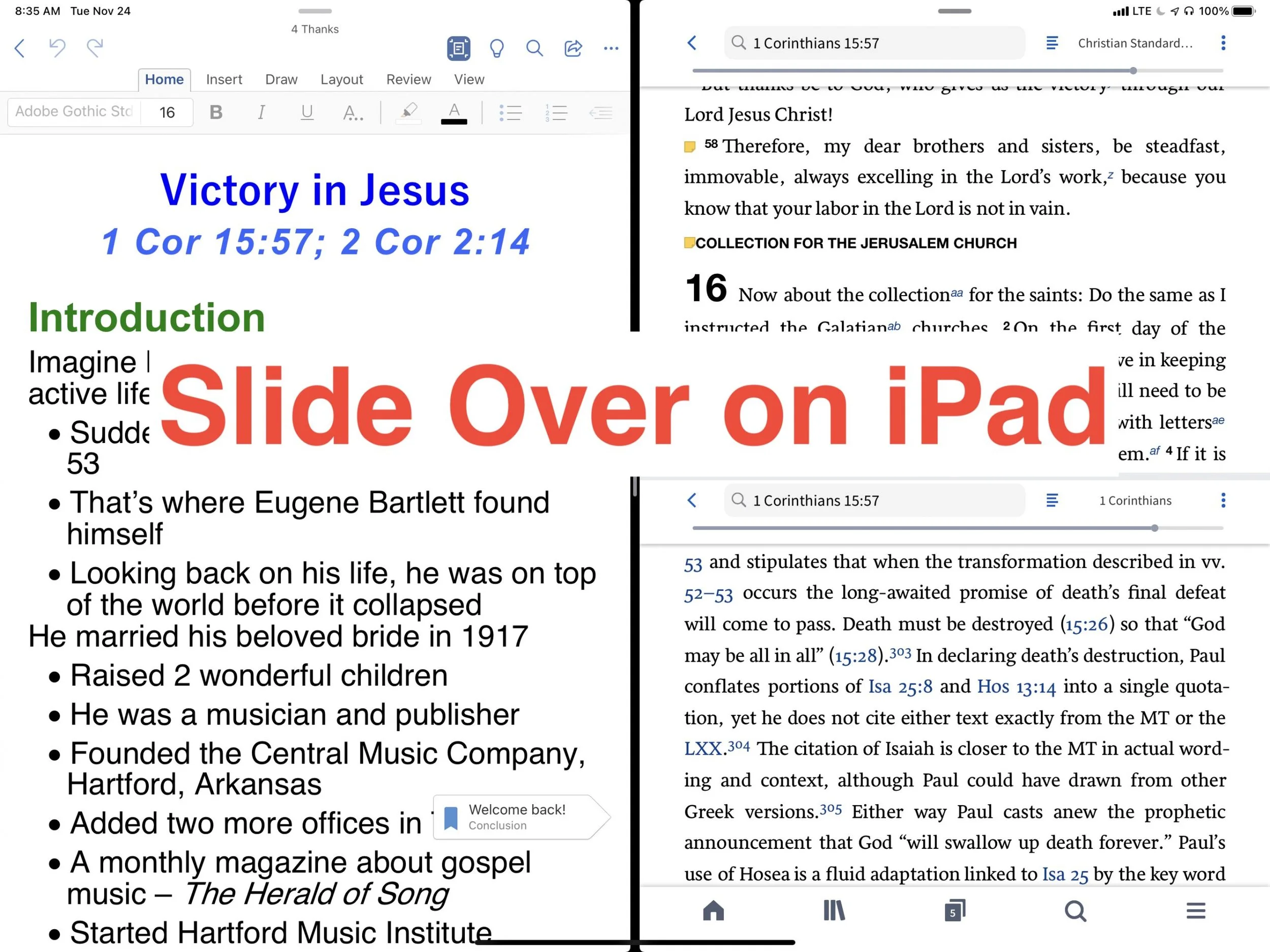
Slide Over on iPad Makes Your Bible Study More Productive
How can Slide Over on iPad make your more efficient and productive as you study and prepare for sermons or Bible studies? We'll show you how.
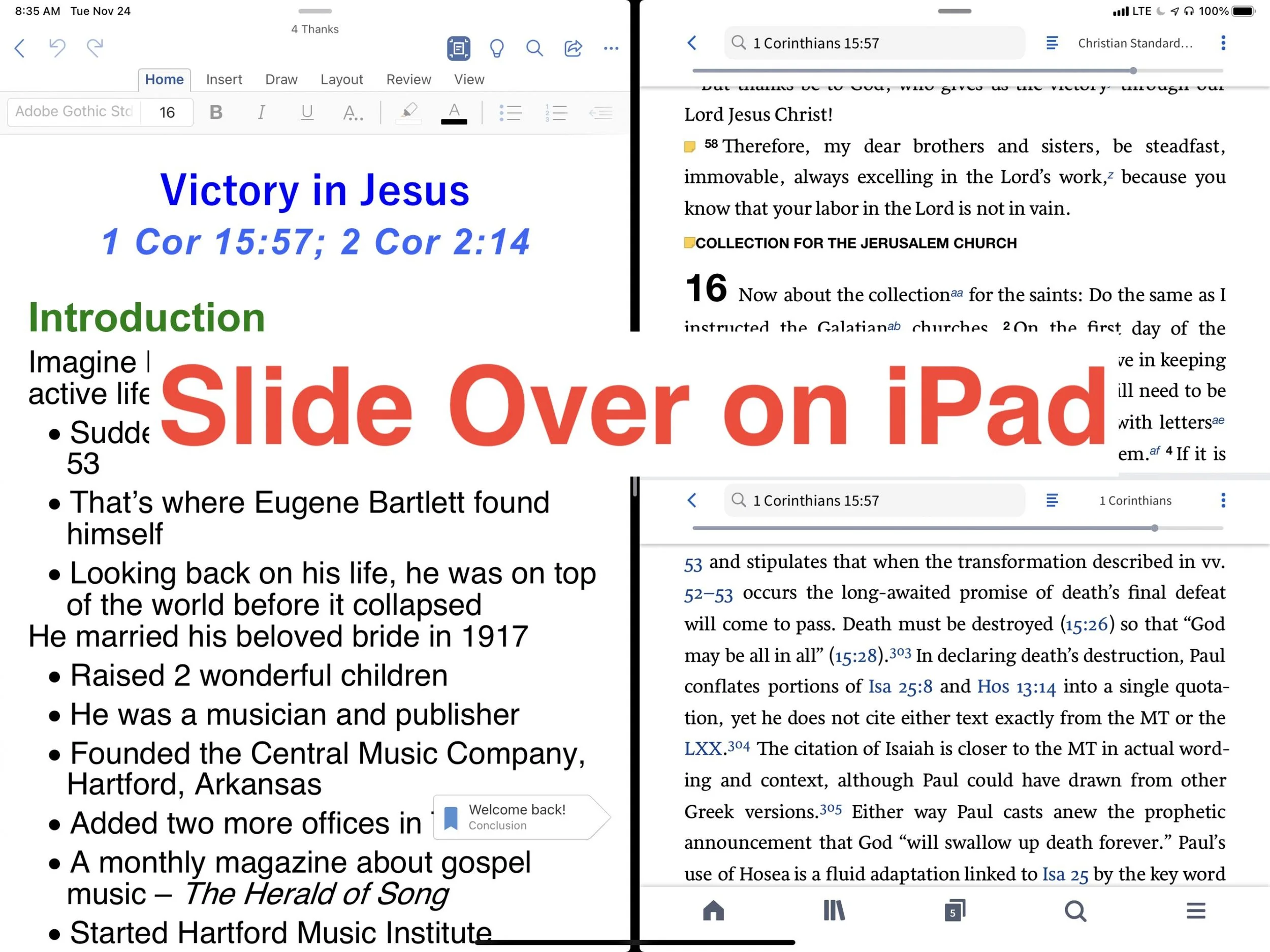
Do you use Slide Over on iPad as you study the Bible? If not, you should because it can increase productivity. Take a look at the following tips for effectively using Slide Over on iPad as you study the Bible or do other tasks on your iPad.

Switching back and forth from your Bible study app to your word processor or other mobile apps, while prepping sermons feels laborious. However, thanks to Slide Over with iPadOS digital Bible students can productively work with two apps at a time on larger iPad screens.
What is Slide Over on iPad?
When Apple released the first version of iPadOS more than a year ago, they perfected a feature called Slide Over. Think of it as two apps on the screen at the same time. Apple didn’t do it first, but iPad users found it cumbersome to use in previous releases.
The iPadOS will show you two apps at once. You can view them with both apps taking up half the screen or you can view them with one covering two thirds and the second app covering another third. The smaller window can sit on the left or the right side of the screen.
How do You Turn On Slide Over?
To open an app in Slide Over the app has to show up in your iPadOS dock. The dock sits at the bottom of the screen and holds all of your favorite or most-used apps plus three of the most recently used apps.

I keep my most-used Bible study app in the dock. But if you want to use another Bible study app that you don’t have in the dock, then open it first. Now slide up from the bottom of the screen slightly. You see a black line just above the bottom edge of the screen start swiping from that line and swipe about half an inch or so until you see the dock. Tap and hold a second app from the dock and drag it up to the right or left side of the screen. If a menu pops up then keep dragging up and over to the side of the screen.

The screen will show your two apps each taking up half the screen. If you want to adjust the size of the apps, drag from the line in the middle of the screen to the right or left to make one app smaller than the other.
When do I Use Slide Over in Bible Study?
I own a few Bible study apps that I regularly use in my sermon and Bible study prep. Sometimes, I want to read books in one app, but keep all my notes attached to the passage I’m studying in the same app. So, I open the app where I want to keep my notes and then I open the other app. That way I can read the second app while writing notes in the first.
During the sermon or Bible study writing phase, I’ll open Microsoft Word and my Bible app where I’ve kept all the study notes. That way I can easily refer to the notes as I write my sermon or Bible study.

Sometimes I want to research some idea on the web in order to come up with an interesting sermon illustration. I keep Word and Safari open at the same time. Sometimes I’ll open a video in YouTube or some other streaming app to quote the video in my sermon. Any app you might use it prep a sermon that supports Slide Over can be opened.
If I’m presenting while preaching or teaching, I’ll open Keynote and my sermon in Word at the same time. Or, I open Keynote and Safari to drag and drop images from the web as I put the presentation together.
Tips for Using Slide Over
You can master Slide Over with the following tips:
- Open apps not in your dock before trying to use Slide Over so they will appear in the recently used section of the dock on the right where your three most-used apps show up.
- If one app doesn’t need half the screen, give more screen inches to the other app by sliding the center adjustment line over a little.
- Set up multiple app combinations for Slide Over and use the switching feature to switch between these multiple app combinations.
- You change one of the two apps into a floating window by dragging from a small dark line at the top of the active app by pulling down slightly and hold it till it pops from the side to a floating window. Grab the line and pull down and to the right to put it back.
- While in the floating view, you can remove the window by swiping up or down to swipe it away.
- Move an app from one side to another by dragging it from the tiny black bar at the top and then slide it over to the other side of the screen until it snaps into place.
- Create multiple pairs of windows and swipe between them the same way you would swipe between apps.
3 Best Android Bible Study Apps for 2019
Here are the 3 best Android Bible study apps for 2019. This focuses on serious study and not just Bible reading apps.
It's been a while since we rounded up the best Android Bible study apps so lets take another shot at it for 2019. This list of the best Android Bible study apps for 2019 includes Bible study apps as opposed to Bible reading apps. What’s the difference?
- Study original language with more than just Strong’s
- Offers modern translations and powerful searching
- Offers modern scholarly, pastoral and devotional commentaries
- May also offer other eBooks and digital reference books like dictionaries, lexicons and atlases
Please note that we've updated this to the 5 Best Bible Apps for Android. Click here to see it.

Many Bible apps will include a few of the above, but they usually only include public domain or just one or two. Instead the Android apps we're offering helps users study the Bible on a deeper level. A scholar or pastor could use them while mobile. Maybe they won't fully replace a desktop Bible research tool, but they can help the studier stay productive on the go while they wait at a restaurant for a spouse who’s shopping or while sitting in the car picking up their child from school or soccer practice.
To test these out and compare them, we'll give them a score of 1 to 20 in a five different areas.
- Ease of Use
- Cost of Ownership (app plus books)
- Quality of Features
- Library Size and Quality
- Attractiveness of the App’s Design
To get a full score in each of these the app would mean the app’s perfect in that area. So let’s take a look at the 5 Best Android Bible Study Apps for 2019!
Olive Tree Bible
It's not surprising that we'd put Olive Tree Bible (Free plus cost of add-on books) on this list since it made our list of top Kindle Fire Bible apps.
Olive Tree looks beautiful on most platforms. It's not as pretty on Android as it is on other devices, but does look nice and professional. You can tell that designers made the buttons and menus instead of just coders cobbling together something that's functional.

Olive Tree does a great job of quickly showing the user all of their content thanks to the Resource Guide. This section looks at the current passage and then display all the content in the user's library related to that passage. You can quickly find all the commentary entries, all the cross references and more.
For original language study, you tap a word with Strong's tagging added and a popup will show a definition of the Greek or Hebrew word. This will also let you look the word up in other lexicons and dictionaries as well as search the Bible for that word.
It's one of the easiest of the five to use, but could be easier. For example, it's a little clunky to add personal notes. A pop up note editor blocks your content. You can also use the Resource Guide to add and view notes, however, you can't do that and see your Bible and commentary or lexicon or dictionary at the same time.
The app is free but add-on books cost extra. They aren't the most expensive, but you can end up paying thousands for a scholarly level library. The company offers one of the biggest libraries of add-on books and their not just public domain books. You can get high-quality content.
Olive Tree packed more features into this app in a way that's easy to get at them.

- Ease of Use - 3
- Cost of Ownership (app plus books) - 2
- Quality of Features - 3
- Library Size and Quality - 4
- Attractiveness of the App’s Design - 3
- TOTAL SCORE - 15
We could say a lot more about this excellent app. Instead read my full review over at ChurchTechToday. Also see the video above.
Logos
Faithlife publishes the Logos Bible suite of apps. They don’t just offer one, but multiple apps. You can get the following apps.
- Logos Bible Study Tools - their main app with more advanced features.
- Study Bible by Faithlife - the same app with a focus on their Faithlife Study Bible book which is a nice study Bible.
- Verbum Catholic Bible Study - Like the main app (first above) but focused on Catholic students.
- Faithlife Ebooks (formerly Vyrso) - Focused mainly on reading eBooks instead of serious Bible study and not recommended for this list.
Logos offers an excellent collection of training videos, so that's one of the best ways for you to learn more about the Logos Bible apps.
The app opens to show you how to the main features work the first time you start it. Then it shows the main home page. From there you can use the tabs at the bottom to view the various sections of the app.
The app shows Bibles and books in a tabbed environment. The center button is where you open these tabs. You can connect them so they all advance to the same passages or just connect certain tabs.
The library shows all your books and lets you check out new books in the store. There's also a store button on the toolbar of the app. Open the menu to see all the advanced features like the Passage Guide (looks for content related to a passage and shows a list of entries), Exegetical Guide (same as passage guide but focuses on language study tools) and more.
The app includes a ton of features. In fact it's the most feature packed app in our roundup. You can use things like...
- Atlas
- Prayer lists
- Clippings (collections of things you find in your study)
- Word studies
- Text comparisons (show more than one translation at a time)
- Audio books
- Courses (Faithlife has a rich collection of high-quality courses similar to what you might get in a seminary or Bible college)

We scored Logos as follows:
- Ease of Use - 2
- Cost of Ownership (app plus books) - 2
- Quality of Features - 4
- Library Size and Quality - 4
- Attractiveness of the App’s Design - 2
- TOTAL SCORE - 14
We're just scraping the surface in this description. Take a look at my post about which Logos Mobile App to Use and my series on how to do creative digital sermon prep using Logos. I also wrote a review last year at ChurchTechToday.
Accordance Mobile
Accordance Mobile brings us one of the latest entries into the Android Bible app space. Their iOS version never really measured up till recently, but now they're doing a great job on both iOS and Android.
The app seems deceptively simple at first. However, under the hood, it has a lot of advanced features for you to discover. You can view two books at once with the main book and secondary book syncing up to scroll through a passage together if you wish.
Tap on verses to get more study options and tap on words to learn more about the word, especially if the Bible has strong's numbers attached.
The powerful Accordance search engine comes to mobile in the app. They're still adding more advanced features and it's growing more powerful all the time.

Here's how I'm rating the app:
- Ease of Use - 2
- Cost of Ownership (app plus books) - 3
- Quality of Features - 3
- Library Size and Quality - 4
- Attractiveness of the App’s Design - 3
- TOTAL SCORE - 15
While the app looks deceptively simple, it does have some powerful features. However, it's not as strong as it could be. In a year I expect that to change. You also have to play around to discover the advanced language study features it does have. Be sure to check out their excellent tutorials. Accordance also offers a great library of add-ons available to buy at great prices. If you already own a book on another platform, ask the company and they will likely give you a deal. I've saved hundreds by buying that way from Accordance.
I should probably add a category for support, because Accordance really shines in this area with some of the best training post purchase of any of the companies. They have live webinars both online and in person. Here's a recent podcast covering the Accordance Mobile app on iOS.
Here's a link to an episode of their podcast covering Android.
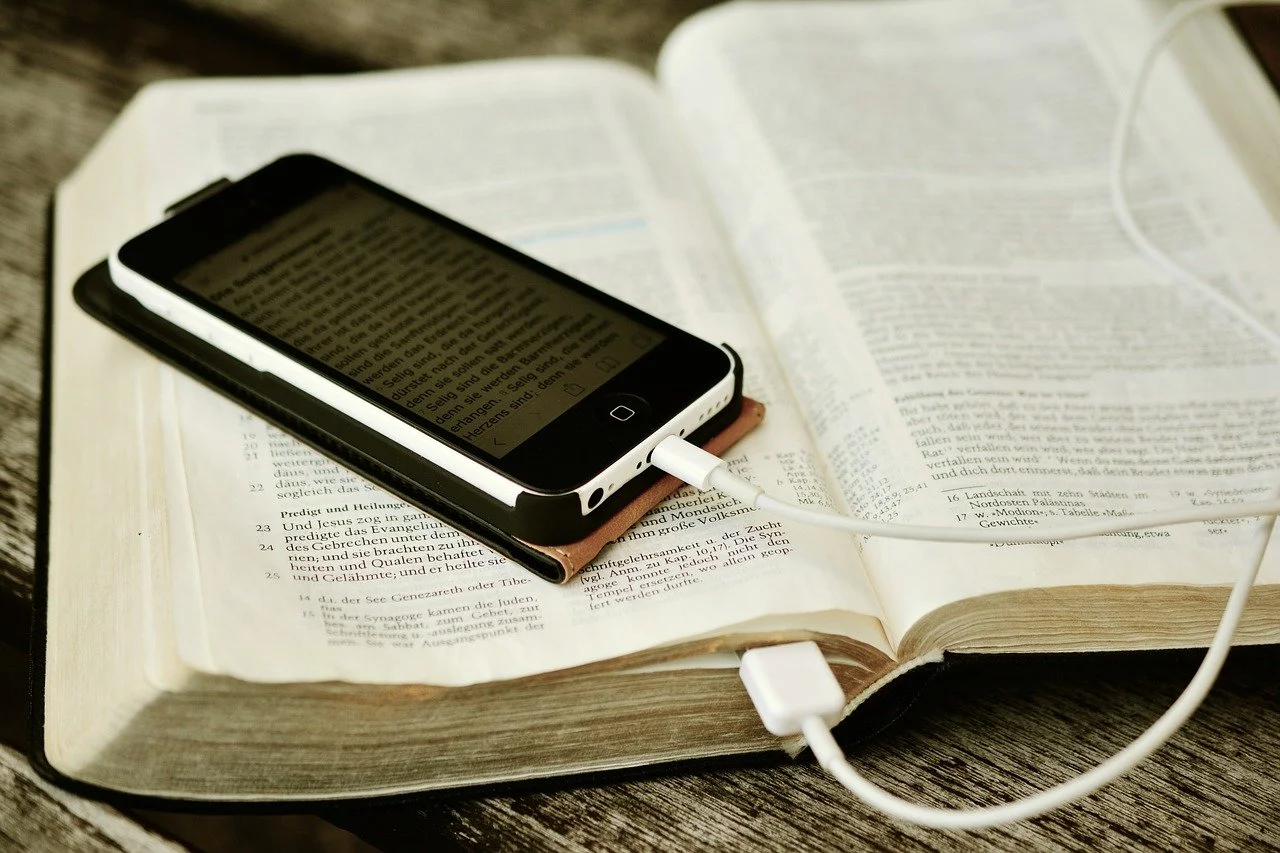
Bible Software Choice: Power House or Simple Software
People with simple Bible study needs often pick the simple Bible programs and apps. They are easy to learn and cost less if anything. But will the app or program grow with the user? Can a powerhouse program help people with simple needs study the Bible as well as a the simple apps? We'll take a look and answer those questions.
Three Kinds of Bible Software Users
Bible software or Bible app users fall into one of three categories usually.
- Bible Reader - average believer who plans to read the Bible on their phone or tablet and maybe a computer.
- Pastor or Scholar - these users will need a good app or program that can do advanced searches, study the Bible in Greek or Hebrew and study the word at a deeper level to teach, preach or write scholarly books or articles.
- Growing Student - some people start as a #1 but over time grow into the #2 or they just really like to study the Bible at an interim or advanced level for personal edification or to prepare for a family or small group Bible study.
A program like Accordance, Logos, Wordsearch or even Olive Tree will handle the #2 kind of user easily. Some people will never graduate above the #1 type of Bible student and that’s fine. I often recommend the Bible app from Life.Church, also called the YouVersion Bible app. In the past I've recommended Bible Gateway, Laridian's Pocket Bible, e-Sword and Tecarta's great Bible apps. Those all fall in the simple group even though Laridian also does some of the Power House tasks. So what should you use even if you're not a power user? What do we do with the third group of Bible students? Should these users consider using a more powerful Bible program and the companion mobile app? Since few people who move from the first group into the second group know they will, shouldn’t all believers start out with the more advanced tools knowing it might happen? I’m going to argue for that approach below.
Reasons Both Groups Should Use the Power House Bible Software
A seminary professor or a Sunday school teacher leading the youth class can enjoy a quality Bible app or Bible software. Here’s why the youth class teacher should consider the power house Bible software.
Room to Grow
I know of a young couple that recently built a new house. They put in only one large bathroom. They said that didn't need more. However, what if they have another child or two? A second bathroom will seem like a necessity and not a luxury. Similarly, more powerful Bible software gives Bible students of any level room to grow. They can go from a person who just wants to read and do simple Bible searches to a Greek or Hebrew scholar. You can’t do that if you invest in an app.Many pastors, missionaries and Bible scholars share testimonies of teaching a youth Sunday school class when God called them to vocational ministry. If such a person invested a hundred or two hundred dollars in books to use with their simple Bible study tool, they would later need to buy another program to get the more powerful features these programs include. God doesn’t call everyone to become a pastor or scholar. If this was the only reason our simple users have to buy power house software, then I’d recommend they save their money and go with the Bible app. However, we’ve got a few other reasons.
Powerful Apps Also Do Simple Tasks
 While you wouldn't use a sledge-hammer to pound in a finishing nail sticking out of a chair rail in the dining room, you could. Buying a sledge-hammer and a small hammer won't break most carpenter's bank accounts. However, Bible users won't likely buy a $10 program for simple tasks and a $200-$3,000 program for Bible study. A lot of us use a free app and then buy the more powerful app, but some pay for an app that includes a few Bibles and commentaries to help them understand their daily Bible reading or teach their Sunday school class. Why not buy the books in a more powerful app since it does the complex and simple tasks?Remember that you spend more than just money. It takes time and effort to learn the program and get to a point where you're thinking about the Bible passage or theological topic more than the steps to get your study done. Take it from someone withe experience with a dozen Bible programs and apps over they years. Just knowing how to do what you want without thinking is a huge time saver.Accordance handles deep searching for every instance of a certain Greek verb in one tense or Hebrew word with a particular grammatical form. It will also let you read a Bible passage in multiple translations and share them online. You can use Logos to do create complex diagrams of a Hebrew text or instantly compare a passage in multiple translations with a visual report. Students can also buy the latest popular Christian books and read them on a computer, phone or tablet tracking your reading process. They can highlight every future passage verb and highlight your favorite verses in these programs. The more advanced programs all offer a way to share Bible memes online too, something that characterizes the best simple apps too.
See my round up of Simple Bible apps at ChurchTechToday.
Support for Multiple Devices
McDonald's sells billions of hamburgers even though they're universally criticized for lack of nutrition and taste. (Don't tell anyone, but I really like Quarter Pounders, but I'm in the minority). They sell so many burgers because you can find one in almost every town bigger than 500 people in America. You can also find the same quality at a store in New York City and Bangkok, Thailand. Consistency is key. It's the same with the best Bible software. Some apps work fine on a phone or on a tablet or on a computer. Few of these apps work great on all three and some app makers don't publish apps for all three. Sometimes the simple app makers offer a great desktop program, but a pretty weak iPhone version. Other developers sell great Android apps, but offer an iOS app that's pretty weak in comparison. Throw in the Kindle Fire tablet, and you get fewer options that work on all platforms.While your chosen simple Bible app might work great on your iPhone and iPad, maybe the app developer doesn't create a decent alternative for the Mac. And what if you need to switch to a Windows PC or an Android phone or tablet? That's why the big power house programs make the best choice for some people who need cross-platform support.Get the more powerful apps from companies like Faithlife Logos and Accordance Bible Software.
Contrarian View
I support the above arguments without reservation. However, some people will never become a student of the Bible who needs more advanced features of Logos or Accordance. The simple Bible app, Laridian’s PocketBible or even better Olive Tree Bible Reader does the job. In fact, most Christians should probably use Olive Tree as their simple program that can grow since that app does the basics and offers some advanced features. If such a person ever becomes a seminary professor, he or she will need more. But save money and time learning the intermediate app that works almost the same on all the major platforms.
Bible Study Apps Versus Devotional Apps
With all the Bible study apps available on Android, iOS, Windows and Mac, it's easy to get confused about which app a person should use. I'll post a few recommendations over the next few weeks, but today I want to discuss a fundamental question. What do you plan to do with the app?People use their Bible study apps in different ways. How do you plan to use your Bible study app? Will you merely read the Bible, track your reading with a reading plan that the app provides or do you want to create your own personalized Bible reading plan? Will you highlight the passages on occasion or add personal notes, like you can do with a pen or pencil in the margin of your paper Bible? Maybe you want to work on a research paper for a Bible class in college or seminary. Some people need to translate the Bible into another language as part of a translator team or for a tribe in the jungles of South America in mission work. There are apps that can handle all the above functions of reading or studying the Bible, but many apps work better for some of the things listed above and don't do others that well.
Bible Reading and Devotional Bible Study
 Some people want little more than a book reader that displays at least one translation of the Bible and that's it. Maybe they want to search the Bible and even track their daily Bible reading. We call these devotional Bible reading apps. The list of common ways people describe these kinds of apps include...
- Bible reader app
- Devotional Bible app
- Bible app
- Bible study
The last name is a misnomer. I think Bible study apps include features that simple Bible reading or devotional apps don't often include. Also, calling a devotional or simple Bible reader app a Bible app is like calling both a minivan and a NASCAR vehicle a car. They're both cars but different people drive them. Jimmie Johnson, the driver of the #48 Lowes car in NASCAR may drive a minivan on occasion, but a man who drives his kids or grandkids to and from school or baseball practice probably never drives a racecar.Here's what every good devotional Bible app or simple Bible reading app should offer users.
- Bible reading in all the popular translations like KJV, NIV, CSB or ESV and more.
- Highlighting of verses
- Add personal notes to the Bible app
- Sharing on social networks
- Copying to other apps to send a verse in email or a text message to your spouse or friend
- Search the text of your translation
- Customized display of text (fonts, sizes, background colors)
Would you expect any other features in a simple Bible reading app? Please respond in the comments to add other features that you would include at a minimum. But read the next section first, since many of the other features a person wants in their Bible app will mean they really need more than a simple Bible reader app. They want a Bible study app.
Bible Study App
 Bible apps with more than the above features typically fit in the class of Bible study apps. These app developers target scholars, pastors, Bible teachers in Sunday school or informal communities of Bible students or people who want to study the Bible for personal development and spiritual growth.The list of basic minimum features you should expect in a quality Bible study apps include...
- All of the features included in a Bible reader or devotional Bible app
- Includes other resources like commentaries, Bible dictionaries, atlases, study Bibles, language study tools like Strong's dictionaries and lexicons
- Advanced search tools that do more than find a list of verses with the word "grace" or "holy" like boolean searches
- Multiple windows showing at the same time on-screen
- Notes with advanced formatting
- Library management that shows all of your books and lets you download or even remove books
- Offline reading and study tools
- Sync
 Some of the best apps in the iOS or Google Play Store don't include all the features in the above list. For example, Logos Bible from Faithlife doesn't let you do Exegetical study (original language study) on their iOS and Android app without an Internet connection. However, I'd still call it one of the better mobile Bible study apps available.What do you expect in a serious Bible study app? Let me know by commenting below.
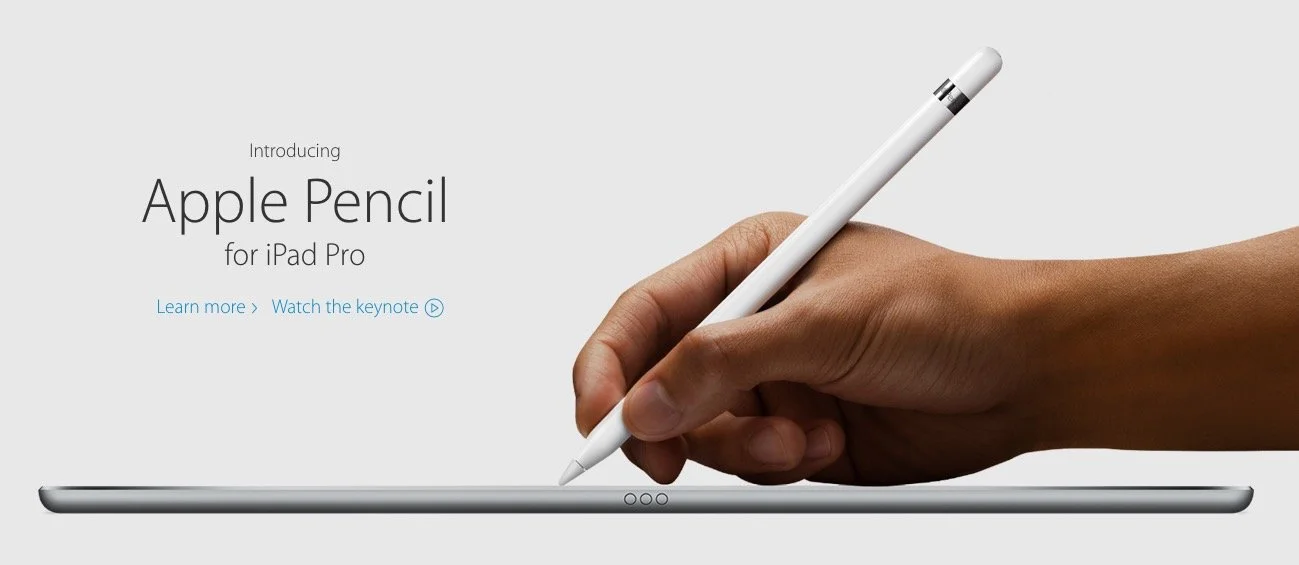
Preaching With an iPad Pro: Theotek Podcast #046
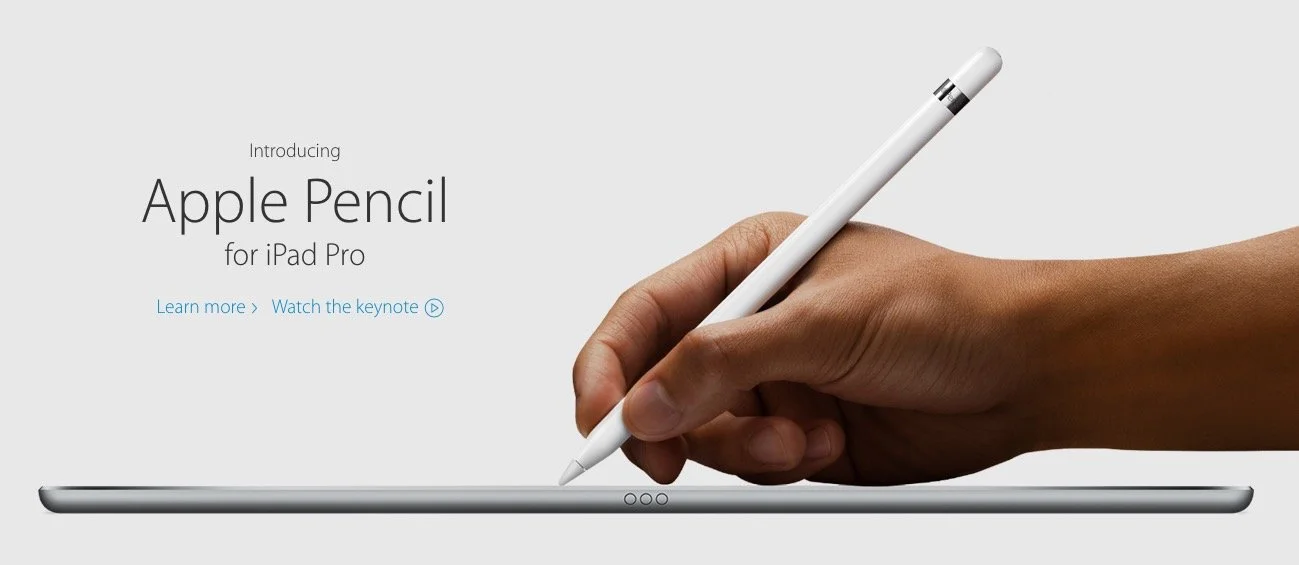
What is the new Apple iPad Pro like for studying the Bible, preaching or teaching? Rick Mansfield (@thislamp and thislamp.com) got one this week and we asked him a lot of questions about using it. Watch or listen below to hear his thoughts.https://www.youtube.com/watch?v=16v6TwpaPvEJust a summary of Rick's conclusions. First, he likes the side-by-side feature so that he can hold his Accordance Bible app next to Microsoft Word. This will help with both Bible study and preaching. The Keynote app and Word can sit on-screen at the same time. He uses the notes feature in Keynote, but after the podcast was over he tested and found out that you can run a Keynote presentation mirrored to an Apple TV and open Word in side-by-side mode. Second, he tested out the iPad keyboard and looks forward to getting one to use. He didn't like the Logitech keyboard case as much because it seems harder to remove from the iPad Pro.We talked about the Pencil, which is hard to come by until December. Wes tested it out at his local Apple Store and found that it was a great experience. They've done a good job of making it work well and feel more like writing on paper than older styli.At the end of the podcast I shared some first impressions of using the Apple TV 4th generation. It's a nice media device and the remote is both good and bad. Siri works great and AirPlay still works as well as before.