

PocketBible for iOS and Mac Adds ChatGPT to Autostudy
There's a new version of Laridian's PocketBible for iOS, iPadOS and Mac that fixes some bugs, adds new features like an improved Reading Mode, and more importantly integration of ChatGPT AI Insights.
Laridian announced that they added ChatGPT to their Autostudy feature. This feature is available to subscribers of the company's Advanced Feature Set, which gives users more features than the free Bible study tool.

PocketBible for iOS is available on the App Store for iPhone and iPad and runs on Macs. The new version is 4.18. Find the full list of updates using the previous link.
How to Use Autostudy in PocketBible
The app's Autostudy feature helps users study their Bible with a simple report on a word or verse that the user selects. It's similar to the Guides in Logos, the Resource Guide found in Olive Tree.

To use Autostudy, hold down on a verse or double-tap a word. A toolbar with an icon that looks like a graduate's cap will pop up. Tap that to see the Autostudy window. Then tap on Show Results to see your Autostudy report.

The row at the top shows the content of your Autostudy. Swipe to see the rest of the row. Tap a category to jump to that category in the Autostudy list.
Autostudy includes the verse or passage report, which shows the following...
- Text from each of your Bibles (shown above).
- Strong's numbers.
- Dictionary definition of every word in the passage.
- Greek or Hebrew word definitions.
- Commentary entries from all the commentaries you own.
- Cross-references from Treasure of Scripture Knowledge or other cross-reference titles you own.
- Your user-created notes.
Autostudy for each word includes ...
- Definition from your selected dictionaries.
- Number of times that word is found in your Bible.
- Strong's number info if you own a Strong's tagged tool.
A new feature in the recent update offers Autostudy Devotions features, which include...
- Reading for today.
- Text of Bible passages referred to in your devotional.
Laridian includes a couple of nice features in PocketBible's Autostudy. Users can customize the report's look, which you see under Customize CSS when you run a report. They can also customize the order of content from within an Autostudy report.
ChatGPT Integration in Autostudy
Adding ChatGPT to Autostudy adds a lot of content to the app that a smaller company like Laridian could never add alone. In fact, big companies would likely struggle to add such far-reaching content.
From Laridian's Craig Rairdin...
We’ve spent a lot of time over the last year and a half designing prompts and instructions that cause it to give responses that are Bible-based and Bible-first. It avoids dogma and denominational bias and favors what it clearly reads in the Bible. It uses biblical terminology where political correctness would prefer non-biblical alternative language.

To use Autostudy, users must first subscribe to the Advanced Feature Set and turn on the AI feature in the settings. To do so, they tap and hold on a verse and then tap on the Autostudy button in the toolbar that appears.

In the Autostudy's first window, find Content and Order near the top. Tap it to open it. Ensure there's a checkmark in the AI Insights item at the bottom of the list (#1 above). You can also turn off other items by removing the checkmark. Hit Order (#2 above) in the upper right corner to change the order of the items in Autostudy.
Now, when you tap the Show Results item on Autostudy's first screen, it will find all the content it can from your library and ChatGPT. This takes longer than a regular report that doesn't use AI.
Example of AI Insights Results for Commentary
To give you an example of the results of AI Insights in PocketBible, I ran an Autostudy on John 3:3. Here's what the AI Commentary offered.
The Gospel of John, traditionally attributed to the Apostle John, is unique among the four Gospels in its theological depth and focus on the identity of Jesus as the Son of God. Written in the latter part of the first century, likely in Ephesus, it aims to strengthen the faith of believers and present a clear understanding of who Jesus is. John’s Gospel addresses a broad audience, including both Jewish and Gentile readers, and highlights the necessity of spiritual rebirth, a theme central to John 3:3.
In this verse, a conversation takes place between Jesus and Nicodemus, a Pharisee and member of the Jewish ruling council. This dialogue occurs at night, indicating Nicodemus’s cautious interest in Jesus and the disruptive nature of Jesus's teachings to the established religious order. The phrase “born again” introduces a pivotal theological concept that reflects on the necessity of spiritual transformation.
The context surrounding this verse encompasses the introduction of Jesus's public ministry and the manifestations of His divine authority, characterized by miraculous signs. John 3:1-21 emphasizes the contrast between human understanding based on earthly standards and the spiritual insights required to comprehend the Kingdom of God. Nicodemus, representing the religious elite, approaches Jesus, seeking clarification about His teachings and miracles, which sets the stage for Jesus's profound statement regarding the need for rebirth.
The phrase “unless one is born again” underscores the necessity of a radical inner transformation that is not achievable through human efforts or religious observance alone. This rebirth is explicitly spiritual, highlighting that entry into God's Kingdom requires a renewal of the heart and mind, an action attributed to the work of the Holy Spirit as described later in John 3:5-7.
The practical application of this teaching is substantial. It emphasizes the fundamental Christian belief in the necessity of conversion and the transformative power of God’s grace. For modern readers, it serves as a reminder that spiritual renewal is not merely a one-time event but an ongoing process of growth and reliance on God's spirit. It invites believers to examine their own spiritual lives, acknowledging that true faith encompasses a personal relationship with Christ and a transformation reflected in their thoughts, actions, and purposes.
The passage, therefore, teaches that understanding spiritual truths and entering into a relationship with God begins with an acknowledgment of one’s need for renewal, making it clear that human wisdom alone is insufficient for salvation. It aligns with the broader biblical narrative that presents salvation as a gift from God, to be received by faith and resulting in a changed life (Ephesians 2:8-10).
That's not bad! I wouldn't replace a solid, reliable commentary, but it's a nice supplement.
Other AI Insights that you get from PocketBible include...
- Bible Dictionary - a summary of info about the word or phrase studied.
- Inspirational Thoughts - a reflection for that day's Bible reading or other Bible passages.
- Applying Today's Verses - practical application for the day's Bible reading.
- Today In Christian History - info from church history.
Other New Features in PocketBible Update

Laridian added a new Reading Mode, removing distractions from the text so the reader can read their Bible. This mode removes the toolbars, toolbox, and other window stuff around the text. You open Reading Mode by tapping the button on the Toolbar with two arrows (second from the right).
If you wish to remove verse numbers, go to the app settings (the menu button is on the right of the toolbar) and choose Settings under the PROGRAM section. Tap on Hide Verse Numbers in the first section.
Finally, as with most apps or software, this update includes many bug fixes or minor feature changes.
How to Get PocketBible for iOS and Mac and Advanced Feature Set
You can download PocketBible for iOS or iPadOS in the Apple App Store on your iPhone or iPad. For Mac, get the app from Laridian's website. Both apps are free. The Advanced Feature Set costs $.99/month or $99/year through an in-app purchase or on the company's website.
3 Great Logos Bible Software Deals You Should Buy
Here are 3 great Logos Bible Software deals that you can get now and save a lot of money. Find out how to gets free books and deeply discounted books, commentaries, and collections for Logos.
You know that I use Logos Bible Software for most of my Bible study needs. As a result, I'm happy to recommend these 3 great Logos Bible Software deals on some excellent books, collections, and upgrades to Logos 10 or even Logos 9 if you haven't updated to the new Logos 10 version.
Logos Bible Software Deals on Logos 9 Legacy Libraries

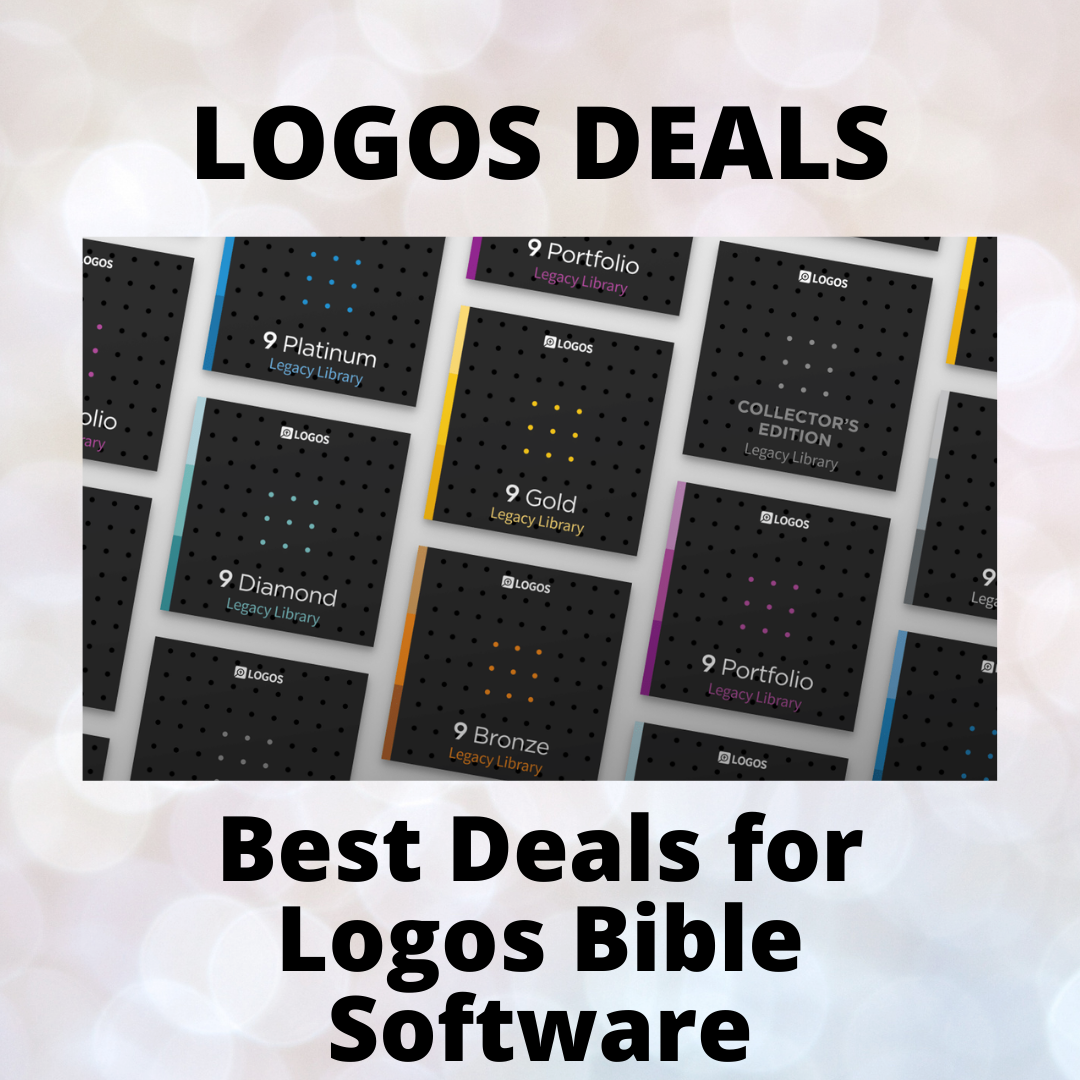
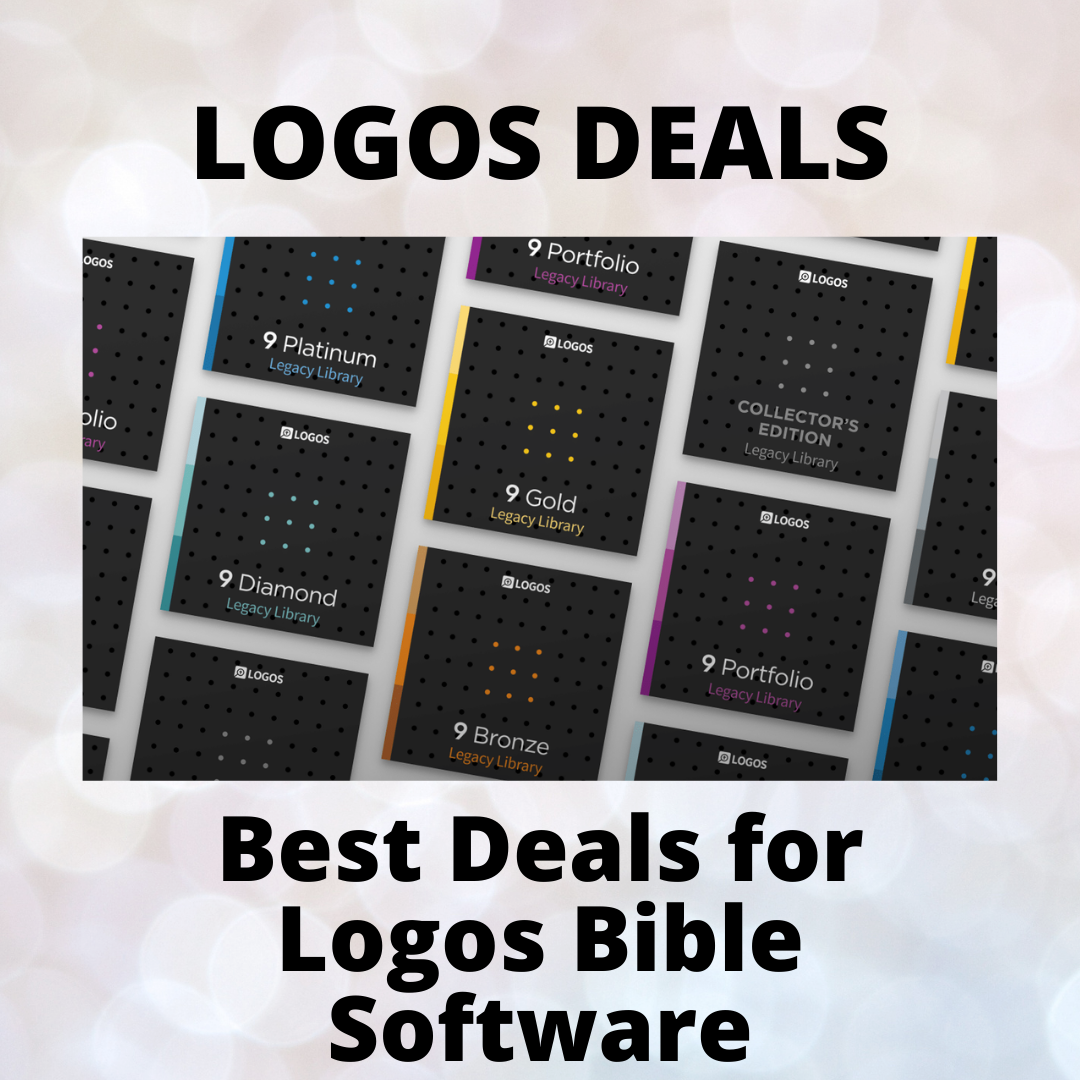
The first of our Logos Bible Software deals lets you update your collection of resources with Logos 9 Legacy Libraries. A legacy library includes books like the CSB Study Bible, Tyndale New Testament Commentaries, the Anchor Yale Bible Dictionary, and Theological Diction of the New Testament. Not only will the Logos 9 Legacy Libraries cost as little as $35, but also you can get a huge collection for thousands of dollars. Here's a recommendation:
- Get the Logos 9 Gold Legacy Library which includes excellent resources like...
- Pillar NT Commentary
- Baker Sermon Outlines Collection
- Anchor Yale Bible Dictionary
- Cornerstone Biblical Commentary
- John Piper's Sermon Archive
- Take a look at your denomination's library
- Baptist
- Lutheran
- Messianic
- Anglican
- Methodist/Wesleyan
- Pentecostal
- Orthodox
- Reformed
- Verbum (Catholic)
Free Book of the Month and Other Sharply Discounted Books

The free book for June comes from R. C. Sproul. Get The Consequences of Ideas: Understanding the Concepts that Shaped Our World for free. This book covers the "influential philosophies" from impactful minds in theology, education, arts, and more. Each of the 14 chapters covers a different philosopher or group of philosophers.
Sproul explained why we need to study Philosophy with the following quote:
Philosophy forces us to think foundationally. By foundational I mean first principles or basic truths. Most ideas that shape our lives are accepted (at least initially) somewhat uncritically. We do not create a world or environment from scratch and then live in it. Rather we step into a world and culture that already exists, and we learn to interact with it.
R. C. Sproul, The Consequences of Ideas: Understanding the Concepts that Shaped Our World
Likewise, the other books available for steep discounts include:
- Kingdom Race Theology: God's Answer to Our Racial Crisis by Tony Evans
- The Sabbath as Rest and Hope for the People of God (Short Studies in Biblical Theology) by Guy Prentiss Waters
- The Psalms: Language for All Seasons of the Soul by Andrew J. Schmutzer and David M. Howard Jr.
- Understanding and Applying the Bible by Robertson McQuilkin
- A Merciful and Faithful High Priest: Studies in the Book of Hebrews by Martin Lloyd-Jones
- The Heart in Pilgrimage: A Treasury of Classic Devotionals on the Christian Life by Leland Ryken et. al.
- Creative Bible Teaching by Lawrence Richards and Gary Bredfeldt
- A Biblical-Theological Introduction to the Old Testament: The Gospel Promised by Miles Van Pelt
- The New Moody Atlas of the Bible by Barry J. Beitzel
- Theistic Evolution: A Scientific, Philosophical, and Theological Critique by J. P. Moreland, Stephen C. Meyer, Christopher Shaw, Ann Gauger, Wayne Grudem
- Covenant Theology: Biblical, Theological, and Historical Perspectives by Guy Waters, J. Nicholas Reid, John R. Muether
- Unlocking the Bible Story (4 vols.) by Colin Smith
- The Holy Spirit: The Helper (The Complete Works of John Owen, vol. 7) by John Owen, Andrew S. Ballitch (PREORDER)
Publisher Spotlight: Eerdmans Collections

You can get deals on Eerdmans books. Specifically, the publisher offers 40% off the New International Commentary of the Old and New Testament, a great series with many volumes listed in Best Commentaries. More than 20 of the OT volumes are ranked in the top 5 while all but 4 of the NT volumes show up in the top 5. Amazingly, this collection retails from Logos for nearly $1,800 but will cost you only $1,061.99 with this sale offering 40% off. If you own any single volumes dynamic pricing will reduce the price.
You can also get several collections in the Old Testament, Soren Kierkegaard, Theological Dictionary of the Old and New Testament, the Pauline Collection of commentaries, and dated collections from the last several years.

Best Bible Reading Plan for 2023
Its time to commit to a Bible reading plan, so we've got some advice to stay committed and keep reading through the new year.

Every year it seems that Christians resolve to read their Bible more. Seasoned Bible Reading Plan veterans know what to do and how to do it but may lack the willpower or passion for keeping with it all year. However, novices could use some advice on the best Bible reading plans for the new year. So, here's our best advice for how to read the Bible on a regular schedule in 2023.
1. Pick a Good Translation for Your Bible Reading Plan

What's the best Bible translation for your Bible reading plan in 2023? That's a loaded question.
Many people already have a favorite translation that they understand and enjoy reading. Some read the Bible in a community and share a single translation with friends, family, or your church family. In those cases, stick with what you like and know. For other people, consider the following...
- Pick a translation that you know you can understand and will keep reading. The more modern translation usually offer the best results.
- Unless you're comfortable with the KJV, consider a more modern translation. They use contemporary language instead of terms that have changed since the translators of the KJV completed their work.
- Don't use a paraphrase despite how easy they are to read. They're not as accurate, and you'll need something more accurate as your Bible study grows more in-depth.
What are the Best Translations in 2023?
So what translations should the new Bible reader consider? Let me share one important trait of modern translations. We judged them from the most literal to the least. That doesn't mean that a translation that's not as literal will be worse than a more literal translation. Translators often choose to go with a less literal translation because it confuses modern readers or makes it harder to read in a flow.
The Greek and Hebrew writers didn't put words in a rigid word order like we do in English. They often emphasize the most important word by placing it at the beginning of a sentence. But our modern English rules say that's not the right way to do things. Here's an example:
The man drove that car right off the cliff.
What's the most important word? The writer of the sentence may want to emphasize the danger put, so "cliff" is the most important word. She might want us to focus on "car" instead. Either way Greek writer might write it as follows:
The cliff the man drove the car right off.
That's awkward in English but makes perfect sense to an ancient Greek reader, except for not knowing what a car is.
My Recommendations for the Best Translations for Your Bible Reading Plan
I use the Christian Standard Bible (CSB). It's a revision of the Holman Christian Standard Bible (HCSB). The team that translated sought to make it accurate, consistent with conservative, Evangelical theology, but equivalent to modern English so that readers in 2023 and beyond could easily understand it.

In 2022 the Legacy Standard Bible came out. The LSB fits in the family of the New American Standard Bible, which I grew up reading and studying thanks to my home church pastor. He preferred its accuracy and literal translation emphasis. It's not as flowery as more modern translations but fits great in a serious Bible student's toolbox. The NASB first hit the Christian world in 1977 and received an update in 1995 and in 2020. Unfortunately, from 1995 to 2020, it changed in a way that made people think the translators were less interested in literal translation and more in modern terminology. I don't know if that's true, but I prefer the LSB because the team that produced it continued the firm emphasis on making as literal an English translation as possible in 2022.
Other great options include...
- NKJV - The New King James Version isn't as modern, but it's still very good and comforts people who grew up reading the KJV.
- ESV - The English Standard Version comes from the line of the first American English translation, the ASV. It later received an update and the name RSV. The ESV translators worked to stay in that line and produced an excellent translation.
2. Don't Start at the Beginning
Readers start most books on page one, but the Bible's a unique kind of book. So, don't start on page one if you want to get through it.
When I counsel new believers, I suggest they start reading the book of John. It's simpler to read than Genesis. You don't deal with complicated and strange passages like the legal code in Leviticus or genealogies in Genesis 5 and 10. Finally, the stories about Jesus are more familiar than the Old Testament stories.
Combat the boredom of reading these difficult passages in the first five books of the Bible by using a different reading plan than going verse by verse, as many new Bible readers often choose. See the next section below for the best Bible reading plan recipes to help you succeed.
3. Follow a Recipe for Success in Your Bible Reading Plan
When we call a Bible reading plan a recipe, we mean what passages or what genre of passages you should read in each reading session. Your Bible or Bible app can help you find a good Bible reading plan that helps readers succeed in getting through the entire Bible and keep reading without giving up after a few days, weeks, or months.

Does your Study Bible include a Bible reading plan? The Bible app also includes hundreds of Bible reading plans. Those plans range in scope, including a topical plan that offers a week of reading plans and devotions to go with the daily topics. Alternatively, you can choose a plan that reads the entire New Testament in 30 days. Most of us will choose something between these two extremes.
See the hue scope of reading plans at the Bible app's site. You'll also find these in the Bible app on your phone or tablet. Other apps offer Bible reading plans, including the Logos Bible app on mobile or desktop.

Open the Library in Logos on a desktop. Type in your translation in the search box that pops up. Then click on the three dots at the right of the translation entry in the Library list. Choose Start reading plan from the drop-down list.
Other apps with reading plans include Olive Tree, Accordance, and more. You'll get the best digital Bible reading plans from the Bible app or Logos.
4. Set a System to Remind You to Read
A digital Bible reading plan helps keep you reading because you can set a reminder on your phone, tablet, or computer. We don't have time to explain how to set these reminders in each app, so check with your chosen Bible app to learn how to set them.
Even if you don't plan to use a digital Bible reading plan, you can still use your phone's reminders or To-Do app to remind you to read the Bible daily. In iOS, you have Reminders, and on Android phones, you can find a number of options.
At the very least, write a note and keep it somewhere you won't miss it. Keep a Bible on your nightstand or near your morning breakfast spot in the kitchen or dining room. Make it conspicuous so you won't forget.
5. Share What You Learn With Others
The four previous strategies will help with your Bible reading plan. This fifth strategy helps the most. Find a friend who will keep you accountable. This person can help with more than your Bible reading plan. They can keep you accountable for your moral choices, personal discipline, and relationship behavior. Who should you choose? You might have a name in mind without much thought. Let me suggest a few things to help you select the right person.
- Same Gender - don't enter into this spiritually intimate relationship with a member of the opposite gender. A man picking a woman or a woman choosing a man can cause problems, especially if you're in a committed relationship (marriage, engaged, or long-term committed romantic relationship).
- Trustworthy - the worst thing you can do is admit your failures to someone who will gossip about your private sins. You can get hurt, embarrassed, or if you know they're not reliable, then you could lose trust and not openly admit your failures.
- Reliable - you can trust some people to keep your secrets, but they don't respect your time. You end up without an accountability partner because they won't keep the schedule you made.
Answer Below in the Comments
What do you recommend regarding daily Bible reading plans? Which plans work best for you? What apps or websites help? Who do you have to help you stay true to your commitment to reading the Bible regularly?
Logos 10 Mobile App: What's New?
Here are the top new features of the Logos 10 Mobile app with a demo video and instructions on how to use them.
Faithlife, the makers of Logos Bible Software, updated their suite of Bible study apps and desktop/laptop programs, releasing Logos 10 Mobile for iPad, iPhone, and Android. Most new features work best on the iPad, but many also work on iPhone and Android. We've got a demo of all the most significant upgrades with instructions on how to use these new features.
Logos 10 Mobile App Adds New Selection Menu
When you want to select a verse or some text to highlight it, add a note, or look up information, the Logos 10 Mobile App improves the selection menu.


If you tap on a verse, a popup menu shows up with a few things in it. Depending on your selection, you'll see highlighters, buttons to interact with the verse, some information from your user notes, the Factbook, or other content. This works in non Bibles too.
The highlights come from the most recent first and then the top highlights in your highlighters tool.
The buttons that you can use to interact with a Bible verse include the following:
- Copy the verse
- Share the passage
- Add a Note
- Search
- Compare in multiple translations
- Perform a Passage Guide on the passage
- Perform an Exegetical Guide on the passage
- Mark the passage as a Favorite
- Translate the text using the new Logos 10 Translation tool
- Clip the selected content
- Create a Visual Copy, which makes the selection into an image to share on social media, save, or use in your presentation.
Below the buttons, you will see cards for items found in the selected text. These take you to the Factbook or Bible dictionaries. It might show an entry from a Lexicon. What it shows depends on what it finds in the selected text.

Slide left or right on the cards to see more of them. Use the menu button in the upper right corner of each card (it looks like three vertical dots) to do more with the content in the cards.

Press and hold on a single word and bring up a different kind of menu that shows info about that one word. You'll see Word Info that comes from tags on the word. For example, it will show an entry from your top Greek or Hebrew lexicon. You can open it by tapping on the More button.
You'll also see an entry from an English dictionary or Bible dictionary.
Print Library Tool
Now in Logos 10 you can search your Print Library. However, you'll have to first add books to the Print Library using the Logos 10 Mobile App.

Tap on the More button, which looks like three horizontal lines in the lower right corner of the screen. If it's not showing up, tap on the book's title that's open on the screen. In the top Library section of the menu, tap on the Print Library ISBN Scanner entry. This opens the camera. You might have to give the app permission first.

You can only add books to the Print Library if Logos also has the book in its digital library store. That's because they have to have the text of the book in their library to search for text in the book. Any book that you have with an ISBN bar code or QR code will work.
Now, when you search for words or phrases, they will return entries in the Print Library. You can't read the whole book in Logos, but the Logos 10 Mobile App will tell you where you can find it in your print copy of the book.
Read Aloud in Logos 10 Mobile App

If you like audiobooks, then you'll love the improvements to the Read Aloud feature in the Logos 10 Mobile app. It's easy to find in the open book's top toolbar. It looks like a sound icon. Tap it, and it brings up the reading feature at the bottom of the screen.
In the Read Aloud feature, listeners can pause and play the audio. They can also skip back a verse or a whole book of the Bible. Skip forward a verse or a book too. There's a speed option to read the book or Bible faster. I like to listen at 1.5 times to many books.
If the book comes with an audiobook version, a download button appears next to the X in the Read Aloud feature box.

Most phones let users add different voices to read books that don't come with an audiobook version. Open your phone's Settings app. In iOS, go to Accessibility and then tap on Spoken Content. That opens the screen where you can choose Voices to select your voice.
iOS lists voices by language first and then name. I tapped on English at the top and chose Samantha. The phone gives the user two options. One is regular Samantha and the other reads "enhanced". I picked the enhanced version and downloaded her voice.
Go back to Logos, choose a book that doesn't already have an audiobook associated with it, and follow the instructions at the beginning of this section to listen to the book using the iOS voice we chose in settings.

The Android version of the Logos 10 Mobile App plays audio almost identically, except for changing the voices.
Sermon Manager Update
The update to the Sermon Manager in the Logos 10 Mobile App allows users to edit and read sermons created, either in the app or on the desktop. Open the Sermon Manager from the More button, which looks like three horizontal lines stacked on top of each other in the lower right corner of the toolbar.

You'll find the Sermon Manager in the Tools section of the menu. Tap on it to open it.
You will see all the important features of the Sermon Manager on your iPad. This only works on iPad.
You can also open the Sermon Manager from the tabs button. Hit a plus button to open from the Tools section of the new tab feature.
Canvas Tool on iPad

A canvas shows information in a visual way. The iPad and desktop app tools include many drawing tools, diagramming tools, and text formatting. Add images, icons, and shapes. Do this all to show information in a visual way for presentations or documents. You could create them for your own benefit.


To open or create a Canvas, go to the More button (three horizontal lines in the lower right) and tap on it. Head to the Documents section. Tap on the Canvas item, and you'll see a list of any Canvases already in your library. Tap one to open it. Work with the canvas, and then you can work with the Canvas.
You can also create a new one from the Tabs screen. Tap the plus icon and go to the Documents tab (right button on the Tabs toolbar). Now tap on the plus icon at the top of the box, which shows a list of the kinds of documents you can add. Tap on Canvas to make a new one.
The Canvas feature is available only on iPad, and only in Bronze packages, and above.
Draw On Screen Feature on iPad
Teaching using Logos as a visual aid got easier with the update to Logos 10 Mobile thanks to my favorite new feature, the Draw On Screen feature on the iPad only. You can now draw on your screen and save that as a screenshot in notes or share it elsewhere.


Open the More button (three horizontal lines in the lower right) and choose Draw On Screen from the Tools section. This brings up the Apple annotation feature, which lets you draw using your Apple Pencil, a third-party stylus, or your fingers.
Drawings can use a pen, highlighter, pencil, eraser, selection tool, and ruler to make straight lines.
When you're finished drawing on the screen, share the drawing or exit without saving it. You can share the image in a few ways.
- Copy Image - copy it for pasting in a document or note.
- Save to Photos - save it in the iOS Photos app.
- Save as Note - saves the drawing as an unattached note, which you can then manually attach to a verse or paragraph.
- Share - use the iOS Share Sheet feature to send it to a Facebook post, a file on the iPad, Instagram, or other services you use.
Enhanced Panel Linking
You've been able to link books before so that your commentary would move along with your Bible as you swiped to advance to the next passage. Now, you can tweak these settings a little so that the Bible drives the link relationship.

Open a book and then slip the screen into at least two books. When you do, a new book will fill the second half. Then, if you like, then add other books. You'll see a box with the word None in it and a pair of linked chain links. Tap it to bring up the Enhanced Panel Linking feature. Tap the A to link to the other book. Then tap on Follow Only so that this book won't make the other book move, but the other book will move this one.
For example, I have the NASB and Faithlife Study Bible open above. If I choose Follow Only, then as I swipe up and down on the NASB or left and right in widescreen mode, the FSB will follow it so that the verse in the Bible matches the verse in the study Bible. However, if I choose Set all panels to match, then any book will force the others to follow it. Moving to a new chapter in the FSB will move to that channel in all linked Bibles.
You can also set this from the main book menu in the upper right corner of each book panel, which looks like three vertically stacked dots.
New Logos 10 Mobile App User Interface with More Tiles
The user interface on Logos 10 Mobile gets a much-needed feature update. You can now open as many as six books on your iPad. However, this doesn't work on the phone since it would be impractical to open that many on a small screen.


To open a layout with more tiles, tap on the Layouts icon in the bottom toolbar on the right. You'll see a little popup with options for...
- 1 book
- 2 books side-by-side
- 2 books, top and bottom
- 3 books with one on the left and two splitting the right side column
- 3 books with one on the right and two splitting the left side column
- 3 books arranged in verbal columns
- 4 books splitting the screen into four equal quadrants
- 4 books with 2 each in the vertical columns on the left and middle and two splitting the third column
To add two more books, open the layout in the top right of the popup. Then, from the toolbar at the top, tap on the 3 dots which opens the options menu. Choose Split this tile.
Deal on New Logos Books
If you want to get the new Logos 10 upgrade, then head over to my affiliate page to get a nice discount on Logos and some free books. This way you can use the Logos 10 Mobile app
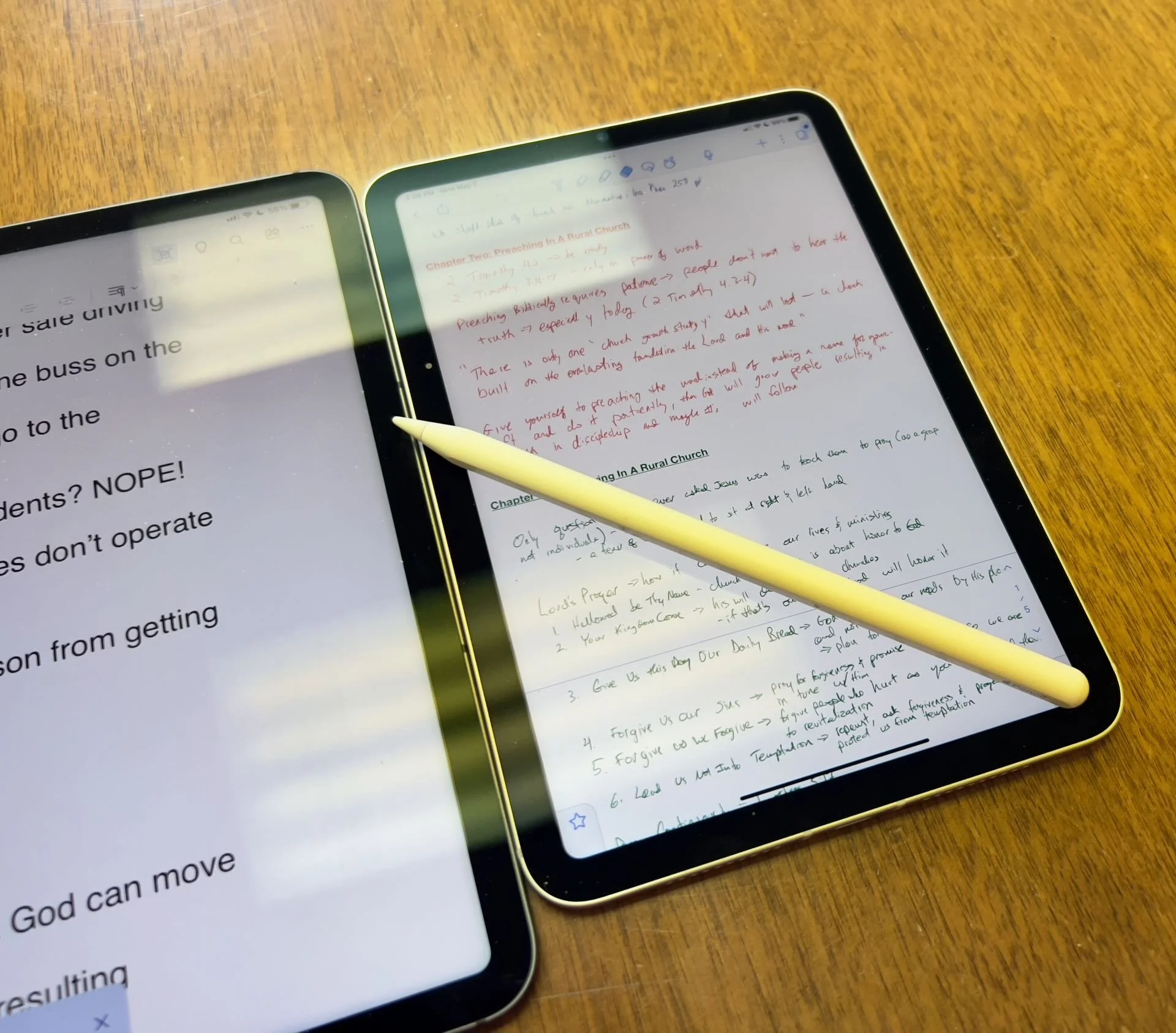
Which Apple iPad is Best for Bible Study?
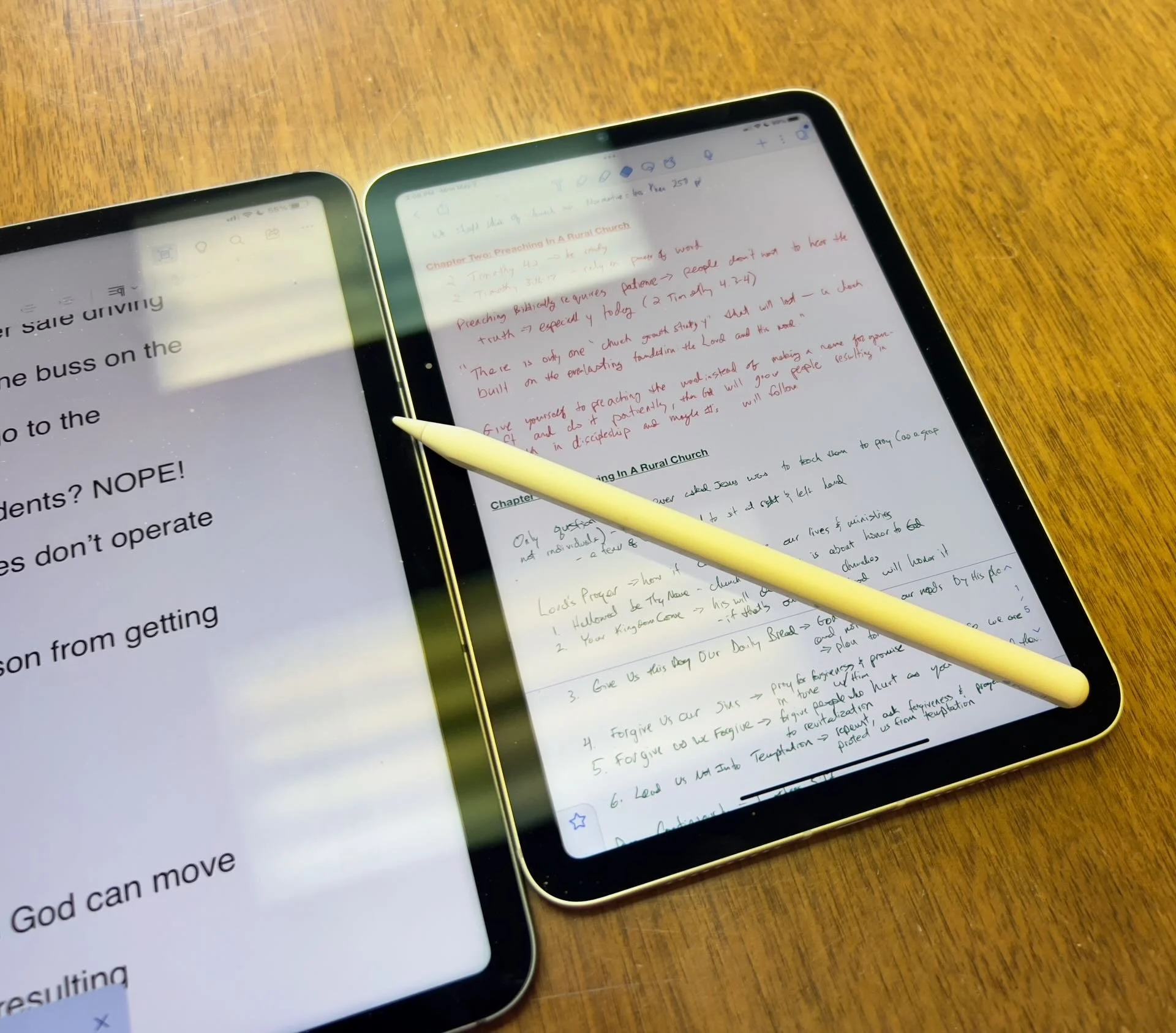
The Apple iPad in whatever form factor destroys the Android competition for great Bible study on a tablet. Windows comes in a close second because you can install a desktop-class Bible study program on it if you have the storage.
Even if you assume I’m correct about the iPad, which is a big assumption, what iPad should Bible students choose and why?

To just get the conclusion, jump to the end for my Conclusion at the end of the page.
The 4 Apple iPad Form Factors
All four Apple iPads include a slab of glass housed in a rectangular case. They come with varying qualities of screens, speakers, and speed. However, users will not see a huge difference in running the most popular Bible study apps from Logos, Olive Tree, Accordance, and more on any of the four current-generation Apple iPad. Still, let's take a look at each starting from smallest to largest.

The smallest iPad also gives users the most mobile experience. The iPad mini feels more like reading a book than the other iPads. It comes with an 8.3-inch liquid retina screen when measured diagonally. That's 7.69-inches tall and 5.3-inches wide, about the same size as a small Bible but capable of carrying an entire theological library.

The iPad Air has Touch ID on the power button, a convenient security feature. You will also get some pretty decent speakers on the two shorter edges and USB-C for connecting chargers or accessories.
If you want to carry your whole theological library, then you’ll likely also want one with 256GB of storage. Unfortunately Apple stubbornly only offers two storage options. You can get a meager 64GB or too much for Bible students with the larger 256GB option. Most people need more than 64 and less than 256.

The two storage options cost $499 for the base model iPad mini 6 with Wi-Fi only. With 256GB you add $150. That's ridiculous, but necessary because after you own the mini for a while, you'll want to use it more and more because it's so convenient to carry out. So plan to pay the extra coin.
I personally chose to add Cellular as well making it cost $$800. I like that I can just open the cover and start working no matter where I am, almost since there are some areas without coverage in my semi-rural community.
Throw in an Apple Pencil 2 and a cover and you're over $900. That's a lot of money, but you can get it on a 0% interest payment plan with your wireless carrier or with an Apple Card.
The newer Apple Pencil 2 connects and charges while connected to the side of the iPad. It's a great stylus but costs. More on that below.

Some people call the basic model the iPad 9 or iPad nothing because it doesn't include a descriptive name like the mini, Air, or Pro. It's the cheapest option at only $329 for 64GB of storage and no Cellular.
It includes a larger screen at 10.2-inches diagonally or 9.8-inches by 6.8-inches when measuring the long and wide sizes of the entire device.
The iPad doesn't support Face ID but you can unlock it by touching the Home button, which has Touch ID built-in. It uses older technology than the Air or even the mini. However, it's a great starter iPad for most people. And if you only plan to study the Bible, strongly consider it since it costs less than any other device. Users can use the Smart Keyboard.
The iPad 9 comes with the same problems as the iPad mini with only two storage options - 64 and 256 GB. So you really want the larger storage option which brings the price to $479. If you want Cellular, then add $130 bringing your total to $609. Most looking for this budget model won't want Cellular, but get the 256 because 64 isn't enough.
The other problems with the regular iPad include...
- Lightning connector is slower and makes accessories more expensive since creators have to pay Apple for the right to include Lightning.
- Lower resolution screen that's not as good as the mini and much worse than the Air or Pro models.
- Slower A13 Bionic Chip compared to the A15 in the mini and the M1 Chips in the Air and Pro models
- Uses the older first-generation Apple Pencil that charges by sticking it into the Lightning port making it easier to break off the connector or lose the cap.
Apple offers the iPad as the budget option and that makes it a great tool for people who want a device for basic needs, including Bible study, reading, and Bible app research. You can also pair it with a Bluetooth keyboard for writing. Just don't expect the latest and greatest. Those tech specs aren't included.
Some call this the best deal on an iPad today. You get the most bang for your buck. However, it will cost you more than the iPad and iPad mini. It has a much better screen and a super fast and efficient M1 chip. Plus it records 4K video with the back camera and has a front camera that follows you when you're video conferencing. They call that Center Stage because it centers the camera on the subject.
The Air speakers sound great and the screen looks amazing. You can use the awesome iPad Magic Keyboard case or the awesome Smart Keyboard Folio with the trackpad. I love this keyboard. Also, the newer Apple Pencil 2 connects and charges while connected to the side of the iPad.
However, we still see the annoying storage issue with only 64GB or 256GB. Plus Cellular swells the price by another $150. That brings the total with 256GB and Cellular to $899. For Wi-Fi alone, you pay $749. Why does Cellular cost more on the Air than on the mini or the basic iPad?

The iPad Air is the prettiest coming in one of five colors including Space Gray, Pink, Purple, Blue, and Starlight.
The iPad Pro below comes in two sizes, 12.9 inches, and 11 inches. Don't get the 11-inch iPad Pro. Instead, get the iPad Air.

The most expensive, powerful, and feature-rich iPad seems more like a mobile computer than a tablet. The iPad Pro which you can get in 11-inch or 12.9-inch screen sizes offers the most power of the four sizes. It costs $799 for the 11-inch and $1099 for the 12.9-inch.
Apple offers 128GB for the base price. That's the sweet spot and should be the lowest storage offered on any device made by Apple. It's the perfect storage for most buyers. However, you can get 256, 512, 1TB, or 2TB. You don't need anything more than 128 for Bible study. However, you may want to choose higher storage if you plan to use this iPad for much more than Bible studies, like video and photo editing, gaming, and more complex uses.
Users may want the large 12.9-inch screen because they want more screen real estate for Bible study.
Other specs to excite buyers include:
- Liquid Retina XDR Display
- ProMotion
- M1 Chip with more memory than the others
- Face ID and Center Stage camera
- 5G Cellular optional along with Wi-Fi 6
- LiDar support for things like 3D modeling
- Thunderbolt USB-C port that's fast and will connect to a Thunderbolt monitor or incredible docks with a lot of ports
Recommendation for Bible Study Only

If you only want to study the Bible then you have to ask yourself a few questions. Do you want something small and easy to carry around like a small Bible? Then get the iPad mini. If you need a bigger screen then get the iPad Air. It's the most future-proof and with all the tech inside it will last for a long time. However, budget-conscious buyers should go with yesterday's technology in the basic Apple iPad.
Just remember this. I've never met anyone who actually used a tablet only for Bible study. So, you can see yourself possibly needing a little more power, a good typing experience, or some screen real estate to edit your photos or make video masterpieces, then get the Apple iPad Air.
Recommendation for Bible Study and High-End Multimedia
If you just read the above paragraph, then you know I recommend the Apple iPad Air for people who want to study their Bible with Logos, Accordance, Olive Tree, or some other Bible app and work with multimedia. But which iPad Air should you get?
The 256 is, unfortunately, the best option until Apple gets its head out of the sand and starts offering a 128GB option.
Recommendation for Those Needing a Large Screen

Buy the Apple iPad Pro 12.9-inch model with 128 GB if you only want to study the Bible or 256GB or more if you want to do high-end work like multimedia creation.
I bought the 12.9 Pro because I teach and preach from my iPad and due to my aging eyes the mini's just not big enough. The iPad Pro 12.9 means typing on a keyboard that's wide enough to enjoy. The Air was too narrow for my big hands. I spent more than I needed to. Until Apple offers a larger Air with 128GB, I'll happily keep my Apple iPad Pro 12.9-inch.
Recommendation for Buyers on a Budget
This one's simple. Get the basic Apple iPad for $329 if you don't own a large Bible library or pay more for the 256GB model. You won't get all the power and specs and it may feel old in a shorter time since it's not as fast, but for buyers on a budget, it's the best way to go.
The only other budget option is to buy a used device or get an older one. Look at your budget and something that fits in your budget that also fits your preferred form factor.
You can check out Apple's Refurbished store. For example, they offer the iPad mini 5 for the same price as the newest base model iPad. For slightly more than the base model you can get an Air with Wi-Fi for just $419.
Check out eBay, Facebook Marketplace, and Swappa as other options for used and refurbished products. You can get a great deal.
Must-Have Accessories
When you buy an iPad, you also have to factor in buying accessories. Other tables like the Samsung Galaxy Tabs come with at least a writing device. You can use the tablet alone, but I wouldn't. You'll need the following accessories.

- Cover or Case - you will want to protect your device.
- Keyboard or Keyboard Cover - you can study the Bible on your iPad more efficiently with a keyboard connected.
- Apple Pencil - you may want a Pencil to write or take handwritten notes in apps that you can use alongside your Bible apps.
- Screen Protector - I used to not protect the screens on my tablets, but when you carry it around naked you should.
- Headphones - many Bible apps include audiobooks or videos.

Let me offer my top recommendation for each category above.
- The Apple covers or cases work best, but if you want to save money go with cases from Moko, Spigen, or Moshi.
- Apple's Keyboards or Keyboard Covers are the best options for the Air or Pro. The Magic Keyboard is $300 and the Smart Keyboard Folio costs $180. I love typing on my Magic Keyboard cover connected to my iPad Pro 12.9. However, Logitech makes great keyboards too if you want to use your iPad at a desktop. I have the Logitech MX Keys and MX Keys mini. You can also buy Apple's Magic Keyboards with or without Touch ID.
- Apple Pencil is the best writing device and I wouldn't buy another one. However, the Logitech Crayon is a $70 alternative.

- Screen Protectors are a budget item. They shouldn't cost a lot of money. Just get a glass screen protector. However, here's one alternative that some people really like. Get a Paperlike screen protector, which does two things. It protects the screen and gives users a paper-like experience for drawing and writing.
- Get the Apple Airpods or Beats to use for Headphones. They work best with Apple products and sound really good. However, not everyone wants to pay that much. Be careful which ones you buy, because sub-$100 Bluetooth earbuds usually sound like junk. To save money get Apple's USB-C to stereo adapter and plug-in wired headphones.
Conclusion

To do only Bible study, then get the iPad mini. You'll enjoy using it for hand-held study. If you want to put it on a table and need more screen real estate, then buy the iPad Air with an Apple Magic Keyboard. Add an Apple Pencil to either device if you plan to take notes in your own handwriting or want to write. Add a handwriting keyboard replacement app like Handwriting Keyboard ($3.99). Throw in a great note-taking app like Notability or Good Notes. This way you can have the Bible app on one side and the note-taking app on the other while holding the tablet.
Get Logos Legacy Library for 25% Off
If you need to buy a good Bible software package, consider using my affiliate link to get Logos Bible Software. You can get what they call "Legacy Libraries" for a nice discount of 25% off. A legacy library is a collection of books that they sold when they released previous versions of Logos from versions 5 through 8.
4 Best Audio Bible Apps for Android for 2021
Do you love to listen to the Bible? Then we've got the best audio Bible apps for Android for 2021. These also work on Amazon Fire Tablets plus your favorite Android smartphone from Google or Samsung Galaxy. I tested them out on a Samsung Galaxy S21 Ultra 5G primarily, but also on a Samsung Galaxy Tab S7. Give this a read and then download them for a good listen to the good book.
If you're looking for the Best Audio Bible Apps for iOS, then keep reading. These also come with iOS versions.
Bible.is - Our Winner: Best Audio Bible Apps for Android

People who want to listen to the Bible and do little else should look at Bible.is and nowhere else. Users agree with a 4.6 rating in the Google Play Store for this free app. You can also find it on iOS. Just a few of the key features that make it great include the following:
- Listen to the Bible in hundreds of languages with more coming all the time
- Create your own listening plans like you can with Bible reading apps - see the first and third screenshot below
- Share plans with other Bible.is users
- Read along with the audio Bible or just read when you can't conveniently listen - see the middle screenshot below
- Search the Bible by keyword, Bible text and phrases, or other words
- Watch Bible-based films like The Jesus Film

The Faith Comes By Hearing folks respond to user support issues and do a great job of pleasing those who have issues with the app. I've never experienced a problem.
YouVersion Bible App - Best Audio Bible Apps for Android with Social Networking
If you only downloaded one Bible app on your phone or tablet, it likely came from Life.church. Life.church brags millions of downloads and often shows up in the list of top apps on iOS and Android.

The church created the Bible app years ago and keeps developing it and improving it. The app excels as a basic Bible reader app with an elegant user interface. It primarily serves as a Bible reading app but adds audio Bible listening and does it well.
I include it here because of its great social networking features. Share Bible verses in a visual way. If your friends post pretty photos with Bible verses imposed over the top of them, the share likely came from the Bible app.
To use the audio Bible features, open in the Bib reader and you'll see a small audio icon in the top toolbar second from the right. Tap it to show the Bible reader pop up as seen in the left screenshot above. You can play from the current location in the Bible shown in the reader window. The fast forward and rewind buttons go forward or back by a chapter.
The settings at the bottom of the pop-up window control the speed and set a timer for how long the app will read the Bible. There's also a button to hide the controls. If you do, then you'll see the screen on the right which shows you smaller rewind, play, and forward buttons. They function the same way as the larger pop-up window.
Olive Tree Bible - Best Audio Bible Apps for Android with Advanced Bible Study Tools
Olive Tree makes the Bible overall Bible study app on Android and iOS. The app includes tools for advanced language study, commentaries, Bible dictionaries, media tools, and more. In addition, they offer a decent library of audiobooks. Check out the Audio Bibles sold on the Olive Tree website.

Open Olive Tree and go to the library to find your audiobooks. The books with audio show a headphone icon. Tap it to open it. You'll then see the audio controls to go back, play, and go forward. Below that, you'll see a toolbar with volume, playback speed, driving mode, and Bluetooth connection.

If you want to use your app while driving tap on the Driving mode icon. The larger play button and skip back button help you play or go back in case you missed something. The icon with the headphone inside a bookmark icon creates a bookmark so you can quickly go back to the spot in the book.
The Olive Tree app plays Bibles and other books too.
Logos - Best Audio Bible Apps for Android Honorable Mention
I've written a lot about Logos over the years including their advanced mobile app. It includes audiobooks too. Open them from the menu button in the lower right corner of the app. Find a book in your library and open it. You might also want to download the book from the library using the tiny download button next to the book title.

Once the audiobook is open you'll see the playback controls as seen above on the right. You can go back and forward by chapter or in 30-second intervals. Play or pause the book. The Contents button lets you jump to any place in the table of contents. There's also a playback speed control.
Recommendation
The playback interface in Logos offers the most options and controls. However, it's also the most complex of the apps and will overwhelm those who don't want to do advanced Bible study.
Bible.IS is the simplest for people who just want to listen to the Bible. If you also want to read and interact with other Bible readers then use the YouVersion Bible app from Life.church. The best overall mobile Bible app comes from Olive Tree. It's not as complex as Logos, but gives you more Bible study tools than the simpler apps.

5 Best Bible Apps for Android and Fire Tablets for 2021
What are the 5 best Bible apps for Android for 2021? These run on Android phones, tablets, and the Amazon Fire tablet.

If you own an Android smartphone or tablet or maybe an Amazon Fire Tablet, then we've got the 5 best Bible apps for Android. This list usually stays the same each year. So what has changed for 2021?

I tested these apps on the Samsung Galaxy Tab S6 Lite. I used to own the Tab S7 but handed it down to my son, an Android first guy. Most of the time, I use the iPad, but Android works great too. So, here's my list for 2021!
What's your favorite Bible app on Android or Amazon Fire Tablet. Comment below or head over to the YouTube video above and comment there.
Bible App by Olive Tree
Olive Tree's Bible App sits atop our list because it's still the best mobile Bible app available for reading, study, and sermon prep. Why do I call it the "best"? Olive Tree presents the Bible and Bible study material with the perfect balance of usefulness and simplicity. That's hard to do. Just ask the other more technical Bible study apps listed below.
UPDATE: The Bible App by Olive Tree is no longer supported on Amazon Fire tablets.

Open Olive Tree on a tablet, and you get two areas by default. On the left, you'll see a kind of Windows Explorer or macOS Finder kind of navigation window that takes up the left half of the screen when you tap the menu. To see this menu, you'll need to tap the menu button that looks like three horizontal lines in the upper left corner.

The Bible sits on the left when the menu isn't open. On the right, you'll see the Resource Guide. These two can link up so that when you scroll or swipe from page to page in the Bible, it will move the commentary you have open to the right.

Add word study features by opening a tagged Bible. Tap on a tagged word, and you'll see a popup window that defines the word in its original language. You also get Audiobooks, reading plans, devotionals, maps, highlights, note-taking, and it all syncs up with your computer version of Olive Tree.
There's more to this app, but this hits the highlights and explains why I put it first in my 5 Best Bible Apps for Android list.
Logos Bible App from Faithlife
The Logos Bible App (Amazon Fire App) and its other similar apps from Faithlife come in second in our roundup because of its power and array of useful features. It's a little bloated, but I'd rather have too many features that don't get in the way of the basics than not enough, like the ability to add user notes.

When you look at all that Faithlife packs into Logos, you can only say wow! There's a reason this ends up in our 5 Best Bible Apps for Android, but not at the number one spot.
The app divides into a few main areas.
- Home Screen - layouts for study are here, along with information from Faithlife about sales or books.
- Library - find your books to open and read.
- Book Reader - you can open a bunch of books, and they will show up on screen accessible via the center button, the toolbar at the bottom of the screen.
- Search Screen - use it to search your Bible or books.
- Main Menu - find all the major features of the Logos app here, like the Guides.

You can open multiple books and sync them using the center button on the bottom toolbar. Set up some or all of the books to sync up or don't. I have a few Bible translations and a few study Bible's or commentaries open all the time, all of which I set to sync up, so they move from verse to verse together. I also open books I'm reading too, but they don't sync with a Bible.

On the Bible, you can do word studies, searches, and add notes or highlights. Open the menu, and you can search your library in one of the Guides. A passage guide finds everything about your passage. The Exegetical Guide searches for content related to language study. Other guides work similarly.

You'll find many other features, mainly in the main menu at the far right on the bottom toolbar. And remember, it all syncs nicely with the computer app or their web app.
Faithlife also offers a few other apps for Bible study and reading. You can download...
- Faithlife Study Bible - focused on their study Bible and the Lexham English Bible translation.
- Faithlife eBooks - a simplified version of the app for reading books primarily, but still has some study features.
- Biblia - Spanish language version of the app.
- Verbum Catholic Bible - app focused on Catholic users.
The Bible App from Life.Church

I always fight with myself about adding The Bible App (Amazon Fire App) to my roundup of best Bible apps for any platform, but I always do it for one reason. It's the most popular Bible app available on mobile devices.
I don't like including The Bible App because it's not really a complete Bible study app. You can't do word studies or read commentaries and Bible dictionaries. But that's not what Life.Church intended for its users to do.

Instead of more advanced Bible study, The Bible App excels as a simple Bible reading app that also includes social networking built-in and sharing to social media easily and elegantly. You can...
- Download and read hundreds of versions of the Bible, most of them available offline.
- Listen to audio Bibles.
- Set the app to remind you to read a daily reading and devotion or see a verse of the day in text or visual format.
- See what your friends are reading, highlighting, sharing, or commenting about the Bible.
- Watch videos to help you understand the Bible.
- Bookmark verses.
- Share verses with others via social media, email, or text.

Accordance Bible Software
The Accordance App (Amazon Fire App) on Android has gotten better but still lags behind its iOS cousin and the other apps in our roundup for a couple of glaring weaknesses. First, you can't add your own user notes yet. That's gotta change, and Accordance should feel embarrassed they haven't added the feature in 2021.

Second, the syncing features in the app are weak by comparison. Accordance should add its own syncing tool to keep your user content fresh on Android and a computer.

While Accordance really needs the improvements above, it still deserves a spot in our top 5. Of course, you can read the Bible and other books in your library. Accordance sells a lot of great Bible study tools, thanks to a huge library of quality resources. They are often the first company to release a book when it gets published. For example, they released the new 2020 version of the NASB before the others on the list. Logos doesn't even have it out yet.

Accordance works great as a Bible or book reader. It lets you search, and you can select a word and Amplify it, which means study by searching for related content.
Tecarta Bible
Bible study observers may not know as much about Tecarta Bible (Amazon Fire App $5.99 for NIV) as the others in this roundup. But they should because it's a decent app.

The app includes the most-used translations. You can download the KJV for free and buy others for download. If you don't want to pay for a translation, you can "stream" them, which means use them as long as you have an Internet connection on your phone or tablet. You'll have to buy commentaries, but unlike others, Tecarta lets you try them.

The app displays parallel translations and shows the commentary in a 2nd or 3rd window. Add notes, bookmarks, highlights, or share verses.

If you tap and hold on a word, the app shows a box popup that says "Define," and it will go online to give you a definition from an Internet search.
5 Best Bible Apps for Android and Fire Tablets for 2021 Summary
Which of the 5 apps included in our roundup of the 5 Best Bible Apps for Android should you download? Why not download all of them? Of course, you should start with the app from the company you already use on a computer, if you own one. I'm a Logos Bible Software user on my Macs, so I primarily use Logos, even though I like Olive Tree better on mobile.
UPDATE: If you use an Amazon Fire Tablet, you can't download the Olive Tree app since it's no longer supported. For a fifth Bible app on a Fire Tablet, look at Laridian's Pocket Bible. It's also terrific.
Update: You can also install the Google Play Store on an Amazon Fire Tablet. It's complicated, but if you think you can handle it, fire up the Silk browser on your Fire and head over to the helpful how-to article at Android Police.
If you must make me recommend one over another, then I'm going with Olive Tree first. It's got the cleanest and simplest interface. It has enough features for most users. People who need more advanced tools will likely not work on a tablet or smartphone very long. They're using a computer-level Bible study suite from either Logos or Accordance. However, don't end your search with Olive Tree. You can try out all of them for free and settle on one with the best features for your needs.

Logos 9 Upgrade 6 Months Later - Is It Still Worth the Upgrade Cost?
It's been about six months since Faithlife released Logos 9 upgrade to focus on some key improvements to the computer app and the mobile app. Also, you can save $1,600 on a Logos 9 Base Package plus get 5 free books using the link provided in this article.

It's been about six months since Faithlife released Logos 9 upgrade to focus on some key improvements to the computer app and the mobile app. I published my review over at ChurchTechToday.com on October 30, 2020, and talked about it here as well.
The Logos 9 upgrade brought the following key improvements, like...
- Some user interface tweaks make the software easier to use.
- An update to the Factbook in the Logos 9 Upgrade
- The interesting Sermon Manager and Sermon Builder
- A Counseling Guide
- New sorting features in the Bible commentaries section of the Passage Guide
- Improvements to the Reading Plans and the Reading Queue
In addition to the above improvements in the Logos 9 Upgrade, we also saw some decent changes in the mobile app. They added the Factbook to the menu seen in the toolbar at the bottom right corner of the app. You can also use your iPad or tablet for preaching, thanks to the new preaching mode in the mobile app. I actually love using my iPad to preach.
15% Off Discount on Logos 9 Upgrade to Base Packages and 5 Free Books
From now till June 15, 2021, you can get 15% off a Base Package upgrade. To do that, follow this affiliate link, and you'll get a discount. Full-disclosure, I'll get a little kickback from Faithlife.
Follow that link, and not only will you get the 15% off discount when you use the code PARTNEROFFER9 at Checkout, but you can also get 5 free books. Select from 28 different books, including some great titles.

Here's a list of my recommendations.
- Spurgeon Commentary 1 Peter
- Lexham Research Commentary: Colossians
- St. Paul's Epistles to the Thessalonians by George J. Ellicott
- The Essentials of Prayer by EM Bounds
- The Life of St. Paul by James Stalker

Faithlife offers a myriad of Base Packages. Here's what I recommend depending on what you already own.
- Logos 9 Bronze - Great for people who are just getting started.
- Logos 9 Gold - Jump to this level if you already own a pretty big library.
At the bottom of the page, you see a link to see the other Base Packages. Follow that to find the Logos 9 Upgrade packages for Anglican, Baptist, Lutheran, Messianic Jewish, Methodist & Wesleyan, Orthodox, Pentecostal & Charismatic, Reformed, SDA, or Catholic (Verbum) users.
Logos 9 Upgrade: Best Feature is New User Interface Tweaks
One improvement stands above the rest. I like the features listed above, but the simple tweaks to the user interface on the computer version of Logos 9 made the most difference in my productivity with the Logos 9 upgrade six months after Faithlife released the update.

It sounds crazy, but the new button on the upper right corner of the screen helps users a lot. First, you can quickly jump to your account to see what you have or what pre-orders you might see published soon. You can also jump to Your Faithlife Profile, where you can interact with other users and see answers to your questions.

The other amazing new tweaks include transforming the program toolbar. For example, right-click on a book icon that you placed on the toolbar like I did as seen in the image above.

you now get a drop-down menu holding those books in that folder.
The new tweaks to the toolbar give you a drop-down list of icons from the toolbar that no longer fit on a narrow screen on small screens. See the image below to understand what I mean.
There's a new light mode, dark mode toggle in settings. People love dark mode, and I don't understand why. But if you do, then you now have it.

Other New Features in Logos 9 Upgrade
Logos seems most proud of the other new features in Logos, which include...
- Factbook
- Sermon Builder
- Sermon Manager
- Counseling Guide
- Improved Reading Plans
I like all of those, and you should see my review linked in the top section of this post from ChurchTechToday. The second feature I'm most excited about also doesn't seem big. Faithlife now added a feature to organize my library in a more useful way when I fun a Passage Guide.
Go to the Commentaries section of the Passage Guide and look in the upper right corner. You'll see ways to sort your books including...
- Priority - follows your customization where you rank certain commentaries above the others.
- Series - groups the commentaries by series, like the New American Commentary series or the Word Biblical Commentary series.
- Author - who wrote it?
- Denomination - what is the denomination of the publisher/editor/author depending on the commentary.
- Type - is it a technical or devotional commentary?
- Era - when was it published?
Mobile App Improvements
Logos added the Factbook to the mobile app too. You'll find it in the menu button in the lower right corner.
Faithlife added a preaching mode to the mobile app. That way, you can build and manage your sermons in the computer app. Then you can put your app in preaching mode and preach from the app.
M1 MacBook Pro and Bible Study Apps
How well do the top five Mac Bible study apps run on the new M1 MacBook Pro? We ran five of the best programs and share our results.
Are you curious how the new M1 MacBook Pro handles Bible study apps and programs? I was too and couldn't wait to test this out. You can find the results as I tested Logos 9, Accordance 13, Olive Tree, Laridian Pocket Bible, and e-Sword X on the new M1 MacBook Pro.

UPDATE: Added a video under the Logos 9 on M1 MacBook Pro section below.
Why I Bought the M1 MacBook Pro
For the past year, I actually transitioned to a Windows-centric computer experience by giving my 2018 MacBook Pro to my son, a videographer and photographer who really wanted to go Mac. I bought an excellent HP Spectre x360 13 2-in-1, but then reluctantly decided to go back to Apple after my office PC failed and I got a Mac mini from a friend.
I bought the 2020 MacBook Pro that Apple released earlier this year based on Intel's processor. That was in late October and then Apple released the new M1 MacBook Air, M1 MacBook Pro, and M1 Mac mini. Fortunately, I got mine at Best Buy and I could return so I did and picked the M1 MacBook Pro with 8GB of RAM and 500. It's not the highest-end M1 MacBook, but it's what could get in exchange without paying too much more.

Best Buy shocked me and told me I could get the new computer the next day, but that was wrong. It showed up the Monday before Thanksgiving instead of one week before Thanksgiving. That's not bad considering Apple shows a date in mid-December before you can get one directly from them.
Installing Bible Programs on the M1 MacBook Pro
The new M1 MacBook Pro showed up and I unboxed it and starting setting things up. Soon I was installing my Bible study programs. I use three Bible apps but for this test, I installed five of the best Mac Bible study programs you can buy today.
- Accordance 13
- e-Sword X
- Laridian Pocket Bible
- Logos 9
- Olive Tree Bible Study
For the most part, these apps installed without much concern. It's interesting that the first time you install a program that's not optimized for the M1 chip, macOS 11 Big Sur will ask you if you want to install something called Rosetta 2. It didn't take long to download and install, but it stops you from launching your app. I had to launch Logos 9 again after Rosetta 2 finished installing.
The other apps installed quickly. Accordance takes a little while to download your books if you have a large library. Olive Tree Bible Reader, Laridian PocketBible and e-Sword X don't take as long. In fact PocketBible has the best installation process of the group. It takes little time at all.
Logos 9 on M1 MacBook Pro
Let's first talk about Logos 9 because it's the most demanding of the five programs. It Typically, I start the installation, plug in my laptop, and leave for hours. When I come overnight or after a full day away, it finishes and we're ready to study the Bible.
As you can see from the video above showing the installation and indexing process, it took 3 hours and 47 minutes to install, download my 27GB library, and index the library. The download seemed faster than normal. Then indexing went quickly.
My friend LaRosa compared the indexing process to taking a long trip on an Interstate. It takes a little while to get on the road, but once you do and get up to speed, it runs quickly. Then, the off-ramp time slows down. That's how things went with the M1 MacBook Pro. It starts slow, speeds up, and then finishes slowly.
Normally, when Logos 9 indexes the library it takes up a lot of resources and you can't really use your computer much. You can, but it's infuriating because Logos takes up all the memory and processor. However, with the M1 MacBook Pro, Logos 9 ran slowly, but the rest of the system ran smoothly. For example, I hit the Home button in Logos 9 and scrolled through the Home page. It stuttered running haltingly. It's not smooth at all.
In spite of how slowly Logos 9 itself performs, the rest of the system runs smoothly during the indexing. That's abnormal with Intel or AMD based computers. They usually don't run smoothly.
Battery Life for Running Bible Study Apps on M1 MacBook Pro

The battery life stood out on my new M1 MacBook Pro. The process of installing Logos 9 on laptops usually kills a battery. On my previous HP x360 13 and my older 2018 MacBook Pro, I would never attempt to install Logos without plugging in. I didn't have to on this computer.
Add the wonderfully bright screen and crisp text, you get a fantastic experience writing and reading. I put the screen at 50 percent and it looks like other computers I'm used to using when they are set to 75-80 percent.
After I killed the battery installing Logos I used it for a couple hours and went to bed with it at 40 percent. This morning, after running on battery at 50% for about 4 hours, my battery reads 76% left. That's fantastic. My 2020 12.9-inch iPad Pro doesn't last as long in real-world use.
Hard to Tell Difference on M1 MacBook Pro

What's the final takeaway for running Bible study apps on the M1 MacBook Pro? For four out of our five apps, there's little to no different. I couldn't tell the difference between running Accordance, e-Sword X, Olive Tree Bible, or PocketBible on this computer.
Logos 9 is a little different. Installation was a slightly better experience. You can set it to download and index your library and get some other work done while it happens in the background. That's a huge improvement compared to running the program's installation on other computers.
Once you install Logos 9, it runs well. There's one issue that's more a Big Sur problem than an M1 MacBook Pro problem. Over in the Logos 9 forum, there's a post listing one issue as follows:
The Logos Desktop Team has tested Logos 9 and Logos 8 on macOS 11 "Big Sur." So far we discovered some minor styling issues (see below), but have not encountered any major issues.
Known Issue: Table of Contents arrows are duplicated.From Logos 9 forum

The above issue with arrows is an extremely minor issue. You may find others, but right now that's all.
In another Logos forum post, Phil Gons from Faithlife said the company has no definite plans to make Logos 9 run as an M1 Mac application. That's not saying they won't do it, but they are not announcing anything publicly. I'd expect this to take a long time since the current version of the software works so well. I look forward to the time when these five all run as a native app.
There's one thing that you can say about running Bible study applications on the new M1 MacBook Pro. Launching these apps takes a lot less time than they used to. Of our five, Laridian PocketBible and e-Sword X jump onto the screen instantly. Olive Tree Bible Reader loads in a couple of seconds and Accordance launches in a few seconds. Sadly, Logos 9 still takes longer than the others. But it loads faster than it did on Intel Macs. Running the programs speeds up on these new M1 chips too.
Slide Over on iPad Makes Your Bible Study More Productive
How can Slide Over on iPad make your more efficient and productive as you study and prepare for sermons or Bible studies? We'll show you how.
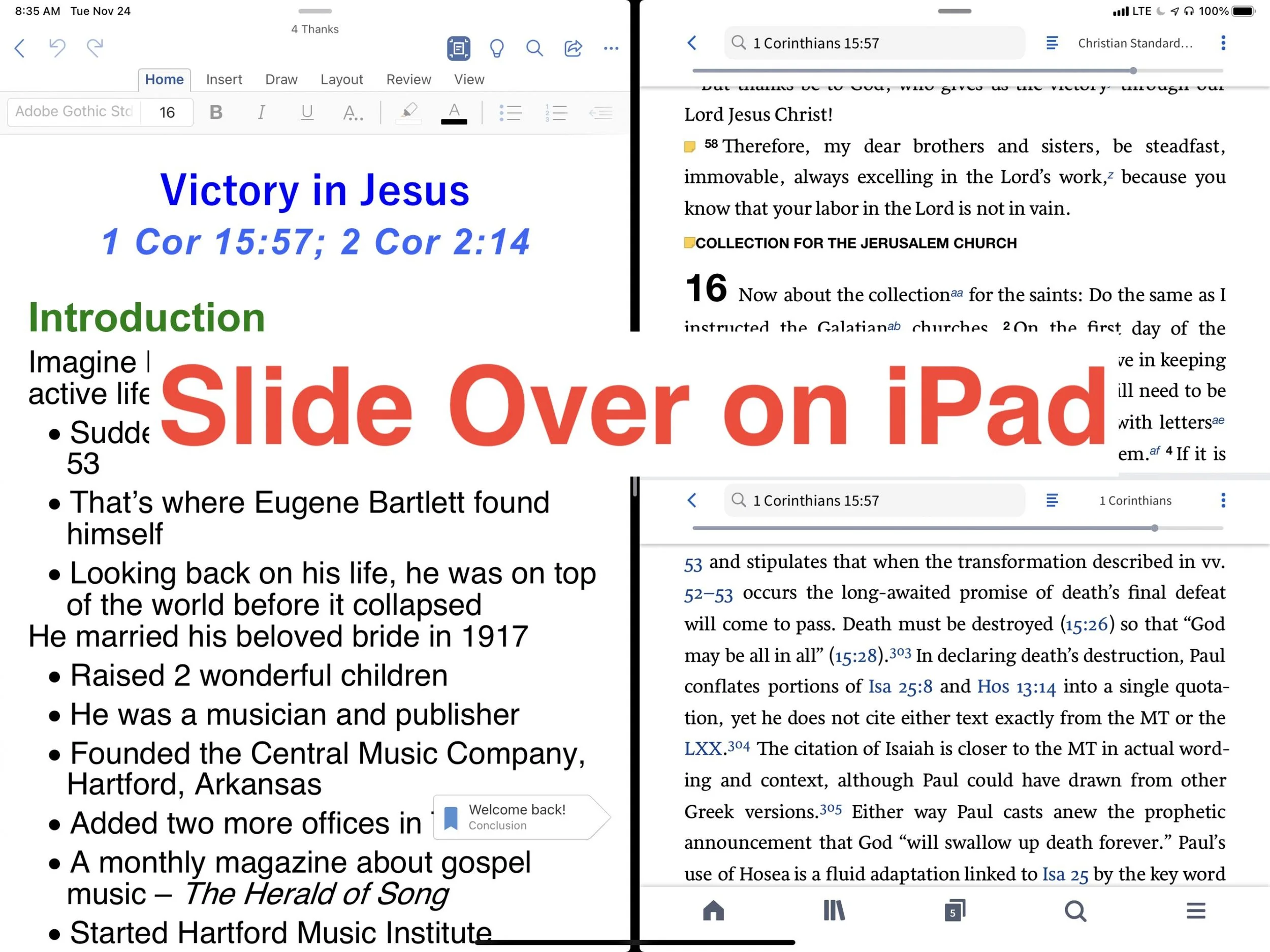
Do you use Slide Over on iPad as you study the Bible? If not, you should because it can increase productivity. Take a look at the following tips for effectively using Slide Over on iPad as you study the Bible or do other tasks on your iPad.

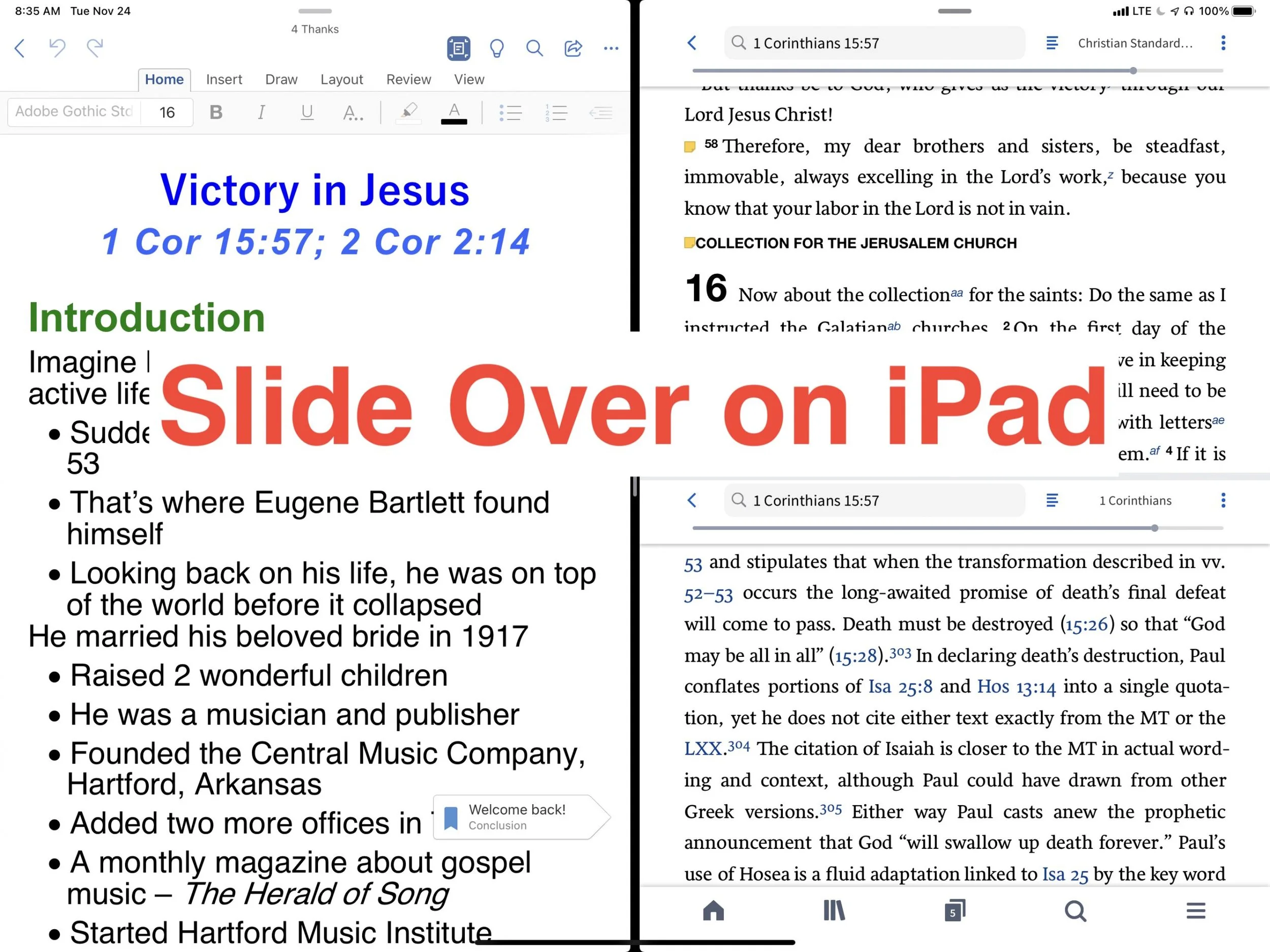
Switching back and forth from your Bible study app to your word processor or other mobile apps, while prepping sermons feels laborious. However, thanks to Slide Over with iPadOS digital Bible students can productively work with two apps at a time on larger iPad screens.
What is Slide Over on iPad?
When Apple released the first version of iPadOS more than a year ago, they perfected a feature called Slide Over. Think of it as two apps on the screen at the same time. Apple didn’t do it first, but iPad users found it cumbersome to use in previous releases.
The iPadOS will show you two apps at once. You can view them with both apps taking up half the screen or you can view them with one covering two thirds and the second app covering another third. The smaller window can sit on the left or the right side of the screen.
How do You Turn On Slide Over?
To open an app in Slide Over the app has to show up in your iPadOS dock. The dock sits at the bottom of the screen and holds all of your favorite or most-used apps plus three of the most recently used apps.

I keep my most-used Bible study app in the dock. But if you want to use another Bible study app that you don’t have in the dock, then open it first. Now slide up from the bottom of the screen slightly. You see a black line just above the bottom edge of the screen start swiping from that line and swipe about half an inch or so until you see the dock. Tap and hold a second app from the dock and drag it up to the right or left side of the screen. If a menu pops up then keep dragging up and over to the side of the screen.

The screen will show your two apps each taking up half the screen. If you want to adjust the size of the apps, drag from the line in the middle of the screen to the right or left to make one app smaller than the other.
When do I Use Slide Over in Bible Study?
I own a few Bible study apps that I regularly use in my sermon and Bible study prep. Sometimes, I want to read books in one app, but keep all my notes attached to the passage I’m studying in the same app. So, I open the app where I want to keep my notes and then I open the other app. That way I can read the second app while writing notes in the first.
During the sermon or Bible study writing phase, I’ll open Microsoft Word and my Bible app where I’ve kept all the study notes. That way I can easily refer to the notes as I write my sermon or Bible study.

Sometimes I want to research some idea on the web in order to come up with an interesting sermon illustration. I keep Word and Safari open at the same time. Sometimes I’ll open a video in YouTube or some other streaming app to quote the video in my sermon. Any app you might use it prep a sermon that supports Slide Over can be opened.
If I’m presenting while preaching or teaching, I’ll open Keynote and my sermon in Word at the same time. Or, I open Keynote and Safari to drag and drop images from the web as I put the presentation together.
Tips for Using Slide Over
You can master Slide Over with the following tips:
- Open apps not in your dock before trying to use Slide Over so they will appear in the recently used section of the dock on the right where your three most-used apps show up.
- If one app doesn’t need half the screen, give more screen inches to the other app by sliding the center adjustment line over a little.
- Set up multiple app combinations for Slide Over and use the switching feature to switch between these multiple app combinations.
- You change one of the two apps into a floating window by dragging from a small dark line at the top of the active app by pulling down slightly and hold it till it pops from the side to a floating window. Grab the line and pull down and to the right to put it back.
- While in the floating view, you can remove the window by swiping up or down to swipe it away.
- Move an app from one side to another by dragging it from the tiny black bar at the top and then slide it over to the other side of the screen until it snaps into place.
- Create multiple pairs of windows and swipe between them the same way you would swipe between apps.
Best Bible Software for Average People in the Pew
What are the best Bible software apps for people who aren't studying the Bible to preach or write a commentary or teach in seminary? This roundup of the best Bible software for the person in the pew will answer your questions.
What is the best Bible software for people in the pew? That question doesn't get a lot of attention, especially here. However, I want to change that with this post. What are the best Bible software options for the lay Bible student? These all run on one of the most popular platforms - Windows, Mac, iPhone, iPad or Android. A few will run on all of these platforms.
Advanced Bible Study software gets most of the focus on this site, but plenty of Bible students don't need the high-powered scholarly Bible study software that a pastor, researcher or Bible translator needs. They only need to do a few things like...
- Search for verses
- Read the Bible
- Study the Bible for teaching a class
- Writing blog posts
- Personally study the Bible
These lay people want more than a simple Bible reading app but don't need as much as the expensive and powerful suites offer for hundreds of dollars. If you're interested in simple Bible study apps to just read the Bible, look up some verses by searching by word or topic, and creating a reading plan, then take a look at my list of the best simple Bible apps that I published over at ChurchTechToday.com. Our purpose in this post is to look at the apps and software that fit between those simple Bible reading apps and the powerful tools that scholars and pastors need.
Olive Tree Bible
Olive Tree Bible fits in an in-between spot. A Bible study software user can get past the simple or basic Bible study level, but it really shines for the user who wants more than just reading plans and sharing to Facebook. You can do both of those, but you can do a lot more.

It runs on almost every platform from computers to smart phones and tablets. The app or software costs nothing and you'll get some public domain books for free plus a modern Bible or two. To get a little more advanced you need to pay for extra commentaries.
Open the app on your computer or mobile device and you can just read the Bible. You can also open the Study Center (the right hand section in the image above) to look at the Resource Guide where you'll find all the books in your library related to that passage open in the current Bible.

Tap or click on words to search, look them up in dictionaries or find out what a Strong's tagged dictionary says about the world. This lets users who don't know Greek or Hebrew understand the original languages behind the English words. You'll need a Bible with Strong's numbers tagging, like the KJV seen above. Olive Tree sells a lot of them.
Keep notes or highlight. You can also bookmark verses. If you enjoy listening to books, then buy some audio books to hear the book instead of read it. They have a lot of titles in the Christian Living category. You can also listen to your Bible or to other books.
Olive Tree Bible runs on all of the top platforms with a free app download and costs extra for the best books.
e-Sword
The top dog in free apps deserves a spot in our list of the best Bible software for lay people because it's free and easy to use. In addition, if you want to spend some money, you can buy some more modern translations, books and commentaries at eStudySource.com.
e-Sword comes with a simple layout in four quadrants plus a list of the books of the Bible along the left. In each quadrant, you get tabs for each Bible or book installed. On each tab you'll find a book or Bible with a toolbar for performing basic tasks.

The program's main toolbar lets users search the Bible or book, jump to passages or change the layout. You don't have to use the four main quadrant layout. You can show just one, two or three as well.

If you use a Bible with Strong's numbers, then you can click on it to see the definitions in a tooltip popup. Also, scripture links in the other books will show up as links. They have tool tips too.
e-Sword has a user note system, bookmarks and highlighting too. Take a look at see if it will fit your needs. The Windows version is totally free. The Mac version is called e-Sword X and will cost $9.99 from the Mac App Store. I wrote about it when it first came out for Mac. The iPad app costs $4.99. Look for e-Sword HD in the app store. The version that runs on an iPhone costs $2.99 in the iPhone app store.
I love that there's a large community of users who've made their own books out of public domain books. Check out eswordlibrary.com, one such source. And you can buy modern translations and recently published commentaries, Bible dictionaries and more from eStudySource.com as mentioned above.
Wordsearch Bible
Wordsearch Bible software offers a lot of power in a simple to use package. However, it only runs on Windows and Mac. There's also a very poor mobile version for Android and iOS, but don't bother if that's where you want to study the most. Also, if you're a Mac and iOS user only, I don't recommend it because it's not a native macOS program. They created it using the Windows software and put it in an emulation package. I include it here, because on Windows it's great! Also, for Chromebook users or Mac and iPad users, MyWSB.com gives access to your library on the web inside a browser. And it's pretty good.
Wordsearch 12 opens by default to a homepage, but the real magic come with you click on the Study tab or Library tab across the top of the windows. They also have links to their social media (bottom right) and app store sites for their mobile and online versions of Wordsearch.

The main Study screen has a Windows Explorer style layout with the Bible displayed on the right and the library and books shown on the left.You can show or hide both of these lists.
Other great features include...
- Parallel Bibles
- Templates to save your study environment
- Integration with OneNote for syncing files
- LessonMaker tool to quickly create studies
- Powerful search features
- A large library of books with a lot of free options
- Free training online
PocketBible
The first Bible study app I ever used came from QuickVerse. The creator of QuickVerse saw the value in mobile Bible study early on before the iPhone even existed. Now you can use PocketBible on all platforms including Windows, Mac, iOS, and Android. It comes from Laridian and the creator, Craig Rairdin is a pioneer in Bible software.

Notice above that the app can show a lot on screen at the same time. This is true, not only on Windows and Mac, but also on the iPad and Android tablets. Few mobile apps let you view more than one or two books at a time.
The mobile version is also very capable. You can use it on iPad, iPhone and Android.
You can use the “Advanced Feature Set” that comes at a small upgrade price of $17.99 on all of these platforms. It’s slightly less on just one platform. There’s a journal feature, an auto study feature that finds all of your books with content related to a particular passage or a word. There’s an audio Bible included. On iOS you can use a reading mode that shows only the text on screen without the toolbars for a distraction free environment. There’s more so check it out at their website related to the advanced features.
3 Best Android Bible Study Apps for 2019
Here are the 3 best Android Bible study apps for 2019. This focuses on serious study and not just Bible reading apps.
It's been a while since we rounded up the best Android Bible study apps so lets take another shot at it for 2019. This list of the best Android Bible study apps for 2019 includes Bible study apps as opposed to Bible reading apps. What’s the difference?
- Study original language with more than just Strong’s
- Offers modern translations and powerful searching
- Offers modern scholarly, pastoral and devotional commentaries
- May also offer other eBooks and digital reference books like dictionaries, lexicons and atlases
Please note that we've updated this to the 5 Best Bible Apps for Android. Click here to see it.

Many Bible apps will include a few of the above, but they usually only include public domain or just one or two. Instead the Android apps we're offering helps users study the Bible on a deeper level. A scholar or pastor could use them while mobile. Maybe they won't fully replace a desktop Bible research tool, but they can help the studier stay productive on the go while they wait at a restaurant for a spouse who’s shopping or while sitting in the car picking up their child from school or soccer practice.
To test these out and compare them, we'll give them a score of 1 to 20 in a five different areas.
- Ease of Use
- Cost of Ownership (app plus books)
- Quality of Features
- Library Size and Quality
- Attractiveness of the App’s Design
To get a full score in each of these the app would mean the app’s perfect in that area. So let’s take a look at the 5 Best Android Bible Study Apps for 2019!
Olive Tree Bible
It's not surprising that we'd put Olive Tree Bible (Free plus cost of add-on books) on this list since it made our list of top Kindle Fire Bible apps.
Olive Tree looks beautiful on most platforms. It's not as pretty on Android as it is on other devices, but does look nice and professional. You can tell that designers made the buttons and menus instead of just coders cobbling together something that's functional.

Olive Tree does a great job of quickly showing the user all of their content thanks to the Resource Guide. This section looks at the current passage and then display all the content in the user's library related to that passage. You can quickly find all the commentary entries, all the cross references and more.
For original language study, you tap a word with Strong's tagging added and a popup will show a definition of the Greek or Hebrew word. This will also let you look the word up in other lexicons and dictionaries as well as search the Bible for that word.
It's one of the easiest of the five to use, but could be easier. For example, it's a little clunky to add personal notes. A pop up note editor blocks your content. You can also use the Resource Guide to add and view notes, however, you can't do that and see your Bible and commentary or lexicon or dictionary at the same time.
The app is free but add-on books cost extra. They aren't the most expensive, but you can end up paying thousands for a scholarly level library. The company offers one of the biggest libraries of add-on books and their not just public domain books. You can get high-quality content.
Olive Tree packed more features into this app in a way that's easy to get at them.

- Ease of Use - 3
- Cost of Ownership (app plus books) - 2
- Quality of Features - 3
- Library Size and Quality - 4
- Attractiveness of the App’s Design - 3
- TOTAL SCORE - 15
We could say a lot more about this excellent app. Instead read my full review over at ChurchTechToday. Also see the video above.
Logos
Faithlife publishes the Logos Bible suite of apps. They don’t just offer one, but multiple apps. You can get the following apps.
- Logos Bible Study Tools - their main app with more advanced features.
- Study Bible by Faithlife - the same app with a focus on their Faithlife Study Bible book which is a nice study Bible.
- Verbum Catholic Bible Study - Like the main app (first above) but focused on Catholic students.
- Faithlife Ebooks (formerly Vyrso) - Focused mainly on reading eBooks instead of serious Bible study and not recommended for this list.
Logos offers an excellent collection of training videos, so that's one of the best ways for you to learn more about the Logos Bible apps.
The app opens to show you how to the main features work the first time you start it. Then it shows the main home page. From there you can use the tabs at the bottom to view the various sections of the app.
The app shows Bibles and books in a tabbed environment. The center button is where you open these tabs. You can connect them so they all advance to the same passages or just connect certain tabs.
The library shows all your books and lets you check out new books in the store. There's also a store button on the toolbar of the app. Open the menu to see all the advanced features like the Passage Guide (looks for content related to a passage and shows a list of entries), Exegetical Guide (same as passage guide but focuses on language study tools) and more.
The app includes a ton of features. In fact it's the most feature packed app in our roundup. You can use things like...
- Atlas
- Prayer lists
- Clippings (collections of things you find in your study)
- Word studies
- Text comparisons (show more than one translation at a time)
- Audio books
- Courses (Faithlife has a rich collection of high-quality courses similar to what you might get in a seminary or Bible college)

We scored Logos as follows:
- Ease of Use - 2
- Cost of Ownership (app plus books) - 2
- Quality of Features - 4
- Library Size and Quality - 4
- Attractiveness of the App’s Design - 2
- TOTAL SCORE - 14
We're just scraping the surface in this description. Take a look at my post about which Logos Mobile App to Use and my series on how to do creative digital sermon prep using Logos. I also wrote a review last year at ChurchTechToday.
Accordance Mobile
Accordance Mobile brings us one of the latest entries into the Android Bible app space. Their iOS version never really measured up till recently, but now they're doing a great job on both iOS and Android.
The app seems deceptively simple at first. However, under the hood, it has a lot of advanced features for you to discover. You can view two books at once with the main book and secondary book syncing up to scroll through a passage together if you wish.
Tap on verses to get more study options and tap on words to learn more about the word, especially if the Bible has strong's numbers attached.
The powerful Accordance search engine comes to mobile in the app. They're still adding more advanced features and it's growing more powerful all the time.

Here's how I'm rating the app:
- Ease of Use - 2
- Cost of Ownership (app plus books) - 3
- Quality of Features - 3
- Library Size and Quality - 4
- Attractiveness of the App’s Design - 3
- TOTAL SCORE - 15
While the app looks deceptively simple, it does have some powerful features. However, it's not as strong as it could be. In a year I expect that to change. You also have to play around to discover the advanced language study features it does have. Be sure to check out their excellent tutorials. Accordance also offers a great library of add-ons available to buy at great prices. If you already own a book on another platform, ask the company and they will likely give you a deal. I've saved hundreds by buying that way from Accordance.
I should probably add a category for support, because Accordance really shines in this area with some of the best training post purchase of any of the companies. They have live webinars both online and in person. Here's a recent podcast covering the Accordance Mobile app on iOS.
Here's a link to an episode of their podcast covering Android.
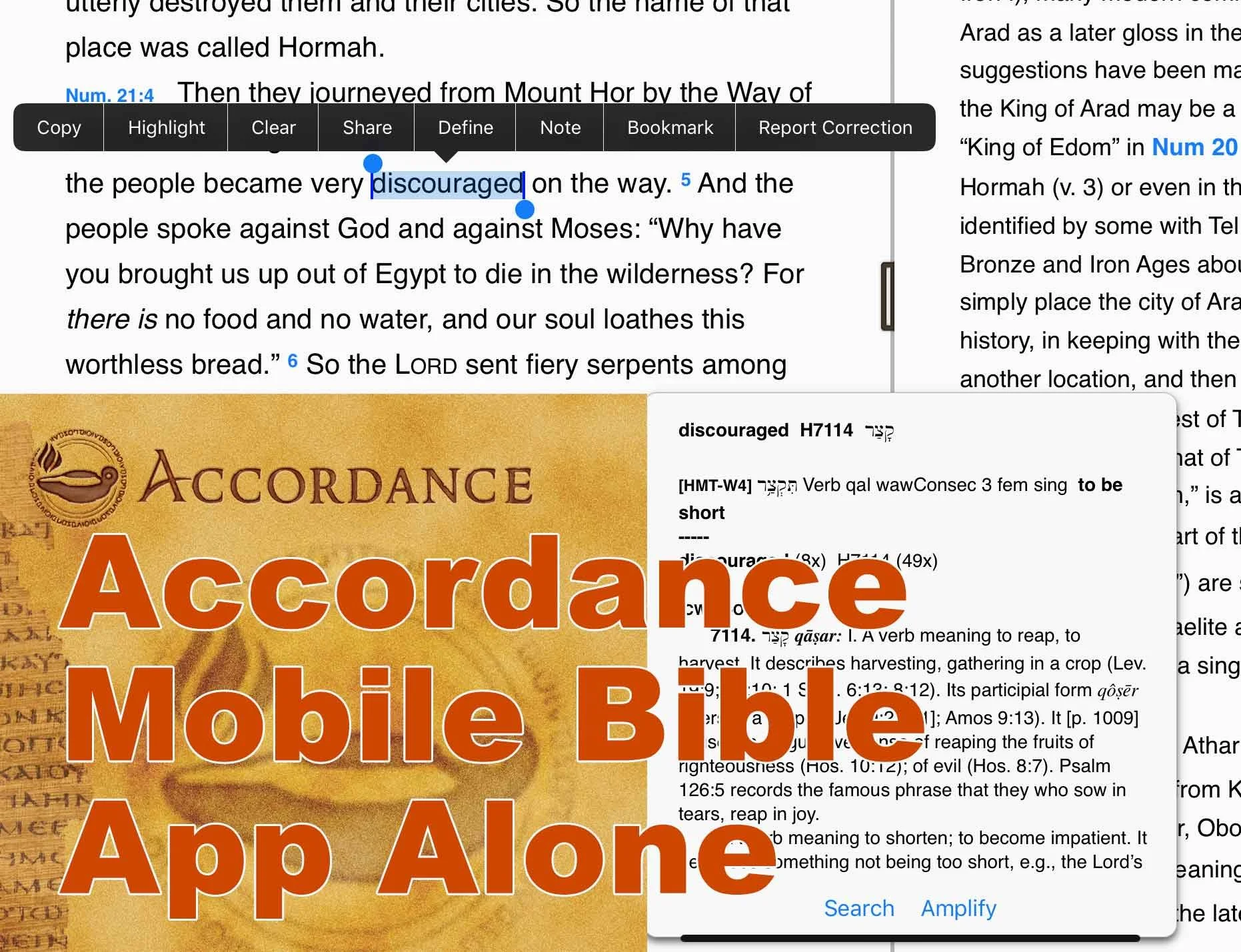
Accordance Bible Software 25 Day Switch Part Two - Accordance Mobile
While switching to Accordance Bible Software for the next 25 days, I will use Accordance Mobile alone as my iPad Bible study app. How does it handle sermon prep?
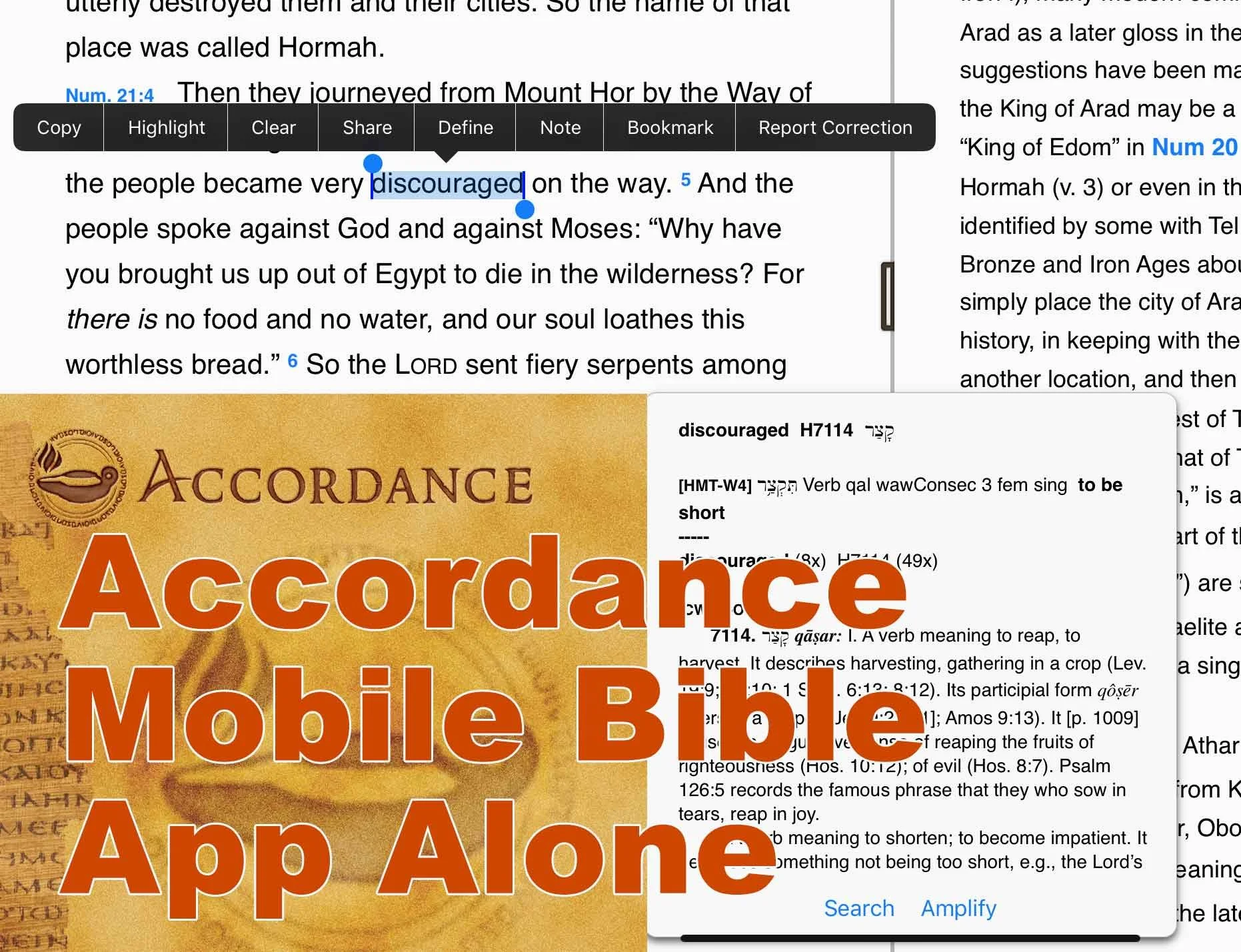
If you read the first post about why I'm testing out Accordance for 25 days, then you'll know I vowed not to open my primary Bible software until it's over. That means I'll use the Accordance Mobile apps instead of the Logos Bible app. My previous entry covered using the Notes feature in Accordance.
Awhile ago I wrote a review of Accordance Mobile for ChurchTechToda.com and gave it a high rating. That review happened while I was also using my other Bible apps. This is the the first time I've used no other Bible app. Accordance Mobile alone! If you want a full review, go to the ChurchTechToday article. Instead this will serve as a comparison. See this as my strengths versus weaknesses of Accordance Mobile.

Please see my review of the NAC Studies in Bible & Theology in Accordance.
Accordance Mobile User Interface
Accordance Mobile looks so simple it will surprise you how many features they pack into the mobile app. It deceptively looks like a simple Bible reader app that also happens to let you open other books. Yet, I recently wrote a sermon primarily using Accordance Mobile to read follow my sermon prep steps which include:
- Reading the text in multiple translations.
- Studying the passage inductively by recording observations in my app's notes.
- Asking key interpretive questions about the text and finding answers in references books, other than commentaries.
- Checking commentaries to make sure my interpretive decisions up to this point are not way out in left field.
- Copying the passage and other supporting verses to my chosen word processor.
- Writing the sermon in my word processor.
- While I probably won't choose a mobile app for 100% of my sermon prep, I enjoyed using Accordance Mobile on my iPad. It works great. Let's start with the ways it excels.
Strengths of Accordance Mobile

All of my books reside on the iPad which makes the app fast. I navigate to a text to study it and the apps jumps to the new spot in my Bible instantly. I keep two window panes open with my favorite commentary in the right side and the Bible in the left. Both books jump to the new passage faster than I can tap the book, chapter and then verse in the navigation tool.

Doing word studies happens with a long press on a word. Above you'll notice I selected the word discouraged in Numbers 21:4 in the CSB. You'll see a popup box with the word study info from your top books. There's also a menu above the word. This menu doesn't help with word studies, but you'll see that you can do other things like "Define" the word in English.
You can also open a Hebrew or Greek text and do the same with Hebrew and Greek words. On those words, tap the Amplify button to see more details. Here you can study the Lexeme, Inflected word or the Root. The first pop up box also lets you choose to search for the word. It will search the English term in hour English text. If you have a Greek or Hebrew text open it will let you search by Lexeme, Inflected form, Root or the Tag.

The will let you share verses. Tap and hold on a verse number to do this. The top of the pop up menu let you add verses to the beginning or end of the chosen verse. That way you can copy a range of verses.
Finally, the Accordance system publishes an excellent collection of digital Bible study tools from every Bible text you probably want to a more commentaries than you can use. They have excellent reference tools and every tool I want to use works in my Accordance Mobile app.
People who want to also make a switch can jump from their chosen Bible software to Accordance by taking advantage of some crossgrade discounts. a crossgrade is like an upgrade, but instead it's buying a book you own in another company's library for a discounted price for use in Accordance. I saved hundreds of dollars over the years by taking advantage of this. I purchased the New American Commentary, Bible Speaks Today and more.
Compared to the Logos Mobile app, Accordance feels simpler and yet has some of the same powerful features. It's also not as cluttered. That said, I suggest the developers consider a few improvements.
Accordance Mobile Bible App Problems
As we noted in the post on Notes, you can't open your User Notes in the right hand window pane and edit it within the pane. Accordance has a real problem with this. You also can't do this on their desktop app.
At least on the desktop app you can open open it, click at an insertion point and start typing and the note's editor window pops up. On the mobile app you have to long press on the verse number and choose User Notes from the menu. Then you have to tap on the name of your User Notes document and it will open a pop up window that covers most of the window.
UPDATE: Please see the user comments below where Rick Mansfield from Accordance tells how to see your text. This makes what I wrote next less of an issue.
The Accordance Mobile notes user interface is a terrible design choice because I can't see the text of my Bible or a commentary while I'm typing in the note. It's the least usable notes user interface of any advanced Bible study app out there.
Since writing my last post on Accordance Notes, I've decided to stop using the notes function built into Bible software. Instead, I've started using Scrivener to record my sermon notes. I'm following a system that my friend a member of the Theotek Podcast team Wes Allen uses. See the video above for how he does that.
Accordance Mobile lacks one feature that I miss from Logos. On the Logos mobile app you can open their Text Comparison tool and read your passage in multiple translations seeing them all on screen at the same time. The desktop version has the new Text Browser tool. Select a verse and choose Text Browser from the Amplify drop down menu to open it.

Accordance added the Text Browser to appeal to Bibleworks users after that company announced they'd stop selling the program.
Logos offers a few other features that we don't find in Accordance.
- New tabbed user interface which lets you open more than two books at one time.
- Guides to help you study a passage or topic more quickly.
- User edited reading plans for Bibles and books.
I don't mind losing these features, but I mention it in case Logos users would feel limited in their study without them.
Olive Tree Bible searches your entire library and presents them in a easily accessible way thanks to the Resource Guide. We don't get anything like that in Accordance Mobile.
Conclusion
The desktop Accordance program goes toe-to-toe with the other Bible programs quite nicely. The Accordance Mobile app still lags behind a little. In spite of that, you can study the Bible using nothing but their iPad app. I wouldn't try doing it all on an iPhone or Android phone due to screen size, but I enjoyed doing my sermon prep last week with nothing but the Accordance Mobile app on my iPad.
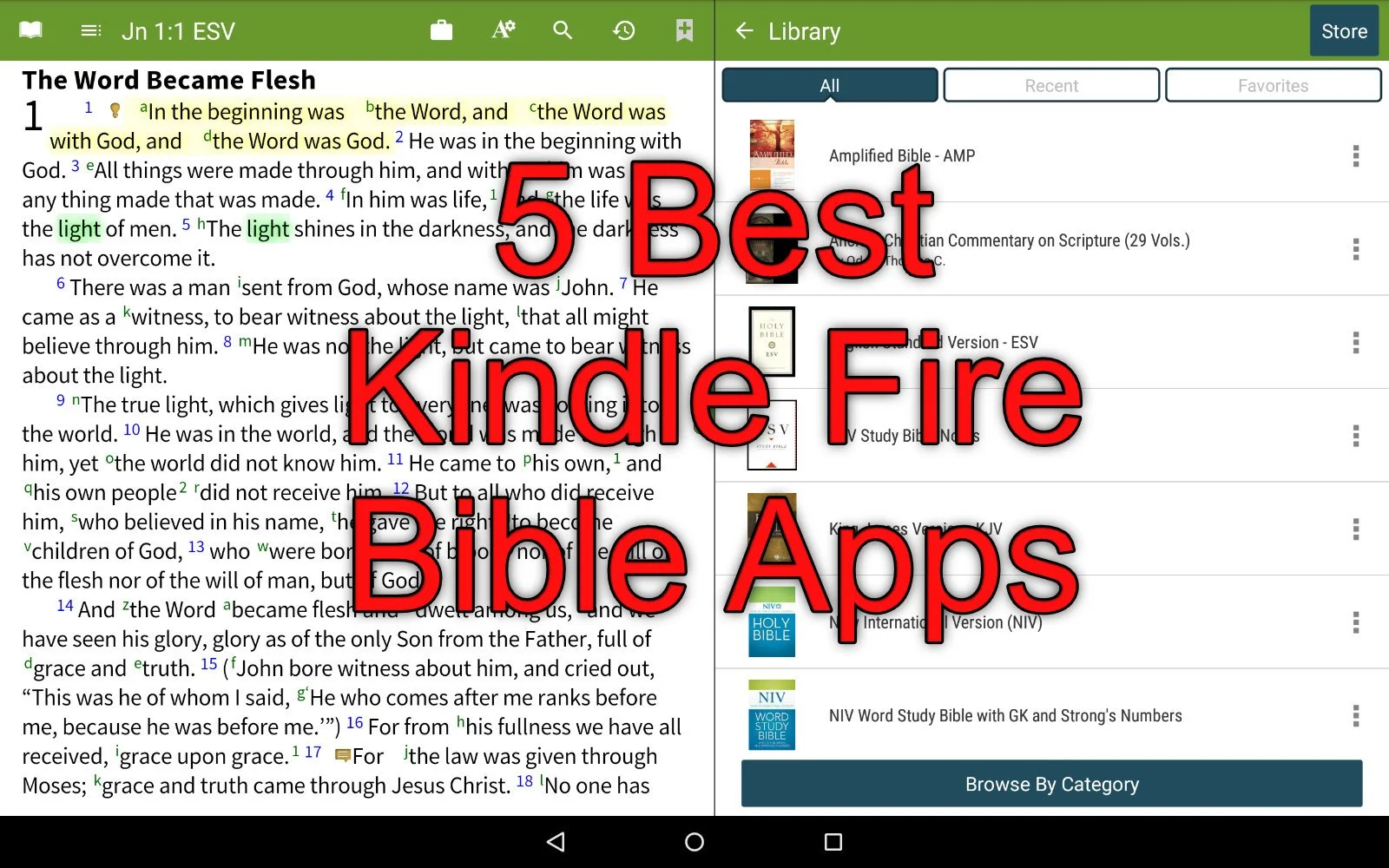
5 Best Kindle Fire Bible Apps
Would you like to find a great Kindle Fire Bible app? We've got the five best Kindle Fire Bible apps for you plus one app you should avoid for awhile.
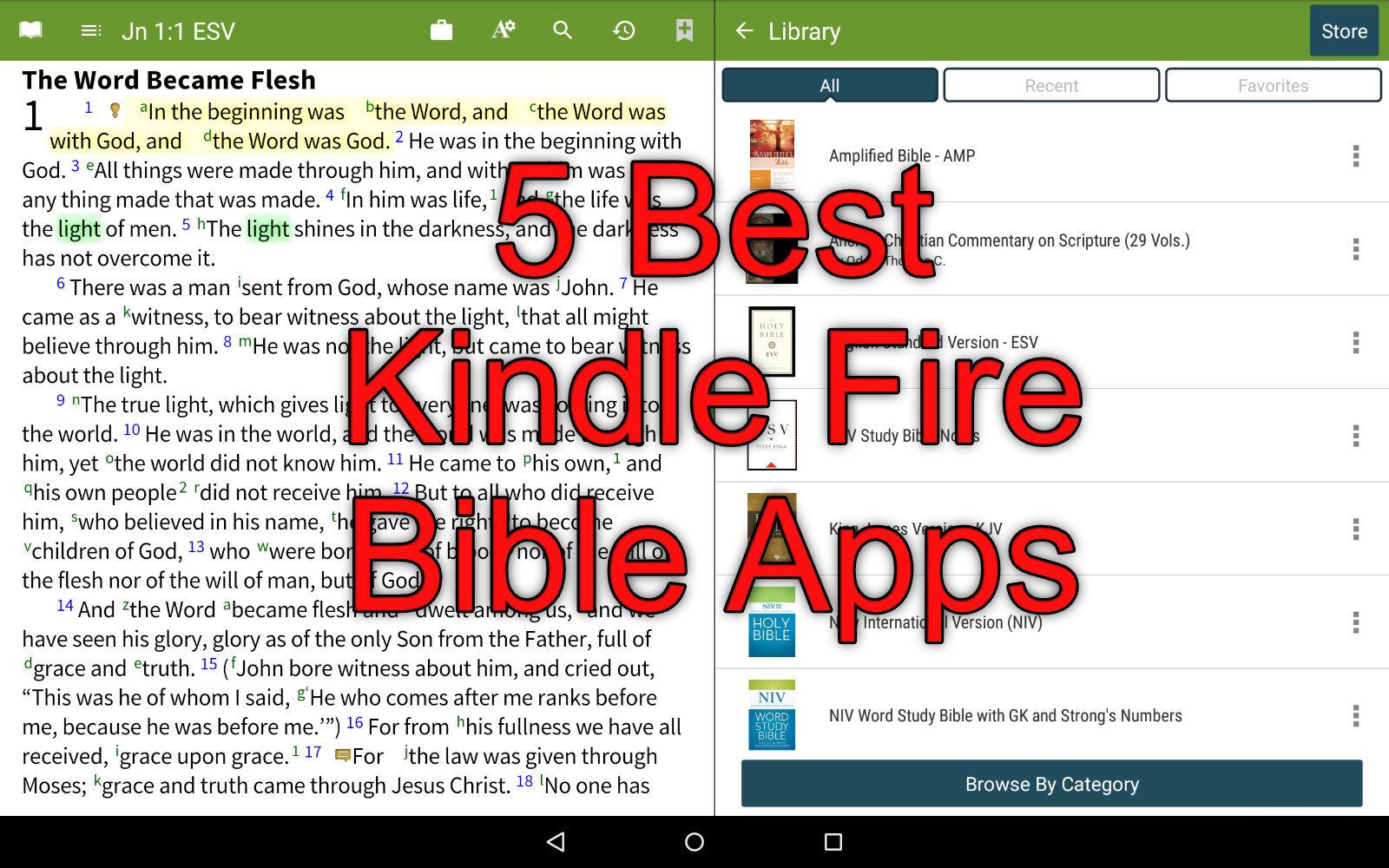
The Amazon Kindle Fire appeals to people who like the idea of a tablet to read books, watch movies and do some simple things like surfing the web and checking their email. You can also play games. But how good does the Kindle Fire do for Bible Study apps. We've got the 5 best Kindle Bible Study apps that run on the Kindle Fire.
A Kindle runs a heavily skinned version of Android. The Fire OS runs Android 7.1 Nougat, which lags a few generations behind. Google released Android Pi in 2018 and will release unnamed Android O this year.
The fact that Fire OS uses Android means many Android Bible apps will run just fine on the Kindle Fire. However, the app creator must choose to send their app to the Amazon Kindle App Store, which has some of the most stringent evaluation processes of any App Store. This leads many app developers to ignore Amazon.
The following apps come in no particular order. I chose them based on…
- Price of the app plus add-on books
- Size of library
- Quality of the app and its features
- Stability and speed of the app
- Olive Tree Bible Reader
- Accordance Mobile
Bible by Olive Tree
The best Kindle Fire Bible app comes from Olive Tree. Bible by Olive Tree includes a simple user interface but also includes powerful enough features to let Bible students study the original languages and use most of the best commentaries available on mobile devices today.

The modern translations and better commentaries or other reference books will cost extra. They offer free books and even some language study tools for nothing extra. However, the Olive Tree library carries more resources than the other apps here.
Open your favorite Bible and then look at the Resource Guide, available along the right or bottom (depending on whether you hold the Fire in landscape or portrait mode). The resource guide will find all of the books in your library that include info about that passage.

The user can do the basics, like highlighting, searching, take notes, sharing verses and bookmarking. Add to that the excellent user of the tap and hold to work with the text and the resource guide, and you get an awesome Bible reading and study experience on the Amazong Kindle Fire.
Accordance Mobile

The Accordance Mobile Bible app gives users access to their Accordance books for free. Even Kindle owners who don't own any books on Accordance can download it for free and get some free books. Sign up for an account for free, also, and you'll get a few more books. However, it works best if users invest in the Accordance ecosystem on Mac or Windows.
When you see all it can do, you'll likely agree it's the best app for advanced Bible students while remaining simple enough for the average Bible reader. I prever the user interface of Bible by Olive Tree above, but Accordance comes in at a close second. The app's description lists the free resources. I quote it here:
The following free resources are included in your initial download of Accordance Mobile for Android:
• ESV Bible with Strong’s numbers (ESVi)
• World English Bible (WEB)
• Samples of the Greek New Testament and Hebrew Bible
• Easton’s Bible Dictionary
• Outlines of each book of the Bible
• Margin notes and cross-references
• Bible Lands PhotoGuide Sampler
• Kohlenberger/Mounce Concise Hebrew–Aramaic Dictionary
• Mounce Concise Greek-English Dictionary
• BiblicalTraining.org
If you register an Accordance account, you will also be able to download a free Android Starter collection including:
• The 1901 American Standard Version (ASV)
• French: Louis Segond Bible
• German Elberfelder 1905
• German Lutherbibel 1912
• Greek and Hebrew Strong's Dictionaries
• Hitchcock's Dictionary of Bible Names
• Nave's Topical Bible
• Portuguese Bible: João Ferreira De Almeida Atualizada (ALMEIDA)
• Spanish 1909 Reina Valera with Strong's numbers
• Dr. J's Bible Study Methods
• Maps Sampler
• Timeline Sampler
• Chronological Readings
• Devotional Readings
• Classic Passages
• Parables & MiraclesFrom Accordance Mobile page in Amazon App Store
You can read the Bible and search for words, topics and even more powerfully search for tags, lemmas and more.
The app lets you open two books at a single time and set it up so the app will scroll the two books together as you move through a passage. The Bible will cause the other book, like a second text, a commentary or study Bible, showing the information about the same verses displayed in the Bible.
Tap and hold on the word and you'll get a toolbar open up. Tagged English Bibles will let you look up the word based on the Strong's number. Greek and Hebrew words will let you see morphological details.
There's also a simple way to share text outside the app.
YouVersion from Life Church
The YouVersion Bible app from Life Church is the most popular Bible app available. It's not a powerful Bible study app, but it does a great job for people with simple needs.

The app is totally free and lets you download modern translations like the NIV, ESV, CSB, NKJV or NLT. You can also get the public domain books like the KJV. They don't offer Greek or Hebrew texts for original language research.
Life Church's apps excels at giving users a good Bible reading experience with a plethora of devotional reading plans. It also will share the app in beautiful mean-style images with text.
People who like to highlight and take notes in their Bible can do so with the Bible app. These will sync with the ministry's Bible website.
Do you want to keep up with another person's Bible reading? This helps with keeping one another accountable and YouVersion makes this simple. Follow one another and share your reading progress.
Because the Bible app's totally free, it also doesn't include things like language study, commentaries or other books to help you study beyond basic reading. You can listen to the Bible in the app.
Tecarta Bible
I use this app the least, but it always shows up as one of the most popular apps. It's a step above the Bible app from YouVersion, but below Accordance Mobile, Olive Tree and other more advanced Bible study apps.

Tecarta Bible costs nothing to download the basic app on the Kindle Fire. However, the more modern translations will cost the user. If you want to read the NIV, ESV, NLT, CSB or other modern translations you'll pay through either in-app purchases or on their website.
The user interace looks attractive and simple enough to learn quickly. Users can read, search, bookmar, take notes, highlight and study using commentaries and Strong's tagged Bibles (KJV and NASB).
Tecarta offers a subscription service that costs $5/month or $40/year. The first month is free. That's an interesting deal, but might get costly if you don't need a lot of books. Head over to their store to judge for yourself whether buying a few books or subscribing the premium offering works best for you.
Bible Gateway
Like Tecarta, Bible Gateway offers a subscription model for accessing books other than the ones that come free with the app.

The app focuses on Bible reading with a verse of the day feature on the main screen. Listen to the Bible or read following one of their many reading plans. You can also share verses through the app to social media.
When you subscribe you'll get access to more modern translations and some nice commentaries.
Like all the other apps, users can read, search, notate and highlight the Bible. Run the app with two books open on screen at a time. They will follow one another as you scroll through the book. Share verses with socila networks or family using your phone's sharing feature.
Where's Logos Bible?
A lot of people who read this site will ask, "Where's Logos?" I put it on my list best apps in more than one place. On iOS and more traditional Android phones and tablets, it runs well and would easily make this list. The app does not work well on a Kindle Fire.
I own the latest version of the Kindle Fire - the 2018 Kindle Fire 8. I bought it because I no longer own a Chromebook or Android phone. Instead of paying $150 for a cheap Android tablet or $550 for the Samsung Galaxy S4, the best Android Tablet for sale now, I chose to get a cheap Kindle Fire.
The Fire showed up in my mailbox so I opened it up and loaded the Logos Bible app on the tablet and fired it up. It takes a few minutes to set up in the background. So, I put down the table and let it do its thing. Then I downloaded a few books and opened up my favorite Bibles and Study Bibles the way I like.
Later, I came back to my newly setup Kindle Fire 8 and fired up the Logos Bible app and it took forever to load. Then it immediately crashed. A few attempts at restarting the app failed so I restarted the Kindle Fire and it loaded this time. But the app takes forever to do anything.
Some will tell you that the Logos Bible app needs to "phone home" meaning it connects to the Logos servers to a lot of what you want to do with the app. I downloaded books to the tablet and tried to run using only those books. The app still chugged along like a school bus loaded with 8 year-olds who are my size climbing the Appalachian Mountains along I-40 near my house. It can get there, but it won't be fast. It also seems to just stop for long periods of time.
You may not have any of these problems. I'd like to see a video of the Bible app from Logos running fine on your Kindle Fire. Post a link in the comments below and if I get a few I re-evaluate my situation and my chose to leave it off this list.
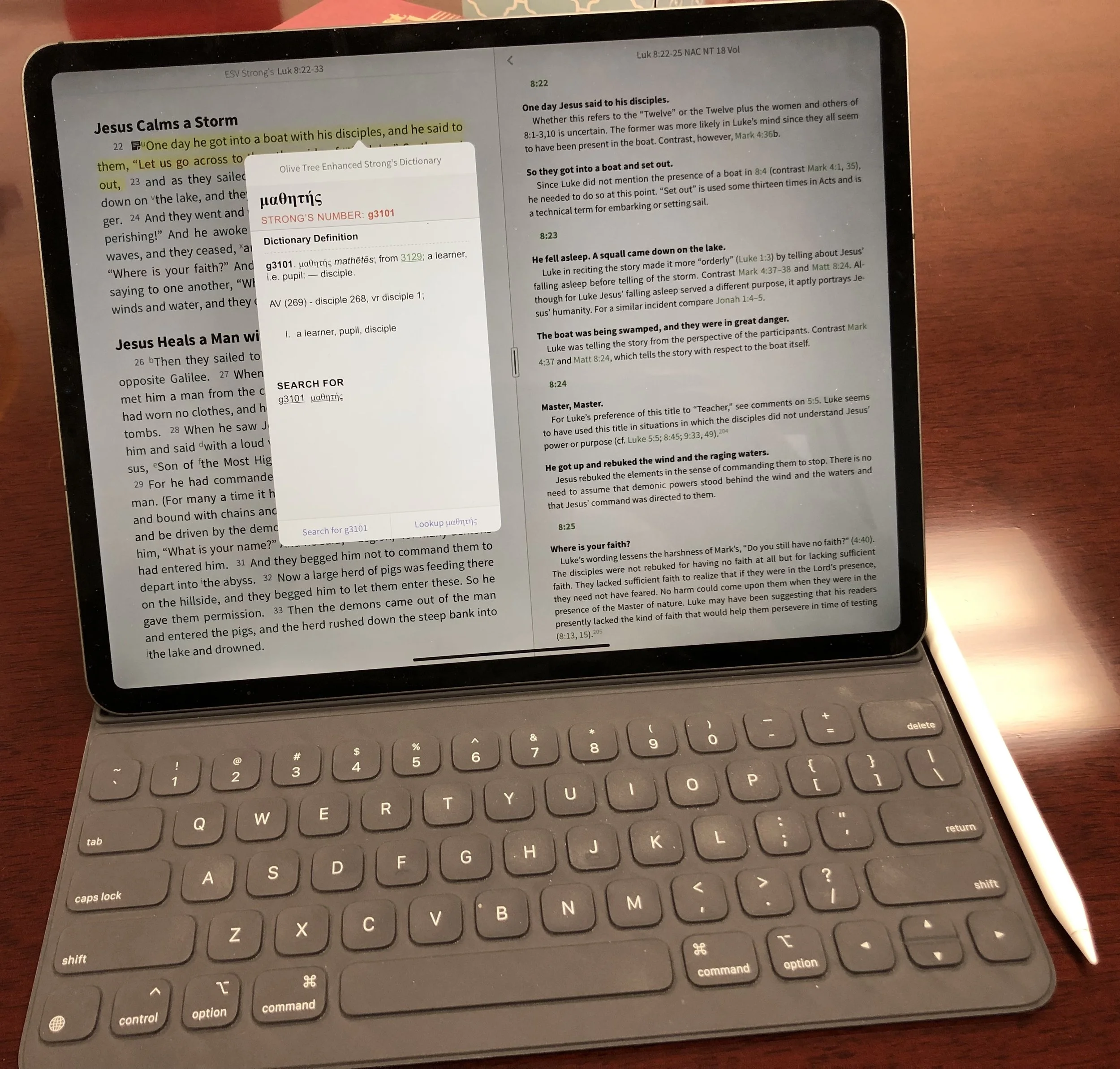
New 2018 Apple iPad Pro for Bible Study
The new 2018 Apple iPad Pro is getting a lot of love from reviewers. How well does it handle Bible study? We’ll look at it from a pastor’s perspective.
The new 2018 Apple iPad Pro is a beautiful piece of hardware and works great for Bible study, sermon prep and general use for pastors and ministers. In fact, I'm really tempted to make it my primary computer for 90% of what I do.
Is the New iPad Pro Better for Bible Study?
Not really! The major difference between the older iPad Pro and the new 2018 Apple iPad Pro comes from the speed and size and the new Pencil. Apple gave it a little facelift to modernize the look.https://youtu.be/HoLs0V8T5AAAn Apple A12X Bionic CPU powers the new 2018 iPad Pro, or as some say it over powers it. That's sounds really cool and gives me memories of Steve Austin, the Bionic Man (see video above) running really slowly as that wonderful music plays behind him. However, there's nothing slow about this chip. I did a review of Olive Tree Bible Study for all the platforms they support. I edited the video on my new 2018 Apple iPad Pro with Luma Fusion, a great video editing app. The video ran about ten minutes and took about a minute to render on the iPad. That's half the time it used to take. It's also faster than Premiere Pro can render a ten minute 1080p video on my 2017 MacBook Pro.In spite of the great speed, the Bible app makers don't exactly require that much power. Few digital Bible students own the new iPad so they can't make their apps to take advantage of the power. However, the faster CPU will help with the initial start-up of apps like Faithlife's Logos Bible app, which does some data crunching in the background after you first start it up.In addition to speed we get a nice looking design with a new keyboard and Apple Pencil. The physical redesign means two things. First, the screen covers more of the front with smaller bezels. That means you'll need to hold it more carefully, however, the accidental touch detection keeps you from accidentally tapping as you hold it and your thumb or fingers accidentally touch the screen. The iPad weighs a little less and takes up less space in your computer bag, if you use one. However, you wont notice that unless you hold them side-by-side. I like that the new Apple Smart Keyboard now covers the back as well as the screen. The screen's beautiful, which makes it a great tool for Bible study. Reading text on a screen for long periods of time requires a high quality screen with great resolution and excellent contrast.
Apple Pencil and Bible Study
 Why won't Bible study creators integrate the Apple Pencil or any stylus in their apps? It would feel so natural to add a handwritten note or highlight with the Pencil. I would love it if the Bible apps would recognize the Apple Pencil and put the app in a special mode where anything the Pencil writes would get saved as a vector drawing attached to the verse or the paragraph with an indicator icon, like they do with text notes now.Developers working at some of the Bible app makers tell me that adding drawing is not a simple thing. Do they spend limited development time on something that a small fraction of the population can take advantage of or on features in great demand that a large percentage of users want? However, I think that the first Bible app maker who figures this out will really stand out and could easily demand a nice premium for this.Until some app maker puts my inking dream into reality, we'll have to use the Pencil as a glorified finger, pointing and selecting. The tip is finer than my man paw fingers. So, I can get more fine pointing with it than I can with my massive digits.
 I love that the Pencil snaps into place on the edge of the iPad Pro when not in use. it also charges wirelessly so that it's always ready to go. The old Pencil would use battery power even while not in use. You had to charge it by plugging into the Lightning port on the bottom/side fo the iPad. This was awkward.I use my iPad for presentations during Bible studies. The Pencil lets me ink on the slides of Bible verses. Sometimes I would plug in my cable to send the video signal over a Lightning to HDMI adapter to our projector. The old Pencil would lose it's connection and if I forgot to plug it in before each Bible study I often had to do without or unplug the video cable, something not ideal while a room of 20-30 people are staring at the screen.The new 2018 iPad Pro and Apple Pencil solves most of these problems. However, carrying it around with the Pencil along the edge makes me nervous. I hit the iPad in just the right way with a hand or my side while carrying it and the iPad goes flying off. Today it landed in a puddle and scared me to death. I can share that a puddle won't destroy the Pencil immediately. We'll see if it has an effects over time.
Writing on the Apple Smart Keyboard
 The new Apple Smart Keyboard is both smaller and heavier at the same time. The old keyboard felt like folding origami at time, especially if you tried to use it as a stand with the keyboard on the back. The new Smart Keyboard's simpler. The special connector sits on the back of the iPad. The new keyboard has two grooves that the long edge of the iPad sit in. This gives the user two angles.
 Since the new 2018 iPad Pro measures less width than the old one, the keyboard does too. However, the keys go edge-to-edge so you still get a comfortably sized keyboard for touch-typing. I can work on it for a long time without problem. The keys give you enough travel to feel nice while typing. I actually type more accurately on my iPad than on my MacBook with its terrible butterfly keyboard.
Conclusion
Using the new 2018 iPad Pro for my work as a pastor is an improvement for a few reasons.
- Smaller size
- Better Apple Pencil
- Nice keyboard
- Excellent display
- Super fast processor
If you own the most recent iPad Pro, then I don't think this thing's enough of an upgrade to make the jump. It is a big change, but can you justify the expense when your "old" iPad will last you for many years to come. I upgraded, but I'm crazy about having the latest greatest.People who own an older iPad or who don't have one now and want and iPad for doing a lot of their work can with this iPad. Here's a few things I enjoy more on my iPad Pro than on another device:
- Editing video
- Typing
- Playing games
- Casual web surfing
- Short stints of reading
- Checking email and social media
However, I'll still prefer my MacBook Pro over my iPad for the following:
- Serious Bible study with desktop class Bible software instead of mobile apps
- Creating slides for my sermons/Bible study presentations
I don't use it for long stints reading. The Kindle Paperwhite works best for reading for extended periods of time. The TV is my choice for watching movies and videos; call me old-fashioned.What would it take to use the iPad Pro 100% of the day? The Bible apps have to get better. Mobile apps do a better job today than they did when I bought my first iPad back in April 2010. I'm not very good at creating my slides on the iPad, but I hope to get there. I could if I was better with using Affinity Photo, which is good enough. But using Adobe Photoshop on my desktop is easy because I have a decade of muscle memory that helps me do things quickly.
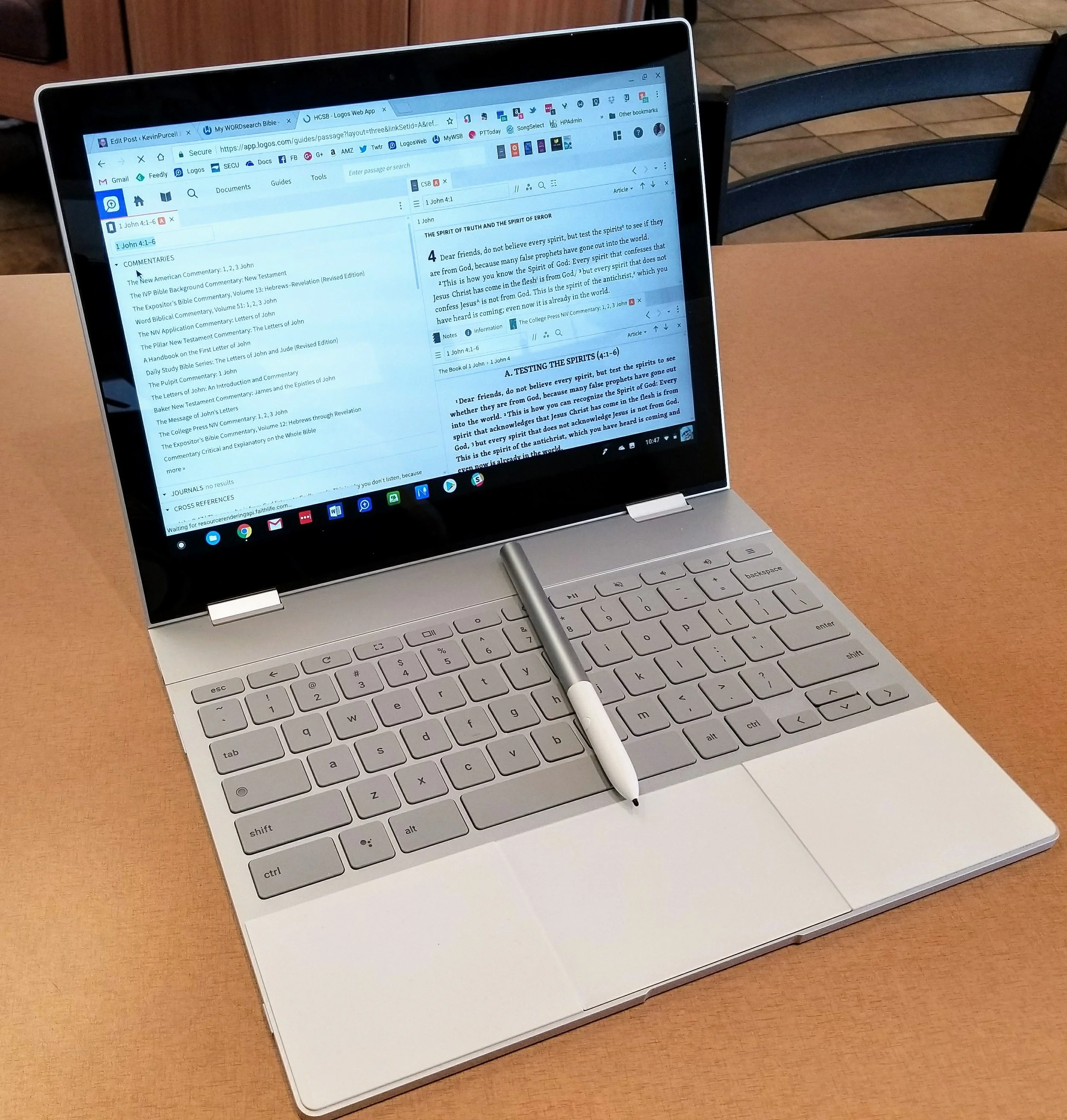
Google Pixelbook for Bible Study: A Review
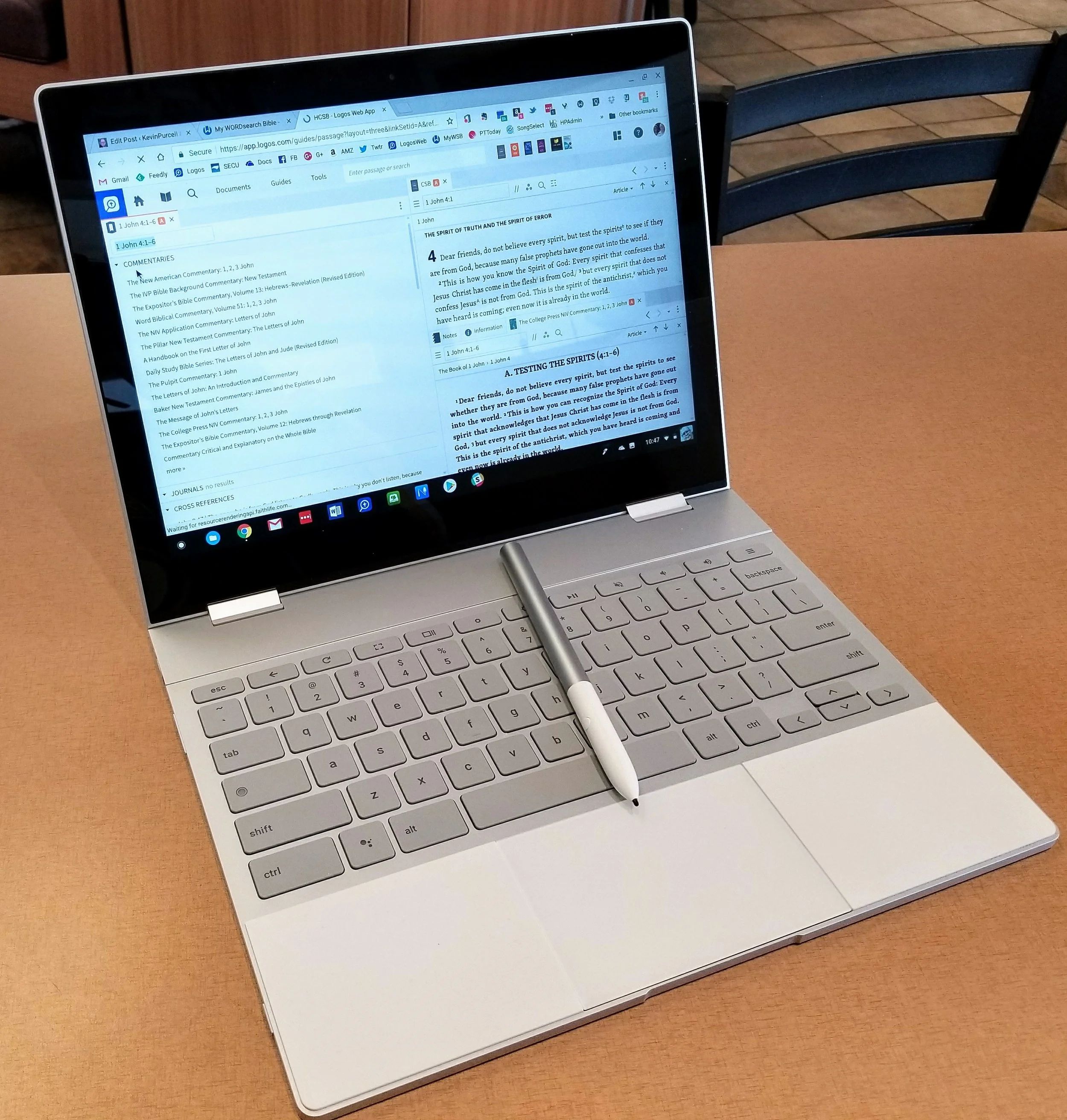
The Pixelbook, Google's latest high-end Chromebook, competes at the upper end of the market against the likes of the Apple iPad Pro and the Microsoft Surface Pro. It's a beautiful machine in all aspects, but if you're reading this site you probably wonder if someone can use the Pixelbook for Bible Study. I'll try to answer that and recommend whether you should pay the premium price.
Chrome OS
You may think of the Chromebook as a "browser" computer that only runs the Google Chrome browser. That's no longer accurate for a few reasons. First, web apps work well in many cases. There's also a number of great Bible study websites if you don't want to install an Android app. Second, in America at least, most people enjoy full-time access to the web at home, work and even on the go with Wi-Fi hotspots on phones or in coffee shops and airports. The popular idea that Chromebooks are just hardware web browsing machines is false. Google dispels the "myths" as they call them about the Chromebook in a video they produced.https://www.youtube.com/watch?v=87-8EqSHodAThe myths Google dispels in this video include:
- They're just browsers
- They have no storage
- Chromebooks don't run real software
- They only work online
We get web apps that work off-line and most Chromebooks today come with the Google Play Store out of the box. Others will get it soon in an update to Chrome OS.
Pixelbook Hardware
Every Chromebook includes at least 16GB of local storage and the Pixelbook has at least 128GB. Plus many add extra storage through an SD card reader, although Google didn't include a reader on he Pixelbook, frustrating some buyers. The Pixelbook gives users a high-end experience making it my favorite general use computer over my MacBook Pro, Surface Pro and iPad Pro. I used to own all four, but carry the Pixelbook and choose to use it more than any of the other three. In fact I just sold my MacBook. Here's what you get with a Pixelbook.
- Beautiful high-resolution 12.3-inch screen with 2400x1650 res display.
- Excellent chiclet style keyboard that's easy to type on quickly and accurately.
- Large smooth and accurate clickable touchpad that I use over a mouse 100% of the time
- Thin light and stylish design.
- Two-in-one convertible design that you can use as a laptop, tablet, and in stand mode.
- Incredible 8-10 hours of battery life that charges in about an hour from dead.
- 2 USB-C ports that charge the computer and transfer data.
- Spacious 128GB solid-state drive that's fast.
I usually prefer to connect a Bluetooth mouse for mobile computing with my laptops. I hate trackpads and always pair one with my Surface Pro and MacBook Pro, but I don't on the Pixelbook. That's a high compliment from me. It has a fantastic trackpad. Some people might see 128GB of storage and balk at that. That's not nearly enough for most people on a Windows or Mac laptop. However, on a Chromebook that runs Android apps, it's more than enough. That's because the OS and apps don't take up as much space. The only reason you'll need more is if you store large videos or tons of music, photos or other large files. Even the space-hogging Bible apps that you can download from the Google Play Store will not eat up that much of that 128GB.
 Samsung sells a pair of Chromebooks that comes with a stylus. I owned both the Samsung Chromebook Plus and the Pro, but sold them both. First I upgraded to the Pro and then sold it to get the Pixelbook. I'm glad I did. The Pixelbook is larger than the Samsung stylus which makes it more comfortable to use. I'm testing the built-in screen annotation feature with PowerPoint and may switch from using my iPad if I can make it work well enough. Right now it takes a screenshot to mark it up, but does offer a laser pointer, which might be enough for what I'm doing.
Using the Pixelbook Pen
 There's a great search feature available only on the Pixelbook with their Pen until another manufacturer gets access to the API that makes it work. Select something on-screen and the Google Assistant will search for the context within the selected area. Here's where that helps Bible students. Circle some text on the screen and the Assistant will search for it. For example, I chose to search for "false prophets" from 1 John 4:1 and you can see that the Google Assistant did a search for it for me (see image above).
 While doing presentations, the Pen lets you mark up your slides. I'm planning to start using a series of PDF file pages instead of PowerPoint. The Pixelbook Pen works much better in this case than it does on PowerPoint or Google Slides. I hope Google updates their own Slides app for better use in situations where the presenter wants to mark up the screen. If you want to see a similar style of Bible teaching, check out John Piper's A Look at the Book. I've included an example from YouTube below.https://www.youtube.com/watch?v=RU8AceqxttU
Getting Other Things Done
 Thanks to the Microsoft Office Android apps, I can write in Word and use PowerPoint somewhat. Word's fine, but PowerPoint's weak on Android. The presenter view doesn't do on-screen annotations as easily as the Windows or iPad program. I put my scripture on the screen and mark it up during my Wednesday Night Bible Study at church. I dislike the way PowerPoint handles this in Android because you can see the mark up buttons at the top of screen on the external display. That's distracting. As I said above, I may use the built-in laser pointer, but not yet.
 Thanks to Android apps I can now do some video editing and great photo editing. I use the following apps for these tasks:
- Adobe Lightroom CC for photo organizing and editing
- Snapseed for photo editing
- Action Director for video

The Pixelbook for Bible Study
Now for the reason we're here. Can you use the Pixelbook for Bible study? In a word, yes! However, there are a few trade offs.I usually install the Logos and Olive Tree Android apps on my Android phone and they both work on the Pixelbook. Accordance promises that they will soon ship an Android app that will at first let you read your books primarily. They plan to add more advanced features over time. It's currently in beta, so go learn more about it in their forums, but it's clearly beta and not ready for most users not tolerant of instability and lack of features. It will be great, I'm sure.The Logos Bible study app doesn't include all the advanced features available on the Mac or PC version. Olive Tree's mobile Bible study app and computer apps work similarly. That's because it's not as advanced or as complicated as the other two desktop programs. The WORDsearch Android app is atrocious so just use the MyWSB.com web app. It gives users a better experience. If you use notes to record your study discoveries, then you'll get frustrated using the Logos Android app because the note attached to a verse covers most of the screen. I like to open a notes file and then look at the Bible text and type in my observations. You can do this in Olive Tree easily, but it's hard to do in Logos. Olive Tree puts the notes on the right side of the screen and you can edit them while viewing the Bible window on the left (see above).
 Logos only shows the notes in a pop up window when you first open the editor or tap an existing note (see image above). If you want to attach the note to a verse reference, then it will strangely cover the entire screen (see image below).
 The current version of Logos Android beta app has a bug that only opens a notes file in a separate screen. It won't open in 2-screen view. Hopefully they'll fix that soon. Even when they fix it, the note doesn't automatically sync to the note attached the currently showing Bible passage. If you have a lot of notes you'll have to scroll through the long list of notes till you find it.
 Here's my work around. I open the app on my phone and then type into the Logos notes file on my Pixelbook. I'd use Olive Tree more for this, but most of my best commentaries and references are in Logos, not Olive Tree. Since most of us own a smartphone, this is a reasonable workaround. If you use Olive Tree primarily, then you'll enjoy the experience. Open the notes file in the right side. If you're like me and use Logos as your primary app, then you'll hate using notes on a Chromebook.
 Here's another workable option. Open your Bible app and a Word document, Google Docs file or some other text editor and use the keyboard shortcut to switch quickly between the Bible app and the text editor. Use ALT+TAB to switch between open apps.I've used the Pixelbook plus Samsung Galaxy Note 8 for two screen work for a few weeks now almost every day. I really like this workflow. I write my personal observations, then open word study tools and record those findings. Finally, I open other books like dictionaries, atlases, and then commentaries.The great screen, keyboard and trackpad make writing on the Pixelbook a dream. I love the crisp text even in small fonts. They look great and easy to read. The keyboard makes typing a pleasure and the spacious trackpad means no mouse needed. It's accurate but registers accidental palm touches while you're typing, so I turn off tap to click, like I do on my MacBook Pro. That's a product of a large sensitive trackpad.
 I write my sermons in Microsoft Word, which you can download from the Google Play Store. However, I notice that it's not stable on the Pixelbook. It doesn't crash, but typing can get laggy and sometimes the arrow keys on the lower right corner of the keyboard don't work. Sometimes the space and shift keys just don't register. This happens only in Word, so it's an app specific problem. To avoid this, use the online Word web app instead. It's nearly identical to the Android app for most users.
 Don't forget the great online Bible study sites. Logos, WORDsearch, Bible Gateway and many others include some nice features. The first two give access to most of your library if you already own books for use in their mobile and desktop apps.
My Recommendation
I love using the Pixelbook as my primary Bible study and sermon prep tool. Here's the list of strengths that make it my favorite laptop:
- Great accurate and crisp screen
- Beautiful and comfortable keyboard
- Large accurate and sensitive trackpad
- It's fast
- Great 8 hour battery life that charges quickly from a dead battery
- Android apps mostly work well on the Pixelbook
- Web apps fill in the gaps of poor web apps
It's not a perfect situation. Here's what I don't like:
- Android Bible apps not as good as Windows and Mac versions
- Word is buggy on the Pixelbook and Android PowerPoint's not as good as iOS or the desktop version
- Video editing is harder on a Chromebook than on a Mac where it is best or Windows where it's nearly as good as Mac
- It's expensive
For the first time, I prefer using a Chromebook nearly 100% of the time. I still prefer my desktop apps for a few Bible Study tasks, like complex word studies and sentence diagramming in Logos. However, I could even do those on my Pixelbook if needed without too much compromise.The Pixelbook's not for everyone. People committed to using Chrome OS won't find a better option, if they don't mind the $1000 for the computer and $100 if they want the Pen.
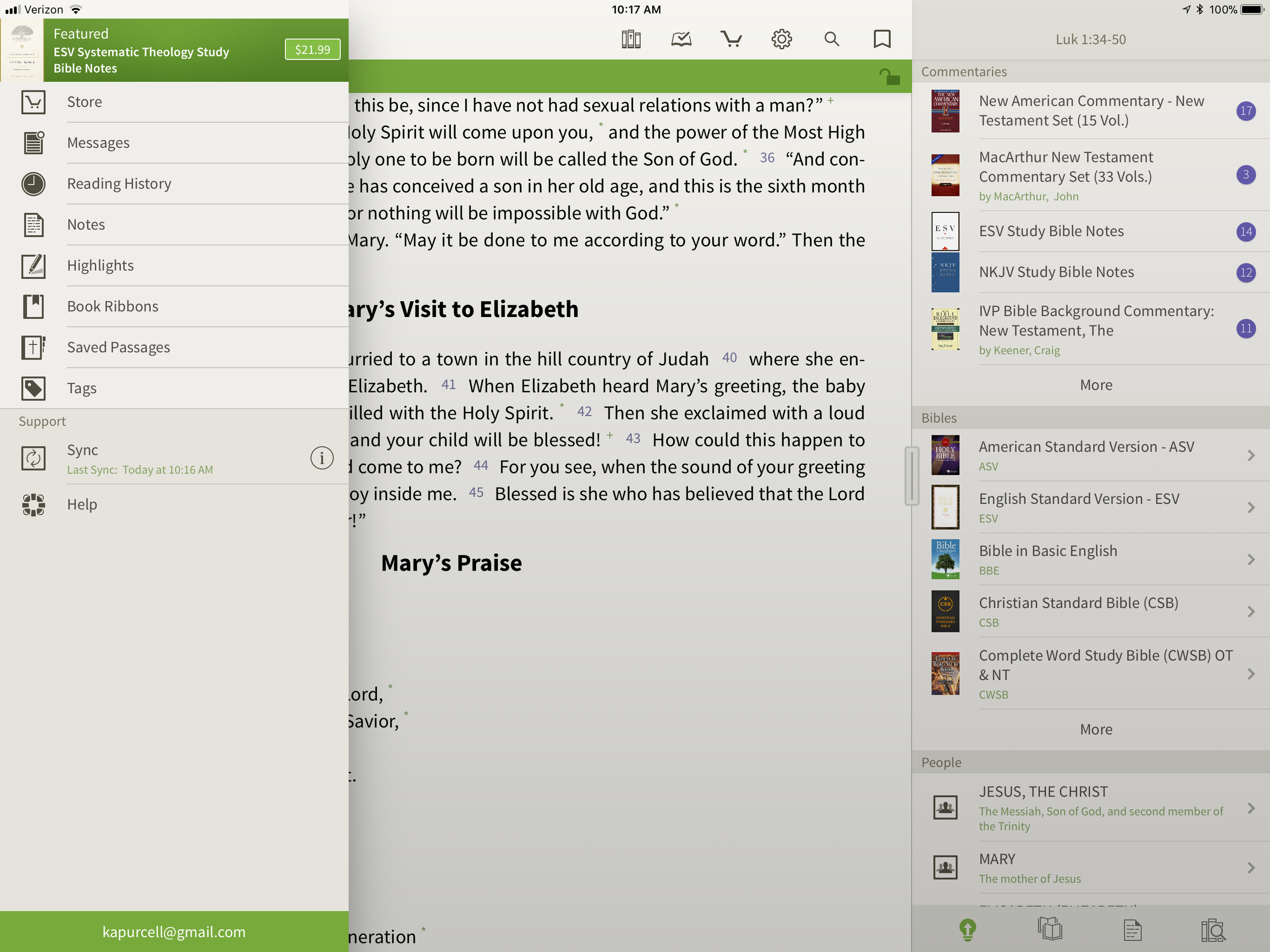
5 Best iPad Bible Study Apps
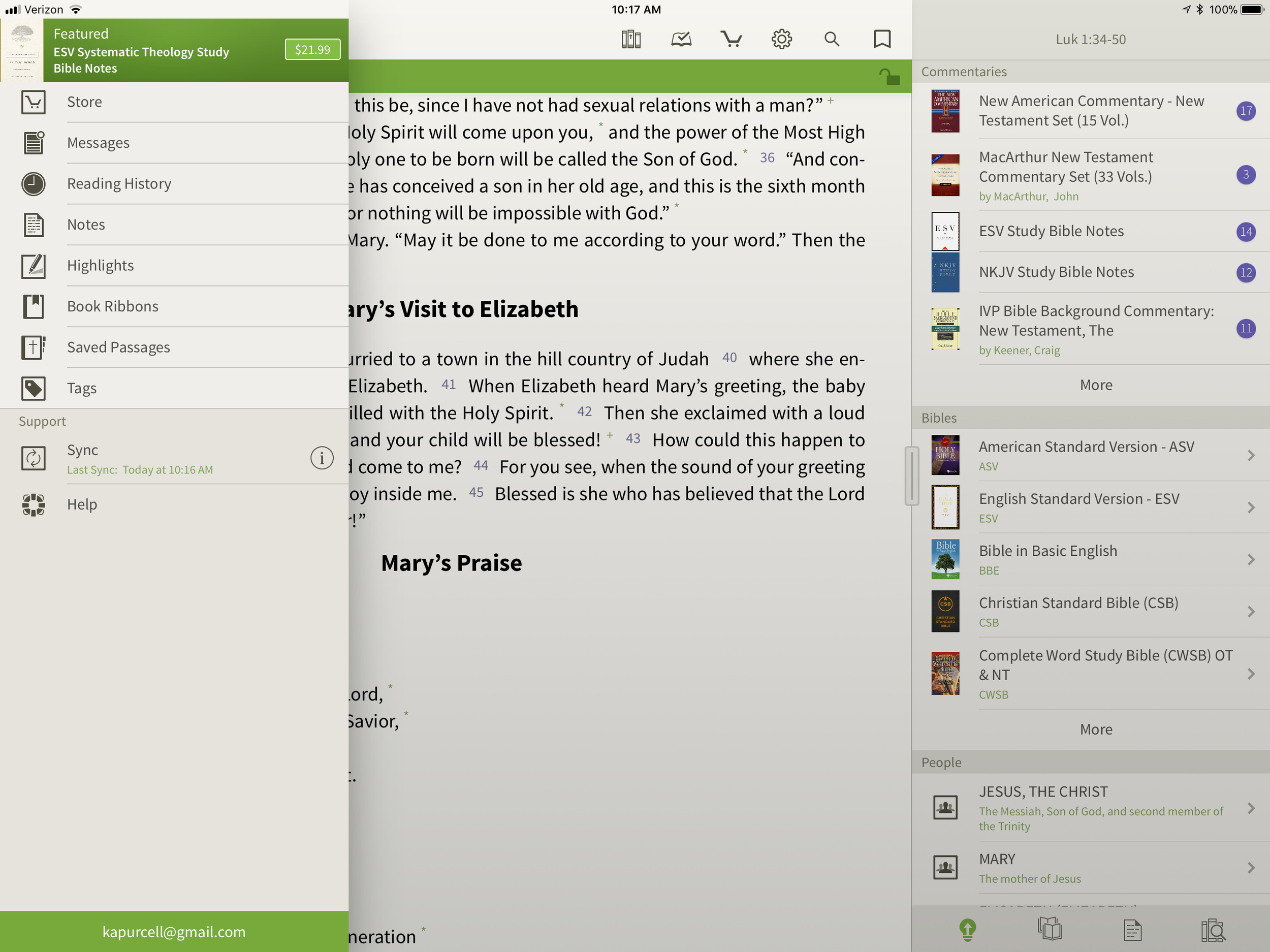
The iPad assists mobile Bible study thanks to a lot of iPad Bible Study apps. But which one should you use? How good are they and what can a person do with them. Let's look at the best iPad Bible Study apps to help preachers, teachers and Christians study the Bible.
iPad Bible Study Must Haves...
Recently we differentiated between mobile Bible Study apps and Devotional or Bible reading apps. Please see that post to understand the difference. The apps below fit in the more advanced Bible Study Apps sector. Users can use them for Bible reading and devotional Bible reading as well, but they are more than that. Here's what I think every good Bible Study app should include that might not show up in a simple devotional or Bible reading app.
- Original language tools
- References like commentaries, Bible dictionaries, atlases and more
- Dual pane view showing the Bible in one and a reference or language study tool in the other panes or showing two or more translations on the screen at once
- Feature-rich note taking within the app
The apps below all give us more than the four features above, but these are the bare minimum. I think they should also be good at helping you do your Bible reading. No one should have to install two Bible apps on a phone, tablet or Chromebook.
Logos Bible
UPDATE: Note that the screenshots and descriptions are of the latest beta of Logos Bible for iPad that will hopefully get released soon. Read more about it in the Logos forums and if you have an Android device you can actually sign up for access to the beta and download it now. The Logos Bible app is unique compared to the other apps in this roundup. It offers a Home page that shows a ton of content by default. I actually turn off much of this. Here's what you get right after installing the app.
- Featured Bibles - top Bibles that Logos thinks you'll like and want to use.
- Group Invites - Logos has the Faithlife community a kind of Christian social network that focuses on their products. You get invitations to join certain groups and they show up here.
- Today's Readings - reading plans for Bible readings, book readings, etc. Tap on them to see the most recent reading for that plan.
- Reading Plan Invitations - like the group invites, these offer potential reading plans like a Gospels in 90 days or Read Mark in a month.
- Verse of the Day - a graphical representation of a new verse of Scripture each day that you can quickly share online.
- Faithlife Today - the news about Faithlife, their products or interviews and skills development videos all focused on Bible study.
- News - text-based news links to the Logos blog.
 In addition to the Home screen, we also get other tabs (buttons across the bottom of the app's screen). These show your Library, Bible, Work Spaces, and a Plus button to add a new work space/tab. The Library button opens your list of books in the library so you can open them. Each book opens in a new Work Space screen. The Bible button opens a list of Bibles so you can add one to a new Work Space. The Work Spaces shrinks each work space and you can swipe between them. This screen also lets users sync the various screens. If you have a copy of the Bible on one Work Space and a copy of your favorite commentary on another, you can sync them so that as you navigate through the Bible from book to book or passage to passage, then the commentary will follow and keep up. Move from Matthew 18 to John 10 in the Bible and a synced commentary or Bible will also move there.
 The app lets users tap and hold on a word and a context menu opens. Here's what the context menu will show you.
- Copy - copy the selected text
- Look up - do some language study or look up in a dictionary
- Search - search your library, the Bible or book for selected text
- Share - post to social media or send to friends via a text message or an email
- Highlight - just like you would some text in your paper Bible with a highlighter
- Note - add a digital margin note like you might in your paper Bible
- Clipping - collect content in a clipping document while researching a topic or passage
- Visual Copy - creates an image of the text to share online or save for presentations
In the upper right corner there's a menu button (three vertical dots) that give options for the more powerful features like:
- Change Resource - replace the current book with another
- Search - search the Bible or open books and the entire library
- Passage Guide - research tool finding your text in reference tools like commentaries and more
- Make a Note - adds a note to the current passage or part of the book
- Add to Favorites - like a bookmark feature
- Text Comparison - shows the text in multiple translations all on-screen at the same time
- Make a Clipping - collect content just like you do with the button in the context menu above
- Exegetical Guide - runs an original language research of the present passage
- Visual Copy - same as the context menu above
- Share - like the context menu above share content with others
- Book Info - shows the front of the book info like publisher, author, etc.
- View Settings - change things like text size, font etc.
The iPad in recent versions of iOS offer a kind of widgets that Android users enjoyed for a long time. In iOS you find these on the iPad when you swipe down from the top of the screen and then swipe right to show the list of Notification Widgets. Logos has a widget that displays their Verse of the Day image that you'd also see on the app Home screen. Tap it to launch the Logos app and it opens to that verse in your currently open Bible. The Logos Notification Widget doesn't do as much as the Accordance widget. I wish it had a version chooser or let you open recent books read like the Accordance widget.
 Users can get the app free, but it works best if you own a library of book from Logos.com. Get one of their Logos Base Packages to bundle a library of books and save money versus buying each book individually.
Bible by Olive Tree
 While Logos may offer more complex features, Olive Tree offers a simpler app with a great set of tools for doing advanced Bible study on a mobile device. In fact the Resource Guide might offer the simplest method of accessing all the content in the library related to a given passage on any of the mobile apps in this roundup.The Bible shows up in the left side with the Study Tools on the right. Inside Study Tools you'll find the Resource Guide along with a library button, a notes button, and the Lookup button, which lets you look up words in word search in dictionaries, the Bible and your notes.
 The Resource Guide is one of the Study Tools and it will arrange your library content by category. All the Related Verses, Commentaries, other Bibles, People, Topics, Maps, Charts, Introductions and more will show up in lists one after another. Each list will show your books ready to open to the content related to the passage or subject found in the verse showing in the left hand window. Tap them to see the content.
 On the top left there's a menu button to show...
- Suggested Resources - an ad for a book Olive Tree's pushing at that time
- Store - link to buy new books from within the app
- Messages - content from the blog often written by our own Theotek contributor LaRosa Johnson
- Reading History - the list of texts you've read in the Bible
- Notes - Shows your user notes
- Highlights - show your user highlights
- Book Ribbons - shows your user book ribbons which are like favorites
- Saved Passage - similar to Book Ribbons with a list of passages you've saved as bookmarks
- Tags - a list of all the tags you've created so you can make your own topical Bible
- Sync - lets you sync your app notes, ribbons, etc. with Olive Tree's servers
- Help - the Olive Tree help system
 Across the top of the Bible Screen we see two toolbars. The topmost toolbar has the following:
- Library - opens your library
- Reading Plan - opens the reading plan screen with suggested reading plans you can add or your own reading plans
- Store - opens the store to buy more books
- Quick Settings - change things like font, screen color (low light verse regular) and others
- Search - search the Bible
- Ribbon - add a ribbon to the current top most verse
Below the top-level toolbar you'll see a second toolbar that shows two buttons, the Select Verse button that opens a Book/Chapter/Verse style navigation tool and a lock button that keeps the toolbar from disappearing. I prefer this and I'm glad Olive Tree added this button for use on the iPad. The iPhone version is best without the toolbar showing so you don't cover up too much of the text on the smaller screen.The strength of Olive Tree's Bible is the simplicity and great library available. It also has the best notes feature available in these three. However, the weakness comes from the desktop app. The Accordance and Logos desktop/laptop apps offer far more than Olive Tree's. Download the app for free and get some free books to try it out. Then check out their store for more tools. They don't focus as much on bundled libraries of books, although they do offer them. I like this because you buy only what you want or need.
Bible Study With Accordance Mobile
At first look, the Accordance Mobile app seems like little more than a basic Bible and book reader tool with split-screen display options. Admittedly, I'm not a frequent user of Accordance Mobile. However, as I dig deeper and take time to discover the features, I realize they a user can do a lot with what looks like very little at first. The Accordance user-interface opens, after you've downloaded books, to show a Bible. There's a handle on the right side that opens a second window with another book. Tap the title of the book to bring up the library list of books. The left window library lists shows a list of the installed Bible Texts while the right shows Texts, Reference Tools like Commentaries or Study Bibles, and your Notes files.Open the Notes file and you'll see your notes. To add a note, select a word or verse and a menu pops up above it. Tap on Note and screen offers to add the note to one of your Notes files. Start typing inside that pop up box. It has a button to change the font, size, color and make the font Bold, Italics or Underlined. Sadly, even though you can see your notes on the right, you can edit them in place. To edit a note, select it and it offers to let you edit the note with a full-screen editor. This covers up the text. I like to make observations about the text in my notes and I can't see the text in Accordance. That's the same problem you have with Logos. At least in Logos you can open the Note file and edit in place. It's hard if you have a lot of notes in your file.Unfortunately, I experienced a problem with Notes Sync via Dropbox. They don't use their own servers and rely on Dropbox to sync between the desktop and mobile app. ON the desktop it's automatic, but not on mobile. That's a huge weakness of Accordance if you're a heavy notes user like me.
 If you open a book with Strong's Numbers tagging attached to the text, like the ESV or HCSB or KJV, then you can select a word and a box will pop up showing the original language information. You get the English word, Strong's number and the Greek word. Then it shows your favorite Greek word dictionary. OT shows Hebrew. Then tap on Search at the bottom of the pop up and it finds that word through the NT. The Amplify will let you search by word or the key number.
 The Library button lets you download your books over the Internet. You can also sync those if you have both the desktop and the iPad connected to the same Wi-Fi network. It doesn't work if your desktop isn't connected via Ethernet.The second button from the left lets you sync via Dropbox or via Wi-Fi. Notes and user tools sync via Dropbox while the syncing directly over Wi-Fi syncs your books from the desktop to the iPad.
 Accordance users will get a number of free books. However, it will work better if you buy a package to use on your iPad. The free Accordance Lite includes some good tools like ESV with Strong's plus some public domain books. To add books you can buy books or get a Collection. They start with the free Lite package and go up to more advanced sets like the Pro sets in English, Hebrew or Greek that each cost $999. If you want all three you can get what they call the "Triple" package in the Learner or Discoverer levels. There's also a graphics-focused set of tools called the Graphics Learner, Discoverer or Master.
PocketBible Bible Study
 I love PocketBible from Laridian because it's the first mobile Bible study app I ever used on my PocketPC a long time ago. Then I moved to Palm and there it was. I went to iPhone and then iPad and it was still available. On Android, eventually it came along for the ride.When you first install the app it offers a great help screen that shows you how to use the app from the get go. It's the best on-boarding experience for a new user. Then you'll get a single window, but no Bibles yet. Open the button at the bottom of the toolbar on the right. Find the Add/Remove books and download all of your books. If you're not registered, you can do that in the tutorial that opens when you first install.After you get some books installed open a book using the top button on the toolbar. You can use the Settings (third from the bottom) to add a second window. The rest of the buttons on the toolbar include:
- Open Books
- Navigate to passage
- Search
- Back
- Forward
- Calendar for Bible reading plan
- Button to open the toolbox pane (more on that below)
- Panes chooser lets you pick how many window panes to open at a time
- Font settings
- Reading controls for books with audio included
- Settings
- Menu where you can add/remove books, change other app settings and control books
 The toolbox holds another toolbar with six icons as follows (see the right most box in the image above):
- Find
- Bookmarks
- Highlights
- Notes
- Find Notes
- Journal
Select a word, phrase or more and a menu pops up above it with buttons as follows:
- Copy - copy the selected text
- Share - post to Facebook or send it over text or email to name a few
- Find - search the selected text
- Look Up - search your favorite dictionary
- More... - opens another menu with a number of other tools, functions and book controls
Laridian offers a number of books to buy. They offer PocketBible Library Collections ranging from $60 on up to $380. You can also buy books or commentary sets.PocketBible isn't as polished as some of the other tools. However, it's one of the easiest to learn and costs less for collections than some of the above options.
Splashtop 2 Remote Desktop
 This last option's not a Bible app at all, but rather a utility that lets you connect to a desktop. Install the Splashtop Streamer utility on your Mac or PC and let it run automatically. Download the app for iPad and run it. After you log in you'll see all of your computers running the Streamer listed. Tap the one you want to log into. It opens the computer and shows the screen.
 Now you can control anything on the computer including a full desktop class Bible software program. Above you'll see it running with Bibleworks 10 showing on the screen.
Bible Study Apps Versus Devotional Apps
With all the Bible study apps available on Android, iOS, Windows and Mac, it's easy to get confused about which app a person should use. I'll post a few recommendations over the next few weeks, but today I want to discuss a fundamental question. What do you plan to do with the app?People use their Bible study apps in different ways. How do you plan to use your Bible study app? Will you merely read the Bible, track your reading with a reading plan that the app provides or do you want to create your own personalized Bible reading plan? Will you highlight the passages on occasion or add personal notes, like you can do with a pen or pencil in the margin of your paper Bible? Maybe you want to work on a research paper for a Bible class in college or seminary. Some people need to translate the Bible into another language as part of a translator team or for a tribe in the jungles of South America in mission work. There are apps that can handle all the above functions of reading or studying the Bible, but many apps work better for some of the things listed above and don't do others that well.
Bible Reading and Devotional Bible Study
 Some people want little more than a book reader that displays at least one translation of the Bible and that's it. Maybe they want to search the Bible and even track their daily Bible reading. We call these devotional Bible reading apps. The list of common ways people describe these kinds of apps include...
- Bible reader app
- Devotional Bible app
- Bible app
- Bible study
The last name is a misnomer. I think Bible study apps include features that simple Bible reading or devotional apps don't often include. Also, calling a devotional or simple Bible reader app a Bible app is like calling both a minivan and a NASCAR vehicle a car. They're both cars but different people drive them. Jimmie Johnson, the driver of the #48 Lowes car in NASCAR may drive a minivan on occasion, but a man who drives his kids or grandkids to and from school or baseball practice probably never drives a racecar.Here's what every good devotional Bible app or simple Bible reading app should offer users.
- Bible reading in all the popular translations like KJV, NIV, CSB or ESV and more.
- Highlighting of verses
- Add personal notes to the Bible app
- Sharing on social networks
- Copying to other apps to send a verse in email or a text message to your spouse or friend
- Search the text of your translation
- Customized display of text (fonts, sizes, background colors)
Would you expect any other features in a simple Bible reading app? Please respond in the comments to add other features that you would include at a minimum. But read the next section first, since many of the other features a person wants in their Bible app will mean they really need more than a simple Bible reader app. They want a Bible study app.
Bible Study App
 Bible apps with more than the above features typically fit in the class of Bible study apps. These app developers target scholars, pastors, Bible teachers in Sunday school or informal communities of Bible students or people who want to study the Bible for personal development and spiritual growth.The list of basic minimum features you should expect in a quality Bible study apps include...
- All of the features included in a Bible reader or devotional Bible app
- Includes other resources like commentaries, Bible dictionaries, atlases, study Bibles, language study tools like Strong's dictionaries and lexicons
- Advanced search tools that do more than find a list of verses with the word "grace" or "holy" like boolean searches
- Multiple windows showing at the same time on-screen
- Notes with advanced formatting
- Library management that shows all of your books and lets you download or even remove books
- Offline reading and study tools
- Sync
 Some of the best apps in the iOS or Google Play Store don't include all the features in the above list. For example, Logos Bible from Faithlife doesn't let you do Exegetical study (original language study) on their iOS and Android app without an Internet connection. However, I'd still call it one of the better mobile Bible study apps available.What do you expect in a serious Bible study app? Let me know by commenting below.
Bible Apps on ChromeOS and More: Theotek Podcast #072
We have a few topic for this week's Theotek Podcast. We'll see how well Android Bible apps run on a Chromebook with the new Android Apps on ChromeOS on the ASUS Chromebook Flip. Olive Tree Bible Study 6 for Mac came out this week so LaRosa Johnson will show that off. Finally, Rick Mansfield comes to us live from Asia where he's training for Accordance. We'll learn about the perils and pleasures of traveling internationally.https://www.youtube.com/watch?v=mia5KPRHDH0Check out the end for our Favorite Things too.
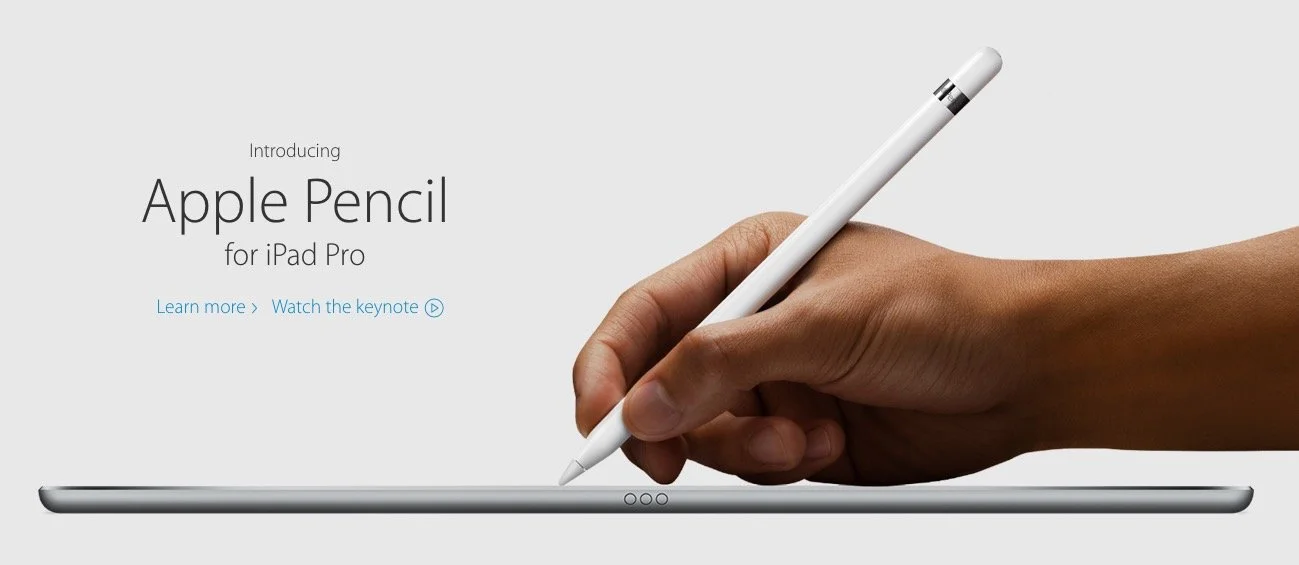
Preaching With an iPad Pro: Theotek Podcast #046
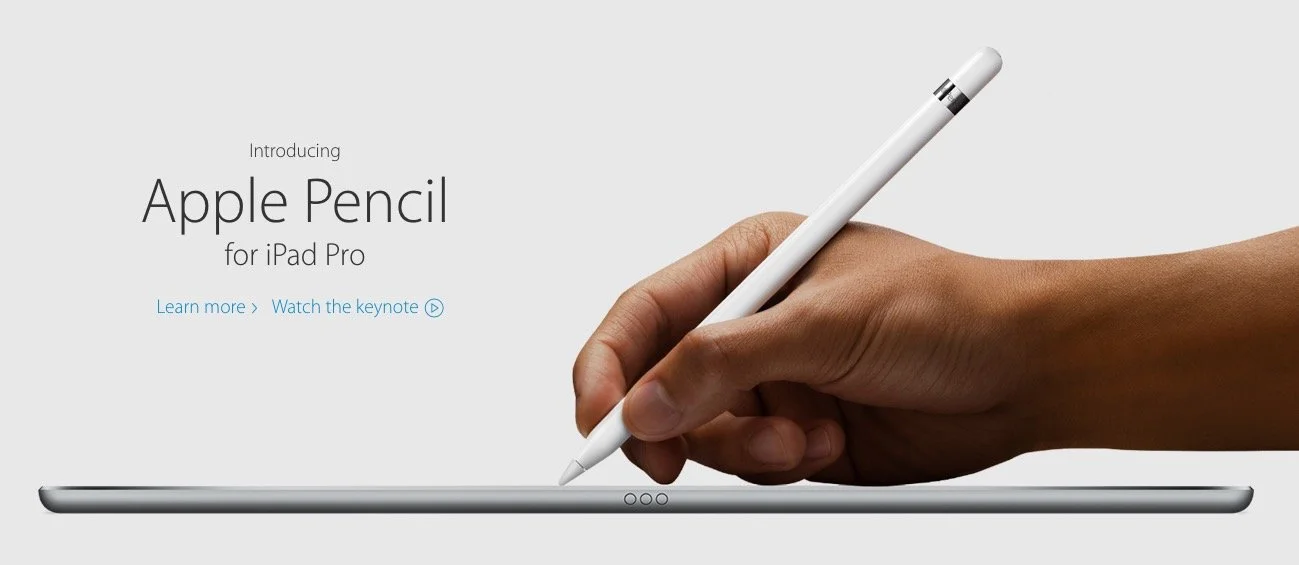
What is the new Apple iPad Pro like for studying the Bible, preaching or teaching? Rick Mansfield (@thislamp and thislamp.com) got one this week and we asked him a lot of questions about using it. Watch or listen below to hear his thoughts.https://www.youtube.com/watch?v=16v6TwpaPvEJust a summary of Rick's conclusions. First, he likes the side-by-side feature so that he can hold his Accordance Bible app next to Microsoft Word. This will help with both Bible study and preaching. The Keynote app and Word can sit on-screen at the same time. He uses the notes feature in Keynote, but after the podcast was over he tested and found out that you can run a Keynote presentation mirrored to an Apple TV and open Word in side-by-side mode. Second, he tested out the iPad keyboard and looks forward to getting one to use. He didn't like the Logitech keyboard case as much because it seems harder to remove from the iPad Pro.We talked about the Pencil, which is hard to come by until December. Wes tested it out at his local Apple Store and found that it was a great experience. They've done a good job of making it work well and feel more like writing on paper than older styli.At the end of the podcast I shared some first impressions of using the Apple TV 4th generation. It's a nice media device and the remote is both good and bad. Siri works great and AirPlay still works as well as before.